> [!NOTE]
> **Objective:** Understand how to configure and use Managed Service for Apache Spark autoscaling to automatically and dynamically scale the number of worker VMs in Managed Service for Apache Spark clusters to meet workload demands.
## What is autoscaling
Estimating the "right" number of cluster workers (nodes) for a workload is
difficult, and a single cluster size for an entire pipeline is often not ideal.
User-initiated
[Cluster Scaling](https://docs.cloud.google.com/managed-spark/docs/concepts/configuring-clusters/scaling-clusters.md.txt)
partially addresses this challenge, but requires monitoring cluster utilization
and manual intervention.
The Dataproc [AutoscalingPolicies API](https://docs.cloud.google.com/managed-spark/docs/reference/rest/v1/projects.locations.autoscalingPolicies.md.txt)
provides a mechanism for automating cluster resource management and enables
cluster worker VM autoscaling. An `Autoscaling Policy` is a reusable configuration that
describes how cluster workers using the autoscaling policy should scale. It defines
scaling boundaries, frequency, and aggressiveness to provide fine-grained
control over cluster resources throughout cluster lifetime.
> [!IMPORTANT]
> - Managed Service for Apache Spark autoscaling scales cluster **worker** nodes, not cluster master nodes.
> - Managed Service for Apache Spark autoscaling supports horizontal scaling (scaling the number of nodes) not vertical scaling (scaling machine types).
## When to use autoscaling
Use autoscaling:
Yes on clusters that store data
in external services, such as [Cloud Storage](https://docs.cloud.google.com/storage/docs.md.txt) or
[BigQuery](https://docs.cloud.google.com/bigquery/docs.md.txt)
Yes on clusters that process many jobs
Yes to scale up single-job clusters
Yes with [Enhanced Flexibility Mode](https://docs.cloud.google.com/managed-spark/docs/concepts/configuring-clusters/flex) for Spark batch jobs
Autoscaling is **not** recommended with/for:
- **HDFS:** Autoscaling is not intended for scaling on-cluster HDFS because:
1. HDFS utilization is not a signal for autoscaling.
2. HDFS data is only hosted on primary workers. The number of primary workers must be sufficient to host all HDFS data.
3. Decommissioning HDFS DataNodes can delay the removal of workers. Datanodes copy HDFS blocks to other DataNodes before a worker is removed. Depending on data size and the replication factor, this process can take hours.
- **YARN Node Labels:** Autoscaling doesn't support
[YARN Node Labels](https://hadoop.apache.org/docs/current/hadoop-yarn/hadoop-yarn-site/NodeLabel.html),
nor the property `dataproc:am.primary_only` due to
[YARN-9088](https://issues.apache.org/jira/browse/YARN-9088). YARN incorrectly
reports cluster metrics when node labels are used.
- **Spark Structured Streaming:** Autoscaling does not support
[Spark Structured Streaming](https://spark.apache.org/docs/latest/structured-streaming-programming-guide.html)
(see
[Autoscaling and Spark Structured Streaming](https://docs.cloud.google.com/managed-spark/docs/concepts/configuring-clusters/autoscaling.md.txt#autoscaling_and_spark_structured_streaming)).
- **Idle Clusters:** Autoscaling is not recommended for the
purpose of scaling a cluster down to minimum size when the cluster is idle. Since
creating a new cluster is as fast as resizing one, consider deleting idle clusters
and recreating them instead. The following tools support this
"ephemeral" model:
Yes Use Managed Service for Apache Spark
[Workflows](https://docs.cloud.google.com/managed-spark/docs/concepts/workflows/overview.md.txt)
to schedule a set of jobs on a dedicated cluster, and then delete the cluster
when the jobs are finished. For more advanced orchestration, use
[Cloud Composer](https://docs.cloud.google.com/composer/docs.md.txt), which is based on
[Apache Airflow](https://airflow.apache.org/).
Yes For clusters that process ad-hoc
queries or externally scheduled workloads, use
[Cluster Scheduled Deletion](https://docs.cloud.google.com/managed-spark/docs/concepts/configuring-clusters/scheduled-deletion.md.txt)
to delete the cluster after a specified idle period or duration, or at a
specific time.
- **Different-sized workloads:** When small and large jobs run on a cluster,
graceful decommissioning scale-down will wait for large jobs to finish.
The result is that a long-running job will delay the autoscaling of
resources for smaller jobs running on the cluster until the long-running job
finishes. To avoid this result, group similarly sized smaller jobs together on
a cluster, and isolate each long duration job on a separate cluster.
## Enable autoscaling
To enable autoscaling on a cluster:
1. [Create an autoscaling policy](https://docs.cloud.google.com/managed-spark/docs/concepts/configuring-clusters/autoscaling.md.txt#create_an_autoscaling_policy).
2. Either:
1. [Create an autoscaling cluster](https://docs.cloud.google.com/managed-spark/docs/concepts/configuring-clusters/autoscaling.md.txt#create_an_autoscaling_cluster), or
2. [Enable autoscaling on an existing cluster](https://docs.cloud.google.com/managed-spark/docs/concepts/configuring-clusters/autoscaling.md.txt#enable_autoscaling_on_an_existing_cluster).
### Create an autoscaling policy
### Google Cloud console
To create an autoscaling policy in the Google Cloud console:
1. In the Google Cloud console navigation menu, under **Infrastructure** , go to the Managed Service for Apache Spark [**Autoscaling policies**](https://console.cloud.google.com/dataproc/autoscalingPolicies) page.
[Go to Autoscaling policies](https://console.cloud.google.com/dataproc/autoscalingPolicies)
2. Click **Create policy** to open the [**Create policy**](https://console.cloud.google.com/dataproc/autoscalingPolicies/create) page.
3. Optional: Select a policy recommendation panel to populate the autoscaling policy fields for a specific job type or scaling objective.
4. Enter an **Autoscaling policy name** , select a **Region** and **Cluster type** , configure the **YARN configuration** , **Cooldown duration** , and **Worker configuration** fields, and then click **Submit**.
### gcloud CLI
You can use the
[`gcloud dataproc autoscaling-policies import`](https://docs.cloud.google.com/sdk/gcloud/reference/dataproc/autoscaling-policies/import)
command to create an autoscaling policy. It reads a local
[YAML](https://yaml.org/)
file that defines an autoscaling policy. The format and content of the file
should match config objects and fields defined by the
[autoscalingPolicies](https://docs.cloud.google.com/managed-spark/docs/reference/rest/v1/projects.locations.autoscalingPolicies.md.txt)
REST API.
The following YAML example defines a policy for Managed Service for Apache Spark
standard clusters, with all required fields. It also provides the
`minInstances` and `maxInstances` values for the
primary workers, the `maxInstances` value for the secondary
workers, and specifies a 4-minute `cooldownPeriod`
(the default is 2 minutes). The `workerConfig` configures the
primary workers. In this example, `minInstances` and
`maxInstances` are set to the same value
[to avoid scaling the primary workers](https://docs.cloud.google.com/managed-spark/docs/concepts/configuring-clusters/autoscaling.md.txt#avoid_scaling_primary_workers).
```
workerConfig:
minInstances: 10
maxInstances: 10
secondaryWorkerConfig:
maxInstances: 50
basicAlgorithm:
cooldownPeriod: 4m
yarnConfig:
scaleUpFactor: 0.05
scaleDownFactor: 1.0
gracefulDecommissionTimeout: 1h
```
The following YAML example defines a policy for Managed Service for Apache Spark
standard clusters, with all required and optional autoscaling policy fields.
```
clusterType: STANDARD
workerConfig:
minInstances: 10
maxInstances: 10
weight: 1
secondaryWorkerConfig:
minInstances: 0
maxInstances: 100
weight: 1
basicAlgorithm:
cooldownPeriod: 2m
yarnConfig:
scaleUpFactor: 0.05
scaleDownFactor: 1.0
scaleUpMinWorkerFraction: 0.0
scaleDownMinWorkerFraction: 0.0
gracefulDecommissionTimeout: 1h
```
The following YAML example defines a policy for
[zero-scale clusters](https://docs.cloud.google.com/managed-spark/docs/guides/create-zero-scale-cluster.md.txt).
For zero-scale clusters, don't include `workerConfig`.
```
clusterType: ZERO_SCALE
secondaryWorkerConfig:
minInstances: 0
maxInstances: 100
weight: 1
basicAlgorithm:
cooldownPeriod: 2m
yarnConfig:
scaleUpFactor: 0.05
scaleDownFactor: 1.0
scaleUpMinWorkerFraction: 0.0
scaleDownMinWorkerFraction: 0.0
gracefulDecommissionTimeout: 1h
```
Run the following `gcloud` command from a local terminal or in
[Cloud Shell](https://console.cloud.google.com/?cloudshell=true) to create the
autoscaling policy. Provide a name for the policy. This name will become
the policy `id`, which you can use in later `gcloud`
commands to reference the policy. Use the `--source` flag to specify
the local path and filename of the autoscaling policy YAML file to import.
```
gcloud dataproc autoscaling-policies import policy-name \
--source=filepath/filename.yaml \
--region=region
```
### REST API
Create an autoscaling policy by defining an
[AutoscalingPolicy](https://docs.cloud.google.com/managed-spark/docs/reference/rest/v1/projects.locations.autoscalingPolicies.md.txt#resource-autoscalingpolicy)
as part of an [autoscalingPolicies.create](https://docs.cloud.google.com/managed-spark/docs/reference/rest/v1/projects.locations.autoscalingPolicies/create.md.txt)
request.
### Create an autoscaling cluster
After [creating an autoscaling policy](https://docs.cloud.google.com/managed-spark/docs/concepts/configuring-clusters/autoscaling.md.txt#create_an_autoscaling_policy), create
a cluster that will use the autoscaling policy. The cluster must be in the same
[region](https://docs.cloud.google.com/managed-spark/docs/concepts/regional-endpoints) as the autoscaling policy.
### Google Cloud console
To apply an autoscaling policy to a new cluster:
1. In the Google Cloud console navigation menu, under **Infrastructure** , go to the Managed Service for Apache Spark [**Clusters**](https://console.cloud.google.com/dataproc/clusters) page.
[Go to Clusters](https://console.cloud.google.com/dataproc/clusters)
2. Click **Create cluster** , and then choose **Cluster on Compute Engine** to open the [**Create a cluster**](https://console.cloud.google.com/dataproc/clusters/create) page.
3. In the **Define your cluster shape** (or **Define your cluster** ) section, under **Worker configuration** \> **Choose worker scaling mode** , select **Autoscaling** , and then select your policy in the **Policy** field (or expand **Additional configuration** , click **Edit** next to **Autoscaling** , select **Autoscaling based on policy** , and select your policy in the **Policy** field).
### gcloud CLI
Run the following `gcloud` command from a local terminal or in
[Cloud Shell](https://console.cloud.google.com/?cloudshell=true) to create an
autoscaling cluster. Provide a name for the cluster, and use
the `--autoscaling-policy` flag to specify the policy ID
(the name of the policy you specified when you
[created the policy](https://docs.cloud.google.com/managed-spark/docs/concepts/configuring-clusters/autoscaling.md.txt#create_an_autoscaling_policy))
or the policy
[resource URI (resource name)](https://docs.cloud.google.com/apis/design/resource_names)
(see the
[AutoscalingPolicy `id` and `name` fields](https://docs.cloud.google.com/managed-spark/docs/reference/rest/v1/projects.locations.autoscalingPolicies.md.txt#resource-autoscalingpolicy)).
```
gcloud dataproc clusters create cluster-name \
--autoscaling-policy=policy id or resource URI \
--region=region
```
> [!IMPORTANT]
> The full resource name (or URI) of a policy can be obtained by running the following `gcloud ` command:
>
> ```
> gcloud dataproc autoscaling-policies \
> describe policy-id \
> --region=region
> ```
### REST API
Create an autoscaling cluster by including an
[AutoscalingConfig](https://docs.cloud.google.com/managed-spark/docs/reference/rest/v1/ClusterConfig.md.txt#AutoscalingConfig)
as part of a
[clusters.create](https://docs.cloud.google.com/managed-spark/docs/reference/rest/v1/projects.regions.clusters/create.md.txt)
request.
> [!IMPORTANT]
> To view the `AutoscalingConfig.policyUri` (policy resource name), run the following `gcloud ` command:
>
> ```
> gcloud dataproc autoscaling-policies \
> describe policy-name \
> --region=region
> ```
### Enable autoscaling on an existing cluster
After [creating an autoscaling policy](https://docs.cloud.google.com/managed-spark/docs/concepts/configuring-clusters/autoscaling.md.txt#create_an_autoscaling_policy),
you can enable the policy on an existing cluster in the same
[region](https://docs.cloud.google.com/managed-spark/docs/concepts/regional-endpoints).
### Google Cloud console
Enabling an autoscaling policy on an existing cluster is not
supported in the Google Cloud console.
### gcloud CLI
Run the following `gcloud` command from a local terminal or in
[Cloud Shell](https://console.cloud.google.com/?cloudshell=true) to enable an
autoscaling policy on an existing cluster. Provide the cluster name, and use
the `--autoscaling-policy` flag to specify the policy ID
(the name of the policy you specified when you
[created the policy](https://docs.cloud.google.com/managed-spark/docs/concepts/configuring-clusters/autoscaling.md.txt#create_an_autoscaling_policy))
or the policy
[resource URI (resource name)](https://docs.cloud.google.com/apis/design/resource_names)
(see the
[AutoscalingPolicy `id` and `name` fields](https://docs.cloud.google.com/managed-spark/docs/reference/rest/v1/projects.locations.autoscalingPolicies.md.txt#resource-autoscalingpolicy)).
```
gcloud dataproc clusters update cluster-name \
--autoscaling-policy=policy id or resource URI \
--region=region
```
> [!IMPORTANT]
> The full resource name (or URI) of a policy can be obtained by running the following `gcloud ` command:
>
> ```
> gcloud dataproc autoscaling-policies \
> describe policy-id \
> --region=region
> ```
### REST API
To enable an autoscaling policy on an existing cluster, set the
[AutoscalingConfig.policyUri](https://docs.cloud.google.com/managed-spark/docs/reference/rest/v1/ClusterConfig.md.txt#AutoscalingConfig)
of the policy in the `updateMask` of a
[clusters.patch](https://docs.cloud.google.com/managed-spark/docs/reference/rest/v1/projects.regions.clusters/patch.md.txt)
request.
> [!IMPORTANT]
> To view the `AutoscalingConfig.policyUri` (policy resource name), run the following `gcloud ` command:
>
> ```
> gcloud dataproc autoscaling-policies \
> describe policy-name \
> --region=region
> ```
## Multi-cluster policy usage
- An autoscaling policy defines scaling behavior that can be applied to multiple
clusters. An autoscaling policy is best applied across multiple clusters when
the clusters will share similar workloads or run jobs with similar resource usage
patterns.
- You can update a policy that is being used by multiple clusters. The updates
immediately affect the autoscaling behavior for all clusters that use the
policy (see
[autoscalingPolicies.update](https://docs.cloud.google.com/managed-spark/docs/reference/rest/v1/projects.locations.autoscalingPolicies/update.md.txt)).
If you don't want a policy update to apply to a cluster that is using the
policy, disable autoscaling on the cluster before updating the policy.
### Google Cloud console
Disabling autoscaling on a cluster is not supported in the
Google Cloud console.
### gcloud CLI
Run the following `gcloud` command from a local terminal or in
[Cloud Shell](https://console.cloud.google.com/?cloudshell=true) to
disable autoscaling on a cluster.
```
gcloud dataproc clusters update cluster-name --disable-autoscaling \
--region=region
```
### REST API
To disable autoscaling on a cluster, set
[AutoscalingConfig.policyUri](https://docs.cloud.google.com/managed-spark/docs/reference/rest/v1/ClusterConfig.md.txt#AutoscalingConfig)
to the empty string and set
`update_mask=config.autoscaling_config.policy_uri` in a
[clusters.patch](https://docs.cloud.google.com/managed-spark/docs/reference/rest/v1/projects.regions.clusters/patch.md.txt)
request.
- A policy that is in use by one or more clusters cannot be deleted (see [autoscalingPolicies.delete](https://docs.cloud.google.com/managed-spark/docs/reference/rest/v1/projects.locations.autoscalingPolicies/delete.md.txt)).
## How autoscaling works
Autoscaling checks cluster [Hadoop YARN metrics](https://docs.cloud.google.com/managed-spark/docs/concepts/configuring-clusters/autoscaling.md.txt#hadoop_yarn_metrics) as each
"cooldown" period elapses to determine whether to scale the cluster, and, if so,
the magnitude of the update.
1. YARN pending resource metric (Pending Memory or Pending Cores) value
determines whether to scale up or down. A value greater than `0`
indicates that YARN jobs are waiting for resources
and that scaling up may be required. A `0` value indicates YARN
has sufficient resources so that a scaling down or other changes
may not be required.
If pending resource is \> 0:
$estimated\\_worker\\_count =$
\\\[
\\Biggl \\lceil AVERAGE\\ during\\ cooldown\\ period\\Big(\\frac{Pending + Available + Allocated + Reserved}{Resource\\ per\\ worker}\\Big)\\Biggr \\rceil
\\\]
If pending resource is 0:
$estimated\\_worker\\_count =$
\\\[
\\Biggl \\lceil AVERAGE\\ during\\ cooldown\\ period\\Big(\\frac{Allocated + Reserved}{Resource\\ per\\ worker}\\Big)\\Biggr \\rceil
\\\]
By default starting with Managed Service for Apache Spark image 2.2, the autoscaler
monitors YARN memory and YARN cores so that`estimated_worker_count` is
separately evaluated for memory and cores, and the resulting larger worker
count is selected. For prior image versions, the autoscaler monitors
YARN memory only unless you enable [cores-based autoscaling](https://docs.cloud.google.com/managed-spark/docs/concepts/configuring-clusters/autoscaling.md.txt#use_cores-based_autoscaling) to monitor both YARN memory and cores.
$estimated\\_worker\\_count =$
\\\[
max(estimated\\_worker\\_count\\_by\\_memory,\\ estimated\\_worker\\_count\\_by\\_cores)
\\\]
\\\[
estimated\\ \\Delta worker = estimated\\_worker\\_count - current\\_worker\\_count
\\\]
> [!NOTE]
> **Note:** Secondary workers, including secondary workers that are scheduled for creation, are included in the current worker count.
2. Given the estimated change needed to the number of workers, autoscaling uses a
`scaleUpFactor` or `scaleDownFactor` to calculate the actual change to the
number of workers:
```
if estimated Δworkers > 0:
actual Δworkers = ROUND_UP(estimated Δworkers * scaleUpFactor)
# examples:
# ROUND_UP(estimated Δworkers=5 * scaleUpFactor=0.5) = 3
# ROUND_UP(estimated Δworkers=0.8 * scaleUpFactor=0.5) = 1
else:
actual Δworkers = ROUND_DOWN(estimated Δworkers * scaleDownFactor)
# examples:
# ROUND_DOWN(estimated Δworkers=-5 * scaleDownFactor=0.5) = -2
# ROUND_DOWN(estimated Δworkers=-0.8 * scaleDownFactor=0.5) = 0
# ROUND_DOWN(estimated Δworkers=-1.5 * scaleDownFactor=0.5) = 0
```
A scaleUpFactor or scaleDownFactor of 1.0 means autoscaling will scale so that
pending or available resource is 0 (perfect utilization).
3. Once the change to the number of workers is calculated, either the
`scaleUpMinWorkerFraction` and `scaleDownMinWorkerFraction` acts as a
threshold to determine if autoscaling will scale the cluster.
A small fraction signifies that autoscaling should scale even if the
`Δworkers` is small. A larger fraction means that scaling should only occur
when the `Δworkers` is large.
```
IF (Δworkers > scaleUpMinWorkerFraction * current_worker_count) then scale up
```
OR
```
IF (abs(Δworkers) > scaleDownMinWorkerFraction * current_worker_count),
THEN scale down.
```
4. If the number of workers to scale is large enough to trigger scaling,
autoscaling uses the `minInstances` `maxInstances` bounds of `workerConfig`
and `secondaryWorkerConfig` and `weight` (ratio of primary to secondary workers)
to determine how to split the number of workers across the primary and secondary
worker instance groups. The result of these calculations is the final
autoscaling change to the cluster for the scaling
period.
5. Autoscaling scaledown requests will be cancelled on clusters created with image versions
[2.0.57+, 2.1.5+, and later image versions](https://docs.cloud.google.com/managed-spark/docs/concepts/versioning/image-version-lists.md.txt#supported-image-versions) if:
1. a scaledown is in progress with a non-zero graceful decommissioning timeout value, and
2. the number of ACTIVE YARN workers ("active workers")
plus the change in the total number of workers recommended by the autoscaler
(`Δworkers`) is equal to or greater than `DECOMMISSIONING` YARN workers
("decommissioning workers"), as shown in the following formula:
```
IF (active workers + Δworkers ≥ active workers + decommissioning workers)
THEN cancel the scaledown operation
```
> [!IMPORTANT]
> The scaledown operation cancellation formula takes into account the number of active workers, not the `current_worker_count` (used in the previous autoscaling formulas).
For a scaledown cancellation example, see
[When does autoscaling cancel a scaledown operation?](https://docs.cloud.google.com/managed-spark/docs/concepts/configuring-clusters/autoscaling.md.txt#when_does_autoscaling_cancel_a_scaledown_operation).
## Autoscaling configuration recommendations
This section contains recommendations to help you configure autoscaling.
### Avoid scaling primary workers
Primary workers run HDFS Datanodes, while secondary workers are compute-only.
The use of secondary workers lets you efficiently scale compute resources without
the need to provision storage, resulting in faster scaling capabilities.
HDFS Namenodes can have multiple race conditions that cause HDFS to
become corrupted so that decommissioning is stuck indefinitely. To
avoid this problem, avoid scaling primary workers. For example:
`none
workerConfig:
minInstances: 10
maxInstances: 10
secondaryWorkerConfig:
minInstances: 0
maxInstances: 100`
There are a few modifications that need to be made to the cluster creation
command:
1. Set `--num-workers=10` to match the autoscaling policy's primary worker group size.
2. Set `--secondary-worker-type=non-preemptible` to configure secondary workers to be non-preemptible. (Unless preemptible VMs are desired).
3. Copy hardware configuration from primary workers to secondary workers. For example, set `--secondary-worker-boot-disk-size=1000GB` to match `--worker-boot-disk-size=1000GB`.
### Use Enhanced Flexibility Mode for Spark batch jobs
Use [Enhanced Flexibility Mode (EFM)](https://docs.cloud.google.com/managed-spark/docs/concepts/configuring-clusters/flex)
with autoscaling to:
Yes enable faster scale-down of the cluster
while jobs are running
Yes prevent disruption to running jobs due
to cluster scale-down
Yes minimize disruption to running jobs
due to preemption of [preemptible secondary workers](https://docs.cloud.google.com/managed-spark/docs/concepts/compute/secondary-vms.md.txt)
With EFM enabled, an autoscaling policy's graceful
decommissioning timeout must be set to `0s`. The autoscaling policy must only
autoscale secondary workers.
### Choose a graceful decommissioning timeout
Autoscaling supports
[YARN graceful decommissioning](https://hadoop.apache.org/docs/current/hadoop-yarn/hadoop-yarn-site/GracefulDecommission.html)
when removing nodes from a cluster. Graceful decommissioning allows applications
to finish shuffling data between stages to avoid setting back job progress. The
[graceful decommission timeout](https://docs.cloud.google.com/managed-spark/docs/concepts/configuring-clusters/scaling-clusters.md.txt#graceful_decommissioning)
provided in an autoscaling policy is the
upper bound of the duration that YARN will wait for running applications (application
that were running when decommissioning started) before removing nodes.
> [!NOTE]
> **Note:** Autoscaling doesn't scale up during graceful decommissioning. Before it issues another update operation, it waits for the current update operation, including graceful decommissioning, to complete and for the cooldown period to elapse.
When a process does not complete within the specified graceful decommissioning timeout period, the
worker node is forcefully shut down, potentially causing data loss or
service disruption. To help avoid this possibility, set the graceful decommission timeout to a value **longer than the
longest job that the cluster will process** . For example, if you expect your longest
job to run for one hour, set the timeout to at least one hour (`1h`).
Consider migrating jobs that take longer than 1 hour to their own ephemeral
clusters to avoid blocking graceful decommissioning.
### Setting `scaleUpFactor`
`scaleUpFactor` controls how aggressively the autoscaler scales up a cluster.
Specify a number between `0.0` and `1.0` to set the fractional value
of YARN pending resource that causes node addition.
For example, if there are 100 pending containers requesting 512MB each, then
there is 50GB of pending YARN memory. If scaleUpFactor is `0.5`, then the
autoscaler will add enough nodes to add 25GB of YARN memory. Similarly, if it is
`0.1`, the autoscaler will add enough nodes for 5GB. Note that these values
correspond to YARN memory, not total memory physically available on a VM.
A good starting point is `0.05` for MapReduce jobs and Spark jobs with dynamic
allocation enabled. For Spark jobs with a fixed executor count and Tez jobs, use
`1.0`. A scaleUpFactor of `1.0` means autoscaling will scale so that the
pending or available resource is 0 (perfect utilization).
### Setting `scaleDownFactor`
`scaleDownFactor` controls how aggressively the autoscaler scales down a
cluster. Specify a number between `0.0` and `1.0` to set the fractional value
of YARN available resource that causes node removal.
Leave this value at `1.0` for most multi-job clusters that need to scale up and
down frequently. As a result of graceful decommissioning, scale-down operations are
significantly slower than scale-up operations. Setting `scaleDownFactor=1.0` sets
an aggressive scale-down rate, which minimizes the number of downscaling operations
needed to achieve the appropriate cluster size.
For clusters that need more stability, set a lower `scaleDownFactor` for a
slower scale-down rate.
Set this value to `0.0` to prevent scaling down the cluster, for example, when
using ephemeral or single-job clusters.
> [!NOTE]
> **Note:** If you set both the `scaleUpFactor` and `scaleDownFactor` to 0, **your
> cluster will not scale**.
### Setting `scaleUpMinWorkerFraction` and `scaleDownMinWorkerFraction`
`scaleUpMinWorkerFraction` and `scaleDownMinWorkerFraction` are used
with `scaleUpFactor` or `scaleDownFactor` and have default
values of `0.0`. They represent the thresholds at which the autoscaler will
scale up or scale down the cluster: the minimum fractional value increase
or decrease in cluster size necessary to issue a scale-up or scale-down request.
Examples: The autoscaler won't issue an update request to add 5 workers to a
100-node cluster unless `scaleUpMinWorkerFraction` is less than or equal to `0.05`
(5%). If set to `0.1`, the autoscaler won't issue the request to scale up the cluster.
Similarly, if `scaleDownMinWorkerFraction` is `0.05`, the autoscaler won't
issue a scale-down request unless at least 5 nodes are to be removed.
The default value of `0.0` signifies no threshold.
Setting higher
`scaleDownMinWorkerFraction` thresholds on large clusters
(\> 100 nodes) to avoid small, unnecessary scaling operations is
**strongly recommended**.
### Pick a cooldown period
The `cooldownPeriod` sets a time period during which the autoscaler
won't issue requests to change cluster size. You can use it
to limit the frequency of autoscaler changes to cluster size.
The minimum and default [`cooldownPeriod`](https://docs.cloud.google.com/managed-spark/docs/reference/rest/v1/projects.locations.autoscalingPolicies.md.txt#AutoscalingPolicy.BasicAutoscalingAlgorithm.FIELDS.cooldown_period)
is two minutes. If a shorter `cooldownPeriod` is set in a policy, workload changes
will more quickly affect cluster size, but clusters may unnecessarily scale up
and down. The recommended practice is to set a policy's
[`scaleUpMinWorkerFraction` and `scaleDownMinWorkerFraction`](https://docs.cloud.google.com/managed-spark/docs/reference/rest/v1/projects.locations.autoscalingPolicies.md.txt#basicyarnautoscalingconfig)
to a non-zero value when using a shorter `cooldownPeriod`. This ensures that the
cluster only scales up or down when the change in resource utilization is
sufficient to warrant a cluster update.
If your workload is sensitive to changes in the cluster size, you can
increase the cooldown period. For example, if you are running a batch
processing job, you can set the cooldown period to 10 minutes or more.
Experiment with different cooldown periods to find the value that works best for
your workload.
### Worker count bounds and group weights
Each worker group has `minInstances` and `maxInstances` that configure a hard
limit on the size of each group.
Each group also has a parameter called `weight` that configures the target
balance between the two groups. Note that this parameter is only a hint, and if
a group reaches its minimum or maximum size, nodes will only be added or removed
from the other group. So, `weight` can almost always be left at the default `1`.
> [!NOTE]
> **Note:** if `minInstances` or `maxInstances` are updated in an autoscaling policy so that a cluster size is now out of bounds, the autoscaler won't immediately scale up or down to the new bounds. Instead, the autoscaler will just avoid scaling the cluster further out of bounds. See https://issuetracker.google.com/160640545.
> [!CAUTION]
> **Caution:** If you set `minInstances` = `maxInstances`, **your cluster will not scale**.
### Use cores-based autoscaling
For CPU-intensive applications, a best practice is to use the
[Dominant Resource Calculator](https://hadoop.apache.org/docs/stable/hadoop-yarn/hadoop-yarn-common/apidocs/org/apache/hadoop/yarn/util/resource/DominantResourceCalculator.html)
for resource allocation. This is the default YARN configuration starting with
Managed Service for Apache Spark image version 2.2. With earlier image versions,
Managed Service for Apache Spark configures YARN to use memory metrics for resource allocation
unless you set the following property when you create a cluster to configure
YARN to use the Dominant Resource Calculator:
capacity-scheduler:yarn.scheduler.capacity.resource-calculator=org.apache.hadoop.yarn.util.resource.DominantResourceCalculator
## Autoscaling metrics and logs
The following resources and tools can help you monitor autoscaling operations
and their effect on your cluster and its jobs.
### Cloud Monitoring
Use [Cloud Monitoring](https://docs.cloud.google.com/monitoring/docs.md.txt) to:
- view the metrics used by autoscaling
- view the number of Node Managers in your cluster
- understand why autoscaling did or did not scale your cluster 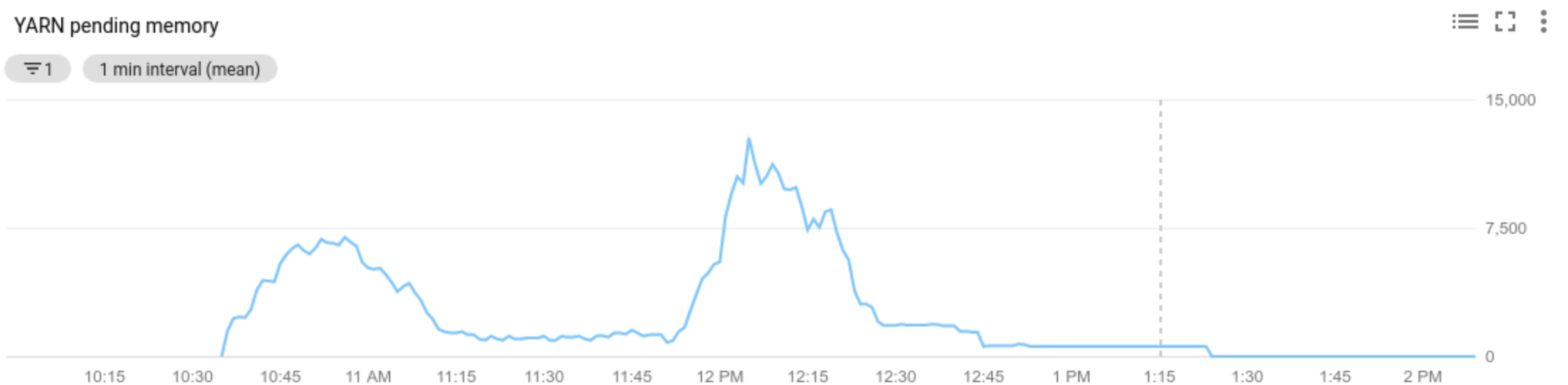 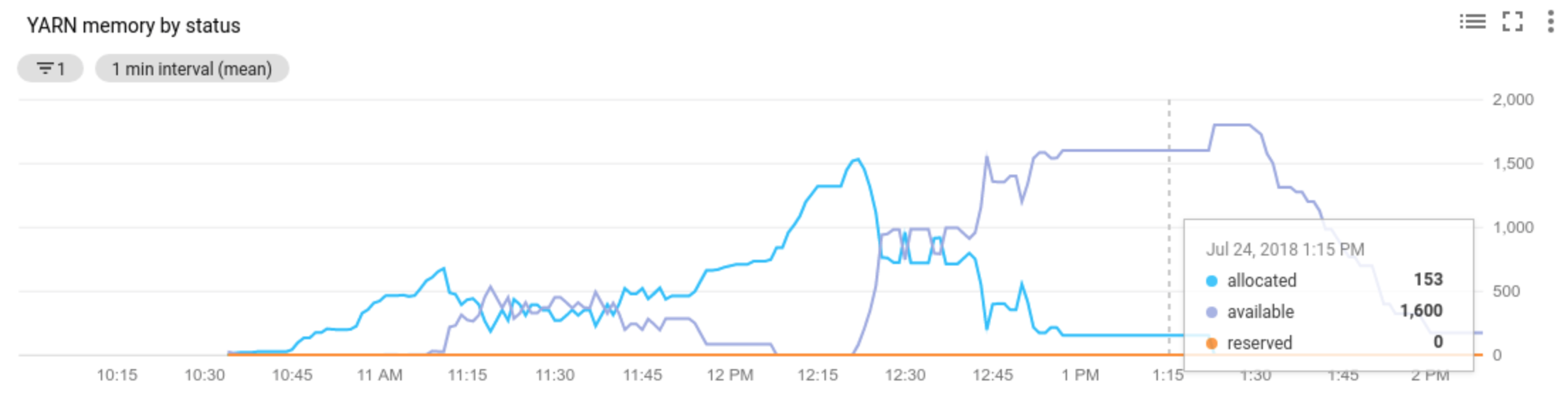 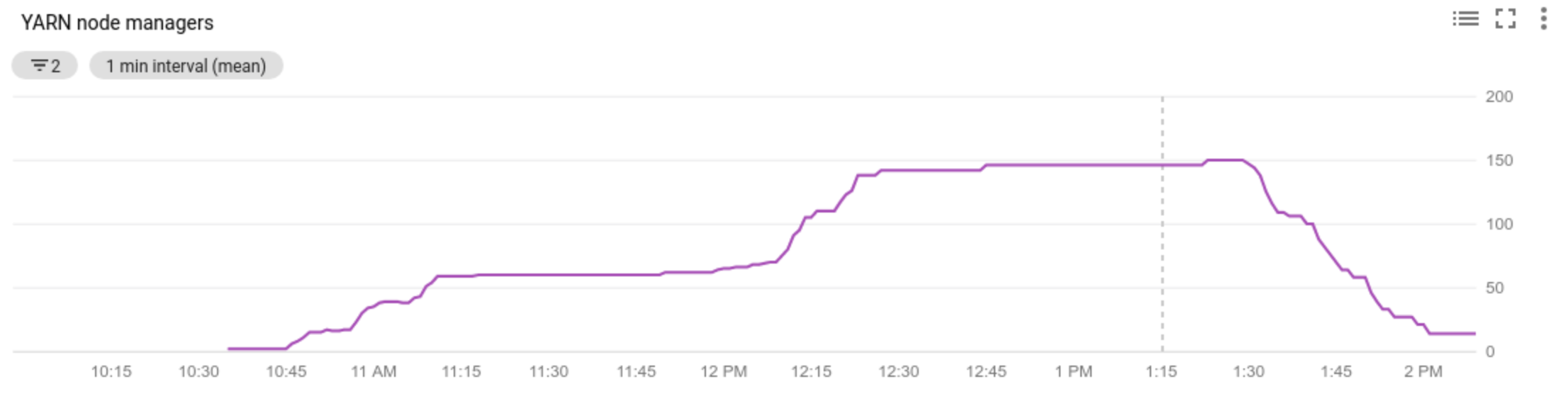
### Cloud Logging
Use [Cloud Logging](https://docs.cloud.google.com/logging) to view logs from the Managed Service for Apache Spark
Autoscaler.
1) Find logs for your cluster.
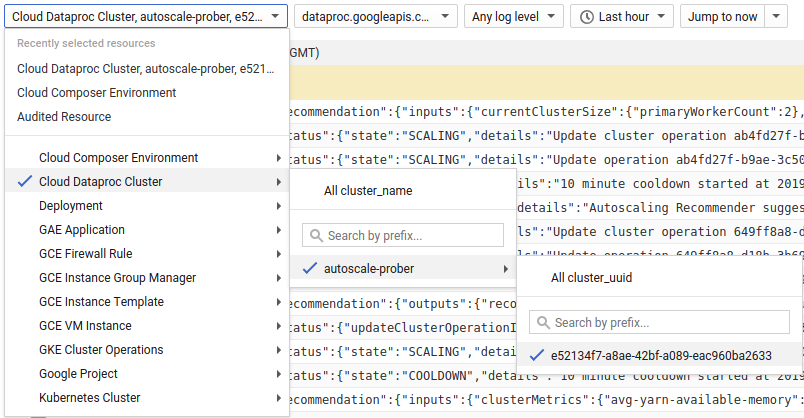
2) Select `dataproc.googleapis.com/autoscaler`.
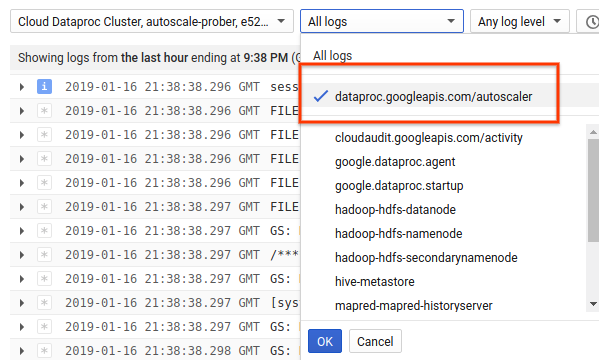
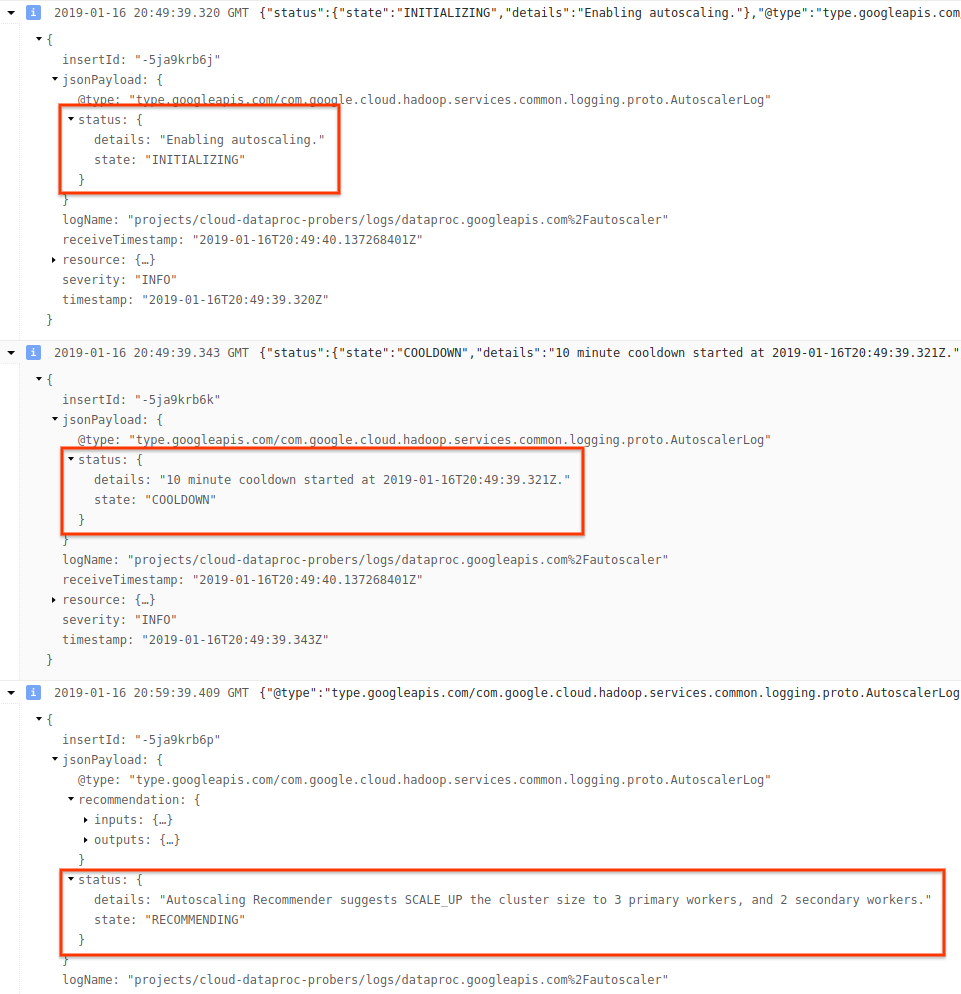
3) Expand the log messages to view the `status` field. The logs are in JSON, a
machine readable format.
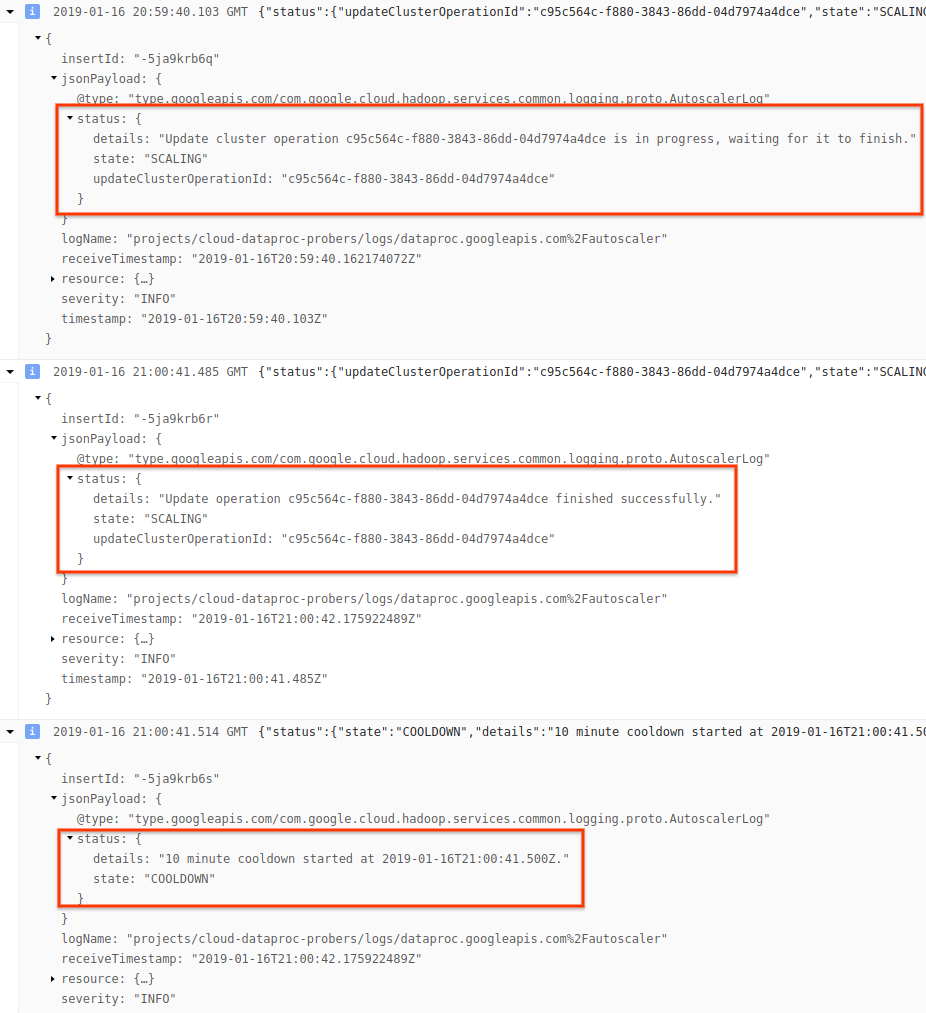
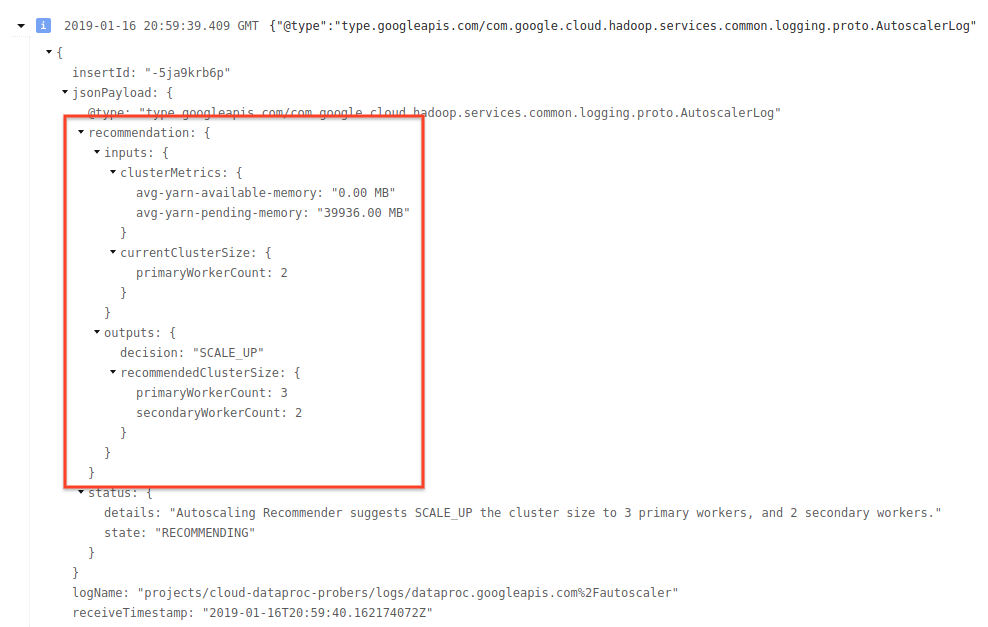
4) Expand the log message to see scaling recommendations, metrics used for
scaling decisions, the original cluster size, and the new target cluster
size.
## Background: Autoscaling with Apache Hadoop and Apache Spark
The following sections discuss how autoscaling does (or does not) interoperate
with Hadoop YARN and Hadoop Mapreduce, and with Apache Spark, Spark Streaming, and
Spark Structured Streaming.
### Hadoop YARN Metrics
> [!IMPORTANT]
> You can configure autoscaling for any YARN-based execution engine.
> [!NOTE]
> **Note:** YARN "resource" here can be either YARN memory or YARN core.
Autoscaling is centered around the following Hadoop YARN metrics:
1. `Allocated resource` refers to the total YARN resource taken up by running
containers across the whole cluster. If there are 6 running containers that
can use up to 1 unit of resource, there are 6 allocated resources.
2. `Available resource` is YARN resource in the cluster not used by allocated
containers. If there are 10 units of resources across all node managers and 6 of
them are allocated, there are 4 available resources. If there are available
(unused) resources in the cluster, autoscaling may remove workers from the cluster.
3. `Pending resource` is the sum of YARN resource requests for pending containers.
Pending containers are waiting for space to run in YARN. Pending resource is
non-zero only if available resource is zero or too small to allocate to the next
container. If there are pending containers, autoscaling may add workers to the
cluster.
You can view these metrics in [Cloud Monitoring](https://docs.cloud.google.com/monitoring/docs.md.txt).
As a default, YARN memory will be 0.8 \* total memory on the cluster, with
remaining memory reserved for other daemons and operating system use,
such as the page cache. You can override the default value
with the "yarn.nodemanager.resource.memory-mb" YARN configuration setting
(see [Apache Hadoop YARN, HDFS, Spark, and related properties](https://docs.cloud.google.com/managed-spark/docs/concepts/configuring-clusters/cluster-properties.md.txt#apache_hadoop_yarn_hdfs_spark_and_related_properties)).
### Autoscaling and Hadoop MapReduce
MapReduce runs each map and reduce task as a separate YARN container. When a
job begins, MapReduce submits container requests for each map task, resulting in
a large spike in pending YARN memory. As map tasks finish, pending memory decreases.
When `mapreduce.job.reduce.slowstart.completedmaps` have completed (95% by default
on Managed Service for Apache Spark), MapReduce enqueues container requests for all
reducers, resulting in another spike in pending memory.
Unless your map and reduce tasks take several minutes or longer, don't
set a high value for autoscaling `scaleUpFactor`. Adding workers to
the cluster takes at least 1.5 minutes, so make sure there is
sufficient pending work to utilize new worker for several minutes. A good starting
point is to set `scaleUpFactor` to 0.05 (5%) or 0.1 (10%) of pending memory.
### Autoscaling and Spark
Spark adds an additional layer of scheduling on top of YARN. Specifically, Spark Core's
[dynamic allocation](https://spark.apache.org/docs/latest/job-scheduling.html#dynamic-resource-allocation) makes requests to YARN for containers to run Spark executors,
then schedules Spark tasks on threads on those executors. Managed Service for Apache Spark clusters
enable dynamic allocation by default, so executors are added and removed as needed.
Spark always asks YARN for containers, but without dynamic allocation, it only
asks for containers at the beginning of the job. With dynamic allocation, it
will remove containers, or ask for new ones, as necessary.
Spark starts from a small number of executors -- 2 on autoscaling clusters -- and
continues to double the number of executors while there are backlogged tasks.
This smooths out pending memory (fewer pending memory spikes). It is recommended that you set
the autoscaling `scaleUpFactor` to a large number, such as 1.0 (100%), for Spark jobs.
#### Disabling Spark dynamic allocation
If you are running separate Spark jobs that don't benefit from Spark dynamic
allocation, you can disable Spark dynamic allocation by setting
`spark.dynamicAllocation.enabled=false` and setting `spark.executor.instances`.
You can still use autoscaling to scale clusters up and down while the separate
Spark jobs run.
### Spark jobs with cached data
Set `spark.dynamicAllocation.cachedExecutorIdleTimeout` or uncache datasets when
they are no longer needed. By default Spark does not remove executors that have
cached data, which would prevent scaling the cluster down.
### Autoscaling and Spark Streaming
1. Since Spark Streaming has its own version of
[dynamic allocation](https://issues.apache.org/jira/browse/SPARK-12133)
that uses streaming-specific signals to add and remove executors,
set `spark.streaming.dynamicAllocation.enabled=true` and
disable Spark Core's dynamic allocation by setting `spark.dynamicAllocation.enabled=false`.
2. Don't use [Graceful decommissioning](https://docs.cloud.google.com/managed-spark/docs/concepts/configuring-clusters/scaling-clusters.md.txt#graceful_decommissioning) (autoscaling `gracefulDecommissionTimeout`)
with Spark Streaming jobs. Instead, to safely remove workers with
autoscaling, [configure checkpointing](https://spark.apache.org/docs/latest/streaming-programming-guide.html#checkpointing) for fault tolerance.
Alternatively, to use Spark Streaming without autoscaling:
1. Disable Spark Core's dynamic allocation (`spark.dynamicAllocation.enabled=false`), and
2. Set the number of executors (`spark.executor.instances`) for your job. See [Cluster properties](https://docs.cloud.google.com/managed-spark/docs/concepts/configuring-clusters/cluster-properties.md.txt).
### Autoscaling and Spark Structured Streaming
Autoscaling is not compatible with
[Spark Structured Streaming](https://spark.apache.org/docs/latest/structured-streaming-programming-guide.html) since
Spark Structured Streaming does not support dynamic allocation
(see [SPARK-24815: Structured Streaming should support dynamic allocation](https://issues.apache.org/jira/browse/SPARK-24815)).
### Control autoscaling through partitioning and parallelism
While parallelism is usually set or determined by cluster resources (for example,
the number of HDFS blocks controls by the number of tasks), with autoscaling
the converse applies: autoscaling sets the number of workers according to job
parallelism. The following are guidelines to help you set job parallelism:
- While Managed Service for Apache Spark sets the default number of MapReduce reduce tasks based on initial cluster size of your cluster, you can set `mapreduce.job.reduces` to increase the parallelism of the reduce phase.
- Spark SQL and Dataframe parallelism is determined by `spark.sql.shuffle.partitions`, which defaults to 200.
- Spark's RDD functions default to `spark.default.parallelism`, which is set to the number of cores on the worker nodes when the job starts. However, all RDD functions that create shuffles take a [parameter](https://spark.apache.org/docs/latest/tuning.html#level-of-parallelism) for the number of partitions, which overrides `spark.default.parallelism`.
You should ensure your data is evenly partitioned. If there is significant key skew,
one or more tasks may take significantly longer than other tasks, resulting in
low utilization.
### Autoscaling default Spark and Hadoop property settings
Autoscaling clusters have default cluster property values that help avoid job failure
when primary workers are removed or secondary workers are preempted. You can override
these default values when you create a cluster with autoscaling (see
[Cluster Properties](https://docs.cloud.google.com/managed-spark/docs/concepts/configuring-clusters/cluster-properties.md.txt)).
> [!IMPORTANT]
> To help increase job stability, you can create a cluster with non-preemptible secondary workers---for an example, see [Non-preemptible workers](https://docs.cloud.google.com/managed-spark/docs/concepts/compute/secondary-vms.md.txt#non-preemptible_workers).
**Defaults to increase the maximum number of retries for tasks, application masters, and stages:**
```
yarn:yarn.resourcemanager.am.max-attempts=10
mapred:mapreduce.map.maxattempts=10
mapred:mapreduce.reduce.maxattempts=10
spark:spark.task.maxFailures=10
spark:spark.stage.maxConsecutiveAttempts=10
```
**Defaults to reset retry counters (useful for long-running Spark Streaming jobs):**
```
spark:spark.yarn.am.attemptFailuresValidityInterval=1h
spark:spark.yarn.executor.failuresValidityInterval=1h
```
**Default to have Spark's slow-start
[dynamic allocation](https://spark.apache.org/docs/latest/job-scheduling.html#dynamic-resource-allocation)
mechanism start from a small size:**
```
spark:spark.executor.instances=2
```
> [!NOTE]
> **Note:** Even though you may see shuffle fetch failures when primary workers are removed or secondary workers are preempted, don't increase shuffle fetch retries to more than their default values (`spark.shuffle.io.maxRetries=3`; `spark.shuffle.io.retryWaitMs=5000` (5 seconds) for a total max retry duration value of 10 seconds). The reason: shuffle files are lost, so additional retries only consume additional time.
## Frequently Asked Questions (FAQs)
This section contains common autoscaling questions and answers.
#### Can autoscaling be enabled on high availability clusters and single-node clusters?
Autoscaling can be enabled on
[high availability clusters](https://docs.cloud.google.com/managed-spark/docs/concepts/configuring-clusters/high-availability.md.txt),
but not on [single-node clusters](https://docs.cloud.google.com/managed-spark/docs/concepts/configuring-clusters/single-node-clusters.md.txt)
(Single-node clusters don't support resizing).
#### Can you manually resize an autoscaling cluster?
Yes. You may decide to manually resize a cluster as a stop-gap measure when
tuning an autoscaling policy. However, these changes will only have a temporary
effect, and Autoscaling will eventually scale back the cluster.
Instead of manually resizing an autoscaling cluster, consider:
Yes Updating the autoscaling policy. Any
changes made to the autoscaling policy affect all clusters that use the
policy (see [Multi-cluster policy usage](https://docs.cloud.google.com/managed-spark/docs/concepts/configuring-clusters/autoscaling.md.txt#multi-cluster_policy_usage)).
Yes Detaching the policy and manually scaling the
cluster to the preferred size.
Yes [Getting Managed Service for Apache Spark support](https://docs.cloud.google.com/managed-spark/docs/support/getting-support.md.txt).
#### How is Managed Service for Apache Spark different from Dataflow autoscaling?
See [Dataflow horizontal autoscaling](https://docs.cloud.google.com/dataflow/docs/horizontal-autoscaling.md.txt)
and [Dataflow Prime vertical autoscaling](https://docs.cloud.google.com/dataflow/docs/vertical-autoscaling.md.txt).
#### Can the Managed Service for Apache Spark dev team reset cluster status from `ERROR` back to `RUNNING`?
In general, no. Doing so requires manual effort to verify whether it is safe
to reset the cluster's state, and often a cluster can't be reset without
other manual steps, such as restarting the HDFS NameNode.
Managed Service for Apache Spark sets a cluster's status to `ERROR` when
it can't determine the status of a cluster after a failed operation. Clusters in
`ERROR` are not autoscaled. Common causes include:
- Errors returned from the Compute Engine API, often during Compute Engine
outages.
- HDFS getting into a corrupted state due to bugs in HDFS decommissioning.
- Dataproc Control API errors such as "Task lease expired".
**Delete and recreate clusters whose status is `ERROR`.**
#### When does autoscaling cancel a scaledown operation?
The following graphic is an illustration that demonstrates when autoscaling will
cancel a scaledown operation (also see [How autoscaling works](https://docs.cloud.google.com/managed-spark/docs/concepts/configuring-clusters/autoscaling.md.txt#how_autoscaling_works)).
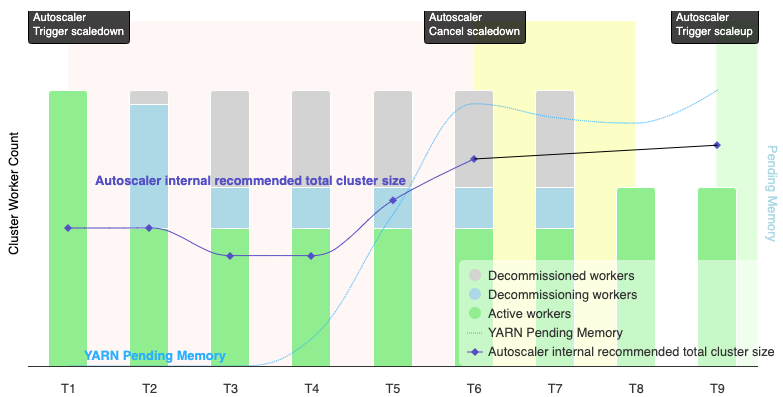
Notes:
- The cluster has autoscaling enabled based on YARN memory metrics only.
- T1-T9 represent cooldown intervals when the autoscaler evaluates the number of workers (event timing has been simplified).
- Stacked bars represent counts of active, decommissioning, and decommissioned cluster YARN workers.
- The autoscaler's recommended number of workers (black line) is based on YARN memory metrics, YARN active worker count, and autoscaling policy settings (see [How autoscaling works](https://docs.cloud.google.com/managed-spark/docs/concepts/configuring-clusters/autoscaling.md.txt#how_autoscaling_works)).
- The red background area indicates the period when the scaledown operation is running.
- The yellow background area indicates the period when scaledown operation is canceling.
- The green background area indicates the period of the scaleup operation.
The following operations occur at the following times:
- T1: The autoscaler initiates a graceful decommissioning scaledown operation
to scale down approximately half of the current cluster workers.
- T2: The autoscaler continues to monitor cluster metrics. It does not change
its scaledown recommendation, and the scaledown operation continues.
Some workers have been decommissioned, and others are decommissioning
(Managed Service for Apache Spark will delete decommissioned workers).
- T3: The autoscaler calculates that the number of workers can scale down further,
possibly due to additional YARN memory becoming available. However, since the
number of active workers plus the recommended change in the number of
workers is not equal to or greater than the number of active plus
decommissioning workers, the criteria for scaledown cancellation
are not met, and the autoscaler does not cancel the scaledown operation.
- T4: YARN reports an increase in pending memory. However, the autoscaler
does not change its worker count recommendation. As in T3, the scaledown
cancellation criteria remain unmet, and the autoscaler
does not cancel the scaledown operation.
- T5: YARN pending memory increases, and the change in the number of workers
recommended by the autoscaler increases. However, since the number of active workers
plus the recommended change in the number workers is less than the
number of active plus decommissioning workers, the cancellation criteria remain
unmet, and the scaledown operation is not cancelled.
- T6: YARN pending memory increases further. The number of active workers plus the
change in the number of workers recommended by the autoscaler is now greater
than the number of active plus decommissioning workers. The cancellation criteria
are met, and the autoscaler cancels the scaledown operation.
- T7: The autoscaler is waiting for the cancellation of the scaledown operation to
complete. The autoscaler does not evaluate and recommend a change in the
number of workers during this interval.
- T8: The cancellation of the scaledown operation completes. Decommissioning workers
are added to the cluster and become active. The autoscaler detects the
completion of scaledown operation cancellation, and waits for the next
evaluation period (T9) to calculate the recommended number of workers.
- T9: There are no active operations at T9 time. Based on the autoscaler policy
and YARN metrics, the autoscaler recommends a scaleup operation.