You can manage centralized access control across Hadoop, YARN, and Hive workloads by integrating [Apache Ranger](https://docs.cloud.google.com/managed-spark/docs/concepts/components/ranger.md.txt) with [Kerberos](https://docs.cloud.google.com/managed-spark/docs/concepts/configuring-clusters/security.md.txt) in Managed Service for Apache Spark. In this tutorial, you create a cluster with Ranger and [Apache Solr](https://docs.cloud.google.com/managed-spark/docs/concepts/components/solr.md.txt) components, configure authorization policies, and verify user permissions.
When evaluating access policies, Managed Service for Apache Spark maps Kerberos principals to system users by stripping the realm and instance, such as mapping `user1/cluster-m@MY.REALM` to `user1`. You can manage these policies in the Ranger Web UI through the [Component Gateway](https://docs.cloud.google.com/managed-spark/docs/concepts/accessing/gateways.md.txt).
1. [Set up the Ranger `admin` password](https://docs.cloud.google.com/managed-spark/docs/concepts/components/ranger.md.txt#installation_steps).
2. [Set up the Kerberos root principal password](https://docs.cloud.google.com/managed-spark/docs/concepts/configuring-clusters/security.md.txt#set_up_your_kerberos_root_principal_password).
3. Create the cluster.
1. The following `gcloud` command can be run in a local terminal window or from a project's [Cloud Shell](https://console.cloud.google.com/?cloudshell=true).
```
gcloud dataproc clusters create cluster-name \
--region=region \
--optional-components=SOLR,RANGER \
--enable-component-gateway \
--properties="dataproc:ranger.kms.key.uri=projects/project-id/locations/global/keyRings/keyring/cryptoKeys/key,dataproc:ranger.admin.password.uri=gs://bucket/admin-password.encrypted" \
--kerberos-root-principal-password-uri=gs://bucket/kerberos-root-principal-password.encrypted \
--kerberos-kms-key=projects/project-id/locations/global/keyRings/keyring/cryptoKeys/key
```
4. After the cluster is running, navigate to the Managed Service for Apache Spark
[Clusters](https://console.cloud.google.com/dataproc/clusters) page on Google Cloud console,
then select the cluster's name to open the
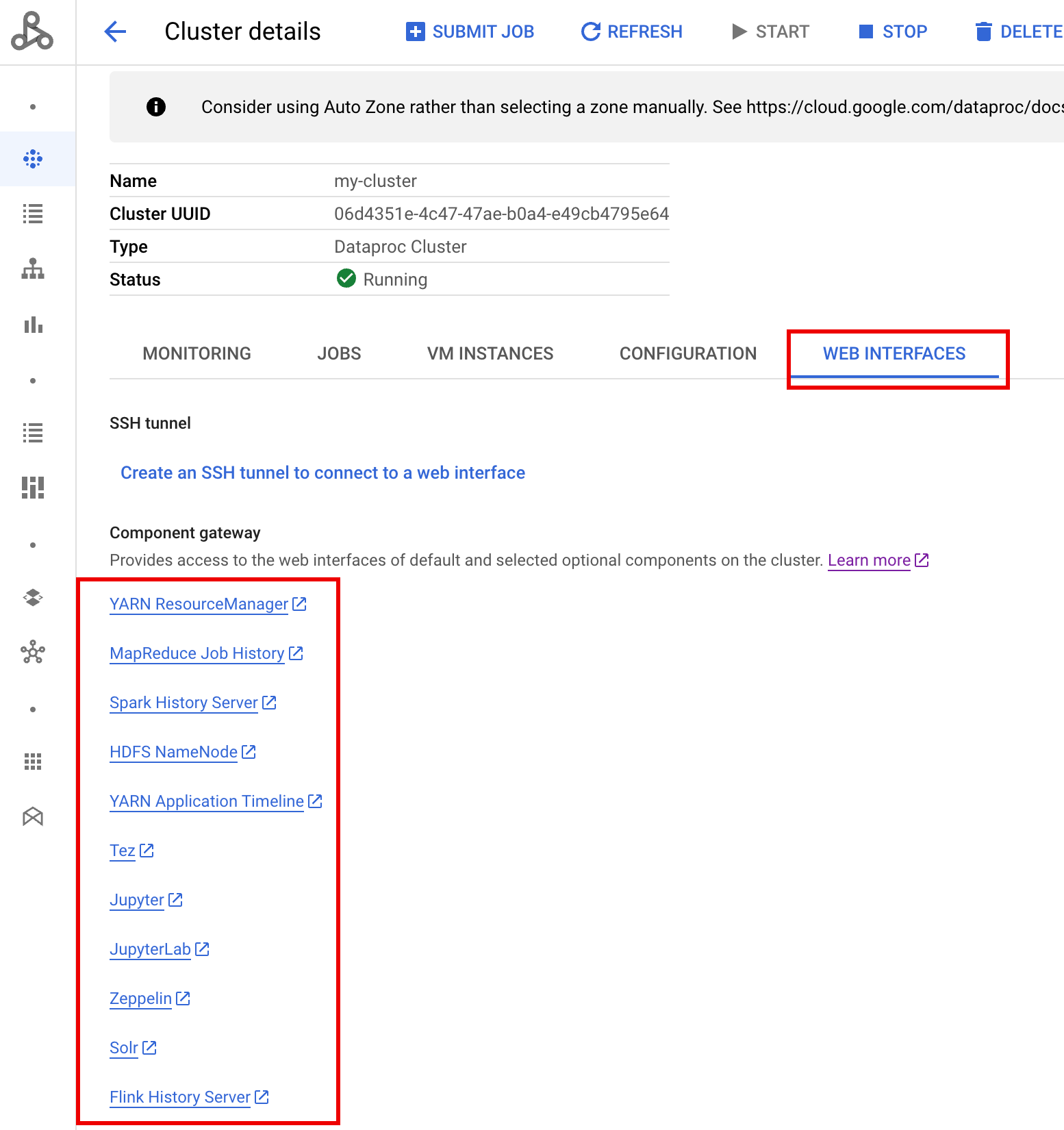
**Cluster details** page. Click the **Web Interfaces**
tab to display a list of Component Gateway links to the web interfaces of
[default and optional components](https://docs.cloud.google.com/managed-spark/docs/concepts/components/overview.md.txt)
installed on the cluster. Click the Ranger link.
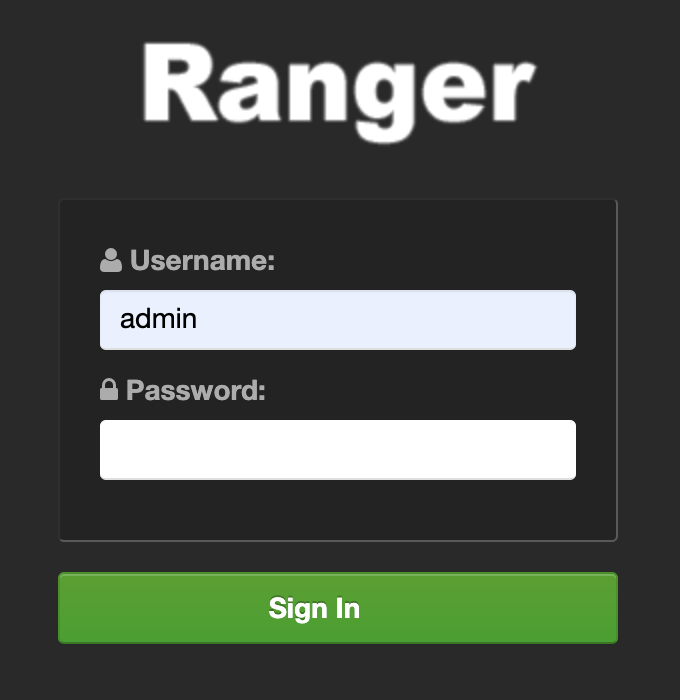
5. Sign in to Ranger by entering the `admin` username and the Ranger admin
password.
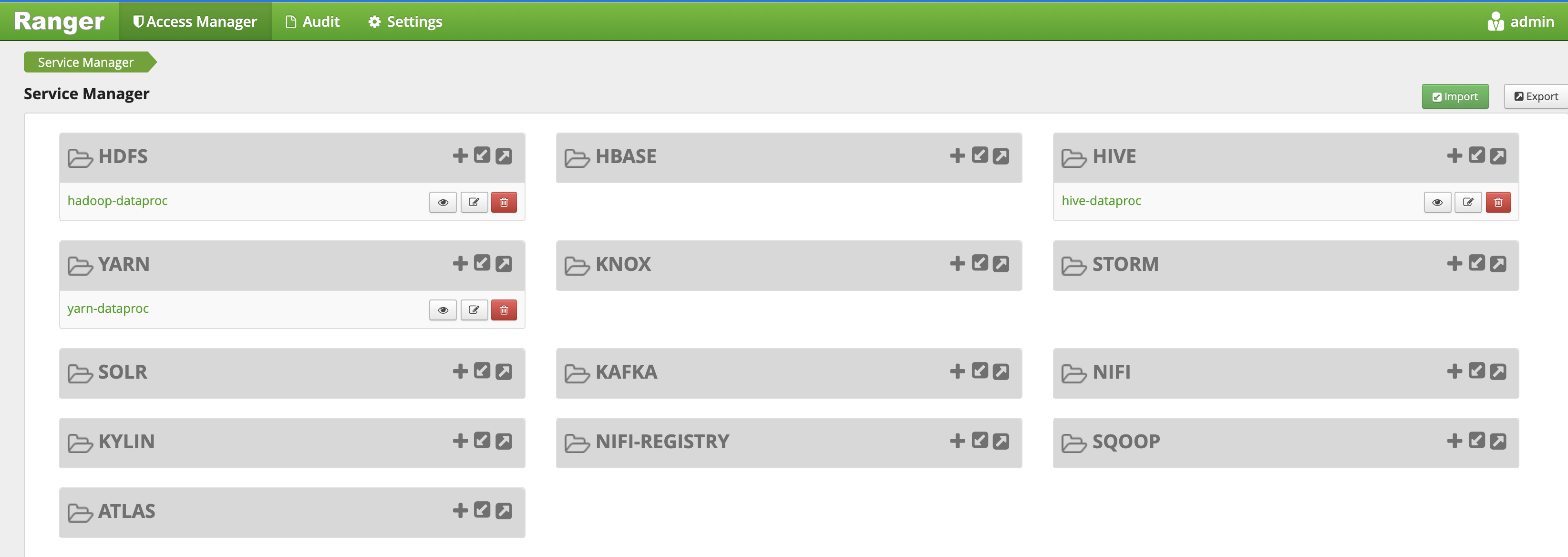
6. The Ranger `admin` UI opens in a local browser.
The following examples create Ranger policies to allow or deny access to two OS users and Kerberos principals: `userone` and `usertwo`.
### YARN access policy
This example creates a Ranger policy to allow and deny user access to the
[YARN root.default queue](https://hadoop.apache.org/docs/current/hadoop-yarn/hadoop-yarn-site/CapacityScheduler.html#Configuration).
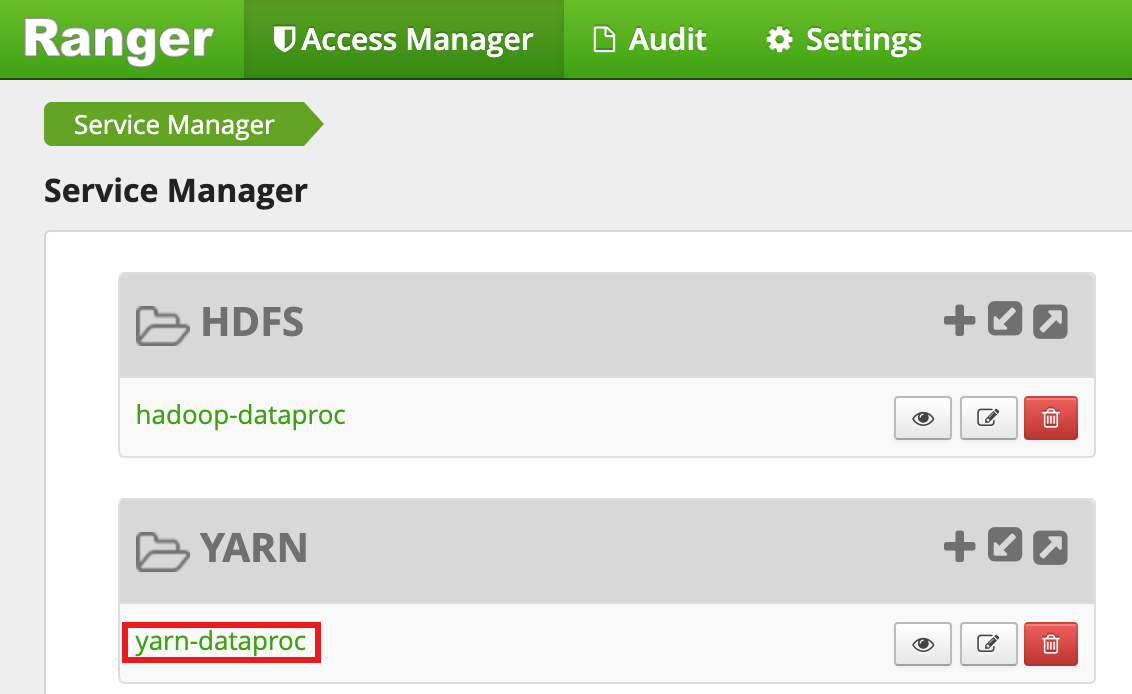
1. Select `yarn-dataproc` from the Ranger Admin UI.
2. On the **yarn-dataproc Policies** page, click **Add New Policy** .
On the **Create Policy** page, the following fields
are entered or selected:
- `Policy Name`: "yarn-policy-1"
- `Queue`: "root.default"
- `Audit Logging`: "Yes"
- `Allow Conditions`:
- `Select User`: "userone"
- `Permissions`: "Select All" to grant all permissions
- `Deny Conditions`:
- `Select User`: "usertwo"
- `Permissions`: "Select All" to deny all permissions
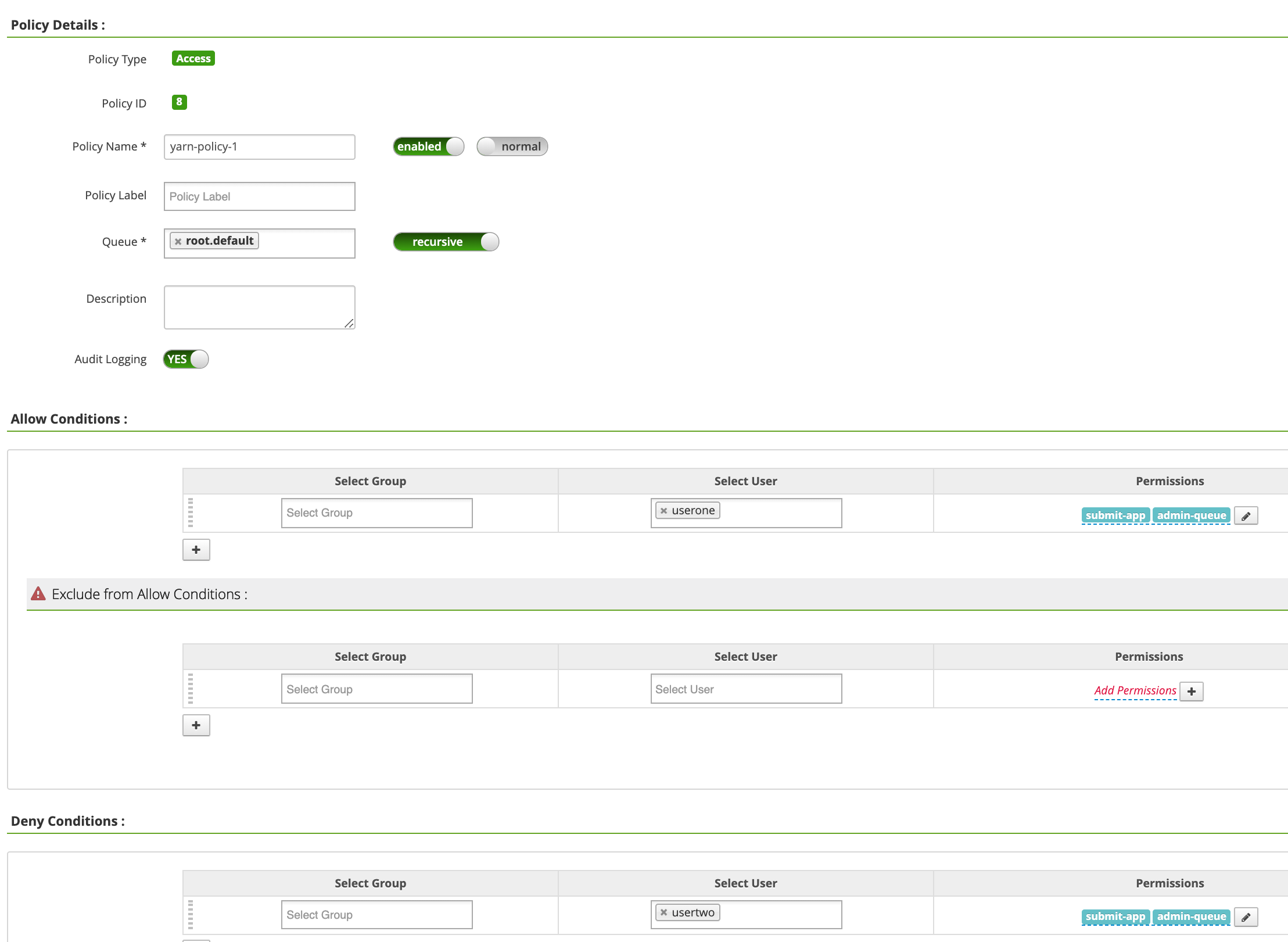
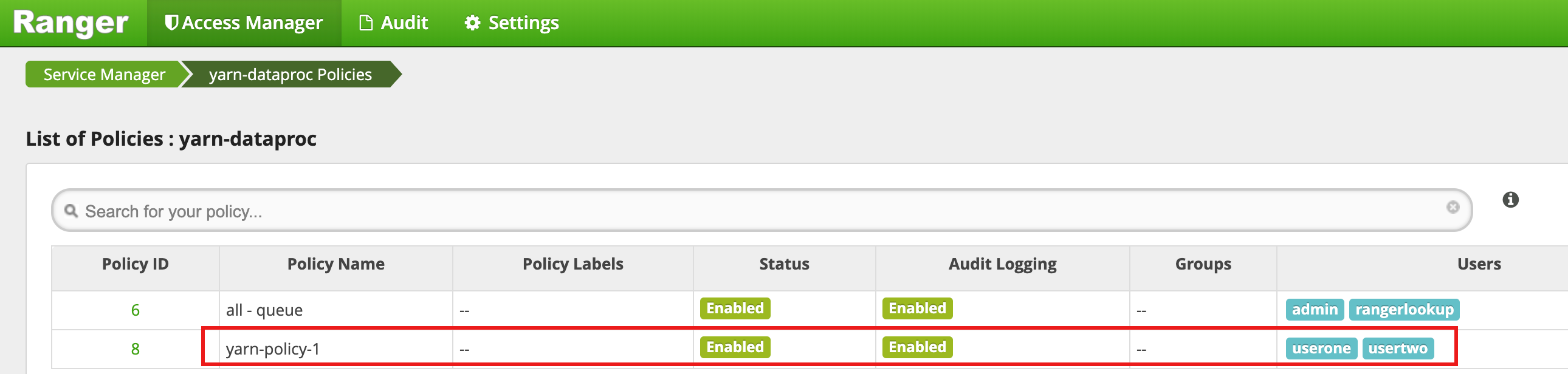
Click **Add** to save the policy. The policy is listed
on the **yarn-dataproc Policies** page:
3. Run a Hadoop mapreduce job in the master SSH session window as userone:
```
userone@example-cluster-m:~$ hadoop jar /usr/lib/hadoop-mapreduce/hadoop-mapreduced-examples.
jar pi 5 10
```
1. The Ranger UI shows that `userone` was allowed to submit the job. 
4. Run the Hadoop mapreduce job from the VM master SSH session
window as `usertwo`:
```
usertwo@example-cluster-m:~$ hadoop jar /usr/lib/hadoop-mapreduce/hadoop-mapreduced-examples.
jar pi 5 10
```
1. The Ranger UI shows that `usertwo` was denied access to submit the job. 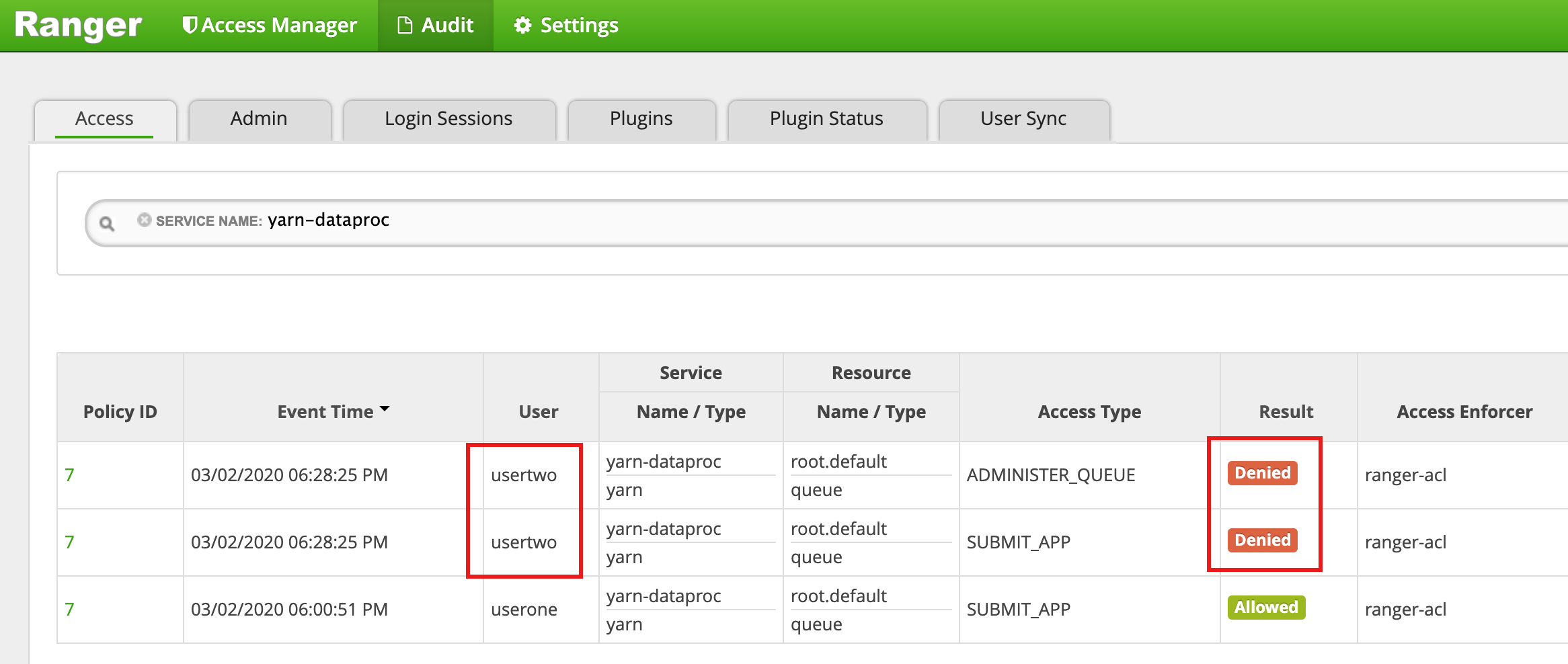
### HDFS access policy
This example creates a Ranger policy to allow and deny user access to the
HDFS `/tmp` directory.
1. Select `hadoop-dataproc` from the Ranger Admin UI.
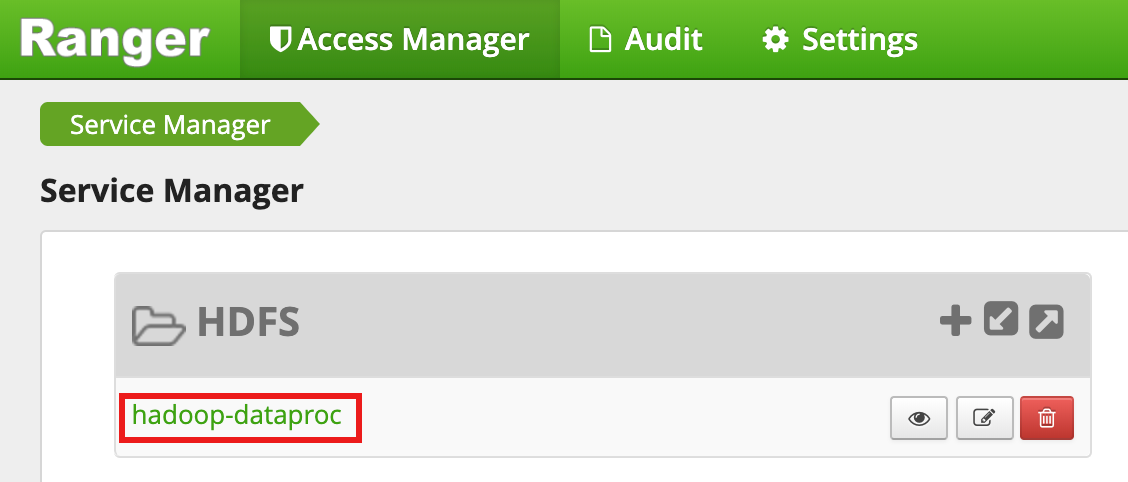
2. On the **hadoop-dataproc Policies** page, click **Add New Policy** .
On the **Create Policy** page, the following fields
are entered or selected:
- `Policy Name`: "hadoop-policy-1"
- `Resource Path`: "/tmp"
- `Audit Logging`: "Yes"
- `Allow Conditions`:
- `Select User`: "userone"
- `Permissions`: "Select All" to grant all permissions
- `Deny Conditions`:
- `Select User`: "usertwo"
- `Permissions`: "Select All" to deny all permissions
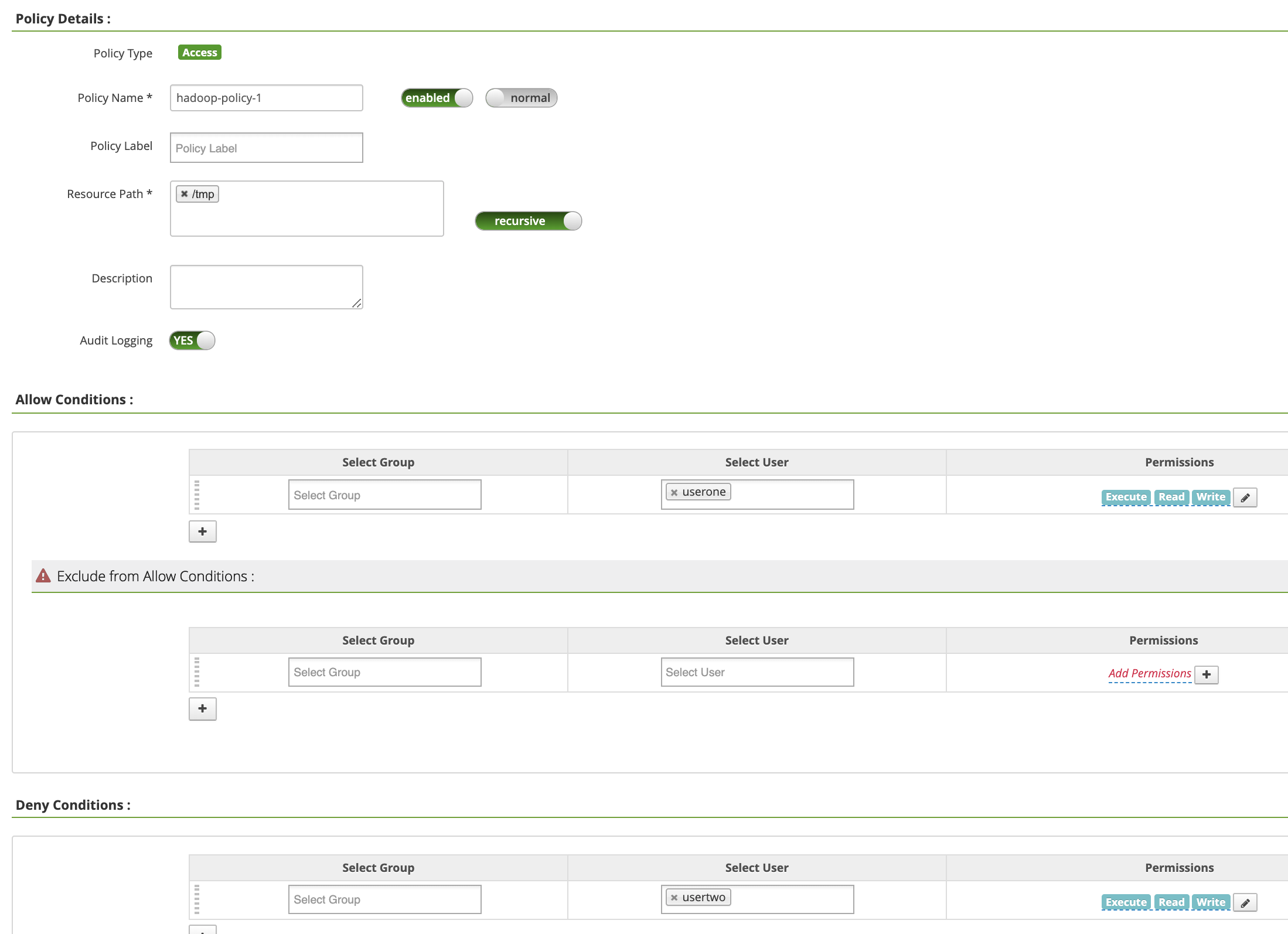
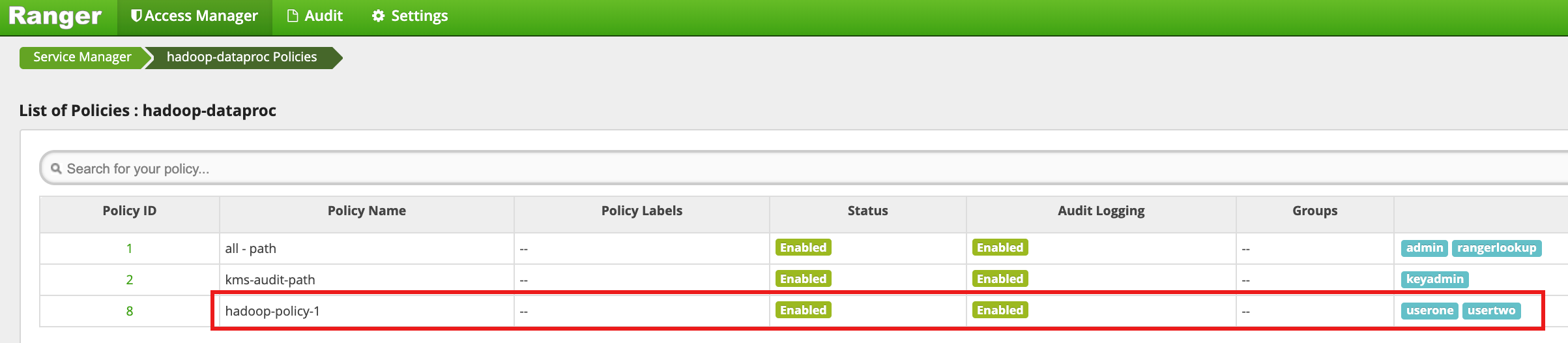
Click **Add** to save the policy. The policy is listed
on the **hadoop-dataproc Policies** page:
3. Access the HDFS `/tmp` directory as userone:
```
userone@example-cluster-m:~$ hadoop fs -ls /tmp
```
1. The Ranger UI shows that `userone` was allowed access to the HDFS /tmp directory. 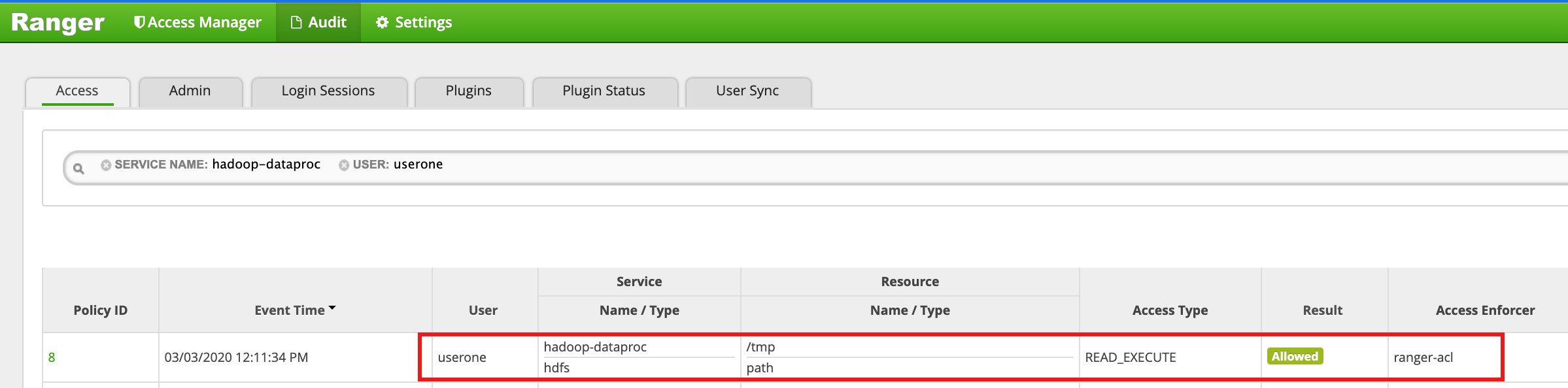
4. Access the HDFS `/tmp` directory as `usertwo`:
```
usertwo@example-cluster-m:~$ hadoop fs -ls /tmp
```
1. The Ranger UI shows that `usertwo` was denied access to the HDFS /tmp directory. 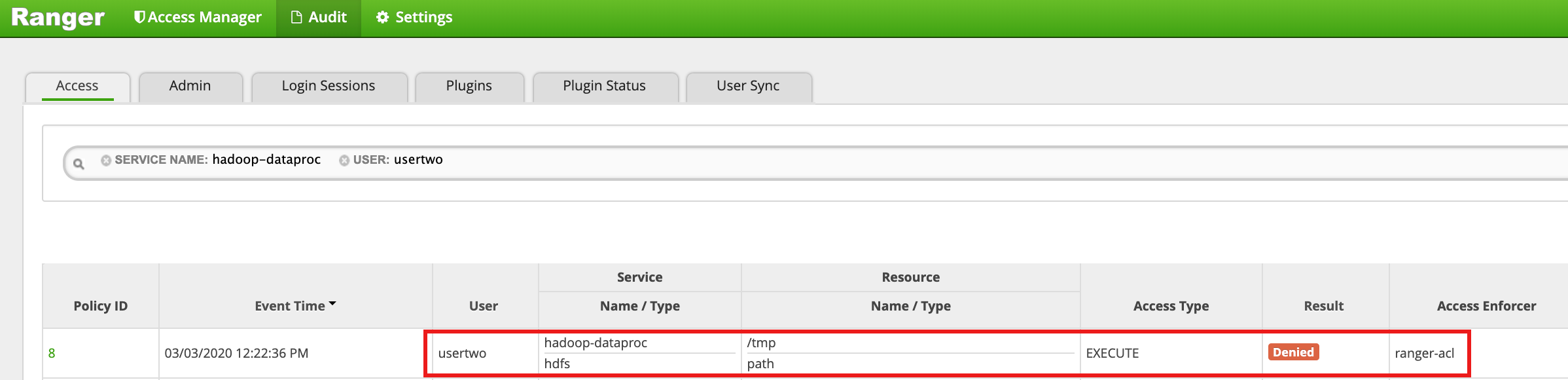
### Hive access policy
This example creates a Ranger policy to allow and deny user access to a Hive
table.
1. Create a small `employee` table using the hive CLI on the master instance.
```
hive> CREATE TABLE IF NOT EXISTS employee (eid int, name String); INSERT INTO employee VALUES (1 , 'bob') , (2 , 'alice'), (3 , 'john');
```
2. Select `hive-dataproc` from the Ranger Admin UI.

3. On the **hive-dataproc Policies** page, click **Add New Policy** .
On the **Create Policy** page, the following fields
are entered or selected:
- `Policy Name`: "hive-policy-1"
- `database`: "default"
- `table`: "employee"
- `Hive Column`: "\*"
- `Audit Logging`: "Yes"
- `Allow Conditions`:
- `Select User`: "userone"
- `Permissions`: "Select All" to grant all permissions
- `Deny Conditions`:
- `Select User`: "usertwo"
- `Permissions`: "Select All" to deny all permissions
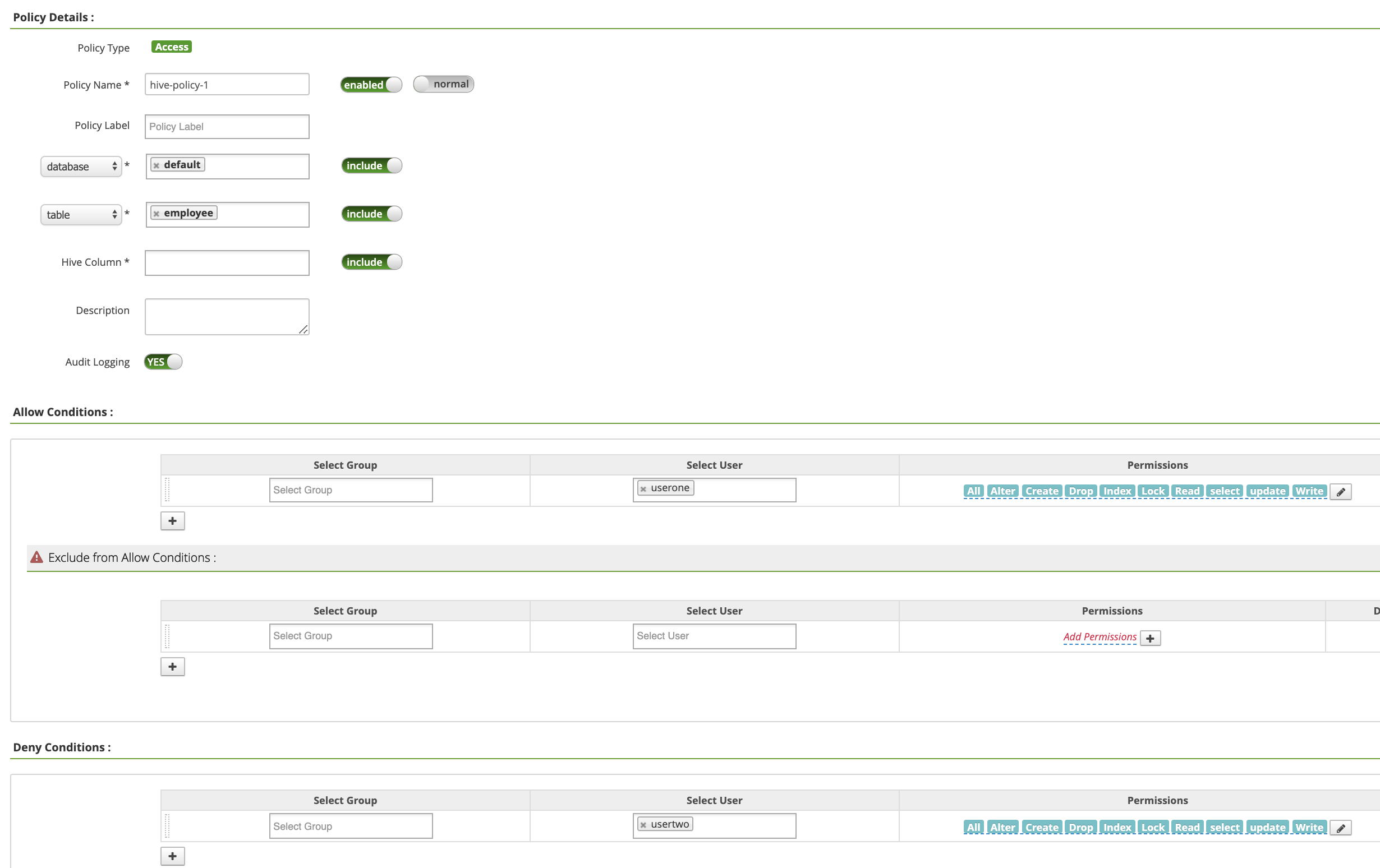
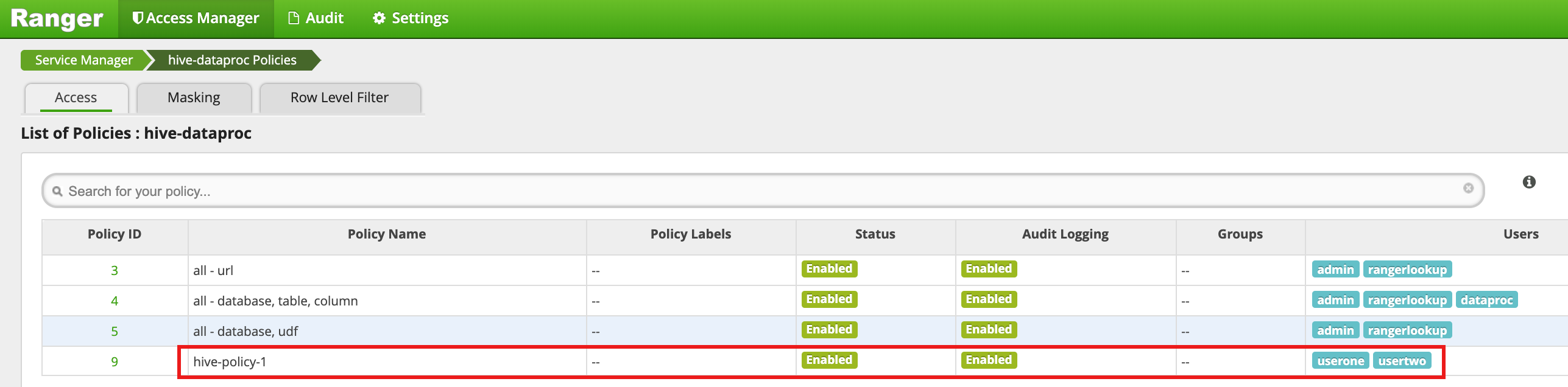
Click **Add** to save the policy. The policy is listed
on the **hive-dataproc Policies** page:
4. Run a query from the VM master SSH session against Hive employee table as userone:
```
userone@example-cluster-m:~$ beeline -u "jdbc:hive2://$(hostname -f):10000/default;principal=hive/$(hostname -f)@REALM" -e "select * from employee;"
```
1. The userone query succeeds:
```
Connected to: Apache Hive (version 2.3.6)
Driver: Hive JDBC (version 2.3.6)
Transaction isolation: TRANSACTION_REPEATABLE_READ
+---+---+
| employee.eid | employee.name |
+---+---+
| 1 | bob |
| 2 | alice |
| 3 | john |
+---+---+
3 rows selected (2.033 seconds)
```
5. Run a query from the VM master SSH session against Hive employee table as usertwo:
```
usertwo@example-cluster-m:~$ beeline -u "jdbc:hive2://$(hostname -f):10000/default;principal=hive/$(hostname -f)@REALM" -e "select * from employee;"
```
1. usertwo is denied access to the table:
```
Error: Could not open client transport with JDBC Uri:
...
Permission denied: user=usertwo, access=EXECUTE, inode="/tmp/hive"
```
### Fine-Grained Hive Access
Ranger supports Masking and Row Level Filters on Hive. This example
builds on the previous `hive-policy-1` by adding masking and filter
policies.
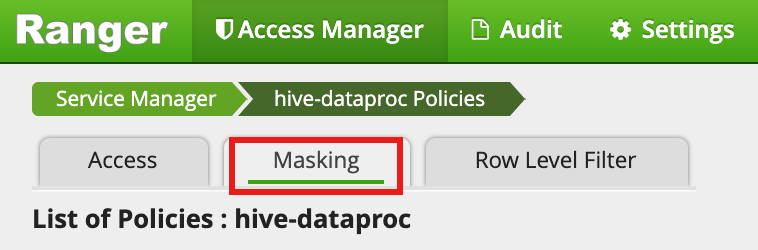
1. Select `hive-dataproc` from the Ranger Admin UI, then select the
**Masking** tab and click **Add New Policy**.
1. On the **Create Policy** page, the following fields
are entered or selected to create a policy to mask (nullify)
the employee name column.:
- `Policy Name`: "hive-masking policy"
- `database`: "default"
- `table`: "employee"
- `Hive Column`: "name"
- `Audit Logging`: "Yes"
- `Mask Conditions`:
- `Select User`: "userone"
- `Access Types`: "select" add/edit permissions
- `Select Masking Option`: "nullify"
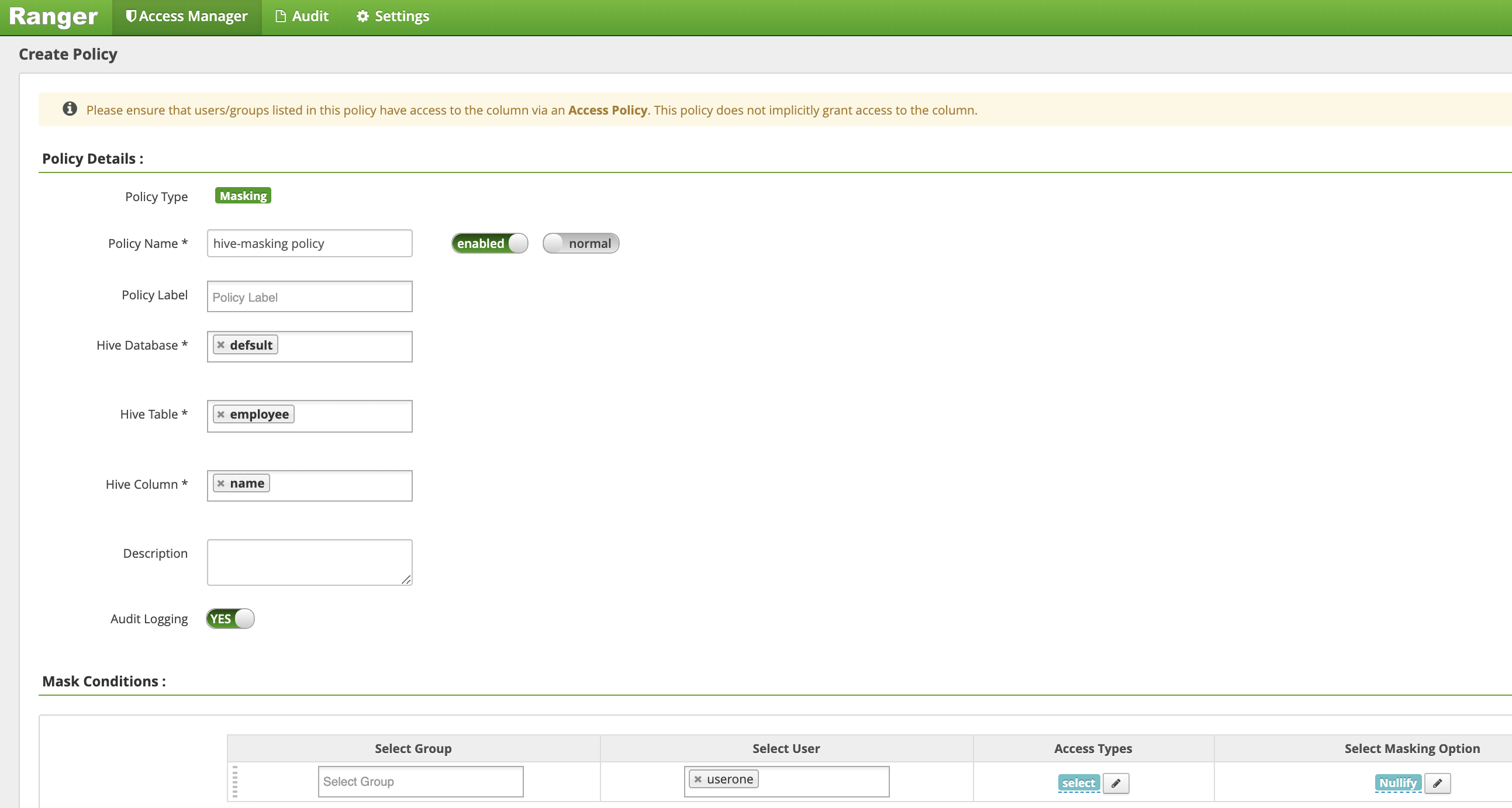
Click **Add** to save the policy.
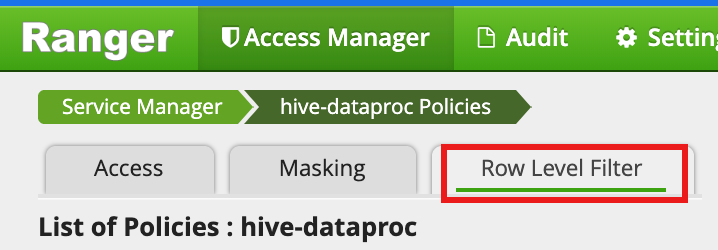
2. Select `hive-dataproc` from the Ranger Admin UI, then select the
**Row Level Filter** tab and click **Add New Policy**.
1. On the **Create Policy** page, the following fields
are entered or selected to create a policy to
filter (return) rows where `eid` is not equal to `1`:
- `Policy Name`: "hive-filter policy"
- `Hive Database`: "default"
- `Hive Table`: "employee"
- `Audit Logging`: "Yes"
- `Mask Conditions`:
- `Select User`: "userone"
- `Access Types`: "select" add/edit permissions
- `Row Level Filter`: "eid != 1" filter expression
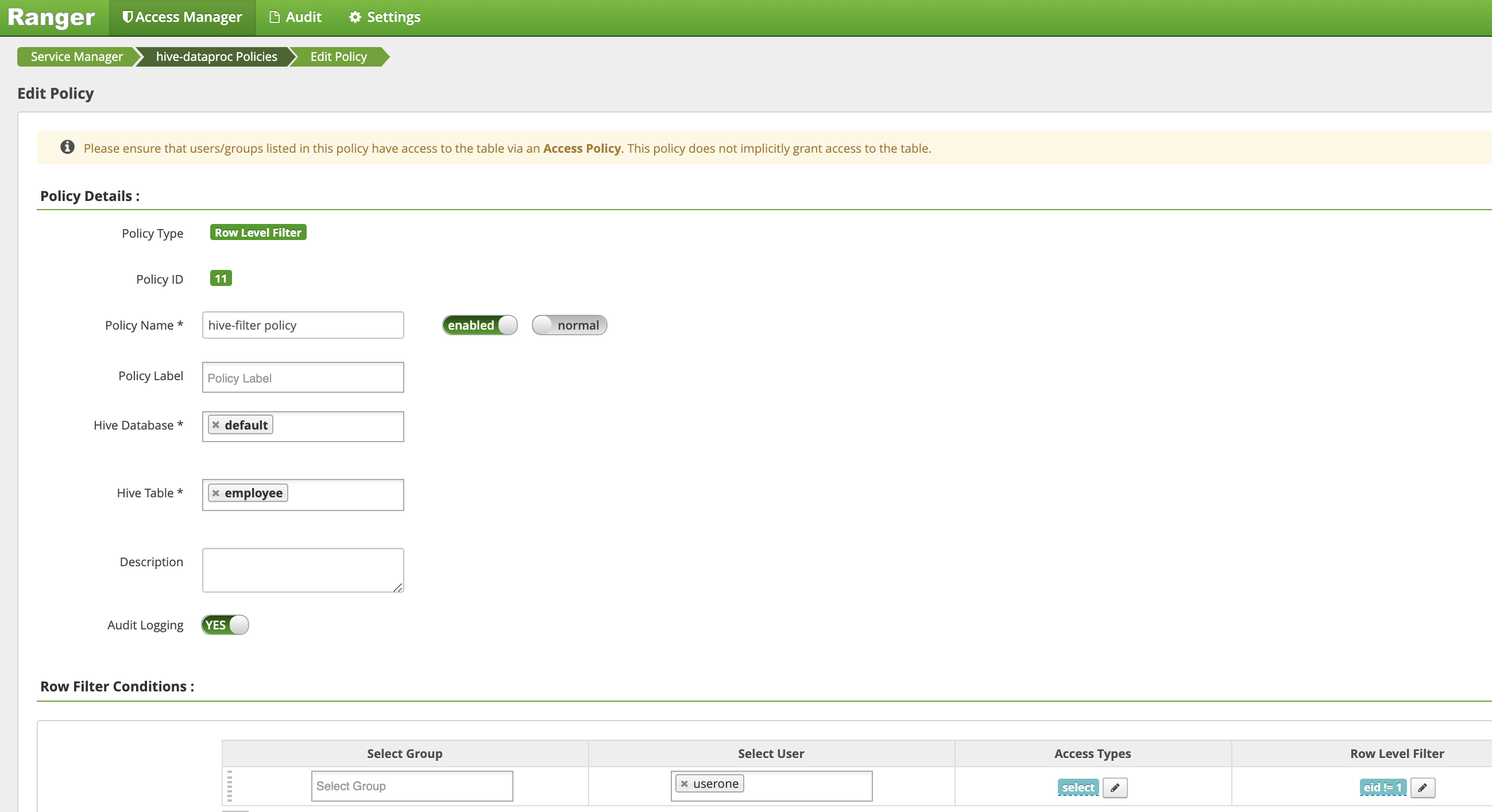
Click **Add** to save the policy.
2. Repeat the previous query from the VM master SSH session
against Hive employee table as userone:
```
userone@example-cluster-m:~$ beeline -u "jdbc:hive2://$(hostname -f):10000/default;principal=hive/$(hostname -f)@REALM" -e "select * from employee;"
```
1. The query returns with the name column masked out and bob (eid=1) filtered from the results.:
```
Transaction isolation: TRANSACTION_REPEATABLE_READ
+---+---+
| employee.eid | employee.name |
+---+---+
| 2 | NULL |
| 3 | NULL |
+---+---+
2 rows selected (0.47 seconds)
```