Component Gateway lets you securely access web endpoints for default and [optional components](https://docs.cloud.google.com/managed-spark/docs/concepts/components/overview.md.txt#available_optional_components) on Google Managed Service for Apache Spark clusters. You can use these [web interfaces](https://docs.cloud.google.com/managed-spark/docs/concepts/accessing/cluster-web-interfaces.md.txt#available_interfaces_) to manage and monitor cluster resources and facilities, such as the YARN resource manager, the Hadoop Distributed File System (HDFS), MapReduce, [Apache Hadoop](https://hadoop.apache.org/), and [Apache Spark](http://spark.apache.org/).
On clusters created with [supported Managed Service for Apache Spark image versions](https://docs.cloud.google.com/managed-spark/docs/concepts/versioning/dataproc-version-clusters#supported_dataproc_versions), Component Gateway provides access to component web interfaces without requiring [SSH tunnels](https://docs.cloud.google.com/managed-spark/docs/concepts/accessing/cluster-web-interfaces.md.txt#create_an_ssh_tunnel) or [modifying firewall rules](https://docs.cloud.google.com/managed-spark/docs/concepts/configuring-clusters/network.md.txt) to allow inbound traffic.
## Considerations
- Users must have [dataproc.clusters.use](https://docs.cloud.google.com/managed-spark/docs/concepts/iam/iam.md.txt#clusters_methods_required_permissions) Identity and Access Management permission to access enabled component web interfaces. See [Managed Service for Apache Spark Roles](https://docs.cloud.google.com/managed-spark/docs/concepts/iam/iam.md.txt#roles).
- Component Gateway can be used to access REST APIs, such as [Apache Hadoop YARN](https://hadoop.apache.org/docs/current/hadoop-yarn/hadoop-yarn-site/YARN.html) and [Apache Livy](https://livy.incubator.apache.org/), and history servers.
- When Component Gateway is enabled, Managed Service for Apache Spark adds the following services to the cluster's first master node:
- [Apache Knox](https://knox.apache.org/). The default Knox Gateway SSL Certificate is valid for 13 months from the cluster creation date. If it expires, all Component Gateway web interface URls become inactive. To obtain a new certificate, see [Regenerate the Component Gateway SSL certificate](https://docs.cloud.google.com/managed-spark/docs/concepts/accessing/gateways.md.txt#regenerate).
- [Inverting Proxy](https://github.com/google/inverting-proxy)
- Component gateway does not enable direct access to `node:port` interfaces, but proxies a specific subset of services automatically. If you want to access services on nodes (`node:port`), use an [SSH SOCKS proxy](https://docs.cloud.google.com/managed-spark/docs/concepts/accessing/cluster-web-interfaces.md.txt#create_an_ssh_tunnel).
## Create a cluster with Component Gateway
### Google Cloud console
The Managed Service for Apache Spark component UIs (via the Component Gateway) are enabled by default when you create a cluster using the Google Cloud console. You can disable this setting by clearing the **Enable components in the UI** checkbox:
1. Open the [**Create cluster**](https://console.cloud.google.com/dataproc/clusters/create) page.
2. Click **Additional configuration** to expand that section.
3. Edit **Optional components**.
4. In the panel that opens, select or clear the **Enable components in the UI** checkbox.
5. Click **Save**.
### gcloud CLI command
Run the gcloud CLI
[gcloud dataproc clusters create](https://docs.cloud.google.com/sdk/gcloud/reference/dataproc/clusters/create.md.txt)
command locally in a terminal window or in
[Cloud Shell](https://console.cloud.google.com/?cloudshell=true).
```
gcloud dataproc clusters create cluster-name \
--enable-component-gateway \
--region=region \
other args ...
```
### REST API
Set the [EndpointConfig.enableHttpPortAccess](https://docs.cloud.google.com/managed-spark/docs/reference/rest/v1/ClusterConfig.md.txt#EndpointConfig)
property to `true` as part of a
[clusters.create](https://docs.cloud.google.com/managed-spark/docs/reference/rest/v1/projects.regions.clusters/create.md.txt)
request.
> [!NOTE]
> **Note:** You can also create a Component Gateway-enabled Managed Service for Apache Spark cluster with third party provisioning software, such as HashiCorp's Terraform [`google_dataproc_cluster`](https://registry.terraform.io/providers/hashicorp/google/latest/docs/resources/dataproc_cluster#nested_endpoint_config) provider.
## Use Component Gateway URLs to access web interfaces
When Component Gateway is enabled on a cluster, you can connect to component
web interfaces running on the cluster's first master node by clicking links
provided on the Google Cloud console. Component Gateway also sets
[endpointConfig.httpPorts](https://docs.cloud.google.com/managed-spark/docs/reference/rest/v1/ClusterConfig.md.txt#EndpointConfig)
with a map of port names to URLs. As an alternative to using the console,
you can use the `gcloud` command-line
tool or the Dataproc REST API to view this mapping information,
then copy and paste the URL into your browser to connect with the component's UI.
### Console
Navigate to the Managed Service for Apache Spark
[Clusters](https://console.cloud.google.com/dataproc/clusters)
form on Google Cloud console, then select your cluster to open the
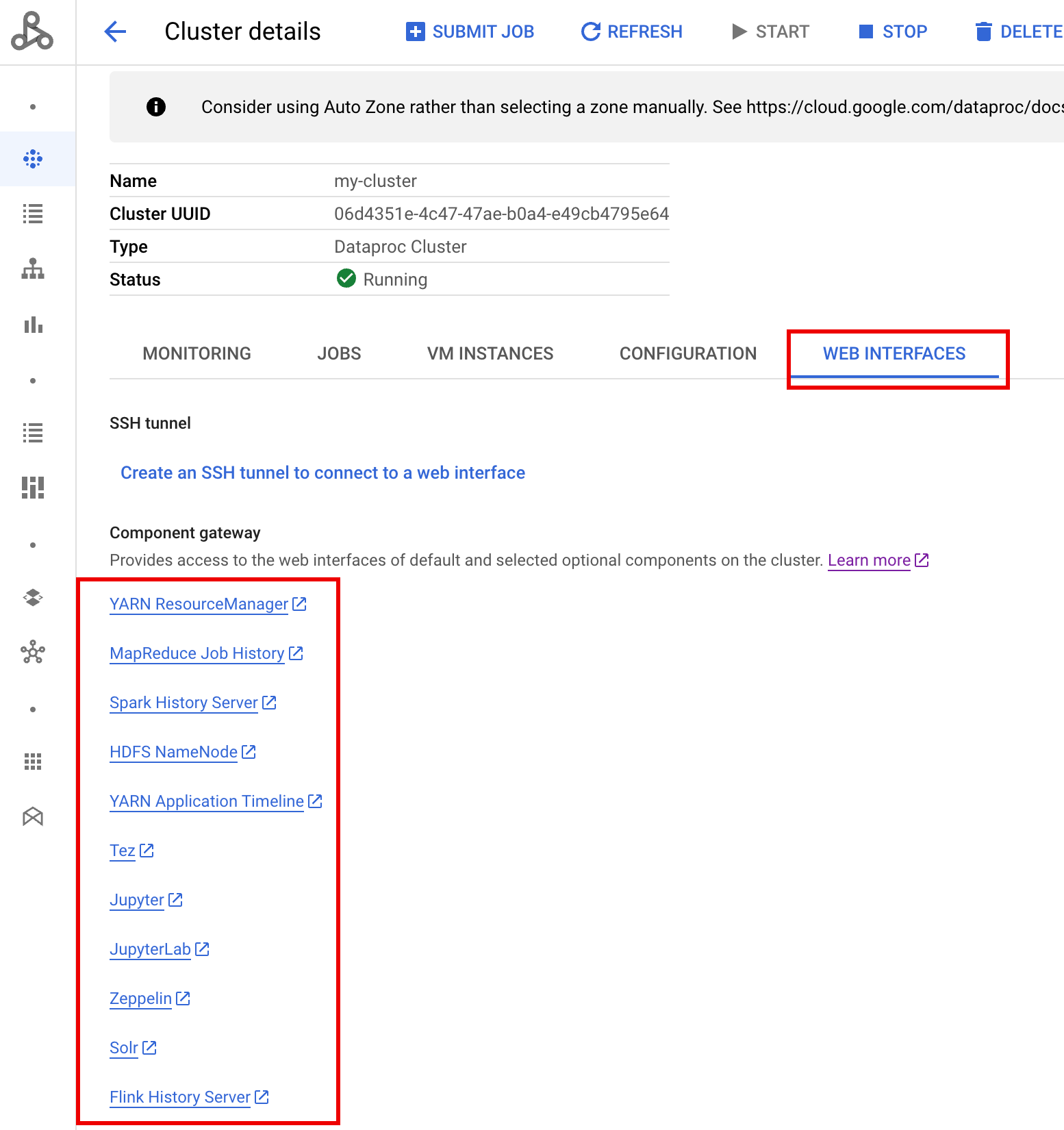
**Cluster details** form. Click the **Web Interfaces**
tab to display a list of Component Gateway links to the web interfaces of
[default and optional components](https://docs.cloud.google.com/managed-spark/docs/concepts/components/overview.md.txt)
installed on the cluster. Click a link to
open the web interface running on the master node of the cluster
in your local browser.
### gcloud CLI command
Run the gcloud CLI
[`gcloud dataproc clusters describe`](https://docs.cloud.google.com/sdk/gcloud/reference/dataproc/clusters/describe)
command locally in a terminal window or in
[Cloud Shell](https://console.cloud.google.com/?cloudshell=true).
```
gcloud dataproc clusters describe cluster-name \
--region=region
```
**Sample Output**
```
...
config:
endpointConfig:
enableHttpPortAccess: true
httpPorts:
HDFS NameNode:
https://584bbf70-7a12-4120-b25c-31784c94dbb4-dot-dataproc.google.com/hdfs/
MapReduce Job History:
https://584bbf70-7a12-4120-b25c-31784c94dbb4-dot-dataproc.google.com/jobhistory/
Spark HistoryServer:
https://584bbf70-7a12-4120-b25c-31784c94dbb4-dot-dataproc.google.com/sparkhistory/
YARN ResourceManager:
https://584bbf70-7a12-4120-b25c-31784c94dbb4-dot-dataproc.google.com/yarn/
YARN Application Timeline:
https://584bbf70-7a12-4120-b25c-31784c94dbb4-dot-dataproc.google.com/apphistory/
...
```
### REST API
Call [clusters.get](https://docs.cloud.google.com/managed-spark/docs/reference/rest/v1/projects.regions.clusters/get.md.txt) to get the [endpointConfig.httpPorts](https://docs.cloud.google.com/managed-spark/docs/reference/rest/v1/ClusterConfig.md.txt#EndpointConfig) map of port names to URLs.
## Use Component Gateway with VPC-SC
Component Gateway supports
[VPC Service Controls](https://docs.cloud.google.com/vpc-service-controls/docs.md.txt).
For service perimeter enforcement, requests to interfaces through Component Gateway are
treated as part of the Dataproc API surface, and any access policies that
control permissions for `dataproc.googleapis.com` will also control access to
Component Gateway UIs.
Component Gateway also supports VPC-SC configurations that rely on
[private Google connectivity](https://docs.cloud.google.com/vpc-service-controls/docs/private-connectivity.md.txt)
for Managed Service for Apache Spark clusters without external IP addresses, but you must manually
configure your network to allow access from the Managed Service for Apache Spark
master VM to `*.dataproc.cloud.google.com` through the restricted Google virtual
IP range `199.36.153.4/30`
by doing the following:
1. Follow the instructions to [configure private Google connectivity
for all Google APIs](https://docs.cloud.google.com/vpc-service-controls/docs/set-up-private-connectivity).
2. Either [Configure DNS with Cloud DNS](https://docs.cloud.google.com/managed-spark/docs/concepts/accessing/gateways.md.txt#configure-dns) or [configure DNS locally on the Managed Service for Apache Spark master node](https://docs.cloud.google.com/managed-spark/docs/concepts/accessing/gateways.md.txt#configure-dns-locally) to allow access to `*.dataproc.cloud.google.com`.
### Configure DNS with Cloud DNS
Create a Cloud DNS zone that maps traffic destined for `*.dataproc.cloud.google.com`
to the restricted Google API virtual IP range.
1. Create a managed private zone for your VPC network.
```
gcloud dns managed-zones create ZONE_NAME \
--visibility=private \
--networks=https://www.googleapis.com/compute/v1/projects/PROJECT_ID/global/networks/NETWORK_NAME \
--description=DESCRIPTION \
--dns-name=dataproc.cloud.google.com \
--project=PROJECT_ID
```
- ZONE_NAME is a name for the zone that you are creating. For
example, `vpc`. This zone name will be used in each of the following steps.
- PROJECT_ID is the ID of the project that hosts your
VPC network.
- NETWORK_NAME is the name of your VPC network.
- DESCRIPTION is an optional, human-readable description of the
managed zone.
2. Start a transaction.
```
gcloud dns record-sets transaction start --zone=ZONE_NAME
```
- ZONE_NAME is your zone name.
3. Add DNS records.
```
gcloud dns record-sets transaction add --name=*.dataproc.cloud.google.com. \
--type=A 199.36.153.4 199.36.153.5 199.36.153.6 199.36.153.7 \
--zone=ZONE_NAME \
--ttl=300
```
- ZONE_NAME is your zone name.
```
gcloud dns record-sets transaction add --name=dataproc.cloud.google.com. \
--type=A 199.36.153.4 199.36.153.5 199.36.153.6 199.36.153.7 \
--zone=ZONE_NAME \
--ttl=300
```
- ZONE_NAME is your zone name.
4. Execute the transaction.
```
gcloud dns record-sets transaction execute --zone=ZONE_NAME --project=PROJECT_ID
```
- ZONE_NAME is your zone name.
- PROJECT_ID is the ID of the project that hosts your
VPC network.
### Configure DNS locally on Managed Service for Apache Spark master node with an initialization action
You can locally configure DNS on Managed Service for Apache Spark master nodes to allow private
connectivity to `dataproc.cloud.google.com`. This procedure is intended for
short-term testing and development. It is not recommended
for use in production workloads.
1. Stage the initialization action to Cloud Storage.
```
cat <component-gateway-vpc-sc-dns-init-action.sh
#!/bin/bash
readonly ROLE="$(/usr/share/google/get_metadata_value attributes/dataproc-role)"
if [[ "${ROLE}" == 'Master' ]]; then
readonly PROXY_ENDPOINT=$(grep "^dataproc.proxy.agent.endpoint=" \
"/etc/google-managed-spark/dataproc.properties" | \
tail -n 1 | cut -d '=' -f 2- | sed -r 's/\\([#!=:])/\1/g')
readonly HOSTNAME=$(echo ${PROXY_ENDPOINT} | \
sed -n -E 's;^https://([^/?#]*).*;\1;p')
echo "199.36.153.4 ${HOSTNAME} # Component Gateway VPC-SC" >> "/etc/hosts"
fi
EOF
gcloud storage cp component-gateway-vpc-sc-dns-init-action.sh gs://BUCKET/
```
- BUCKET is a Cloud Storage bucket accessible from the Managed Service for Apache Spark cluster.
2. Create a Managed Service for Apache Spark cluster with the staged initialization action and
Component Gateway enabled.
```
gcloud dataproc clusters create cluster-name \
--region=region \
--initialization-actions=gs://BUCKET/component-gateway-vpc-sc-dns-init-action.sh \
--enable-component-gateway \
other args ...
```
- BUCKET is the Cloud Storage bucket used in step 1.
## Programmatically use HTTP APIs through Component Gateway
Component Gateway is a proxy that incorporates Apache Knox. Endpoints exposed by
Apache Knox are available through
`https://component-gateway-base-url/component-path`.
To authenticate programmatically with Component Gateway, pass the header
`Proxy-Authorization` with an
[OAuth 2.0 Bearer token](https://tools.ietf.org/html/rfc6750).
```bash
$ ACCESS_TOKEN="$(gcloud auth print-access-token)"
$ curl -H "Proxy-Authorization: Bearer ${ACCESS_TOKEN}" "https://xxxxxxxxxxxxxxx-dot-us-central1.dataproc.googleusercontent.com/yarn/jmx"
{
"beans" : [ {
"name" : "Hadoop:service=ResourceManager,name=RpcActivityForPort8031",
"modelerType" : "RpcActivityForPort8031",
"tag.port" : "8031",
"tag.Context" : "rpc",
"tag.NumOpenConnectionsPerUser" : "{\"yarn\":2}",
"tag.Hostname" : "demo-cluster-m",
"ReceivedBytes" : 1928581096,
"SentBytes" : 316939850,
"RpcQueueTimeNumOps" : 7230574,
"RpcQueueTimeAvgTime" : 0.09090909090909091,
"RpcProcessingTimeNumOps" : 7230574,
"RpcProcessingTimeAvgTime" : 0.045454545454545456,
...
```
Component Gateway strips out the `Proxy-Authorization` header before forwarding
requests to Apache Knox.
To find the Component Gateway base url, run:
`gcloud dataproc clusters describe`:
```bash
$ gcloud dataproc clusters describe cluster-name \
--region=region
...
endpointConfig:
enableHttpPortAccess: true
httpPorts:
HDFS NameNode: https://xxxxxxxxxxxxxxx-dot-us-central1.dataproc.googleusercontent.com/hdfs/dfshealth.html
MapReduce Job History: https://xxxxxxxxxxxxxxx-dot-us-central1.dataproc.googleusercontent.com/jobhistory/
Spark History Server: https://xxxxxxxxxxxxxxx-dot-us-central1.dataproc.googleusercontent.com/sparkhistory/
Tez: https://xxxxxxxxxxxxxxx-dot-us-central1.dataproc.googleusercontent.com/apphistory/tez-ui/
YARN Application Timeline: https://xxxxxxxxxxxxxxx-dot-us-central1.dataproc.googleusercontent.com/apphistory/
YARN ResourceManager: https://xxxxxxxxxxxxxxx-dot-us-central1.dataproc.googleusercontent.com/yarn/
...
```
The base URL is the scheme and authority portions of the URLs under
`httpPorts`. In this example, it is `https://xxxxxxxxxxxxxxx-dot-us-central1.dataproc.googleusercontent.com/`.
## Regenerate the Component Gateway SSL certificate
The Component Gateway default Knox Gateway SSL Certificate is valid for:
- 5 years from Managed Service for Apache Spark cluster creation date on clusters created with
images versions 2.0.93, 2.1.41, 2.2.7 and later.
- 13 months from Managed Service for Apache Spark cluster creation date on clusters
created using earlier image versions.
If the certificate expires, all Component Gateway web interface URls become
inactive.
If your organization provided the SSL certificate, obtain a new certificate from
the organization, and then replace the old certificate with the new one.
If you are using the default self-signed SSL certificate, renew it as follows:
1. Use [SSH](https://docs.cloud.google.com/managed-spark/docs/concepts/accessing/ssh.md.txt) to connect to the
Managed Service for Apache Spark cluster master node with the `m-0` name
suffix.
2. Locate `gateway.jks` in the `/var/lib/knox/security/keystores/gateway.jks`
path.
```
keytool -list -v -keystore /var/lib/knox/security/keystores/gateway.jks
```
3. Move the `gateway.jks` file to a backup directory.
```
mv /var/lib/knox/security/keystores/gateway.jks /tmp/backup/gateway.jks
```
4. Create a new self-signed certificate by restarting the Knox service.
```
systemctl restart knox
```
5. Verify Component Gateway and Knox status.
```
systemctl status google-dataproc-component-gateway
systemctl status knox
```
## What's next
- Create a cluster with [Managed Service for Apache Spark components](https://docs.cloud.google.com/managed-spark/docs/concepts/components/overview.md.txt).