> [!WARNING]
> **Avoid Security Vulnerabilities.**
>
> No
> Open ports and improperly configured firewall rules on a public network can allow
> unauthorized users to execute arbitrary code.^**\***^
>
> YesReview
> [Specify a source IP range for subnet firewall rules](https://docs.cloud.google.com/managed-spark/docs/concepts/configuring-clusters/network.md.txt#specify_a_source_ip_range_for_subnet_firewall_rules)
>
> Yes[Create an SSH tunnel](https://docs.cloud.google.com/managed-spark/docs/concepts/accessing/cluster-web-interfaces.md.txt#create_an_ssh_tunnel)
> to establish a secure connection to your cluster's master instance.
>
> Apache Hadoop YARN provides REST APIs that share the same
> ports as the YARN web interfaces (default port 8088). By default, users who can reach the YARN web
> interface can create applications, submit jobs, and may be able to perform
> Cloud Storage operations.See
> [Allowed YARN Resource Manager REST APIs](https://docs.cloud.google.com/managed-spark/docs/concepts/accessing/cluster-web-interfaces.md.txt#allowed_yarn_resourcemanager_rest_apis)
> for information on setting allowed YARN Resource Manager REST API methods.
> [!IMPORTANT]
> **Use the Component Gateway to connect to core
> and optional component web interfaces.** Clusters created with Managed Service for Apache Spark image [version 1.3.29](https://docs.cloud.google.com/managed-spark/docs/concepts/versioning/dataproc-release-1.3) and later can install and enable access to [component](https://docs.cloud.google.com/managed-spark/docs/concepts/components/overview.md.txt#available_components) web interfaces, including YARN, HDFS, Jupyter, and Zeppelin UIs, without relying on [SSH tunnels](https://docs.cloud.google.com/managed-spark/docs/concepts/accessing/cluster-web-interfaces.md.txt#create_an_ssh_tunnel) or [modifying firewall rules](https://docs.cloud.google.com/managed-spark/docs/concepts/configuring-clusters/network.md.txt) to allow inbound traffic. See [Managed Service for Apache Spark Component Gateway](https://docs.cloud.google.com/managed-spark/docs/concepts/accessing/gateways.md.txt) for more information.
>
> See **[SSH into a Managed Service for Apache Spark cluster](https://docs.cloud.google.com/managed-spark/docs/concepts/accessing/ssh.md.txt)** to
> open an SSH session on a Managed Service for Apache Spark cluster's master node.
## Available interfaces
The following interfaces are available on a Managed Service for Apache Spark cluster master
node (replace `master-host-name` with the name of your master node).
> [!NOTE]
> The cluster **master-host-name** is the name of your Managed Service for Apache Spark cluster followed by an `-m` suffix---for example, if your cluster is named "my-cluster", the master-host-name would be "my-cluster-m".
| Web UI | Port | URL |
|---|---|---|
| YARN ResourceManager | 8088^1^ | `http://master-host-name:8088` |
| HDFS NameNode | 9870^2,3^ | `http://master-host-name:9870` |
^**1**^On Kerberos enabled clusters, the YARN
ResourceManager web UI port is 8090, and it runs on HTTPS.
^**2**^On Kerberos enabled clusters, the HDFS
Namenode web UI port is 9871, and it runs on HTTPS.
^**3**^In earlier Managed Service for Apache Spark
releases (pre-1.2), the HDFS Namenode web UI port was 50070.
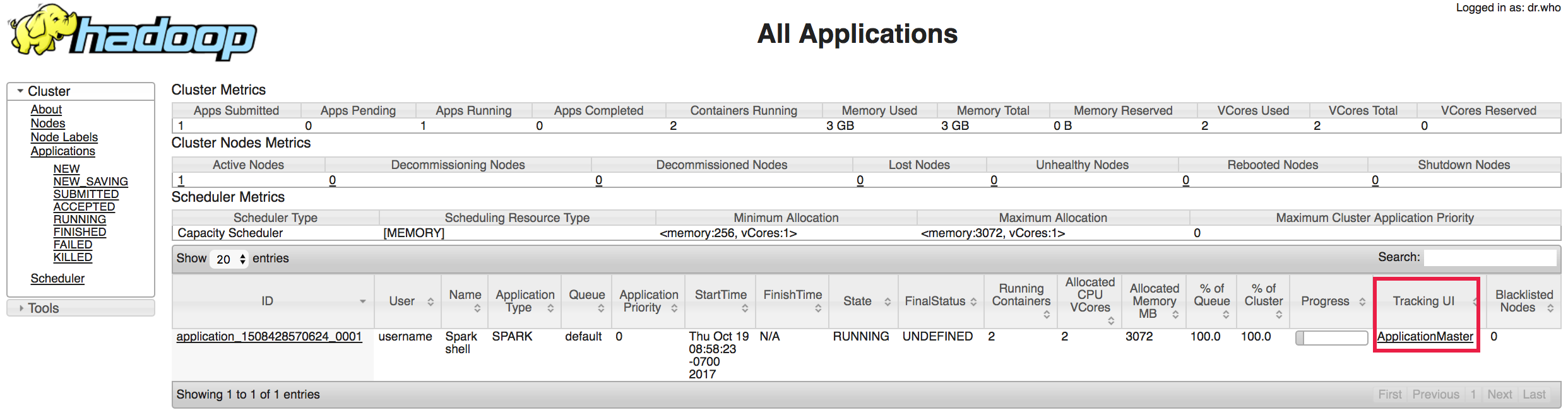
The YARN ResourceManager has links for all currently running and completed
MapReduce and Spark Applications web interfaces under the "Tracking UI" column.
### Allowed YARN ResourceManager REST APIs
When you create a cluster, Managed Service for Apache Spark
sets the yarn-site.xml `yarn.resourcemanager.webapp.methods-allowed`
[property](https://docs.cloud.google.com/managed-spark/docs/concepts/configuring-clusters/cluster-properties.md.txt)
to "GET,HEAD". which restricts the HTTP methods that can be called on the
YARN Resource Manager web UI and
[REST APIs](https://hadoop.apache.org/docs/current/hadoop-yarn/hadoop-yarn-site/ResourceManagerRest.html)
to the `GET` and `HEAD` methods. This default setting also
disables job submission and modifications via the YARN REST API.
You can override the default values to enable specific HTTP methods
on port 8088 by setting this property to one or more comma-separated HTTP method
names. An `ALL` value will allow all HTTP methods on the port.
Example:
```
gcloud dataproc clusters create cluster-name \
--properties=^#^yarn:yarn.resourcemanager.webapp.methods-allowed=GET,POST,DELETE \
--region=region \
```
**Recommendation:** If you set this property to allow
non-default HTTP methods, make sure to configure firewall rules and other
security settings to restrict access to port 8088.
## Connect to web interfaces
You can connect to web interfaces running on a Managed Service for Apache Spark cluster
using the
[Managed Service for Apache Spark Component Gateway](https://docs.cloud.google.com/managed-spark/docs/concepts/accessing/gateways.md.txt),
your project's [Cloud Shell](https://docs.cloud.google.com/shell), or the Google Cloud CLI [gcloud](https://docs.cloud.google.com/sdk/gcloud.md.txt)
command-line tool:
- Component Gateway: Connect with one click to Hadoop, Spark, and other component
Web UI interfaces from the Google Cloud console. You enable the
[Component Gateway](https://docs.cloud.google.com/managed-spark/docs/concepts/accessing/gateways.md.txt)
when you create your cluster.
- Cloud Shell: The Cloud Shell in the Google Cloud console has the
gcloud CLI commands and utilities pre-installed, and it provides a
[Web Preview](https://docs.cloud.google.com/shell/docs/using-web-preview.md.txt) feature that
allows you to quickly connect through an SSH tunnel to a web interface port on
a cluster. However, a connection to the cluster from Cloud Shell
uses local port forwarding, which opens a connection to only one port on a
cluster web interface---multiple commands are needed to connect to multiple
ports. Also, Cloud Shell sessions automatically exit after a
period of inactivity (30 minutes).
- Google Cloud CLI: The `gcloud compute ssh` command with
[dynamic port forwarding](https://en.wikipedia.org/wiki/Port_forwarding#Dynamic_port_forwarding%20class=%22external%22)
allows you to establish an SSH tunnel and run a [SOCKS](https://en.wikipedia.org/wiki/SOCKS)
proxy server on top of the tunnel. After issuing this command, you must
configure your local browser to use the SOCKS proxy. This connection method
allows you to connect to multiple ports on a cluster web interface. See
[Can I use local port forwarding instead of a SOCKS proxy?](https://docs.cloud.google.com/managed-spark/docs/concepts/accessing/cluster-web-interfaces.md.txt#can_i_use_local_port_forwarding_instead_of_a_socks_proxy)
for more information.
### Set commonly used command variables
To make copying and running command-line examples on your local machine
or in [Cloud Shell](https://console.cloud.google.com/?cloudshell=true) easier,
set `gcloud dataproc` command variables. Additional variables may
need to be set for some of the command examples shown on this page.
### Linux/mac/Shell
```
export PROJECT=project;export HOSTNAME=hostname;export ZONE=zone
```
### Windows
```
set PROJECT=project && set HOSTNAME=hostname && set ZONE=zone
```
- Set **PROJECT** to your Google Cloud [project ID](https://console.cloud.google.com/)
- Set **HOSTNAME** to the name of [master node](https://console.cloud.google.com/compute/instances) in your Managed Service for Apache Spark cluster (the master name ends with a `-m` suffix)
- Set **ZONE** to the [zone](https://console.cloud.google.com/compute/instances) of the VMs in your Managed Service for Apache Spark cluster (for example, "us-central1-b")
### Create an SSH tunnel
### gcloud Command
Run the following `gcloud `command on your local machine to
set up an SSH tunnel from an open port on your local machine to the
master instance of your cluster, and run a local SOCKS proxy server
listening on the port.
Before running the command, on your local machine:
1. [Set commonly used command variables](https://docs.cloud.google.com/managed-spark/docs/concepts/accessing/cluster-web-interfaces.md.txt#set_commonly_used_command_variables)
2. Set a **PORT** variable to an open port on your local machine. Port `1080` is an arbitrary but typical choice since it is likely to be open.
```
PORT=number
```
#### Linux/macOS
```
gcloud compute ssh ${HOSTNAME} \
--project=${PROJECT} --zone=${ZONE} -- \
-D ${PORT} -N
```
#### Windows
```
gcloud compute ssh %HOSTNAME% ^
--project=%PROJECT% --zone=%ZONE% -- ^
-D %PORT% -N
```
The `--` separator allows you to add
[SSH](https://www.freebsd.org/cgi/man.cgi?query=ssh&sektion=1)
arguments to the `gcloud compute ssh` command, as follows:
- `-D`specifies dynamic application-level port forwarding.
- `-N` instructs `gcloud` not to open a remote shell.
This `gcloud` command creates an SSH tunnel that operates
independently from other SSH shell sessions, keeps tunnel-related errors out
of the shell output, and helps prevent inadvertent closures of the tunnel.
If the ssh command fails with the error message
`bind: Cannot assign requested address`, a likely cause is that
the requested port is in use. Try running the command with a different
**PORT** variable value.
The above command runs in the foreground, and must continue running to keep
the tunnel active. The command should exit automatically if and when the
you delete the cluster.
> [!IMPORTANT]
> **Opt to run the command in the background** . You can run the command as a background process by adding the \`-n\` flag (`-- -D ${PORT} -N -n`), which redirects `stdin` from `/dev/null`. Note that the `-n` flag may not be supported in all operating systems.
### Cloud Shell
1. Open Google Cloud [Cloud Shell](https://console.cloud.google.com/?cloudshell=true).  **Cloud Shell Session Timeout:** Cloud Shell sessions automatically exit after a period of inactivity (30 minutes).
2. Run the `gcloud` command, below, in Cloud Shell
to set up an SSH tunnel from a
Cloud Shell preview port to a web interface port on the master node on
your cluster. Before running the command, in Cloud Shell :
1. [Set commonly used command variables](https://docs.cloud.google.com/managed-spark/docs/concepts/accessing/cluster-web-interfaces.md.txt#set_commonly_used_command_variables)
2. Set a **PORT1** variable to a Cloud Shell port in the port range 8080 - 8084, and set a **PORT2** variable to the web interface port on the master node on your Managed Service for Apache Spark cluster.
```
PORT1=number
PORT2=number
```
```
gcloud compute ssh ${HOSTNAME} \
--project=${PROJECT} --zone=${ZONE} -- \
-4 -N -L ${PORT1}:${HOSTNAME}:${PORT2}
```
The `--` separator allows you to add
[SSH](https://www.freebsd.org/cgi/man.cgi?query=ssh&sektion=1)
arguments to the `gcloud compute ssh` command, as follows:
- `-4` instructs ssh to only use IPv4.
- `-N` instructs `gcloud` not to open a remote shell.
- `-L ${PORT1}:${HOSTNAME}:${PORT2}` specifies local port forwarding from the specified Cloud Shell **PORT1** to cluster **HOSTNAME** :**PORT2**.
This `gcloud` command creates an SSH tunnel that operates
independently from other SSH shell sessions, keeps tunnel-related errors out
of the shell output, and helps prevent inadvertent closures of the tunnel.
### Configure your browser
### gcloud Command
Your SSH tunnel supports traffic proxying using the SOCKS protocol.
To configure your browser to use the proxy, start a new browser session with
proxy server parameters. Here's an example that uses the Google Chrome browser.
`HOSTNAME` is the name of the cluster's master node (see
[Set commonly used command variables](https://docs.cloud.google.com/managed-spark/docs/concepts/accessing/cluster-web-interfaces.md.txt#set_commonly_used_command_variables)).
#### Linux
```
/usr/bin/google-chrome \
--proxy-server="socks5://localhost:${PORT}" \
--user-data-dir=/tmp/${HOSTNAME}
```
#### macOS
```
"/Applications/Google Chrome.app/Contents/MacOS/Google Chrome" \
--proxy-server="socks5://localhost:${PORT}" \
--user-data-dir=/tmp/${HOSTNAME}
```
#### Windows
```
"%ProgramFiles(x86)%\Google\Chrome\Application\chrome.exe" ^
--proxy-server="socks5://localhost:%PORT%" ^
--user-data-dir="%Temp%\%HOSTNAME%"
```
**Windows 32 bit Users:** Change `%ProgramFiles(x86)%` to `%ProgramFiles%` in the command above.
This command uses the following Chrome browser flags:
- `-proxy-server="socks5://localhost:1080"` tells Chrome to send all `http://` and `https://` URL requests through the SOCKS proxy server `localhost:${PORT}`, using version 5 of the SOCKS protocol. **${PORT}** is the port variable you set in [Create an SSH tunnel](https://docs.cloud.google.com/managed-spark/docs/concepts/accessing/cluster-web-interfaces.md.txt#create_an_ssh_tunnel). Hostnames for URLs are resolved by the proxy server, not locally by Chrome.
- `--user-data-dir=/tmp/${HOSTNAME}` forces Chrome to open a new window that is not tied to an existing Chrome session. Without this flag, Chrome may open a new window attached to an existing Chrome session, ignoring your `--proxy-server` setting. The value set for `--user-data-dir` can be any non-existent path.
> [!IMPORTANT]
> **Proxy extensions:** Proxy management extensions that simplify management and use of the proxy in your browser are available for Chrome, Firefox, and other web browsers.
### Cloud Shell
You do not need to configure your local browser when using Cloud Shell.
After [creating an SSH tunnel](https://docs.cloud.google.com/managed-spark/docs/concepts/accessing/cluster-web-interfaces.md.txt#create_an_ssh_tunnel), use Cloud Shell
web preview to [connect to the cluster interface](https://docs.cloud.google.com/managed-spark/docs/concepts/accessing/cluster-web-interfaces.md.txt#connect_to_the_cluster_interface).
### Connect to the cluster interface
### gcloud Command
Once your local browser is configured to use the proxy, you can navigate to the
web interface URL on your Managed Service for Apache Spark cluster (see
[Available interfaces](https://docs.cloud.google.com/managed-spark/docs/concepts/accessing/cluster-web-interfaces.md.txt#interfaces)).
The browser URL has the following format and content:
`http://cluster-name-m:port` (cluster interface port)
### Cloud Shell
Click the Cloud Shell [Web Preview](https://docs.cloud.google.com/shell/docs/using-web-preview.md.txt)
button ,
and then select either:
- "Preview on port 8080", or
- "Change port" and insert the port number in the dialog
according to the Cloud Shell **PORT1** number (port 8080 - 8084) you passed to the `gcloud compute ssh` command in [Create an SSH tunnel](https://docs.cloud.google.com/managed-spark/docs/concepts/accessing/cluster-web-interfaces.md.txt#create_an_ssh_tunnel). 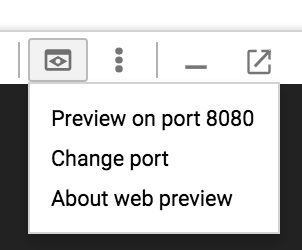 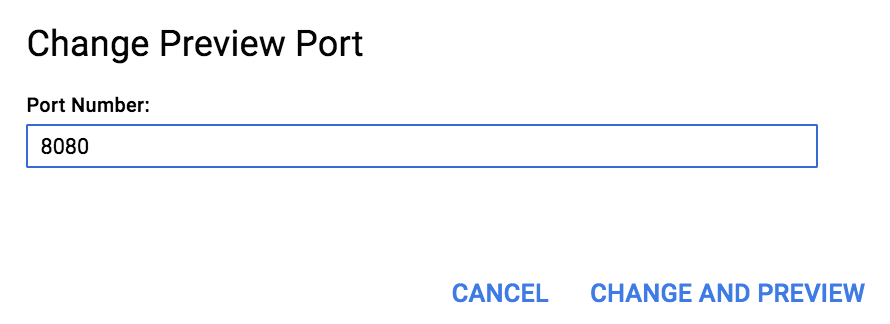
A browser window opens that connects to the web interface port on the
cluster master node.
> [!IMPORTANT]
> Chrome Browser Messages: When using a Chrome browser, you may see messages of the following type in the terminal window or Cloud Shell that you used to [create an SSH tunnel](https://docs.cloud.google.com/managed-spark/docs/concepts/accessing/cluster-web-interfaces.md.txt#create_an_ssh_tunnel).
>
> ```
> channel 15: open failed: administratively prohibited: open failed
> channel 16: open failed: administratively prohibited: open failed
> channel 17: open failed: administratively prohibited: open failed
> ```
> These are not fatal error messages. The Chrome browser issues these messages when it is unable to load a page, and you may see these messages even when you can successfully connect to the application interface on your cluster.
## FAQ And debugging tips
### What if I don't see the UI in my browser?
If you don't see the UIs in your browser, the two most common reasons are:
1. You have a network connectivity issue, possibly due to a firewall.
Run the following command (after
[setting local variables](https://docs.cloud.google.com/managed-spark/docs/concepts/accessing/cluster-web-interfaces.md.txt#set_commonly_used_command_variables))
to see if you can SSH to the master instance.
If you can't, it signals a connectivity issue.
### Linux/macOS
```
gcloud compute ssh ${HOSTNAME}-m \
--project=${PROJECT}
```
### Windows
```
gcloud compute ssh %HOSTNAME%-m ^
--project=%PROJECT%
```
2. Another proxy is interfering with the SOCKS proxy. To check the proxy,
run the following `curl` command (available on Linux and macOS):
### Linux/macOS
```
curl -Is --socks5-hostname localhost:1080 http://cluster-name-m:8088
```
### Windows
```
curl.exe -Is --socks5-hostname localhost:1080 http://cluster-name-m:8088
```
If you see an HTTP response, the proxy is working, so it's possible that the SOCKS proxy is being interrupted by another proxy or browser extension.
### Can I use local port forwarding instead of a SOCKS proxy?
Instead of the SOCKS proxy, it's possible to access web application UIs running
on your master instance with SSH local port forwarding, which
forwards the master's port to a local port. For example, the following command lets
you access `localhost:1080` to reach `cluster-name-m:8088` without SOCKS
(see [Set commonly used command variables](https://docs.cloud.google.com/managed-spark/docs/concepts/accessing/cluster-web-interfaces.md.txt#set_commonly_used_command_variables)):
### Linux/macOS
```
gcloud compute ssh ${HOSTNAME}-m \
--project=${PROJECT} -- \
-L 1080:${HOSTNAME}-m:8088 -N -n
```
### Windows
```
gcloud compute ssh %HOSTNAME%-m ^
--project=%PROJECT% -- ^
-L 1080:%HOSTNAME%-m:8088 -N -n
```
> [!IMPORTANT]
> With a SOCKS proxy, you access the remote UI interface running on the master instance with `http://cluster-name-m:port`, but with local port forwarding you access the master instance's web application UI at `http://localhost:port`.
Using a SOCKS proxy may be preferable to using local port forwarding
since the proxy:
- allows you to access all web application ports without having to set up a port forward tunnel for each UI port
- allows the Spark and Hadoop web UIs to correctly resolve DNS hosts