This tutorial shows how to replicate data between
Managed Service for Apache Kafka clusters, by using the
[MirrorMaker 2.0 Source connector](https://docs.cloud.google.com/managed-service-for-apache-kafka/docs/connect-cluster/create-mirrormaker-connector.md.txt).
The clusters can be in the same project or in different projects, and they can
be in the same region or different regions. For this tutorial, you set up
replication across regions but within the same project. However, the steps are
the same for other combinations.
## Architecture
For this scenario, there are three clusters:
- A Kafka cluster whose data is being replicated. This cluster is called the
*source cluster*, because it's the source of the data.
- A Kafka cluster where the replicated data is written. This cluster is called
the *target cluster*.
- A [Connect cluster](https://docs.cloud.google.com/managed-service-for-apache-kafka/docs/connect-cluster/create-connect-cluster.md.txt),
which lets you create and manage the MirrorMaker 2.0 Source connector.
The Connect cluster is attached to the target cluster. To minimize latency for
write operations, place the Connect cluster in the same region as the target
cluster.
The following diagram shows these components:
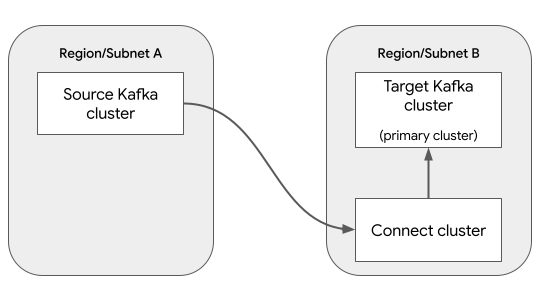
Data replication is performed by the MirrorMaker 2.0 Source connector. Two other
MirrorMaker 2.0 connectors are optional for this scenario:
- MirrorMaker 2.0 Checkpoint connector: Enables seamless failover,
by ensuring that consumers on the target cluster can resume processing from
the same point as the source cluster.
- MirrorMaker 2.0 Heartbeat connector: Generates periodic heartbeat messages on
the source Kafka cluster, which lets you monitor the health and status of the
data replication.
This tutorial does not use these optional connectors. For more information, see
[When to use MirrorMaker 2.0](https://docs.cloud.google.com/managed-service-for-apache-kafka/docs/connect-cluster/connectors-overview.md.txt#mirrormaker-2-0).
## Before you begin
### Console
1.
Make sure that you have the following role or roles on the project:
**Managed Kafka Cluster Editor** ,
**Managed Kafka Connect Cluster Editor** ,
**Managed Kafka Connector Editor**
#### Check for the roles
1.
In the Google Cloud console, go to the **IAM** page.
[Go to IAM](https://console.cloud.google.com/projectselector/iam-admin/iam?supportedpurview=project)
2. Select the project.
3.
In the **Principal** column, find all rows that identify you or a group that
you're included in. To learn which groups you're included in, contact your
administrator.
4. For all rows that specify or include you, check the **Role** column to see whether the list of roles includes the required roles.
#### Grant the roles
1.
In the Google Cloud console, go to the **IAM** page.
[Go to IAM](https://console.cloud.google.com/projectselector/iam-admin/iam?supportedpurview=project)
2. Select the project.
3. Click **Grant access**.
4.
In the **New principals** field, enter your user identifier.
This is typically the email address for a Google Account.
5. Click **Select a role**, then search for the role.
6. To grant additional roles, click **Add
another role** and add each additional role.
7. Click **Save**.
### gcloud
1.
Grant roles to your user account. Run the following command once for each of the following
IAM roles:
`
roles/managedkafka.clusterEditor,
roles/managedkafka.connectClusterEditor,
roles/managedkafka.connectorEditor
`
```bash
gcloud projects add-iam-policy-binding PROJECT_ID --member="user:USER_IDENTIFIER" --role=ROLE
```
Replace the following:
- `PROJECT_ID`: Your project ID.
- `USER_IDENTIFIER`: The identifier for your user account. For example, `myemail@example.com`.
- `ROLE`: The IAM role that you grant to your user account.
## Create the source Kafka cluster
In this step, you create a
[Managed Service for Apache Kafka cluster](https://docs.cloud.google.com/managed-service-for-apache-kafka/docs/create-cluster.md.txt).
This cluster is the *source cluster*, which contains the data to replicate.
### Console
1. Go to the **Managed Service for Apache Kafka** \>
**Clusters** page.
[Go to Clusters](https://console.cloud.google.com/managedkafka/clusters)
2. Click **Create**.
3. In the **Cluster name** box, enter a name for the cluster.
4. In the **Region** list, select a location for the cluster.
5. For **Network configuration**, configure the subnet where the cluster is
accessible.
1. For **Project**, select your project.
2. For **Network**, select a VPC network in your project.
3. For **Subnet**, select a subnet.
4. Click **Done**.
6. Click **Create**.
While the cluster is being created, the cluster state is `Creating`. When the
cluster has finished being created, the state is `Active`.
### gcloud
To create the source Kafka cluster, run the
[`managed-kafka clusters create`](https://docs.cloud.google.com/sdk/gcloud/reference/managed-kafka/clusters/create.md.txt)
command.
```bash
gcloud managed-kafka clusters create SOURCE_KAFKA_CLUSTER \
--location=SOURCE_REGION \
--cpu=3 \
--memory=3GiB \
--subnets=projects/PROJECT_ID/regions/SOURCE_REGION/subnetworks/SOURCE_SUBNET \
--async
```
Replace the following:
- `SOURCE_KAFKA_CLUSTER`: a name for the Kafka cluster
- `SOURCE_REGION`: the location of the cluster
For information about supported locations, see
[Managed Service for Apache Kafka locations](https://docs.cloud.google.com/managed-service-for-apache-kafka/docs/locations.md.txt).
- `PROJECT_ID`: your project ID
- `SOURCE_SUBNET`: the subnet where you want to deploy
the cluster; for example, `default`
The command runs asynchronously and returns an operation ID:
```bash
Check operation [projects/PROJECT_ID/locations/SOURCE_SUBNET/operations/OPERATION_ID] for status.
```
To track the progress of the create operation, use the
[`gcloud managed-kafka operations describe`](https://docs.cloud.google.com/sdk/gcloud/reference/managed-kafka/operations/describe)
command:
```bash
gcloud managed-kafka operations describe OPERATION_ID \
--location=SOURCE_REGION
```
For more information, see
[Monitor the cluster creation operation](https://docs.cloud.google.com/managed-service-for-apache-kafka/docs/create-cluster.md.txt#monitor_cluster).
## Create a Kafka topic
When the source cluster is ready, create a topic as follows:
### Console
1. Go to the **Managed Service for Apache Kafka** \>
**Clusters** page.
[Go to Clusters](https://console.cloud.google.com/managedkafka/clusters)
2. Click the name of the cluster.
3. In the cluster details page, click
**Create Topic**.
4. In the **Topic name** box, enter a name for the topic.
5. Click **Create**.
### gcloud
To create a Kafka topic, run the
[`managed-kafka topics create`](https://docs.cloud.google.com/sdk/gcloud/reference/managed-kafka/topics/create)
command.
```bash
gcloud managed-kafka topics create TOPIC_NAME \
--cluster=SOURCE_KAFKA_CLUSTER \
--location=SOURCE_REGION \
--partitions=10 \
--replication-factor=3
```
Replace the following:
- `TOPIC_NAME`: the name of the Kafka topic to create
- `SOURCE_KAFKA_CLUSTER`: the name of the source cluster
- `SOURCE_REGION`: the region where you created the source cluster
## Create the target Kafka cluster
In this step, you create a second
[Managed Service for Apache Kafka cluster](https://docs.cloud.google.com/managed-service-for-apache-kafka/docs/create-cluster.md.txt).
This cluster is the *target cluster*, to which MirrorMaker 2.0 replicates data.
### Console
1. Go to the **Managed Service for Apache Kafka** \>
**Clusters** page.
[Go to Clusters](https://console.cloud.google.com/managedkafka/clusters)
2. Click **Create**.
3. In the **Cluster name** box, enter a name for the cluster.
4. In the **Region** list, select a location for the cluster. Choose a
different region from where the source cluster is located.
5. For **Network configuration**, configure the subnet where the target
cluster is accessible. The subnet must be in the same VPC
network as the source cluster's subnet.
1. For **Project**, select your project.
2. For **Network**, select the same VPC network as the source cluster's subnet.
3. For **Subnet**, select the subnet.
4. Click **Done**.
6. Click **Create**.
While the cluster is being created, the cluster state is `Creating`. When the
cluster has finished being created, the state is `Active`.
### gcloud
To create the target Kafka cluster, run the
[`managed-kafka clusters create`](https://docs.cloud.google.com/sdk/gcloud/reference/managed-kafka/clusters/create.md.txt)
command.
```bash
gcloud managed-kafka clusters create TARGET_KAFKA_CLUSTER \
--location=TARGET_REGION \
--cpu=3 \
--memory=3GiB \
--subnets=projects/PROJECT_ID/regions/TARGET_REGION/subnetworks/TARGET_SUBNET \
--async
```
Replace the following:
- `TARGET_KAFKA_CLUSTER`: a name for the Kafka cluster
- `TARGET_REGION`: the location of the cluster; choose
a different region from where the source cluster is located.
For information about supported locations, see
[Managed Service for Apache Kafka locations](https://docs.cloud.google.com/managed-service-for-apache-kafka/docs/locations.md.txt).
- `PROJECT_ID`: your project ID
- `TARGET_SUBNET`: the subnet where you want to deploy
the cluster; for example, `default`
Select a subnet in the same VPC as the source cluster.
## Create a Connect cluster
In this step, you create a Connect cluster. Creating a Connect cluster usually
takes 20-30 minutes.
Before you start this step, make sure the target Kafka cluster from the previous
step is fully created.
### Console
1. Go to the **Managed Service for Apache Kafka** \>
**Connect Clusters** page.
[Go to Connect Clusters](https://console.cloud.google.com/managedkafka/connectClusters)
2. Click **Create**.
3. For the **Connect cluster name** , enter a string. Example:
`my-connect-cluster`.
4. For **Primary Kafka cluster** , select the *target* Kafka cluster that you
created in the previous step. (Do not select your source Kafka cluster.)
5. For **Location** , **Network configuration** , and **Worker subnet**, you can
either use the default values, or customize them to your specific
requirements.
6. To enable the Connect cluster to resolve the DNS domain of the source
cluster, perform the following steps:
1. Expand **Resolvable DNS domains**.
2. Click **Add a DNS domain**.
3. In the **Kafka cluster** list, select the source Kafka cluster.
7. Click **Create**.
While the cluster is being created, the cluster state is `Creating`. When the
cluster has finished being created, the state is `Active`.
### gcloud
To create a Connect cluster, run the
[`gcloud managed-kafka connect-clusters create`](https://docs.cloud.google.com/sdk/gcloud/reference/managed-kafka/connect-clusters/create)
command.
```bash
gcloud managed-kafka connect-clusters create CONNECT_CLUSTER \
--location=TARGET_REGION \
--cpu=12 \
--memory=12GiB \
--primary-subnet=projects/PROJECT_ID/regions/TARGET_REGION/subnetworks/TARGET_SUBNET \
--kafka-cluster=TARGET_KAFKA_CLUSTER \
--dns-name=SOURCE_KAFKA_CLUSTER.SOURCE_REGION.managedkafka.PROJECT_ID.cloud.goog. \
--async
```
Replace the following:
- `CONNECT_CLUSTER`: a name for the Connect cluster
- `TARGET_REGION`: the region where you created the target Kafka cluster
- `PROJECT_ID`: your project ID
- `TARGET_SUBNET`: the subnet where you created the target Kafka cluster
- `TARGET_KAFKA_CLUSTER`: the name of the target Kafka cluster
- `SOURCE_KAFKA_CLUSTER`: the name of the source Kafka cluster
- `SOURCE_REGION`: the region where you created the source Kafka cluster
The command runs asynchronously and returns an operation ID:
```bash
Check operation [projects/PROJECT_ID/locations/TARGET_REGION/operations/OPERATION_ID] for status.
```
To track the progress of the create operation, use the
[`gcloud managed-kafka operations describe`](https://docs.cloud.google.com/sdk/gcloud/reference/managed-kafka/operations/describe)
command:
```bash
gcloud managed-kafka operations describe OPERATION_ID \
--location=TARGET_REGION
```
For more information, see
[Monitor the cluster creation operation](https://docs.cloud.google.com/managed-service-for-apache-kafka/docs/connect-cluster/create-connect-cluster.md.txt#monitor_cluster).
## Create a MirrorMaker 2.0 Source connector
In this step, you create a
[MirrorMaker 2.0 Source connector](https://docs.cloud.google.com/managed-service-for-apache-kafka/docs/connect-cluster/create-mirrormaker-connector.md.txt).
This connector replicates messages from the source Kafka cluster to the target
Kafka cluster.
### Console
1. Go to the **Managed Service for Apache Kafka** \>
**Connect Clusters** page.
[Go to Connect Clusters](https://console.cloud.google.com/managedkafka/connectClusters)
2. Click the name of the Connect cluster.
3. Click **Create connector**.
4. For the **Connector name** , enter a string. Example: `mm2-connector`.
5. In the **Connector plugin** list, select `MirrorMaker 2.0 Source`.
6. For **Source cluster** , select **Managed Service for Apache Kafka
Cluster**.
7. In the **Kafka cluster** list, select your source cluster.
8. In the **Comma-separated topic names or topic regex** box, enter the name
of the Kafka topic or topics that you want to replicate.
9. Click **Create**.
### gcloud
1. Run the
[`gcloud managed-kafka clusters describe`](https://docs.cloud.google.com/sdk/gcloud/reference/managed-kafka/clusters/describe)
command to get the
[bootstrap address](https://docs.cloud.google.com/managed-service-for-apache-kafka/docs/view-cluster.md.txt#view-bootstrap-address)
of the source Kafka cluster.
```bash
gcloud managed-kafka clusters describe SOURCE_KAFKA_CLUSTER \
--location=SOURCE_REGION \
--project=PROJECT_ID \
--format="value(bootstrapAddress)"
```
Replace the following:
- `SOURCE_KAFKA_CLUSTER`: the name of the source Kafka cluster
- `SOURCE_REGION`: the source cluster's region
- `PROJECT_ID`: your project ID
2. Run the previous command again to get the bootstrap address of the target
Kafka cluster.
```bash
gcloud managed-kafka clusters describe TARGET_KAFKA_CLUSTER \
--location=TARGET_REGION \
--project=PROJECT_ID \
--format="value(bootstrapAddress)"
```
Replace the following:
- `TARGET_KAFKA_CLUSTER`: the name of the target Kafka cluster
- `TARGET_REGION`: the target cluster's region
3. To create a MirrorMaker 2.0 Source connector, run the
[`gcloud managed-kafka connectors create`](https://docs.cloud.google.com/sdk/gcloud/reference/managed-kafka/connectors/create)
command.
```bash
gcloud managed-kafka connectors create CONNECTOR_NAME \
--location=TARGET_REGION \
--connect-cluster=CONNECT_CLUSTER \
--configs=connector.class=org.apache.kafka.connect.mirror.MirrorSourceConnector,\
source.cluster.alias=source,\
source.cluster.bootstrap.servers=SOURCE_CLUSTER_BOOTSTRAP_ADDRESS,\
target.cluster.alias=target,\
target.cluster.bootstrap.servers=TARGET_CLUSTER_BOOTSTRAP_ADDRESS,\
tasks.max=3,\
topics=TOPIC_NAME
```
Replace the following:
- `CONNECTOR_NAME`: a name for the connector, such as `mm2-connector`
- `CONNECT_CLUSTER`: the name of your Connect cluster
- `SOURCE_CLUSTER_BOOTSTRAP_ADDRESS`: the bootstrap address of the source cluster, from step 1.
- `TARGET_CLUSTER_BOOTSTRAP_ADDRESS`: the bootstrap address of the target cluster, from step 2.
- `TOPIC_NAME`: the name of the topic to replicate. This parameter can also specify a comma-separated list of topic names or a regular expression.
The MirrorMaker 2.0 Source connector creates a new topic in the target cluster
named `"source.TOPIC_NAME"`, where
`TOPIC_NAME` is the name of the topic in the source
cluster.
## View results
To verify that messages are being replicated, you can use the Kafka command
line tools. For information about setting up the Kafka CLI, see
[Set up a client machine](https://docs.cloud.google.com/managed-service-for-apache-kafka/docs/quickstart.md.txt#set_up_a_client_machine)
in the document
[Produce and consume messages with the CLI](https://docs.cloud.google.com/managed-service-for-apache-kafka/docs/quickstart.md.txt).
For example, to send a message to the source cluster, enter the following at the
command line:
```bash
export BOOTSTRAP=$(gcloud managed-kafka clusters describe SOURCE_KAFKA_CLUSTER \
--location=SOURCE_REGION \
--project=PROJECT_ID \
--format="value(bootstrapAddress)"
)
for msg in {1..10}; do
echo "message $msg"
done | kafka-console-producer.sh --topic TOPIC_NAME \
--bootstrap-server $BOOTSTRAP --producer.config client.properties
```
To read the duplicated messages from the target cluster, enter the following at
the command line:
```bash
export BOOTSTRAP=$(gcloud managed-kafka clusters describe TARGET_KAFKA_CLUSTER \
--location=TARGET_REGION \
--project=PROJECT_ID \
--format="value(bootstrapAddress)"
)
kafka-console-consumer.sh --topic source.TOPIC_NAME --from-beginning \
--bootstrap-server $BOOTSTRAP --consumer.config client.properties
```
The output looks like the following:
```bash
message 1
message 2
message 3
message 4
[...]
```
## Clean up
To avoid incurring charges to your Google Cloud account for the resources used in this
tutorial, either delete the project that contains the resources, or keep the project and
delete the individual resources.
### Console
1. Delete the Connect cluster.
1. Go to the **Managed Service for Apache Kafka** \>
**Connect Clusters** page.
[Go to Connect Clusters](https://console.cloud.google.com/managedkafka/connectClusters)
2. Select the Connect cluster and click **Delete**.
2. Delete the source Kafka cluster.
1. Go to the **Managed Service for Apache Kafka** \>
**Clusters** page.
[Go to Clusters](https://console.cloud.google.com/managedkafka/clusters)
2. Select the Kafka cluster and click **Delete**.
3. Repeat the previous step to delete the target Kafka cluster.
### gcloud
1. To delete the Connect cluster, use the
[`gcloud managed-kafka connect-clusters delete`](https://docs.cloud.google.com/sdk/gcloud/reference/managed-kafka/connect-clusters/delete)
command.
```bash
gcloud managed-kafka connect-clusters delete CONNECT_CLUSTER \
--location=TARGET_REGION --async
```
2. To delete the source Kafka cluster, use the
[`gcloud managed-kafka clusters delete`](https://docs.cloud.google.com/sdk/gcloud/reference/managed-kafka/clusters/delete)
command.
```bash
gcloud managed-kafka clusters delete SOURCE_KAFKA_CLUSTER \
--location=SOURCE_REGION --async
```
3. Repeat the previous step to delete the target Kafka cluster.
```bash
gcloud managed-kafka clusters delete TARGET_KAFKA_CLUSTER \
--location=TARGET_REGION --async
```
## What's next
- [Troubleshoot a MirrorMaker 2.0 connector](https://docs.cloud.google.com/managed-service-for-apache-kafka/docs/connect-cluster/troubleshoot-mirrormaker-connector.md.txt)
- Learn more about the [MirrorMaker 2.0 connector](https://docs.cloud.google.com/managed-service-for-apache-kafka/docs/connect-cluster/create-mirrormaker-connector.md.txt).
- Learn more about [Kafka Connect](https://docs.cloud.google.com/managed-service-for-apache-kafka/docs/kafka-connect-overview.md.txt).