Transcoding data locally on a mainframe is a CPU-intensive process that results
in high million instructions per second (MIPS) consumption. To avoid this, you
can use Cloud Run to move and transcode mainframe data remotely on
Google Cloud. This frees up your mainframe for business critical tasks and also
reduces MIPS consumption.
If you want to move very large volumes of data (around 500 GB per day or more)
from your mainframe to Google Cloud, and don't want to use your mainframe for
this effort, you can use a cloud-enabled [Virtual Tape Library (VTL)](https://en.wikipedia.org/wiki/Virtual_tape_library) solution to transfer the data to a Cloud Storage
bucket. You can then use Cloud Run to transcode data present in the
bucket and move it to BigQuery.
This page discusses how to read mainframe data copied into a Cloud Storage
bucket, transcode it from the extended binary coded decimal interchange code
(EBCDIC) dataset to the ORC format in UTF-8, and load the dataset to a
BigQuery table.
> [!NOTE]
> **Note:** This page doesn't explain you how to copy your data from your mainframe to a Cloud Storage bucket. The procedure described in this page starts with the assumption that you've moved your mainframe data to a Cloud Storage bucket.
The following diagram shows how you can move your mainframe data to a
Cloud Storage bucket using a VTL solution, transcode the data to the ORC
format using Cloud Run, and then move the content to BigQuery.
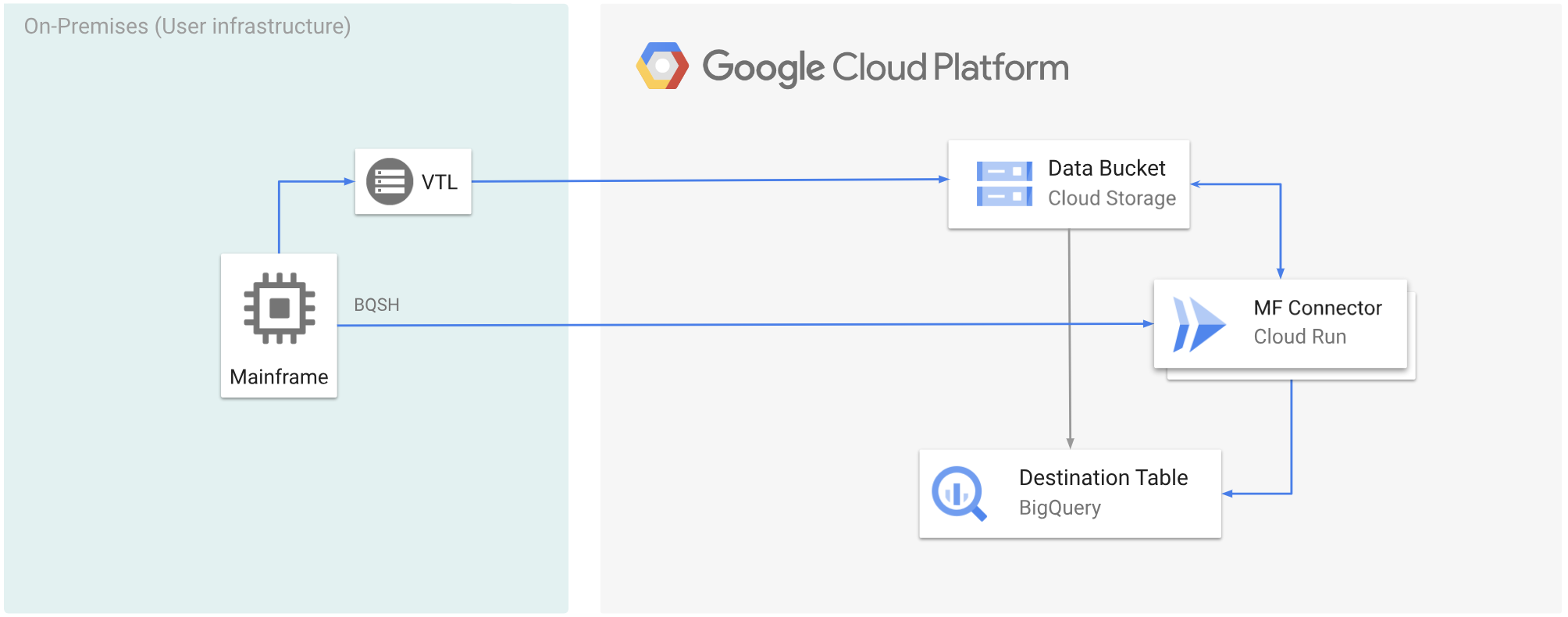 Remotely transcode mainframe data using VTL
## Before you begin
- Choose a VTL solution that suits your requirements and move your mainframe data to a Cloud Storage bucket and save it as a `.dat`. Ensure that you add a [metadata key](https://docs.cloud.google.com/storage/docs/viewing-editing-metadata.md.txt#command-line_1) named `x-goog-meta-lrecl` to the uploaded `.dat` file, and that the metadata key length is equal to the original file's record length, for example 80.
- [Deploy Mainframe Connector on Cloud Run](https://docs.cloud.google.com/mainframe-connector/docs/deploy-mainframe-connector.md.txt).
- In your mainframe, set the `GCSDSNURI` environment variable to the prefix that you have used for your mainframe data on Cloud Storage bucket.
```
export GCSDSNURI="gs://BUCKET/PREFIX"
```
Replace the following:
- BUCKET: The name of the Cloud Storage bucket.
- PREFIX: The prefix that you want to use in the bucket.
- [Create a service account](https://docs.cloud.google.com/iam/docs/service-accounts-create.md.txt) or identify an existing service account to use with Mainframe Connector. This service account must have permissions to access Cloud Storage buckets, BigQuery datasets, and any other Google Cloud resource that you want to use.
- Ensure that the service account you created is assigned the [Cloud Run Invoker role](https://docs.cloud.google.com/run/docs/reference/iam/roles.md.txt#run.invoker).
## Transcode mainframe data uploaded to a Cloud Storage bucket
To move mainframe data to Google Cloud using VTL and transcode remotely,
you must perform the following tasks:
1. Read and transcode the data present in a Cloud Storage bucket to the ORC format. The transcoding operation converts a mainframe EBCDIC dataset to the ORC format in UTF-8.
2. Load the dataset to a BigQuery table.
3. (Optional) Execute a SQL query on the BigQuery table.
4. (Optional) Export data from BigQuery into a binary file in Cloud Storage.
To perform these tasks, follow these steps:
1. In your mainframe, create a job to read the data from a `.dat`
file in a Cloud Storage bucket, and transcode it to ORC format, as follows.
> [!NOTE]
> **Note**
> - Not all Google Cloud commands support remote transcoding. For more information, see [Mainframe Connector API reference](https://docs.cloud.google.com/mainframe-connector/docs/reference.md.txt).
> - Variables with the suffix FILLER are ignored during the import process.
> - From version 5.12.0 onwards, Mainframe Connector replaces hyphens ("-") with underscores ("_") in variable names. If you want to keep hyphens in your variable names, disable this automatic conversion by setting the database variable `BQSH_FEATURE_CONVERT_UNDERSCORE_IN_FIELDS_NAME` to `false`.
For the complete list of environment variables supported by
Mainframe Connector, see [Environment variables](https://docs.cloud.google.com/mainframe-connector/docs/environment-variables.md.txt).
//STEP01 EXEC BQSH
//COPYBOOK DD DISP=SHR,DSN=.COPYBOOK.FILENAME
//STDIN DD *
gsutil cp --replace gs://mybucket/tablename.orc \
--inDsn INPUT_FILENAME \
--remoteHost .a.run.app \
--remotePort 443 \
--project_id PROJECT_NAME
/*
Replace the following:
- `PROJECT_NAME`: The name of the project in which you want to execute the query.
- `INPUT_FILENAME`: The name of the `.dat` file that you uploaded to a Cloud Storage bucket.
If you want to log the commands executed during this process, you can [enable load statistics](https://docs.cloud.google.com/mainframe-connector/docs/reference.md.txt#enable_load_statistics).
2. (Optional) Create and submit a BigQuery query job that executes a SQL read from
the [QUERY DD file](https://docs.cloud.google.com/mainframe-connector/docs/reference.md.txt#dataset-names).
Typically the query will be a `MERGE` or `SELECT INTO DML`
statement that results in transformation of a BigQuery table. Note
that Mainframe Connector logs in job metrics but doesn't write query
results to a file.
You can query BigQuery in various ways-inline, with a separate
dataset using DD, or with a separate dataset using DSN.
Example JCL
//STEP03 EXEC BQSH
//QUERY DD DSN=.QUERY.FILENAME,DISP=SHR
//STDIN DD *
PROJECT=PROJECT_NAME
LOCATION=LOCATION
bq query --project_id=$PROJECT \
--location=$LOCATION/*
/*
Replace the following:
- `PROJECT_NAME`: The name of the project in which you want to execute the query.
- `LOCATION`: The location for where the query will be executed. We recommended that you execute the query in a location close to the data.
3. (Optional) Create and submit an export job that executes a SQL read from the
[QUERY DD file](https://docs.cloud.google.com/mainframe-connector/docs/reference.md.txt#dataset-names), and exports
the resulting dataset to Cloud Storage as a binary file.
Example JCL
//STEP04 EXEC BQSH
//OUTFILE DD DSN=.DATA.FILENAME,DISP=SHR
//COPYBOOK DD DISP=SHR,DSN=.COPYBOOK.FILENAME
//QUERY DD DSN=.QUERY.FILENAME,DISP=SHR
//STDIN DD *
PROJECT=PROJECT_NAME
DATASET_ID=DATASET_ID
DESTINATION_TABLE=DESTINATION_TABLE
BUCKET=BUCKET
bq export --project_id=$PROJECT \
--dataset_id=$DATASET_ID \
--destination_table=$DESTINATION_TABLE \
--location="US" \
--bucket=$BUCKET \
--remoteHost .a.run.app \
--remotePort 443
/*
Replace the following:
- `PROJECT_NAME`: The name of the project in which you want to execute the query.
- `DATASET_ID`: The BigQuery dataset ID that contains the table that you want to export.
- `DESTINATION_TABLE`: The BigQuery table that you want to export.
- `BUCKET`: The Cloud Storage bucket that will contain the output binary file.