

Histograms help you visualize the distribution of a dataset. They group numeric data into bins, typically of equal width, and display the frequency of values that fall into each bin as bars. Histograms are useful for understanding the shape, center, and spread of your data, which in turn can lead to insights that might be hidden in other types of charts, such as pie charts and bar charts.
Histogram charts in Data Studio
A histogram chart in Data Studio lets you visualize a single bin dimension, optionally broken down by a second dimension. You can adjust the number and size of the bins, as well as how the bins are labeled. Data Studio can create bins from a dimension in your data source automatically, or you can create your own custom bins. Histogram charts in Data Studio use a single metric. If Record count is provided by the data source, it is used as the metric. If Record count is not provided, you may select a metric to use.
Histogram chart example
The following example illustrates how a histogram chart can help you visualize a real-world use case: understanding customer demographics.
Suppose you're an analyst at a clothing company and you want to understand the age of your customers to better tailor your marketing efforts. Your data includes the ages for everyone who has made a purchase and has agreed to provide their demographic information.
To visualize the frequency of customers by age range, you'd use a Customer age numeric field as the bin dimension. The chart's X-axis shows the customer age ranges (for example 18-20, 21-25, 25-30, and so on), and the Y-axis shows the number (Record count) of customers in each age group. This visualization will show you if your customer base is mostly teenagers, young adults, or older individuals, helping you decide where to focus your advertising efforts.
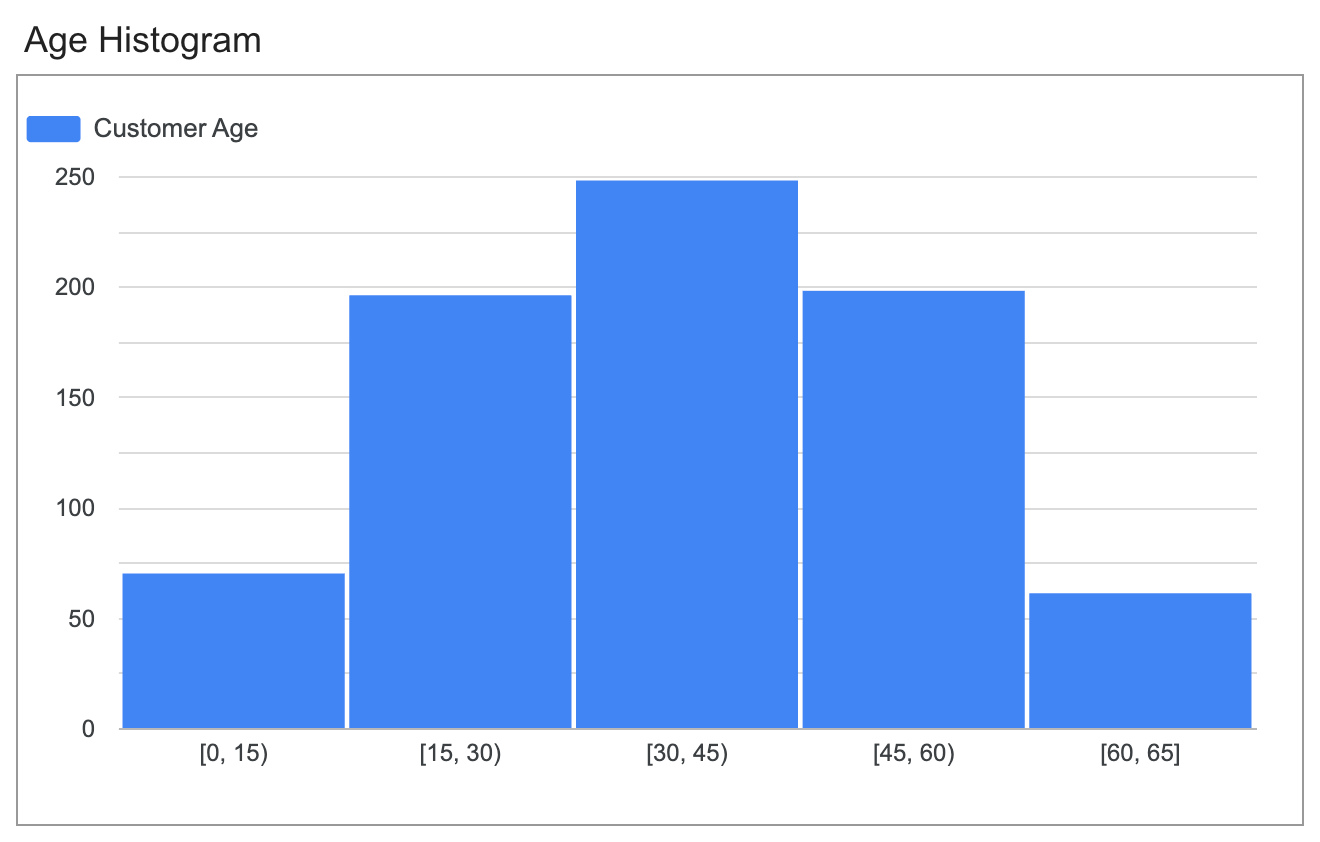
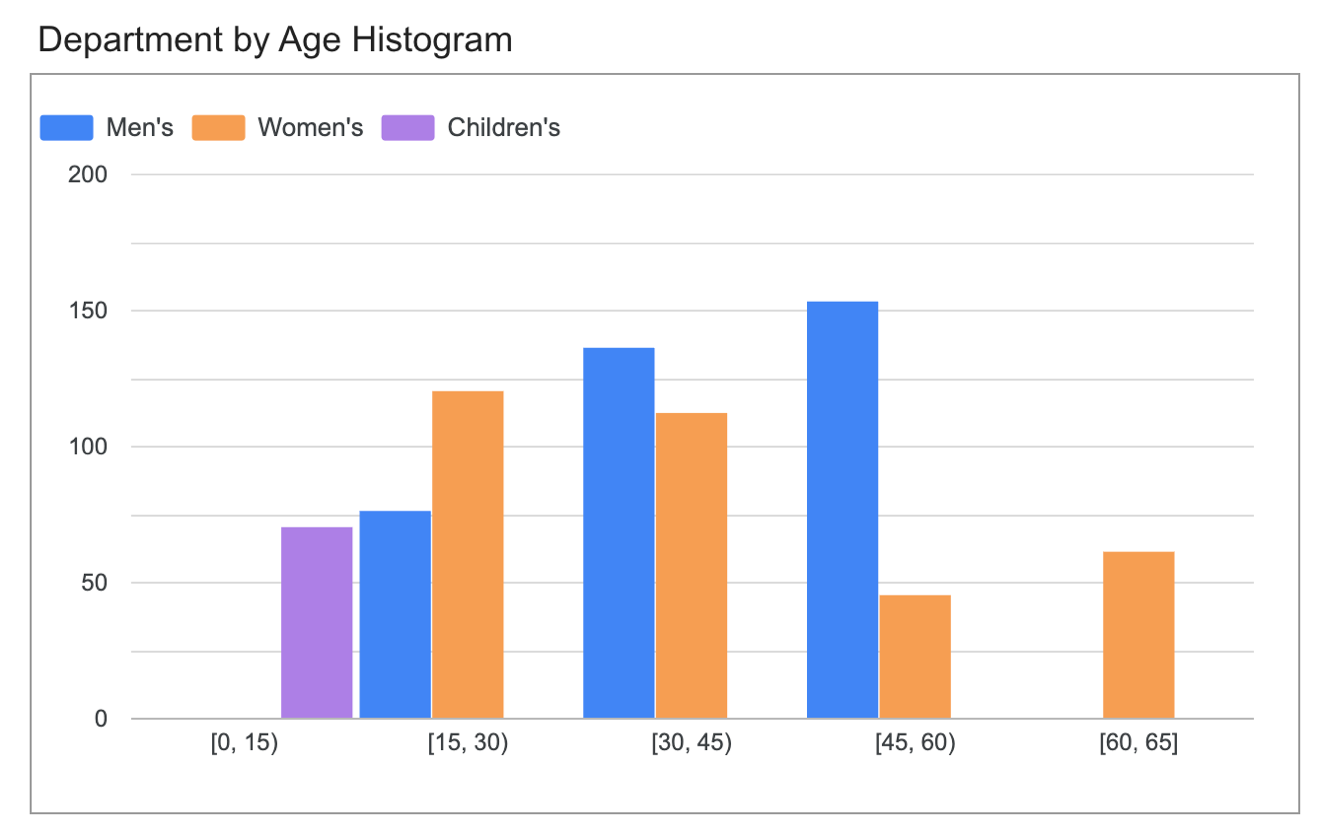
You might then break down the chart by clothing department to see how your clothing lines appeal to different age groups.
Benefits of using a histogram chart
Using a histogram to visualize this example can be more effective than other chart types—for example, bar or column charts or pie charts—for the following reasons:
- Greater precision: Pie charts and bar charts require you to pre-define your bins. A histogram, on the other hand, can automatically generate the bins that best reflect your actual data. This can help you see the specific frequencies across many, smaller bins, such as age ranges. For example, a histogram might show you that you have a peak of customers who are exactly 22 years old, something you would miss if you were just looking at a "18-24" group in a pie chart.
- Continuous data: Ages are continuous data. A histogram's adjacent bars correctly represent this continuity, showing the flow of data from one age range to the next. Pie and bar charts treat each age group as a distinct, separate category, which isn't an accurate representation of the underlying data.
- Outlier detection: A histogram can show you if there are any unusual age groups in your customer base, like a small but notable number of customers who are over 60, which could be an important insight for your business. This kind of detail is often lost or hidden in the broad slices of a pie chart.
Add a histogram to your report
To add a histogram to your report, follow these steps:
- Add a new chart or select an existing chart.
- Use the Properties panel to configure the chart's Setup tab and Style tab properties to set up the chart data and style the chart, respectively. The following sections explain how to set up the chart data and style the chart in more detail.
Set up the chart data
The options in the Setup tab of the Properties panel determine how the chart's data is organized and displayed.
Data source
A data source provides the connection between the component and the underlying dataset.
- To change the chart's data source, click the current data source name.
- To view or edit the data source, click the
 Edit data source icon. (You must have at least Viewer permission to see this icon.)
 - Click Blend data to see data from multiple data sources in the same chart. Learn more about data blending.
Dimension - X axis
The Dimension option provides the bins for your histogram. When you create a new histogram, Data Studio selects a field from your data source and use that to automatically bin the data. You can edit the bin configuration or select a different field, including an existing manually created bin field, a calculated field, or a group.
To edit the bin field configuration, move your pointer over the dimension and then click the fx icon. Learn how to create and edit bin fields.
Metric
If Record count is provided by the data source, histograms automatically use it as the chart's metric. In this case, you can't change the metric, and the Metric section doesn't appear in the Properties panel.
If the data source doesn't provide Record count, Data Studio selects a default metric, and the Metric section appears in the Properties panel, letting you select a different metric.
Bin
The Bin option lets you customize the number of bins that appear in the chart. Enter a number or click Auto bin  to automatically assign the number of bins.
Filter
Filters restrict the data that is displayed in the component by including or excluding the values that you specify. Learn more about the filter property.
Filter options include the following:
- Filter name: Click an existing filter to edit it. Mouse over the filter name and click X to delete it.
- Add filter: Click this option to create a new filter for the chart.
Date range dimension
This option appears if your data source has a valid date dimension.
The date range dimension is used as the basis for limiting the date range of the chart. For example, this is the dimension that is used if you set a date range property for the chart or if a viewer of the report uses a date range control to limit the timeframe.
Default date range filter
The default date range filter lets you set a timeframe for an individual chart.
Default date range filter options include the following:
- Auto: Uses the default date range, which is determined by the chart's data source.
- Custom: Lets you use the calendar widget to select a custom date range for the chart.
Learn more about working with dates and time.
Sort
The Ascending and Descending settings in the chart's setup panel control the direction of bin sorting.
Chart interactions
When the Cross-filtering option is enabled on a chart, that chart acts like a filter control. You can filter the report by clicking or brushing your mouse across the chart. Learn more about cross-filtering.
Style the chart
The Style tab options control the overall appearance and presentation of your chart.
Chart title
Turn on the Show title switch to add a title to your chart. Data Studio can automatically generate a title, or you can create a custom title for the chart. You can also customize the title's styling and placement.
Autogenerate
This option is enabled by default. When Autogenerate is enabled, Data Studio generates a title that is based on the chart type and the fields that are used in the chart. The autogenerated title will be updated if you change the chart type or make changes to the fields that are used in the chart.
To add a custom title to your chart, enter it into the Title field. This will turn off the Autogenerate setting.
Title options
When the Show title setting is enabled, you can use the following title options:
- Title: Provides a text field where report editors can enter a custom title for the chart.
- Font family: Sets the font type for the title text.
- Font size: Sets the font size for the title text.
- Font color: Sets the font color for the title text.
- Font styling options: Applies bold, italic, or underline styling to the title text.
- Top: Positions the chart title at the top of the chart.
- Bottom: Positions the chart title at the bottom of the chart.
- Left: Aligns the chart title to the left side of the chart.
- Center: Centers the chart title horizontally.
- Right: Aligns the chart title to the right side of the chart.
Histogram
This section controls the overall appearance and layout of your chart.
 Vertical: Displays the data series as vertical columns.
 Horizontal: Displays the data series as horizontal bars.
Group bar width: Customizes spacing between bars in a chart.
Stacked bars: Displays stacked bars or columns, useful for showing part-to-whole relationships when using a breakdown dimension.
- Show total card: Displays the total value of metrics for a selected stacked bar when you hold the pointer over the bar (available only when Stacked bars is enabled).
Data label
This section controls the presentation of data labels for bars. Turn on Show data labels to see these options:
- Bar label type: This option is available only for stacked histogram
charts. The Bar label type drop-down menu includes the following options:
- Metric value (default): Shows a metric value for each segment of the bar.
- Stacked: Shows the total stack value for each bar, along with the running sum from the values for each segment of the bar.
- Total: Shows only the total stack value for all the segments of the bar. The Total option is available only for the stacked histogram chart type.
- Compact numbers: Rounds numbers and displays the unit indicator. For example, 553,939 becomes 553.9K.
- Decimal precision: Sets the number of decimal places that are displayed in metric values.
- Font family: Sets the font type of the label text.
- Font size: Sets the font size for the label text.
- Font color: Sets the font color for the label text. This option is available only when the Bar label position option is set to Left (for horizontal bars) or to Below (for vertical bars).
- Font styling options: Applies bold or italic styling to the label text.
- Bar label position: Sets the position of labels relative to the bar or column.
- Background color: Sets a background color for the label text.
- Labels opacity: For labels with a custom background color, this setting adjusts the opacity of the background for the label text. 100% opacity makes the background solid, and 0% opacity makes the background fully transparent.
- Labels border radius: For labels with a custom background color, this setting adds rounded borders to the chart background. Choose a value from 0px (90° corners) to 20px (maximum rounding).
Color by
This section controls how your data is colored. Learn more about coloring your data.
These options appear when you have a secondary (breakdown) dimension in your chart:
- Single color: When this option is selected, the data series is displayed in shades of a single color. Otherwise, the chart is displayed in multiple colors, according to your report theme. You can set specific colors by using each data series' color picker.
- Bar order: Use the current theme to color the data according to its position in the chart. This option emphasizes the ranking of the data over the identity of the data. You can set specific colors by using each data series' color picker.
- Dimension values: This option colors each dimension value in the chart with the color that is specified in the dimension value color map. This option ensures that your data uses color consistently, regardless of the position of that data in the chart.
- Bar border color: This option lets you change the outline color for the bars in the chart. You can also specify a bar border color for all the histogram charts in your report from the Layout tab of the Themes menu.
Reference lines
Add a reference line or a reference band to your chart by selecting the Add a reference line or Add a reference band option, respectively.
For more information about reference lines and reference bands, visit the Add reference lines and reference bands to charts page. Reference lines are not available for 100% stacked area charts.
Axes
These options control the display of the chart axes titles and scales. A right Y-axis section appears when you have more than one metric in your chart.
These options control the display of the chart axes titles and scales:
- Show axes: Shows or hides the chart axes.
- Axis color: Sets the color of the axes.
- Axis text color: Sets the text color for the axis text.
- Font family: Sets the font type for the axis text.
- Axis font size: Sets the font size for the axis text.
- Reverse Y-axis direction: Controls the vertical display of the Y-axis.
Reverse X-axis direction: Controls the horizontal display of the X-axis.
Align both axes to 0: Makes both left and right axes start at 0. This option is available only for Cartesian line, bar, and combo charts that have left and right Y-axes.
Left Y-Axis
These options appear when you enable Show axes in the Axes section. A Right Y-Axis section with the same options appears when you have more than one metric in your chart.
These options control the display of the Y-axis:
- Show axis title: Shows or hides the axis title.
- Show axis labels: Shows or hides the axis labels.
- Rotation (0° to 90°): Sets the rotation of the axis labels for ease of readability. This option appears when you enable Show axis labels.
- Show axis line: Shows or hides the axis line.
- Axis min: Sets the minimum value for the axis.
- Axis max: Sets the maximum value for the axis.
- Custom tick interval: Controls the interval between axis ticks.
- Log scale: Makes the axis scale logarithmic.
X-Axis
These options control the display of the chart's X-axis. These options appear when you enable Show axes in the Axes section:
- Show axis title: Shows or hides the axis title.
- Show axis labels: Shows or hides the axis labels.
- Rotation (0° to 90°): Sets the rotation of the axis labels for ease of readability. This option appears when you enable Show axis labels.
- Show axis line: Shows or hides the axis line.
Grid
These options control the look of the chart grid:
- Grid background: Sets the color of the chart background.
- Grid border color: Sets the color of the inner chart border.
- Show X-axis grid lines: Displays the X-axis grid line.
- Grid line style: Sets the line style of the X-axis grid. This option is available only when Show X-axis grid lines is enabled.
- Grid line color: Sets the color of the X-axis grid line. This option is available only when Show X-axis grid lines is enabled.
- Show Y-axis grid lines: Displays the Y-axis grid line.
- Grid line style: Sets the line style of the Y-axis grid. This option is available only when Show Y-axis grid lines is enabled.
- Grid line color: Sets the color of the Y-axis grid line. This option is available only when Show Y-axis grid lines is enabled.
Legend
These options determine the placement and appearance of the chart legend:
- Display legend: When enabled, displays the chart legend.
- Position: Sets the position of the legend.
- Alignment: Sets the alignment of the legend relative to the selected position.
Align legend with grid: Sets the alignment of the legend with the position of the grid, instead of aligning with the title.
Max lines: Sets the number of lines that are used by the legend. If the number of series requires more lines, overflow items can be displayed by clicking the < and > arrows.
Font family: Sets the font type of the legend font.
Font size: Sets the size of the legend font.
Font color: Sets the color of the legend font.
Background and border
These options control the appearance of the chart background container:
- Background: Sets the chart background color.
- Opacity: Sets the chart opacity. 100% opacity completely hides objects behind the chart. 0% opacity makes the chart invisible.
- Border color: Sets the chart border color.
- Border radius: Adds rounded borders to the chart background. When the radius is 0, the background shape has 90° corners. A border radius of 100° produces a circular shape.
- Border weight: Sets the chart border line thickness.
- Border style: Sets the chart border line style.
- Add border shadow: Adds a shadow to the chart's lower and right borders.
Chart header
The chart header lets viewers perform various actions on the chart, such as exporting the data, drilling up or down, or sorting the chart. Chart header options include the following:
- Chart header: Controls where the chart header appears on the chart. The Chart header options include the following:
- Do not show: The header options never appear. Note that report viewers can always access the options by right-clicking the chart.
- Always show: The header options always appear.
- Show on hover (default): Three vertical dots appear when you hold the pointer over the chart header. Click these to access the header options.
- Header font color: Sets the color of the chart header options.
Reset to report theme
Click Reset to report theme to reset the chart settings to the report theme settings.
Limits of histogram charts
Histograms in Data Studio have the following limits:
- If Record count is provided by the data source, it must be used as the chart's metric and can't be changed. (Some older data sources may not contain the Record count metric unless you first refresh the data source fields.)
- Histograms don't support optional metrics.
- Histograms don't support drill down.
- Histograms don't have a distinct Others bin. When data points fall outside of specified minimum and maximum bin values, they won't be grouped. Instead, these values will be visually represented with a different color, similar to how "null" values are handled.
- Histograms can't visualize blended data.