## Usage
```
constant: constant_name {
value: "string"
export: none | override_required | override_optional
}
```
|---|---|
| Hierarchy [Project manifest file](https://docs.cloud.google.com/looker/docs/reference/param-project-manifest.md.txt) `constant` | Default value None
Accepts - A `value` subparameter, which accepts a string specifying the value of the constant - An `export` subparameter, which specifies whether the constant must be overridden when used in importing projects |
## Definition
The `constant` parameter defines a LookML constant, allowing you to specify a value that can be reused throughout a [project](https://docs.cloud.google.com/looker/docs/how-project-works). Constants can be referenced anywhere in the model where strings are accepted and [with the `model` and `explore` parameters of a LookML dashboard element](https://docs.cloud.google.com/looker/docs/reference/param-manifest-constant.md.txt#using_constants_in_lookml_dashboards), thus helping reduce repetition in your LookML code.
Constants must be defined in the [project manifest file](https://docs.cloud.google.com/looker/docs/other-project-files#project_manifest_files). Constants may then be used throughout a project using `@{constant_name}` syntax.
You can use the [`export`](https://docs.cloud.google.com/looker/docs/reference/param-manifest-constant.md.txt#export) subparameter of `constant` to specify whether developers should override the value of a constant when files that reference it are [imported into another project](https://docs.cloud.google.com/looker/docs/importing-projects.md.txt).
### `export`
You can use the `export` subparameter of `constant` to determine how a constant can be used when files that reference that constant are [imported into other projects](https://docs.cloud.google.com/looker/docs/importing-projects.md.txt).
By default, imported files that reference a constant use the value specified in the imported project's manifest file in the importing project. The `export` parameter specifies whether developers should override a constant's value by providing a new value for that constant to use in importing projects. The `export` parameter has the following possible values:
- `none`: The default value for `export`. The constant's value cannot be overridden in the importing project. The importing project uses the constant value specified in the imported project's manifest file.
- `override_optional`: The constant's value can optionally be overridden in your importing project. If a value is not provided in the importing project's manifest file, the original value from the imported project is used.
- `override_required`: The importing project must override the constant value originally specified in the imported project's manifest file. If a new constant value is not provided in the importing project, Looker will display an error.
> Constants are available only to files from the project in which they are originally defined. Therefore, constants that are defined in a project whose files you have imported can be used only by the imported files, and not by files defined in the importing project.
>
> If you want to use a constant in the importing project's files, you should define a new constant in the importing project's manifest file. A constant defined in this way will be available only to the files defined in the importing project.
When you import files that reference a constant into another project, you can use the `override_constant` subparameter of [`local_dependency`](https://docs.cloud.google.com/looker/docs/reference/param-manifest-local-dependency.md.txt#overriding_imported_constants_with_override_constant) or [`remote_dependency`](https://docs.cloud.google.com/looker/docs/reference/param-manifest-remote-dependency.md.txt#override_constant) in the importing project's manifest file to provide a new value for a constant that has `export` set to `override_optional` or `override_required`.
See the [Importing files from other projects](https://docs.cloud.google.com/looker/docs/importing-projects.md.txt#using_constants_in_files_from_an_imported_project) documentation page for more information and an example of overriding constants in importing projects.
## Examples
Here are some examples of how you can use the `constant` parameter to define values that can be used throughout a project.
### Labeling Explores with the `constant` parameter
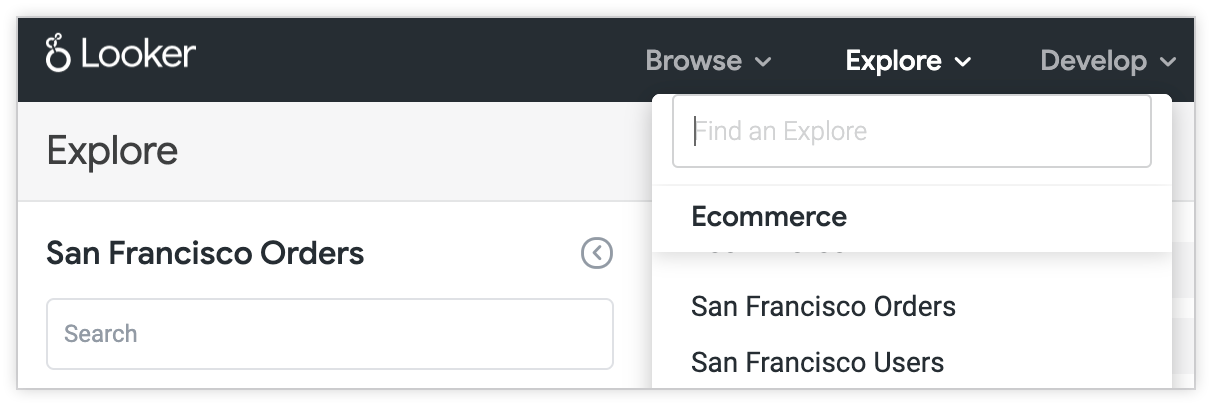
Suppose you want to create two Explores, labeled **San Francisco Users** and **San Francisco Orders** in the UI. To do this, you can define a constant `city` with the value `"San Francisco"` in the [`manifest.lkml` file](https://docs.cloud.google.com/looker/docs/other-project-files#project_manifest_files) for your project:
constant: city {
value: "San Francisco"
}
This constant can then be referenced in any part of your project where a string is accepted, using the syntax `@{city}`. In this example, you can define the `users` and `orders` Explores, specifying `"@{city} Users"` and `"@{city} Orders"` as values for the [`label` parameter](https://docs.cloud.google.com/looker/docs/reference/param-explore-label.md.txt), as in the following example:
explore: users {
label: "@{city} Users"
}
explore: orders {
label: "@{city} Orders"
}
In this example, Looker displays **San Francisco Users** and **San Francisco Orders** in the Explore menu and in the titles of the Explores, rather than the default **Users** and **Orders** labels.
### Using the `sql_table_name` parameter with constants
Suppose you want to create several views based on tables in the schema `02349_sfo`. To avoid having to specify the value `02349_sfo` multiple times, you create a constant named `schema` in the `manifest.lkml` file for your project, as follows:
constant: schema {
value: "02349_sfo"
}
You can then create views based on the `02349_sfo` schema by specifying `@{schema}.view_name` as the value for the [`sql_table_name` parameter](https://docs.cloud.google.com/looker/docs/reference/param-view-sql-table-name.md.txt):
view: users {
sql_table_name: @{schema}.users ;;
}
This creates a view called **Users** that is based on the `users` table from the schema `02349_sfo`.
### Using Liquid variables and HTML with constants
Imagine that you want negative data values to display within parentheses and in a red font. By setting this formatting as the value for a LookML constant, you can specify the formatting just once using [Liquid variables](https://docs.cloud.google.com/looker/docs/liquid-variable-reference.md.txt) and [HTML](https://docs.cloud.google.com/looker/docs/reference/param-field-html.md.txt). Then, you can reference the constant whenever you want to apply that formatting to a field.
For example, you can create a constant `negative_format` with which to apply this formatting to a field:
constant: negative_format {
value: "{% if value < 0 %}({{rendered_value}})
{% else %} {{rendered_value}} {% endif %}"
}
This creates a constant `negative_format` that specifies that negative data values should have a red font and be surrounded by parentheses. You can then apply this formatting to dimensions and measures in your dataset using the [`html` parameter](https://docs.cloud.google.com/looker/docs/reference/param-field-html.md.txt).
For example, you can create **Total Amount** measure of [`type: sum`](https://docs.cloud.google.com/looker/docs/reference/param-measure-types.md.txt#sum) and specify `@{negative_format}` as the value for the `html` parameter:
measure: total_amount {
type: sum
value_format_name: usd
sql: ${amount} ;;
html: @{negative_format} ;;
}
In your table, negative values for the **Total Amount** measure will be formatted as specified in the `negative_format` constant definition, with a red font and surrounded by parentheses.

### Using constants in LookML dashboards
When you define a [dashboard element](https://docs.cloud.google.com/looker/docs/reference/param-lookml-dashboard-element.md.txt) for a LookML dashboard, you can use LookML constants to define the model and Explore that an element is based on.
As an example, suppose you have defined the constants `model_name` and `explore_name` in the `manifest.lkml` file for your project:
constant: model_name {
value: "thelook"
}
constant: explore_name {
value: "orders"
}
In your [dashboard file](https://docs.cloud.google.com/looker/docs/other-project-files#dashboard_files), you can set the value of `model` to `"@{model_name}"` and set the value of `explore` to `"@{explore_name}"` for any dashboard elements that you want to be based on the model `thelook` and the Explore `orders`.
For example, suppose you're editing the LookML for a [column chart element](https://docs.cloud.google.com/looker/docs/reference/param-lookml-dashboard-column-chart.md.txt). In the dashboard file, you can specify the values for the [`model`](https://docs.cloud.google.com/looker/docs/reference/param-lookml-dashboard-column-chart.md.txt#model) and [`explore`](https://docs.cloud.google.com/looker/docs/reference/param-lookml-dashboard-column-chart.md.txt#explore) parameters as follows:
- dashboard: dashboard_name
title: "dashboard title"
layout: newspaper
elements:
- title: Element Title
name: element_name
model: "@{model_name}"
explore: "@{explore_name}"
type: looker_column
### Using constants in dashboard agent instructions
You can also use LookML constants within the `instructions` parameter of a [LookML dashboard agent](https://docs.cloud.google.com/looker/docs/conversational-analytics-looker-data-agents-lookml-dashboards.md.txt) to share standard business rules or guidelines across multiple dashboard agents.
For example, define a constant in your `manifest.lkml` file:
constant: FISCAL_YEAR_RULE {
value: "Always filter all requests by the current fiscal year unless specified otherwise."
}
You can then reference the constant in the [`instructions`](https://docs.cloud.google.com/looker/docs/reference/param-agent.md.txt#instructions) parameter of an `agent` definition:
agent: sales_dashboard_agent {
instructions: "Focus on revenue metrics. @{FISCAL_YEAR_RULE}"
is_dashboard_agent: yes
}
## Things to know
### Referring to constants within a constant definition
When defining a constant, you can reference other constants defined within the manifest file for your project. Suppose you have already declared a constant `city`:
constant: city {
value: "San Francisco"
}
You may then declare a constant `state` that references the `city` constant:
constant: city_state {
value: "@{city}, California"
}
The constant `state` will resolve to the string "San Francisco, California".
### Escaping constant syntax
When you want to write a string that resembles constant syntax, but you don't want that string to be evaluated as a constant, you can escape the constant syntax using the backslash escape character `\` after the `@` character. For example:
\`\`\`none
dimension: id {
type: string
label: "@{id}"
sql: ${TABLE}.id
}
In this example, the [`label` parameter](/looker/docs/reference/param-explore-label) displays the string **@{id}** as the label for the `id` dimension, rather than evaluating the `id` constant and outputting its value.
Constant references won't be evaluated if the brackets are not closed, in which case it is not necessary to escape constant syntax. Thus, `@{id` in the following example wouldn't be evaluated as a constant.
```none
dimension: id {
type: string
label: "@{id"
sql: ${TABLE}.id
}