

If mobile application access is enabled for your instance and you have installed the app on your mobile device, you can sign in to your Looker account and interact with your data in the app. The Looker mobile app lets you drill into data to gain deeper insights.
Interacting with and drilling into data
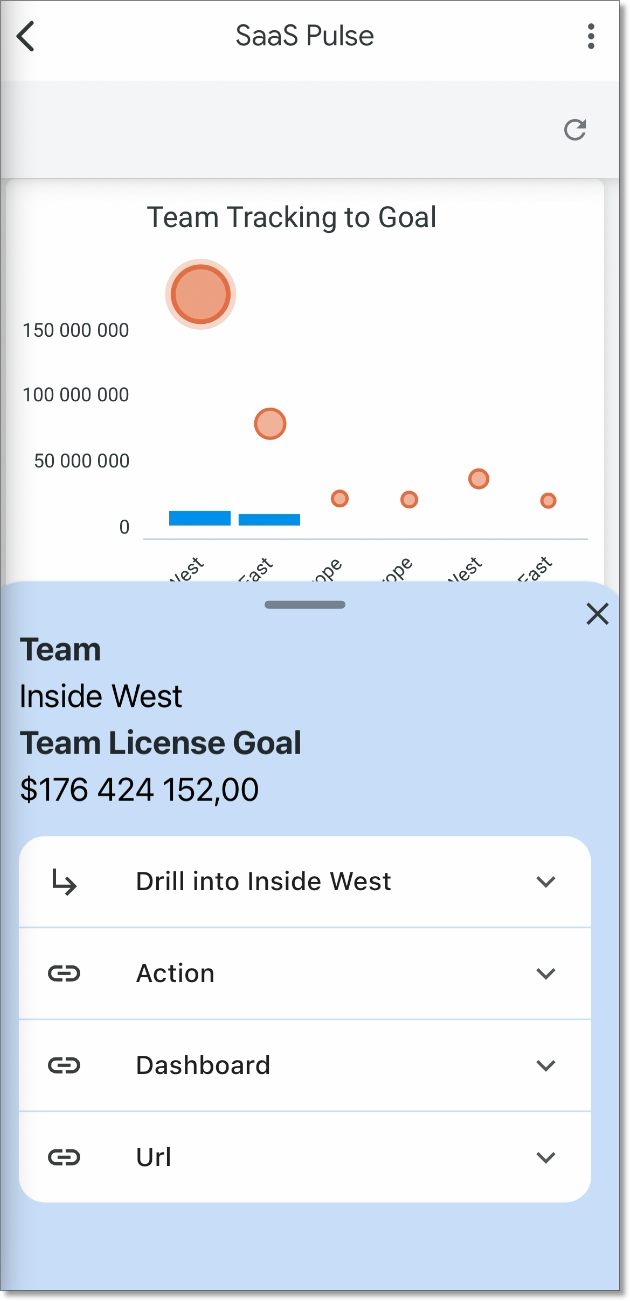
In the Looker web application, clicking on any data point in a visualization displays a tooltip or opens a menu with actions like drilling down, taking actions, or opening links. In the Looker mobile application, you can perform similar interactions by tapping on data points:
- Navigate to a dashboard or Look.
- Tap on any data point that you want to interact with.
- Tapping the data point opens a bottom sheet. Depending on how the visualization is configured by your LookML developer, you can:
- Drill into the data: Tap a dimension name to drill into the data using that dimension.
- Take configured actions: Tap a data action to perform tasks like sending an email or setting field values.
- Open links: Tap any configured links to navigate to other Looks, dashboards, or external websites.
Drilling is not supported on histogram or donut type visualizations.
Configuring links in visualizations for the mobile application
This section describes how to configure links in your Explore so they work properly in the Looker mobile application.
There are two ways to add links inside your dashboard tiles:
1. Embed inside a LookML link parameter (Recommended)
In development mode, navigate to the LookML file describing your Explore. Choose the dimension or measure you want to add the link to. Add a link parameter and specify the required URL:
link: {
  label: "View Dashboard"
  url: "https://example.looker.com/dashboards/10"
}
2. Add an href tag in HTML
In development mode, navigate to the LookML file describing your Explore. Choose the dimension or measure you want to add the link to. Add an html parameter with an href attribute pointing to the link:
Example:
html: <a target="_self" href='dashboards-next/10'>{{rendered_value}}</a>;;