The Looker connector lets you add a Looker Explore as a data source so that you can analyze Looker data in a [Data Studio Pro](https://docs.cloud.google.com/looker/docs/studio/about-looker-studio-pro) report. This documentation page describes how to connect a Data Studio Pro report to a Looker (Google Cloud core) instance that uses a private connections by performing the following tasks:
- [Find the Looker instance ID](https://docs.cloud.google.com/looker/docs/looker-core-connect-to-private-ip-lsp-looker-reports.md.txt#find_the_looker_instance_id)
- [Use the Looker instance ID to set up a Looker data source](https://docs.cloud.google.com/looker/docs/looker-core-connect-to-private-ip-lsp-looker-reports.md.txt#use_the_instance_id_to_connect_from_looker_studio_pro_or_looker_reports)
## Before you begin
Your Looker instance must fulfill certain [requirements to be eligible to connect to Data Studio](https://docs.cloud.google.com/looker/docs/studio/limits-of-the-looker-connector). Additionally, a Looker [admin](https://docs.cloud.google.com/looker/docs/admin-panel-users-roles.md.txt#admin) must enable the [**Data Studio** BI connector](https://docs.cloud.google.com/looker/docs/bi-connectors.md.txt#looker_studio) in the **Platform** section of the instance's **Admin** panel.
To add a Looker Explore as a data source in Data Studio, you must have [`explore`](https://docs.cloud.google.com/looker/docs/admin-panel-users-roles.md.txt#explore) permissions for the model that contains the Explore.
A Looker data source uses [viewer's data credentials](https://docs.cloud.google.com/looker/docs/studio/data-credentials), so any user viewing Looker data in Data Studio must have at least [`access_data`](https://docs.cloud.google.com/looker/docs/admin-panel-users-roles.md.txt#access_data) and [`clear_cache_refresh`](https://docs.cloud.google.com/looker/docs/admin-panel-users-roles.md.txt#clear_cache_refresh) permissions for the model that contains the data source's Looker Explore. Learn more about the [Looker permissions that are required](https://docs.cloud.google.com/looker/docs/studio/overview-of-looker-connector-permissions) to enable the Looker connector, create a Looker data source, and view Looker data in Data Studio.
> [!CAUTION]
> **Important:** The Looker connector can't connect to a Looker (Google Cloud core) instance that is inside a [VPC Service Controls](https://docs.cloud.google.com/looker/docs/looker-core-vpcsc.md.txt) perimeter. For more information about limitations of the Looker connector, see the [Overview of Looker connector requirements, limits, and feature support](https://docs.cloud.google.com/looker/docs/studio/limits-of-the-looker-connector) documentation page.
>
> Your Data Studio Pro Google Cloud project must be in the same network as the Google Cloud project that hosts the Looker (Google Cloud core) instance.
## Connect to a Looker (Google Cloud core) instance
When [connecting to a Looker (Google Cloud core) instance](https://docs.cloud.google.com/looker/docs/studio/connect-to-looker), you specify the Looker (Google Cloud core) instance by using either the instance URL or the instance ID, depending on the instance's [network configuration](https://docs.cloud.google.com/looker/docs/looker-core-networking-options.md.txt#overview):
- Use the **Instance URL** to connect to instances that use a public IP network, including the following types of instances:
- [Public secure connections](https://docs.cloud.google.com/looker/docs/looker-core-networking-options.md.txt#public_ip_connections)
- [Hybrid connections (PSC)](https://docs.cloud.google.com/looker/docs/looker-core-networking-options.md.txt#private-ip-public-ip)
- [Hybrid connections (PSA)](https://docs.cloud.google.com/looker/docs/looker-core-networking-options.md.txt#private-ip-public-ip)
If your Looker (Google Cloud core) instance uses a public IP network, refer to the [Connect to Looker](https://docs.cloud.google.com/looker/docs/studio/connect-to-looker) documentation page for instructions on how to connect to your instance.
- Use the **Instance ID** to connect to instances that use private connections, including the following types of instances:
- [Private connections (Private Service Connect)](https://docs.cloud.google.com/looker/docs/looker-core-networking-options.md.txt#psc)
- [Private connections (private services access)](https://docs.cloud.google.com/looker/docs/looker-core-networking-options.md.txt#psa)
### Find the Looker instance ID
To find your Looker instance ID, from the Looker **Help** menu, select **Looker Instance ID**.
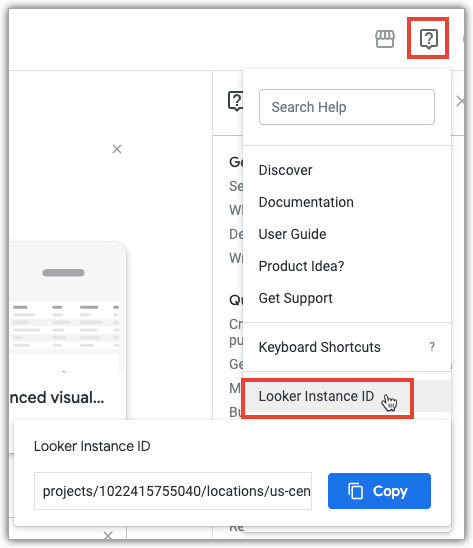
Looker displays the instance ID in the following format:
projects/PROJECT_ID/locations/REGION/instances/INSTANCE_NAME
The variables in the previous example represent the following information about your instance:
- `PROJECT_ID`: The name of the Google Cloud project in which you created the Looker (Google Cloud core) instance.
- `REGION`: The region in which your Looker (Google Cloud core) instance is hosted.
- `INSTANCE_NAME`: The name of your Looker (Google Cloud core) instance; it isn't associated with the instance URL.
You can copy the instance ID to your clipboard by clicking the **Copy** button.
### Use the instance ID to connect from a report
Next, you can use the [Looker connector](https://docs.cloud.google.com/looker/docs/studio/connect-to-looker#use_looker_connector) to connect to a Looker (Google Cloud core) private connections (private services access) instance or a private connections (Private Service Connect) instance.
Within your report, perform the following steps:
1. From the **Data** panel, select **Add data**.
2. Select the Looker connector.
3. In the **Enter Looker Instance URL/ID** field, enter the instance ID that you copied from your instance.
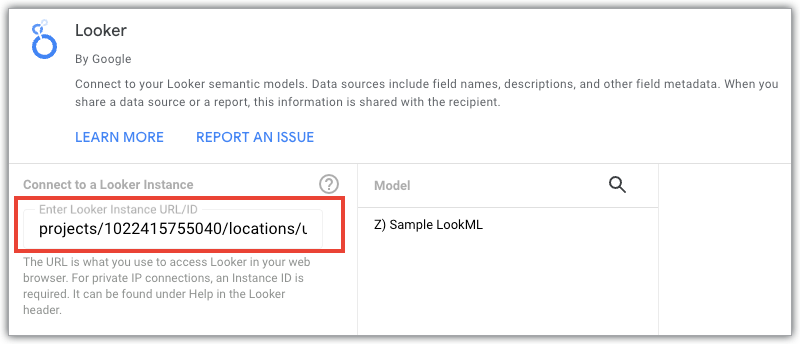
Once connected, you will see the instance listed in the **Saved Looker Instances** list, and it will be listed by the full instance ID.
## Use the instance ID to connect from Connected Sheets
To connect to a Looker (Google Cloud core) private IP (private services access) only instance or a private IP (Private Service Connect) only instance from Connected Sheets, enter the Looker instance ID in the **Connect to Looker** dialog. Enter the entire instance ID, using the following format:
projects//locations//instances/
## Add or remove a public IP connection after connecting to Data Studio Pro
For instances that use [private services access](https://docs.cloud.google.com/vpc/docs/private-services-access.md.txt) or [Private Service Connect](https://docs.cloud.google.com/vpc/docs/private-service-connect.md.txt), admins can [add or remove a public IP connection](https://docs.cloud.google.com/looker/docs/looker-core-view-console.md.txt#editing_settings). Adding or removing a public IP connection has the following effects:
- To create new connections to Looker (Google Cloud core) instances that have a public IP connection, you must use the instance URL. No network check is performed when data is accessed.
- To create new connections to Looker (Google Cloud core) instances that don't have a public IP connection, you must use the instance ID. Private network enforcement is in place for data access.
- Data sources that were created when a public IP connection was enabled will function only when a public IP connection is enabled. If the Looker (Google Cloud core) instance's public IP connection has been disabled, users must reconnect to the instance using the instance URL.
- Data sources that were created when a public IP connection was disabled will function only when a public IP connection is disabled. Users must reconnect to the data source if the public IP connection has been enabled.
## Troubleshooting
If you receive an error while trying to connect to a Looker (Google Cloud core) private connections (PSA) instance or to a private connections (Private Service Connect) instance or data source, you may not be on the correct network to access the instance data. Select the same network as the one being used by the instance and retry the connection.