You can use a number of LookML parameters to make your Explores more user-friendly by changing how fields appear in the user interface without altering your underlying LookML. This page provides an overview of LookML parameters that modify the appearance of the [Looker Explore menu](https://docs.cloud.google.com/looker/docs/changing-explore-menu-and-field-picker.md.txt#explore_name_and_menu) and [field picker](https://docs.cloud.google.com/looker/docs/changing-explore-menu-and-field-picker.md.txt#field_picker_display_overview).
|---|---|
| In Looker, your users can see Explores listed in the **Explore** menu. | Within an Explore, your users can use the [**field picker**](https://docs.cloud.google.com/looker/docs/changing-explore-menu-and-field-picker.md.txt#field_picker) to select the fields ([dimensions](https://docs.cloud.google.com/looker/docs/reference/param-field-dimension.md.txt) and [measures](https://docs.cloud.google.com/looker/docs/reference/param-field-measure.md.txt)) to use to query their data.
|
| 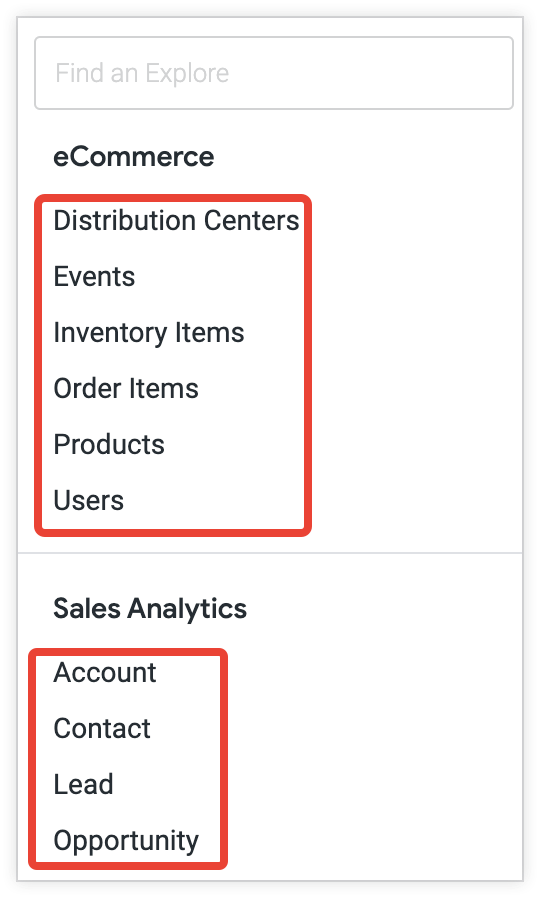 | 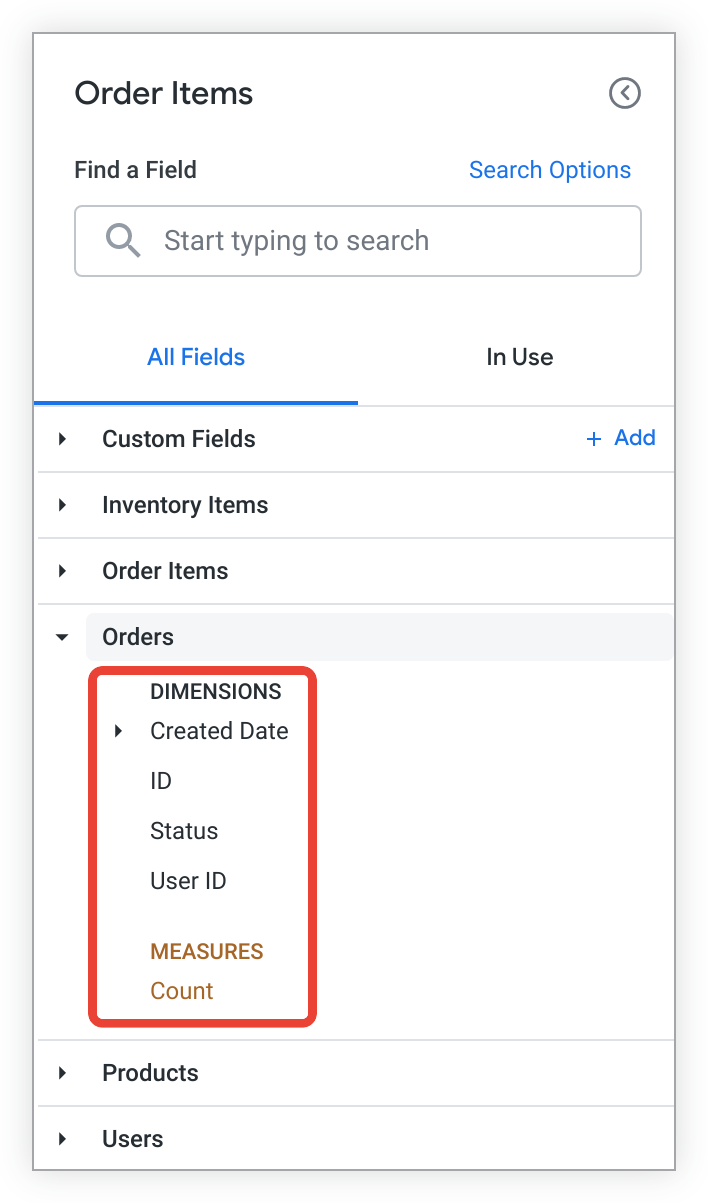 |
This page lists each commonly used parameter with a link to its full reference page, a short description of its function, and an image of what it does.
For tips and suggestions about making a user-friendly Explore, see the [Best practice: Create a positive experience for Looker users](https://docs.cloud.google.com/looker/docs/best-practices/how-to-create-a-positive-experience-for-looker-users.md.txt) Best Practices page.
## Explore name and menu
This section describes the [default behavior](https://docs.cloud.google.com/looker/docs/changing-explore-menu-and-field-picker.md.txt#explore_default_behavior) for an Explore's name and appearance on the **Explore** menu, then describes the LookML parameters that let you change that behavior:
- [`label` (model)](https://docs.cloud.google.com/looker/docs/changing-explore-menu-and-field-picker.md.txt#label_(model))
- [`label` (Explore)](https://docs.cloud.google.com/looker/docs/changing-explore-menu-and-field-picker.md.txt#label_(explore))
- [`group_label` (Explore)](https://docs.cloud.google.com/looker/docs/changing-explore-menu-and-field-picker.md.txt#group_label_(explore))
- [`description` (Explore)](https://docs.cloud.google.com/looker/docs/changing-explore-menu-and-field-picker.md.txt#description_(explore))
- [`hidden` (Explore)](https://docs.cloud.google.com/looker/docs/changing-explore-menu-and-field-picker.md.txt#hidden_(explore))
### Explore menu default behavior
#### Model names
By default, the **Explore** menu is organized by model names, which are determined by the name of each model file. The **Explore** menu shows a formatted version of the model name, with underscores changed to spaces and each word capitalized. Under each model name is a list of the Explores defined in that model file.
#### Explore names
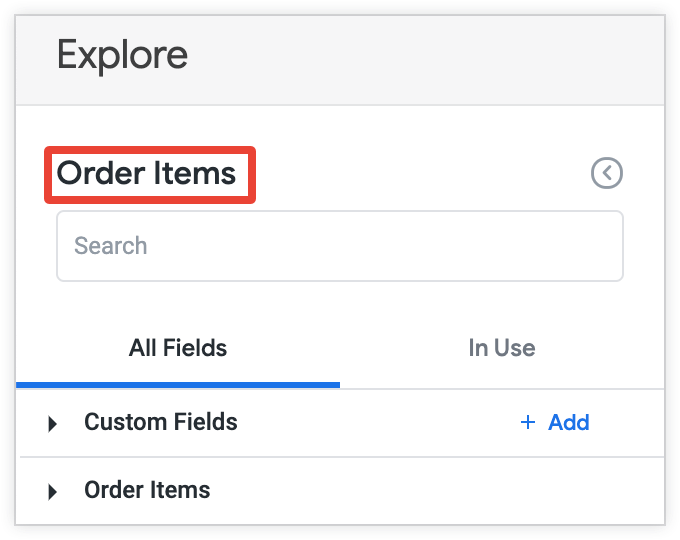
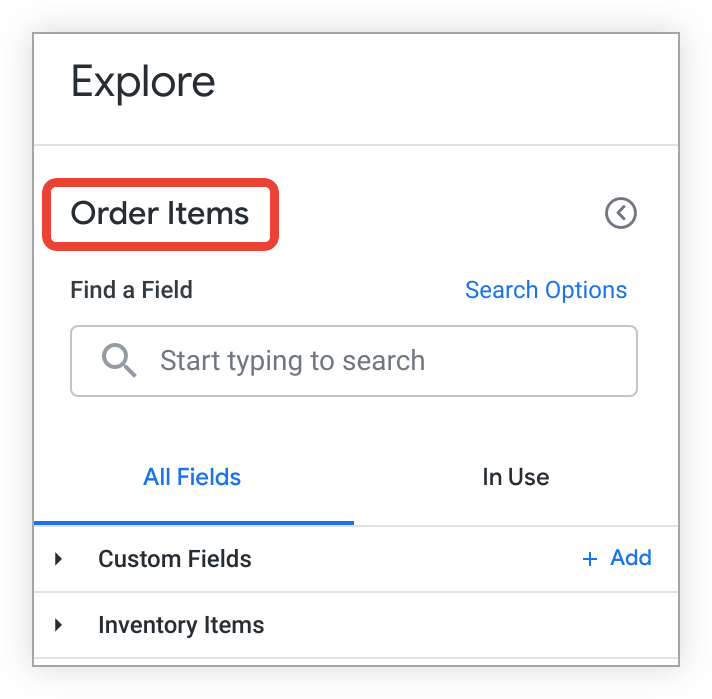
The name of each Explore in the menu is based on the corresponding `explore` parameter in the model file. As with the model names, Explore names are formatted in the menu so that underscores are changed to spaces and each word is capitalized. The Explore name is also shown as the Explore title in the field picker panel.
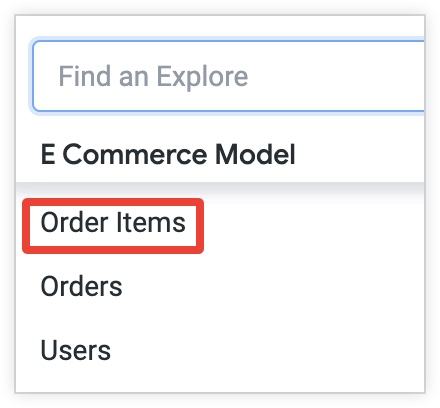
In the following example, the `order_items` Explore is defined in the model file `e_commerce_model.model`:
explore: order_items {
join: orders {
type: left_outer
sql_on: ${order_items.order_id} = ${orders.id} ;;
relationship: many_to_one
}
}
The `order_items` Explore shows up as **Order Items** in the Explore menu and field picker.
|---|---|
| Explore menu: | Field picker:
|
|  |  |
For more information about model files, see the [Understanding model and view files](https://docs.cloud.google.com/looker/docs/model-and-view-files#model_files) documentation page. For more information about defining Explores, see the [`explore`](https://docs.cloud.google.com/looker/docs/reference/param-explore-explore.md.txt) parameter documentation page.
### `label` (model)
A model's [`label`](https://docs.cloud.google.com/looker/docs/reference/param-model-label.md.txt) parameter renames a model in the **Explore** menu without changing how it's referenced in LookML. Explore URLs, the Looker IDE, and SQL Runner still reflect the actual model name; the way the model should be referenced in LookML and Admin settings remains unchanged.
By default, the model `market_research.model` appears as **Market Research** in the Explore menu.
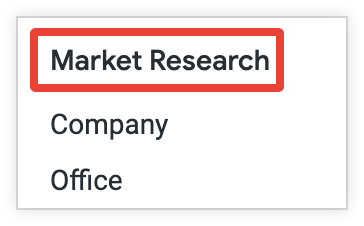
You can use the `label` parameter to rename the model in the Explore menu. For example, you add the code `label: "Marketing R&D"` to the `market_research.model` model file:
label: "Marketing R&D"
In this example, Looker displays the model name as follows in the Explore menu:

### `label` (Explore)
An Explore's [`label`](https://docs.cloud.google.com/looker/docs/reference/param-explore-label.md.txt) parameter renames an Explore in the **Explore** menu and on the Explore page without changing how it's referenced in LookML.
If the `label` parameter is not used, the Explore name displays according to its [default behavior](https://docs.cloud.google.com/looker/docs/changing-explore-menu-and-field-picker.md.txt#explore_default_behavior).
### `group_label` (Explore)
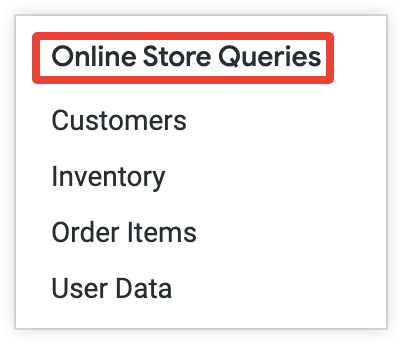
An Explore's [`group_label`](https://docs.cloud.google.com/looker/docs/reference/param-explore-group-label.md.txt) parameter changes the [default organization](https://docs.cloud.google.com/looker/docs/changing-explore-menu-and-field-picker.md.txt#explore_default_behavior) of the **Explore** menu. Instead of listing each Explore under its model's name, `group_label` lets you define a custom heading under which to list one or more Explores.
In this example, the Explores **Customers** , **Inventory** , **Order Items** , and **User Data** are listed under the group label **Online Store Queries**:
### `description` (Explore)
An Explore's [`description`](https://docs.cloud.google.com/looker/docs/reference/param-explore-description.md.txt) parameter lets you add a description of an Explore to the UI, so users can get additional information while creating Explore queries.
Users can see the description by hovering over the information icon, next to the Explore name at the top of the field picker. The information icon also appears in the drop-down list of Explores. If you do not explicitly add a description to an Explore, no description displays.

### `hidden` (Explore)
An Explore's [`hidden`](https://docs.cloud.google.com/looker/docs/reference/param-explore-hidden.md.txt) parameter hides the Explore from the **Explore** menu. By default, `hidden` is off and the Explore will be displayed. `hidden` does not hide LookML or prevent access to an Explore via the URL. `hidden` is not meant as a security feature, but rather as a presentation feature.
As an example, adding the LookML code `hidden: yes` to the LookML for the `inventory` Explore in the following example hides the **Inventory** Explore from the Explore menu:
explore: inventory {
hidden: yes
join: order_facts {
view_label: "Orders"
relationship: many_to_one
sql_on: ${order_facts.order_id} = ${order_items.order_id} ;;
}
}
## Field picker
This section describes the [default behavior](https://docs.cloud.google.com/looker/docs/changing-explore-menu-and-field-picker.md.txt#field_picker_default_behavior) of the field picker, then describes the LookML parameters that let you change that behavior.
Change how view names appear in the field picker with:
- [`view_label` (Explore)](https://docs.cloud.google.com/looker/docs/changing-explore-menu-and-field-picker.md.txt#view_label_(explore))
- [`view_label` (join)](https://docs.cloud.google.com/looker/docs/changing-explore-menu-and-field-picker.md.txt#view_label_(join))
- [`label` (view)](https://docs.cloud.google.com/looker/docs/changing-explore-menu-and-field-picker.md.txt#label_(view))
Change how names of individual fields appear in the field picker with:
- [`description` (field)](https://docs.cloud.google.com/looker/docs/changing-explore-menu-and-field-picker.md.txt#description_(field))
- [`hidden` (field)](https://docs.cloud.google.com/looker/docs/changing-explore-menu-and-field-picker.md.txt#hidden_(field))
- [`label` (field)](https://docs.cloud.google.com/looker/docs/changing-explore-menu-and-field-picker.md.txt#label_(field))
- [`fields` (field)](https://docs.cloud.google.com/looker/docs/changing-explore-menu-and-field-picker.md.txt#fields_(field))
Change how fields are organized within the field picker with:
- [`view_label` (field)](https://docs.cloud.google.com/looker/docs/changing-explore-menu-and-field-picker.md.txt#view_label_(field))
- [`group_label` (field)](https://docs.cloud.google.com/looker/docs/changing-explore-menu-and-field-picker.md.txt#group_label_(field))
### Field picker default behavior
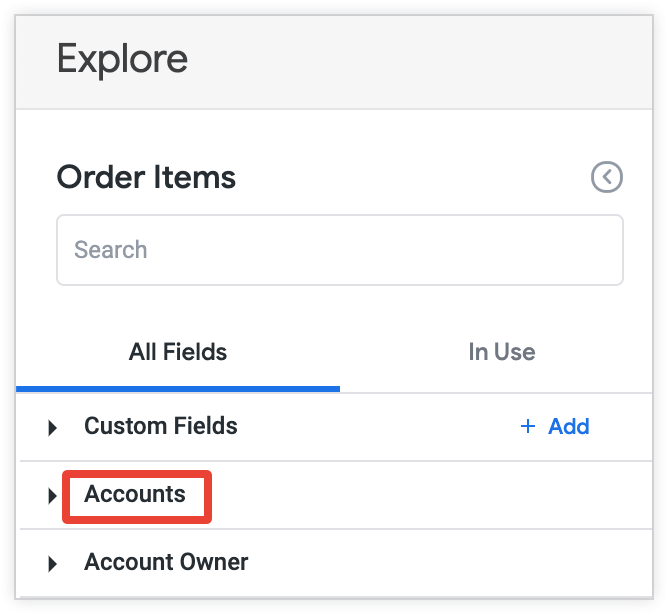
By default, the field picker is organized by headings that correspond to the views specified by the LookML `view` parameter. Each view's fields are grouped in the field picker. The type of field (dimension, dimension group, measure, filter field, and parameter field) determines where the field is shown within the view. Unless the `label` parameter is used to alter the display name, the field picker will show a formatted version of the LookML view or field name, with underscores changed to spaces and each word capitalized.
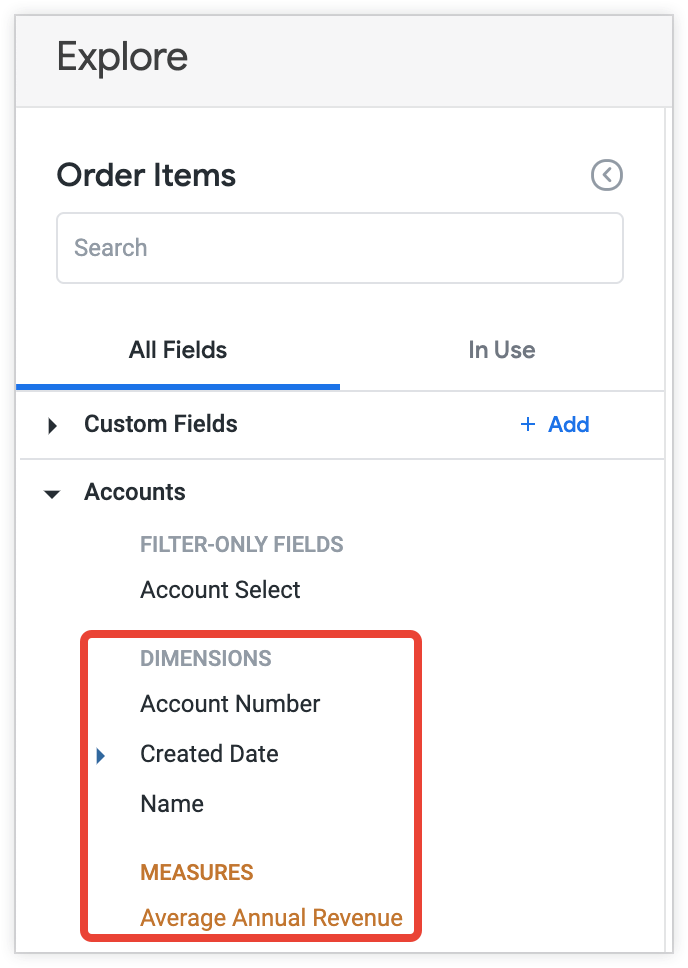
In the following example, Looker displays the `accounts` [view](https://docs.cloud.google.com/looker/docs/reference/param-view-view.md.txt) as **Accounts** in the field picker, which is the default behavior:
view: accounts {
sql_table_name: accounts ;;
}
The following example shows how the names of a [dimension](https://docs.cloud.google.com/looker/docs/reference/param-field-dimension.md.txt), [dimension group](https://docs.cloud.google.com/looker/docs/reference/param-field-dimension-group.md.txt), and [measure](https://docs.cloud.google.com/looker/docs/reference/param-field-measure.md.txt) show by default. The same formatting will apply to the names of any filter fields and parameter fields.
dimension: account_number {
primary_key: yes
type: number
sql: ${TABLE}.account_number ;;
}
dimension: name {
type: string
sql: ${TABLE}.name ;;
}
dimension_group: created {
type: time
timeframes: [raw, time, date, week, month, quarter, year]
sql: ${TABLE}.created_date ;;
}
measure: average_annual_revenue {
type: average
sql: ${annual_revenue} ;;
value_format_name: custom_amount_value_format
}
In this example, the field picker shows the default field names **Account Number** , **Name** , **Created Date** , and **Average Annual Revenue** for the `account_number` and `name` dimensions, the `created` dimension group, and the `average_annual_revenue` measure, respectively.
If you change the name of a field, then the field picker adapts to the new name but you might want to add an [`alias`](https://docs.cloud.google.com/looker/docs/reference/param-field-alias.md.txt) parameter with the field's old name. That parameter provides alternative names for a field that might appear in the URL for a query. It can be useful in cases when field names in a model change, but some people have [shared links to data](https://docs.cloud.google.com/looker/docs/sharing-urls.md.txt#share_the_url) and you want to keep those pre-existing URLs functioning.
### `view_label` (Explore)
An Explore's [`view_label`](https://docs.cloud.google.com/looker/docs/reference/param-explore-view-label.md.txt) parameter changes how the group of fields from an Explore's base view is labeled in the field picker without changing how the Explore and its fields are referenced in LookML.
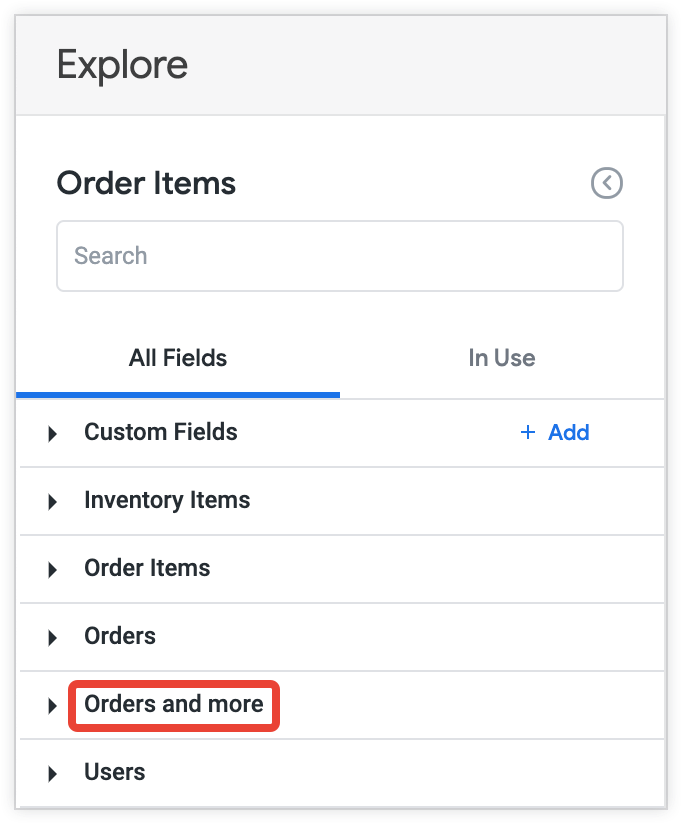
As an example, if you join a view `order_facts` to an Explore called `order_items`, you can use the `view_label` parameter to set the label that Looker displays for the `order_facts` view in the field picker as follows:
explore: order_items {
label: "Order Items"
join: order_facts {
view_label: "Orders and more"
relationship: many_to_one
sql_on: ${order_facts.order_id} = ${order_items.order_id} ;;
}
}
In this example, the `order_facts` view appears as **Orders and more** in the field picker of the **Order Items** Explore.
### `view_label` (join)
A join's [`view_label`](https://docs.cloud.google.com/looker/docs/reference/param-explore-join-view-label.md.txt) parameter lets you group fields from one view under another view's name in the field picker. If you do not explicitly add a `view_label` to a join, the `view_label` defaults to the name of the join.
For example, you join the `products` view to the `product_facts` Explore:
explore: product_facts {
join: products {
type: left_outer
sql_on: ${product_facts.product_id} = ${products.id} ;;
relationship: many_to_one
}
}
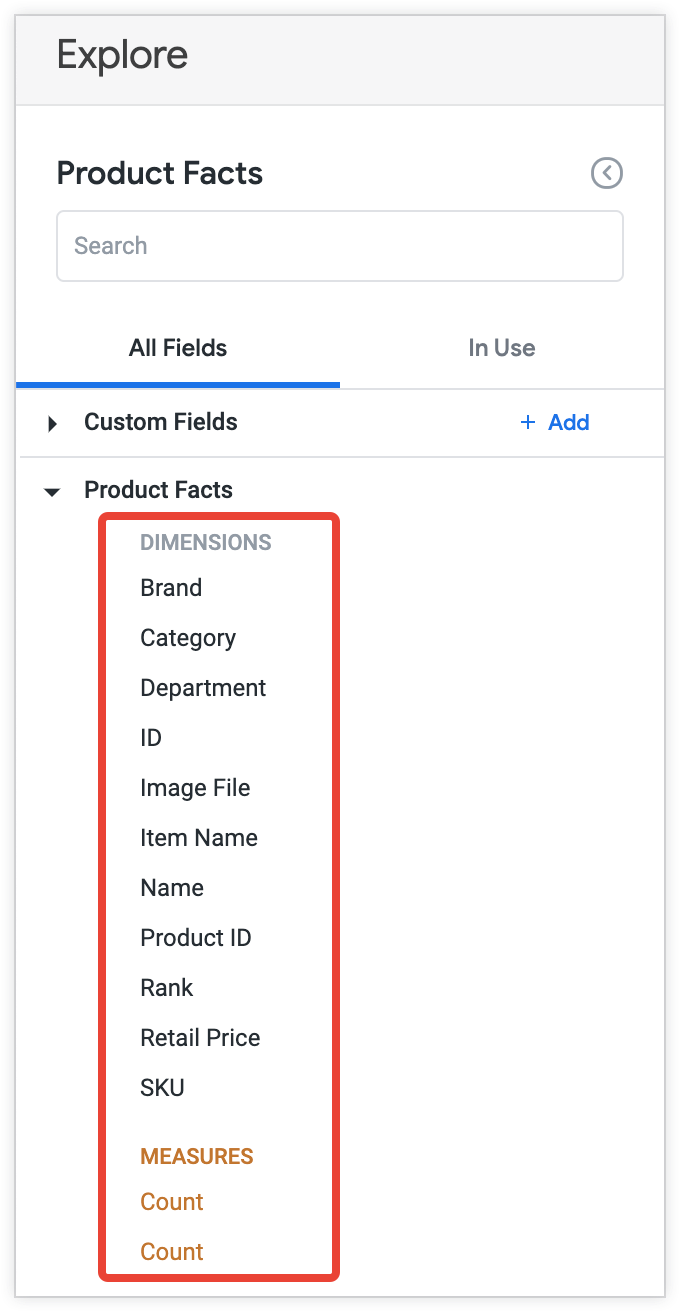
In this example, since a view label is not specified, the fields from the `products` view are grouped under the **Products** view label in the field picker, separate from the **Product Facts** view:

You can use the `view_label` parameter to add a view label to the joined `products` view, as in the following example:
explore: product_facts {
join: products {
view_label: "Product Facts"
type: left_outer
sql_on: ${product_facts.product_id} = ${products.id} ;;
relationship: many_to_one
}
}
This groups the fields from the `products` view under the view label **Product Facts** in the field picker:
### `label` (view)
A view's [`label`](https://docs.cloud.google.com/looker/docs/reference/param-view-label.md.txt) parameter changes how the view is labeled in the field picker without changing how it is referenced in LookML. If not specified, the label defaults to the name of the view. Unlike [`view_label` (Explore)](https://docs.cloud.google.com/looker/docs/changing-explore-menu-and-field-picker.md.txt#view_label_(explore)) and [`view_label` (Join)](https://docs.cloud.google.com/looker/docs/changing-explore-menu-and-field-picker.md.txt#view_label_(join)), this parameter affects all Explores that use the view.
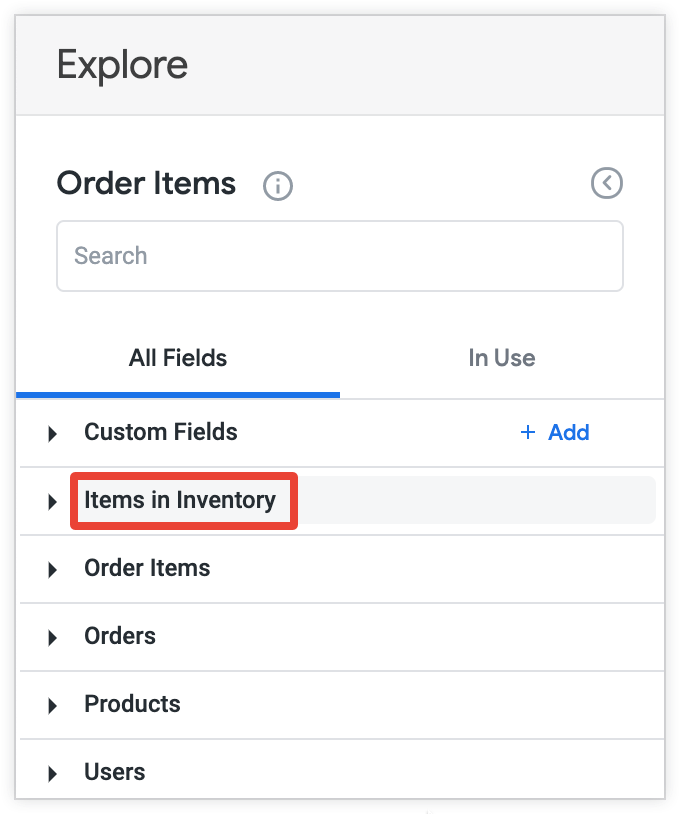
As an example, you can use the `label` parameter to specify a label for the `inventory_items` view as follows:
view: inventory_items {
label: "Items in Inventory"
sql_table_name: inventory_items ;;
}
In this example, the field picker displays the label **Items in Inventory** for the `inventory_items` view, rather than the default label **Inventory Items**.
### `description` (field)
You can add a [`description`](https://docs.cloud.google.com/looker/docs/reference/param-field-description.md.txt) to any field. For BigQuery connections, if you [generate a LookML project from your database](https://docs.cloud.google.com/looker/docs/generating-a-model.md.txt), Looker will autopopulate field descriptions with the descriptions from your BigQuery column metadata, if any.
The user can see this description in multiple places. Looker displays the description when the user selects the information icon to the right of the field name in the field picker.
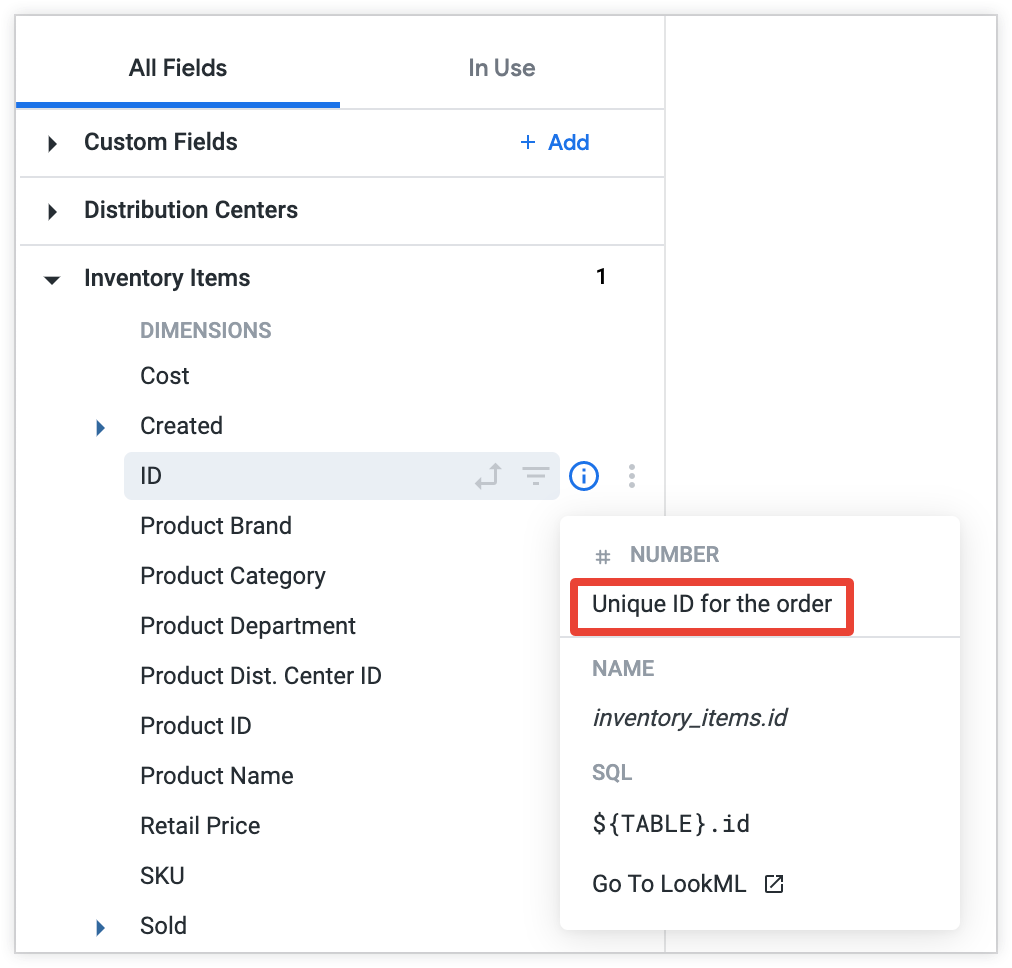
In addition, Looker also displays the description when the user hovers over the column name in a table or table chart visualization in an Explore, a dashboard, or a Look.

### `hidden` (field)
By default, fields specified in a view will be displayed in the field picker. The field's [`hidden`](https://docs.cloud.google.com/looker/docs/reference/param-field-hidden.md.txt) parameter hides a field in the field picker.
Hidden fields can still be accessed in the UI if they are manually added to the URL and will show up in some Looker windows. Therefore, think of `hidden` as a way to keep the field picker clean, and not as a security feature.
As an example, adding the LookML code `hidden: yes` to the LookML for the `product_id` dimension in the following example hides the **Product ID** dimension from the field picker:
dimension: product_id {
hidden: yes
type: number
sql: ${TABLE}.product_id ;;
}
### `fields` (field)
The [`fields`](https://docs.cloud.google.com/looker/docs/reference/param-explore-fields.md.txt) parameter lets you specify which fields from an Explore's base view and joins are exposed in the field picker. If you do not use the `fields` parameter, Looker exposes all fields.
To specify the fields you want to display in the field picker, use a comma-separated list of fields or sets. To specify the fields you want to hide from the field picker, use the set `ALL_FIELDS*` with a comma-separated list of the fields or sets to be excluded, with a hyphen (-) preceding each.
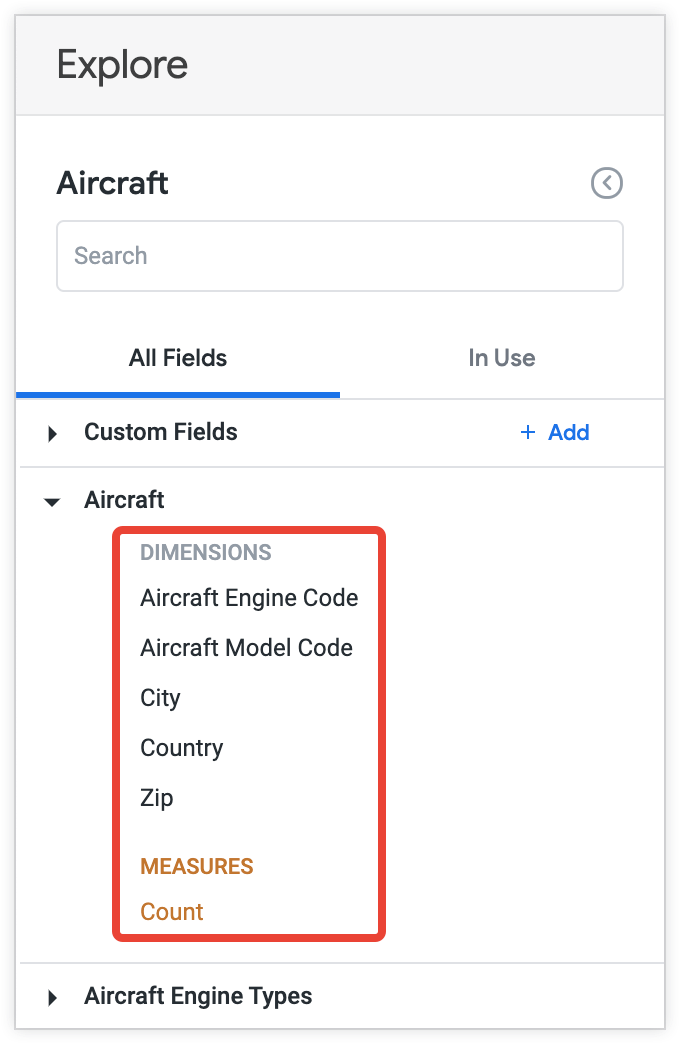
As an example, you can use the following LookML code to display only a selection of fields from the `aircraft` Explore in the field picker:
explore: aircraft {
fields: [
aircraft.aircraft_model_code,
aircraft.aircraft_engine_code,
aircraft.count,
aircraft.city,
aircraft.country,
aircraft.zip,
]
}
In this example, the **Aircraft** Explore displays only the **Aircraft Model Code** , **Aircraft Engine Code** , **City** , **Country** , and **Zip** dimensions and the **Count** measure in the field picker.
### `label` (field)
A field's [`label`](https://docs.cloud.google.com/looker/docs/reference/param-field-label.md.txt) parameter lets you change how a field name will appear in the field picker without changing how it is referenced in LookML. If no label is specified, the label defaults to the name of the field.
As an example, you can use the `label` parameter to set a label for the `cost` dimension as follows:
dimension: cost {
label: "price"
type: number
sql: ${TABLE}.cost ;;
}
In this example, the **Cost** dimension has the label **price** in the field picker.

### `view_label` (field)
A field's [`view_label`](https://docs.cloud.google.com/looker/docs/reference/param-field-view-label.md.txt) parameter lets you change the name of the view under which the field is listed in the field picker without changing how it is referenced in LookML. If no label is specified, the field appears under the label for the view in which it is defined.
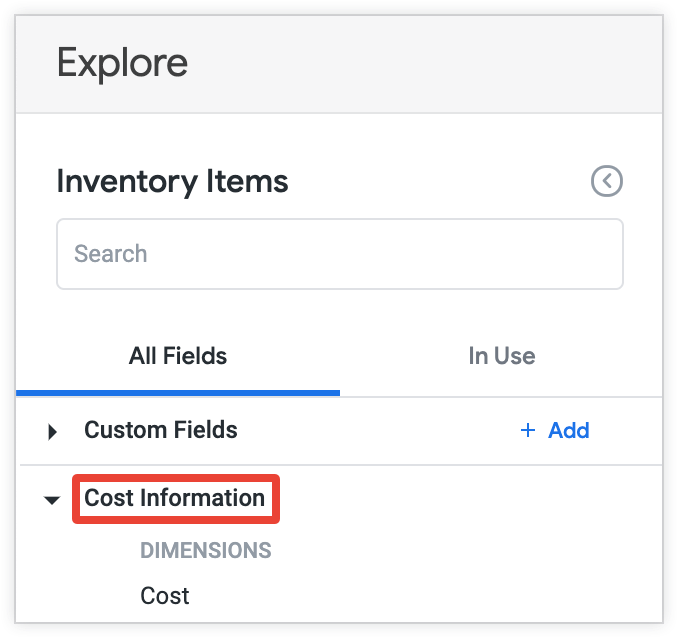
As an example, you can use the `view_label` parameter as follows to specify a view label for the `cost` dimension:
dimension: cost {
view_label: "Cost Information"
type: number
sql: ${TABLE}.cost ;;
}
In this example, Looker displays the **Cost** dimension under the **Cost Information** view label in the field picker.
### `group_label` (field)
The [`group_label`](https://docs.cloud.google.com/looker/docs/reference/param-field-group-label.md.txt) parameter lets you combine fields together in a common drop-down list within a view in the field picker.
In this example, the **Shipping Info** group includes the fields **Shipping City** , **Shipping Country** , and **Shipping State**:

### `group_item_label` (field)
When fields are shown under a group label, they might not need to have their full field names or labels displayed in the field picker. In the example shown previously for [`group_label` (field)](https://docs.cloud.google.com/looker/docs/changing-explore-menu-and-field-picker.md.txt#group_label_(field)), the group label already indicates that the fields pertain to shipping. In cases like this, you can add the [`group_item_label`](https://docs.cloud.google.com/looker/docs/reference/param-field-group-item-label.md.txt) parameter to each of these grouped fields to change how they look under the group label.
In this example, the **Shipping Info** group includes the fields **City** , **Country** , and **State**:
