> This section refers to the `label` parameter that is part of a [field](https://docs.cloud.google.com/looker/docs/2616/reference/param-field).
>
> `label` can also be used as part of a model, described on the [`label` (for models)](https://docs.cloud.google.com/looker/docs/2616/reference/param-model-label) parameter documentation page.
>
> `label` can also be used as part of an Explore, described on the [`label` (for Explores)](https://docs.cloud.google.com/looker/docs/2616/reference/param-explore-label) parameter documentation page.
>
> `label` can also be used as part of a view, described on the [`label` (for views)](https://docs.cloud.google.com/looker/docs/2616/reference/param-view-label) parameter documentation page.
>
> `label` can also be used as part of a reference line, described on the [Dashboard reference line parameters](https://docs.cloud.google.com/looker/docs/2616/reference/param-lookml-dashboard-reference-line) documentation page.
## Usage
```
view: view_name {
dimension: field_name {
label: "desired label name"
}
}
```
|---|---|
| Hierarchy [View File](https://docs.cloud.google.com/looker/docs/2616/reference/param-view) [`view`](https://docs.cloud.google.com/looker/docs/2616/reference/param-view-view) [Field Type](https://docs.cloud.google.com/looker/docs/2616/reference/param-field) `label` | Possible Field Types Dimension, Dimension Group, Measure, Filter, Parameter
Accepts A string
|
## Definition
`label` helps make Explores more user-friendly by allowing you to choose how field names appear in the field picker and in the data table of an Explore. If no label is specified, the label defaults to the name of the field.
> [!NOTE]
> **Note:** `label` only affects how the names of fields are displayed in Looker content. `label` does not affect how you refer to the field in LookML or change the value in the database. Use the syntax `${view_name.field_name}` in your LookML files to reference fields with labels.
### Liquid variables with `label`
You can use [Liquid variables](https://docs.cloud.google.com/looker/docs/2616/liquid-variable-reference) with the `label` parameter. Liquid variables let you access data such as information about a model or Explore, filters applied to a field, and [user attribute](https://docs.cloud.google.com/looker/docs/2616/admin-panel-users-user-attributes) values. You can use Liquid variables to dynamically change the `label` value, thus changing the field's appearance in the field picker and data visualizations.
> Liquid variables that return a value based on a filter, such as `_filters`, or require that a query be run first, such as `in_query`, will not change the name of the field in the field picker. In those cases, the field name will only be changed in the resulting visualization.
For example, the Liquid variable `{{ _user_attributes['name_of_attribute'] }}` replaces the Liquid variable with the value of the specified user attribute. If a user had a user attribute called **name** with a value of "John Smith", the following `label` syntax would change the name of the field in the field picker to **John Smith**:
label: "{{ _user_attributes['name'] }}"
In the next example, the `name` dimension uses the Liquid `{% if %} {% else %} {% endif %}` structure with the `_user_attributes['name_of_attribute']` Liquid variable to change its `label` value depending on a **company** user attribute:
dimension: name {
label: "{% if _user_attributes['company'] == 'Looker' %} Employee Name {% else %} Customer Name {% endif %}"
sql: ${TABLE}.name ;;
}
You can see additional examples of using `label` with Liquid variables to define dynamic labels in the [Interesting ways to use Liquid in labels](https://docs.cloud.google.com/looker/docs/best-practices/how-to-use-liquid-in-labels) Best Practices page.
## Example
Make this measure appear as **# of Customers** instead of **Customer Count Distinct** in the field picker.
measure: customer_count_distinct {
label: "# of Customers"
type: count_distinct
sql: ${customer.id} ;;
}
## Things to consider
### The IDE flags duplicate labels in a view
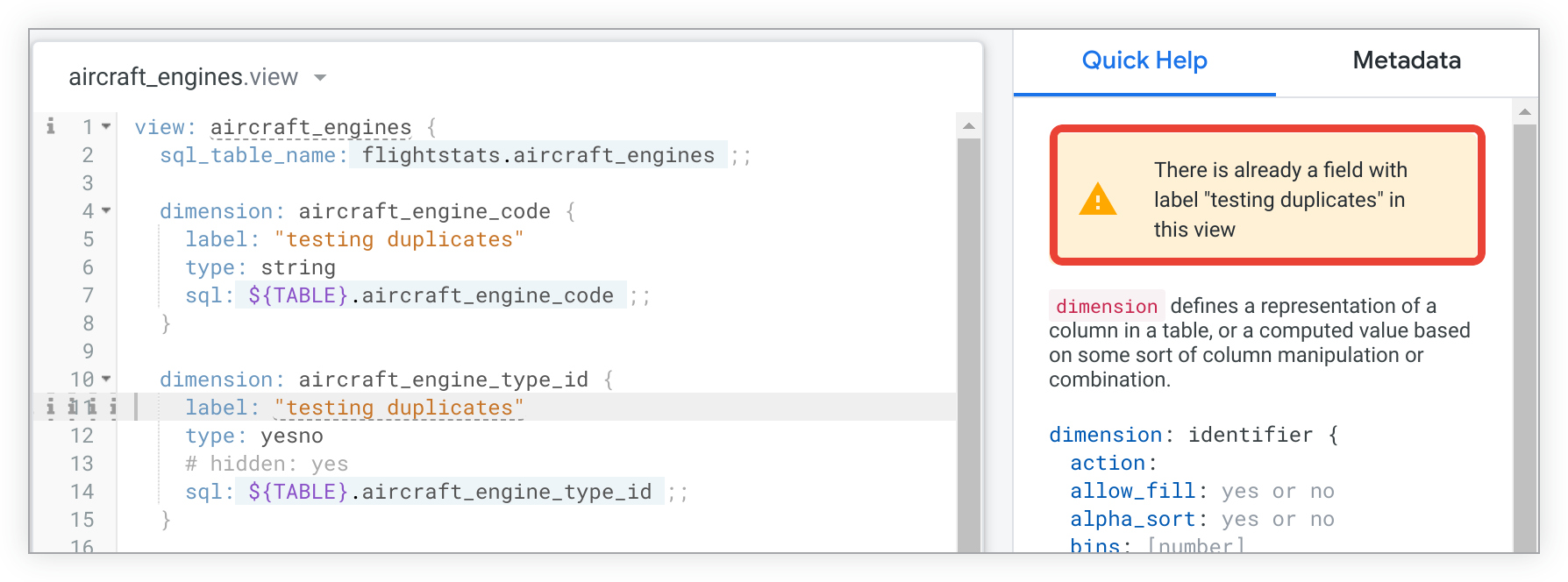
To prevent duplicate field labels in the same view, the Looker IDE presents an information icon by the line number of any duplicate field labels in a LookML view file. If you hover over the information icon by the line number, the tooltip indicates that there is already a field with the label in the view.
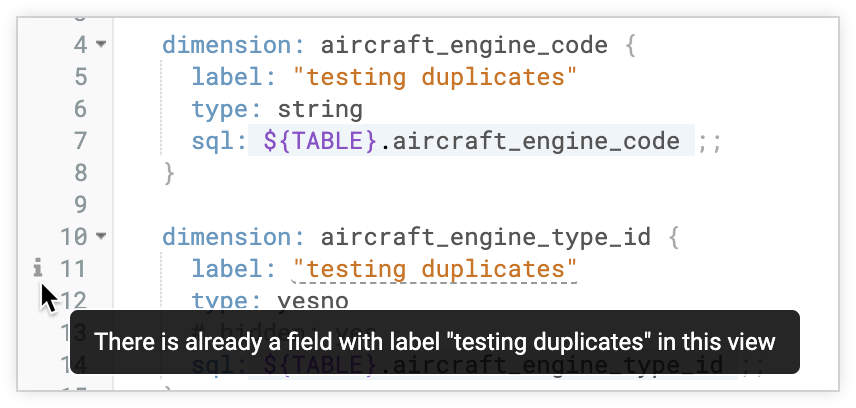
The Looker IDE will show this same information in the **Quick Help** panel if you select the text of the `label` statement in the IDE: