> This page refers to the `description` parameter that is part of a field.
>
> `description` can also be used as part of an Explore, described on the [`description` (for Explores)](https://docs.cloud.google.com/looker/docs/2616/reference/param-explore-description) parameter documentation page.
>
> `description` can also be used as part of a dashboard, described on the [Dashboard parameters](https://docs.cloud.google.com/looker/docs/2616/reference/param-lookml-dashboard#description-for-dashboard) documentation page.
## Usage
```
view: view_name {
dimension: field_name {
description: "description string"
}
}
```
|---|---|
| Hierarchy [View File](https://docs.cloud.google.com/looker/docs/2616/reference/param-view) [`view`](https://docs.cloud.google.com/looker/docs/2616/reference/param-view-view) [Field Type](https://docs.cloud.google.com/looker/docs/2616/reference/param-field) `description` | Possible Field Types Dimension, Dimension Group, Measure, Filter, Parameter
Accepts A string
|
## Definition
You can add a description to any field. For BigQuery connections, if you [generate a LookML project from your database](https://docs.cloud.google.com/looker/docs/2616/generating-a-model), Looker will autopopulate field descriptions with the descriptions from your BigQuery column metadata, if any.
The user can see field descriptions in multiple places.
For example, for a dimension that is defined with this LookML:
dimension: id {
primary_key: yes
description: "Unique ID for the order"
type: string
sql: ${TABLE}.id ;;
Looker displays the description when the user selects the information icon to the right of the field name in the field picker.
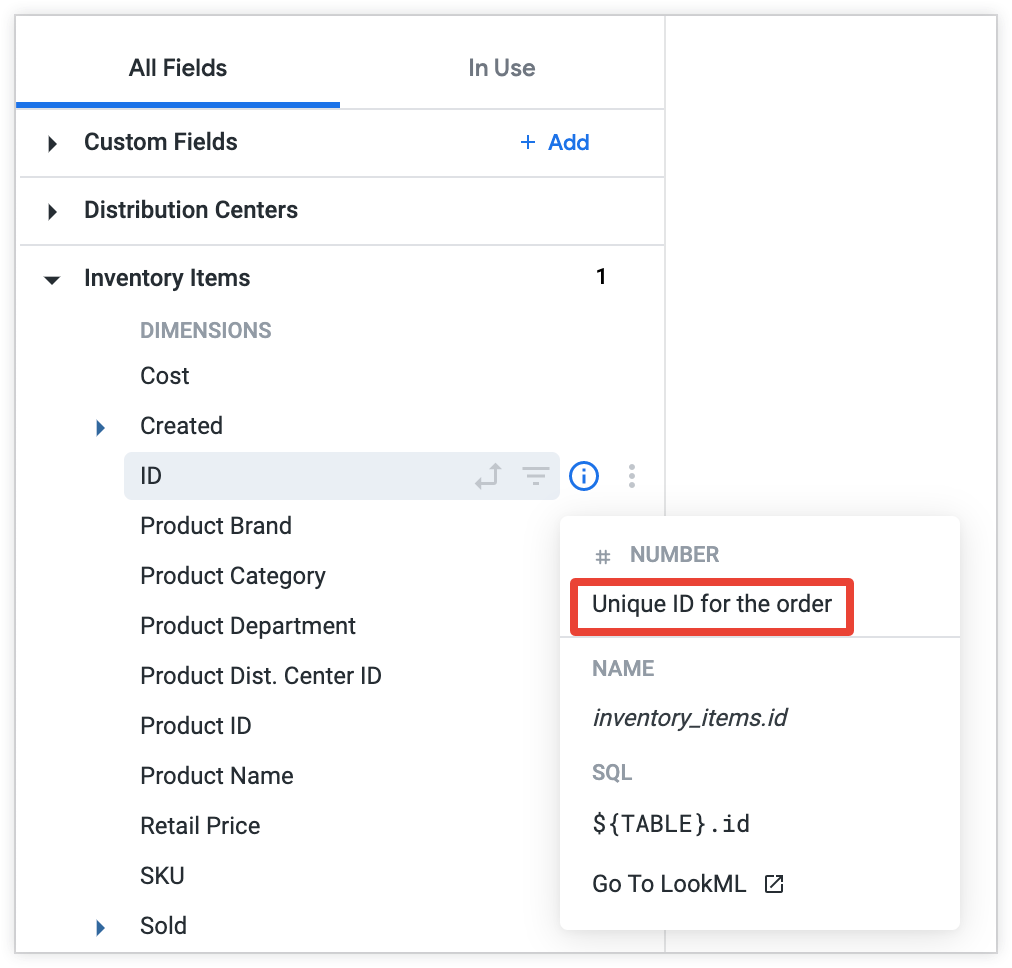
In addition, Looker also displays the description when the user hovers over the column name in a table or table chart visualization in an Explore, a dashboard, or a Look.

### Using Liquid variables in the `description` parameter
You can use [Liquid variables](https://docs.cloud.google.com/looker/docs/2616/liquid-variable-reference) with the `description` parameter for a field. This is useful, for example, when you want Looker to display a different description for a field based on a [user attribute](https://docs.cloud.google.com/looker/docs/2616/admin-panel-users-user-attributes), or based on the Explore in which a query is run.
For example, if you want the description for a field to differ depending on the Explore in which a query is run, you can use the Liquid variable `_explore._name` within a Liquid `{% if %}` `{% else %}` `{% endif %}` structure:
dimension: user_id {
description:
"{% if _explore._name == 'order_items' %}
The user ID for the Order Items Explore
{% elsif _explore._name == 'inventory_items' %}
The user ID for the Inventory Items Explore
{% else %}
The user ID
{% endif %}"
}
In this example, if a query is run in the **Order Items** Explore, the description for the **User ID** dimension will be **The user ID for the Order Items Explore** . In the **Inventory Items** Explore, the description will be **The user ID for the Inventory Items Explore** . In any other Explore, the description **The user ID** will be displayed.
As another example, suppose you want to display different descriptions to different users depending on their departments. If you have defined a [user attribute](https://docs.cloud.google.com/looker/docs/2616/admin-panel-users-user-attributes) called **Department** , you can use the Liquid variable `_user_attributes['name_of_attribute']` within a Liquid `{% if %}` `{% else %}` `{% endif %}` structure to specify a different description depending on the value of the **Department** user attribute:
dimension: gross_margin {
description:
"{% if _user_attributes['department'] == 'Marketing' %}
The standard margin for a field
{% elsif _user_attributes['department'] == 'Sales' %}
The operating margin for a field
{% else %} The gross margin for a field {% endif %}"
type: number
value_format_name: usd
sql: ${sale_price} - ${inventory_items.cost} ;;
}
In this example, the description displayed for the **Gross Margin** dimension differs depending on whether a user is part of Marketing, Sales, or some other team.
You can use Liquid variables like `_model._name`, `_view._name`, `_explore._name`, `_field._name`, and `_user_attributes['name_of_attribute']` with the `description` parameter. See the [Liquid variable reference](https://docs.cloud.google.com/looker/docs/2616/liquid-variable-reference) documentation page for more information on using Liquid parameters with LookML, and to see which Liquid variables can be used with the `description` parameter.
## Things to know
### The description displays once per dimension group
For a dimension group, Looker displays the description only once for the entire group, and not for each timeframe dimension within the group.