## Usage
```
view: view_name {
parameter: parameter_name { ... }
}
```
|---|---|
| Hierarchy [View File](https://docs.cloud.google.com/looker/docs/2612/reference/param-view.md.txt) [`view`](https://docs.cloud.google.com/looker/docs/2612/reference/param-view-view) `parameter` | Accepts A [Looker identifier](https://docs.cloud.google.com/looker/docs/2612/sql-and-referring-to-lookml.md.txt#scoping_and_naming) to name the parameter
|
## Definition
There is a LookML parameter that is actually called "`parameter`". The `parameter` parameter creates a filter-only field that can be used to filter Explores, Looks, and dashboards but that cannot be added to a result set. The value that a user selects for this filter-only field can create interactive query results, labels, URLs, and more when it is used with the [`{% parameter parameter_name %}`](https://docs.cloud.google.com/looker/docs/2612/reference/param-field-parameter.md.txt#inserting_user-selected_values_with) and [`parameter_name._parameter_value`](https://docs.cloud.google.com/looker/docs/2612/reference/param-field-parameter.md.txt#creating_logical_statements_with_parameter_name._parameter_value) Liquid variables. The `parameter` parameter can also simplify LookML models, as different results can be displayed in a single field.
> [!NOTE]
> **Note:** With parameter filter fields, users can select only one filter value for a field, and the filter condition is set to `is equal to`. If you would like users to be able to input multiple filter values at once, and take advantage of Looker's more nuanced generated SQL filter logic (`contains`,`does not contain`, etc.), see the [Templated filters](https://docs.cloud.google.com/looker/docs/2612/templated-filters.md.txt#templated_filters) documentation page for details.
A `parameter` name must:
- Be unique within any given view
- Consist of characters `a` through `z` (no capital letters), `0` through `9`, or `_`
- Start with a letter
There are also many [field parameters](https://docs.cloud.google.com/looker/docs/2612/reference/param-field.md.txt#parameter_definitions) that can be used with `parameter`, including [`default_value`](https://docs.cloud.google.com/looker/docs/2612/reference/param-field-default-value) and [`allowed_value`](https://docs.cloud.google.com/looker/docs/2612/changing-filter-suggestions.md.txt#allowed_value_(field)). See the following subsection, [Specifying Allowed Values](https://docs.cloud.google.com/looker/docs/2612/reference/param-field-parameter.md.txt#specifying_allowed_values), for examples using the `allowed_value` field parameter.
> [!WARNING]
> **Warning:** Avoid using `default_value` with `parameter` if your data has values with underscores.
### Specifying allowed values
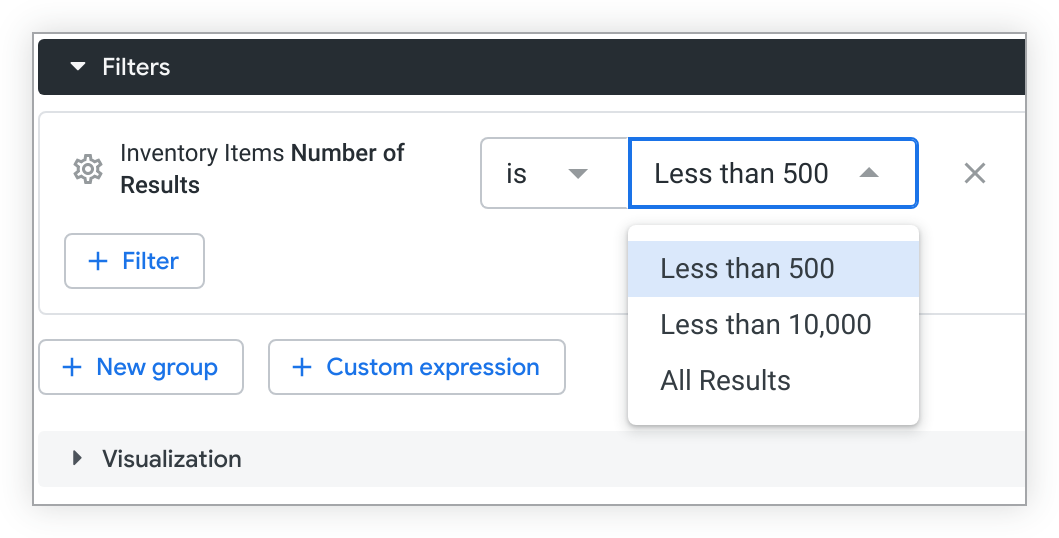
By default, a user can input any single value into a filter created by a `parameter` parameter. If you want to limit the specific values that a user can choose from, use `allowed_value`. Allowed values specify pairs of labels and values that a user can choose.
The `allowed_value` parameter is similar to the [`suggestions`](https://docs.cloud.google.com/looker/docs/2612/reference/param-field-suggestions.md.txt) parameter, in that it lets you set the filter options a user may choose from. However, the `allowed_value` parameter adds the extra functionality of mapping a user-friendly label with the value you want to inject into the underlying SQL query.
For example, this would produce a `parameter` that gives a user three filter options:
parameter: number_of_results {
type: string
allowed_value: {
label: "Less than 500"
value: "< 500"
}
allowed_value: {
label: "Less than 10,000"
value: "< 10000"
}
allowed_value: {
label: "All Results"
value: "> 0"
}
}
The `label` is what the user will see in the filter suggestions, and `value` contains the value that will be inserted into SQL queries with [Liquid variables](https://docs.cloud.google.com/looker/docs/2612/liquid-variable-reference.md.txt) to create interactive content.
## Subparameters for `parameter`
See the [Field parameters](https://docs.cloud.google.com/looker/docs/2612/reference/param-field.md.txt#example_usage) reference page for a list of subparameters that are available for LookML fields.
> [!TIP]
> **Tip:** You can use the [Quick Help panel](https://docs.cloud.google.com/looker/docs/2612/looker-ide.md.txt#quick_help_panel) in the Looker IDE to quickly see the available subparameters for a given LookML field. Click a LookML parameter in the IDE editor panel to update the **Quick Help** panel to display the supported options and subparameters for that LookML element. Also, you can click a parameter name in the **Quick Help** panel to open the Looker documentation page for that parameter.
## Using `parameter` with Liquid
There are two types of Liquid usage, as referenced by the [Liquid variable reference](https://docs.cloud.google.com/looker/docs/2612/liquid-variable-reference.md.txt#two_kinds_of_liquid_usage) documentation page.
When `parameter` is used with Liquid, it is most common to use `{% %}` tag syntax, which is used to create logical conditional statements.
Two Liquid variables that you can use with `parameter` are: `{% parameter parameter_name %}` and `parameter_name._parameter_value`. We'll walk through examples of each in the following sections.
### Inserting user-selected values with `{% parameter parameter_name %}`
The `{% parameter parameter_name %}` Liquid variable uses the Liquid `{% parameter %}` tag in conjunction with the parameter's name to insert a user-selected value directly into an underlying SQL query.
- The word **parameter** never changes.
- Replace **parameter_name** with the parameter name you create.
If a parameter is defined in a different view file than the one in which it is referenced, make sure to scope the parameter name with its view name, for example, `view_name.parameter_name`.
#### Example
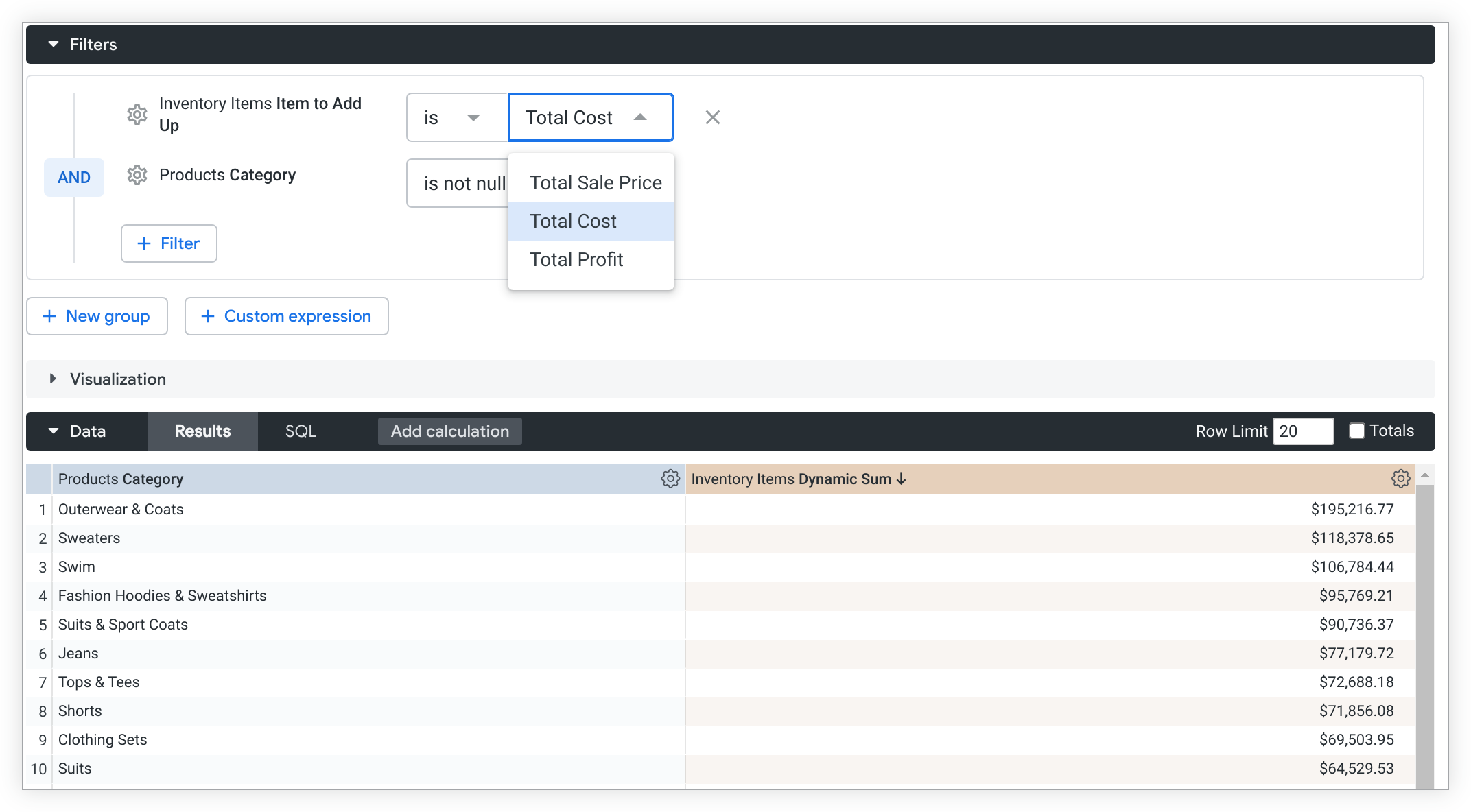
In this example, we create a `parameter` named `item_to_add_up` that lets a user choose what database column they want to sum --- `sale_price`, `cost`, or `profit`:
parameter: item_to_add_up {
type: unquoted
allowed_value: {
label: "Total Sale Price"
value: "sale_price"
}
allowed_value: {
label: "Total Cost"
value: "cost"
}
allowed_value: {
label: "Total Profit"
value: "profit"
}
}
Next, we create a measure called `dynamic_sum`.
This measure references the `{% parameter parameter_name %}` [Liquid variable](https://docs.cloud.google.com/looker/docs/2612/liquid-variable-reference.md.txt) in its `sql` parameter, which injects the selected value from `item_to_add_up` and changes the column name being referenced. The measure then performs the calculation on the referenced column:
measure: dynamic_sum {
type: sum
sql: ${TABLE}.{% parameter item_to_add_up %} ;;
value_format_name: "usd"
}
The result is an interactive Explore which can display different aggregations represented by one measure.
### Creating logical statements with `parameter_name._parameter_value`
You can also inject the value of a `parameter` into an underlying SQL query using a logical Liquid `{% %}` statement with the `parameter_name._parameter_value` [Liquid variable](https://docs.cloud.google.com/looker/docs/2612/liquid-variable-reference.md.txt#liquid_variable_definitions).
- Replace **parameter_name** with the parameter name you create.
- The **._parameter_value** does not change.
If a parameter is defined in a different view file than the one in which it is referenced, make sure to scope the parameter name with its view name, for example, `view_name.parameter_name._parameter_value`.
`parameter_name._parameter_value` allows for complex logical statements using possible values of a parameter --- similar to a `CASE WHEN` statement in SQL.
A Liquid conditional statement uses the following syntax:
- `{% if %}` to create a condition
- `{% elsif %}` to create additional conditions after the initial condition
- `{% else %}` to establish a value to return when the other conditions are not met
- `{% endif %}` to end the statement
This Liquid logic can be used with Liquid variables and LookML in various ways. See the [Liquid variable reference](https://docs.cloud.google.com/looker/docs/2612/liquid-variable-reference.md.txt#liquid_variable_definitions) documentation page for a complete list of possible places to use the `parameter_name._parameter_value` variable with Liquid in LookML. The following are examples that use the `sql` and `html` parameters.
#### SQL example
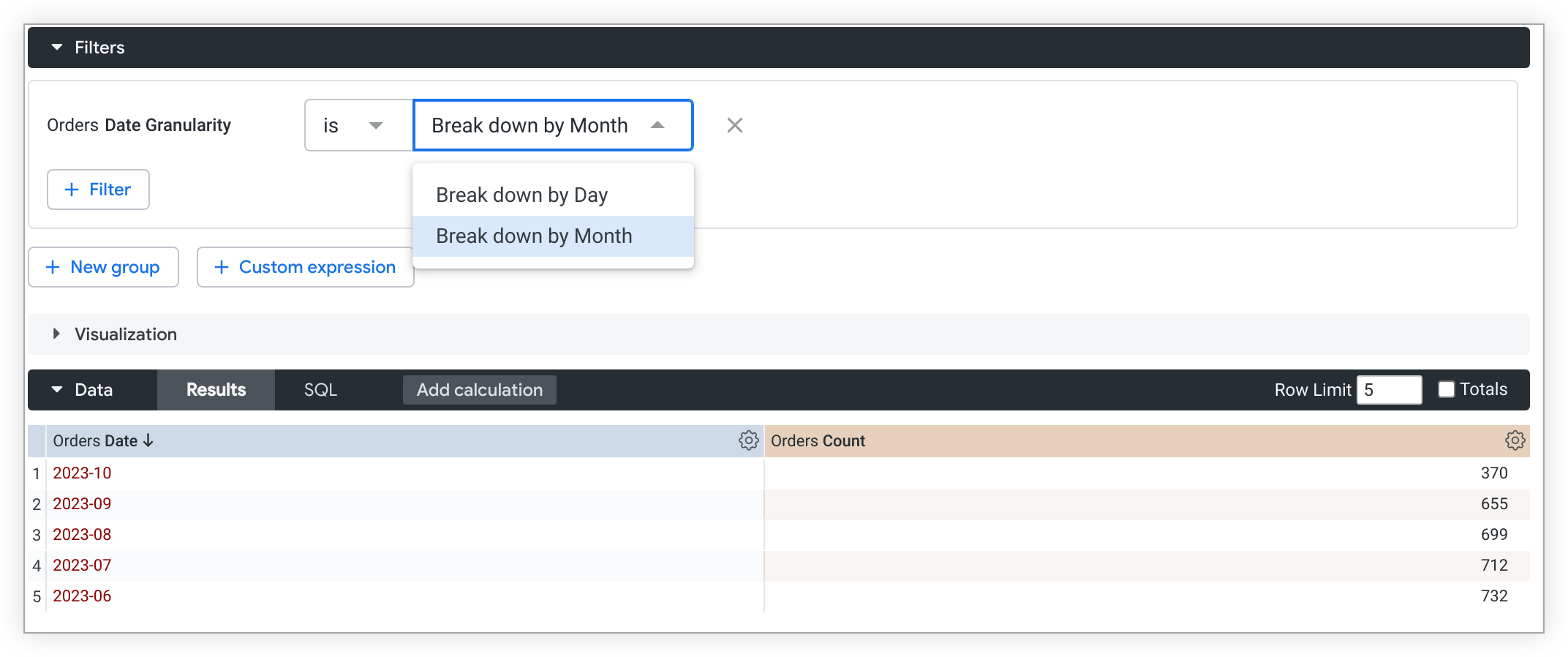
The following LookML block creates a `parameter` named `date_granularity`. Then, the `sql` parameter of a dimension uses `parameter_name._parameter_value` with the `{% if %}`, `{% elsif %}`, `{% endif %}` logical structure to determine the value of the dimension, based on the value of the `parameter`:
parameter: date_granularity {
type: unquoted
allowed_value: {
label: "Break down by Day"
value: "day"
}
allowed_value: {
label: "Break down by Month"
value: "month"
}
}
dimension: date {
sql:
{% if date_granularity._parameter_value == 'day' %}
${created_date}
{% elsif date_granularity._parameter_value == 'month' %}
${created_month}
{% else %}
${created_date}
{% endif %};;
}
The end result is an interactive date field that users can change to display the results in different timeframes.
#### HTML example
`parameter_name._parameter_value` can also be used with an [`html`](https://docs.cloud.google.com/looker/docs/2612/reference/param-field-html.md.txt) parameter to create interactive results formatting.
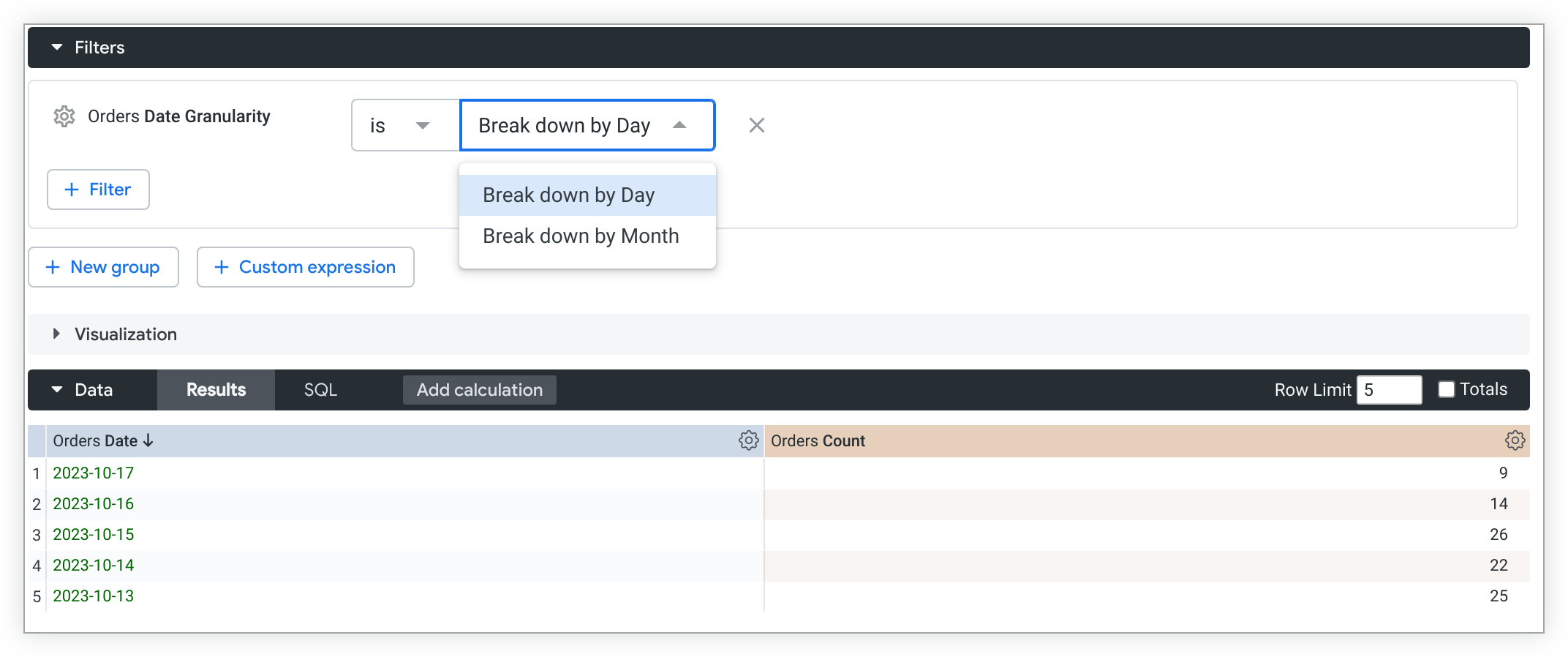
Continuing with the previous example, we can change the text color depending on which date granularity a user selects by adding an `html` parameter with a similar `{% if %}` logical statement:
parameter: date_granularity {
type: unquoted
allowed_value: {
label: "Break down by Day"
value: "day"
}
allowed_value: {
label: "Break down by Month"
value: "month"
}
}
dimension: date {
sql:
{% if date_granularity._parameter_value == 'day' %}
${created_date}
{% elsif date_granularity._parameter_value == 'month' %}
${created_month}
{% else %}
${created_date}
{% endif %};;
html:
{% if date_granularity._parameter_value == 'day' %}
{{ rendered_value }}
{% elsif date_granularity._parameter_value == 'month' %}
{{ rendered_value }}
{% else %}
{{ rendered_value }}
{% endif %};;
}
The `rendered_value` [Liquid variable](https://docs.cloud.google.com/looker/docs/2612/liquid-variable-reference.md.txt#liquid_variable_definitions) is used in the `html` statement in conjunction with Liquid [object tags](https://docs.cloud.google.com/looker/docs/2612/liquid-variable-reference.md.txt#two_kinds_of_liquid_usage), `{{ }}`, to output the value of the field with Looker's default formatting in the results.
The end result is interactive conditional formatting that is dependent on the value a user selects.
See the [`html`](https://docs.cloud.google.com/looker/docs/2612/reference/param-field-html.md.txt#using_liquid_variables_in_the_html_parameter) documentation page for more examples of Liquid interactivity for HTML.
## `parameter` Types
Many field [types](https://docs.cloud.google.com/looker/docs/2612/reference/param-dimension-filter-parameter-types.md.txt) can be assigned to a `parameter` parameter. A few special cases are detailed on this page.
### `parameters` of `type: string`
When you use a `parameter` with [`type: string`](https://docs.cloud.google.com/looker/docs/2612/reference/param-dimension-filter-parameter-types.md.txt#string), the `parameter_name._parameter_value` Liquid variable requires that you enclose the values of the `parameter` with both single *and* double quotes. This is so that the single quotes are transmitted to the SQL, identifying the value as a string value. See the following example:
parameter: date_granularity {
type: string
allowed_value: { value: "Day" }
allowed_value: { value: "Month" }
}
dimension: date {
label_from_parameter: date_granularity
sql:
{% if date_granularity._parameter_value == "'Day'" %}
${created_date}::VARCHAR
{% elsif date_granularity._parameter_value == "'Month'" %}
${created_month}::VARCHAR
{% else %}
NULL
{% endif %} ;;
}
In addition, if you want to include the value of a `parameter` with `type: string` in a `label`, you must precede the double quotes with the `\` character:
label: "{% if test._parameter_value == \"'foo'\" %} 'SUCCESS' {% else %} 'FAIL' {% endif %}"
### `parameters` of `type: yesno`
When you use a `parameter` with [`type: yesno`](https://docs.cloud.google.com/looker/docs/2612/reference/param-dimension-filter-parameter-types.md.txt#yesno), the `parameter_name._parameter_value` Liquid variable produces a SQL statement that evaluates to `true`, as appropriate for your SQL dialect. Therefore, we suggest that you don't use `parameters` of `type: yesno` in logical Liquid statements. Neither `{% if yesno_parameter._parameter_value == 'Yes' %}` nor `{% if yesno_parameter._parameter_value %}` will work properly.
### `parameters` of `type: unquoted`
The [`unquoted`](https://docs.cloud.google.com/looker/docs/2612/reference/param-dimension-filter-parameter-types.md.txt#unquoted) type is similar to [`type: string`](https://docs.cloud.google.com/looker/docs/2612/reference/param-field-parameter.md.txt#parameters_of_type_string), except that when the value of the `parameter` is inserted into the [`{% parameter %}` Liquid variable](https://docs.cloud.google.com/looker/docs/2612/liquid-variable-reference.md.txt), it won't be quoted. This parameter type is useful when you are inserting values into SQL, such as column or table names, that cannot be quoted in order to work properly (as in the previous examples).
Inserting unquoted values directly into SQL could create the possibility of unwanted SQL actions. To address this, `parameter` values of `type: unquoted` are restricted to the following:
- Characters `A` through `Z` (no spaces)
- Numbers `0` through `9`
- Special characters `_`, `.`, and `$`
As an example, the following LookML creates a `parameter` named `table_name` that will produce an unquoted value:
parameter: table_name {
type: unquoted
}
### `parameters` of `type: date_time`
A [`date_time`](https://docs.cloud.google.com/looker/docs/2612/reference/param-dimension-filter-parameter-types.md.txt#time_types) type `parameter` lets users select a specific date in a filter. The deepest granularity available is `YYYY/MM/DD`. Users can select only one date filter value, and the filter condition can be set to either `is on the day` to select a date, or `matches a user attribute` to select a [**date/time**](https://docs.cloud.google.com/looker/docs/2612/admin-panel-users-user-attributes.md.txt#data_type) user attribute.
For example, here is a `date_time` parameter, called `date_selector`:
parameter: date_selector {
type: date_time
description: "Use this field to select a date to filter results by."
}
When selected in an Explore, **Date Selector** lets users select one specific date.
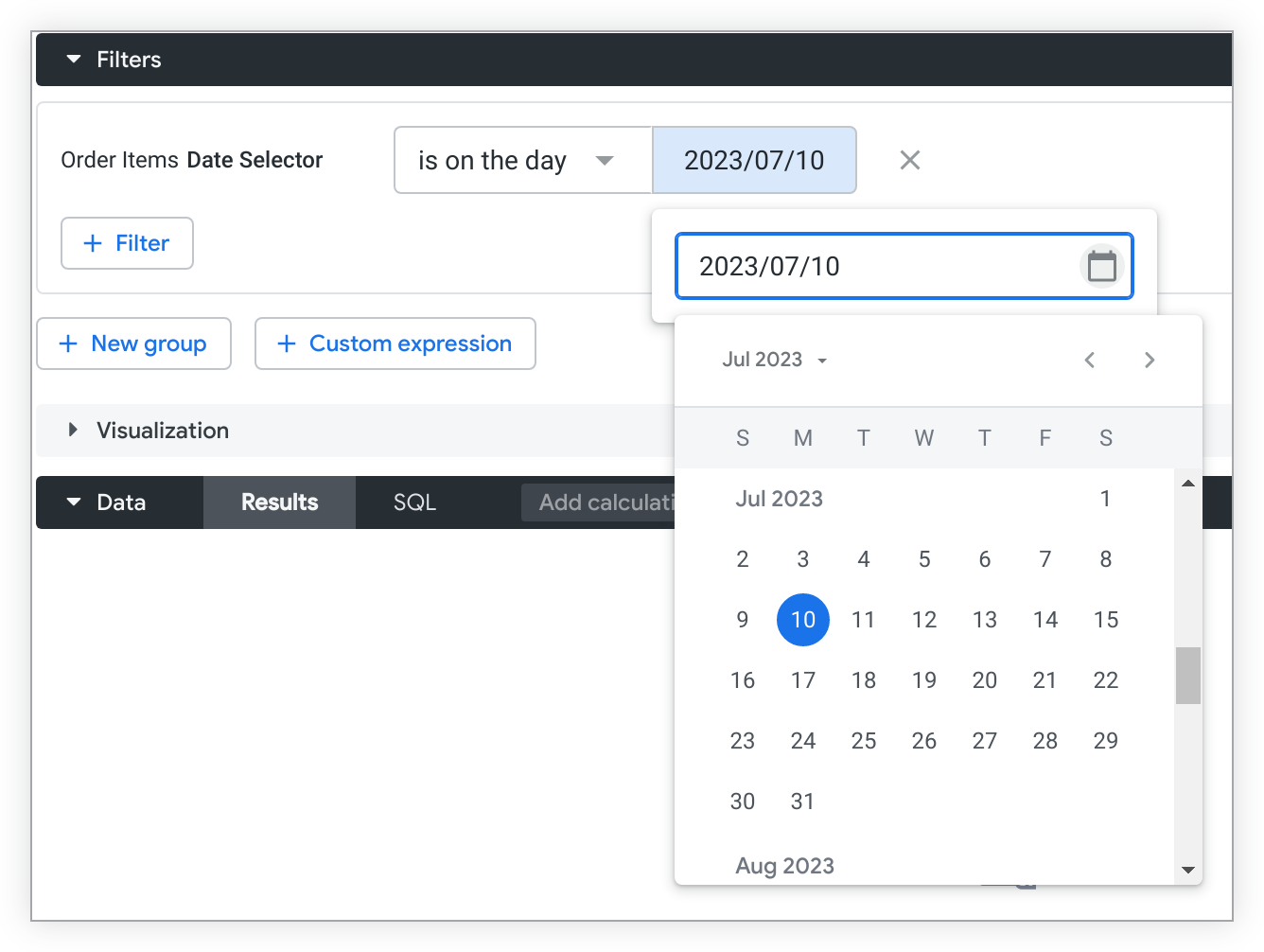
If you would like users to be able to take advantage of Looker's more nuanced generated SQL date filter logic (`is in the past`, `is in range`, etc.), see the [Templated filters](https://docs.cloud.google.com/looker/docs/2612/templated-filters.md.txt#templated_filters) documentation page for details.
## Additional Resources
- The [Templated filters](https://docs.cloud.google.com/looker/docs/2612/templated-filters.md.txt) documentation page shows additional examples of logical expressions and use cases for `parameter`.
- The [Using Liquid variables with `link` section](https://docs.cloud.google.com/looker/docs/2612/reference/param-field-link.md.txt#using_liquid_variables_with_link) of the [`link`](https://docs.cloud.google.com/looker/docs/2612/reference/param-field-link.md.txt) documentation page shows how to use Liquid with the `link` parameter to create custom drills.
- The [Using Liquid variables in the `html` parameter section](https://docs.cloud.google.com/looker/docs/2612/reference/param-field-html.md.txt#using_liquid_variables_in_the_html_parameter)of the [`html`](https://docs.cloud.google.com/looker/docs/2612/reference/param-field-html.md.txt) documentation page shows how to use Liquid with the `html` parameter.
- [Best practices](https://docs.cloud.google.com/looker/docs/2612/best-practices/home) is a great resource for Liquid use case examples. The [More powerful data drilling](https://docs.cloud.google.com/looker/docs/2612/best-practices/how-to-use-more-powerful-data-drilling) Best Practices page shows more advanced custom drilling solutions that use `html` and `link`.