[Roles](https://docs.cloud.google.com/looker/docs/2600/admin-panel-users-roles#roles), [permission sets](https://docs.cloud.google.com/looker/docs/2600/admin-panel-users-roles#permission-sets), and [model sets](https://docs.cloud.google.com/looker/docs/2600/admin-panel-users-roles#model-sets) are used together to manage what [users can do and what they can see](https://docs.cloud.google.com/looker/docs/2600/access-control-and-permission-management). The **Roles** page in the **Users** section of the **Admin** panel lets you view, configure, and assign roles, permission sets, and model sets.
You can search for specific roles, permission sets, and model sets by entering a search term into the search box in the upper right and pressing **Enter**.
> [!NOTE]
> **Note:** If you have a permission that provides access to only select pages in the Admin panel, such as [`manage_schedules`](https://docs.cloud.google.com/looker/docs/2600/admin-panel-users-roles#manage_schedules), [`manage_themes`](https://docs.cloud.google.com/looker/docs/2600/admin-panel-users-roles#manage_themes), or [`see_admin`](https://docs.cloud.google.com/looker/docs/2600/admin-panel-users-roles#see_admin), but you don't have the [Admin role](https://docs.cloud.google.com/looker/docs/2600/admin-panel-users-roles#default_roles), the page or pages that are described here may not be visible to you in the Admin panel.
## Definitions
- A **role** defines the privileges that a [user](https://docs.cloud.google.com/looker/docs/2600/admin-panel-users-users) or [group](https://docs.cloud.google.com/looker/docs/2600/admin-panel-users-groups) will have for a specific set of [models](https://docs.cloud.google.com/looker/docs/2600/reference/param-model) in Looker. You create a role by combining one permission set with one model set.
- A [**permission set**](https://docs.cloud.google.com/looker/docs/2600/admin-panel-users-roles#permission-sets) defines what a [user](https://docs.cloud.google.com/looker/docs/2600/admin-panel-users-users) or [group](https://docs.cloud.google.com/looker/docs/2600/admin-panel-users-groups) can do. You select a combination of permissions that you want to assign to a user or group. It must be used as part of a role to have any effect.
- A [**model set**](https://docs.cloud.google.com/looker/docs/2600/admin-panel-users-roles#model-sets) defines what data and LookML fields a [user](https://docs.cloud.google.com/looker/docs/2600/admin-panel-users-users) or [group](https://docs.cloud.google.com/looker/docs/2600/admin-panel-users-groups) can see. You select a combination of LookML models to which a user or group should have access. It must be used as part of a role to have any effect.
## Managing roles
A role is a combination of one permission set and one model set. It's a common convention to name roles after types of people or groups of people in your organization --- administrator, Looker developer, Finance team --- although you can certainly follow your own naming conventions.
A user can have more than one role in Looker. This can be useful when you have users who play multiple roles in your company or when you want to create complex systems of access to your models.
> [!NOTE]
> **Note:**
>
> Adding users to multiple roles can have important implications for how the users' [permissions](https://docs.cloud.google.com/looker/docs/2600/admin-panel-users-roles#permission_sets) are applied. For example, if a user has the `manage_models` permission (an instance-wide permission) in only one of their roles, they will be able to manage any model. In contrast, if a user has the `access_data` permission (a model-specific permission) in only one of their roles, that user can access only the models that are specified in that role.
>
> Multiple roles can also cause unexpected effects on dashboards. See [Managing business user features](https://docs.cloud.google.com/looker/docs/2600/managing-business-user-features#users_may_download_data_from_dashboard_tiles_without_download_permission) for information about dashboards and multiple roles.
### Creating, editing, and deleting roles
To create a role, follow these steps:
1. Click the **New Role** button at the top of the **Roles** page.
2. Looker displays the **New Role** page, where you can configure the following settings:
- **Name**: Enter a name for the role.
- **Permission Set**: Choose a permission set to associate with the role.
- **Model Set**: Choose a model set to associate with the role.
- **Groups** : Optionally, choose one or more [groups](https://docs.cloud.google.com/looker/docs/2600/admin-panel-users-groups) to assign the role to.
- **Users** : Optionally, choose one or more [users](https://docs.cloud.google.com/looker/docs/2600/admin-panel-users-users) to assign the role to.
3. Once you've configured the role as intended, click the **New Role** button at the bottom of the page.
After a role has been created, you can edit it by clicking the **Edit** button to the right of the role on the **Roles** page. Clicking **Edit** takes you to the **Edit Role** page for that role, where you can edit the name, the permission set, the model set, and the groups or users who are assigned to the role.
To delete a role, click the **Delete** button to the right of the role on the **Roles** page.
### Default roles
For new instances, Looker creates the following default roles, each of which includes a [default permission set](https://docs.cloud.google.com/looker/docs/2600/admin-panel-users-roles#default_permission_sets) of the same name:
- Admin
- [Admin via IAM](https://docs.cloud.google.com/looker/docs/2600/admin-panel-users-roles#admin_via_iam)
- Developer
- [Gemini](https://docs.cloud.google.com/looker/docs/2600/admin-panel-users-roles#gemini)
- [Looker CI Users](https://docs.cloud.google.com/looker/docs/2600/admin-panel-users-roles#ci-users)
- [Conversational Analytics Agent Manager](https://docs.cloud.google.com/looker/docs/2600/admin-panel-users-roles#conversational_analytics_agent_manager)
- [Conversational Analytics User](https://docs.cloud.google.com/looker/docs/2600/admin-panel-users-roles#conversational_analytics_user)
- [Support Advanced Editor](https://docs.cloud.google.com/looker/docs/2600/admin-panel-users-roles#support_advanced_editor_and_support_basic_editor)
- [Support Basic Editor](https://docs.cloud.google.com/looker/docs/2600/admin-panel-users-roles#support_advanced_editor_and_support_basic_editor)
- [Customer Engineer Advanced Editor](https://docs.cloud.google.com/looker/docs/2600/admin-panel-users-roles#customer_engineer_advanced_editor)
- User
- Viewer
The default roles in the following sections have conditions for use.
#### Admin via IAM
The **Admin via IAM** role is available only in [Looker (Google Cloud core)](https://docs.cloud.google.com/looker/docs/looker-core-overview), and it can be managed only through the Google Cloud console. For more information, see the [Authentication and authorization with OAuth and IAM](https://docs.cloud.google.com/looker/docs/looker-core-oauth-authentication#auth) and [Admin Looker role versus the Admin via IAM Looker role](https://docs.cloud.google.com/looker/docs/looker-core-oauth-authentication#admin-vs-admin-via-iam) documentation.
The **Admin via IAM** role uses the **Admin** permission set.
> [!TIP]
> **Tip:** If a user's OAuth refresh token is expired, that user will no longer have the **Admin via IAM** role within the Looker (Google Cloud core) instance. To refresh the token, ask the user to sign in again with OAuth.
#### Looker CI Users
The **Looker CI Users** role is created automatically for Looker instances that have been [enabled for Continuous Integration](https://docs.cloud.google.com/looker/docs/2600/admin-panel-platform-ci#enable_continuous_integration). The **Looker CI Users** role is applied to the Looker CI service accounts that can be viewed in the **Service Accounts** tab of the [**Users**](https://docs.cloud.google.com/looker/docs/2600/admin-panel-users-users) Admin page. Looker uses these CI service accounts to perform [CI runs](https://docs.cloud.google.com/looker/docs/2600/ci-run-suite) on the instance.
The **Looker CI Users** role has the following permissions that are required to perform CI runs:
- [`deploy`](https://docs.cloud.google.com/looker/docs/2600/admin-panel-users-roles#deploy): required for setting up the GitHub webhooks that are required for CI runs
- [`see_ci`](https://docs.cloud.google.com/looker/docs/2600/admin-panel-users-roles#see_ci): required to view the results of CI runs, view the CI **Suites** page, and run CI suites
- [`manage_ci`](https://docs.cloud.google.com/looker/docs/2600/admin-panel-users-roles#manage_ci): required to create CI suites, manage CI users, and configure the Git connection with Continuous Integration
#### Gemini
The **Gemini** role cannot be renamed or deleted. By default, this role's permission set applies to all models on the Looker instance. The [**Gemini** permission set](https://docs.cloud.google.com/looker/docs/2600/admin-panel-users-roles#gemini) that is included in this role enables users to perform the following tasks in the Looker instance with Gemini assistance when they also have other required permissions:
- [Write LookML](https://docs.cloud.google.com/looker/docs/looker-core-lookml-gemini-assistance) --- when they also have a Looker role that contains the `develop` permission for at least one model in a LookML project.
- [Create custom Looker visualizations](https://docs.cloud.google.com/looker/docs/2600/custom-looker-visualization-gemini) --- when they also have a Looker role that contains the `can_override_vis_config` permission.
- Query Looker Explore data in Data Studio with [Conversational Analytics](https://docs.cloud.google.com/looker/docs/2600/studio/conversational-analytics-overview), even if the user hasn't been assigned `explore` permissions in Looker, when they also have a Looker role that contains the `access_data` permission.
Additional permissions are required to use Conversational Analytics in Looker, which can be granted with either the [Conversational Analytics Agent Manager](https://docs.cloud.google.com/looker/docs/2600/admin-panel-users-roles#conversational_analytics_agent_manager) or [Conversational Analytics User](https://docs.cloud.google.com/looker/docs/2600/admin-panel-users-roles#conversational_analytics_user) role.
For more information about Gemini in Looker features, see the [Gemini in Looker overview](https://docs.cloud.google.com/looker/docs/2600/gemini-overview-looker).
#### Conversational Analytics Agent Manager
The **Conversational Analytics Agent Manager** role consists of the [Conversational Analytics Agent Manager permission set](https://docs.cloud.google.com/looker/docs/2600/admin-panel-users-roles#gemini_ca_agent_manager) for all models that are on the Looker instance. Users with this role can create, edit, share, and delete Conversational Analytics data agents that use Looker Explores.
> [!NOTE]
> **Note:** When a user creates a data agent, they're granted [**Manage Access, Edit** content access](https://docs.cloud.google.com/looker/docs/2600/conversational-analytics-looker-data-agents#share-data-agents) automatically; however, they must be granted this access for the data agent if they want to edit, share, or delete a data agent that was created by another user.
#### Conversational Analytics User
The **Conversational Analytics User** role consists of the [Conversational Analytics User permission set](https://docs.cloud.google.com/looker/docs/2600/admin-panel-users-roles#gemini_ca_user) for all models on the Looker instance. Users with this role can chat with any Conversational Analytics data agent in Looker, as long as they have been granted [**View** access](https://docs.cloud.google.com/looker/docs/2600/conversational-analytics-looker-data-agents#share-data-agents) to the data agent.
#### Support Advanced Editor and Support Basic Editor
These roles won't appear on a Looker (original) instance if a Looker admin has disabled the [Tiered Support Access](https://docs.cloud.google.com/looker/docs/2600/admin-panel-general-labs#tiered_support_access) Labs feature. These roles won't appear on a Looker (Google Cloud core) instance if the instance uses [private connections (private services access or Private Service Connect) networking](https://docs.cloud.google.com/looker/docs/looker-core-networking-options#private_ip_connections) or [hybrid connections networking](https://docs.cloud.google.com/looker/docs/looker-core-networking-options#private_ip_and_public_ip_configuration).
The **Support Advanced Editor** and **Support Basic Editor** roles cannot be edited, deleted, or assigned to users other than [support access users](https://docs.cloud.google.com/looker/docs/2600/admin-panel-general-support-access#specifying_individuals_who_have_access).
### Assigning default roles to a user
To update an individual user's settings to assign a default role, follow these steps:
1. Navigate to the **Users** page in the **Users** section of the **Admin** panel.
2. Select the user or group whose permissions you want to change.
3. From the **Roles** drop-down menu, select the role name.
4. Select **Save** to retain these settings.
## Permission sets
A permission set defines what a [user](https://docs.cloud.google.com/looker/docs/2600/admin-panel-users-users) or [group](https://docs.cloud.google.com/looker/docs/2600/admin-panel-users-groups) can do. Admins can use Looker's [default permission sets](https://docs.cloud.google.com/looker/docs/2600/admin-panel-users-roles#default_permission_sets) or [create original permission sets](https://docs.cloud.google.com/looker/docs/2600/admin-panel-users-roles#creating_permission_sets), keeping in mind permission [dependencies](https://docs.cloud.google.com/looker/docs/2600/admin-panel-users-roles#permissions_and_dependencies).
All the available permissions, and their types, are discussed in more detail in the [permissions list](https://docs.cloud.google.com/looker/docs/2600/admin-panel-users-roles#permissions-list).
### Default permission sets
For new installations, Looker includes several default permission sets that you can start with:
| Permission Set | Included Permissions |
|---|---|
| Admin | All permissions |
| Developer | [`access_data`](https://docs.cloud.google.com/looker/docs/2600/admin-panel-users-roles#access_data), [`can_create_forecast`](https://docs.cloud.google.com/looker/docs/2600/admin-panel-users-roles#can_create_forecast), [`clear_cache_refresh`](https://docs.cloud.google.com/looker/docs/2600/admin-panel-users-roles#clear_cache_refresh), [`create_custom_fields`](https://docs.cloud.google.com/looker/docs/2600/admin-panel-users-roles#create_custom_fields), [`create_table_calculations`](https://docs.cloud.google.com/looker/docs/2600/admin-panel-users-roles#create_table_calculations), [`deploy`](https://docs.cloud.google.com/looker/docs/2600/admin-panel-users-roles#deploy), [`develop`](https://docs.cloud.google.com/looker/docs/2600/admin-panel-users-roles#develop), [`download_without_limit`](https://docs.cloud.google.com/looker/docs/2600/admin-panel-users-roles#download_without_limit), [`explore`](https://docs.cloud.google.com/looker/docs/2600/admin-panel-users-roles#explore), [`manage_spaces`](https://docs.cloud.google.com/looker/docs/2600/admin-panel-users-roles#manage_spaces), [`mobile_app_access`](https://docs.cloud.google.com/looker/docs/2600/admin-panel-users-roles#mobile_app_access), [`save_content`](https://docs.cloud.google.com/looker/docs/2600/admin-panel-users-roles#save_content), [`save_dashboards`](https://docs.cloud.google.com/looker/docs/2600/admin-panel-users-roles#save_dashboards), [`save_looks`](https://docs.cloud.google.com/looker/docs/2600/admin-panel-users-roles#save_looks), [`schedule_look_emails`](https://docs.cloud.google.com/looker/docs/2600/admin-panel-users-roles#schedule_look_emails), [`see_drill_overlay`](https://docs.cloud.google.com/looker/docs/2600/admin-panel-users-roles#see_drill_overlay), [`see_lookml`](https://docs.cloud.google.com/looker/docs/2600/admin-panel-users-roles#see_lookml), [`see_lookml_dashboards`](https://docs.cloud.google.com/looker/docs/2600/admin-panel-users-roles#see_lookml_dashboards), [`see_looks`](https://docs.cloud.google.com/looker/docs/2600/admin-panel-users-roles#see_looks), [`see_pdts`](https://docs.cloud.google.com/looker/docs/2600/admin-panel-users-roles#see_pdts), [`see_sql`](https://docs.cloud.google.com/looker/docs/2600/admin-panel-users-roles#see_sql), [`see_user_dashboards`](https://docs.cloud.google.com/looker/docs/2600/admin-panel-users-roles#see_user_dashboards), [`send_to_integration`](https://docs.cloud.google.com/looker/docs/2600/admin-panel-users-roles#send_to_integration), [`use_sql_runner`](https://docs.cloud.google.com/looker/docs/2600/admin-panel-users-roles#use_sql_runner)
**NOTE** : The [`see_pdts`](https://docs.cloud.google.com/looker/docs/2600/admin-panel-users-roles#see_pdts) permission is included in the **Developer** default permission only for Looker installations that were created with Looker 21.18 or later. To verify whether the `see_pdts` permission is included in the **Developer** permission set on your instance, go to the **Roles** page in the **Admin** panel in the Looker UI. |
| Gemini | [`gemini_in_looker`](https://docs.cloud.google.com/looker/docs/2600/admin-panel-users-roles#gemini_in_looker), [`chat_with_agent`](https://docs.cloud.google.com/looker/docs/2600/admin-panel-users-roles#chat_with_agent), [`chat_with_explore`](https://docs.cloud.google.com/looker/docs/2600/admin-panel-users-roles#chat_with_explore), [`save_agents`](https://docs.cloud.google.com/looker/docs/2600/admin-panel-users-roles#save_agents) |
| Conversational Analytics Agent Manager | [`access_data`](https://docs.cloud.google.com/looker/docs/2600/admin-panel-users-roles#access_data), [`gemini_in_looker`](https://docs.cloud.google.com/looker/docs/2600/admin-panel-users-roles#gemini_in_looker), [`chat_with_agent`](https://docs.cloud.google.com/looker/docs/2600/admin-panel-users-roles#chat_with_agent), [`chat_with_explore`](https://docs.cloud.google.com/looker/docs/2600/admin-panel-users-roles#chat_with_explore), [`save_agents`](https://docs.cloud.google.com/looker/docs/2600/admin-panel-users-roles#save_agents), [`upload_data`](https://docs.cloud.google.com/looker/docs/2600/admin-panel-users-roles#upload_data) |
| Conversational Analytics User | [`access_data`](https://docs.cloud.google.com/looker/docs/2600/admin-panel-users-roles#access_data), [`gemini_in_looker`](https://docs.cloud.google.com/looker/docs/2600/admin-panel-users-roles#gemini_in_looker), [`chat_with_agent`](https://docs.cloud.google.com/looker/docs/2600/admin-panel-users-roles#chat_with_agent) |
| Customer Engineer Advanced Editor | [`access_data`](https://docs.cloud.google.com/looker/docs/2600/admin-panel-users-roles#access_data), [`can_create_forecast`](https://docs.cloud.google.com/looker/docs/2600/admin-panel-users-roles#can_create_forecast), [`can_override_vis_config`](https://docs.cloud.google.com/looker/docs/2600/admin-panel-users-roles#can_override_vis_config), [`chat_with_agent`](https://docs.cloud.google.com/looker/docs/2600/admin-panel-users-roles#chat_with_agent), [`chat_with_explore`](https://docs.cloud.google.com/looker/docs/2600/admin-panel-users-roles#chat_with_explore), [`clear_cache_refresh`](https://docs.cloud.google.com/looker/docs/2600/admin-panel-users-roles#clear_cache_refresh), [`create_custom_fields`](https://docs.cloud.google.com/looker/docs/2600/admin-panel-users-roles#create_custom_fields), [`create_table_calculations`](https://docs.cloud.google.com/looker/docs/2600/admin-panel-users-roles#create_table_calculations), [`deploy`](https://docs.cloud.google.com/looker/docs/2600/admin-panel-users-roles#deploy), [`develop`](https://docs.cloud.google.com/looker/docs/2600/admin-panel-users-roles#develop), [`explore`](https://docs.cloud.google.com/looker/docs/2600/admin-panel-users-roles#explore), [`follow_alerts`](https://docs.cloud.google.com/looker/docs/2600/admin-panel-users-roles#follow_alerts), [`gemini_in_looker`](https://docs.cloud.google.com/looker/docs/2600/admin-panel-users-roles#gemini_in_looker), [`manage_embed_settings`](https://docs.cloud.google.com/looker/docs/2600/admin-panel-users-roles#manage_embed_settings), [`manage_models`](https://docs.cloud.google.com/looker/docs/2600/admin-panel-users-roles#manage_models), [`manage_privatelabel`](https://docs.cloud.google.com/looker/docs/2600/admin-panel-users-roles#manage_privatelabel), [`manage_project_connections`](https://docs.cloud.google.com/looker/docs/2600/admin-panel-users-roles#manage_project_connections), [`manage_project_connections_restricted`](https://docs.cloud.google.com/looker/docs/2600/admin-panel-users-roles#manage_project_connections_restricted), [`manage_project_models`](https://docs.cloud.google.com/looker/docs/2600/admin-panel-users-roles#manage_project_models), [`manage_themes`](https://docs.cloud.google.com/looker/docs/2600/admin-panel-users-roles#manage_themes), [`save_agents`](https://docs.cloud.google.com/looker/docs/2600/admin-panel-users-roles#save_agents), [`save_content`](https://docs.cloud.google.com/looker/docs/2600/admin-panel-users-roles#save_content), [`save_dashboards`](https://docs.cloud.google.com/looker/docs/2600/admin-panel-users-roles#save_dashboards), [`save_looks`](https://docs.cloud.google.com/looker/docs/2600/admin-panel-users-roles#save_looks), [`see_admin`](https://docs.cloud.google.com/looker/docs/2600/admin-panel-users-roles#see_admin), [`see_alerts`](https://docs.cloud.google.com/looker/docs/2600/admin-panel-users-roles#see_alerts), [`see_datagroups`](https://docs.cloud.google.com/looker/docs/2600/admin-panel-users-roles#see_datagroups), [`see_drill_overlay`](https://docs.cloud.google.com/looker/docs/2600/admin-panel-users-roles#see_drill_overlay), [`see_logs`](https://docs.cloud.google.com/looker/docs/2600/admin-panel-users-roles#see_logs), [`see_lookml`](https://docs.cloud.google.com/looker/docs/2600/admin-panel-users-roles#see_lookml), [`see_lookml_dashboards`](https://docs.cloud.google.com/looker/docs/2600/admin-panel-users-roles#see_lookml_dashboards), [`see_looks`](https://docs.cloud.google.com/looker/docs/2600/admin-panel-users-roles#see_looks), [`see_pdts`](https://docs.cloud.google.com/looker/docs/2600/admin-panel-users-roles#see_pdts), [`see_queries`](https://docs.cloud.google.com/looker/docs/2600/admin-panel-users-roles#see_queries), [`see_schedules`](https://docs.cloud.google.com/looker/docs/2600/admin-panel-users-roles#see_schedules), [`see_sql`](https://docs.cloud.google.com/looker/docs/2600/admin-panel-users-roles#see_sql), [`see_system_activity`](https://docs.cloud.google.com/looker/docs/2600/admin-panel-users-roles#see_system_activity), [`see_user_dashboards`](https://docs.cloud.google.com/looker/docs/2600/admin-panel-users-roles#see_user_dashboards), [`see_users`](https://docs.cloud.google.com/looker/docs/2600/admin-panel-users-roles#see_users), [`update_datagroups`](https://docs.cloud.google.com/looker/docs/2600/admin-panel-users-roles#update_datagroups), [`use_global_connections`](https://docs.cloud.google.com/looker/docs/2600/admin-panel-users-roles#use_global_connections)
**NOTE** : The **Customer Engineer Advanced Editor** permission set is available only when the [Tiered Support Access](https://docs.cloud.google.com/looker/docs/2600/admin-panel-general-labs#tiered_support_access) Labs feature is enabled. The **Customer Engineer Advanced Editor** permission set can't be edited or deleted. |
| Support Advanced Editor | [`access_data`](https://docs.cloud.google.com/looker/docs/2600/admin-panel-users-roles#access_data), [`clear_cache_refresh`](https://docs.cloud.google.com/looker/docs/2600/admin-panel-users-roles#clear_cache_refresh), [`create_custom_fields`](https://docs.cloud.google.com/looker/docs/2600/admin-panel-users-roles#create_custom_fields), [`create_table_calculations`](https://docs.cloud.google.com/looker/docs/2600/admin-panel-users-roles#create_table_calculations), [`develop`](https://docs.cloud.google.com/looker/docs/2600/admin-panel-users-roles#develop), [`explore`](https://docs.cloud.google.com/looker/docs/2600/admin-panel-users-roles#explore), [`follow_alerts`](https://docs.cloud.google.com/looker/docs/2600/admin-panel-users-roles#follow_alerts), [`manage_embed_settings`](https://docs.cloud.google.com/looker/docs/2600/admin-panel-users-roles#manage_embed_settings), [`manage_models`](https://docs.cloud.google.com/looker/docs/2600/admin-panel-users-roles#manage_models), [`manage_privatelabel`](https://docs.cloud.google.com/looker/docs/2600/admin-panel-users-roles#manage_privatelabel), [`manage_project_connections`](https://docs.cloud.google.com/looker/docs/2600/admin-panel-users-roles#manage_project_connections), [`manage_project_connections_restricted`](https://docs.cloud.google.com/looker/docs/2600/admin-panel-users-roles#manage_project_connections_restricted), [`manage_project_models`](https://docs.cloud.google.com/looker/docs/2600/admin-panel-users-roles#manage_project_models), [`manage_themes`](https://docs.cloud.google.com/looker/docs/2600/admin-panel-users-roles#manage_themes), [`see_admin`](https://docs.cloud.google.com/looker/docs/2600/admin-panel-users-roles#see_admin), [`see_alerts`](https://docs.cloud.google.com/looker/docs/2600/admin-panel-users-roles#see_alerts), [`see_datagroups`](https://docs.cloud.google.com/looker/docs/2600/admin-panel-users-roles#see_datagroups), [`see_drill_overlay`](https://docs.cloud.google.com/looker/docs/2600/admin-panel-users-roles#see_drill_overlay), [`see_logs`](https://docs.cloud.google.com/looker/docs/2600/admin-panel-users-roles#see_logs), [`see_lookml`](https://docs.cloud.google.com/looker/docs/2600/admin-panel-users-roles#see_lookml), [`see_lookml_dashboards`](https://docs.cloud.google.com/looker/docs/2600/admin-panel-users-roles#see_lookml_dashboards), [`see_looks`](https://docs.cloud.google.com/looker/docs/2600/admin-panel-users-roles#see_looks), [`see_pdts`](https://docs.cloud.google.com/looker/docs/2600/admin-panel-users-roles#see_pdts), [`see_queries`](https://docs.cloud.google.com/looker/docs/2600/admin-panel-users-roles#see_queries), [`see_schedules`](https://docs.cloud.google.com/looker/docs/2600/admin-panel-users-roles#see_schedules), [`see_sql`](https://docs.cloud.google.com/looker/docs/2600/admin-panel-users-roles#see_sql), [`see_system_activity`](https://docs.cloud.google.com/looker/docs/2600/admin-panel-users-roles#see_system_activity), [`see_user_dashboards`](https://docs.cloud.google.com/looker/docs/2600/admin-panel-users-roles#see_user_dashboards), [`see_users`](https://docs.cloud.google.com/looker/docs/2600/admin-panel-users-roles#see_users), [`update_datagroups`](https://docs.cloud.google.com/looker/docs/2600/admin-panel-users-roles#update_datagroups), [`use_global_connections`](https://docs.cloud.google.com/looker/docs/2600/admin-panel-users-roles#use_global_connections)
**NOTE** : The **Support Advanced Editor** permission set is available only when the [Tiered Support Access](https://docs.cloud.google.com/looker/docs/2600/admin-panel-general-labs#tiered_support_access) Labs feature is enabled. The **Support Advanced Editor** permission set can't be edited or deleted. |
| Support Basic Editor | [`access_data`](https://docs.cloud.google.com/looker/docs/2600/admin-panel-users-roles#access_data), [`clear_cache_refresh`](https://docs.cloud.google.com/looker/docs/2600/admin-panel-users-roles#clear_cache_refresh), [`create_custom_fields`](https://docs.cloud.google.com/looker/docs/2600/admin-panel-users-roles#create_custom_fields), [`create_table_calculations`](https://docs.cloud.google.com/looker/docs/2600/admin-panel-users-roles#create_table_calculations), [`explore`](https://docs.cloud.google.com/looker/docs/2600/admin-panel-users-roles#explore), [`follow_alerts`](https://docs.cloud.google.com/looker/docs/2600/admin-panel-users-roles#follow_alerts), [`manage_privatelabel`](https://docs.cloud.google.com/looker/docs/2600/admin-panel-users-roles#manage_privatelabel), [`manage_themes`](https://docs.cloud.google.com/looker/docs/2600/admin-panel-users-roles#manage_themes), [`see_admin`](https://docs.cloud.google.com/looker/docs/2600/admin-panel-users-roles#see_admin), [`see_alerts`](https://docs.cloud.google.com/looker/docs/2600/admin-panel-users-roles#see_alerts), [`see_drill_overlay`](https://docs.cloud.google.com/looker/docs/2600/admin-panel-users-roles#see_drill_overlay), [`see_logs`](https://docs.cloud.google.com/looker/docs/2600/admin-panel-users-roles#see_logs), [`see_lookml`](https://docs.cloud.google.com/looker/docs/2600/admin-panel-users-roles#see_lookml), [`see_lookml_dashboards`](https://docs.cloud.google.com/looker/docs/2600/admin-panel-users-roles#see_lookml_dashboards), [`see_looks`](https://docs.cloud.google.com/looker/docs/2600/admin-panel-users-roles#see_looks), [`see_pdts`](https://docs.cloud.google.com/looker/docs/2600/admin-panel-users-roles#see_pdts), [`see_schedules`](https://docs.cloud.google.com/looker/docs/2600/admin-panel-users-roles#see_schedules), [`see_sql`](https://docs.cloud.google.com/looker/docs/2600/admin-panel-users-roles#see_sql), [`see_datagroups`](https://docs.cloud.google.com/looker/docs/2600/admin-panel-users-roles#see_datagroups), [`see_system_activity`](https://docs.cloud.google.com/looker/docs/2600/admin-panel-users-roles#see_system_activity), [`see_user_dashboards`](https://docs.cloud.google.com/looker/docs/2600/admin-panel-users-roles#see_user_dashboards), [`see_users`](https://docs.cloud.google.com/looker/docs/2600/admin-panel-users-roles#see_users)
**NOTE** : The **Support Basic Editor** permission set is available only when the [Tiered Support Access](https://docs.cloud.google.com/looker/docs/2600/admin-panel-general-labs#tiered_support_access) Labs feature is enabled. The **Support Basic Editor** permission set can't be edited or deleted. |
| LookML dashboard user | [`access_data`](https://docs.cloud.google.com/looker/docs/2600/admin-panel-users-roles#access_data), [`clear_cache_refresh`](https://docs.cloud.google.com/looker/docs/2600/admin-panel-users-roles#clear_cache_refresh), [`mobile_app_access`](https://docs.cloud.google.com/looker/docs/2600/admin-panel-users-roles#mobile_app_access), [`see_lookml_dashboards`](https://docs.cloud.google.com/looker/docs/2600/admin-panel-users-roles#see_lookml_dashboards), [`send_to_integration`](https://docs.cloud.google.com/looker/docs/2600/admin-panel-users-roles#send_to_integration) |
| User | [`access_data`](https://docs.cloud.google.com/looker/docs/2600/admin-panel-users-roles#access_data), [`can_create_forecast`](https://docs.cloud.google.com/looker/docs/2600/admin-panel-users-roles#can_create_forecast), [`clear_cache_refresh`](https://docs.cloud.google.com/looker/docs/2600/admin-panel-users-roles#clear_cache_refresh), [`create_custom_fields`](https://docs.cloud.google.com/looker/docs/2600/admin-panel-users-roles#create_custom_fields), [`create_table_calculations`](https://docs.cloud.google.com/looker/docs/2600/admin-panel-users-roles#create_table_calculations), [`download_without_limit`](https://docs.cloud.google.com/looker/docs/2600/admin-panel-users-roles#download_without_limit), [`explore`](https://docs.cloud.google.com/looker/docs/2600/admin-panel-users-roles#explore), [`manage_spaces`](https://docs.cloud.google.com/looker/docs/2600/admin-panel-users-roles#manage_spaces), [`mobile_app_access`](https://docs.cloud.google.com/looker/docs/2600/admin-panel-users-roles#mobile_app_access), [`save_content`](https://docs.cloud.google.com/looker/docs/2600/admin-panel-users-roles#save_content), [`save_dashboards`](https://docs.cloud.google.com/looker/docs/2600/admin-panel-users-roles#save_dashboards), [`save_looks`](https://docs.cloud.google.com/looker/docs/2600/admin-panel-users-roles#save_looks), [`schedule_look_emails`](https://docs.cloud.google.com/looker/docs/2600/admin-panel-users-roles#schedule_look_emails), [`see_drill_overlay`](https://docs.cloud.google.com/looker/docs/2600/admin-panel-users-roles#see_drill_overlay), [`see_lookml`](https://docs.cloud.google.com/looker/docs/2600/admin-panel-users-roles#see_lookml), [`see_lookml_dashboards`](https://docs.cloud.google.com/looker/docs/2600/admin-panel-users-roles#see_lookml_dashboards), [`see_looks`](https://docs.cloud.google.com/looker/docs/2600/admin-panel-users-roles#see_looks), [`see_sql`](https://docs.cloud.google.com/looker/docs/2600/admin-panel-users-roles#see_sql), [`see_user_dashboards`](https://docs.cloud.google.com/looker/docs/2600/admin-panel-users-roles#see_user_dashboards), [`send_to_integration`](https://docs.cloud.google.com/looker/docs/2600/admin-panel-users-roles#send_to_integration) |
| User who can't view LookML | [`access_data`](https://docs.cloud.google.com/looker/docs/2600/admin-panel-users-roles#access_data), [`can_create_forecast`](https://docs.cloud.google.com/looker/docs/2600/admin-panel-users-roles#can_create_forecast), [`clear_cache_refresh`](https://docs.cloud.google.com/looker/docs/2600/admin-panel-users-roles#clear_cache_refresh), [`create_custom_fields`](https://docs.cloud.google.com/looker/docs/2600/admin-panel-users-roles#create_custom_fields), [`create_table_calculations`](https://docs.cloud.google.com/looker/docs/2600/admin-panel-users-roles#create_table_calculations), [`download_without_limit`](https://docs.cloud.google.com/looker/docs/2600/admin-panel-users-roles#download_without_limit), [`explore`](https://docs.cloud.google.com/looker/docs/2600/admin-panel-users-roles#explore), [`manage_spaces`](https://docs.cloud.google.com/looker/docs/2600/admin-panel-users-roles#manage_spaces), [`mobile_app_access`](https://docs.cloud.google.com/looker/docs/2600/admin-panel-users-roles#mobile_app_access), [`save_content`](https://docs.cloud.google.com/looker/docs/2600/admin-panel-users-roles#save_content), [`save_dashboards`](https://docs.cloud.google.com/looker/docs/2600/admin-panel-users-roles#save_dashboards), [`save_looks`](https://docs.cloud.google.com/looker/docs/2600/admin-panel-users-roles#save_looks), [`schedule_look_emails`](https://docs.cloud.google.com/looker/docs/2600/admin-panel-users-roles#schedule_look_emails), [`see_lookml_dashboards`](https://docs.cloud.google.com/looker/docs/2600/admin-panel-users-roles#see_lookml_dashboards), [`see_looks`](https://docs.cloud.google.com/looker/docs/2600/admin-panel-users-roles#see_looks), [`see_user_dashboards`](https://docs.cloud.google.com/looker/docs/2600/admin-panel-users-roles#see_user_dashboards), [`send_to_integration`](https://docs.cloud.google.com/looker/docs/2600/admin-panel-users-roles#send_to_integration) |
| Viewer | [`access_data`](https://docs.cloud.google.com/looker/docs/2600/admin-panel-users-roles#access_data), [`clear_cache_refresh`](https://docs.cloud.google.com/looker/docs/2600/admin-panel-users-roles#clear_cache_refresh), [`download_without_limit`](https://docs.cloud.google.com/looker/docs/2600/admin-panel-users-roles#download_without_limit), [`mobile_app_access`](https://docs.cloud.google.com/looker/docs/2600/admin-panel-users-roles#mobile_app_access)`,` [`schedule_look_emails`](https://docs.cloud.google.com/looker/docs/2600/admin-panel-users-roles#schedule_look_emails), [`see_drill_overlay`](https://docs.cloud.google.com/looker/docs/2600/admin-panel-users-roles#see_drill_overlay), [`see_lookml_dashboards`](https://docs.cloud.google.com/looker/docs/2600/admin-panel-users-roles#see_lookml_dashboards), [`see_looks`](https://docs.cloud.google.com/looker/docs/2600/admin-panel-users-roles#see_looks), [`see_user_dashboards`](https://docs.cloud.google.com/looker/docs/2600/admin-panel-users-roles#see_user_dashboards) |
You'll see these permission sets appear as options when you create a new role. If you select one of these permission sets, Looker will display the list of permissions that it includes.
> [!NOTE]
> **Note:** The Admin permission set cannot be edited or deleted, and it cannot be assigned to a role. It is assigned *only* to the Admin role, which also cannot be edited or deleted. The only way to grant the Admin permission set to a [user](https://docs.cloud.google.com/looker/docs/2600/admin-panel-users-users) or [group](https://docs.cloud.google.com/looker/docs/2600/admin-panel-users-groups) is to add the Admin role to that user or group.
### Creating permission sets
To create a permission set, click the **New Permission Set** button at the top of the **Roles** page. Looker will display a page where you can enter a name for the permission set and select the permissions that it should include. Once you've configured the set as needed, click the **New Permission Set** button at the bottom of the page.
After a permission set has been created, you can edit or delete it by clicking the **Edit** or **Delete** buttons to the right of the permission set on the **Roles** page.
### Permissions and dependencies
Some permissions depend on others to work properly. For example, it makes sense that someone who wants to develop in LookML must first be able to see LookML.
When you create a permission set, you'll see the available permissions in an indented list. If a privilege is indented under another (parent) privilege, you must select the parent privilege first. The permission list may look like this:
```
☑️ access_data
☑️ see_lookml_dashboards
☑️ see_looks
☑️ see_user_dashboards
```
In this example, Looker uses indentation to indicate the following:
- The `access_data` privilege can be selected at any time.
- The `see_lookml_dashboards` and `see_looks` privileges require the `access_data` privilege to be selected first.
- The `see_user_dashboards` privilege depends on the `see_looks` privilege, which in turn depends on `access_data` privilege.
You cannot select a child privilege without first selecting its parent.
### Permissions and Looker licenses
Looker licenses classify users into three types:
- Developer (Admin)
- Standard (Creator)
- Viewer
The permissions granted to a user determine how that user is classified under the Looker license:
- A user is classified as a Developer (Admin) user if they have the Admin [default role](https://docs.cloud.google.com/looker/docs/2600/admin-panel-users-roles#default_roles), or at least one of the following permissions:
- [`develop`](https://docs.cloud.google.com/looker/docs/2600/admin-panel-users-roles#develop)
- [`manage_models`](https://docs.cloud.google.com/looker/docs/2600/admin-panel-users-roles#manage_models)
- [`see_datagroups`](https://docs.cloud.google.com/looker/docs/2600/admin-panel-users-roles#see_datagroups)
- [`see_logs`](https://docs.cloud.google.com/looker/docs/2600/admin-panel-users-roles#see_logs)
- [`see_pdts`](https://docs.cloud.google.com/looker/docs/2600/admin-panel-users-roles#see_pdts)
- [`sudo`](https://docs.cloud.google.com/looker/docs/2600/admin-panel-users-roles#sudo)
- A user is classified as a Standard (Creator) user if they have none of the Developer (Admin) permissions but do have at least one of the following permissions:
- [`create_prefetches`](https://docs.cloud.google.com/looker/docs/2600/admin-panel-users-roles#create_prefetches)
- [`explore`](https://docs.cloud.google.com/looker/docs/2600/admin-panel-users-roles#explore)
- [`manage_homepage`](https://docs.cloud.google.com/looker/docs/2600/admin-panel-users-roles#manage_homepage)
- [`manage_spaces`](https://docs.cloud.google.com/looker/docs/2600/admin-panel-users-roles#manage_spaces)
- [`save_content`](https://docs.cloud.google.com/looker/docs/2600/admin-panel-users-roles#save_content)
- [`see_queries`](https://docs.cloud.google.com/looker/docs/2600/admin-panel-users-roles#see_queries)
- [`see_schedules`](https://docs.cloud.google.com/looker/docs/2600/admin-panel-users-roles#see_schedules)
- [`see_system_activity`](https://docs.cloud.google.com/looker/docs/2600/admin-panel-users-roles#see_system_activity)
- [`see_users`](https://docs.cloud.google.com/looker/docs/2600/admin-panel-users-roles#see_users)
- [`use_sql_runner`](https://docs.cloud.google.com/looker/docs/2600/admin-panel-users-roles#use_sql_runner)
- [`save_agents`](https://docs.cloud.google.com/looker/docs/2600/admin-panel-users-roles#save_agents)
- [`admin_agents`](https://docs.cloud.google.com/looker/docs/2600/admin-panel-users-roles#admin_agents)
- A user is classified as a Viewer if they have the [`access_data`](https://docs.cloud.google.com/looker/docs/2600/admin-panel-users-roles#access_data) permission, but none of the Developer (Admin) permissions and none of the Standard (Creator) permissions.
### Permissions list
Permissions can be classified as one of three types:
- **Model Specific:** This type of permission is applied only to the [model sets](https://docs.cloud.google.com/looker/docs/2600/admin-panel-users-roles#model-sets) that are part of the same role. This permission is applied to individual models or model sets, rather than across the entire Looker instance.
- **Connection Specific:** This type of permission is applied at the [connection](https://docs.cloud.google.com/looker/docs/2600/reference/param-model-connection) level. A user with this type of permission will see content on pages in the **Admin** panel that uses a connection associated with a model to which they have data access, even if that connection is used with another model to which they do not have data access.
- **Instance Wide:** This type of permission applies to the Looker instance as a whole and has three types:
- NN = **No content access, No menu access**: These permissions allow users to perform certain functions across the entire Looker instance, but do not allow users to access content based on models not included in their role's model set.
- CN = **Content access, No menu access**: These permissions allow users to access content and query information across the entire Looker instance --- even for content and queries based on models not included in their role's model set.
- CM = **Content access, Menu access** : These permissions may expose parts of the **Admin** menu to non-admin users and allow users to see information about content and queries based on models not included in their role's model set.
The following list describes all the permissions that are available in Looker, in the order in which they appear on the **New Permission Set** page in the **Admin** section:
| Permission | Depends On | Type | Definition |
|---|---|---|---|
| `access_data` | None | Model Specific | Users can access data from Looker, but only the data that admins specify. This permission is necessary for almost all Looker functions.
A user with this permission, if given access to any model in a given project, can access any file in the [**Data** section](https://docs.cloud.google.com/looker/docs/2600/other-project-files#data_files) of that project (such as a JSON custom map file).
Data Studio users with this permission can view Looker data on Data Studio reports that use the Looker connector. |
| `see_lookml_dashboards` | `access_data` | Model Specific | Users can see the LookML `Dashboards` folder, which includes all LookML dashboards. Users must have `explore` permission for any relevant models to explore those dashboards. Users who also have the `develop` permission can [create LookML dashboards](https://docs.cloud.google.com/looker/docs/2600/building-lookml-dashboards#creating_a_lookml_dashboard_file). |
| `see_looks` | `access_data` | Model Specific | Users can see saved Looks (but not dashboards) within folders. Users must have `explore` permission for any relevant models to explore those Looks. Users will also need the [**View**](https://docs.cloud.google.com/looker/docs/2600/access-levels#types_of_access_to_folders) content access level to see Looks in folders. |
| `see_user_dashboards` | `see_looks` | Model Specific | Users can [view user-defined dashboards in folders](https://docs.cloud.google.com/looker/docs/2600/viewing-dashboards) but must have `explore` permission for any relevant models to explore those dashboards. Users also need [**View**](https://docs.cloud.google.com/looker/docs/2600/access-levels#types_of_access_to_folders) content access to see dashboards in folders. Users who also have both the `save_dashboards` permission and the [**Manage Access, Edit**](https://docs.cloud.google.com/looker/docs/2600/access-levels#types_of_access_to_folders) content access to a folder can [create user-defined dashboards](https://docs.cloud.google.com/looker/docs/2600/creating-user-defined-dashboards) in that folder. |
| `explore` | `see_looks` | Model Specific | Users can access and use [the Explore page](https://docs.cloud.google.com/looker/docs/2600/viewing-and-interacting-with-explores#the_explore_page) to generate Looks and dashboards. Without this permission, users can view saved dashboards only (if `see_lookml_dashboards` or `see_user_dashboards` has been granted).
Data Studio users with this permission can create a data source in Data Studio based on a Looker Explore. They can also view and edit that data source's configuration in Data Studio. |
| `create_table_calculations` | `explore` | Instance Wide NN | Users can view, edit, or add [table calculations](https://docs.cloud.google.com/looker/docs/2600/table-calculations) |
| `create_custom_fields` | `explore` | Instance Wide NN | Users can view, edit, or add [custom fields](https://docs.cloud.google.com/looker/docs/2600/custom-fields); users who have only the `explore` permission can only view custom fields. |
| `can_create_forecast` | `explore` | Instance Wide NN | Users can create and edit [forecasts](https://docs.cloud.google.com/looker/docs/2600/forecasting-in-visualizations) in visualizations; users who don't have this permission can only view existing forecasts in the content to which they have access. |
| `can_override_vis_config` | `explore` | Instance Wide NN | Users can access the [Chart Config Editor](https://docs.cloud.google.com/looker/docs/2600/chart-config-editor), which lets them modify the [Highchart API JSON](https://api.highcharts.com/highcharts/chart) values of a visualization and customize the visualization appearance and format. |
| `save_content` | `see_looks` | Instance Wide NN | This permission is a parent permission of `save_dashboards`, `save_looks`, and `create_public_looks`. This permission must be granted with either `save_dashboards` or `save_looks`. |
| `save_dashboards` | `save_content` | Instance Wide NN | Users can save and edit dashboards. Users must have `explore` permission for any relevant models to explore from those dashboards. Users must have `download_with_limit` and/or `download_without_limit` permissions to download the content. |
| `save_looks` | `save_content` | Instance Wide NN | Users can save and edit Looks. Users must have `explore` permission for any relevant models to explore from those Looks. Users must have `download_with_limit` and/or `download_without_limit` permissions to download the content. |
| `create_public_looks` | `save_looks` | Model Specific | Users can [mark a saved Look as public](https://docs.cloud.google.com/looker/docs/2600/publishing-looks-with-public-urls), which will then generate URLs that grant access to that Look without authentication. |
| `download_with_limit` | `see_looks` | Model Specific | *This permission applies to Looks and dashboards in Looker and to reports in Data Studio that use the Looker connector.* Users can [download](https://docs.cloud.google.com/looker/docs/2600/downloading) data but must specify a row limit of 5,000 or fewer to avoid memory problems from large downloads. Data Studio Pro users with this permission can download Data Studio reports that use the Looker connector. |
| `download_without_limit` | `see_looks` | Model Specific | *This permission applies to Looks and dashboards in Looker and to reports in Data Studio that use the Looker connector.* The same as `download_with_limit`, but does not require the user to specify a row limit. Downloading all results for some types of queries may require substantial memory, potentially causing performance issues or even crashing the Looker instance. Data Studio Pro users with this permission can download Data Studio reports that use the Looker connector. |
| `schedule_look_emails` | `see_looks` | Model Specific | *This permission applies to Looks and dashboards in Looker and to reports in Data Studio that use the Looker connector.*
Users can [schedule for delivery](https://docs.cloud.google.com/looker/docs/2600/scheduling) any Looks, dashboards, and queries with visualizations to which they have [data access](https://docs.cloud.google.com/looker/docs/2600/access-control-and-permission-management#controlling_feature_and_data_access) to email. Users can schedule delivery to occur after a [datagroup](https://docs.cloud.google.com/looker/docs/2600/reference/param-model-datagroup) has been triggered, has managed the cache, and has [rebuilt relevant PDTs](https://docs.cloud.google.com/looker/docs/2600/caching-and-datagroups#using_a_datagroup_for_a_pdt).
To send or schedule [System Activity](https://docs.cloud.google.com/looker/docs/2600/system-activity-pages) dashboards, users must have access to all models.
Users who also have `create_alerts` permissions can send email [alert](https://docs.cloud.google.com/looker/docs/2600/creating-alerts#sending_alerts_to_email) notifications.
Looker admins can control the email domains that Looker users and embed users can send email deliveries to with the [**Email domain allowlist**](https://docs.cloud.google.com/looker/docs/2600/admin-panel-general-settings#email_domain_allowlist) on the **Settings** page of the **Admin** panel.
Data Studio Pro users with this permission can schedule deliveries of Looker Studio reports that use the Looker connector. |
| `schedule_external_look_emails` | `schedule_look_emails` | Model Specific | Users can [deliver](https://docs.cloud.google.com/looker/docs/2600/scheduling) any Looks, dashboards, and queries with visualizations to which they have [data access](https://docs.cloud.google.com/looker/docs/2600/access-control-and-permission-management#controlling_feature_and_data_access) to email. Users can schedule delivery to occur after a [datagroup](https://docs.cloud.google.com/looker/docs/2600/reference/param-model-datagroup) has been triggered, has managed the cache, and has [rebuilt relevant PDTs](https://docs.cloud.google.com/looker/docs/2600/caching-and-datagroups#using_a_datagroup_for_a_pdt).
To send or schedule [System Activity](https://docs.cloud.google.com/looker/docs/2600/system-activity-pages) dashboards, users must have access to all models.
Users who also have `create_alerts` permissions can send email [alert](https://docs.cloud.google.com/looker/docs/2600/creating-alerts#sending_alerts_to_email) notifications.
Users can email content deliveries or alert notifications to email addresses with any domain, regardless of whether the [**Email domain allowlist**](https://docs.cloud.google.com/looker/docs/2600/admin-panel-general-settings#email_domain_allowlist) on the **Settings** page of the **Admin** panel contains any email domains. |
| `create_alerts` | `see_looks` | Instance Wide NN | *This permission applies to dashboards in Looker and to charts in Data Studio that use the Looker connector.* From the dashboard tile, users can [create](https://docs.cloud.google.com/looker/docs/2600/alerts-overview#creating_an_alert), [duplicate, and delete](https://docs.cloud.google.com/looker/docs/2600/alerts-overview#modifying_an_alert) their own alerts; and can see and duplicate alerts that are marked **Public** by other users. The user must be signed in to Slack to see dashboard tile alerts that send Slack notifications. Users can view, edit, disable, and enable alerts that they own on the [**Manage Alerts** user page](https://docs.cloud.google.com/looker/docs/2600/user-alerts). Users must have the [`schedule_look_emails`](https://docs.cloud.google.com/looker/docs/2600/admin-panel-users-roles#schedule_look_emails) or the [`schedule_external_look_emails`](https://docs.cloud.google.com/looker/docs/2600/admin-panel-users-roles#schedule_external_look_emails) permission to send email alert notifications. Data Studio Pro users with this permission can create, duplicate, and delete alerts on Data Studio reports that use the Looker connector. |
| `follow_alerts` | `see_looks` | Instance Wide NN | Users can view and [follow](https://docs.cloud.google.com/looker/docs/2600/alerts-overview#following_alerts) alerts. View the alerts that they have followed or for which they are listed as a recipient from the [**Manage Alerts** user page](https://docs.cloud.google.com/looker/docs/2600/user-alerts). |
| `send_to_s3` | `see_looks` | Model Specific | Users can [deliver](https://docs.cloud.google.com/looker/docs/2600/scheduling) any Looks, dashboards, and queries with visualizations to which they have [data access](https://docs.cloud.google.com/looker/docs/2600/access-control-and-permission-management#controlling_feature_and_data_access) to an Amazon S3 bucket. Users can schedule delivery to occur after a [datagroup](https://docs.cloud.google.com/looker/docs/2600/reference/param-model-datagroup) has been triggered, has managed the cache, and has [rebuilt relevant PDTs](https://docs.cloud.google.com/looker/docs/2600/caching-and-datagroups#using_a_datagroup_for_a_pdt).
**This permission is applied to individual models or model sets, rather than across the entire Looker instance.** |
| `send_to_sftp` | `see_looks` | Model Specific | Users can [deliver](https://docs.cloud.google.com/looker/docs/2600/scheduling) any Looks, dashboards, and queries with visualizations to which they have [data access](https://docs.cloud.google.com/looker/docs/2600/access-control-and-permission-management#controlling_feature_and_data_access) to an SFTP server. Users can schedule delivery to occur after a [datagroup](https://docs.cloud.google.com/looker/docs/2600/reference/param-model-datagroup) has been triggered, has managed the cache, and has [rebuilt relevant PDTs](https://docs.cloud.google.com/looker/docs/2600/caching-and-datagroups#using_a_datagroup_for_a_pdt).
**This permission is applied to individual models or model sets, rather than across the entire Looker instance.** |
| `send_outgoing_webhook` | `see_looks` | Model Specific | Users can [deliver](https://docs.cloud.google.com/looker/docs/2600/scheduling) any Looks, dashboards, and queries with visualizations to which they have [data access](https://docs.cloud.google.com/looker/docs/2600/access-control-and-permission-management#controlling_feature_and_data_access) to a webhook. Users can schedule delivery to occur after a [datagroup](https://docs.cloud.google.com/looker/docs/2600/reference/param-model-datagroup) has been triggered, has managed the cache, and has [rebuilt relevant PDTs](https://docs.cloud.google.com/looker/docs/2600/caching-and-datagroups#using_a_datagroup_for_a_pdt).
**This permission is applied to individual models or model sets, rather than across the entire Looker instance.** |
| `send_to_integration` | `see_looks` | Model Specific | Users can [deliver](https://docs.cloud.google.com/looker/docs/2600/scheduling) any Looks, dashboards, and queries with visualizations to which they have [data access](https://docs.cloud.google.com/looker/docs/2600/access-control-and-permission-management#controlling_feature_and_data_access) to the [third-party services integrated with Looker](https://docs.cloud.google.com/looker/docs/2600/admin-panel-platform-actions#list_of_integrated_services) using the Looker Action Hub. If using [custom actions](https://docs.cloud.google.com/looker/docs/2600/action-hub#building_a_custom_action) with [user attributes](https://docs.cloud.google.com/looker/docs/2600/admin-panel-users-user-attributes), users must have this permission *and* have a non-null and valid user attribute value for the specified user attribute to deliver Looker content to that action destination. This permission is not related to [data actions](https://docs.cloud.google.com/looker/docs/2600/reference/param-field-action). Users can schedule delivery to occur after a [datagroup](https://docs.cloud.google.com/looker/docs/2600/reference/param-model-datagroup) has been triggered, has managed the cache, and has [rebuilt relevant PDTs](https://docs.cloud.google.com/looker/docs/2600/caching-and-datagroups#using_a_datagroup_for_a_pdt).
**This permission is applied to individual models or model sets, rather than across the entire Looker instance.** |
| `see_sql` | `see_looks` | Model Specific | Users can access the **SQL** tab while exploring and on any SQL errors that are caused by their queries. |
| `see_lookml` | `see_looks` | Model Specific | Users have read-only access to LookML. Users must have this permission to see the [Go to LookML](https://docs.cloud.google.com/looker/docs/2600/creating-and-editing-explores#features_for_developers) link in the **Admin** panel.
If you want a user to be able to edit LookML, you must also grant them the [`develop`](https://docs.cloud.google.com/looker/docs/2600/admin-panel-users-roles#develop) permission.
**NOTE** : This permission interacts with model sets in a potentially unexpected way. If you assign the `see_lookml` permission to a user, and you've allowed that user to see *any* model that is a part of a project, they will be able to see the LookML for *all* models in that project. However, they will still not be able to *query* models that you have not allowed. |
| `develop` | `see_looks` | Model Specific | Users can make local changes to LookML but won't let them make those changes available to everyone unless they also have the `deploy` permission.
This permission is required to see the **Get support** option in the **Help** menu, and to see [metadata in the Looker IDE](https://docs.cloud.google.com/looker/docs/2600/lookml-metadata). Users also need this permission to access the [**Rebuild Derived Tables \& Run**](https://docs.cloud.google.com/looker/docs/2600/derived-tables#manually_rebuilding_persistent_tables_for_a_query) option in the Explore gear menu. This is not model-specific, so if a user has this permission in one model, they will have access to **Rebuild Derived Tables \& Run** in all models.
**NOTE** : This permission interacts with model sets in a potentially unexpected way. If you assign the `develop` permission to a user, and you've allowed that user to see *any* model that is a part of a project, they will be able to develop the LookML for *all* models in that project. However, they will still not be able to *query* models that you have not allowed. |
| `deploy` | `develop` | Instance Wide NN | Users can push their local LookML changes to production so that those changes become available to everyone. |
| `support_access_toggle` | `develop` | Instance Wide NN | Users can [enable or disable access](https://docs.cloud.google.com/looker/docs/2600/admin-panel-general-support-access) by Looker analysts to your Looker instance. |
| `manage_project_models` | `develop` | Model Specific | Users can add, edit, or delete model configurations for allowed models on the [Edit Model Configuration](https://docs.cloud.google.com/looker/docs/2600/manage-projects#adding_and_editing_configurations) page. When configuring a model, users can use only project-scoped connections.
**NOTE** : This permission interacts with model sets in a potentially unexpected way. If you create a role with the `manage_project_models` permission, the role will grant access to all models that share a project with any of the models in the role's model sets. |
| `use_global_connections` | `manage_project_models` | Model Specific | Users can configure allowed models with any project-scoped connection or any instance-wide connection. |
| `manage_project_connections_restricted` | `develop` | Model Specific CM | Users can see the [Connections](https://docs.cloud.google.com/looker/docs/2600/admin-panel-database-connections) page in the **Admin** menu. They can see, edit, and create project-scoped connections for any projects in the model set. However, they can edit only the following connection settings: - All settings in the [**General settings**](https://docs.cloud.google.com/looker/docs/2600/connecting-to-your-db#general_settings) section - All settings in the [**SSH Server**](https://docs.cloud.google.com/looker/docs/2600/connecting-to-your-db#ssh_server) section - All settings in the [**Time Zone**](https://docs.cloud.google.com/looker/docs/2600/connecting-to-your-db#time_zone) section - The **Additional JDBC Parameters** , **SSL** , **Verify SSL** , and **Use TNS** settings in the [**Additional Settings**](https://docs.cloud.google.com/looker/docs/2600/connecting-to-your-db#additional_settings) section Users cannot edit any other settings in the **Additional Settings** section. They also cannot edit any settings in the [**Persistent Derived Tables (PDTs)**](https://docs.cloud.google.com/looker/docs/2600/connecting-to-your-db#persistent_derived_tables_pdts) section.
**NOTE** : This permission interacts with model sets in a potentially unexpected way. If you assign the `manage_project_connections_restricted` permission to a user, the user will be able to see, edit, and create project-scoped connections for any projects included in the model set. |
| `manage_project_connections` | `manage_project_connections_restricted` | Model Specific CM | Users can see the [Connections](https://docs.cloud.google.com/looker/docs/2600/admin-panel-database-connections) page in the **Admin** menu. They can see, edit, and create project-scoped connections for any projects included in the model set.
**NOTE** : This permission interacts with model sets in a potentially unexpected way. If you assign the `manage_project_connections_restricted` permission to a user, the user will be able to see, edit, and create project-scoped connections for any projects included in the model set. |
| `see_ci` | `develop` | Instance Wide NN | Added 25.6 Users can view the results of [Continuous Integration](https://docs.cloud.google.com/looker/docs/2600/continuous-integration) runs, view the Continuous Integration **Suites** page, and run test suites. |
| `manage_ci` | `see_ci` | Instance Wide NN | Added 25.6 Users can create [Continuous Integration](https://docs.cloud.google.com/looker/docs/2600/continuous-integration) suites, manage Continuous Integration users, and configure the git connection with Continuous Integration.
Only an admin can enable the Continuous Integration feature for a Looker instance. |
| `use_sql_runner` | `see_lookml` | Model Specific | Users can use [SQL Runner](https://docs.cloud.google.com/looker/docs/2600/sql-runner-basics) to run raw SQL against their allowed connections. Users will also be able to download results using the **Download** option in the SQL Runner gear menu, regardless of whether the user has the [`download_with_limit`](https://docs.cloud.google.com/looker/docs/2600/admin-panel-users-roles#download_with_limit) or [`download_without_limit`](https://docs.cloud.google.com/looker/docs/2600/admin-panel-users-roles#download_without_limit) permissions. |
| `certify_content` | `access_data` | Model Specific | Added 25.20 Users can [certify](https://docs.cloud.google.com/looker/docs/2600/content-certification) dashboards, Looks, and self-service Explores.
This permission is available only if the [**Access Content Certification** Labs feature](https://docs.cloud.google.com/looker/docs/2600/admin-panel-general-labs#access_content_certification) has been enabled for your instance. |
| `clear_cache_refresh` | `access_data` | Model Specific | Users can clear cache and refresh internal and embedded dashboards, dashboard tiles, Looks, and Explores.
The `clear_cache_refresh` permission is automatically added to any pre-existing [permission sets](https://docs.cloud.google.com/looker/docs/2600/admin-panel-users-roles#permission_sets) that contain any of the following permissions: `see_user_dashboards`, `see_lookml_dashboards`, or `explore`. The `clear_cache_refresh` permission is not automatically applied to any [embedded roles](https://docs.cloud.google.com/looker/docs/2600/single-sign-on-embedding#embedded_roles).
Data Studio users with this permission can refresh Looker data on Data Studio reports that use the Looker connector. |
| `see_drill_overlay` | `access_data` | Model Specific | Users can see the results of drilling into a dashboard tile but cannot explore those results. If `explore` is granted, this permission is also automatically granted (even if it isn't checked). Users must also have `explore` permissions to download drill results in PNG format. |
| `manage_schedules` | None | Model Specific CM | Added 25.2 Users can reassign and delete schedules on the [**Schedules**](https://docs.cloud.google.com/looker/docs/2600/admin-panel-alerts-and-schedules-schedule) page for the specified models. This permission does not grant users the ability to see the [**Schedule History**](https://docs.cloud.google.com/looker/docs/2600/admin-panel-alerts-and-schedules-schedule-history) page. |
| `manage_spaces` | None | Instance Wide CN | Users can create, edit, move, and delete folders. Users will also need the [**Manage Access, Edit**](https://docs.cloud.google.com/looker/docs/2600/access-levels#types_of_access_to_folders) content access permission. |
| `manage_homepage` | None | Instance Wide NN | Users can [edit and add content to the sidebar](https://docs.cloud.google.com/looker/docs/2600/making-announcements-to-your-users) that all Looker users see on the [prebuilt Looker homepage](https://docs.cloud.google.com/looker/docs/2600/finding-content#personalized_home_page_with_visual_thumbnails). |
| `manage_models` | None | Instance Wide CN | Each LookML model is mapped to a specific set of database connections on the [Manage LookML Projects](https://docs.cloud.google.com/looker/docs/2600/manage-projects) page. With this permission, users can configure these mappings, create new projects, and delete projects. Non-admin users who are granted this permission will have access to all connections that are allowed by the models to which they have access.
**NOTE** : This permission interacts with model sets in a potentially unexpected way. If you assign the `manage_models` permission to a user, the user will be able to access all models in all projects in the instance. |
| `create_prefetches` | None | Instance Wide | Prefetching is strongly discouraged. We recommend using [datagroups](https://docs.cloud.google.com/looker/docs/2600/caching-and-datagroups#specifying_caching_policies_with_datagroup) instead. |
| `login_special_email` | None | Instance Wide | Users can log in with email/password credentials, even if other login mechanisms (such as Google, LDAP, or SAML) have been enabled on your instance. This can be useful for consultants or others who may not be a part of your normal authentication system. |
| `embed_browse_spaces` | None | Instance Wide NN | - Enables the content browser for [signed embeds](https://docs.cloud.google.com/looker/docs/2600/single-sign-on-embedding). If you're using signed embeds, you should grant this permission to users who have the `save_content` permission. - On non-embedded instances, this permission removes the [favorite icon](https://docs.cloud.google.com/looker/docs/2600/finding-content#navigating_to_content_in_folders) for internal users. |
| `embed_save_shared_space` | None | Instance Wide | Allows user with the [`save_content`](https://docs.cloud.google.com/looker/docs/2600/admin-panel-users-roles#save_content) permission to save content to the organization's **Shared** folder, if there is one. Users who have the `save_content` permission but not the `embed_save_shared_space` permission will only have the option to save content to their [personal embed folder](https://docs.cloud.google.com/looker/docs/2600/viewing-embedded-items#using_embedded_spaces_to_find_looks_and_dashboards). |
| `manage_embed_settings` | None | Instance Wide CM | Users can edit embed settings on the [**Embed**](https://docs.cloud.google.com/looker/docs/2600/admin-panel-platform-embed) page in the **Platform** section of the **Admin** menu. |
| `manage_themes` | None | Instance Wide CM | Users can configure theme settings for embedded dashboards, Looks, and Explores on the [**Themes**](https://docs.cloud.google.com/looker/docs/2600/themes-for-embedded-dashboards-and-explores) page in the **Platform** section of the **Admin** menu.
This permission is available only if themes have been enabled for your instance. |
| `manage_internal_themes` | None | Instance Wide CM | Users can configure theme settings for dashboards that are internal to Looker (non-embedded) on the [**Themes**](https://docs.cloud.google.com/looker/docs/2600/themes-for-internal-dashboards) page in the **Platform** section of the **Admin** menu.
This permission is available only if the [**Internal Dashboard Theming** Labs feature](https://docs.cloud.google.com/looker/docs/2600/admin-panel-general-labs#internal-dashboard-theming) has been enabled for your instance. |
| `manage_privatelabel` | None | Instance Wide CM | Users can configure private label settings on the [**Private Label**](https://docs.cloud.google.com/looker/docs/2600/privatelabel) page in the **Platform** section of the **Admin** menu.
This permission is available only if private label has been enabled for your instance. |
| `see_alerts` | None | Instance Wide CM | Users can access the **Alerts** and **Alert History** pages in the **Admin** section, allowing users to see all alerts on a Looker instance. Users can view, follow, edit, self-assign, and disable alerts that are owned by other users from the **Alerts** Admin page.
Users must have permissions to access the alert's underlying content to view or explore from the alert's visualization (in the [**Alert Details**](https://docs.cloud.google.com/looker/docs/2600/admin-panel-alerts-and-schedules-alerts#alert_details_page) page) or to navigate to its dashboard. This permission does not grant users the ability to view, create, follow, or delete alerts from the dashboard tile. |
| `see_queries` | None | Instance Wide CM | Users can see the [Queries](https://docs.cloud.google.com/looker/docs/2600/admin-panel-database-queries) page in the **Admin** section of Looker. This privilege does not give a user the ability to terminate a query on the **Queries** page. |
| `see_logs` | None | Instance Wide CM | Users can see the [Log](https://docs.cloud.google.com/looker/docs/2600/admin-panel-server-log) page in the **Admin** section of Looker. |
| `see_users` | None | Instance Wide CM | Users can see the [Users](https://docs.cloud.google.com/looker/docs/2600/admin-panel-users-users) page (but not the [Groups](https://docs.cloud.google.com/looker/docs/2600/admin-panel-users-groups) page) in the **Admin** section of Looker. This privilege does not give a user the ability to create new users, see or create API credentials, reset passwords, or otherwise modify users or privileges. A user granted this permission can see all users in all groups on an instance, even on a [closed system](https://docs.cloud.google.com/looker/docs/2600/admin-panel-general-settings#closed_system). A user can see all group names and all role names, which some companies may consider sensitive information. |
| `sudo` | `see_users` | Instance Wide CM | Users can sudo (in other words, act as and temporarily inherit the permissions of) another user by clicking the **Sudo** button on the [Users](https://docs.cloud.google.com/looker/docs/2600/admin-panel-users-users) page.
The `sudo` permission does not allow a non-admin to sudo as an admin, *but a non-admin could potentially escalate their privileges by using sudo*, so exercise caution.
> [!NOTE] > Note: [Looker (Google Cloud core)](https://docs.cloud.google.com/looker/docs/looker-core-overview) instances don't contain the `sudo` permission. |
| `manage_groups` | `see_users` | Instance Wide CM | Users can create, edit, and delete groups on the [**Groups**](https://docs.cloud.google.com/looker/docs/2600/admin-panel-users-groups) page in the **Users** section of the **Admin** menu, with the exception of any groups that are associated with the **Admin** role. |
| `manage_roles` | `manage_groups` | Instance Wide CM | Users can create, edit, and delete roles, except for the **Admin** role, on the [**Roles**](https://docs.cloud.google.com/looker/docs/2600/admin-panel-users-roles) page in the **Users** section of the **Admin** menu. Users still cannot create, edit, or delete permission sets or model sets. |
| `manage_user_attributes` | `see_users` | Instance Wide CM | Users can create, edit, and delete user attributes on the [**User Attributes**](https://docs.cloud.google.com/looker/docs/2600/admin-panel-users-user-attributes) page in the **Users** section of the **Admin** menu. |
| `see_schedules` | None | Instance Wide CM | Users can see the [**Schedules**](https://docs.cloud.google.com/looker/docs/2600/admin-panel-alerts-and-schedules-schedule) and [**Schedule History**](https://docs.cloud.google.com/looker/docs/2600/admin-panel-alerts-and-schedules-schedule-history) pages from the **Admin** panel in Looker. This privilege does not give a user the ability to reassign, edit, or delete other users' schedules on the **Schedules** and **Schedule History** pages. |
| `see_pdts` | None | Connection Specific | Users can see the [Persistent Derived Tables](https://docs.cloud.google.com/looker/docs/2600/admin-panel-database-pdts) page in the **Admin** section of Looker and view information about PDTs from projects that use any connection associated with models for which they have [data access](https://docs.cloud.google.com/looker/docs/2600/access-control-and-permission-management#controlling_feature_and_data_access).
This permission is included in the **Developer** [default permission set](https://docs.cloud.google.com/looker/docs/2600/admin-panel-users-roles#default_permission_sets) for new Looker installations.
This permission is applied to connections to which users have data access, rather than across the entire Looker instance or to individual models or model sets. |
| `see_datagroups` | None | Model Specific | Users can see the [Datagroups](https://docs.cloud.google.com/looker/docs/2600/admin-panel-database-datagroups) page in the **Admin** section of Looker. Users can see connection names, model names, and other information about datagroups defined in a model for which they have [data access](https://docs.cloud.google.com/looker/docs/2600/access-control-and-permission-management#controlling_feature_and_data_access).
This permission is applied to individual models or model sets, rather than across the entire Looker instance or to connections. |
| `update_datagroups` | `see_datagroups` | Model Specific | Users can trigger a datagroup, or reset its cache, through the [Datagroups page](https://docs.cloud.google.com/looker/docs/2600/admin-panel-database-datagroups) in the **Admin** section of Looker. Like users who have the `see_datagroups` permission, users who have the `update_datagroups` permission can see datagroups that are defined in projects that use a model for which they have [data access](https://docs.cloud.google.com/looker/docs/2600/access-control-and-permission-management#controlling_feature_and_data_access).
This permission is applied to individual models or model sets, rather than across the entire Looker instance or to connections. |
| `see_system_activity` | None | Instance Wide CM | Users can access the System Activity [Explores](https://docs.cloud.google.com/looker/docs/2600/usage-reports-with-system-activity-explores) and [dashboards](https://docs.cloud.google.com/looker/docs/2600/system-activity-pages) to view usage, history, and other metadata about a Looker instance. |
| `see_admin` | None | Instance Wide CM | Users can have read-only access to admin resources, including [pages in the **Admin** panel](https://docs.cloud.google.com/looker/docs/2600/admin-panel-general-support-access#access_levels_for_support_users), with the exception of the following pages:
- Support Access - Labs - Legacy Features - Export - Content Access - Actions (if the page displays only the enabled or disabled states of actions)
This permission doesn't provide access to System Activity pages. |
| `mobile_app_access` | None | Instance Wide NN | Users can sign in to your instance on a mobile device using the [Looker mobile app](https://docs.cloud.google.com/looker/docs/2600/mobile-app). For users to be able to sign in to the Looker mobile app, the [**Mobile Application Access**](https://docs.cloud.google.com/looker/docs/2600/admin-panel-general-settings#mobile_application_access) option in the [**General Settings**](https://docs.cloud.google.com/looker/docs/2600/admin-panel-general-settings) page in the **Admin** section of Looker first must be enabled.
The `mobile_app_access` permission can be added to a new or existing permission set, and it is part of all of Looker's [default permission sets](https://docs.cloud.google.com/looker/docs/2600/admin-panel-users-roles#default_permission_sets). |
| `manage_modelsets_restricted` | None | Model Specific CM | Added 25.2 Users can modify model sets for which they have the `manage_modelsets_restricted` permission. A user can only add models contained in model sets for which the user also has the `manage_modelsets_restricted` permission.
**NOTE** : This permission interacts with model sets in a potentially unexpected way. If you assign the `manage_modelsets_restricted` permission to a user, and you've allowed that user to access *any* model that is a part of a project, they will be able to assign *all* models in that project to model sets that they have access to. |
| `upload_data` | None | Instance Wide NN | Added 25.20 Users can upload files to your instance to create [self-service Explores](https://docs.cloud.google.com/looker/docs/2600/exploring-self-service). |
| `gemini_in_looker` | None | Model Specific | This permission is the only permission that is included in the **Gemini** [default role](https://docs.cloud.google.com/looker/docs/2600/admin-panel-users-roles#default_roles).
This permission grants users the ability to perform the following tasks: - [Write LookML using Gemini assistance](https://docs.cloud.google.com/looker/docs/looker-core-lookml-gemini-assistance) when they also have a Looker role that contains the `develop` permission for at least one model in a LookML project - [Create custom Looker visualizations using Gemini assistance](https://docs.cloud.google.com/looker/docs/2600/custom-looker-visualization-gemini) when they also have a Looker role that contains the `can_override_vis_config` permission - Use [Conversational Analytics](https://docs.cloud.google.com/looker/docs/2600/studio/conversational-analytics-overview) with Looker Explore data in Data Studio, even if they don't have a role that contains the `explore` permission, when they also have a Looker role that contains the `access_data` permission on the model that they are querying |
| `chat_with_agent` | `gemini_in_looker` | Model Specific | Added 25.18 Conversational Analytics users can chat with [data agents](https://docs.cloud.google.com/looker/docs/2600/conversational-analytics-looker-data-agents#before-you-begin) that use one or more Looker Explores. The user must also have a role that contains this permission and the `access_data` permission on each model that underlies the Explores that are used by the data agent.
See [Create and manage data agents](https://docs.cloud.google.com/looker/docs/2600/conversational-analytics-looker-data-agents) for more information about data agent permissions. |
| `chat_with_explore` | `chat_with_agent` | Model Specific | Added 25.18 Conversational Analytics users can chat with a Looker Explore when they have the `access_data` permission on the model that underlies the Explore. |
| `save_agents` | `chat_with_explore` | Model Specific | Added 25.18 Conversational Analytics users can create, edit, delete, and share [data agents](https://docs.cloud.google.com/looker/docs/2600/conversational-analytics-looker-data-agents). To edit, delete, or share a data agent that was created by another user, users must be granted a role that contains this permission on every model that is used by the agent.
See [Create and manage data agents](https://docs.cloud.google.com/looker/docs/2600/conversational-analytics-looker-data-agents#before-you-begin) for more information about data agent permissions. |
| `admin_agents` | `gemini_in_looker` | Model Specific | Added 25.18 Conversational Analytics users can create, edit, share, and delete [data agents](https://docs.cloud.google.com/looker/docs/2600/conversational-analytics-looker-data-agents). With this permission, a user doesn't need to be granted [content access](https://docs.cloud.google.com/looker/docs/2600/access-control-and-permission-management) to the data agent to be able to edit, delete, or share a data agent that was created by another user. |
#### Things to know about permission sets
The following permissions interact with model sets in a potentially unexpected way:
- [`develop`](https://docs.cloud.google.com/looker/docs/2600/admin-panel-users-roles#develop); [`see_lookml`](https://docs.cloud.google.com/looker/docs/2600/admin-panel-users-roles#see_lookml) --- In Looker's IDE, a single project can contain multiple model files. If you assign the `develop` or `see_lookml` permissions to a user, and you've allowed that user to see *any* model that is a part of a project, they will be able to develop or see the LookML for *all* models in that project. However, they will still not be able to *query* models that you have not allowed.
- [`manage_models`](https://docs.cloud.google.com/looker/docs/2600/admin-panel-users-roles#manage_models) --- If you assign the `manage_models` permission to a user, the user will be able to access all models in all projects in the instance.
- [`manage_modelsets_restricted`](https://docs.cloud.google.com/looker/docs/2600/admin-panel-users-roles#manage_modelsets_restricted) --- If you assign the `manage_modelsets_restricted` permission to a user, they can assign any model in a project to which they have access.
- [`manage_project_connections`](https://docs.cloud.google.com/looker/docs/2600/admin-panel-users-roles#manage_project_connections) --- If you assign the `manage_project_connections_restricted` or `manage_project_connections` permissions to a user, the user will be able to see, edit, and create project-scoped connections for any projects that are included in the model set.
## Model sets
A model set defines what data and LookML fields a [user](https://docs.cloud.google.com/looker/docs/2600/admin-panel-users-users) or [group](https://docs.cloud.google.com/looker/docs/2600/admin-panel-users-groups) can see. Each set is a list of LookML models to which a user or group should have access. You can think of a model set as performing two functions:
1. A model set controls which models in your LookML the permissions apply to (if those permissions are model specific).
2. A model set limits what data and LookML fields a user can see, because each model is connected to a specific database connection and contains certain LookML fields.
### Creating a model set
To create a model set:
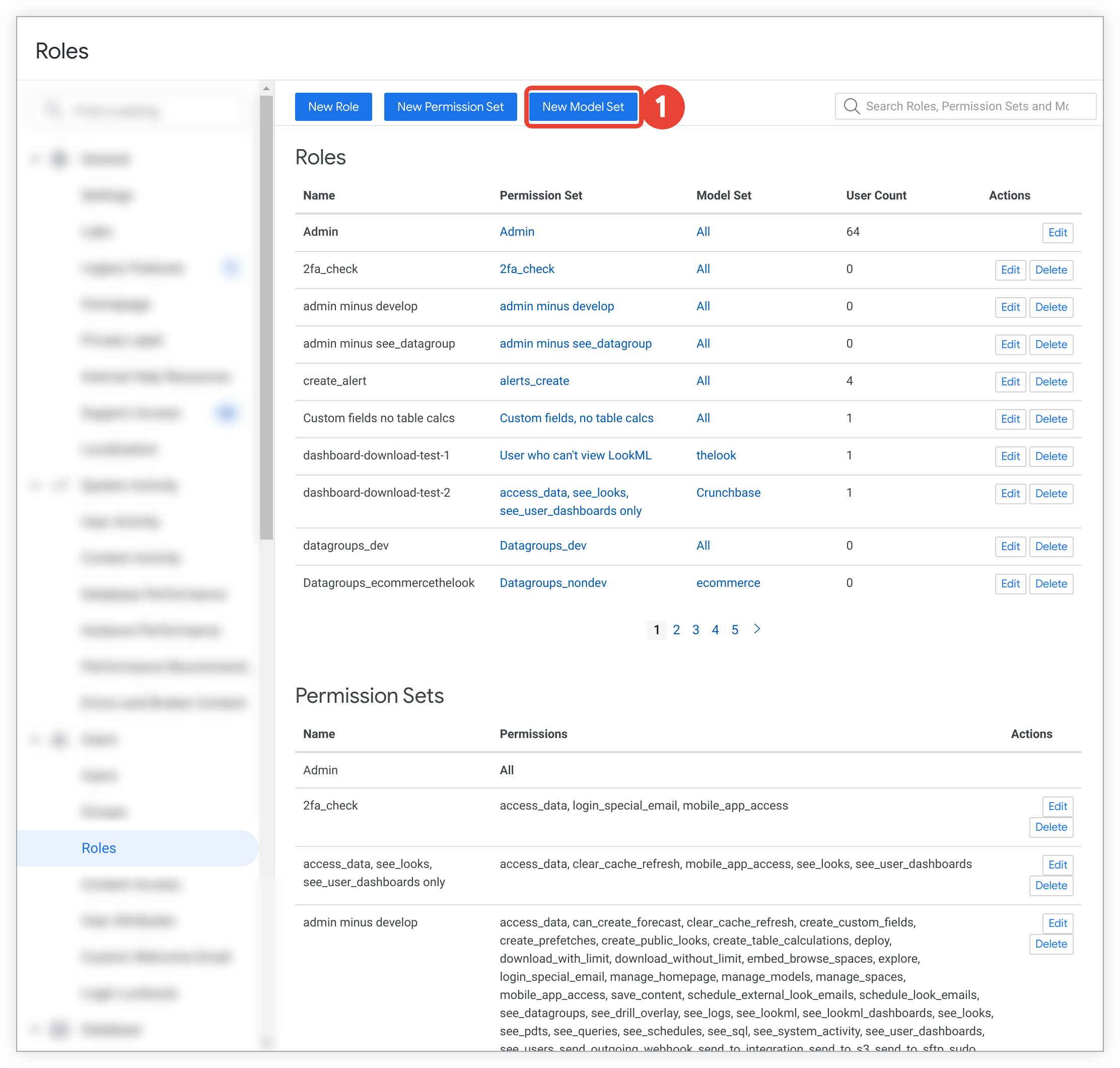
1. Click the **New Model Set** button at the top of the **Roles** page.

1. Looker displays the **New Model Set** page. Enter a name for the new model set.
2. Select the model or models that should be included in the new model set.
3. Click the **New Model Set** button at the bottom of the page. The new model set will appear in the **Model Sets** section of the **Roles** page.
> Models that are included in [pending projects](https://docs.cloud.google.com/looker/docs/2600/manage-projects#projects_with_only_a_configuration) appear in the **Models** list on the [**New Model Set**](https://docs.cloud.google.com/looker/docs/2600/admin-panel-users-roles#creating_a_model_set) and [**Edit Model Set**](https://docs.cloud.google.com/looker/docs/2600/admin-panel-users-roles#editing_a_model_set) pages.
>
>
>
>
>
> Deleting or renaming a model will not change any model sets that include that model. When a model is removed or [renamed](https://docs.cloud.google.com/looker/docs/2600/model-and-view-files#renaming_model_files), we recommend that Looker admins also remove that model's name from any associated model sets, using the **Edit Model Set** page. Removing a deleted model's name from a model set prevents a new model with the same name from unintentionally being included in that model set.
>
>
>
To learn more about models, see the [Model parameters](https://docs.cloud.google.com/looker/docs/2600/reference/param-model) documentation page.
#### Creating multiple models and model sets
The following example illustrates how you can use multiple model sets to limit access to data. Consider a scenario where you have two teams, Marketing and Support. In this example, these two teams should not have access to the entire model, so you would create a separate model for each team. To separate their data access, you would perform the following steps:
1. Copy the model into two new models.
2. In the first of the new models, include only the views, fields, and Explores that the Marketing team should have access to.
3. Create a model set for the Marketing team that includes only this new model.
4. Create a new role for the Marketing team that includes this new model set and the appropriate permissions for the Marketing team.
5. Assign this new role to the Marketing team group.
6. Repeat steps 2 through 5 to configure the second model for the Support team.
### Editing a model set
After a model set has been created, perform the following steps to edit it:
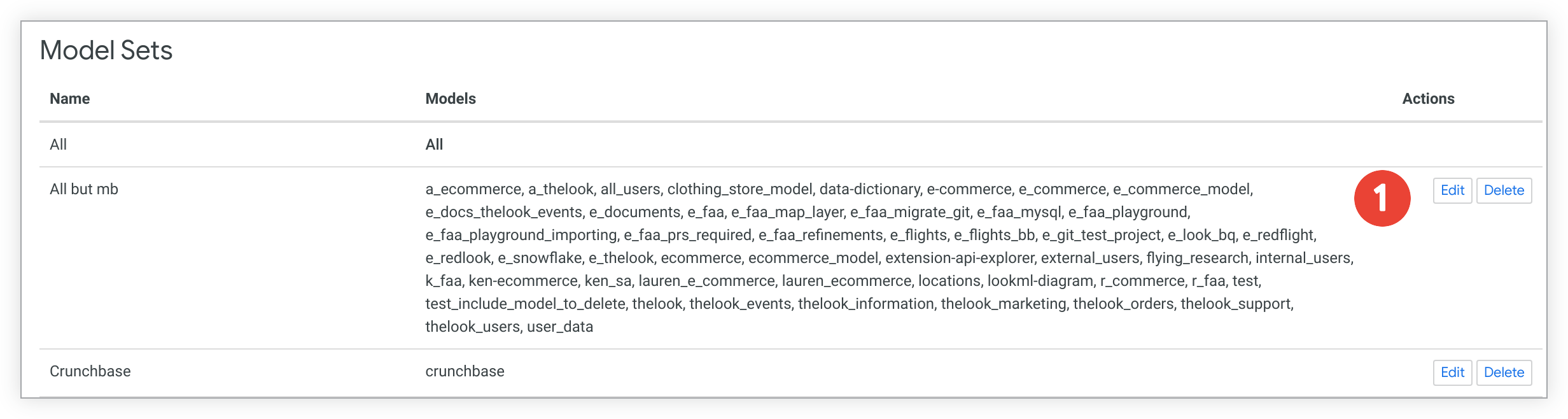
1. On the **Roles** page, click the **Edit** button to the right of the model set you want to edit.
2. Looker displays the **Edit Model Set** page. Optionally, enter a new name for the model set in the **Name** field.
3. Add or remove any models from the model set in the **Models** section.
4. Click the **Update Model Set** button at the bottom of the page.
> Models that are included in [pending projects](https://docs.cloud.google.com/looker/docs/2600/manage-projects#projects_with_only_a_configuration) appear in the **Models** list on the [**New Model Set**](https://docs.cloud.google.com/looker/docs/2600/admin-panel-users-roles#creating_a_model_set) and [**Edit Model Set**](https://docs.cloud.google.com/looker/docs/2600/admin-panel-users-roles#editing_a_model_set) pages.
>
>
>
>
>
> Deleting or renaming a model will not change any model sets that include that model. When a model is removed or [renamed](https://docs.cloud.google.com/looker/docs/2600/model-and-view-files#renaming_model_files), we recommend that Looker admins also remove that model's name from any associated model sets, using the **Edit Model Set** page. Removing a deleted model's name from a model set prevents a new model with the same name from unintentionally being included in that model set.
>
>
>
### Deleting a model set
To delete a model set, on the **Roles** page, click **Delete** to the right of the model set that you want to delete.
## Creating and assigning custom roles
A custom role combines a default or custom [permission set](https://docs.cloud.google.com/looker/docs/2600/admin-panel-users-roles#permission-sets) and a default or custom [model set](https://docs.cloud.google.com/looker/docs/2600/admin-panel-users-roles#model-sets). Roles can only be created based on permission and model sets that already exist. If a permission set doesn't exist that represents everything that you want the user to be able to do or if a model set doesn't exist that contains all the models that you want the user to be able to do those actions on, you must create the permission set or model set, respectively.
### Create a custom role that uses existing permission and model sets
To assign a custom role with an existing permission set and an existing model set, follow these steps:
1. Navigate to the **Roles** page in the **Users** section of the **Admin** panel.
2. Select **New Role**.
3. Enter a name for your new role. Often role names indicate something about what tasks the role allows the user to do.
4. Next to **Permission Set**, select the permission set that you want to use for this role. The set of permissions appears beside the selected permission set.
5. Next to **Model Set** , select the model set that you want to use for this role. The set of models appears beside the selected permission set. To apply the selected permission set to all models on the Looker instance, select **All**.
6. Optionally, under **Groups** or **Users** , select the groups or users that you want to assign the custom role to. You can also add users and groups to the role later by updating the role settings or you can assign the role later from the **Users** or **Groups** page in the **Admin** panel.
7. Click **New Role** to save this custom role.
### Create a custom role that uses new permission and model sets
To create a custom role using new permission and model sets, first navigate to the **Roles** page in the **Users** section of the **Admin** panel.
To create a new permission set, follow these steps:
1. Select **New Permission Set**.
2. Provide a label for your new permission set in the **Name** field.
3. Select the permissions that you want and click **New Permission Set**.
To create a new model set, follow these steps:
1. From the **Roles** page, select **New Model Set**.
2. Enter a label for your new model set in the **Name** field.
3. Select the models that you want to apply your role to.
4. Select **New Model Set**.
To create the custom role using the new permission and model sets, follow these steps:
1. On the **Roles** page, select **New Role**.
2. Enter a name for your new role. Often role names indicate something about what tasks the role allows the user to do.
3. Provide a label for your new role in the **Name** field.
4. For **Permission Set**, select the permission set that you just created.
5. For **Model Set** , select the specific models that you would like to apply the `gemini_in_looker` permission to. You may need to create a model set that contains the appropriate models before you can assign a model set to your new custom role.
6. Optionally, under **Groups** or **Users** , select the groups or users that you want to assign the custom role to. You can also add users and groups to the role later by updating the role settings or you can assign the role later from the **Users** or **Groups** page in the **Admin** panel.
7. Click **New Role** to save this custom role.