If you encounter issues with your audit logs for Google Workspace, see the
following information.
If these steps don't resolve the problem, [open a support request](https://docs.cloud.google.com/logging/docs/audit/troubleshooting-faq-gsuite.md.txt#support).
### I don't see audit logs for Google Workspace in Cloud Logging
*When I go to the Logs Explorer, I don't see any audit logs.*
Try the following steps:
- Confirm the sharing and permissions are configured correctly and you're using
the Logs Explorer.
- Verify that [Google Cloud sharing is enabled](https://support.google.com/a/answer/9320190).
- Verify that the user has permission to view the logs in Google Cloud.
Set the IAM role
[Logging Private Logs Viewer](https://docs.cloud.google.com/logging/docs/access-control.md.txt#permissions_and_roles) at the
organization level.
- Make sure you're searching for logs at the organization level, and not at
the Google Cloud project level. For more information, see the
[Google Workspace audit logging information page](https://docs.cloud.google.com/logging/docs/audit/configure-gsuite-audit-logs.md.txt).
*I've verified sharing and permissions are correct, but I still can't see
any audit logs for Google Workspace in the Logs Explorer.*
Try the following steps:
- Confirm that these log entries exist in the Google Admin console.
- Search for logs at the organization level, not at the project level.
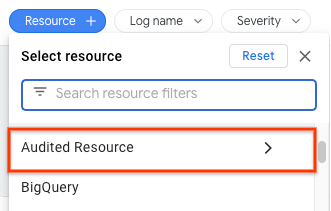
- Use the **Resource** drop-down menu in the Logs Explorer to select
**Audited Resource** . The Google Workspace audit logs field `resource.type`
is equal to `audited_resource`.
- Expand the time range of the query.
### I can see audit logs for Google Workspace in the Logs Explorer, but the gcloud CLI commands aren't returning them.
Try the following steps:
- Verify that the correct `logName` is used. Supply a valid ORGANIZATION_ID in each of the log names. Here are the audit log names for Google Workspace:
```html
organizations/ORGANIZATION_ID/logs/cloudaudit.googleapis.com%2Factivity
organizations/ORGANIZATION_ID/logs/cloudaudit.googleapis.com%2Fdata_access
```
- Verify there are no errors in your ORGANIZATION_ID or `logName`.
### I can see audit logs for Google Workspace, but logs are delayed
Your log data might be delayed or missing due to latency. For more information about latency, see [Data retention and lag times](https://support.google.com/a/answer/7061566).
### I can see log entries, but a field is missing or incorrect
For issues of missing or incorrect fields,
[open a support request with Google Workspace Support](https://docs.cloud.google.com/logging/docs/audit/troubleshooting-faq-gsuite.md.txt#gsuite_support).
The following are examples of missing fields:
- The same log record exists in both the Google Admin console and
Logs Explorer, but a field is missing from both. For example,
the IP address is missing in both.
- The same log record exists in both the Google Admin console and
the Logs Explorer. However, a field exists in the Google Admin console
and is either missing or incorrect in the Logs Explorer.
### I can't create log-based metrics for Google Workspace logs
[Log-based metrics](https://docs.cloud.google.com/logging/docs/logs-based-metrics.md.txt) apply only at the
Google Cloud project level. Google Workspace logs are organization-level logs.
## Contact Support
You can contact the proper support team if the troubleshooting steps don't
resolve your issue.
### Contact Google Workspace support
For questions about logs in the Google Admin console, contact
[Google Workspace support](https://support.google.com/a/answer/1047213).
### Contact Google Cloud Support
For questions about Logging, such as viewing, exporting, or
creating sinks and metrics, please contact Google Cloud support:
- [Logging support page](https://docs.cloud.google.com/support/docs.md.txt).
- Premium, Role-Based, and Enterprise Support plans let you [manage support
cases](https://docs.cloud.google.com/support/docs/manage-cases) in the Google Cloud console.