[Data Access audit logs](https://docs.cloud.google.com/logging/docs/audit.md.txt#data-access) let you record API calls that read
resource configurations or metadata, as well as user-driven API calls that
create, modify, or read user-provided resource data. Because these logs are
disabled by default for most services, you can explicitly enable, configure, or
disable them for your Google Cloud projects, billing accounts, folders, and
organizations by using the Google Cloud console or the API.
## Before you begin
> [!IMPORTANT]
> **Important:** Data Access audit log volume can be large. Enabling Data Access logs might result in charges to your Google Cloud project for additional log usage. For pricing information, see the Cloud Logging sections of the [Google Cloud Observability pricing](https://cloud.google.com/products/observability/pricing) page.
Before you proceed with configuring Data Access audit logs, understand the
following information:
- Data Access audit logs are disabled by default for all services except some
BigQuery services. If you want Data Access audit logs to be written
for services where these logs are disabled by default, then you must
explicitly [enable them in the Google Cloud console](https://docs.cloud.google.com/logging/docs/audit/configure-data-access.md.txt#config-console), or
[by using the API](https://docs.cloud.google.com/logging/docs/audit/configure-data-access.md.txt#config-api).
- Data Access audit logs are stored in the
[`_Default`](https://docs.cloud.google.com/logging/docs/store-log-entries.md.txt#default-bucket) bucket unless
you've routed them elsewhere. For more information, see
[Storing and routing audit logs](https://docs.cloud.google.com/logging/docs/audit.md.txt#storing_and_routing_audit_logs).
- Data Access audit logs help Google Support troubleshoot issues with your
account. Therefore, we recommend enabling Data Access audit logs when
possible.
-
To get the permissions that
you need to get access to all logs in the `_Required` and `_Default`
buckets, including Data Access logs,
ask your administrator to grant you the
[Private Logs Viewer](https://docs.cloud.google.com/iam/docs/roles-permissions/logging.md.txt#logging.privateLogViewer) (`roles/logging.privateLogViewer`) IAM role on your project.
The Private Logs Viewer role (`roles/logging.privateLogViewer`) includes the
permissions contained in the Logs Viewer role (`roles/logging.viewer`),
and those necessary to read Data Access audit logs in the `_Default` bucket.
The Editor role (`roles/editor`) doesn't include the permissions required
to view Data Access logs.
For more information about the IAM permissions and roles that
apply to audit logs data, see
[Access control with IAM](https://docs.cloud.google.com/logging/docs/access-control.md.txt).
## Configuration overview
You can configure how Data Access audit logs are enabled for your
Google Cloud resources and services:
- Organizations: You can enable and configure Data Access audit logs in an
organization, which applies to all the existing and new
Google Cloud projects and folders in the organization.
- Folders: You can enable and configure Data Access audit logs in a
folder, which applies to all the existing and new Google Cloud projects in
the folder. You can't disable a Data Access audit log that was enabled in
the project's parent organization.
- Projects: You can configure Data Access audit logs for an individual
Google Cloud project. You can't disable a Data Access audit log that
was enabled in a parent organization or folder.
- Billing accounts: To configure Data Access audit logs for billing
accounts, use the Google Cloud CLI. For more information about using
the gcloud CLI with Data Access audit logs and billing accounts,
see the [`gcloud beta billing accounts set-iam-policy`](https://docs.cloud.google.com/sdk/gcloud/reference/beta/billing/accounts/set-iam-policy.md.txt)
documentation.
- Default configurations: You can specify a default Data Access audit log
configuration in an organization, folder, or Google Cloud project that
applies to future Google Cloud services that begin to produce Data
Access audit logs. For instructions, see
[Set the default configuration](https://docs.cloud.google.com/logging/docs/audit/configure-data-access.md.txt#config-console-default).
- Permission types: You can specify that Google Cloud APIs that check
only for a certain type of permission emit an audit log. For more
information, see the [Permission types](https://docs.cloud.google.com/logging/docs/audit/configure-data-access.md.txt#permission-types) section of this
page.
- Exempted principals: You can exempt specific principals from
having their data accesses recorded. For example, you can exempt your
internal testing accounts from having their Cloud Monitoring operations
recorded. For a list of valid principals, including users and groups,
see the
[`Binding` type reference](https://docs.cloud.google.com/resource-manager/reference/rest/Shared.Types/Binding.md.txt#FIELDS.members).
You can configure your Data Access audit logs through the IAM
**Audit Logs** page of the Google Cloud console, or by using the API. These methods
are explained in the following sections.
### Permission types
API methods check IAM permissions. Each IAM
permission has a *permission type* , which is defined by the `type` property.
Permission types are categorized as either a Data Access permission type
or as an Admin Activity permission type:
- Data Access permission types:
- `ADMIN_READ`: IAM permissions of this type are checked for
Google Cloud API methods that read metadata or configuration
information. Typically, `ADMIN_READ` audit logs are disabled by default
and must be enabled.
- `DATA_READ`: IAM permissions of this type are checked for
Google Cloud API methods that read user-provided data. Typically,
`DATA_READ` audit logs are disabled by default and must be enabled.
- `DATA_WRITE`: IAM permissions of this type are checked for
Google Cloud API methods that write user-provided data. Typically,
`DATA_WRITE` audit logs are disabled by default and must be enabled.
- Admin Activity permission type:
- `ADMIN_WRITE`: IAM permissions of this type are checked for Google Cloud API methods that write metadata or configuration information. The audit logs associated with this type, [Admin Activity audit logs](https://docs.cloud.google.com/logging/docs/audit.md.txt#admin-activity), are on by default and can't be disabled.
You can enable or disable permission types for services [by using the
Google Cloud console](https://docs.cloud.google.com/logging/docs/audit/configure-data-access#config-console) or
[by invoking the API](https://docs.cloud.google.com/logging/docs/audit/configure-data-access.md.txt#config-api).
Most Google Cloud APIs check only whether the caller has a single
IAM permission. If the permission type associated with that
permission is enabled for the service whose API is being called, then the
API generates an audit log.
The following sections generally describe other ways in which Google Cloud
API methods check for IAM permissions. For service-specific
information about which methods are checked for which permission types, see
the [service's audit logging documentation](https://docs.cloud.google.com/logging/docs/audit/services.md.txt).
#### IAM permissions checking for Data Access permission types
Some Google Cloud API methods check whether the caller has
multiple IAM permissions with different Data Access
permission types. An audit log is written when one of those Data Access
permission types is enabled on the project.
For example, an API method might check that the principal issuing an API
request has the permissions `example.resource.get` (`DATA_READ`) and
`example.resource.write` (`DATA_WRITE`). The project only needs either
`DATA_WRITE` or `DATA_READ` enabled for the service to emit the audit log when
issuing the call.
#### Admin Activity and Data Access IAM permission types checked
Some Google Cloud API methods check for both an IAM
permission that has the `ADMIN_WRITE` permission type, and one or more
permissions that have a Data Access permission type.
These types of API calls emit [Admin Activity audit logs](https://docs.cloud.google.com/logging/docs/audit.md.txt#admin-activity),
which are on by default and can't be disabled.
#### API method checks for IAM permissions not owned by service
Some Google Cloud services have API methods that generate an audit log
only when a specific permission type is enabled for a different service.
For example, Cloud Billing has an API method that checks for an `ADMIN_READ`
permission type that is owned by Resource Manager. `ADMIN_READ` must be
enabled for the service `cloudresourcemanager.googleapis.com` to enable
the audit log associated with the Cloud Billing API.
#### Same API method checks for different IAM permissions
For some Google Cloud APIs, how the method is called determines
which IAM permission type(s) must be enabled on the project
for an audit log to be generated.
For example, Spanner has an API method that sometimes checks for an
IAM permission with the `DATA_WRITE` type, and sometimes checks
for an IAM permission with the `DATA_READ` type depending on how
the method is called. In this case, enabling `DATA_WRITE` for Spanner
on the project generates an audit log only when the API call checks an
IAM permission with the `DATA_WRITE` type.
### Service-specific configurations
If there is both a Google Cloud service-wide (`allServices`) configuration
and a configuration for a specific Google Cloud service, then the
resulting configuration for the service is the union of the two configurations.
In other words:
- You can enable Data Access audit logs for specific Google Cloud
services, but you can't disable Data Access audit logs for
Google Cloud services that are enabled in the broader configuration.
- You can add additional kinds of information to a Google Cloud
service's Data Access audit log, but you can't remove kinds of information
that are specified in the broader configuration.
- You can add principals to exemption lists, but you can't remove them
from exemption lists in the broader configuration.
- For BigQuery Data Transfer Service, Data Access audit log configuration is
inherited from your default audit log configuration.
Google Cloud MCP servers write Data Access audit logs that are service-specific and
use the format `SERVICE_NAME.googleapis.com/mcp`. You can enable these Data
Access logs by turning on audit logging for `mcp.googleapis.com` in
the [IAM `AuditConfig` object](https://docs.cloud.google.com/logging/docs/audit/configure-data-access.md.txt#auditconfig_objects).
For more information about audit logging for Google Cloud MCP servers, see
[Google Cloud MCP servers audit logging](https://docs.cloud.google.com/mcp/audit-logging.md.txt).
### Google Cloud resource configurations
You can configure Data Access audit logs for Google Cloud projects,
billing accounts, folders, and organizations. If there is a configuration for a
Google Cloud service across the hierarchy, then the resulting
configuration is the union of the configurations. In other words, at the
Google Cloud project level:
- You can enable logs for a Google Cloud service, but you can't disable
logs for a Google Cloud service if those logs are enabled in a parent
organization or folder.
- You can enable kinds of information, but you can't disable kinds of
information that are enabled in a parent organization or folder.
- You can add principals to exemption lists, but you can't remove them
from exemption lists in a parent organization or folder.
- At a parent organization or folder level, you can enable Data Access audit
logs for a Google Cloud project within that organization or folder, even
if Data Access audit logs haven't been configured in the
Google Cloud project.
## Access control
Identity and Access Management roles and permissions govern access to Logging data,
including viewing and managing the
[IAM policies](https://docs.cloud.google.com/iam/docs/policies) underlying Data Access audit
logging configurations.
To view or set the policies associated with Data Access configuration, you need
a role with permissions at the appropriate resource level. For instructions on
granting these resource-level roles, see
[Manage access to Google Cloud projects, folders, and organizations](https://docs.cloud.google.com/iam/docs/granting-changing-revoking-access.md.txt).
- To set IAM policies, you need a role with the
`resourcemanager.RESOURCE_TYPE.setIamPolicy`
permission.
- To view IAM policies, you need a role with the
`resourcemanager.RESOURCE_TYPE.getIamPolicy`
permission.
> [!IMPORTANT]
> **Important:** When viewing Data Access configurations in the Google Cloud console at the Google Cloud project or folder level, if you don't have the `getIamPolicy` permission for a parent organization or folder, then any Data Access configurations present in those parent entities aren't shown in the Google Cloud console. Those Data Access configurations still apply to all API calls in the Google Cloud project or folder you are viewing.
For a list of the permissions and roles you need to view Data Access audit
logs, see
[Access control with IAM](https://docs.cloud.google.com/logging/docs/access-control.md.txt).
## Configure Data Access audit logs with the Google Cloud console
This section explains how to use the Google Cloud console to configure Data
Access audit logs.
You can also use the API or the Google Cloud CLI to perform these tasks
programmatically; see
[Configure Data Access audit logs with the API](https://docs.cloud.google.com/logging/docs/audit/configure-data-access.md.txt#config-api) for details.
To access audit log configuration options in the Google Cloud console, follow
these steps:
1. In the Google Cloud console, go to the **Audit Logs** page:
[Go to **Audit Logs**](https://console.cloud.google.com/iam-admin/audit)
If you use the search bar to find this page, then select the result whose subheading is
**IAM \& Admin**.
2. Select an existing Google Cloud project, folder, or organization.
### Enable audit logs
To enable Data Access audit logs, do the following:
1. In the **Data Access audit logs configuration** table, select one or more
Google Cloud services from the **Service** column.
2. In the **Permission types** tab, select the Data Access audit log
types that you want to enable for your selected services.
3. Click **Save**.
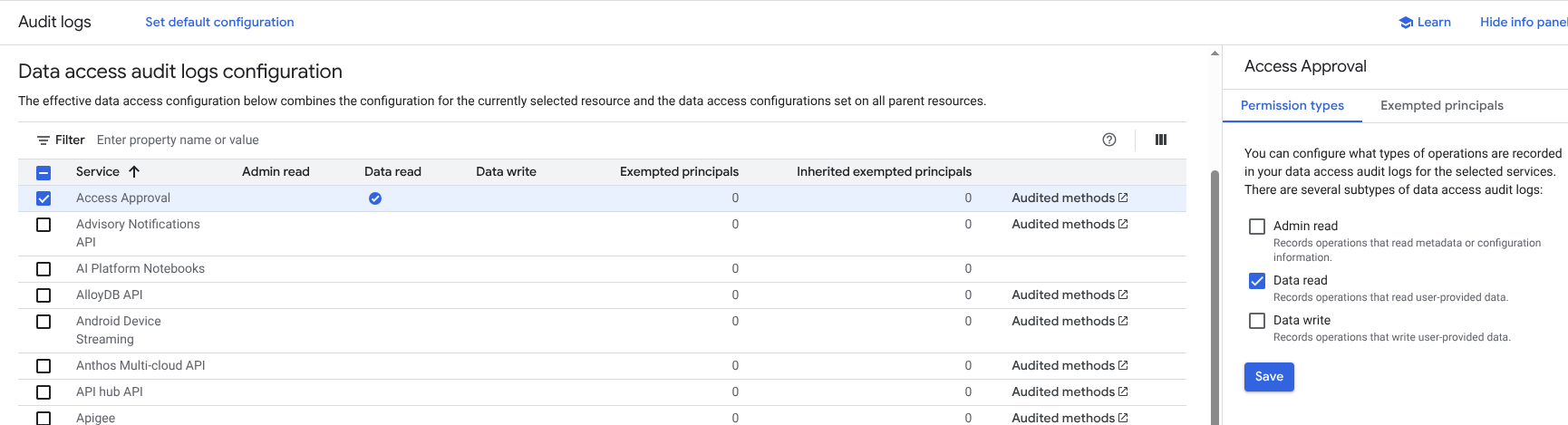
When you enable audit logs, the table displays a
**Check** icon.
In the following example, you see that, for the
Access Approval service, the
**Data Read** audit log type is enabled:
You can also enable audit logs for all Google Cloud services that produce
Data Access audit logs. In the **Data Access audit logs configuration** table,
select all Google Cloud services.
Note that this bulk configuration method applies only to the Google Cloud
services that are available for your resource. If a new
Google Cloud service is added, it inherits your
[default audit configuration](https://docs.cloud.google.com/logging/docs/audit/configure-data-access.md.txt#config-console-default).
### Disable Data Access audit logs
To disable Data Access audit logs, do the following:
1. In the **Data Access audit logs configuration** table, select one or more
Google Cloud services.
2. In the **Log Types** tab in the information panel, select the Data Access
audit log types that you want to disable for your selected services.
3. Click **Save**.
When you disable Data Access audit logs, the table displays a dash. Any
enabled Data Access audit logs are indicated with a
**Check** icon.
### Set exemptions
You can set exemptions to let you control which principals generate Data
Access audit logs for particular services. When you add an exempted principal,
audit logs aren't created for them for the selected log types.
> [!CAUTION]
> **Caution:** If you add an exempted principal to a service for an audit log type, then this enables the audit log type even if it was previously disabled.
To set exemptions, do the following:
1. In the **Data Access audit logs configuration** table, select a
Google Cloud service from the **Service** column.
2. Select the **Exempted Principals** tab in the information panel.
3. In **Add exempted principal**, enter the principal that you want to exempt
from generating Data Access audit logs for your selected service.
You can add multiple principals by
clicking the **Add exempted principal** button as many times as needed.
For a list of valid principals, including users and groups,
see the [`Binding` type reference](https://docs.cloud.google.com/resource-manager/reference/rest/Shared.Types/Binding.md.txt#FIELDS.members).
4. In **Disabled Log Types**, select the Data Access audit log types
that you want to disable.
5. Click **Save**.
When you add exempted principals to a service, the **Data Access audit logs
configuration** table displays a number under the **Exempted principals**
column.
To remove a principal from your exemption list, do the following:
1. In the **Data Access audit logs configuration** table, select a
Google Cloud service from the **Service** column.
2. Select the **Exempted Principals** tab in the information panel.
3. Hold your pointer over a principal name and then select
**Delete**.
4. After the principal's name is shown in strikethrough text, click **Save**.
To edit the information for an exempted principal, do the following:
1. In the **Data Access audit logs configuration** table, select a
Google Cloud service from the **Service** column.
2. Select the **Exempted Principals** tab in the information panel.
3. Locate the principal and select expand **Show more**.
4. Select or deselect the Data Access audit log types as appropriate for the
principal.
5. Click **Save**.
### Set the default configuration
You can set a configuration that all new and existing Google Cloud
services in your Google Cloud project, folder, or organization inherit.
This default configuration applies if a new Google Cloud service
becomes available and principals in your organization begin using it: the
service inherits the audit logging policy that you have already set for other
Google Cloud services, ensuring that Data Access audit logs are captured.
To set or edit the default configuration, do the following:
1. Click **Set Default Configuration**.
2. In the **Log Types** tab in the information panel, select the Data Access
audit log types that you want to enable or disable.
3. Click **Save**.
4. Select the **Exempted Principals** tab in the information panel.
5. In **Add exempted principal**, enter the principal that you want to exempt
from generating Data Access audit logs for your selected service.
You can add multiple principals by
clicking the **Add exempted principal** button as many times as needed.
For a list of valid principals, including users and groups,
see the [`Binding` type reference](https://docs.cloud.google.com/resource-manager/reference/rest/Shared.Types/Binding.md.txt#FIELDS.members).
6. In **Disabled Log Types**, select the Data Access audit log types
that you want to disable.
7. Click **Save**.
## Configure Data Access audit logs with the API
This section explains how to use the API and the gcloud CLI to
configure Data Access audit logs programmatically.
Many of these tasks can also be performed by using the Google Cloud console;
for instructions, see
[Configure Data Access audit logs with the Google Cloud console](https://docs.cloud.google.com/logging/docs/audit/configure-data-access.md.txt#config-console)
on this page.
Some BigQuery services, like BigQuery Reservation
API, require you to explicitly enable Data Access audit logs. To enable
data access audit logs for the BigQuery Reservation API, you
must edit your configuration to enable `ADMIN_READ` audit logs for
`bigquery.googleapis.com`.
### IAM policy objects
To configure Data Access audit logs using the API, you must edit the
IAM policy associated with your Google Cloud project, folder,
or organization. The audit log configuration is in the `auditConfigs` section of
the policy:
"auditConfigs": [
{
object(AuditConfig)
}
]
For details, see the IAM
[Policy](https://docs.cloud.google.com/resource-manager/reference/rest/Shared.Types/Policy.md.txt) type.
The following sections describe the `AuditConfig` object in more detail.
For the API and gcloud CLI commands used to change the configuration,
see the section titled
[`getIamPolicy` and `setIamPolicy`](https://docs.cloud.google.com/logging/docs/audit/configure-data-access.md.txt#getiampolicy-setiampolicy).
### `AuditConfig` objects
The audit log configuration consists of a list of
[`AuditConfig`](https://docs.cloud.google.com/resource-manager/reference/rest/Shared.Types/AuditConfig.md.txt)
objects. Each object configures the logs for one service, or it establishes a
broader configuration for all services. Each object looks like the following:
{
"service": SERVICE_NAME,
"auditLogConfigs": [
{
"logType": "ADMIN_READ",
"exemptedMembers": [ PRINCIPAL,]
},
{
"logType": "DATA_READ",
"exemptedMembers": [ PRINCIPAL,]
},
{
"logType": "DATA_WRITE",
"exemptedMembers": [ PRINCIPAL,]
},
]
},
SERVICE_NAME has a value such as `"appengine.googleapis.com"`, or it is the
special value, `"allServices"`. If a configuration doesn't mention a particular
service, then the broader configuration is used for that service. If there is no
configuration, then Data Access audit logs aren't enabled for that service.
For a list of the service names, see
[Log services](https://docs.cloud.google.com/logging/docs/audit/services.md.txt).
The `auditLogConfigs` section of the `AuditConfig` object is a list of 0 to 3
objects, each of which configures one kind of audit log information. If you omit
one of the kinds from the list, then that kind of information isn't enabled
for the service.
PRINCIPAL is a user for whom Data Access audit logs aren't collected.
The [`Binding` type](https://docs.cloud.google.com/resource-manager/reference/rest/Shared.Types/Binding.md.txt#FIELDS.members) describes different kinds of principals,
including users and groups, but not all of those can be used to configure Data
Access audit logs.
Following is an example of an audit configuration in both JSON and YAML formats.
The YAML format is the default when using the Google Cloud CLI.
### JSON
"auditConfigs": [
{
"auditLogConfigs": [
{
"logType": "ADMIN_READ"
},
{
"logType": "DATA_WRITE"
},
{
"logType": "DATA_READ"
}
],
"service": "allServices"
},
{
"auditLogConfigs": [
{
"exemptedMembers": [
"499862534253-compute@developer.gserviceaccount.com"
],
"logType": "ADMIN_READ"
}
],
"service": "cloudsql.googleapis.com"
}
],
### YAML
auditConfigs:
- auditLogConfigs:
- logType: ADMIN_READ
- logType: DATA_WRITE
- logType: DATA_READ
service: allServices
- auditLogConfigs:
- exemptedMembers:
- 499862534253-compute@developer.gserviceaccount.com
logType: ADMIN_READ
service: cloudsql.googleapis.com
### Common configurations
Following are some common audit log configurations for Google Cloud projects.
#### Enable all Data Access audit logs
The following `auditConfigs` section enables Data Access audit logs for all
services and principals:
### JSON
"auditConfigs": [
{
"service": "allServices",
"auditLogConfigs": [
{ "logType": "ADMIN_READ" },
{ "logType": "DATA_READ" },
{ "logType": "DATA_WRITE" },
]
},
]
### YAML
auditConfigs:
- auditLogConfigs:
- logType: ADMIN_READ
- logType: DATA_WRITE
- logType: DATA_READ
service: allServices
#### Enable one service and log type
The following configuration enables `DATA_WRITE` Data Access audit logs for
Cloud SQL:
### JSON
"auditConfigs": [
{
"service": "cloudsql.googleapis.com",
"auditLogConfigs": [
{ "logType": "DATA_WRITE" },
]
},
]
### YAML
auditConfigs:
- auditLogConfigs:
- logType: DATA_WRITE
service: cloudsql.googleapis.com
#### Disable all Data Access audit logs
To disable all Data Access audit logs (except for some BigQuery
logs) in a Google Cloud project, include an empty `auditConfigs:` section in
your new IAM policy:
### JSON
"auditConfigs": [],
### YAML
auditConfigs:
If you remove the `auditConfigs` section entirely from your new policy,
then `setIamPolicy` doesn't change the existing Data Access audit logs
configuration. For more information, see the section titled
[The `setIamPolicy` update mask](https://docs.cloud.google.com/logging/docs/audit/configure-data-access.md.txt#updatemask).
BigQuery Data Access audit logs can't be disabled.
### `getIamPolicy` and `setIamPolicy`
You use the Cloud Resource Manager API `getIamPolicy` and `setIamPolicy` methods to read
and write your IAM policy. You have several choices for the
specific methods to use:
- The [Cloud Resource Manager API](https://docs.cloud.google.com/resource-manager/reference/rest/v3/projects.md.txt) has the following methods:
```bash
projects.getIamPolicy
projects.setIamPolicy
organizations.getIamPolicy
organizations.setIamPolicy
```
- The [Google Cloud CLI](https://docs.cloud.google.com/sdk/gcloud/reference/projects) has the following
Resource Manager commands:
```bash
gcloud projects get-iam-policy
gcloud projects set-iam-policy
gcloud resource-manager folders get-iam-policy
gcloud resource-manager folders set-iam-policy
gcloud organizations get-iam-policy
gcloud organizations set-iam-policy
gcloud beta billing accounts get-iam-policy
gcloud beta billing accounts set-iam-policy
```
> [!NOTE]
> **Note:** When you call `projects.getIamPolicy` or `gcloud projects get-iam-policy`, the result shows only the policies set in the Google Cloud project, not the policies inherited from a parent organization or folder.
Regardless of your choice, follow these three steps:
1. **Read** the current policy using one of the `getIamPolicy` methods. Save the policy to a temporary file.
2. **Edit** the policy in the temporary file. **Change (or add) only the `auditConfigs` section.**
3. **Write** the edited policy from the temporary file using one of the `setIamPolicy` methods.
`setIamPolicy` fails if Resource Manager detects that someone
else changed the policy after you read it in the first step. If this happens,
then repeat the three steps.
> [!CAUTION]
> **Caution:** Your edited IAM policy replaces the current policy. Changing parts of your policy not related to audit logging might make your Google Cloud project inaccessible.
#### Examples
The following examples demonstrate how to configure your project's Data Access
audit logs using the `gcloud` command and the Cloud Resource Manager API.
To configure organization Data Access audit logs, replace the "projects" version
of the commands and API methods with the "organizations" version.
> [!CAUTION]
> **Caution:** Follow the instructions carefully. You are editing a policy object that contains critical information about who can access your resource. Accidentally altering that information could make your resource unusable.
### gcloud
To configure your Data Access audit logs using
the [`gcloud projects`](https://docs.cloud.google.com/sdk/gcloud/reference/projects) command,
do the following:
1. **Read** your project's IAM policy and store it in a
file:
```bash
gcloud projects get-iam-policy PROJECT_ID > /tmp/policy.yaml
```
The following shows the returned policy. This policy doesn't have an
`auditConfigs` section:
bindings:
- members:
- user:colleague@example.com
role: roles/editor
- members:
- user:myself@example.com
role: roles/owner
etag: BwVM-FDzeYM=
version: 1
2. **Edit** your policy in `/tmp/policy.yaml`, adding or changing only
the Data Access audit logs configuration.
> [!CAUTION]
> **Caution:** You must preserve the `bindings:` and `etag:` sections without changes. Failure to do so might cause your Google Cloud project to become unusable. For more information, see [`setIamPolicy` update mask](https://docs.cloud.google.com/logging/docs/audit/configure-data-access.md.txt#updatemask) on this page.
An example of your edited policy, which enables Cloud SQL
data-write Data Access audit logs:
auditConfigs:
- auditLogConfigs:
- logType: DATA_WRITE
service: cloudsql.googleapis.com
bindings:
- members:
- user:colleague@example.com
role: roles/editor
- members:
- user:myself@example.com
role: roles/owner
etag: BwVM-FDzeYM=
version: 1
As the previous example shows,
four lines have been added to the beginning of the policy.
3. **Write** your new IAM policy:
```bash
gcloud projects set-iam-policy PROJECT_ID /tmp/policy.yaml
```
If the preceding command reports a conflict with another change, then
repeat these steps, starting with the first step.
**JSON**
To work with your IAM policy in JSON format instead of YAML,
substitute the following `gcloud` commands into the example:
```bash
gcloud projects get-iam-policy PROJECT_ID --format=json >/tmp/policy.json
gcloud projects set-iam-policy PROJECT_ID /tmp/policy.json
```
### API
To configure your Data Access audit logs using the
[Cloud Resource Manager API](https://docs.cloud.google.com/resource-manager/reference/rest/v3/projects.md.txt), do the following:
1. **Read** your project's IAM policy, specifying the
following parameters
to the [getIamPolicy API method](https://docs.cloud.google.com/resource-manager/reference/rest/v3/projects/getIamPolicy.md.txt):
- **resource** : `projects/PROJECT_ID`
- **Request body** : *empty*
The method returns the current policy object:
{
"version": 1,
"etag": "BwXqwxkr40M=",
"bindings": [
{
"role": "roles/owner",
"members": [
"user:myself@example.com"
]
}
]
}
The previous example shows that the
project's policy doesn't have an `auditConfigs` section.
2. **Edit** the current policy:
- Change or add the `auditConfigs` section.
To disable your Data Access audit logs, include an
empty value
for the section: `auditConfigs:[]`.
- Preserve the value of `etag`.
You can also remove all other information from the new policy
object, as long as you're careful to set `updateMask` in the next step.
The following shows the edited policy, which enables
Cloud SQL `DATA_WRITE` audit logs:
{
"policy": {
"auditConfigs": [
{
"auditLogConfigs": [
{
"logType": "DATA_WRITE"
}
],
"service": "cloudsql.googleapis.com"
}
],
"etag": "BwXqwxkr40M="
},
"updateMask": "auditConfigs,etag"
}
3. **Write** the new policy using
the [`setIamPolicy` API method](https://docs.cloud.google.com/resource-manager/reference/rest/v3/projects/setIamPolicy.md.txt), specifying the following
parameters:
- **resource** : `projects/PROJECT_ID`
- **Request body**: Include the edited policy.
> [!CAUTION]
> **Caution:** You must specify the `updateMask` parameter as shown. If you don't specify `updateMask`, then you might lose all access to your Google Cloud project. For more information, see the following section, [The `setIamPolicy` update mask](https://docs.cloud.google.com/logging/docs/audit/configure-data-access.md.txt#updatemask).
#### The `setIamPolicy` update mask
This section explains the importance of the `updateMask` parameter in the
`setIamPolicy` method, and explains why you must be careful with the
gcloud CLI `set-iam-policy` command so that you don't cause
accidental harm to your Google Cloud project or organization.
The [`setIamPolicy` API method](https://docs.cloud.google.com/resource-manager/reference/rest/v3/projects/setIamPolicy.md.txt) uses an `updateMask` parameter to
control which policy fields are updated. For example, if the mask doesn't
contain `bindings`, then you can't accidentally change that policy section. On
the other hand, if the mask does contain `bindings`, then that section is
*always* updated. If you don't include an updated value for `bindings`, then
that section is removed entirely from the policy.
The `gcloud projects set-iam-policy` command, which calls `setIamPolicy`,
doesn't let you specify the `updateMask` parameter. Instead, the command
computes a value for `updateMask` in the following way:
- The `updateMask` always contains the fields `bindings` and `etag`.
- If the policy object supplied in `set-iam-policy` contains any other top-level fields---such as `auditConfigs`---then those fields are added to `updateMask`.
As a consequence of these rules, the `set-iam-policy` command has the following
behaviors:
- If you omit the `auditConfigs` section in your new policy, then the previous
value of the `auditConfigs` section (if any) isn't changed, because that
section isn't in the update mask. This is harmless but might be confusing.
- If you omit `bindings` in your new policy object, then the `bindings`
section is removed from your policy, because this section appears in the
update mask. This is very harmful, and causes all principals to lose access
to your Google Cloud project.
- Omitting `etag` in your new policy object disables checking for concurrent
changes to your policy and might cause your changes to accidentally
overwrite someone else's changes.