This page shows how to deploy a cross-region internal proxy Network Load Balancer to load balance
traffic to network endpoints that are on-premises or in other public clouds and
that are reachable by using [hybrid connectivity](https://cloud.google.com/hybrid-connectivity).
If you haven't already done so, review the [Hybrid connectivity NEGs
overview](https://docs.cloud.google.com/load-balancing/docs/negs/hybrid-neg-concepts) to understand the
network requirements to set up hybrid load balancing.
## Setup overview
The example sets up a cross-region internal proxy Network Load Balancer for mixed zonal and hybrid
connectivity NEG backends, as shown in the following figure:
[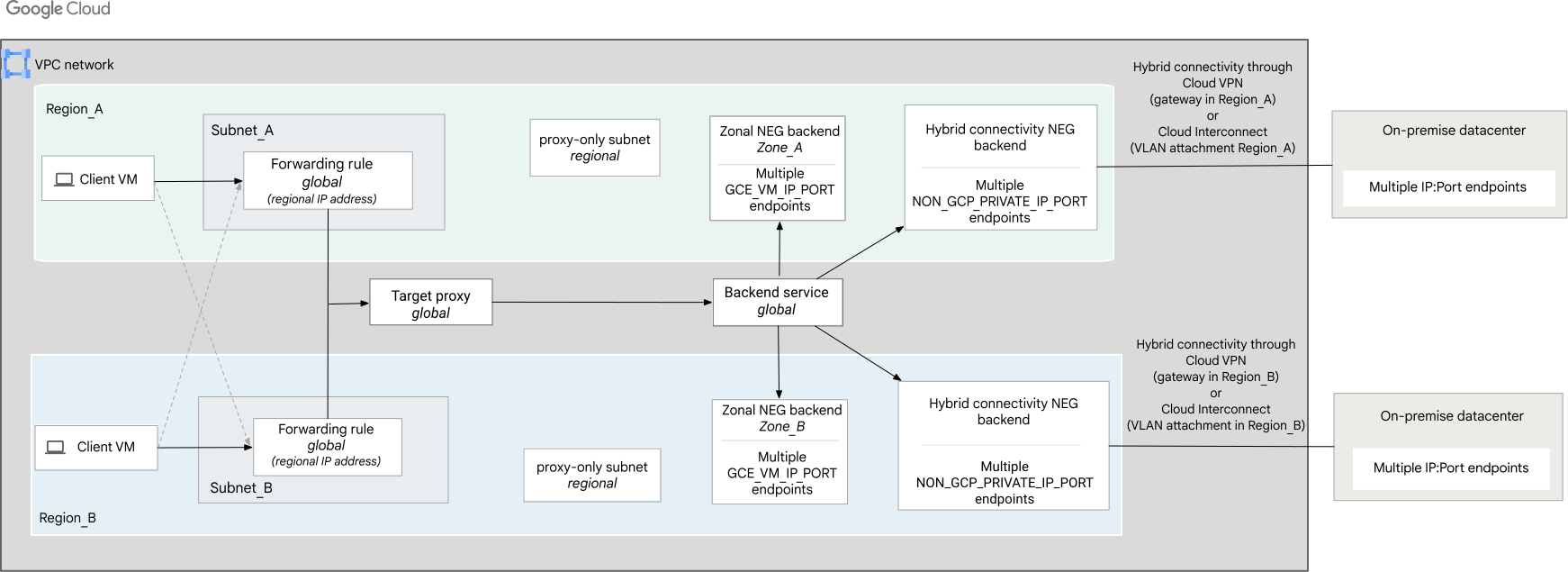](https://docs.cloud.google.com/static/load-balancing/images/cross-reg-proxy-hybridneg.svg) Cross-region internal proxy Network Load Balancer example for mixed zonal and hybrid connectivity NEG backends (click to enlarge).
You must configure hybrid connectivity before setting up a hybrid
load balancing deployment. Depending on your choice of hybrid connectivity
product, use either Cloud VPN or Cloud Interconnect (Dedicated
or Partner).
## Permissions
To set up hybrid load balancing, you must have the following permissions:
- **On Google Cloud**
- Permissions to establish hybrid connectivity between Google Cloud and your on-premises environment or other cloud environments. For the list of permissions needed, see the relevant [Network Connectivity product
documentation](https://docs.cloud.google.com/network-connectivity/docs).
- Permissions to create a hybrid connectivity NEG and the load balancer. The [Compute Load Balancer Admin
role](https://docs.cloud.google.com/compute/docs/access/iam#compute.loadBalancerAdmin) (`roles/compute.loadBalancerAdmin`) contains the permissions required to perform the tasks described in this guide.
- **On your on-premises environment or other non-Google Cloud cloud
environment**
- Permissions to configure network endpoints that allow services on your on-premises environment or other cloud environments to be reachable from Google Cloud by using an `IP:Port` combination. For more information, contact your environment's network administrator.
- Permissions to create firewall rules on your on-premises environment or other cloud environments to allow Google's health check probes to reach the endpoints.
Additionally, to complete the instructions on this page, you need to create a
hybrid connectivity NEG, a load balancer, and zonal NEGs (and their endpoints)
to serve as Google Cloud-based backends for the load balancer.
You should be either a project [Owner
or Editor](https://docs.cloud.google.com/iam/docs/roles-overview#basic), or you should have the
following [Compute Engine IAM
roles](https://docs.cloud.google.com/compute/docs/access/iam).
| Task | Required role |
|---|---|
| Create networks, subnets, and load balancer components | [Compute Network Admin](https://docs.cloud.google.com/compute/docs/access/iam.md.txt#compute.networkAdmin) (`roles/compute.networkAdmin`) |
| Add and remove firewall rules | [Compute Security Admin](https://docs.cloud.google.com/compute/docs/access/iam.md.txt#compute.securityAdmin) (`roles/compute.securityAdmin`) |
| Create instances | [Compute Instance Admin](https://docs.cloud.google.com/compute/docs/access/iam.md.txt#compute.instanceAdmin) (`roles/compute.instanceAdmin`) |
## Establish hybrid connectivity
Your Google Cloud and on-premises environment or other cloud environments
must be connected through [hybrid connectivity](https://cloud.google.com/hybrid-connectivity) by using
either Cloud Interconnect VLAN attachments or Cloud VPN
tunnels with Cloud Router or Router appliance VMs. We recommend that you
use a high availability connection.
A Cloud Router enabled with [global dynamic
routing](https://docs.cloud.google.com/network-connectivity/docs/router/concepts/advertised-routes#overview-am-default)
learns about the specific endpoint through Border Gateway Protocol (BGP) and
programs it into your Google Cloud VPC network. Regional
dynamic routing is not supported. Static routes are also not supported.
You can use either the same network or a different VPC network
within the same project to configure both hybrid networking
(Cloud Interconnect or Cloud VPN or a Router appliance VM) and the load balancer. Note
the following:
- If you use different VPC networks, the two networks must be
connected using either VPC Network Peering or they must be
[VPC
spokes](https://docs.cloud.google.com/network-connectivity/docs/network-connectivity-center/concepts/vpc-spokes-overview)
on the same [NCC
hub](https://docs.cloud.google.com/network-connectivity/docs/network-connectivity-center/concepts/overview).
- If you use the same VPC network, ensure that your
VPC network's subnet CIDR ranges don't conflict with your
remote CIDR ranges. When IP addresses overlap, subnet routes are prioritized
over remote connectivity.
For instructions, see the following documentation:
- [Cloud VPN](https://docs.cloud.google.com/network-connectivity/docs/vpn/concepts/overview.md.txt)
- [Cloud Interconnect](https://docs.cloud.google.com/network-connectivity/docs/interconnect/concepts/overview.md.txt)
> [!IMPORTANT]
> **Important:** Don't proceed with the instructions on this page until you set up hybrid connectivity between your environments.
## Set up your environment that is outside Google Cloud
Perform the following steps to set up your on-premises environment or other cloud
environment for hybrid load balancing:
- Configure network endpoints to expose on-premises services to Google Cloud (`IP:Port`).
- Configure firewall rules on your on-premises environment or other cloud environment.
- Configure Cloud Router to advertise certain required routes to your private environment.
### Set up network endpoints
After you set up hybrid connectivity, you configure one or more network
endpoints within your on-premises environment or other cloud environments that
are reachable through Cloud Interconnect or Cloud VPN or
Router appliance by using an `IP:port` combination. This `IP:port`
combination is configured as one or more endpoints for the hybrid connectivity
NEG that is created in Google Cloud later on in this process.
If there are multiple paths to the IP endpoint, routing
follows the behavior described in the [Cloud Router
overview](https://docs.cloud.google.com/network-connectivity/docs/router/concepts/overview).
### Set up firewall rules
The following firewall rules must be created on your on-premises environment
or other cloud environment:
- Create an ingress allow firewall rule in on-premises or other cloud environments to allow traffic from the region's [proxy-only subnet](https://docs.cloud.google.com/load-balancing/docs/proxy-only-subnets.md.txt) to reach the endpoints.
-
Allowing traffic from Google's health check probe ranges isn't required for hybrid
NEGs. However, if you're using a combination of hybrid and zonal NEGs in
a single backend service, you need to allow traffic from the [Google
health check probe ranges](https://docs.cloud.google.com/load-balancing/docs/health-check-concepts#ip-ranges) for the zonal NEGs.
### Advertise routes
Configure Cloud Router to
[advertise the following custom IP
ranges](https://docs.cloud.google.com/network-connectivity/docs/router/how-to/advertising-custom-ip) to your
on-premises environment or other cloud environment:
- The range of the region's proxy-only subnet.
## Set up the Google Cloud environment
For the following steps, make sure you use the same VPC network
(called `NETWORK` in this procedure) that
was used to configure hybrid connectivity between the environments.
Additionally, make sure the regions used
(called `REGION_A` and
`REGION_B` in this procedure)
are the same as those used to create the Cloud VPN tunnel or
Cloud Interconnect VLAN attachments.
### Configure the backend subnets
Use this subnet to create the load balancer's zonal NEG backends:
### Console
1. In the Google Cloud console, go to the **VPC networks** page.
[Go to VPC networks](https://console.cloud.google.com/networking/networks/list)
2. Go to the network that was used to configure hybrid connectivity between
the environments.
3. In the **Subnets** section:
- Set the **Subnet creation mode** to **Custom**.
- In the **New subnet** section, enter the following information:
- Provide a **Name** for the subnet.
- Select a **Region** : REGION_A
- Enter an **IP address range**.
- Click **Done**.
4. Click **Create**.
5. To add more subnets in different regions, click **Add subnet** and repeat
the previous steps for REGION_B
### gcloud
1. Create subnets in the network that was used to configure hybrid
connectivity between the environments.
```
gcloud compute networks subnets create SUBNET_A \
--network=NETWORK \
--range=LB_SUBNET_RANGE1 \
--region=REGION_A
```
```
gcloud compute networks subnets create SUBNET_B \
--network=NETWORK \
--range=LB_SUBNET_RANGE2 \
--region=REGION_B
```
### API
Make a `POST` request to the
[`subnetworks.insert` method](https://docs.cloud.google.com/compute/docs/reference/rest/v1/subnetworks/insert.md.txt).
Replace `PROJECT_ID` with your project ID.
```
POST https://compute.googleapis.com/compute/v1/projects/PROJECT_ID/regions/REGION_A/subnetworks
{
"name": "SUBNET_A",
"network": "projects/PROJECT_ID/global/networks/NETWORK",
"ipCidrRange": "LB_SUBNET_RANGE1",
"region": "projects/PROJECT_ID/regions/REGION_A",
}
```
Make a `POST` request to the
[`subnetworks.insert` method](https://docs.cloud.google.com/compute/docs/reference/rest/v1/subnetworks/insert.md.txt).
Replace `PROJECT_ID` with your project ID.
```
POST https://compute.googleapis.com/compute/v1/projects/PROJECT_ID/regions/REGION_B/subnetworks
{
"name": "SUBNET_B",
"network": "projects/PROJECT_ID/global/networks/NETWORK",
"ipCidrRange": "LB_SUBNET_RANGE2",
"region": "projects/PROJECT_ID/regions/REGION_B",
}
```
Replace the following:
- `SUBNET_A` and `SUBNET_B`: the name of the subnets
- `LB_SUBNET_RANGE1` and `LB_SUBNET_RANGE2`: the IP address range for the subnets
- `REGION_A` and `REGION_B`: the regions where you have configured the load balancer
### Configure the proxy-only subnet
A [proxy-only subnet](https://docs.cloud.google.com/load-balancing/docs/proxy-only-subnets.md.txt) provides a
set of IP addresses that Google uses to run Envoy proxies on your behalf. The
proxies terminate connections from the client and create new connections to the
backends.
This proxy-only subnet is used by all [Envoy-based regional load
balancers](https://docs.cloud.google.com/load-balancing/docs/proxy-only-subnets) in the
same region of the VPC network. There can only be
one active proxy-only subnet for a given purpose, per region, per network.
> [!IMPORTANT]
> **Important:** Don't try to assign addresses from the proxy-only subnet to your load balancer's forwarding rule or backends. You assign the forwarding rule's IP address and the backend instance IP addresses from [a different subnet range (or ranges)](https://docs.cloud.google.com/load-balancing/docs/tcp/setup-cross-reg-proxy-hybrid.md.txt#create-network-subnets), not this one. Google Cloud reserves this subnet range for Google Cloud-managed proxies.
### Console
If you're using the Google Cloud console, you can wait and create the proxy-only
subnet later on the **Load balancing** page.
If you want to create the proxy-only subnet now, use the following steps:
1. In the Google Cloud console, go to the **VPC networks** page.
[Go to VPC networks](https://console.cloud.google.com/networking/networks/list)
2. Click the name of the VPC network.
3. On the **Subnets** tab, click **Add subnet**.
4. Provide a **Name** for the proxy-only subnet.
5. In the **Region** list, select REGION_A.
6. In the **Purpose** list, select **Cross-region Managed Proxy**.
7. In the **IP address range** field, enter `10.129.0.0/23`.
8. Click **Add**.
Create the proxy-only subnet in REGION_B
1. Click **Add subnet**.
2. Provide a **Name** for the proxy-only subnet.
3. In the **Region** list, select REGION_B.
4. In the **Purpose** list, select **Cross-region Managed Proxy**.
5. In the **IP address range** field, enter `10.130.0.0/23`.
6. Click **Add**.
### gcloud
Create the proxy-only subnets with the [`gcloud compute networks subnets create` command](https://docs.cloud.google.com/sdk/gcloud/reference/compute/networks/subnets/create).
```
gcloud compute networks subnets create PROXY_SN_A \
--purpose=GLOBAL_MANAGED_PROXY \
--role=ACTIVE \
--region=REGION_A \
--network=NETWORK \
--range=PROXY_ONLY_SUBNET_RANGE1
```
```
gcloud compute networks subnets create PROXY_SN_B \
--purpose=GLOBAL_MANAGED_PROXY \
--role=ACTIVE \
--region=REGION_B \
--network=NETWORK \
--range=PROXY_ONLY_SUBNET_RANGE2
```
Replace the following:
- `PROXY_SN_A` and `PROXY_SN_B`: the name of the proxy-only subnets
- `PROXY_ONLY_SUBNET_RANGE1` and `PROXY_ONLY_SUBNET_RANGE2`: the IP address range for the proxy-only subnets
- `REGION_A` and `REGION_B`: the regions where you have configured the load balancer
### API
Create the proxy-only subnets with the [`subnetworks.insert` method](https://docs.cloud.google.com/compute/docs/reference/rest/v1/subnetworks/insert.md.txt), replacing
`PROJECT_ID` with your project ID.
```
POST https://compute.googleapis.com/compute/v1/projects/PROJECT_ID/regions/REGION_A/subnetworks
{
"name": "PROXY_SN_A",
"ipCidrRange": "PROXY_ONLY_SUBNET_RANGE1",
"network": "projects/PROJECT_ID/global/networks/NETWORK",
"region": "projects/PROJECT_ID/regions/REGION_A",
"purpose": "GLOBAL_MANAGED_PROXY",
"role": "ACTIVE"
}
```
```
POST https://compute.googleapis.com/compute/v1/projects/PROJECT_ID/regions/REGION_B/subnetworks
{
"name": " PROXY_SN_B",
"ipCidrRange": "PROXY_ONLY_SUBNET_RANGE2",
"network": "projects/PROJECT_ID/global/networks/NETWORK",
"region": "projects/PROJECT_ID/regions/REGION_B",
"purpose": "GLOBAL_MANAGED_PROXY",
"role": "ACTIVE"
}
```
### Create firewall rules
In this example, you create the following firewall rules for the zonal NEG
backends on Google Cloud:
- `fw-allow-health-check`: An ingress rule, applicable to the instances being load balanced, that allows traffic from Google Cloud health checking systems (`130.211.0.0/22` and `35.191.0.0/16`). This example uses the target tag `allow-health-check` to identify the zonal NEGs to which it should apply.
- `fw-allow-ssh`: An ingress rule that allows incoming SSH connectivity on TCP port 22 from any address. You can choose a more restrictive source IP range for this rule; for example, you can specify just the IP ranges of the systems from which you will initiate SSH sessions. This example uses the target tag `allow-ssh` to identify the VMs to which it should apply.
- `fw-allow-proxy-only-subnet`: An ingress rule that allows connections from the
proxy-only subnet to reach the zonal NEG backends.
### Console
1. In the Google Cloud console, go to the **Firewall policies** page.
[Go to Firewall policies](https://console.cloud.google.com/net-security/firewall-manager/firewall-policies/list)
2. Click **Create firewall rule** to create the rule to allow traffic from
health check probes:
1. Enter a **Name** of `fw-allow-health-check`.
2. For **Network** , select NETWORK.
3. For **Targets** , select **Specified target tags**.
4. Populate the **Target tags** field with `allow-health-check`.
5. Set **Source filter** to **IPv4 ranges**.
6. Set **Source IPv4 ranges** to `130.211.0.0/22` and `35.191.0.0/16`.
7. For **Protocols and ports** , select **Specified protocols and
ports**.
8. Select **TCP** and then enter `80` for the port number.
9. Click **Create**.
3. Click **Create firewall rule** again to create the rule to allow incoming
SSH connections:
1. **Name** : `fw-allow-ssh`
2. **Network** : NETWORK
3. **Priority** : `1000`
4. **Direction of traffic**: ingress
5. **Action on match**: allow
6. **Targets**: Specified target tags
7. **Target tags** : `allow-ssh`
8. **Source filter** : **IPv4 ranges**
9. **Source IPv4 ranges** : `0.0.0.0/0`
10. **Protocols and ports** : Choose **Specified protocols and ports**.
11. Select **TCP** and then enter `22` for the port number.
12. Click **Create**.
4. Click **Create firewall rule** again to create the rule to allow incoming
connections from the proxy-only subnet:
1. **Name** : `fw-allow-proxy-only-subnet`
2. **Network** : NETWORK
3. **Priority** : `1000`
4. **Direction of traffic**: ingress
5. **Action on match**: allow
6. **Targets**: Specified target tags
7. **Target tags** : `allow-proxy-only-subnet`
8. **Source filter** : **IPv4 ranges**
9. **Source IPv4 ranges** : PROXY_ONLY_SUBNET_RANGE1 and PROXY_ONLY_SUBNET_RANGE2
10. **Protocols and ports** : Choose **Specified protocols and ports**
11. Select **TCP** and then enter `80` for the port number.
12. Click **Create**.
### gcloud
1. Create the `fw-allow-health-check-and-proxy` rule to allow
the Google Cloud health checks to reach the
backend instances on TCP port `80`:
```
gcloud compute firewall-rules create fw-allow-health-check \
--network=NETWORK \
--action=allow \
--direction=ingress \
--target-tags=allow-health-check \
--source-ranges=130.211.0.0/22,35.191.0.0/16 \
--rules=tcp:80
```
2. Create the `fw-allow-ssh` firewall rule to allow SSH connectivity to
VMs with the network tag `allow-ssh`. When you omit `source-ranges`,
Google Cloud [interprets the rule to mean any
source](https://docs.cloud.google.com/vpc/docs/firewalls#sources_for_the_rule).
```
gcloud compute firewall-rules create fw-allow-ssh \
--network=NETWORK \
--action=allow \
--direction=ingress \
--target-tags=allow-ssh \
--rules=tcp:22
```
3. Create an ingress allow firewall rule for the proxy-only subnet to allow
the load balancer to communicate with backend instances on TCP port `80`:
```
gcloud compute firewall-rules create fw-allow-proxy-only-subnet \
--network=NETWORK \
--action=allow \
--direction=ingress \
--target-tags=allow-proxy-only-subnet \
--source-ranges=PROXY_ONLY_SUBNET_RANGE1,PROXY_ONLY_SUBNET_RANGE2 \
--rules=tcp:80
```
### Set up the zonal NEG
For Google Cloud-based backends, we recommend you configure multiple zonal
NEGs in the same region where you configured [hybrid
connectivity](https://docs.cloud.google.com/load-balancing/docs/tcp/setup-cross-reg-proxy-hybrid#set-up-hybrid).
For this example, we set up a zonal NEG (with `GCE_VM_IP_PORT` type endpoints)
in the `REGION1`. First create the VMs in
the `NEG_ZONE1` zone. Then
create a zonal NEG in the `NEG_ZONE2` and
add the VMs' network endpoints to the NEG.
To support high availability, we set up a similar zonal NEG in the REGION2
region. If backends in one region happen to be down, traffic fails over to
the other region.
#### Create VMs
### Console
1. In the Google Cloud console, go to the **VM instances** page.
[Go to VM instances](https://console.cloud.google.com/compute/instances)
2. Repeat steps 3 to 8 for each VM, using the following name
and zone combinations.
- Name: of `vm-a1`
- Zone: NEG_ZONE1 in the region REGION_A
- Subnet: SUBNET_A
- Name: of `vm-b1`
- Zone: NEG_ZONE2 in the region REGION_B
- Subnet: SUBNET_B
3. Click **Create instance**.
4. Set the name as indicated in the preceding step.
5. For the **Region**, choose as indicated in the earlier step.
6. For the **Zone**, choose as indicated in the earlier step.
7. In the **Boot disk** section, ensure that
**Debian GNU/Linux 12 (bookworm)** is selected for the boot disk
options. Click **Choose** to change the image if necessary.
8. In the **Advanced options** section, expand **Networking**, and then do
the following:
- Add the following **Network tags** : `allow-ssh`,`allow-health-check`, and `allow-proxy-only-subnet`.
- In the **Network interfaces** section, click **Add a network interface** make the following changes, and then click **Done** :
- **Network** : NETWORK
- **Subnetwork**: as indicated in the earlier step.
- **Primary internal IP**: Ephemeral (automatic)
- **External IP**: Ephemeral
- Expand **Management** . In the **Automation** field, copy and paste
the following script contents. The script contents are identical for
all VMs:
```
#! /bin/bash
apt-get update
apt-get install apache2 -y
a2ensite default-ssl
a2enmod ssl
vm_hostname="$(curl -H "Metadata-Flavor:Google" \
http://metadata.google.internal/computeMetadata/v1/instance/name)"
echo "Page served from: $vm_hostname" | \
tee /var/www/html/index.html
systemctl restart apache2
```
9. Click **Create**.
### gcloud
Create the VMs by running the following command, using
these combinations for the name of the VM and its zone. The
script contents are identical for both VMs.
- `VM_NAME` of `vm-a1`
- The zone `GCP_NEG_ZONE` as NEG_ZONE1 in the region `REGION_A`
- The subnet `LB_SUBNET_NAME` as SUBNET_A
- `VM_NAME` of `vm-b1`
- Zone`GCP_NEG_ZONE` as NEG_ZONE2 in the region `REGION_B`
- Subnet `LB_SUBNET_NAME` as SUBNET_B
```
gcloud compute instances create VM_NAME \
--zone=GCP_NEG_ZONE \
--image-family=debian-12 \
--image-project=debian-cloud \
--tags=allow-ssh,allow-health-check,allow-proxy-only-subnet \
--subnet=LB_SUBNET_NAME \
--metadata=startup-script='#! /bin/bash
apt-get update
apt-get install apache2 -y
a2ensite default-ssl
a2enmod ssl
vm_hostname="$(curl -H "Metadata-Flavor:Google" \
http://metadata.google.internal/computeMetadata/v1/instance/name)"
echo "Page served from: $vm_hostname" | \
tee /var/www/html/index.html
systemctl restart apache2'
```
#### Create the zonal NEG
### Console
To create a zonal network endpoint group:
1. In the Google Cloud console, go to the **Network Endpoint Groups** page.
[Go to Network Endpoint Groups](https://console.cloud.google.com/compute/networkendpointgroups/list)
2. Repeat steps 3 to 8 for each zonal NEG, using the following name
and zone combinations:
- Name: `neg-1`
- Zone: NEG_ZONE1 in the region `REGION_A`
- Subnet: SUBNET_A
- Name: `neg-2`
- Zone: NEG_ZONE2 in the region `REGION_B`
- Subnet: SUBNET_B
3. Click **Create network endpoint group**.
4. Set the name as indicated in the preceding step.
5. Select the **Network endpoint group type** : **Network endpoint group
(Zonal)**.
6. Select the **Network** : **NETWORK**
7. Select the **Subnetwork** as indicated in earlier step.
8. Select the **Zone** as indicated in earlier step.
9. Enter the **Default port** : `80`.
10. Click **Create**.
Add endpoints to the zonal NEG:
1. In the Google Cloud console, go to the **Network Endpoint Groups** page.
[Go to the Network endpoint groups](https://console.cloud.google.com/compute/networkendpointgroups/list)
2. Click the **Name** of the network endpoint group created in the previous
step. You
see the **Network endpoint group details** page.
3. In the **Network endpoints in this group** section, click **Add network
endpoint** . You see the **Add network endpoint** page.
4. Select a **VM instance** to add its internal IP addresses as network
endpoints. In the **Network interface** section, the name, zone,
and subnet of the VM is displayed.
5. Enter the **IP address** of the new network endpoint.
6. Select the **Port type**.
1. If you select **Default** , the endpoint uses the default port `80` for all endpoints in the network endpoint group. This is sufficient for our example because the Apache server is serving requests at port `80`.
2. If you select **Custom** , enter the **Port number** for the endpoint to use.
7. To add more endpoints, click **Add network endpoint** and repeat the
previous steps.
8. After you add all the endpoints, click **Create**.
### gcloud
1. Create zonal NEGs (with `GCE_VM_IP_PORT` endpoints)
using the name, zone, and subnet combinations.
Use the [`gcloud compute network-endpoint-groups
create` command](https://docs.cloud.google.com/sdk/gcloud/reference/compute/network-endpoint-groups/create).
- Name: `neg-1`
- Zone `GCP_NEG_ZONE`: NEG_ZONE1 in the region `REGION_A`
- Subnet `LB_SUBNET_NAME`: SUBNET_A
- Name: `neg-2`
- Zone `GCP_NEG_ZONE`: NEG_ZONE2 in the region `REGION_B`
- Subnet `LB_SUBNET_NAME`: SUBNET_B
```
gcloud compute network-endpoint-groups create GCP_NEG_NAME \
--network-endpoint-type=GCE_VM_IP_PORT \
--zone=GCP_NEG_ZONE \
--network=NETWORK \
--subnet=LB_SUBNET_NAME
```
You can either specify a port using the `--default-port` option while
creating the NEG, or [specify a port number for each
endpoint](https://docs.cloud.google.com/load-balancing/docs/negs/setting-up-zonal-negs#adding-endpoints)
as shown in the next step.
2. Add endpoints to `neg1` and `neg2`.
```
gcloud compute network-endpoint-groups update neg1 \
--zone=NEG_ZONE1 \
--add-endpoint='instance=vm-a1,port=80'
```
```
gcloud compute network-endpoint-groups update neg2 \
--zone=NEG_ZONE2 \
--add-endpoint='instance=vm-b1,port=80'
```
### Set up the hybrid connectivity NEG
When creating the NEG, use a zone that minimizes the geographic
distance between Google Cloud and your on-premises or other cloud
environment.
And, if you're using Cloud Interconnect, the zone used
to create the NEG is in the same region where the
Cloud Interconnect attachment was configured.
Hybrid NEGs support only the [distributed Envoy health
checks](https://docs.cloud.google.com/load-balancing/docs/negs/hybrid-neg-concepts#envoy-health-checks).
### Console
To create a hybrid connectivity network endpoint group:
1. In the Google Cloud console, go to the **Network Endpoint Groups** page.
[Go to Network endpoint groups](https://console.cloud.google.com/compute/networkendpointgroups/list)
2. Click **Create network endpoint group**.
3. Repeat steps 4 to 9 for each hybrid NEG, using the following name and zone combinations.
- Name ON_PREM_NEG_NAME: `hybrid-1`
- Zone: ON_PREM_NEG_ZONE1
- Subnet: SUBNET_A
- Name ON_PREM_NEG_NAME: `hybrid-2`
- Zone: ON_PREM_NEG_ZONE2
- Subnet: SUBNET_B
4. Set the name as indicated in the previous step.
5. Select the **Network endpoint group type** : **Hybrid connectivity network
endpoint group (Zonal)**.
6. Select the **Network** : NETWORK
7. For the **Subnet**, choose as indicated in the previous step.
8. For the **Zone**, choose as indicated in the previous step.
9. Enter the **Default port**.
10. Click **Create**
Add endpoints to the hybrid connectivity NEG:
1. In the Google Cloud console, go to the **Network Endpoint Groups** page.
[Go to Network endpoint groups](https://console.cloud.google.com/compute/networkendpointgroups/list)
2. Click the **Name** of the network endpoint group created in the previous
step. You
see the **Network endpoint group detail** page.
3. In the **Network endpoints in this group** section, click **Add network
endpoint** . You see the **Add network endpoint** page.
4. Enter the **IP address** of the new network endpoint.
5. Select the **Port type**.
1. If you select **Default**, the endpoint uses the default port for all endpoints in the network endpoint group.
2. If you select **Custom** , you can enter a different **Port number** for the endpoint to use.
6. To add more endpoints, click **Add network endpoint** and repeat the
previous steps.
7. After you add all the non-Google Cloud endpoints,
click **Create**.
### gcloud
1. Create a hybrid connectivity NEG that uses the following name combinations.
Use the [`gcloud compute network-endpoint-groups
create` command](https://docs.cloud.google.com/sdk/gcloud/reference/compute/network-endpoint-groups/create).
- Name `ON_PREM_NEG_NAME`: `hybrid-1`
- Zone `ON_PREM_NEG_ZONE`: ON_PREM_NEG_ZONE1
- Name `ON_PREM_NEG_NAME`: `hybrid-2`
- Zone `GCP_NEG_ZONE`: ON_PREM_NEG_ZONE2
```
gcloud compute network-endpoint-groups create ON_PREM_NEG_NAME \
--network-endpoint-type=NON_GCP_PRIVATE_IP_PORT \
--zone=ON_PREM_NEG_ZONE \
--network=NETWORK
```
2. Add the on-premises backend VM endpoint to ON_PREM_NEG_NAME:
```
gcloud compute network-endpoint-groups update ON_PREM_NEG_NAME \
--zone=ON_PREM_NEG_ZONE \
--add-endpoint="ip=ON_PREM_IP_ADDRESS_1,port=PORT_1" \
--add-endpoint="ip=ON_PREM_IP_ADDRESS_2,port=PORT_2"
```
You can use this command to add the network endpoints you [previously
configured on premises or in your cloud environment](https://docs.cloud.google.com/load-balancing/docs/tcp/setup-cross-reg-proxy-hybrid#on-prem-endpoint).
Repeat `--add-endpoint` as many times as needed.
## Configure the load balancer
### Console
> [!NOTE]
> **Note:** You cannot use the Google Cloud console to create a load balancer that has mixed zonal and hybrid connectivity NEG backends in a single backend service. Use either gcloud or the REST API instead.
### gcloud
1. Define the TCP health check with the [`gcloud compute health-checks
create tcp` command](https://docs.cloud.google.com/sdk/gcloud/reference/compute/health-checks/create/tcp).
```
gcloud compute health-checks create tcp gil4-basic-check \
--use-serving-port \
--global
```
2. Create the backend service and enable logging with the [`gcloud compute backend-services
create` command](https://docs.cloud.google.com/sdk/gcloud/reference/compute/backend-services/create).
```
gcloud compute backend-services create BACKEND_SERVICE \
--load-balancing-scheme=INTERNAL_MANAGED \
--protocol=TCP \
--enable-logging \
--logging-sample-rate=1.0 \
--health-checks=gil4-basic-check \
--global-health-checks \
--global
```
3. Add backends to the backend service with the [`gcloud compute backend-services
add-backend` command](https://docs.cloud.google.com/sdk/gcloud/reference/compute/backend-services/add-backend).
```
gcloud compute backend-services add-backend BACKEND_SERVICE \
--global \
--balancing-mode=CONNECTION \
--max-connections-per-endpoint=MAX_CONNECTIONS \
--network-endpoint-group=neg1 \
--network-endpoint-group-zone=NEG_ZONE1 \
--network-endpoint-group=neg2 \
--network-endpoint-group-zone=NEG_ZONE2
```
For details about
configuring the balancing mode, see the gcloud CLI documentation
for the [`--max-connections-per-endpoint` flag](https://docs.cloud.google.com/sdk/gcloud/reference/compute/backend-services/add-backend.md.txt#--max-connections-per-endpoint).
For MAX_CONNECTIONS, enter the maximum concurrent
connections for the backend to handle.
4. Add the hybrid NEGs as a backend to the backend service.
```
gcloud compute backend-services add-backend BACKEND_SERVICE \
--global \
--balancing-mode=CONNECTION \
--max-connections-per-endpoint=MAX_CONNECTIONS \
--network-endpoint-group=hybrid1 \
--network-endpoint-group-zone=ON_PREM_NEG_ZONE1 \
--network-endpoint-group=hybrid2 \
--network-endpoint-group-zone=ON_PREM_NEG_ZONE2 \
```
For details
about configuring the balancing mode, see the gcloud CLI
documentation for the
[`--max-connections-per-endpoint` parameter](https://docs.cloud.google.com/sdk/gcloud/reference/compute/backend-services/add-backend.md.txt#--max-connections-per-endpoint).
For `MAX_CONNECTIONS`, enter the maximum concurrent
connections for the backend to handle.
5. Create the target proxy.
Create the target proxy with the [`gcloud compute target-tcp-proxies
create` command](https://docs.cloud.google.com/sdk/gcloud/reference/compute/target-tcp-proxies/create).
```
gcloud compute target-tcp-proxies create gil4-tcp-proxy \
--backend-service=BACKEND_SERVICE \
--global
```
6. Create two forwarding rules, one with a VIP
IP_ADDRESS1 in
REGION_A and
another one with a VIP IP_ADDRESS2
in `REGION_B`.
For the forwarding rule's IP address, use the
LB_SUBNET_RANGE1
or LB_SUBNET_RANGE2 IP
address range. If you try to use the
proxy-only subnet, forwarding rule creation fails.
For custom networks, you must reference the subnet in the forwarding
rule. Note that this is the VM subnet, not the proxy subnet.
Use the [`gcloud compute forwarding-rules
create` command](https://docs.cloud.google.com/sdk/gcloud/reference/compute/forwarding-rules/create)
with the correct flags.
```
gcloud compute forwarding-rules create gil4-forwarding-rule-a \
--load-balancing-scheme=INTERNAL_MANAGED \
--network=NETWORK \
--subnet=SUBNET_A \
--subnet-region=REGION_A \
--address=IP_ADDRESS1 \
--ports=80 \
--target-tcp-proxy=gil4-tcp-proxy \
--global
```
```
gcloud compute forwarding-rules create gil4-forwarding-rule-b \
--load-balancing-scheme=INTERNAL_MANAGED \
--network=NETWORK \
--subnet=SUBNET_B \
--subnet-region=REGION_B \
--address=IP_ADDRESS2 \
--ports=80 \
--target-tcp-proxy=gil4-tcp-proxy \
--global
```
## Test the load balancer
### Create a VM instance to test connectivity
1. Create client VMs in `REGION_A` and
`REGION_B` and regions:
```
gcloud compute instances create l4-ilb-client-a \
--image-family=debian-12 \
--image-project=debian-cloud \
--network=NETWORK \
--subnet=SUBNET_A \
--zone=NEG_ZONE1 \
--tags=allow-ssh
```
```
gcloud compute instances create l4-ilb-client-b \
--image-family=debian-12 \
--image-project=debian-cloud \
--network=NETWORK \
--subnet=SUBNET_B \
--zone=NEG_ZONE2 \
--tags=allow-ssh
```
2. Use SSH to connect to each client instance.
```
gcloud compute ssh l4-ilb-client-a \
--zone=NEG_ZONE1
```
```
gcloud compute ssh l4-ilb-client-b \
--zone=NEG_ZONE2
```
3. Verify that the IP address is serving its hostname.
- Verify that the client VM can reach both IP addresses.
The command should succeed and return the name of the backend VM which served the
request:
```
curl IP_ADDRESS1
```
```
curl IP_ADDRESS2
```
#### Run 100 requests
Run 100 curl requests and confirm from the responses that they are load
balanced.
- Verify that the client VM can reach both IP addresses.
The command should succeed and return the name of the backend VM which
served the request:
```
{
RESULTS=
for i in {1..100}
do
RESULTS="$RESULTS:$(curl --silent IP_ADDRESS1)"
done
echo "***"
echo "*** Results of load-balancing to IP_ADDRESS1: "
echo "***"
echo "$RESULTS" | tr ':' '\n' | grep -Ev "^$" | sort | uniq -c
echo
}
```
```
{
RESULTS=
for i in {1..100}
do
RESULTS="$RESULTS:$(curl --silent IP_ADDRESS2)"
done
echo "***"
echo "*** Results of load-balancing to IP_ADDRESS2: "
echo "***"
echo "$RESULTS" | tr ':' '\n' | grep -Ev "^$" | sort | uniq -c
echo
}
```
### Test failover
1. Verify failover to backends in the `REGION_A`
region when backends in the `REGION_B`
are unhealthy or unreachable.
We simulate this by removing all the
backends from `REGION_B`:
```
gcloud compute backend-services remove-backend BACKEND_SERVICE \
--balancing-mode=CONNECTION \
--network-endpoint-group=neg2 \
--network-endpoint-group-zone=NEG_ZONE2
```
2. Use SSH to connect to the client VM in `REGION_B`.
```
gcloud compute ssh l4-ilb-client-b \
--zone=NEG_ZONE2
```
3. Send requests to the load balanced IP address in
`REGION_B` region. The command output should display
responses from backend VMs in `REGION_A`.
```
{
RESULTS=
for i in {1..100}
do
RESULTS="$RESULTS:$(curl --silent IP_ADDRESS2)"
done
echo "***"
echo "*** Results of load-balancing to IP_ADDRESS2: "
echo "***"
echo "$RESULTS" | tr ':' '\n' | grep -Ev "^$" | sort | uniq -c
echo
}
```
## What's next
- [Convert proxy Network Load Balancer to IPv6](https://docs.cloud.google.com/load-balancing/docs/tcp/convert-proxynetlb-dualstack.md.txt)
- [Internal proxy Network Load Balancer overview](https://docs.cloud.google.com/load-balancing/docs/tcp/internal-proxy.md.txt)
- [Proxy-only subnets for Envoy-based load balancers](https://docs.cloud.google.com/load-balancing/docs/proxy-only-subnets.md.txt)
- [Clean up a load balancing setup](https://docs.cloud.google.com/load-balancing/docs/cleaning-up-lb-setup.md.txt)