This page describes how to configure advanced cost, latency, and resiliency
optimizations for Application Load Balancers and Proxy Network Load Balancers.
Cloud Service Mesh also supports advanced load balancing optimizations. For
details, see [Advanced load balancing
overview](https://docs.cloud.google.com/service-mesh/docs/advanced-load-balancing-overview) in the
Cloud Service Mesh documentation.
Cloud Load Balancing offers the following advanced features:
- **Service load balancing policy** . A service load balancing policy
(`serviceLbPolicy`) is a resource associated with the load balancer's [backend
service](https://docs.cloud.google.com/load-balancing/docs/backend-service). A service load balancing
policy lets you customize the following parameters to influence how traffic is
distributed among the backend groups associated with a backend service:
- **Load balancing algorithms**. Customize the load balancing algorithm used to determine how traffic is distributed within a particular region or a zone.
- **Auto-capacity draining**. Enable auto-capacity draining so that the load balancer can quickly drain traffic from unhealthy backends.
- **Failover threshold**. Set a failover threshold to determine when a backend is considered unhealthy. This lets traffic fail over to a different backend to avoid unhealthy backends.
- **Traffic isolation**. Prevent cascading failures by limiting or prohibiting cross-region traffic overflow.
- **Preferred backends** . You can designate specific backends as *preferred
backends* . These backends must be used to capacity
(that is, the [target capacity](https://docs.cloud.google.com/load-balancing/docs/backend-service.md.txt#traffic_distribution) specified by the
backend's balancing mode) before requests are sent to the remaining backends.
The following diagram shows how Cloud Load Balancing evaluates routing, load
balancing, and traffic distribution.
[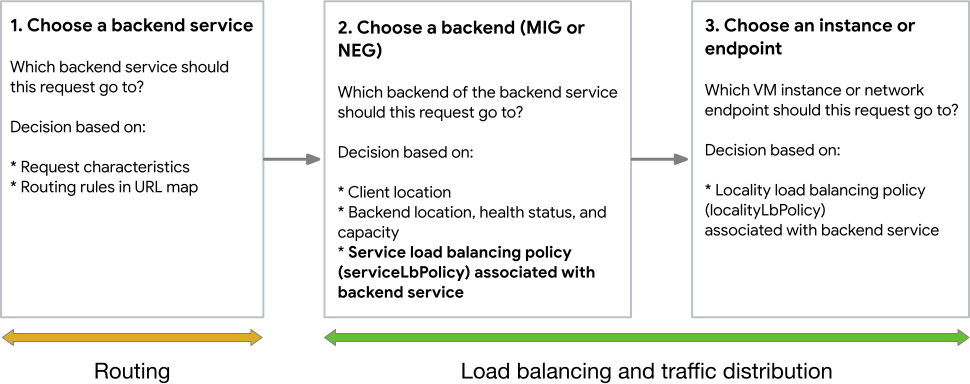](https://docs.cloud.google.com/static/load-balancing/images/lb-decision-process.svg) How Cloud Load Balancing makes routing and traffic distribution decisions.
## Before you begin
Before reviewing the contents of this page, carefully review the [*Request
distribution process* described on the External Application Load Balancer overview
page](https://docs.cloud.google.com/load-balancing/docs/https#request-distribution). For
load balancers that are always Premium Tier, all the load balancing
algorithms described on this page support spilling over between regions if a
first-choice region is already full.
## Supported load balancers and backends
The following load balancers support service load balancing policies and
preferred backends:
- Global external Application Load Balancer
- Regional external Application Load Balancer ([Preview](https://cloud.google.com/products#product-launch-stages))
- Cross-region internal Application Load Balancer
- Regional internal Application Load Balancer ([Preview](https://cloud.google.com/products#product-launch-stages))
- Global external proxy Network Load Balancer
- Cross-region internal proxy Network Load Balancer
The features described on this page require compatible backends that support a
[balancing mode](https://docs.cloud.google.com/load-balancing/docs/backend-service.md.txt#traffic_distribution).
Supported backends are summarized in the following table:
| Backend | Supported? |
|---|---|
| Instance groups | Yes Zonal unmanaged and zonal managed instance groups are supported, but regional managed instance groups are not. |
| Zonal NEGs (`GCE_VM_IP_PORT` endpoints) | Yes |
| Zonal NEGs (`GCE_VM_IP` endpoints) | No These types of NEGs are not supported by Application Load Balancers and Proxy Network Load Balancers. |
| Hybrid NEGs (`NON_GCP_PRIVATE_IP_PORT` endpoints) | Yes |
| Serverless NEGs | No |
| Internet NEGs | No |
| Private Service Connect NEGs | No |
## Load balancing algorithms
This section describes the load balancing algorithms that you can configure in a
service load balancing policy. If you don't configure an algorithm, or if you
don't configure a service load balancing policy at all, the load balancer uses
`WATERFALL_BY_REGION` by default.
### Waterfall by region
`WATERFALL_BY_REGION` is the default load balancing algorithm. With this
algorithm, in aggregate, all the load balancer proxies (second-layer Google
Front Ends (GFEs) or Envoys) in the region closest to the user attempt to fill
backends in proportion to their configured target capacities (modified by their
capacity scalers).
Each individual load balancer proxy prefers to select backend instances or
endpoints in a zone that's as close as possible (defined by network round-trip
time) to the load balancer proxy. Because `WATERFALL_BY_REGION` minimizes traffic
between zones, at low request rates, each load balancer proxy might exclusively
send requests to backends in the same zone as the load balancer proxy itself.
If all the backends in the closest region are running at their configured
capacity limit, traffic will then start to overflow to the next closest region
while optimizing network latency.
### Spray to region
The `SPRAY_TO_REGION` algorithm modifies the *individual* behavior of each
load balancer proxy (second-layer GFE or Envoy) to the extent that each load
balancer proxy *has no preference for* selecting backend instances or
endpoints that are in a zone as close as possible to the load balancer proxy.
With `SPRAY_TO_REGION`, *each* load balancer proxy sends requests to all backend
instances or endpoints, in all zones of the region, without preference for a
shorter round-trip time between the load balancer proxy and the backend instances
or endpoints.
Like `WATERFALL_BY_REGION`, in aggregate, all load balancer proxies in the region
fill backends in proportion to their configured target capacities (modified by
their capacity scalers).
Although `SPRAY_TO_REGION` provides more uniform distribution among backends in all
zones of a region, especially at low request rates, this uniform distribution
comes with the following considerations:
- When backends go down (but continue to pass their health checks), more load balancer proxies are affected, though individual impact is less severe.
- Because each load balancer proxy has no preference for one zone over another, the load balancer proxies create more cross-zone traffic. Depending on the number of requests being processed, each load balancer proxy might create more TCP connections to the backends as well.
### Waterfall by zone
The `WATERFALL_BY_ZONE` algorithm modifies the *individual* behavior of each
load balancer proxy (second-layer GFE or Envoy) to the extent that each load
balancer proxy has a very strong preference to select backend instances or
endpoints that are in the closest-possible zone to the load balancer proxy.
With `WATERFALL_BY_ZONE`, *each* load balancer proxy *only* sends requests to
backend instances or endpoints in other zones of the region when the load
balancer proxy has filled (or proportionally overfilled) backend instances or
endpoints in its most favored zone.
Like `WATERFALL_BY_REGION`, in aggregate, all load balancer proxies in the
region fill backends in proportion to their configured target capacities
(modified by their capacity scalers).
The `WATERFALL_BY_ZONE` algorithm minimizes *latency* with the following
considerations:
- `WATERFALL_BY_ZONE` does not inherently minimize cross-zone connections. The algorithm is steered by latency only.
- `WATERFALL_BY_ZONE` does not guarantee that each load balancer proxy *always* fills its most favored zone before filling other zones. Maintenance events can temporarily cause all traffic from a load balancer proxy to be sent to backend instances or endpoints in another zone.
- `WATERFALL_BY_ZONE` can result in less uniform distribution of requests among all backend instances or endpoints within the region as a whole. For example, backend instances or endpoints in the load balancer proxy's most favored zone might be filled to capacity while backends in other zones are not filled to capacity.
### Compare load balancing algorithms
The following table compares the different load balancing algorithms.
| Behavior | Waterfall by region | Spray to region | Waterfall by zone |
|---|---|---|---|
| Uniform capacity usage within a single region | Yes | Yes | No |
| Uniform capacity usage across multiple regions | No | No | No |
| Uniform traffic split from load balancer | No | Yes | No |
| Cross-zone traffic distribution | Yes. Traffic is distributed evenly across zones in a region while optimizing network latency. Traffic might be sent across zones if needed. | Yes | Yes. Traffic first goes to the nearest zone until it is at capacity. Then, it goes to the next closest zone. |
| Sensitivity to traffic spikes in a local zone | Average; depends on how much traffic has already been shifted to balance across zones. | Lower; single zone spikes are spread across all zones in the region. | Higher; single zone spikes are likely to be served entirely by the same zone until the load balancer is able to react. |
## Auto-capacity draining and undraining
Auto-capacity draining and undraining combine the concepts of health checks and
[backend capacity](https://docs.cloud.google.com/load-balancing/docs/backend-service.md.txt#target-capacity). With
auto-capacity draining, health checks are used as an additional signal to set
effective backend capacity to zero. With auto-capacity undraining, health
checks are used as an additional signal to restore the effective backend
capacity to its previous value.
Without auto-capacity draining and undraining, if you want to direct requests
away from all backends in a particular region, you must manually set the
effective capacity of each backend in that region to zero. For example, you can
use the [capacity scaler](https://docs.cloud.google.com/load-balancing/docs/backend-service.md.txt#capacity_scaler)
to do this.
With auto-capacity draining and undraining, health checks can be used as a
signal to adjust the capacity of a backend, either by draining or undraining.
To enable auto-capacity draining and un-draining, see [Configure a service load
balancing policy](https://docs.cloud.google.com/load-balancing/docs/service-lb-policy#configure-service-lb-policy).
### Auto-capacity draining
*Auto-capacity draining* sets the capacity of each *drainable candidate backend*
instance group or NEG to zero as long as the ratio of drainable candidate
backend instance groups or NEGs compared to all backend instance groups or NEGs
is less than 50%. When calculating the 50% ratio, backends *with zero capacity*
are not included in the numerator. However, all backends are included in the denominator.
A *drainable candidate backend* is a backend instance group or NEG that has
fewer than 25% of its member instances or endpoints passing load balancer health
checks.
Backends *with zero capacity* are the following:
- Backend instance groups with no member instances, where the instance group capacity is defined on a per instance basis
- Backend NEGs with no member endpoints, where the NEG capacity is defined on a per endpoint basis
- Backend instance groups or NEGs whose capacity scalers you've set to zero
Automatically drained backend capacity is functionally equivalent to manually
setting a backend's `backendService.backends[].capacityScaler` to `0`, but
without setting the capacity scaler value.
### Auto-capacity undraining
*Auto-capacity undraining* returns the capacity of a backend to the value
controlled by the backend's capacity scaler when 35% or more of the backend
instances or endpoints pass health checks for at least 60 seconds. The 60 second
requirement reduces the chances of sequential draining and undraining
when health checks fail and pass in rapid succession.
## Failover threshold
The load balancer determines the distribution of traffic among backends
in a multi-level fashion. In the steady state, it sends traffic to backends that
are selected based on one of the previously described load balancing algorithms.
These backends, called *primary backends*, are considered optimal in terms of
latency and capacity.
The load balancer also keeps track of other backends that can be used if the
primary backends become unhealthy and are unable to handle traffic. These
backends are called *failover backends*. These backends are typically nearby
backends with remaining capacity.
If instances or endpoints in the primary backend become unhealthy, the load
balancer doesn't shift traffic to other backends immediately. Instead, the load
balancer first shifts traffic to other healthy instances or endpoints in the
same backend to help stabilize traffic load. If too many endpoints in a primary
backend are unhealthy, and the remaining endpoints in the same backend are not
able to handle the extra traffic, the load balancer uses the *failover
threshold* to determine when to start sending traffic to a failover backend. The
load balancer tolerates unhealthiness in the primary backend up to the failover
threshold. After that, traffic is shifted away from the primary backend.
The failover threshold is a value between 1 and 99, expressed as a percentage of
endpoints in a backend that must be healthy. If the percentage of healthy
endpoints falls below the failover threshold, the load balancer tries to send
traffic to a failover backend. By default, the failover threshold is 70.
If the failover threshold is set too high, unnecessary traffic spills can occur
due to transient health changes. If the failover threshold is set too low, the
load balancer continues to send traffic to the primary backends even though
there are a lot of unhealthy endpoints.
Failover decisions are localized. Each local load balancer proxy
(second-layer GFE or Envoy) behaves independently of the other. Make sure that
your failover backends can handle the additional traffic.
Failover traffic can result in overloaded backends. Even if a backend is
unhealthy, the load balancer might still send traffic there. To exclude
unhealthy backends from the pool of available backends, enable the
[auto-capacity drain feature](https://docs.cloud.google.com/load-balancing/docs/service-lb-policy.md.txt#auto-capacity-draining).
## Traffic isolation
> [!WARNING]
>
> **Preview**
>
>
> This product or feature is
>
> subject to the "Pre-GA Offerings Terms" in the General Service Terms section
> of the [Service Specific
> Terms](https://docs.cloud.google.com/terms/service-terms#1).
>
> Pre-GA products and features are available "as is" and might have limited support.
>
> For more information, see the
> [launch stage descriptions](https://cloud.google.com/products/#product-launch-stages).
By default, Cloud Load Balancing uses the `WATERFALL_BY_REGION` algorithm to
decide where your user traffic should be routed to. With `WATERFALL_BY_REGION`,
traffic overflows to other regions when backends in the region closest to the
user are either full or unhealthy. Enabling *traffic isolation* lets the load
balancer route traffic *only* to the region closest to the user, even if all the
backends in that region are running at their configured capacity limit. Enabling
traffic isolation can help you prevent cascading regional failures and limit
potential outages to a single region.
> [!NOTE]
> **Note:** You can configure traffic isolation only on global service load balancing policies used by global and cross-region load balancers. Regional load balancers don't support traffic isolation.
There are two isolation modes available:
- **NEAREST** (default), where the load balancer (that is, either the
second-layer GFE or the Envoy proxy that handles the connection) sends traffic
to backends in the region closest to the user. If there are no backends
configured in the closest region, or if backends in the closest region are
unhealthy, then traffic is routed to the next closest
region while optimizing for network latency. This continues as each region
runs out of serving capacity.
- **STRICT**, where the load balancer (that is, either the
second-layer GFE or the Envoy proxy that handles the
connection) sends traffic only to backends in the region closest to the user.
If there are no backends configured in the closest region, or if backends in
the closest region are unhealthy and can't serve requests, traffic is dropped
and requests start failing.
### No isolation
The following diagram shows how cross-region load balancers behave when
traffic isolation is not enabled.
[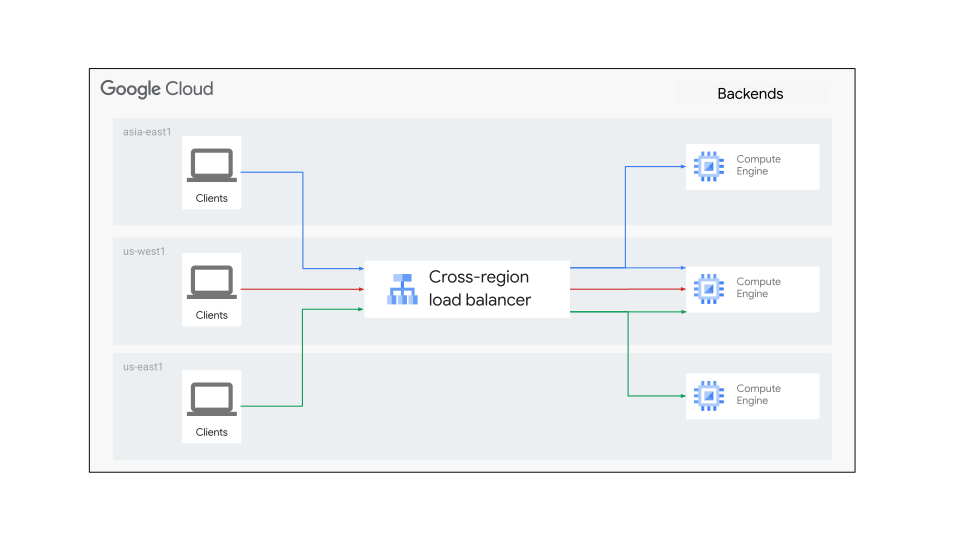](https://docs.cloud.google.com/static/load-balancing/images/no-traffic-isolation.svg) How Cloud Load Balancing behaves when traffic isolation is not enabled.
### Nearest
The following diagram shows how cross-region load balancers behave when
traffic isolation is enabled with the `NEAREST` mode.
[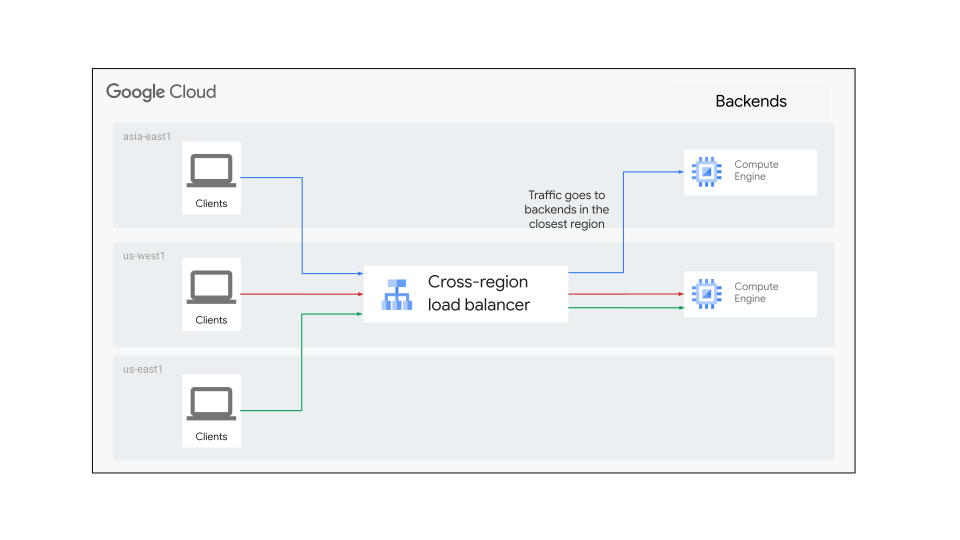](https://docs.cloud.google.com/static/load-balancing/images/nearest-traffic-isolation.svg) How Cloud Load Balancing behaves when traffic isolation is enabled in NEAREST mode.
### Strict
The following diagram shows how cross-region load balancers behave when
traffic isolation is enabled with the `STRICT` mode.
[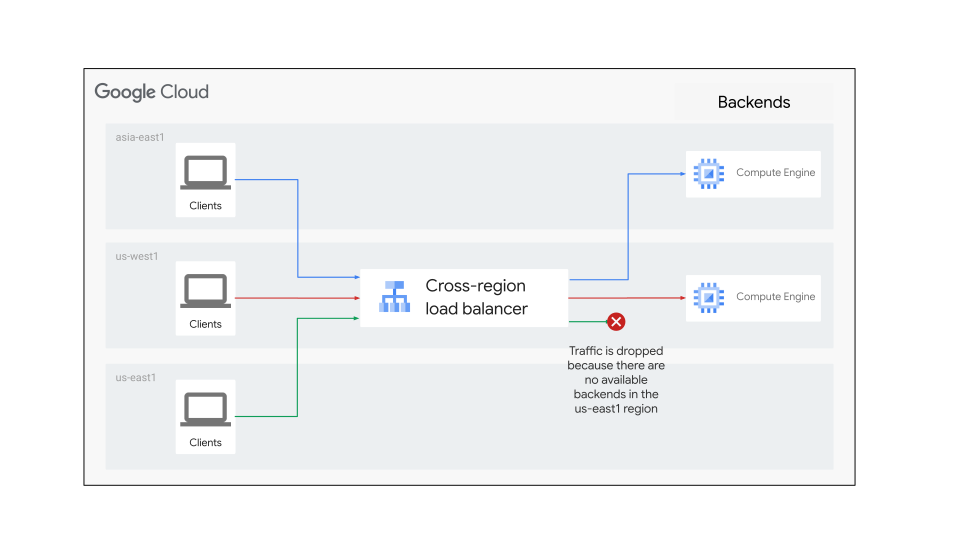](https://docs.cloud.google.com/static/load-balancing/images/strict-traffic-isolation.svg) How Cloud Load Balancing behaves when traffic isolation is enabled in STRICT mode.
Note the following considerations before you enable this feature:
- If your backends in a region are overloaded, the load balancer might still
send additional traffic to them even if backends in other regions can handle
the traffic. This means backends in each individual region are more likely to
overload due to additional traffic and you need to plan accordingly.
- Even with isolation enabled, your traffic is still routed by a global control
plane. This means there is still a chance of global failures across multiple
regions. For better infrastructure-level isolation, [choose a regional load
balancer](https://docs.cloud.google.com/load-balancing/docs/choosing-load-balancer#global-regional).
When you configure the traffic isolation mode, you must also set the *isolation
granularity* to `REGION`, which prevents cross-region traffic overflow. If
granularity is not configured, traffic isolation won't be enforced. For details
about how to enable traffic isolation, see [Configure a service load balancing
policy](https://docs.cloud.google.com/load-balancing/docs/service-lb-policy#configure-service-lb-policy).
## Preferred backends
Preferred backends are backends whose capacity you want to completely use before
spilling traffic over to other backends. Any traffic over the configured
capacity of preferred backends is routed to the remaining non-preferred
backends. The load balancing algorithm then distributes traffic
between the non-preferred backends of a backend service.
You can configure your load balancer to prefer and completely use
one or more backends attached to a backend service before routing subsequent
requests to the remaining backends.
Consider the following limitations when you use preferred backends:
- The backends configured as preferred backends might be further away from the clients and result in higher average latency for client requests. This happens even if there are other closer backends which could have served the clients with lower latency.
- Certain load balancing algorithms (`WATERFALL_BY_REGION`, `SPRAY_TO_REGION`, and `WATERFALL_BY_ZONE`) don't apply to backends configured as preferred backends.
To learn how to set preferred backends, see [Set preferred
backends](https://docs.cloud.google.com/load-balancing/docs/service-lb-policy#set-preferred-backends).
## Configure a service load balancing policy
> [!NOTE]
> **Note:** This section assumes an intermediate to advanced level of familiarity with Cloud Load Balancing. The steps don't walk through the creation of a backend service nor any other basic load balancer configuration. To first get your basic setup in place, see the respective [load balancer documentation](https://docs.cloud.google.com/load-balancing/docs/load-balancing-overview.md.txt).
The service load balancing policy resource lets you configure the following
fields:
- Load balancing algorithm
- Auto-capacity draining
- Failover threshold
- Traffic isolation
To set a preferred backend, see [Set preferred
backends](https://docs.cloud.google.com/load-balancing/docs/service-lb-policy#set-preferred-backends).
### Create a policy
Use the following steps to create and configure a service load balancing
policy.
### Console
> [!NOTE]
> **Note:** Regional service load balancing policies for regional Application Load Balancers can't be configured using the Google Cloud console. Use the gcloud CLI or the API instead.
Perform the following steps to create a service load balancing policy.
1. In the Google Cloud console, go to the **Load balancing** page.
[Go to Load balancing](https://console.cloud.google.com/net-services/loadbalancing/list/serviceLbPolicies)
2. Click **Create service load balancing policy**.
3. Enter a **Name** for your service load balancing policy.
4. To enable auto-capacity draining, select **Drain traffic from unhealthy
backends**.
5. For **Failover Health Threshold**, enter a number between 1 and 99.
6. For **Traffic distribution**, select the load balancing algorithm you
want to use.
7. For **Traffic isolation** , select **Isolate at region level**.
8. Select your preferred **Traffic isolation mode**.
9. Click **Create**.
### gcloud
1. Create a service load balancing policy resource. You can do this either
by using a YAML file or directly, by using `gcloud` parameters.
**With a YAML file**
You specify service load balancing policies in a YAML file. Here is a
sample YAML file that shows you how to configure a load balancing
algorithm, enable auto-capacity draining, and set a custom failover
threshold:
### global
name: projects/PROJECT_ID/locations/global/serviceLbPolicies/SERVICE_LB_POLICY_NAME
autoCapacityDrain:
enable: True
failoverConfig:
failoverHealthThreshold: FAILOVER_THRESHOLD_VALUE
loadBalancingAlgorithm: LOAD_BALANCING_ALGORITHM
isolationConfig:
isolationGranularity: ISOLATION_GRANULARITY
isolationMode: ISOLATION_MODE
Replace the following:
- PROJECT_ID: the project ID.
- SERVICE_LB_POLICY_NAME: the name of the service load balancing policy.
- FAILOVER_THRESHOLD_VALUE: the failover threshold value. This should be a number between 1 and 99.
- LOAD_BALANCING_ALGORITHM: the load balancing algorithm to be used. This can be either `SPRAY_TO_REGION`, `WATERFALL_BY_REGION`, or `WATERFALL_BY_ZONE`.
- ISOLATION_GRANULARITY: the granularity for the isolation restriction. To prevent cross-region traffic overflow, set this to `REGION`. If left unspecified, no isolation is enforced.
- ISOLATION_MODE: the isolation behavior. The possible values are either [`NEAREST` or `STRICT`](https://docs.cloud.google.com/load-balancing/docs/service-lb-policy.md.txt#traffic-isolation).
After you create the YAML file, import the file to a new service
load balancing policy.
```
gcloud network-services service-lb-policies import SERVICE_LB_POLICY_NAME \
--source=PATH_TO_POLICY_FILE \
--location=global
```
Replace the following:
- SERVICE_LB_POLICY_NAME: the name of the service load balancing policy.
- PATH_TO_POLICY_FILE: the path to the YAML file containing the service load balancing policy.
### regional
name: projects/PROJECT_ID/locations/REGION/serviceLbPolicies/SERVICE_LB_POLICY_NAME
autoCapacityDrain:
enable: True
failoverConfig:
failoverHealthThreshold: FAILOVER_THRESHOLD_VALUE
loadBalancingAlgorithm: LOAD_BALANCING_ALGORITHM
Replace the following:
- PROJECT_ID: the project ID.
- REGION: the region where the policy is created. This must match the region of the backend service to which you want to apply the policy.
- SERVICE_LB_POLICY_NAME: the name of the service load balancing policy.
- FAILOVER_THRESHOLD_VALUE: the failover threshold value. This should be a number between 1 and 99.
- LOAD_BALANCING_ALGORITHM: the load balancing algorithm to be used. This can be either `SPRAY_TO_REGION`, `WATERFALL_BY_REGION`, or `WATERFALL_BY_ZONE`.
After you create the YAML file, import the file to a new service
load balancing policy.
```
gcloud network-services service-lb-policies import SERVICE_LB_POLICY_NAME \
--source=PATH_TO_POLICY_FILE \
--location=REGION
```
Replace the following:
- SERVICE_LB_POLICY_NAME: the name of the service load balancing policy.
- PATH_TO_POLICY_FILE: the path to the YAML file containing the service load balancing policy.
- REGION: the region where the policy is located. This must match the region of the backend service to which you want to apply the policy.
**Without a YAML file**
Alternatively, you can configure service load balancing policy features
without using a YAML file.
To set the load balancing algorithm and enable auto-draining, use the
following command:
```
gcloud network-services service-lb-policies create SERVICE_LB_POLICY_NAME \
--load-balancing-algorithm=LOAD_BALANCING_ALGORITHM \
--auto-capacity-drain \
--failover-health-threshold=FAILOVER_THRESHOLD_VALUE \
--location=LOCATION
```
Replace the following:
- SERVICE_LB_POLICY_NAME: the name of the service load balancing policy.
- LOAD_BALANCING_ALGORITHM: the load balancing algorithm to be used. This can be either `SPRAY_TO_REGION`, `WATERFALL_BY_REGION`, or `WATERFALL_BY_ZONE`.
- FAILOVER_THRESHOLD_VALUE: the failover threshold value. This should be a number between 1 and 99.
- LOCATION: the location where the policy is created. This can be `global` or a Google Cloud region. For regional policies, this location must match the region of the backend service to which you want to apply the policy.
To configure *traffic isolation* (in
[Preview](https://cloud.google.com/products#product-launch-stages),
supported only for global and cross-region load balancers), use the
following command:
```
gcloud beta network-services service-lb-policies create SERVICE_LB_POLICY_NAME \
--isolation-config-granularity=ISOLATION_GRANULARITY \
--isolation-config-mode=ISOLATION_MODE \
--location=global
```
Replace the following:
- ISOLATION_GRANULARITY: the granularity for the isolation restriction. To prevent cross-region traffic overflow, set this to `REGION`. If left unspecified, no isolation is enforced.
- ISOLATION_MODE: the isolation behavior. The possible values are either `NEAREST` or `STRICT`.
2. Update a backend service so that its `--service-lb-policy` field
references the newly created service load balancing policy resource. A
backend service can only be associated with one service load balancing
policy resource.
```
gcloud compute backend-services update BACKEND_SERVICE_NAME \
--service-lb-policy=SERVICE_LB_POLICY_NAME \
{--global | --region=REGION}
```
Replace the following:
- BACKEND_SERVICE_NAME: the name of the backend service.
- SERVICE_LB_POLICY_NAME: the name of the service load balancing policy.
- REGION: the region of the backend service (if configuring a regional backend service).
You can also associate a service load balancing policy with a backend
service while creating the backend service.
```
gcloud compute backend-services create BACKEND_SERVICE_NAME \
--protocol=PROTOCOL \
--port-name=NAMED_PORT_NAME \
--health-checks=HEALTH_CHECK_NAME \
--load-balancing-scheme=LOAD_BALANCING_SCHEME \
--service-lb-policy=SERVICE_LB_POLICY_NAME \
{--global | --region=REGION}
```
Replace the following:
- BACKEND_SERVICE_NAME: the name of the backend service.
- PROTOCOL: the protocol used to communicate with the backends, such as `HTTP`, `HTTPS`, or `TCP`.
- NAMED_PORT_NAME: the name of the port that the backend service listens on.
- HEALTH_CHECK_NAME: the name of the health check.
- LOAD_BALANCING_SCHEME: the load balancing scheme, such as `EXTERNAL_MANAGED` or `INTERNAL_MANAGED`.
- SERVICE_LB_POLICY_NAME: the name of the service load balancing policy.
- REGION: the region of the backend service (if configuring a regional backend service).
### Disable features configured on the policy
This section shows you how to reset or disable features configured on the
service load balancing policy.
#### Reset the load balancing algorithm
To reset the load balancing algorithm, you use the following command to set
the load balancing algorithm back to the default `WATERFALL_BY_REGION`:
```
gcloud network-services service-lb-policies update SERVICE_LB_POLICY_NAME \
--load-balancing-algorithm=WATERFALL_BY_REGION \
--location=LOCATION
```
Replace the following:
- SERVICE_LB_POLICY_NAME: the name of the service load balancing policy.
- LOCATION: the location where the policy is created. This can be `global` or a Google Cloud region.
#### Reset the failover threshold
To reset the failover threshold, you use the following command to set
the failover threshold back to the default 70 seconds:
```
gcloud network-services service-lb-policies update SERVICE_LB_POLICY_NAME \
--failover-health-threshold=70 \
--location=LOCATION
```
Replace the following:
- SERVICE_LB_POLICY_NAME: the name of the service load balancing policy.
- LOCATION: the location where the policy is created. This can be `global` or a Google Cloud region.
#### Disable auto-capacity draining
To disable auto-capacity draining, you use the following command:
```
gcloud network-services service-lb-policies update SERVICE_LB_POLICY_NAME \
--no-auto-capacity-drain \
--location=LOCATION
```
Replace the following:
- SERVICE_LB_POLICY_NAME: the name of the service load balancing policy.
- LOCATION: the location where the policy is created. This can be `global` or a Google Cloud region.
#### Disable traffic isolation
To disable traffic isolation
([Preview](https://cloud.google.com/products#product-launch-stages)), you set both isolation
configuration parameters to `UNSPECIFIED` as shown in the following command:
```
gcloud beta network-services service-lb-policies update SERVICE_LB_POLICY_NAME \
--isolation-config-granularity=UNSPECIFIED \
--isolation-config-mode=UNSPECIFIED \
--location=global
```
Replace the following:
- SERVICE_LB_POLICY_NAME: the name of the service load balancing policy.
### Remove a policy
To remove a service load balancing policy from a backend service, use
the following command:
```
gcloud compute backend-services update BACKEND_SERVICE_NAME \
--no-service-lb-policy \
{--global | --region=REGION}
```
Replace the following:
- BACKEND_SERVICE_NAME: the name of the backend service.
- REGION: the region of the backend service (if configuring a regional backend service).
## Set preferred backends
You can configure preferred backends by using either the Google Cloud CLI
or the API.
### Console
You can designate a backend as a preferred backend while you are creating a
global or cross-region load balancer in the Google Cloud console.
Set the **Backend preference level** field to **Preferred** when you
add the backend to the backend service.
You can't configure preferred backends for regional load balancers in the
Google Cloud console. Use the gcloud CLI or the REST API instead.
### gcloud
#### Add a preferred backend
To set a preferred backend, use the [`gcloud compute backend-services
add-backend` command](https://docs.cloud.google.com/sdk/gcloud/reference/beta/compute/backend-services/add-backend)
to set the `--preference` flag when you're adding the backend to the
backend service.
```
gcloud compute backend-services add-backend BACKEND_SERVICE_NAME \
...
--preference=PREFERENCE \
{--global | --region=REGION}
```
Replace the following:
- BACKEND_SERVICE_NAME: the name of the backend service.
- PREFERENCE: the preference level you want to assign to the backend, either `PREFERRED` or `DEFAULT`.
- REGION: the region of the backend service (if configuring a regional backend service).
The rest of the command depends on the type of backend you're using
(instance group or NEG). For all the required parameters, see the
[`gcloud compute backend-services add-backend` command](https://docs.cloud.google.com/sdk/gcloud/reference/beta/compute/backend-services/add-backend.md.txt).
#### Update a backend's preference
To update a backend's `--preference` parameter, use the
[`gcloud compute backend-services update-backend` command](https://docs.cloud.google.com/sdk/gcloud/reference/beta/compute/backend-services/update-backend.md.txt).
```
gcloud compute backend-services update-backend BACKEND_SERVICE_NAME \
...
--preference=PREFERENCE \
{--global | --region=REGION}
```
Replace the following:
- BACKEND_SERVICE_NAME: the name of the backend service.
- PREFERENCE: the preference level you want to assign to the backend, either `PREFERRED` or `DEFAULT`.
- REGION: the region of the backend service (if configuring a regional backend service).
The rest of the command depends on the type of backend you're using
(instance group or NEG). The following example command updates a
backend instance group's preference and sets it to `PREFERRED`:
```
gcloud compute backend-services update-backend BACKEND_SERVICE_NAME \
--instance-group=INSTANCE_GROUP_NAME \
--instance-group-zone=INSTANCE_GROUP_ZONE \
--preference=PREFERRED \
{--global | --region=REGION}
```
Replace the following:
- BACKEND_SERVICE_NAME: the name of the backend service.
- INSTANCE_GROUP_NAME: the name of the instance group.
- INSTANCE_GROUP_ZONE: the zone where the instance group is located.
- REGION: the region of the backend service (if configuring a regional backend service).
### API
To set a preferred backend, set the `preference` flag on each
backend by using the [global `backendServices` resource](https://docs.cloud.google.com/compute/docs/reference/rest/v1/backendServices.md.txt).
Here is a sample that shows you how to configure the backend preference:
name: projects/PROJECT_ID/locations/LOCATION/backendServices/BACKEND_SERVICE_NAME
...
- backends
name: BACKEND_1_NAME
preference: PREFERRED
...
- backends
name: BACKEND_2_NAME
preference: DEFAULT
...
Replace the following:
- PROJECT_ID: the project ID
- BACKEND_SERVICE_NAME: the name of the backend service
- BACKEND_1_NAME: the name of the preferred backend
- BACKEND_2_NAME: the name of the default backend
- LOCATION: the location where the backend service is created. This can be `global` or a Google Cloud region.
## Troubleshooting
Traffic distribution patterns can change when you attach a new service load
balancing policy to a backend service.
To debug traffic issues, use Cloud Monitoring to look at how
traffic flows between the load balancer and the backend. Cloud Load Balancing
logs and metrics can also help you understand load balancing behavior.
This section summarizes a few common scenarios that you might see when you
turn on each of these features.
### Load balancing algorithms
**Traffic from a single source is sent to too many distinct backends**
This is the intended behavior of the `SPRAY_TO_REGION` algorithm. However, you
might experience issues caused by wider distribution of your traffic. For
example, cache hit rates might decrease because backends see traffic from a
wider selection of clients. In this case, consider using other algorithms like
`WATERFALL_BY_REGION`.
### Auto-capacity draining
**Traffic is not being sent to backends with lots of unhealthy endpoints**
This is the intended behavior when `autoCapacityDrain` is enabled. Backends
with a lot of unhealthy endpoints are drained and removed from the load
balancing pool. If you don't want this behavior, you can disable auto-capacity
draining. However, this means that traffic can be sent to backends with a lot
of unhealthy endpoints and requests can fail.
### Failover threshold
**Traffic is being sent to a remote backend during transient health changes**
This is the intended behavior when the failover threshold is set to a high
value. If you want traffic to keep going to the primary backends when there are
transient health changes, set this field to a lower value.
**Healthy endpoints are overloaded when other endpoints are unhealthy**
This is the intended behavior when the failover threshold is set to a low
value. When endpoints are unhealthy, the traffic intended for these unhealthy
endpoints is instead spread among the remaining endpoints in the same backend.
If you want the failover behavior to be triggered sooner, set this field to a
higher value.
### Preferred backends
**Traffic is being sent to more distant backends before closer ones**
This is the intended behavior if your preferred backends are further away than
your default backends. If you don't want this behavior, update the
preference settings for each backend accordingly.
**Traffic is not being sent to some backends when using preferred backends**
This is the intended behavior when your preferred backends have not yet reached
capacity. The preferred backends are assigned first based on round-trip time
latency to these backends.
If you want traffic sent to other backends, you can do one of the following:
- Update preference settings for the other backends.
- Set a lower target capacity setting for your preferred backends. The target capacity is configured by using either the `max-rate` or the `max-utilization` fields depending on the backend service's [balancing
mode](https://docs.cloud.google.com/load-balancing/docs/backend-service#balancing-mode).
### Traffic isolation
**Requests sent to your cross-region internal load balancer are failing**
If `STRICT` isolation mode is enabled and there are no backends configured in
the same region as the load balancer, traffic is expected
to fail. If this is not your intended behavior, make sure that you have backends
the region where you expect traffic to be sent. Or, set the isolation mode to
`NEAREST` so that traffic can be routed to the next closest region.
**Traffic is routed from a remote region to a closer region**
Request isolation prevents capacity-based traffic overflow. So if your backends
were already overloaded before enabling this feature, traffic might have
already been sent to a remote region. In that case, turning this feature on
could cause this traffic to be routed back to the closest region.
**Traffic did not get rerouted after turning on traffic isolation**
Request isolation prevents capacity-based traffic overflow. So if your backends
in the closest region were not overloaded before enabling this feature, it is
likely that the closest region is capable of handling all the traffic. In that
case, it is expected that you won't see any changes to traffic routes in the
short-term. This might change as traffic volume changes.
**Traffic moves when backends are added to or removed from a region**
This is expected behavior because load balancers try to route traffic to
optimize the overall network latency. Therefore, when new backends are deployed
in a closer region, the load balancer might send more traffic to that
region. Similarly, when backends are removed, depending on your request
isolation setting, the load balancer starts sending overflow traffic to a region
that is further away.
## Limitations
- Each backend service can only be associated with a single service load balancing policy resource.
- The regional Application Load Balancers don't support traffic isolation.