This guide provides instructions for migrating an existing regional external passthrough Network Load Balancer
from a target pool backend to a regional backend service.
Moving to a regional backend service allows you to take advantage of
features such as non-legacy health checks (for TCP, SSL, HTTP, HTTPS,
and HTTP/2), managed instance groups, [connection
draining](https://docs.cloud.google.com/load-balancing/docs/network/networklb-backend-service#connection_draining), and
[failover policy](https://docs.cloud.google.com/load-balancing/docs/network/networklb-failover-overview).
*** ** * ** ***
To follow step-by-step guidance for this task directly in the
Google Cloud console, click **Guide me**:
[Guide me](https://console.cloud.google.com/welcome?walkthrough_id=load-balancing--networklb-migrate-to-backend-services)
*** ** * ** ***
This guide walks you through migrating the following sample target
pool-based regional external passthrough Network Load Balancer to use a regional backend service instead.
[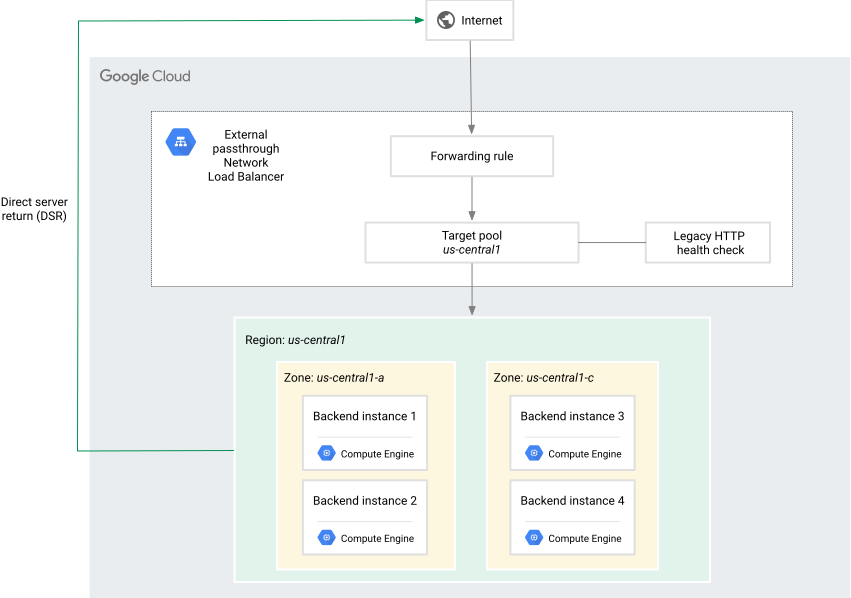](https://docs.cloud.google.com/static/load-balancing/images/networklb-target-pool-transition-example.svg) **Before:** Regional external passthrough Network Load Balancer with a target pool
Your resulting backend service-based regional external passthrough Network Load Balancer deployment will
look like this.
[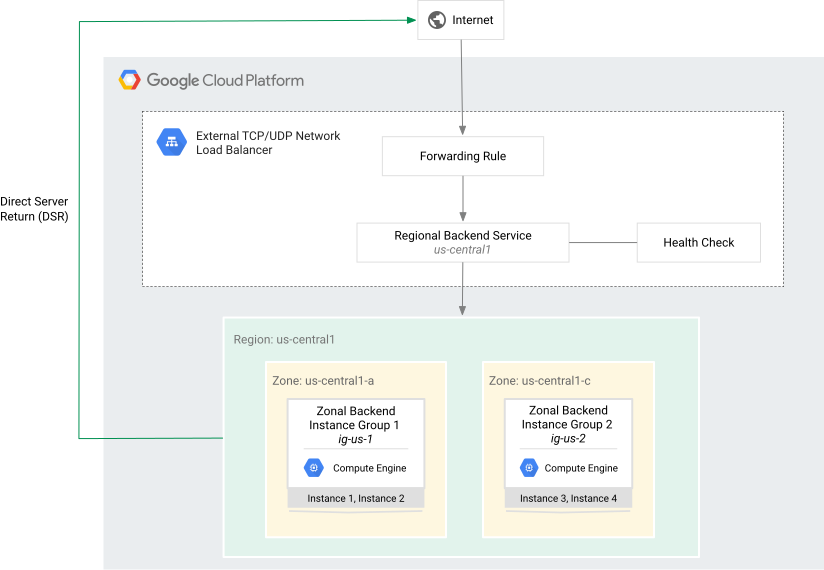](https://docs.cloud.google.com/static/load-balancing/images/networklb-transition-example.svg) **After:** Regional external passthrough Network Load Balancer with a regional backend service
This example assumes that you have a traditional target pool-based regional external passthrough Network Load Balancer
with two instances in zone `us-central-1a` and two instances in zone
`us-central-1c`.
The high-level steps required for such a transition are as follows:
1. **Group your target pool instances into instance groups.**
Backend services only work with managed or unmanaged instance groups.
While there is no limit on the number of instances that
can be placed into a single target pool, instance groups
do have a [maximum size](https://docs.cloud.google.com/compute/docs/instance-groups/creating-groups-of-managed-instances.md.txt).
If your target pool has more than this
maximum number of instances, you need to split its backends across
multiple instance groups.
If your existing deployment includes a backup target pool, create
a separate instance group for those instances. This instance group
is configured as a failover group.
2. **Create a regional backend service.**
If your deployment includes a backup target pool, you need to
specify a failover ratio while creating the backend service. This should
match the failover ratio previously configured for the target pool
deployment.
3. **Add instance groups (created previously) to the backend service.**
If your deployment includes a backup target pool, mark the corresponding
failover instance group with a `--failover` flag when adding
it to the backend service.
4. **Configure a forwarding rule that points to the new backend service.**
You can choose one of the following options:
- Update the existing forwarding rule to point to the backend service (**recommended**).
- Create a new forwarding rule that points to the backend service. This
requires you to create a new IP address for the load balancer's
frontend. You then modify your DNS settings to seamlessly transition from the
old target pool-based load balancer's IP address to the new IP address.
## Before you begin
Install the Google Cloud CLI. For a complete overview of the tool,
see the [gcloud Tool Guide](https://docs.cloud.google.com/sdk/gcloud.md.txt). You can find commands related to
load balancing in the [`gcloud compute`](https://docs.cloud.google.com/sdk/gcloud/reference/compute.md.txt)
command group.
If you haven't run the Google Cloud CLI previously, first run
[`gcloud init`](https://docs.cloud.google.com/sdk/gcloud/reference/init) to authenticate.
This guide assumes that you are familiar with
[bash](https://en.wikipedia.org/wiki/Bash_(Unix_shell)).
### Identify the backends and forwarding rule to migrate
1. To list all the target pools, run the following command in Cloud Shell:
```
gcloud compute target-pools list
```
Note the name of the target pool to migrate from. This name is referred to
later as TARGET_POOL_NAME.
2. To list all the VM instances in the target pool TARGET_POOL_NAME,
run the command in Cloud Shell:
```
gcloud compute target-pools describe TARGET_POOL_NAME \
--region=us-central1
```
Note the names of the VM instances. These names are referred to later as
BACKEND_INSTANCE1, BACKEND_INSTANCE2,
BACKEND_INSTANCE3, and BACKEND_INSTANCE4.
3. To list the forwarding rules in the regional external passthrough Network Load Balancer, run the command in
Cloud Shell:
```
gcloud compute forwarding-rules list
--filter="target: ( TARGET_POOL_NAME )"
```
Note the name of the forwarding rule. This name is referred to later as
FORWARDING_RULE.
## Creating the zonal unmanaged instance groups
Create a zonal unmanaged instance group for each of the zones in which you have
backends. Depending on your setup, you can divide your instances across as many
instance groups as needed. For our example, we are only using two instance
groups, one for each zone, and placing all the backend VMs in a given zone in
the associated instance group.
For this example, we create two instance groups: one in the
`uc-central1-a` zone and one in the `us-central1-c` zone.
### Set up the instance groups
### Console
1. In the Google Cloud console, go to the **Instance groups** page.
[Go to Instance groups](https://console.cloud.google.com/compute/instanceGroups)
2. Click **Create instance group**.
3. In the left pane, select **New unmanaged instance group**.
4. For **Name** , enter `ig-us-1`.
5. For **Region** , select `us-central1`.
6. For **Zone** , select `us-central1-a`.
7. Select **Network** and **Subnetwork** depending on where your instances are located. In this example, the existing target pool instances are in the `default` network and subnetwork.
8. To add instances to the instance group, in the **VM instances** section, select the two instances BACKEND_INSTANCE1 and BACKEND_INSTANCE2.
9. Click **Create**.
10. Repeat these steps to create a second instance group with the following
specifications:
- **Name** : `ig-us-2`
- **Region** : `us-central1`
- **Zone** : `us-central1-c`
Add the two instances BACKEND_INSTANCE3 and
BACKEND_INSTANCE4 in the `us-central1-c` zone to this instance
group.
11. If your existing load balancer deployment also has a backup target pool,
repeat these steps to create a separate failover instance group for those
instances.
### gcloud
1. Create an unmanaged instance group in the `us-central1-a` zone with
the [`gcloud compute instance-groups unmanaged
create`](https://docs.cloud.google.com/sdk/gcloud/reference/compute/instance-groups/unmanaged/create)
command.
```
gcloud compute instance-groups unmanaged create ig-us-1 \
--zone us-central1-a
```
2. Create a second unmanaged instance group in the `us-central1-c` zone.
```
gcloud compute instance-groups unmanaged create ig-us-2 \
--zone us-central1-c
```
3. Add instances to the `ig-us-1` instance group.
```
gcloud compute instance-groups unmanaged add-instances ig-us-1 \
--instances BACKEND_INSTANCE_1,BACKEND_INSTANCE_2 \
--zone us-central1-a
```
4. Add instances to the `ig-us-2` instance group.
```
gcloud compute instance-groups unmanaged add-instances ig-us-2 \
--instances BACKEND_INSTANCE_3,BACKEND_INSTANCE_4 \
--zone us-central1-c
```
5. If your existing load balancer deployment also has a backup target pool,
repeat these steps to create a separate failover instance group for those
instances.
## Create a health check
Create a health check to determine the health of the instances in your
instance groups. Your existing target pool-based regional external passthrough Network Load Balancer
likely has a *legacy* HTTP health check associated with it.
You can create a new health check that matches the protocol of the
traffic that the load balancer will be distributing. Backend service-based
regional external passthrough Network Load Balancers can use [TCP, SSL, HTTP(S), and HTTP/2 health
checks](https://docs.cloud.google.com/load-balancing/docs/network/networklb-backend-service).
### Console
1. In the Google Cloud console, go to the **Health checks** page.
[Go to Health checks](https://console.cloud.google.com/compute/healthChecks)
2. Click **Create health check**.
3. In the **Name** field, enter `network-lb-health-check`.
4. Set **Scope** to **Regional**.
5. For **Region** , select `us-central1`.
6. For **Protocol** , select **HTTP**.
7. For **Port** , enter `80`.
8. Click **Create**.
### gcloud
1. For this example, we create a non-legacy HTTP health check to be used with the
backend service.
```
gcloud compute health-checks create http network-lb-health-check \
--region us-central1 \
--port 80
```
## Configure the backend service
Use *one* of the following sections to create the backend service. If your
existing regional external passthrough Network Load Balancer has a backup target pool,
you need to configure a failover ratio while creating the backend service.
You also need to designate the failover instance group with the
`--failover` flag when adding backends to the backend service.
### Deployments without a backup target pool
### gcloud
1. Create a regional backend service in the `us-central1` region.
```
gcloud compute backend-services create network-lb-backend-service \
--region us-central1 \
--health-checks network-lb-health-check \
--health-checks-region us-central1 \
--protocol TCP
```
2. Add the two instance groups (`ig-us-1` and `ig-us-2`) as backends
to the backend service.
```
gcloud compute backend-services add-backend network-lb-backend-service \
--instance-group ig-us-1 \
--instance-group-zone us-central1-a \
--region us-central1
```
```
gcloud compute backend-services add-backend network-lb-backend-service \
--instance-group ig-us-2 \
--instance-group-zone us-central1-c \
--region us-central1
```
### Deployments with a backup target pool
### gcloud
1. Create a regional backend service in the `us-central1` region.
Configure the backend service failover ratio to match the failover
ratio previously configured for the target pool.
```
gcloud compute backend-services create network-lb-backend-service \
--region us-central1 \
--health-check network-lb-health-check \
--failover-ratio 0.5
```
2. Add the two instance groups (`ig-us-1` and `ig-us-2`) as backends
to the backend service.
```
gcloud compute backend-services add-backend network-lb-backend-service \
--instance-group ig-us-1 \
--instance-group-zone us-central1-a \
--region us-central1
```
```
gcloud compute backend-services add-backend network-lb-backend-service \
--instance-group ig-us-2 \
--instance-group-zone us-central1-c \
--region us-central1
```
3. If you created a failover instance group, add it to the backend
service. Mark this backend with the `--failover` flag when you add
it to the backend service.
```
gcloud compute backend-services add-backend network-lb-backend-service \
--instance-group FAILOVER_INSTANCE_GROUP \
--instance-group-zone ZONE \
--region us-central1 \
--failover
```
## Configure the forwarding rule
You have two options to configure the forwarding rule to direct traffic to the
new backend service. You can either update the existing forwarding rule or
create a new forwarding rule with a new IP address.
### Update the existing forwarding rule (recommended)
Use the `set-target` flag to update the existing forwarding rule to point
to the new backend service.
```
gcloud compute forwarding-rules set-target FORWARDING_RULE \
--backend-service network-lb-backend-service \
--region us-central1
```
Replace `FORWARDING_RULE` with the name of the existing
forwarding rule.
### Create a new forwarding rule
If you don't want to update the existing forwarding rule, you can create a new
forwarding rule with a new IP address. Because a given IP address can only be
associated with a single forwarding rule at a time, you need to manually
modify your DNS setting to transition incoming traffic from the old IP
address to the new one.
Use the following command to create a new forwarding rule with a new
IP address. You can use the use the `--address` flag if you want to specify an
IP address already reserved in the `us-central1` region.
```
gcloud compute forwarding-rules create network-lb-forwarding-rule \
--load-balancing-scheme external \
--region us-central1 \
--ports 80 \
--backend-service network-lb-backend-service
```
## Testing the load balancer
Test the load balancer to confirm that the forwarding rule is directing
incoming traffic as expected.
### Look up the load balancer's external IP address
### gcloud
Enter the following command to view the external IP address of the
`network-lb-forwarding-rule` forwarding rule used by the load balancer.
```
gcloud compute forwarding-rules describe network-lb-forwarding-rule
--region us-central1
```
### Use the `nc` command to access the external IP address
In this example, we use the default hashing method for session
affinity, so requests from the `nc` command are distributed randomly to the
backend VMs based on the source port assigned by your operating system.
1. To test connectivity, first install Netcat on Linux by running the following
command:
```
$ sudo apt install netcat
```
2. Repeat the following command a few times until you see all the backend VMs responding:
```
$ nc IP_ADDRESS 80
```
## Remove resources associated with the old load balancer
After you confirm that the new regional external passthrough Network Load Balancer works as expected,
you can delete the old target pool resources.
1. In the Google Cloud console, go to the **Load balancing** page.
[Go to Load balancing](https://console.cloud.google.com/networking/loadbalancing/list)
2. Select the old load balancer that was associated with the target pool, and then click **Delete**.
3. Select the health checks that you created, and then click **Delete load balancer and the selected resources**.
## What's next
- For information about how regional external passthrough Network Load Balancers work with backend services, see [Backend service-based regional external passthrough Network Load Balancer
overview](https://docs.cloud.google.com/load-balancing/docs/network/networklb-backend-service).
- To configure a regional external passthrough Network Load Balancer with a *backend service* , see [Set up
a regional external passthrough Network Load Balancer with a backend
service](https://docs.cloud.google.com/load-balancing/docs/network/setting-up-network-backend-service).
- To configure a regional external passthrough Network Load Balancer with a *target pool* , see [Set up
a regional external passthrough Network Load Balancer with a target
pool](https://docs.cloud.google.com/load-balancing/docs/network/setting-up-network).