Cloud Load Balancing supports proxying traffic to external backends
outside Google Cloud. To define an external backend for a load balancer, you
use a resource called an internet network endpoint group (NEG).
You can use this type of deployment when you want to serve content from an
external backend, but you want your Google Cloud load balancer to be
the frontend. This lets you do the following:
- Use Google Edge infrastructure for terminating your user connections.
- Direct the connections to your external backend.
- Deliver traffic to your public endpoint across Google's private backbone, which improves reliability and can decrease latency between client and server.
- With global load balancers, you can use Cloud CDN (Content Delivery Network) to cache content for your external backend.
Figure 1 shows an external Application Load Balancer with multiple backend
types, one of which is an external backend configured with an internet NEG.
[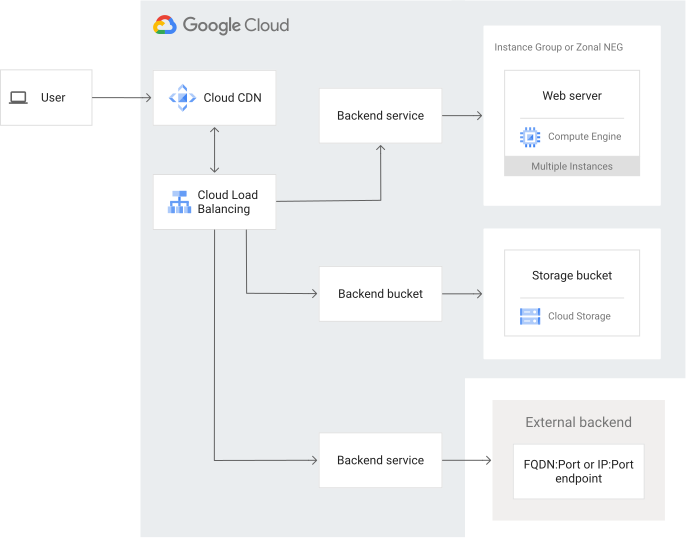](https://docs.cloud.google.com/static/load-balancing/images/internet-neg-sample-arch.svg) **Figure 1.** Internet network endpoint groups in load balancing (click to enlarge).
Internet NEG backends are supported with various global and regional load
balancers. Depending on your load balancer (global or regional), internet NEG
support differs with respect to DNS, health checking, available number of
endpoints, server certificate validation, and traffic routing behaviors.
The sections that follow explain how external backends are used with
Cloud Load Balancing. If you want to use an external backend with
Cloud Service Mesh, see [Cloud Service Mesh with internet network endpoint
groups](https://docs.cloud.google.com/service-mesh/docs/internet-negs).
> [!NOTE]
> **Note:** Cloud Load Balancing also supports connecting to backends on-premises or in other cloud environments outside Google Cloud by using [hybrid
> NEGs](https://docs.cloud.google.com/load-balancing/docs/negs/hybrid-neg-concepts). However, connections to hybrid NEG endpoints make use of [hybrid connectivity](https://cloud.google.com/hybrid-connectivity). In contrast, connections to internet NEG endpoints use the internet while keeping your traffic on Google's high performance backbone for the longest possible distance, for reduced latency and improved throughput.
## Terminology
The following terms are sometimes used interchangeably because they have
the same or similar meanings:
- **external backend:** A backend that resides outside of Google Cloud and is reachable across the internet. The endpoint in an internet NEG.
- **custom origin:** Same as an *external backend* . In CDN, *origin* is the industry-standard term for a backend instance that serves web content.
- **internet network endpoint group (NEG):** The Google Cloud API resource that you use to specify an external backend.
- **external endpoint:** Same as an *external backend*.
This document uses the term *external backend* except when referring to the
internet NEG API resource.
## Load balancer components
This section describes the load balancing architecture and resources required to
configure a load balancer with an external backend. The load balancer requires
[special configuration only for the backend service](https://docs.cloud.google.com/load-balancing/docs/negs/internet-neg-concepts.md.txt#backend-service). The
frontend configuration is the same as any other load balancer.
The following figures show the Google Cloud resources required to set up
a load balancer with an external backend.
### Global external
This figure shows the Google Cloud resources required to set up
a global external Application Load Balancer with an external backend.
[](https://docs.cloud.google.com/static/load-balancing/images/internet-neg-external-backend.svg) Global external Application Load Balancer with external backend (click to enlarge).
### Regional external
This figure shows the Google Cloud resources required to set up
a regional external Application Load Balancer with an external backend.
[](https://docs.cloud.google.com/static/load-balancing/images/reg-ext-app-internet-neg.svg) Regional external Application Load Balancer with an external backend (click to enlarge).
### Regional internal
This figure shows the Google Cloud resources required to set up
a regional internal Application Load Balancer with an external backend.
[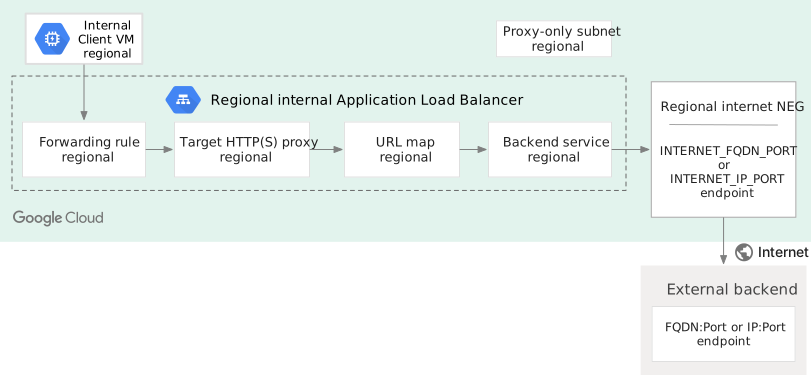](https://docs.cloud.google.com/static/load-balancing/images/reg-int-app-internet-neg.svg) Regional internal Application Load Balancer with an external backend (click to enlarge).
This figure shows the Google Cloud resources required to set up
a regional internal proxy Network Load Balancer with an external backend.
[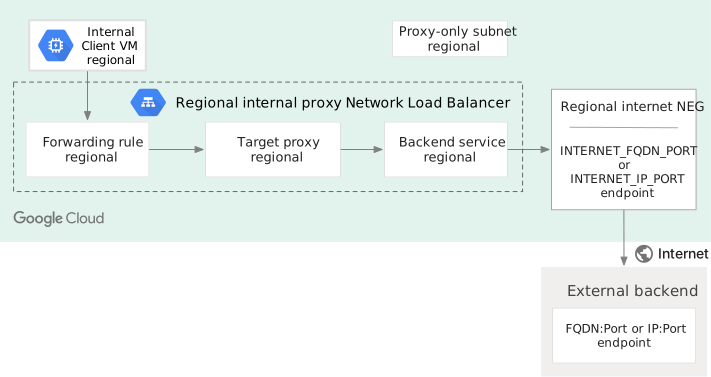](https://docs.cloud.google.com/static/load-balancing/images/reg-int-proxy-internet-neg.svg) Regional internal proxy Network Load Balancer with an external backend (click to enlarge).
You can only use internet NEGs on the [Premium network service
tier](https://docs.cloud.google.com/network-tiers/docs/overview).
### Frontend configuration
No special frontend configuration is required for creating a load balancer with
an internet NEG backend. [Forwarding
rules](https://docs.cloud.google.com/load-balancing/docs/forwarding-rule-concepts) are used to route traffic
by IP address, port, and protocol to a target proxy. The [target
proxy](https://docs.cloud.google.com/load-balancing/docs/target-proxies) then terminates connections from
clients. Additionally, [Envoy-based load
balancers](https://docs.cloud.google.com/load-balancing/docs/proxy-only-subnets) require a proxy-only subnet.
Application Load Balancers also use [URL maps](https://docs.cloud.google.com/load-balancing/docs/url-map-concepts.md.txt)
to set up URL-based routing of requests to the
appropriate backend services.
For more details about each of these components, refer to the architecture sections
of the respective load balancer:
- [External Application Load Balancer overview](https://docs.cloud.google.com/load-balancing/docs/https.md.txt)
- [Internal Application Load Balancer overview](https://docs.cloud.google.com/load-balancing/docs/l7-internal.md.txt)
- [External proxy Network Load Balancer overview](https://docs.cloud.google.com/load-balancing/docs/tcp.md.txt)
- [Internal proxy Network Load Balancer overview](https://docs.cloud.google.com/load-balancing/docs/tcp/internal-proxy.md.txt)
### Internet NEG
An internet NEG is a resource used to define an external backend for the
load balancer. There are two types of internet NEGs: global internet NEG and
regional internet NEG. They differ in the scope (global versus regional) and
behavior. The external backend referenced by a global internet NEG must be
reachable exclusively over the internet; it can't be reachable over
Cloud VPN or Cloud Interconnect. If the external backend
references a Google API or service, the service must be reachable through
TCP port `80` or `443` by using the `HTTP`, `HTTPS`, or `HTTP/2` protocol.
There are two ways to configure the external endpoint referenced by the NEG:
`INTERNET_FQDN_PORT` or `INTERNET_IP_PORT`. If the `INTERNET_IP_PORT` format is
chosen, only a public internet routable IP address can be used; if the
`INTERNET_FQDN_PORT` format is chosen the FQDN can be resolved to either a
public internet routable IP address or to a private IP address depending on the
scope of the endpoint: regional or global.
**Global internet NEGs** are powered by Google Front End (GFE) technologies.
They use a [fixed set of fixed IP addresses for egress traffic](https://docs.cloud.google.com/load-balancing/docs/negs/internet-neg-concepts.md.txt#global-egress-ip)
to all clients. They support only one endpoint per NEG and one internet NEG per
backend service.
The following table describes how different load balancers support global
internet NEGs.
| Load balancers | Endpoint type | Endpoint definition | Scope | Health checks | Server certificate validation |
|---|---|---|---|---|---|---|
| - Global external Application Load Balancer - Classic Application Load Balancer | `INTERNET_FQDN_PORT` | A publicly resolvable fully qualified domain name and an optional port. For example, `backend.example.com:443`^†^. The domain name must be resolvable by [Google's public DNS infrastructure](https://dns.google.com/). Only *one* endpoint per NEG is allowed. | Global | Not supported | Always validated against public CA certificates. |
| - Global external Application Load Balancer - Classic Application Load Balancer | `INTERNET_IP_PORT` | A publicly routable IP address and an optional port. For example, `8.8.8.8:443`^1^. The IP address can't be an RFC 1918 address. Only *one* endpoint per NEG is allowed. | Global | Not supported | Not validated. | |
^†^ If you don't specify a port while adding the endpoint, the
default port of the NEG is used. If you didn't specify a default port for the
NEG, the well-known port for your backend protocol is used (`80` for
HTTP and `443` for HTTPS and HTTP/2).
**Regional internet NEGs** are powered by managed Envoy proxies. Each NEG
can have multiple endpoints, and a backend service can include
multiple internet NEGs.
For egress traffic, you can configure Cloud NAT gateways to set the
source IP addresses. Alternatively, you can route traffic using learned routes
within your VPC network. While Cloud NAT isn't required
for this routing method, it is supported.
The following table describes how different load balancers support regional
internet NEGs.
| Load balancers | Endpoint type | Endpoint definition | Scope | Health checks | Server certificate validation |
|---|---|---|---|---|---|---|
| - Regional external Application Load Balancer - Regional internal Application Load Balancer - Regional external proxy Network Load Balancer - Regional internal proxy Network Load Balancer | `INTERNET_FQDN_PORT` | Either a publicly or privately resolvable fully qualified domain name and an optional port. For example, `backend.example.com:443`^\*^. The domain name resolution process follows the [Cloud DNS name resolution order](https://docs.cloud.google.com/dns/docs/vpc-name-res-order.md.txt) process. A maximum of 256 endpoints per NEG are allowed. | Regional | [Envoy distributed health checks](https://docs.cloud.google.com/load-balancing/docs/negs/internet-neg-concepts.md.txt#health-checks) | Not validated. Set up Backend Authenticated TLS to perform certificate validation. |
| - Regional external Application Load Balancer - Regional internal Application Load Balancer - Regional external proxy Network Load Balancer - Regional internal proxy Network Load Balancer | `INTERNET_IP_PORT` | Only a publicly routable IP address and an optional port. For example, `8.8.8.8:443`^2^. The IP address can't be an RFC 1918 address. A maximum of 256 endpoints per NEG are allowed. | Regional | [Envoy distributed health checks](https://docs.cloud.google.com/load-balancing/docs/negs/internet-neg-concepts.md.txt#health-checks) | Not validated. Set up Backend Authenticated TLS to perform certificate validation. | |
^\*^ With regional internet NEGs, you are required to specify a port.
You can specify a default port while creating the NEG, or you can specify a port
each time you add an endpoint to the NEG, or you can do both. If you don't
specify a port while adding an endpoint, the default port of the NEG is
used.
> [!NOTE]
> **Note:** If you're planning a cross-cloud deployment with a regional internet NEG, you can use Cloud Location Finder to identify the optimal region or zone for your deployment based on factors like distance, network latency, carbon footprint (Google CFE%), or the territory code (in case you have regulatory requirements for your network traffic). For details, see the [Cloud Location Finder
> documentation](https://docs.cloud.google.com/location-finder/docs/overview) ([Preview](https://cloud.google.com/products/#product-launch-stages)).
#### DNS resolution for regional `INTERNET_FQDN_PORT` endpoints
If your domain is resolvable over the internet, no other configuration is needed
to set up DNS. However, if you're resolving private FQDNs, you'll need to
configure Cloud DNS to facilitate DNS resolution. The name must be
hosted on
Cloud DNS or be resolvable using DNS forwarding from Cloud DNS
to an on-premises DNS or DNS peering if referencing a Private DNS zone in
another VPC network.
Start by creating a [Cloud DNS
zone](https://docs.cloud.google.com/dns/docs/zones) to host the DNS records in your
project. Then add the DNS records to it. For specific configuration steps, see
the [Cloud DNS documentation](https://docs.cloud.google.com/dns/docs/overview.md.txt). The
Cloud DNS resolution order is detailed at [Name resolution
order](https://docs.cloud.google.com/dns/docs/vpc-name-res-order).
If you're using Shared VPC, note the specific [network
requirements](https://docs.cloud.google.com/dns/docs/overview#shared-vpc). You can also use other features
of Cloud DNS, such as [forwarding
zones](https://docs.cloud.google.com/dns/docs/zones#creating-forwarding-zones), to fetch records from an
on-premises DNS server.
#### IP address resolution for global `INTERNET_FQDN_PORT` endpoints
When an `INTERNET_FQDN_PORT` endpoint points to a DNS record that returns
multiple IP addresses, the IP address is resolved in the following way:
- The load balancer uses a DNS resolver in a Google Cloud region that is
closest to its client on the internet. If the DNS record for your
`INTERNET_FQDN_PORT` endpoint returns different IP addresses based on the
location of the client, make sure that each of those IP addresses can be
reached by the load balancer.
- The load balancer attempts to connect to the first IP
address in the DNS response. If that IP address isn't reachable, the load
balancer returns an HTTP `502 (Bad Gateway)` response. This is true even if
other IP addresses from the DNS response are available.
For more information about the IP ranges and locations used by Google's DNS
resolver infrastructure, see the [Google public DNS
documentation](https://developers.google.com/speed/public-dns/faq#locations).
Names that can't be resolved by the public DNS system aren't usable as
external backends.
#### IP address resolution for regional `INTERNET_FQDN_PORT` endpoints
Regional internet NEGs support domain name resolution using both
Cloud DNS and Google's public DNS.
- For Public DNS resolution, Cloud DNS forwards traffic to Google's public DNS servers.
- For Cloud DNS, the domain name must be one of the following:
- Hosted on Cloud DNS
- Be resolvable using DNS forwarding from Cloud DNS to an on-premises DNS server
- Be resolvable using DNS peering if you are referencing a private DNS zone in another VPC network.
If the DNS server returns multiple IP addresses, Envoy load balances traffic
among the returned IP addresses based on the configured load balancing algorithm
(round robin, least request, and so on). The list of endpoints is periodically
refreshed based on DNS TTL. You can configure [retry
policies](https://docs.cloud.google.com/load-balancing/docs/l7-internal/traffic-management) to force Envoy to
attempt to connect to another IP address if one fails.
### Backend service
[Backend services](https://docs.cloud.google.com/load-balancing/docs/backend-service.md.txt) provide configuration
information to the load balancer. Load balancers use the information in a
backend service to direct incoming traffic to one or more attached backends.
To set up a load balancer with an external backend, you configure the backend
service with an internet NEG backend. When you add an internet NEG to a backend
service, the following considerations apply, depending on the scope of the
NEG:
- The backend service can't also use other backend types (such as zonal NEGs or
instance groups) as backends.
- **Number of NEGs per backend service**
- **Global NEGs.** You can add only one internet NEG backend to a backend service.
- **Regional NEGs.** You can add up to [50 internet
NEGs](https://docs.cloud.google.com/load-balancing/docs/quotas#backend_services) to the same backend service.
- **Number of endpoints per NEG**
- **Global NEGs.** You can add only one endpoint to an internet NEG.
Because only one endpoint is allowed in each global internet NEG, load
balancing isn't actually performed. The load balancer serves as the frontend
only, and it proxies traffic to the specified external backend. This means
that you can't use any of the load balancing modes, such as rate,
connection, or utilization.
- **Regional NEGs.** You can add up to [256 endpoints per
NEG](https://docs.cloud.google.com/load-balancing/docs/quotas#backend_services) to the same backend service.
Regional NEGs don't support load balancing modes, such as rate, connection,
or utilization. All the endpoints of all the NEGs attached to a backend
service are pooled into a single group. Load balancing traffic among this
pool of endpoints is handled using Envoy load balancing algorithms. For the
load balancing policy algorithms supported, see
`localityLbPolicy` in the [regional
backend service API documentation](https://docs.cloud.google.com/compute/docs/reference/rest/v1/regionBackendServices).
- **Health checks**
- **Global NEGs.** The backend service can't reference a [health
check](https://docs.cloud.google.com/load-balancing/docs/negs/internet-neg-concepts#health-checks).
- **Regional NEGs.** The load balancer uses [distributed Envoy health
checks](https://docs.cloud.google.com/load-balancing/docs/negs/internet-neg-concepts#health-checks).
- The backend service's load balancing scheme must match the scheme required by
the load balancer you are deploying. For the complete list, see [Backend
services](https://docs.cloud.google.com/load-balancing/docs/backend-service).
- The backend service protocol must be one of `HTTP`, `HTTPS`, or `HTTP2`.
We strongly recommend you use either HTTPS or HTTP/2 as the protocol
when configuring a backend service with an internet NEG so that communication
between the load balancer and the backend is encrypted and authenticated when
transiting the public internet.
- **Server certificate validation**
Server certificate validation depends on the type of endpoint
(`INTERNET_FQDN_PORT`or `INTERNET_IP_PORT`) and the scope of the endpoint:
regional or global.
- **Global NEGs.** Load balancer validates the server certificate for `INTERNET_FQDN_PORT`.
When an external backend is created by using `INTERNET_FQDN_PORT`, the
load balancer validates the SSL server certificate presented by the
external backend and verifies that the following information is true:
- The certificate is signed by well-known certificate authorities (CAs).
- The certificate isn't expired.
- The certificate signature is valid.
- The configured FQDN matches one of the Subject Alternative Names (SANs) in the certificate.
If you create the external backend by using an `INTERNET_IP_PORT` endpoint,
SSL server certificate validation isn't performed.
- **Regional NEGs.** Load balancer does not validate the SSL server certificate by default.
By default server certificate validation is not performed for regional
internal or external backends created with either `INTERNET_FQDN_PORT` or
`INTERNET_IP_PORT`. If server certificate validation is required, it can
be configured with [backend authenticated TLS](https://docs.cloud.google.com/load-balancing/docs/backend-authenticated-tls-setup.md.txt).
- SSL Server Name Indication (SNI) extension handling
The SSL Server Name Indication (SNI) extension is only supported with
`INTERNET_FQDN_PORT` endpoints. The configured FQDN is sent an SNI in the
client hello during the SSL handshake between the load balancer and the
external endpoint. The SNI isn't sent when you use an `INTERNET_IP_PORT`
endpoint because IP address literals aren't allowed in the `HostName` field
of an SNI payload.
### Health checks
Your health check configuration varies depending on the type of load balancer:
- **Global external Application Load Balancer and classic Application Load Balancer.** A backend service
with a global internet NEG doesn't support
[health checks](https://docs.cloud.google.com/load-balancing/docs/health-check-concepts.md.txt).
If your external backend becomes unreachable or if the configured hostname
(FQDN) cannot be resolved, the load balancer returns an HTTP `502 (Bad
Gateway)` response to its clients.
- **Regional external Application Load Balancer, regional internal Application Load Balancer,
regional external proxy Network Load Balancer, and regional internal proxy Network Load Balancer.** Health
checks are *optional* . Health check probes for these load balancers originate
from the [proxy-only subnet](https://docs.cloud.google.com/load-balancing/docs/proxy-only-subnets.md.txt) and are
then NAT-translated (by using Cloud NAT) to either pre-reserved IP
addresses or auto-allocated NAT IP addresses. For details, see [Regional NEGs:
Use a Cloud NAT gateway](https://docs.cloud.google.com/load-balancing/docs/negs/internet-neg-concepts#nat-support).
Distributed Envoy health checks are created by using the [same
Google Cloud console, gcloud CLI, and API
processes](https://docs.cloud.google.com/load-balancing/docs/health-checks) as centralized health checks.
No other configuration is required.
Points to note:
- gRPC health checks are not supported.
- Health checks with PROXY protocol v1 enabled are not supported.
- Because the Envoy data plane handles health checks, you cannot use the
Google Cloud console, the API, or the gcloud CLI to check the
health status of these external endpoints. For hybrid NEGs with Envoy-based
load balancers, the Google Cloud console shows the health check status as
`N/A`. This is expected.
- Every Envoy proxy assigned to the proxy-only subnet in the region in the
VPC network initiates health checks independently. Therefore,
you might see an increase in network traffic because of health checking. The
increase depends on the number of Envoy proxies assigned to your
VPC network in a region, the amount of traffic received by
these proxies, and the number of endpoints that each Envoy proxy needs to
health check. In the worst case scenario, network traffic because of health
checks increases at a quadratic `(O(n^2))` rate.
- Health check logs for distributed Envoy health checks don't include
detailed health states. For details about what is logged, see [Health check
logging](https://docs.cloud.google.com/load-balancing/docs/health-check-logging#log-entry). To further
troubleshoot connectivity from Envoy proxies to your NEG endpoints, you
should also check the respective load balancer logs.
- [Regional external Application Load Balancer logging](https://docs.cloud.google.com/load-balancing/docs/https/https-reg-logging-monitoring.md.txt)
- [Internal Application Load Balancer logging](https://docs.cloud.google.com/load-balancing/docs/l7-internal/monitoring.md.txt#how_to_view_logs)
- [Proxy Network Load Balancer logging](https://docs.cloud.google.com/load-balancing/docs/tcp/tcp-ssl-proxy-logging-monitoring.md.txt#view_logs)
## Enable the external backend to receive requests
Configure your external backend to allow traffic from Google Cloud.
This procedure depends on the scope of the NEG: global or regional.
### Global NEGs: Allowlist default Google egress IP addresses
If you're using a global internet NEG, you
must add the IP address ranges that Google uses to send requests to
external backends to an allowlist. To look up the IP addresses to be added to an
allowlist, query the `_cloud-eoips.googleusercontent.com` DNS TXT record by
using a tool like `dig` or `nslookup`.
For an example, see [Allow the external backend to receive traffic from
Google Cloud](https://docs.cloud.google.com/load-balancing/docs/https/setting-up-https-external-backend-internet-neg#allow-ip).
### Regional NEGs: Use a Cloud NAT gateway
If you're using a regional internet NEG, you'll first [set up a
Cloud NAT gateway](https://docs.cloud.google.com/nat/docs/set-up-manage-network-address-translation)
to allocate a set of IP address ranges from where Google Cloud traffic
should originate.
The gateway endpoint should be of type `ENDPOINT_TYPE_MANAGED_PROXY_LB`.
The Cloud NAT gateway can be configured to either automatically
allocate external IP addresses based on demand or use a manually pre-reserved
set of external IP addresses.
- **Automatically allocated IP addresses**
Use automatically allocated IP addresses if your external backend
environment doesn't require you to add specific Google Cloud
IP addresses that can send traffic to the external backend to an allowlist.
- **Manually allocated IP addresses**
Use manually allocated IP addresses only if your external backend environment
requires you to add specific Google Cloud IP addresses to an allowlist.
Because each Envoy assigned to your proxy subnet consumes an entire
IP address, make sure that the pool of reserved IP addresses is big enough
to accommodate all Envoys.
> [!WARNING]
> **Warning:** If you provision fewer NAT IP addresses than the [number of assigned
> Envoy proxies](https://docs.cloud.google.com/load-balancing/docs/proxy-only-subnets#proxy-subnet-size), requests sent to the internet NEG might result in HTTP 5xx errors. To ensure that you are informed when such an event occurs, set up an alert for the [nat_allocation_failed](https://docs.cloud.google.com/nat/docs/monitoring.md.txt#gateway-metrics) metric. Contact support if you need help calculating the number of IP addresses that must be allocated for your load balancer in a specific region.
If you experience connectivity issues at scale, check whether you've reached
the [Cloud NAT limits](https://cloud.google.com/nat/quota). By
default, you are limited to 50 manually allocated NAT IP addresses per
gateway.
Dynamic port allocation is supported for regional internet NEGs. IP
addresses can be shared by proxies, thus fully utilized.
This Cloud NAT configuration applies to the entire proxy-only subnet.
Internet traffic associated with all the [regional Envoy-based load
balancers](https://docs.cloud.google.com/load-balancing/docs/proxy-only-subnets) in the region share
the same NAT gateway.
NAT gateways configured on proxy-only subnets don't support logging and
monitoring. That is, the `--enable-logging` and `--log-filter` flags aren't
supported.
## Authenticate requests to the external backend
***This section applies only to Application Load Balancers.***
To authenticate requests sent to your external backend, you
can do one of the following:
- Set a custom header to indicate that the request came
from a Google Cloud load balancer by using a [custom request
header](https://docs.cloud.google.com/load-balancing/docs/https/custom-headers#working-with-request).
For example, you can use 16 or more cryptographically random bytes as a
shared key.
Implementing custom header transformations depends on the type of load
balancer you're using:
- **Global external Application Load Balancer and classic Application Load Balancer.** Custom header
transformations can be configured on either the [backend
service](https://docs.cloud.google.com/load-balancing/docs/https/custom-headers-global) or the [URL
map](https://docs.cloud.google.com/load-balancing/docs/https/setting-up-global-traffic-mgmt).
For example, you can configure the external backend to expect a particular
value for the HTTP request's `Host` header, and you can configure the load
balancer to set the `Host` header to that expected value. If you don't
configure a custom request header, the load balancer preserves the headers
that the client used to connect to the load balancer and includes the same
header in its response. However, note that modifying the `Host` header is
*not supported in the URL map*.
There are additional limitations associated with configuring the
`Host` header. For details, see [Create custom headers in backend
services](https://docs.cloud.google.com/load-balancing/docs/https/custom-headers-global). For a specific
example, see [Set up a global external Application Load Balancer with an external
backend](https://docs.cloud.google.com/load-balancing/docs/https/setup-global-ext-https-external-backend).
- **Regional external Application Load Balancer and regional internal Application Load Balancer.** Custom header
transformations can only be configured on the [URL
map](https://docs.cloud.google.com/load-balancing/docs/https/setting-up-reg-traffic-mgmt).
For these Envoy-based load balancers, `Host` and `authority` are special
keywords reserved by Google Cloud. You can't modify these headers for
these load balancers. Instead, we recommend that you create other custom
headers (for example, `MyHost`) so that you don't interfere with the
reserved header names.
- [Enable IAP](https://docs.cloud.google.com/iap/docs/enabling-compute-howto.md.txt) and
[verify that the signed JWT](https://docs.cloud.google.com/iap/docs/signed-headers-howto.md.txt#securing_iap_headers)
in the request header is signed by Google, and that the
[`aud` (audience) claim](https://docs.cloud.google.com/iap/docs/signed-headers-howto.md.txt#verifying_the_jwt_payload)
contains the project number where your load balancer is
defined.
Note the following:
- IAP isn't compatible with Cloud CDN.
- IAP isn't supported with proxy Network Load Balancers (internal and external).
- [Enable private origin
authentication](https://docs.cloud.google.com/cdn/docs/configure-private-origin-authentication), which gives an external Application Load Balancer long-term access to a private Amazon Simple Storage Service (Amazon S3) bucket or other compatible object stores. Cloud CDN (and therefore, private origin authentication) isn't supported with regional external Application Load Balancers and regional internal Application Load Balancers.
## Logs
Requests proxied to an external backend are logged to Cloud Logging in the
same way that requests for other backends are logged.
For more information, see the following:
- [Global external Application Load Balancer and classic Application Load Balancer logging and
monitoring](https://docs.cloud.google.com/load-balancing/docs/https/https-logging-monitoring)
- [Regional external Application Load Balancer logging](https://docs.cloud.google.com/load-balancing/docs/https/https-reg-logging-monitoring.md.txt)
- [Regional internal Application Load Balancer logging](https://docs.cloud.google.com/load-balancing/docs/l7-internal/monitoring.md.txt#how_to_view_logs)
- [Proxy Network Load Balancer logging](https://docs.cloud.google.com/load-balancing/docs/tcp/tcp-ssl-proxy-logging-monitoring.md.txt#view_logs)
If you enable Cloud CDN for an external Application Load Balancer using an external backend, cache hits are also logged.
## Header processing with external backends
Different load balancers might handle header processing in different ways when
they proxy requests to an external backend. Review the following information to
understand how your load balancer type might process HTTP headers.
### Global external Application Load Balancers and classic Application Load Balancers
When a global external Application Load Balancer or a classic Application Load Balancer proxies requests to an
external backend, it adjusts HTTP headers in the following ways:
- Some headers are coalesced. When there are multiple instances of the same
header key (for example, `Via`), the load balancer combines their values
into a single comma-separated list for a single header key. Only the headers
whose values can be represented as a comma-separated list are coalesced. Other
headers, such as `Set-Cookie`, are never coalesced.
- Headers are proper-cased when the backend service's protocol is `HTTP` or
`HTTPS`:
- The first letter of the header's key and every letter following a hyphen
(`-`) is capitalized to preserve compatibility with HTTP/1.1 clients. For
example, `user-agent` is changed to `User-Agent`, and `content-encoding`
is changed to `Content-Encoding`.
- Certain headers, such as `Accept-CH` ([client
hints](https://developer.mozilla.org/en-US/docs/Web/HTTP/Headers/Accept-CH)),
are converted to match standard mixed letter representation.
- Some headers are added, or values are appended to them. The external Application Load Balancers
always add or modify [certain headers](https://docs.cloud.google.com/load-balancing/docs/https.md.txt#target-proxies)
such as `Via` and `X-Forwarded-For`.
### Regional external Application Load Balancers and regional internal Application Load Balancers
There is no special header processing for Envoy-based load balancers using
internet NEGs. To learn how Envoy typically processes headers, see [HTTP header
manipulation](https://www.envoyproxy.io/docs/envoy/latest/configuration/http/http_conn_man/headers).
## Limitations
- Review the [backend service section](https://docs.cloud.google.com/load-balancing/docs/negs/internet-neg-concepts.md.txt#backend-service) for limitations associated with configuring internet NEGs as backends.
- When you modify a load balancer to change the backend from an internet NEG to any other backend type, or change the backend from any other backend type to an internet NEG, your application experiences a temporary downtime of about 30-90 seconds. For example, during this downtime, clients sending requests to global external Application Load Balancers see `502` errors with the error code `failed_to_connect_to_backend`. This is expected behavior.
- The following advanced traffic management features aren't supported with *global* internet NEG backends:
- Request mirroring
- Retry policies
- [Traffic
policies](https://docs.cloud.google.com/load-balancing/docs/https/traffic-management-global#traffic_policies) (including load balancing locality policy, session affinity, and outlier detection)
- Review the [Cloud NAT gateway](https://docs.cloud.google.com/load-balancing/docs/negs/internet-neg-concepts.md.txt#nat-support) section for limitations associated with NAT gateways configured on proxy-only subnets.
## Quotas and limits
For information about quotas and limits, see the [NEG backends
quota table](https://docs.cloud.google.com/load-balancing/docs/quotas#backends) and the [Endpoints per NEG
quota table](https://docs.cloud.google.com/load-balancing/docs/quotas#endpoints_per_neg).
## Pricing
For information about internet egress rates to internet NEG endpoints,
see [Premium Tier pricing](https://cloud.google.com/network-tiers/pricing#premium-pricing).
If you configured a Cloud NAT gateway to map your regional Envoy-based
load balancer's proxy-only subnet, see
[Network pricing: Cloud NAT](https://cloud.google.com/nat/pricing).
For any other information about Cloud Load Balancing pricing and regional
internet NEG charges, see [Network pricing:
Cloud Load Balancing](https://cloud.google.com/vpc/network-pricing#cloud-load-balancing).
## What's next
- [Set up a global external Application Load Balancer with an internet
NEG](https://docs.cloud.google.com/load-balancing/docs/https/setup-global-ext-https-external-backend)
- [Set up a classic Application Load Balancer with an internet
NEG](https://docs.cloud.google.com/load-balancing/docs/https/setting-up-https-external-backend-internet-neg)
- [Set up Cloud CDN for an external Application Load Balancer with an external
backend](https://docs.cloud.google.com/cdn/docs/set-up-external-backend-internet-neg)
- [Cloud Service Mesh with internet network endpoint
groups overview](https://docs.cloud.google.com/service-mesh/docs/internet-negs)
- [Set up a regional external Application Load Balancer with an internet
NEG](https://docs.cloud.google.com/load-balancing/docs/https/setup-regional-ext-https-external-backend)
- [Set up a regional external proxy Network Load Balancer with an internet
NEG](https://docs.cloud.google.com/load-balancing/docs/tcp/set-up-ext-reg-tcp-proxy-internet)