This document shows you two sample configurations for setting up an
internal Application Load Balancer in a Shared VPC environment:
- The first example creates all the load balancer components and backends in one service project.
- The second example creates the load balancer's frontend components and URL map in one service project, while the load balancer's backend service and backends are created in a different service project. This type of deployment, where the URL map references a backend service in another project, is referred to as [Cross-project service referencing](https://docs.cloud.google.com/load-balancing/docs/l7-internal/l7-internal-shared-vpc.md.txt#cross-project).
Both examples require the same upfront configuration to [grant
permissions](https://docs.cloud.google.com/load-balancing/docs/l7-internal/l7-internal-shared-vpc#shared-vpc-permissions) and [set up
Shared VPC](https://docs.cloud.google.com/load-balancing/docs/l7-internal/l7-internal-shared-vpc#prerequisites) before you can start creating load
balancers.
These are not the only Shared VPC configurations supported by
internal Application Load Balancers. For other valid Shared VPC architectures, see
[Shared VPC architectures](https://docs.cloud.google.com/load-balancing/docs/l7-internal.md.txt#shared_vpc).
If you don't want to use a Shared VPC network, see
[Set up an internal Application Load Balancer](https://docs.cloud.google.com/load-balancing/docs/l7-internal/setting-up-l7-internal.md.txt).
> [!NOTE]
> **Note:**
>
> For cross-region internal Application Load Balancers, you can use all the
> Shared VPC examples provided in this document.
>
> To configure cross-region internal Application Load Balancers, see
> [Set up a cross-region internal Application Load Balancer with VM instance group backends](https://docs.cloud.google.com/load-balancing/docs/l7-internal/setting-up-l7-cross-reg-internal.md.txt).
## Before you begin
1. Read [Shared VPC overview](https://docs.cloud.google.com/vpc/docs/shared-vpc.md.txt).
2. Read [Internal Application Load Balancer overview](https://docs.cloud.google.com/load-balancing/docs/l7-internal.md.txt), including the [Shared VPC
architectures](https://docs.cloud.google.com/load-balancing/docs/l7-internal#shared_vpc) section.
## Permissions required
Setting up a load balancer on a Shared VPC network requires some
initial setup and provisioning by an administrator. After the initial setup, a
service project owner can do one of the following:
- Deploy all the load balancer's components and its backends in a service project.
- Deploy the load balancer's backend components (backend service and backends) in service projects that can be referenced by a URL map in another service or host project.
This section summarizes the permissions required to follow this guide
to set up a load balancer on a Shared VPC network.
### Set up Shared VPC
The following roles are required for the following tasks:
1. Perform one-off administrative tasks such as setting up the Shared VPC and enabling a host project.
2. Perform administrative tasks that must be repeated every time you want to onboard a new service project. This includes attaching the service project, provisioning and configuring networking resources, and granting access to the service project administrator.
These tasks must be performed in the Shared VPC host project. We
recommend that the Shared VPC Admin also be the owner of the
Shared VPC host project. This automatically grants the Network Admin and
Security Admin roles.
| Task | Required role |
|---|---|
| Set up Shared VPC, enable host project, and grant access to service project administrators | [Shared VPC Admin](https://docs.cloud.google.com/compute/docs/access/iam.md.txt#compute.xpnAdmin) |
| Create subnets in the Shared VPC host project and grant access to service project administrators | [Network Admin](https://docs.cloud.google.com/compute/docs/access/iam.md.txt#compute.networkAdmin) |
| Add and remove firewall rules | [Security Admin](https://docs.cloud.google.com/compute/docs/access/iam.md.txt#compute.securityAdmin) |
After the subnets have been provisioned, the host project owner must grant the
Network User role *in the host project* to anyone (typically service project
administrators, developers, or service accounts) who needs to use these
resources.
| Task | Required role |
|---|---|
| Use VPC networks and subnets belonging to the host project | [Network User](https://docs.cloud.google.com/compute/docs/access/iam.md.txt#compute.networkUser) |
This role can be granted on the project level or for individual subnets. We
recommend that you grant the role on individual subnets. Granting the role on
the project provides access to all current and future subnets in the
VPC network of the host project.
### Deploy load balancer and backends
Service project administrators need the following roles *in the service project*
to create load balancing resources and backends. These permissions are granted
automatically to the service project owner or editor.
Roles granted in the service project
| Task | Required role |
|---|---|
| Create load balancer components | [Network Admin](https://docs.cloud.google.com/compute/docs/access/iam.md.txt#compute.networkAdmin) |
| Create instances | [Instance Admin](https://docs.cloud.google.com/compute/docs/access/iam.md.txt#compute.instanceAdmin.v1) |
| Create and modify SSL certificates | [Security Admin](https://docs.cloud.google.com/compute/docs/access/iam.md.txt#compute.securityAdmin) |
## Prerequisites
In this section, you need to perform the following steps:
1. [Configure the network and subnets in the host project](https://docs.cloud.google.com/load-balancing/docs/l7-internal/l7-internal-shared-vpc.md.txt#host-network).
2. [Set up Shared VPC in the host project](https://docs.cloud.google.com/load-balancing/docs/l7-internal/l7-internal-shared-vpc.md.txt#set-up-shared-vpc).
The steps in this section do not need to be performed every time you want to
create a new load balancer. However, you must ensure that you have access to
the resources described here before you proceed to creating the load balancer.
### Configure the network and subnets in the host project
You need a Shared VPC network with two subnets: one for the load balancer's frontend and backends and one for the load balancer's proxies.
This example uses the following network, region, and subnets:
- **Network.** The network is named `lb-network`.
- **Subnet for load balancer's frontend and backends.** A subnet
named `lb-frontend-and-backend-subnet` in the
`us-west1` region uses `10.1.2.0/24` for its primary IP range.
- **Subnet for proxies.** A subnet named `proxy-only-subnet` in the
`us-west1` region uses `10.129.0.0/23` for its primary IP range.
> [!NOTE]
> **Note:** You can change the name of the network, the region, and the parameters for the subnets; however, subsequent steps in this guide use the network, region, and subnet parameters as outlined here.
#### Configure the subnet for the load balancer's frontend and backends
This step does not need to be performed every time you want to create a new load balancer. You only need to ensure that the service project has access to a subnet in the Shared VPC network (in addition to the proxy-only subnet).
*All the steps in this section must be performed in the host project.*
### Console
1. In the Google Cloud console, go to the **VPC networks** page.
[Go to VPC networks](https://console.cloud.google.com/networking/networks/list)
2. Click **Create VPC network**.
3. For **Name** , enter `lb-network`.
4. In the **Subnets** section:
1. Set the **Subnet creation mode** to **Custom**.
2. In the **New subnet** section, enter the following information:
- **Name** : `lb-frontend-and-backend-subnet`
- **Region** : `us-west1`
- **IP address range** : `10.1.2.0/24`
3. Click **Done**.
5. Click **Create**.
### gcloud
1. Create a VPC network with the [`gcloud compute
networks create` command](https://docs.cloud.google.com/sdk/gcloud/reference/compute/networks/create):
```
gcloud compute networks create lb-network --subnet-mode=custom
```
2. Create a subnet in the `lb-network` network in the `us-west1` region:
```
gcloud compute networks subnets create lb-frontend-and-backend-subnet
--network=lb-network
--range=10.1.2.0/24
--region=us-west1
```
### Terraform
1. Create a VPC network:
```terraform
# Shared VPC network
resource "google_compute_network" "lb_network" {
name = "lb-network"
provider = google-beta
project = "my-host-project-id"
auto_create_subnetworks = false
}
```
2. Create a subnet in the `us-west1` region:
```terraform
# Shared VPC network - backend subnet
resource "google_compute_subnetwork" "lb_frontend_and_backend_subnet" {
name = "lb-frontend-and-backend-subnet"
provider = google-beta
project = "my-host-project-id"
region = "us-west1"
ip_cidr_range = "10.1.2.0/24"
role = "ACTIVE"
network = google_compute_network.lb_network.id
}
```
#### Configure the proxy-only subnet
The proxy-only subnet is used by all [regional Envoy-based load
balancers](https://docs.cloud.google.com/load-balancing/docs/proxy-only-subnets#envoy-lb) in the `us-west1`
region, in the `lb-network` VPC network. There can only be one
active proxy-only subnet per region, per network.
Do not perform this step if there is already a proxy-only subnet reserved in the
`us-west1` region in this network.
> [!IMPORTANT]
> **Important:** Don't try to assign IP addresses from this proxy-only subnet to your load balancer's forwarding rule or backends. You assign the forwarding rule's IP address and the backend instance's IP addresses from a [different subnet range (or
> ranges)](https://docs.cloud.google.com/load-balancing/docs/l7-internal/l7-internal-shared-vpc#backend-subnet), not this one. Google Cloud reserves this subnet range for Google Cloud-managed proxies.
*All the steps in this section must be performed in the host project.*
### Console
1. In the Google Cloud console, go to the **VPC networks** page.
[Go to VPC networks](https://console.cloud.google.com/networking/networks/list)
2. Click the name of the Shared VPC network: `lb-network`.
3. Click **Add subnet**.
4. For **Name** , enter `proxy-only-subnet`.
5. For **Region** , select `us-west1`.
6. Set **Purpose** to **Regional Managed Proxy**.
7. For **IP address range** , enter `10.129.0.0/23`.
8. Click **Add**.
### gcloud
Create the proxy-only subnet with the [`gcloud compute networks subnets
create` command](https://docs.cloud.google.com/sdk/gcloud/reference/compute/networks/subnets/create):
```
gcloud compute networks subnets create proxy-only-subnet \
--purpose=REGIONAL_MANAGED_PROXY \
--role=ACTIVE \
--region=us-west1 \
--network=lb-network \
--range=10.129.0.0/23
```
### Terraform
Create the proxy-only subnet:
```terraform
# Shared VPC network - proxy-only subnet
resource "google_compute_subnetwork" "proxy_only_subnet" {
name = "proxy-only-subnet"
provider = google-beta
project = "my-host-project-id"
region = "us-west1"
ip_cidr_range = "10.129.0.0/23"
role = "ACTIVE"
purpose = "REGIONAL_MANAGED_PROXY"
network = google_compute_network.lb_network.id
}
```
#### Give service project admins access to the backend subnet
Service project administrators require access to the `lb-frontend-and-backend-subnet` subnet so that they can provision the load balancer's backends.
A Shared VPC Admin must grant access to the backend subnet to service
project administrators (or developers who deploy resources and backends
that use the subnet). For instructions, see
[Service Project Admins for some subnets](https://docs.cloud.google.com/vpc/docs/provisioning-shared-vpc.md.txt#networkuseratsubnet).
> [!NOTE]
> **Note:** Service project administrators do not need to be granted access to the proxy-only subnet. However, without a pre-existing proxy-only subnet in the region, service project administrators cannot create forwarding rules for [regional Envoy-based load
> balancers](https://docs.cloud.google.com/load-balancing/docs/proxy-only-subnets#envoy-lb) in that region.
### Configure firewall rules in the host project
This example uses the following firewall rules:
- **`fw-allow-health-check`.** An ingress rule, applicable to the instances being load balanced, that allows all TCP traffic from the [Google Cloud
health check probe ranges](https://docs.cloud.google.com/load-balancing/docs/health-check-concepts#ip-ranges). This example uses the target tag `load-balanced-backend` to identify the instances to which it should apply.
- **`fw-allow-proxies`.** An ingress rule, applicable to the instances being load balanced, that allows TCP traffic on ports `80`, `443`, and `8080` from the load balancer's managed proxies. This example uses the target tag `load-balanced-backend` to identify the instances to which it should apply.
- **`fw-allow-ssh`.** An ingress rule, applicable to the instances being load balanced, that allows incoming SSH connectivity on TCP port `22` from any address. You can choose a more restrictive source IP range for this rule. For example, you can specify just the IP ranges of the system from which you initiate SSH sessions. This example uses the target tag `allow-ssh` to identify the virtual machines (VMs) to which the firewall rule applies.
Without these firewall rules, the [default deny
ingress](https://docs.cloud.google.com/vpc/docs/firewalls#default_firewall_rules) rule blocks incoming traffic to the backend instances.
*All the steps in this section must be performed in the host project.*
### Console
1. In the Google Cloud console, go to the **Firewall policies** page.
[Go to Firewall policies](https://console.cloud.google.com/net-security/firewall-manager/firewall-policies/list)
2. Click **Create firewall rule** to create the rule to allow Google Cloud health checks:
- **Name** : `fw-allow-health-check`
- **Network** : `lb-network`
- **Direction of traffic**: Ingress
- **Action on match**: Allow
- **Targets**: Specified target tags
- **Target tags** : `load-balanced-backend`
- **Source filter**: IPv4 ranges
- **Source IPv4 ranges** : `35.191.0.0/16`
- **Protocols and ports** :
- Choose **Specified protocols and ports**.
- Check **TCP** and enter `80` for the port number.
- As a best practice, limit this rule to just the protocols and ports that match those used by your health check. If you use `tcp:80` for the protocol and port, Google Cloud can use HTTP on port `80` to contact your VMs, but it cannot use HTTPS on port `443` to contact them.
3. Click **Create**.
4. Click **Create firewall rule** to create the rule to allow Google Cloud health checks:
- **Name** : `fw-allow-proxies`
- **Network** : `lb-network`
- **Direction of traffic**: Ingress
- **Action on match**: Allow
- **Targets**: Specified target tags
- **Target tags** : `load-balanced-backend`
- **Source filter**: IPv4 ranges
- **Source IPv4 ranges** : `10.129.0.0/23`
- **Protocols and ports** :
- Choose **Specified protocols and ports**.
- Check **TCP** and enter `80, 443, 8080` for the port numbers.
5. Click **Create**.
6. Click **Create firewall rule** to create the rule to allow Google Cloud health checks:
- **Name** : `fw-allow-ssh`
- **Network** : `lb-network`
- **Direction of traffic**: Ingress
- **Action on match**: Allow
- **Targets**: Specified target tags
- **Target tags** : `allow-ssh`
- **Source filter**: IPv4 ranges
- **Source IPv4 ranges** : `0.0.0.0/0`
- **Protocols and ports** :
- Choose **Specified protocols and ports**.
- Check **TCP** and enter `22` for the port number.
7. Click **Create**.
### gcloud
1. Create the `fw-allow-health-check` firewall rule to allow
Google Cloud health checks. This example allows all TCP traffic
from health check probers. However, you can configure a narrower set
of ports to meet your needs.
gcloud compute firewall-rules create fw-allow-health-check \
--network=lb-network \
--action=allow \
--direction=ingress \
--source-ranges=35.191.0.0/16 \
--target-tags=load-balanced-backend \
--rules=tcp
2. Create the `fw-allow-proxies` firewall rule to allow traffic
from the Envoy proxy-only subnet to reach your backends.
```
gcloud compute firewall-rules create fw-allow-proxies \
--network=lb-network \
--action=allow \
--direction=ingress \
--source-ranges=10.129.0.0/23 \
--target-tags=load-balanced-backend \
--rules=tcp:80,tcp:443,tcp:8080
```
3. Create the `fw-allow-ssh` firewall rule to allow SSH
connectivity to VMs with the network tag `allow-ssh`.
When you omit `source-ranges`,
Google Cloud [interprets the rule to mean any
source](https://docs.cloud.google.com/vpc/docs/firewalls#sources_for_the_rule).
```
gcloud compute firewall-rules create fw-allow-ssh \
--network=lb-network \
--action=allow \
--direction=ingress \
--target-tags=allow-ssh \
--rules=tcp:22
```
### Terraform
1. Create a firewall rule to allow Google Cloud health checks.
```terraform
resource "google_compute_firewall" "fw_allow_health_check" {
name = "fw-allow-health-check"
provider = google-beta
project = "my-host-project-id"
direction = "INGRESS"
network = google_compute_network.lb_network.id
source_ranges = ["130.211.0.0/22", "35.191.0.0/16"]
allow {
protocol = "tcp"
}
target_tags = ["load-balanced-backend"]
}
```
2. Create a firewall rule to allow traffic from the Envoy proxy-only subnet
to reach your backends.
```terraform
resource "google_compute_firewall" "fw_allow_proxies" {
name = "fw-allow-proxies"
provider = google-beta
project = "my-host-project-id"
direction = "INGRESS"
network = google_compute_network.lb_network.id
source_ranges = ["10.129.0.0/23"]
allow {
protocol = "tcp"
ports = ["80", "443", "8080"]
}
target_tags = ["load-balanced-backend"]
}
```
3. Create a firewall rule to allow SSH connectivity to VMs with the network
tag `allow-ssh`.
```terraform
resource "google_compute_firewall" "fw_allow_ssh" {
name = "fw-allow-ssh"
provider = google-beta
project = "my-host-project-id"
direction = "INGRESS"
network = google_compute_network.lb_network.id
source_ranges = ["0.0.0.0/0"]
allow {
protocol = "tcp"
ports = ["22"]
}
target_tags = ["allow-ssh"]
}
```
### Set up Shared VPC in the host project
This step entails enabling a Shared VPC host project, sharing subnets of
the host project, and attaching service projects to the host project so that the
service projects can use the Shared VPC network. To set up
Shared VPC in the host project, see the following pages:
- [Enable a host project](https://docs.cloud.google.com/vpc/docs/provisioning-shared-vpc.md.txt#enable-shared-vpc-host).
- [Attach a service project](https://docs.cloud.google.com/vpc/docs/provisioning-shared-vpc.md.txt#create-shared).
> [!NOTE]
> **Note:** Managed instance groups used with Shared VPC require making the *Google APIs service account* a Service Project Admin. This is because tasks like automatic instance creation via autoscaling are performed by this type of service account. To define the *Google APIs service account* as a Service Project Admin for the subnet in the Shared VPC host project, see [Google APIs service account as a Service Project
> Admin](https://docs.cloud.google.com/vpc/docs/provisioning-shared-vpc#migs-service-accounts).
The rest of these instructions assume that you have already set up
Shared VPC. This includes [setting up IAM policies for your
organization](https://docs.cloud.google.com/load-balancing/docs/l7-internal/l7-internal-shared-vpc#shared-vpc-permissions) and designating
the host and service projects.
Don't proceed until you have set up Shared VPC and enabled the host
and service projects.
After completing the steps defined in this prerequisites section, you can pursue
either of the following setups:
- [Configure a load balancer in one service project](https://docs.cloud.google.com/load-balancing/docs/l7-internal/l7-internal-shared-vpc.md.txt#service-project)
- [Configure a load balancer with a cross-project backend service](https://docs.cloud.google.com/load-balancing/docs/l7-internal/l7-internal-shared-vpc.md.txt#cross-project)
## Configure a load balancer in the service project
This example creates an internal Application Load Balancer where all the load balancing components
(forwarding rule, target proxy, URL map, and backend service) and backends are
created in the service project.
The internal Application Load Balancer's networking resources such as the proxy-only subnet and
the subnet for the backend instances are created in the host project. The
firewall rules for the backend instances are also created in the host project.
[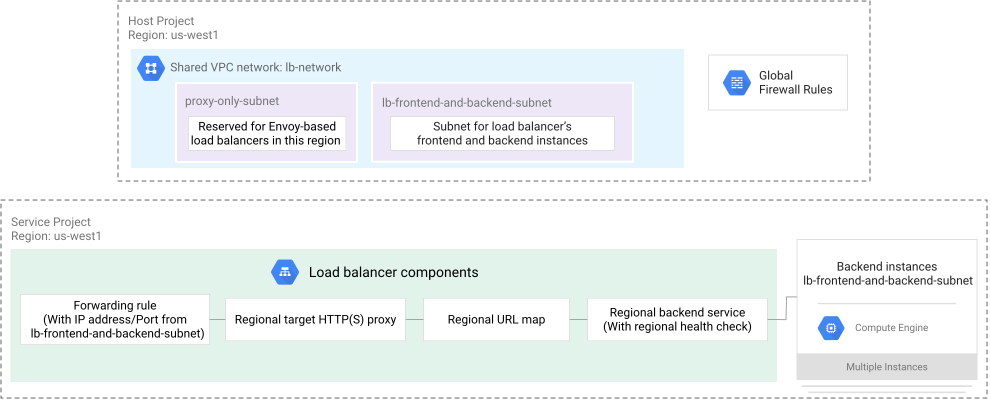](https://docs.cloud.google.com/static/load-balancing/images/reg-int-https-lb-l7-shared-vpc-example.svg) **Figure 1.** Internal Application Load Balancer on Shared VPC
This section shows you how to set up the load balancer and backends. These steps
should be carried out by the service project administrator (or a developer
operating within the service project) and do not require involvement from the
host project administrator. The steps in this section are largely similar to
the [standard steps to set up an
internal Application Load Balancer](https://docs.cloud.google.com/load-balancing/docs/l7-internal/setting-up-l7-internal).
The example on this page explicitly sets a reserved internal IP address for
the internal Application Load Balancer's forwarding rule, rather than allowing an
ephemeral internal IP address to be allocated. As a best practice, we recommend
reserving IP addresses for forwarding rules.
### Create the managed instance group backend
> [!NOTE]
> **Note:** This section shows you how to set up an internal Application Load Balancer with VM instances located in a service project. Internal Application Load Balancers also support Shared VPC with pods in a GKE cluster using [container-native load balancing with network endpoint groups
> (NEGs)](https://docs.cloud.google.com/kubernetes-engine/docs/concepts/container-native-load-balancing).
This section shows how to create a template and a managed instance group. The
managed instance group provides VM instances running the backend servers of an
example internal Application Load Balancer. Traffic from clients is load balanced to
these backend servers. For demonstration purposes, backends serve their own
hostnames.
### Console
1. Create an instance template. In the Google Cloud console, go to the
**Instance templates** page.
[Go to Instance templates](https://console.cloud.google.com/compute/instanceTemplates/list)
1. Click **Create instance template**.
2. For **Name** , enter `l7-ilb-backend-template`.
3. Ensure that the **Boot disk** is set to a Debian image, such as **Debian GNU/Linux 12 (bookworm)** . These instructions use commands that are only available on Debian, such as `apt-get`. If you need to change the **Boot disk** , click **Change** .
1. For **Operating System** , select **Debian**.
2. For **Version** , select one of the available Debian images such as **Debian GNU/Linux 12 (bookworm)**.
3. Click **Select**.
4. Click **Advanced options** , and then click **Networking**.
5. Enter the following **Network
tags** : `allow-ssh`,`load-balanced-backend`.
6. In the **Network interfaces** section, select **Networks shared with me
(from host project: HOST_PROJECT_ID)**.
7. Select the `lb-frontend-and-backend-subnet` subnet from the `lb-network` network.
8. Click **Management** . For **Management** , insert the following script into the **Startup script** field.
```
#! /bin/bash
apt-get update
apt-get install apache2 -y
a2ensite default-ssl
a2enmod ssl
vm_hostname="$(curl -H "Metadata-Flavor:Google"
http://metadata.google.internal/computeMetadata/v1/instance/name)"
echo "Page served from: $vm_hostname" |
tee /var/www/html/index.html
systemctl restart apache2
```
9. Click **Create**.
2. Create a managed instance group. In the Google Cloud console, go to the
**Instance groups** page.
[Go to Instance groups](https://console.cloud.google.com/compute/instanceGroups)
1. Click **Create instance group**.
2. Choose **New managed instance group (stateless)** . For more information, see [Stateless or stateful MIGs](https://docs.cloud.google.com/compute/docs/instance-groups/creating-groups-of-managed-instances.md.txt#stateless_or_stateful_migs).
3. For **Name** , enter `l7-ilb-backend-example`.
4. For **Location** , select **Single zone**.
5. For **Region** , select `us-west1`.
6. For **Zone** , select `us-west1-a`.
7. For **Instance template** , select `l7-ilb-backend-template`.
8. Specify the number of instances that you want to create in the group.
For this example, specify the following options for **Autoscaling**:
- For **Autoscaling mode** , select `Off:do not autoscale`.
- For **Maximum number of instances** , enter `2`.
Optionally, in the **Autoscaling** section of the UI, you can configure
the instance group to [automatically add or remove
instances](https://docs.cloud.google.com/compute/docs/autoscaler) based on instance CPU usage.
9. Click **Create**.
### gcloud
The `gcloud` instructions in this guide assume that you are using [Cloud
Shell](https://docs.cloud.google.com/shell/docs) or another environment with bash installed.
1. Create a VM instance template with an HTTP server with the
[`gcloud compute instance-templates create`](https://docs.cloud.google.com/sdk/gcloud/reference/compute/instance-templates/create.md.txt)
command.
```
gcloud compute instance-templates create l7-ilb-backend-template \
--region=us-west1 \
--network=projects/HOST_PROJECT_ID/global/networks/lb-network \
--subnet=projects/HOST_PROJECT_ID/regions/us-west1/subnetworks/lb-frontend-and-backend-subnet \
--tags=allow-ssh,load-balanced-backend \
--image-family=debian-12 \
--image-project=debian-cloud \
--metadata=startup-script='#! /bin/bash
apt-get update
apt-get install apache2 -y
a2ensite default-ssl
a2enmod ssl
vm_hostname="$(curl -H "Metadata-Flavor:Google" \
http://metadata.google.internal/computeMetadata/v1/instance/name)"
echo "Page served from: $vm_hostname" | \
tee /var/www/html/index.html
systemctl restart apache2' \
--project=SERVICE_PROJECT_ID
```
2. Create a managed instance group in the zone with the [`gcloud compute
instance-groups managed create`](https://docs.cloud.google.com/sdk/gcloud/reference/compute/instance-groups/managed/create)
command.
```
gcloud compute instance-groups managed create l7-ilb-backend-example \
--zone=us-west1-a \
--size=2 \
--template=l7-ilb-backend-template \
--project=SERVICE_PROJECT_ID
```
### Terraform
1. Create a VM instance template.
```terraform
# Instance template
resource "google_compute_instance_template" "default" {
name = "l7-ilb-backend-template"
provider = google-beta
project = "my-service-project-id"
region = "us-west1"
# For machine type, using small. For more options check https://cloud.google.com/compute/docs/machine-types
machine_type = "e2-small"
tags = ["allow-ssh", "load-balanced-backend"]
network_interface {
network = google_compute_network.lb_network.id
subnetwork = google_compute_subnetwork.lb_frontend_and_backend_subnet.id
access_config {
# add external ip to fetch packages like apache2, ssl
}
}
disk {
source_image = "debian-cloud/debian-12"
auto_delete = true
boot = true
}
# install apache2 and serve a simple web page
metadata = {
startup-script = <HOST_PROJECT_ID**).
If you see a **Proxy-only subnet required in Shared VPC network**
warning, confirm that the host project admin has created the
`proxy-only-subnet` in the `us-west1` region in the
`lb-network` Shared VPC network. Load balancer creation succeeds
even if you do not have permission to view the proxy-only subnet
on this page.
4. Keep the window open to continue.
#### Configure the backend
1. Click **Backend configuration**.
2. From the **Create or select backend services** menu, select **Create a backend service**.
3. Set the **Name** of the backend service to `l7-ilb-backend-service`.
4. Set the **Backend type** to **Instance groups**.
5. In the **Health check** list, select **Create a health check** , and then enter the following information:
1. **Name** : `l7-ilb-basic-check`
2. **Protocol** : **HTTP**
3. **Port** : `80`
6. Click **Create**.
7. In the **New backend** section:
1. Set the **Instance group** to `l7-ilb-backend-example`.
2. Set the **Port numbers** to `80`.
3. Set the **Balancing mode** to **Utilization**.
4. Click **Done**.
8. Click **Create**.
#### Configure the routing rules
- Click **Routing rules** . Ensure that the `l7-ilb-backend-service` is the only backend service for any unmatched host and any unmatched path.
For information about traffic management, see [Setting up traffic
management](https://docs.cloud.google.com/load-balancing/docs/l7-internal/setting-up-traffic-management).
#### Configure the frontend
**For HTTP:**
1. Click **Frontend configuration**.
2. Set the **Name** to `l7-ilb-forwarding-rule`.
3. Set the **Protocol** to `HTTP`.
4. Set the **Subnetwork** to `lb-frontend-and-backend-subnet`. Don't select the proxy-only subnet for the frontend even if it is an option in the list.
5. Set the **Port** to `80`.
6. Click the **IP address** menu, and then click **Create IP address**.
7. In the **Reserve a static internal IP address** panel, provide the following details:
1. For the **Name** , enter `ip-address-shared-vpc`.
2. For **Static IP address** , click **Let me choose** . For **Custom IP
address** , enter `10.1.2.99`.
3. (Optional) If you want to share this IP address with different frontends, for set **Purpose** to **Shared**.
8. Click **Done**.
**For HTTPS:**
If you are using HTTPS between the client and the load balancer,
you need one or more SSL certificate resources to configure the proxy.
For information about how to create SSL certificate resources, see
[SSL certificates](https://docs.cloud.google.com/load-balancing/docs/ssl-certificates.md.txt). Google-managed
certificates aren't currently supported with internal Application Load Balancers.
1. Click **Frontend configuration**.
2. In the **Name** field, enter `l7-ilb-forwarding-rule`.
3. In the **Protocol** field, select `HTTPS (includes HTTP/2)`.
4. Set the **Subnetwork** to `lb-frontend-and-backend-subnet`. Don't select the proxy-only subnet for the frontend even if it is an option in the list.
5. Ensure that the **Port** is set to `443` to allow HTTPS traffic.
6. Click the **IP address** menu, and then click **Create IP address**.
7. In the **Reserve a static internal IP address** panel, provide the following details:
1. For the **Name** , enter `ip-address-shared-vpc`.
2. For **Static IP address** , click **Let me choose** . For **Custom IP
address** , enter `10.1.2.99`.
3. (Optional) If you want to share this IP address with different frontends, for set **Purpose** to **Shared**.
8. Click the **Certificate** list.
1. If you already have a [self-managed SSL
certificate resource](https://docs.cloud.google.com/load-balancing/docs/ssl-certificates#certificate-types) that you want to use as the primary SSL certificate, select it from the menu.
2. Otherwise, select **Create a new certificate** .
1. Fill in a **Name** of `l7-ilb-cert`.
2. In the appropriate fields, upload your PEM-formatted files:
- **Public key certificate**
- **Certificate chain**
- **Private key**
3. Click **Create**.
9. To add certificate resources in addition to the primary SSL certificate resource:
1. Click **Add certificate**.
2. Select a certificate from the **Certificates** list or click **Create a new certificate** and follow the previous instructions.
10. Click **Done**.
#### Review and finalize the configuration
- Click **Create**.
### gcloud
1. Define the HTTP health check with the [`gcloud compute health-checks
create http`](https://docs.cloud.google.com/sdk/gcloud/reference/compute/health-checks/create/http)
command.
```
gcloud compute health-checks create http l7-ilb-basic-check \
--region=us-west1 \
--use-serving-port \
--project=SERVICE_PROJECT_ID
```
2. Define the backend service with the [`gcloud compute backend-services
create`](https://docs.cloud.google.com/sdk/gcloud/reference/compute/backend-services/create) command.
```
gcloud compute backend-services create l7-ilb-backend-service \
--load-balancing-scheme=INTERNAL_MANAGED \
--protocol=HTTP \
--health-checks=l7-ilb-basic-check \
--health-checks-region=us-west1 \
--region=us-west1 \
--project=SERVICE_PROJECT_ID
```
3. Add backends to the backend service with the [`gcloud compute backend-services
add-backend`](https://docs.cloud.google.com/sdk/gcloud/reference/compute/backend-services/add-backend) command.
```
gcloud compute backend-services add-backend l7-ilb-backend-service \
--balancing-mode=UTILIZATION \
--instance-group=l7-ilb-backend-example \
--instance-group-zone=us-west1-a \
--region=us-west1 \
--project=SERVICE_PROJECT_ID
```
4. Create the URL map with the [`gcloud compute url-maps
create`](https://docs.cloud.google.com/sdk/gcloud/reference/compute/url-maps/create) command.
```
gcloud compute url-maps create l7-ilb-map \
--default-service=l7-ilb-backend-service \
--region=us-west1 \
--project=SERVICE_PROJECT_ID
```
5. Create the target proxy.
**For HTTP:**
For an internal HTTP load balancer, create the target proxy
with the [`gcloud compute target-http-proxies
create`](https://docs.cloud.google.com/sdk/gcloud/reference/compute/target-http-proxies/create) command.
```
gcloud compute target-http-proxies create l7-ilb-proxy \
--url-map=l7-ilb-map \
--url-map-region=us-west1 \
--region=us-west1 \
--project=SERVICE_PROJECT_ID
```
**For HTTPS:**
For information about how to create SSL certificate resources, see
[SSL certificates](https://docs.cloud.google.com/load-balancing/docs/ssl-certificates.md.txt). Google-managed
certificates aren't currently supported with internal Application Load Balancers.
Assign your filepaths to variable names.
```
export LB_CERT=path to PEM-formatted file
```
```
export LB_PRIVATE_KEY=path to PEM-formatted file
```
Create a regional SSL certificate using the [`gcloud compute
ssl-certificates
create`](https://docs.cloud.google.com/sdk/gcloud/reference/compute/ssl-certificates/create) command.
```
gcloud compute ssl-certificates create l7-ilb-cert \
--certificate=$LB_CERT \
--private-key=$LB_PRIVATE_KEY \
--region=us-west1
```
Use the regional SSL certificate to create a target proxy with the [`gcloud
compute target-https-proxies
create`](https://docs.cloud.google.com/sdk/gcloud/reference/compute/target-https-proxies/create)
command.
```
gcloud compute target-https-proxies create l7-ilb-proxy \
--url-map=l7-ilb-map \
--region=us-west1 \
--ssl-certificates=l7-ilb-cert \
--project=SERVICE_PROJECT_ID
```
6. Create the forwarding rule.
For custom networks, you must reference the subnet in the forwarding rule.
For the forwarding rule's IP address, use the `lb-frontend-and-backend-subnet`. If you try
to use the [proxy-only subnet](https://docs.cloud.google.com/load-balancing/docs/proxy-only-subnets.md.txt),
forwarding rule creation fails.
**For HTTP:**
Use the [`gcloud compute forwarding-rules
create`](https://docs.cloud.google.com/sdk/gcloud/reference/compute/forwarding-rules/create) command
with the correct flags.
```
gcloud compute forwarding-rules create l7-ilb-forwarding-rule \
--load-balancing-scheme=INTERNAL_MANAGED \
--network=projects/HOST_PROJECT_ID/global/networks/lb-network \
--subnet=projects/HOST_PROJECT_ID/regions/us-west1/subnetworks/lb-frontend-and-backend-subnet \
--address=IP_ADDRESS_NAME \
--ports=80 \
--region=us-west1 \
--target-http-proxy=l7-ilb-proxy \
--target-http-proxy-region=us-west1 \
--project=SERVICE_PROJECT_ID
```
**For HTTPS:**
Use the [`gcloud compute forwarding-rules
create`](https://docs.cloud.google.com/sdk/gcloud/reference/compute/forwarding-rules/create) command
with the correct flags.
```
gcloud compute forwarding-rules create l7-ilb-forwarding-rule \
--load-balancing-scheme=INTERNAL_MANAGED \
--network=projects/HOST_PROJECT_ID/global/networks/lb-network \
--subnet=projects/HOST_PROJECT_ID/regions/us-west1/subnetworks/lb-frontend-and-backend-subnet \
--address=IP_ADDRESS_NAME \
--ports=443 \
--region=us-west1 \
--target-https-proxy=l7-ilb-proxy \
--target-https-proxy-region=us-west1 \
--project=SERVICE_PROJECT_ID
```
### Terraform
1. Define the HTTP health check.
**For HTTP:**
```terraform
# health check
resource "google_compute_health_check" "default" {
name = "l7-ilb-basic-check"
provider = google-beta
project = "my-service-project-id"
timeout_sec = 1
check_interval_sec = 1
http_health_check {
port = "80"
}
}
```
**For HTTPS:**
```terraform
# health check
resource "google_compute_health_check" "default" {
name = "l7-ilb-basic-check"
provider = google-beta
project = "my-service-project-id"
timeout_sec = 1
check_interval_sec = 1
https_health_check {
port = "443"
}
}
```
2. Define the backend service.
```terraform
# backend service
resource "google_compute_region_backend_service" "default" {
name = "l7-ilb-backend-service"
provider = google-beta
project = "my-service-project-id"
region = "us-west1"
protocol = "HTTP"
load_balancing_scheme = "INTERNAL_MANAGED"
timeout_sec = 10
health_checks = [google_compute_health_check.default.id]
backend {
group = google_compute_instance_group_manager.default.instance_group
balancing_mode = "UTILIZATION"
capacity_scaler = 1.0
}
}
```
3. Create the URL map.
```terraform
# URL map
resource "google_compute_region_url_map" "default" {
name = "l7-ilb-map"
provider = google-beta
project = "my-service-project-id"
region = "us-west1"
default_service = google_compute_region_backend_service.default.id
}
```
4. Create the target proxy.
**For HTTP:**
```terraform
# HTTP target proxy
resource "google_compute_region_target_http_proxy" "default" {
name = "l7-ilb-proxy"
provider = google-beta
project = "my-service-project-id"
region = "us-west1"
url_map = google_compute_region_url_map.default.id
}
```
**For HTTPS:**
Create a regional SSL certificate
For information about how to create SSL certificate resources, see
[SSL certificates](https://docs.cloud.google.com/load-balancing/docs/ssl-certificates.md.txt). Google-managed
certificates aren't currently supported with internal Application Load Balancers.
```terraform
# Use self-signed SSL certificate
resource "google_compute_region_ssl_certificate" "default" {
name = "l7-ilb-cert"
provider = google-beta
project = "my-service-project-id"
region = "us-west1"
private_key = file("sample-private.key") # path to PEM-formatted file
certificate = file("sample-server.cert") # path to PEM-formatted file
}
```
Use the regional SSL certificate to create a target proxy
```terraform
# HTTPS target proxy
resource "google_compute_region_target_https_proxy" "default" {
name = "l7-ilb-proxy"
provider = google-beta
project = "my-service-project-id"
region = "us-west1"
url_map = google_compute_region_url_map.default.id
ssl_certificates = [google_compute_region_ssl_certificate.default.id]
}
```
5. Create the forwarding rule.
For custom networks, you must reference the subnet in the forwarding rule.
**For HTTP:**
```terraform
# Forwarding rule
resource "google_compute_forwarding_rule" "default" {
name = "l7-ilb-forwarding-rule"
provider = google-beta
project = "my-service-project-id"
region = "us-west1"
ip_protocol = "TCP"
port_range = "80"
load_balancing_scheme = "INTERNAL_MANAGED"
target = google_compute_region_target_http_proxy.default.id
network = google_compute_network.lb_network.id
subnetwork = google_compute_subnetwork.lb_frontend_and_backend_subnet.id
network_tier = "PREMIUM"
depends_on = [google_compute_subnetwork.lb_frontend_and_backend_subnet]
}
```
**For HTTPS:**
```terraform
# Forwarding rule
resource "google_compute_forwarding_rule" "default" {
name = "l7-ilb-forwarding-rule"
provider = google-beta
project = "my-service-project-id"
region = "us-west1"
ip_protocol = "TCP"
port_range = "443"
load_balancing_scheme = "INTERNAL_MANAGED"
target = google_compute_region_target_https_proxy.default.id
network = google_compute_network.lb_network.id
subnetwork = google_compute_subnetwork.lb_frontend_and_backend_subnet.id
network_tier = "PREMIUM"
depends_on = [google_compute_subnetwork.lb_frontend_and_backend_subnet]
}
```
### Test the load balancer
To test the load balancer, first create a sample client VM. Then establish an
SSH session with the VM and send traffic from this VM to the load balancer.
#### Create a test VM instance
Clients can be located in either the host project or any connected service
project. In this example, you test that the load balancer is working by
deploying a client VM in a service project. The client must use the same
Shared VPC network and be in the same region as the load balancer.
### Console
1. In the Google Cloud console, go to the **VM instances** page.
[Go to VM instances](https://console.cloud.google.com/compute/instances)
2. Click **Create instance**.
3. Set the **Name** to `client-vm`.
4. Set the **Zone** to **us-west1-a**.
5. Click **Advanced options** , and then click **Networking**.
6. Enter the following **Network
tags** : `allow-ssh`,`load-balanced-backend`.
7. In the **Network interfaces** section,
select **Networks shared with me
(from host project: HOST_PROJECT_ID)**.
8. Select the `lb-frontend-and-backend-subnet` subnet from the
`lb-network` network.
9. Click **Create**.
### gcloud
Create a test VM instance.
```
gcloud compute instances create client-vm \
--image-family=debian-12 \
--image-project=debian-cloud \
--subnet=projects/HOST_PROJECT_ID/regions/us-west1/subnetworks/lb-frontend-and-backend-subnet \
--zone=us-west1-a \
--tags=allow-ssh \
--project=SERVICE_PROJECT_ID
```
### Terraform
Create a test VM instance.
```terraform
resource "google_compute_instance" "vm_test" {
name = "client-vm"
provider = google-beta
project = "my-service-project-id"
zone = "us-west1-a"
machine_type = "e2-small"
tags = ["allow-ssh"]
network_interface {
network = google_compute_network.lb_network.id
subnetwork = google_compute_subnetwork.lb_frontend_and_backend_subnet.id
}
boot_disk {
initialize_params {
image = "debian-cloud/debian-12"
}
}
lifecycle {
ignore_changes = [
metadata["ssh-keys"]
]
}
}
```
#### Send traffic to the load balancer
Use SSH to connect to the instance that you just created and test that HTTP(S)
services on the backends are reachable through the internal Application Load Balancer's forwarding
rule IP address and that traffic is being load balanced across the backend
instances.
1. Connect to the client instance with SSH.
```
gcloud compute ssh client-vm \
--zone=us-west1-a
```
2. Verify that the IP address is serving its hostname. Replace
LB_IP_ADDRESS with the load balancer's IP address.
```
curl LB_IP_ADDRESS
```
For HTTPS testing, replace `curl` with the following:
```
curl -k -s 'https://LB_IP_ADDRESS:443'
```
The `-k` flag causes curl to skip certificate validation.
## Configure a load balancer with a cross-project backend service
The previous example on this page shows you how to set up a Shared VPC
deployment where all the load balancer components and its backends are created
in the service project.
Internal Application Load Balancers also let you configure Shared VPC
deployments where a URL map in one host or service project can reference backend
services (and backends) located across multiple service projects in
Shared VPC environments. This is referred to as [cross-project
service referencing](https://docs.cloud.google.com/load-balancing/docs/l7-internal#cross-project).
You can use the steps in this section as a reference to configure any of
the supported combinations listed here:
- Forwarding rule, target proxy, and URL map in the host project, and backend service in a service project
- Forwarding rule, target proxy, and URL map in a service project, and backend service in another service project
Cross-project service referencing can be used with instance groups, serverless
NEGs, or any other supported backend types. If you're using serverless NEGs,
you need to create a VM in the VPC network where you
intend to create the load balancer's frontend. For an example, see
[Create a VM instance in a specific subnet](https://docs.cloud.google.com/load-balancing/docs/l7-internal/setting-up-l7-internal-serverless.md.txt#create-vm-instance)
in *Set up an internal Application Load Balancer with Cloud Run*.
### Set up requirements
This example configures a sample load balancer with its frontend and backend
in two different service projects.
If you haven't already done so, you must complete all of the prerequisite steps
to set up Shared VPC and configure the network, subnets, and firewall
rules required for this example. For instructions, see the following:
- [Permissions](https://docs.cloud.google.com/load-balancing/docs/l7-internal/l7-internal-shared-vpc.md.txt#shared-vpc-permissions)
- [Prerequisites](https://docs.cloud.google.com/load-balancing/docs/l7-internal/l7-internal-shared-vpc.md.txt#prerequisites)
[](https://docs.cloud.google.com/static/load-balancing/images/reg-int-https-lb-l7-shared-vpc-service-lb.svg) **Figure 2.** Load balancer frontend and backend in different service projects
### Create the backends and backend service in service project B
*All the steps in this section must be performed in service project B.*
### Console
1. Create an instance template. In the Google Cloud console, go to the
**Instance templates** page.
[Go to Instance templates](https://console.cloud.google.com/compute/instanceTemplates/list)
1. Click **Create instance template**.
2. Enter a **Name** for the instance template: `cross-ref-backend-template`.
3. Ensure that the **Boot disk** is set to a Debian image, such as **Debian GNU/Linux 12 (bookworm)** . These instructions use commands that are only available on Debian, such as `apt-get`. If you need to change the **Boot disk** , click **Change** .
1. For **Operating System** , select **Debian**.
2. For **Version** , select one of the available Debian images such as **Debian GNU/Linux 12 (bookworm)**.
3. Click **Select**.
4. Click **Advanced options** , and then click **Networking**.
5. Enter the following **Network
tags** : `allow-ssh`,`load-balanced-backend`.
6. In the **Network interfaces** section, select **Networks shared with me
(from host project: HOST_PROJECT_ID)**.
7. Select the `lb-frontend-and-backend-subnet` subnet from the `lb-network` network.
8. Click **Management** . For **Management** , insert the following script into the **Startup script** field.
```
#! /bin/bash
apt-get update
apt-get install apache2 -y
a2ensite default-ssl
a2enmod ssl
vm_hostname="$(curl -H "Metadata-Flavor:Google"
http://metadata.google.internal/computeMetadata/v1/instance/name)"
echo "Page served from: $vm_hostname" |
tee /var/www/html/index.html
systemctl restart apache2
```
9. Click **Create**.
2. Create a managed instance group. In the Google Cloud console, go to the
**Instance groups** page.
[Go to Instance groups](https://console.cloud.google.com/compute/instanceGroups)
1. Click **Create instance group**.
2. Choose **New managed instance group (stateless)** . For more information, see [Stateless or stateful MIGs](https://docs.cloud.google.com/compute/docs/instance-groups/creating-groups-of-managed-instances.md.txt#stateless_or_stateful_migs).
3. Enter a **Name** for the instance group: `cross-ref-ig-backend`.
4. For **Location** , select **Single zone**.
5. For **Region** , select `us-west1`.
6. For **Zone** , select `us-west1-a`.
7. For **Instance template** , select **cross-ref-backend-template**.
8. Specify the number of instances that you want to create in the group.
For this example, specify the following options for **Autoscaling**:
- For **Autoscaling mode** , select `Off:do not autoscale`.
- For **Maximum number of instances** , enter `2`.
Optionally, in the **Autoscaling** section of the UI, you can configure
the instance group to [automatically add or remove
instances](https://docs.cloud.google.com/compute/docs/autoscaler) based on instance CPU usage.
9. Click **Create**.
3. Create a regional backend service. As a part of this step we'll also
create the health check and add backends to the backend service.
In the Google Cloud console, go to the **Backends** page.
[Go to Backends](https://console.cloud.google.com/loadbalancing/list/backends)
1. Click **Create regional backend service**.
2. Enter a **Name** for the backend service: `cross-ref-backend-service`.
3. For **Region** , select **us-west1**.
4. For **Load balancer type** , select **Regional internal Application Load Balancer (INTERNAL_MANAGED)**.
5. Set **Backend type** to **Instance groups**.
6. In the **Health check** list, click **Create a health check** , and then enter the following information:
1. **Name** : `cross-ref-http-health-check`
2. **Protocol** : **HTTP**
3. **Port** : `80`
7. Click **Create**.
8. In the **Backends** section, set **Network** to **lb-network**.
9. Click **Add backend** and set the following fields:
1. Set **Instance group** to **cross-ref-ig-backend**.
2. Enter the **Port numbers** : `80`.
3. Set **Balancing mode** to **Utilization**.
4. Click **Done**.
10. Click **Continue**.
11. Optional: In the **Add permissions** section, enter the
IAM principals (typically an email address) of Load
Balancer Admins from other projects so that they can use this backend
service for load balancers in their own projects. Without this
permission, you cannot use cross-project service referencing.
If you don't have permission to set access control policies for
backend services in this project, you can still create the backend
service now, and an authorized user can perform this step later as
described in the section, [Grant permissions to the Load Balancer
Admin to use the backend service](https://docs.cloud.google.com/load-balancing/docs/l7-internal/l7-internal-shared-vpc#grant-bs-user). That section also
describes how to grant access to all the backend services in this
project, so that you don't have to grant access every time you create
a new backend service.
12. Click **Create**.
### gcloud
1. Create a VM instance template with an HTTP server with the [`gcloud compute
instance-templates
create`](https://docs.cloud.google.com/sdk/gcloud/reference/compute/instance-templates/create) command.
```
gcloud compute instance-templates create BACKEND_IG_TEMPLATE \
--region=us-west1 \
--network=projects/HOST_PROJECT_ID/global/networks/lb-network \
--subnet=projects/HOST_PROJECT_ID/regions/us-west1/subnetworks/lb-frontend-and-backend-subnet \
--tags=allow-ssh,load-balanced-backend \
--image-family=debian-12 \
--image-project=debian-cloud \
--metadata=startup-script='#! /bin/bash
apt-get update
apt-get install apache2 -y
a2ensite default-ssl
a2enmod ssl
vm_hostname="$(curl -H "Metadata-Flavor:Google" \
http://metadata.google.internal/computeMetadata/v1/instance/name)"
echo "Page served from: $vm_hostname" | \
tee /var/www/html/index.html
systemctl restart apache2' \
--project=SERVICE_PROJECT_B_ID
```
Replace the following:
- `BACKEND_IG_TEMPLATE`: the name for the instance group template.
- `SERVICE_PROJECT_B_ID`: the project ID for service project B, where the load balancer's backends and the backend service are being created.
- `HOST_PROJECT_ID`: the project ID for the Shared VPC host project.
2. Create a managed instance group in the zone with the [`gcloud compute
instance-groups managed
create`](https://docs.cloud.google.com/sdk/gcloud/reference/compute/instance-groups/managed/create)
command.
```
gcloud compute instance-groups managed create BACKEND_MIG \
--zone=us-west1-a \
--size=2 \
--template=BACKEND_IG_TEMPLATE \
--project=SERVICE_PROJECT_B_ID
```
Replace the following:
- `BACKEND_MIG`: the name for the backend instance group.
3. Define the HTTP health check with the [`gcloud compute health-checks
create http`](https://docs.cloud.google.com/sdk/gcloud/reference/compute/health-checks/create/http)
command.
```
gcloud compute health-checks create http HTTP_HEALTH_CHECK_NAME \
--region=us-west1 \
--use-serving-port \
--project=SERVICE_PROJECT_B_ID
```
Replace the following:
- `HTTP_HEALTH_CHECK_NAME`: the name for the HTTP health check.
4. Define the backend service with the [`gcloud compute backend-services
create`](https://docs.cloud.google.com/sdk/gcloud/reference/compute/backend-services/create) command.
```
gcloud compute backend-services create BACKEND_SERVICE_NAME \
--load-balancing-scheme=INTERNAL_MANAGED \
--protocol=HTTP \
--health-checks=HTTP_HEALTH_CHECK_NAME \
--health-checks-region=us-west1 \
--region=us-west1 \
--project=SERVICE_PROJECT_B_ID
```
Replace the following:
- `BACKEND_SERVICE_NAME`: the name for the backend service created in service project B.
5. Add backends to the backend service with the [`gcloud compute
backend-services
add-backend`](https://docs.cloud.google.com/sdk/gcloud/reference/compute/backend-services/add-backend)
command.
```
gcloud compute backend-services add-backend BACKEND_SERVICE_NAME \
--balancing-mode=UTILIZATION \
--instance-group=BACKEND_MIG \
--instance-group-zone=us-west1-a \
--region=us-west1 \
--project=SERVICE_PROJECT_B_ID
```
### Terraform
1. Create an instance template.
```terraform
# Instance template
resource "google_compute_instance_template" "default" {
name = "l7-ilb-backend-template"
provider = google-beta
project = "my-service-project-b-id"
region = "us-west1"
# For machine type, using small. For more options check https://cloud.google.com/compute/docs/machine-types
machine_type = "e2-small"
tags = ["allow-ssh", "load-balanced-backend"]
network_interface {
network = google_compute_network.lb_network.id
subnetwork = google_compute_subnetwork.lb_frontend_and_backend_subnet.id
access_config {
# add external ip to fetch packages like apache2, ssl
}
}
disk {
source_image = "debian-cloud/debian-12"
auto_delete = true
boot = true
}
# install apache2 and serve a simple web page
metadata = {
startup-script = <HOST_PROJECT_NAME**).
If you see a **Proxy-only subnet required in Shared VPC network**
warning, confirm that the host project admin has created the
`proxy-only-subnet` in the `us-west1` region in the
`lb-network` Shared VPC network. Load balancer creation succeeds
even if you do not have permission to view the proxy-only subnet
on this page.
4. Keep the window open to continue.
#### Configure the backend
1. Click **Backend configuration**.
2. Click **Cross-project backend services**.
3. For **Project ID** , enter the [project
ID](https://docs.cloud.google.com/resource-manager/docs/creating-managing-projects#identifying_projects) for service project B.
4. From the **Select backend services** list, select the backend services from service project B that you want to use. For this example, you enter `cross-ref-backend-service`.
5. Click **OK**.
#### Configure the routing rules
- Click **Routing rules** . Ensure that the **cross-ref-backend-service** is the only backend service for any unmatched host and any unmatched path.
For information about traffic management, see [Setting up traffic
management](https://docs.cloud.google.com/load-balancing/docs/l7-internal/setting-up-traffic-management).
#### Configure the frontend
For cross-project service referencing to work, the frontend must use
the same network (`lb-network`) from the Shared VPC host project
that was used to create the backend service.
**For HTTP:**
1. Click **Frontend configuration**.
2. Enter a **Name** for the forwarding rule: `cross-ref-http-forwarding-rule`.
3. Set the **Protocol** to `HTTP`.
4. Set the **Subnetwork** to `lb-frontend-and-backend-subnet`. Don't select the proxy-only subnet for the frontend even if it is an option in the list.
5. Set the **Port** to `80`.
6. Click the **IP address** menu, and then click **Create IP address**.
7. In the **Reserve a static internal IP address** panel, provide the following details:
1. For the **Name** , enter `cross-ref-ip-address`.
2. For **Static IP address** , click **Let me choose** . For **Custom IP
address** , enter `10.1.2.98`.
3. (Optional) If you want to share this IP address with different frontends, for set **Purpose** to **Shared**.
8. Click **Done**.
**For HTTPS:**
If you are using HTTPS between the client and the load balancer,
you need one or more SSL certificate resources to configure the proxy.
For information about how to create SSL certificate resources, see
[SSL certificates](https://docs.cloud.google.com/load-balancing/docs/ssl-certificates.md.txt). Google-managed
certificates aren't currently supported with internal Application Load Balancers.
1. Click **Frontend configuration**.
2. Enter a **Name** for the forwarding rule: `cross-ref-https-forwarding-rule`.
3. In the **Protocol** field, select `HTTPS (includes HTTP/2)`.
4. Set the **Subnetwork** to `lb-frontend-and-backend-subnet`. Don't select the proxy-only subnet for the frontend even if it is an option in the list.
5. Ensure that the **Port** is set to `443` to allow HTTPS traffic.
6. Click the **IP address** menu, and then click **Create IP address**.
7. In the **Reserve a static internal IP address** panel, provide the following details:
1. For the **Name** , enter `cross-ref-ip-address`.
2. For **Static IP address** , click **Let me choose** . For **Custom IP
address** , enter `10.1.2.98`.
3. (Optional) If you want to share this IP address with different frontends, for set **Purpose** to **Shared**.
8. Click the **Certificate** list.
1. If you already have a [self-managed SSL
certificate resource](https://docs.cloud.google.com/load-balancing/docs/ssl-certificates#certificate-types) you want to use as the primary SSL certificate, select it from the menu.
2. Otherwise, select **Create a new certificate** .
1. Enter a **Name** for the SSL certificate.
2. In the appropriate fields, upload your PEM-formatted files:
- **Public key certificate**
- **Certificate chain**
- **Private key**
3. Click **Create**.
9. To add certificate resources in addition to the primary SSL certificate resource:
1. Click **Add certificate**.
2. Select a certificate from the **Certificates** list or click **Create a new certificate** and follow the previous instructions.
10. Click **Done**.
### Review and finalize the configuration
- Click **Create**.
#### Test the load balancer
After the load balancer is created, test the load balancer by using the
steps described in [Test the load balancer](https://docs.cloud.google.com/load-balancing/docs/l7-internal/l7-internal-shared-vpc.md.txt#test-lb).
### gcloud
1. Optional: Before creating a load balancer with cross-referencing backend services, find out whether the backend services you want to refer to can be referenced using a URL map:
```
gcloud compute backend-services list-usable \
--region=us-west1 \
--project=SERVICE_PROJECT_B_ID
```
2. Create the URL map and set the default service to the backend service
created in service project B.
```
gcloud compute url-maps create URL_MAP_NAME \
--default-service=projects/SERVICE_PROJECT_B_ID/regions/us-west1/backendServices/BACKEND_SERVICE_NAME \
--region=us-west1 \
--project=SERVICE_PROJECT_A_ID
```
Replace the following:
- `URL_MAP_NAME`: the name for the URL map.
- `BACKEND_SERVICE_NAME`: the name for the backend service created in service project B.
- `SERVICE_PROJECT_B_ID`: the project ID for service project B, where the load balancer's backends and the backend service are created.
- `SERVICE_PROJECT_A_ID`: the project ID for service project A, where the load balancer's frontend is being created.
URL map creation fails if you don't have the [`compute.backendServices.use`
permission for the backend service](https://docs.cloud.google.com/load-balancing/docs/l7-internal/l7-internal-shared-vpc#grant-bs-user) in
service project B.
3. Create the target proxy.
**For HTTP:**
```
gcloud compute target-http-proxies create HTTP_TARGET_PROXY_NAME \
--url-map=URL_MAP_NAME \
--url-map-region=us-west1 \
--region=us-west1 \
--project=SERVICE_PROJECT_A_ID
```
Replace the following:
- `HTTP_TARGET_PROXY_NAME`: the name for the target HTTP proxy.
**For HTTPS:**
Create a regional SSL certificate using the [`gcloud compute
ssl-certificates
create`](https://docs.cloud.google.com/sdk/gcloud/reference/compute/ssl-certificates/create) command.
```
gcloud compute ssl-certificates create SSL_CERTIFICATE_NAME \
--certificate=PATH_TO_CERTIFICATE \
--private-key=PATH_TO_PRIVATE_KEY \
--region=us-west1 \
--project=SERVICE_PROJECT_A_ID
```
Replace the following:
- `SSL_CERTIFICATE_NAME`: the name for the SSL certificate resource.
- `PATH_TO_CERTIFICATE`: the path to the local SSL certificate file in PEM format.
- `PATH_TO_PRIVATE_KEY`: the path to the local SSL certificate private key in PEM format.
Use the regional SSL certificate to create a target proxy with the [`gcloud
compute target-https-proxies
create`](https://docs.cloud.google.com/sdk/gcloud/reference/compute/target-https-proxies/create)
command.
```
gcloud compute target-https-proxies create HTTPS_TARGET_PROXY_NAME \
--url-map=URL_MAP_NAME \
--region=us-west1 \
--ssl-certificates=SSL_CERTIFICATE_NAME \
--project=SERVICE_PROJECT_A_ID
```
Replace the following:
- `HTTPS_TARGET_PROXY_NAME`: the name for the target HTTPS proxy.
4. Create the forwarding rule. For cross-project service referencing to
work, the forwarding rule must use the same network (`lb-network`) from
the Shared VPC host project that was used to create the backend
service.
**For HTTP:**
```
gcloud compute forwarding-rules create HTTP_FORWARDING_RULE_NAME \
--load-balancing-scheme=INTERNAL_MANAGED \
--network=projects/HOST_PROJECT_ID/global/networks/lb-network \
--subnet=projects/HOST_PROJECT_ID/regions/us-west1/subnetworks/lb-frontend-and-backend-subnet \
--address=IP_ADDRESS_CROSS_REF \
--ports=80 \
--region=us-west1 \
--target-http-proxy=HTTP_TARGET_PROXY_NAME \
--target-http-proxy-region=us-west1 \
--project=SERVICE_PROJECT_A_ID
```
Replace the following:
- `HTTP_FORWARDING_RULE_NAME`: the name for the forwarding rule that is used to handle HTTP traffic.
**For HTTPS:**
```
gcloud compute forwarding-rules create HTTPS_FORWARDING_RULE_NAME \
--load-balancing-scheme=INTERNAL_MANAGED \
--network=projects/HOST_PROJECT_ID/global/networks/lb-network \
--subnet=projects/HOST_PROJECT_ID/regions/us-west1/subnetworks/lb-frontend-and-backend-subnet \
--address=IP_ADDRESS_CROSS_REF \
--ports=443 \
--region=us-west1 \
--target-https-proxy=HTTPS_TARGET_PROXY_NAME \
--target-https-proxy-region=us-west1 \
--project=SERVICE_PROJECT_A_ID
```
Replace the following:
- `HTTPS_FORWARDING_RULE_NAME`: the name for the forwarding rule that is used to handle HTTPS traffic.
5. To test the load balancer, use the steps described in [Test the load
balancer](https://docs.cloud.google.com/load-balancing/docs/l7-internal/l7-internal-shared-vpc#test-lb).
### Terraform
1. Create the URL map.
```terraform
# URL map
resource "google_compute_region_url_map" "default" {
name = "l7-ilb-map"
provider = google-beta
project = "my-service-project-a-id"
region = "us-west1"
default_service = google_compute_region_backend_service.default.id
}
```
2. Create the target proxy.
**For HTTP**
```terraform
# HTTP target proxy
resource "google_compute_region_target_http_proxy" "default" {
name = "l7-ilb-proxy"
provider = google-beta
project = "my-service-project-a-id"
region = "us-west1"
url_map = google_compute_region_url_map.default.id
}
```
**For HTTPS**
Create a regional SSL certificate
```terraform
# Use self-signed SSL certificate
resource "google_compute_region_ssl_certificate" "default" {
name = "l7-ilb-cert"
provider = google-beta
project = "my-service-project-a-id"
region = "us-west1"
private_key = file("sample-private.key") # path to PEM-formatted file
certificate = file("sample-server.cert") # path to PEM-formatted file
}
```
Use the regional SSL certificate to create a target proxy
```terraform
# HTTPS target proxy
resource "google_compute_region_target_https_proxy" "default" {
name = "l7-ilb-proxy"
provider = google-beta
project = "my-service-project-a-id"
region = "us-west1"
url_map = google_compute_region_url_map.default.id
ssl_certificates = [google_compute_region_ssl_certificate.default.id]
}
```
3. Create the forwarding rule.
**For HTTP**
```terraform
# Forwarding rule
resource "google_compute_forwarding_rule" "default" {
name = "l7-ilb-forwarding-rule"
provider = google-beta
project = "my-service-project-a-id"
region = "us-west1"
ip_protocol = "TCP"
port_range = "80"
load_balancing_scheme = "INTERNAL_MANAGED"
target = google_compute_region_target_http_proxy.default.id
network = google_compute_network.lb_network.id
subnetwork = google_compute_subnetwork.lb_frontend_and_backend_subnet.id
network_tier = "PREMIUM"
depends_on = [google_compute_subnetwork.lb_frontend_and_backend_subnet]
}
```
**For HTTPS**
```terraform
# Forwarding rule
resource "google_compute_forwarding_rule" "default" {
name = "l7-ilb-forwarding-rule"
provider = google-beta
project = "my-service-project-a-id"
region = "us-west1"
ip_protocol = "TCP"
port_range = "443"
load_balancing_scheme = "INTERNAL_MANAGED"
target = google_compute_region_target_https_proxy.default.id
network = google_compute_network.lb_network.id
subnetwork = google_compute_subnetwork.lb_frontend_and_backend_subnet.id
network_tier = "PREMIUM"
depends_on = [google_compute_subnetwork.lb_frontend_and_backend_subnet]
}
```
4. To test the load balancer, use the steps described in [Test the load
balancer](https://docs.cloud.google.com/load-balancing/docs/l7-internal/l7-internal-shared-vpc#test-lb).
### Grant permissions to the Load Balancer Admin to use the backend service
If you want load balancers to reference backend services in other service
projects, the Load Balancer Admin must have the `compute.backendServices.use`
permission. To grant this permission, you can use the predefined
IAM role called
Compute Load Balancer Services User (`roles/compute.loadBalancerServiceUser`).
This role must be granted by the Service Project Admin and can be applied at
the project level or at the individual backend service level.
This step is *not required* if you already granted the required permissions
at the backend service level while [creating the backend
service](https://docs.cloud.google.com/load-balancing/docs/l7-internal/l7-internal-shared-vpc#create-cross-project-bs). You can either skip this section or continue
reading to learn how to grant access to all the backend services in this
project so that you don't have to grant access every time you create a new
backend service.
In this example, a Service Project Admin from service project B must run *one*
of the following commands to grant the `compute.backendServices.use` permission
to a Load Balancer Admin from service project A. This can be done either at the
project level (for all backend services in the project) or per backend service.
### Console
#### Project-level permissions
Use the following steps to grant permissions to all backend services in
your project.
You require the `compute.regionBackendServices.setIamPolicy` and the
`resourcemanager.projects.setIamPolicy` permissions to complete this step.
1. In the Google Cloud console, go to the **IAM** page.
[Go to IAM](https://console.cloud.google.com/projectselector/iam-admin/iam?supportedpurview)
2. Select your project.
3. Click **Grant
access**.
4. In the **New principals** field, enter the principal's email address or
other identifier.
5. In the **Select a role** list, select the **Compute Load Balancer
Services User**.
6. Optional: Add a [condition](https://docs.cloud.google.com/iam/docs/conditions-overview.md.txt) to the role.
7. Click **Save**.
#### Resource-level permissions for individual backend services
Use the following steps to grant permissions to individual backend
services in your project.
You require the `compute.regionBackendServices.setIamPolicy` permission to
complete this step.
1. In the Google Cloud console, go to the **Backends** page.
[Go to Backends](https://console.cloud.google.com/loadbalancing/list/backends)
2. From the backends list, select the backend service that you want to
grant access to and click
**Permissions**.
3. Click **Add principal**.
4. In the **New principals** field, enter the principal's email address or
other identifier.
5. In the **Select a role** list, select the **Compute Load Balancer
Services User**.
6. Click **Save**.
### gcloud
#### Project-level permissions
Use the following steps to grant permissions to all backend services in
your project.
You require the `compute.regionBackendServices.setIamPolicy` and the
`resourcemanager.projects.setIamPolicy` permissions to complete this step.
```
gcloud projects add-iam-policy-binding SERVICE_PROJECT_B_ID \
--member="user:LOAD_BALANCER_ADMIN" \
--role="roles/compute.loadBalancerServiceUser"
```
#### Resource-level permissions for individual backend services
At the backend service level, Service Project Admins can use *either of the
following commands* to grant the Compute Load Balancer Services User role
(`roles/compute.loadBalancerServiceUser`).
You require the `compute.regionBackendServices.setIamPolicy` permission to
complete this step.
```
gcloud projects add-iam-policy-binding SERVICE_PROJECT_B_ID \
--member="user:LOAD_BALANCER_ADMIN" \
--role="roles/compute.loadBalancerServiceUser" \
--condition='expression=resource.name=="projects/SERVICE_PROJECT_B_ID/regions/us-west1/backend-services/BACKEND_SERVICE_NAME",title=Shared VPC condition'
```
or
```
gcloud compute backend-services add-iam-policy-binding BACKEND_SERVICE_NAME \
--member="user:LOAD_BALANCER_ADMIN" \
--role="roles/compute.loadBalancerServiceUser" \
--project=SERVICE_PROJECT_B_ID \
--region=us-west1
```
To use these commands, replace `LOAD_BALANCER_ADMIN` with the
user's [principal](https://docs.cloud.google.com/sdk/gcloud/reference/projects/add-iam-policy-binding#--member)---for
example, `test-user@gmail.com`.
You can also configure IAM permissions so that they only apply
to a subset of regional backend services by using conditions and
specifying [condition attributes](https://docs.cloud.google.com/iam/docs/conditions-overview.md.txt#attributes).
To see URL maps referencing a particular Shared VPC backend service,
follow these steps:
### gcloud
To see resources referencing a
regional Shared VPC backend service, run the following command:
```
gcloud compute backend-services describe BACKEND_SERVICE_NAME \
--region REGION
```
Replace the following:
- `BACKEND_SERVICE_NAME`: the name of the load balancer backend service
- `REGION`: the region of the load balancer
In the command output, review the `usedBy` field, which displays the
resources referencing the backend service, as shown in the following
example:
```
id: '123456789'
kind: compute#backendService
loadBalancingScheme: INTERNAL_MANAGED
...
usedBy:
- reference: https://www.googleapis.com/compute/v1/projects/my-project/region/us-central1/urlMaps/my-url-map
```
## What's next
- You can restrict how Shared VPC features such as cross-project service referencing are used in your project by using organization policy constraints. For more information, see [Organization policy constraints for
Cloud Load Balancing](https://docs.cloud.google.com/load-balancing/docs/org-policy-constraints).
- To manage the proxy-only subnet resource required by internal Application Load Balancers, see [Proxy-only subnet for
internal Application Load Balancers](https://docs.cloud.google.com/load-balancing/docs/proxy-only-subnets).
- To see how to troubleshoot issues with an internal Application Load Balancer, see [Troubleshoot internal Application Load Balancers](https://docs.cloud.google.com/load-balancing/docs/l7-internal/troubleshooting-l7-ilb.md.txt).
- [Clean up the load balancer setup](https://docs.cloud.google.com/load-balancing/docs/cleaning-up-lb-setup.md.txt).