This document introduces the concepts that you need to understand to configure
internal Application Load Balancers.
A Google Cloud internal Application Load Balancer is a proxy-based Layer 7 load balancer that enables
you to run and scale your services behind a single internal IP address. The
internal Application Load Balancer distributes HTTP and HTTPS traffic to backends hosted on a variety
of Google Cloud platforms such as Compute Engine, Google Kubernetes Engine (GKE), and
Cloud Run. For details, see
[Use cases](https://docs.cloud.google.com/load-balancing/docs/application-load-balancer.md.txt#use-cases).
## Modes of operation
You can configure an internal Application Load Balancer in the following modes:
- **Cross-region internal Application Load Balancer** . This is a multi-region load balancer that is implemented as a managed service based on the open-source [Envoy
proxy](https://www.envoyproxy.io/). The cross-region mode enables you to load balance traffic to backend services that are globally distributed, including traffic management that helps ensure that traffic is directed to the closest backend relative to the forwarding rule. This load balancer also enables high availability. Placing backends in multiple regions helps avoid failures in a single region. If one region's backends are down, traffic can fail over to another region.
- **Regional internal Application Load Balancer** . This is a regional load balancer that is
implemented as a managed service based on the open-source [Envoy
proxy](https://www.envoyproxy.io/). The regional mode requires that backends
be in a single Google Cloud region. Clients can be limited to that
region or can be in any region, based on whether global access is disabled or
enabled on the forwarding rule. This load balancer is enabled with rich
traffic control capabilities based on HTTP or HTTPS parameters. After the load
balancer is configured, it automatically allocates Envoy proxies to meet your
traffic needs.
The following table describes the important differences between cross-region
and regional modes:
| Load balancer mode | Feature ||||
| Load balancer mode | Virtual IP address (VIP) of the load balancer | Client access | Load balanced backends | High availability and failover |
|---|---|---|---|---|
| Cross-region internal Application Load Balancer | Allocated from a subnet in a specific Google Cloud region. VIP addresses from multiple regions can share the same global backend service. You can configure DNS-based global load balancing by using DNS routing policies to route client requests to the closest VIP address. | Always globally accessible. Clients from any Google Cloud region in a VPC can send traffic to the load balancer. | Global backends. Load balancer can send traffic to backends in any region. | Automatic failover to healthy backends in the same or different regions. |
| Regional internal Application Load Balancer | Allocated from a subnet in a specific Google Cloud region. | Not globally accessible by default. You can optionally [enable global access.](https://docs.cloud.google.com/load-balancing/docs/l7-internal/setting-up-l7-internal.md.txt#global-access) | Regional backends. Load balancer can only send traffic to backends that are in the same region as the proxy of the load balancer. | Automatic failover to healthy backends in the same region. |
### Identify the mode
### Console
1. In the Google Cloud console, go to the **Load balancing** page.
[Go to Load balancing](https://console.cloud.google.com/networking/loadbalancing)
2. On the **Load Balancers** tab, you can see the load balancer type,
protocol, and region. If the region is blank, then the load balancer
is in the cross-region mode.
The following table summarizes how to identify the mode of the load balancer.
| Load balancer mode | Load balancer type | Access type | Region |
|---|---|---|---|
| Cross-region internal Application Load Balancer | Application | Internal | |
| Regional internal Application Load Balancer | Application | Internal | Specifies a region |
### gcloud
1. To determine the mode of a load balancer, run the following command:
```
gcloud compute forwarding-rules describe FORWARDING_RULE_NAME
```
In the command output, check the load balancing scheme, region, and network
tier. The following table summarizes how to identify the mode of the load
balancer.
| Load balancer mode | Load balancing scheme | Forwarding rule |
|---|---|---|
| Cross-region internal Application Load Balancer | INTERNAL_MANAGED | Global |
| Regional internal Application Load Balancer | INTERNAL_MANAGED | Regional |
> [!IMPORTANT]
> **Important:** After you create a load balancer, you can't edit its mode. Instead, you must delete the load balancer and create a new one.
## Architecture and resources
The following diagram shows the Google Cloud resources required for
internal Application Load Balancers:
**Cross-region internal Application Load Balancer**
This diagram shows the components of a cross-region internal Application Load Balancer
deployment in [Premium Tier](https://docs.cloud.google.com/vpc/network-pricing#lb) within the same
VPC network. Each global forwarding rule uses a regional IP
address that the clients use to connect.
[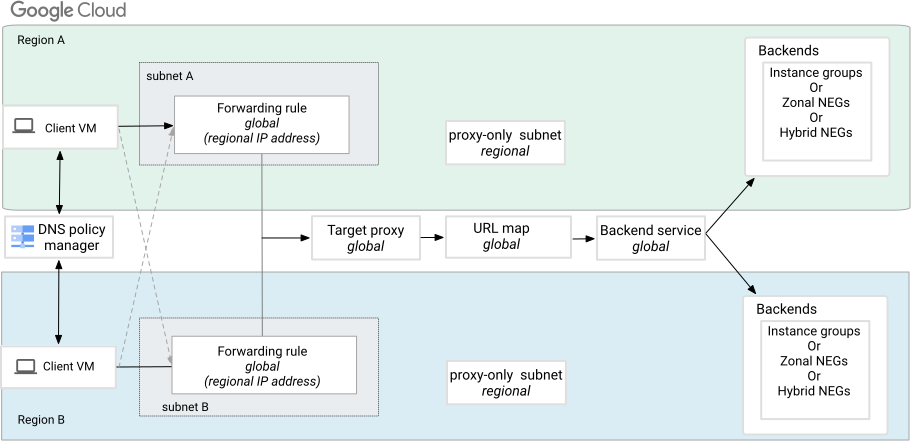](https://docs.cloud.google.com/static/load-balancing/images/cross-region-lb.svg) Cross-region internal Application Load Balancer components (click to enlarge).
**Regional internal Application Load Balancer**
This diagram shows the components of a regional internal Application Load Balancer
deployment in Premium Tier.
[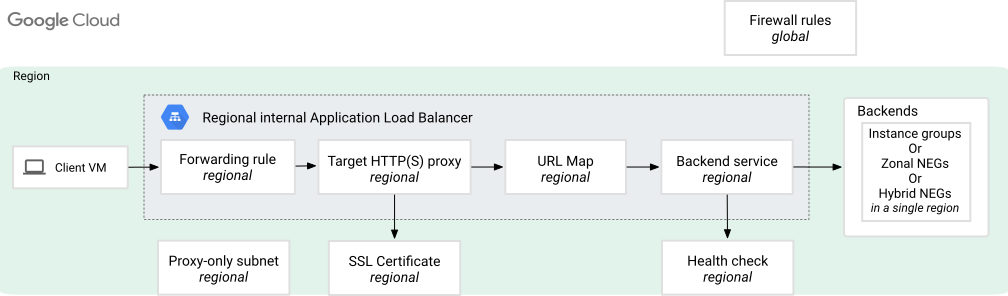](https://docs.cloud.google.com/static/load-balancing/images/reg-int-app-lb.svg) Regional internal Application Load Balancer components (click to enlarge).
The following resources are required for an internal Application Load Balancer deployment:
### Proxy-only subnet
In the previous diagram, the *proxy-only subnet* provides a set of IP addresses
that Google uses to run Envoy proxies on your behalf. You must create a
proxy-only subnet in each region of a VPC network where you use
internal Application Load Balancers.
The following table describes the differences between proxy-only subnets in the
cross-region and regional modes. Cross-region and regional load balancers cannot
share the same subnets.
| Load balancer mode | Value of the proxy-only subnet `--purpose` flag |
|---|---|
| Cross-region internal Application Load Balancer | GLOBAL_MANAGED_PROXY The cross-region Envoy-based load balancer must have a proxy-only subnet in each region in which the load balancer is configured. Cross-region load balancer proxies in the same region and network share the same proxy-only subnet. |
| Regional internal Application Load Balancer | REGIONAL_MANAGED_PROXY All the regional Envoy-based load balancers in a region and VPC network share the same proxy-only subnet. |
Further:
- Proxy-only subnets are *only* used for Envoy proxies, not your backends.
- Backend VMs or endpoints of all internal Application Load Balancers in a region and VPC network receive connections from the proxy-only subnet.
- For regional internal Application Load Balancers and cross-region internal Application Load Balancers the proxy-only subnet can be configured with a stack type of `IPV4_ONLY` or `IPV4_IPV6` (dual-stack).
- The virtual IP address of an internal Application Load Balancer is *not* located in the proxy-only subnet. The load balancer's IP address is defined by its internal managed forwarding rule, which is described below.
### Forwarding rule and IP address
[Forwarding rules](https://docs.cloud.google.com/load-balancing/docs/forwarding-rule-concepts.md.txt) route traffic
by IP address, port, and protocol to a load balancing configuration that consists
of a target proxy and a backend service.
**IP address specification**. Each forwarding rule references a single regional
IP address that you can use in DNS records for your application. You can either
reserve a static IP address that you can use or let Cloud Load Balancing assign
one for you. We recommend that you reserve a static IP address; otherwise, you
must update your DNS record with the newly assigned ephemeral IP address
whenever you delete a forwarding rule and create a new one.
Clients use the IP address and port to connect to the load balancer's Envoy
proxies---the forwarding rule's IP address is the IP address of the load balancer
(sometimes called a virtual IP address or VIP). Clients connecting to a load
balancer must use HTTP version 1.1 or later. For the complete list of supported
protocols, see [Load balancer feature comparison](https://docs.cloud.google.com/load-balancing/docs/features.md.txt#protocols_from_the_clients_to_the_load_balancer).
The internal IP address associated with the forwarding rule can come from a
subnet in the same network and region as your backends.
**Port specification** . Each forwarding rule for an Application Load Balancer can
reference a [single port from
1-65535](https://docs.cloud.google.com/load-balancing/docs/forwarding-rule-concepts#port_specifications). To
support multiple ports, you must configure multiple forwarding rules. You can
configure multiple forwarding rules to use the same internal IP address (VIP)
and to reference the same target HTTP or HTTPS proxy as long as the overall
*combination* of IP address, port, and protocol is unique for each forwarding
rule. This way, you can use a single load balancer with a shared URL map as a
proxy for multiple applications.
The type of forwarding rule, IP address, and load balancing scheme used by
internal Application Load Balancers depends on the mode of the load balancer.
| Cross-region internal Application Load Balancer ||||||
|---|---|---|---|---|---|
| | Forwarding rule | [`globalForwardingRules.insert` method](https://docs.cloud.google.com/compute/docs/reference/rest/v1/globalForwardingRules/insert.md.txt) |||
| | Regional IP address | [`addresses.insert` method](https://docs.cloud.google.com/compute/docs/reference/rest/v1/addresses/insert.md.txt) |||
| | Load balancing scheme | `INTERNAL_MANAGED` |||
| | IP address (optional) | `SHARED_LOADBALANCER_VIP` |||
| | Routing from the client to the load balancer's frontend | Global access is enabled by default to allow clients from any region in a VPC to access your load balancer. Backends can be in multiple regions. |||
| | Forwarding rule | [`forwardingRules.insert` method](https://docs.cloud.google.com/compute/docs/reference/rest/v1/forwardingRules/insert.md.txt) |||
| | Regional IP address | [`addresses.insert` method](https://docs.cloud.google.com/compute/docs/reference/rest/v1/addresses/insert.md.txt) |||
| | Load balancing scheme | `INTERNAL_MANAGED` |||
| | IP address (optional) | `SHARED_LOADBALANCER_VIP` |||
| | Routing from the client to the load balancer's frontend | You can enable global access to allow clients from any region in a VPC to access your load balancer. Backends must also be in the same region as the load balancer. |||
#### Forwarding rules and VPC networks
This section describes how forwarding rules used by internal Application Load Balancers are
associated with VPC networks.
| Load balancer mode | VPC network association |
|---|---|
| Cross-region internal Application Load Balancer Regional internal Application Load Balancer | Depending on whether you use an IPv4 address or an IPv6 address range, there is always an explicit or implicit VPC network associated with the forwarding rule. Regional internal IPv4 addresses and IPv6 address ranges always exist inside VPC networks. When you create the forwarding rule, you're required to specify the subnet from which the internal IP address is taken. This subnet must be in the same region and VPC network where a proxy-only subnet has been created. Thus, there is an implied network association. **Network and subnet requirements.** For IPv6 traffic, your network and subnets must meet the following configuration requirements: - VPC network: you must use a custom mode VPC network configured with the `--enable-ula-internal-ipv6` flag. - Forwarding rule subnet: this subnet must be a dual-stack (`IPv4_IPv6`) or `IPV6_ONLY` subnet with the `ipv6-access-type` set to `INTERNAL`. **IPv6 address allocation options.** The forwarding rule must reference a `/96` range of IPv6 addresses from the subnet's `/64` internal IPv6 address range. When you configure the forwarding rule with the `--ip-version=IPV6` flag, Google Cloud automatically allocates a random `/96` IPv6 prefix from within the range of the subnet. The load balancer accepts traffic sent to any address within the allocated `/96` range. To assign this `/96` IPv6 address range, you can use one of the following methods: - Specifying a [reserved internal IPv6 address](https://docs.cloud.google.com/vpc/docs/reserve-static-internal-ip-address.md.txt#reservenewip), either automatically allocated or a custom `/96` range. - Specifying a custom ephemeral IPv6 address. - Letting Google Cloud automatically assign an ephemeral IPv6 address. **Limitations.** To specify a custom ephemeral IPv6 address, you must use the Google Cloud CLI or the API. The Google Cloud console doesn't support specifying custom ephemeral IPv6 addresses for forwarding rules. To deploy a regional internal Application Load Balancer with an IPv6 address on GKE, see [Deploy an internal Gateway](https://docs.cloud.google.com/kubernetes-engine/docs/how-to/deploying-gateways.md.txt#internal-gateway) in the GKE documentation. |
### Target proxy
A target HTTP or HTTPS proxy terminates HTTP(S) connections from clients.
The HTTP(S) proxy consults the URL map to determine how to route traffic to
backends. A target HTTPS proxy uses an SSL certificate to authenticate itself to
clients.
The load balancer preserves the Host header of the original client request.
Depending on the type of traffic your application needs to handle, you can
configure a load balancer with either a target HTTP proxy or a target HTTPS proxy.
The following table shows the target proxy APIs required by internal Application Load Balancers:
| Load balancer mode | Target proxy |
|---|---|
| Cross-region internal Application Load Balancer | - [`targetHttpProxies`](https://docs.cloud.google.com/compute/docs/reference/rest/v1/targetHttpProxies.md.txt) - [`targetHttpsProxies`](https://docs.cloud.google.com/compute/docs/reference/rest/v1/targetHttpsProxies.md.txt) |
| Regional internal Application Load Balancer | - [`regionTargetHttpProxies`](https://docs.cloud.google.com/compute/docs/reference/rest/v1/regionTargetHttpProxies.md.txt) - [`regionTargetHttpsProxies`](https://docs.cloud.google.com/compute/docs/reference/rest/v1/regionTargetHttpsProxies.md.txt) |
#### X-Forwarded-For header handling
The load balancer appends two IP addresses to the `X-Forwarded-For` header:
- The IP address of the client that connects to the load balancer
- The IP address of the load balancer's forwarding rule
If there is no `X-Forwarded-For` header on the incoming request, these two IP
addresses are the entire header value. If the request has an
`X-Forwarded-For` header, other information, such as the IP addresses recorded
by proxies on the way to the load balancer, are preserved before the two IP
addresses.
If you are running a proxy as the backend server, this proxy typically appends
more information to the `X-Forwarded-For` header, and your software might need to
take that into account. The proxied requests from the load balancer come from an
IP address in the proxy-only subnet, and your proxy on the backend instance
might record this address as well as the backend instance's own IP address.
The internal Application Load Balancer employs specific security measures for the
`X-Forwarded-For` header:
- **Header Sanitization (Stripping)** . If there is an intermediate proxy between the client and the load balancer, then the load balancer treats incoming `X-Forwarded-For` headers as untrusted and strips the header to prevent IP spoofing. There is no configuration option to alter this behavior.
- **Append Behavior** . [Custom headers](https://docs.cloud.google.com/load-balancing/docs/l7-internal/custom-headers.md.txt) can be used to create a new `X-Forwarded-For` header and insert the client IP and server IP. However, in this case, the client IP from the perspective of the load balancer is the intermediate proxy IP and not the original client IP.
#### Preserving Client IPs with intermediate proxies
If your traffic passes through intermediate proxies before reaching the
internal Application Load Balancer, the original client IP is stripped if it is only present in
the `X-Forwarded-For` header.
To reliably preserve the client IP, follow these recommendations:
- **Use custom headers** . Configure your intermediate proxy to inject the verified client IP into a custom header. For example, `X-Original-Client-IP` or `X-Client-IP`.
- **Passthrough configuration**. The internal Application Load Balancer passes custom headers to the backend untouched.
- **Backend update** . Update your backend application to read the client IP from the new custom header instead of `X-Forwarded-For`.
### SSL certificates
Internal Application Load Balancers using target HTTPS proxies require private keys and
SSL certificates as part of the load balancer configuration.
The following table specifies the type of SSL certificates required by
internal Application Load Balancers in each mode:
| Load balancer mode | SSL certificate type |
|---|---|
| Cross-region internal Application Load Balancer | Certificate Manager [self-managed certificates](https://docs.cloud.google.com/certificate-manager/docs/deploy-self-managed.md.txt#upload_a_self-managed_certificate_to) and Google-managed certificates. The following types of Google-managed certificates are supported with Certificate Manager: - DNS Authorization with Public DNS. For more information, see [Deploy a global Google-managed certificate with DNS authorization](https://docs.cloud.google.com/certificate-manager/docs/deploy-google-managed-dns-auth.md.txt#create_a_google-managed_certificate_with_dns_authorization). - Private Certificate Authority Service. For more information, see [Create a Google-managed certificate issued by your CA Service instance](https://docs.cloud.google.com/certificate-manager/docs/deploy-google-managed-cas.md.txt#create-google-managed-certificate-issued-by-your-cas-instance). Google-managed certificates with load balancer authorization aren't supported. [Compute Engine SSL certificates](https://docs.cloud.google.com/load-balancing/docs/ssl-certificates.md.txt) aren't supported. |
| Regional internal Application Load Balancer | [Compute Engine regional SSL certificates](https://docs.cloud.google.com/load-balancing/docs/ssl-certificates.md.txt) Certificate Manager [regional self-managed certificates](https://docs.cloud.google.com/certificate-manager/docs/deploy-self-managed-regional.md.txt) and Google-managed certificates. The following types of Google-managed certificates are supported with Certificate Manager: - Regional Google-managed certificates with per-project DNS authorization. For more information, see [Deploy a regional Google-managed certificate](https://docs.cloud.google.com/certificate-manager/docs/deploy-google-managed-regional.md.txt). - Regional Google-managed certificates with private Certificate Authority Service. For more information, see [Deploy a regional Google-managed certificate with CA Service](https://docs.cloud.google.com/certificate-manager/docs/deploy-google-managed-cas-regional.md.txt). Google-managed certificates with load balancer authorization aren't supported. |
### URL maps
The target HTTP(S) proxy uses [URL maps](https://docs.cloud.google.com/load-balancing/docs/url-map-concepts.md.txt)
to make a routing determination based on HTTP attributes (such as the request path,
cookies, or headers). Based on the routing decision, the proxy forwards client
requests to specific backend services. The URL map can specify additional actions
to take such as rewriting headers, sending redirects to clients, and configuring
timeout policies (among others).
The following table specifies the type of URL map required by
internal Application Load Balancers in each mode:
| Load balancer mode | URL map type |
|---|---|
| Cross-region internal Application Load Balancer | [`urlMaps`](https://docs.cloud.google.com/compute/docs/reference/rest/v1/urlMaps.md.txt) |
| Regional internal Application Load Balancer | [`regionUrlMaps`](https://docs.cloud.google.com/compute/docs/reference/rest/v1/regionUrlMaps.md.txt) |
### Backend service
A backend service provides configuration information to the load balancer so
that it can direct requests to its backends---for example,
Compute Engine instance groups or network endpoint groups (NEGs). For
more information about backend services, see [Backend services
overview](https://docs.cloud.google.com/load-balancing/docs/backend-service).
#### Backend service scope
The following table indicates which backend service resource and scope is used
by internal Application Load Balancers:
| Load balancer mode | Backend service resource |
|---|---|
| Cross-region internal Application Load Balancer | [`backendServices`](https://docs.cloud.google.com/compute/docs/reference/rest/v1/backendServices.md.txt) |
| Regional internal Application Load Balancer | [`regionBackendServices`](https://docs.cloud.google.com/compute/docs/reference/rest/v1/regionBackendServices.md.txt) |
#### Protocol to the backends
Backend services for Application Load Balancers must use one of the following
protocols to send requests to backends:
- HTTP, which uses HTTP/1.1 and no TLS
- HTTPS, which uses HTTP/1.1 and TLS
- HTTP/2, which uses HTTP/2 and TLS (HTTP/2 without encryption isn't supported.)
- H2C, which uses HTTP/2 over TCP. TLS isn't required. H2C isn't supported for classic Application Load Balancers.
The load balancer only uses the backend service protocol that you specify to
communicate with its backends. The load balancer doesn't fall back to a
different protocol if it is unable to communicate with backends using the
specified backend service protocol.
The backend service protocol doesn't need to match the protocol used by clients
to communicate with the load balancer. For example, clients can send requests
to the load balancer using HTTP/2, but the load balancer can communicate with
backends using HTTP/1.1 (HTTP or HTTPS).
### Backends
The following table specifies the backend features supported by internal Application Load Balancers
in each mode.
| Load balancer mode | Supported backends on a backend service^1^ |||||| Supports backend buckets | Supports Cloud Armor | Supports Cloud CDN | Supports IAP | Supports Service Extensions |
|---|---|---|---|---|---|---|---|---|---|---|---|
| | **Instance groups^2^** | **Zonal NEGs** ^3^ | **Internet NEGs** | **Serverless NEGs** | **Hybrid NEGs** | [Private Service Connect NEGs](https://docs.cloud.google.com/vpc/docs/access-apis-managed-services-private-service-connect-backends.md.txt#add-neg-https-lb) | | | | | |
| Cross-region internal Application Load Balancer | Yes | Yes | No | Yes Cloud Run | Yes | Yes | Yes | No | No | Yes | Yes |
| Regional internal Application Load Balancer | Yes | Yes | Yes | Yes Cloud Run | Yes | Yes | Yes | Yes | No | Yes | Yes |
^1^ Backends on a backend service must be the same type: all instance
groups or all the same type of NEG. An exception to this rule is that both
`GCE_VM_IP_PORT` zonal NEGs and hybrid NEGs can be used on the same
backend service to support a
[hybrid architecture](https://docs.cloud.google.com/load-balancing/docs/negs/hybrid-neg-concepts.md.txt#hybrid_architecture).
^2^ Combinations of zonal unmanaged, zonal managed, and regional
managed instance groups are supported on the same backend service. When using
autoscaling for a managed instance group that's a backend for two or more
backend services, configure the instance group's autoscaling policy to use
[multiple signals](https://docs.cloud.google.com/compute/docs/autoscaler/multiple-signals.md.txt).
^3^ Zonal NEGs must use `GCE_VM_IP_PORT` endpoints.
#### Backends and VPC networks
> [!NOTE]
> **Note:** This section describes VPC network association for deployments where the load balancer's backend service and backends are in the same project as the forwarding rule. If you also want the backend service to be in a different project from the forwarding rule, you need to configure the load balancer in a [Shared VPC environment with cross-project service
> referencing](https://docs.cloud.google.com/load-balancing/docs/l7-internal#shared-vpc).
The restrictions on where backends can be located depend on the type of
backend.
- For instance groups, zonal NEGs, and hybrid connectivity NEGs, all backends
must be located in the same project and region as the backend service.
However, a load balancer can reference a backend that uses a different
VPC network in the same project as the backend service.
Connectivity between the load balancer's
VPC network and the backend VPC network
can be configured using either VPC Network Peering, Cloud VPN
tunnels, Cloud Interconnect VLAN attachments, or a Network Connectivity Center
framework.
**Backend network definition**
- For zonal NEGs and hybrid NEGs, you explicitly specify the VPC network when you create the NEG.
- For managed instance groups, the VPC network is defined in the instance template.
- For unmanaged instance groups, the instance group's VPC network is set to match the VPC network of the `nic0` interface for the first VM added to the instance group.
**Backend network requirements**
Your backend's network must satisfy *one of the following* network
requirements:
- The backend's VPC network must exactly match the
forwarding rule's VPC network.
- The backend's VPC network must be connected to the
forwarding rule's VPC network using
VPC Network Peering. You must configure subnet route exchanges to
allow communication between the proxy-only subnet in the forwarding rule's
VPC network and the subnets used by the backend instances
or endpoints.
**Backend IPv6 subnet requirements**
The IP version used for the frontend connection is independent of the backend
connection. If the proxy-only subnet is configured as dual-stack (IPV4_IPV6),
the proxy-only subnet can communicate with backends using either IPv4 or
IPv6. If the proxy-only subnet is single-stack (IPV4_ONLY), it can only
communicate with backends using IPv4.
If your backend instances are handling IPv6 traffic, the backend subnet can
be configured with a stack type of `IPV4_ONLY` or
`IPV4_IPV6` (dual-stack). If the backend subnet's stack type
includes IPv6, you must explicitly set the subnet's ipv6-access-type to
`INTERNAL`.
- Both the backend's VPC network and the forwarding rule's VPC network must be [VPC
spokes](https://docs.cloud.google.com/network-connectivity/docs/network-connectivity-center/concepts/vpc-spokes-overview) attached to the same [NCC
hub](https://docs.cloud.google.com/network-connectivity/docs/network-connectivity-center/concepts/overview). Import and export filters must allow communication between the proxy-only subnet in the forwarding rule's VPC network and the subnets used by backend instances or endpoints.
- For all other backend types, all backends must be located in the same
VPC network and region.
#### Backends and network interfaces
If you use instance group backends, packets are always delivered to `nic0`. If
you want to send packets to non-`nic0` interfaces (either [vNICs or
Dynamic Network Interfaces](https://docs.cloud.google.com/vpc/docs/multiple-interfaces-concepts#nic-types)), use
NEG backends instead.
If you use zonal NEG backends, packets are sent to whatever network interface is
represented by the endpoint in the NEG. The NEG endpoints must be in the same
VPC network as the NEG's explicitly defined VPC
network.
#### Backend subsetting
> [!WARNING]
>
> **Preview**
>
>
> This product or feature is
>
> subject to the "Pre-GA Offerings Terms" in the General Service Terms section
> of the [Service Specific
> Terms](https://docs.cloud.google.com/terms/service-terms#1).
>
> Pre-GA products and features are available "as is" and might have limited support.
>
> For more information, see the
> [launch stage descriptions](https://cloud.google.com/products/#product-launch-stages).
*Backend subsetting* is an optional feature supported by regional internal Application Load Balancers
that improves performance and scalability by assigning a subset of backends to
each of the proxy instances.
By default, backend subsetting is disabled.
For information about enabling this feature, see [Backend subsetting for regional internal Application Load Balancers](https://docs.cloud.google.com/load-balancing/docs/backend-service.md.txt#https-subsetting).
### Health checks
Each backend service specifies a health check that periodically monitors the
backends' readiness to receive a connection from the load balancer. This reduces
the risk that requests might be sent to backends that can't service the request.
Health checks don't check whether the application itself is working.
For the health check probes to succeed, you must create an Ingress allow
[firewall rule](https://docs.cloud.google.com/load-balancing/docs/l7-internal.md.txt#firewall-rules) that allows health check probes to reach your backend
instances. Typically, health check probes originate from Google's centralized health
checking mechanism. However for hybrid NEGs, health checks originate from the
proxy-only subnet instead. For details, see [Distributed Envoy health
checks](https://docs.cloud.google.com/load-balancing/docs/negs/hybrid-neg-concepts#envoy-health-checks).
#### Health check protocol
Although it isn't required and isn't always possible, it is a best practice to
use a health check whose protocol matches the [protocol of the backend
service](https://docs.cloud.google.com/load-balancing/docs/features#protocol-to-backends).
For example, an HTTP/2 health check most accurately tests HTTP/2 connectivity to
backends. In contrast, internal Application Load Balancers that use hybrid NEG backends don't
support gRPC health checks. For the list of supported health check
protocols, see the load balancing features in the [Health
checks](https://docs.cloud.google.com/load-balancing/docs/features#health-checks) section.
The following table specifies the scope of health checks supported by
internal Application Load Balancers:
| Load balancer mode | Health check type |
|---|---|
| Cross-region internal Application Load Balancer | [`healthChecks`](https://docs.cloud.google.com/compute/docs/reference/rest/v1/healthChecks.md.txt) |
| Regional internal Application Load Balancer | [`regionHealthChecks`](https://docs.cloud.google.com/compute/docs/reference/rest/v1/regionHealthChecks.md.txt) |
For more information about health checks, see the following:
- [Health checks overview](https://docs.cloud.google.com/load-balancing/docs/health-check-concepts.md.txt)
- [Create health checks](https://docs.cloud.google.com/load-balancing/docs/health-checks.md.txt#create-hc)
### Firewall rules
An internal Application Load Balancer requires the following firewall rules:
- An ingress allow rule that permits traffic from Google's central health check ranges. For more information about the specific health check probe IP address ranges and why it's necessary to allow traffic from them, see [Probe IP ranges
and firewall rules](https://docs.cloud.google.com/load-balancing/docs/health-check-concepts#ip-ranges).
- An ingress allow rule that permits traffic from the [proxy-only
subnet](https://docs.cloud.google.com/load-balancing/docs/proxy-only-subnets).
There are certain exceptions to the firewall rule requirements for these ranges:
- Allowing traffic from Google's health check probe ranges isn't required for hybrid NEGs. However, if you're using a combination of hybrid and zonal NEGs in a single backend service, you need to allow traffic from the [Google
health check probe ranges](https://docs.cloud.google.com/load-balancing/docs/health-check-concepts#ip-ranges) for the zonal NEGs.
- For regional internet NEGs, health checks are optional. Traffic from load balancers using *regional* internet NEGs originates from the [proxy-only subnet](https://docs.cloud.google.com/load-balancing/docs/proxy-only-subnets.md.txt) and is then NAT-translated (by using Cloud NAT) to either manually or automatically allocated NAT IP addresses. This traffic includes both health check probes and user requests from the load balancer to the backends. For details, see [Regional NEGs:
Use a Cloud NAT gateway](https://docs.cloud.google.com/load-balancing/docs/negs/internet-neg-concepts#nat-support).
Use Cloud Next Generation Firewall (Cloud NGFW) firewall policy rules to control client
access to the *forwarding rules* of Envoy proxy-based load balancers, such as
regional internal Application Load Balancers and cross-region internal Application Load Balancers. Both
Cloud NGFW Essentials and Cloud NGFW Standard support
these features. For cross-region internal Application Load Balancers, Cloud NGFW also
provides advanced Layer 7 threat prevention
([Preview](https://cloud.google.com/products#product-launch-stages)). For more information, see [Use global network firewall policies to protect Envoy-based load balancers](https://docs.cloud.google.com/firewall/docs/global-network-app-lb.md.txt) and [Use regional network firewall policies to protect
internal Application Load Balancers and
internal proxy Network Load Balancers](https://docs.cloud.google.com/firewall/docs/regional-network-app-lb).
### Client access
Clients can be in the same network or in a VPC network
connected by using [VPC Network Peering](https://docs.cloud.google.com/vpc/docs/vpc-peering.md.txt).
For cross-region internal Application Load Balancers, global access is enabled by default. Clients from any region in a VPC can access your load balancer.
For regional internal Application Load Balancers, clients must be in the same region as the load balancer by default.
You can [enable global access](https://docs.cloud.google.com/load-balancing/docs/l7-internal/setting-up-l7-internal.md.txt#global-access)
to allow clients from any region in a VPC to access your load balancer.
The following table summarizes client access for regional internal Application Load Balancers:
| Global access disabled | Global access enabled |
|---|---|
| Clients must be in the same region as the load balancer. They also must be in the same VPC network as the load balancer or in a VPC network that is connected to the load balancer's VPC network by using VPC Network Peering. | Clients can be in any region. They still must be in the same VPC network as the load balancer or in a VPC network that's connected to the load balancer's VPC network by using VPC Network Peering. |
| On-premises clients can access the load balancer through [Cloud VPN tunnels or VLAN attachments](https://docs.cloud.google.com/load-balancing/docs/l7-internal/internal-https-lb-and-other-networks.md.txt#using-vpn-interconnect). These tunnels or attachments must be in the same region as the load balancer. | On-premises clients can access the load balancer through Cloud VPN tunnels or VLAN attachments. These tunnels or attachments can be in any region. |
## GKE support
GKE uses internal Application Load Balancers in the following ways:
- Internal Gateways created using the [GKE Gateway
controller](https://docs.cloud.google.com/kubernetes-engine/docs/concepts/gateway-api) can use any mode of
an Internal Application Load Balancer. You control the load balancer's mode by choosing a
[GatewayClass](https://docs.cloud.google.com/kubernetes-engine/docs/concepts/gateway-api.md.txt#gatewayclass). The
GKE Gateway controller always uses `GCE_VM_IP_PORT` zonal NEG
backends.
- Internal Ingresses created using the [GKE Ingress
controller](https://docs.cloud.google.com/kubernetes-engine/docs/concepts/ingress) are always
regional internal Application Load Balancers. The GKE Ingress controller
always uses `GCE_VM_IP_PORT` zonal NEG backends.
- You can use `GCE_VM_IP_PORT` zonal NEG created and managed by GKE Services as backends for any Application Load Balancer or Proxy Network Load Balancer. For more information, see [Container-native load
balancing through standalone zonal
NEGs](https://docs.cloud.google.com/kubernetes-engine/docs/how-to/standalone-neg).
## Shared VPC architectures
Internal Application Load Balancers support networks that use Shared VPC.
Shared VPC lets organizations connect resources from multiple projects
to a common VPC network so that they can communicate with each
other securely and efficiently using internal IPs from that network. If you're
not already familiar with Shared VPC, read the [Shared VPC
overview documentation](https://docs.cloud.google.com/vpc/docs/shared-vpc).
There are many ways to configure an internal Application Load Balancer within a
Shared VPC network. Regardless of type of deployment, all the
components of the load balancer must be in the same organization.
| Subnets and IP address | Frontend components | Backend components |
|---|---|---|
| Create the required network and subnets (including the proxy-only subnet), in the Shared VPC host project. The load balancer's internal IP address can be defined in either the host project or a service project, but it *must* use a subnet in the desired Shared VPC network in the host project. The address itself comes from the primary IP range of the referenced subnet. | The regional internal IP address, the forwarding rule, the target HTTP(S) proxy, and the associated URL map must be defined in the same project. This project can be the host project or a service project. | You can do one of the following: - Create backend services and [backends](https://docs.cloud.google.com/load-balancing/docs/features.md.txt#backends) (instance groups, serverless NEGs, or any other supported backend types) in the [same service project](https://docs.cloud.google.com/load-balancing/docs/l7-internal.md.txt#service-project) as the frontend components. - Create backend services and backends (instance groups, serverless NEGs, or any other supported backend types) in as many service projects as required. A single URL map can reference backend services across different projects. This type of deployment is known as [cross-project service referencing](https://docs.cloud.google.com/load-balancing/docs/l7-internal.md.txt#cross-project). Each backend service must be defined in the same project as the backends it references. Health checks associated with backend services must be defined in the same project as the backend service as well. |
While you can create all the load balancing components and backends in the
Shared VPC host project, this type of deployment doesn't separate
network administration and service development responsibilities.
#### All load balancer components and backends in a service project
The following architecture diagram shows a standard Shared VPC
deployment where all load balancer components and backends are in a service
project. This deployment type is supported by all Application Load Balancers.
The load balancer uses IP addresses and subnets from the host project. Clients
can access an internal Application Load Balancer if they are in the same
Shared VPC network and region as the load balancer. Clients can be
located in the host project, or in an attached service project, or any
[connected
networks](https://docs.cloud.google.com/load-balancing/docs/l7-internal/internal-https-lb-and-other-networks).
[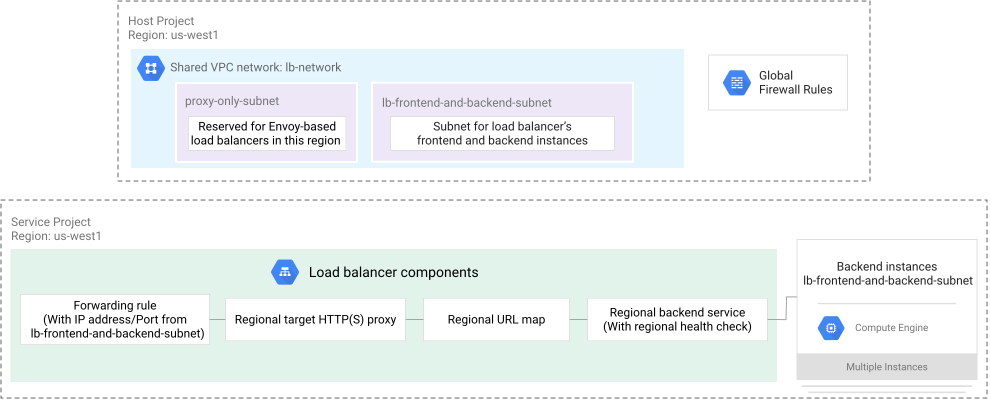](https://docs.cloud.google.com/static/load-balancing/images/reg-int-https-lb-l7-shared-vpc-example.svg) Internal Application Load Balancer on Shared VPC network (click to enlarge).
#### Serverless backends in a Shared VPC environment
For an internal Application Load Balancer that is using a serverless NEG backend, the backing
Cloud Run service must be in the same service project as the
backend service and the serverless NEG. The load balancer's frontend
components (forwarding rule, target proxy, URL map) can be created in either the
host project, the same service project as the backend components, or any other
service project in the same Shared VPC environment.
## Cross-project service referencing
*Cross-project service referencing* is a deployment model where the load
balancer's frontend and URL map are in one project and the load balancer's
backend service and backends are in a different project.
Cross-project service referencing lets organizations configure one central
load balancer and route traffic to hundreds of services distributed across
multiple different projects. You can centrally manage all traffic routing rules
and policies in one URL map. You can also associate the load balancer with a
single set of hostnames and SSL certificates. You can therefore optimize the
number of load balancers needed to deploy your application, and lower
manageability, operational costs, and quota requirements.
By having different projects for each of your functional teams, you can also
achieve separation of roles within your organization. Service owners can focus
on building services in service projects, while network teams can provision and
maintain load balancers in another project, and both can be connected by using
cross-project service referencing.
Service owners can maintain autonomy over the exposure of their services and
control which users can access their services by using the load balancer. This is
achieved by a special IAM role called the
[Compute Load Balancer Services User role](https://docs.cloud.google.com/compute/docs/access/iam.md.txt#compute.loadBalancerServiceUser)
(`roles/compute.loadBalancerServiceUser`).
For internal Application Load Balancers, cross-project service referencing is only supported within
Shared VPC environments.
To learn how to configure Shared VPC for an internal Application Load Balancer---with and without cross-project service referencing---see [Set up an internal Application Load Balancer with
Shared VPC](https://docs.cloud.google.com/load-balancing/docs/l7-internal/l7-internal-shared-vpc).
#### Usage notes for cross-project service referencing
- You can't reference a cross-project backend service if the backend service has regional internet NEG backends. All other backend types are supported.
- Google Cloud doesn't differentiate between resources (for example, backend services) using the same name across multiple projects. Therefore, when you are using cross-project service referencing, we recommend that you use unique backend service names across projects within your organization.
#### Example 1: Load balancer frontend and backend in different service projects
Here is an example of a Shared VPC deployment where the load balancer's
frontend and URL map are created in service project A and the URL map references
a backend service in service project B.
In this case, Network Admins or Load Balancer Admins in service project A
require access to backend services in service project B. Service project B
admins grant the Compute Load Balancer Services User role
(`roles/compute.loadBalancerServiceUser`) to Load Balancer Admins in
service project A who want to reference the backend
service in service project B.
[](https://docs.cloud.google.com/static/load-balancing/images/reg-int-https-lb-l7-shared-vpc-service-lb.svg) Load balancer frontend and backend in different service projects (click to enlarge).
#### Example 2: Load balancer frontend in the host project and backends in service projects
Here is an example of a Shared VPC deployment where the load balancer's
frontend and URL map are created in the host project and the backend services
(and backends) are created in service projects.
In this case, Network Admins or Load Balancer Admins in the host project
require access to backend services in the service project. Service project
admins grant the Compute Load Balancer Services User role
(`roles/compute.loadBalancerServiceUser`) to
Load Balancer Admins in the host project A who want to reference the backend
service in the service project.
[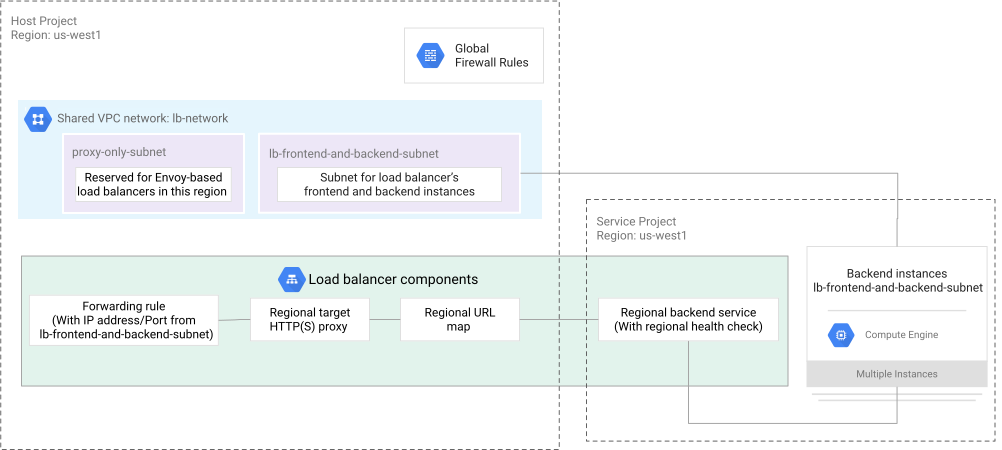](https://docs.cloud.google.com/static/load-balancing/images/reg-int-https-lb-l7-shared-vpc-host-lb.svg) Load balancer frontend and URL map in host project (click to enlarge).
## Timeouts and retries
Internal Application Load Balancers support the following types of timeouts:
| Timeout type and description | Default values | Supports custom values ||
| Timeout type and description | Default values | Cross-region | Regional |
|---|---|---|---|
| [Backend service timeout](https://docs.cloud.google.com/load-balancing/docs/l7-internal.md.txt#timeout-bes) *** ** * ** *** A request and response timeout. Represents the maximum amount of time allowed between the load balancer sending the first byte of a request to the backend and the backend returning the last byte of the HTTP response to the load balancer. If the backend hasn't returned the entire HTTP response to the load balancer within this time limit, the remaining response data is dropped. | - For serverless NEGs on a backend service: 60 minutes - For all other backend types on a backend service: 30 seconds | Yes | Yes |
| [Client HTTP keepalive timeout](https://docs.cloud.google.com/load-balancing/docs/l7-internal.md.txt#http-keepalive-timeout) *** ** * ** *** The maximum amount of time that the TCP connection between a client and the load balancer's managed Envoy proxy can be idle. (The same TCP connection might be used for multiple HTTP requests.) | 610 seconds | Yes | Yes |
| [Backend HTTP keepalive timeout](https://docs.cloud.google.com/load-balancing/docs/l7-internal.md.txt#timeout-keepalive-backends) *** ** * ** *** The maximum amount of time that the TCP connection between the load balancer's managed Envoy proxy and a backend can be idle. (The same TCP connection might be used for multiple HTTP requests.) | 10 minutes (600 seconds) | No | No |
#### Backend service timeout
The configurable *backend service timeout* represents the maximum amount of
time that the load balancer waits for your backend to process an HTTP request and
return the corresponding HTTP response. Except for serverless NEGs, the default
value for the backend service timeout is 30 seconds.
For example, if you want to download a 500-MB file, and the value of the backend
service timeout is 90 seconds, the load balancer expects the backend to deliver
the entire 500-MB file within 90 seconds. It is possible to configure the
backend service timeout to be insufficient for the backend to send its complete
HTTP response. In this situation, if the load balancer has at least received
HTTP response headers from the backend, the load balancer returns the complete
response headers and as much of the response body as it could obtain within the
backend service timeout.
We recommend that you set the backend service timeout to the longest amount of
time that you expect your backend to need in order to process an HTTP response.
If the software running on your backend needs more time to process an HTTP
request and return its entire response, we recommend that you increase the
backend service timeout.
The backend service timeout accepts values between `1` and `2,147,483,647`
seconds; however, larger values aren't practical configuration options.
Google Cloud also doesn't guarantee that an underlying TCP connection can
remain open for the entirety of the value of the backend service timeout.
Client systems must implement retry logic instead of relying on a TCP
connection to be open for long periods of time.
For websocket connections used with internal Application Load Balancers, active websocket connections don't follow the backend service timeout. Idle websocket connections are closed after the backend service timeout.
Google Cloud periodically restarts or changes the number of serving Envoy software tasks. The longer the backend service timeout value, the more likely it is that Envoy task restarts or replacements will terminate TCP connections.
To configure the backend service timeout, use one of the following methods:
### Console
Modify the **Timeout** field of the load balancer's
backend service.
### gcloud
Use the [`gcloud compute backend-services update` command](https://docs.cloud.google.com/sdk/gcloud/reference/compute/backend-services/update.md.txt#--timeout)
to modify the `--timeout` parameter of the backend service
resource.
### API
Modify the `timeoutSec` parameter for the
[`regionBackendServices` resource](https://docs.cloud.google.com/compute/docs/reference/rest/v1/regionBackendServices.md.txt)
#### Client HTTP keepalive timeout
The *client HTTP keepalive timeout* represents the maximum amount of time
that a TCP connection can be idle between the (downstream) client and an Envoy
proxy. The default client HTTP keepalive timeout value is 610 seconds. You can
configure the timeout with a value between 5 and 1200 seconds.
An HTTP keepalive timeout is also called a *TCP idle timeout*.
The load balancer's client HTTP keepalive timeout must be greater than the
HTTP keepalive (TCP idle) timeout used by downstream clients or proxies.
If a downstream client has a greater HTTP keepalive (TCP idle) timeout than
the load balancer's client HTTP keepalive timeout, it's possible for a race
condition to occur. From the perspective of a downstream client, an established
TCP connection is permitted to be idle for longer than permitted by the load
balancer. This means that the downstream client can send packets after the load
balancer considers the TCP connection to be closed. When that happens, the load
balancer responds with a TCP reset (RST) packet.
When the client HTTP keepalive timeout expires, either the GFE or the Envoy
proxy sends a TCP FIN to the client to gracefully close the connection.
#### Backend HTTP keepalive timeout
Internal Application Load Balancers are proxies that use a first TCP connection between the
(downstream) client and an Envoy proxy, and a second TCP connection between the
Envoy proxy and your backends.
The load balancer's secondary TCP connections might not get closed after each
request; they can stay open to handle multiple HTTP requests and responses. The
*backend HTTP keepalive timeout* defines the TCP idle timeout between the
load balancer and your backends. The backend HTTP keepalive timeout doesn't
apply to websockets.
The backend keepalive timeout is fixed at 10 minutes (600 seconds) and cannot
be changed. This helps ensure that the load balancer maintains idle connections
for at least 10 minutes. After this period, the load balancer can send
termination packets to the backend at any time.
The load balancer's backend keepalive timeout must be less than the keepalive
timeout used by software running on your backends. This avoids a race condition
where the operating system of your backends might close TCP connections with a
TCP reset (RST). Because the backend keepalive timeout for the load balancer
isn't configurable, you must configure your backend software so that its
HTTP keepalive (TCP idle) timeout value is greater than 600 seconds.
When the backend HTTP keepalive timeout expires, either the GFE or the Envoy
proxy sends a TCP FIN to the backend VM to gracefully close the connection.
The following table lists the changes necessary to modify keepalive timeout
values for common web server software.
| Web server software | Parameter | Default setting | Recommended setting |
|---|---|---|---|
| [Apache](https://httpd.apache.org) | [KeepAliveTimeout](https://httpd.apache.org/docs/2.4/mod/core.html#keepalivetimeout) | `KeepAliveTimeout 5` | `KeepAliveTimeout 620` |
| [nginx](https://nginx.org) | [keepalive_timeout](http://nginx.org/en/docs/http/ngx_http_core_module.html#keepalive_timeout) | `keepalive_timeout 75s;` | `keepalive_timeout 620s;` |
#### Retries
To configure retries, you can use a
[retry policy](https://docs.cloud.google.com/compute/docs/reference/rest/beta/regionUrlMaps.md.txt) in
the URL map. The default number of retries (`numRetries`) is 1.
The maximum configurable `perTryTimeout` is 24 hours.
Without a retry policy, unsuccessful requests that have no HTTP body (for
example, `GET` requests) that result in HTTP `502`, `503`,
or `504` responses are retried once.
HTTP `POST` requests aren't retried.
Retried requests only generate one log entry for the final response.
For more information, see
[Internal Application Load Balancer logging and monitoring](https://docs.cloud.google.com/load-balancing/docs/l7-internal/monitoring.md.txt).
## Accessing connected networks
Your clients can access an internal Application Load Balancer in your VPC network
from a connected network by using the following:
- VPC Network Peering
- Cloud VPN and Cloud Interconnect
For detailed examples, see [Internal Application Load Balancers and connected
networks](https://docs.cloud.google.com/load-balancing/docs/l7-internal/internal-https-lb-and-other-networks).
## Session affinity
Session affinity, configured on the backend service of Application Load Balancers,
provides a best-effort attempt to send requests from a particular client to the
same backend as long as the number of healthy backend instances or endpoints
remains constant, and as long as the previously selected backend instance or
endpoint is not at capacity. The [target capacity of the balancing
mode](https://docs.cloud.google.com/load-balancing/docs/backend-service#traffic_distribution) determines when the
backend is at capacity.
The following table outlines the different types of session affinity options
supported for the different Application Load Balancers. In the section
that follows,
[Types of session affinity](https://docs.cloud.google.com/load-balancing/docs/l7-internal.md.txt#types-of-session-affinity), each session affinity
type is discussed in further detail.
| Product | Session affinity options |
|---|---|
| - [Cross-region internal Application Load Balancer](https://docs.cloud.google.com/load-balancing/docs/l7-internal.md.txt) - [Regional internal Application Load Balancer](https://docs.cloud.google.com/load-balancing/docs/l7-internal.md.txt) | - None (`NONE`) - Client IP (`CLIENT_IP`) - Generated cookie (`GENERATED_COOKIE`) - Header field (`HEADER_FIELD`) - HTTP cookie (`HTTP_COOKIE`) - Stateful cookie-based affinity (`STRONG_COOKIE_AFFINITY`) Also note: - The effective default value of the load balancing locality policy (`localityLbPolicy`) changes according to your session affinity settings. If session affinity is not configured---that is, if session affinity remains at the default value of `NONE`---then the default value for `localityLbPolicy` is `ROUND_ROBIN`. If session affinity is set to a value other than `NONE`, then the default value for `localityLbPolicy` is `MAGLEV`. - For the internal Application Load Balancer, don't configure session affinity if you're using weighted traffic splitting. If you do, the weighted traffic splitting configuration takes precedence. |
[**Table:** Supported session affinity settings]
Keep the following in mind when configuring session affinity:
- Don't rely on session affinity for authentication or security purposes.
Session affinity, except for [stateful cookie-based session
affinity](https://docs.cloud.google.com/load-balancing/docs/l7-internal#stateful-session-affinity), can break whenever the
number of serving and healthy backends changes. For more details, see [Losing
session affinity](https://docs.cloud.google.com/load-balancing/docs/l7-internal#losing_session_affinity).
- The default values of the `--session-affinity` and `--subsetting-policy`
flags are both `NONE`, and only one of them at a time can be set to a
different value.
### Types of session affinity
The session affinity for internal Application Load Balancers can be classified into one of the following categories:
- Hash-based session affinity (`NONE`, `CLIENT_IP`)
- HTTP header-based session affinity (`HEADER_FIELD`)
- Cookie-based session affinity (`GENERATED_COOKIE`, `HTTP_COOKIE`, `STRONG_COOKIE_AFFINITY`)
#### Hash-based session affinity
For hash-based session affinity, the load balancer uses the *consistent hashing algorithm* to select an eligible backend. The session affinity setting determines which fields from the IP header are used to calculate the hash.
Hash-based session affinity can be of the following types:
- [None](https://docs.cloud.google.com/load-balancing/docs/l7-internal.md.txt#none_affinity)
- [Client IP affinity](https://docs.cloud.google.com/load-balancing/docs/l7-internal.md.txt#client_ip_affinity)
##### None
A session affinity setting of `NONE` does *not* mean that there is no
session affinity. It means that no session affinity option is explicitly configured.
Hashing is always performed to select a backend. And a session affinity setting of
`NONE` means that the load balancer uses a 5-tuple hash to select a backend. The 5-tuple
hash consists of the source IP address, the source port, the protocol, the destination IP address,
and the destination port.
A session affinity of `NONE` is the default value.
##### Client IP affinity
*Client IP* session affinity (`CLIENT_IP`) is a 2-tuple hash created from the
source and destination IP addresses of the packet. Client IP affinity forwards
all requests from the same client IP address to the same backend, as long as
that backend has capacity and remains healthy.
When you use client IP affinity, keep the following in mind:
- The packet destination IP address is only the same as the load balancer forwarding rule's IP address if the packet is sent directly to the load balancer.
- The packet source IP address might not match an IP address associated with the original client if the packet is processed by an intermediate NAT or proxy system before being delivered to a Google Cloud load balancer. In situations where many clients share the same effective source IP address, some backend VMs might receive more connections or requests than others.
#### HTTP header-based session affinity
With header field affinity (`HEADER_FIELD`), requests are routed to the backends based on the value of the HTTP header in the
[`consistentHash.httpHeaderName` field](https://docs.cloud.google.com/compute/docs/reference/rest/v1/backendServices.md.txt#BackendService.FIELDS.inlinedField_60)
of the backend service. To distribute requests across all available backends,
each client needs to use a different HTTP header value.
Header field affinity is supported when the following
conditions are true:
- The load balancing locality policy is `RING_HASH` or `MAGLEV`.
- The backend service's `consistentHash` specifies the name of the HTTP header (`httpHeaderName`).
#### Cookie-based session affinity
Cookie-based session affinity can be of the following types:
- [Generated cookie affinity](https://docs.cloud.google.com/load-balancing/docs/l7-internal.md.txt#generated_cookie_affinity)
- [HTTP cookie affinity](https://docs.cloud.google.com/load-balancing/docs/l7-internal.md.txt#http_cookie_affinity)
- [Stateful cookie-based session affinity](https://docs.cloud.google.com/load-balancing/docs/l7-internal.md.txt#stateful-session-affinity)
##### Generated cookie affinity
When you use generated cookie-based affinity (`GENERATED_COOKIE`), the load
balancer includes an HTTP cookie in the `Set-Cookie` header in response to the
initial HTTP request.
The name of the generated cookie varies depending on the type of the load
balancer.
| Product | Cookie name |
|---|---|
| Cross-region internal Application Load Balancers | `GCILB` |
| Regional internal Application Load Balancers | `GCILB` |
The generated cookie's path attribute is always a forward slash (`/`), so it
applies to all backend services on the same URL map, provided that the other
backend services also use generated cookie affinity.
You can configure the cookie's time to live (TTL) value between `0` and
`1,209,600` seconds (inclusive) by using the `affinityCookieTtlSec` backend
service parameter. If `affinityCookieTtlSec` isn't specified, the default TTL
value is `0`.
When the client includes the generated session affinity cookie in the `Cookie`
request header of HTTP requests, the load balancer directs those
requests to the same backend instance or endpoint, as long as the session
affinity cookie remains valid. This is done by mapping the cookie value to an
index that references a specific backend instance or an endpoint,
and by making sure that the generated cookie session affinity requirements
are met.
To use generated cookie affinity, configure the following balancing
mode and `localityLbPolicy` settings:
- For backend instance groups, use the `RATE` balancing mode.
- For the `localityLbPolicy` of the backend service, use either `RING_HASH` or `MAGLEV`. If you don't explicitly set the `localityLbPolicy`, the load balancer uses `MAGLEV` as an implied default.
For more information, see [losing session affinity](https://docs.cloud.google.com/load-balancing/docs/l7-internal.md.txt#losing_session_affinity).
##### HTTP cookie affinity
When you use HTTP cookie-based affinity (`HTTP_COOKIE`), the load balancer
includes an HTTP cookie in the `Set-Cookie` header in response to the initial
HTTP request. You specify the name, path, and time to live (TTL) for the cookie.
All Application Load Balancers support HTTP cookie-based affinity.
You can configure the cookie's TTL values using seconds, fractions of a second
(as nanoseconds), or both seconds plus fractions of a second (as nanoseconds)
using the following backend service parameters and valid values:
- `consistentHash.httpCookie.ttl.seconds` can be set to a value between `0` and `315576000000` (inclusive).
- `consistentHash.httpCookie.ttl.nanos` can be set to a value between `0` and `999999999` (inclusive). Because the units are nanoseconds, `999999999` means `.999999999` seconds.
If both `consistentHash.httpCookie.ttl.seconds` and
`consistentHash.httpCookie.ttl.nanos` aren't specified, the value of the
`affinityCookieTtlSec` backend service parameter is used instead. If
`affinityCookieTtlSec` isn't specified, the default TTL value is `0`.
When the client includes the HTTP session affinity cookie in the `Cookie`
request header of HTTP requests, the load balancer directs those
requests to the same backend instance or endpoint, as long as the session
affinity cookie remains valid. This is done by mapping the cookie value to an
index that references a specific backend instance or an endpoint,
and by making sure that the generated cookie session affinity requirements
are met.
To use HTTP cookie affinity, configure the following balancing
mode and `localityLbPolicy` settings:
- For backend instance groups, use the `RATE` balancing mode.
- For the `localityLbPolicy` of the backend service, use either `RING_HASH` or `MAGLEV`. If you don't explicitly set the `localityLbPolicy`, the load balancer uses `MAGLEV` as an implied default.
For more information, see [losing session affinity](https://docs.cloud.google.com/load-balancing/docs/l7-internal.md.txt#losing_session_affinity).
##### Stateful cookie-based session affinity
When you use stateful cookie-based affinity (`STRONG_COOKIE_AFFINITY`), the load
balancer includes an HTTP cookie in the `Set-Cookie` header in response to the
initial HTTP request. You specify the name, path, and time to live (TTL) for the
cookie.
All Application Load Balancers, except for classic Application Load Balancers, support stateful cookie-based affinity.
You can configure the cookie's TTL values using seconds, fractions of a second
(as nanoseconds), or both seconds plus fractions of a second (as nanoseconds).
The duration represented by `strongSessionAffinityCookie.ttl` cannot be set to a
value representing more than two weeks (1,209,600 seconds).
The value of the cookie identifies a selected backend instance or endpoint by
encoding the selected instance or endpoint in the value itself. For as long
as the cookie is valid, if the client includes the session affinity cookie in
the `Cookie` request header of subsequent HTTP requests, the load balancer
directs those requests to selected backend instance or endpoint.
Unlike other session affinity methods:
- Stateful cookie-based affinity has no specific requirements for the balancing
mode or for the load balancing locality policy (`localityLbPolicy`).
- Stateful cookie-based affinity is not affected when autoscaling adds a new
instance to a managed instance group.
- Stateful cookie-based affinity is not affected when autoscaling removes an
instance from a managed instance group *unless* the selected instance is
removed.
- Stateful cookie-based affinity is not affected when autohealing removes an
instance from a managed instance group *unless* the selected instance is
removed.
For more information, see [losing session affinity](https://docs.cloud.google.com/load-balancing/docs/l7-internal.md.txt#losing_session_affinity).
#### Meaning of zero TTL for cookie-based affinities
All cookie-based session affinities, such as generated cookie affinity, HTTP cookie affinity, and stateful cookie-based affinity, have a TTL attribute.
A TTL of zero seconds means the load balancer does not assign an `Expires`
attribute to the cookie. In this case, the client treats the cookie as a session
cookie. The definition of a *session* varies depending on the client:
- Some clients, like web browsers, retain the cookie for the entire browsing
session. This means that the cookie persists across multiple requests until
the application is closed.
- Other clients treat a session as a single HTTP request, discarding the cookie
immediately after.
### Losing session affinity
All session affinity options require the following:
- The selected backend instance or endpoint must remain configured as a backend. Session affinity can break when one of the following events occurs:
- You remove the selected instance from its instance group.
- Managed instance group autoscaling or autohealing removes the selected instance from its managed instance group.
- You remove the selected endpoint from its NEG.
- You remove the instance group or NEG that contains the selected instance or endpoint from the backend service.
- The selected backend instance or endpoint must remain healthy. Session affinity can break when the selected instance or endpoint fails health checks.
Except for [stateful cookie-based session affinity](https://docs.cloud.google.com/load-balancing/docs/l7-internal.md.txt#stateful-session-affinity), all session affinity options have the following additional requirements:
- The instance group or NEG that contains the selected instance or endpoint
must not be full as defined by its [target capacity](https://docs.cloud.google.com/load-balancing/docs/backend-service.md.txt#target-capacity). (For
regional managed instance groups, the zonal component of the instance group
that contains the selected instance must not be full.) Session affinity can
break when the instance group or NEG is full and other instance groups or
NEGs are not. Because fullness can change in unpredictable ways when using
the `UTILIZATION` balancing mode, you should use the `RATE` or `CONNECTION`
balancing mode to minimize situations when session affinity can break.
- The *total number* of configured backend instances or endpoints must remain
constant. When at least one of the following events occurs, the number of
configured backend instances or endpoints changes, and session affinity can
break:
- Adding new instances or endpoints:
- You add instances to an existing instance group on the backend service.
- Managed instance group autoscaling adds instances to a managed instance group on the backend service.
- You add endpoints to an existing NEG on the backend service.
- You add non-empty instance groups or NEGs to the backend service.
- Removing any instance or endpoint, *not just the selected instance or
endpoint*:
- You remove any instance from an instance group backend.
- Managed instance group autoscaling or autohealing removes any instance from a managed instance group backend.
- You remove any endpoint from a NEG backend.
- You remove any existing, non-empty backend instance group or NEG from the backend service.
- The *total number* of healthy backend instances or endpoints must remain
constant. When at least one of the following events occurs, the number of
healthy backend instances or endpoints changes, and session affinity can
break:
- Any instance or endpoint passes its health check, transitioning from unhealthy to healthy.
- Any instance or endpoint fails its health check, transitioning from healthy to unhealthy or timeout.
## Failover
If a backend becomes unhealthy, traffic is automatically redirected to healthy
backends.
The following table describes the failover behavior in each mode:
| Load balancer mode | Failover behavior | Behavior when all backends are unhealthy |
|---|---|---|
| Cross-region internal Application Load Balancer | Automatic failover to healthy backends in the same region or other regions. Traffic is distributed among healthy backends spanning multiple regions based on the configured [traffic distribution](https://docs.cloud.google.com/load-balancing/docs/backend-service.md.txt#traffic_distribution). | Returns HTTP `503` |
| Regional internal Application Load Balancer | Automatic failover to healthy backends in the same region. Envoy proxy sends traffic to healthy backends in a region based on the configured [traffic distribution](https://docs.cloud.google.com/load-balancing/docs/backend-service.md.txt#traffic_distribution). | Returns HTTP `503` |
### High availability and cross-region failover
#### For regional internal Application Load Balancers
To achieve high availability, deploy multiple individual
regional internal Application Load Balancers in regions that best support your application's
traffic. You then use a Cloud DNS [geolocation routing
policy](https://docs.cloud.google.com/dns/docs/routing-policies-overview#geolocation-policy) to detect whether a load balancer is responding during a regional
outage. A geolocation policy routes traffic to the next closest available region
based on the origin of the client request. Health checking is available by
default for internal Application Load Balancers.
#### For cross-region internal Application Load Balancers
You can set up a cross-region internal Application Load Balancer in multiple regions to get the following
benefits:
1. If the cross-region internal Application Load Balancer in a region fails, the DNS routing policies
route traffic to a cross-region internal Application Load Balancer in another region.
The high availability deployment example shows the following:
- A cross-region internal Application Load Balancer with frontend virtual IP address (VIP) in the `RegionA` and `RegionB` regions in your VPC network. Your clients are located in the `RegionA` region.
- You can make the load balancer accessible by using frontend VIPs from two regions, and use DNS routing policies to return the optimal VIP to your clients. Use [Geolocation routing
policies](https://docs.cloud.google.com/dns/docs/routing-policies-overview#geolocation-policy) if you want your clients to use the VIP that is geographically closest.
- DNS routing policies can detect whether a VIP isn't responding during a regional outage, and return the next most optimal VIP to your clients, ensuring that your application stays up even during regional outages.
[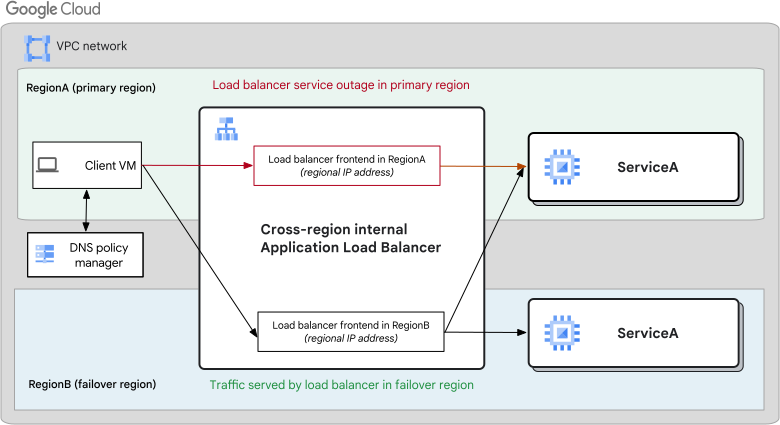](https://docs.cloud.google.com/static/load-balancing/images/cross-reg-int-reg-failover.svg) Cross-region internal Application Load Balancer with high availability deployment (click to enlarge).
2. If backends in a particular region are down, the cross-region internal Application Load Balancer
traffic fails over to the backends in another region gracefully.
The cross-region failover deployment example shows the following:
- A cross-region internal Application Load Balancer with a frontend VIP address in the `RegionA` region of your VPC network. Your clients are also located in the `RegionA` region.
- A global backend service that references the backends in the `RegionA` and `RegionB` Google Cloud regions.
- When the backends in `RegionA` region are down, traffic fails over to the `RegionB` region.
[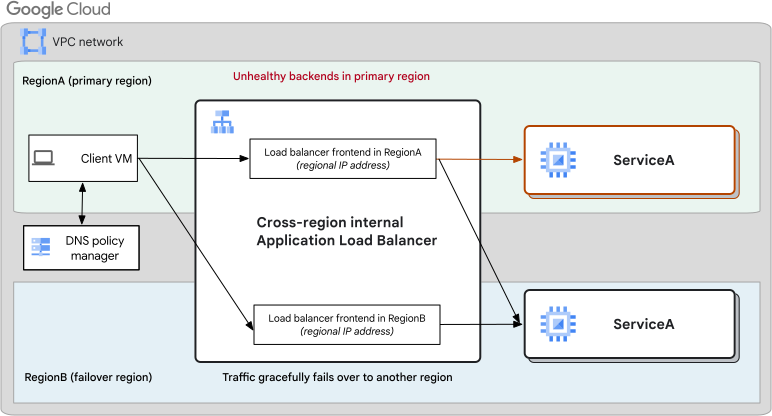](https://docs.cloud.google.com/static/load-balancing/images/cross-reg-int-failover.svg) Cross-region internal Application Load Balancer with a cross-region failover deployment (click to enlarge).
## WebSocket support
Google Cloud HTTP(S)-based load balancers support the WebSocket protocol
when you use HTTP/1.1 (HTTP or HTTPS) or HTTP/2 as the protocol to the backend.
The load balancer doesn't require any configuration to proxy WebSocket
connections.
The WebSocket protocol provides a full-duplex communication channel between
clients and the load balancer. For
more information, see [RFC 6455](https://tools.ietf.org/html/rfc6455).
For *HTTP/1.1 connections* , the WebSocket protocol uses the HTTP/1.1 `Upgrade`
mechanism to transition a TCP connection from HTTP into a WebSocket connection.
The WebSocket protocol over HTTP/1.1 works as follows:
1. The load balancer recognizes a WebSocket `Upgrade` request from an HTTP or HTTPS client. The request contains the `Connection: Upgrade` and `Upgrade: websocket` headers, followed by other relevant WebSocket-related request headers.
2. The backend sends a WebSocket `Upgrade` response. This consists of a `101 Switching Protocols` response with `Connection: Upgrade` and `Upgrade: websocket` headers, and other WebSocket-related response headers.
3. The load balancer proxies bidirectional traffic for the duration of the current connection.
If the backend instance returns a status code `HTTP 426` or `HTTP 502`,
the load balancer closes the connection.
For *HTTP/2 connections* , the WebSocket protocol uses the extended `CONNECT` method
along with pseudo-header fields (such as `:protocol`) to create a tunnel on a
single HTTP/2 stream that can carry data for WebSockets ([RFC 8441](https://datatracker.ietf.org/doc/html/rfc8441)). The WebSocket protocol over HTTP/2 works as follows:
1. The backend server sends an HTTP/2 `SETTINGS` frame containing the
`SETTINGS_ENABLE_CONNECT_PROTOCOL` parameter set to `1`. This advertises to
the load balancer that the backend supports the extended `CONNECT` method.
2. Upon receiving this setting, the load balancer recognizes it and can forward
WebSocket upgrade requests. It sends the upgrade request to the backend using
the extended `CONNECT` method. The request contains the
`:method: CONNECT` and `:protocol: websocket` pseudo-headers, along with other
relevant WebSocket-related request headers.
3. The backend sends a WebSocket success response. The backend server sends a
`200 OK` response (instead of the `101 Switching Protocols` response used in
HTTP/1.1) to establish the WebSocket tunnel over a single stream of
an HTTP/2 connection.
4. The load balancer proxies bidirectional traffic over the established HTTP/2
stream.
If the backend instance returns a status code `426` or `502`,
no WebSocket upgrade occurs, and the status code is propagated to the client.
Session affinity for WebSockets works the same as for any other request.
For more information, see [Session
affinity](https://docs.cloud.google.com/load-balancing/docs/backend-service#session_affinity).
## HTTP/2 support
HTTP/2 is a major revision of the HTTP/1 protocol. There are 2 modes of HTTP/2
support:
- HTTP/2 over TLS
- Cleartext HTTP/2 over TCP
### HTTP/2 over TLS
HTTP/2 over TLS is supported for connections between clients and the
external Application Load Balancer, and for connections between the load balancer and its backends.
The load balancer automatically negotiates HTTP/2 with clients as part of the
TLS handshake by using the ALPN TLS extension. Even if a load balancer is
configured to use HTTPS, modern clients default to HTTP/2. This is controlled
*on the client*, not on the load balancer.
If a client doesn't support HTTP/2 and the load balancer is configured to use
HTTP/2 between the load balancer and the backend instances, the load balancer
might still negotiate an HTTPS connection or accept unsecured HTTP requests.
Those HTTPS or HTTP requests are then transformed by the load balancer to proxy
the requests over HTTP/2 to the backend instances.
To use HTTP/2 over TLS, you must enable TLS on your backends and set the
[backend service protocol to
`HTTP2`](https://docs.cloud.google.com/sdk/gcloud/reference/compute/backend-services/create#--protocol). For
more information, see [Encryption from the load balancer to the
backends](https://docs.cloud.google.com/load-balancing/docs/ssl-certificates/encryption-to-the-backends).
#### HTTP/2 max concurrent streams
The HTTP/2
[`SETTINGS_MAX_CONCURRENT_STREAMS`](https://tools.ietf.org/html/rfc7540#section-6.5.2)
setting describes the maximum number of streams that an endpoint accepts,
initiated by the peer. The value advertised by an HTTP/2 client to a
Google Cloud load balancer is effectively meaningless because the load
balancer doesn't initiate streams to the client.
In cases where the load balancer uses HTTP/2 to communicate with a server that
is running on a VM, the load balancer respects the
`SETTINGS_MAX_CONCURRENT_STREAMS` value advertised by the server, up to a
maximum value of `100`. In the request direction (Google Cloud load
balancer → gRPC server), the load balancer uses the initial `SETTINGS` frame
from the gRPC server to determine how many streams per connection can be in use
simultaneously. If the server advertises a value higher than `100`, the load
balancer uses 100 as the maximum number of concurrent streams. If a value of
zero is advertised, the load balancer can't forward requests to the server, and
this might result in errors.
#### HTTP/2 dynamic header table size
HTTP/2 significantly improves upon HTTP/1.1 with features like multiplexing
and HPACK header compression. HPACK uses a dynamic table that enhances header
compression, making everything faster. To understand the impact of dynamic
header table size changes in HTTP/2, how this feature can improve performance
and how a specific bug in various HTTP client libraries could cause issues
in HPACK header compression, refer to the [community
article](https://discuss.google.dev/t/understanding-the-impact-of-dynamic-header-table-size-changes-in-http-2/256423).
#### HTTP/2 limitations
- HTTP/2 between the load balancer and the instance can require significantly more TCP connections to the instance than HTTP or HTTPS. Connection pooling, an optimization that reduces the number of these connections with HTTP or HTTPS, isn't available with HTTP/2. As a result, you might see high backend latencies because backend connections are made more frequently.
- HTTP/2 between the load balancer and the backend doesn't support server push.
- The gRPC error rate and request volume aren't visible in the Google Cloud API or the Google Cloud console. If the gRPC endpoint returns an error, the load balancer logs and the monitoring data report the `200 OK` HTTP status code.
### HTTP/2 over cleartext TCP
HTTP/2 over cleartext TCP, represented by the string "h2c" per [RFC 7540](https://datatracker.ietf.org/doc/html/rfc7540#section-11.1),
lets you use HTTP/2 without TLS encryption. It is supported for the following
connections:
- Client to load balancer: Supported automatically; no special configuration is required.
- Load balancer to its backends: Supported by setting the
[backend service protocol to `H2C`](https://docs.cloud.google.com/sdk/gcloud/reference/compute/backend-services/create.md.txt#--protocol).
H2C support is also available for load balancers created using the
GKE Gateway controller and Cloud Service Mesh.
## gRPC support
[gRPC](https://grpc.io/docs/) is an open-source framework
for remote procedure calls. It is based on the HTTP/2 standard. Use cases for
gRPC include the following:
- Low-latency, highly scalable, distributed systems
- Developing mobile clients that communicate with a cloud server
- Designing new protocols that must be accurate, efficient, and language-independent
- Layered design to enable extension, authentication, and logging
To use gRPC with your Google Cloud applications, you must proxy requests
end-to-end over HTTP/2. To do this, you create an Application Load Balancer with
one of the following configurations:
- **HTTP/2 over TLS between the client and the load balancer
and H2C between the load balancer and the backend** : you create an HTTPS load
balancer (configured with a target HTTPS proxy and SSL certificate).
Additionally, you configure
the load balancer to use HTTP/2 for unencrypted connections between the load
balancer and its backends by setting the backend service protocol to `H2C`.
- **End-to-end encrypted traffic using HTTP/2 over TLS**: you create an HTTPS load
balancer (configured with a target HTTPS proxy and SSL certificate). The load
balancer negotiates HTTP/2 with clients as part of the SSL handshake by using
the ALPN TLS extension.
Additionally, you must make sure that the [backends can handle TLS
traffic](https://docs.cloud.google.com/load-balancing/docs/ssl-certificates/encryption-to-the-backends) and
configure the load balancer to use HTTP/2 for encrypted connections between
the load balancer and its backends by setting the [backend service
protocol](https://docs.cloud.google.com/sdk/gcloud/reference/compute/backend-services/create#--protocol) to
`HTTP2`.
The load balancer might still negotiate HTTPS with some clients or
accept unsecured HTTP requests on a load balancer that is configured to use
HTTP/2 between the load balancer and the backend instances. Those HTTP or
HTTPS requests are transformed by the load balancer to proxy the requests over
HTTP/2 to the backend instances.
## TLS support
By default, an HTTPS target proxy accepts only TLS 1.0, 1.1, 1.2, and 1.3 when
terminating client SSL requests.
When the internal Application Load Balancer uses HTTPS as the backend service protocol, it can negotiate TLS 1.2 or 1.3 to the backend.
### Mutual TLS support
Mutual TLS, or mTLS, is an industry standard protocol for mutual authentication
between a client and a server. mTLS helps ensure that both the client and server
authenticate each other by verifying that each holds a valid certificate issued
by a trusted certificate authority (CA). Unlike standard TLS, where only the
server is authenticated, mTLS requires both the client and server to present
certificates, confirming the identities of both parties before communication is
established.
All of the Application Load Balancers support mTLS. With mTLS, the load balancer
requests that the client send a certificate to authenticate itself during the
TLS handshake with the load balancer. You can configure a
[Certificate Manager](https://docs.cloud.google.com/certificate-manager/docs/overview.md.txt) trust
store that the load balancer then uses to validate the client certificate's
chain of trust.
For more information about mTLS, see [Mutual TLS
authentication](https://docs.cloud.google.com/load-balancing/docs/mtls).
## Limitations
- There's no guarantee that a request from a client in one zone of the region
is sent to a backend that's in the same zone as the client.
[Session affinity](https://docs.cloud.google.com/sdk/gcloud/reference/compute/backend-services/create.md.txt#--session-affinity)
doesn't reduce communication between zones.
- Internal Application Load Balancers aren't compatible with the following
features:
- [Cloud CDN](https://docs.cloud.google.com/cdn/docs.md.txt)
- Compute Engine Google-managed SSL certificates ([Certificate Manager Google-managed
certificates](https://docs.cloud.google.com/load-balancing/docs/ssl-certificates#type-google-managed) are supported)
- To use Certificate Manager certificates with internal Application Load Balancers, you
must use either the API or the gcloud CLI. The
Google Cloud console doesn't support Certificate Manager
certificates.
- Clients connecting to an internal Application Load Balancer must use HTTP version 1.1
or later. HTTP 1.0 isn't supported.
- Google Cloud doesn't warn you if your [proxy-only
subnet](https://docs.cloud.google.com/load-balancing/docs/l7-internal/proxy-only-subnets) runs out of IP addresses.
- The internal forwarding rule that your internal Application Load Balancer uses must have
exactly one port.
- When using an internal Application Load Balancer with
Cloud Run in a Shared VPC environment,
standalone VPC networks in service projects
can send traffic to any other Cloud Run services
deployed in any other service projects within the same Shared VPC
environment. This is a known issue.
- Google Cloud doesn't guarantee that an underlying TCP connection can
remain open for the entirety of the value of the backend service timeout.
Client systems must implement retry logic instead of relying on a TCP
connection to be open for long periods of time.
- You can't specify a literal non-RFC 1918 IP address (for example,
`100.64.0.0/10` or a public range utilized privately) directly using the
`--address` flag when creating a forwarding rule. Doing so triggers an
API validation error stating that the address is not an RFC 1918 address.
To use a non-RFC 1918 IP address, do one of the following when you create
the forwarding rule:
- Omit the [`--address`](https://docs.cloud.google.com/sdk/gcloud/reference/compute/forwarding-rules/create.md.txt#--address) flag to allow Google Cloud to dynamically allocate a valid IP address from the subnet.
- Reserve a named IP address resource first inside the target subnet with [`--purpose=SHARED_LOADBALANCER_VIP`](https://docs.cloud.google.com/sdk/gcloud/reference/compute/addresses/create.md.txt#--purpose). When you create the forwarding rule, reference the reserved name using the `--address` flag.
- Internal Application Load Balancers don't support Cloud Functions 1st gen and
App Engine. For more information, see [Serverless NEGs overview:
Supported load
balancers](https://docs.cloud.google.com/load-balancing/docs/negs/serverless-neg-concepts#lb-support).
- Internal Application Load Balancers don't support [Cloud Trace](https://docs.cloud.google.com/trace/docs.md.txt).
## What's next
- To configure load balancing on a Shared VPC setup,
see [Set up an internal Application Load Balancer with
Shared VPC](https://docs.cloud.google.com/load-balancing/docs/l7-internal/l7-internal-shared-vpc).
- To configure load balancing for your services running in GKE
pods, see [Deploying GKE Gateways](https://docs.cloud.google.com/kubernetes-engine/docs/how-to/deploying-gateways.md.txt),
[Container-native load balancing with standalone
NEGs](https://docs.cloud.google.com/kubernetes-engine/docs/how-to/standalone-neg)
and the [Attaching an internal Application Load Balancer to standalone
NEGs](https://docs.cloud.google.com/kubernetes-engine/docs/how-to/standalone-neg#attaching-int-https-lb) section.
- To manage the proxy-only subnet resource, see [Proxy-only
subnets for Envoy-based load balancers](https://docs.cloud.google.com/load-balancing/docs/proxy-only-subnets).
- To configure backend subsetting on regional internal Application Load Balancers, see
[Backend subsetting](https://docs.cloud.google.com/load-balancing/docs/backend-service.md.txt#subsetting).
- To configure a regional internal Application Load Balancer with
Private Service Connect, see [Access regional Google APIs
through backends](https://docs.cloud.google.com/vpc/docs/configure-private-service-connect-controls).
- To insert custom logic into the load balancing data path, configure
[Cloud Load Balancing extensions](https://docs.cloud.google.com/service-extensions/docs/overview.md.txt#integration-lb).