This guide uses an example to teach you how to configure failover
for a Google Cloud internal passthrough Network Load Balancer. Before following this
guide, familiarize yourself with the following:
- [Internal passthrough Network Load Balancer concepts](https://docs.cloud.google.com/load-balancing/docs/internal.md.txt)
- [Traffic distribution for internal passthrough Network Load Balancers](https://docs.cloud.google.com/load-balancing/docs/internal/int-netlb-traffic-distribution.md.txt)
- [Firewall rules overview](https://docs.cloud.google.com/vpc/docs/firewalls)
- [Health check concepts](https://docs.cloud.google.com/load-balancing/docs/health-check-concepts.md.txt)
## Permissions
To follow this guide, you need to create instances and modify a
network in a project. You should be either a project
[owner or editor](https://docs.cloud.google.com/iam/docs/roles-overview.md.txt#basic), or you should
have all of the following
[Compute Engine IAM roles](https://docs.cloud.google.com/compute/docs/access/iam.md.txt):
| Task | Required Role |
|---|---|
| Create networks, subnets, and load balancer components | [Network Admin](https://docs.cloud.google.com/compute/docs/access/iam.md.txt#compute.networkAdmin) |
| Add and remove firewall rules | [Security Admin](https://docs.cloud.google.com/compute/docs/access/iam.md.txt#compute.securityAdmin) |
| Create instances | [Compute Instance Admin](https://docs.cloud.google.com/compute/docs/access/iam.md.txt#compute.instanceAdmin) |
For more information, see the following guides:
- [Access control](https://docs.cloud.google.com/load-balancing/docs/access-control.md.txt)
- [IAM Conditions](https://docs.cloud.google.com/load-balancing/docs/access-control/iam-conditions.md.txt)
## Setup
This guide shows you how to configure and test an internal passthrough Network Load Balancer that uses
failover. The steps in this section describe how to configure
the following:
1. A sample VPC network with custom subnets
2. Firewall rules that allow incoming connections to backend VMs
3. Backend VMs:
- One primary backend in an unmanaged instance group in zone `us-west1-a`
- One failover backend in an unmanaged instance group in zone `us-west1-c`
4. One client VM to test connections and observe failover behavior
5. The following internal passthrough Network Load Balancer components:
- A health check for the backend service
- An internal backend service in the `us-west1` region to manage connection distribution among the backend VMs
- An internal forwarding rule and internal IP address for the frontend of the load balancer
The architecture for this example looks like this:
[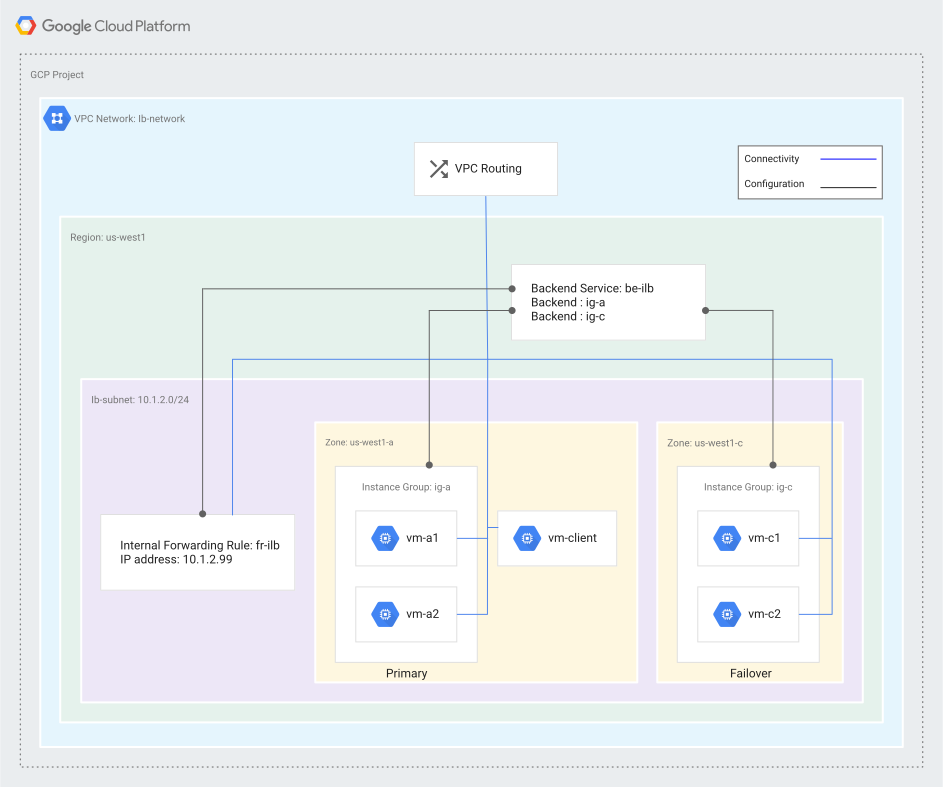](https://docs.cloud.google.com/static/load-balancing/images/ilb-failover.svg) Simple failover example for an internal passthrough Network Load Balancer (click to enlarge).
Unmanaged instance groups are used for both the primary and failover
backends in this example.
### Configuring a network, region, and subnet
This example uses the following VPC network, region, and
subnet:
- Network: The network is a [custom mode VPC
network](https://docs.cloud.google.com/vpc/docs/vpc#subnet-ranges) named `lb-network`.
- Region: The region is `us-west1`.
- Subnet: The subnet, `lb-subnet`, uses the `10.1.2.0/24` IP range.
> [!NOTE]
> **Note:** You can change the name of the network, the region, and the parameters for the subnet; however, subsequent steps in this guide use the network, region, and subnet parameters as outlined above.
To create the example network and subnet, follow these steps.
### Console
1. In the Google Cloud console, go to the **VPC networks** page.
[Go to VPC networks](https://console.cloud.google.com/networking/networks/list)
2. Click **Create VPC network**.
3. Enter a **Name** of `lb-network`.
4. In the **Subnets** section:
- Set the **Subnet creation mode** to **Custom**.
- In the **New subnet** section, enter the following information:
- **Name** : `lb-subnet`
- **Region** : `us-west1`
- **IP address range** : `10.1.2.0/24`
- Click **Done**.
5. Click **Create**.
### gcloud
1. Create the custom VPC network:
```
gcloud compute networks create lb-network --subnet-mode=custom
```
2. Create a subnet in the `lb-network` network in the `us-west1` region:
```
gcloud compute networks subnets create lb-subnet \
--network=lb-network \
--range=10.1.2.0/24 \
--region=us-west1
```
### API
Make a `POST` request to the
[`networks.insert`](https://docs.cloud.google.com/compute/docs/reference/rest/v1/networks/insert.md.txt) method.
POST https://compute.googleapis.com/compute/v1/projects/`PROJECT_ID`/global/networks
```
{
"routingConfig": {
"routingMode": "REGIONAL"
},
"name": "lb-network",
"autoCreateSubnetworks": false
}
```
Make a `POST` request to the
[`subnetworks.insert`](https://docs.cloud.google.com/compute/docs/reference/rest/v1/subnetworks/insert.md.txt)
method. Replace `PROJECT_ID` with your Google Cloud project ID.
POST https://compute.googleapis.com/compute/v1/projects/`PROJECT_ID`/regions/us-west1/subnetworks
```
{
"name": "lb-subnet",
"network": "https://www.googleapis.com/compute/v1/projects/PROJECT_ID/global/networks/lb-network",
"ipCidrRange": "10.1.2.0/24",
"privateIpGoogleAccess": false
}
```
### Configuring firewall rules
This example uses the following firewall rules:
- `fw-allow-lb-subnet`: An ingress rule, applicable to all targets in the
VPC network, allowing traffic from sources in the
`10.1.2.0/24` range. This rules allows incoming traffic from any source
within the `lb-subnet` to the instances (VMs) being load balanced.
- `fw-allow-ssh`: An ingress rule applied to the instances being load
balanced, allowing incoming SSH connectivity on TCP port 22 from any
address. You can choose a more restrictive source IP range for this rule; for
example, you can specify the IP ranges of the systems from which you plan to
initiate SSH sessions. This example uses the target tag `allow-ssh` to
identify the VMs to which the firewall rule applies.
- `fw-allow-health-check`: An ingress rule, applicable to the instances being
load balanced, that allows traffic from the
[Google Cloud health check probe ranges](https://docs.cloud.google.com/load-balancing/docs/health-check-concepts.md.txt#ip-ranges). This example uses the
target tag `allow-health-check` to identify the instances to which it should
apply.
Without these firewall rules, the [default deny
ingress](https://docs.cloud.google.com/vpc/docs/firewalls#default_firewall_rules) rule blocks incoming
traffic to the backend instances.
> [!NOTE]
> **Note:** You must create a firewall rule to allow health checks from the IP ranges of Google Cloud probe systems. See [probe IP
> ranges](https://docs.cloud.google.com/load-balancing/docs/health-check-concepts) for more information.
### Console
1. In the Google Cloud console, go to the **Firewall policies** page.
[Go to Firewall policies](https://console.cloud.google.com/net-security/firewall-manager/firewall-policies/list)
2. Click **Create firewall rule** and enter the following
information to create the rule to allow subnet traffic:
- **Name** : `fw-allow-lb-subnet`
- **Network** : `lb-network`
- **Priority** : `1000`
- **Direction of traffic**: ingress
- **Action on match**: allow
- **Targets**: All instances in the network
- **Source filter** : **IPv4 ranges**
- **Source IPv4 ranges** : `10.1.2.0/24`
- **Protocols and ports**: Allow all
3. Click **Create**.
4. Click **Create firewall rule** again to create the rule to allow incoming
SSH connections:
- **Name** : `fw-allow-ssh`
- **Network** : `lb-network`
- **Priority** : `1000`
- **Direction of traffic**: ingress
- **Action on match**: allow
- **Targets**: Specified target tags
- **Target tags** : `allow-ssh`
- **Source filter** : **IPv4 ranges**
- **Source IPv4 ranges** : `0.0.0.0/0`
- **Protocols and ports** : Choose *Specified protocols and ports* then type: `tcp:22`
5. Click **Create**.
6. Click **Create firewall rule** a third time to create the rule to allow
Google Cloud health checks:
- **Name** : `fw-allow-health-check`
- **Network** : `lb-network`
- **Priority** : `1000`
- **Direction of traffic**: ingress
- **Action on match**: allow
- **Targets**: Specified target tags
- **Target tags** : `allow-health-check`
- **Source filter** : **IPv4 ranges**
- **Source IPv4 ranges** : `35.191.0.0/16`
- **Protocols and ports**: Allow all
7. Click **Create**.
### gcloud
1. Create the `fw-allow-lb-subnet` firewall rule to allow communication from
with the subnet:
```
gcloud compute firewall-rules create fw-allow-lb-subnet \
--network=lb-network \
--action=allow \
--direction=ingress \
--source-ranges=10.1.2.0/24 \
--rules=tcp,udp,icmp
```
2. Create the `fw-allow-ssh` firewall rule to allow SSH connectivity to
VMs with the network tag `allow-ssh`. When you omit `source-ranges`,
Google Cloud [interprets the rule to mean any
source](https://docs.cloud.google.com/vpc/docs/firewalls#sources_for_the_rule).
```
gcloud compute firewall-rules create fw-allow-ssh \
--network=lb-network \
--action=allow \
--direction=ingress \
--target-tags=allow-ssh \
--rules=tcp:22
```
3. Create the `fw-allow-health-check` rule to allow Google Cloud
health checks.
gcloud compute firewall-rules create fw-allow-health-check \
--network=lb-network \
--action=allow \
--direction=ingress \
--target-tags=allow-health-check \
--source-ranges=35.191.0.0/16 \
--rules=tcp,udp,icmp
### API
Create the `fw-allow-lb-subnet` firewall rule by making a `POST` request to
the [`firewalls.insert`](https://docs.cloud.google.com/compute/docs/reference/rest/v1/firewalls/insert.md.txt)
method. Replace `PROJECT_ID` with your Google Cloud project ID.
POST https://compute.googleapis.com/compute/v1/projects/`PROJECT_ID`/global/firewalls
```
{
"name": "fw-allow-lb-subnet",
"network": "https://www.googleapis.com/compute/v1/projects/PROJECT_ID/global/networks/lb-network",
"priority": 1000,
"sourceRanges": [
"10.1.2.0/24"
],
"allowed": [
{
"IPProtocol": "tcp"
},
{
"IPProtocol": "udp"
},
{
"IPProtocol": "icmp"
}
],
"direction": "INGRESS",
"logConfig": {
"enable": false
},
"disabled": false
}
```
Create the `fw-allow-ssh` firewall rule by making a `POST` request to
the [`firewalls.insert`](https://docs.cloud.google.com/compute/docs/reference/rest/v1/firewalls/insert.md.txt)
method. Replace `PROJECT_ID` with your Google Cloud project ID.
POST https://compute.googleapis.com/compute/v1/projects/`PROJECT_ID`/global/firewalls
```
{
"name": "fw-allow-ssh",
"network": "https://www.googleapis.com/compute/v1/projects/PROJECT_ID/global/networks/lb-network",
"priority": 1000,
"sourceRanges": [
"0.0.0.0/0"
],
"targetTags": [
"allow-ssh"
],
"allowed": [
{
"IPProtocol": "tcp",
"ports": [
"22"
]
}
],
"direction": "INGRESS",
"logConfig": {
"enable": false
},
"disabled": false
}
```
Create the `fw-allow-health-check` firewall rule by making a `POST` request to
the [`firewalls.insert`](https://docs.cloud.google.com/compute/docs/reference/rest/v1/firewalls/insert.md.txt)
method. Replace `PROJECT_ID` with your Google Cloud project ID.
POST https://compute.googleapis.com/compute/v1/projects/`PROJECT_ID`/global/firewalls
```
{
"name": "fw-allow-health-check",
"network": "https://www.googleapis.com/compute/v1/projects/PROJECT_ID/global/networks/lb-network",
"priority": 1000,
"sourceRanges": [HEALTH_CHECK_RANGES],
"targetTags": [
"allow-health-check"
],
"allowed": [
{
"IPProtocol": "tcp"
},
{
"IPProtocol": "udp"
},
{
"IPProtocol": "icmp"
}
],
"direction": "INGRESS",
"logConfig": {
"enable": false
},
"disabled": false
}
```
Replace the following:
- PROJECT_ID: the project ID
- HEALTH_CHECK_RANGES: the comma-separated list of
[Google Cloud health check probe ranges](https://docs.cloud.google.com/load-balancing/docs/health-check-concepts.md.txt#ip-ranges), formatted as quoted strings
(for example, "192.0.2.0/24", "198.51.100.0/24")
### Creating backend VMs and instance groups
In this step, you'll create the backend VMs and unmanaged instance groups:
- The instance group `ig-a` in `us-west1-a` is a primary backend with two VMs:
- `vm-a1`
- `vm-a2`
- The instance group `ig-c` in `us-west1-c` is a failover backend with two VMs:
- `vm-c1`
- `vm-c2`
The primary and failover backends are placed in separate zones for
instructional clarity and to handle failover in case one zone goes down.
Each primary and failover VM is configured to run an Apache web server on TCP
ports 80 and 443. Each VM is assigned an internal IP address in the `lb-subnet`
for client access and an ephemeral external (public) IP address for SSH access.
For information about removing external IP addresses, see
[removing external IP addresses from backend
VMs](https://docs.cloud.google.com/load-balancing/docs/internal/setting-up-internal#remove_external_ip).
By default, Apache is configured to bind to any IP address.
Internal passthrough Network Load Balancers deliver packets by preserving the destination IP
address.
Ensure that server software running on your primary and failover VMs listens
on the IP address of the load balancer's internal forwarding rule. If you
configure [multiple internal forwarding rules](https://docs.cloud.google.com/load-balancing/docs/internal.md.txt#multiple_forwarding_rule),
ensure that your software listens to the internal IP address associated with
each one. The destination IP address of a packet delivered to a backend VM by an
internal passthrough Network Load Balancer is the internal IP address of the forwarding rule.
For instructional simplicity, all primary and failover VMs run Debian GNU/Linux 12.
### Console
**Create backend VMs**
1. In the Google Cloud console, go to the **VM instances** page.
[Go to VM instances](https://console.cloud.google.com/compute/instances)
2. Repeat the following steps to create four VMs, using the following name
and zone combinations.
- Name: `vm-a1`, zone: `us-west1-a`
- Name: `vm-a2`, zone: `us-west1-a`
- Name: `vm-c1`, zone: `us-west1-c`
- Name: `vm-c2`, zone: `us-west1-c`
3. Click **Create instance**.
4. Set the **Name** as indicated in step 2.
5. For the **Region** , choose `us-west1`, and choose a **Zone** as
indicated in step 2.
6. In the **Boot disk** section, ensure that the selected image is
*Debian GNU/Linux 12 (bookworm)* . Click **Choose** to change the image if
necessary.
7. Click **Advanced options**.
8. Click **Networking** and configure the following fields:
1. For **Network tags** , enter `allow-health-check` and `allow-ssh`.
2. For **Network interfaces** , select the following:
- **Network** : `lb-network`
- **Subnet** : `lb-subnet`
9. Click **Management** . Enter the following script into the
**Startup script** field. The script contents are identical for
all four VMs:
```
#! /bin/bash
apt-get update
apt-get install apache2 -y
a2ensite default-ssl
a2enmod ssl
vm_hostname="$(curl -H "Metadata-Flavor:Google" \
http://metadata.google.internal/computeMetadata/v1/instance/name)"
echo "Page served from: $vm_hostname" | \
tee /var/www/html/index.html
systemctl restart apache2
```
10. Click **Create**.
**Create instance groups**
1. In the Google Cloud console, go to the **Instance groups** page.
[Go to Instance groups](https://console.cloud.google.com/compute/instanceGroups/list)
2. Repeat the following steps to create two unmanaged instance groups each
with two VMs in them, using these combinations.
- Instance group: `ig-a`, zone: `us-west1-a`, VMs: `vm-a1` and `vm-a2`
- Instance group: `ig-c`, zone: `us-west1-c`, VMs: `vm-c1` and `vm-c2`
3. Click **Create instance group**.
4. Click **New unmanaged instance group**.
5. Set **Name** as indicated in step 2.
6. In the **Location** section, choose `us-west1` for the **Region** , and
then choose a **Zone** as indicated in step 2.
7. For **Network** , enter `lb-network`.
8. For **Subnetwork** , enter `lb-subnet`.
9. In the **VM instances** section, add the VMs as indicated in step 2.
10. Click **Create**.
### gcloud
1. Create four VMs by running the following command four times, using
these four combinations for `VM_NAME` and `ZONE`. The script contents
are identical for all four VMs.
- `VM_NAME` of `vm-a1` and `ZONE` of `us-west1-a`
- `VM_NAME` of `vm-a2` and `ZONE` of `us-west1-a`
- `VM_NAME` of `vm-c1` and `ZONE` of `us-west1-c`
- `VM_NAME` of `vm-c2` and `ZONE` of `us-west1-c`
```
gcloud compute instances create VM_NAME \
--zone=ZONE \
--image-family=debian-12 \
--image-project=debian-cloud \
--tags=allow-ssh,allow-health-check \
--subnet=lb-subnet \
--metadata=startup-script='#! /bin/bash
apt-get update
apt-get install apache2 -y
a2ensite default-ssl
a2enmod ssl
vm_hostname="$(curl -H "Metadata-Flavor:Google" \
http://metadata.google.internal/computeMetadata/v1/instance/name)"
echo "Page served from: $vm_hostname" | \
tee /var/www/html/index.html
systemctl restart apache2'
```
2. Create the two unmanaged instance groups in each zone:
```
gcloud compute instance-groups unmanaged create ig-a \
--zone=us-west1-a
gcloud compute instance-groups unmanaged create ig-c \
--zone=us-west1-c
```
3. Add the VMs to the appropriate instance groups:
```
gcloud compute instance-groups unmanaged add-instances ig-a \
--zone=us-west1-a \
--instances=vm-a1,vm-a2
gcloud compute instance-groups unmanaged add-instances ig-c \
--zone=us-west1-c \
--instances=vm-c1,vm-c2
```
### API
Create four backend VMs by making four `POST` requests to the
[`instances.insert`](https://docs.cloud.google.com/compute/docs/reference/rest/v1/instances/insert.md.txt)
method.
For the four VMs, use the following VM names and zones:
- `VM_NAME` of `vm-a1` and `ZONE` of `us-west1-a`
- `VM_NAME` of `vm-a2` and `ZONE` of `us-west1-a`
- `VM_NAME` of `vm-c1` and `ZONE` of `us-west1-c`
- `VM_NAME` of `vm-c2` and `ZONE` of `us-west1-c`
Replace the following:
- `PROJECT_ID`: your project ID
- `ZONE`: the zone of the instance
- `DEBIAN_IMAGE_NAME`: the name of the Debian image for the
instance. The current `DEBIAN_IMAGE_NAME` can be obtained
by running the following `gcloud` command:
```
gcloud compute images list \
--filter="family=debian-12"
```
POST https://compute.googleapis.com/compute/v1/projects/`PROJECT_ID`/zones/`ZONE`/instances
```
{
"name": "VM_NAME",
"tags": {
"items": [
"allow-health-check",
"allow-ssh"
]
},
"machineType": "https://www.googleapis.com/compute/v1/projects/PROJECT_ID/zones/ZONE/machineTypes/e2-standard-2",
"canIpForward": false,
"networkInterfaces": [
{
"network": "https://www.googleapis.com/compute/v1/projects/PROJECT_ID/global/networks/lb-network",
"subnetwork": "https://www.googleapis.com/compute/v1/projects/PROJECT_ID/regions/us-west1/subnetworks/lb-subnet",
"accessConfigs": [
{
"type": "ONE_TO_ONE_NAT",
"name": "external-nat",
"networkTier": "PREMIUM"
}
]
}
],
"disks": [
{
"type": "PERSISTENT",
"boot": true,
"mode": "READ_WRITE",
"autoDelete": true,
"deviceName": "VM_NAME",
"initializeParams": {
"sourceImage": "projects/debian-cloud/global/images/DEBIAN_IMAGE_NAME",
"diskType": "projects/PROJECT_ID/zones/ZONE/diskTypes/pd-standard",
"diskSizeGb": "10"
}
}
],
"metadata": {
"items": [
{
"key": "startup-script",
"value": "#! /bin/bash\napt-get update\napt-get install apache2 -y\na2ensite default-ssl\na2enmod ssl\nvm_hostname=\"$(curl -H \"Metadata-Flavor:Google\" \\\nhttp://metadata.google.internal/computeMetadata/v1/instance/name)\"\necho \"Page served from: $vm_hostname\" | \\\ntee /var/www/html/index.html\nsystemctl restart apache2"
}
]
},
"scheduling": {
"preemptible": false
},
"deletionProtection": false
}
```
Create two instance groups by making a `POST` request to the
[`instanceGroups.insert`](https://docs.cloud.google.com/compute/docs/reference/rest/v1/instanceGroups/insert.md.txt)
method. Replace `PROJECT_ID` with your Google Cloud project ID.
POST https://compute.googleapis.com/compute/v1/projects/`PROJECT_ID`/zones/us-west1-a/instanceGroups
```
{
"name": "ig-a",
"network": "https://www.googleapis.com/compute/v1/projects/PROJECT_ID/global/networks/lb-network",
"subnetwork": "https://www.googleapis.com/compute/v1/projects/PROJECT_ID/regions/us-west1/subnetworks/lb-subnet"
}
```
POST https://compute.googleapis.com/compute/v1/projects/`PROJECT_ID`/zones/us-west1-c/instanceGroups
```
{
"name": "ig-c",
"network": "https://www.googleapis.com/compute/v1/projects/PROJECT_ID/global/networks/lb-network",
"subnetwork": "https://www.googleapis.com/compute/v1/projects/PROJECT_ID/regions/us-west1/subnetworks/lb-subnet"
}
```
Add instances to each instance group by making a `POST` request to the
[`instanceGroups.addInstances`](https://docs.cloud.google.com/compute/docs/reference/rest/v1/instanceGroups/addInstances.md.txt)
method. Replace `PROJECT_ID` with your Google Cloud project ID.
POST https://compute.googleapis.com/compute/v1/projects/`PROJECT_ID`/zones/us-west1-a/instanceGroups/ig-a/addInstances
```
{
"instances": [
{
"instance": "https://www.googleapis.com/compute/v1/projects/PROJECT_ID/zones/us-west1-a/instances/vm-a1",
"instance": "https://www.googleapis.com/compute/v1/projects/PROJECT_ID/zones/us-west1-a/instances/vm-a2"
}
]
}
```
POST https://compute.googleapis.com/compute/v1/projects/`PROJECT_ID`/zones/us-west1-c/instanceGroups/ig-c/addInstances
```
{
"instances": [
{
"instance": "https://www.googleapis.com/compute/v1/projects/PROJECT_ID/zones/us-west1-c/instances/vm-c1",
"instance": "https://www.googleapis.com/compute/v1/projects/PROJECT_ID/zones/us-west1-c/instances/vm-c2"
}
]
}
```
### Creating a client VM
This example creates a client VM (`vm-client`) in the same region as the load
balancer. The client is used to demonstrate how failover works.
### Console
1. In the Google Cloud console, go to the **VM instances** page.
[Go to VM instances](https://console.cloud.google.com/compute/instances)
2. Click **Create instance**.
3. Set the **Name** to `vm-client`.
4. Set the **Zone** to `us-west1-a`.
5. Click **Advanced options**.
6. Click **Networking** and configure the following fields:
1. For **Network tags** , enter `allow-ssh`.
2. For **Network interfaces** , select the following:
- **Network** : `lb-network`
- **Subnet** : `lb-subnet`
7. Click **Create**.
### gcloud
The client VM can be in any zone in the same region as the load balancer,
and it can use any subnet in that region. In this example, the client is in
the `us-west1-a` zone, and it uses the same subnet used by the primary and
failover VMs.
```
gcloud compute instances create vm-client \
--zone=us-west1-a \
--image-family=debian-12 \
--image-project=debian-cloud \
--tags=allow-ssh \
--subnet=lb-subnet
```
### API
Make a `POST` request to the
[`instances.insert`](https://docs.cloud.google.com/compute/docs/reference/rest/v1/instances/insert.md.txt)
method.
Replace the following:
- `PROJECT_ID`: your project ID
- `DEBIAN_IMAGE_NAME`: the name of the Debian image for the
instance. The current `DEBIAN_IMAGE_NAME` can be obtained
by running the following `gcloud` command:
```
gcloud compute images list \
--filter="family=debian-12"
```
POST https://compute.googleapis.com/compute/v1/projects/`PROJECT_ID`/zones/us-west1-a/instances
```
{
"name": "vm-client",
"tags": {
"items": [
"allow-ssh"
]
},
"machineType": "https://www.googleapis.com/compute/v1/projects/PROJECT_ID/zones/us-west1-a/machineTypes/e2-standard-2",
"canIpForward": false,
"networkInterfaces": [
{
"network": "https://www.googleapis.com/compute/v1/projects/PROJECT_ID/global/networks/lb-network",
"subnetwork": "https://www.googleapis.com/compute/v1/projects/PROJECT_ID/regions/us-west1/subnetworks/lb-subnet",
"accessConfigs": [
{
"type": "ONE_TO_ONE_NAT",
"name": "external-nat",
"networkTier": "PREMIUM"
}
]
}
],
"disks": [
{
"type": "PERSISTENT",
"boot": true,
"mode": "READ_WRITE",
"autoDelete": true,
"deviceName": "vm-client",
"initializeParams": {
"sourceImage": "projects/debian-cloud/global/images/DEBIAN_IMAGE_NAME",
"diskType": "projects/PROJECT_ID/zones/us-west1-a/diskTypes/pd-standard",
"diskSizeGb": "10"
}
}
],
"scheduling": {
"preemptible": false
},
"deletionProtection": false
}
```
### Configuring load balancer components
These steps configure all of the [internal passthrough Network Load Balancer
components](https://docs.cloud.google.com/load-balancing/docs/internal#components) starting with the health
check and backend service, and then the frontend components:
- **Health check** : This example uses an HTTP health check that simply
checks for an HTTP `200` (OK) response. For more information, see the
[health checks section of the internal passthrough Network Load Balancer
overview](https://docs.cloud.google.com/load-balancing/docs/internal#health-checking).
- **Backend service** : Because the example passes HTTP traffic through the
load balancer, the configuration specifies TCP, not UDP. To
illustrate failover, this backend service has a failover ratio of `0.75`.
- **Forwarding rule**: This example creates a single internal forwarding rule.
- **Internal IP address** : In this example, we specify an internal IP
address, `10.1.2.99`, when we create the forwarding rule.
### Console
#### Start your configuration
1. In the Google Cloud console, go to the **Load balancing** page.
[Go to Load
balancing](https://console.cloud.google.com/net-services/loadbalancing/list)
2. Click **Create load balancer**.
3. For **Type of load balancer** , select **Network Load Balancer
(TCP/UDP/SSL)** and click **Next**.
4. For **Proxy or passthrough** , select **Passthrough load
balancer** and click **Next**.
5. For **Public facing or internal** , select **Internal** and click **Next**.
6. Click **Configure**.
#### Basic configuration
1. Set the **Name** to `be-ilb`.
2. Set **Region** to `us-west1`.
3. Set **Network** to `lb-network`.
4. Click **Backend configuration** and make the following changes:
1. For **Backends** , in the **New item** section, select the `ig-a` instance group. Ensure that **Use this instance group as a failover
group for backup** is *not* checked. Click **Done**.
2. Click **Add backend** . In the **New item** section that appears, select the `ig-c` instance group. Check **Use this instance group
as a failover group for backup** . Click **Done**.
3. For **Health check** , choose **Create another health check** , enter the following information, and click **Save and continue** :
- **Name** : `hc-http-80`
- **Protocol** : `HTTP`
- **Port** : `80`
- **Proxy protocol** : `NONE`
- **Request path** : `/` Note that when you use the Google Cloud console to create your load balancer, the health check is global. If you want to create a regional health check, use `gcloud` or the API.
4. Click **Advanced configurations** . In the **Failover policy** section, configure the following:
- **Failover ratio** : `0.75`
- Check **Enable connection draining on failover**.
5. Verify that there is a blue check mark next to **Backend
configuration** before continuing. Review this step if not.
5. Click **Frontend configuration** . In the **New Frontend IP and port** section, make the following changes:
1. **Name** : `fr-ilb`
2. **Subnetwork** : `ilb-subnet`
3. From **Internal IP** , choose **Reserve a static internal IP address** , enter the following information, and click **Reserve** :
- **Name** : `ip-ilb`
- **Static IP address** : *Let me choose*
- **Custom IP address** : `10.1.2.99`
4. **Ports** : Choose **Single** , and enter `80` for the **Port
number**.
5. Verify that there is a blue check mark next to **Frontend
configuration** before continuing. Review this step if not.
6. Click **Review and finalize**. Double-check your settings.
7. Click **Create**.
### gcloud
1. Create a new HTTP health check to test TCP connectivity to the VMs
on 80.
```
gcloud compute health-checks create http hc-http-80 \
--region=us-west1 \
--port=80
```
2. Create the backend service for HTTP traffic:
```
gcloud compute backend-services create be-ilb \
--load-balancing-scheme=internal \
--protocol=tcp \
--region=us-west1 \
--health-checks=hc-http-80 \
--health-checks-region=us-west1 \
--failover-ratio 0.75
```
3. Add the primary backend to the backend service:
```
gcloud compute backend-services add-backend be-ilb \
--region=us-west1 \
--instance-group=ig-a \
--instance-group-zone=us-west1-a
```
4. Add the failover backend to the backend service:
```
gcloud compute backend-services add-backend be-ilb \
--region=us-west1 \
--instance-group=ig-c \
--instance-group-zone=us-west1-c \
--failover
```
5. Create a forwarding rule for the backend service. When you create the
forwarding rule, specify `10.1.2.99` for the internal IP in the
subnet.
```
gcloud compute forwarding-rules create fr-ilb \
--region=us-west1 \
--load-balancing-scheme=internal \
--network=lb-network \
--subnet=lb-subnet \
--address=10.1.2.99 \
--ip-protocol=TCP \
--ports=80 \
--backend-service=be-ilb \
--backend-service-region=us-west1
```
### API
Create the health check by making a `POST` request to the
[`regionHealthChecks.insert`](https://docs.cloud.google.com/compute/docs/reference/rest/v1/regionHealthChecks/insert.md.txt)
method. Replace `PROJECT_ID` with your project ID.
POST https://compute.googleapis.com/compute/v1/projects/`PROJECT_ID`/regions/us-west1/regionHealthChecks
```
{
"name": "hc-http-80",
"type": "HTTP",
"httpHealthCheck": {
"port": 80
}
}
```
Create the regional backend service by making a `POST` request to the
[`regionBackendServices.insert`](https://docs.cloud.google.com/compute/docs/reference/rest/v1/regionBackendServices/insert.md.txt)
method. Replace `PROJECT_ID` with your project ID.
POST https://compute.googleapis.com/compute/v1/projects/`PROJECT_ID`/regions/us-west1/backendServices
```
{
"name": "be-ilb",
"backends": [
{
"group": "https://www.googleapis.com/compute/v1/projects/PROJECT_ID/zones/us-west1-a/instanceGroups/ig-a",
"balancingMode": "CONNECTION"
},
{
"group": "https://www.googleapis.com/compute/v1/projects/PROJECT_ID/zones/us-west1-c/instanceGroups/ig-c",
"balancingMode": "CONNECTION"
"failover": true
}
],
"failoverPolicy": {
"failoverRatio": 0.75
},
"healthChecks": [
"https://www.googleapis.com/compute/v1/projects/PROJECT_ID/regions/us-west1/healthChecks/hc-http-80"
],
"loadBalancingScheme": "INTERNAL"
}
```
Create the forwarding rule by making a `POST` request to the
[`forwardingRules.insert`](https://docs.cloud.google.com/compute/docs/reference/rest/v1/forwardingRules/insert.md.txt)
method. Replace `PROJECT_ID` with your project ID.
POST https://compute.googleapis.com/compute/v1/projects/`PROJECT_ID`/regions/us-west1/forwardingRules
```
{
"name": "fr-ilb",
"IPAddress": "10.1.2.99",
"IPProtocol": "TCP",
"ports": [
"80", "8008", "8080", "8088"
],
"loadBalancingScheme": "INTERNAL",
"subnetwork": "https://www.googleapis.com/compute/v1/projects/PROJECT_ID/regions/us-west1/subnetworks/lb-subnet",
"network": "https://www.googleapis.com/compute/v1/projects/PROJECT_ID/global/networks/lb-network",
"backendService": "https://www.googleapis.com/compute/v1/projects/PROJECT_ID/regions/us-west1/backendServices/be-ilb",
"networkTier": "PREMIUM"
}
```
## Testing
These tests show how to validate your load balancer configuration and learn
about its expected behavior.
### Client test procedure
This procedure contacts the load balancer from the client VM. You'll use this
procedure to complete the other tests.
1. Connect to the client VM instance.
```
gcloud compute ssh vm-client --zone=us-west1-a
```
2. Make a web request to the load balancer using `curl` to contact its IP
address.
```
curl http://10.1.2.99
```
3. Note the text returned by the `curl` command. The name of the backend VM
generating the response is displayed in that text; for example: `Page served
from: vm-a1`
### Testing initial state
After you've configured the example load balancer, all four of the backend VMs
should be healthy:
- the two primary VMs, `vm-a1` and `vm-a2`
- the two failover VMs, `vm-c1` and `vm-c2`
Follow the [client test procedure](https://docs.cloud.google.com/load-balancing/docs/internal/setting-up-failover.md.txt#client-curl). Repeat the second step a few
times. The expected behavior is for traffic to be served by the two primary VMs,
`vm-a1` and `vm-a2`, because both of them are healthy. You should see each
primary VM serve a response approximately half of the time [because no session
affinity has been configured](https://docs.cloud.google.com/load-balancing/docs/internal#traffic_distribution) for this load
balancer.
### Testing failover
This test simulates the failure of `vm-a1` so you can observe failover behavior.
1. Connect to the `vm-a1` VM.
```
gcloud compute ssh vm-a1 --zone=us-west1-a
```
2. Stop the Apache web server. After ten seconds, Google Cloud
considers this VM to be unhealthy. (The `hc-http-80` health check that you
created in the setup uses the default check interval of five seconds and
unhealthy threshold of two consecutive failed probes.)
```
sudo apachectl stop
```
3. Follow the [client test procedure](https://docs.cloud.google.com/load-balancing/docs/internal/setting-up-failover.md.txt#client-curl). Repeat the second step a
few times. The expected behavior is for new connections to be distributed
between the two healthy failover VMs, `vm-c1` and `vm-c2`. This happens
because only one primary VM, `vm-a2`, is healthy, and the ratio of
healthy primary VMs to total primary VMs is `0.5`---less than the
failover threshold of `0.75`.
Each failover VM serves a response approximately half of the time [as long
as the session affinity is set to `NONE`](https://docs.cloud.google.com/load-balancing/docs/internal/int-netlb-traffic-distribution).
### Testing failback
This test simulates failback by restarting the Apache server on `vm-a1`.
1. Connect to the `vm-a1` VM.
```
gcloud compute ssh vm-a1 --zone=us-west1-a
```
2. Start the Apache web server and wait 10 seconds.
```
sudo apachectl start
```
3. Follow the [client test procedure](https://docs.cloud.google.com/load-balancing/docs/internal/setting-up-failover.md.txt#client-curl). Repeat the second step a
few times. The expected behavior is for traffic to be served by the two
primary VMs, `vm-a1` and `vm-a2`. With both primary VMs being healthy, the
ratio of healthy primary VMs to total primary VMs is `1.0`, greater than the
failover threshold of `0.75`, so the load balancer's eligible backends
consist of all healthy primary backend VMs.
## Adding more backend VMs
This section extends the example configuration by adding more primary and
failover VMs to the load balancer. It does so by creating two more backend
instance groups to demonstrate that you can distribute primary and failover VMs
among multiple zones in the same region:
- A third instance group, `ig-d` in `us-west1-c`, serves as a primary backend with two VMs:
- `vm-d1`
- `vm-d2`
- A fourth instance group, `ig-b` in `us-west1-a`, serves as a failover backend with two VMs:
- `vm-b1`
- `vm-b2`
The modified architecture for this example looks like this:
[](https://docs.cloud.google.com/static/load-balancing/images/ilb-failover-expanded.svg) Multi-zone internal passthrough Network Load Balancer failover (click to enlarge).
### Create additional VMs and instance groups
Follow these steps to create the additional primary and failover VMs and their
corresponding unmanaged instance groups.
### Console
**Create backend VMs**
1. In the Google Cloud console, go to the **VM instances** page.
[Go to VM instances](https://console.cloud.google.com/compute/instances)
2. Repeat the following steps to create four VMs, using the following name
and zone combinations.
- Name: `vm-b1`, zone: `us-west1-a`
- Name: `vm-b2`, zone: `us-west1-a`
- Name: `vm-d1`, zone: `us-west1-c`
- Name: `vm-d2`, zone: `us-west1-c`
3. Click **Create instance**.
4. Set the **Name** as indicated in step 2.
5. For the **Region** , choose `us-west1`, and choose a **Zone** as
indicated in step 2.
6. In the **Boot disk** section, ensure that the selected image is
*Debian GNU/Linux 12 (bookworm)* . Click **Choose** to change the image if
necessary.
7. Click **Advanced options** and make the following changes:
- Click **Networking** and add the following **Network tags** : `allow-ssh` and `allow-health-check`
- Click the edit button under **Network interfaces** and make the following changes then click **Done** :
- **Network** : `lb-network`
- **Subnet** : `lb-subnet`
- **Primary internal IP**: Ephemeral (automatic)
- **External IP**: Ephemeral
- Click **Management** . In the **Startup script** field, copy and paste
the following script contents. The script contents are identical for
all four VMs:
```
#! /bin/bash
apt-get update
apt-get install apache2 -y
a2ensite default-ssl
a2enmod ssl
vm_hostname="$(curl -H "Metadata-Flavor:Google" \
http://metadata.google.internal/computeMetadata/v1/instance/name)"
echo "Page served from: $vm_hostname" | \
tee /var/www/html/index.html
systemctl restart apache2
```
8. Click **Create**.
**Create instance groups**
1. In the Google Cloud console, go to the **Instance groups** page.
[Go to Instance groups](https://console.cloud.google.com/compute/instanceGroups/list)
2. Repeat the following steps to create two unmanaged instance groups each
with two VMs in their one, using these combinations.
- Instance group: `ig-b`, zone: `us-west1-a`, VMs: `vm-b1` and `vm-b2`
- Instance group: `ig-d`, zone: `us-west1-c`, VMs: `vm-d1` and `vm-d2`
3. Click **Create instance group**.
4. Click **New unmanaged instance group**.
5. Set **Name** as indicated in step 2.
6. In the **Location** section, choose `us-west1` for the **Region** , and
then choose a **Zone** as indicated in step 2.
7. For **Network** , enter `lb-network`.
8. For **Subnetwork** , enter `lb-subnet`.
9. In the **VM instances** section, add the VMs as indicated in step 2.
10. Click **Create**.
### gcloud
1. Create four VMs by running the following command four times, using
these four combinations for `VM_NAME` and `ZONE`. The script contents
are identical for all four VMs.
- `VM_NAME` of `vm-b1` and `ZONE` of `us-west1-a`
- `VM_NAME` of `vm-b2` and `ZONE` of `us-west1-a`
- `VM_NAME` of `vm-d1` and `ZONE` of `us-west1-c`
- `VM_NAME` of `vm-d2` and `ZONE` of `us-west1-c`
```
gcloud compute instances create VM_NAME \
--zone=ZONE \
--image-family=debian-12 \
--image-project=debian-cloud \
--tags=allow-ssh,allow-health-check \
--subnet=lb-subnet \
--metadata=startup-script='#! /bin/bash
apt-get update
apt-get install apache2 -y
a2ensite default-ssl
a2enmod ssl
vm_hostname="$(curl -H "Metadata-Flavor:Google" \
http://metadata.google.internal/computeMetadata/v1/instance/name)"
echo "Page served from: $vm_hostname" | \
tee /var/www/html/index.html
systemctl restart apache2'
```
2. Create the two unmanaged instance groups in each zone:
```
gcloud compute instance-groups unmanaged create ig-b \
--zone=us-west1-a
gcloud compute instance-groups unmanaged create ig-d \
--zone=us-west1-c
```
3. Add the VMs to the appropriate instance groups:
```
gcloud compute instance-groups unmanaged add-instances ig-b \
--zone=us-west1-a \
--instances=vm-b1,vm-b2
gcloud compute instance-groups unmanaged add-instances ig-d \
--zone=us-west1-c \
--instances=vm-d1,vm-d2
```
### API
Create four backend VMs by making four `POST` requests to the
[`instances.insert`](https://docs.cloud.google.com/compute/docs/reference/rest/v1/instances/insert.md.txt)
method.
For the four VMs, use the following VM names and zones:
- `VM_NAME` of `vm-b1` and `ZONE` of `us-west1-a`
- `VM_NAME` of `vm-b2` and `ZONE` of `us-west1-a`
- `VM_NAME` of `vm-d1` and `ZONE` of `us-west1-c`
- `VM_NAME` of `vm-d2` and `ZONE` of `us-west1-c`
Replace the following:
- `PROJECT_ID`: your project ID
- `DEBIAN_IMAGE_NAME`: the name of the Debian image for the
instance. The current `DEBIAN_IMAGE_NAME` can be obtained
by running the following `gcloud` command:
```
gcloud compute images list \
--filter="family=debian-12"
```
POST https://compute.googleapis.com/compute/v1/projects/`PROJECT_ID`/zones/ZONE/instances
```
{
"name": "VM_NAME",
"tags": {
"items": [
"allow-health-check",
"allow-ssh"
]
},
"machineType": "https://www.googleapis.com/compute/v1/projects/PROJECT_ID/zones/ZONE/machineTypes/e2-standard-2",
"canIpForward": false,
"networkInterfaces": [
{
"network": "https://www.googleapis.com/compute/v1/projects/PROJECT_ID/global/networks/lb-network",
"subnetwork": "https://www.googleapis.com/compute/v1/projects/PROJECT_ID/regions/us-west1/subnetworks/lb-subnet",
"accessConfigs": [
{
"type": "ONE_TO_ONE_NAT",
"name": "external-nat",
"networkTier": "PREMIUM"
}
]
}
],
"disks": [
{
"type": "PERSISTENT",
"boot": true,
"mode": "READ_WRITE",
"autoDelete": true,
"deviceName": "VM_NAME",
"initializeParams": {
"sourceImage": "projects/debian-cloud/global/images/DEBIAN_IMAGE_NAME",
"diskType": "projects/PROJECT_ID/zones/ZONE/diskTypes/pd-standard",
"diskSizeGb": "10"
}
}
],
"metadata": {
"items": [
{
"key": "startup-script",
"value": "#! /bin/bash\napt-get update\napt-get install apache2 -y\na2ensite default-ssl\na2enmod ssl\nvm_hostname=\"$(curl -H \"Metadata-Flavor:Google\" \\\nhttp://metadata.google.internal/computeMetadata/v1/instance/name)\"\necho \"Page served from: $vm_hostname\" | \\\ntee /var/www/html/index.html\nsystemctl restart apache2"
}
]
},
"scheduling": {
"preemptible": false
},
"deletionProtection": false
}
```
Create two instance groups by making a `POST` request to the
[`instanceGroups.insert`](https://docs.cloud.google.com/compute/docs/reference/rest/v1/instanceGroups/insert.md.txt)
method. Replace `PROJECT_ID` with your project ID.
POST https://compute.googleapis.com/compute/v1/projects/`PROJECT_ID`/zones/us-west1-a/instanceGroups
```
{
"name": "ig-b",
"network": "https://www.googleapis.com/compute/v1/projects/PROJECT_ID/global/networks/lb-network",
"subnetwork": "https://www.googleapis.com/compute/v1/projects/PROJECT_ID/regions/us-west1/subnetworks/lb-subnet"
}
```
POST https://compute.googleapis.com/compute/v1/projects/`PROJECT_ID`/zones/us-west1-c/instanceGroups
```
{
"name": "ig-d",
"network": "https://www.googleapis.com/compute/v1/projects/PROJECT_ID/global/networks/lb-network",
"subnetwork": "https://www.googleapis.com/compute/v1/projects/PROJECT_ID/regions/us-west1/subnetworks/lb-subnet"
}
```
Add instances to each instance group by making a `POST` request to the
[`instanceGroups.addInstances`](https://docs.cloud.google.com/compute/docs/reference/rest/v1/instanceGroups/addInstances.md.txt)
method. Replace `PROJECT_ID` with your project ID.
POST https://compute.googleapis.com/compute/v1/projects/`PROJECT_ID`/zones/us-west1-a/instanceGroups/ig-b/addInstances
```
{
"instances": [
{
"instance": "https://www.googleapis.com/compute/v1/projects/PROJECT_ID/zones/us-west1-a/instances/vm-b1",
"instance": "https://www.googleapis.com/compute/v1/projects/PROJECT_ID/zones/us-west1-a/instances/vm-b2"
}
]
}
```
POST https://compute.googleapis.com/compute/v1/projects/`PROJECT_ID`/zones/us-west1-c/instanceGroups/ig-d/addInstances
```
{
"instances": [
{
"instance": "https://www.googleapis.com/compute/v1/projects/PROJECT_ID/zones/us-west1-c/instances/vm-d1",
"instance": "https://www.googleapis.com/compute/v1/projects/PROJECT_ID/zones/us-west1-c/instances/vm-d2"
}
]
}
```
### Adding a primary backend
You can use this procedure as a template for how to add an unmanaged instance
group to an existing internal passthrough Network Load Balancer's backend service as a
primary backend. For the example configuration, this procedure shows you how to
add instance group `ig-d` as a primary backend to the `be-ilb` load balancer.
### Console
1. In the Google Cloud console, go to the **Load balancing** page.
[Go to Load balancing](https://console.cloud.google.com/networking/loadbalancing/list)
2. In the **Load balancers** tab, click the name of an existing internal TCP
or internal UDP load balancer (in this example, `be-ilb`).
3. Click **Edit** .
4. In the **Backend configuration** , click **Add backend** and select an
unmanaged instance group (in this example, `ig-d`).
5. Ensure that **Use this instance group as a failover group for backup** is
*not* checked.
6. Click **Done** and then click **Update**.
### gcloud
Use the following `gcloud` command to add a primary backend
to an existing internal passthrough Network Load Balancer's backend service.
```
gcloud compute backend-services add-backend BACKEND_SERVICE_NAME \
--instance-group INSTANCE_GROUP_NAME \
--instance-group-zone INSTANCE_GROUP_ZONE \
--region REGION
```
Replace the following:
- `BACKEND_SERVICE_NAME`: the name of the load balancer's backend service. For the example, use `be-ilb`.
- `INSTANCE_GROUP_NAME`: the name of the instance group to add as a primary backend. For the example, use `ig-d`.
- `INSTANCE_GROUP_ZONE`: is the zone where the instance group is defined. For the example, use `us-west1-c`.
- `REGION`: the region of the load balancer. For the example, use `us-west1`.
### API
Add a primary backend to an existing backend service with
the
[`regionBackendServices.patch`](https://docs.cloud.google.com/compute/docs/reference/rest/v1/regionBackendServices/patch.md.txt)
method.
```
POST https://compute.googleapis.com/compute/v1/projects/PROJECT_ID/regions/REGION/backendServices/BACKEND_SERVICE_NAME
{
"backends":
[
{
"balancingMode": "connection",
"failover": false,
"group": "https://www.googleapis.com/compute/v1/projects/PROJECT_ID/zones/INSTANCE_GROUP_ZONE/instanceGroups/INSTANCE_GROUP_NAME"
}
]
}
```
Replace the following:
- `PROJECT_ID`: your project ID
- `REGION`: the region of the load balancer. For the example, use `us-west1`.
- `BACKEND_SERVICE_NAME`: the name of the load balancer's backend service. For the example, use `be-ilb`.
- `INSTANCE_GROUP_NAME`: the name of the instance group to add as a primary backend. For the example, use `ig-d`.
- `INSTANCE_GROUP_ZONE`: the zone where the instance group is defined. For the example, use `us-west1-c`.
### Adding a failover backend
You can use this procedure as a template for how to add an unmanaged instance
group to an existing internal passthrough Network Load Balancer's backend service as a
failover backend. For the example configuration, this procedure shows you how to
add instance group `ig-b` as a failover backend to the `be-ilb` load balancer.
### Console
1. In the Google Cloud console, go to the **Load balancing** page.
[Go to Load balancing](https://console.cloud.google.com/networking/loadbalancing/list)
2. In the **Load balancers** tab, click the name of an existing
load balancer of type **TCP/UDP (Internal)** (in this example, `be-ilb`).
3. Click **Edit** .
4. In the **Backend configuration** , click **Add backend** and select an
unmanaged instance group (in this example, `ig-b`).
5. Check **Use this instance group as a failover group for backup**.
6. Click **Done** and then click **Update**.
### gcloud
Use the following `gcloud` command to add a failover backend
to an existing internal passthrough Network Load Balancer's backend service.
```
gcloud compute backend-services add-backend BACKEND_SERVICE_NAME \
--instance-group INSTANCE_GROUP_NAME \
--instance-group-zone INSTANCE_GROUP_ZONE \
--region REGION \
--failover
```
Replace the following:
- `BACKEND_SERVICE_NAME`: the name of the load balancer's backend service. For the example, use `be-ilb`.
- `INSTANCE_GROUP_NAME`: the name of the instance group to add as a primary backend. For the example, use `ig-b`.
- `INSTANCE_GROUP_ZONE`: is the zone where the instance group is defined. For the example, use `us-west1-a`.
- `REGION` is the region of the load balancer. For the example, use `us-west1`.
### API
Add a failover backend to an existing backend service with
the
[`regionBackendServices.patch`](https://docs.cloud.google.com/compute/docs/reference/rest/v1/regionBackendServices/patch.md.txt)
method.
```
POST https://compute.googleapis.com/compute/v1/projects/PROJECT_ID/regions/REGION/backendServices/BACKEND_SERVICE_NAME
{
"backends":
[
{
"balancingMode": "connection",
"failover": true,
"group": "https://www.googleapis.com/compute/v1/projects/PROJECT_ID/zones/INSTANCE_GROUP_ZONE/instanceGroups/INSTANCE_GROUP_NAME"
}
]
}
```
Replace the following:
- `PROJECT_ID`: your project ID
- `BACKEND_SERVICE_NAME`: the name of the load balancer's backend service. For the example, use `be-ilb`.
- `INSTANCE_GROUP_NAME`: the name of the instance group to add as a primary backend. For the example, use `ig-b`.
- `INSTANCE_GROUP_ZONE`: is the zone where the instance group is defined. For the example, use `us-west1-a`.
- `REGION`: the region of the load balancer. For the example, use `us-west1`.
### Converting a primary or failover backend
You can convert a primary backend to a failover backend,
or a failover backend to a primary backend,
without having to remove the instance group from the internal passthrough Network Load Balancer's
backend service.
### Console
1. In the Google Cloud console, go to the **Load balancing** page.
[Go to Load balancing](https://console.cloud.google.com/networking/loadbalancing/list)
2. In the **Load balancers** tab, click the name of an existing
load balancer of type **TCP/UDP (Internal)**.
3. Click **Edit** .
4. In the **Backend configuration**, click the name of one of the backend
instance groups. Then:
- To make the instance group a failover backend, check **Use this instance
group as a failover group for backup**.
- To make the instance group a primary backend, un-check **Use this
instance group as a failover group for backup**.
5. Click **Done** and then click **Update**.
### gcloud
Use the following `gcloud` command to convert an existing primary backend to
a failover backend:
```
gcloud compute backend-services update-backend BACKEND_SERVICE_NAME \
--instance-group INSTANCE_GROUP_NAME \
--instance-group-zone INSTANCE_GROUP_ZONE \
--region REGION \
--failover
```
Use the following `gcloud` command to convert an existing failover backend to
a primary backend:
```
gcloud compute backend-services update-backend BACKEND_SERVICE_NAME \
--instance-group INSTANCE_GROUP_NAME \
--instance-group-zone INSTANCE_GROUP_ZONE \
--region REGION \
--no-failover
```
Replace the following:
- `BACKEND_SERVICE_NAME`: the name of the load balancer's backend service
- `INSTANCE_GROUP_NAME`: the name of the instance group to add as a primary backend
- `INSTANCE_GROUP_ZONE`: the zone where the instance group is defined
- `REGION`: the region of the load balancer
### API
Convert a primary backend to a failover backend, or vice versa, by using the
[`regionBackendServices.patch`](https://docs.cloud.google.com/compute/docs/reference/rest/v1/regionBackendServices/patch.md.txt)
method.
To convert a primary backend to a failover backend:
```
POST https://compute.googleapis.com/compute/v1/projects/PROJECT_ID/regions/REGION/backendServices/BACKEND_SERVICE_NAME
{
"backends":
[
{
"failover": true,
"group": "https://www.googleapis.com/compute/v1/projects/PROJECT_ID/zones/INSTANCE_GROUP_ZONE/instanceGroups/INSTANCE_GROUP_NAME"
}
]
}
```
To convert a failover backend to a primary backend:
```
POST https://compute.googleapis.com/compute/v1/projects/PROJECT_ID/regions/REGION/backendServices/BACKEND_SERVICE_NAME
{
"backends":
[
{
"failover": false,
"group": "https://www.googleapis.com/compute/v1/projects/PROJECT_ID/zones/INSTANCE_GROUP_ZONE/instanceGroups/INSTANCE_GROUP_NAME"
}
],
}
```
Replace the following:
- `PROJECT_ID`: your project ID
- `BACKEND_SERVICE_NAME`: the name of the load balancer's backend service
- `INSTANCE_GROUP_NAME`: the name of the instance group to add as a primary backend
- `INSTANCE_GROUP_ZONE`: the zone where the instance group is defined
- `REGION`: the region of the load balancer
## Configuring failover policies
This section describes how to configure a failover policy for an internal passthrough Network Load Balancer
backend service. For more information on the parameters of a failover policy,
see
[Failover](https://docs.cloud.google.com/load-balancing/docs/internal/int-netlb-traffic-distribution.md.txt#failover).
### Defining a failover policy
The following instructions describe how to define the failover policy for an
existing internal passthrough Network Load Balancer.
### Console
To define a failover policy using the Google Cloud console you must
have at least one failover backend.
1. In the Google Cloud console, go to the **Load balancing** page.
[Go to Load balancing](https://console.cloud.google.com/networking/loadbalancing/list)
2. From the **Load balancers** tab, click the name of an existing
load balancer of type **TCP/UDP (Internal)**.
3. Click **Edit** .
4. Make sure you have at least one failover backend. At least one of the load
balancer's backends must have the **Use this instance group as a failover
group for backup** selected.
5. Click **Advanced configurations**.
- For **Failover Policy** , set the **Failover ratio** to a value between `0.0` and `1.0`, inclusive.
- Check the box next to **Enable drop traffic** if you want to drop traffic when all primary and failover backend VMs are unhealthy.
- Check the box next to **Enable connection draining on failover** if you want to terminate existing connections quickly during failover.
6. Click **Review and finalize** and then click **Update**.
### gcloud
To define a failover policy using the gcloud CLI, update the
load balancer's backend service:
```
gcloud compute backend-services update BACKEND_SERVICE_NAME \
--region REGION \
--failover-ratio FAILOVER_RATIO \
--drop-traffic-if-unhealthy \
--no-connection-drain-on-failover
```
Replace the following:
- `BACKEND_SERVICE_NAME`: the name of the load balancer's backend service. For the example, use `be-ilb`.
- `REGION`: the region of the load balancer. For the example, use `us-west1`.
- `FAILOVER_RATIO`: the failover ratio. Possible values are between `0.0` and `1.0`, inclusive. For the example, use `0.75`.
- `--drop-traffic-if-unhealthy` instructs the load balancer to drop traffic when all primary VMs and all failover VMs are unhealthy. Change this to `--no-drop-traffic-if-unhealthy` if you want to distribute traffic among all primary VMs when all backend VMs are unhealthy.
- `--no-connection-drain-on-failover` instructs the load balancer to terminate existing TCP connections quickly during failover. Use `--connection-drain-on-failover` to enable connection draining during failover.
### API
Use the
[`regionBackendServices.patch`](https://docs.cloud.google.com/compute/docs/reference/rest/v1/regionBackendServices/patch.md.txt)
method to define the failover policy.
```
PATCH https://compute.googleapis.com/compute/v1/projects/PROJECT_ID/regions/REGION/backendServices/BACKEND_SERVICE_NAME
{
"failoverPolicy":
{
"failoverRatio": FAILOVER_RATIO,
"dropTrafficIfUnhealthy": [true|false],
"disableConnectionDrainOnFailover": [true|false]
}
}
```
Replace the following:
- `PROJECT_ID`: your project ID
- `REGION`: the region of the load balancer
- `BACKEND_SERVICE_NAME`: the name of the load balancer's backend service
- `FAILOVER_RATIO`: the failover ratio. Possible values are between `0.0` and `1.0`, inclusive.
- Setting `dropTrafficIfUnhealthy` to `true` instructs the load balancer to drop traffic when all primary VMs and all failover VMs are unhealthy. Set this to `false` if you want to distribute traffic among all primary VMs when all backend VMs are unhealthy.
- Setting `disableConnectionDrainOnFailover` to `true` instructs the load balancer to terminate existing TCP connections quickly when doing a failover. Set this to `false` to enable connection draining during failover.
### Viewing a failover policy
The following instructions describe how to view the existing failover policy for
an internal passthrough Network Load Balancer.
### Console
The Google Cloud console shows the existing failover policy settings when
you edit an internal passthrough Network Load Balancer. Refer to [defining a failover
policy](https://docs.cloud.google.com/load-balancing/docs/internal/setting-up-failover#creating_failover_policy) for instructions.
### gcloud
To list the failover policy settings using the gcloud CLI,
use the following command. Undefined settings in a failover policy use
[default failover policy values](https://docs.cloud.google.com/load-balancing/docs/internal/int-netlb-traffic-distribution.md.txt#failover_policy).
```
gcloud compute backend-services describe BACKEND_SERVICE_NAME \
--region REGION \
--format="get(failoverPolicy)"
```
Replace the following:
- `BACKEND_SERVICE_NAME`: the name of the load balancer's backend service
- `REGION`: the region of the load balancer
### API
Use the
[`regionBackendServices.get`](https://docs.cloud.google.com/compute/docs/reference/rest/v1/regionBackendServices/get.md.txt)
method to view the failover policy.
The response to the API request shows the failover policy. An
example is shown below.
```
GET https://compute.googleapis.com/compute/v1/projects/PROJECT_ID/regions/REGION/backendServices/BACKEND_SERVICE_NAME
```
Replace the following:
- `PROJECT_ID`: your project ID
- `REGION`: the region of the load balancer
- `BACKEND_SERVICE_NAME`: the name of the load balancer's backend service
```
{
...
"failoverPolicy": {
"disableConnectionDrainOnFailover": false,
"dropTrafficIfUnhealthy": false,
"failoverRatio": 0.75
...
}
```
## What's next
- See [Internal passthrough Network Load Balancer overview](https://docs.cloud.google.com/load-balancing/docs/internal.md.txt) for important fundamentals.
- See [Set up an internal passthrough Network Load Balancer](https://docs.cloud.google.com/load-balancing/docs/internal/setting-up-internal.md.txt) for an example internal passthrough Network Load Balancer configuration.
- See [Internal passthrough Network Load Balancer logging and
monitoring](https://docs.cloud.google.com/load-balancing/docs/internal/internal-logging-monitoring) for information on configuring Logging and Monitoring for internal passthrough Network Load Balancer.
- See [Internal passthrough Network Load Balancers and connected
networks](https://docs.cloud.google.com/load-balancing/docs/internal/internal-tcp-udp-lb-and-other-networks) for information about accessing internal passthrough Network Load Balancers from peer networks connected to your VPC network.
- See [Troubleshoot internal passthrough Network Load Balancers](https://docs.cloud.google.com/load-balancing/docs/internal/troubleshooting-ilb.md.txt) for information about how to troubleshoot issues with your internal passthrough Network Load Balancer.
- [Clean up the load balancer setup](https://docs.cloud.google.com/load-balancing/docs/cleaning-up-lb-setup.md.txt).