# Quickstart for an MPEG-DASH live stream
This page shows you how to create a basic MPEG-DASH live stream job
using the default settings of the Live Stream API and `curl`, PowerShell, or the
client libraries.
## Before you begin
### Create a Cloud Storage bucket
Create a Cloud Storage bucket to hold the live stream manifest and segment
files.
### Google Cloud console
1. In the Google Cloud console, go to the Cloud Storage **Buckets** page.
[Go to Buckets](https://console.cloud.google.com/storage/browser)
2. Click **Create**.
3. On the **Create a bucket** page, enter your bucket information. To go to the next step, click **Continue** .
1. In the **Get started** section, do the following:
- Enter a globally unique name that meets the [bucket naming requirements](https://docs.cloud.google.com/storage/docs/bucket-naming#requirements).
- To add a [bucket label](https://docs.cloud.google.com/storage/docs/tags-and-labels.md.txt#bucket-labels), expand the **Labels** section (), click **Add label** , and specify a `key` and a `value` for your label.
2. In the **Choose where to store your data** section, do the following:
1. Select a [Location type](https://docs.cloud.google.com/storage/docs/locations.md.txt).
2. Choose a location where your bucket's data is permanently stored from the **[Location type](https://docs.cloud.google.com/storage/docs/locations.md.txt#available-locations)** drop-down menu.
- If you select the [dual-region](https://docs.cloud.google.com/storage/docs/locations.md.txt#location-dr) location type, you can also choose to enable [turbo replication](https://docs.cloud.google.com/storage/docs/availability-durability.md.txt#turbo-replication) by using the relevant checkbox.
3. To set up [cross-bucket replication](https://docs.cloud.google.com/storage/docs/availability-durability.md.txt#cross-bucket-replication), select **Add cross-bucket replication via Storage Transfer Service** and follow these steps:
#### Set up cross-bucket replication
1. In the **Bucket** menu, select a bucket.
2. In the **Replication settings** section,
click **Configure** to configure settings for the
replication job.
The **Configure cross-bucket replication** pane
appears.
- To filter objects to replicate by object name prefix, enter a prefix that you want to include or exclude objects from, then click **Add a prefix**.
- To set a storage class for the replicated objects, select a storage class from the **Storage class** menu. If you skip this step, the replicated objects will use the destination bucket's storage class by default.
- Click **Done**.
3. In the **Choose how to store your data** section, do the following:
1. In the **Set a default class** section, select the following: **Standard**.
2. To enable [hierarchical namespace](https://docs.cloud.google.com/storage/docs/hns-overview.md.txt), in the **Optimize storage for data-intensive workloads** section, select **Enable hierarchical namespace on this bucket** . **Note:** You cannot enable hierarchical namespace in existing buckets.
4. In the **Choose how to control access to objects** section, select whether or not your bucket enforces [public access prevention](https://docs.cloud.google.com/storage/docs/public-access-prevention.md.txt), and select an [access control method](https://docs.cloud.google.com/storage/docs/access-control.md.txt) for your bucket's objects. **Note:** You cannot change the **Prevent public access** setting if this setting is enforced at an [organization policy](https://docs.cloud.google.com/storage/docs/org-policy-constraints.md.txt#public-access-prevention).
5. In the **Choose how to protect object data** section, do the following:
- Select any of the options under **Data protection** that you want to set for your bucket.
- To enable [soft delete](https://docs.cloud.google.com/storage/docs/soft-delete.md.txt), click the **Soft delete policy (For data recovery)** checkbox, and specify the number of days you want to retain objects after deletion.
- To set [Object Versioning](https://docs.cloud.google.com/storage/docs/object-versioning.md.txt), click the **Object versioning (For version control)** checkbox, and specify the maximum number of versions per object and the number of days after which the noncurrent versions expire.
- To enable the retention policy on objects and buckets, click the **Retention (For compliance)** checkbox, and then do the following:
- To enable [Object Retention Lock](https://docs.cloud.google.com/storage/docs/object-lock.md.txt), click the **Enable object retention** checkbox.
- To enable [Bucket Lock](https://docs.cloud.google.com/storage/docs/bucket-lock.md.txt), click the **Set bucket retention policy** checkbox, and choose a unit of time and a length of time for your retention period.
- To choose how your object data will be encrypted, expand the **Data encryption** section (), and select a [**Data encryption** method](https://docs.cloud.google.com/storage/docs/encryption.md.txt).
4. Click **Create**.
### Command line
Create a Cloud Storage bucket:
```bash
gcloud storage buckets create gs://BUCKET_NAME
```
Replace `BUCKET_NAME` with a bucket name that meets the [bucket naming requirements](https://docs.cloud.google.com/storage/docs/buckets.md.txt#naming).
### Install an encoder
To use the API, you need an encoder to generate input streams
that the API processes.
Install [`ffmpeg`](https://ffmpeg.org/download.html) as this page
covers how to use `ffmpeg` to generate input streams. You can install this in
Cloud Shell using the following command.
sudo apt install ffmpeg
## Create an input endpoint
To start a live stream, you first must use the
[`projects.locations.inputs.create`](https://docs.cloud.google.com/livestream/docs/reference/rest/v1/projects.locations.inputs/create.md.txt)
method to create an input endpoint. You send the input stream to this endpoint.
### REST
Before using any of the request data,
make the following replacements:
- `PROJECT_NUMBER`: your Google Cloud project number; this is located in the **Project number** field on the [IAM Settings](https://console.cloud.google.com/iam-admin/settings) page
- `LOCATION`: the location in which to create the input endpoint; use one of the [supported regions](https://docs.cloud.google.com/livestream/docs/locations.md.txt) Show locations
- `us-central1`
- `us-east1`
- `us-east4`
- `us-west1`
- `us-west2`
- `northamerica-northeast1`
- `southamerica-east1`
- `asia-east1`
- `asia-east2`
- `asia-south1`
- `asia-northeast1`
- `asia-southeast1`
- `australia-southeast1`
- `europe-north1`
- `europe-west1`
- `europe-west2`
- `europe-west3`
- `europe-west4`
- `INPUT_ID`: a user-defined identifier for the new input endpoint to create (to which you send your input stream). This value must be 1-63 characters, begin and end with `[a-z0-9]`, and can contain dashes (-) between characters. For example, `my-input`.
To send your request, expand one of these options:
#### curl (Linux, macOS, or Cloud Shell)
> [!NOTE]
> **Note:** The following command assumes that you have logged in to the `gcloud` CLI with your user account by running [`gcloud init`](https://docs.cloud.google.com/sdk/gcloud/reference/init) or [`gcloud auth login`](https://docs.cloud.google.com/sdk/gcloud/reference/auth/login.md.txt) , or by using [Cloud Shell](https://docs.cloud.google.com/shell/docs.md.txt), which automatically logs you into the `gcloud` CLI . You can check the currently active account by running [`gcloud auth list`](https://docs.cloud.google.com/sdk/gcloud/reference/auth/list.md.txt).
Save the request body in a file named `request.json`.
Run the following command in the terminal to create or overwrite
this file in the current directory:
```
cat > request.json << 'EOF'
{
"type": "RTMP_PUSH"
}
EOF
```
Then execute the following command to send your REST request:
```
curl -X POST \
-H "Authorization: Bearer $(gcloud auth print-access-token)" \
-H "Content-Type: application/json; charset=utf-8" \
-d @request.json \
"https://livestream.googleapis.com/v1/projects/PROJECT_NUMBER/locations/LOCATION/inputs?inputId=INPUT_ID"
```
#### PowerShell (Windows)
> [!NOTE]
> **Note:** The following command assumes that you have logged in to the `gcloud` CLI with your user account by running [`gcloud init`](https://docs.cloud.google.com/sdk/gcloud/reference/init) or [`gcloud auth login`](https://docs.cloud.google.com/sdk/gcloud/reference/auth/login.md.txt) . You can check the currently active account by running [`gcloud auth list`](https://docs.cloud.google.com/sdk/gcloud/reference/auth/list.md.txt).
Save the request body in a file named `request.json`.
Run the following command in the terminal to create or overwrite
this file in the current directory:
```
@'
{
"type": "RTMP_PUSH"
}
'@ | Out-File -FilePath request.json -Encoding utf8
```
Then execute the following command to send your REST request:
```
$cred = gcloud auth print-access-token
$headers = @{ "Authorization" = "Bearer $cred" }
Invoke-WebRequest `
-Method POST `
-Headers $headers `
-ContentType: "application/json; charset=utf-8" `
-InFile request.json `
-Uri "https://livestream.googleapis.com/v1/projects/PROJECT_NUMBER/locations/LOCATION/inputs?inputId=INPUT_ID" | Select-Object -Expand Content
```
You should receive a JSON response similar to the following:
```
{
"name": "projects/PROJECT_NUMBER/locations/LOCATION/operations/OPERATION_ID",
"metadata": {
"@type": "type.googleapis.com/google.cloud.video.livestream.v1.OperationMetadata",
"createTime": CREATE_TIME,
"target": "projects/PROJECT_NUMBER/locations/LOCATION/inputs/INPUT_ID",
"verb": "create",
"requestedCancellation": false,
"apiVersion": "v1"
},
"done": false
}
```
### C#
To learn how to install and use the client library for Live Stream API, see
[Live Stream API client libraries](https://docs.cloud.google.com/livestream/docs/reference/libraries.md.txt).
For more information, see the
[Live Stream API C# API
reference documentation](https://docs.cloud.google.com/dotnet/docs/reference/Google.Cloud.Video.LiveStream.V1/latest).
To authenticate to Live Stream API, set up Application Default Credentials.
For more information, see
[Set up authentication for a local development environment](https://docs.cloud.google.com/docs/authentication/set-up-adc-local-dev-environment.md.txt).
```c#
using Google.Api.Gax.ResourceNames;
using Google.Cloud.Video.LiveStream.V1;
using Google.LongRunning;
using System.Threading.Tasks;
public class CreateInputSample
{
public async Task CreateInputAsync(
string projectId, string locationId, string inputId)
{
// Create the client.
LivestreamServiceClient client = LivestreamServiceClient.Create();
CreateInputRequest request = new CreateInputRequest
{
ParentAsLocationName = LocationName.FromProjectLocation(projectId, locationId),
InputId = inputId,
Input = new Input
{
Type = Input.Types.Type.RtmpPush
}
};
// Make the request.
Operation response = await client.CreateInputAsync(request);
// Poll until the returned long-running operation is complete.
Operation completedResponse = await response.PollUntilCompletedAsync();
// Retrieve the operation result.
return completedResponse.Result;
}
}
```
### Go
To learn how to install and use the client library for Live Stream API, see
[Live Stream API client libraries](https://docs.cloud.google.com/livestream/docs/reference/libraries.md.txt).
For more information, see the
[Live Stream API Go API
reference documentation](https://pkg.go.dev/cloud.google.com/go/video/livestream).
To authenticate to Live Stream API, set up Application Default Credentials.
For more information, see
[Set up authentication for a local development environment](https://docs.cloud.google.com/docs/authentication/set-up-adc-local-dev-environment.md.txt).
```go
import (
"context"
"fmt"
"io"
livestream "cloud.google.com/go/video/livestream/apiv1"
"cloud.google.com/go/video/livestream/apiv1/livestreampb"
)
// createInput creates an input endpoint. You send an input video stream to this
// endpoint.
func createInput(w io.Writer, projectID, location, inputID string) error {
// projectID := "my-project-id"
// location := "us-central1"
// inputID := "my-input"
ctx := context.Background()
client, err := livestream.NewClient(ctx)
if err != nil {
return fmt.Errorf("NewClient: %w", err)
}
defer client.Close()
req := &livestreampb.CreateInputRequest{
Parent: fmt.Sprintf("projects/%s/locations/%s", projectID, location),
InputId: inputID,
Input: &livestreampb.Input{
Type: livestreampb.Input_RTMP_PUSH,
},
}
// Creates the input.
op, err := client.CreateInput(ctx, req)
if err != nil {
return fmt.Errorf("CreateInput: %w", err)
}
response, err := op.Wait(ctx)
if err != nil {
return fmt.Errorf("Wait: %w", err)
}
fmt.Fprintf(w, "Input: %v", response.Name)
return nil
}
```
### Java
To learn how to install and use the client library for Live Stream API, see
[Live Stream API client libraries](https://docs.cloud.google.com/livestream/docs/reference/libraries.md.txt).
For more information, see the
[Live Stream API Java API
reference documentation](https://docs.cloud.google.com/java/docs/reference/google-cloud-live-stream/latest/overview).
To authenticate to Live Stream API, set up Application Default Credentials.
For more information, see
[Set up authentication for a local development environment](https://docs.cloud.google.com/docs/authentication/set-up-adc-local-dev-environment.md.txt).
```java
import com.google.cloud.video.livestream.v1.CreateInputRequest;
import com.google.cloud.video.livestream.v1.Input;
import com.google.cloud.video.livestream.v1.LivestreamServiceClient;
import com.google.cloud.video.livestream.v1.LocationName;
import java.io.IOException;
import java.util.concurrent.ExecutionException;
import java.util.concurrent.TimeUnit;
import java.util.concurrent.TimeoutException;
public class CreateInput {
public static void main(String[] args) throws Exception {
// TODO(developer): Replace these variables before running the sample.
String projectId = "my-project-id";
String location = "us-central1";
String inputId = "my-input-id";
createInput(projectId, location, inputId);
}
public static void createInput(String projectId, String location, String inputId)
throws InterruptedException, ExecutionException, TimeoutException, IOException {
// Initialize client that will be used to send requests. This client only needs to be created
// once, and can be reused for multiple requests. After completing all of your requests, call
// the "close" method on the client to safely clean up any remaining background resources.
LivestreamServiceClient livestreamServiceClient = LivestreamServiceClient.create();
var createInputRequest =
CreateInputRequest.newBuilder()
.setParent(LocationName.of(projectId, location).toString())
.setInputId(inputId)
.setInput(Input.newBuilder().setType(Input.Type.RTMP_PUSH).build())
.build();
// First API call in a project can take up to 15 minutes.
Input result =
livestreamServiceClient.createInputAsync(createInputRequest).get(15, TimeUnit.MINUTES);
System.out.println("Input: " + result.getName());
livestreamServiceClient.close();
}
}
```
### Node.js
To learn how to install and use the client library for Live Stream API, see
[Live Stream API client libraries](https://docs.cloud.google.com/livestream/docs/reference/libraries.md.txt).
For more information, see the
[Live Stream API Node.js API
reference documentation](https://cloud.google.com/nodejs/docs/reference/livestream/latest).
To authenticate to Live Stream API, set up Application Default Credentials.
For more information, see
[Set up authentication for a local development environment](https://docs.cloud.google.com/docs/authentication/set-up-adc-local-dev-environment.md.txt).
```javascript
/**
* TODO(developer): Uncomment these variables before running the sample.
*/
// projectId = 'my-project-id';
// location = 'us-central1';
// inputId = 'my-input';
// Imports the Livestream library
const {LivestreamServiceClient} = require('@google-cloud/livestream').v1;
// Instantiates a client
const livestreamServiceClient = new LivestreamServiceClient();
async function createInput() {
// Construct request
const request = {
parent: livestreamServiceClient.locationPath(projectId, location),
inputId: inputId,
input: {
type: 'RTMP_PUSH',
},
};
// Run request
const [operation] = await livestreamServiceClient.createInput(request);
const response = await operation.promise();
const [input] = response;
console.log(`Input: ${input.name}`);
}
createInput();
```
### PHP
To learn how to install and use the client library for Live Stream API, see
[Live Stream API client libraries](https://docs.cloud.google.com/livestream/docs/reference/libraries.md.txt).
For more information, see the
[Live Stream API PHP API
reference documentation](https://googleapis.github.io/google-cloud-php/#/docs/google-cloud/latest/videolivestream/readme).
To authenticate to Live Stream API, set up Application Default Credentials.
For more information, see
[Set up authentication for a local development environment](https://docs.cloud.google.com/docs/authentication/set-up-adc-local-dev-environment.md.txt).
```php
use Google\Cloud\Video\LiveStream\V1\Input;
use Google\Cloud\Video\LiveStream\V1\Client\LivestreamServiceClient;
use Google\Cloud\Video\LiveStream\V1\CreateInputRequest;
/**
* Creates an input. You send an input video stream to this endpoint.
*
* @param string $callingProjectId The project ID to run the API call under
* @param string $location The location of the input
* @param string $inputId The ID of the input to be created
*/
function create_input(
string $callingProjectId,
string $location,
string $inputId
): void {
// Instantiate a client.
$livestreamClient = new LivestreamServiceClient();
$parent = $livestreamClient->locationName($callingProjectId, $location);
$input = (new Input())
->setType(Input\Type::RTMP_PUSH);
// Run the input creation request. The response is a long-running operation ID.
$request = (new CreateInputRequest())
->setParent($parent)
->setInput($input)
->setInputId($inputId);
$operationResponse = $livestreamClient->createInput($request);
$operationResponse->pollUntilComplete();
if ($operationResponse->operationSucceeded()) {
$result = $operationResponse->getResult();
// Print results
printf('Input: %s' . PHP_EOL, $result->getName());
} else {
$error = $operationResponse->getError();
// handleError($error)
}
}
```
### Python
To learn how to install and use the client library for Live Stream API, see
[Live Stream API client libraries](https://docs.cloud.google.com/livestream/docs/reference/libraries.md.txt).
For more information, see the
[Live Stream API Python API
reference documentation](https://docs.cloud.google.com/python/docs/reference/livestream/latest).
To authenticate to Live Stream API, set up Application Default Credentials.
For more information, see
[Set up authentication for a local development environment](https://docs.cloud.google.com/docs/authentication/set-up-adc-local-dev-environment.md.txt).
```python
import argparse
from google.cloud.video import live_stream_v1
from google.cloud.video.live_stream_v1.services.livestream_service import (
LivestreamServiceClient,
)
def create_input(
project_id: str, location: str, input_id: str
) -> live_stream_v1.types.Input:
"""Creates an input.
Args:
project_id: The GCP project ID.
location: The location in which to create the input.
input_id: The user-defined input ID."""
client = LivestreamServiceClient()
parent = f"projects/{project_id}/locations/{location}"
input = live_stream_v1.types.Input(
type_="RTMP_PUSH",
)
operation = client.create_input(parent=parent, input=input, input_id=input_id)
response = operation.result(900)
print(f"Input: {response.name}")
return response
```
### Ruby
To learn how to install and use the client library for Live Stream API, see
[Live Stream API client libraries](https://docs.cloud.google.com/livestream/docs/reference/libraries.md.txt).
For more information, see the
[Live Stream API Ruby API
reference documentation](https://docs.cloud.google.com/ruby/docs/reference/google-cloud-video-live_stream/latest).
To authenticate to Live Stream API, set up Application Default Credentials.
For more information, see
[Set up authentication for a local development environment](https://docs.cloud.google.com/docs/authentication/set-up-adc-local-dev-environment.md.txt).
```ruby
require "google/cloud/video/live_stream"
##
# Create an input endpoint
#
# @param project_id [String] Your Google Cloud project (e.g. "my-project")
# @param location [String] The location (e.g. "us-central1")
# @param input_id [String] Your input name (e.g. "my-input")
#
def create_input project_id:, location:, input_id:
# Create a Live Stream client.
client = Google::Cloud::Video::LiveStream.livestream_service
# Build the resource name of the parent.
parent = client.location_path project: project_id, location: location
# Set the input fields.
new_input = {
type: Google::Cloud::Video::LiveStream::V1::Input::Type::RTMP_PUSH
}
operation = client.create_input parent: parent, input: new_input, input_id: input_id
# The returned object is of type Gapic::Operation. You can use this
# object to check the status of an operation, cancel it, or wait
# for results. Here is how to block until completion:
operation.wait_until_done!
# Print the input name.
puts "Input: #{operation.response.name}"
end
```
Copy the returned OPERATION_ID to
use in the next section.
### Check for the result
Use the [`projects.locations.operations.get`](https://docs.cloud.google.com/livestream/docs/reference/rest/v1/projects.locations.operations/get.md.txt)
method to check if the input endpoint has been created. If the response contains
`"done: false"`, repeat the command until the response contains `"done: true"`.
Creating the first input endpoint in a region may take up to 10 minutes.
Before using any of the request data,
make the following replacements:
- `PROJECT_NUMBER`: your Google Cloud project number; this is located in the **Project number** field on the [IAM Settings](https://console.cloud.google.com/iam-admin/settings) page
- `LOCATION`: the location where your input endpoint is located; use one of the [supported regions](https://docs.cloud.google.com/livestream/docs/locations.md.txt) Show locations
- `us-central1`
- `us-east1`
- `us-east4`
- `us-west1`
- `us-west2`
- `northamerica-northeast1`
- `southamerica-east1`
- `asia-east1`
- `asia-east2`
- `asia-south1`
- `asia-northeast1`
- `asia-southeast1`
- `australia-southeast1`
- `europe-north1`
- `europe-west1`
- `europe-west2`
- `europe-west3`
- `europe-west4`
- `OPERATION_ID`: the identifier for the operation
To send your request, expand one of these options:
#### curl (Linux, macOS, or Cloud Shell)
> [!NOTE]
> **Note:** The following command assumes that you have logged in to the `gcloud` CLI with your user account by running [`gcloud init`](https://docs.cloud.google.com/sdk/gcloud/reference/init) or [`gcloud auth login`](https://docs.cloud.google.com/sdk/gcloud/reference/auth/login.md.txt) , or by using [Cloud Shell](https://docs.cloud.google.com/shell/docs.md.txt), which automatically logs you into the `gcloud` CLI . You can check the currently active account by running [`gcloud auth list`](https://docs.cloud.google.com/sdk/gcloud/reference/auth/list.md.txt).
Execute the following command:
```
curl -X GET \
-H "Authorization: Bearer $(gcloud auth print-access-token)" \
"https://livestream.googleapis.com/v1/projects/PROJECT_NUMBER/locations/LOCATION/operations/OPERATION_ID"
```
#### PowerShell (Windows)
> [!NOTE]
> **Note:** The following command assumes that you have logged in to the `gcloud` CLI with your user account by running [`gcloud init`](https://docs.cloud.google.com/sdk/gcloud/reference/init) or [`gcloud auth login`](https://docs.cloud.google.com/sdk/gcloud/reference/auth/login.md.txt) . You can check the currently active account by running [`gcloud auth list`](https://docs.cloud.google.com/sdk/gcloud/reference/auth/list.md.txt).
Execute the following command:
```
$cred = gcloud auth print-access-token
$headers = @{ "Authorization" = "Bearer $cred" }
Invoke-WebRequest `
-Method GET `
-Headers $headers `
-Uri "https://livestream.googleapis.com/v1/projects/PROJECT_NUMBER/locations/LOCATION/operations/OPERATION_ID" | Select-Object -Expand Content
```
You should receive a JSON response similar to the following:
```
{
"name": "projects/PROJECT_NUMBER/locations/LOCATION/operations/OPERATION_ID",
"metadata": {
"@type": "type.googleapis.com/google.cloud.video.livestream.v1.OperationMetadata",
"createTime": CREATE_TIME,
"endTime": END_TIME,
"target": "projects/PROJECT_NUMBER/locations/LOCATION/inputs/INPUT_ID",
"verb": "create",
"requestedCancellation": false,
"apiVersion": "v1"
},
"done": true,
"response": {
"@type": "type.googleapis.com/google.cloud.video.livestream.v1.Input",
"name": "projects/PROJECT_NUMBER/locations/LOCATION/inputs/INPUT_ID",
"createTime": CREATE_TIME,
"updateTime": UPDATE_TIME,
"type": "RTMP_PUSH",
"uri": INPUT_STREAM_URI, # For example, "rtmp://1.2.3.4/live/b8ebdd94-c8d9-4d88-a16e-b963c43a953b",
"tier": "HD"
}
}
```
Find the `uri` field and copy the returned INPUT_STREAM_URI to use later in the [Send the
input stream](https://docs.cloud.google.com/livestream/docs/quickstarts/quickstart-dash#send_input_stream) section.
## Create a channel
To transcode the input stream into an output stream, you need to create a
channel resource.
To create a channel, use the
[`projects.locations.channels.create`](https://docs.cloud.google.com/livestream/docs/reference/rest/v1/projects.locations.channels/create.md.txt)
method. The following example creates a channel generating an MPEG-DASH
live stream that consists of a single, high-definition (1280x720) rendition.
Before using any of the request data,
make the following replacements:
- `PROJECT_NUMBER`: your Google Cloud project number; this is located in the **Project number** field on the [IAM Settings](https://console.cloud.google.com/iam-admin/settings) page
- `LOCATION`: the location in which to create the channel; use one of the [supported regions](https://docs.cloud.google.com/livestream/docs/locations.md.txt) Show locations
- `us-central1`
- `us-east1`
- `us-east4`
- `us-west1`
- `us-west2`
- `northamerica-northeast1`
- `southamerica-east1`
- `asia-east1`
- `asia-east2`
- `asia-south1`
- `asia-northeast1`
- `asia-southeast1`
- `australia-southeast1`
- `europe-north1`
- `europe-west1`
- `europe-west2`
- `europe-west3`
- `europe-west4`
- `CHANNEL_ID`: a user-defined identifier for the channel to create; this value must be 1-63 characters, begin and end with `[a-z0-9]`, and can contain dashes (-) between characters
- `INPUT_ID`: the user-defined identifier for the input endpoint
- `BUCKET_NAME`: the name of the Cloud Storage bucket you created to hold the live stream manifest and segment files
To send your request, expand one of these options:
#### curl (Linux, macOS, or Cloud Shell)
> [!NOTE]
> **Note:** The following command assumes that you have logged in to the `gcloud` CLI with your user account by running [`gcloud init`](https://docs.cloud.google.com/sdk/gcloud/reference/init) or [`gcloud auth login`](https://docs.cloud.google.com/sdk/gcloud/reference/auth/login.md.txt) , or by using [Cloud Shell](https://docs.cloud.google.com/shell/docs.md.txt), which automatically logs you into the `gcloud` CLI . You can check the currently active account by running [`gcloud auth list`](https://docs.cloud.google.com/sdk/gcloud/reference/auth/list.md.txt).
Save the request body in a file named `request.json`.
Run the following command in the terminal to create or overwrite
this file in the current directory:
```
cat > request.json << 'EOF'
{
"inputAttachments": [
{
"key": "my-input",
"input": "projects/PROJECT_NUMBER/locations/LOCATION/inputs/INPUT_ID"
}
],
"output": {
"uri": "gs://BUCKET_NAME"
},
"elementaryStreams": [
{
"key": "es_video",
"videoStream": {
"h264": {
"profile": "high",
"widthPixels": 1280,
"heightPixels": 720,
"bitrateBps": 3000000,
"frameRate": 30
}
}
},
{
"key": "es_audio",
"audioStream": {
"codec": "aac",
"channelCount": 2,
"bitrateBps": 160000
}
}
],
"muxStreams": [
{
"key": "mux_video",
"elementaryStreams": ["es_video"],
"segmentSettings": { "segmentDuration": "2s" }
},
{
"key": "mux_audio",
"elementaryStreams": ["es_audio"],
"segmentSettings": { "segmentDuration": "2s" }
}
],
"manifests": [
{
"key": "manifest_dash",
"fileName": "main.mpd",
"type": "DASH",
"muxStreams": [
"mux_video",
"mux_audio"
],
"maxSegmentCount": 5
}
]
}
EOF
```
Then execute the following command to send your REST request:
```
curl -X POST \
-H "Authorization: Bearer $(gcloud auth print-access-token)" \
-H "Content-Type: application/json; charset=utf-8" \
-d @request.json \
"https://livestream.googleapis.com/v1/projects/PROJECT_NUMBER/locations/LOCATION/channels?channelId=CHANNEL_ID"
```
#### PowerShell (Windows)
> [!NOTE]
> **Note:** The following command assumes that you have logged in to the `gcloud` CLI with your user account by running [`gcloud init`](https://docs.cloud.google.com/sdk/gcloud/reference/init) or [`gcloud auth login`](https://docs.cloud.google.com/sdk/gcloud/reference/auth/login.md.txt) . You can check the currently active account by running [`gcloud auth list`](https://docs.cloud.google.com/sdk/gcloud/reference/auth/list.md.txt).
Save the request body in a file named `request.json`.
Run the following command in the terminal to create or overwrite
this file in the current directory:
```
@'
{
"inputAttachments": [
{
"key": "my-input",
"input": "projects/PROJECT_NUMBER/locations/LOCATION/inputs/INPUT_ID"
}
],
"output": {
"uri": "gs://BUCKET_NAME"
},
"elementaryStreams": [
{
"key": "es_video",
"videoStream": {
"h264": {
"profile": "high",
"widthPixels": 1280,
"heightPixels": 720,
"bitrateBps": 3000000,
"frameRate": 30
}
}
},
{
"key": "es_audio",
"audioStream": {
"codec": "aac",
"channelCount": 2,
"bitrateBps": 160000
}
}
],
"muxStreams": [
{
"key": "mux_video",
"elementaryStreams": ["es_video"],
"segmentSettings": { "segmentDuration": "2s" }
},
{
"key": "mux_audio",
"elementaryStreams": ["es_audio"],
"segmentSettings": { "segmentDuration": "2s" }
}
],
"manifests": [
{
"key": "manifest_dash",
"fileName": "main.mpd",
"type": "DASH",
"muxStreams": [
"mux_video",
"mux_audio"
],
"maxSegmentCount": 5
}
]
}
'@ | Out-File -FilePath request.json -Encoding utf8
```
Then execute the following command to send your REST request:
```
$cred = gcloud auth print-access-token
$headers = @{ "Authorization" = "Bearer $cred" }
Invoke-WebRequest `
-Method POST `
-Headers $headers `
-ContentType: "application/json; charset=utf-8" `
-InFile request.json `
-Uri "https://livestream.googleapis.com/v1/projects/PROJECT_NUMBER/locations/LOCATION/channels?channelId=CHANNEL_ID" | Select-Object -Expand Content
```
You should receive a JSON response similar to the following:
```
{
"name": "projects/PROJECT_NUMBER/locations/LOCATION/operations/OPERATION_ID",
"metadata": {
"@type": "type.googleapis.com/google.cloud.video.livestream.v1.OperationMetadata",
"createTime": CREATE_TIME,
"target": "projects/PROJECT_NUMBER/locations/LOCATION/channels/CHANNEL_ID",
"verb": "create",
"requestedCancellation": false,
"apiVersion": "v1"
},
"done": false
}
```
### Get the channel
You can [check for the result](https://docs.cloud.google.com/livestream/docs/quickstarts/quickstart-dash.md.txt#check_for_result) of the channel creation
operation using the new operation ID.
Once the channel has been created, use the
[`projects.locations.channels.get`](https://docs.cloud.google.com/livestream/docs/reference/rest/v1/projects.locations.channels/get.md.txt)
method to query the channel state.
### REST
Before using any of the request data,
make the following replacements:
- `PROJECT_NUMBER`: your Google Cloud project number; this is located in the **Project number** field on the [IAM Settings](https://console.cloud.google.com/iam-admin/settings) page
- `LOCATION`: the location where your channel is located; use one of the [supported regions](https://docs.cloud.google.com/livestream/docs/locations.md.txt) Show locations
- `us-central1`
- `us-east1`
- `us-east4`
- `us-west1`
- `us-west2`
- `northamerica-northeast1`
- `southamerica-east1`
- `asia-east1`
- `asia-east2`
- `asia-south1`
- `asia-northeast1`
- `asia-southeast1`
- `australia-southeast1`
- `europe-north1`
- `europe-west1`
- `europe-west2`
- `europe-west3`
- `europe-west4`
- `CHANNEL_ID`: a user-defined identifier for the channel
To send your request, expand one of these options:
#### curl (Linux, macOS, or Cloud Shell)
> [!NOTE]
> **Note:** The following command assumes that you have logged in to the `gcloud` CLI with your user account by running [`gcloud init`](https://docs.cloud.google.com/sdk/gcloud/reference/init) or [`gcloud auth login`](https://docs.cloud.google.com/sdk/gcloud/reference/auth/login.md.txt) , or by using [Cloud Shell](https://docs.cloud.google.com/shell/docs.md.txt), which automatically logs you into the `gcloud` CLI . You can check the currently active account by running [`gcloud auth list`](https://docs.cloud.google.com/sdk/gcloud/reference/auth/list.md.txt).
Execute the following command:
```
curl -X GET \
-H "Authorization: Bearer $(gcloud auth print-access-token)" \
"https://livestream.googleapis.com/v1/projects/PROJECT_NUMBER/locations/LOCATION/channels/CHANNEL_ID"
```
#### PowerShell (Windows)
> [!NOTE]
> **Note:** The following command assumes that you have logged in to the `gcloud` CLI with your user account by running [`gcloud init`](https://docs.cloud.google.com/sdk/gcloud/reference/init) or [`gcloud auth login`](https://docs.cloud.google.com/sdk/gcloud/reference/auth/login.md.txt) . You can check the currently active account by running [`gcloud auth list`](https://docs.cloud.google.com/sdk/gcloud/reference/auth/list.md.txt).
Execute the following command:
```
$cred = gcloud auth print-access-token
$headers = @{ "Authorization" = "Bearer $cred" }
Invoke-WebRequest `
-Method GET `
-Headers $headers `
-Uri "https://livestream.googleapis.com/v1/projects/PROJECT_NUMBER/locations/LOCATION/channels/CHANNEL_ID" | Select-Object -Expand Content
```
You should receive a JSON response similar to the following:
```
{
"name": "projects/PROJECT_NUMBER/locations/LOCATION/channels/CHANNEL_ID",
"createTime": CREATE_TIME,
"updateTime": UPDATE_TIME,
"inputAttachments": [
{
"key": "INPUT_ID",
"input": "projects/PROJECT_NUMBER/locations/LOCATION/inputs/INPUT_ID"
}
],
"activeInput": "INPUT_ID",
"output": {
"uri": "gs://BUCKET_NAME"
},
"elementaryStreams": [
{
"videoStream": {
"h264": {
"widthPixels": 1280,
"heightPixels": 720,
"frameRate": 30,
"bitrateBps": 3000000,
"gopDuration": "2s",
"vbvSizeBits": 3000000,
"vbvFullnessBits": 2700000,
"entropyCoder": "cabac",
"profile": "high"
}
},
"key": "es_video"
},
{
"audioStream": {
"codec": "aac",
"bitrateBps": 160000,
"channelCount": 2,
"channelLayout": ["fl", "fr"],
"sampleRateHertz": 48000
},
"key": "es_audio"
}
],
"muxStreams": [
{
"key": "mux_video",
"container": "fmp4",
"elementaryStreams": ["es_video"],
"segmentSettings": { "segmentDuration": "2s" }
},
{
"key": "mux_audio",
"container": "fmp4",
"elementaryStreams": ["es_audio"],
"segmentSettings": { "segmentDuration": "2s" }
}
],
"manifests": [
{
"key": "manifest_dash",
"fileName": "main.mpd",
"type": "DASH",
"muxStreams": [
"mux_video",
"mux_audio"
],
"maxSegmentCount": 5,
"segmentKeepDuration": "60s"
}
],
"streamingState": "STOPPED"
}
```
### C#
To learn how to install and use the client library for Live Stream API, see
[Live Stream API client libraries](https://docs.cloud.google.com/livestream/docs/reference/libraries.md.txt).
For more information, see the
[Live Stream API C# API
reference documentation](https://docs.cloud.google.com/dotnet/docs/reference/Google.Cloud.Video.LiveStream.V1/latest).
To authenticate to Live Stream API, set up Application Default Credentials.
For more information, see
[Set up authentication for a local development environment](https://docs.cloud.google.com/docs/authentication/set-up-adc-local-dev-environment.md.txt).
```c#
using Google.Cloud.Video.LiveStream.V1;
public class GetChannelSample
{
public Channel GetChannel(
string projectId, string locationId, string channelId)
{
// Create the client.
LivestreamServiceClient client = LivestreamServiceClient.Create();
GetChannelRequest request = new GetChannelRequest
{
ChannelName = ChannelName.FromProjectLocationChannel(projectId, locationId, channelId)
};
// Make the request.
Channel response = client.GetChannel(request);
return response;
}
}
```
### Go
To learn how to install and use the client library for Live Stream API, see
[Live Stream API client libraries](https://docs.cloud.google.com/livestream/docs/reference/libraries.md.txt).
For more information, see the
[Live Stream API Go API
reference documentation](https://pkg.go.dev/cloud.google.com/go/video/livestream).
To authenticate to Live Stream API, set up Application Default Credentials.
For more information, see
[Set up authentication for a local development environment](https://docs.cloud.google.com/docs/authentication/set-up-adc-local-dev-environment.md.txt).
```go
import (
"context"
"fmt"
"io"
livestream "cloud.google.com/go/video/livestream/apiv1"
"cloud.google.com/go/video/livestream/apiv1/livestreampb"
)
// getChannel gets a previously-created channel.
func getChannel(w io.Writer, projectID, location, channelID string) error {
// projectID := "my-project-id"
// location := "us-central1"
// channelID := "my-channel-id"
ctx := context.Background()
client, err := livestream.NewClient(ctx)
if err != nil {
return fmt.Errorf("NewClient: %w", err)
}
defer client.Close()
req := &livestreampb.GetChannelRequest{
Name: fmt.Sprintf("projects/%s/locations/%s/channels/%s", projectID, location, channelID),
}
response, err := client.GetChannel(ctx, req)
if err != nil {
return fmt.Errorf("GetChannel: %w", err)
}
fmt.Fprintf(w, "Channel: %v", response.Name)
return nil
}
```
### Java
To learn how to install and use the client library for Live Stream API, see
[Live Stream API client libraries](https://docs.cloud.google.com/livestream/docs/reference/libraries.md.txt).
For more information, see the
[Live Stream API Java API
reference documentation](https://docs.cloud.google.com/java/docs/reference/google-cloud-live-stream/latest/overview).
To authenticate to Live Stream API, set up Application Default Credentials.
For more information, see
[Set up authentication for a local development environment](https://docs.cloud.google.com/docs/authentication/set-up-adc-local-dev-environment.md.txt).
```java
import com.google.cloud.video.livestream.v1.Channel;
import com.google.cloud.video.livestream.v1.ChannelName;
import com.google.cloud.video.livestream.v1.LivestreamServiceClient;
import java.io.IOException;
public class GetChannel {
public static void main(String[] args) throws Exception {
// TODO(developer): Replace these variables before running the sample.
String projectId = "my-project-id";
String location = "us-central1";
String channelId = "my-channel-id";
getChannel(projectId, location, channelId);
}
public static void getChannel(String projectId, String location, String channelId)
throws IOException {
// Initialize client that will be used to send requests. This client only needs to be created
// once, and can be reused for multiple requests. In this example, try-with-resources is used
// which automatically calls close() on the client to clean up resources.
try (LivestreamServiceClient livestreamServiceClient = LivestreamServiceClient.create()) {
ChannelName name = ChannelName.of(projectId, location, channelId);
Channel response = livestreamServiceClient.getChannel(name);
System.out.println("Channel: " + response.getName());
}
}
}
```
### Node.js
To learn how to install and use the client library for Live Stream API, see
[Live Stream API client libraries](https://docs.cloud.google.com/livestream/docs/reference/libraries.md.txt).
For more information, see the
[Live Stream API Node.js API
reference documentation](https://cloud.google.com/nodejs/docs/reference/livestream/latest).
To authenticate to Live Stream API, set up Application Default Credentials.
For more information, see
[Set up authentication for a local development environment](https://docs.cloud.google.com/docs/authentication/set-up-adc-local-dev-environment.md.txt).
```javascript
/**
* TODO(developer): Uncomment these variables before running the sample.
*/
// projectId = 'my-project-id';
// location = 'us-central1';
// channelId = 'my-channel';
// Imports the Livestream library
const {LivestreamServiceClient} = require('@google-cloud/livestream').v1;
// Instantiates a client
const livestreamServiceClient = new LivestreamServiceClient();
async function getChannel() {
// Construct request
const request = {
name: livestreamServiceClient.channelPath(projectId, location, channelId),
};
const [channel] = await livestreamServiceClient.getChannel(request);
console.log(`Channel: ${channel.name}`);
}
getChannel();
```
### PHP
To learn how to install and use the client library for Live Stream API, see
[Live Stream API client libraries](https://docs.cloud.google.com/livestream/docs/reference/libraries.md.txt).
For more information, see the
[Live Stream API PHP API
reference documentation](https://googleapis.github.io/google-cloud-php/#/docs/google-cloud/latest/videolivestream/readme).
To authenticate to Live Stream API, set up Application Default Credentials.
For more information, see
[Set up authentication for a local development environment](https://docs.cloud.google.com/docs/authentication/set-up-adc-local-dev-environment.md.txt).
```php
use Google\Cloud\Video\LiveStream\V1\Client\LivestreamServiceClient;
use Google\Cloud\Video\LiveStream\V1\GetChannelRequest;
/**
* Gets a channel.
*
* @param string $callingProjectId The project ID to run the API call under
* @param string $location The location of the channel
* @param string $channelId The ID of the channel
*/
function get_channel(
string $callingProjectId,
string $location,
string $channelId
): void {
// Instantiate a client.
$livestreamClient = new LivestreamServiceClient();
$formattedName = $livestreamClient->channelName($callingProjectId, $location, $channelId);
// Get the channel.
$request = (new GetChannelRequest())
->setName($formattedName);
$response = $livestreamClient->getChannel($request);
// Print results
printf('Channel: %s' . PHP_EOL, $response->getName());
}
```
### Python
To learn how to install and use the client library for Live Stream API, see
[Live Stream API client libraries](https://docs.cloud.google.com/livestream/docs/reference/libraries.md.txt).
For more information, see the
[Live Stream API Python API
reference documentation](https://docs.cloud.google.com/python/docs/reference/livestream/latest).
To authenticate to Live Stream API, set up Application Default Credentials.
For more information, see
[Set up authentication for a local development environment](https://docs.cloud.google.com/docs/authentication/set-up-adc-local-dev-environment.md.txt).
```python
import argparse
from google.cloud.video import live_stream_v1
from google.cloud.video.live_stream_v1.services.livestream_service import (
LivestreamServiceClient,
)
def get_channel(
project_id: str, location: str, channel_id: str
) -> live_stream_v1.types.Channel:
"""Gets a channel.
Args:
project_id: The GCP project ID.
location: The location of the channel.
channel_id: The user-defined channel ID."""
client = LivestreamServiceClient()
name = f"projects/{project_id}/locations/{location}/channels/{channel_id}"
response = client.get_channel(name=name)
print(f"Channel: {response.name}")
return response
```
### Ruby
To learn how to install and use the client library for Live Stream API, see
[Live Stream API client libraries](https://docs.cloud.google.com/livestream/docs/reference/libraries.md.txt).
For more information, see the
[Live Stream API Ruby API
reference documentation](https://docs.cloud.google.com/ruby/docs/reference/google-cloud-video-live_stream/latest).
To authenticate to Live Stream API, set up Application Default Credentials.
For more information, see
[Set up authentication for a local development environment](https://docs.cloud.google.com/docs/authentication/set-up-adc-local-dev-environment.md.txt).
```ruby
require "google/cloud/video/live_stream"
##
# Get a channel
#
# @param project_id [String] Your Google Cloud project (e.g. "my-project")
# @param location [String] The location (e.g. "us-central1")
# @param channel_id [String] Your channel name (e.g. "my-channel")
#
def get_channel project_id:, location:, channel_id:
# Create a Live Stream client.
client = Google::Cloud::Video::LiveStream.livestream_service
# Build the resource name of the channel.
name = client.channel_path project: project_id, location: location, channel: channel_id
# Get the channel.
channel = client.get_channel name: name
# Print the channel name.
puts "Channel: #{channel.name}"
end
```
The full response contains the following field. (Some of the code
samples above only return certain fields in the response but can be modified to
return the full response.)
{
...
"streamingState": "STOPPED"
...
}
This response indicates that you can now start the channel.
**Note:** By default, the channel platform logs for the API are deactivated. You might need to enable these logs to debug and troubleshoot. See [Activate platform logging](https://docs.cloud.google.com/livestream/docs/how-to/logging.md.txt#activate_platform_logging) for more information.
## Start the channel
Use the
[`projects.locations.channels.start`](https://docs.cloud.google.com/livestream/docs/reference/rest/v1/projects.locations.channels/start.md.txt)
method to start the channel. A channel must be started before it can accept
input streams or generate an output stream.
Starting the first channel in a region takes about 10 minutes.
### REST
Before using any of the request data,
make the following replacements:
- `PROJECT_NUMBER`: your Google Cloud project number; this is located in the **Project number** field on the [IAM Settings](https://console.cloud.google.com/iam-admin/settings) page
- `LOCATION`: the location where your channel is located; use one of the [supported regions](https://docs.cloud.google.com/livestream/docs/locations.md.txt) Show locations
- `us-central1`
- `us-east1`
- `us-east4`
- `us-west1`
- `us-west2`
- `northamerica-northeast1`
- `southamerica-east1`
- `asia-east1`
- `asia-east2`
- `asia-south1`
- `asia-northeast1`
- `asia-southeast1`
- `australia-southeast1`
- `europe-north1`
- `europe-west1`
- `europe-west2`
- `europe-west3`
- `europe-west4`
- `CHANNEL_ID`: a user-defined identifier for the channel
To send your request, expand one of these options:
#### curl (Linux, macOS, or Cloud Shell)
> [!NOTE]
> **Note:** The following command assumes that you have logged in to the `gcloud` CLI with your user account by running [`gcloud init`](https://docs.cloud.google.com/sdk/gcloud/reference/init) or [`gcloud auth login`](https://docs.cloud.google.com/sdk/gcloud/reference/auth/login.md.txt) , or by using [Cloud Shell](https://docs.cloud.google.com/shell/docs.md.txt), which automatically logs you into the `gcloud` CLI . You can check the currently active account by running [`gcloud auth list`](https://docs.cloud.google.com/sdk/gcloud/reference/auth/list.md.txt).
Execute the following command:
```
curl -X POST \
-H "Authorization: Bearer $(gcloud auth print-access-token)" \
-H "Content-Type: application/json; charset=utf-8" \
-d "" \
"https://livestream.googleapis.com/v1/projects/PROJECT_NUMBER/locations/LOCATION/channels/CHANNEL_ID:start"
```
#### PowerShell (Windows)
> [!NOTE]
> **Note:** The following command assumes that you have logged in to the `gcloud` CLI with your user account by running [`gcloud init`](https://docs.cloud.google.com/sdk/gcloud/reference/init) or [`gcloud auth login`](https://docs.cloud.google.com/sdk/gcloud/reference/auth/login.md.txt) . You can check the currently active account by running [`gcloud auth list`](https://docs.cloud.google.com/sdk/gcloud/reference/auth/list.md.txt).
Execute the following command:
```
$cred = gcloud auth print-access-token
$headers = @{ "Authorization" = "Bearer $cred" }
Invoke-WebRequest `
-Method POST `
-Headers $headers `
-Uri "https://livestream.googleapis.com/v1/projects/PROJECT_NUMBER/locations/LOCATION/channels/CHANNEL_ID:start" | Select-Object -Expand Content
```
You should receive a JSON response similar to the following:
```
{
"name": "projects/PROJECT_NUMBER/locations/LOCATION/operations/OPERATION_ID",
"metadata": {
"@type": "type.googleapis.com/google.cloud.video.livestream.v1.OperationMetadata",
"createTime": CREATE_TIME,
"target": "projects/PROJECT_NUMBER/locations/LOCATION/channels/CHANNEL_ID",
"verb": "start",
"requestedCancellation": false,
"apiVersion": "v1"
},
"done": false
}
```
### C#
To learn how to install and use the client library for Live Stream API, see
[Live Stream API client libraries](https://docs.cloud.google.com/livestream/docs/reference/libraries.md.txt).
For more information, see the
[Live Stream API C# API
reference documentation](https://docs.cloud.google.com/dotnet/docs/reference/Google.Cloud.Video.LiveStream.V1/latest).
To authenticate to Live Stream API, set up Application Default Credentials.
For more information, see
[Set up authentication for a local development environment](https://docs.cloud.google.com/docs/authentication/set-up-adc-local-dev-environment.md.txt).
```c#
using Google.Cloud.Video.LiveStream.V1;
using Google.LongRunning;
using System.Threading.Tasks;
public class StartChannelSample
{
public async Task StartChannelAsync(
string projectId, string locationId, string channelId)
{
// Create the client.
LivestreamServiceClient client = LivestreamServiceClient.Create();
StartChannelRequest request = new StartChannelRequest
{
ChannelName = ChannelName.FromProjectLocationChannel(projectId, locationId, channelId)
};
// Make the request.
Operation response = await client.StartChannelAsync(request);
// Poll until the returned long-running operation is complete.
await response.PollUntilCompletedAsync();
}
}
```
### Go
To learn how to install and use the client library for Live Stream API, see
[Live Stream API client libraries](https://docs.cloud.google.com/livestream/docs/reference/libraries.md.txt).
For more information, see the
[Live Stream API Go API
reference documentation](https://pkg.go.dev/cloud.google.com/go/video/livestream).
To authenticate to Live Stream API, set up Application Default Credentials.
For more information, see
[Set up authentication for a local development environment](https://docs.cloud.google.com/docs/authentication/set-up-adc-local-dev-environment.md.txt).
```go
import (
"context"
"fmt"
"io"
livestream "cloud.google.com/go/video/livestream/apiv1"
"cloud.google.com/go/video/livestream/apiv1/livestreampb"
)
// startChannel starts a channel.
func startChannel(w io.Writer, projectID, location, channelID string) error {
// projectID := "my-project-id"
// location := "us-central1"
// channelID := "my-channel-id"
ctx := context.Background()
client, err := livestream.NewClient(ctx)
if err != nil {
return fmt.Errorf("NewClient: %w", err)
}
defer client.Close()
req := &livestreampb.StartChannelRequest{
Name: fmt.Sprintf("projects/%s/locations/%s/channels/%s", projectID, location, channelID),
}
op, err := client.StartChannel(ctx, req)
if err != nil {
return fmt.Errorf("StartChannel: %w", err)
}
_, err = op.Wait(ctx)
if err != nil {
return fmt.Errorf("Wait: %w", err)
}
fmt.Fprintf(w, "Started channel")
return nil
}
```
### Java
To learn how to install and use the client library for Live Stream API, see
[Live Stream API client libraries](https://docs.cloud.google.com/livestream/docs/reference/libraries.md.txt).
For more information, see the
[Live Stream API Java API
reference documentation](https://docs.cloud.google.com/java/docs/reference/google-cloud-live-stream/latest/overview).
To authenticate to Live Stream API, set up Application Default Credentials.
For more information, see
[Set up authentication for a local development environment](https://docs.cloud.google.com/docs/authentication/set-up-adc-local-dev-environment.md.txt).
```java
import com.google.cloud.video.livestream.v1.ChannelName;
import com.google.cloud.video.livestream.v1.LivestreamServiceClient;
import java.io.IOException;
import java.util.concurrent.ExecutionException;
import java.util.concurrent.TimeUnit;
import java.util.concurrent.TimeoutException;
public class StartChannel {
public static void main(String[] args) throws Exception {
// TODO(developer): Replace these variables before running the sample.
String projectId = "my-project-id";
String location = "us-central1";
String channelId = "my-channel-id";
startChannel(projectId, location, channelId);
}
public static void startChannel(String projectId, String location, String channelId)
throws InterruptedException, ExecutionException, TimeoutException, IOException {
// Initialize client that will be used to send requests. This client only needs to be created
// once, and can be reused for multiple requests. After completing all of your requests, call
// the "close" method on the client to safely clean up any remaining background resources.
LivestreamServiceClient livestreamServiceClient = LivestreamServiceClient.create();
ChannelName name = ChannelName.of(projectId, location, channelId);
// First API call in a project can take up to 15 minutes.
livestreamServiceClient.startChannelAsync(name).get(15, TimeUnit.MINUTES);
System.out.println("Started channel");
livestreamServiceClient.close();
}
}
```
### Node.js
To learn how to install and use the client library for Live Stream API, see
[Live Stream API client libraries](https://docs.cloud.google.com/livestream/docs/reference/libraries.md.txt).
For more information, see the
[Live Stream API Node.js API
reference documentation](https://cloud.google.com/nodejs/docs/reference/livestream/latest).
To authenticate to Live Stream API, set up Application Default Credentials.
For more information, see
[Set up authentication for a local development environment](https://docs.cloud.google.com/docs/authentication/set-up-adc-local-dev-environment.md.txt).
```javascript
/**
* TODO(developer): Uncomment these variables before running the sample.
*/
// projectId = 'my-project-id';
// location = 'us-central1';
// channelId = 'my-channel';
// Imports the Livestream library
const {LivestreamServiceClient} = require('@google-cloud/livestream').v1;
// Instantiates a client
const livestreamServiceClient = new LivestreamServiceClient();
async function startChannel() {
// Construct request
const request = {
name: livestreamServiceClient.channelPath(projectId, location, channelId),
};
const [operation] = await livestreamServiceClient.startChannel(request);
await operation.promise();
console.log('Started channel');
}
startChannel();
```
### PHP
To learn how to install and use the client library for Live Stream API, see
[Live Stream API client libraries](https://docs.cloud.google.com/livestream/docs/reference/libraries.md.txt).
For more information, see the
[Live Stream API PHP API
reference documentation](https://googleapis.github.io/google-cloud-php/#/docs/google-cloud/latest/videolivestream/readme).
To authenticate to Live Stream API, set up Application Default Credentials.
For more information, see
[Set up authentication for a local development environment](https://docs.cloud.google.com/docs/authentication/set-up-adc-local-dev-environment.md.txt).
```php
use Google\Cloud\Video\LiveStream\V1\Client\LivestreamServiceClient;
use Google\Cloud\Video\LiveStream\V1\StartChannelRequest;
/**
* Starts a channel.
*
* @param string $callingProjectId The project ID to run the API call under
* @param string $location The location of the channel
* @param string $channelId The ID of the channel
*/
function start_channel(
string $callingProjectId,
string $location,
string $channelId
): void {
// Instantiate a client.
$livestreamClient = new LivestreamServiceClient();
$formattedName = $livestreamClient->channelName($callingProjectId, $location, $channelId);
// Run the channel start request. The response is a long-running operation ID.
$request = (new StartChannelRequest())
->setName($formattedName);
$operationResponse = $livestreamClient->startChannel($request);
$operationResponse->pollUntilComplete();
if ($operationResponse->operationSucceeded()) {
// Print results
printf('Started channel' . PHP_EOL);
} else {
$error = $operationResponse->getError();
// handleError($error)
}
}
```
### Python
To learn how to install and use the client library for Live Stream API, see
[Live Stream API client libraries](https://docs.cloud.google.com/livestream/docs/reference/libraries.md.txt).
For more information, see the
[Live Stream API Python API
reference documentation](https://docs.cloud.google.com/python/docs/reference/livestream/latest).
To authenticate to Live Stream API, set up Application Default Credentials.
For more information, see
[Set up authentication for a local development environment](https://docs.cloud.google.com/docs/authentication/set-up-adc-local-dev-environment.md.txt).
```python
import argparse
from google.cloud.video import live_stream_v1
from google.cloud.video.live_stream_v1.services.livestream_service import (
LivestreamServiceClient,
)
def start_channel(
project_id: str, location: str, channel_id: str
) -> live_stream_v1.types.ChannelOperationResponse:
"""Starts a channel.
Args:
project_id: The GCP project ID.
location: The location of the channel.
channel_id: The user-defined channel ID."""
client = LivestreamServiceClient()
name = f"projects/{project_id}/locations/{location}/channels/{channel_id}"
operation = client.start_channel(name=name)
response = operation.result(900)
print("Started channel")
return response
```
### Ruby
To learn how to install and use the client library for Live Stream API, see
[Live Stream API client libraries](https://docs.cloud.google.com/livestream/docs/reference/libraries.md.txt).
For more information, see the
[Live Stream API Ruby API
reference documentation](https://docs.cloud.google.com/ruby/docs/reference/google-cloud-video-live_stream/latest).
To authenticate to Live Stream API, set up Application Default Credentials.
For more information, see
[Set up authentication for a local development environment](https://docs.cloud.google.com/docs/authentication/set-up-adc-local-dev-environment.md.txt).
```ruby
require "google/cloud/video/live_stream"
##
# Starts a channel
#
# @param project_id [String] Your Google Cloud project (e.g. "my-project")
# @param location [String] The location (e.g. "us-central1")
# @param channel_id [String] Your channel name (e.g. "my-channel")
#
def start_channel project_id:, location:, channel_id:
# Create a Live Stream client.
client = Google::Cloud::Video::LiveStream.livestream_service
# Build the resource name of the channel.
name = client.channel_path project: project_id, location: location, channel: channel_id
# Start the channel.
operation = client.start_channel name: name
# The returned object is of type Gapic::Operation. You can use this
# object to check the status of an operation, cancel it, or wait
# for results. Here is how to block until completion:
operation.wait_until_done!
# Print a success message.
puts "Started channel"
end
```
## Send the input stream
To determine if the channel has started, [get the channel](https://docs.cloud.google.com/livestream/docs/quickstarts/quickstart-dash.md.txt#get_channel)
information as done previously. The response should contain the following:
{
...
"streamingState": "AWAITING_INPUT"
...
}
Now that the channel is ready, send a test input stream to the input endpoint to
generate the live stream.
Open a new terminal window. Run the following command, using the
INPUT_STREAM_URI from the
[Check for the result](https://docs.cloud.google.com/livestream/docs/quickstarts/quickstart-dash.md.txt#check_for_result) section:
```bash
ffmpeg -re -f lavfi -i "testsrc=size=1280x720 [out0]; sine=frequency=500 [out1]" \
-acodec aac -vcodec h264 -f flv INPUT_STREAM_URI
```
## Check that the channel is streaming
To check the status of the live streaming operation,
[get the channel](https://docs.cloud.google.com/livestream/docs/quickstarts/quickstart-dash.md.txt#get_channel) information as done previously. The response
should contain the following:
{
...
"streamingState": "STREAMING"
...
}
## Verify the contents in the Cloud Storage bucket
Open the Cloud Storage bucket. Verify that it contains the following files
and directories:
- `main.mpd`
- `mux_audio/`
- Multiple `segment-segment-number.m4s` files
- A single `segment-initialization_segment_0000000000.m4s` file
- `mux_video/`
- Multiple `segment-segment-number.m4s` files
- A single `segment-initialization_segment_0000000000.m4s` file
## Play the generated live stream
> [!NOTE]
> **Note:** If you want to create a CDN for the media outputs, see the [Media CDN quickstart](https://docs.cloud.google.com/media-cdn/docs/quickstart.md.txt).
To play the generated media file in [Shaka Player](https://shaka-player-demo.appspot.com/demo/),
complete the following steps:
1. [Make the Cloud Storage bucket you created publicly readable](https://docs.cloud.google.com/storage/docs/access-control/making-data-public.md.txt#buckets).
2. To [enable cross-origin resource
sharing (CORS) on a Cloud Storage bucket](https://docs.cloud.google.com/storage/docs/using-cors#configure-cors-bucket), do the following:
1. Create a JSON file that contains the following:
```
[
{
"origin": ["https://shaka-player-demo.appspot.com/"],
"responseHeader": ["Content-Type", "Range"],
"method": ["GET", "HEAD"],
"maxAgeSeconds": 3600
}
]
```
2. Run the following command after replacing `JSON_FILE_NAME` with the name of the JSON file you created in the previous step:
```
gcloud storage buckets update gs://BUCKET_NAME --cors-file=JSON_FILE_NAME.json
```
3. In the Cloud Storage bucket, find the generated `main.mpd` file. Click **Copy URL** in the file's **Public access** column.
4. Navigate to [Shaka Player](https://shaka-player-demo.appspot.com/demo/), an online live stream player.
5. Click **Custom Content** in the top navigation bar.
6. Click the **+** button.
7. Paste the public URL of the file into the **Manifest URL** box.
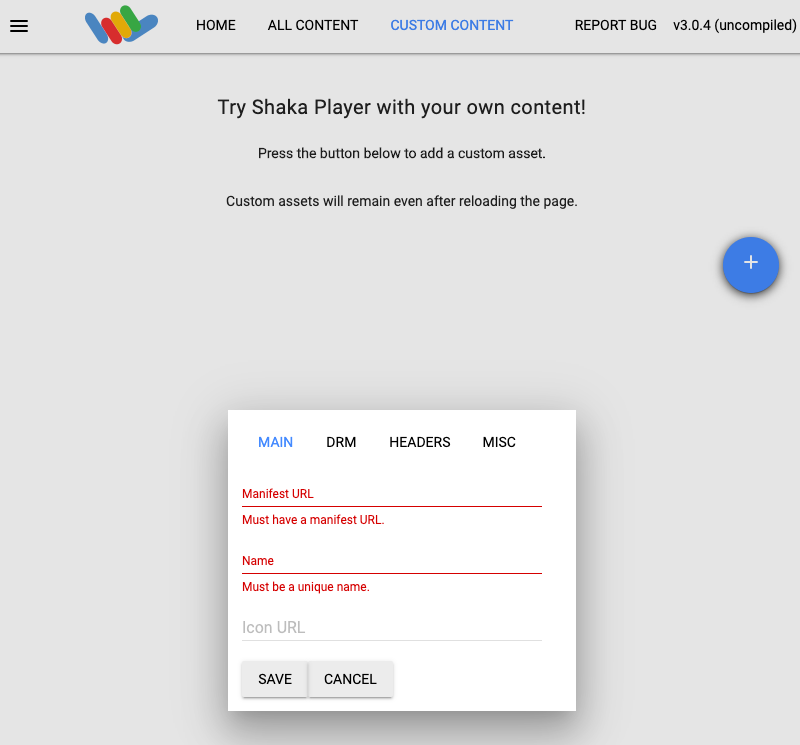
8. Type a name in the **Name** box.
9. Click **Save**.
10. Click **Play**.
You should see a test pattern play as the live stream.

## Add an ad break marker to the live stream
Use the
[`projects.locations.channels.events.create`](https://docs.cloud.google.com/livestream/docs/reference/rest/v1/projects.locations.channels.events/create.md.txt)
method to add an ad break marker to the live stream.
### REST
Before using any of the request data,
make the following replacements:
- `PROJECT_NUMBER`: your Google Cloud project number; this is located in the **Project number** field on the [IAM Settings](https://console.cloud.google.com/iam-admin/settings) page
- `LOCATION`: the location where your channel is located; use one of the [supported regions](https://docs.cloud.google.com/livestream/docs/locations.md.txt) Show locations
- `us-central1`
- `us-east1`
- `us-east4`
- `us-west1`
- `us-west2`
- `northamerica-northeast1`
- `southamerica-east1`
- `asia-east1`
- `asia-east2`
- `asia-south1`
- `asia-northeast1`
- `asia-southeast1`
- `australia-southeast1`
- `europe-north1`
- `europe-west1`
- `europe-west2`
- `europe-west3`
- `europe-west4`
- `CHANNEL_ID`: a user-defined identifier for the channel
- `EVENT_ID`: a user-defined identifier for the event
To send your request, expand one of these options:
#### curl (Linux, macOS, or Cloud Shell)
> [!NOTE]
> **Note:** The following command assumes that you have logged in to the `gcloud` CLI with your user account by running [`gcloud init`](https://docs.cloud.google.com/sdk/gcloud/reference/init) or [`gcloud auth login`](https://docs.cloud.google.com/sdk/gcloud/reference/auth/login.md.txt) , or by using [Cloud Shell](https://docs.cloud.google.com/shell/docs.md.txt), which automatically logs you into the `gcloud` CLI . You can check the currently active account by running [`gcloud auth list`](https://docs.cloud.google.com/sdk/gcloud/reference/auth/list.md.txt).
Save the request body in a file named `request.json`.
Run the following command in the terminal to create or overwrite
this file in the current directory:
```
cat > request.json << 'EOF'
{
"adBreak": {
"duration": "100s"
},
"executeNow": true
}
EOF
```
Then execute the following command to send your REST request:
```
curl -X POST \
-H "Authorization: Bearer $(gcloud auth print-access-token)" \
-H "Content-Type: application/json; charset=utf-8" \
-d @request.json \
"https://livestream.googleapis.com/v1/projects/PROJECT_NUMBER/locations/LOCATION/channels/CHANNEL_ID/events?eventId=EVENT_ID"
```
#### PowerShell (Windows)
> [!NOTE]
> **Note:** The following command assumes that you have logged in to the `gcloud` CLI with your user account by running [`gcloud init`](https://docs.cloud.google.com/sdk/gcloud/reference/init) or [`gcloud auth login`](https://docs.cloud.google.com/sdk/gcloud/reference/auth/login.md.txt) . You can check the currently active account by running [`gcloud auth list`](https://docs.cloud.google.com/sdk/gcloud/reference/auth/list.md.txt).
Save the request body in a file named `request.json`.
Run the following command in the terminal to create or overwrite
this file in the current directory:
```
@'
{
"adBreak": {
"duration": "100s"
},
"executeNow": true
}
'@ | Out-File -FilePath request.json -Encoding utf8
```
Then execute the following command to send your REST request:
```
$cred = gcloud auth print-access-token
$headers = @{ "Authorization" = "Bearer $cred" }
Invoke-WebRequest `
-Method POST `
-Headers $headers `
-ContentType: "application/json; charset=utf-8" `
-InFile request.json `
-Uri "https://livestream.googleapis.com/v1/projects/PROJECT_NUMBER/locations/LOCATION/channels/CHANNEL_ID/events?eventId=EVENT_ID" | Select-Object -Expand Content
```
You should receive a JSON response similar to the following:
```
{
"name": "projects/PROJECT_NUMBER/locations/LOCATION/channels/CHANNEL_ID/events/EVENT_ID",
"createTime": CREATE_TIME,
"updateTime": UPDATE_TIME,
"adBreak": {
"duration": "100s"
},
"executeNow": true,
"state": "PENDING"
}
```
### C#
To learn how to install and use the client library for Live Stream API, see
[Live Stream API client libraries](https://docs.cloud.google.com/livestream/docs/reference/libraries.md.txt).
For more information, see the
[Live Stream API C# API
reference documentation](https://docs.cloud.google.com/dotnet/docs/reference/Google.Cloud.Video.LiveStream.V1/latest).
To authenticate to Live Stream API, set up Application Default Credentials.
For more information, see
[Set up authentication for a local development environment](https://docs.cloud.google.com/docs/authentication/set-up-adc-local-dev-environment.md.txt).
```c#
using Google.Cloud.Video.LiveStream.V1;
public class CreateChannelEventSample
{
public Event CreateChannelEvent(
string projectId, string locationId, string channelId, string eventId)
{
// Create the client.
LivestreamServiceClient client = LivestreamServiceClient.Create();
CreateEventRequest request = new CreateEventRequest
{
ParentAsChannelName = ChannelName.FromProjectLocationChannel(projectId, locationId, channelId),
EventId = eventId,
Event = new Event
{
AdBreak = new Event.Types.AdBreakTask
{
Duration = new Google.Protobuf.WellKnownTypes.Duration
{
Seconds = 30
}
},
ExecuteNow = true
}
};
// Make the request.
Event response = client.CreateEvent(request);
return response;
}
}
```
### Go
To learn how to install and use the client library for Live Stream API, see
[Live Stream API client libraries](https://docs.cloud.google.com/livestream/docs/reference/libraries.md.txt).
For more information, see the
[Live Stream API Go API
reference documentation](https://pkg.go.dev/cloud.google.com/go/video/livestream).
To authenticate to Live Stream API, set up Application Default Credentials.
For more information, see
[Set up authentication for a local development environment](https://docs.cloud.google.com/docs/authentication/set-up-adc-local-dev-environment.md.txt).
```go
import (
"context"
"fmt"
"io"
"github.com/golang/protobuf/ptypes/duration"
livestream "cloud.google.com/go/video/livestream/apiv1"
"cloud.google.com/go/video/livestream/apiv1/livestreampb"
)
// createChannelEvent creates a channel event. An event is a sub-resource of a
// channel, which can be scheduled by the user to execute operations on a
// channel resource without having to stop the channel. This sample creates an
// ad break event.
func createChannelEvent(w io.Writer, projectID, location, channelID, eventID string) error {
// projectID := "my-project-id"
// location := "us-central1"
// channelID := "my-channel"
// eventID := "my-channel-event"
ctx := context.Background()
client, err := livestream.NewClient(ctx)
if err != nil {
return fmt.Errorf("NewClient: %w", err)
}
defer client.Close()
req := &livestreampb.CreateEventRequest{
Parent: fmt.Sprintf("projects/%s/locations/%s/channels/%s", projectID, location, channelID),
EventId: eventID,
Event: &livestreampb.Event{
Task: &livestreampb.Event_AdBreak{
AdBreak: &livestreampb.Event_AdBreakTask{
Duration: &duration.Duration{
Seconds: 30,
},
},
},
ExecuteNow: true,
},
}
// Creates the channel event.
response, err := client.CreateEvent(ctx, req)
if err != nil {
return fmt.Errorf("CreateEvent: %w", err)
}
fmt.Fprintf(w, "Channel event: %v", response.Name)
return nil
}
```
### Java
To learn how to install and use the client library for Live Stream API, see
[Live Stream API client libraries](https://docs.cloud.google.com/livestream/docs/reference/libraries.md.txt).
For more information, see the
[Live Stream API Java API
reference documentation](https://docs.cloud.google.com/java/docs/reference/google-cloud-live-stream/latest/overview).
To authenticate to Live Stream API, set up Application Default Credentials.
For more information, see
[Set up authentication for a local development environment](https://docs.cloud.google.com/docs/authentication/set-up-adc-local-dev-environment.md.txt).
```java
import com.google.cloud.video.livestream.v1.ChannelName;
import com.google.cloud.video.livestream.v1.CreateEventRequest;
import com.google.cloud.video.livestream.v1.Event;
import com.google.cloud.video.livestream.v1.Event.AdBreakTask;
import com.google.cloud.video.livestream.v1.LivestreamServiceClient;
import com.google.protobuf.Duration;
import java.io.IOException;
public class CreateChannelEvent {
public static void main(String[] args) throws Exception {
// TODO(developer): Replace these variables before running the sample.
String projectId = "my-project-id";
String location = "us-central1";
String channelId = "my-channel-id";
String eventId = "my-channel-event-id";
createChannelEvent(projectId, location, channelId, eventId);
}
public static void createChannelEvent(
String projectId, String location, String channelId, String eventId) throws IOException {
// Initialize client that will be used to send requests. This client only needs to be created
// once, and can be reused for multiple requests. In this example, try-with-resources is used
// which automatically calls close() on the client to clean up resources.
try (LivestreamServiceClient livestreamServiceClient = LivestreamServiceClient.create()) {
var createEventRequest =
CreateEventRequest.newBuilder()
.setParent(ChannelName.of(projectId, location, channelId).toString())
.setEventId(eventId)
.setEvent(
Event.newBuilder()
.setAdBreak(
AdBreakTask.newBuilder()
.setDuration(Duration.newBuilder().setSeconds(30).build())
.build())
.setExecuteNow(true)
.build())
.build();
Event response = livestreamServiceClient.createEvent(createEventRequest);
System.out.println("Channel event: " + response.getName());
}
}
}
```
### Node.js
To learn how to install and use the client library for Live Stream API, see
[Live Stream API client libraries](https://docs.cloud.google.com/livestream/docs/reference/libraries.md.txt).
For more information, see the
[Live Stream API Node.js API
reference documentation](https://cloud.google.com/nodejs/docs/reference/livestream/latest).
To authenticate to Live Stream API, set up Application Default Credentials.
For more information, see
[Set up authentication for a local development environment](https://docs.cloud.google.com/docs/authentication/set-up-adc-local-dev-environment.md.txt).
```javascript
/**
* TODO(developer): Uncomment these variables before running the sample.
*/
// projectId = 'my-project-id';
// location = 'us-central1';
// channelId = 'my-channel';
// eventId = 'my-channel-event';
// Imports the Livestream library
const {LivestreamServiceClient} = require('@google-cloud/livestream').v1;
// Instantiates a client
const livestreamServiceClient = new LivestreamServiceClient();
async function createChannelEvent() {
// Construct request
const request = {
parent: livestreamServiceClient.channelPath(
projectId,
location,
channelId
),
eventId: eventId,
event: {
adBreak: {
duration: {
seconds: 30,
},
},
executeNow: true,
},
};
// Run request
const [event] = await livestreamServiceClient.createEvent(request);
console.log(`Channel event: ${event.name}`);
}
createChannelEvent();
```
### PHP
To learn how to install and use the client library for Live Stream API, see
[Live Stream API client libraries](https://docs.cloud.google.com/livestream/docs/reference/libraries.md.txt).
For more information, see the
[Live Stream API PHP API
reference documentation](https://googleapis.github.io/google-cloud-php/#/docs/google-cloud/latest/videolivestream/readme).
To authenticate to Live Stream API, set up Application Default Credentials.
For more information, see
[Set up authentication for a local development environment](https://docs.cloud.google.com/docs/authentication/set-up-adc-local-dev-environment.md.txt).
```php
use Google\Cloud\Video\LiveStream\V1\Event;
use Google\Cloud\Video\LiveStream\V1\Client\LivestreamServiceClient;
use Google\Cloud\Video\LiveStream\V1\CreateEventRequest;
use Google\Protobuf\Duration;
/**
* Creates a channel event. This particular sample inserts an ad break marker.
* Other event types are supported.
*
* @param string $callingProjectId The project ID to run the API call under
* @param string $location The location of the channel
* @param string $channelId The ID of the channel
* @param string $eventId The ID of the channel event
*/
function create_channel_event(
string $callingProjectId,
string $location,
string $channelId,
string $eventId
): void {
// Instantiate a client.
$livestreamClient = new LivestreamServiceClient();
$parent = $livestreamClient->channelName($callingProjectId, $location, $channelId);
$eventAdBreak = (new Event\AdBreakTask())
->setDuration(new Duration(['seconds' => 30]));
$event = (new Event())
->setAdBreak($eventAdBreak)
->setExecuteNow(true);
// Run the channel event creation request.
$request = (new CreateEventRequest())
->setParent($parent)
->setEvent($event)
->setEventId($eventId);
$response = $livestreamClient->createEvent($request);
// Print results.
printf('Channel event: %s' . PHP_EOL, $response->getName());
}
```
### Python
To learn how to install and use the client library for Live Stream API, see
[Live Stream API client libraries](https://docs.cloud.google.com/livestream/docs/reference/libraries.md.txt).
For more information, see the
[Live Stream API Python API
reference documentation](https://docs.cloud.google.com/python/docs/reference/livestream/latest).
To authenticate to Live Stream API, set up Application Default Credentials.
For more information, see
[Set up authentication for a local development environment](https://docs.cloud.google.com/docs/authentication/set-up-adc-local-dev-environment.md.txt).
```python
import argparse
from google.cloud.video import live_stream_v1
from google.cloud.video.live_stream_v1.services.livestream_service import (
LivestreamServiceClient,
)
from google.protobuf import duration_pb2 as duration
def create_channel_event(
project_id: str, location: str, channel_id: str, event_id: str
) -> live_stream_v1.types.Event:
"""Creates a channel event.
Args:
project_id: The GCP project ID.
location: The location of the channel.
channel_id: The user-defined channel ID.
event_id: The user-defined event ID."""
client = LivestreamServiceClient()
parent = f"projects/{project_id}/locations/{location}/channels/{channel_id}"
name = f"projects/{project_id}/locations/{location}/channels/{channel_id}/events/{event_id}"
event = live_stream_v1.types.Event(
name=name,
ad_break=live_stream_v1.types.Event.AdBreakTask(
duration=duration.Duration(
seconds=30,
),
),
execute_now=True,
)
response = client.create_event(parent=parent, event=event, event_id=event_id)
print(f"Channel event: {response.name}")
return response
```
### Ruby
To learn how to install and use the client library for Live Stream API, see
[Live Stream API client libraries](https://docs.cloud.google.com/livestream/docs/reference/libraries.md.txt).
For more information, see the
[Live Stream API Ruby API
reference documentation](https://docs.cloud.google.com/ruby/docs/reference/google-cloud-video-live_stream/latest).
To authenticate to Live Stream API, set up Application Default Credentials.
For more information, see
[Set up authentication for a local development environment](https://docs.cloud.google.com/docs/authentication/set-up-adc-local-dev-environment.md.txt).
```ruby
require "google/cloud/video/live_stream"
##
# Create a channel event
#
# @param project_id [String] Your Google Cloud project (e.g. "my-project")
# @param location [String] The location (e.g. "us-central1")
# @param channel_id [String] Your channel name (e.g. "my-channel")
# @param event_id [String] Your event name (e.g. "my-event")
#
def create_channel_event project_id:, location:, channel_id:, event_id:
# Create a Live Stream client.
client = Google::Cloud::Video::LiveStream.livestream_service
# Build the resource name of the parent.
parent = client.channel_path project: project_id, location: location, channel: channel_id
# Set the event fields.
new_event = {
ad_break: {
duration: {
seconds: 100
}
},
execute_now: true
}
response = client.create_event parent: parent, event: new_event, event_id: event_id
# Print the channel event name.
puts "Channel event: #{response.name}"
end
```
### Verify the ad break marker exists
When the ad marker is inserted in the live stream, an event labeled `` appears in the DASH manifest for the specified ad duration (100s).
Run the following command to see the contents of the generated DASH manifest:
```
gcloud storage cat gs://BUCKET_NAME/main.mpd
```
You may have to run the `gcloud storage cat` command multiple times until the
`` section appears:
```xml
```
## Clean up
To avoid incurring charges to your Google Cloud account for
the resources used on this page, follow these steps.
### Stop the channel
Use the
[`projects.locations.channels.stop`](https://docs.cloud.google.com/livestream/docs/reference/rest/v1/projects.locations.channels/stop.md.txt)
method to stop the channel. You must stop the channel before you can delete it.
### REST
Before using any of the request data,
make the following replacements:
- `PROJECT_NUMBER`: your Google Cloud project number; this is located in the **Project number** field on the [IAM Settings](https://console.cloud.google.com/iam-admin/settings) page
- `LOCATION`: the location where your channel is located; use one of the [supported regions](https://docs.cloud.google.com/livestream/docs/locations.md.txt) Show locations
- `us-central1`
- `us-east1`
- `us-east4`
- `us-west1`
- `us-west2`
- `northamerica-northeast1`
- `southamerica-east1`
- `asia-east1`
- `asia-east2`
- `asia-south1`
- `asia-northeast1`
- `asia-southeast1`
- `australia-southeast1`
- `europe-north1`
- `europe-west1`
- `europe-west2`
- `europe-west3`
- `europe-west4`
- `CHANNEL_ID`: a user-defined identifier for the channel
To send your request, expand one of these options:
#### curl (Linux, macOS, or Cloud Shell)
> [!NOTE]
> **Note:** The following command assumes that you have logged in to the `gcloud` CLI with your user account by running [`gcloud init`](https://docs.cloud.google.com/sdk/gcloud/reference/init) or [`gcloud auth login`](https://docs.cloud.google.com/sdk/gcloud/reference/auth/login.md.txt) , or by using [Cloud Shell](https://docs.cloud.google.com/shell/docs.md.txt), which automatically logs you into the `gcloud` CLI . You can check the currently active account by running [`gcloud auth list`](https://docs.cloud.google.com/sdk/gcloud/reference/auth/list.md.txt).
Execute the following command:
```
curl -X POST \
-H "Authorization: Bearer $(gcloud auth print-access-token)" \
-H "Content-Type: application/json; charset=utf-8" \
-d "" \
"https://livestream.googleapis.com/v1/projects/PROJECT_NUMBER/locations/LOCATION/channels/CHANNEL_ID:stop"
```
#### PowerShell (Windows)
> [!NOTE]
> **Note:** The following command assumes that you have logged in to the `gcloud` CLI with your user account by running [`gcloud init`](https://docs.cloud.google.com/sdk/gcloud/reference/init) or [`gcloud auth login`](https://docs.cloud.google.com/sdk/gcloud/reference/auth/login.md.txt) . You can check the currently active account by running [`gcloud auth list`](https://docs.cloud.google.com/sdk/gcloud/reference/auth/list.md.txt).
Execute the following command:
```
$cred = gcloud auth print-access-token
$headers = @{ "Authorization" = "Bearer $cred" }
Invoke-WebRequest `
-Method POST `
-Headers $headers `
-Uri "https://livestream.googleapis.com/v1/projects/PROJECT_NUMBER/locations/LOCATION/channels/CHANNEL_ID:stop" | Select-Object -Expand Content
```
You should receive a JSON response similar to the following:
```
{
"name": "projects/PROJECT_NUMBER/locations/LOCATION/operations/OPERATION_ID",
"metadata": {
"@type": "type.googleapis.com/google.cloud.video.livestream.v1.OperationMetadata",
"createTime": CREATE_TIME,
"target": "projects/PROJECT_NUMBER/locations/LOCATION/channels/CHANNEL_ID",
"verb": "stop",
"requestedCancellation": false,
"apiVersion": "v1"
},
"done": false
}
```
### C#
To learn how to install and use the client library for Live Stream API, see
[Live Stream API client libraries](https://docs.cloud.google.com/livestream/docs/reference/libraries.md.txt).
For more information, see the
[Live Stream API C# API
reference documentation](https://docs.cloud.google.com/dotnet/docs/reference/Google.Cloud.Video.LiveStream.V1/latest).
To authenticate to Live Stream API, set up Application Default Credentials.
For more information, see
[Set up authentication for a local development environment](https://docs.cloud.google.com/docs/authentication/set-up-adc-local-dev-environment.md.txt).
```c#
using Google.Cloud.Video.LiveStream.V1;
using Google.LongRunning;
using System.Threading.Tasks;
public class StopChannelSample
{
public async Task StopChannelAsync(
string projectId, string locationId, string channelId)
{
// Create the client.
LivestreamServiceClient client = LivestreamServiceClient.Create();
StopChannelRequest request = new StopChannelRequest
{
ChannelName = ChannelName.FromProjectLocationChannel(projectId, locationId, channelId)
};
// Make the request.
Operation response = await client.StopChannelAsync(request);
// Poll until the returned long-running operation is complete.
await response.PollUntilCompletedAsync();
}
}
```
### Go
To learn how to install and use the client library for Live Stream API, see
[Live Stream API client libraries](https://docs.cloud.google.com/livestream/docs/reference/libraries.md.txt).
For more information, see the
[Live Stream API Go API
reference documentation](https://pkg.go.dev/cloud.google.com/go/video/livestream).
To authenticate to Live Stream API, set up Application Default Credentials.
For more information, see
[Set up authentication for a local development environment](https://docs.cloud.google.com/docs/authentication/set-up-adc-local-dev-environment.md.txt).
```go
import (
"context"
"fmt"
"io"
livestream "cloud.google.com/go/video/livestream/apiv1"
"cloud.google.com/go/video/livestream/apiv1/livestreampb"
)
// stopChannel stops a channel.
func stopChannel(w io.Writer, projectID, location, channelID string) error {
// projectID := "my-project-id"
// location := "us-central1"
// channelID := "my-channel-id"
ctx := context.Background()
client, err := livestream.NewClient(ctx)
if err != nil {
return fmt.Errorf("NewClient: %w", err)
}
defer client.Close()
req := &livestreampb.StopChannelRequest{
Name: fmt.Sprintf("projects/%s/locations/%s/channels/%s", projectID, location, channelID),
}
op, err := client.StopChannel(ctx, req)
if err != nil {
return fmt.Errorf("StopChannel: %w", err)
}
_, err = op.Wait(ctx)
if err != nil {
return fmt.Errorf("Wait: %w", err)
}
fmt.Fprintf(w, "Stopped channel")
return nil
}
```
### Java
To learn how to install and use the client library for Live Stream API, see
[Live Stream API client libraries](https://docs.cloud.google.com/livestream/docs/reference/libraries.md.txt).
For more information, see the
[Live Stream API Java API
reference documentation](https://docs.cloud.google.com/java/docs/reference/google-cloud-live-stream/latest/overview).
To authenticate to Live Stream API, set up Application Default Credentials.
For more information, see
[Set up authentication for a local development environment](https://docs.cloud.google.com/docs/authentication/set-up-adc-local-dev-environment.md.txt).
```java
import com.google.cloud.video.livestream.v1.ChannelName;
import com.google.cloud.video.livestream.v1.LivestreamServiceClient;
import java.io.IOException;
import java.util.concurrent.ExecutionException;
import java.util.concurrent.TimeUnit;
import java.util.concurrent.TimeoutException;
public class StopChannel {
public static void main(String[] args) throws Exception {
// TODO(developer): Replace these variables before running the sample.
String projectId = "my-project-id";
String location = "us-central1";
String channelId = "my-channel-id";
stopChannel(projectId, location, channelId);
}
public static void stopChannel(String projectId, String location, String channelId)
throws InterruptedException, ExecutionException, TimeoutException, IOException {
// Initialize client that will be used to send requests. This client only needs to be created
// once, and can be reused for multiple requests. After completing all of your requests, call
// the "close" method on the client to safely clean up any remaining background resources.
LivestreamServiceClient livestreamServiceClient = LivestreamServiceClient.create();
ChannelName name = ChannelName.of(projectId, location, channelId);
// First API call in a project can take up to 10 minutes.
livestreamServiceClient.stopChannelAsync(name).get(10, TimeUnit.MINUTES);
System.out.println("Stopped channel");
livestreamServiceClient.close();
}
}
```
### Node.js
To learn how to install and use the client library for Live Stream API, see
[Live Stream API client libraries](https://docs.cloud.google.com/livestream/docs/reference/libraries.md.txt).
For more information, see the
[Live Stream API Node.js API
reference documentation](https://cloud.google.com/nodejs/docs/reference/livestream/latest).
To authenticate to Live Stream API, set up Application Default Credentials.
For more information, see
[Set up authentication for a local development environment](https://docs.cloud.google.com/docs/authentication/set-up-adc-local-dev-environment.md.txt).
```javascript
/**
* TODO(developer): Uncomment these variables before running the sample.
*/
// projectId = 'my-project-id';
// location = 'us-central1';
// channelId = 'my-channel';
// Imports the Livestream library
const {LivestreamServiceClient} = require('@google-cloud/livestream').v1;
// Instantiates a client
const livestreamServiceClient = new LivestreamServiceClient();
async function stopChannel() {
// Construct request
const request = {
name: livestreamServiceClient.channelPath(projectId, location, channelId),
};
const [operation] = await livestreamServiceClient.stopChannel(request);
await operation.promise();
console.log('Stopped channel');
}
stopChannel();
```
### PHP
To learn how to install and use the client library for Live Stream API, see
[Live Stream API client libraries](https://docs.cloud.google.com/livestream/docs/reference/libraries.md.txt).
For more information, see the
[Live Stream API PHP API
reference documentation](https://googleapis.github.io/google-cloud-php/#/docs/google-cloud/latest/videolivestream/readme).
To authenticate to Live Stream API, set up Application Default Credentials.
For more information, see
[Set up authentication for a local development environment](https://docs.cloud.google.com/docs/authentication/set-up-adc-local-dev-environment.md.txt).
```php
use Google\Cloud\Video\LiveStream\V1\Client\LivestreamServiceClient;
use Google\Cloud\Video\LiveStream\V1\StopChannelRequest;
/**
* Stops a channel.
*
* @param string $callingProjectId The project ID to run the API call under
* @param string $location The location of the channel
* @param string $channelId The ID of the channel
*/
function stop_channel(
string $callingProjectId,
string $location,
string $channelId
): void {
// Instantiate a client.
$livestreamClient = new LivestreamServiceClient();
$formattedName = $livestreamClient->channelName($callingProjectId, $location, $channelId);
// Run the channel stop request. The response is a long-running operation ID.
$request = (new StopChannelRequest())
->setName($formattedName);
$operationResponse = $livestreamClient->stopChannel($request);
$operationResponse->pollUntilComplete();
if ($operationResponse->operationSucceeded()) {
// Print results
printf('Stopped channel' . PHP_EOL);
} else {
$error = $operationResponse->getError();
// handleError($error)
}
}
```
### Python
To learn how to install and use the client library for Live Stream API, see
[Live Stream API client libraries](https://docs.cloud.google.com/livestream/docs/reference/libraries.md.txt).
For more information, see the
[Live Stream API Python API
reference documentation](https://docs.cloud.google.com/python/docs/reference/livestream/latest).
To authenticate to Live Stream API, set up Application Default Credentials.
For more information, see
[Set up authentication for a local development environment](https://docs.cloud.google.com/docs/authentication/set-up-adc-local-dev-environment.md.txt).
```python
import argparse
from google.cloud.video import live_stream_v1
from google.cloud.video.live_stream_v1.services.livestream_service import (
LivestreamServiceClient,
)
def stop_channel(
project_id: str, location: str, channel_id: str
) -> live_stream_v1.types.ChannelOperationResponse:
"""Stops a channel.
Args:
project_id: The GCP project ID.
location: The location of the channel.
channel_id: The user-defined channel ID."""
client = LivestreamServiceClient()
name = f"projects/{project_id}/locations/{location}/channels/{channel_id}"
operation = client.stop_channel(name=name)
response = operation.result(600)
print("Stopped channel")
return response
```
### Ruby
To learn how to install and use the client library for Live Stream API, see
[Live Stream API client libraries](https://docs.cloud.google.com/livestream/docs/reference/libraries.md.txt).
For more information, see the
[Live Stream API Ruby API
reference documentation](https://docs.cloud.google.com/ruby/docs/reference/google-cloud-video-live_stream/latest).
To authenticate to Live Stream API, set up Application Default Credentials.
For more information, see
[Set up authentication for a local development environment](https://docs.cloud.google.com/docs/authentication/set-up-adc-local-dev-environment.md.txt).
```ruby
require "google/cloud/video/live_stream"
##
# Stops a channel
#
# @param project_id [String] Your Google Cloud project (e.g. "my-project")
# @param location [String] The location (e.g. "us-central1")
# @param channel_id [String] Your channel name (e.g. "my-channel")
#
def stop_channel project_id:, location:, channel_id:
# Create a Live Stream client.
client = Google::Cloud::Video::LiveStream.livestream_service
# Build the resource name of the channel.
name = client.channel_path project: project_id, location: location, channel: channel_id
# Stop the channel.
operation = client.stop_channel name: name
# The returned object is of type Gapic::Operation. You can use this
# object to check the status of an operation, cancel it, or wait
# for results. Here is how to block until completion:
operation.wait_until_done!
# Print a success message.
puts "Stopped channel"
end
```
Use the OPERATION_ID to [check for the operation
status](https://docs.cloud.google.com/livestream/docs/quickstarts/quickstart-dash#check_for_result) until you get `"done":true` in the result.
### Stop the input stream
If you used `ffmpeg` to send the input stream, the connection is automatically
broken after you stop the channel.
If you used other encoders with retry mechanisms, you may need to manually stop
the input stream.
### Delete the event
Use the
[`projects.locations.channels.events.delete`](https://docs.cloud.google.com/livestream/docs/reference/rest/v1/projects.locations.channels.events/delete.md.txt)
method to delete the ad break event. You must delete channel events before you
can delete the channel.
### REST
Before using any of the request data,
make the following replacements:
- `PROJECT_NUMBER`: your Google Cloud project number; this is located in the **Project number** field on the [IAM Settings](https://console.cloud.google.com/iam-admin/settings) page
- `LOCATION`: the location where your channel is located; use one of the [supported regions](https://docs.cloud.google.com/livestream/docs/locations.md.txt) Show locations
- `us-central1`
- `us-east1`
- `us-east4`
- `us-west1`
- `us-west2`
- `northamerica-northeast1`
- `southamerica-east1`
- `asia-east1`
- `asia-east2`
- `asia-south1`
- `asia-northeast1`
- `asia-southeast1`
- `australia-southeast1`
- `europe-north1`
- `europe-west1`
- `europe-west2`
- `europe-west3`
- `europe-west4`
- `CHANNEL_ID`: a user-defined identifier for the channel
- `EVENT_ID`: a user-defined identifier for the event
To send your request, expand one of these options:
#### curl (Linux, macOS, or Cloud Shell)
> [!NOTE]
> **Note:** The following command assumes that you have logged in to the `gcloud` CLI with your user account by running [`gcloud init`](https://docs.cloud.google.com/sdk/gcloud/reference/init) or [`gcloud auth login`](https://docs.cloud.google.com/sdk/gcloud/reference/auth/login.md.txt) , or by using [Cloud Shell](https://docs.cloud.google.com/shell/docs.md.txt), which automatically logs you into the `gcloud` CLI . You can check the currently active account by running [`gcloud auth list`](https://docs.cloud.google.com/sdk/gcloud/reference/auth/list.md.txt).
Execute the following command:
```
curl -X DELETE \
-H "Authorization: Bearer $(gcloud auth print-access-token)" \
"https://livestream.googleapis.com/v1/projects/PROJECT_NUMBER/locations/LOCATION/channels/CHANNEL_ID/events/EVENT_ID"
```
#### PowerShell (Windows)
> [!NOTE]
> **Note:** The following command assumes that you have logged in to the `gcloud` CLI with your user account by running [`gcloud init`](https://docs.cloud.google.com/sdk/gcloud/reference/init) or [`gcloud auth login`](https://docs.cloud.google.com/sdk/gcloud/reference/auth/login.md.txt) . You can check the currently active account by running [`gcloud auth list`](https://docs.cloud.google.com/sdk/gcloud/reference/auth/list.md.txt).
Execute the following command:
```
$cred = gcloud auth print-access-token
$headers = @{ "Authorization" = "Bearer $cred" }
Invoke-WebRequest `
-Method DELETE `
-Headers $headers `
-Uri "https://livestream.googleapis.com/v1/projects/PROJECT_NUMBER/locations/LOCATION/channels/CHANNEL_ID/events/EVENT_ID" | Select-Object -Expand Content
```
You should receive a JSON response similar to the following:
```
{}
```
### C#
To learn how to install and use the client library for Live Stream API, see
[Live Stream API client libraries](https://docs.cloud.google.com/livestream/docs/reference/libraries.md.txt).
For more information, see the
[Live Stream API C# API
reference documentation](https://docs.cloud.google.com/dotnet/docs/reference/Google.Cloud.Video.LiveStream.V1/latest).
To authenticate to Live Stream API, set up Application Default Credentials.
For more information, see
[Set up authentication for a local development environment](https://docs.cloud.google.com/docs/authentication/set-up-adc-local-dev-environment.md.txt).
```c#
using Google.Cloud.Video.LiveStream.V1;
public class DeleteChannelEventSample
{
public void DeleteChannelEvent(
string projectId, string locationId, string channelId, string eventId)
{
// Create the client.
LivestreamServiceClient client = LivestreamServiceClient.Create();
DeleteEventRequest request = new DeleteEventRequest
{
EventName = EventName.FromProjectLocationChannelEvent(projectId, locationId, channelId, eventId),
};
// Make the request.
client.DeleteEvent(request);
}
}
```
### Go
To learn how to install and use the client library for Live Stream API, see
[Live Stream API client libraries](https://docs.cloud.google.com/livestream/docs/reference/libraries.md.txt).
For more information, see the
[Live Stream API Go API
reference documentation](https://pkg.go.dev/cloud.google.com/go/video/livestream).
To authenticate to Live Stream API, set up Application Default Credentials.
For more information, see
[Set up authentication for a local development environment](https://docs.cloud.google.com/docs/authentication/set-up-adc-local-dev-environment.md.txt).
```go
import (
"context"
"fmt"
"io"
livestream "cloud.google.com/go/video/livestream/apiv1"
"cloud.google.com/go/video/livestream/apiv1/livestreampb"
)
// deleteChannelEvent deletes a previously-created channel event.
func deleteChannelEvent(w io.Writer, projectID, location, channelID, eventID string) error {
// projectID := "my-project-id"
// location := "us-central1"
// channelID := "my-channel"
// eventID := "my-channel-event"
ctx := context.Background()
client, err := livestream.NewClient(ctx)
if err != nil {
return fmt.Errorf("NewClient: %w", err)
}
defer client.Close()
req := &livestreampb.DeleteEventRequest{
Name: fmt.Sprintf("projects/%s/locations/%s/channels/%s/events/%s", projectID, location, channelID, eventID),
}
err = client.DeleteEvent(ctx, req)
if err != nil {
return fmt.Errorf("DeleteEvent: %w", err)
}
fmt.Fprintf(w, "Deleted channel event")
return nil
}
```
### Java
To learn how to install and use the client library for Live Stream API, see
[Live Stream API client libraries](https://docs.cloud.google.com/livestream/docs/reference/libraries.md.txt).
For more information, see the
[Live Stream API Java API
reference documentation](https://docs.cloud.google.com/java/docs/reference/google-cloud-live-stream/latest/overview).
To authenticate to Live Stream API, set up Application Default Credentials.
For more information, see
[Set up authentication for a local development environment](https://docs.cloud.google.com/docs/authentication/set-up-adc-local-dev-environment.md.txt).
```java
import com.google.cloud.video.livestream.v1.DeleteEventRequest;
import com.google.cloud.video.livestream.v1.EventName;
import com.google.cloud.video.livestream.v1.LivestreamServiceClient;
import java.io.IOException;
public class DeleteChannelEvent {
public static void main(String[] args) throws Exception {
// TODO(developer): Replace these variables before running the sample.
String projectId = "my-project-id";
String location = "us-central1";
String channelId = "my-channel-id";
String eventId = "my-channel-event-id";
deleteChannelEvent(projectId, location, channelId, eventId);
}
public static void deleteChannelEvent(
String projectId, String location, String channelId, String eventId) throws IOException {
// Initialize client that will be used to send requests. This client only needs to be created
// once, and can be reused for multiple requests. In this example, try-with-resources is used
// which automatically calls close() on the client to clean up resources.
try (LivestreamServiceClient livestreamServiceClient = LivestreamServiceClient.create()) {
var deleteEventRequest =
DeleteEventRequest.newBuilder()
.setName(EventName.of(projectId, location, channelId, eventId).toString())
.build();
livestreamServiceClient.deleteEvent(deleteEventRequest);
System.out.println("Deleted channel event");
}
}
}
```
### Node.js
To learn how to install and use the client library for Live Stream API, see
[Live Stream API client libraries](https://docs.cloud.google.com/livestream/docs/reference/libraries.md.txt).
For more information, see the
[Live Stream API Node.js API
reference documentation](https://cloud.google.com/nodejs/docs/reference/livestream/latest).
To authenticate to Live Stream API, set up Application Default Credentials.
For more information, see
[Set up authentication for a local development environment](https://docs.cloud.google.com/docs/authentication/set-up-adc-local-dev-environment.md.txt).
```javascript
/**
* TODO(developer): Uncomment these variables before running the sample.
*/
// projectId = 'my-project-id';
// location = 'us-central1';
// channelId = 'my-channel';
// eventId = 'my-channel-event';
// Imports the Livestream library
const {LivestreamServiceClient} = require('@google-cloud/livestream').v1;
// Instantiates a client
const livestreamServiceClient = new LivestreamServiceClient();
async function deleteChannelEvent() {
// Construct request
const request = {
name: livestreamServiceClient.eventPath(
projectId,
location,
channelId,
eventId
),
};
// Run request
await livestreamServiceClient.deleteEvent(request);
console.log('Deleted channel event');
}
deleteChannelEvent();
```
### PHP
To learn how to install and use the client library for Live Stream API, see
[Live Stream API client libraries](https://docs.cloud.google.com/livestream/docs/reference/libraries.md.txt).
For more information, see the
[Live Stream API PHP API
reference documentation](https://googleapis.github.io/google-cloud-php/#/docs/google-cloud/latest/videolivestream/readme).
To authenticate to Live Stream API, set up Application Default Credentials.
For more information, see
[Set up authentication for a local development environment](https://docs.cloud.google.com/docs/authentication/set-up-adc-local-dev-environment.md.txt).
```php
use Google\Cloud\Video\LiveStream\V1\Client\LivestreamServiceClient;
use Google\Cloud\Video\LiveStream\V1\DeleteEventRequest;
/**
* Deletes a channel event.
*
* @param string $callingProjectId The project ID to run the API call under
* @param string $location The location of the channel
* @param string $channelId The ID of the channel
* @param string $eventId The ID of the channel event to be deleted
*/
function delete_channel_event(
string $callingProjectId,
string $location,
string $channelId,
string $eventId
): void {
// Instantiate a client.
$livestreamClient = new LivestreamServiceClient();
$formattedName = $livestreamClient->eventName($callingProjectId, $location, $channelId, $eventId);
// Run the channel event deletion request.
$request = (new DeleteEventRequest())
->setName($formattedName);
$livestreamClient->deleteEvent($request);
printf('Deleted channel event %s' . PHP_EOL, $eventId);
}
```
### Python
To learn how to install and use the client library for Live Stream API, see
[Live Stream API client libraries](https://docs.cloud.google.com/livestream/docs/reference/libraries.md.txt).
For more information, see the
[Live Stream API Python API
reference documentation](https://docs.cloud.google.com/python/docs/reference/livestream/latest).
To authenticate to Live Stream API, set up Application Default Credentials.
For more information, see
[Set up authentication for a local development environment](https://docs.cloud.google.com/docs/authentication/set-up-adc-local-dev-environment.md.txt).
```python
import argparse
from google.cloud.video.live_stream_v1.services.livestream_service import (
LivestreamServiceClient,
)
def delete_channel_event(
project_id: str, location: str, channel_id: str, event_id: str
) -> None:
"""Deletes a channel event.
Args:
project_id: The GCP project ID.
location: The location of the channel.
channel_id: The user-defined channel ID.
event_id: The user-defined event ID."""
client = LivestreamServiceClient()
name = f"projects/{project_id}/locations/{location}/channels/{channel_id}/events/{event_id}"
response = client.delete_event(name=name)
print("Deleted channel event")
return response
```
### Ruby
To learn how to install and use the client library for Live Stream API, see
[Live Stream API client libraries](https://docs.cloud.google.com/livestream/docs/reference/libraries.md.txt).
For more information, see the
[Live Stream API Ruby API
reference documentation](https://docs.cloud.google.com/ruby/docs/reference/google-cloud-video-live_stream/latest).
To authenticate to Live Stream API, set up Application Default Credentials.
For more information, see
[Set up authentication for a local development environment](https://docs.cloud.google.com/docs/authentication/set-up-adc-local-dev-environment.md.txt).
```ruby
require "google/cloud/video/live_stream"
##
# Delete a channel event
#
# @param project_id [String] Your Google Cloud project (e.g. "my-project")
# @param location [String] The location (e.g. "us-central1")
# @param channel_id [String] Your channel name (e.g. "my-channel")
# @param event_id [String] Your event name (e.g. "my-event")
#
def delete_channel_event project_id:, location:, channel_id:, event_id:
# Create a Live Stream client.
client = Google::Cloud::Video::LiveStream.livestream_service
# Build the resource name of the channel event.
name = client.event_path project: project_id, location: location, channel: channel_id, event: event_id
# Delete the channel event.
client.delete_event name: name
# Print a success message.
puts "Deleted channel event"
end
```
### Delete the channel
Use the
[`projects.locations.channels.delete`](https://docs.cloud.google.com/livestream/docs/reference/rest/v1/projects.locations.channels/delete.md.txt)
method to delete the channel. You must delete the channel before you can delete
the input endpoint that is used by the channel.
### REST
Before using any of the request data,
make the following replacements:
- `PROJECT_NUMBER`: your Google Cloud project number; this is located in the **Project number** field on the [IAM Settings](https://console.cloud.google.com/iam-admin/settings) page
- `LOCATION`: the location where your channel is located; use one of the [supported regions](https://docs.cloud.google.com/livestream/docs/locations.md.txt) Show locations
- `us-central1`
- `us-east1`
- `us-east4`
- `us-west1`
- `us-west2`
- `northamerica-northeast1`
- `southamerica-east1`
- `asia-east1`
- `asia-east2`
- `asia-south1`
- `asia-northeast1`
- `asia-southeast1`
- `australia-southeast1`
- `europe-north1`
- `europe-west1`
- `europe-west2`
- `europe-west3`
- `europe-west4`
- `CHANNEL_ID`: a user-defined identifier for the channel
To send your request, expand one of these options:
#### curl (Linux, macOS, or Cloud Shell)
> [!NOTE]
> **Note:** The following command assumes that you have logged in to the `gcloud` CLI with your user account by running [`gcloud init`](https://docs.cloud.google.com/sdk/gcloud/reference/init) or [`gcloud auth login`](https://docs.cloud.google.com/sdk/gcloud/reference/auth/login.md.txt) , or by using [Cloud Shell](https://docs.cloud.google.com/shell/docs.md.txt), which automatically logs you into the `gcloud` CLI . You can check the currently active account by running [`gcloud auth list`](https://docs.cloud.google.com/sdk/gcloud/reference/auth/list.md.txt).
Execute the following command:
```
curl -X DELETE \
-H "Authorization: Bearer $(gcloud auth print-access-token)" \
"https://livestream.googleapis.com/v1/projects/PROJECT_NUMBER/locations/LOCATION/channels/CHANNEL_ID"
```
#### PowerShell (Windows)
> [!NOTE]
> **Note:** The following command assumes that you have logged in to the `gcloud` CLI with your user account by running [`gcloud init`](https://docs.cloud.google.com/sdk/gcloud/reference/init) or [`gcloud auth login`](https://docs.cloud.google.com/sdk/gcloud/reference/auth/login.md.txt) . You can check the currently active account by running [`gcloud auth list`](https://docs.cloud.google.com/sdk/gcloud/reference/auth/list.md.txt).
Execute the following command:
```
$cred = gcloud auth print-access-token
$headers = @{ "Authorization" = "Bearer $cred" }
Invoke-WebRequest `
-Method DELETE `
-Headers $headers `
-Uri "https://livestream.googleapis.com/v1/projects/PROJECT_NUMBER/locations/LOCATION/channels/CHANNEL_ID" | Select-Object -Expand Content
```
You should receive a JSON response similar to the following:
```
{
"name": "projects/PROJECT_NUMBER/locations/LOCATION/operations/OPERATION_ID",
"metadata": {
"@type": "type.googleapis.com/google.cloud.video.livestream.v1.OperationMetadata",
"createTime": CREATE_TIME,
"target": "projects/PROJECT_NUMBER/locations/LOCATION/channels/CHANNEL_ID",
"verb": "delete",
"requestedCancellation": false,
"apiVersion": "v1"
},
"done": false
}
```
### C#
To learn how to install and use the client library for Live Stream API, see
[Live Stream API client libraries](https://docs.cloud.google.com/livestream/docs/reference/libraries.md.txt).
For more information, see the
[Live Stream API C# API
reference documentation](https://docs.cloud.google.com/dotnet/docs/reference/Google.Cloud.Video.LiveStream.V1/latest).
To authenticate to Live Stream API, set up Application Default Credentials.
For more information, see
[Set up authentication for a local development environment](https://docs.cloud.google.com/docs/authentication/set-up-adc-local-dev-environment.md.txt).
```c#
using Google.Cloud.Video.LiveStream.V1;
using Google.LongRunning;
using Google.Protobuf.WellKnownTypes;
using System.Threading.Tasks;
public class DeleteChannelSample
{
public async Task DeleteChannelAsync(
string projectId, string locationId, string channelId)
{
// Create the client.
LivestreamServiceClient client = LivestreamServiceClient.Create();
DeleteChannelRequest request = new DeleteChannelRequest
{
ChannelName = ChannelName.FromProjectLocationChannel(projectId, locationId, channelId)
};
// Make the request.
Operation response = await client.DeleteChannelAsync(request);
// Poll until the returned long-running operation is complete.
await response.PollUntilCompletedAsync();
}
}
```
### Go
To learn how to install and use the client library for Live Stream API, see
[Live Stream API client libraries](https://docs.cloud.google.com/livestream/docs/reference/libraries.md.txt).
For more information, see the
[Live Stream API Go API
reference documentation](https://pkg.go.dev/cloud.google.com/go/video/livestream).
To authenticate to Live Stream API, set up Application Default Credentials.
For more information, see
[Set up authentication for a local development environment](https://docs.cloud.google.com/docs/authentication/set-up-adc-local-dev-environment.md.txt).
```go
import (
"context"
"fmt"
"io"
livestream "cloud.google.com/go/video/livestream/apiv1"
"cloud.google.com/go/video/livestream/apiv1/livestreampb"
)
// deleteChannel deletes a previously-created channel.
func deleteChannel(w io.Writer, projectID, location, channelID string) error {
// projectID := "my-project-id"
// location := "us-central1"
// channelID := "my-channel"
ctx := context.Background()
client, err := livestream.NewClient(ctx)
if err != nil {
return fmt.Errorf("NewClient: %w", err)
}
defer client.Close()
req := &livestreampb.DeleteChannelRequest{
Name: fmt.Sprintf("projects/%s/locations/%s/channels/%s", projectID, location, channelID),
}
op, err := client.DeleteChannel(ctx, req)
if err != nil {
return fmt.Errorf("DeleteChannel: %w", err)
}
err = op.Wait(ctx)
if err != nil {
return fmt.Errorf("Wait: %w", err)
}
fmt.Fprintf(w, "Deleted channel")
return nil
}
```
### Java
To learn how to install and use the client library for Live Stream API, see
[Live Stream API client libraries](https://docs.cloud.google.com/livestream/docs/reference/libraries.md.txt).
For more information, see the
[Live Stream API Java API
reference documentation](https://docs.cloud.google.com/java/docs/reference/google-cloud-live-stream/latest/overview).
To authenticate to Live Stream API, set up Application Default Credentials.
For more information, see
[Set up authentication for a local development environment](https://docs.cloud.google.com/docs/authentication/set-up-adc-local-dev-environment.md.txt).
```java
import com.google.cloud.video.livestream.v1.ChannelName;
import com.google.cloud.video.livestream.v1.DeleteChannelRequest;
import com.google.cloud.video.livestream.v1.LivestreamServiceClient;
import java.io.IOException;
import java.util.concurrent.ExecutionException;
import java.util.concurrent.TimeUnit;
import java.util.concurrent.TimeoutException;
public class DeleteChannel {
public static void main(String[] args) throws Exception {
// TODO(developer): Replace these variables before running the sample.
String projectId = "my-project-id";
String location = "us-central1";
String channelId = "my-channel-id";
deleteChannel(projectId, location, channelId);
}
public static void deleteChannel(String projectId, String location, String channelId)
throws InterruptedException, ExecutionException, TimeoutException, IOException {
// Initialize client that will be used to send requests. This client only needs to be created
// once, and can be reused for multiple requests. After completing all of your requests, call
// the "close" method on the client to safely clean up any remaining background resources.
LivestreamServiceClient livestreamServiceClient = LivestreamServiceClient.create();
var deleteChannelRequest =
DeleteChannelRequest.newBuilder()
.setName(ChannelName.of(projectId, location, channelId).toString())
.build();
// First API call in a project can take up to 10 minutes.
livestreamServiceClient.deleteChannelAsync(deleteChannelRequest).get(10, TimeUnit.MINUTES);
System.out.println("Deleted channel");
livestreamServiceClient.close();
}
}
```
### Node.js
To learn how to install and use the client library for Live Stream API, see
[Live Stream API client libraries](https://docs.cloud.google.com/livestream/docs/reference/libraries.md.txt).
For more information, see the
[Live Stream API Node.js API
reference documentation](https://cloud.google.com/nodejs/docs/reference/livestream/latest).
To authenticate to Live Stream API, set up Application Default Credentials.
For more information, see
[Set up authentication for a local development environment](https://docs.cloud.google.com/docs/authentication/set-up-adc-local-dev-environment.md.txt).
```javascript
/**
* TODO(developer): Uncomment these variables before running the sample.
*/
// projectId = 'my-project-id';
// location = 'us-central1';
// channelId = 'my-channel';
// Imports the Livestream library
const {LivestreamServiceClient} = require('@google-cloud/livestream').v1;
// Instantiates a client
const livestreamServiceClient = new LivestreamServiceClient();
async function deleteChannel() {
// Construct request
const request = {
name: livestreamServiceClient.channelPath(projectId, location, channelId),
};
// Run request
const [operation] = await livestreamServiceClient.deleteChannel(request);
await operation.promise();
console.log('Deleted channel');
}
deleteChannel();
```
### PHP
To learn how to install and use the client library for Live Stream API, see
[Live Stream API client libraries](https://docs.cloud.google.com/livestream/docs/reference/libraries.md.txt).
For more information, see the
[Live Stream API PHP API
reference documentation](https://googleapis.github.io/google-cloud-php/#/docs/google-cloud/latest/videolivestream/readme).
To authenticate to Live Stream API, set up Application Default Credentials.
For more information, see
[Set up authentication for a local development environment](https://docs.cloud.google.com/docs/authentication/set-up-adc-local-dev-environment.md.txt).
```php
use Google\Cloud\Video\LiveStream\V1\Client\LivestreamServiceClient;
use Google\Cloud\Video\LiveStream\V1\DeleteChannelRequest;
/**
* Deletes a channel.
*
* @param string $callingProjectId The project ID to run the API call under
* @param string $location The location of the channel
* @param string $channelId The ID of the channel to be deleted
*/
function delete_channel(
string $callingProjectId,
string $location,
string $channelId
): void {
// Instantiate a client.
$livestreamClient = new LivestreamServiceClient();
$formattedName = $livestreamClient->channelName($callingProjectId, $location, $channelId);
// Run the channel deletion request. The response is a long-running operation ID.
$request = (new DeleteChannelRequest())
->setName($formattedName);
$operationResponse = $livestreamClient->deleteChannel($request);
$operationResponse->pollUntilComplete();
if ($operationResponse->operationSucceeded()) {
// Print status
printf('Deleted channel %s' . PHP_EOL, $channelId);
} else {
$error = $operationResponse->getError();
// handleError($error)
}
}
```
### Python
To learn how to install and use the client library for Live Stream API, see
[Live Stream API client libraries](https://docs.cloud.google.com/livestream/docs/reference/libraries.md.txt).
For more information, see the
[Live Stream API Python API
reference documentation](https://docs.cloud.google.com/python/docs/reference/livestream/latest).
To authenticate to Live Stream API, set up Application Default Credentials.
For more information, see
[Set up authentication for a local development environment](https://docs.cloud.google.com/docs/authentication/set-up-adc-local-dev-environment.md.txt).
```python
import argparse
from google.cloud.video.live_stream_v1.services.livestream_service import (
LivestreamServiceClient,
)
from google.protobuf import empty_pb2 as empty
def delete_channel(project_id: str, location: str, channel_id: str) -> empty.Empty:
"""Deletes a channel.
Args:
project_id: The GCP project ID.
location: The location of the channel.
channel_id: The user-defined channel ID."""
client = LivestreamServiceClient()
name = f"projects/{project_id}/locations/{location}/channels/{channel_id}"
operation = client.delete_channel(name=name)
response = operation.result(600)
print("Deleted channel")
return response
```
### Ruby
To learn how to install and use the client library for Live Stream API, see
[Live Stream API client libraries](https://docs.cloud.google.com/livestream/docs/reference/libraries.md.txt).
For more information, see the
[Live Stream API Ruby API
reference documentation](https://docs.cloud.google.com/ruby/docs/reference/google-cloud-video-live_stream/latest).
To authenticate to Live Stream API, set up Application Default Credentials.
For more information, see
[Set up authentication for a local development environment](https://docs.cloud.google.com/docs/authentication/set-up-adc-local-dev-environment.md.txt).
```ruby
require "google/cloud/video/live_stream"
##
# Delete a channel
#
# @param project_id [String] Your Google Cloud project (e.g. "my-project")
# @param location [String] The location (e.g. "us-central1")
# @param channel_id [String] Your channel name (e.g. "my-channel")
#
def delete_channel project_id:, location:, channel_id:
# Create a Live Stream client.
client = Google::Cloud::Video::LiveStream.livestream_service
# Build the resource name of the channel.
name = client.channel_path project: project_id, location: location, channel: channel_id
# Delete the channel.
operation = client.delete_channel name: name
# The returned object is of type Gapic::Operation. You can use this
# object to check the status of an operation, cancel it, or wait
# for results. Here is how to block until completion:
operation.wait_until_done!
# Print a success message.
puts "Deleted channel"
end
```
Use the OPERATION_ID to [check for the operation
status](https://docs.cloud.google.com/livestream/docs/quickstarts/quickstart-dash#check_for_result) until you get `"done":true` in the result.
### Delete the input endpoint
Use the
[`projects.locations.inputs.delete`](https://docs.cloud.google.com/livestream/docs/reference/rest/v1/projects.locations.inputs/delete.md.txt)
method to delete the input endpoint.
### REST
Before using any of the request data,
make the following replacements:
- `PROJECT_NUMBER`: your Google Cloud project number; this is located in the **Project number** field on the [IAM Settings](https://console.cloud.google.com/iam-admin/settings) page
- `LOCATION`: the location where your input endpoint is located; use one of the [supported regions](https://docs.cloud.google.com/livestream/docs/locations.md.txt) Show locations
- `us-central1`
- `us-east1`
- `us-east4`
- `us-west1`
- `us-west2`
- `northamerica-northeast1`
- `southamerica-east1`
- `asia-east1`
- `asia-east2`
- `asia-south1`
- `asia-northeast1`
- `asia-southeast1`
- `australia-southeast1`
- `europe-north1`
- `europe-west1`
- `europe-west2`
- `europe-west3`
- `europe-west4`
- `INPUT_ID`: the user-defined identifier for the input endpoint
To send your request, expand one of these options:
#### curl (Linux, macOS, or Cloud Shell)
> [!NOTE]
> **Note:** The following command assumes that you have logged in to the `gcloud` CLI with your user account by running [`gcloud init`](https://docs.cloud.google.com/sdk/gcloud/reference/init) or [`gcloud auth login`](https://docs.cloud.google.com/sdk/gcloud/reference/auth/login.md.txt) , or by using [Cloud Shell](https://docs.cloud.google.com/shell/docs.md.txt), which automatically logs you into the `gcloud` CLI . You can check the currently active account by running [`gcloud auth list`](https://docs.cloud.google.com/sdk/gcloud/reference/auth/list.md.txt).
Execute the following command:
```
curl -X DELETE \
-H "Authorization: Bearer $(gcloud auth print-access-token)" \
"https://livestream.googleapis.com/v1/projects/PROJECT_NUMBER/locations/LOCATION/inputs/INPUT_ID"
```
#### PowerShell (Windows)
> [!NOTE]
> **Note:** The following command assumes that you have logged in to the `gcloud` CLI with your user account by running [`gcloud init`](https://docs.cloud.google.com/sdk/gcloud/reference/init) or [`gcloud auth login`](https://docs.cloud.google.com/sdk/gcloud/reference/auth/login.md.txt) . You can check the currently active account by running [`gcloud auth list`](https://docs.cloud.google.com/sdk/gcloud/reference/auth/list.md.txt).
Execute the following command:
```
$cred = gcloud auth print-access-token
$headers = @{ "Authorization" = "Bearer $cred" }
Invoke-WebRequest `
-Method DELETE `
-Headers $headers `
-Uri "https://livestream.googleapis.com/v1/projects/PROJECT_NUMBER/locations/LOCATION/inputs/INPUT_ID" | Select-Object -Expand Content
```
You should receive a JSON response similar to the following:
```
{
"name": "projects/PROJECT_NUMBER/locations/LOCATION/operations/OPERATION_ID",
"metadata": {
"@type": "type.googleapis.com/google.cloud.video.livestream.v1.OperationMetadata",
"createTime": CREATE_TIME,
"target": "projects/PROJECT_NUMBER/locations/LOCATION/inputs/INPUT_ID",
"verb": "delete",
"requestedCancellation": false,
"apiVersion": "v1"
},
"done": false
}
```
### C#
To learn how to install and use the client library for Live Stream API, see
[Live Stream API client libraries](https://docs.cloud.google.com/livestream/docs/reference/libraries.md.txt).
For more information, see the
[Live Stream API C# API
reference documentation](https://docs.cloud.google.com/dotnet/docs/reference/Google.Cloud.Video.LiveStream.V1/latest).
To authenticate to Live Stream API, set up Application Default Credentials.
For more information, see
[Set up authentication for a local development environment](https://docs.cloud.google.com/docs/authentication/set-up-adc-local-dev-environment.md.txt).
```c#
using Google.Cloud.Video.LiveStream.V1;
using Google.LongRunning;
using Google.Protobuf.WellKnownTypes;
using System.Threading.Tasks;
public class DeleteInputSample
{
public async Task DeleteInputAsync(
string projectId, string locationId, string inputId)
{
// Create the client.
LivestreamServiceClient client = LivestreamServiceClient.Create();
DeleteInputRequest request = new DeleteInputRequest
{
InputName = InputName.FromProjectLocationInput(projectId, locationId, inputId)
};
// Make the request.
Operation response = await client.DeleteInputAsync(request);
// Poll until the returned long-running operation is complete.
await response.PollUntilCompletedAsync();
}
}
```
### Go
To learn how to install and use the client library for Live Stream API, see
[Live Stream API client libraries](https://docs.cloud.google.com/livestream/docs/reference/libraries.md.txt).
For more information, see the
[Live Stream API Go API
reference documentation](https://pkg.go.dev/cloud.google.com/go/video/livestream).
To authenticate to Live Stream API, set up Application Default Credentials.
For more information, see
[Set up authentication for a local development environment](https://docs.cloud.google.com/docs/authentication/set-up-adc-local-dev-environment.md.txt).
```go
import (
"context"
"fmt"
"io"
livestream "cloud.google.com/go/video/livestream/apiv1"
"cloud.google.com/go/video/livestream/apiv1/livestreampb"
)
// deleteInput deletes a previously-created input endpoint.
func deleteInput(w io.Writer, projectID, location, inputID string) error {
// projectID := "my-project-id"
// location := "us-central1"
// inputID := "my-input"
ctx := context.Background()
client, err := livestream.NewClient(ctx)
if err != nil {
return fmt.Errorf("NewClient: %w", err)
}
defer client.Close()
req := &livestreampb.DeleteInputRequest{
Name: fmt.Sprintf("projects/%s/locations/%s/inputs/%s", projectID, location, inputID),
}
op, err := client.DeleteInput(ctx, req)
if err != nil {
return fmt.Errorf("DeleteInput: %w", err)
}
err = op.Wait(ctx)
if err != nil {
return fmt.Errorf("Wait: %w", err)
}
fmt.Fprintf(w, "Deleted input")
return nil
}
```
### Java
To learn how to install and use the client library for Live Stream API, see
[Live Stream API client libraries](https://docs.cloud.google.com/livestream/docs/reference/libraries.md.txt).
For more information, see the
[Live Stream API Java API
reference documentation](https://docs.cloud.google.com/java/docs/reference/google-cloud-live-stream/latest/overview).
To authenticate to Live Stream API, set up Application Default Credentials.
For more information, see
[Set up authentication for a local development environment](https://docs.cloud.google.com/docs/authentication/set-up-adc-local-dev-environment.md.txt).
```java
import com.google.cloud.video.livestream.v1.DeleteInputRequest;
import com.google.cloud.video.livestream.v1.InputName;
import com.google.cloud.video.livestream.v1.LivestreamServiceClient;
import java.io.IOException;
import java.util.concurrent.ExecutionException;
import java.util.concurrent.TimeUnit;
import java.util.concurrent.TimeoutException;
public class DeleteInput {
public static void main(String[] args) throws Exception {
// TODO(developer): Replace these variables before running the sample.
String projectId = "my-project-id";
String location = "us-central1";
String inputId = "my-input-id";
deleteInput(projectId, location, inputId);
}
public static void deleteInput(String projectId, String location, String inputId)
throws InterruptedException, ExecutionException, TimeoutException, IOException {
// Initialize client that will be used to send requests. This client only needs to be created
// once, and can be reused for multiple requests. After completing all of your requests, call
// the "close" method on the client to safely clean up any remaining background resources.
LivestreamServiceClient livestreamServiceClient = LivestreamServiceClient.create();
var deleteInputRequest =
DeleteInputRequest.newBuilder()
.setName(InputName.of(projectId, location, inputId).toString())
.build();
// First API call in a project can take up to 10 minutes.
livestreamServiceClient.deleteInputAsync(deleteInputRequest).get(10, TimeUnit.MINUTES);
System.out.println("Deleted input");
livestreamServiceClient.close();
}
}
```
### Node.js
To learn how to install and use the client library for Live Stream API, see
[Live Stream API client libraries](https://docs.cloud.google.com/livestream/docs/reference/libraries.md.txt).
For more information, see the
[Live Stream API Node.js API
reference documentation](https://cloud.google.com/nodejs/docs/reference/livestream/latest).
To authenticate to Live Stream API, set up Application Default Credentials.
For more information, see
[Set up authentication for a local development environment](https://docs.cloud.google.com/docs/authentication/set-up-adc-local-dev-environment.md.txt).
```javascript
/**
* TODO(developer): Uncomment these variables before running the sample.
*/
// projectId = 'my-project-id';
// location = 'us-central1';
// inputId = 'my-input';
// Imports the Livestream library
const {LivestreamServiceClient} = require('@google-cloud/livestream').v1;
// Instantiates a client
const livestreamServiceClient = new LivestreamServiceClient();
async function deleteInput() {
// Construct request
const request = {
name: livestreamServiceClient.inputPath(projectId, location, inputId),
};
// Run request
const [operation] = await livestreamServiceClient.deleteInput(request);
await operation.promise();
console.log('Deleted input');
}
deleteInput();
```
### PHP
To learn how to install and use the client library for Live Stream API, see
[Live Stream API client libraries](https://docs.cloud.google.com/livestream/docs/reference/libraries.md.txt).
For more information, see the
[Live Stream API PHP API
reference documentation](https://googleapis.github.io/google-cloud-php/#/docs/google-cloud/latest/videolivestream/readme).
To authenticate to Live Stream API, set up Application Default Credentials.
For more information, see
[Set up authentication for a local development environment](https://docs.cloud.google.com/docs/authentication/set-up-adc-local-dev-environment.md.txt).
```php
use Google\Cloud\Video\LiveStream\V1\Client\LivestreamServiceClient;
use Google\Cloud\Video\LiveStream\V1\DeleteInputRequest;
/**
* Deletes an input.
*
* @param string $callingProjectId The project ID to run the API call under
* @param string $location The location of the input
* @param string $inputId The ID of the input to be deleted
*/
function delete_input(
string $callingProjectId,
string $location,
string $inputId
): void {
// Instantiate a client.
$livestreamClient = new LivestreamServiceClient();
$formattedName = $livestreamClient->inputName($callingProjectId, $location, $inputId);
// Run the input deletion request. The response is a long-running operation ID.
$request = (new DeleteInputRequest())
->setName($formattedName);
$operationResponse = $livestreamClient->deleteInput($request);
$operationResponse->pollUntilComplete();
if ($operationResponse->operationSucceeded()) {
// Print status
printf('Deleted input %s' . PHP_EOL, $inputId);
} else {
$error = $operationResponse->getError();
// handleError($error)
}
}
```
### Python
To learn how to install and use the client library for Live Stream API, see
[Live Stream API client libraries](https://docs.cloud.google.com/livestream/docs/reference/libraries.md.txt).
For more information, see the
[Live Stream API Python API
reference documentation](https://docs.cloud.google.com/python/docs/reference/livestream/latest).
To authenticate to Live Stream API, set up Application Default Credentials.
For more information, see
[Set up authentication for a local development environment](https://docs.cloud.google.com/docs/authentication/set-up-adc-local-dev-environment.md.txt).
```python
import argparse
from google.cloud.video.live_stream_v1.services.livestream_service import (
LivestreamServiceClient,
)
from google.protobuf import empty_pb2 as empty
def delete_input(project_id: str, location: str, input_id: str) -> empty.Empty:
"""Deletes an input.
Args:
project_id: The GCP project ID.
location: The location of the input.
input_id: The user-defined input ID."""
client = LivestreamServiceClient()
name = f"projects/{project_id}/locations/{location}/inputs/{input_id}"
operation = client.delete_input(name=name)
response = operation.result(600)
print("Deleted input")
return response
```
### Ruby
To learn how to install and use the client library for Live Stream API, see
[Live Stream API client libraries](https://docs.cloud.google.com/livestream/docs/reference/libraries.md.txt).
For more information, see the
[Live Stream API Ruby API
reference documentation](https://docs.cloud.google.com/ruby/docs/reference/google-cloud-video-live_stream/latest).
To authenticate to Live Stream API, set up Application Default Credentials.
For more information, see
[Set up authentication for a local development environment](https://docs.cloud.google.com/docs/authentication/set-up-adc-local-dev-environment.md.txt).
```ruby
require "google/cloud/video/live_stream"
##
# Delete an input endpoint
#
# @param project_id [String] Your Google Cloud project (e.g. "my-project")
# @param location [String] The location (e.g. "us-central1")
# @param input_id [String] Your input name (e.g. "my-input")
#
def delete_input project_id:, location:, input_id:
# Create a Live Stream client.
client = Google::Cloud::Video::LiveStream.livestream_service
# Build the resource name of the input.
name = client.input_path project: project_id, location: location, input: input_id
# Delete the input.
operation = client.delete_input name: name
# The returned object is of type Gapic::Operation. You can use this
# object to check the status of an operation, cancel it, or wait
# for results. Here is how to block until completion:
operation.wait_until_done!
# Print a success message.
puts "Deleted input"
end
```
### Delete the Cloud Storage bucket
Note that all files and folders in the bucket generated by the Live Stream API
are deleted once you stop the channel.
1. In the Google Cloud console, go to the Cloud Storage Browser page.
[Go to the Cloud Storage Browser page](https://console.cloud.google.com/storage/browser)
2. Select the checkbox next to the bucket that you created.
3. Click **Delete**.
4. In the pop-up window that appears, click **Delete** to permanently delete
the bucket and its contents.
### Revoke your credentials
1.
Optional: Revoke the authentication credentials that you created, and delete the local
credential file.
```bash
gcloud auth application-default revoke
```
2.
Optional: Revoke credentials from the gcloud CLI.
```bash
gcloud auth revoke
```
## What's next
- Try the quickstart instructions for an [HLS live stream](https://docs.cloud.google.com/livestream/docs/quickstarts/quickstart-hls.md.txt).
- Learn how to [configure a backup input stream](https://docs.cloud.google.com/livestream/docs/how-to/configure-backup-stream.md.txt).