Processing a live stream requires managing multiple components that perform
tasks like ingestion, transcoding, and multiplexing. The Live Stream API
manages these components and resources internally using *pools*. A pool is a
processing unit allocated for each Google Cloud project per region and is shared
between all channels in a given region.
By default, when you create an
[`Input`](https://docs.cloud.google.com/livestream/docs/reference/rest/v1/projects.locations.inputs.md.txt)
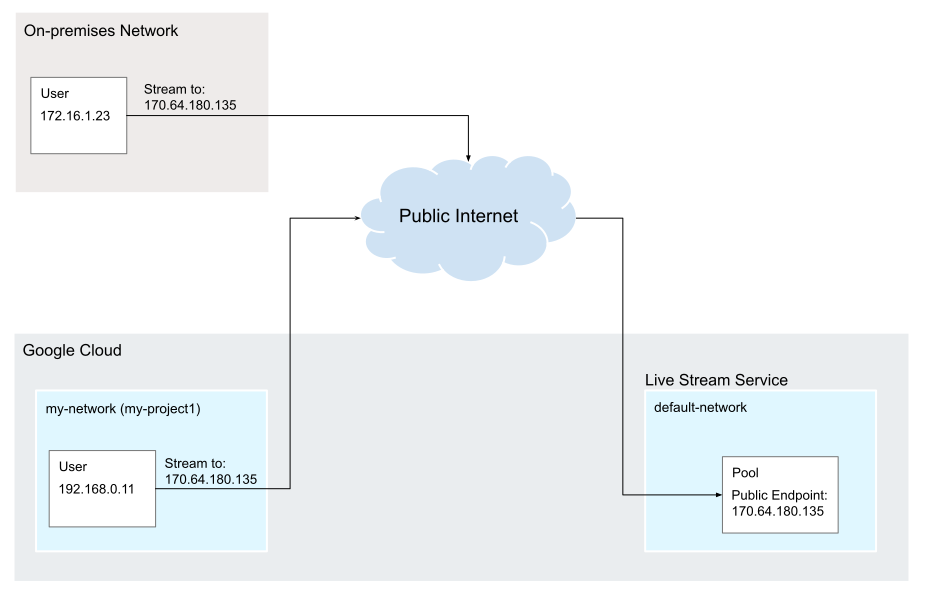
resource, you are given an endpoint URI containing a public IP address where you
can send your input streams. Whether you stream from an on-premises network or
from a Google Cloud virtual private cloud (VPC) network, the data
traverses the public internet to reach the live stream service endpoint.
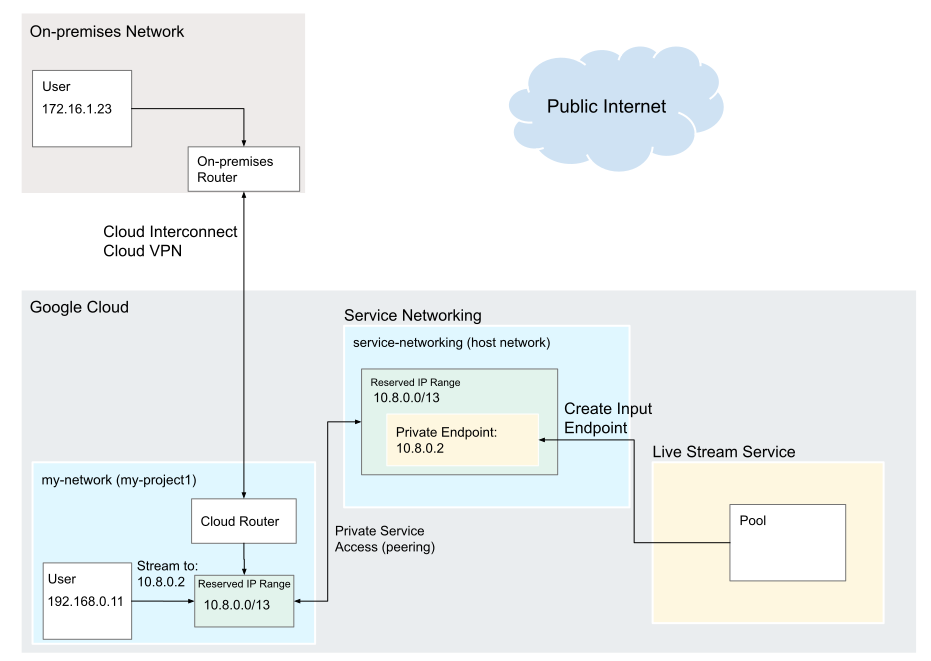
As an alternative, you can set up private services access to the live stream
service. Private services access is a secure, private connection between your
Google Cloud virtual private cloud (VPC) network and Google-managed or
third-party services. This connection enables VM instances in your VPC network
to communicate with these services using internal IP addresses, without exposing
traffic to the public internet. When you enable private services access in the
Live Stream API, an internal IP address is reserved from your VPC network
to be used as the input endpoint. This has the following advantages:
- **Improved security**: Private services access allows you to connect to Live Stream API input endpoints without exposing your traffic to the public internet. This can help to improve your security posture and reduce your risk of a data breach.
- **Increased performance**: Private services access can improve the performance of your connections by avoiding the public internet. This can be especially beneficial to achieve lower latency and higher throughput.
You can also pair private services access with either Cloud Interconnect or
Cloud VPN to provide an end-to-end private connection between your
on-premises network and the live stream service.
## Before you begin
To configure a private pool, complete the following prerequisites:
- You must have an [existing VPC network](https://docs.cloud.google.com/vpc/docs/create-modify-vpc-networks.md.txt#create-custom-network) that you can use to connect to the service producer's network. VM instances must use this VPC network to connect to services over a private connection.
- You must [configure private services access](https://docs.cloud.google.com/livestream/docs/how-to/vpc/configure-private-services-access.md.txt) on the VPC network.
- All channels in the region must be [stopped](https://docs.cloud.google.com/livestream/docs/how-to/create-channels.md.txt#stop_channel), otherwise the Live Stream API rejects the request to update the pool's peered network.
- All channels in the region cannot be started while the pool is being updated.
## Configure a private pool
1. Make sure a default pool is already created. The default pool for a location
is created when you create the first
[`Input`](https://docs.cloud.google.com/livestream/docs/reference/rest/v1/projects.locations.inputs.md.txt)
resource.
Before using any of the request data,
make the following replacements:
- `PROJECT_NUMBER`: your Google Cloud project number; this is located in the **Project number** field on the [IAM Settings](https://console.cloud.google.com/iam-admin/settings) page
- `LOCATION`: use one of the [supported regions](https://docs.cloud.google.com/livestream/docs/locations.md.txt) in which you have already created an input Show locations
- `us-central1`
- `us-east1`
- `us-east4`
- `us-west1`
- `us-west2`
- `northamerica-northeast1`
- `southamerica-east1`
- `asia-east1`
- `asia-east2`
- `asia-south1`
- `asia-northeast1`
- `asia-southeast1`
- `australia-southeast1`
- `europe-north1`
- `europe-west1`
- `europe-west2`
- `europe-west3`
- `europe-west4`
To send your request, expand one of these options:
#### curl (Linux, macOS, or Cloud Shell)
> [!NOTE]
> **Note:** The following command assumes that you have logged in to the `gcloud` CLI with your user account by running [`gcloud init`](https://docs.cloud.google.com/sdk/gcloud/reference/init) or [`gcloud auth login`](https://docs.cloud.google.com/sdk/gcloud/reference/auth/login.md.txt) , or by using [Cloud Shell](https://docs.cloud.google.com/shell/docs.md.txt), which automatically logs you into the `gcloud` CLI . You can check the currently active account by running [`gcloud auth list`](https://docs.cloud.google.com/sdk/gcloud/reference/auth/list.md.txt).
Execute the following command:
```
curl -X GET \
-H "Authorization: Bearer $(gcloud auth print-access-token)" \
"https://livestream.googleapis.com/v1/projects/PROJECT_NUMBER/locations/LOCATION/pools/default"
```
#### PowerShell (Windows)
> [!NOTE]
> **Note:** The following command assumes that you have logged in to the `gcloud` CLI with your user account by running [`gcloud init`](https://docs.cloud.google.com/sdk/gcloud/reference/init) or [`gcloud auth login`](https://docs.cloud.google.com/sdk/gcloud/reference/auth/login.md.txt) . You can check the currently active account by running [`gcloud auth list`](https://docs.cloud.google.com/sdk/gcloud/reference/auth/list.md.txt).
Execute the following command:
```
$cred = gcloud auth print-access-token
$headers = @{ "Authorization" = "Bearer $cred" }
Invoke-WebRequest `
-Method GET `
-Headers $headers `
-Uri "https://livestream.googleapis.com/v1/projects/PROJECT_NUMBER/locations/LOCATION/pools/default" | Select-Object -Expand Content
```
You should receive a JSON response similar to the following:
```
{
"name": "projects/PROJECT_NUMBER/locations/LOCATION/pools/default",
"createTime": CREATE_TIME,
"updateTime": UPDATE_TIME
}
```
2. Update the pool with the peered network name.
Before using any of the request data,
make the following replacements:
- `PROJECT_NUMBER`: your Google Cloud project number; this is located in the **Project number** field on the [IAM Settings](https://console.cloud.google.com/iam-admin/settings) page
- `LOCATION`: the location of the default pool; use one of the [supported regions](https://docs.cloud.google.com/livestream/docs/locations.md.txt) Show locations
- `us-central1`
- `us-east1`
- `us-east4`
- `us-west1`
- `us-west2`
- `northamerica-northeast1`
- `southamerica-east1`
- `asia-east1`
- `asia-east2`
- `asia-south1`
- `asia-northeast1`
- `asia-southeast1`
- `australia-southeast1`
- `europe-north1`
- `europe-west1`
- `europe-west2`
- `europe-west3`
- `europe-west4`
- `NETWORK`: the user-defined identifier for the network in the current project to peer with the service
To send your request, expand one of these options:
#### curl (Linux, macOS, or Cloud Shell)
> [!NOTE]
> **Note:** The following command assumes that you have logged in to the `gcloud` CLI with your user account by running [`gcloud init`](https://docs.cloud.google.com/sdk/gcloud/reference/init) or [`gcloud auth login`](https://docs.cloud.google.com/sdk/gcloud/reference/auth/login.md.txt) , or by using [Cloud Shell](https://docs.cloud.google.com/shell/docs.md.txt), which automatically logs you into the `gcloud` CLI . You can check the currently active account by running [`gcloud auth list`](https://docs.cloud.google.com/sdk/gcloud/reference/auth/list.md.txt).
Save the request body in a file named `request.json`.
Run the following command in the terminal to create or overwrite
this file in the current directory:
```
cat > request.json << 'EOF'
{
"networkConfig": {
"peeredNetwork": "projects/PROJECT_NUMBER/global/networks/NETWORK"
}
}
EOF
```
Then execute the following command to send your REST request:
```
curl -X PATCH \
-H "Authorization: Bearer $(gcloud auth print-access-token)" \
-H "Content-Type: application/json; charset=utf-8" \
-d @request.json \
"https://livestream.googleapis.com/v1/projects/PROJECT_NUMBER/locations/LOCATION/pools/default?updateMask=networkConfig"
```
#### PowerShell (Windows)
> [!NOTE]
> **Note:** The following command assumes that you have logged in to the `gcloud` CLI with your user account by running [`gcloud init`](https://docs.cloud.google.com/sdk/gcloud/reference/init) or [`gcloud auth login`](https://docs.cloud.google.com/sdk/gcloud/reference/auth/login.md.txt) . You can check the currently active account by running [`gcloud auth list`](https://docs.cloud.google.com/sdk/gcloud/reference/auth/list.md.txt).
Save the request body in a file named `request.json`.
Run the following command in the terminal to create or overwrite
this file in the current directory:
```
@'
{
"networkConfig": {
"peeredNetwork": "projects/PROJECT_NUMBER/global/networks/NETWORK"
}
}
'@ | Out-File -FilePath request.json -Encoding utf8
```
Then execute the following command to send your REST request:
```
$cred = gcloud auth print-access-token
$headers = @{ "Authorization" = "Bearer $cred" }
Invoke-WebRequest `
-Method PATCH `
-Headers $headers `
-ContentType: "application/json; charset=utf-8" `
-InFile request.json `
-Uri "https://livestream.googleapis.com/v1/projects/PROJECT_NUMBER/locations/LOCATION/pools/default?updateMask=networkConfig" | Select-Object -Expand Content
```
You should receive a JSON response similar to the following:
```
{
"name": "projects/PROJECT_NUMBER/locations/LOCATION/operations/OPERATION_ID",
"metadata": {
"@type": "type.googleapis.com/google.cloud.video.livestream.v1.OperationMetadata",
"createTime": CREATE_TIME,
"target": "projects/PROJECT_NUMBER/locations/LOCATION/pools/default",
"verb": "update",
"requestedCancellation": false,
"apiVersion": "v1"
},
"done": false
}
```
The request initiates a long-running operation. Copy the returned
OPERATION_ID to use in the next
step.
3. Use the
[`projects.locations.operations.get`](https://docs.cloud.google.com/livestream/docs/reference/rest/v1/projects.locations.operations/get.md.txt)
method to check if the update completed. Updating the pool might take up to
30 minutes to complete. If the response contains `"done: false"`, repeat the
request until the response contains `"done: true"`.
Before using any of the request data,
make the following replacements:
- `PROJECT_NUMBER`: your Google Cloud project number; this is located in the **Project number** field on the [IAM Settings](https://console.cloud.google.com/iam-admin/settings) page
- `LOCATION`: the location where your resource is located; use one of the [supported regions](https://docs.cloud.google.com/livestream/docs/locations.md.txt) Show locations
- `us-central1`
- `us-east1`
- `us-east4`
- `us-west1`
- `us-west2`
- `northamerica-northeast1`
- `southamerica-east1`
- `asia-east1`
- `asia-east2`
- `asia-south1`
- `asia-northeast1`
- `asia-southeast1`
- `australia-southeast1`
- `europe-north1`
- `europe-west1`
- `europe-west2`
- `europe-west3`
- `europe-west4`
- `OPERATION_ID`: the identifier for the operation
To send your request, expand one of these options:
#### curl (Linux, macOS, or Cloud Shell)
> [!NOTE]
> **Note:** The following command assumes that you have logged in to the `gcloud` CLI with your user account by running [`gcloud init`](https://docs.cloud.google.com/sdk/gcloud/reference/init) or [`gcloud auth login`](https://docs.cloud.google.com/sdk/gcloud/reference/auth/login.md.txt) , or by using [Cloud Shell](https://docs.cloud.google.com/shell/docs.md.txt), which automatically logs you into the `gcloud` CLI . You can check the currently active account by running [`gcloud auth list`](https://docs.cloud.google.com/sdk/gcloud/reference/auth/list.md.txt).
Execute the following command:
```
curl -X GET \
-H "Authorization: Bearer $(gcloud auth print-access-token)" \
"https://livestream.googleapis.com/v1/projects/PROJECT_NUMBER/locations/LOCATION/operations/OPERATION_ID"
```
#### PowerShell (Windows)
> [!NOTE]
> **Note:** The following command assumes that you have logged in to the `gcloud` CLI with your user account by running [`gcloud init`](https://docs.cloud.google.com/sdk/gcloud/reference/init) or [`gcloud auth login`](https://docs.cloud.google.com/sdk/gcloud/reference/auth/login.md.txt) . You can check the currently active account by running [`gcloud auth list`](https://docs.cloud.google.com/sdk/gcloud/reference/auth/list.md.txt).
Execute the following command:
```
$cred = gcloud auth print-access-token
$headers = @{ "Authorization" = "Bearer $cred" }
Invoke-WebRequest `
-Method GET `
-Headers $headers `
-Uri "https://livestream.googleapis.com/v1/projects/PROJECT_NUMBER/locations/LOCATION/operations/OPERATION_ID" | Select-Object -Expand Content
```
You should receive a JSON response similar to the following:
```
{
"name": "projects/PROJECT_NUMBER/locations/LOCATION/operations/OPERATION_ID",
"metadata": {
"@type": "type.googleapis.com/google.cloud.video.livestream.v1.OperationMetadata",
"createTime": CREATE_TIME,
"endTime": END_TIME,
"target": "projects/PROJECT_NUMBER/locations/LOCATION/pools/default",
"verb": "update",
"requestedCancellation": false,
"apiVersion": "v1"
},
"done": true,
"response": {
"@type": "type.googleapis.com/google.cloud.video.livestream.v1.Pool",
"name": "projects/PROJECT_NUMBER/locations/LOCATION/pools/default",
"createTime": CREATE_TIME,
"updateTime": UPDATE_TIME,
"networkConfig": {
"peeredNetwork": "projects/PROJECT_NUMBER/global/networks/NETWORK"
}
}
```
After the update, all URIs for existing (and future) input endpoints in the
region are internal IP addresses reserved from the VPC network provided.
[List the input endpoints](https://docs.cloud.google.com/livestream/docs/how-to/create-input-endpoints.md.txt#list_input_endpoints)
to see the updated URIs.
> [!NOTE]
> **Note:** After an update, starting the first channel in a region takes longer than usual.
## Switching to the public pool
To revert back to the public pool, provide an empty string as the peered network
name in the update pool request.
Before using any of the request data,
make the following replacements:
- `PROJECT_NUMBER`: your Google Cloud project number; this is located in the **Project number** field on the [IAM Settings](https://console.cloud.google.com/iam-admin/settings) page
- `LOCATION`: the location of the default pool; use one of the [supported regions](https://docs.cloud.google.com/livestream/docs/locations.md.txt) Show locations
- `us-central1`
- `us-east1`
- `us-east4`
- `us-west1`
- `us-west2`
- `northamerica-northeast1`
- `southamerica-east1`
- `asia-east1`
- `asia-east2`
- `asia-south1`
- `asia-northeast1`
- `asia-southeast1`
- `australia-southeast1`
- `europe-north1`
- `europe-west1`
- `europe-west2`
- `europe-west3`
- `europe-west4`
To send your request, expand one of these options:
#### curl (Linux, macOS, or Cloud Shell)
> [!NOTE]
> **Note:** The following command assumes that you have logged in to the `gcloud` CLI with your user account by running [`gcloud init`](https://docs.cloud.google.com/sdk/gcloud/reference/init) or [`gcloud auth login`](https://docs.cloud.google.com/sdk/gcloud/reference/auth/login.md.txt) , or by using [Cloud Shell](https://docs.cloud.google.com/shell/docs.md.txt), which automatically logs you into the `gcloud` CLI . You can check the currently active account by running [`gcloud auth list`](https://docs.cloud.google.com/sdk/gcloud/reference/auth/list.md.txt).
Save the request body in a file named `request.json`.
Run the following command in the terminal to create or overwrite
this file in the current directory:
```
cat > request.json << 'EOF'
{
"networkConfig": {
"peeredNetwork": ""
}
}
EOF
```
Then execute the following command to send your REST request:
```
curl -X PATCH \
-H "Authorization: Bearer $(gcloud auth print-access-token)" \
-H "Content-Type: application/json; charset=utf-8" \
-d @request.json \
"https://livestream.googleapis.com/v1/projects/PROJECT_NUMBER/locations/LOCATION/pools/default?updateMask=networkConfig"
```
#### PowerShell (Windows)
> [!NOTE]
> **Note:** The following command assumes that you have logged in to the `gcloud` CLI with your user account by running [`gcloud init`](https://docs.cloud.google.com/sdk/gcloud/reference/init) or [`gcloud auth login`](https://docs.cloud.google.com/sdk/gcloud/reference/auth/login.md.txt) . You can check the currently active account by running [`gcloud auth list`](https://docs.cloud.google.com/sdk/gcloud/reference/auth/list.md.txt).
Save the request body in a file named `request.json`.
Run the following command in the terminal to create or overwrite
this file in the current directory:
```
@'
{
"networkConfig": {
"peeredNetwork": ""
}
}
'@ | Out-File -FilePath request.json -Encoding utf8
```
Then execute the following command to send your REST request:
```
$cred = gcloud auth print-access-token
$headers = @{ "Authorization" = "Bearer $cred" }
Invoke-WebRequest `
-Method PATCH `
-Headers $headers `
-ContentType: "application/json; charset=utf-8" `
-InFile request.json `
-Uri "https://livestream.googleapis.com/v1/projects/PROJECT_NUMBER/locations/LOCATION/pools/default?updateMask=networkConfig" | Select-Object -Expand Content
```
You should receive a JSON response similar to the following:
```
{
"name": "projects/PROJECT_NUMBER/locations/LOCATION/operations/OPERATION_ID",
"metadata": {
"@type": "type.googleapis.com/google.cloud.video.livestream.v1.OperationMetadata",
"createTime": CREATE_TIME,
"target": "projects/PROJECT_NUMBER/locations/LOCATION/pools/default",
"verb": "update",
"requestedCancellation": false,
"apiVersion": "v1"
},
"done": false
}
```
You can again use the
[`projects.locations.operations.get`](https://docs.cloud.google.com/livestream/docs/reference/rest/v1/projects.locations.operations/get.md.txt)
method to check if the update completed.
> [!NOTE]
> **Note:** After an update, starting the first channel in a region takes longer than usual.