This page shows you how to create a digital video recorder (DVR) session from a
live stream using the Live Stream API. You can view a DVR session during
a live stream as well as after it ends.
## Differences between DVR sessions and channel clips
DVR sessions are similar to channel clips (also known as VOD clips) with the
following key differences:
- DVR sessions:
- The API saves the DVR manifest in the same location as the live stream segments so there is no additional copying to Cloud Storage. The DVR manifest is similar to the live stream manifest but longer. When the retention window expires, the manifest is deleted along with the segment files.
- You can create a DVR session for past, current, and future content. For example, a DVR session can follow a live stream, or you can schedule a DVR session to start and stop at a future time.
- A typical use case for DVR sessions is to support DVR capabilities for live streaming events. For example, a viewer can join the live stream one hour after it begins and view the content with a one hour lag (or skip parts of it).
- Channel clips:
- The Live Stream API copies the clip manifest and the associated segment files to a user-specified directory so they are not deleted when the retention window expires. You have complete control of the clip.
- Only past content can be clipped. Live clips and scheduling future clips are not supported.
- A typical use case for clips is to archive a live stream, making the live stream available as a VOD file indefinitely.
For more information on channel clips, see
[Create VOD clips from a live stream](https://docs.cloud.google.com/livestream/docs/how-to/live-to-vod.md.txt).
## Set up your Google Cloud project and authentication
If you have not created a [Google Cloud project](https://docs.cloud.google.com/docs/overview.md.txt#projects) and credentials, see [Before you begin](https://docs.cloud.google.com/livestream/docs/how-to/before-you-begin.md.txt).
## Create an input endpoint
To create an input endpoint, use the
[`projects.locations.inputs.create`](https://docs.cloud.google.com/livestream/docs/reference/rest/v1/projects.locations.inputs/create.md.txt) method.
Before using any of the request data,
make the following replacements:
- `PROJECT_NUMBER`: your Google Cloud project number; this is located in the **Project number** field on the [IAM Settings](https://console.cloud.google.com/iam-admin/settings) page
- `LOCATION`: the location in which to create the input endpoint; use one of the [supported regions](https://docs.cloud.google.com/livestream/docs/locations.md.txt) Show locations
- `us-central1`
- `us-east1`
- `us-east4`
- `us-west1`
- `us-west2`
- `northamerica-northeast1`
- `southamerica-east1`
- `asia-east1`
- `asia-east2`
- `asia-south1`
- `asia-northeast1`
- `asia-southeast1`
- `australia-southeast1`
- `europe-north1`
- `europe-west1`
- `europe-west2`
- `europe-west3`
- `europe-west4`
- `INPUT_ID`: a user-defined identifier for the new input endpoint to create (to which you send your input stream). This value must be 1-63 characters, begin and end with `[a-z0-9]`, and can contain dashes (-) between characters. For example, `my-input`.
To send your request, expand one of these options:
#### curl (Linux, macOS, or Cloud Shell)
> [!NOTE]
> **Note:** The following command assumes that you have logged in to the `gcloud` CLI with your user account by running [`gcloud init`](https://docs.cloud.google.com/sdk/gcloud/reference/init) or [`gcloud auth login`](https://docs.cloud.google.com/sdk/gcloud/reference/auth/login.md.txt) , or by using [Cloud Shell](https://docs.cloud.google.com/shell/docs.md.txt), which automatically logs you into the `gcloud` CLI . You can check the currently active account by running [`gcloud auth list`](https://docs.cloud.google.com/sdk/gcloud/reference/auth/list.md.txt).
Save the request body in a file named `request.json`.
Run the following command in the terminal to create or overwrite
this file in the current directory:
```
cat > request.json << 'EOF'
{
"type": "RTMP_PUSH"
}
EOF
```
Then execute the following command to send your REST request:
```
curl -X POST \
-H "Authorization: Bearer $(gcloud auth print-access-token)" \
-H "Content-Type: application/json; charset=utf-8" \
-d @request.json \
"https://livestream.googleapis.com/v1/projects/PROJECT_NUMBER/locations/LOCATION/inputs?inputId=INPUT_ID"
```
#### PowerShell (Windows)
> [!NOTE]
> **Note:** The following command assumes that you have logged in to the `gcloud` CLI with your user account by running [`gcloud init`](https://docs.cloud.google.com/sdk/gcloud/reference/init) or [`gcloud auth login`](https://docs.cloud.google.com/sdk/gcloud/reference/auth/login.md.txt) . You can check the currently active account by running [`gcloud auth list`](https://docs.cloud.google.com/sdk/gcloud/reference/auth/list.md.txt).
Save the request body in a file named `request.json`.
Run the following command in the terminal to create or overwrite
this file in the current directory:
```
@'
{
"type": "RTMP_PUSH"
}
'@ | Out-File -FilePath request.json -Encoding utf8
```
Then execute the following command to send your REST request:
```
$cred = gcloud auth print-access-token
$headers = @{ "Authorization" = "Bearer $cred" }
Invoke-WebRequest `
-Method POST `
-Headers $headers `
-ContentType: "application/json; charset=utf-8" `
-InFile request.json `
-Uri "https://livestream.googleapis.com/v1/projects/PROJECT_NUMBER/locations/LOCATION/inputs?inputId=INPUT_ID" | Select-Object -Expand Content
```
You should receive a JSON response similar to the following:
```
{
"name": "projects/PROJECT_NUMBER/locations/LOCATION/operations/OPERATION_ID",
"metadata": {
"@type": "type.googleapis.com/google.cloud.video.livestream.v1.OperationMetadata",
"createTime": CREATE_TIME,
"target": "projects/PROJECT_NUMBER/locations/LOCATION/inputs/INPUT_ID",
"verb": "create",
"requestedCancellation": false,
"apiVersion": "v1"
},
"done": false
}
```
This command creates a long-running operation (LRO) that you can use
to track the progress of your request. See
[Manage long-running operations](https://docs.cloud.google.com/livestream/docs/how-to/manage-long-running-operations.md.txt) for more information.
## Get input endpoint details
To get the details of the input endpoint, use the
[`projects.locations.inputs.get`](https://docs.cloud.google.com/livestream/docs/reference/rest/v1/projects.locations.inputs/get.md.txt) method.
Before using any of the request data,
make the following replacements:
- `PROJECT_NUMBER`: your Google Cloud project number; this is located in the **Project number** field on the [IAM Settings](https://console.cloud.google.com/iam-admin/settings) page
- `LOCATION`: the location where your input endpoint is located; use one of the [supported regions](https://docs.cloud.google.com/livestream/docs/locations.md.txt) Show locations
- `us-central1`
- `us-east1`
- `us-east4`
- `us-west1`
- `us-west2`
- `northamerica-northeast1`
- `southamerica-east1`
- `asia-east1`
- `asia-east2`
- `asia-south1`
- `asia-northeast1`
- `asia-southeast1`
- `australia-southeast1`
- `europe-north1`
- `europe-west1`
- `europe-west2`
- `europe-west3`
- `europe-west4`
- `INPUT_ID`: the user-defined identifier for the input endpoint
To send your request, expand one of these options:
#### curl (Linux, macOS, or Cloud Shell)
> [!NOTE]
> **Note:** The following command assumes that you have logged in to the `gcloud` CLI with your user account by running [`gcloud init`](https://docs.cloud.google.com/sdk/gcloud/reference/init) or [`gcloud auth login`](https://docs.cloud.google.com/sdk/gcloud/reference/auth/login.md.txt) , or by using [Cloud Shell](https://docs.cloud.google.com/shell/docs.md.txt), which automatically logs you into the `gcloud` CLI . You can check the currently active account by running [`gcloud auth list`](https://docs.cloud.google.com/sdk/gcloud/reference/auth/list.md.txt).
Execute the following command:
```
curl -X GET \
-H "Authorization: Bearer $(gcloud auth print-access-token)" \
"https://livestream.googleapis.com/v1/projects/PROJECT_NUMBER/locations/LOCATION/inputs/INPUT_ID"
```
#### PowerShell (Windows)
> [!NOTE]
> **Note:** The following command assumes that you have logged in to the `gcloud` CLI with your user account by running [`gcloud init`](https://docs.cloud.google.com/sdk/gcloud/reference/init) or [`gcloud auth login`](https://docs.cloud.google.com/sdk/gcloud/reference/auth/login.md.txt) . You can check the currently active account by running [`gcloud auth list`](https://docs.cloud.google.com/sdk/gcloud/reference/auth/list.md.txt).
Execute the following command:
```
$cred = gcloud auth print-access-token
$headers = @{ "Authorization" = "Bearer $cred" }
Invoke-WebRequest `
-Method GET `
-Headers $headers `
-Uri "https://livestream.googleapis.com/v1/projects/PROJECT_NUMBER/locations/LOCATION/inputs/INPUT_ID" | Select-Object -Expand Content
```
You should receive a JSON response similar to the following:
```
{
"name": "projects/PROJECT_NUMBER/locations/LOCATION/inputs/INPUT_ID",
"createTime": CREATE_TIME,
"updateTime": UPDATE_TIME,
"type": "RTMP_PUSH",
"uri": "INPUT_STREAM_URI", # For example, "rtmp://1.2.3.4/live/b8ebdd94-c8d9-4d88-a16e-b963c43a953b",
"tier": "HD"
}
```
Find the `uri` field and copy the returned
INPUT_STREAM_URI to use later
in the [Send the input test stream](https://docs.cloud.google.com/livestream/docs/how-to/create-dvr-session.md.txt#send-input-stream) section.
## Create a channel
To create a channel, use the
[`projects.locations.channels.create`](https://docs.cloud.google.com/livestream/docs/reference/rest/v1/projects.locations.channels/create.md.txt) method. The following
samples create a channel that generates an HLS live stream. The live stream
consists of a single, high-definition (1280x720) rendition.
To enable the creation of DVR sessions, add the
[`retentionConfig`](https://docs.cloud.google.com/livestream/docs/reference/rest/v1/projects.locations.channels.md.txt#Channel.FIELDS.retention_config) object to the channel configuration.
```json
"retentionConfig": {
"retentionWindowDuration": {
"seconds": 86400
}
},
```
When retention is enabled for a live stream channel, the live stream segments
and manifest are retained in order to create DVR sessions. The
[`retentionWindowDuration`](https://docs.cloud.google.com/livestream/docs/reference/rest/v1/projects.locations.channels.md.txt#RetentionConfig.FIELDS.retention_window_duration) object specifies the
length of time for which the live stream output is saved after being uploaded to
Cloud Storage. The retention window begins at the time the segment is
created in Cloud Storage.
**The retention window is limited to 30 days. After the retention window has
passed, the segment files, live stream manifest, and DVR manifest
are automatically deleted from Cloud Storage. You can't create DVR sessions
using deleted segments.** The deletion process is asynchronous and may take up
to 24 hours to complete.
Specify a [key](https://docs.cloud.google.com/livestream/docs/reference/rest/v1/projects.locations.channels.md.txt#Manifest.FIELDS.key) for the manifest to enable DVR session creation.
You refer to this key when actually creating the session. Only HLS manifests are
supported.
```json
"manifests": [
{
...
"key": "manifest_hls"
}
```
Before using any of the request data,
make the following replacements:
- `PROJECT_NUMBER`: your Google Cloud project number; this is located in the **Project number** field on the [IAM Settings](https://console.cloud.google.com/iam-admin/settings) page
- `LOCATION`: the location in which to create the channel; use one of the [supported regions](https://docs.cloud.google.com/livestream/docs/locations.md.txt) Show locations
- `us-central1`
- `us-east1`
- `us-east4`
- `us-west1`
- `us-west2`
- `northamerica-northeast1`
- `southamerica-east1`
- `asia-east1`
- `asia-east2`
- `asia-south1`
- `asia-northeast1`
- `asia-southeast1`
- `australia-southeast1`
- `europe-north1`
- `europe-west1`
- `europe-west2`
- `europe-west3`
- `europe-west4`
- `CHANNEL_ID`: a user-defined identifier for the channel to create; this value must be 1-63 characters, begin and end with `[a-z0-9]`, and can contain dashes (-) between characters
- `INPUT_ID`: the user-defined identifier for the input endpoint
- `BUCKET_NAME`: the name of the Cloud Storage bucket you created to hold the live stream manifest and segment files
To send your request, expand one of these options:
#### curl (Linux, macOS, or Cloud Shell)
> [!NOTE]
> **Note:** The following command assumes that you have logged in to the `gcloud` CLI with your user account by running [`gcloud init`](https://docs.cloud.google.com/sdk/gcloud/reference/init) or [`gcloud auth login`](https://docs.cloud.google.com/sdk/gcloud/reference/auth/login.md.txt) , or by using [Cloud Shell](https://docs.cloud.google.com/shell/docs.md.txt), which automatically logs you into the `gcloud` CLI . You can check the currently active account by running [`gcloud auth list`](https://docs.cloud.google.com/sdk/gcloud/reference/auth/list.md.txt).
Save the request body in a file named `request.json`.
Run the following command in the terminal to create or overwrite
this file in the current directory:
```
cat > request.json << 'EOF'
{
"inputAttachments": [
{
"key": "my-input",
"input": "projects/PROJECT_NUMBER/locations/LOCATION/inputs/INPUT_ID"
}
],
"output": {
"uri": "gs://BUCKET_NAME"
},
"elementaryStreams": [
{
"key": "es_video",
"videoStream": {
"h264": {
"profile": "high",
"widthPixels": 1280,
"heightPixels": 720,
"bitrateBps": 3000000,
"frameRate": 30
}
}
},
{
"key": "es_audio",
"audioStream": {
"codec": "aac",
"channelCount": 2,
"bitrateBps": 160000
}
}
],
"muxStreams": [
{
"key": "mux_video_ts",
"container": "ts",
"elementaryStreams": ["es_video", "es_audio"],
"segmentSettings": { "segmentDuration": "2s" }
}
],
"manifests": [
{
"fileName": "main.m3u8",
"type": "HLS",
"key": "manifest_hls",
"muxStreams": [
"mux_video_ts"
],
"maxSegmentCount": 5
}
],
"retentionConfig": {
"retentionWindowDuration": {
"seconds": 86400
}
}
}
EOF
```
Then execute the following command to send your REST request:
```
curl -X POST \
-H "Authorization: Bearer $(gcloud auth print-access-token)" \
-H "Content-Type: application/json; charset=utf-8" \
-d @request.json \
"https://livestream.googleapis.com/v1/projects/PROJECT_NUMBER/locations/LOCATION/channels?channelId=CHANNEL_ID"
```
#### PowerShell (Windows)
> [!NOTE]
> **Note:** The following command assumes that you have logged in to the `gcloud` CLI with your user account by running [`gcloud init`](https://docs.cloud.google.com/sdk/gcloud/reference/init) or [`gcloud auth login`](https://docs.cloud.google.com/sdk/gcloud/reference/auth/login.md.txt) . You can check the currently active account by running [`gcloud auth list`](https://docs.cloud.google.com/sdk/gcloud/reference/auth/list.md.txt).
Save the request body in a file named `request.json`.
Run the following command in the terminal to create or overwrite
this file in the current directory:
```
@'
{
"inputAttachments": [
{
"key": "my-input",
"input": "projects/PROJECT_NUMBER/locations/LOCATION/inputs/INPUT_ID"
}
],
"output": {
"uri": "gs://BUCKET_NAME"
},
"elementaryStreams": [
{
"key": "es_video",
"videoStream": {
"h264": {
"profile": "high",
"widthPixels": 1280,
"heightPixels": 720,
"bitrateBps": 3000000,
"frameRate": 30
}
}
},
{
"key": "es_audio",
"audioStream": {
"codec": "aac",
"channelCount": 2,
"bitrateBps": 160000
}
}
],
"muxStreams": [
{
"key": "mux_video_ts",
"container": "ts",
"elementaryStreams": ["es_video", "es_audio"],
"segmentSettings": { "segmentDuration": "2s" }
}
],
"manifests": [
{
"fileName": "main.m3u8",
"type": "HLS",
"key": "manifest_hls",
"muxStreams": [
"mux_video_ts"
],
"maxSegmentCount": 5
}
],
"retentionConfig": {
"retentionWindowDuration": {
"seconds": 86400
}
}
}
'@ | Out-File -FilePath request.json -Encoding utf8
```
Then execute the following command to send your REST request:
```
$cred = gcloud auth print-access-token
$headers = @{ "Authorization" = "Bearer $cred" }
Invoke-WebRequest `
-Method POST `
-Headers $headers `
-ContentType: "application/json; charset=utf-8" `
-InFile request.json `
-Uri "https://livestream.googleapis.com/v1/projects/PROJECT_NUMBER/locations/LOCATION/channels?channelId=CHANNEL_ID" | Select-Object -Expand Content
```
You should receive a JSON response similar to the following:
```
{
"name": "projects/PROJECT_NUMBER/locations/LOCATION/operations/OPERATION_ID",
"metadata": {
"@type": "type.googleapis.com/google.cloud.video.livestream.v1.OperationMetadata",
"createTime": CREATE_TIME,
"target": "projects/PROJECT_NUMBER/locations/LOCATION/channels/CHANNEL_ID",
"verb": "create",
"requestedCancellation": false,
"apiVersion": "v1"
},
"done": false
}
```
This command creates a long-running operation (LRO) that you can use
to track the progress of your request. See
[Manage long-running operations](https://docs.cloud.google.com/livestream/docs/how-to/manage-long-running-operations.md.txt) for more information.
## Start the channel
To start a channel, use the [`projects.locations.channels.start`](https://docs.cloud.google.com/livestream/docs/reference/rest/v1/projects.locations.channels/start.md.txt)
method.
Before using any of the request data,
make the following replacements:
- `PROJECT_NUMBER`: your Google Cloud project number; this is located in the **Project number** field on the [IAM Settings](https://console.cloud.google.com/iam-admin/settings) page
- `LOCATION`: the location where your channel is located; use one of the [supported regions](https://docs.cloud.google.com/livestream/docs/locations.md.txt) Show locations
- `us-central1`
- `us-east1`
- `us-east4`
- `us-west1`
- `us-west2`
- `northamerica-northeast1`
- `southamerica-east1`
- `asia-east1`
- `asia-east2`
- `asia-south1`
- `asia-northeast1`
- `asia-southeast1`
- `australia-southeast1`
- `europe-north1`
- `europe-west1`
- `europe-west2`
- `europe-west3`
- `europe-west4`
- `CHANNEL_ID`: a user-defined identifier for the channel
To send your request, expand one of these options:
#### curl (Linux, macOS, or Cloud Shell)
> [!NOTE]
> **Note:** The following command assumes that you have logged in to the `gcloud` CLI with your user account by running [`gcloud init`](https://docs.cloud.google.com/sdk/gcloud/reference/init) or [`gcloud auth login`](https://docs.cloud.google.com/sdk/gcloud/reference/auth/login.md.txt) , or by using [Cloud Shell](https://docs.cloud.google.com/shell/docs.md.txt), which automatically logs you into the `gcloud` CLI . You can check the currently active account by running [`gcloud auth list`](https://docs.cloud.google.com/sdk/gcloud/reference/auth/list.md.txt).
Execute the following command:
```
curl -X POST \
-H "Authorization: Bearer $(gcloud auth print-access-token)" \
-H "Content-Type: application/json; charset=utf-8" \
-d "" \
"https://livestream.googleapis.com/v1/projects/PROJECT_NUMBER/locations/LOCATION/channels/CHANNEL_ID:start"
```
#### PowerShell (Windows)
> [!NOTE]
> **Note:** The following command assumes that you have logged in to the `gcloud` CLI with your user account by running [`gcloud init`](https://docs.cloud.google.com/sdk/gcloud/reference/init) or [`gcloud auth login`](https://docs.cloud.google.com/sdk/gcloud/reference/auth/login.md.txt) . You can check the currently active account by running [`gcloud auth list`](https://docs.cloud.google.com/sdk/gcloud/reference/auth/list.md.txt).
Execute the following command:
```
$cred = gcloud auth print-access-token
$headers = @{ "Authorization" = "Bearer $cred" }
Invoke-WebRequest `
-Method POST `
-Headers $headers `
-Uri "https://livestream.googleapis.com/v1/projects/PROJECT_NUMBER/locations/LOCATION/channels/CHANNEL_ID:start" | Select-Object -Expand Content
```
You should receive a JSON response similar to the following:
```
{
"name": "projects/PROJECT_NUMBER/locations/LOCATION/operations/OPERATION_ID",
"metadata": {
"@type": "type.googleapis.com/google.cloud.video.livestream.v1.OperationMetadata",
"createTime": CREATE_TIME,
"target": "projects/PROJECT_NUMBER/locations/LOCATION/channels/CHANNEL_ID",
"verb": "start",
"requestedCancellation": false,
"apiVersion": "v1"
},
"done": false
}
```
This command creates a long-running operation (LRO) that you can use
to track the progress of your request. See
[Manage long-running operations](https://docs.cloud.google.com/livestream/docs/how-to/manage-long-running-operations.md.txt) for more information.
## Send the input test stream
Open a new terminal window. Run the following command, using
INPUT_STREAM_URI from the
[Get input endpoint details](https://docs.cloud.google.com/livestream/docs/how-to/create-dvr-session.md.txt#get-input-endpoint-details) section:
```bash
ffmpeg -re -f lavfi -i "testsrc=size=1280x720 [out0]; sine=frequency=500 [out1]" \
-acodec aac -vcodec h264 -f flv INPUT_STREAM_URI
```
## Create a DVR session
To create a DVR session, use the
[`projects.locations.channels.dvrSessions.create`](https://docs.cloud.google.com/livestream/docs/reference/rest/v1/projects.locations.channels.dvrSessions/create.md.txt) method.
Use the [`manifestKey`](https://docs.cloud.google.com/livestream/docs/reference/rest/v1/projects.locations.channels.dvrSessions.md.txt#DvrManifest.FIELDS.manifest_key) field in the
[`dvrManifests`](https://docs.cloud.google.com/livestream/docs/reference/rest/v1/projects.locations.channels.dvrSessions.md.txt#DvrSession.FIELDS.dvr_manifests) array to specify the manifest to save content
from. In the example [channel configuration](https://docs.cloud.google.com/livestream/docs/how-to/create-dvr-session.md.txt#create-channel) on this page, this
key is set to `manifest_hls`.
You can combine multiple time sections from the live stream into a single DVR
session by adding [`timeInterval`](https://docs.cloud.google.com/livestream/docs/reference/rest/v1/projects.locations.channels.dvrSessions.md.txt#DvrWindow.FIELDS.time_interval) objects to the
[`dvrWindows`](https://docs.cloud.google.com/livestream/docs/reference/rest/v1/projects.locations.channels.dvrSessions.md.txt#DvrSession.FIELDS.dvr_windows) array.
```json
"dvrManifests": [
{
"manifestKey": "manifest_hls"
}
],
"dvrWindows": [
{
"timeInterval": {
"startTime": "2022-07-08T23:03:20.000Z",
"endTime": "2022-07-08T23:04:20.000Z"
}
},
{
"timeInterval": {
"startTime": "2022-07-08T23:05:20.000Z",
"endTime": "2022-07-08T23:06:20.000Z"
}
}
]
```
Note the following:
- Each DVR session must contain at least one [`timeInterval`](https://docs.cloud.google.com/livestream/docs/reference/rest/v1/projects.locations.channels.dvrSessions.md.txt#DvrWindow.FIELDS.time_interval) in [`dvrWindows`](https://docs.cloud.google.com/livestream/docs/reference/rest/v1/projects.locations.channels.dvrSessions.md.txt#DvrSession.FIELDS.dvr_windows).
- The [`dvrManifests.manifestKey`](https://docs.cloud.google.com/livestream/docs/reference/rest/v1/projects.locations.channels.dvrSessions.md.txt#DvrManifest.FIELDS.manifest_key) field must refer to a defined HLS manifest in the DVR session's parent channel. If the DVR session creation request succeeds, then the URI of the generated DVR manifest is returned in the [`dvrManifests.outputUri`](https://docs.cloud.google.com/livestream/docs/reference/rest/v1/projects.locations.channels.dvrSessions.md.txt#DvrManifest.FIELDS.output_uri) field. This URI is in the path specified by the channel's [`outputUri`](https://docs.cloud.google.com/livestream/docs/reference/rest/v1/projects.locations.channels.md.txt#Output.FIELDS.uri) field.
- The [`dvrManifests`](https://docs.cloud.google.com/livestream/docs/reference/rest/v1/projects.locations.channels.dvrSessions.md.txt#DvrSession.FIELDS.dvr_manifests) array supports only one manifest per request. If you want to generate multiple manifests for the same DVR windows, then you need to split the manifests into multiple DVR sessions.
- The set of [`timeInterval`](https://docs.cloud.google.com/livestream/docs/reference/rest/v1/projects.locations.channels.dvrSessions.md.txt#DvrWindow.FIELDS.time_interval) objects must be non-overlapping and in chronological order. The [`startTime`](https://docs.cloud.google.com/livestream/docs/reference/rest/v1/projects.locations.channels.dvrSessions.md.txt#TimeInterval.FIELDS.start_time) must be earlier than the [`endTime`](https://docs.cloud.google.com/livestream/docs/reference/rest/v1/projects.locations.channels.dvrSessions.md.txt#TimeInterval.FIELDS.end_time) in every [`timeInterval`](https://docs.cloud.google.com/livestream/docs/reference/rest/v1/projects.locations.channels.dvrSessions.md.txt#DvrWindow.FIELDS.time_interval).
- The [`startTime`](https://docs.cloud.google.com/livestream/docs/reference/rest/v1/projects.locations.channels.dvrSessions.md.txt#TimeInterval.FIELDS.start_time) and [`endTime`](https://docs.cloud.google.com/livestream/docs/reference/rest/v1/projects.locations.channels.dvrSessions.md.txt#TimeInterval.FIELDS.end_time) refer to the live stream timeline. If [embedded timecode](https://docs.cloud.google.com/livestream/docs/how-to/use-timecode.md.txt) is enabled for the manifest, this timeline is based on the embedded timecode provided in the input stream and may differ from the wall clock.
- The maximum total duration for the DVR window is 24 hours.
- The [`endTime`](https://docs.cloud.google.com/livestream/docs/reference/rest/v1/projects.locations.channels.dvrSessions.md.txt#TimeInterval.FIELDS.end_time) of the last [`timeInterval`](https://docs.cloud.google.com/livestream/docs/reference/rest/v1/projects.locations.channels.dvrSessions.md.txt#DvrWindow.FIELDS.time_interval) in [`dvrWindows`](https://docs.cloud.google.com/livestream/docs/reference/rest/v1/projects.locations.channels.dvrSessions.md.txt#DvrSession.FIELDS.dvr_windows) can be left empty. In this case, the [`endTime`](https://docs.cloud.google.com/livestream/docs/reference/rest/v1/projects.locations.channels.dvrSessions.md.txt#TimeInterval.FIELDS.end_time) is automatically calculated to maximize the DVR session duration (that is, a total duration of 24 hours).
- The DVR windows can cover any time range, including those in the future. However, the number of DVR sessions with [`dvrWindows`](https://docs.cloud.google.com/livestream/docs/reference/rest/v1/projects.locations.channels.dvrSessions.md.txt#DvrSession.FIELDS.dvr_windows) extending to a future time is limited to one.
- There is no limit on the number of DVR sessions where all DVR windows are strictly in the past.
Before using any of the request data,
make the following replacements:
- `PROJECT_NUMBER`: your Google Cloud project number; this is located in the **Project number** field on the [IAM Settings](https://console.cloud.google.com/iam-admin/settings) page
- `LOCATION`: the location where your channel is located; use one of the [supported regions](https://docs.cloud.google.com/livestream/docs/locations.md.txt) Show locations
- `us-central1`
- `us-east1`
- `us-east4`
- `us-west1`
- `us-west2`
- `northamerica-northeast1`
- `southamerica-east1`
- `asia-east1`
- `asia-east2`
- `asia-south1`
- `asia-northeast1`
- `asia-southeast1`
- `australia-southeast1`
- `europe-north1`
- `europe-west1`
- `europe-west2`
- `europe-west3`
- `europe-west4`
- `CHANNEL_ID`: a user-defined identifier for the channel
- `DVR_SESSION_ID`: a user-defined identifier for the DVR session
- `INTERVAL_START_TIME`: the mark-in Unix epoch time in the original live stream manifest; uses a timestamp in RFC3339 UTC "Zulu" format (for example, `2014-10-02T15:01:23Z`)
- `INTERVAL_END_TIME`: the mark-out Unix epoch time in the original live stream manifest; uses a timestamp in RFC3339 UTC "Zulu" format (for example, `2014-10-02T15:01:23Z`)
To send your request, expand one of these options:
#### curl (Linux, macOS, or Cloud Shell)
> [!NOTE]
> **Note:** The following command assumes that you have logged in to the `gcloud` CLI with your user account by running [`gcloud init`](https://docs.cloud.google.com/sdk/gcloud/reference/init) or [`gcloud auth login`](https://docs.cloud.google.com/sdk/gcloud/reference/auth/login.md.txt) , or by using [Cloud Shell](https://docs.cloud.google.com/shell/docs.md.txt), which automatically logs you into the `gcloud` CLI . You can check the currently active account by running [`gcloud auth list`](https://docs.cloud.google.com/sdk/gcloud/reference/auth/list.md.txt).
Save the request body in a file named `request.json`.
Run the following command in the terminal to create or overwrite
this file in the current directory:
```
cat > request.json << 'EOF'
{
"dvrManifests":[
{
"manifestKey": "manifest_hls"
}
],
"dvrWindows":[
{
"timeInterval": {
"startTime": "INTERVAL_START_TIME",
"endTime": "INTERVAL_END_TIME"
}
}
]
}
EOF
```
Then execute the following command to send your REST request:
```
curl -X POST \
-H "Authorization: Bearer $(gcloud auth print-access-token)" \
-H "Content-Type: application/json; charset=utf-8" \
-d @request.json \
"https://livestream.googleapis.com/v1/projects/PROJECT_NUMBER/locations/LOCATION/channels/CHANNEL_ID/dvrSessions?dvr_session_id=DVR_SESSION_ID"
```
#### PowerShell (Windows)
> [!NOTE]
> **Note:** The following command assumes that you have logged in to the `gcloud` CLI with your user account by running [`gcloud init`](https://docs.cloud.google.com/sdk/gcloud/reference/init) or [`gcloud auth login`](https://docs.cloud.google.com/sdk/gcloud/reference/auth/login.md.txt) . You can check the currently active account by running [`gcloud auth list`](https://docs.cloud.google.com/sdk/gcloud/reference/auth/list.md.txt).
Save the request body in a file named `request.json`.
Run the following command in the terminal to create or overwrite
this file in the current directory:
```
@'
{
"dvrManifests":[
{
"manifestKey": "manifest_hls"
}
],
"dvrWindows":[
{
"timeInterval": {
"startTime": "INTERVAL_START_TIME",
"endTime": "INTERVAL_END_TIME"
}
}
]
}
'@ | Out-File -FilePath request.json -Encoding utf8
```
Then execute the following command to send your REST request:
```
$cred = gcloud auth print-access-token
$headers = @{ "Authorization" = "Bearer $cred" }
Invoke-WebRequest `
-Method POST `
-Headers $headers `
-ContentType: "application/json; charset=utf-8" `
-InFile request.json `
-Uri "https://livestream.googleapis.com/v1/projects/PROJECT_NUMBER/locations/LOCATION/channels/CHANNEL_ID/dvrSessions?dvr_session_id=DVR_SESSION_ID" | Select-Object -Expand Content
```
You should receive a JSON response similar to the following:
```
{
"name": "projects/PROJECT_NUMBER/locations/LOCATION/operations/OPERATION_ID",
"metadata": {
"@type": "type.googleapis.com/google.cloud.video.livestream.v1.OperationMetadata",
"createTime": CREATE_TIME,
"target": "projects/PROJECT_NUMBER/locations/LOCATION/channels/CHANNEL_ID/dvrSessions/DVR_SESSION_ID",
"verb": "create",
"requestedCancellation": false,
"apiVersion": "v1"
},
"done": false
}
```
This command creates a long-running operation (LRO) that you can use
to track the progress of your request. See
[Manage long-running operations](https://docs.cloud.google.com/livestream/docs/how-to/manage-long-running-operations.md.txt) for more information.
## Get the DVR session
To get a DVR session, use the
[`projects.locations.channels.dvrSessions.get`](https://docs.cloud.google.com/livestream/docs/reference/rest/v1/projects.locations.channels.dvrSessions/get.md.txt) method.
Before using any of the request data,
make the following replacements:
- `PROJECT_NUMBER`: your Google Cloud project number; this is located in the **Project number** field on the [IAM Settings](https://console.cloud.google.com/iam-admin/settings) page
- `LOCATION`: the location where your channel is located; use one of the [supported regions](https://docs.cloud.google.com/livestream/docs/locations.md.txt) Show locations
- `us-central1`
- `us-east1`
- `us-east4`
- `us-west1`
- `us-west2`
- `northamerica-northeast1`
- `southamerica-east1`
- `asia-east1`
- `asia-east2`
- `asia-south1`
- `asia-northeast1`
- `asia-southeast1`
- `australia-southeast1`
- `europe-north1`
- `europe-west1`
- `europe-west2`
- `europe-west3`
- `europe-west4`
- `CHANNEL_ID`: a user-defined identifier for the channel
- `DVR_SESSION_ID`: a user-defined identifier for the DVR session
To send your request, expand one of these options:
#### curl (Linux, macOS, or Cloud Shell)
> [!NOTE]
> **Note:** The following command assumes that you have logged in to the `gcloud` CLI with your user account by running [`gcloud init`](https://docs.cloud.google.com/sdk/gcloud/reference/init) or [`gcloud auth login`](https://docs.cloud.google.com/sdk/gcloud/reference/auth/login.md.txt) , or by using [Cloud Shell](https://docs.cloud.google.com/shell/docs.md.txt), which automatically logs you into the `gcloud` CLI . You can check the currently active account by running [`gcloud auth list`](https://docs.cloud.google.com/sdk/gcloud/reference/auth/list.md.txt).
Execute the following command:
```
curl -X GET \
-H "Authorization: Bearer $(gcloud auth print-access-token)" \
"https://livestream.googleapis.com/v1/projects/PROJECT_NUMBER/locations/LOCATION/channels/CHANNEL_ID/dvrSessions/DVR_SESSION_ID"
```
#### PowerShell (Windows)
> [!NOTE]
> **Note:** The following command assumes that you have logged in to the `gcloud` CLI with your user account by running [`gcloud init`](https://docs.cloud.google.com/sdk/gcloud/reference/init) or [`gcloud auth login`](https://docs.cloud.google.com/sdk/gcloud/reference/auth/login.md.txt) . You can check the currently active account by running [`gcloud auth list`](https://docs.cloud.google.com/sdk/gcloud/reference/auth/list.md.txt).
Execute the following command:
```
$cred = gcloud auth print-access-token
$headers = @{ "Authorization" = "Bearer $cred" }
Invoke-WebRequest `
-Method GET `
-Headers $headers `
-Uri "https://livestream.googleapis.com/v1/projects/PROJECT_NUMBER/locations/LOCATION/channels/CHANNEL_ID/dvrSessions/DVR_SESSION_ID" | Select-Object -Expand Content
```
You should receive a JSON response similar to the following:
```
{
"name": "projects/PROJECT_NUMBER/locations/LOCATION/channels/CHANNEL_ID/dvrSessions/DVR_SESSION_ID",
"createTime": CREATE_TIME,
"startTime": START_TIME,
"updateTime": UPDATE_TIME,
"state": "SUCCEEDED",
"dvrManifests": [
{
"manifestKey": "manifest_hls",
"outputUri": "gs://BUCKET_NAME/dvr/DVR_SESSION_ID/main.m3u8"
}
],
"dvrWindows": [
{
"timeInterval": {
"startTime": "INTERVAL_START_TIME",
"endTime": "INTERVAL_END_TIME"
}
}
]
}
```
The response should contain a [`state`](https://docs.cloud.google.com/livestream/docs/reference/rest/v1/projects.locations.channels.dvrSessions.md.txt#state) field that indicates
the state of the session:
```json
{
...
"state": "PENDING" // DVR session is waiting to be processed (for example, it is waiting for the channel to start)
...
}
```
See the [`state`](https://docs.cloud.google.com/livestream/docs/reference/rest/v1/projects.locations.channels.dvrSessions.md.txt#state) reference documentation for the list of
states and their descriptions.
## Verify bucket contents
Open the Cloud Storage bucket as specified in the DVR session's
[`dvrManifests.outputUri`](https://docs.cloud.google.com/livestream/docs/reference/rest/v1/projects.locations.channels.dvrSessions.md.txt#DvrManifest.FIELDS.output_uri) field. Verify that it
contains the following files and directories:
- A top-level manifest for the DVR session with the same name as the [`manifests.fileName`](https://docs.cloud.google.com/livestream/docs/reference/rest/v1/projects.locations.channels.md.txt#Manifest.FIELDS.file_name) specified in the channel configuration (for example, `main.m3u8`). You can play this manifest using an online media player.
- A subdirectory for each [`muxStreams.key`](https://docs.cloud.google.com/livestream/docs/reference/rest/v1/projects.locations.channels.md.txt#MuxStream.FIELDS.key) specified in the channel (for example, `mux_video_ts`). Each subdirectory contains a playlist for the DVR session (for example, `index-1.m3u8`).
## Play the DVR session
> [!NOTE]
> **Note:** If you want to create a CDN for the media outputs, see the [Media CDN quickstart](https://docs.cloud.google.com/media-cdn/docs/quickstart.md.txt).
To play the generated media file in [Shaka Player](https://shaka-player-demo.appspot.com/demo/),
complete the following steps:
1. [Make the Cloud Storage bucket you created publicly readable](https://docs.cloud.google.com/storage/docs/access-control/making-data-public.md.txt#buckets).
2. To [enable cross-origin resource
sharing (CORS) on a Cloud Storage bucket](https://docs.cloud.google.com/storage/docs/using-cors#configure-cors-bucket), do the following:
1. Create a JSON file that contains the following:
```
[
{
"origin": ["https://shaka-player-demo.appspot.com/"],
"responseHeader": ["Content-Type", "Range"],
"method": ["GET", "HEAD"],
"maxAgeSeconds": 3600
}
]
```
2. Run the following command after replacing `JSON_FILE_NAME` with the name of the JSON file you created in the previous step:
```
gcloud storage buckets update gs://BUCKET_NAME --cors-file=JSON_FILE_NAME.json
```
3. In the Cloud Storage bucket, find the generated file. Click **Copy URL** in the file's **Public access** column.
4. Navigate to [Shaka Player](https://shaka-player-demo.appspot.com/demo/), an online live stream player.
5. Click **Custom Content** in the top navigation bar.
6. Click the **+** button.
7. Paste the public URL of the file into the **Manifest URL** box.
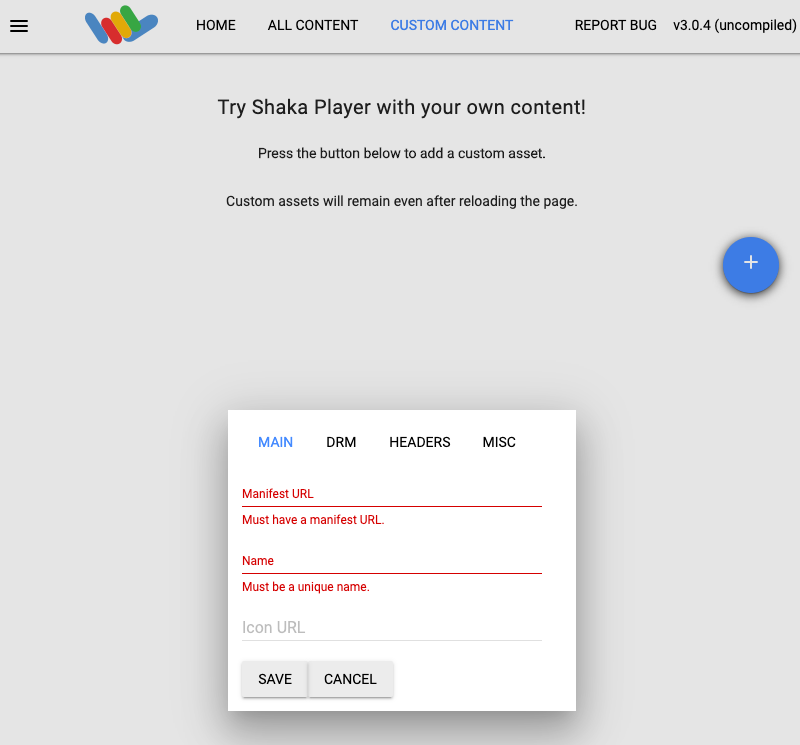
8. Type a name in the **Name** box.
9. Click **Save**.
10. Click **Play**.
You should see a test pattern play as the live stream.

## Ad break events
If you [created an ad break event](https://docs.cloud.google.com/livestream/docs/how-to/create-channel-events.md.txt#create_channel_event) for the live stream, the DVR
session contains the ad segments as they appear in the live stream.