This page explains how to configure subtitles in
[Web Video Text Tracks](https://www.w3.org/TR/webvtt1/) format (WebVTT) for a
live stream. Subtitles are generated from cea608 or cea708 captions in the input
stream.
Subtitles are supported for HLS and DASH live streams.
## Before you begin
This page assumes that you have completed the steps in the **Before you begin**
section of the
[Quickstart for an HLS live stream](https://docs.cloud.google.com/livestream/docs/quickstarts/quickstart-hls.md.txt) or the
[Quickstart for an MPEG-DASH live stream](https://docs.cloud.google.com/livestream/docs/quickstarts/quickstart-dash.md.txt).
## Create the input endpoint
To create the input endpoint, use the
[`projects.locations.inputs.create`](https://docs.cloud.google.com/livestream/docs/reference/rest/v1/projects.locations.inputs/create.md.txt) method.
Before using any of the request data,
make the following replacements:
- `PROJECT_NUMBER`: your Google Cloud project number; this is located in the **Project number** field on the [IAM Settings](https://console.cloud.google.com/iam-admin/settings) page
- `LOCATION`: the location in which to create the input endpoint; use one of the [supported regions](https://docs.cloud.google.com/livestream/docs/locations.md.txt) Show locations
- `us-central1`
- `us-east1`
- `us-east4`
- `us-west1`
- `us-west2`
- `northamerica-northeast1`
- `southamerica-east1`
- `asia-east1`
- `asia-east2`
- `asia-south1`
- `asia-northeast1`
- `asia-southeast1`
- `australia-southeast1`
- `europe-north1`
- `europe-west1`
- `europe-west2`
- `europe-west3`
- `europe-west4`
- `INPUT_ID`: a user-defined identifier for the new input endpoint to create (to which you send your input stream). This value must be 1-63 characters, begin and end with `[a-z0-9]`, and can contain dashes (-) between characters. For example, `my-input`.
Request JSON body:
```
{
"type": "RTMP_PUSH"
}
```
To send your request, expand one of these options:
#### curl (Linux, macOS, or Cloud Shell)
> [!NOTE]
> **Note:** The following command assumes that you have logged in to the `gcloud` CLI with your user account by running [`gcloud init`](https://docs.cloud.google.com/sdk/gcloud/reference/init) or [`gcloud auth login`](https://docs.cloud.google.com/sdk/gcloud/reference/auth/login.md.txt) , or by using [Cloud Shell](https://docs.cloud.google.com/shell/docs.md.txt), which automatically logs you into the `gcloud` CLI . You can check the currently active account by running [`gcloud auth list`](https://docs.cloud.google.com/sdk/gcloud/reference/auth/list.md.txt).
Save the request body in a file named `request.json`.
Run the following command in the terminal to create or overwrite
this file in the current directory:
```
cat > request.json << 'EOF'
{
"type": "RTMP_PUSH"
}
EOF
```
Then execute the following command to send your REST request:
```
curl -X POST \
-H "Authorization: Bearer $(gcloud auth print-access-token)" \
-H "Content-Type: application/json; charset=utf-8" \
-d @request.json \
"https://livestream.googleapis.com/v1/projects/PROJECT_NUMBER/locations/LOCATION/inputs?inputId=INPUT_ID"
```
#### PowerShell (Windows)
> [!NOTE]
> **Note:** The following command assumes that you have logged in to the `gcloud` CLI with your user account by running [`gcloud init`](https://docs.cloud.google.com/sdk/gcloud/reference/init) or [`gcloud auth login`](https://docs.cloud.google.com/sdk/gcloud/reference/auth/login.md.txt) . You can check the currently active account by running [`gcloud auth list`](https://docs.cloud.google.com/sdk/gcloud/reference/auth/list.md.txt).
Save the request body in a file named `request.json`.
Run the following command in the terminal to create or overwrite
this file in the current directory:
```
@'
{
"type": "RTMP_PUSH"
}
'@ | Out-File -FilePath request.json -Encoding utf8
```
Then execute the following command to send your REST request:
```
$cred = gcloud auth print-access-token
$headers = @{ "Authorization" = "Bearer $cred" }
Invoke-WebRequest `
-Method POST `
-Headers $headers `
-ContentType: "application/json; charset=utf-8" `
-InFile request.json `
-Uri "https://livestream.googleapis.com/v1/projects/PROJECT_NUMBER/locations/LOCATION/inputs?inputId=INPUT_ID" | Select-Object -Expand Content
```
You should receive a JSON response similar to the following:
```
{
"name": "projects/PROJECT_NUMBER/locations/LOCATION/operations/OPERATION_ID",
"metadata": {
"@type": "type.googleapis.com/google.cloud.video.livestream.v1.OperationMetadata",
"createTime": CREATE_TIME,
"target": "projects/PROJECT_NUMBER/locations/LOCATION/inputs/INPUT_ID",
"verb": "create",
"requestedCancellation": false,
"apiVersion": "v1"
},
"done": false
}
```
Copy the returned OPERATION_ID to
use in the next section.
### Check for the result
Use the [`projects.locations.operations.get`](https://docs.cloud.google.com/livestream/docs/reference/rest/v1/projects.locations.operations/get.md.txt) method to check if
the input endpoint has been created. If the response contains `"done: false"`,
repeat the command until the response contains `"done: true"`. Creating the
first input endpoint in a region may take up to 10 minutes.
Before using any of the request data,
make the following replacements:
- `PROJECT_NUMBER`: your Google Cloud project number; this is located in the **Project number** field on the [IAM Settings](https://console.cloud.google.com/iam-admin/settings) page
- `LOCATION`: the location where your input endpoint is located; use one of the [supported regions](https://docs.cloud.google.com/livestream/docs/locations.md.txt) Show locations
- `us-central1`
- `us-east1`
- `us-east4`
- `us-west1`
- `us-west2`
- `northamerica-northeast1`
- `southamerica-east1`
- `asia-east1`
- `asia-east2`
- `asia-south1`
- `asia-northeast1`
- `asia-southeast1`
- `australia-southeast1`
- `europe-north1`
- `europe-west1`
- `europe-west2`
- `europe-west3`
- `europe-west4`
- `OPERATION_ID`: the identifier for the operation
To send your request, expand one of these options:
#### curl (Linux, macOS, or Cloud Shell)
> [!NOTE]
> **Note:** The following command assumes that you have logged in to the `gcloud` CLI with your user account by running [`gcloud init`](https://docs.cloud.google.com/sdk/gcloud/reference/init) or [`gcloud auth login`](https://docs.cloud.google.com/sdk/gcloud/reference/auth/login.md.txt) , or by using [Cloud Shell](https://docs.cloud.google.com/shell/docs.md.txt), which automatically logs you into the `gcloud` CLI . You can check the currently active account by running [`gcloud auth list`](https://docs.cloud.google.com/sdk/gcloud/reference/auth/list.md.txt).
Execute the following command:
```
curl -X GET \
-H "Authorization: Bearer $(gcloud auth print-access-token)" \
"https://livestream.googleapis.com/v1/projects/PROJECT_NUMBER/locations/LOCATION/operations/OPERATION_ID"
```
#### PowerShell (Windows)
> [!NOTE]
> **Note:** The following command assumes that you have logged in to the `gcloud` CLI with your user account by running [`gcloud init`](https://docs.cloud.google.com/sdk/gcloud/reference/init) or [`gcloud auth login`](https://docs.cloud.google.com/sdk/gcloud/reference/auth/login.md.txt) . You can check the currently active account by running [`gcloud auth list`](https://docs.cloud.google.com/sdk/gcloud/reference/auth/list.md.txt).
Execute the following command:
```
$cred = gcloud auth print-access-token
$headers = @{ "Authorization" = "Bearer $cred" }
Invoke-WebRequest `
-Method GET `
-Headers $headers `
-Uri "https://livestream.googleapis.com/v1/projects/PROJECT_NUMBER/locations/LOCATION/operations/OPERATION_ID" | Select-Object -Expand Content
```
You should receive a JSON response similar to the following:
```
{
"name": "projects/PROJECT_NUMBER/locations/LOCATION/operations/OPERATION_ID",
"metadata": {
"@type": "type.googleapis.com/google.cloud.video.livestream.v1.OperationMetadata",
"createTime": CREATE_TIME,
"endTime": END_TIME,
"target": "projects/PROJECT_NUMBER/locations/LOCATION/inputs/INPUT_ID",
"verb": "create",
"requestedCancellation": false,
"apiVersion": "v1"
},
"done": true,
"response": {
"@type": "type.googleapis.com/google.cloud.video.livestream.v1.Input",
"name": "projects/PROJECT_NUMBER/locations/LOCATION/inputs/INPUT_ID",
"createTime": CREATE_TIME,
"updateTime": UPDATE_TIME,
"type": "RTMP_PUSH",
"uri": INPUT_STREAM_URI, # For example, "rtmp://1.2.3.4/live/b8ebdd94-c8d9-4d88-a16e-b963c43a953b",
"tier": "HD"
}
}
```
Find the `uri` field and copy the returned
INPUT_STREAM_URI to use later
in the [Send the input stream](https://docs.cloud.google.com/livestream/docs/how-to/configure-subtitles.md.txt#send-input-stream) section.
## Create the channel
To create the channel, use the
[`projects.locations.channels.create`](https://docs.cloud.google.com/livestream/docs/reference/rest/v1/projects.locations.channels/create.md.txt) method.
Note the following in the channel configuration:
- One
[`ElementaryStream`](https://docs.cloud.google.com/livestream/docs/reference/rest/v1/projects.locations.channels.md.txt#elementarystream), a [`TextStream`](https://docs.cloud.google.com/livestream/docs/reference/rest/v1/projects.locations.channels.md.txt#textstream), is
used for the subtitles.
```json
{
"key": "webvtt-english",
"textStream": {
"codec": "webvtt",
"display_name": "English",
"language_code": "en-US",
"mapping": [
{
"input_cea_channel": "CC1"
}
]
}
}
```
- The `TextStream`
[`codec`](https://docs.cloud.google.com/livestream/docs/reference/rest/v1/projects.locations.channels.md.txt#TextStream.FIELDS.codec) field is set to `webvtt`.
- The `TextStream`
[`mapping`](https://docs.cloud.google.com/livestream/docs/reference/rest/v1/projects.locations.channels.md.txt#TextStream.FIELDS.mapping) field maps input streams to text tracks. In
this example, `input_cea_channel` is mapped to input channel `CC1` for
English subtitles.
- The elementary stream is used to create a [`MuxStream`](https://docs.cloud.google.com/livestream/docs/reference/rest/v1/projects.locations.channels.md.txt#muxstream) with key
`vtt-english`.
```json
{
"key": "vtt_english",
"container": "vtt",
"elementaryStreams": [
"webvtt-english"
],
"segmentSettings": {
"segmentDuration": "2s"
}
}
```
This mux stream is then referenced in both HLS and DASH
[manifests](https://docs.cloud.google.com/livestream/docs/reference/rest/v1/projects.locations.channels.md.txt#manifest).
```json
{
"fileName": "main.m3u8",
"type": "HLS",
"muxStreams": [
"mux_video_ts",
"vtt_english"
],
"maxSegmentCount": 5
}
```
Before using any of the request data,
make the following replacements:
- `PROJECT_NUMBER`: your Google Cloud project number; this is located in the **Project number** field on the [IAM Settings](https://console.cloud.google.com/iam-admin/settings) page
- `LOCATION`: the location in which to create the channel; use one of the [supported regions](https://docs.cloud.google.com/livestream/docs/locations.md.txt) Show locations
- `us-central1`
- `us-east1`
- `us-east4`
- `us-west1`
- `us-west2`
- `northamerica-northeast1`
- `southamerica-east1`
- `asia-east1`
- `asia-east2`
- `asia-south1`
- `asia-northeast1`
- `asia-southeast1`
- `australia-southeast1`
- `europe-north1`
- `europe-west1`
- `europe-west2`
- `europe-west3`
- `europe-west4`
- `CHANNEL_ID`: a user-defined identifier for the channel to create; this value must be 1-63 characters, begin and end with `[a-z0-9]`, and can contain dashes (-) between characters
- `INPUT_ID`: the user-defined identifier for the input endpoint
- `BUCKET_NAME`: the name of the Cloud Storage bucket you created to hold the live stream manifest and segment files
Request JSON body:
```
{
"inputAttachments": [
{
"key": "my-input",
"input": "projects/PROJECT_NUMBER/locations/LOCATION/inputs/INPUT_ID"
}
],
"output": {
"uri": "gs://BUCKET_NAME"
},
"elementaryStreams": [
{
"key": "es_video",
"videoStream": {
"h264": {
"profile": "high",
"widthPixels": 1280,
"heightPixels": 720,
"bitrateBps": 3000000,
"frameRate": 30
}
}
},
{
"key": "es_audio",
"audioStream": {
"codec": "aac",
"channelCount": 2,
"bitrateBps": 160000
}
},
{
"key": "webvtt-english",
"textStream": {
"codec": "webvtt",
"display_name": "English",
"language_code": "en-US",
"mapping": [
{
"input_cea_channel": "CC1"
}
]
}
}
],
"muxStreams": [
{
"key": "mux_video_fmp4",
"container": "fmp4",
"elementaryStreams": [
"es_video"
],
"segmentSettings": {
"segmentDuration": "2s"
}
},
{
"key": "mux_audio_fmp4",
"container": "fmp4",
"elementaryStreams": [
"es_audio"
],
"segmentSettings": {
"segmentDuration": "2s"
}
},
{
"key": "mux_video_ts",
"container": "ts",
"elementaryStreams": [
"es_video",
"es_audio"
],
"segmentSettings": {
"segmentDuration": "2s"
}
},
{
"key": "vtt_english",
"container": "vtt",
"elementaryStreams": [
"webvtt-english"
],
"segmentSettings": {
"segmentDuration": "2s"
}
}
],
"manifests": [
{
"key": "manifest_dash",
"fileName": "main.mpd",
"type": "DASH",
"muxStreams": [
"mux_video_fmp4",
"mux_audio_fmp4",
"vtt_english"
],
"maxSegmentCount": 5
},
{
"key": "manifest_hls",
"fileName": "main.m3u8",
"type": "HLS",
"muxStreams": [
"mux_video_ts",
"vtt_english"
],
"maxSegmentCount": 5
}
]
}
```
To send your request, expand one of these options:
#### curl (Linux, macOS, or Cloud Shell)
> [!NOTE]
> **Note:** The following command assumes that you have logged in to the `gcloud` CLI with your user account by running [`gcloud init`](https://docs.cloud.google.com/sdk/gcloud/reference/init) or [`gcloud auth login`](https://docs.cloud.google.com/sdk/gcloud/reference/auth/login.md.txt) , or by using [Cloud Shell](https://docs.cloud.google.com/shell/docs.md.txt), which automatically logs you into the `gcloud` CLI . You can check the currently active account by running [`gcloud auth list`](https://docs.cloud.google.com/sdk/gcloud/reference/auth/list.md.txt).
Save the request body in a file named `request.json`.
Run the following command in the terminal to create or overwrite
this file in the current directory:
```
cat > request.json << 'EOF'
{
"inputAttachments": [
{
"key": "my-input",
"input": "projects/PROJECT_NUMBER/locations/LOCATION/inputs/INPUT_ID"
}
],
"output": {
"uri": "gs://BUCKET_NAME"
},
"elementaryStreams": [
{
"key": "es_video",
"videoStream": {
"h264": {
"profile": "high",
"widthPixels": 1280,
"heightPixels": 720,
"bitrateBps": 3000000,
"frameRate": 30
}
}
},
{
"key": "es_audio",
"audioStream": {
"codec": "aac",
"channelCount": 2,
"bitrateBps": 160000
}
},
{
"key": "webvtt-english",
"textStream": {
"codec": "webvtt",
"display_name": "English",
"language_code": "en-US",
"mapping": [
{
"input_cea_channel": "CC1"
}
]
}
}
],
"muxStreams": [
{
"key": "mux_video_fmp4",
"container": "fmp4",
"elementaryStreams": [
"es_video"
],
"segmentSettings": {
"segmentDuration": "2s"
}
},
{
"key": "mux_audio_fmp4",
"container": "fmp4",
"elementaryStreams": [
"es_audio"
],
"segmentSettings": {
"segmentDuration": "2s"
}
},
{
"key": "mux_video_ts",
"container": "ts",
"elementaryStreams": [
"es_video",
"es_audio"
],
"segmentSettings": {
"segmentDuration": "2s"
}
},
{
"key": "vtt_english",
"container": "vtt",
"elementaryStreams": [
"webvtt-english"
],
"segmentSettings": {
"segmentDuration": "2s"
}
}
],
"manifests": [
{
"key": "manifest_dash",
"fileName": "main.mpd",
"type": "DASH",
"muxStreams": [
"mux_video_fmp4",
"mux_audio_fmp4",
"vtt_english"
],
"maxSegmentCount": 5
},
{
"key": "manifest_hls",
"fileName": "main.m3u8",
"type": "HLS",
"muxStreams": [
"mux_video_ts",
"vtt_english"
],
"maxSegmentCount": 5
}
]
}
EOF
```
Then execute the following command to send your REST request:
```
curl -X POST \
-H "Authorization: Bearer $(gcloud auth print-access-token)" \
-H "Content-Type: application/json; charset=utf-8" \
-d @request.json \
"https://livestream.googleapis.com/v1/projects/PROJECT_NUMBER/locations/LOCATION/channels?channelId=CHANNEL_ID"
```
#### PowerShell (Windows)
> [!NOTE]
> **Note:** The following command assumes that you have logged in to the `gcloud` CLI with your user account by running [`gcloud init`](https://docs.cloud.google.com/sdk/gcloud/reference/init) or [`gcloud auth login`](https://docs.cloud.google.com/sdk/gcloud/reference/auth/login.md.txt) . You can check the currently active account by running [`gcloud auth list`](https://docs.cloud.google.com/sdk/gcloud/reference/auth/list.md.txt).
Save the request body in a file named `request.json`.
Run the following command in the terminal to create or overwrite
this file in the current directory:
```
@'
{
"inputAttachments": [
{
"key": "my-input",
"input": "projects/PROJECT_NUMBER/locations/LOCATION/inputs/INPUT_ID"
}
],
"output": {
"uri": "gs://BUCKET_NAME"
},
"elementaryStreams": [
{
"key": "es_video",
"videoStream": {
"h264": {
"profile": "high",
"widthPixels": 1280,
"heightPixels": 720,
"bitrateBps": 3000000,
"frameRate": 30
}
}
},
{
"key": "es_audio",
"audioStream": {
"codec": "aac",
"channelCount": 2,
"bitrateBps": 160000
}
},
{
"key": "webvtt-english",
"textStream": {
"codec": "webvtt",
"display_name": "English",
"language_code": "en-US",
"mapping": [
{
"input_cea_channel": "CC1"
}
]
}
}
],
"muxStreams": [
{
"key": "mux_video_fmp4",
"container": "fmp4",
"elementaryStreams": [
"es_video"
],
"segmentSettings": {
"segmentDuration": "2s"
}
},
{
"key": "mux_audio_fmp4",
"container": "fmp4",
"elementaryStreams": [
"es_audio"
],
"segmentSettings": {
"segmentDuration": "2s"
}
},
{
"key": "mux_video_ts",
"container": "ts",
"elementaryStreams": [
"es_video",
"es_audio"
],
"segmentSettings": {
"segmentDuration": "2s"
}
},
{
"key": "vtt_english",
"container": "vtt",
"elementaryStreams": [
"webvtt-english"
],
"segmentSettings": {
"segmentDuration": "2s"
}
}
],
"manifests": [
{
"key": "manifest_dash",
"fileName": "main.mpd",
"type": "DASH",
"muxStreams": [
"mux_video_fmp4",
"mux_audio_fmp4",
"vtt_english"
],
"maxSegmentCount": 5
},
{
"key": "manifest_hls",
"fileName": "main.m3u8",
"type": "HLS",
"muxStreams": [
"mux_video_ts",
"vtt_english"
],
"maxSegmentCount": 5
}
]
}
'@ | Out-File -FilePath request.json -Encoding utf8
```
Then execute the following command to send your REST request:
```
$cred = gcloud auth print-access-token
$headers = @{ "Authorization" = "Bearer $cred" }
Invoke-WebRequest `
-Method POST `
-Headers $headers `
-ContentType: "application/json; charset=utf-8" `
-InFile request.json `
-Uri "https://livestream.googleapis.com/v1/projects/PROJECT_NUMBER/locations/LOCATION/channels?channelId=CHANNEL_ID" | Select-Object -Expand Content
```
You should receive a JSON response similar to the following:
```
{
"name": "projects/PROJECT_NUMBER/locations/LOCATION/operations/OPERATION_ID",
"metadata": {
"@type": "type.googleapis.com/google.cloud.video.livestream.v1.OperationMetadata",
"createTime": CREATE_TIME,
"target": "projects/PROJECT_NUMBER/locations/LOCATION/channels/CHANNEL_ID",
"verb": "create",
"requestedCancellation": false,
"apiVersion": "v1"
},
"done": false
}
```
### Get the channel
You can [check for the result](https://docs.cloud.google.com/livestream/docs/how-to/configure-subtitles.md.txt#check-for-result) of the channel creation
operation using the new operation ID.
After the channel has been created, use the
[`projects.locations.channels.get`](https://docs.cloud.google.com/livestream/docs/reference/rest/v1/projects.locations.channels/get.md.txt) method to query the channel
state.
Before using any of the request data,
make the following replacements:
- `PROJECT_NUMBER`: your Google Cloud project number; this is located in the **Project number** field on the [IAM Settings](https://console.cloud.google.com/iam-admin/settings) page
- `LOCATION`: the location where your channel is located; use one of the [supported regions](https://docs.cloud.google.com/livestream/docs/locations.md.txt) Show locations
- `us-central1`
- `us-east1`
- `us-east4`
- `us-west1`
- `us-west2`
- `northamerica-northeast1`
- `southamerica-east1`
- `asia-east1`
- `asia-east2`
- `asia-south1`
- `asia-northeast1`
- `asia-southeast1`
- `australia-southeast1`
- `europe-north1`
- `europe-west1`
- `europe-west2`
- `europe-west3`
- `europe-west4`
- `CHANNEL_ID`: a user-defined identifier for the channel
To send your request, expand one of these options:
#### curl (Linux, macOS, or Cloud Shell)
> [!NOTE]
> **Note:** The following command assumes that you have logged in to the `gcloud` CLI with your user account by running [`gcloud init`](https://docs.cloud.google.com/sdk/gcloud/reference/init) or [`gcloud auth login`](https://docs.cloud.google.com/sdk/gcloud/reference/auth/login.md.txt) , or by using [Cloud Shell](https://docs.cloud.google.com/shell/docs.md.txt), which automatically logs you into the `gcloud` CLI . You can check the currently active account by running [`gcloud auth list`](https://docs.cloud.google.com/sdk/gcloud/reference/auth/list.md.txt).
Execute the following command:
```
curl -X GET \
-H "Authorization: Bearer $(gcloud auth print-access-token)" \
"https://livestream.googleapis.com/v1/projects/PROJECT_NUMBER/locations/LOCATION/channels/CHANNEL_ID"
```
#### PowerShell (Windows)
> [!NOTE]
> **Note:** The following command assumes that you have logged in to the `gcloud` CLI with your user account by running [`gcloud init`](https://docs.cloud.google.com/sdk/gcloud/reference/init) or [`gcloud auth login`](https://docs.cloud.google.com/sdk/gcloud/reference/auth/login.md.txt) . You can check the currently active account by running [`gcloud auth list`](https://docs.cloud.google.com/sdk/gcloud/reference/auth/list.md.txt).
Execute the following command:
```
$cred = gcloud auth print-access-token
$headers = @{ "Authorization" = "Bearer $cred" }
Invoke-WebRequest `
-Method GET `
-Headers $headers `
-Uri "https://livestream.googleapis.com/v1/projects/PROJECT_NUMBER/locations/LOCATION/channels/CHANNEL_ID" | Select-Object -Expand Content
```
You should receive a JSON response similar to the following:
```
{
"name": "projects/PROJECT_NUMBER/locations/LOCATION/channels/CHANNEL_ID",
"createTime": CREATE_TIME,
"updateTime": UPDATE_TIME,
"inputAttachments": [
{
"key": "INPUT_ID",
"input": "projects/PROJECT_NUMBER/locations/LOCATION/inputs/INPUT_ID"
}
],
"activeInput": "INPUT_ID",
"output": {
"uri": "gs://BUCKET_NAME"
},
"elementaryStreams": [
{
"key": "es_video",
"videoStream": {
"h264": {
"profile": "high",
"widthPixels": 1280,
"heightPixels": 720,
"bitrateBps": 3000000,
"frameRate": 30
}
}
},
{
"key": "es_audio",
"audioStream": {
"codec": "aac",
"channelCount": 2,
"bitrateBps": 160000
}
},
{
"key": "webvtt-english",
"textStream": {
"codec": "webvtt",
"display_name": "English",
"language_code": "en-US",
"mapping": [
{
"input_cea_channel": "CC1"
}
]
}
}
],
"muxStreams": [
{
"key": "mux_video_fmp4",
"container": "fmp4",
"elementaryStreams": [
"es_video"
],
"segmentSettings": {
"segmentDuration": "2s"
}
},
{
"key": "mux_audio_fmp4",
"container": "fmp4",
"elementaryStreams": [
"es_audio"
],
"segmentSettings": {
"segmentDuration": "2s"
}
},
{
"key": "mux_video_ts",
"container": "ts",
"elementaryStreams": [
"es_video",
"es_audio"
],
"segmentSettings": {
"segmentDuration": "2s"
}
},
{
"key": "vtt_english",
"container": "vtt",
"elementaryStreams": [
"webvtt-english"
],
"segmentSettings": {
"segmentDuration": "2s"
}
}
],
"manifests": [
{
"key": "manifest_dash",
"fileName": "main.mpd",
"type": "DASH",
"muxStreams": [
"mux_video_fmp4",
"mux_audio_fmp4",
"vtt_english"
],
"maxSegmentCount": 5
},
{
"key": "manifest_hls",
"fileName": "main.m3u8",
"type": "HLS",
"muxStreams": [
"mux_video_ts",
"vtt_english"
],
"maxSegmentCount": 5
}
],
"streamingState": "STOPPED"
}
```
The full response contains the following field:
{
...
"streamingState": "STOPPED"
...
}
This response indicates that you can now start the channel.
## Start the channel
Use the [`projects.locations.channels.start`](https://docs.cloud.google.com/livestream/docs/reference/rest/v1/projects.locations.channels/start.md.txt) method to start the
channel. A channel must be started before it can accept input streams or
generate an output stream.
Starting the first channel in a region takes about 10 minutes.
Before using any of the request data,
make the following replacements:
- `PROJECT_NUMBER`: your Google Cloud project number; this is located in the **Project number** field on the [IAM Settings](https://console.cloud.google.com/iam-admin/settings) page
- `LOCATION`: the location where your channel is located; use one of the [supported regions](https://docs.cloud.google.com/livestream/docs/locations.md.txt) Show locations
- `us-central1`
- `us-east1`
- `us-east4`
- `us-west1`
- `us-west2`
- `northamerica-northeast1`
- `southamerica-east1`
- `asia-east1`
- `asia-east2`
- `asia-south1`
- `asia-northeast1`
- `asia-southeast1`
- `australia-southeast1`
- `europe-north1`
- `europe-west1`
- `europe-west2`
- `europe-west3`
- `europe-west4`
- `CHANNEL_ID`: a user-defined identifier for the channel
To send your request, expand one of these options:
#### curl (Linux, macOS, or Cloud Shell)
> [!NOTE]
> **Note:** The following command assumes that you have logged in to the `gcloud` CLI with your user account by running [`gcloud init`](https://docs.cloud.google.com/sdk/gcloud/reference/init) or [`gcloud auth login`](https://docs.cloud.google.com/sdk/gcloud/reference/auth/login.md.txt) , or by using [Cloud Shell](https://docs.cloud.google.com/shell/docs.md.txt), which automatically logs you into the `gcloud` CLI . You can check the currently active account by running [`gcloud auth list`](https://docs.cloud.google.com/sdk/gcloud/reference/auth/list.md.txt).
Execute the following command:
```
curl -X POST \
-H "Authorization: Bearer $(gcloud auth print-access-token)" \
-H "Content-Type: application/json; charset=utf-8" \
-d "" \
"https://livestream.googleapis.com/v1/projects/PROJECT_NUMBER/locations/LOCATION/channels/CHANNEL_ID:start"
```
#### PowerShell (Windows)
> [!NOTE]
> **Note:** The following command assumes that you have logged in to the `gcloud` CLI with your user account by running [`gcloud init`](https://docs.cloud.google.com/sdk/gcloud/reference/init) or [`gcloud auth login`](https://docs.cloud.google.com/sdk/gcloud/reference/auth/login.md.txt) . You can check the currently active account by running [`gcloud auth list`](https://docs.cloud.google.com/sdk/gcloud/reference/auth/list.md.txt).
Execute the following command:
```
$cred = gcloud auth print-access-token
$headers = @{ "Authorization" = "Bearer $cred" }
Invoke-WebRequest `
-Method POST `
-Headers $headers `
-Uri "https://livestream.googleapis.com/v1/projects/PROJECT_NUMBER/locations/LOCATION/channels/CHANNEL_ID:start" | Select-Object -Expand Content
```
You should receive a JSON response similar to the following:
```
{
"name": "projects/PROJECT_NUMBER/locations/LOCATION/operations/OPERATION_ID",
"metadata": {
"@type": "type.googleapis.com/google.cloud.video.livestream.v1.OperationMetadata",
"createTime": CREATE_TIME,
"target": "projects/PROJECT_NUMBER/locations/LOCATION/channels/CHANNEL_ID",
"verb": "start",
"requestedCancellation": false,
"apiVersion": "v1"
},
"done": false
}
```
To determine if the channel has started, [get the channel](https://docs.cloud.google.com/livestream/docs/how-to/configure-subtitles.md.txt#get-channel)
information as done previously. The response should contain the following:
{
...
"streamingState": "AWAITING_INPUT"
...
}
## Send the input stream
Now that the channel is ready, send an input stream to the input
endpoint to generate the live stream. You can download an MP4 (or other
TEST_VOD_FILE) with captions and
use `ffmpeg` to send it to the input endpoint.
Open a new terminal window. Run the following command, using the
INPUT_STREAM_URI from the
[Check for the result](https://docs.cloud.google.com/livestream/docs/how-to/configure-subtitles.md.txt#check-for-result) section:
```bash
ffmpeg -re -stream_loop -1 -i "TEST_VOD_FILE" \
-c:v copy -c:a aac -strict 2 -f "flv" "INPUT_STREAM_URI"
```
> [!NOTE]
> **Note:** Use format `flv` if the input endpoint uses the RTMP protocol. Use `mpegts` for the SRT protocol.
## Play the generated live stream
To play the generated media file in [Shaka Player](https://shaka-player-demo.appspot.com/demo/),
complete the following steps:
1. [Make the Cloud Storage bucket you created publicly readable](https://docs.cloud.google.com/storage/docs/access-control/making-data-public.md.txt#buckets).
2. To [enable cross-origin resource
sharing (CORS) on a Cloud Storage bucket](https://docs.cloud.google.com/storage/docs/using-cors#configure-cors-bucket), do the following:
1. Create a JSON file that contains the following:
```
[
{
"origin": ["https://shaka-player-demo.appspot.com/"],
"responseHeader": ["Content-Type", "Range"],
"method": ["GET", "HEAD"],
"maxAgeSeconds": 3600
}
]
```
2. Run the following command after replacing `JSON_FILE_NAME` with the name of the JSON file you created in the previous step:
```
gcloud storage buckets update gs://BUCKET_NAME --cors-file=JSON_FILE_NAME.json
```
3. In the Cloud Storage bucket, find the generated `main.m3u8` file. Click **Copy URL** in the file's **Public access** column.
4. Navigate to [Shaka Player](https://shaka-player-demo.appspot.com/demo/), an online live stream player.
5. Click **Custom Content** in the top navigation bar.
6. Click the **+** button.
7. Paste the public URL of the file into the **Manifest URL** box.
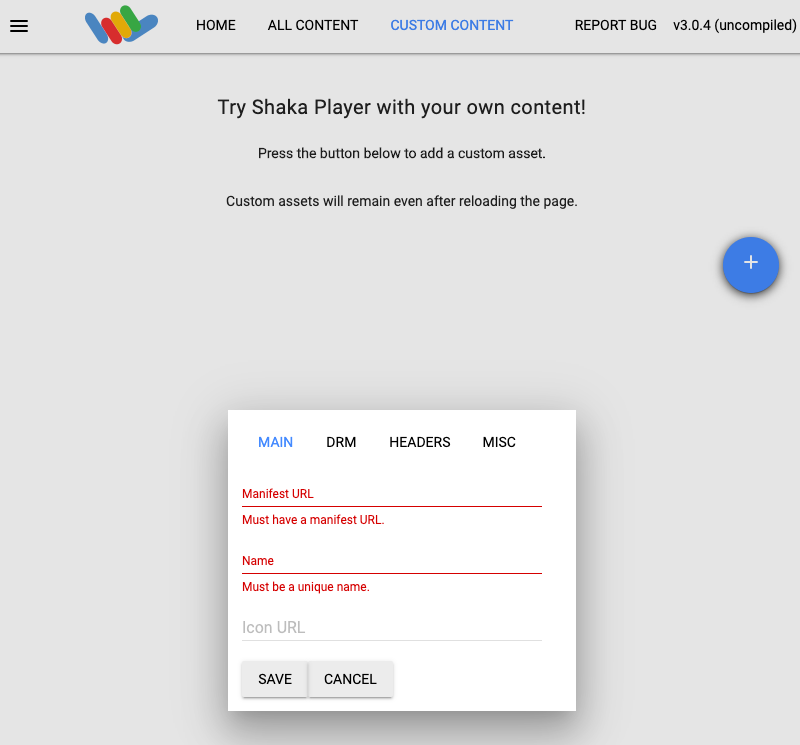
8. Type a name in the **Name** box.
9. Click **Save**.
10. Click **Play**.
You should see the live stream play. You may need to enable captions in the
Shaka Player UI.
## Clean up
### Stop the channel
Use the
[`projects.locations.channels.stop`](https://docs.cloud.google.com/livestream/docs/reference/rest/v1/projects.locations.channels/stop.md.txt) method to stop the channel.
You must stop the channel before you can delete it.
Before using any of the request data,
make the following replacements:
- `PROJECT_NUMBER`: your Google Cloud project number; this is located in the **Project number** field on the [IAM Settings](https://console.cloud.google.com/iam-admin/settings) page
- `LOCATION`: the location where your channel is located; use one of the [supported regions](https://docs.cloud.google.com/livestream/docs/locations.md.txt) Show locations
- `us-central1`
- `us-east1`
- `us-east4`
- `us-west1`
- `us-west2`
- `northamerica-northeast1`
- `southamerica-east1`
- `asia-east1`
- `asia-east2`
- `asia-south1`
- `asia-northeast1`
- `asia-southeast1`
- `australia-southeast1`
- `europe-north1`
- `europe-west1`
- `europe-west2`
- `europe-west3`
- `europe-west4`
- `CHANNEL_ID`: a user-defined identifier for the channel
To send your request, expand one of these options:
#### curl (Linux, macOS, or Cloud Shell)
> [!NOTE]
> **Note:** The following command assumes that you have logged in to the `gcloud` CLI with your user account by running [`gcloud init`](https://docs.cloud.google.com/sdk/gcloud/reference/init) or [`gcloud auth login`](https://docs.cloud.google.com/sdk/gcloud/reference/auth/login.md.txt) , or by using [Cloud Shell](https://docs.cloud.google.com/shell/docs.md.txt), which automatically logs you into the `gcloud` CLI . You can check the currently active account by running [`gcloud auth list`](https://docs.cloud.google.com/sdk/gcloud/reference/auth/list.md.txt).
Execute the following command:
```
curl -X POST \
-H "Authorization: Bearer $(gcloud auth print-access-token)" \
-H "Content-Type: application/json; charset=utf-8" \
-d "" \
"https://livestream.googleapis.com/v1/projects/PROJECT_NUMBER/locations/LOCATION/channels/CHANNEL_ID:stop"
```
#### PowerShell (Windows)
> [!NOTE]
> **Note:** The following command assumes that you have logged in to the `gcloud` CLI with your user account by running [`gcloud init`](https://docs.cloud.google.com/sdk/gcloud/reference/init) or [`gcloud auth login`](https://docs.cloud.google.com/sdk/gcloud/reference/auth/login.md.txt) . You can check the currently active account by running [`gcloud auth list`](https://docs.cloud.google.com/sdk/gcloud/reference/auth/list.md.txt).
Execute the following command:
```
$cred = gcloud auth print-access-token
$headers = @{ "Authorization" = "Bearer $cred" }
Invoke-WebRequest `
-Method POST `
-Headers $headers `
-Uri "https://livestream.googleapis.com/v1/projects/PROJECT_NUMBER/locations/LOCATION/channels/CHANNEL_ID:stop" | Select-Object -Expand Content
```
You should receive a JSON response similar to the following:
```
{
"name": "projects/PROJECT_NUMBER/locations/LOCATION/operations/OPERATION_ID",
"metadata": {
"@type": "type.googleapis.com/google.cloud.video.livestream.v1.OperationMetadata",
"createTime": CREATE_TIME,
"target": "projects/PROJECT_NUMBER/locations/LOCATION/channels/CHANNEL_ID",
"verb": "stop",
"requestedCancellation": false,
"apiVersion": "v1"
},
"done": false
}
```
### Stop the input stream
If you used `ffmpeg` to send the input stream, the connection is automatically
broken after you stop the channel.
### Delete the channel
Use the
[`projects.locations.channels.delete`](https://docs.cloud.google.com/livestream/docs/reference/rest/v1/projects.locations.channels/delete.md.txt) method to delete the
channel. You must delete the channel before you can delete the input endpoint
that is used by the channel.
Before using any of the request data,
make the following replacements:
- `PROJECT_NUMBER`: your Google Cloud project number; this is located in the **Project number** field on the [IAM Settings](https://console.cloud.google.com/iam-admin/settings) page
- `LOCATION`: the location where your channel is located; use one of the [supported regions](https://docs.cloud.google.com/livestream/docs/locations.md.txt) Show locations
- `us-central1`
- `us-east1`
- `us-east4`
- `us-west1`
- `us-west2`
- `northamerica-northeast1`
- `southamerica-east1`
- `asia-east1`
- `asia-east2`
- `asia-south1`
- `asia-northeast1`
- `asia-southeast1`
- `australia-southeast1`
- `europe-north1`
- `europe-west1`
- `europe-west2`
- `europe-west3`
- `europe-west4`
- `CHANNEL_ID`: a user-defined identifier for the channel
To send your request, expand one of these options:
#### curl (Linux, macOS, or Cloud Shell)
> [!NOTE]
> **Note:** The following command assumes that you have logged in to the `gcloud` CLI with your user account by running [`gcloud init`](https://docs.cloud.google.com/sdk/gcloud/reference/init) or [`gcloud auth login`](https://docs.cloud.google.com/sdk/gcloud/reference/auth/login.md.txt) , or by using [Cloud Shell](https://docs.cloud.google.com/shell/docs.md.txt), which automatically logs you into the `gcloud` CLI . You can check the currently active account by running [`gcloud auth list`](https://docs.cloud.google.com/sdk/gcloud/reference/auth/list.md.txt).
Execute the following command:
```
curl -X DELETE \
-H "Authorization: Bearer $(gcloud auth print-access-token)" \
"https://livestream.googleapis.com/v1/projects/PROJECT_NUMBER/locations/LOCATION/channels/CHANNEL_ID"
```
#### PowerShell (Windows)
> [!NOTE]
> **Note:** The following command assumes that you have logged in to the `gcloud` CLI with your user account by running [`gcloud init`](https://docs.cloud.google.com/sdk/gcloud/reference/init) or [`gcloud auth login`](https://docs.cloud.google.com/sdk/gcloud/reference/auth/login.md.txt) . You can check the currently active account by running [`gcloud auth list`](https://docs.cloud.google.com/sdk/gcloud/reference/auth/list.md.txt).
Execute the following command:
```
$cred = gcloud auth print-access-token
$headers = @{ "Authorization" = "Bearer $cred" }
Invoke-WebRequest `
-Method DELETE `
-Headers $headers `
-Uri "https://livestream.googleapis.com/v1/projects/PROJECT_NUMBER/locations/LOCATION/channels/CHANNEL_ID" | Select-Object -Expand Content
```
You should receive a JSON response similar to the following:
```
{
"name": "projects/PROJECT_NUMBER/locations/LOCATION/operations/OPERATION_ID",
"metadata": {
"@type": "type.googleapis.com/google.cloud.video.livestream.v1.OperationMetadata",
"createTime": CREATE_TIME,
"target": "projects/PROJECT_NUMBER/locations/LOCATION/channels/CHANNEL_ID",
"verb": "delete",
"requestedCancellation": false,
"apiVersion": "v1"
},
"done": false
}
```
### Delete the input endpoint
Use the
[`projects.locations.inputs.delete`](https://docs.cloud.google.com/livestream/docs/reference/rest/v1/projects.locations.inputs/delete.md.txt) method to delete the input
endpoint.
Before using any of the request data,
make the following replacements:
- `PROJECT_NUMBER`: your Google Cloud project number; this is located in the **Project number** field on the [IAM Settings](https://console.cloud.google.com/iam-admin/settings) page
- `LOCATION`: the location where your input endpoint is located; use one of the [supported regions](https://docs.cloud.google.com/livestream/docs/locations.md.txt) Show locations
- `us-central1`
- `us-east1`
- `us-east4`
- `us-west1`
- `us-west2`
- `northamerica-northeast1`
- `southamerica-east1`
- `asia-east1`
- `asia-east2`
- `asia-south1`
- `asia-northeast1`
- `asia-southeast1`
- `australia-southeast1`
- `europe-north1`
- `europe-west1`
- `europe-west2`
- `europe-west3`
- `europe-west4`
- `INPUT_ID`: the user-defined identifier for the input endpoint
To send your request, expand one of these options:
#### curl (Linux, macOS, or Cloud Shell)
> [!NOTE]
> **Note:** The following command assumes that you have logged in to the `gcloud` CLI with your user account by running [`gcloud init`](https://docs.cloud.google.com/sdk/gcloud/reference/init) or [`gcloud auth login`](https://docs.cloud.google.com/sdk/gcloud/reference/auth/login.md.txt) , or by using [Cloud Shell](https://docs.cloud.google.com/shell/docs.md.txt), which automatically logs you into the `gcloud` CLI . You can check the currently active account by running [`gcloud auth list`](https://docs.cloud.google.com/sdk/gcloud/reference/auth/list.md.txt).
Execute the following command:
```
curl -X DELETE \
-H "Authorization: Bearer $(gcloud auth print-access-token)" \
"https://livestream.googleapis.com/v1/projects/PROJECT_NUMBER/locations/LOCATION/inputs/INPUT_ID"
```
#### PowerShell (Windows)
> [!NOTE]
> **Note:** The following command assumes that you have logged in to the `gcloud` CLI with your user account by running [`gcloud init`](https://docs.cloud.google.com/sdk/gcloud/reference/init) or [`gcloud auth login`](https://docs.cloud.google.com/sdk/gcloud/reference/auth/login.md.txt) . You can check the currently active account by running [`gcloud auth list`](https://docs.cloud.google.com/sdk/gcloud/reference/auth/list.md.txt).
Execute the following command:
```
$cred = gcloud auth print-access-token
$headers = @{ "Authorization" = "Bearer $cred" }
Invoke-WebRequest `
-Method DELETE `
-Headers $headers `
-Uri "https://livestream.googleapis.com/v1/projects/PROJECT_NUMBER/locations/LOCATION/inputs/INPUT_ID" | Select-Object -Expand Content
```
You should receive a JSON response similar to the following:
```
{
"name": "projects/PROJECT_NUMBER/locations/LOCATION/operations/OPERATION_ID",
"metadata": {
"@type": "type.googleapis.com/google.cloud.video.livestream.v1.OperationMetadata",
"createTime": CREATE_TIME,
"target": "projects/PROJECT_NUMBER/locations/LOCATION/inputs/INPUT_ID",
"verb": "delete",
"requestedCancellation": false,
"apiVersion": "v1"
},
"done": false
}
```
### Delete the Cloud Storage bucket
1. In the Google Cloud console, go to the Cloud Storage Browser page.
[Go to the Cloud Storage Browser page](https://console.cloud.google.com/storage/browser)
2. Select the checkbox next to the bucket that you created.
3. Click **Delete**.
4. In the dialog window that appears, click **Delete** to permanently delete
the bucket and its contents.