Learn how to create and use labels in your Knative serving services and
revisions.
Labels are key/value pairs that are applied to the service and revisions. When
you set a label on a Knative serving service, a new revision with
this label is created for this service; the label is not applied to older
revisions.
Labels for Knative serving are
[Kubernetes resource labels](https://docs.cloud.google.com/kubernetes-engine/docs/how-to/cluster-usage-metering.md.txt),
and are not propagated to Google Cloud. To learn more about using
labels to analyze cluster resource usage, see
[Understanding cluster resource usage](https://docs.cloud.google.com/kubernetes-engine/docs/how-to/cluster-usage-metering.md.txt).
## Labels usage rules
Only [valid Kubernetes labels](https://kubernetes.io/docs/concepts/overview/working-with-objects/labels/) are allowed to be used on Knative serving.
## Setting or modifying labels
Any configuration change leads to the
creation of a new revision. Subsequent revisions will also automatically get
this configuration setting unless you make explicit updates to change it.
You can set or modify labels using the Google Cloud console, the
Google Cloud CLI, or a YAML file when you deploy a new
[service](https://docs.cloud.google.com/kubernetes-engine/enterprise/knative-serving/docs/deploying.md.txt#service) or update an existing service and
deploy a [revision](https://docs.cloud.google.com/kubernetes-engine/enterprise/knative-serving/docs/deploying.md.txt#revision):
### Console
1. Go to Knative serving in the Google Cloud console:
[Go to Knative serving](https://console.cloud.google.com/kubernetes/run)
1. Check the checkbox at the left of the service you are setting the label
on.
2. Make sure the *Info Panel* at the far right is toggled on
(**Show Info Panel**).
3. Click **Labels** to display the labels pane.
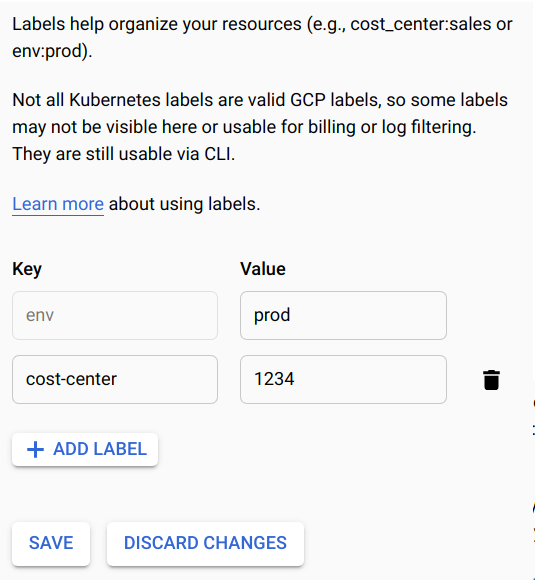
4. To edit an existing label key value, locate the label and change the
*Value* as desired.
5. To set a new label on the service, click **Add Label** and supply the key
and the value.
6. Click **Save**
### Command line
You can use the Google Cloud CLI to set labels
for new services or to update existing services:
- For existing services, update labels by running the
[`gcloud run services update`](https://docs.cloud.google.com/sdk/gcloud/reference/run/services/update.md.txt)
command with one of the following parameters:
- [`--set-labels`](https://docs.cloud.google.com/sdk/gcloud/reference/run/services/update.md.txt#--set-labels)
- [`--update-labels`](https://docs.cloud.google.com/sdk/gcloud/reference/run/services/update.md.txt#--update-labels)
- [`--remove-labels`](https://docs.cloud.google.com/sdk/gcloud/reference/run/services/update.md.txt#--remove-labels)
- [`--clear-labels`](https://docs.cloud.google.com/sdk/gcloud/reference/run/services/update.md.txt#--clear-labels)
Example:
```bash
gcloud run services update SERVICE --update-labels KEY1=VALUE1,KEY2=VALUE2
```
Replace:
- SERVICE with the name of your service.
- KEY1=VALUE1,KEY2=VALUE2 with a comma separated list of name and value pairs for each label. Specify the label name for each KEY and the value for VALUE. [How to specify multiple parameters](https://docs.cloud.google.com/kubernetes-engine/enterprise/knative-serving/docs/configuring/labels.md.txt#command-line).
### Command parameter options
To specify several sets of key-value pairs, you can specify multiple parameters for readability. Example:
```bash
[...]
--set-labels "KEY=VALUE1" \
--set-labels "KEY=VALUE2" \
--set-labels "KEY=VALUE3"
```
- For new services, set labels by running the
`gcloud run deploy` command with the
[`--set-labels`](https://docs.cloud.google.com/sdk/gcloud/reference/run/deploy.md.txt#--set-labels)
parameter:
```bash
gcloud run deploy SERVICE --image=IMAGE_URL --set-labels KEY1=VALUE1,KEY2=VALUE2
```
Replace:
- IMAGE_URL with a reference to the container image, for example, `gcr.io/cloudrun/hello`.
- SERVICE with the name of your service.
- KEY1=VALUE1,KEY2=VALUE2 with a comma separated list of name and value pairs for each label. Specify the label name for each KEY and the value for VALUE. [How to specify multiple parameters](https://docs.cloud.google.com/kubernetes-engine/enterprise/knative-serving/docs/configuring/labels.md.txt#command-line).
### Command parameter options
To specify several sets of key-value pairs, you can specify multiple parameters for readability. Example:
```bash
[...]
--set-labels "KEY=VALUE1" \
--set-labels "KEY=VALUE2" \
--set-labels "KEY=VALUE3"
```
### YAML
> [!CAUTION]
> **Caution:** Deploying configuration changes using YAML files replaces the configuration of your existing services. Since a YAML file completely overwrites all configurations, you should avoid using multiple methods to modify your services. For example, do not use YAML files in conjunction with the Google Cloud console or `gcloud` commands.
You can download the configuration of an existing service into a
YAML file with the `gcloud run services describe` command by using the
[`--format=export`](https://docs.cloud.google.com/sdk/gcloud/reference/run/services/describe) flag.
You can then modify that YAML file and deploy
those changes with the `gcloud run services replace` command.
You must ensure that you modify only the specified attributes.
1. Download the configuration of your service into a file named
`service.yaml` on local workspace:
```bash
gcloud run services describe SERVICE --format export > service.yaml
```
Replace SERVICE with the name of your
Knative serving service.
2. In your local file, update the `labels` attribute:
```yaml
apiVersion: serving.knative.dev/v1
kind: Service
metadata:
name: SERVICE
labels:
LABEL: 'VALUE'
```
Replace
- SERVICE with the name of your Knative serving service
- LABEL with the name of the label
- VALUE with the desired value
3. Replace the service with its new configuration using the following command:
```bash
gcloud run services replace service.yaml
```
## Listing services by label
You can list services by label using a [Google Cloud CLI filter](https://docs.cloud.google.com/sdk/gcloud/reference/topic/filters):
```bash
gcloud run services list --filter metadata.labels.LABEL=VALUE
```
Replace:
- LABEL with the name of the label
- VALUE with the value to include in your filtered list
## Deleting a label
You can use the console or the command line delete labels.
### Console
1. Go to Knative serving in the Google Cloud console:
[Go to Knative serving](https://console.cloud.google.com/kubernetes/run)
1. Check the checkbox at the left of the service you are deleting the label
from.
2. Make sure the *Info Panel* at the far right is toggled on
(**Show Info Panel**).
3. Click **Labels** to display the labels pane.
4. Locate the label you want to delete.
5. Hover your cursor to the right of the *Value* textbox for the label to
display the trash icon, and click the trash icon.
6. Click **Save**
### Command line
To clear all labels from a service:
```bash
gcloud run services update SERVICE --clear-labels
```
To delete specific labels from a service, supply a comma delimited list of
keys:
```bash
gcloud run services update SERVICE --remove-labels LABEL
```
Replace
- SERVICE with name of your Knative serving service
- LABEL with the name of your label