This page describes how to drive deep-learning tasks such as image
recognition, natural language processing, as well as other compute-intensive
tasks using [node pools](https://docs.cloud.google.com/kubernetes-engine/docs/concepts/node-pools.md.txt) with
NVIDIA graphics processing unit ([GPU](https://cloud.google.com/gpu)) hardware accelerators for compute
power with your Knative serving container instance.
## Adding a node pool with GPUs to your GKE cluster
Have an administrator create a node pool with GPUs:
1. [Add a GPU-enabled node pool to your GKE cluster](https://docs.cloud.google.com/kubernetes-engine/docs/how-to/gpus.md.txt#create).
2. [Install NVIDIA's device drivers to the nodes](https://docs.cloud.google.com/kubernetes-engine/docs/how-to/gpus.md.txt#installing_drivers).
## Setting up your service to consume GPUs
You can specify a
[resource limit](https://kubernetes.io/docs/concepts/configuration/manage-resources-containers/)
to consume GPUs for your service by using the Google Cloud console or
the Google Cloud CLI when you deploy a new
[service](https://docs.cloud.google.com/kubernetes-engine/enterprise/knative-serving/docs/deploying.md.txt#service), update an existing service, or
deploy a [revision](https://docs.cloud.google.com/kubernetes-engine/enterprise/knative-serving/docs/deploying.md.txt#revision):
### Console
1. [Go to Knative serving](https://console.cloud.google.com/kubernetes/run?enableapi=true)
2. Click **Create service** to display the *Create service* form.
3. In the **Service settings** section:
1. Select the GKE cluster with the GPU-enabled node pool.
2. Specify the name you want to give to your service.
3. Click **Next** to continue to the next section.
4. In the **Configure the service's first revision** section:
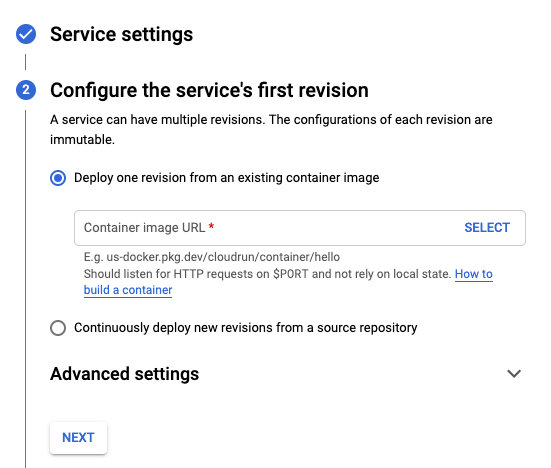
1. Add a container image URL.
2. Click **Advanced settings** and in the **GPU allocated** menu, select the [number of GPUs](https://docs.cloud.google.com/kubernetes-engine/docs/how-to/gpus.md.txt#gpu_quota) that you want to allocate to your service. 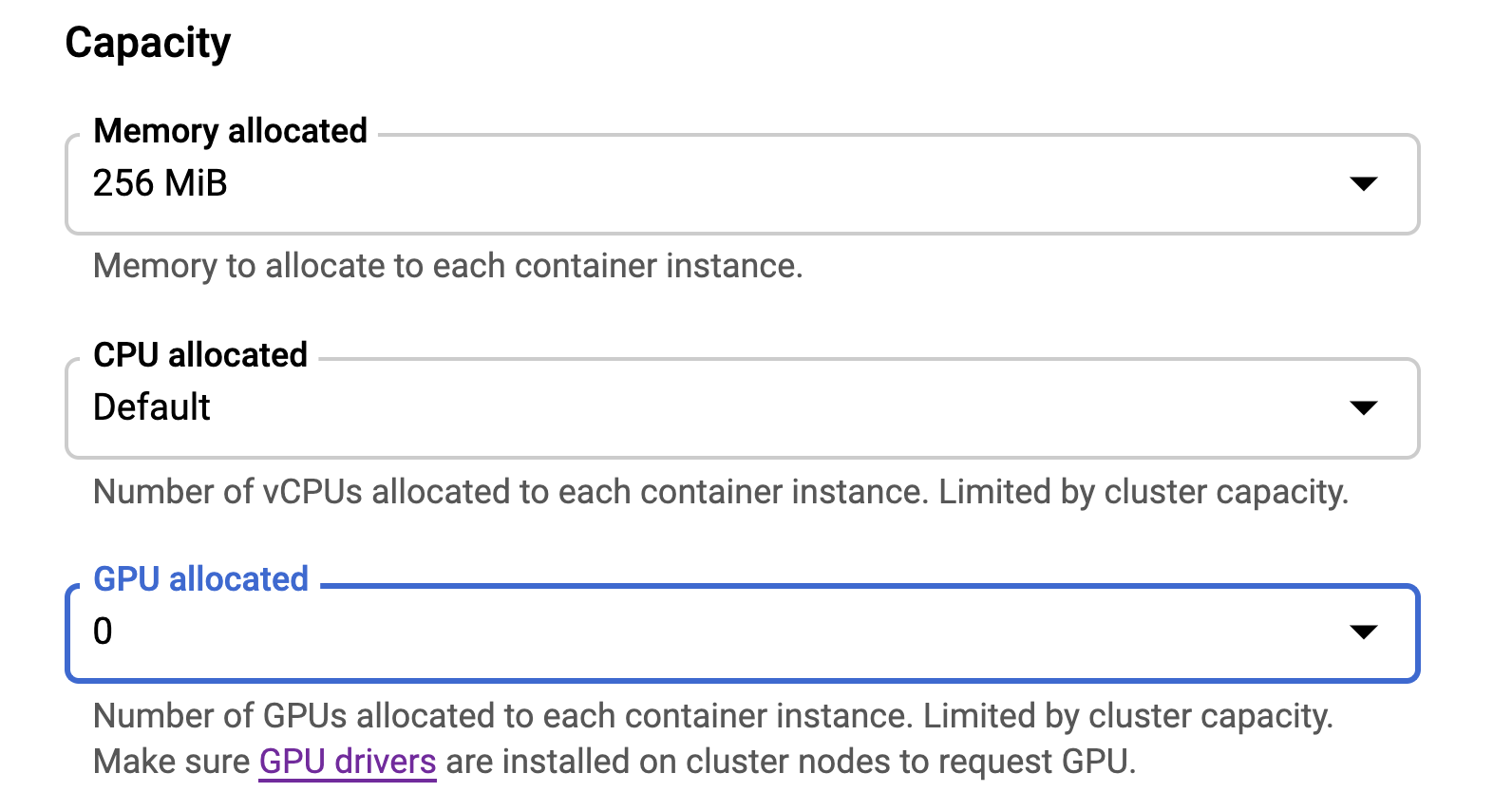
5. Click **Next** to continue to the next section.
6. In the **Configure how this service is triggered** section,
select which connectivity you would like to use to invoke the service.
7. Click **Create** to deploy the image to Knative serving and wait
for the deployment to finish.
### Command line
> [!CAUTION]
> **Caution:** Deploying configuration changes using YAML files replaces the configuration of your existing services. Since a YAML file completely overwrites all configurations, you should avoid using multiple methods to modify your services. For example, do not use YAML files in conjunction with the Google Cloud console or `gcloud` commands.
You can download the configuration of an existing service into a
YAML file with the `gcloud run services describe` command by using the
[`--format=export`](https://docs.cloud.google.com/sdk/gcloud/reference/run/services/describe) flag.
You can then modify that YAML file and deploy
those changes with the `gcloud run services replace` command.
You must ensure that you modify only the specified attributes.
1. Download the configuration of your service into a file named
`service.yaml` on local workspace:
```bash
gcloud run services describe SERVICE --format export > service.yaml
```
Replace SERVICE with the name of your
Knative serving service.
2. In your local file, update the `nvidia.com/gpu` attribute:
```yaml
apiVersion: serving.knative.dev/v1
kind: Service
metadata:
name: SERVICE_NAME
spec:
template:
spec:
containers:
-- image: IMAGE_URL
resources:
limits:
nvidia.com/gpu: "GPU_UNITS"
```
Replace GPU_UNITS with the desired
[GPU value](https://docs.cloud.google.com/kubernetes-engine/docs/how-to/gpus.md.txt#gpu_quota)
in Kubernetes GPU units. For example, specify `1` for 1 GPU.
3. Deploy the YAML file and replace your service with the new configuration by
running the following command:
```bash
gcloud run services replace service.yaml
```
For more information on GPU performance and cost, see [GPUs](https://docs.cloud.google.com/kubernetes-engine/docs/how-to/gpus.md.txt).