This tutorial demonstrates how to migrate stateful applications in
GKE from older generation machine types, such as N2, with
attached Persistent Disk volumes, to newer generation machine types, such as
N4, with attached
[Hyperdisk](https://docs.cloud.google.com/kubernetes-engine/docs/concepts/hyperdisk.md.txt) volumes
by using [Backup for
GKE](https://docs.cloud.google.com/kubernetes-engine/docs/add-on/backup-for-gke/concepts/backup-for-gke).
For more information about machines types that support Hyperdisk,
see [Compute Engine
documentation](https://docs.cloud.google.com/compute/docs/disks/hyperdisks#machine-type-support).
To demonstrate the migration, this tutorial uses the [Sakila
database](https://dev.mysql.com/doc/sakila/en/) and the [World
database](https://dev.mysql.com/doc/world-setup/en/) to provide sample datasets.
Sakila is a sample database provided by MySQL that represents a fictional DVD
rental store. The World database contains data about countries and cities. The
tutorial uses two different datasets across separate namespaces to simulate a
complex, multi-tenant environment.
This tutorial is for Storage specialists and Storage administrators who create
and allocate storage, and manage data security and data access. To learn more
about common roles and example tasks referenced in Google Cloud
content, see [Common GKE user roles and
tasks](https://docs.cloud.google.com/kubernetes-engine/enterprise/docs/concepts/roles-tasks).
#### Why migrate to Hyperdisk?
Hyperdisk is Google's high-performance block storage,
offering significantly higher IOPS and throughput compared to Persistent Disk.
This performance boost is critical for I/O-intensive stateful applications like
MySQL databases. However, Hyperdisk is supported only on newer
machine generations, such as N4. Migrating to Hyperdisk requires
moving your workloads to a new node pool or cluster.
#### Why use Backup for GKE?
Although you can migrate by using [disk snapshots](https://docs.cloud.google.com/kubernetes-engine/docs/tutorials/stateful-workloads/migrate-mysql-to-hyperdisk.md.txt), Backup for GKE offers a declarative and automated
approach. Its key feature for migration is *transformation rules*, which
let you do the following:
- Change the `StorageClass` of your PersistentVolumeClaims (PVCs) from Persistent Disk to Hyperdisk dynamically during restoration.
- Update Kubernetes manifests, like Deployments, to target the new N4 machine types required for Hyperdisk.
This method handles the orchestration of backing up the application state,
including secrets and configuration, and restoring it into a new environment
with modified infrastructure requirements, which helps to minimize manual
errors.
## Deployment architecture
The following diagram illustrates the process of using Backup for
GKE to migrate stateful MySQL workloads from Persistent Disk
on N2 machine types to Hyperdisk on N4 machine types.
- **Origin cluster:** two MySQL deployments reside in separate namespaces, `namespace-a` and `namespace-b`, on an N2 machine series node pool. These deployments use SSD Persistent Disk for data storage.
- **Backup strategy:** you enable the Backup for GKE agent on the cluster, and create a backup plan to capture the namespaces, volume data, and secrets. Then, you execute a manual backup to create a point-in-time recovery point.
- **Transformation and restore:** you define a restore plan by using transformation rules to adapt the resources for the target environment. These rules do the following:
- Swap the `StorageClass` from `premium-rwo` (PD) to a Hyperdisk storage class named `balanced-storage`.
- Modify Pod affinity rules to help ensure that the restored workloads are scheduled on a new N4 node pool.
- **Target environment:** you provision a new GKE cluster with N4 machine types. The restore process re-creates the disks as Hyperdisk volumes from the backup and deploys the MySQL instances onto the compatible N4 nodes.
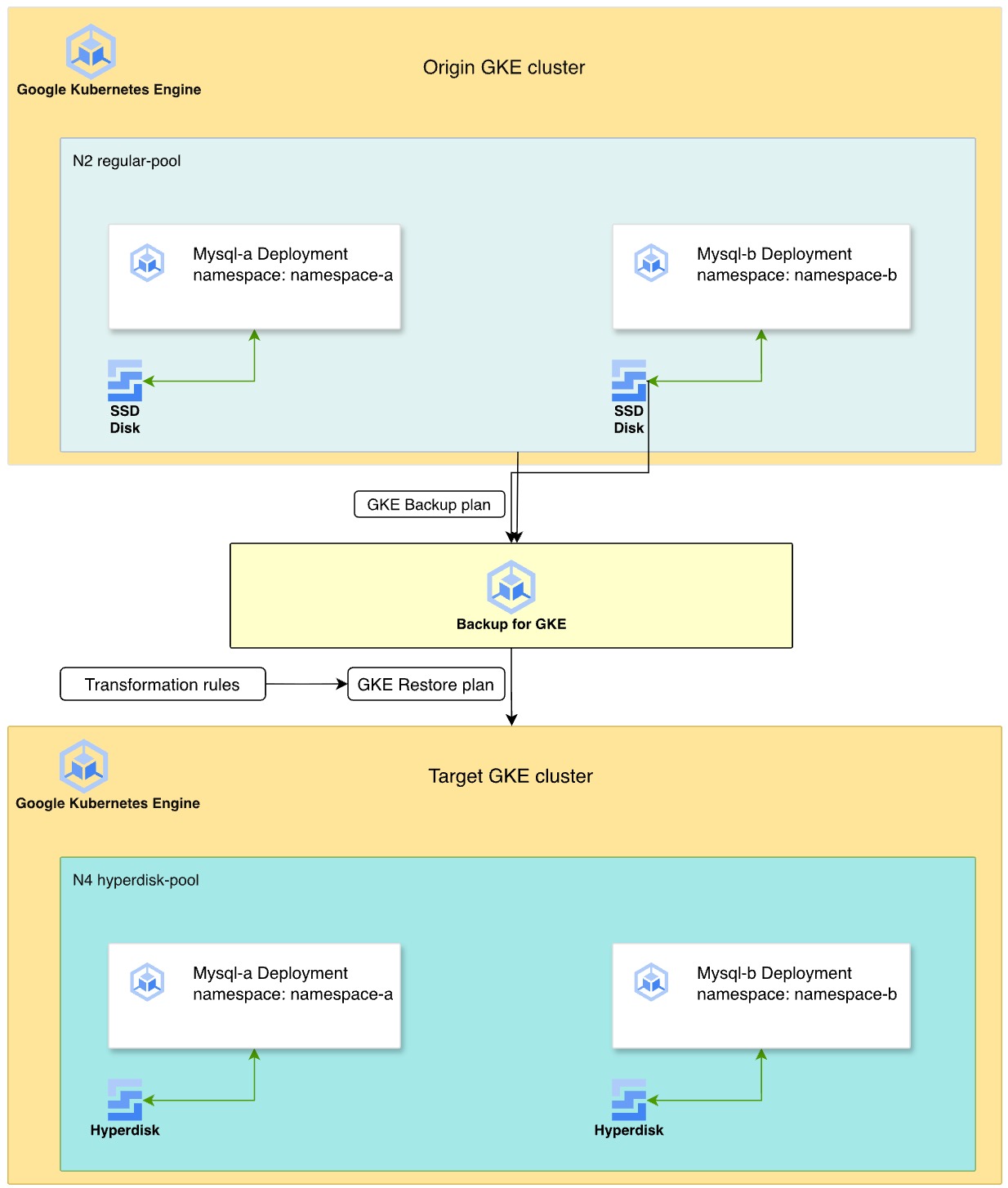 **Figure 1**: Migration of MySQL data from Persistent Disk to Hyperdisk using Backup for GKE.
## Objectives
In this tutorial, you learn how to do the following:
- Prepare GKE stateful applications for backup.
- Enable the Backup for GKE add-on.
- Create a backup plan and back up the source cluster.
- Create a restore plan that uses transformation rules to migrate storage to Hyperdisk.
- Restore the workload to a new cluster and verify the data.
## Costs
In this document, you use the following billable components of Google Cloud:
- [GKE](https://docs.cloud.google.com/kubernetes-engine/pricing)
- [Compute Engine](https://docs.cloud.google.com/compute/disks-image-pricing) (Persistent Disk and Hyperdisk)
- [Backup for GKE](https://docs.cloud.google.com/kubernetes-engine/pricing#backup-for-gke)
To generate a cost estimate based on your projected usage,
use the [pricing calculator](https://docs.cloud.google.com/products/calculator).
New Google Cloud users might be eligible for a [free trial](https://docs.cloud.google.com/free).
## Before you begin
1.
Make sure that you have the following role or roles on the project:
roles/container.admin, roles/iam.serviceAccountAdmin, roles/compute.admin, roles/gkebackup.admin, roles/monitoring.viewer
#### Check for the roles
1.
In the Google Cloud console, go to the **IAM** page.
[Go to IAM](https://console.cloud.google.com/projectselector/iam-admin/iam?supportedpurview=project)
2. Select the project.
3.
In the **Principal** column, find all rows that identify you or a group that
you're included in. To learn which groups you're included in, contact your
administrator.
4. For all rows that specify or include you, check the **Role** column to see whether the list of roles includes the required roles.
#### Grant the roles
1.
In the Google Cloud console, go to the **IAM** page.
[Go to IAM](https://console.cloud.google.com/projectselector/iam-admin/iam?supportedpurview=project)
2. Select the project.
3. Click **Grant access**.
4.
In the **New principals** field, enter your user identifier.
This is typically the email address for a Google Account.
5. Click **Select a role**, then search for the role.
6. To grant additional roles, click **Add
another role** and add each additional role.
7. Click **Save**.
## Set up Cloud Shell
1. In the Google Cloud console, activate Cloud Shell.
[Activate Cloud Shell](https://console.cloud.google.com/?cloudshell=true)
A [Cloud Shell](https://docs.cloud.google.com/shell/docs/how-cloud-shell-works.md.txt) session starts and displays a command-line prompt. It can take a few seconds for the session to initialize.
2. Set your default project:
```bash
gcloud config set project PROJECT_ID
```
Replace `PROJECT_ID` with your project ID.
## Set up the environment
In this section, you prepare the environment variables and clone the sample
repository.
1. Set the environment variables for your project, cluster names, and zone:
```bash
export PROJECT_ID=PROJECT_ID
export KUBERNETES_CLUSTER_PREFIX=backup-gke-migration
export TARGET_CLUSTER_PREFIX=restore-gke-migration
export ZONE=us-central1-a
```
Replace `PROJECT_ID` with your Google Cloud
project ID.
2. Clone the sample code repository and navigate to the directory:
```bash
git clone https://github.com/GoogleCloudPlatform/kubernetes-engine-samples
cd kubernetes-engine-samples/databases/backup-migration
```
## Create the source GKE cluster
Create a zonal cluster with a node pool that uses N2 machine types and attached
Persistent Disk volumes.
1. Create the cluster:
```bash
gcloud container clusters create ${KUBERNETES_CLUSTER_PREFIX}-cluster \
--location ${ZONE} \
--node-locations ${ZONE} \
--shielded-secure-boot \
--shielded-integrity-monitoring \
--machine-type "e2-micro" \
--num-nodes "1"
```
2. Create a node pool with `n2-standard-4` machine types for the source
workload:
```bash
gcloud container node-pools create regular-pool \
--cluster ${KUBERNETES_CLUSTER_PREFIX}-cluster \
--machine-type n2-standard-4 \
--zone ${ZONE} \
--num-nodes 1
```
3. Enable the Backup for GKE add-on on the source cluster:
```bash
gcloud container clusters update ${KUBERNETES_CLUSTER_PREFIX}-cluster \
--project=${PROJECT_ID} \
--location=${ZONE} \
--update-addons=BackupRestore=ENABLED
```
4. Get credentials for the cluster:
```bash
gcloud container clusters get-credentials ${KUBERNETES_CLUSTER_PREFIX}-cluster --zone ${ZONE}
```
5. Verify that the Backup for GKE agent is enabled:
```bash
gcloud container clusters describe ${KUBERNETES_CLUSTER_PREFIX}-cluster \
--project=${PROJECT_ID} \
--location=${ZONE}
```
The output looks similar to the following, and confirms that the backup
agent is enabled:
```yaml
addonsConfig:
gkeBackupAgentConfig:
enabled: true
```
## Deploy MySQL with sample data
Deploy two MySQL databases in separate namespaces to simulate a production
environment.
1. Create the `namespace-a` and `namespace-b` namespaces:
```bash
kubectl create namespace namespace-a
kubectl create namespace namespace-b
```
2. Deploy the MySQL workloads in `namespace-a` and `namespace-b`:
- Deploy the `mysql-a-deployment.yaml` file:
```bash
kubectl apply -f manifests/02-mysql/mysql-a-deployment.yaml -n namespace-a
```
The following manifest creates a MySQL Pod in `namespace-a` with
dynamically provisioned Persistent Disk SSD disks on the
`regular-pool` nodes. The root password is set to `migration`:
```yaml
apiVersion: v1
kind: Service
metadata:
name: mysql-a
labels:
app: mysql
spec:
ports:
- port: 3306
selector:
app: mysql
clusterIP: None
---
apiVersion: v1
kind: PersistentVolumeClaim
metadata:
name: mysql-a-pv-claim
labels:
app: mysql
spec:
accessModes:
- ReadWriteOnce
resources:
requests:
storage: 30Gi
storageClassName: premium-rwo
---
apiVersion: apps/v1
kind: Deployment
metadata:
name: existing-mysql-a
labels:
app: mysql
spec:
selector:
matchLabels:
app: mysql
strategy:
type: Recreate
template:
metadata:
labels:
app: mysql
spec:
containers:
- image: mysql:8.0
name: mysql
env:
- name: MYSQL_ROOT_PASSWORD
value: migration
- name: MYSQL_DATABASE
value: mysql
- name: MYSQL_USER
value: app
- name: MYSQL_PASSWORD
value: migration
ports:
- containerPort: 3306
name: mysql-a
volumeMounts:
- name: mysql-persistent-storage
mountPath: /var/lib/mysql
affinity:
nodeAffinity:
preferredDuringSchedulingIgnoredDuringExecution:
- weight: 1
preference:
matchExpressions:
- key: "node.kubernetes.io/instance-type"
operator: In
values:
- "n2-standard-4"
volumes:
- name: mysql-persistent-storage
persistentVolumeClaim:
claimName: mysql-a-pv-claim
```
- Deploy the `mysql-b-deployment.yaml` file:
```bash
kubectl apply -f manifests/02-mysql/mysql-b-deployment.yaml -n namespace-b
```
The following manifest creates a MySQL Pod in `namespace-b` with
dynamically provisioned Persistent Disk SSD disks on the
`regular-pool` nodes. The root password is set to `migration`:
```yaml
apiVersion: v1
kind: Service
metadata:
name: mysql-b
labels:
app: mysql
spec:
ports:
- port: 3306
selector:
app: mysql
clusterIP: None
---
apiVersion: v1
kind: PersistentVolumeClaim
metadata:
name: mysql-b-pv-claim
labels:
app: mysql
spec:
accessModes:
- ReadWriteOnce
resources:
requests:
storage: 30Gi
storageClassName: premium-rwo
---
apiVersion: apps/v1
kind: Deployment
metadata:
name: existing-mysql-b
labels:
app: mysql
spec:
selector:
matchLabels:
app: mysql
strategy:
type: Recreate
template:
metadata:
labels:
app: mysql
spec:
containers:
- image: mysql:8.0
name: mysql
env:
- name: MYSQL_ROOT_PASSWORD
value: migration
- name: MYSQL_DATABASE
value: mysql
- name: MYSQL_USER
value: app
- name: MYSQL_PASSWORD
value: migration
ports:
- containerPort: 3306
name: mysql-b
volumeMounts:
- name: mysql-persistent-storage
mountPath: /var/lib/mysql
affinity:
nodeAffinity:
preferredDuringSchedulingIgnoredDuringExecution:
- weight: 1
preference:
matchExpressions:
- key: "node.kubernetes.io/instance-type"
operator: In
values:
- "n2-standard-4"
volumes:
- name: mysql-persistent-storage
persistentVolumeClaim:
claimName: mysql-b-pv-claim
```
3. Deploy a MySQL client Pod to upload sample datasets:
```bash
kubectl apply -f manifests/02-mysql/mysql-client.yaml
kubectl wait pods mysql-client --for condition=Ready --timeout=300s
```
The following manifest deploys a MySQL client Pod:
```yaml
apiVersion: v1
kind: Pod
metadata:
name: mysql-client
spec:
containers:
- name: main
image: mysql:8.0
command: ["sleep", "360000"]
resources:
requests:
memory: 1Gi
cpu: 500m
limits:
memory: 1Gi
cpu: "1"
env:
- name: MYSQL_ROOT_PASSWORD
value: migration
```
4. Connect to the client Pod:
```bash
kubectl exec -it mysql-client -- bash
```
5. Inside the Pod, download the Sakila and World sample datasets:
```bash
curl --output dataset.tgz "https://downloads.mysql.com/docs/sakila-db.tar.gz"
tar -xvzf dataset.tgz -C ./
curl --output world-db.tar.gz "https://downloads.mysql.com/docs/world-db.tar.gz"
tar xvzf world-db.tar.gz -C ./
```
6. Import the Sakila dataset into the `mysql-a` database:
```bash
mysql -u root -h mysql-a.namespace-a -p
# Enter password: migration
SOURCE /sakila-db/sakila-schema.sql;
SOURCE /sakila-db/sakila-data.sql;
```
7. Verify the imported Sakila data:
```sql
USE sakila;
SELECT table_name, table_rows FROM INFORMATION_SCHEMA.TABLES WHERE TABLE_SCHEMA = 'sakila';
```
Exit MySQL:
```sql
exit
```
8. Import the World dataset into the `mysql-b` database:
```bash
mysql -u root -h mysql-b.namespace-b -p
# Enter password: migration
SOURCE /world-db/world.sql;
```
9. Verify the imported World data:
```sql
USE world;
SELECT table_name, table_rows FROM INFORMATION_SCHEMA.TABLES WHERE TABLE_SCHEMA = 'world';
```
The output is similar to the following:
+---+---+
| table_name | table_rows |
+---+---+
| city | 4079 |
| country | 239 |
| countrylanguage | 984 |
+---+---+
Exit MySQL:
```sql
exit
```
10. Exit the client Pod shell:
```bash
exit
```
## Back up the GKE cluster
Back up the entire cluster, including secrets and volumes.
1. Create a backup plan:
```bash
gcloud beta container backup-restore backup-plans create main-plan \
--project=${PROJECT_ID} \
--location=us-central1 \
--cluster=projects/${PROJECT_ID}/locations/${ZONE}/clusters/${KUBERNETES_CLUSTER_PREFIX}-cluster \
--selected-namespaces=namespace-a,namespace-b,default \
--include-secrets \
--include-volume-data \
--target-rpo-minutes=1440 \
--backup-retain-days=7 \
--backup-delete-lock-days=3 \
--locked
```
- **`--selected-namespaces`:** backs up specific namespaces to avoid conflicts with system resources.
- **`--include-volume-data`:** helps to ensure the Persistent Disk data is backed up.
- **`--target-rpo-minutes`** : configures the Recovery Point Objective (RPO) based backup schedule. RPO is the maximum acceptable time window during which data might be lost, and it dictates backup frequency. With `1440` minutes (1 day), backups are scheduled to run daily.
2. Create a backup:
```bash
gcloud beta container backup-restore backups create first-backup \
--project=${PROJECT_ID} \
--location=us-central1 \
--backup-plan=main-plan \
--wait-for-completion
```
Wait for the output to show `Backup state: SUCCEEDED`.
3. Verify that the backup is created:
```bash
gcloud beta container backup-restore backups list \
--project=${PROJECT_ID} \
--location=us-central1 \
--backup-plan=main-plan
```
## Restore with Hyperdisk transformation
Restore the backup to a new cluster. The restore transforms the storage from
Persistent Disk to Hyperdisk and moves workloads to N4 nodes.
1. Create the target GKE cluster on an N4 node:
```bash
gcloud container clusters create ${TARGET_CLUSTER_PREFIX}-cluster \
--location ${ZONE} \
--node-locations ${ZONE} \
--shielded-secure-boot \
--shielded-integrity-monitoring \
--machine-type "e2-micro" \
--num-nodes "1"
```
2. Create a node pool with `n4-standard-4` machine types, which are required
for Hyperdisk:
```bash
gcloud container node-pools create hyperdisk-pool \
--cluster ${TARGET_CLUSTER_PREFIX}-cluster \
--machine-type n4-standard-4 \
--zone ${ZONE} \
--num-nodes 1
```
3. Get credentials for the target cluster:
```bash
gcloud container clusters get-credentials ${TARGET_CLUSTER_PREFIX}-cluster --zone ${ZONE}
```
4. Apply the Hyperdisk `StorageClass` named `balanced-storage`:
```bash
kubectl apply -f manifests/01-storage-class/storage-class-hdb.yaml
```
The following manifest defines a Hyperdisk `StorageClass`:
```yaml
apiVersion: storage.k8s.io/v1
kind: StorageClass
metadata:
name: balanced-storage
provisioner: pd.csi.storage.gke.io
volumeBindingMode: WaitForFirstConsumer
allowVolumeExpansion: true
parameters:
type: hyperdisk-balanced
provisioned-throughput-on-create: "250Mi"
provisioned-iops-on-create: "7000"
```
5. Review the transformation rules in the
`manifests/03-transformation-rule/volume.yaml` file. This file defines how
resources are modified during restore:
```yaml
transformationRules:
- description: Change the StorageClass on PVCs from premium-rwo to balanced-storage
resourceFilter:
namespaces: ["namespace-a","namespace-b"]
groupKinds:
- resourceGroup: ""
resourceKind: PersistentVolumeClaim
fieldActions:
- op: REPLACE
path: "/spec/storageClassName"
value: "balanced-storage"
- description: Change node type from n2-standard-4 to n4-standard-4
resourceFilter:
namespaces: ["namespace-a","namespace-b"]
jsonPath: ".metadata[?(@.name == 'existing-mysql')]"
groupKinds:
- resourceGroup: apps
resourceKind: Deployment
fieldActions:
- op: REPLACE
path: "/spec/template/spec/affinity/nodeAffinity/preferredDuringSchedulingIgnoredDuringExecution/0/preference/matchExpressions/0/values/0"
value: "n4-standard-4"
```
- **PVC transformation:** changes the `storageClassName` to `balanced-storage` (Hyperdisk).
- **Deployment transformation:** updates node affinity to schedule Pods on `n4-standard-4` nodes.
6. Create a restore plan by using these transformation rules:
```bash
gcloud beta container backup-restore restore-plans create main-restore \
--project=${PROJECT_ID} \
--location=us-central1 \
--backup-plan=projects/${PROJECT_ID}/locations/us-central1/backupPlans/main-plan \
--cluster=projects/${PROJECT_ID}/locations/${ZONE}/clusters/${TARGET_CLUSTER_PREFIX}-cluster \
--namespaced-resource-restore-mode=merge-replace-on-conflict \
--all-namespaces \
--cluster-resource-conflict-policy=use-existing-version \
--cluster-resource-scope-selected-group-kinds=cluster-resource-scope-all-group-kinds \
--volume-data-restore-policy=restore-volume-data-from-backup \
--transformation-rules-file=manifests/03-transformation-rule/volume.yaml
```
7. Perform the restore:
```bash
gcloud beta container backup-restore restores create first-restore \
--project=${PROJECT_ID} \
--location=us-central1 \
--restore-plan=main-restore \
--backup=projects/${PROJECT_ID}/locations/us-central1/backupPlans/main-plan/backups/first-backup
```
## Verify the migration
Verify that the applications are running on the new cluster and the data is
intact.
1. Check if the Pods are running:
```bash
kubectl get pods -A
```
2. Connect to the MySQL client Pod on the new cluster:
```bash
# Verify that the client Pod is running
kubectl apply -f manifests/02-mysql/mysql-client.yaml
kubectl wait pods mysql-client --for condition=Ready --timeout=300s
kubectl exec -it mysql-client -- bash
```
3. Verify the restored Sakila database in `namespace-a`:
```bash
mysql -u root -h mysql-a.namespace-a -p
# Password: migration
USE sakila;
SELECT table_name, table_rows FROM INFORMATION_SCHEMA.TABLES WHERE TABLE_SCHEMA = 'sakila';
```
4. Verify the restored World database in `namespace-b`:
```bash
mysql -u root -h mysql-b.namespace-b -p
# Password: migration
USE world;
SELECT table_name, table_rows FROM INFORMATION_SCHEMA.TABLES WHERE TABLE_SCHEMA = 'world';
```
## Clean up
To avoid incurring charges to your Google Cloud account for the resources used in this
tutorial, either delete the project that contains the resources, or keep the project and
delete the individual resources.
1. Delete the GKE clusters:
```bash
gcloud container clusters delete ${KUBERNETES_CLUSTER_PREFIX}-cluster --location ${ZONE} --quiet
gcloud container clusters delete ${TARGET_CLUSTER_PREFIX}-cluster --location ${ZONE} --quiet
```
2. Delete the backup and restore plans:
```bash
# Delete the restore plan
gcloud beta container backup-restore restore-plans delete main-restore \
--project=${PROJECT_ID} \
--location=us-central1 \
--quiet
# Delete the Backup
gcloud beta container backup-restore backups delete first-backup \
--project=${PROJECT_ID} \
--location=us-central1 \
--backup-plan=main-plan \
--quiet
# Delete the backup plan
gcloud beta container backup-restore backup-plans delete main-plan \
--project=${PROJECT_ID} \
--location=us-central1 \
--quiet
```
## What's next
- Learn more about [Backup for
GKE](https://docs.cloud.google.com/kubernetes-engine/docs/add-on/backup-for-gke/concepts/backup-for-gke).
- Read about [Hyperdisk storage pools](https://docs.cloud.google.com/kubernetes-engine/docs/how-to/persistent-volumes/hyperdisk-storage-pools.md.txt).