This document explains how to set up and use Cloud DNS as the DNS provider
for your Google Kubernetes Engine (GKE) clusters.
Cloud DNS automatically manages the DNS records for your Kubernetes Services.
By default, these records are accessible only from within your cluster (cluster
scope).
If you need to resolve headless Services from outside your cluster, such as from
Compute Engine VMs, you must enable either [VPC
scope](https://docs.cloud.google.com/kubernetes-engine/docs/how-to/cloud-dns#vpc_scope_dns) or [additive VPC
scope](https://docs.cloud.google.com/kubernetes-engine/docs/how-to/cloud-dns#additive_vpc_scope_dns).
This document is for GKE users, including
Developers and Admins and architects. To learn more about common
roles and example tasks in Google Cloud, see [Common
GKE user roles and
tasks](https://docs.cloud.google.com/kubernetes-engine/enterprise/docs/concepts/roles-tasks).
To get the most out of this document, you should be familiar with the following:
- [Kubernetes
Service](https://kubernetes.io/docs/concepts/services-networking/service/).
- [Multi-cluster
Services](https://docs.cloud.google.com/kubernetes-engine/docs/how-to/multi-cluster-services).
- [About service
discovery](https://docs.cloud.google.com/kubernetes-engine/docs/concepts/about-service-discovery).
- [About Cloud DNS](https://docs.cloud.google.com/kubernetes-engine/docs/concepts/about-cloud-dns.md.txt).
To make `ClusterIP` or `NodePort` Services reachable from outside the cluster,
you must expose the Service using a `LoadBalancer` or other method, and register
its external IP address in Cloud DNS.
For more information about using `kube-dns` as a DNS provider, see [Service
discovery and DNS](https://docs.cloud.google.com/kubernetes-engine/docs/concepts/about-service-discovery).
To learn how to use a custom version of `kube-dns` or a custom DNS provider, see
[Setting up a custom kube-dns
Deployment](https://docs.cloud.google.com/kubernetes-engine/docs/how-to/custom-kube-dns).
## Pricing
When Cloud DNS is the DNS provider for GKE Standard
clusters, DNS queries from Pods that are inside the GKE cluster
are billed according to [Cloud DNS pricing](https://docs.cloud.google.com/dns/pricing).
Queries to a VPC-scoped DNS zone that's managed by
GKE are billed by using the standard Cloud DNS pricing.
## Restrictions and limitations
The following limitations apply:
- VPC scope is not supported on Autopilot clusters; only cluster scope is supported. If you need to resolve headless Service names that run in GKE Autopilot clusters, you must use additive VPC scope.
- You can enable additive VPC scope GKE Autopilot clusters only at cluster creation. Enabling or disabling additive VPC scope in existing GKE Autopilot clusters is not supported.
- Creating additive VPC scope clusters in service projects of shared VPC networks is not supported.
- Cloud DNS for GKE is not available for [Assured
Workload](https://docs.cloud.google.com/assured-workloads/docs/key-concepts) with an IL4 compliance regime. `kube-dns` is forced in such regulated environments.
- Manual changes to the managed private DNS zones are not supported and are overwritten by the Cloud DNS controller. Modifications to the DNS records in those zones don't persist when the controller restarts.
- After you enable Cloud DNS for GKE in a cluster, `kube-dns` continues to run in the cluster. You can disable `kube-dns` by [scaling the `kube-dns` Deployment and autoscaler to
zero](https://docs.cloud.google.com/kubernetes-engine/docs/how-to/custom-kube-dns#scale-down).
- [Single-stack IPv6 clusters](https://docs.cloud.google.com/kubernetes-engine/docs/how-to/single-stack-ipv6.md.txt) strictly require Cloud DNS as the cluster DNS provider. GKE doesn't support `kube-dns` for IPv6-only Pods and nodes.
- You cannot change the [DNS
scope](https://docs.cloud.google.com/kubernetes-engine/docs/concepts/about-cloud-dns#dns-scopes) in a cluster after you have set the scope with the `--cluster-dns-scope` flag. If you need to change the DNS scope, you must re-create the cluster with a different DNS scope.
- Limitations of [CloudDNS resources](https://docs.cloud.google.com/dns/quotas.md.txt#resource_limits) apply. In particular, at most one response policy zone can be bound to a VPC network at a time. For VPC and additive VPC scopes, cluster creation fails if there's already a response policy zone that doesn't follow the [naming
convention](https://docs.cloud.google.com/kubernetes-engine/docs/concepts/about-cloud-dns#created_resources) that's bound to the cluster's VPC network.
- [Custom stub domains and upstream DNS server
configurations](https://docs.cloud.google.com/kubernetes-engine/docs/concepts/about-cloud-dns#supporting_custom_stub_domains_and_upstream_nameservers) apply to the DNS configurations of Pods and nodes. Pods that use host networking or processes that run directly on the host also use the stub domain and upstream name server configurations. This behavior is supported only in Standard.
- Custom stub domains and upstream name servers that are configured through the [`kube-dns`
Configmap](https://kubernetes.io/docs/tasks/administer-cluster/dns-custom-nameservers/) are automatically applied to Cloud DNS for cluster-scope DNS. VPC scope DNS ignores the `kube-dns` ConfigMap and you must apply these configurations directly on Cloud DNS. This behavior is supported only in Standard.
- Migrating from `kube-dns` to VPC scope is a disruptive operation. Recreate the cluster when you switch from `kube-dns` to VPC scope, or when you do the reverse.
- For VPC scope, the secondary IP address range for Services must not be shared with any other clusters in that subnetwork.
- For VPC scope, the response policy that's associated with a PTR record is attached to the VPC network. If any other response policies are bound to the cluster network, PTR record resolution for Kubernetes Service IP addresses fails.
- If you try to create a headless Service with a number of Pods that exceeds the allowed quota, Cloud DNS does not create record sets or records for the Service.
- Service and port names are limited to 62 characters, even though DNS labels have a maximum limit of 63 characters. This behavior is because GKE adds an underscore prefix to DNS records.
## Before you begin
Before you start, make sure that you have performed the following tasks:
- Enable the Google Kubernetes Engine API.
[Enable Google Kubernetes Engine API](https://console.cloud.google.com/apis/enableflow?apiid=container.googleapis.com)
- To use the Google Cloud CLI for this task, [install](https://docs.cloud.google.com/sdk/docs/install) and then [initialize](https://docs.cloud.google.com/sdk/docs/initialize.md.txt) the gcloud CLI. If you previously installed the gcloud CLI, get the latest version by running the `gcloud components update` command. Earlier gcloud CLI versions might not support running the commands in this document.
> [!NOTE]
> **Note:** For existing gcloud CLI installations, make sure to set the `compute/region` [property](https://docs.cloud.google.com/sdk/docs/properties.md.txt#setting_properties). If you use primarily zonal clusters, set the `compute/zone` instead. By setting a default location, you can avoid errors in the gcloud CLI like the following: `One of [--zone, --region] must be supplied: Please specify location`. You might need to specify the location in certain commands if the location of your cluster differs from the default that you set.
- Enable the Cloud DNS API in your project:
[Enable Cloud DNS API](https://console.cloud.google.com/apis/library/dns.googleapis.com)
- To use Cloud DNS in *cluster scope*, you need one of the following
versions:
- For Standard: GKE versions 1.24.7-gke.800 or 1.25.3-gke.700, or later.
- For Autopilot: GKE versions 1.25.9-gke.400 or 1.26.4-gke.500, or later.
- Google Cloud CLI version 411.0.0 or later.
- To use Cloud DNS in *additive VPC scope*, you need one of
the following versions:
- GKE version 1.28.3-gke.1430000 or later.
- Google Cloud CLI version 503.0.0 or later.
## Enable cluster scope DNS
In cluster scope DNS, only nodes that run in the GKE cluster can
resolve service names, and service names don't conflict between clusters. This
behavior is the same as `kube-dns` in GKE clusters, which means
that you can migrate clusters from `kube-dns` to Cloud DNS cluster scope
without downtime or changes to your applications.
The following diagram shows how Cloud DNS creates a private DNS zone for a
GKE cluster. Only processes and Pods that run on the nodes in the
cluster can resolve the cluster's DNS records, because only the nodes are in the
DNS scope.
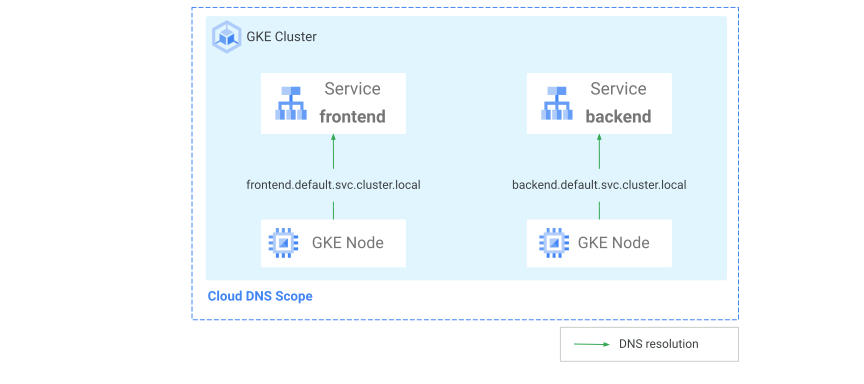 **Diagram:**Cluster scope DNS
### Enable cluster scope in a new cluster
New Autopilot clusters in versions 1.25.9-gke.400, 1.26.4-gke.500, or
later default to Cloud DNS cluster scope. The following section shows
how to enable cluster scope in a new Standard cluster.
#### Create a Standard cluster with cluster scope enabled
You can create a GKE Standard cluster with
Cloud DNS cluster scope enabled by using the gcloud CLI or
the Google Cloud console:
### gcloud
Create a cluster using the `--cluster-dns` flag:
```bash
gcloud container clusters create CLUSTER_NAME \
--cluster-dns=clouddns \
--cluster-dns-scope=cluster \
--location=COMPUTE_LOCATION
```
> [!NOTE]
> **Note:** For Google Cloud CLI versions earlier than 411.0.0, use The `gcloud beta container` command instead of the `gcloud container` command.
Replace the following:
- `CLUSTER_NAME`: the name of the cluster.
- `COMPUTE_LOCATION`: the [Compute Engine location](https://docs.cloud.google.com/compute/docs/regions-zones/viewing-regions-zones.md.txt) for the cluster.
The `--cluster-dns-scope=cluster` flag is optional in the command because
`cluster` is the default value.
### Console
1.
In the Google Cloud console, go to the **Create a Kubernetes cluster** page.
[Go to Create a Kubernetes cluster](https://console.cloud.google.com/kubernetes/add)
2. From the navigation pane, under **Cluster** , click **Networking**.
3. In the **DNS provider** section, click **Cloud DNS**.
4. Select **Cluster scope**.
5. Configure your cluster as needed.
6. Click **Create**.
### Enable cluster scope in an existing cluster
Migrating an existing Autopilot cluster from `kube-dns` to
Cloud DNS cluster scope is not supported. To enable Cloud DNS
cluster scope, re-create Autopilot clusters in GKE
versions 1.25.9-gke.400, 1.26.4-gke.500, or later.
You can migrate an existing Standard cluster from `kube-dns` to
Cloud DNS cluster scope by using the gcloud CLI or the
Google Cloud console.
When you migrate an existing cluster from `kube-dns` to Cloud DNS, you
must re-create the nodes for the change to take effect. Migrate clusters that
are running applications without interrupting cluster communication by enabling
Cloud DNS as a DNS provider in each node pool separately. A subset of the
nodes is operational at all times because some node pools use `kube-dns` and
some node pools use Cloud DNS.
### gcloud
1. Update the existing cluster:
```bash
gcloud container clusters update CLUSTER_NAME \
--cluster-dns=clouddns \
--cluster-dns-scope=cluster \
--location=COMPUTE_LOCATION
```
Replace the following:
- `CLUSTER_NAME`: the name of the cluster.
- `COMPUTE_LOCATION`: the [Compute Engine location](https://docs.cloud.google.com/compute/docs/regions-zones/viewing-regions-zones.md.txt) for your cluster.
The `--cluster-dns-scope=cluster` flag is optional in the command because
`cluster` is the default value.
The response is similar to the following:
All the node-pools in the cluster need to be re-created by the user to start using Cloud DNS for DNS lookups. It is highly recommended to complete this step
shortly after enabling Cloud DNS.
Do you want to continue (Y/n)?
After you confirm, the Cloud DNS controller runs on the
GKE control plane. However, your Pods don't use Cloud DNS
for DNS resolution until you upgrade your node pool or add new node
pools to the cluster.
2. Upgrade the node pools in the cluster to use Cloud DNS:
```bash
gcloud container clusters upgrade CLUSTER_NAME \
--node-pool=POOL_NAME \
--location=COMPUTE_LOCATION
```
> [!NOTE]
> **Note:** For Google Cloud CLI versions earlier than 411.0.0, use The `gcloud beta container` command instead of the `gcloud container` command.
Replace the following:
- `CLUSTER_NAME`: the name of the cluster.
- `POOL_NAME`: the name of the node pool to upgrade.
If the node pool and control plane are running the same version, upgrade
the control plane first, as described in
[Manually upgrading the control plane](https://docs.cloud.google.com/kubernetes-engine/docs/how-to/upgrading-a-cluster.md.txt#upgrade_cp).
Then, perform the node pool upgrade.
> [!NOTE]
> **Note:** Upgrading a node pool to the same version that the node pool runs on has no effect on the Pod. For such node pools, the Pods that run on these nodes still use `kube-dns`. Scaling the `kube-dns` deployment and autoscaler down to zero will cause DNS failures on these Pods. In order for the Pods to use Cloud DNS, you must upgrade the node pool to a new version. Alternatively, you can create a new node pool in the same version.
Confirm the response and repeat this command for each node pool in the
cluster. If your cluster has one node pool, omit the `--node-pool` flag.
### Console
1. Go to the **Google Kubernetes Engine** page in the Google Cloud console.
[Go to Google Kubernetes Engine](https://console.cloud.google.com/kubernetes/list)
2. Click the name of the cluster you want to modify.
3. Under **Networking** , in the **DNS provider** field, click
**Edit DNS provider**.
4. Click **Cloud DNS**.
5. Click **Cluster scope**.
6. Click **Save changes**.
## Enable additive VPC scope
This section describes steps to enable or disable additive VPC
scope, as an add-on to Cloud DNS cluster scope.
### Enable additive VPC scope in a new cluster
You can enable additive VPC scope DNS in a new GKE
cluster By using the gcloud CLI or the Google Cloud console.
#### Create an Autopilot cluster with additive VPC scope
```bash
gcloud container clusters create-auto CLUSTER_NAME \
--additive-vpc-scope-dns-domain=UNIQUE_CLUSTER_DOMAIN
```
Replace the following:
- `CLUSTER_NAME`: the name of the cluster.
- `UNIQUE_CLUSTER_DOMAIN`: the name of a domain. You must ensure that this name is unique within the VPC because GKE does not confirm this value. You cannot change this value after you set it. You must not use a domain that ends in `.local`, or you might experience DNS resolution failures.
> [!NOTE]
> **Note:** For Google Cloud CLI versions earlier than 503.0.0, use the `gcloud beta
> container` command instead of the `gcloud container` command.
#### Create a Standard cluster with additive VPC scope
```bash
gcloud container clusters create CLUSTER_NAME \
--cluster-dns=clouddns \
--cluster-dns-scope=cluster \
--additive-vpc-scope-dns-domain=UNIQUE_CLUSTER_DOMAIN
```
The `--cluster-dns-scope=cluster` flag is optional because `cluster` is the
default value.
Replace the following:
- `CLUSTER_NAME`: the name of the cluster.
- `UNIQUE_CLUSTER_DOMAIN`: the name of a domain. You must Ensure that this name is unique within the VPC because GKE does not confirm this value. You cannot change this value after you set it. You must not use a domain that ends in `.local`, or you might experience DNS resolution failures.
### Enable additive VPC scope in an existing Standard cluster
Enabling additive VPC scope in an existing Autopilot
cluster is not supported.
To enable additive VPC scope in an existing Standard
cluster, run the following command:
```bash
gcloud container clusters update CLUSTER_NAME \
--additive-vpc-scope-dns-domain=UNIQUE_CLUSTER_DOMAIN \
--location=COMPUTE_LOCATION
```
Replace the following:
- `CLUSTER_NAME`: the name of the cluster.
- `UNIQUE_CLUSTER_DOMAIN`: the name of a domain. You must ensure that this name is unique within the VPC because GKE does not confirm this value. You cannot change this value after you set it. You must not use a domain that ends in `.local`, or you might experience DNS resolution failures.
- `COMPUTE_LOCATION`: the [Compute Engine location](https://docs.cloud.google.com/compute/docs/regions-zones/viewing-regions-zones.md.txt) for the cluster.
> [!NOTE]
> **Note:** For Google Cloud CLI versions earlier than 503.0.0, use the `gcloud beta
> Container` command instead of the `gcloud container` command.
## Enable VPC scope DNS
In VPC scope DNS, a cluster's DNS names are resolvable within the
entire VPC. Any client in the VPC can resolve
cluster DNS records.
VPC scope DNS enables the following use cases:
- Headless Service discovery for non-GKE clients within the same VPC.
- GKE Service resolution from on-premises or third-party cloud clients. For more information, see [Inbound server policy](https://docs.cloud.google.com/dns/docs/server-policies-overview.md.txt#dns-server-policy-in).
- Service resolution where a client can decide which cluster to communicate by using the custom cluster DNS domain.
In the following diagram, two GKE clusters use VPC
scope DNS in the same VPC. Both clusters have a custom DNS domain,
`.cluster1` and `.cluster2`, instead of the default `.cluster.local` domain. A
VM communicates with the headless backend Service by resolving
`backend.default.svc.cluster1`. Cloud DNS resolves the headless Service to
the individual Pod IP addresses in the Service, and the VM communicates directly with the
Pod IP addresses.
> [!NOTE]
> **Note:** Only headless Services resolve to IP addresses that can be contacted outside of the GKE cluster. `ClusterIP` Services use a virtual IP address that exists locally only in the cluster.
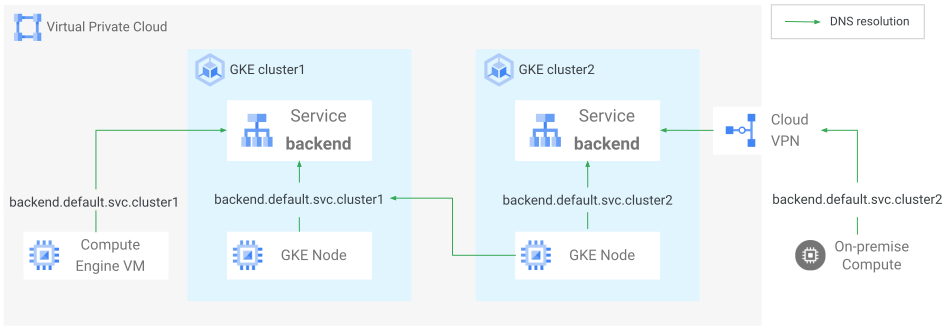 **Diagram:**VPC scope DNS
You can also perform this type of resolution from other networks when connected
to the VPC through Cloud Interconnect or Cloud VPN.
[DNS server policies](https://docs.cloud.google.com/dns/docs/best-practices.md.txt#reference_architectures_for_hybrid_dns)
enable clients from networks that are connected to the VPC to resolve
names in Cloud DNS, which includes GKE Services if the
cluster uses VPC scope DNS.
### Enable VPC scope in an existing cluster
Migrating to VPC scope is supported only in Standard,
and is not supported in Autopilot.
You can migrate an existing Standard cluster from `kube-dns` to
Cloud DNS VPC scope by using the gcloud CLI
or the Google Cloud console.
When you migrate to VPC scope, you must re-create the nodes for
the change to take effect.
> [!WARNING]
> **Warning:** Migrating from `kube-dns` to VPC scope is a disruptive operation. After you migrate, nodes in the cluster don't use Cloud DNS as a DNS provider until you re-create them. `kube-dns` cannot resolve DNS queries to the new custom domain, which causes DNS failures until node re-creation is complete. Because migrating to VPC scope cannot be performed on a per-node-pool basis, we recommend that you perform this migration during a maintenance window.
### gcloud
1. Update the existing cluster:
```bash
gcloud container clusters update CLUSTER_NAME \
--cluster-dns=clouddns \
--cluster-dns-scope=vpc \
--cluster-dns-domain=CUSTOM_DOMAIN \
--location=COMPUTE_LOCATION
```
Replace the following:
- `CLUSTER_NAME`: the name of the cluster.
- `COMPUTE_LOCATION`: the [Compute Engine location](https://docs.cloud.google.com/compute/docs/regions-zones/viewing-regions-zones.md.txt) for the cluster.
- `CUSTOM_DOMAIN`: the name of a domain. You must ensure that this name is unique within the VPC because GKE does not confirm this value. You cannot change this value after you set it. You must not use a domain that ends in `.local`, or you might experience DNS resolution failures.
The response is similar to the following:
All the node-pools in the cluster need to be re-created by the user to start using Cloud DNS for DNS lookups. It is highly recommended to complete this step
shortly after enabling Cloud DNS.
Do you want to continue (Y/n)?
After you confirm, the Cloud DNS controller runs on the
GKE control plane. Your Pods don't use Cloud DNS for
DNS resolution until you upgrade your node pool or add new node pools
to the cluster.
2. Upgrade the node pools in the cluster to use Cloud DNS:
```bash
gcloud container clusters upgrade CLUSTER_NAME \
--node-pool=POOL_NAME
```
Replace the following:
- `CLUSTER_NAME`: the name of the cluster.
- `POOL_NAME`: the name of the node pool to upgrade.
If the node pool and control plane are running the same version, upgrade
the control plane first, as described in
[Manually upgrading the control plane](https://docs.cloud.google.com/kubernetes-engine/docs/how-to/upgrading-a-cluster.md.txt#upgrade_cp).
Then, perform the node pool upgrade.
> [!NOTE]
> **Note:** Upgrading the node pool to the same version that the node pool runs on has no effect on the Pod. For such node pools, the Pods that run on these nodes still use `kube-dns`. Scaling the `kube-dns` deployment and autoscaler to zero will cause DNS failures on these Pods. In order for the Pods to use Cloud DNS, you must upgrade the node pool to a new version. Alternatively, you can create a new node pool in the same version.
Confirm the response and repeat this command for each node pool in the
cluster. If your cluster has one node pool, omit the `--node-pool` flag.
### Console
1. Go to the **Google Kubernetes Engine** page in the Google Cloud console.
[Go to Google Kubernetes Engine](https://console.cloud.google.com/kubernetes/list)
2. Click the name of the cluster that you want to modify.
3. Under **Networking** , in the **DNS provider** field, click
**Edit DNS provider**.
4. Click **Cloud DNS**.
5. Click **VPC scope**.
6. Click **Save changes**.
## Verify Cloud DNS
Verify that Cloud DNS for GKE is working correctly for your
cluster:
1. Verify that your nodes use Cloud DNS by connecting to a Pod on a node
and running the `cat /etc/resolv.conf` command:
```bash
kubectl exec -it POD_NAME -- cat /etc/resolv.conf | grep nameserver
```
Replace `POD_NAME` with the name of the Pod.
Based on the cluster mode, the output is similar to the following:
**GKE Autopilot cluster**
nameserver 169.254.20.10
Because the [NodeLocal DNSCache](https://docs.cloud.google.com/kubernetes-engine/docs/how-to/nodelocal-dns-cache.md.txt) is
enabled by default in GKE Autopilot, the Pod uses
[NodeLocal DNSCache](https://docs.cloud.google.com/kubernetes-engine/docs/how-to/nodelocal-dns-cache.md.txt).
If the local cache does not have an entry for the name that's being looked up,
NodeLocal DNSCache forwards the request to Cloud DNS.
**GKE Standard cluster**
nameserver 169.254.169.254
This example Pod uses `169.254.169.254` as the `nameserver`, which is the IP address
of the metadata server where the Cloud DNS data plane listens for requests
on port `53`. The nodes no longer use the `kube-dns` Service address for DNS
resolution, and all DNS resolution occurs on the local node.
If the output is an IP address similar to `10.x.y.10`,
then the Pod uses [`kube-dns`](https://docs.cloud.google.com/kubernetes-engine/docs/concepts/kube-dns.md.txt). To understand why your pod still uses `kube-dns`, see the [Troubleshooting](https://docs.cloud.google.com/kubernetes-engine/docs/how-to/cloud-dns.md.txt#pods_use_kube-dns_even_after_is_enabled_on_an_existing_cluster)
section .
If the output is `169.254.20.10`, you have enabled
[NodeLocal DNSCache](https://docs.cloud.google.com/kubernetes-engine/docs/how-to/nodelocal-dns-cache.md.txt) in
your cluster, and the Pod uses
[NodeLocal DNSCache](https://docs.cloud.google.com/kubernetes-engine/docs/how-to/nodelocal-dns-cache.md.txt).
2. Deploy a sample application to your cluster:
```bash
kubectl run dns-test --image us-docker.pkg.dev/google-samples/containers/gke/hello-app:2.0
```
3. Expose the sample application with a Service:
```bash
kubectl expose pod dns-test --name dns-test-svc --port 8080
```
4. Verify that the Service deployed successfully:
```bash
kubectl get svc dns-test-svc
```
The output is similar to the following:
NAME TYPE CLUSTER-IP EXTERNAL-IP PORT(S) AGE
dns-test-svc ClusterIP 10.47.255.11 8080/TCP 6m10s
The value of the `CLUSTER-IP` column is the virtual IP address for your cluster. In this
example, the virtual IP address is `10.47.255.11`.
5. Verify that your Service name was created as a record in the private
DNS zone for your cluster:
```bash
gcloud dns record-sets list \
--zone=PRIVATE_DNS_ZONE \
--name=dns-test-svc.default.svc.DOMAIN_NAME.
```
Replace the following:
- `PRIVATE_DNS_ZONE`: the name of the managed DNS zone created by GKE. You can find zone names on the [Cloud DNS zones page](https://console.cloud.google.com/net-services/dns/zones) in the Google Cloud console, or by consulting the [naming convention](https://docs.cloud.google.com/kubernetes-engine/docs/concepts/about-cloud-dns.md.txt#created_resources).
- `DOMAIN_NAME`: `cluster.local` if you use Cluster Scope without Additive VPC Scope; or the custom domain you configured when you enabled VPC Scope or Additive VPC Scope.
The output is similar to the following:
NAME: dns-test-svc.default.svc.cluster.local.
TYPE: A
TTL: 30
DATA: 10.47.255.11
## Disable Cloud DNS in Standard clusters
Disabling Cloud DNS is not supported in Autopilot
clusters that were created with Cloud DNS enabled by default.
Disabling VPC scope in Standard is not supported. You must
re-create the cluster with `kube-dns` as the DNS provider.
You can disable **cluster scope** and revert to `kube-dns` in a
Standard cluster by using the gcloud CLI or the
Google Cloud console.
### gcloud
Update the cluster to use `kube-dns`:
```bash
gcloud container clusters update CLUSTER_NAME \
--cluster-dns=kube-dns \
--location=COMPUTE_LOCATION
```
Replace the following:
- `CLUSTER_NAME`: the name of the cluster.
- `COMPUTE_LOCATION`: the [Compute Engine location](https://docs.cloud.google.com/compute/docs/regions-zones/viewing-regions-zones.md.txt) for your cluster.
### Console
1. Go to the **Google Kubernetes Engine** page in the Google Cloud console.
[Go to Google Kubernetes Engine](https://console.cloud.google.com/kubernetes/list)
2. Click the name of the cluster that you want to modify.
3. Under **Networking** , in the **DNS provider** field, click
**Edit DNS provider**.
4. Click **Kube-dns**.
5. Click **Save changes**.
After you disable Cloud DNS, you must re-create your node pools before nodes
can use `kube-dns` for resolution. If you previously [scaled `kube-dns` to zero
nodes](https://docs.cloud.google.com/kubernetes-engine/docs/how-to/custom-kube-dns#scaling_down_kube-dns),
you must scale `kube-dns` up before nodes can use it for DNS resolution. If you
don't re-create your node pools, Pods on existing nodes will continue to use
Cloud DNS for DNS resolution because their `/etc/resolv.conf` file is not
updated until the node is re-created.
## Disable additive VPC scope
When you disable additive VPC scope for your
cluster, only the DNS records in the private zones that are attached to the
VPC network will be deleted. The records in the private DNS zones
for the GKE cluster will remain, and will be managed by the Cloud DNS for
GKE, until the headless Service is deleted from the cluster.
To disable additive VPC scope, run the following command:
```bash
gcloud container clusters update CLUSTER_NAME \
--disable-additive-vpc-scope
```
Replace `CLUSTER_NAME` with the name of the cluster.
This setting keeps your cluster with Cloud DNS cluster scope enabled, which provides
DNS resolution from within the cluster.
> [!NOTE]
> **Note:** If you want to revert to `kube-dns` and completely remove Cloud DNS cluster scope, see [Disable Cloud DNS in Standard
> GKE](https://docs.cloud.google.com/kubernetes-engine/docs/how-to/cloud-dns#disable-cloud-dns).
## Clean up
After you complete the exercises in this document, follow these steps to remove
resources and prevent unwanted charges from incurring on your account:
1. Delete the service:
```bash
kubectl delete service dns-test-svc
```
2. Delete the Pod:
```bash
kubectl delete Pod dns-test
```
3. You can also
[delete the cluster](https://docs.cloud.google.com/kubernetes-engine/docs/how-to/deleting-a-cluster.md.txt).
## Troubleshooting
For information about troubleshooting Cloud DNS, see the following pages:
- For advice about Cloud DNS in GKE, see [Troubleshoot Cloud DNS in GKE](https://docs.cloud.google.com/kubernetes-engine/docs/troubleshooting/cloud-dns.md.txt).
- For advice specifically about Cloud DNS, see [Troubleshoot Cloud DNS](https://docs.cloud.google.com/dns/docs/troubleshooting.md.txt).
- For general advice about diagnosing Kubernetes DNS issues, see [Debugging DNS Resolution](https://kubernetes.io/docs/tasks/administer-cluster/dns-debugging-resolution/).
## What's next
- [Read an overview](https://docs.cloud.google.com/kubernetes-engine/docs/concepts/about-service-discovery.md.txt) of how GKE provides managed DNS.
- Read [DNS for services and Pods](https://kubernetes.io/docs/concepts/services-networking/dns-pod-service/) for a general overview of how DNS is used in Kubernetes clusters.
- Learn about [scopes and hierarchies](https://docs.cloud.google.com/dns/docs/scopes.md.txt) in Cloud DNS.
- Learn about [enabling and disabling logging for private managed
zones](https://docs.cloud.google.com/dns/docs/monitoring#enabling_and_disabling_logging_for_private_managed_zones).