


這個教學課程說明如何開始使用 Compute Engine。請按照這個教學課程中的指示,將 Hello World Java 網頁應用程式部署至 Compute Engine。如需開始使用 App Engine 的相關說明,請參閱 App Engine 標準環境。
目標
- 使用 Cloud Shell 下載及部署 Hello World 範例應用程式。
- 將 Hello World 範例應用程式部署至單一 Compute Engine 執行個體。
費用
在本文件中,您會使用下列 Google Cloud的計費元件:
如要根據預測用量估算費用,請使用 Pricing Calculator。
事前準備
- 登入 Google Cloud 帳戶。如果您是 Google Cloud新手,歡迎 建立帳戶,親自評估產品在實際工作環境中的成效。新客戶還能獲得價值 $300 美元的免費抵免額,可用於執行、測試及部署工作負載。
-
In the Google Cloud console, on the project selector page, select or create a Google Cloud project.
Roles required to select or create a project
- Select a project: Selecting a project doesn't require a specific IAM role—you can select any project that you've been granted a role on.
-
Create a project: To create a project, you need the Project Creator role
(
roles/resourcemanager.projectCreator), which contains theresourcemanager.projects.createpermission. Learn how to grant roles.
-
Verify that billing is enabled for your Google Cloud project.
Enable the Compute Engine API.
Roles required to enable APIs
To enable APIs, you need the
serviceusage.services.enablepermission. If you created the project, then you likely already have this permission through the Owner role (roles/owner). Otherwise, you can get this permission through the Service Usage Admin role (roles/serviceusage.serviceUsageAdmin). Learn how to grant roles.-
In the Google Cloud console, on the project selector page, select or create a Google Cloud project.
Roles required to select or create a project
- Select a project: Selecting a project doesn't require a specific IAM role—you can select any project that you've been granted a role on.
-
Create a project: To create a project, you need the Project Creator role
(
roles/resourcemanager.projectCreator), which contains theresourcemanager.projects.createpermission. Learn how to grant roles.
-
Verify that billing is enabled for your Google Cloud project.
Enable the Compute Engine API.
Roles required to enable APIs
To enable APIs, you need the
serviceusage.services.enablepermission. If you created the project, then you likely already have this permission through the Owner role (roles/owner). Otherwise, you can get this permission through the Service Usage Admin role (roles/serviceusage.serviceUsageAdmin). Learn how to grant roles.-
前往 Google Cloud 控制台,並在 Cloud Shell 中開啟應用程式。
Cloud Shell 可讓您直接在瀏覽器中使用指令列工具存取雲端資源。
-
如果同意複製存放區,請按一下「確認」,下載程式碼範例並變更為應用程式目錄。
-
在 Cloud Shell 中,將 gcloud CLI 設為使用新的 Google Cloud 專案:
# Configure gcloud for your project
gcloud config set project YOUR_PROJECT_ID
在 Cloud Shell 中執行應用程式
在 Cloud Shell 中啟動本機網路伺服器:
mvn -Plocal clean jetty:run-exploded -DprojectID=YOUR-PROJECT-ID按一下 Cloud Shell 中的 [Web preview] (網頁預覽),然後選取 [Preview on port 8080] (透過以下通訊埠預覽:8080)。這會開啟新視窗,顯示執行中的應用程式。
在網頁瀏覽器中,您會看到一些 Hello World 文字,這些文字是從本機電腦提供。
準備好繼續時,請在 Cloud Shell 中按下 Control+C 停止本機網路伺服器。
部署至單一執行個體
這個部分的內容會逐步引導您在 Compute Engine 中執行單一應用程式執行個體。
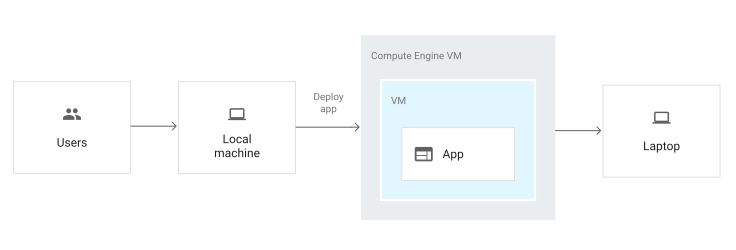
您可以透過 Cloud Shell 將應用程式部署至單一 Compute Engine 執行個體虛擬機器 (VM),藉此執行應用程式。
使用開機指令碼初始化執行個體
您必須採用可指示執行個體下載及執行程式碼的方法。執行個體可以含有開機指令碼,這個指令碼一律會在執行個體初次啟動或重新啟動時執行。
開機指令碼會在執行個體首次啟動時執行。
開機指令碼會執行以下工作:
安裝 Java 11 並設為預設版本。
安裝並設定 Jetty。
將 Java WAR 檔案從 Cloud Storage bucket 複製到 Jetty 的
webapps,並將檔案重新命名為root.war。如此即可讓檔案成為根 Servlet,而無須在網址中為其命名。安裝並設定 Cloud Logging 代理程式,以監控應用程式記錄。這表示系統會上傳您在本教學課程的先前步驟中所設定的記錄,如同使用 App Engine 彈性環境。
建立及設定 Compute Engine 執行個體
建立 Compute Engine 執行個體:
gcloud compute instances create my-app-instance

    --image-family=debian-10

    --image-project=debian-cloud

    --machine-type=g1-small

    --scopes userinfo-email,cloud-platform

     --metadata-from-file startup-script=gce/startup-script.sh

    --zone YOUR_ZONE

--tags http-serverYOUR_ZONE替換為開發作業的所在區域,例如us-central1-a。如要進一步瞭解地區和區域,請參閱地理位置與地區一文。這麼做會建立新的執行個體,並允許該執行個體存取 Google Cloud服務及執行開機指令碼。執行個體的名稱為
my-app-instance。查看執行個體建立作業的進度:
gcloud compute instances get-serial-port-output my-app-instance --zone YOUR_ZONE
開機指令碼執行完畢之後,您會看見下列訊息:
startup-script: INFO Finished running startup scripts.
建立防火牆規則,藉此允許流量傳送至執行個體:
gcloud compute firewall-rules create default-allow-http-80 \
    --allow tcp:80 \
    --source-ranges 0.0.0.0/0 \
    --target-tags http-server \
    --description "Allow port 80 access to http-server"
取得執行個體的外部 IP 位址:
gcloud compute instances list如要查看應用程式的運作情形,請在瀏覽器中輸下列網址:
http://YOUR_INSTANCE_IP
將
YOUR_INSTANCE_IP替換為執行個體的外部 IP 位址。
管理及監控執行個體
您可以使用 Google Cloud 主控台來監控及管理執行個體。
- 前往 Google Cloud 控制台的「VM instances」(VM 執行個體) 頁面。
- 在虛擬機器執行個體清單中,找到您要建立連線的執行個體,然後在該列中點選「SSH」SSH。
-
如要查看 Compute Engine 資源產生的所有記錄,請前往「Logs Explorer」頁面。
前往記錄檔探索工具系統會自動將 Cloud Logging 設為從多項常見服務收集記錄檔,包括
syslog。
清除所用資源
為避免因為本教學課程所用資源,導致系統向 Google Cloud 收取費用,請刪除含有相關資源的專案,或者保留專案但刪除個別資源。
刪除專案
- 前往 Google Cloud 控制台的「Manage resources」(管理資源) 頁面。
- 在專案清單中選取要刪除的專案,然後點選「Delete」(刪除)。
- 在對話方塊中輸入專案 ID,然後按一下 [Shut down] (關閉) 以刪除專案。
刪除個別資源
gcloud compute instances delete my-app-instance --zone=YOUR_ZONE --delete-disks=all
gcloud compute firewall-rules delete default-allow-http-80
後續步驟
查看 Google Cloud 的參考架構、圖表和最佳做法。歡迎瀏覽我們的 Cloud Architecture Center。
如需建構應用程式的其他 Java 資源,請參考下列項目:
- 透過「Compute Engine」>「Instance groups」(執行個體群組) 管理及監控執行個體群組的部署作業。
- 透過「Network services」(網路服務) >「Load balancing」(負載平衡) 管理負載平衡設定,當中包含網址對應關係與後端服務。
探索其他Google Cloud 服務。