This page explains how you can use Identity-Aware Proxy (IAP) TCP forwarding to
enable administrative access to VM instances that either don't have external IP
addresses or don't permit direct access over the internet.
IAP TCP forwarding lets you establish an encrypted tunnel
over which you can forward SSH, RDP, and other traffic to VM instances.
IAP TCP forwarding also provides you fine-grained control over
which users are allowed to establish tunnels and which VM instances users are
allowed to connect to.
To learn more about how IAP TCP forwarding works, see the
[TCP forwarding overview](https://docs.cloud.google.com/iap/docs/tcp-forwarding-overview.md.txt).
## Before you begin
To prepare your environment to use IAP for TCP forwarding,
complete the following steps:
1. Select or create a Google Cloud project and ensure that
[billing is enabled](https://docs.cloud.google.com/billing/docs/how-to/modify-project.md.txt).
2. If you plan to use the command line,
[install and initialize the Google Cloud CLI](https://docs.cloud.google.com/sdk/docs/install).
### Required roles
To get the permissions that
you need to use IAP TCP forwarding,
ask your administrator to grant you the
[IAP Policy Admin](https://docs.cloud.google.com/iam/docs/roles-permissions/iap.md.txt#iap.policyAdmin) (`roles/iap.policyAdmin`) IAM role on your project.
For more information about granting roles, see [Manage access to projects, folders, and organizations](https://docs.cloud.google.com/iam/docs/granting-changing-revoking-access.md.txt).
You might also be able to get
the required permissions through [custom
roles](https://docs.cloud.google.com/iam/docs/creating-custom-roles) or other [predefined
roles](https://docs.cloud.google.com/iam/docs/roles-overview#predefined).
> [!NOTE]
> **Note:** If you're behind a corporate proxy and aren't using Cloud VPN between your on-premises network and your VPC network, you need to allowlist the IAP for the TCP [domain](https://docs.cloud.google.com/iap/docs/faq.md.txt#what_domain_does_for_tcp_use) on your corporate network.
Ensure that you have a Compute Engine VM instance in your project.
If you don't have a VM instance,
[Create and start a Compute Engine instance](https://docs.cloud.google.com/compute/docs/instances/create-start-instance.md.txt).
Your VM instance doesn't require an external IP address for IAP
TCP forwarding.
## Prepare your project for IAP TCP forwarding
This section walks you through the necessary steps to enable IAP
TCP forwarding in your Google Cloud project.
> [!NOTE]
> **Note:** If you're behind a corporate proxy and aren't using Cloud VPN between your on-premises network and your VPC network, you need to allowlist the IAP for TCP [domain](https://docs.cloud.google.com/iap/docs/faq.md.txt#what_domain_does_for_tcp_use) on your corporate network.
### Create a firewall rule
To allow IAP to connect to your VM instances, create a firewall
rule that:
- applies to all VM instances that you want to be accessible by using IAP.
- allows ingress traffic from the IP range `35.235.240.0/20`. This range contains all IP addresses that IAP uses for TCP forwarding.
For IPv6 VMs, use the following IP range: `2600:2d00:1:7::/64`.
- allows connections to all ports that you want to be accessible by using IAP TCP forwarding, for example, port `22` for SSH and port `3389` for RDP.
### Console
To allow RDP and SSH access to all VM instances in your network, do the following:
1. Open the Firewall Rules page. [Open the Firewall Rules page](https://console.cloud.google.com/networking/firewalls/list?walkthrough_id=iam--create-firewall-rule&start_index=1#step_index=1)
The remaining steps appear in the Google Cloud console.
2. Select a Google Cloud project.
3. On the Firewall Rules page, click **Create firewall rule**.
4. Configure the following settings:
- **Name** : `allow-ingress-from-iap`
- **Direction of traffic** : **Ingress**
- **Target** : **All instances in the network**
- **Source filter** : **IP ranges**
- **Source IP ranges** : `35.235.240.0/20`
- **Protocols and ports** : Select **TCP** and enter `3389,22` to allow both RDP and SSH.
5. Click **Create**.
### gcloud
To allow RDP access to all VM instances in your network, run:
```
gcloud compute firewall-rules create allow-rdp-ingress-from-iap \
--direction=INGRESS \
--action=allow \
--rules=tcp:3389 \
--source-ranges=35.235.240.0/20
```
For SSH access, run:
```
gcloud compute firewall-rules create allow-ssh-ingress-from-iap \
--direction=INGRESS \
--action=allow \
--rules=tcp:22 \
--source-ranges=35.235.240.0/20
```
For other protocols, run
```
gcloud compute firewall-rules create allow-ingress-from-iap \
--direction=INGRESS \
--action=allow \
--rules=tcp:PORT \
--source-ranges=35.235.240.0/20
```
where `PORT` is the port used by the protocol.
> [!NOTE]
> **Note:** The `default-allow-ssh` and `default-allow-rdp` [default rules](https://docs.cloud.google.com/vpc/docs/firewalls#default_firewall_rules) allow SSH and RDP connections from all IP addresses, not only from IAP. Consider disabling or deleting these rules if you want to prevent direct SSH or RDP access to your VM instances.
### Grant roles for IAP TCP forwarding
To control which users and groups are allowed to use IAP TCP
forwarding and which VM instances they're allowed to connect to, grant the
appropriate Identity and Access Management (IAM) roles on the project.
If you are using OS Login (recommended), see
[Configuring OS Login roles on user accounts](https://docs.cloud.google.com/compute/docs/instances/managing-instance-access#configure_users).
The following table shows the predefined roles you need to grant to
trusted administrators for TCP forwarding and related tasks:
| Task | Roles | More information |
|---|---|---|
| TCP forwarding | IAP-secured Tunnel User (`roles/iap.tunnelResourceAccessor`) | See [Grant access to all VM instances in a project](https://docs.cloud.google.com/iap/docs/using-tcp-forwarding.md.txt#grant-access-project) or [Grant access to a specific VM](https://docs.cloud.google.com/iap/docs/using-tcp-forwarding.md.txt#grant-access-vm). |
| SSH access | Compute Instance Admin (v1) (`roles/compute.instanceAdmin.v1`) | See [Grant access to all VM instances in a project](https://docs.cloud.google.com/iap/docs/using-tcp-forwarding.md.txt#grant-access-project) or [Grant access to a specific VM](https://docs.cloud.google.com/iap/docs/using-tcp-forwarding.md.txt#grant-access-vm). |
| Use a service account | Service Account User (`roles/iam.serviceAccountUser`) | See [The serviceAccountUser role](https://docs.cloud.google.com/compute/docs/access/iam.md.txt#the_serviceaccountuser_role). |
> [!NOTE]
> **Note:** If you are working in a project that you created, you have the permissions you need to perform these tasks.
If you want to create custom roles with only the specific permissions needed
for this task, see [Permissions details](https://docs.cloud.google.com/iap/docs/using-tcp-forwarding.md.txt#permission-details).
You can grant a user or group access to all VM instances in a project, or to
a specific VM, depending on how you grant the required roles.
#### Tags are not supported
Granting permission using [tags](https://docs.cloud.google.com/resource-manager/docs/tags/tags-overview.md.txt) for
IAP TCP forwarding is not currently supported.
#### Grant access to all VM instances in a project
You can give a user or group access to all VM instances in a project by
granting the required IAM roles at the project level:
### Console
1. Open the **IAM \& Admin** page in the Google Cloud console.
[Open the IAM \& Admin page](https://console.cloud.google.com/project/_/iam-admin?walkthrough_id=iam--grant-permissions-iap-forwarding#step_index=1)
The remaining steps appear in the Google Cloud console.
2. On the **IAM \& Admin** page, click **Add** and configure the following:
- **New principals**: Specify the user or group you want to grant access.
- **Select a role** : Select **Cloud IAP \> IAP-Secured Tunnel User**.
3. Optionally, click **Add condition** and configure a condition:
- **Title**: Enter a name for the condition.
- **Expression** : Enter a [condition](https://docs.cloud.google.com/iam/docs/conditions-overview.md.txt#example_destination_ipport_expressions_for_cloud_iap_for_tcp_tunneling) that a user must meet to gain the permissions in the IAP-Secured Tunnel User role.
For example, the following CEL expression grants access only to port 22:
```console
destination.port == 22
```
4. Click **Add another role** and configure the following:
- **Select a role** Select **Compute Engine \> Compute Instance Admin (v1)**.
5. Click **Save**.
### gcloud
Grant the two roles to the user by running the following commands:
```bash
gcloud projects add-iam-policy-binding PROJECT_ID \
--member=user:EMAIL \
--role=roles/iap.tunnelResourceAccessor
gcloud projects add-iam-policy-binding PROJECT_ID \
--member=user:EMAIL \
--role=roles/compute.instanceAdmin.v1
```
Replace the following:
- `PROJECT_ID`: ID of the project
- `EMAIL`: email address of the user you want to grant access, for example `user@example.com`.
#### Grant access to a specific VM
To grant a user or group access to a specific VM, you grant the
`roles/iap.tunnelResourceAccessor` role on that VM. The other roles must be
granted on the project.
### Console
1. Open the IAP admin page and select the **SSH and TCP Resources** tab.
[Open the IAP admin page](https://console.cloud.google.com/security/iap?walkthrough_id=iam--grant-permissions-iap-forwarding-vm#step_index=1)
The remaining steps appear in the Google Cloud console.
2. On the **SSH and TCP Resources** tab of the IAP admin page, select the VM instances that you want to configure.
3. Click **Show info panel** if the info panel is not visible.
4. Click **Add principal** and configure the following:
- **New principals**: Specify the user or group you want to grant access.
- **Select a role** : Select **Cloud IAP \> IAP-Secured Tunnel User**.
5. Optionally, click **Add condition** and configure a condition:
- **Title**: Enter a name for the condition.
- **Expression** : Enter a [condition](https://docs.cloud.google.com/iam/docs/conditions-overview.md.txt#example_destination_ipport_expressions_for_cloud_iap_for_tcp_tunneling) that a user must meet to gain the permissions in the IAP-Secured Tunnel User role.
For example, the following CEL expression grants access only to port 22:
```console
`destination.port == 22`
```
You can also grant access based on the
[access level](https://docs.cloud.google.com/access-context-manager/docs/overview.md.txt#access-levels):
```console
`destination.port == 22 &&`
"FULL_ACCESS_LEVEL_NAME" in request.auth.access_levels
```
Where `FULL_ACCESS_LEVEL_NAME` is an existing
[access level](https://docs.cloud.google.com/access-context-manager/docs/create-basic-access-level.md.txt) and uses the
following format:
```console
accessPolicies/POLICY_NAME/accessLevels/ACCESS_LEVEL_NAME
```
6. Click **Save**.
### API
To edit your application's `policy.json` file, follow the process below.
See [Managing access to IAP-secured resources](https://docs.cloud.google.com/iap/docs/managing-access.md.txt#managing_access_with_the_api)
for more information about using the IAM API to manage
access policies.
1. Export the following variables.
```
export IAP_BASE_URL=https://iap.googleapis.com/v1/projects/PROJECT_NUMBER/iap_tunnel
# Replace POLICY_FILE.JSON with the name of JSON file to use for setIamPolicy
export JSON_NEW_POLICY=POLICY_FILE.JSON
```
2. Get the IAM policy for the Compute Engine instance using
the `getIamPolicy` method. The empty data bit at the end turns the `curl`
request into POST instead of GET.
```
curl -i -H "Authorization: Bearer $(gcloud auth print-access-token)" \
${IAP_BASE_URL}/zones/ZONE_NAME/instances/INSTANCE_ID or INSTANCE_NAME:getIamPolicy \
-d ''
```
3. Grant the `iap.tunnelResourceAccessor` role to your principals by
[modifying the IAM policy JSON file](https://docs.cloud.google.com/iam/docs/granting-changing-revoking-access.md.txt#modify_policy).
4. Optionally, grant the role only to principals that meet specific
criteria, based on [IAM
Conditions](https://docs.cloud.google.com/iam/docs/conditions-overview) and [access levels](https://docs.cloud.google.com/access-context-manager/docs/overview.md.txt#access-levels).
The following is an example of an edited `policy.json` file that grants
the `iap.tunnelResourceAccessor` role to a group of VM instance admins,
giving them access to IAP-secured tunnel resources.
An IAM condition has been added to make the resources
accessible only to principals in the VM instance admins group with a
private IP address of `10.0.0.1` on port `22` using the
[`destination.ip` and `destination.port` IAM Conditions](https://docs.cloud.google.com/iam/docs/conditions-overview.md.txt#example_destination_ipport_expressions_for_cloud_iap_for_tcp_tunneling).
They must also meet the requirements of the ACCESS_LEVEL_NAME
access level.
Note that if a principal has the
**Owner** role, they have permission to use IAP
for TCP forwarding.
**Example policy.json file**
```json
{
"policy": {
"bindings": [
{
"role": "roles/iap.tunnelResourceAccessor",
"members": ["group:instance-admins@example.com"],
"condition": {
"expression": "\"accessPolicies/POLICY_NAME/accessLevels/ACCESS_LEVEL_NAME\" in request.auth.access_levels && destination.ip == \"10.0.0.1\" && destination.port == 22",
"title": "CONDITION_NAME"
}
}
]
}
}
```
To [find a policy name](https://docs.cloud.google.com/access-context-manager/docs/manage-access-policy.md.txt#get_the_name_of_an_access_policy)
, call [`accessPolicies.list`](https://docs.cloud.google.com/access-context-manager/docs/reference/rest/v1/accessPolicies/list.md.txt):
```
GET https://accesscontextmanager.googleapis.com/v1/accessPolicies
```
1. Set your new `policy.json` file using the `setIamPolicy` method.
```bash
curl -i -H "Content-Type:application/json" \
-H "Authorization: Bearer $(gcloud auth print-access-token)" \
${IAP_BASE_URL}/zones/ZONE_NAME/instances/INSTANCE_ID or INSTANCE_NAME:setIamPolicy \
-d @${JSON_NEW_POLICY}
```
#### Permissions details
The required permissions vary depending on how a user will use IAP TCP forwarding:
| Scenarios || Permissions required |
|---|---|---|
| All || - `iap.tunnelInstances.accessViaIAP` |
| Using `gcloud compute [start-iap-tunnel, ssh, scp]` || - `compute.instances.get` - `compute.instances.list` |
| Using `gcloud compute [ssh, scp]` || - `compute.projects.get` |
| | VM using OS Login | Please see [these instructions](https://docs.cloud.google.com/compute/docs/instances/managing-instance-access#configure_users) |
| | Not using OS Login | - `compute.instances.setMetadata` - `compute.projects.setCommonInstanceMetadata` - `compute.globalOperations.get` |
| SSH to VM using a service account || - `iam.serviceAccounts.actAs` |
| SSH from the browser || Please see [these instructions](https://docs.cloud.google.com/compute/docs/ssh-in-browser) |
For example, if a user wants to connect using `gcloud compute ssh` to a VM not using OS Login,
but that uses a service account, the user would need the following permissions:
- `iap.tunnelInstances.accessViaIAP`
- `compute.instances.get`
- `compute.instances.list`
- `compute.projects.get`
- `compute.instances.setMetadata`
- `compute.projects.setCommonInstanceMetadata`
- `compute.globalOperations.get`
- `iam.serviceAccounts.actAs`
## Tunneling SSH connections
You can connect to Linux instances that don't have an external IP address
by tunneling SSH traffic through IAP.
When you use IAP tunnelling, the IAP proxies
connect to the primary internal IPv4 address of `nic0` on the VM.
### Console
To connect to your instance, use the [SSH button in the
Google Cloud console](https://docs.cloud.google.com/compute/docs/ssh-in-browser#connecting_to_a_linux_vm_instance).
Your instance's [access configuration](https://docs.cloud.google.com/iap/docs/using-tcp-forwarding.md.txt#grant-permission)
(defined through IAM permissions) must allow TCP
tunneling through IAP.
### gcloud
To connect to your instance, use the
[`gcloud compute ssh`](https://docs.cloud.google.com/sdk/gcloud/reference/compute/ssh) command. Your
instance's [access configuration](https://docs.cloud.google.com/iap/docs/using-tcp-forwarding.md.txt#grant-permission)
(defined through IAM permissions) must allow TCP
tunneling through IAP.
```html
gcloud compute ssh INSTANCE_NAME
```
Replace INSTANCE_NAME with the name of the instance to SSH into.
If the instance doesn't have an external IP address, the connection
automatically uses IAP TCP tunneling. If the instance does
have an external IP address, the connection uses the external IP address
instead of IAP TCP tunneling.
You can use the [`--tunnel-through-iap`](https://docs.cloud.google.com/sdk/gcloud/reference/compute/ssh#--tunnel-through-iap)
flag so that `gcloud compute ssh` always uses IAP TCP tunneling.
Use the [`--internal-ip`](https://docs.cloud.google.com/sdk/gcloud/reference/compute/ssh#--internal-ip)
flag so that `gcloud compute ssh` never uses IAP TCP
tunneling and instead directly connects to the internal IP of the VM. Doing
so is useful for clients that are connected to the same VPC network as the
target VM.
> [!NOTE]
> **Note:** The `gcloud` tool requires you to specify the instance you want to connect to. To tunnel using `gcloud`, you need to provide the name of the instance.
### IAP Desktop
You can use [IAP Desktop](https://github.com/GoogleCloudPlatform/iap-desktop/)
to connect to a VM instance by using SSH and IAP TCP forwarding.
1. In the application, select **File** \> **Add Google Cloud project**.
2. Enter the ID or name of your project and click **OK**.
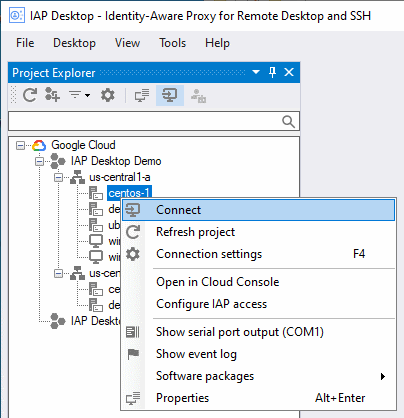
3. In the **Project Explorer** window, right-click the VM instance you
want to connect to and select **Connect**.
For more information on IAP Desktop, see the
[GitHub project page](https://github.com/GoogleCloudPlatform/iap-windows-rdc-plugin).
> [!NOTE]
> **Note:** IAP Desktop is an open-source project and not an officially supported Google product.
### PuTTY app
You can set up the PuTTY Windows terminal emulator app so that it uses
IAP TCP forwarding to connect to a VM instance. Your
instance's [access configuration](https://docs.cloud.google.com/iap/docs/using-tcp-forwarding.md.txt#grant-permission)
(defined through IAM permissions) must allow TCP tunneling
through IAP.
Before you configure the PuTTY app, use the `gcloud compute ssh` command once
to ensure that you have a private SSH key on your local computer and that
your public SSH key is published to Compute Engine:
1. Open a command prompt and run the following command to connect to the
VM instance:
```html
gcloud compute ssh INSTANCE_NAME `
--tunnel-through-iap `
--project PROJECT_ID `
--zone ZONE
```
Replace the following:
- INSTANCE_NAME: name of the instance to connect to
- PROJECT_ID: project ID of the project the VM instance is located in
- ZONE: zone where the VM instance is located
If necessary, confirm that you want to generate SSH keys by pressing `Y`.
2. On the VM, determine your username by running the following command:
```html
whoami
```
You need this username later.
You can now configure the PuTTY app to use IAP TCP forwarding:
1. Open the PuTTY app and select the category **Connection** \> **Proxy**.
2. Configure the following proxy settings:
- For **Proxy type** , select **Local**.
- In the **Telnet command, or local proxy command** field, enter the following:
```html
gcloud.cmd compute start-iap-tunnel %host %port --listen-on-stdin --project PROJECT_ID --zone ZONE
```
Replace the following:
- PROJECT_ID: Project ID of the project the VM instance is located in
- ZONE: Zone where the VM instance is located
- For **Print proxy diagnostics in the terminal window** , select
**Only until session starts**.
3. Select the category **Connection** \> **SSH** \> **Auth**.
4. Click **Browse** and paste the following file name, then click **Open**:
```html
%USERPROFILE%\.ssh\google_compute_engine.ppk
```
5. Select the category **Session**.
6. Configure the following proxy settings:
- In the **Host name (or IP address)** field, enter the following:
```html
USERNAME@INSTANCE_NAME
```
Replace the following:
- USERNAME: the Linux username you determined earlier
- INSTANCE_NAME: the name of the VM instance that you want to connect to
- **Saved sessions**: Enter a name for the session.
7. Click **Save**.
8. Click **Open** to start the SSH session.
> [!NOTE]
> **Note:** If the PuTTY app displays a message `proxy: - Invalid Credentials`, then your gcloud CLI credentials might have expired. To refresh these credentials, open a command prompt, run a command such as `gcloud auth print-identity-token` and re-enter your credentials.
### ssh
You can directly use the ssh command with a `ProxyCommand` option that uses `gcloud`
to start the tunnel. Use this to generate the full `ssh` command:
```html
gcloud compute ssh INSTANCE_NAME --dry-run
```
## Tunneling RDP connections
You can connect to Windows instances that don't have an external IP address
by tunneling RDP traffic through IAP:
### IAP Desktop
You can use [IAP Desktop](https://github.com/GoogleCloudPlatform/iap-desktop/)
to connect to the Remote Desktop of one or more VM instances by using IAP TCP forwarding.
1. In the application, select **File** \> **Add Google Cloud project**.
2. Enter the ID or name of your project and click **OK**.
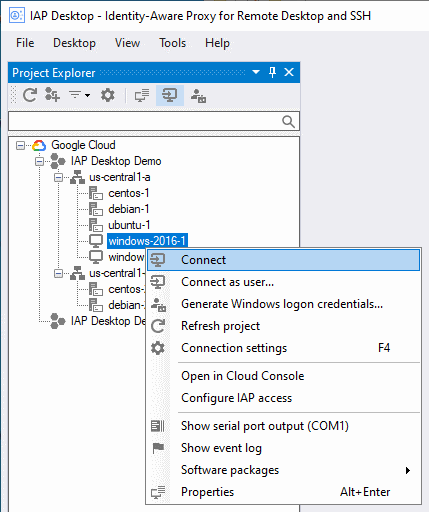
3. In the **Project Explorer** window, right-click the VM instance you
want to connect to and select **Connect**.
For more information on IAP Desktop, see the
[GitHub project page](https://github.com/GoogleCloudPlatform/iap-windows-rdc-plugin).
> [!NOTE]
> **Note:** IAP Desktop is an open-source project and not an officially supported Google product.
### gcloud
To connect to the Remote Desktop of a VM instance, you first create a tunnel.
1. Use the
[`gcloud compute start-iap-tunnel`](https://docs.cloud.google.com/sdk/gcloud/reference/compute/start-iap-tunnel)
command to create an encrypted tunnel to the RDP port of the VM instance.
```html
gcloud compute start-iap-tunnel INSTANCE_NAME 3389 \
--local-host-port=localhost:LOCAL_PORT \
--zone=ZONE
```
Replace INSTANCE_NAME with the name of the VM instance you
want to connect to. Replace LOCAL_PORT with the localhost
port where you want the proxy to be bound or use 0 to have an unused one
selected automatically. Replace ZONE with the zone where the
VM instance is located.
2. `gcloud` performs a connectivity test with the VM instance, then opens a
tunnel and shows a port number.
```html
Listening on port [LOCAL_PORT].
```
All traffic sent to localhost:LOCAL_PORT is forwarded to the
VM instance. The port is only accessible by applications running on your
local computer.
3. Leave `gcloud` running and open the Microsoft Windows Remote Desktop
Connection app.
4. Enter the tunnel endpoint as computer name:
```html
localhost:LOCAL_PORT
```
Replace LOCAL_PORT with the port number shown when the tunnel
was opened by `gcloud`.
5. Click **Connect**.
> [!NOTE]
> **Note:** Because you are instructing the client to connect to `localhost` instead of the VM instance name, you might see a warning indicating that the identity of the remote computer cannot be verified.
## Tunneling other TCP connections
You can use IAP TCP forwarding for other TCP-based protocols by
using the
[`gcloud compute start-iap-tunnel`](https://docs.cloud.google.com/sdk/gcloud/reference/compute/start-iap-tunnel)
command to allocate a local port. The local port tunnels data traffic from the
local machine to the remote machine in an HTTPS stream. IAP
then receives the data, applies access controls, and forwards the unwrapped data
to the remote port. Conversely, any data from the remote port is also wrapped
before it's sent to the local port where it's then unwrapped.
### gcloud
Create an encrypted tunnel to a port of the VM instance:
```html
gcloud compute start-iap-tunnel INSTANCE_NAME INSTANCE_PORT \
--local-host-port=localhost:LOCAL_PORT \
--zone=ZONE
```
Replace INSTANCE_NAME and INSTANCE_PORT with the name
and port of the VM instance you want to connect to. Replace
LOCAL_PORT with the localhost port where you want the proxy to be
bound. Replace ZONE with the zone where the VM instance is
located.
`gcloud` performs a connectivity test with the VM instance, then opens a
tunnel and shows a port number.
```html
Listening on port [LOCAL_PORT].
```
All traffic sent to localhost:LOCAL_PORT is forwarded to the VM
instance. The port is only accessible by applications running on your local
computer.
## Increasing the IAP TCP upload bandwidth
To increase the IAP TCP upload bandwidth consider installing NumPy in the same machine where gcloud CLI is installed.
### Linux
> [!NOTE]
> **Note:** The leading `$` sign in the first command is also part of the command and not a terminal prompt symbol.
To install NumPy using pip in Unix platforms, run the following command in a new terminal instance:
```html
$(gcloud info --format="value(basic.python_location)") -m pip install numpy
```
For more information see: [NumPy.org](https://numpy.org/install/)
If the error message persists after installing NumPy, complete the following step:
Run the following command to allow gcloud to access external packages:
```html
export CLOUDSDK_PYTHON_SITEPACKAGES=1
```
> [!NOTE]
> **Note:** The `export` command only exports for the current open terminal, to make this change permanent and across all terminal instances, consider adding the `export` command to your `.bashrc` file.
### Windows
To install NumPy using pip in Windows platforms, run the following command in a new PowerShell instance:
```html
start (gcloud info --format="value(basic.python_location)") "-m pip install numpy"
```
For more information see: [NumPy.org](https://numpy.org/install/)
If the message still persists after installing NumPy, another step is necessary.
Run the following command to allow gcloud to access external packages:
```html
$env:CLOUDSDK_PYTHON_SITEPACKAGES="1"
```
## Known limitations
**Bandwidth**: IAP's TCP forwarding feature isn't intended
for bulk transfer of data. IAP reserves the right to
rate-limit users abusing this service.
**Connection length** : IAP automatically disconnects sessions
after one hour of inactivity. Currently [`gcloud compute start-iap-tunnel`](https://docs.cloud.google.com/sdk/gcloud/reference/compute/start-iap-tunnel) attempts to reestablish the tunnel if it becomes disconnected.
## Next steps
- See access requests by [enabling Cloud Audit Logs](https://docs.cloud.google.com/iap/docs/audit-log-howto.md.txt).
- [Configure VPC Service Controls](https://docs.cloud.google.com/iap/docs/securing-tcp-with-vpc-sc.md.txt) to protect your
project with IAP for TCP.