This page explains how to delete and undelete service accounts using the
Identity and Access Management (IAM) API, the Google Cloud console, and the `gcloud` command-
line tool.
## Before you begin
-
Enable the IAM API, if it is not already enabled.
**Roles required to enable APIs**
To enable APIs, you need the `serviceusage.services.enable` permission. If you
created the project, then you likely already have this permission through the
Owner role (`roles/owner`). Otherwise, you can get this permission through the
Service Usage Admin role (`roles/serviceusage.serviceUsageAdmin`).
[Learn how to grant roles](https://docs.cloud.google.com/iam/docs/granting-changing-revoking-access.md.txt).
[Enable the API](https://console.cloud.google.com/apis/enableflow?apiid=iam.googleapis.com&redirect=https://console.cloud.google.com)
- Set up authentication.
Select the tab for how you plan to use the samples on this page:
### Console
When you use the Google Cloud console to access Google Cloud services and
APIs, you don't need to set up authentication.
### gcloud
In the Google Cloud console, activate Cloud Shell.
[Activate Cloud Shell](https://console.cloud.google.com/?cloudshell=true)
At the bottom of the Google Cloud console, a
[Cloud Shell](https://docs.cloud.google.com/shell/docs/how-cloud-shell-works.md.txt)
session starts and displays a command-line prompt. Cloud Shell is a shell environment
with the Google Cloud CLI
already installed and with values already set for
your current project. It can take a few seconds for the session to initialize.
### C#
To use the .NET samples on this page in a local development environment, install and
initialize the gcloud CLI, and then set up Application Default Credentials with
your user credentials.
1.
[Install](https://docs.cloud.google.com/sdk/docs/install) the Google Cloud CLI.
2. If you're using an external identity provider (IdP), you must first
[sign in to the gcloud CLI with your federated identity](https://docs.cloud.google.com/iam/docs/workforce-log-in-gcloud.md.txt).
3.
If you're using a local shell, then create local authentication credentials for your user
account:
```bash
gcloud auth application-default login
```
You don't need to do this if you're using Cloud Shell.
If an authentication error is returned, and you are using an external identity provider
(IdP), confirm that you have
[signed in to the gcloud CLI with your federated identity](https://docs.cloud.google.com/iam/docs/workforce-log-in-gcloud.md.txt).
For more information, see
[Set up ADC for a local development environment](https://docs.cloud.google.com/docs/authentication/set-up-adc-local-dev-environment.md.txt)
in the Google Cloud authentication documentation.
### C++
To use the C++ samples on this page in a local development environment, install and
initialize the gcloud CLI, and then set up Application Default Credentials with
your user credentials.
1.
[Install](https://docs.cloud.google.com/sdk/docs/install) the Google Cloud CLI.
2. If you're using an external identity provider (IdP), you must first
[sign in to the gcloud CLI with your federated identity](https://docs.cloud.google.com/iam/docs/workforce-log-in-gcloud.md.txt).
3.
If you're using a local shell, then create local authentication credentials for your user
account:
```bash
gcloud auth application-default login
```
You don't need to do this if you're using Cloud Shell.
If an authentication error is returned, and you are using an external identity provider
(IdP), confirm that you have
[signed in to the gcloud CLI with your federated identity](https://docs.cloud.google.com/iam/docs/workforce-log-in-gcloud.md.txt).
For more information, see
[Set up ADC for a local development environment](https://docs.cloud.google.com/docs/authentication/set-up-adc-local-dev-environment.md.txt)
in the Google Cloud authentication documentation.
### Go
To use the Go samples on this page in a local development environment, install and
initialize the gcloud CLI, and then set up Application Default Credentials with
your user credentials.
1.
[Install](https://docs.cloud.google.com/sdk/docs/install) the Google Cloud CLI.
2. If you're using an external identity provider (IdP), you must first
[sign in to the gcloud CLI with your federated identity](https://docs.cloud.google.com/iam/docs/workforce-log-in-gcloud.md.txt).
3.
If you're using a local shell, then create local authentication credentials for your user
account:
```bash
gcloud auth application-default login
```
You don't need to do this if you're using Cloud Shell.
If an authentication error is returned, and you are using an external identity provider
(IdP), confirm that you have
[signed in to the gcloud CLI with your federated identity](https://docs.cloud.google.com/iam/docs/workforce-log-in-gcloud.md.txt).
For more information, see
[Set up ADC for a local development environment](https://docs.cloud.google.com/docs/authentication/set-up-adc-local-dev-environment.md.txt)
in the Google Cloud authentication documentation.
### Java
To use the Java samples on this page in a local development environment, install and
initialize the gcloud CLI, and then set up Application Default Credentials with
your user credentials.
1.
[Install](https://docs.cloud.google.com/sdk/docs/install) the Google Cloud CLI.
2. If you're using an external identity provider (IdP), you must first
[sign in to the gcloud CLI with your federated identity](https://docs.cloud.google.com/iam/docs/workforce-log-in-gcloud.md.txt).
3.
If you're using a local shell, then create local authentication credentials for your user
account:
```bash
gcloud auth application-default login
```
You don't need to do this if you're using Cloud Shell.
If an authentication error is returned, and you are using an external identity provider
(IdP), confirm that you have
[signed in to the gcloud CLI with your federated identity](https://docs.cloud.google.com/iam/docs/workforce-log-in-gcloud.md.txt).
For more information, see
[Set up ADC for a local development environment](https://docs.cloud.google.com/docs/authentication/set-up-adc-local-dev-environment.md.txt)
in the Google Cloud authentication documentation.
### Python
To use the Python samples on this page in a local development environment, install and
initialize the gcloud CLI, and then set up Application Default Credentials with
your user credentials.
1.
[Install](https://docs.cloud.google.com/sdk/docs/install) the Google Cloud CLI.
2. If you're using an external identity provider (IdP), you must first
[sign in to the gcloud CLI with your federated identity](https://docs.cloud.google.com/iam/docs/workforce-log-in-gcloud.md.txt).
3.
If you're using a local shell, then create local authentication credentials for your user
account:
```bash
gcloud auth application-default login
```
You don't need to do this if you're using Cloud Shell.
If an authentication error is returned, and you are using an external identity provider
(IdP), confirm that you have
[signed in to the gcloud CLI with your federated identity](https://docs.cloud.google.com/iam/docs/workforce-log-in-gcloud.md.txt).
For more information, see
[Set up ADC for a local development environment](https://docs.cloud.google.com/docs/authentication/set-up-adc-local-dev-environment.md.txt)
in the Google Cloud authentication documentation.
### REST
To use the REST API samples on this page in a local development environment, you use the
credentials you provide to the gcloud CLI.
1. [Install](https://docs.cloud.google.com/sdk/docs/install) the Google Cloud CLI.
2. If you're using an external identity provider (IdP), you must first [sign in to the gcloud CLI with your federated identity](https://docs.cloud.google.com/iam/docs/workforce-log-in-gcloud.md.txt).
For more information, see
[Authenticate for using REST](https://docs.cloud.google.com/docs/authentication/rest.md.txt)
in the Google Cloud authentication documentation.
- Understand [IAM service accounts](https://docs.cloud.google.com/iam/docs/service-account-overview.md.txt)
### Required roles
To get the permissions that
you need to delete and undelete service accounts,
ask your administrator to grant you the
following IAM roles on the project:
- To delete service accounts: [Delete Service Accounts](https://docs.cloud.google.com/iam/docs/roles-permissions/iam.md.txt#iam.serviceAccountDeleter) (`roles/iam.serviceAccountDeleter`)
- To delete and undelete service accounts: [Service Account Admin](https://docs.cloud.google.com/iam/docs/roles-permissions/iam.md.txt#iam.serviceAccountAdmin) (`roles/iam.serviceAccountAdmin`)
For more information about granting roles, see [Manage access to projects, folders, and organizations](https://docs.cloud.google.com/iam/docs/granting-changing-revoking-access.md.txt).
You might also be able to get
the required permissions through [custom
roles](https://docs.cloud.google.com/iam/docs/creating-custom-roles) or other [predefined
roles](https://docs.cloud.google.com/iam/docs/roles-overview#predefined).
IAM basic roles also contain permissions to manage service
accounts.
You should not grant basic roles in a production environment, but you can grant them in a
development or test environment.
## Delete a service account
When you delete a service account, applications will no longer have access to
Google Cloud resources through that service account. If you delete the
default App Engine and Compute Engine service accounts, then the
App Engine apps and Compute Engine VM instances that use those
service accounts will no longer have access to resources in the project.
Delete service accounts with caution. Make sure your critical applications are
no longer using a service account before deleting it. If you're not sure whether
a service account is being used, Google recommends
[disabling the service account](https://docs.cloud.google.com/iam/docs/service-accounts-disable-enable.md.txt#disabling)
instead of deleting it. Disabled service accounts can be re-enabled if they are
still needed. For more information, see [Disable unused service
accounts before deleting them](https://docs.cloud.google.com/iam/docs/best-practices-service-accounts#disable-before-delete).
If you want to restore a deleted service account, you can
[undelete](https://docs.cloud.google.com/iam/docs/service-accounts-delete-undelete.md.txt#undeleting) it, if it's been 30 days or less
since you deleted the service account. After 30 days,
IAM permanently removes the service account. Google Cloud
cannot recover the service account after it is permanently removed, even if you
file a support request.
To further reduce the risk of deleting a necessary service account, you can
also enable [change risk recommendations](https://docs.cloud.google.com/recommender/docs/change-risk-recommendations.md.txt). Change
risk recommendations generate warnings when you try to delete service accounts
that Google Cloud has identified as important.
If you delete a service account, then create a new service account with the same
name, the new service account is treated as a separate identity; it does not
inherit the roles granted to the deleted service account. In contrast, when you
delete a service account, then undelete it, the service account's identity does
not change, and the service account retains its roles.
When a service account is deleted, its role bindings are not immediately
removed; they are automatically purged from the system after a maximum of
60 days. Until that time, the service account appears in
role bindings with a `deleted:` prefix and a
`?uid=NUMERIC_ID` suffix, where
`NUMERIC_ID` is a unique numeric ID for the service
account.
Deleted service accounts do not count towards your
[service account quota](https://docs.cloud.google.com/iam/quotas.md.txt).
### Console
1. In the Google Cloud console, go to the **Service accounts** page.
[Go to Service accounts](https://console.cloud.google.com/iam-admin/serviceaccounts)
2. Select a project.
3. Select the service account you want to delete, and then click
**Delete** .
### gcloud
1. In the Google Cloud console, activate Cloud Shell.
[Activate Cloud Shell](https://console.cloud.google.com/?cloudshell=true)
At the bottom of the Google Cloud console, a
[Cloud Shell](https://docs.cloud.google.com/shell/docs/how-cloud-shell-works.md.txt)
session starts and displays a command-line prompt. Cloud Shell is a shell environment
with the Google Cloud CLI
already installed and with values already set for
your current project. It can take a few seconds for the session to initialize.
2. Execute the `gcloud iam service-accounts delete` command to delete a service account.
Command:
```
gcloud iam service-accounts delete \
SA_NAME@PROJECT_ID.iam.gserviceaccount.com
```
Output:
```
Deleted service account SA_NAME@PROJECT_ID.iam.gserviceaccount.com
```
### C++
To learn how to install and use the client library for IAM, see
[IAM client libraries](https://docs.cloud.google.com/iam/docs/reference/libraries.md.txt).
For more information, see the
[IAM C++ API
reference documentation](https://docs.cloud.google.com/cpp/docs/reference/iam/latest).
To authenticate to IAM, set up Application Default Credentials.
For more information, see
[Before you begin](https://docs.cloud.google.com/iam/docs/service-accounts-delete-undelete.md.txt#before-you-begin).
```c++
namespace iam = ::google::cloud::iam_admin_v1;
[](std::string const& name) {
iam::IAMClient client(iam::MakeIAMConnection());
auto response = client.DeleteServiceAccount(name);
if (!response.ok()) throw std::runtime_error(response.message());
std::cout << "ServiceAccount successfully deleted.\n";
}
```
### C#
To learn how to install and use the client library for IAM, see
[IAM client libraries](https://docs.cloud.google.com/iam/docs/reference/libraries.md.txt).
For more information, see the
[IAM C# API
reference documentation](https://developers.google.com/api-client-library/dotnet/apis/iam/v1).
To authenticate to IAM, set up Application Default Credentials.
For more information, see
[Before you begin](https://docs.cloud.google.com/iam/docs/service-accounts-delete-undelete.md.txt#before-you-begin).
```c#
using System;
using Google.Apis.Auth.OAuth2;
using Google.Apis.Iam.v1;
public partial class ServiceAccounts
{
public static void DeleteServiceAccount(string email)
{
var credential = GoogleCredential.GetApplicationDefault()
.CreateScoped(IamService.Scope.CloudPlatform);
var service = new IamService(new IamService.Initializer
{
HttpClientInitializer = credential
});
string resource = "projects/-/serviceAccounts/" + email;
service.Projects.ServiceAccounts.Delete(resource).Execute();
Console.WriteLine("Deleted service account: " + email);
}
}
```
### Go
To learn how to install and use the client library for IAM, see
[IAM client libraries](https://docs.cloud.google.com/iam/docs/reference/libraries.md.txt).
For more information, see the
[IAM Go API
reference documentation](https://pkg.go.dev/cloud.google.com/go/iam/admin/apiv1).
To authenticate to IAM, set up Application Default Credentials.
For more information, see
[Before you begin](https://docs.cloud.google.com/iam/docs/service-accounts-delete-undelete.md.txt#before-you-begin).
```go
import (
"context"
"fmt"
"io"
iam "google.golang.org/api/iam/v1"
)
// deleteServiceAccount deletes a service account.
func deleteServiceAccount(w io.Writer, email string) error {
ctx := context.Background()
service, err := iam.NewService(ctx)
if err != nil {
return fmt.Errorf("iam.NewService: %w", err)
}
_, err = service.Projects.ServiceAccounts.Delete("projects/-/serviceAccounts/" + email).Do()
if err != nil {
return fmt.Errorf("Projects.ServiceAccounts.Delete: %w", err)
}
fmt.Fprintf(w, "Deleted service account: %v", email)
return nil
}
```
### Java
To learn how to install and use the client library for IAM, see
[IAM client libraries](https://docs.cloud.google.com/iam/docs/reference/libraries.md.txt).
For more information, see the
[IAM Java API
reference documentation](https://developers.google.com/api-client-library/java/apis/iam/v1).
To authenticate to IAM, set up Application Default Credentials.
For more information, see
[Before you begin](https://docs.cloud.google.com/iam/docs/service-accounts-delete-undelete.md.txt#before-you-begin).
```java
import com.google.cloud.iam.admin.v1.IAMClient;
import com.google.iam.admin.v1.DeleteServiceAccountRequest;
import com.google.iam.admin.v1.ServiceAccountName;
import java.io.IOException;
public class DeleteServiceAccount {
public static void main(String[] args) throws IOException {
// TODO(developer): Replace the variables before running the sample.
String projectId = "your-project-id";
String serviceAccountName = "my-service-account-name";
deleteServiceAccount(projectId, serviceAccountName);
}
// Deletes a service account.
public static void deleteServiceAccount(String projectId, String serviceAccountName)
throws IOException {
// Initialize client that will be used to send requests.
// This client only needs to be created once, and can be reused for multiple requests.
try (IAMClient client = IAMClient.create()) {
String accountName = ServiceAccountName.of(projectId, serviceAccountName).toString();
String accountEmail = String.format("%s@%s.iam.gserviceaccount.com", accountName, projectId);
DeleteServiceAccountRequest request = DeleteServiceAccountRequest.newBuilder()
.setName(accountEmail)
.build();
client.deleteServiceAccount(request);
System.out.println("Deleted service account: " + serviceAccountName);
}
}
}
```
### Python
To learn how to install and use the client library for IAM, see
[IAM client libraries](https://docs.cloud.google.com/iam/docs/reference/libraries.md.txt).
For more information, see the
[IAM Python API
reference documentation](https://developers.google.com/api-client-library/python/apis/iam/v1).
To authenticate to IAM, set up Application Default Credentials.
For more information, see
[Before you begin](https://docs.cloud.google.com/iam/docs/service-accounts-delete-undelete.md.txt#before-you-begin).
```python
from google.cloud import iam_admin_v1
from google.cloud.iam_admin_v1 import types
def delete_service_account(project_id: str, account: str) -> None:
"""Deletes a service account.
project_id: ID or number of the Google Cloud project you want to use.
account: ID or email which is unique identifier of the service account.
"""
iam_admin_client = iam_admin_v1.IAMClient()
request = types.DeleteServiceAccountRequest()
request.name = f"projects/{project_id}/serviceAccounts/{account}"
iam_admin_client.delete_service_account(request=request)
print(f"Deleted a service account: {account}")
```
### REST
The
`serviceAccounts.delete`
method deletes a service account.
Before using any of the request data,
make the following replacements:
- `PROJECT_ID`: Your Google Cloud project ID. Project IDs are alphanumeric strings, like `my-project`.
- `SA_ID`: The ID of your service account. This can either be the service account's email address in the form `SA_NAME@PROJECT_ID.iam.gserviceaccount.com`, or the service account's unique numeric ID.
HTTP method and URL:
```
DELETE https://iam.googleapis.com/v1/projects/PROJECT_ID/serviceAccounts/SA_ID
```
To send your request, expand one of these options:
#### curl (Linux, macOS, or Cloud Shell)
> [!NOTE]
> **Note:** The following command assumes that you have logged in to the `gcloud` CLI with your user account by running [`gcloud init`](https://docs.cloud.google.com/sdk/gcloud/reference/init) or [`gcloud auth login`](https://docs.cloud.google.com/sdk/gcloud/reference/auth/login.md.txt) , or by using [Cloud Shell](https://docs.cloud.google.com/shell/docs.md.txt), which automatically logs you into the `gcloud` CLI . You can check the currently active account by running [`gcloud auth list`](https://docs.cloud.google.com/sdk/gcloud/reference/auth/list.md.txt).
Execute the following command:
```
curl -X DELETE \
-H "Authorization: Bearer $(gcloud auth print-access-token)" \
"https://iam.googleapis.com/v1/projects/PROJECT_ID/serviceAccounts/SA_ID"
```
#### PowerShell (Windows)
> [!NOTE]
> **Note:** The following command assumes that you have logged in to the `gcloud` CLI with your user account by running [`gcloud init`](https://docs.cloud.google.com/sdk/gcloud/reference/init) or [`gcloud auth login`](https://docs.cloud.google.com/sdk/gcloud/reference/auth/login.md.txt) . You can check the currently active account by running [`gcloud auth list`](https://docs.cloud.google.com/sdk/gcloud/reference/auth/list.md.txt).
Execute the following command:
```
$cred = gcloud auth print-access-token
$headers = @{ "Authorization" = "Bearer $cred" }
Invoke-WebRequest `
-Method DELETE `
-Headers $headers `
-Uri "https://iam.googleapis.com/v1/projects/PROJECT_ID/serviceAccounts/SA_ID" | Select-Object -Expand Content
```
#### APIs Explorer (browser)
Open the
[method reference page](https://docs.cloud.google.com/iam/docs/reference/rest/v1/projects.serviceAccounts/delete.md.txt).
The APIs Explorer panel opens on the right side of the page.
You can interact with this tool to send requests.
Complete any required fields and click **Execute**.
If successful, the response body will be empty.
## Undelete a service account
In some cases, you can use the `undelete` command to undelete a deleted service
account. You can usually undelete a deleted service account if it meets these
criteria:
- **The service account was deleted less than 30 days
ago.**
After 30 days, IAM permanently removes
the service account. Google Cloud cannot recover the service account
after it is permanently removed, even if you file a support request.
- **There is no existing service account with the same name as the deleted service
account.**
For example, suppose that you accidentally delete the service account
`my-service-account@project-id.iam.gserviceaccount.com`. You still need a
service account with that name, so you create a new service account with the
same name, `my-service-account@project-id.iam.gserviceaccount.com`.
The new service account does not inherit the permissions of the deleted
service account. In effect, it is completely separate from the deleted
service account. However, you cannot undelete the original service account,
because the new service account has the same name.
To address this issue, delete the new service account, then try to undelete
the original service account.
If you are not able to undelete the service account, you can create a new
service account with the same name; revoke all of the roles from the deleted
service account; and grant the same roles to the new service account. For
details, see [Policies with deleted principals](https://docs.cloud.google.com/iam/docs/allow-policies.md.txt#handle-deleted-members).
### Find a deleted service account's numeric ID
When you undelete a service account, you must provide its numeric ID. The
numeric ID is a 21-digit number, such as `123456789012345678901`, that uniquely
identifies the service account. For example, if you delete a service account,
then create a new service account with the same name, the original service
account and the new service account will have different numeric IDs.
If you know that a binding in an allow policy includes the deleted service
account, you can [get the allow policy](https://docs.cloud.google.com/iam/docs/granting-changing-revoking-access.md.txt#getting-policy), then find the numeric ID
in the allow policy. The numeric ID is appended to the name of the deleted
service account. For example, in this allow policy, the numeric ID for the
deleted service account is `123456789012345678901`:
```json
{
"version": 1,
"etag": "BwUjMhCsNvY=",
"bindings": [
{
"members": [
"deleted:serviceAccount:my-service-account@project-id.iam.gserviceaccount.com?uid=123456789012345678901"
],
"role": "roles/iam.serviceAccountUser"
},
]
}
```
Numeric IDs are only appended to the names of deleted principals.
Alternatively, you can search your audit logs for the `DeleteServiceAccount`
operation that deleted the service account:
1. In the Google Cloud console, go to the **Logs explorer** page.
[Go to Logs explorer](https://console.cloud.google.com/logs/query)
2. In the query editor, enter the following query, replacing
`SERVICE_ACCOUNT_EMAIL` with the email address of your
service account (for example,
`my-service-account@project-id.iam.gserviceaccount.com`):
```
resource.type="service_account"
resource.labels.email_id="SERVICE_ACCOUNT_EMAIL"
"DeleteServiceAccount"
```
3. If the service account was deleted more than an hour ago, click
schedule **Last 1 hour** ,
select a longer period of time from the drop-down list, then click
**Apply**.
4. Click **Run query** . The Logs Explorer displays the `DeleteServiceAccount`
operations that affected service accounts with the name you specified.
5. Find and note the numeric ID of the deleted service account by doing one of
the following:
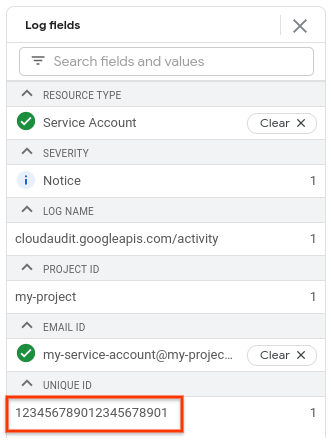
- If the search results include only one `DeleteServiceAccount` operation, find the numeric ID in the **Unique ID** field of the **Log fields** pane.

- If the search results show more than one log, do the following:
1. Find the correct log entry. To find the correct log entry, click the
expander arrow
next to a log entry. Review the details of the log entry and determine
whether the log entry shows the operation that you want to undo. Repeat
this process until you find the correct log entry.
2. In the correct log entry, locate the service account's numeric ID. To
locate the numeric ID, expand the log entry's `protoPayload` field,
then find the `resourceName` field.
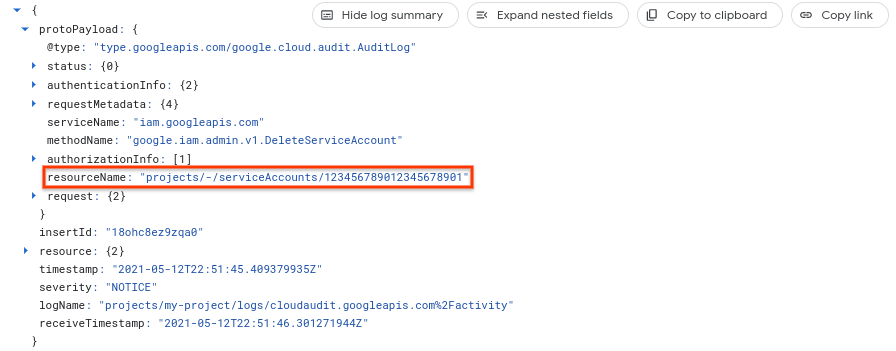

The numeric ID is everything after `serviceAccounts` in the `resourceName`
field.
### Undelete the service account by numeric ID
After you find the numeric ID for the deleted service account, you can try to
undelete the service account.
### gcloud
1. In the Google Cloud console, activate Cloud Shell.
[Activate Cloud Shell](https://console.cloud.google.com/?cloudshell=true)
At the bottom of the Google Cloud console, a
[Cloud Shell](https://docs.cloud.google.com/shell/docs/how-cloud-shell-works.md.txt)
session starts and displays a command-line prompt. Cloud Shell is a shell environment
with the Google Cloud CLI
already installed and with values already set for
your current project. It can take a few seconds for the session to initialize.
2. Execute the `gcloud beta iam service-accounts undelete` command to undelete a service account.
Command:
```bash
gcloud beta iam service-accounts undelete ACCOUNT_ID
```
Output:
```yaml
restoredAccount:
email: SA_NAME@PROJECT_ID.iam.gserviceaccount.com
etag: BwWWE7zpApg=
name: projects/PROJECT_ID/serviceAccounts/SA_NAME@PROJECT_ID.iam.gserviceaccount.com
oauth2ClientId: '123456789012345678901'
projectId: PROJECT_ID
uniqueId: 'ACCOUNT_ID'
```
### REST
The
`serviceAccounts.undelete`
method restores a deleted service account.
Before using any of the request data,
make the following replacements:
- `PROJECT_ID`: Your Google Cloud project ID. Project IDs are alphanumeric strings, like `my-project`.
- `SA_NUMERIC_ID`: The unique numeric ID of the service account.
HTTP method and URL:
```
POST https://iam.googleapis.com/v1/projects/PROJECT_ID/serviceAccounts/SA_NUMERIC_ID:undelete
```
To send your request, expand one of these options:
#### curl (Linux, macOS, or Cloud Shell)
> [!NOTE]
> **Note:** The following command assumes that you have logged in to the `gcloud` CLI with your user account by running [`gcloud init`](https://docs.cloud.google.com/sdk/gcloud/reference/init) or [`gcloud auth login`](https://docs.cloud.google.com/sdk/gcloud/reference/auth/login.md.txt) , or by using [Cloud Shell](https://docs.cloud.google.com/shell/docs.md.txt), which automatically logs you into the `gcloud` CLI . You can check the currently active account by running [`gcloud auth list`](https://docs.cloud.google.com/sdk/gcloud/reference/auth/list.md.txt).
Execute the following command:
```
curl -X POST \
-H "Authorization: Bearer $(gcloud auth print-access-token)" \
-H "Content-Type: application/json; charset=utf-8" \
-d "" \
"https://iam.googleapis.com/v1/projects/PROJECT_ID/serviceAccounts/SA_NUMERIC_ID:undelete"
```
#### PowerShell (Windows)
> [!NOTE]
> **Note:** The following command assumes that you have logged in to the `gcloud` CLI with your user account by running [`gcloud init`](https://docs.cloud.google.com/sdk/gcloud/reference/init) or [`gcloud auth login`](https://docs.cloud.google.com/sdk/gcloud/reference/auth/login.md.txt) . You can check the currently active account by running [`gcloud auth list`](https://docs.cloud.google.com/sdk/gcloud/reference/auth/list.md.txt).
Execute the following command:
```
$cred = gcloud auth print-access-token
$headers = @{ "Authorization" = "Bearer $cred" }
Invoke-WebRequest `
-Method POST `
-Headers $headers `
-Uri "https://iam.googleapis.com/v1/projects/PROJECT_ID/serviceAccounts/SA_NUMERIC_ID:undelete" | Select-Object -Expand Content
```
#### APIs Explorer (browser)
Open the
[method reference page](https://docs.cloud.google.com/iam/docs/reference/rest/v1/projects.serviceAccounts/undelete.md.txt).
The APIs Explorer panel opens on the right side of the page.
You can interact with this tool to send requests.
Complete any required fields and click **Execute**.
If the account can be undeleted, you receive a `200 OK` response
code with details about the restored service account, like the following:
```
{
"restoredAccount": {
"name": "projects/my-project/serviceAccounts/my-service-account@my-project.iam.gserviceaccount.com",
"projectId": "my-project",
"uniqueId": "123456789012345678901",
"email": "my-service-account@my-project.iam.gserviceaccount.com",
"displayName": "My service account",
"etag": "BwUp3rVlzes=",
"description": "A service account for running jobs in my project",
"oauth2ClientId": "987654321098765432109"
}
}
```
## What's next
- Learn how to [list and edit service accounts](https://docs.cloud.google.com/iam/docs/service-accounts-list-edit.md.txt).
- Review the process for [granting IAM roles to all types of principals](https://docs.cloud.google.com/iam/docs/granting-changing-revoking-access.md.txt), including service accounts.
- Understand how to [attach service accounts to resources](https://docs.cloud.google.com/iam/docs/attach-service-accounts.md.txt).