This page explains how to configure a custom schema to parse HL7v2 messages
that do not conform to the HL7v2 standard.
If you are converting HL7v2 messages to another format, such as [FHIR](http://hl7.org/fhir/) or [OMOP](https://www.ohdsi.org/data-standardization/the-common-data-model/), you must first be able to parse
and ingest your HL7v2 messages into an HL7v2 store. Use this guide to ensure
that you can successfully parse and ingest HL7v2 messages.
## Overview
Sometimes, your HL7v2 messages might not conform to HL7v2 standards.
For example, your HL7v2 messages might contain segments that are not included
in the HL7v2 standard, or the segments might be out of order. When trying to
ingest non-conforming messages, you might encounter
errors.
To ingest the non-conforming HL7v2 messages, you must
modify the [`ParserConfig`](https://docs.cloud.google.com/healthcare-api/docs/reference/rest/v1/projects.locations.datasets.hl7V2Stores.md.txt#ParserConfig)
object when creating or editing an HL7v2 store. Inside `ParserConfig`, you
can configure schematized parsing based on custom types and segments, determine how rejected HL7v2 messages
are handled, and more.
Before configuring `ParserConfig`, read the following sections to understand
HL7v2 messages, *type definitions* , and *group definitions*.
## HL7v2 messages
This section gives a brief overview of the structure of HL7v2 messages, which
will be useful when configuring the custom schema parser.
HL7v2 messages are event-based and describe state transitions and partial
updates to clinical records. Each HL7v2 message has a message type which
defines the message's purpose. Message types use a three character code
and are specified in the message's mandatory main segment header (MSH). There are dozens
of message types, including the following:
- `ADT`: used to transmit portions of a patient's Patient Administration data
- `ORU`: used to transmit observation results
- `ORM`: used to transmit information about an order
Review the structure of HL7v2 messages, which comprise segments, fields, components,
and sub-components:
 **Figure 1.** Diagram of an HL7v2 message's structure. In figure 1, the following portions of the HL7v2 message are labeled:
the segment, the segment header, fields, and components.
By default, HL7v2 messages use the following characters to
separate information. You can override an HL7v2 message's delimiters,
separators, and terminators on a per-message basis in the `MSH` segment.
- Segment terminator: `\r`
If your HL7v2 messages use a different segment separator, see the [Custom segment terminator and custom field](https://docs.cloud.google.com/healthcare-api/docs/how-tos/hl7v2-custom-parser-examples.md.txt#custom_segment_terminator_and_custom_field) example.
- Field separator: `|`
- Component separator: `^`
- Sub-component separator: `&`
- Repetition separator: `~`
- Escape characters: `\`
## Type and group definitions
Understanding the schema parser involves using *type definitions* and *group definitions*.
### Type definition
The term "types" encompasses the following:
- HL7v2 segment types, such as `MSH` (Message Segment Header), `DG1` (Diagnosis), and `PID` (Patient Identification)
For a list of all HL7v2 segment types, see [Segment definitions](https://v2plus.hl7.org/2021Jan/segment-definitions.html).
- HL7v2 data types, such as `ST` (String Data), `TS` (Timestamp), and `SI` (Sequence ID)
For a list of all HL7v2 default data types, see [Data types](https://v2plus.hl7.org/2021Jan/data-types.html).
You specify types in the [`name`](https://docs.cloud.google.com/healthcare-api/docs/reference/rest/v1/projects.locations.datasets.hl7V2Stores.md.txt#Type.FIELDS.name)
field inside the [`Type`](https://docs.cloud.google.com/healthcare-api/docs/reference/rest/v1/projects.locations.datasets.hl7V2Stores.md.txt#Type) object.
Types use a modular format consisting of a segment and the segment's fields, components, and
sub-components. The information in a `Type` object indicates how to parse or interpret a segment and
answers questions such as the following:
- What fields are in the segment?
- What are the data types of the fields?
The following example shows the type definition for a custom `ZCD` segment:
```json
{
"type": {
"name": "ZCD", // Segment type
"fields": [
{
"name": "1",
"type": "ST", // Primitive string data type
"minOccurs": 1, // Must occur at least once
"maxOccurs": 1 // Not repeated, because it can only occur once
},
{
"name": "2",
"type": "A", // Custom data type
"minOccurs": 1 // Repeated, because maxOccurs is not defined
}
]
}
}
```
In this example, the `ZCD` segment contains two fields, named `1` and `2`.
The data type for `1` is `ST`, which is a primitive string data type. The data type for `2`
is `A`, which is a custom data type.
The following type definition for the `A` custom data type shows that it also contains
another custom data type, named `B`.
```json
{
"type": {
"name": "A", // Custom data type
"fields": [
{
"name": "1",
"type": "ST", // Primitive string data type
"minOccurs": 1, // Must occur at least once
"maxOccurs": 1 // Not repeated, because it can only occur once
},
{
"name": "2",
"type": "B", // Custom data type
"minOccurs": 1,
"maxOccurs": 1
}
]
}
}
```
The following example shows the type definition for the `B` custom data type,
which has a field named `1` with data type `ST` and a field named
`2` that has a data type of `ST` repeating:
```json
{
"type": {
"name": "B", // Custom data type
"fields": [
{
"name": "1",
"type": "ST", // Primitive string data type
"minOccurs": 1, // Must occur at least once
"maxOccurs": 1 // Not repeated, because it can only occur once
},
{
"name": "2",
"type": "ST"
"minOccurs": 1,
"maxOccurs": 1
}
]
}
}
```
Knowing the information about the segment and data types, you can estimate what the
`ZCD` segment in the original HL7v2 message looks like. This example shows
the HL7v2 message with the `A` field repeated once, which it is permitted to
do because `maxOccurs` is not set on the `A` field:
ZCD|ZCD_field_1|A_field_1^B_component_1&B_component_2_repetition_1~A_field_1^B_component_1&B_component_2_repetition_2
 **Figure 2.** Diagram of a type definition. In figure 2, the following portions of the type definition are labeled:
the segment, the segment header, fields, components, sub-components, and repetitions.
### Group definition
Groups are defined at the segment level and tell you information about what
types of segments can appear in each HL7v2 message.
You specify groups in the [`groups`](https://docs.cloud.google.com/healthcare-api/docs/reference/rest/v1/projects.locations.datasets.hl7V2Stores.md.txt#GroupOrSegment.FIELDS.group)
array inside the [`GroupOrSegment`](https://docs.cloud.google.com/healthcare-api/docs/reference/rest/v1/projects.locations.datasets.hl7V2Stores.md.txt#GroupOrSegment)
object.
Consider the following snippet of a group structure for an `ADT_A01` HL7v2 message:
- The first `segment` in the `members` array is `MSH` (Message Segment Header), because `MSH` is required in every HL7v2 message.
- A `group` named `Group 1`.
This group can only occur a maximum of `2` times and contains the
custom `ZCD` segment.
Typically, a `group` contains multiple logically grouped
nested segments and other groups, but in this example `Group 1` only contains
a single segment: `ZCD`.
```json
{
"ADT_A01": {
"members": [
{
"segment": {
"type": "MSH"
}
},
{
"group": {
"name": "Group 1",
"minOccurs": 1,
"maxOccurs": "2",
"members": [
{
"segment": {
"type": "ZCD"
}
}
]
}
}
]
}
}
```
Knowing the information about the groups, you can estimate what
the original HL7v2 message looks like if `ZCD` occurs twice in the HL7v2 message,
which it is permitted to do because `maxOccurs` on `Group 1` is set to `2`.
The remainder of the `ZCD` segment is unknown without also knowing the
[type definition](https://docs.cloud.google.com/healthcare-api/docs/how-tos/hl7v2-custom-parser.md.txt#type_definition).
```
MSH|^~\&|||||20100308000000||ADT^A01|23701|1|2.3||
ZCD|ZCD_CONTENT
ZCD|ZCD_CONTENT
```
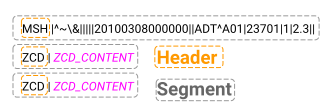 **Figure 3.** Diagram of a group definition. In figure 3, the following portions of the group definition are labeled:
the segment and the segment header.
## Configure a custom schema on an HL7v2 store
The following sections explain the components of a custom schema and how to
configure the schema on an HL7v2 store.
### HL7v2 store type configuration
After you understand the [type definition](https://docs.cloud.google.com/healthcare-api/docs/how-tos/hl7v2-custom-parser.md.txt#type_definition) of an HL7v2 message, you can specify a
type configuration on an HL7v2 store. To specify the configuration, add
an array of [`types`](https://docs.cloud.google.com/healthcare-api/docs/reference/rest/v1/projects.locations.datasets.hl7V2Stores.md.txt#SchemaPackage.FIELDS.types)
and a [`version`](https://docs.cloud.google.com/healthcare-api/docs/reference/rest/v1/projects.locations.datasets.hl7V2Stores.md.txt#Hl7TypesConfig.FIELDS.version) array.
The following example shows how to specify the configuration for the types
shown in [Type definition](https://docs.cloud.google.com/healthcare-api/docs/how-tos/hl7v2-custom-parser.md.txt#type_definition)
on an HL7v2 store.
Note that the configuration uses the `version` array to
specify the `mshField` and `value` fields. These
fields correspond to fields and components in the MSH segment.
The `types` array that you specify only applies to messages that have an
MSH segment that corresponds to the values for `mshField` and `value` in the
`version` array. This lets you ingest HL7v2 messages with different versions
into the same HL7v2 store.
```json
{
"types": [
{
"version": [
{
"mshField": "12",
"value": "2.3"
}
],
"type": [
{
"name": "ZCD", // Segment type
"fields": [
{
"name": "1",
"type": "ST",
"minOccurs": 1,
"maxOccurs": 1
},
{
"name": "2",
"type": "A",
"minOccurs": 1
}
]
},
{
"name": "A", // Data type
"fields": [
{
"name": "1",
"type": "ST",
"minOccurs": 1,
"maxOccurs": 1
},
{
"name": "2",
"type": "B",
"minOccurs": 1,
"maxOccurs": 1
}
]
},
{
"name": "B", // Data type
"fields": [
{
"name": "1",
"type": "ST",
"minOccurs": 1,
"maxOccurs": 1
},
{
"name": "2",
"type": "ST"
}
]
}
]
}
]
}
```
### HL7v2 store group configuration
You can use groups to configure a nested structure at the level of a "membership."
Groups are specified in a
[`members`](https://docs.cloud.google.com/healthcare-api/docs/reference/rest/v1/projects.locations.datasets.hl7V2Stores.md.txt#SchemaGroup.FIELDS.members)
array at the segment level. A segment's structure is predictable and typically
contains fields, components, and sub-components, but the segment itself can be at
any level of the HL7v2 message.
Like a [type configuration](https://docs.cloud.google.com/healthcare-api/docs/how-tos/hl7v2-custom-parser.md.txt#hl7v2_store_type_configuration), a group configuration uses
a [`version`](https://docs.cloud.google.com/healthcare-api/docs/reference/rest/v1/projects.locations.datasets.hl7V2Stores.md.txt#Hl7TypesConfig.FIELDS.version) filter
to let you ingest HL7v2 messages with different versions into the same HL7v2 store.
The following example shows how to specify the configuration for the group
shown in [Group definition](https://docs.cloud.google.com/healthcare-api/docs/how-tos/hl7v2-custom-parser.md.txt#type_definition)
on an HL7v2 store:
```json
{
"version": [
{
"mshField": "12",
"value": "2.3"
}
],
"messageSchemaConfigs": {
"ADT_A01": {
"members": [
{
"segment": {
"type": "MSH"
}
},
{
"group": {
"name": "Group 1",
"maxOccurs": "2",
"members": [
"segment": {
"type": "ZCD"
}
]
}
}
]
}
}
}
```
### Complete HL7v2 store configuration
When you combine the [type](https://docs.cloud.google.com/healthcare-api/docs/how-tos/hl7v2-custom-parser.md.txt#hl7v2_store_type_configuration) configuration and the [group](https://docs.cloud.google.com/healthcare-api/docs/how-tos/hl7v2-custom-parser.md.txt#hl7v2_store_group_configuration)
configuration, you can determine what the complete custom schema configuration
on the HL7v2 store looks like. You can also determine that the custom schema
matches an HL7v2 message that looks like the following:
MSH|^~\&|||||20100101000000||ADT^A01^A01|23701|1|2.3||
ZCD|ZCD_field_1|A_field_1^B_component_1&B_component_2_repetition_1~A_field_1^B_component_1&B_component_2_repetition_2
Expand the following section to see the complete custom schema on the
HL7v2 store, then continue to create an HL7v2 store that uses the custom schema:
#### Expand
```json
{
"parserConfig": {
"schema": {
"schemas": [
{
"version": [
{
"mshField": "12",
"value": "2.3"
}
],
"messageSchemaConfigs": {
"ADT_A01": {
"name": "ADT_A01",
"members": [
{
"segment": {
"type": "MSH",
"minOccurs": 1,
"maxOccurs": 1
}
},
{
"group": {
"name": "Group 1",
"minOccurs": 1,
"maxOccurs": "2",
"members": [
{
"segment": {
"type": "ZCD"
}
}
]
}
}
]
}
}
}
],
"types": [
{
"version": [
{
"mshField": "12",
"value": "2.3"
}
],
"type": [
{
"name": "ZCD", // Segment type
"fields": [
{
"name": "1",
"type": "ST",
"minOccurs": 1,
"maxOccurs": 1
},
{
"name": "2",
"type": "A"
"minOccurs": 1,
"maxOccurs": 1
}
]
},
{
"name": "A", // Data type
"fields": [
{
"name": "1",
"type": "ST"
"minOccurs": 1,
"maxOccurs": 1
},
{
"name": "2",
"type": "B"
"minOccurs": 1,
"maxOccurs": 1
}
]
},
{
"name": "B", // Data type
"fields": [
{
"name": "1",
"type": "ST"
"minOccurs": 1,
"maxOccurs": 1
},
{
"name": "2",
"type": "ST"
"minOccurs": 1
}
]
}
]
}
]
},
"version": "V3"
}
}
```
#### Create an HL7v2 store with the custom schema
To create an HL7v2 store that uses the complete
custom schema, complete this section.
Before using any of the request data,
make the following replacements:
- PROJECT_ID: the ID of your Google Cloud project
- LOCATION: the dataset location
- DATASET_ID: the HL7v2 store's parent dataset
- HL7V2_STORE_ID: the HL7v2 store ID
Request JSON body:
```
{
"parserConfig": {
"schema": {
"schemas": [
{
"version": [
{
"mshField": "12",
"value": "2.3"
}
],
"messageSchemaConfigs": {
"ADT_A01": {
"name": "ADT_A01",
"members": [
{
"segment": {
"type": "MSH",
"minOccurs": 1
}
},
{
"group": {
"name": "Group 1",
"minOccurs": 1,
"members": [
{
"segment": {
"type": "ZCD"
}
}
]
}
}
]
}
}
}
],
"types": [
{
"version": [
{
"mshField": "12",
"value": "2.3"
}
],
"type": [
{
"name": "ZCD",
"fields": [
{
"name": "1",
"type": "ST",
"minOccurs": 1,
"maxOccurs": 1
},
{
"name": "2",
"type": "A",
"minOccurs": 1
}
]
},
{
"name": "A",
"fields": [
{
"name": "1",
"type": "ST",
"minOccurs": 1,
"maxOccurs": 1
},
{
"name": "2",
"type": "B",
"minOccurs": 1,
"maxOccurs": 1
}
]
},
{
"name": "B",
"fields": [
{
"name": "1",
"type": "ST",
"minOccurs": 1,
"maxOccurs": 1
},
{
"name": "2",
"type": "ST",
"minOccurs": 1,
"maxOccurs": 1
}
]
}
]
}
]
},
"version": "V3"
}
}
```
To send your request, choose one of these options:
#### curl
> [!NOTE]
> **Note:** The following command assumes that you have logged in to the `gcloud` CLI with your user account by running [`gcloud init`](https://docs.cloud.google.com/sdk/gcloud/reference/init) or [`gcloud auth login`](https://docs.cloud.google.com/sdk/gcloud/reference/auth/login.md.txt) , or by using [Cloud Shell](https://docs.cloud.google.com/shell/docs.md.txt), which automatically logs you into the `gcloud` CLI . You can check the currently active account by running [`gcloud auth list`](https://docs.cloud.google.com/sdk/gcloud/reference/auth/list.md.txt).
Save the request body in a file named `request.json`.
Run the following command in the terminal to create or overwrite
this file in the current directory:
```
cat > request.json << 'EOF'
{
"parserConfig": {
"schema": {
"schemas": [
{
"version": [
{
"mshField": "12",
"value": "2.3"
}
],
"messageSchemaConfigs": {
"ADT_A01": {
"name": "ADT_A01",
"members": [
{
"segment": {
"type": "MSH",
"minOccurs": 1
}
},
{
"group": {
"name": "Group 1",
"minOccurs": 1,
"members": [
{
"segment": {
"type": "ZCD"
}
}
]
}
}
]
}
}
}
],
"types": [
{
"version": [
{
"mshField": "12",
"value": "2.3"
}
],
"type": [
{
"name": "ZCD",
"fields": [
{
"name": "1",
"type": "ST",
"minOccurs": 1,
"maxOccurs": 1
},
{
"name": "2",
"type": "A",
"minOccurs": 1
}
]
},
{
"name": "A",
"fields": [
{
"name": "1",
"type": "ST",
"minOccurs": 1,
"maxOccurs": 1
},
{
"name": "2",
"type": "B",
"minOccurs": 1,
"maxOccurs": 1
}
]
},
{
"name": "B",
"fields": [
{
"name": "1",
"type": "ST",
"minOccurs": 1,
"maxOccurs": 1
},
{
"name": "2",
"type": "ST",
"minOccurs": 1,
"maxOccurs": 1
}
]
}
]
}
]
},
"version": "V3"
}
}
EOF
```
Then execute the following command to send your REST request:
```
curl -X POST \
-H "Authorization: Bearer $(gcloud auth print-access-token)" \
-H "Content-Type: application/json; charset=utf-8" \
-d @request.json \
"https://healthcare.googleapis.com/v1/projects/PROJECT_ID/locations/LOCATION/datasets/DATASET_ID/hl7V2Stores?hl7V2StoreId=HL7V2_STORE_ID"
```
#### PowerShell
> [!NOTE]
> **Note:** The following command assumes that you have logged in to the `gcloud` CLI with your user account by running [`gcloud init`](https://docs.cloud.google.com/sdk/gcloud/reference/init) or [`gcloud auth login`](https://docs.cloud.google.com/sdk/gcloud/reference/auth/login.md.txt) . You can check the currently active account by running [`gcloud auth list`](https://docs.cloud.google.com/sdk/gcloud/reference/auth/list.md.txt).
Save the request body in a file named `request.json`.
Run the following command in the terminal to create or overwrite
this file in the current directory:
```
@'
{
"parserConfig": {
"schema": {
"schemas": [
{
"version": [
{
"mshField": "12",
"value": "2.3"
}
],
"messageSchemaConfigs": {
"ADT_A01": {
"name": "ADT_A01",
"members": [
{
"segment": {
"type": "MSH",
"minOccurs": 1
}
},
{
"group": {
"name": "Group 1",
"minOccurs": 1,
"members": [
{
"segment": {
"type": "ZCD"
}
}
]
}
}
]
}
}
}
],
"types": [
{
"version": [
{
"mshField": "12",
"value": "2.3"
}
],
"type": [
{
"name": "ZCD",
"fields": [
{
"name": "1",
"type": "ST",
"minOccurs": 1,
"maxOccurs": 1
},
{
"name": "2",
"type": "A",
"minOccurs": 1
}
]
},
{
"name": "A",
"fields": [
{
"name": "1",
"type": "ST",
"minOccurs": 1,
"maxOccurs": 1
},
{
"name": "2",
"type": "B",
"minOccurs": 1,
"maxOccurs": 1
}
]
},
{
"name": "B",
"fields": [
{
"name": "1",
"type": "ST",
"minOccurs": 1,
"maxOccurs": 1
},
{
"name": "2",
"type": "ST",
"minOccurs": 1,
"maxOccurs": 1
}
]
}
]
}
]
},
"version": "V3"
}
}
'@ | Out-File -FilePath request.json -Encoding utf8
```
Then execute the following command to send your REST request:
```
$cred = gcloud auth print-access-token
$headers = @{ "Authorization" = "Bearer $cred" }
Invoke-WebRequest `
-Method POST `
-Headers $headers `
-ContentType: "application/json; charset=utf-8" `
-InFile request.json `
-Uri "https://healthcare.googleapis.com/v1/projects/PROJECT_ID/locations/LOCATION/datasets/DATASET_ID/hl7V2Stores?hl7V2StoreId=HL7V2_STORE_ID" | Select-Object -Expand Content
```
You should receive a JSON response similar to the following:
#### Response
```
{
"name": "projects/PROJECT_ID/locations/LOCATION/datasets/DATASET_ID/hl7V2Stores/HL7V2_STORE_ID",
"parserConfig": {
"schema": {
"schemas": [
{
"version": [
{
"mshField": "12",
"value": "2.3"
}
],
"messageSchemaConfigs": {
"ADT_A01": {
"name": "ADT_A01",
"members": [
{
"segment": {
"type": "MSH",
"minOccurs": 1
}
},
{
"group": {
"name": "Group 1",
"minOccurs": 1,
"members": [
{
"segment": {
"type": "ZCD"
}
}
]
}
}
]
}
}
}
],
"types": [
{
"version": [
{
"mshField": "12",
"value": "2.3"
}
],
"type": [
{
"name": "ZCD",
"fields": [
{
"name": "1",
"type": "ST",
"minOccurs": 1
},
{
"name": "2",
"type": "A",
"minOccurs": 1
}
]
},
{
"name": "A",
"fields": [
{
"name": "1",
"type": "ST",
"minOccurs": 1
},
{
"name": "2",
"type": "B",
"minOccurs": 1
}
]
},
{
"name": "B",
"fields": [
{
"name": "1",
"type": "ST",
"minOccurs": 1
},
{
"name": "2",
"type": "ST",
"minOccurs": 1
}
]
}
]
}
]
},
"version": "V3"
}
}
```
#### Ingest and parse the HL7v2 message using the custom schema
To ingest a base64-encoded version of the HL7v2 message, complete
this section.
Before using any of the request data,
make the following replacements:
- PROJECT_ID: your Google Cloud project ID
- LOCATION: the location of the parent dataset
- DATASET_ID: the HL7v2 store's parent dataset
- HL7V2_STORE_ID: the HL7v2 store ID
Request JSON body:
```
{
"message": {
"data": "TVNIfF5+XCZ8fHx8fDIwMTAwMTAxMDAwMDAwfHxBRFReQTAxXkEwMXwyMzcwMXwxfDIuM3x8DVpDRHxaQ0RfZmllbGRfMXxBX2ZpZWxkXzJeQl9jb21wb25lbnRfMSZCX2NvbXBvbmVudF8yX3JlcGV0aXRpb25fMX5BX2ZpZWxkXzJeQl9jb21wb25lbnRfMSZCX2NvbXBvbmVudF8yX3JlcGV0aXRpb25fMQ=="
}
}
```
To send your request, choose one of these options:
#### curl
> [!NOTE]
> **Note:** The following command assumes that you have logged in to the `gcloud` CLI with your user account by running [`gcloud init`](https://docs.cloud.google.com/sdk/gcloud/reference/init) or [`gcloud auth login`](https://docs.cloud.google.com/sdk/gcloud/reference/auth/login.md.txt) , or by using [Cloud Shell](https://docs.cloud.google.com/shell/docs.md.txt), which automatically logs you into the `gcloud` CLI . You can check the currently active account by running [`gcloud auth list`](https://docs.cloud.google.com/sdk/gcloud/reference/auth/list.md.txt).
Save the request body in a file named `request.json`.
Run the following command in the terminal to create or overwrite
this file in the current directory:
```
cat > request.json << 'EOF'
{
"message": {
"data": "TVNIfF5+XCZ8fHx8fDIwMTAwMTAxMDAwMDAwfHxBRFReQTAxXkEwMXwyMzcwMXwxfDIuM3x8DVpDRHxaQ0RfZmllbGRfMXxBX2ZpZWxkXzJeQl9jb21wb25lbnRfMSZCX2NvbXBvbmVudF8yX3JlcGV0aXRpb25fMX5BX2ZpZWxkXzJeQl9jb21wb25lbnRfMSZCX2NvbXBvbmVudF8yX3JlcGV0aXRpb25fMQ=="
}
}
EOF
```
Then execute the following command to send your REST request:
```
curl -X POST \
-H "Authorization: Bearer $(gcloud auth print-access-token)" \
-H "Content-Type: application/json; charset=utf-8" \
-d @request.json \
"https://healthcare.googleapis.com/v1/projects/PROJECT_ID/locations/LOCATION/datasets/DATASET_ID/hl7V2Stores/HL7V2_STORE_ID/messages:ingest"
```
#### PowerShell
> [!NOTE]
> **Note:** The following command assumes that you have logged in to the `gcloud` CLI with your user account by running [`gcloud init`](https://docs.cloud.google.com/sdk/gcloud/reference/init) or [`gcloud auth login`](https://docs.cloud.google.com/sdk/gcloud/reference/auth/login.md.txt) . You can check the currently active account by running [`gcloud auth list`](https://docs.cloud.google.com/sdk/gcloud/reference/auth/list.md.txt).
Save the request body in a file named `request.json`.
Run the following command in the terminal to create or overwrite
this file in the current directory:
```
@'
{
"message": {
"data": "TVNIfF5+XCZ8fHx8fDIwMTAwMTAxMDAwMDAwfHxBRFReQTAxXkEwMXwyMzcwMXwxfDIuM3x8DVpDRHxaQ0RfZmllbGRfMXxBX2ZpZWxkXzJeQl9jb21wb25lbnRfMSZCX2NvbXBvbmVudF8yX3JlcGV0aXRpb25fMX5BX2ZpZWxkXzJeQl9jb21wb25lbnRfMSZCX2NvbXBvbmVudF8yX3JlcGV0aXRpb25fMQ=="
}
}
'@ | Out-File -FilePath request.json -Encoding utf8
```
Then execute the following command to send your REST request:
```
$cred = gcloud auth print-access-token
$headers = @{ "Authorization" = "Bearer $cred" }
Invoke-WebRequest `
-Method POST `
-Headers $headers `
-ContentType: "application/json; charset=utf-8" `
-InFile request.json `
-Uri "https://healthcare.googleapis.com/v1/projects/PROJECT_ID/locations/LOCATION/datasets/DATASET_ID/hl7V2Stores/HL7V2_STORE_ID/messages:ingest" | Select-Object -Expand Content
```
You should receive a JSON response similar to the following:
#### Response
```
{
"hl7Ack": "TVNIfF5+XCZ8fHx8fDE5NzAwMTAxMDAwMDAwfHxBQ0t8ODgwNmJlNmEtOGQ5Mi00MGE1LWI4MzUtYWI2MjQ3Yjc3M2FkfER8Mi4zDU1TQXxBQXwyMzcwMQ==",
"message": {
"name": "projects/PROJECT_ID/locations/LOCATION/datasets/DATASET_ID/hl7V2Stores/HL7V2_STORE_ID/messages/HL7V2_MESSAGE_ID",
"data": "TVNIfF5+XCZ8fHx8fDIwMjIwMzA4MDAwMDAwfHxBRFReQTAxXkEwMXwyMzcwMXxEfDIuM3x8DVpDRHxaQ0RfZmllbGRfMXxBX2ZpZWxkXzFeQl9jb21wb25lbnRfMSZCX2NvbXBvbmVudF8yX3JlcGV0aXRpb25fMX5CX2NvbXBvbmVudF8yX3JlcGV0aXRpb25fMg==",
"sendTime": "SEND_TIME",
"messageType": "ADT",
"createTime": "1970-01-01T00:00:00Z",
"schematizedData": {
"data": {
"ADT_A01": [
{
"Group 1": [
{
"ZCD": [
{
"0": "ZCD",
"1": "ZCD_field_1",
"2": [
{
"1": "A_field_2",
"2": {
"1": "B_component_1",
"2": "B_component_2_repetition_1"
}
},
{
"1": "A_field_2",
"2": {
"1": "B_component_1",
"2": "B_component_2_repetition_1"
}
}
]
}
]
}
],
"MSH": [
{
"0": "MSH",
"1": "|",
"2": "^~\\\\\\u0026",
"3": null,
"4": null,
"5": null,
"6": null,
"7": "20100101000000",
"8": null,
"9": {
"1": "ADT",
"2": "A01",
"3": "A01"
},
"10": "23701",
"11": {
"1": "1"
},
"12": {
"1": "2.3"
},
"13": null,
"14": null
}
]
}
]
}
}
}
}
```
## Determine field cardinality
You can determine the cardinality of a field in an HL7v2 message by setting the following
fields on the HL7v2 store:
- `minOccurs`: determines the minimum number of times a group, segment, field, component, or subcomponent must be present or repeated in incoming HL7v2 messages
- `maxOccurs`: determines the maximum number of times a group, segment, field, component, or subcomponent can be present or repeated in incoming HL7v2 messages
## Ignore missing elements
Set [`ignoreMinOccurs`](https://docs.cloud.google.com/healthcare-api/docs/reference/rest/v1/projects.locations.datasets.hl7V2Stores.md.txt#SchemaPackage.FIELDS.ignore_min_occurs)
to `true` if you want the HL7v2 API to accept all incoming HL7v2 messages regardless
of any missing elements. This means that a message will **not** be rejected
if it is missing required groups, segments, fields, components, or subcomponents.
If you are unable to ingest HL7v2 messages because the messages
are missing required fields, we recommend setting `ignoreMinOccurs` to `true`.
## Wildcard field type
The wildcard character, `*`, is a special type used for fields. Using `*` indicates to the
HL7v2 parser that the field should be parsed based on the structure in the
HL7v2 message. Using `*` in place of a value for a field is useful
when you don't want to enforce a strict field data type. As long as the
content in the field follows the HL7v2 standard, the Cloud Healthcare API can
parse the HL7v2 message.
For example, consider the following type definition. The field `2` uses a
wildcard character instead of a field data type. The definition is
equivalent to the first definition in [Type definition](https://docs.cloud.google.com/healthcare-api/docs/how-tos/hl7v2-custom-parser.md.txt#type_definition), and does not
require you to specify the `A` and `B` types:
```json
"type": {
"name": "ZCD"
"fields": [
{
"name": "1",
"type": "ST"
},
{
"name": "2",
"type": "*"
}
]
}
```
## What's next
Learn more about configuring custom schema parsers with [Custom schema parser examples](https://docs.cloud.google.com/healthcare-api/docs/how-tos/hl7v2-custom-parser-examples.md.txt).