> [!NOTE]
> **Disclaimer**: This operation processes data using a mixture of rules-based and heuristic methods. Results may differ between resources and datasets due to factors like input data quality/consistency, heuristic-based algorithms, and others. This feature is not guaranteed to satisfy any specific legal, regulatory, or compliance requirements, including requirements for the de-identification of data. It is the user's responsibility to ensure that they set the appropriate configuration parameters for the operation and evaluate the end result to determine whether it is acceptable for their use cases and any legal, regulatory, or compliance requirements they may have.
> [!IMPORTANT]
> **Important:** There is a new version of the DICOM de-identify API available in version `v1beta1`. See [De-identifying DICOM data using `DicomTagConfig`](https://docs.cloud.google.com/healthcare-api/docs/how-tos/dicom-deidentify-dicomtagconfig.md.txt) for information and a migration guide. We strongly recommend that you use the `v1beta1` version of this API.
This page explains how to use the v1 [`DicomConfig`](https://docs.cloud.google.com/healthcare-api/docs/reference/rest/v1/projects.locations.datasets.fhirStores.md.txt#DicomConfig)
configuration to de-identify sensitive data in DICOM instances at the following levels:
- At the dataset level using [`datasets.deidentify`](https://docs.cloud.google.com/healthcare-api/docs/reference/rest/v1/projects.locations.datasets/deidentify.md.txt)
- At the DICOM store level using [`dicomStores.deidentify`](https://docs.cloud.google.com/healthcare-api/docs/reference/rest/v1/projects.locations.datasets.dicomStores/deidentify.md.txt)
This page also explains how to apply filters when de-identifying data at the
DICOM store level.
## De-identification overview
### Dataset level de-identification
To de-identify DICOM data at the dataset level, call the
[`datasets.deidentify`](https://docs.cloud.google.com/healthcare-api/docs/reference/rest/v1/projects.locations.datasets/deidentify.md.txt)
operation. The de-identification
API call has the following components:
- *The source dataset* : A dataset containing DICOM stores with one or more instances that have sensitive data. When you call the `deidentify` operation, all instances in all DICOM stores in the dataset are de-identified.
- *The destination dataset* : De-identification doesn't impact the original dataset or its data. Instead, de-identified copies of the original data are written to a new dataset, called the *destination dataset*.
- *What to de-identify* : Configuration parameters that specify how to process the dataset. You can configure DICOM de-identification to de-identify DICOM instance metadata (using tag keywords) or burnt-in text in DICOM images by specifying these parameters in a [`DeidentifyConfig`](https://docs.cloud.google.com/healthcare-api/docs/reference/rest/v1/projects.locations.datasets.fhirStores.md.txt#deidentifyconfig) object and doing the following:
- Setting the `config` field of the request body
- Storing it in Cloud Storage in a JSON format and specifying the location of the file in the bucket by using the `gcsConfigUri` field of the request body
> [!NOTE]
> **Note:** Using `gcsConfigUri` is only available in v1beta1 of the Cloud Healthcare API.
The majority of the samples in this guide
show how to de-identify DICOM data at the dataset level.
### DICOM store level de-identification
De-identifying DICOM data at the DICOM store level lets you have more control
over which data is de-identified. For example, if you have a dataset with
multiple DICOM stores, you can de-identify each DICOM store according to what
type of data exists in the store.
To de-identify DICOM data in a DICOM store, call the
[`dicomStores.deidentify`](https://docs.cloud.google.com/healthcare-api/docs/reference/rest/v1/projects.locations.datasets.dicomStores/deidentify.md.txt)
method. The de-identification API
call has the following components:
- *The source DICOM store* : A DICOM store containing one or more instances that have sensitive data. When you call the `deidentify` operation, all instances in the DICOM store are de-identified.
- *The destination DICOM store*: De-identification doesn't impact the original DICOM store or its data. Instead, de-identified copies of the original data are written to the destination DICOM store. The destination DICOM store must already exist.
- *What to de-identify* : Configuration parameters that specify how to process the DICOM store. You can configure DICOM de-identification to de-identify DICOM instance metadata (using tag keywords) or burnt-in text in DICOM images by specifying these parameters in a [`DeidentifyConfig`](https://docs.cloud.google.com/healthcare-api/docs/reference/rest/v1/projects.locations.datasets.fhirStores.md.txt#deidentifyconfig) object and passing it by doing one of the following:
- Setting the `config` field of the request body
- Storing it in Cloud Storage in a JSON format and specifying the location of the file in the bucket by using the `gcsConfigUri` field of the request body
> [!NOTE]
> **Note:** Using `gcsConfigUri` is only available in v1beta1 of the Cloud Healthcare API.
For an example
of how to de-identify DICOM data at the DICOM store level, see
[De-identifying data at the DICOM store level](https://docs.cloud.google.com/healthcare-api/docs/how-tos/dicom-deidentify.md.txt#de-identifying_data_at_the_dicom_store_level).
### Filters
You can de-identify a subset of data in a DICOM store by configuring a filter
file and specifying the file in the `dicomStores.deidentify` request. For an
example, see
[De-identifying a subset of a DICOM store](https://docs.cloud.google.com/healthcare-api/docs/how-tos/dicom-deidentify.md.txt#de-identifying_a_subset_of_a_dicom_store).
## Samples overview
The samples in this guide use a single DICOM instance, but you can also
de-identify multiple instances.
Each of the following sections provides samples of how to de-identify DICOM
data using various methods. An output of the de-identified image is provided
with each sample. Each sample uses the following original image as its
input:
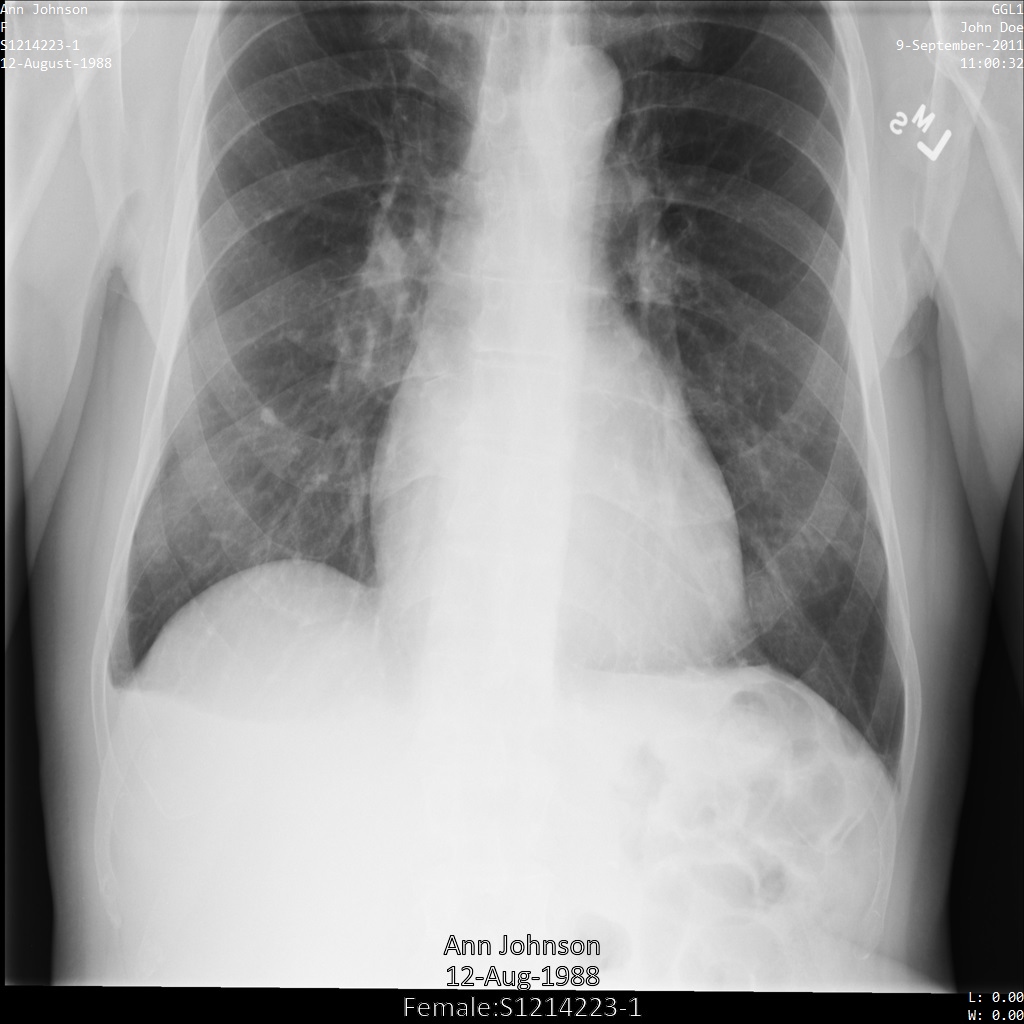
You can compare the output image from each de-identification operation to this
original image to see the effects of the operation.
## De-identifying DICOM tags
You can de-identify DICOM instances based on [tag keywords](https://dicom.nema.org/medical/Dicom/2017e/output/chtml/part06/chapter_6.html)
in the DICOM metadata. The following tag filtering methods are available in the
[`DicomConfig`](https://docs.cloud.google.com/healthcare-api/docs/reference/rest/v1/projects.locations.datasets.fhirStores.md.txt#dicomconfig)
object:
- `keepList`: List of tags to keep. Remove all other tags.
- `removeList`: List of tags to remove. Keep all other tags.
- `filterProfile`: A tag filtering profile used to determine which tags to keep or remove.
For each sample in this section, the output of the DICOM instance's changed
metadata is provided. The following is the instance's original metadata used
as the input for each sample:
```json
[
{
"00020002":{"vr":"UI","Value":["1.2.840.10008.5.1.4.1.1.7"]},
"00020003":{"vr":"UI","Value":["1.2.276.0.7230010.3.1.4.8323329.78.1539083058.523695"]},
"00020010":{"vr":"UI","Value":["1.2.840.10008.1.2.4.50"]},
"00020012":{"vr":"UI","Value":["1.2.276.0.7230010.3.0.3.6.1"]},
"00020013":{"vr":"SH","Value":["OFFIS_DCMTK_361"]},
"00080005":{"vr":"CS","Value":["ISO_IR 100"]},
"00080016":{"vr":"UI","Value":["1.2.840.10008.5.1.4.1.1.7"]},
"00080018":{"vr":"UI","Value":["1.2.276.0.7230010.3.1.4.8323329.78.1539083058.523695"]},
"00080020":{"vr":"DA","Value":["20110909"]},
"00080030":{"vr":"TM","Value":["110032"]},
"00080050":{"vr":"SH"},
"00080064":{"vr":"CS","Value":["WSD"]},
"00080070":{"vr":"LO","Value":["Manufacturer"]},
"00080090":{"vr":"PN","Value":[{"Alphabetic":"John Doe"}]},
"00081090":{"vr":"LO","Value":["ABC1"]},
"00100010":{"vr":"PN","Value":[{"Alphabetic":"Ann Johnson"}]},
"00100020":{"vr":"LO","Value":["S1214223-1"]},
"00100030":{"vr":"DA","Value":["19880812"]},
"00100040":{"vr":"CS","Value":["F"]},
"0020000D":{"vr":"UI","Value":["2.25.70541616638819138568043293671559322355"]},
"0020000E":{"vr":"UI","Value":["1.2.276.0.7230010.3.1.3.8323329.78.1531234558.523694"]},
"00200010":{"vr":"SH"},
"00200011":{"vr":"IS"},
"00200013":{"vr":"IS"},
"00200020":{"vr":"CS"},
"00280002":{"vr":"US","Value":[3]},
"00280004":{"vr":"CS","Value":["YBR_FULL_422"]},
"00280006":{"vr":"US","Value":[0]},
"00280010":{"vr":"US","Value":[1024]},
"00280011":{"vr":"US","Value":[1024]},
"00280100":{"vr":"US","Value":[8]},
"00280101":{"vr":"US","Value":[8]},
"00280102":{"vr":"US","Value":[7]},
"00280103":{"vr":"US","Value":[0]},
"00282110":{"vr":"CS","Value":["01"]},
"00282114":{"vr":"CS","Value":["ISO_10918_1"]}
}
]
```
### De-identification using keeplist tags
When you specify a keeplist tag in the [`DicomConfig`](https://docs.cloud.google.com/healthcare-api/docs/reference/rest/v1/projects.locations.datasets.fhirStores.md.txt#dicomconfig)
object, the following tags are added by default:
- `StudyInstanceUID`
- `SeriesInstanceUID`
- `SOPInstanceUID`
- `TransferSyntaxUID`
- `MediaStorageSOPInstanceUID`
- `MediaStorageSOPClassUID`
- `PixelData`
- `Rows`
- `Columns`
- `SamplesPerPixel`
- `BitsAllocated`
- `BitsStored`
- `Highbit`
- `PhotometricInterpretation`
- `PixelRepresentation`
- `NumberOfFrames`
- `PlanarConfiguration`
- `PixelAspectRatio`
- `SmallestImagePixelValue`
- `LargestImagePixelValue`
- `RedPaletteColorLookupTableDescriptor`
- `GreenPaletteColorLookupTableDescriptor`
- `BluePaletteColorLookupTableDescriptor`
- `RedPaletteColorLookupTableData`
- `GreenPaletteColorLookupTableData`
- `BluePaletteColorLookupTableData`
- `ICCProfile`
- `ColorSpace`
- `WindowCenter`
- `WindowWidth`
- `VOILUTFunction`
The `deidentify` operation doesn't redact the preceding tags. However, the
values for some of the tags are regenerated, meaning that the values are
replaced with a different value through a deterministic transformation.
For more information, see [Retain UIDs Option](https://dicom.nema.org/medical/dicom/current/output/chtml/part15/sect_E.3.9.html)
in the DICOM standard. To retain the original values of the preceding tags, use the
[`SkipIdRedaction`](https://docs.cloud.google.com/healthcare-api/docs/reference/rest/v1/projects.locations.datasets.fhirStores.md.txt#dicomconfig)
option.
If no keeplist tags are provided, then no
DICOM tags in the dataset are redacted.
The following samples show how to de-identify a dataset containing DICOM stores
and DICOM data while leaving some tags unchanged.
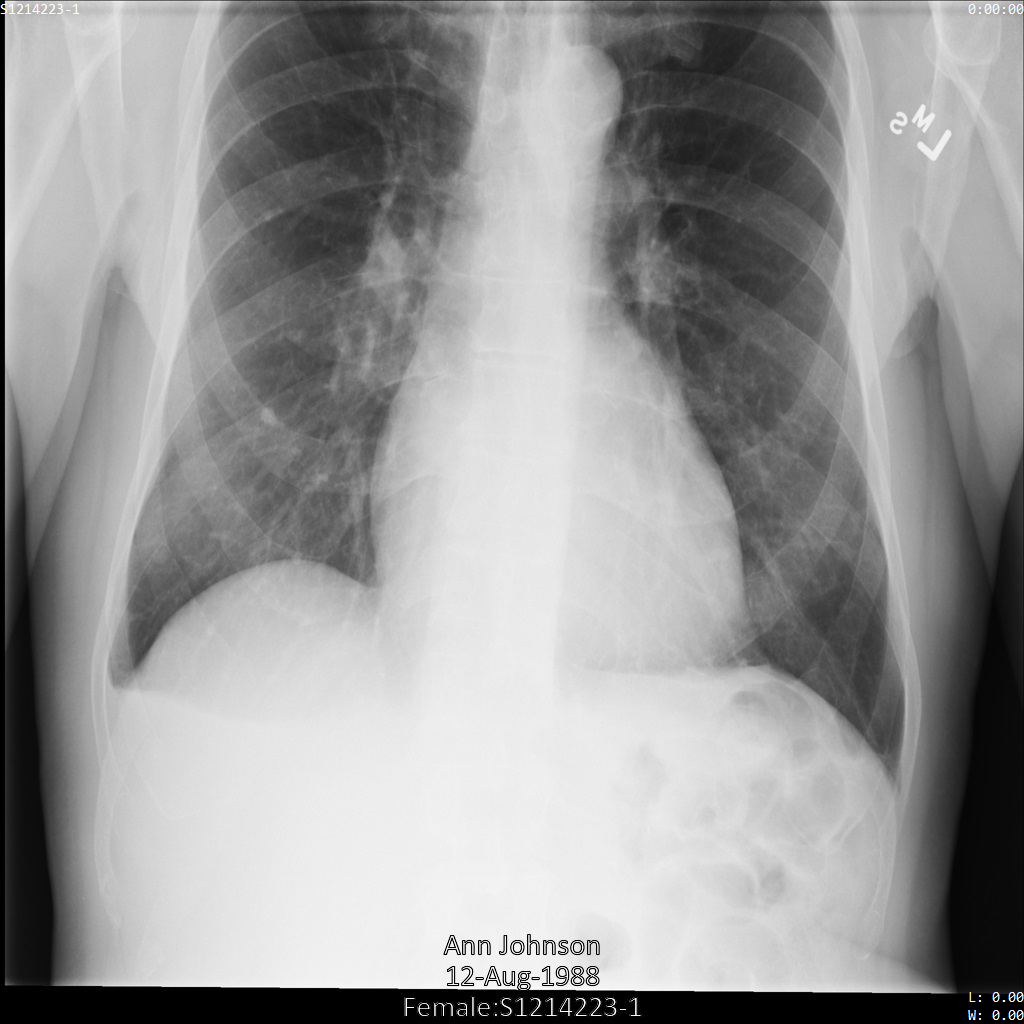
After submitting the image to the Cloud Healthcare API, the image appears
as follows. While the metadata displayed in the top corners of the image has
been redacted, the burnt-in protected health information (PHI) at the bottom
of the image remains. To also
remove the burnt-in text, see [Redacting burnt-in text from images](https://docs.cloud.google.com/healthcare-api/docs/how-tos/dicom-deidentify.md.txt#redacting_burnt-in_text_from_images).
### REST
1. De-identify the dataset.
Before using any of the request data,
make the following replacements:
- PROJECT_ID: the ID of your Google Cloud project
- LOCATION: the dataset location
- SOURCE_DATASET_ID: the ID of the dataset containing the data to de-identify
- DESTINATION_DATASET_ID: the ID of the destination dataset where de-identified data is written
Request JSON body:
```
{
"destinationDataset": "projects/PROJECT_ID/locations/LOCATION/datasets/DESTINATION_DATASET_ID",
"config": {
"dicom": {
"keepList": {
"tags": [
"PatientID"
]
}
}
}
}
```
To send your request, choose one of these options:
#### curl
> [!NOTE]
> **Note:** The following command assumes that you have logged in to the `gcloud` CLI with your user account by running [`gcloud init`](https://docs.cloud.google.com/sdk/gcloud/reference/init) or [`gcloud auth login`](https://docs.cloud.google.com/sdk/gcloud/reference/auth/login.md.txt) , or by using [Cloud Shell](https://docs.cloud.google.com/shell/docs.md.txt), which automatically logs you into the `gcloud` CLI . You can check the currently active account by running [`gcloud auth list`](https://docs.cloud.google.com/sdk/gcloud/reference/auth/list.md.txt).
Save the request body in a file named `request.json`.
Run the following command in the terminal to create or overwrite
this file in the current directory:
```
cat > request.json << 'EOF'
{
"destinationDataset": "projects/PROJECT_ID/locations/LOCATION/datasets/DESTINATION_DATASET_ID",
"config": {
"dicom": {
"keepList": {
"tags": [
"PatientID"
]
}
}
}
}
EOF
```
Then execute the following command to send your REST request:
```
curl -X POST \
-H "Authorization: Bearer $(gcloud auth print-access-token)" \
-H "Content-Type: application/json; charset=utf-8" \
-d @request.json \
"https://healthcare.googleapis.com/v1/projects/PROJECT_ID/locations/LOCATION/datasets/SOURCE_DATASET_ID:deidentify"
```
#### PowerShell
> [!NOTE]
> **Note:** The following command assumes that you have logged in to the `gcloud` CLI with your user account by running [`gcloud init`](https://docs.cloud.google.com/sdk/gcloud/reference/init) or [`gcloud auth login`](https://docs.cloud.google.com/sdk/gcloud/reference/auth/login.md.txt) . You can check the currently active account by running [`gcloud auth list`](https://docs.cloud.google.com/sdk/gcloud/reference/auth/list.md.txt).
Save the request body in a file named `request.json`.
Run the following command in the terminal to create or overwrite
this file in the current directory:
```
@'
{
"destinationDataset": "projects/PROJECT_ID/locations/LOCATION/datasets/DESTINATION_DATASET_ID",
"config": {
"dicom": {
"keepList": {
"tags": [
"PatientID"
]
}
}
}
}
'@ | Out-File -FilePath request.json -Encoding utf8
```
Then execute the following command to send your REST request:
```
$cred = gcloud auth print-access-token
$headers = @{ "Authorization" = "Bearer $cred" }
Invoke-WebRequest `
-Method POST `
-Headers $headers `
-ContentType: "application/json; charset=utf-8" `
-InFile request.json `
-Uri "https://healthcare.googleapis.com/v1/projects/PROJECT_ID/locations/LOCATION/datasets/SOURCE_DATASET_ID:deidentify" | Select-Object -Expand Content
```
The output is the following. The response contains an identifier for a [long-running operation](https://docs.cloud.google.com/healthcare-api/docs/reference/rest/v1/projects.locations.datasets.operations.md.txt). Long-running operations are returned when method calls might take a substantial amount of time to complete. Note the value of OPERATION_ID. You need this value in the next step.
#### Response
```
{
"name": "projects/PROJECT_ID/locations/LOCATION/datasets/DATASET_ID/operations/OPERATION_ID"
}
```
2. Use the [`projects.locations.datasets.operations.get`](https://docs.cloud.google.com/healthcare-api/docs/reference/rest/v1/projects.locations.datasets.operations/get.md.txt) method to get the status of the long-running operation.
Before using any of the request data,
make the following replacements:
- PROJECT_ID: the ID of your Google Cloud project
- DATASET_ID: the dataset ID
- LOCATION: the dataset location
- OPERATION_ID: the ID returned from the long-running operation
To send your request, choose one of these options:
#### curl
> [!NOTE]
> **Note:** The following command assumes that you have logged in to the `gcloud` CLI with your user account by running [`gcloud init`](https://docs.cloud.google.com/sdk/gcloud/reference/init) or [`gcloud auth login`](https://docs.cloud.google.com/sdk/gcloud/reference/auth/login.md.txt) , or by using [Cloud Shell](https://docs.cloud.google.com/shell/docs.md.txt), which automatically logs you into the `gcloud` CLI . You can check the currently active account by running [`gcloud auth list`](https://docs.cloud.google.com/sdk/gcloud/reference/auth/list.md.txt).
Execute the following command:
```
curl -X GET \
-H "Authorization: Bearer $(gcloud auth print-access-token)" \
"https://healthcare.googleapis.com/v1/projects/PROJECT_ID/locations/LOCATION/datasets/DATASET_ID/operations/OPERATION_ID"
```
#### PowerShell
> [!NOTE]
> **Note:** The following command assumes that you have logged in to the `gcloud` CLI with your user account by running [`gcloud init`](https://docs.cloud.google.com/sdk/gcloud/reference/init) or [`gcloud auth login`](https://docs.cloud.google.com/sdk/gcloud/reference/auth/login.md.txt) . You can check the currently active account by running [`gcloud auth list`](https://docs.cloud.google.com/sdk/gcloud/reference/auth/list.md.txt).
Execute the following command:
```
$cred = gcloud auth print-access-token
$headers = @{ "Authorization" = "Bearer $cred" }
Invoke-WebRequest `
-Method GET `
-Headers $headers `
-Uri "https://healthcare.googleapis.com/v1/projects/PROJECT_ID/locations/LOCATION/datasets/DATASET_ID/operations/OPERATION_ID" | Select-Object -Expand Content
```
#### APIs Explorer
Open the
[method reference page](https://docs.cloud.google.com/healthcare-api/docs/reference/rest/v1/projects.locations.datasets.operations/get.md.txt).
The APIs Explorer panel opens on the right side of the page.
You can interact with this tool to send requests.
Complete any required fields and click **Execute**.
The output is the following. When the response contains `"done": true`, the long-running operation has finished.
#### Response
```
{
"name": "projects/PROJECT_ID/locations/SOURCE_DATASET_LOCATION/datasets/SOURCE_DATASET_ID/operations/OPERATION_ID",
"metadata": {
"@type": "type.googleapis.com/google.cloud.healthcare.v1.OperationMetadata",
"apiMethodName": "google.cloud.healthcare.v1.deidentify.DeidentifyService.DeidentifyDicomStore",
"createTime": "YYYY-MM-DDTHH:MM:SS+ZZ:ZZ",
"endTime": "YYYY-MM-DDTHH:MM:SS+ZZ:ZZ",
"logsUrl": "https://console.cloud.google.com/CLOUD_LOGGING_URL"
"counter": {
"success": "SUCCESS_COUNT",
// If there were any failures, they display in the `failure` field.
"failure": "FAILURE_COUNT"
}
},
"done": true,
// The `response` field only displays if there were no errors.
"response": {
"@type": "type.googleapis.com/google.cloud.healthcare.v1.deidentify.DeidentifySummary",
},
// If there were any errors, an `error` field displays instead of a `response` field.
// See Troubleshooting long-running operations for a list of response codes.
"error": {
"code": ERROR_CODE,
"message": "DESCRIPTION",
"details": [
{
"@type": "...",
FIELD1: ...,
...
}
]
}
}
```
3. After the de-identification succeeds, you can retrieve the metadata for the de-identified instance to see how it changed. The de-identified instance has a new studies UID, series UID, and instances UID, so you first need to search the new dataset for the de-identified instance.
Before using any of the request data,
make the following replacements:
- PROJECT_ID: the ID of your Google Cloud project
- SOURCE_DATASET_LOCATION: the source dataset location
- DESTINATION_DATASET_ID: the ID of the destination dataset where de-identified data is written
- DESTINATION_DICOM_STORE_ID: the ID of the DICOM store in the destination dataset. This is the same as the ID of the DICOM store in the source dataset.
To send your request, choose one of these options:
#### curl
> [!NOTE]
> **Note:** The following command assumes that you have logged in to the `gcloud` CLI with your user account by running [`gcloud init`](https://docs.cloud.google.com/sdk/gcloud/reference/init) or [`gcloud auth login`](https://docs.cloud.google.com/sdk/gcloud/reference/auth/login.md.txt) , or by using [Cloud Shell](https://docs.cloud.google.com/shell/docs.md.txt), which automatically logs you into the `gcloud` CLI . You can check the currently active account by running [`gcloud auth list`](https://docs.cloud.google.com/sdk/gcloud/reference/auth/list.md.txt).
Execute the following command:
```
curl -X GET \
-H "Authorization: Bearer $(gcloud auth print-access-token)" \
"https://healthcare.googleapis.com/v1/projects/PROJECT_ID/locations/SOURCE_DATASET_LOCATION/datasets/DESTINATION_DATASET_ID/dicomStores/DESTINATION_DICOM_STORE_ID/dicomWeb/instances"
```
#### PowerShell
> [!NOTE]
> **Note:** The following command assumes that you have logged in to the `gcloud` CLI with your user account by running [`gcloud init`](https://docs.cloud.google.com/sdk/gcloud/reference/init) or [`gcloud auth login`](https://docs.cloud.google.com/sdk/gcloud/reference/auth/login.md.txt) . You can check the currently active account by running [`gcloud auth list`](https://docs.cloud.google.com/sdk/gcloud/reference/auth/list.md.txt).
Execute the following command:
```
$cred = gcloud auth print-access-token
$headers = @{ "Authorization" = "Bearer $cred" }
Invoke-WebRequest `
-Method GET `
-Headers $headers `
-Uri "https://healthcare.googleapis.com/v1/projects/PROJECT_ID/locations/SOURCE_DATASET_LOCATION/datasets/DESTINATION_DATASET_ID/dicomStores/DESTINATION_DICOM_STORE_ID/dicomWeb/instances" | Select-Object -Expand Content
```
#### APIs Explorer
Open the
[method reference page](https://docs.cloud.google.com/healthcare-api/docs/reference/rest/v1/projects.locations.datasets.dicomStores/searchForInstances.md.txt).
The APIs Explorer panel opens on the right side of the page.
You can interact with this tool to send requests.
Complete any required fields and click **Execute**.
You should receive a JSON response similar to the following:
#### Response
```
[
{
"00080005":{"vr":"CS"},
"00080016":{"vr":"UI"},
"00080018":{"vr":"UI","Value":["1.3.6.1.4.1.11129.5.1.97415866390999888717168863957686758029"]},
"00080020":{"vr":"DA"},
"00080030":{"vr":"TM"},
"00080050":{"vr":"SH"},
"00080090":{"vr":"PN"},
"00100010":{"vr":"PN"},
"00100020":{"vr":"LO","Value":["S1214223-1"]},
"00100030":{"vr":"DA"},
"00100040":{"vr":"CS"},
"0020000D":{"vr":"UI","Value":["1.3.6.1.4.1.11129.5.1.201854290391432893460946240745559593763"]},
"0020000E":{"vr":"UI","Value":["1.3.6.1.4.1.11129.5.1.303327499491957026103380014864616068710"]},
"00200010":{"vr":"SH"},
"00200013":{"vr":"IS"},
"00280010":{"vr":"US","Value":[1024]},
"00280011":{"vr":"US","Value":[1024]},
"00280100":{"vr":"US","Value":[8]}
}
]
```
The following table shows how the studies UID, series UID, and instances UID changed:
| | Original instance metadata | De-identified instance metadata |
|---|---|---|
| Studies UID (`0020000D`) | `2.25.70541616638819138568043293671559322355` | `1.3.6.1.4.1.11129.5.1.201854290391432893460946240745559593763` |
| Series UID (`0020000E`) | `1.2.276.0.7230010.3.1.3.8323329.78.1531234558.523694` | `1.3.6.1.4.1.11129.5.1.303327499491957026103380014864616068710` |
| Instances UID (`00080018`) | `1.2.276.0.7230010.3.1.4.8323329.78.1539083058.523695` | `1.3.6.1.4.1.11129.5.1.97415866390999888717168863957686758029` |
4. Using the new values, retrieve the metadata for the instance.
Before using any of the request data,
make the following replacements:
- PROJECT_ID: the ID of your Google Cloud project
- LOCATION: the dataset location
- DESTINATION_DATASET_ID: the ID of the destination dataset where de-identified data is written
- DESTINATION_DICOM_STORE_ID: the ID of the DICOM store in the destination dataset. This is the same as the ID of the DICOM store in the source dataset.
To send your request, choose one of these options:
#### curl
> [!NOTE]
> **Note:** The following command assumes that you have logged in to the `gcloud` CLI with your user account by running [`gcloud init`](https://docs.cloud.google.com/sdk/gcloud/reference/init) or [`gcloud auth login`](https://docs.cloud.google.com/sdk/gcloud/reference/auth/login.md.txt) , or by using [Cloud Shell](https://docs.cloud.google.com/shell/docs.md.txt), which automatically logs you into the `gcloud` CLI . You can check the currently active account by running [`gcloud auth list`](https://docs.cloud.google.com/sdk/gcloud/reference/auth/list.md.txt).
Execute the following command:
```
curl -X GET \
-H "Authorization: Bearer $(gcloud auth print-access-token)" \
"https://healthcare.googleapis.com/v1/projects/PROJECT_ID/locations/LOCATION/datasets/DESTINATION_DATASET_ID/dicomStores/DESTINATION_DICOM_STORE_ID/dicomWeb/studies/1.3.6.1.4.1.11129.5.1.201854290391432893460946240745559593763/series/1.3.6.1.4.1.11129.5.1.303327499491957026103380014864616068710/instances/1.3.6.1.4.1.11129.5.1.97415866390999888717168863957686758029/metadata"
```
#### PowerShell
> [!NOTE]
> **Note:** The following command assumes that you have logged in to the `gcloud` CLI with your user account by running [`gcloud init`](https://docs.cloud.google.com/sdk/gcloud/reference/init) or [`gcloud auth login`](https://docs.cloud.google.com/sdk/gcloud/reference/auth/login.md.txt) . You can check the currently active account by running [`gcloud auth list`](https://docs.cloud.google.com/sdk/gcloud/reference/auth/list.md.txt).
Execute the following command:
```
$cred = gcloud auth print-access-token
$headers = @{ "Authorization" = "Bearer $cred" }
Invoke-WebRequest `
-Method GET `
-Headers $headers `
-Uri "https://healthcare.googleapis.com/v1/projects/PROJECT_ID/locations/LOCATION/datasets/DESTINATION_DATASET_ID/dicomStores/DESTINATION_DICOM_STORE_ID/dicomWeb/studies/1.3.6.1.4.1.11129.5.1.201854290391432893460946240745559593763/series/1.3.6.1.4.1.11129.5.1.303327499491957026103380014864616068710/instances/1.3.6.1.4.1.11129.5.1.97415866390999888717168863957686758029/metadata" | Select-Object -Expand Content
```
#### APIs Explorer
Open the
[method reference page](https://docs.cloud.google.com/healthcare-api/docs/reference/rest/v1/projects.locations.datasets.dicomStores.studies.series.instances/retrieveMetadata.md.txt).
The APIs Explorer panel opens on the right side of the page.
You can interact with this tool to send requests.
Complete any required fields and click **Execute**.
The output contains the new metadata. You can compare the new metadata with the [original metadata](https://docs.cloud.google.com/healthcare-api/docs/how-tos/dicom-deidentify.md.txt#de-identifying_dicom_tags) to see the effect of the transformation.
#### Response
```
[
{
"00020002":{"vr":"UI","Value":["1.2.840.10008.5.1.4.1.1.7"]},
"00020003":{"vr":"UI","Value":["1.3.6.1.4.1.11129.5.1.97415866390999888717168863957686758029"]},
"00020010":{"vr":"UI","Value":["1.2.840.10008.1.2.4.50"]},
"00020012":{"vr":"UI","Value":["1.2.40.0.13.1.3"]},
"00020013":{"vr":"SH","Value":["dcm4che-null"]},
"00080005":{"vr":"CS"},
"00080016":{"vr":"UI"},
"00080018":{"vr":"UI","Value":["1.3.6.1.4.1.11129.5.1.97415866390999888717168863957686758029"]},
"00080020":{"vr":"DA"},
"00080030":{"vr":"TM"},
"00080050":{"vr":"SH"},
"00080064":{"vr":"CS"},
"00080070":{"vr":"LO"},
"00080090":{"vr":"PN"},
"00081090":{"vr":"LO"},
"00100010":{"vr":"PN"},
"00100020":{"vr":"LO","Value":["S1214223-1"]},
"00100030":{"vr":"DA"},
"00100040":{"vr":"CS"},
"0020000D":{"vr":"UI","Value":["1.3.6.1.4.1.11129.5.1.201854290391432893460946240745559593763"]},
"0020000E":{"vr":"UI","Value":["1.3.6.1.4.1.11129.5.1.303327499491957026103380014864616068710"]},
"00200010":{"vr":"SH"},
"00200011":{"vr":"IS"},
"00200013":{"vr":"IS"},
"00200020":{"vr":"CS"},
"00280002":{"vr":"US","Value":[3]},
"00280004":{"vr":"CS","Value":["YBR_FULL_422"]},
"00280006":{"vr":"US"},
"00280010":{"vr":"US","Value":[1024]},
"00280011":{"vr":"US","Value":[1024]},
"00280100":{"vr":"US","Value":[8]},
"00280101":{"vr":"US","Value":[8]},
"00280102":{"vr":"US","Value":[7]},
"00280103":{"vr":"US","Value":[0]},
"00282110":{"vr":"CS"},
"00282114":{"vr":"CS"}
}
]
```
### Go
```go
import (
"context"
"fmt"
"io"
"time"
healthcare "google.golang.org/api/healthcare/v1"
)
// deidentifyDataset creates a new dataset containing de-identified data from the source dataset.
func deidentifyDataset(w io.Writer, projectID, location, sourceDatasetID, destinationDatasetID string) error {
ctx := context.Background()
healthcareService, err := healthcare.NewService(ctx)
if err != nil {
return fmt.Errorf("healthcare.NewService: %w", err)
}
datasetsService := healthcareService.Projects.Locations.Datasets
parent := fmt.Sprintf("projects/%s/locations/%s", projectID, location)
req := &healthcare.DeidentifyDatasetRequest{
DestinationDataset: fmt.Sprintf("%s/datasets/%s", parent, destinationDatasetID),
Config: &healthcare.DeidentifyConfig{
Dicom: &healthcare.DicomConfig{
KeepList: &healthcare.TagFilterList{
Tags: []string{
"PatientID",
},
},
},
},
}
sourceName := fmt.Sprintf("%s/datasets/%s", parent, sourceDatasetID)
resp, err := datasetsService.Deidentify(sourceName, req).Do()
if err != nil {
return fmt.Errorf("Deidentify: %w", err)
}
// Wait for the deidentification operation to finish.
operationService := healthcareService.Projects.Locations.Datasets.Operations
for {
op, err := operationService.Get(resp.Name).Do()
if err != nil {
return fmt.Errorf("operationService.Get: %w", err)
}
if !op.Done {
time.Sleep(1 * time.Second)
continue
}
if op.Error != nil {
return fmt.Errorf("deidentify operation error: %v", *op.Error)
}
fmt.Fprintf(w, "Created de-identified dataset %s from %s\n", resp.Name, sourceName)
return nil
}
}
```
### Java
```java
import com.google.api.client.http.HttpRequestInitializer;
import com.google.api.client.http.javanet.NetHttpTransport;
import com.google.api.client.json.JsonFactory;
import com.google.api.client.json.gson.GsonFactory;
import com.google.api.services.healthcare.v1.CloudHealthcare;
import com.google.api.services.healthcare.v1.CloudHealthcare.Projects.Locations.Datasets;
import com.google.api.services.healthcare.v1.CloudHealthcareScopes;
import com.google.api.services.healthcare.v1.model.DeidentifyConfig;
import com.google.api.services.healthcare.v1.model.DeidentifyDatasetRequest;
import com.google.api.services.healthcare.v1.model.DicomConfig;
import com.google.api.services.healthcare.v1.model.Operation;
import com.google.api.services.healthcare.v1.model.TagFilterList;
import com.google.auth.http.HttpCredentialsAdapter;
import com.google.auth.oauth2.GoogleCredentials;
import java.io.IOException;
import java.util.Arrays;
import java.util.Collections;
public class DatasetDeIdentify {
private static final String DATASET_NAME = "projects/%s/locations/%s/datasets/%s";
private static final JsonFactory JSON_FACTORY = new GsonFactory();
private static final NetHttpTransport HTTP_TRANSPORT = new NetHttpTransport();
public static void datasetDeIdentify(String srcDatasetName, String destDatasetName)
throws IOException {
// String srcDatasetName =
// String.format(DATASET_NAME, "your-project-id", "your-region-id", "your-src-dataset-id");
// String destDatasetName =
// String.format(DATASET_NAME, "your-project-id", "your-region-id", "your-dest-dataset-id");
// Initialize the client, which will be used to interact with the service.
CloudHealthcare client = createClient();
// Configure what information needs to be De-Identified.
// For more information on de-identifying using tags, please see the following:
// https://cloud.google.com/healthcare/docs/how-tos/dicom-deidentify#de-identification_using_tags
TagFilterList tags = new TagFilterList().setTags(Arrays.asList("PatientID"));
DicomConfig dicomConfig = new DicomConfig().setKeepList(tags);
DeidentifyConfig config = new DeidentifyConfig().setDicom(dicomConfig);
// Create the de-identify request and configure any parameters.
DeidentifyDatasetRequest deidentifyRequest =
new DeidentifyDatasetRequest().setDestinationDataset(destDatasetName).setConfig(config);
Datasets.Deidentify request =
client.projects().locations().datasets().deidentify(srcDatasetName, deidentifyRequest);
// Execute the request, wait for the operation to complete, and process the results.
try {
Operation operation = request.execute();
while (operation.getDone() == null || !operation.getDone()) {
// Update the status of the operation with another request.
Thread.sleep(500); // Pause for 500ms between requests.
operation =
client
.projects()
.locations()
.datasets()
.operations()
.get(operation.getName())
.execute();
}
System.out.println(
"De-identified Dataset created. Response content: " + operation.getResponse());
} catch (Exception ex) {
System.out.printf("Error during request execution: %s", ex.toString());
ex.printStackTrace(System.out);
}
}
private static CloudHealthcare createClient() throws IOException {
// Use Application Default Credentials (ADC) to authenticate the requests
// For more information see https://cloud.google.com/docs/authentication/production
GoogleCredentials credential =
GoogleCredentials.getApplicationDefault()
.createScoped(Collections.singleton(CloudHealthcareScopes.CLOUD_PLATFORM));
// Create a HttpRequestInitializer, which will provide a baseline configuration to all requests.
HttpRequestInitializer requestInitializer =
request -> {
new HttpCredentialsAdapter(credential).initialize(request);
request.setConnectTimeout(60000); // 1 minute connect timeout
request.setReadTimeout(60000); // 1 minute read timeout
};
// Build the client for interacting with the service.
return new CloudHealthcare.Builder(HTTP_TRANSPORT, JSON_FACTORY, requestInitializer)
.setApplicationName("your-application-name")
.build();
}
}
```
### Node.js
```javascript
const google = require('@googleapis/healthcare');
const healthcare = google.healthcare({
version: 'v1',
auth: new google.auth.GoogleAuth({
scopes: ['https://www.googleapis.com/auth/cloud-platform'],
}),
});
const deidentifyDataset = async () => {
// TODO(developer): uncomment these lines before running the sample
// const cloudRegion = 'us-central1';
// const projectId = 'adjective-noun-123';
// const sourceDatasetId = 'my-source-dataset';
// const destinationDatasetId = 'my-destination-dataset';
// const keeplistTags = 'PatientID'
const sourceDataset = `projects/${projectId}/locations/${cloudRegion}/datasets/${sourceDatasetId}`;
const destinationDataset = `projects/${projectId}/locations/${cloudRegion}/datasets/${destinationDatasetId}`;
const request = {
sourceDataset: sourceDataset,
destinationDataset: destinationDataset,
resource: {
config: {
dicom: {
keepList: {
tags: [keeplistTags],
},
},
},
},
};
await healthcare.projects.locations.datasets.deidentify(request);
console.log(
`De-identified data written from dataset ${sourceDatasetId} to dataset ${destinationDatasetId}`
);
};
deidentifyDataset();
```
### Python
```python
# Imports the Dict type for runtime type hints.
from typing import Dict
def deidentify_dataset(
project_id: str,
location: str,
dataset_id: str,
destination_dataset_id: str,
) -> Dict[str, str]:
"""Uses a DICOM tag keeplist to create a new dataset containing de-identified DICOM data from the source dataset.
See
https://github.com/GoogleCloudPlatform/python-docs-samples/tree/main/healthcare/api-client/v1/datasets
before running the sample.
See https://googleapis.github.io/google-api-python-client/docs/dyn/healthcare_v1.projects.locations.datasets.html#deidentify
for the Python API reference.
Args:
project_id: The project ID or project number of the Google Cloud project you want
to use.
location: The name of the dataset's location.
dataset_id: The ID of the source dataset containing the DICOM store to de-identify.
destination_dataset_id: The ID of the dataset where de-identified DICOM data
is written.
Returns:
A dictionary representing a long-running operation that results from
calling the 'DeidentifyDataset' method. Use the
'google.longrunning.Operation'
API to poll the operation status.
"""
# Imports the Python built-in time module.
import time
# Imports the Google API Discovery Service.
from googleapiclient import discovery
# Imports HttpError from the Google Python API client errors module.
from googleapiclient.errors import HttpError
api_version = "v1"
service_name = "healthcare"
# Returns an authorized API client by discovering the Healthcare API
# and using GOOGLE_APPLICATION_CREDENTIALS environment variable.
client = discovery.build(service_name, api_version)
# TODO(developer): Uncomment these lines and replace with your values.
# project_id = 'my-project'
# location = 'us-central1'
# dataset_id = 'my-source-dataset'
# destination_dataset_id = 'my-destination-dataset'
source_dataset = "projects/{}/locations/{}/datasets/{}".format(
project_id, location, dataset_id
)
destination_dataset = "projects/{}/locations/{}/datasets/{}".format(
project_id, location, destination_dataset_id
)
body = {
"destinationDataset": destination_dataset,
"config": {
"dicom": {
"keepList": {
"tags": [
"Columns",
"NumberOfFrames",
"PixelRepresentation",
"MediaStorageSOPClassUID",
"MediaStorageSOPInstanceUID",
"Rows",
"SamplesPerPixel",
"BitsAllocated",
"HighBit",
"PhotometricInterpretation",
"BitsStored",
"PatientID",
"TransferSyntaxUID",
"SOPInstanceUID",
"StudyInstanceUID",
"SeriesInstanceUID",
"PixelData",
]
}
}
},
}
request = (
client.projects()
.locations()
.datasets()
.deidentify(sourceDataset=source_dataset, body=body)
)
# Set a start time for operation completion.
start_time = time.time()
# TODO(developer): Increase the max_time if de-identifying many resources.
max_time = 600
try:
operation = request.execute()
while not operation.get("done", False):
# Poll until the operation finishes.
print("Waiting for operation to finish...")
if time.time() - start_time > max_time:
raise RuntimeError("Timed out waiting for operation to finish.")
operation = (
client.projects()
.locations()
.datasets()
.operations()
.get(name=operation["name"])
.execute()
)
# Wait 5 seconds between each poll to the operation.
time.sleep(5)
if operation.get("error"):
raise TimeoutError(f"De-identify operation failed: {operation['error']}")
else:
print(f"De-identified data to dataset: {destination_dataset_id}")
print(
f"Resources succeeded: {operation.get('metadata').get('counter').get('success')}"
)
print(
f"Resources failed: {operation.get('metadata').get('counter').get('failure')}"
)
return operation
except HttpError as err:
# A common error is when the destination dataset already exists.
if err.resp.status == 409:
raise RuntimeError(
f"Destination dataset with ID {destination_dataset_id} already exists."
)
else:
raise err
```
### De-identification using removelist tags
You can specify a removelist in the [`DicomConfig`](https://docs.cloud.google.com/healthcare-api/docs/reference/rest/v1/projects.locations.datasets.fhirStores.md.txt#dicomconfig)
object. The `deidentify` operation will redact only the tags specified in the list. If no
removelist tags are provided, then the de-identification operation proceeds
as normal, but no DICOM tags in the destination dataset are redacted.
When you specify a removelist, the `OverlayData` tag is added
by default because overlay data might contain PHI.
The [tags that are by default added to a keeplist](https://docs.cloud.google.com/healthcare-api/docs/how-tos/dicom-deidentify.md.txt#de-identification_using_keeplist_tags)
cannot be added to a removelist.
The following samples show how to de-identify a dataset containing DICOM stores
and DICOM data by removing all of the tags in the removelist. Tags that are
not in the removelist are unchanged.
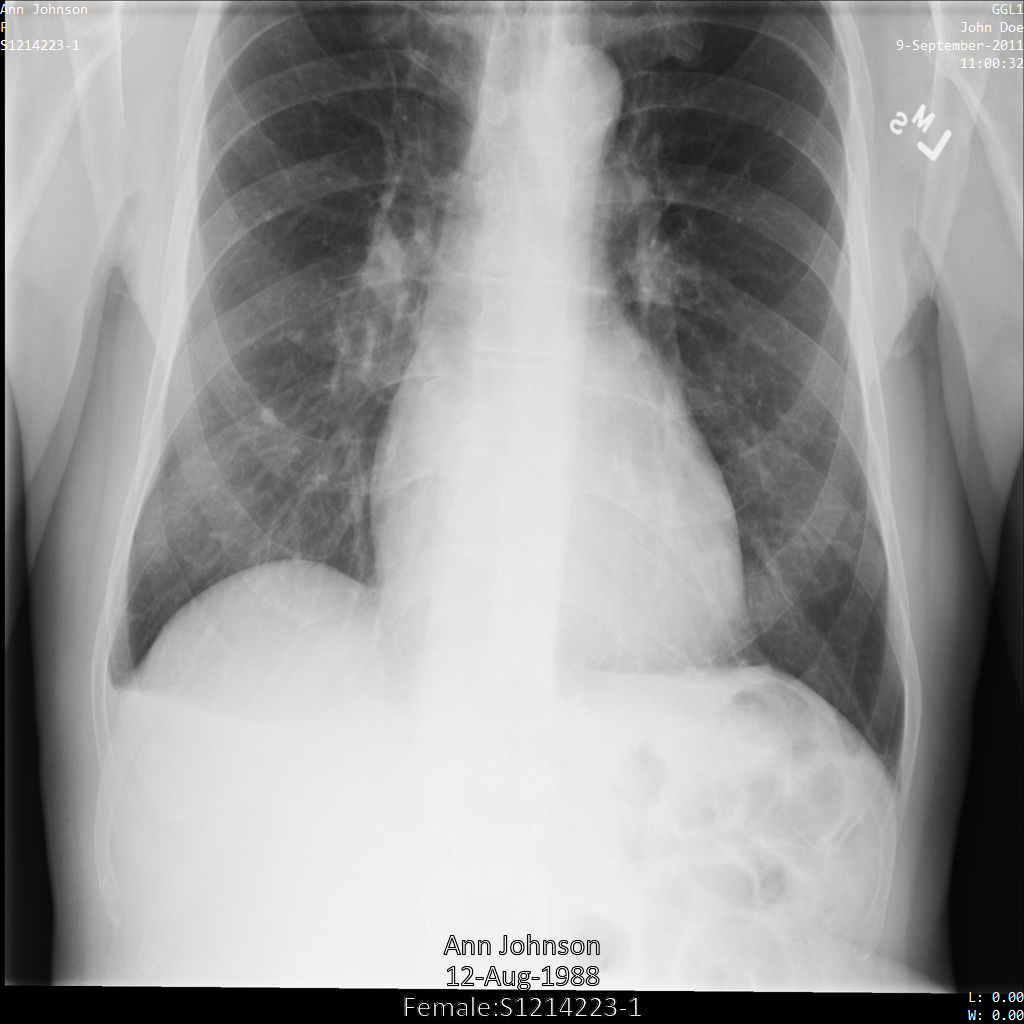
After submitting the image to the Cloud Healthcare API, the image appears
as follows. Out of the tags provided in the removelist, only `PatientBirthDate`
is removed in the image, as it's the only tag from the removelist that
corresponds to metadata that is visible in the image.
While the `PatientBirthDate` in the top corner of the image has
been redacted according to the configuration in the removelist, the burnt-in
PHI at the bottom of the image remains. To also
remove the burnt-in text, see [Redacting burnt-in text from images](https://docs.cloud.google.com/healthcare-api/docs/how-tos/dicom-deidentify.md.txt#redacting_burnt-in_text_from_images).
### REST
1. De-identify the dataset.
Before using any of the request data,
make the following replacements:
- PROJECT_ID: the ID of your Google Cloud project
- LOCATION: the dataset location
- SOURCE_DATASET_ID: the ID of the dataset containing the data to de-identify
- DESTINATION_DATASET_ID: the ID of the destination dataset where de-identified data is written
Request JSON body:
```
{
"destinationDataset": "projects/PROJECT_ID/locations/LOCATION/datasets/DESTINATION_DATASET_ID",
"config": {
"dicom": {
"removeList": {
"tags": [
"PatientBirthName",
"PatientBirthDate",
"PatientAge",
"PatientSize",
"PatientWeight",
"PatientAddress",
"PatientMotherBirthName"
]
}
}
}
}
```
To send your request, choose one of these options:
#### curl
> [!NOTE]
> **Note:** The following command assumes that you have logged in to the `gcloud` CLI with your user account by running [`gcloud init`](https://docs.cloud.google.com/sdk/gcloud/reference/init) or [`gcloud auth login`](https://docs.cloud.google.com/sdk/gcloud/reference/auth/login.md.txt) , or by using [Cloud Shell](https://docs.cloud.google.com/shell/docs.md.txt), which automatically logs you into the `gcloud` CLI . You can check the currently active account by running [`gcloud auth list`](https://docs.cloud.google.com/sdk/gcloud/reference/auth/list.md.txt).
Save the request body in a file named `request.json`.
Run the following command in the terminal to create or overwrite
this file in the current directory:
```
cat > request.json << 'EOF'
{
"destinationDataset": "projects/PROJECT_ID/locations/LOCATION/datasets/DESTINATION_DATASET_ID",
"config": {
"dicom": {
"removeList": {
"tags": [
"PatientBirthName",
"PatientBirthDate",
"PatientAge",
"PatientSize",
"PatientWeight",
"PatientAddress",
"PatientMotherBirthName"
]
}
}
}
}
EOF
```
Then execute the following command to send your REST request:
```
curl -X POST \
-H "Authorization: Bearer $(gcloud auth print-access-token)" \
-H "Content-Type: application/json; charset=utf-8" \
-d @request.json \
"https://healthcare.googleapis.com/v1/projects/PROJECT_ID/locations/LOCATION/datasets/SOURCE_DATASET_ID:deidentify"
```
#### PowerShell
> [!NOTE]
> **Note:** The following command assumes that you have logged in to the `gcloud` CLI with your user account by running [`gcloud init`](https://docs.cloud.google.com/sdk/gcloud/reference/init) or [`gcloud auth login`](https://docs.cloud.google.com/sdk/gcloud/reference/auth/login.md.txt) . You can check the currently active account by running [`gcloud auth list`](https://docs.cloud.google.com/sdk/gcloud/reference/auth/list.md.txt).
Save the request body in a file named `request.json`.
Run the following command in the terminal to create or overwrite
this file in the current directory:
```
@'
{
"destinationDataset": "projects/PROJECT_ID/locations/LOCATION/datasets/DESTINATION_DATASET_ID",
"config": {
"dicom": {
"removeList": {
"tags": [
"PatientBirthName",
"PatientBirthDate",
"PatientAge",
"PatientSize",
"PatientWeight",
"PatientAddress",
"PatientMotherBirthName"
]
}
}
}
}
'@ | Out-File -FilePath request.json -Encoding utf8
```
Then execute the following command to send your REST request:
```
$cred = gcloud auth print-access-token
$headers = @{ "Authorization" = "Bearer $cred" }
Invoke-WebRequest `
-Method POST `
-Headers $headers `
-ContentType: "application/json; charset=utf-8" `
-InFile request.json `
-Uri "https://healthcare.googleapis.com/v1/projects/PROJECT_ID/locations/LOCATION/datasets/SOURCE_DATASET_ID:deidentify" | Select-Object -Expand Content
```
The output is the following. The response contains an identifier for a [long-running operation](https://docs.cloud.google.com/healthcare-api/docs/reference/rest/v1/projects.locations.datasets.operations.md.txt). Long-running operations are returned when method calls might take a substantial amount of time to complete. Note the value of OPERATION_ID. You need this value in the next step.
#### Response
```
{
"name": "projects/PROJECT_ID/locations/LOCATION/datasets/SOURCE_DATASET_ID/operations/OPERATION_ID"
}
```
2. Use the [`projects.locations.datasets.operations.get`](https://docs.cloud.google.com/healthcare-api/docs/reference/rest/v1/projects.locations.datasets.operations/get.md.txt) method to get the status of the long-running operation.
Before using any of the request data,
make the following replacements:
- PROJECT_ID: the ID of your Google Cloud project
- DATASET_ID: the dataset ID
- LOCATION: the dataset location
- OPERATION_ID: the ID returned from the long-running operation
To send your request, choose one of these options:
#### curl
> [!NOTE]
> **Note:** The following command assumes that you have logged in to the `gcloud` CLI with your user account by running [`gcloud init`](https://docs.cloud.google.com/sdk/gcloud/reference/init) or [`gcloud auth login`](https://docs.cloud.google.com/sdk/gcloud/reference/auth/login.md.txt) , or by using [Cloud Shell](https://docs.cloud.google.com/shell/docs.md.txt), which automatically logs you into the `gcloud` CLI . You can check the currently active account by running [`gcloud auth list`](https://docs.cloud.google.com/sdk/gcloud/reference/auth/list.md.txt).
Execute the following command:
```
curl -X GET \
-H "Authorization: Bearer $(gcloud auth print-access-token)" \
"https://healthcare.googleapis.com/v1/projects/PROJECT_ID/locations/LOCATION/datasets/DATASET_ID/operations/OPERATION_ID"
```
#### PowerShell
> [!NOTE]
> **Note:** The following command assumes that you have logged in to the `gcloud` CLI with your user account by running [`gcloud init`](https://docs.cloud.google.com/sdk/gcloud/reference/init) or [`gcloud auth login`](https://docs.cloud.google.com/sdk/gcloud/reference/auth/login.md.txt) . You can check the currently active account by running [`gcloud auth list`](https://docs.cloud.google.com/sdk/gcloud/reference/auth/list.md.txt).
Execute the following command:
```
$cred = gcloud auth print-access-token
$headers = @{ "Authorization" = "Bearer $cred" }
Invoke-WebRequest `
-Method GET `
-Headers $headers `
-Uri "https://healthcare.googleapis.com/v1/projects/PROJECT_ID/locations/LOCATION/datasets/DATASET_ID/operations/OPERATION_ID" | Select-Object -Expand Content
```
#### APIs Explorer
Open the
[method reference page](https://docs.cloud.google.com/healthcare-api/docs/reference/rest/v1/projects.locations.datasets.operations/get.md.txt).
The APIs Explorer panel opens on the right side of the page.
You can interact with this tool to send requests.
Complete any required fields and click **Execute**.
The output is the following. When the response contains `"done": true`, the long-running operation has finished.
#### Response
```
{
"name": "projects/PROJECT_ID/locations/SOURCE_DATASET_LOCATION/datasets/SOURCE_DATASET_ID/operations/OPERATION_ID",
"metadata": {
"@type": "type.googleapis.com/google.cloud.healthcare.v1.OperationMetadata",
"apiMethodName": "google.cloud.healthcare.v1.deidentify.DeidentifyService.DeidentifyDicomStore",
"createTime": "YYYY-MM-DDTHH:MM:SS+ZZ:ZZ",
"endTime": "YYYY-MM-DDTHH:MM:SS+ZZ:ZZ",
"logsUrl": "https://console.cloud.google.com/CLOUD_LOGGING_URL"
"counter": {
"success": "SUCCESS_COUNT",
// If there were any failures, they display in the `failure` field.
"failure": "FAILURE_COUNT"
}
},
"done": true,
// The `response` field only displays if there were no errors.
"response": {
"@type": "type.googleapis.com/google.cloud.healthcare.v1.deidentify.DeidentifySummary",
},
// If there were any errors, an `error` field displays instead of a `response` field.
// See Troubleshooting long-running operations for a list of response codes.
"error": {
"code": ERROR_CODE,
"message": "DESCRIPTION",
"details": [
{
"@type": "...",
FIELD1: ...,
...
}
]
}
}
```
3. After the de-identification succeeds, you can retrieve the metadata for the de-identified instance to see how it changed. The de-identified instance has a new studies UID, series UID, and instances UID, so you first need to search the new dataset for the de-identified instance.
Before using any of the request data,
make the following replacements:
- PROJECT_ID: the ID of your Google Cloud project
- SOURCE_DATASET_LOCATION: the source dataset location
- DESTINATION_DATASET_ID: the ID of the destination dataset where de-identified data is written
- DESTINATION_DICOM_STORE_ID: the ID of the DICOM store in the destination dataset. This is the same as the ID of the DICOM store in the source dataset.
To send your request, choose one of these options:
#### curl
> [!NOTE]
> **Note:** The following command assumes that you have logged in to the `gcloud` CLI with your user account by running [`gcloud init`](https://docs.cloud.google.com/sdk/gcloud/reference/init) or [`gcloud auth login`](https://docs.cloud.google.com/sdk/gcloud/reference/auth/login.md.txt) , or by using [Cloud Shell](https://docs.cloud.google.com/shell/docs.md.txt), which automatically logs you into the `gcloud` CLI . You can check the currently active account by running [`gcloud auth list`](https://docs.cloud.google.com/sdk/gcloud/reference/auth/list.md.txt).
Execute the following command:
```
curl -X GET \
-H "Authorization: Bearer $(gcloud auth print-access-token)" \
"https://healthcare.googleapis.com/v1/projects/PROJECT_ID/locations/SOURCE_DATASET_LOCATION/datasets/DESTINATION_DATASET_ID/dicomStores/DESTINATION_DICOM_STORE_ID/dicomWeb/instances"
```
#### PowerShell
> [!NOTE]
> **Note:** The following command assumes that you have logged in to the `gcloud` CLI with your user account by running [`gcloud init`](https://docs.cloud.google.com/sdk/gcloud/reference/init) or [`gcloud auth login`](https://docs.cloud.google.com/sdk/gcloud/reference/auth/login.md.txt) . You can check the currently active account by running [`gcloud auth list`](https://docs.cloud.google.com/sdk/gcloud/reference/auth/list.md.txt).
Execute the following command:
```
$cred = gcloud auth print-access-token
$headers = @{ "Authorization" = "Bearer $cred" }
Invoke-WebRequest `
-Method GET `
-Headers $headers `
-Uri "https://healthcare.googleapis.com/v1/projects/PROJECT_ID/locations/SOURCE_DATASET_LOCATION/datasets/DESTINATION_DATASET_ID/dicomStores/DESTINATION_DICOM_STORE_ID/dicomWeb/instances" | Select-Object -Expand Content
```
#### APIs Explorer
Open the
[method reference page](https://docs.cloud.google.com/healthcare-api/docs/reference/rest/v1/projects.locations.datasets.dicomStores/searchForInstances.md.txt).
The APIs Explorer panel opens on the right side of the page.
You can interact with this tool to send requests.
Complete any required fields and click **Execute**.
You should receive a JSON response similar to the following:
#### Response
```
[
{
"00080005":{"vr":"CS"},
"00080016":{"vr":"UI"},
"00080018":{"vr":"UI","Value":["1.3.6.1.4.1.11129.5.1.97415866390999888717168863957686758029"]},
"00080020":{"vr":"DA"},
"00080030":{"vr":"TM"},
"00080050":{"vr":"SH"},
"00080090":{"vr":"PN"},
"00100010":{"vr":"PN"},
"00100020":{"vr":"LO","Value":["S1214223-1"]},
"00100030":{"vr":"DA"},
"00100040":{"vr":"CS"},
"0020000D":{"vr":"UI","Value":["1.3.6.1.4.1.11129.5.1.201854290391432893460946240745559593763"]},
"0020000E":{"vr":"UI","Value":["1.3.6.1.4.1.11129.5.1.303327499491957026103380014864616068710"]},
"00200010":{"vr":"SH"},
"00200013":{"vr":"IS"},
"00280010":{"vr":"US","Value":[1024]},
"00280011":{"vr":"US","Value":[1024]},
"00280100":{"vr":"US","Value":[8]}
}
]
```
The following table shows how the studies UID, series UID, and instances UID changed:
| | Original instance metadata | De-identified instance metadata |
|---|---|---|
| Studies UID (`0020000D`) | `2.25.70541616638819138568043293671559322355` | `1.3.6.1.4.1.11129.5.1.201854290391432893460946240745559593763` |
| Series UID (`0020000E`) | `1.2.276.0.7230010.3.1.3.8323329.78.1531234558.523694` | `1.3.6.1.4.1.11129.5.1.303327499491957026103380014864616068710` |
| Instances UID (`00080018`) | `1.2.276.0.7230010.3.1.4.8323329.78.1539083058.523695` | `1.3.6.1.4.1.11129.5.1.97415866390999888717168863957686758029` |
4. Using the new values, retrieve the metadata for the instance.
Before using any of the request data,
make the following replacements:
- PROJECT_ID: the ID of your Google Cloud project
- LOCATION: the dataset location
- DESTINATION_DATASET_ID: the ID of the destination dataset where de-identified data is written
- DESTINATION_DICOM_STORE_ID: the ID of the DICOM store in the destination dataset. This is the same as the ID of the DICOM store in the source dataset.
To send your request, choose one of these options:
#### curl
> [!NOTE]
> **Note:** The following command assumes that you have logged in to the `gcloud` CLI with your user account by running [`gcloud init`](https://docs.cloud.google.com/sdk/gcloud/reference/init) or [`gcloud auth login`](https://docs.cloud.google.com/sdk/gcloud/reference/auth/login.md.txt) , or by using [Cloud Shell](https://docs.cloud.google.com/shell/docs.md.txt), which automatically logs you into the `gcloud` CLI . You can check the currently active account by running [`gcloud auth list`](https://docs.cloud.google.com/sdk/gcloud/reference/auth/list.md.txt).
Execute the following command:
```
curl -X GET \
-H "Authorization: Bearer $(gcloud auth print-access-token)" \
"https://healthcare.googleapis.com/v1/projects/PROJECT_ID/locations/LOCATION/datasets/DESTINATION_DATASET_ID/dicomStores/DESTINATION_DICOM_STORE_ID/dicomWeb/studies/1.3.6.1.4.1.11129.5.1.201854290391432893460946240745559593763/series/1.3.6.1.4.1.11129.5.1.303327499491957026103380014864616068710/instances/1.3.6.1.4.1.11129.5.1.97415866390999888717168863957686758029/metadata"
```
#### PowerShell
> [!NOTE]
> **Note:** The following command assumes that you have logged in to the `gcloud` CLI with your user account by running [`gcloud init`](https://docs.cloud.google.com/sdk/gcloud/reference/init) or [`gcloud auth login`](https://docs.cloud.google.com/sdk/gcloud/reference/auth/login.md.txt) . You can check the currently active account by running [`gcloud auth list`](https://docs.cloud.google.com/sdk/gcloud/reference/auth/list.md.txt).
Execute the following command:
```
$cred = gcloud auth print-access-token
$headers = @{ "Authorization" = "Bearer $cred" }
Invoke-WebRequest `
-Method GET `
-Headers $headers `
-Uri "https://healthcare.googleapis.com/v1/projects/PROJECT_ID/locations/LOCATION/datasets/DESTINATION_DATASET_ID/dicomStores/DESTINATION_DICOM_STORE_ID/dicomWeb/studies/1.3.6.1.4.1.11129.5.1.201854290391432893460946240745559593763/series/1.3.6.1.4.1.11129.5.1.303327499491957026103380014864616068710/instances/1.3.6.1.4.1.11129.5.1.97415866390999888717168863957686758029/metadata" | Select-Object -Expand Content
```
#### APIs Explorer
Open the
[method reference page](https://docs.cloud.google.com/healthcare-api/docs/reference/rest/v1/projects.locations.datasets.dicomStores.studies.series.instances/retrieveMetadata.md.txt).
The APIs Explorer panel opens on the right side of the page.
You can interact with this tool to send requests.
Complete any required fields and click **Execute**.
The output contains the new metadata. You can compare the new metadata with the [original metadata](https://docs.cloud.google.com/healthcare-api/docs/how-tos/dicom-deidentify.md.txt#de-identifying_dicom_tags) to see the effect of the transformation.
#### Response
```
[
{
"00020002":{"vr":"UI","Value":["1.2.840.10008.5.1.4.1.1.7"]},
"00020003":{"vr":"UI","Value":["1.3.6.1.4.1.11129.5.1.97415866390999888717168863957686758029"]},
"00020010":{"vr":"UI","Value":["1.2.840.10008.1.2.4.50"]},
"00020012":{"vr":"UI","Value":["1.2.40.0.13.1.3"]},
"00020013":{"vr":"SH","Value":["dcm4che-null"]},
"00080005":{"vr":"CS","Value":["ISO_IR 100"]},
"00080016":{"vr":"UI","Value":["1.2.840.10008.5.1.4.1.1.7"]},
"00080018":{"vr":"UI","Value":["1.3.6.1.4.1.11129.5.1.97415866390999888717168863957686758029"]},
"00080020":{"vr":"DA","Value":["20110909"]},
"00080030":{"vr":"TM","Value":["110032"]},
"00080050":{"vr":"SH"},
"00080064":{"vr":"CS","Value":["WSD"]},
"00080070":{"vr":"LO","Value":["Manufacturer"]},
"00080090":{"vr":"PN","Value":[{"Alphabetic":"John Doe"}]},
"00081090":{"vr":"LO","Value":["ABC1"]},
"00100010":{"vr":"PN","Value":[{"Alphabetic":"Ann Johnson"}]},
"00100020":{"vr":"LO","Value":["S1214223-1"]},
"00100030":{"vr":"DA"},
"00100040":{"vr":"CS","Value":["F"]},
"0020000D":{"vr":"UI","Value":["1.3.6.1.4.1.11129.5.1.201854290391432893460946240745559593763"]},
"0020000E":{"vr":"UI","Value":["1.3.6.1.4.1.11129.5.1.303327499491957026103380014864616068710"]},
"00200010":{"vr":"SH"},
"00200011":{"vr":"IS"},
"00200013":{"vr":"IS"},
"00200020":{"vr":"CS"},
"00280002":{"vr":"US","Value":[3]},
"00280004":{"vr":"CS","Value":["YBR_FULL_422"]},
"00280006":{"vr":"US","Value":[0]},
"00280010":{"vr":"US","Value":[1024]},
"00280011":{"vr":"US","Value":[1024]},
"00280100":{"vr":"US","Value":[8]},
"00280101":{"vr":"US","Value":[8]},
"00280102":{"vr":"US","Value":[7]},
"00280103":{"vr":"US","Value":[0]},
"00282110":{"vr":"CS","Value":["01"]},
"00282114":{"vr":"CS","Value":["ISO_10918_1"]}
}
]
```
### De-identification using a tag filter profile
Rather than specifying which tags to keep or remove, you can configure a
[`TagFilterProfile`](https://docs.cloud.google.com/healthcare-api/docs/reference/rest/v1/projects.locations.datasets.fhirStores.md.txt#tagfilterprofile)
in the [`DicomConfig`](https://docs.cloud.google.com/healthcare-api/docs/reference/rest/v1/projects.locations.datasets.fhirStores.md.txt#dicomconfig)
object. A tag filter profile is a pre-defined profile that determines which
tags to keep, remove, or transform. See the `TagFilterProfile` documentation for
available profiles.
The following samples show how to de-identify a dataset containing DICOM stores
and DICOM data using the tag filter profile `ATTRIBUTE_CONFIDENTIALITY_BASIC_PROFILE`.
This tag filter profile removes tags based on the [DICOM
Standard's Attribute Confidentiality Basic Profile](https://dicom.nema.org/medical/dicom/current/output/html/part15.html#chapter_E).
The Cloud Healthcare API doesn't fully conform to the
Attribute Confidentiality Basic Profile. For example, the Cloud Healthcare API
doesn't check for [Information Object Definition (IOD)](https://dicom.nema.org/medical/dicom/current/output/html/part03.html#glossentry_Module)
restrictions when selecting an action for a tag.
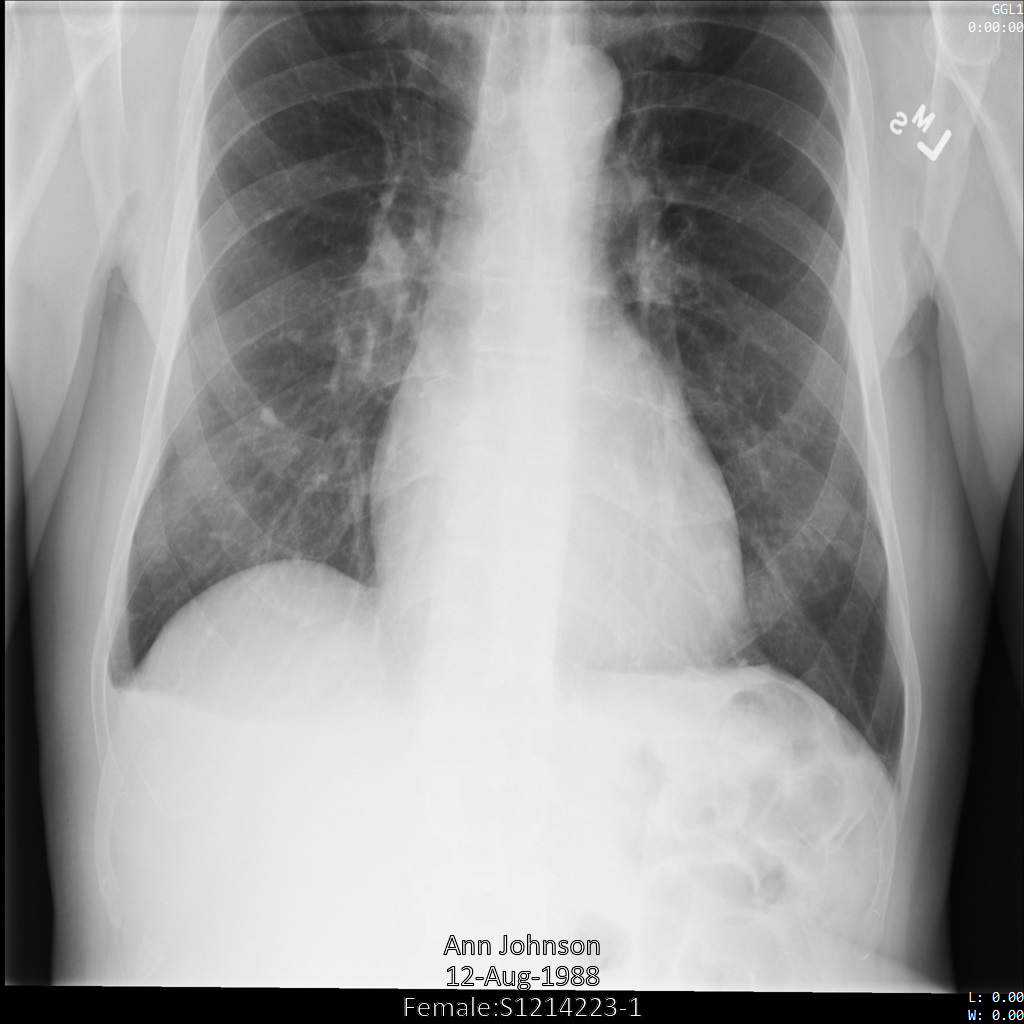
After submitting the image to the Cloud Healthcare API using the
`ATTRIBUTE_CONFIDENTIALITY_BASIC_PROFILE` tag filter profile, the image appears
as follows. While the metadata displayed in the top corners of the image
has been redacted, the burnt-in PHI at the bottom of the image remains.
To also remove the burnt-in text, see
[Redacting burnt-in text from images](https://docs.cloud.google.com/healthcare-api/docs/how-tos/dicom-deidentify.md.txt#redacting_burnt-in_text_from_images).
### REST
1. De-identify the dataset.
Before using any of the request data,
make the following replacements:
- PROJECT_ID: the ID of your Google Cloud project
- LOCATION: the dataset location
- SOURCE_DATASET_ID: the ID of the dataset containing the data to de-identify
- DESTINATION_DATASET_ID: the ID of the destination dataset where de-identified data is written
Request JSON body:
```
{
"destinationDataset": "projects/PROJECT_ID/locations/LOCATION/datasets/DESTINATION_DATASET_ID",
"config": {
"dicom": {
"filterProfile": "ATTRIBUTE_CONFIDENTIALITY_BASIC_PROFILE"
}
}
}
```
To send your request, choose one of these options:
#### curl
> [!NOTE]
> **Note:** The following command assumes that you have logged in to the `gcloud` CLI with your user account by running [`gcloud init`](https://docs.cloud.google.com/sdk/gcloud/reference/init) or [`gcloud auth login`](https://docs.cloud.google.com/sdk/gcloud/reference/auth/login.md.txt) , or by using [Cloud Shell](https://docs.cloud.google.com/shell/docs.md.txt), which automatically logs you into the `gcloud` CLI . You can check the currently active account by running [`gcloud auth list`](https://docs.cloud.google.com/sdk/gcloud/reference/auth/list.md.txt).
Save the request body in a file named `request.json`.
Run the following command in the terminal to create or overwrite
this file in the current directory:
```
cat > request.json << 'EOF'
{
"destinationDataset": "projects/PROJECT_ID/locations/LOCATION/datasets/DESTINATION_DATASET_ID",
"config": {
"dicom": {
"filterProfile": "ATTRIBUTE_CONFIDENTIALITY_BASIC_PROFILE"
}
}
}
EOF
```
Then execute the following command to send your REST request:
```
curl -X POST \
-H "Authorization: Bearer $(gcloud auth print-access-token)" \
-H "Content-Type: application/json; charset=utf-8" \
-d @request.json \
"https://healthcare.googleapis.com/v1/projects/PROJECT_ID/locations/LOCATION/datasets/SOURCE_DATASET_ID:deidentify"
```
#### PowerShell
> [!NOTE]
> **Note:** The following command assumes that you have logged in to the `gcloud` CLI with your user account by running [`gcloud init`](https://docs.cloud.google.com/sdk/gcloud/reference/init) or [`gcloud auth login`](https://docs.cloud.google.com/sdk/gcloud/reference/auth/login.md.txt) . You can check the currently active account by running [`gcloud auth list`](https://docs.cloud.google.com/sdk/gcloud/reference/auth/list.md.txt).
Save the request body in a file named `request.json`.
Run the following command in the terminal to create or overwrite
this file in the current directory:
```
@'
{
"destinationDataset": "projects/PROJECT_ID/locations/LOCATION/datasets/DESTINATION_DATASET_ID",
"config": {
"dicom": {
"filterProfile": "ATTRIBUTE_CONFIDENTIALITY_BASIC_PROFILE"
}
}
}
'@ | Out-File -FilePath request.json -Encoding utf8
```
Then execute the following command to send your REST request:
```
$cred = gcloud auth print-access-token
$headers = @{ "Authorization" = "Bearer $cred" }
Invoke-WebRequest `
-Method POST `
-Headers $headers `
-ContentType: "application/json; charset=utf-8" `
-InFile request.json `
-Uri "https://healthcare.googleapis.com/v1/projects/PROJECT_ID/locations/LOCATION/datasets/SOURCE_DATASET_ID:deidentify" | Select-Object -Expand Content
```
The output is the following. The response contains an identifier for a [long-running operation](https://docs.cloud.google.com/healthcare-api/docs/reference/rest/v1/projects.locations.datasets.operations.md.txt). Long-running operations are returned when method calls might take a substantial amount of time to complete. Note the value of OPERATION_ID. You need this value in the next step.
#### Response
```
{
"name": "projects/PROJECT_ID/locations/LOCATION/datasets/SOURCE_DATASET_ID/operations/OPERATION_ID"
}
```
2. Use the [`projects.locations.datasets.operations.get`](https://docs.cloud.google.com/healthcare-api/docs/reference/rest/v1/projects.locations.datasets.operations/get.md.txt) method to get the status of the long-running operation.
Before using any of the request data,
make the following replacements:
- PROJECT_ID: the ID of your Google Cloud project
- DATASET_ID: the dataset ID
- LOCATION: the dataset location
- OPERATION_ID: the ID returned from the long-running operation
To send your request, choose one of these options:
#### curl
> [!NOTE]
> **Note:** The following command assumes that you have logged in to the `gcloud` CLI with your user account by running [`gcloud init`](https://docs.cloud.google.com/sdk/gcloud/reference/init) or [`gcloud auth login`](https://docs.cloud.google.com/sdk/gcloud/reference/auth/login.md.txt) , or by using [Cloud Shell](https://docs.cloud.google.com/shell/docs.md.txt), which automatically logs you into the `gcloud` CLI . You can check the currently active account by running [`gcloud auth list`](https://docs.cloud.google.com/sdk/gcloud/reference/auth/list.md.txt).
Execute the following command:
```
curl -X GET \
-H "Authorization: Bearer $(gcloud auth print-access-token)" \
"https://healthcare.googleapis.com/v1/projects/PROJECT_ID/locations/LOCATION/datasets/DATASET_ID/operations/OPERATION_ID"
```
#### PowerShell
> [!NOTE]
> **Note:** The following command assumes that you have logged in to the `gcloud` CLI with your user account by running [`gcloud init`](https://docs.cloud.google.com/sdk/gcloud/reference/init) or [`gcloud auth login`](https://docs.cloud.google.com/sdk/gcloud/reference/auth/login.md.txt) . You can check the currently active account by running [`gcloud auth list`](https://docs.cloud.google.com/sdk/gcloud/reference/auth/list.md.txt).
Execute the following command:
```
$cred = gcloud auth print-access-token
$headers = @{ "Authorization" = "Bearer $cred" }
Invoke-WebRequest `
-Method GET `
-Headers $headers `
-Uri "https://healthcare.googleapis.com/v1/projects/PROJECT_ID/locations/LOCATION/datasets/DATASET_ID/operations/OPERATION_ID" | Select-Object -Expand Content
```
#### APIs Explorer
Open the
[method reference page](https://docs.cloud.google.com/healthcare-api/docs/reference/rest/v1/projects.locations.datasets.operations/get.md.txt).
The APIs Explorer panel opens on the right side of the page.
You can interact with this tool to send requests.
Complete any required fields and click **Execute**.
The output is the following. When the response contains `"done": true`, the long-running operation has finished.
#### Response
```
{
"name": "projects/PROJECT_ID/locations/SOURCE_DATASET_LOCATION/datasets/SOURCE_DATASET_ID/operations/OPERATION_ID",
"metadata": {
"@type": "type.googleapis.com/google.cloud.healthcare.v1.OperationMetadata",
"apiMethodName": "google.cloud.healthcare.v1.deidentify.DeidentifyService.DeidentifyDicomStore",
"createTime": "YYYY-MM-DDTHH:MM:SS+ZZ:ZZ",
"endTime": "YYYY-MM-DDTHH:MM:SS+ZZ:ZZ",
"logsUrl": "https://console.cloud.google.com/CLOUD_LOGGING_URL"
"counter": {
"success": "SUCCESS_COUNT",
// If there were any failures, they display in the `failure` field.
"failure": "FAILURE_COUNT"
}
},
"done": true,
// The `response` field only displays if there were no errors.
"response": {
"@type": "type.googleapis.com/google.cloud.healthcare.v1.deidentify.DeidentifySummary",
},
// If there were any errors, an `error` field displays instead of a `response` field.
// See Troubleshooting long-running operations for a list of response codes.
"error": {
"code": ERROR_CODE,
"message": "DESCRIPTION",
"details": [
{
"@type": "...",
FIELD1: ...,
...
}
]
}
}
```
3. After the de-identification succeeds, you can retrieve the metadata for the de-identified instance to see how it changed. The de-identified instance has a new studies UID, series UID, and instances UID, so you first need to search the new dataset for the de-identified instance.
Before using any of the request data,
make the following replacements:
- PROJECT_ID: the ID of your Google Cloud project
- SOURCE_DATASET_LOCATION: the source dataset location
- DESTINATION_DATASET_ID: the ID of the destination dataset where de-identified data is written
- DESTINATION_DICOM_STORE_ID: the ID of the DICOM store in the destination dataset. This is the same as the ID of the DICOM store in the source dataset.
To send your request, choose one of these options:
#### curl
> [!NOTE]
> **Note:** The following command assumes that you have logged in to the `gcloud` CLI with your user account by running [`gcloud init`](https://docs.cloud.google.com/sdk/gcloud/reference/init) or [`gcloud auth login`](https://docs.cloud.google.com/sdk/gcloud/reference/auth/login.md.txt) , or by using [Cloud Shell](https://docs.cloud.google.com/shell/docs.md.txt), which automatically logs you into the `gcloud` CLI . You can check the currently active account by running [`gcloud auth list`](https://docs.cloud.google.com/sdk/gcloud/reference/auth/list.md.txt).
Execute the following command:
```
curl -X GET \
-H "Authorization: Bearer $(gcloud auth print-access-token)" \
"https://healthcare.googleapis.com/v1/projects/PROJECT_ID/locations/SOURCE_DATASET_LOCATION/datasets/DESTINATION_DATASET_ID/dicomStores/DESTINATION_DICOM_STORE_ID/dicomWeb/instances"
```
#### PowerShell
> [!NOTE]
> **Note:** The following command assumes that you have logged in to the `gcloud` CLI with your user account by running [`gcloud init`](https://docs.cloud.google.com/sdk/gcloud/reference/init) or [`gcloud auth login`](https://docs.cloud.google.com/sdk/gcloud/reference/auth/login.md.txt) . You can check the currently active account by running [`gcloud auth list`](https://docs.cloud.google.com/sdk/gcloud/reference/auth/list.md.txt).
Execute the following command:
```
$cred = gcloud auth print-access-token
$headers = @{ "Authorization" = "Bearer $cred" }
Invoke-WebRequest `
-Method GET `
-Headers $headers `
-Uri "https://healthcare.googleapis.com/v1/projects/PROJECT_ID/locations/SOURCE_DATASET_LOCATION/datasets/DESTINATION_DATASET_ID/dicomStores/DESTINATION_DICOM_STORE_ID/dicomWeb/instances" | Select-Object -Expand Content
```
#### APIs Explorer
Open the
[method reference page](https://docs.cloud.google.com/healthcare-api/docs/reference/rest/v1/projects.locations.datasets.dicomStores/searchForInstances.md.txt).
The APIs Explorer panel opens on the right side of the page.
You can interact with this tool to send requests.
Complete any required fields and click **Execute**.
You should receive a JSON response similar to the following:
#### Response
```
[
{
"00080005":{"vr":"CS"},
"00080016":{"vr":"UI"},
"00080018":{"vr":"UI","Value":["1.3.6.1.4.1.11129.5.1.97415866390999888717168863957686758029"]},
"00080020":{"vr":"DA"},
"00080030":{"vr":"TM"},
"00080050":{"vr":"SH"},
"00080090":{"vr":"PN"},
"00100010":{"vr":"PN"},
"00100020":{"vr":"LO","Value":["S1214223-1"]},
"00100030":{"vr":"DA"},
"00100040":{"vr":"CS"},
"0020000D":{"vr":"UI","Value":["1.3.6.1.4.1.11129.5.1.201854290391432893460946240745559593763"]},
"0020000E":{"vr":"UI","Value":["1.3.6.1.4.1.11129.5.1.303327499491957026103380014864616068710"]},
"00200010":{"vr":"SH"},
"00200013":{"vr":"IS"},
"00280010":{"vr":"US","Value":[1024]},
"00280011":{"vr":"US","Value":[1024]},
"00280100":{"vr":"US","Value":[8]}
}
]
```
The following table shows how the studies UID, series UID, and instances UID changed:
| | Original instance metadata | De-identified instance metadata |
|---|---|---|
| Studies UID (`0020000D`) | `2.25.70541616638819138568043293671559322355` | `1.3.6.1.4.1.11129.5.1.201854290391432893460946240745559593763` |
| Series UID (`0020000E`) | `1.2.276.0.7230010.3.1.3.8323329.78.1531234558.523694` | `1.3.6.1.4.1.11129.5.1.303327499491957026103380014864616068710` |
| Instances UID (`00080018`) | `1.2.276.0.7230010.3.1.4.8323329.78.1539083058.523695` | `1.3.6.1.4.1.11129.5.1.97415866390999888717168863957686758029` |
4. Using the new values, retrieve the metadata for the instance.
Before using any of the request data,
make the following replacements:
- PROJECT_ID: the ID of your Google Cloud project
- LOCATION: the dataset location
- DESTINATION_DATASET_ID: the ID of the destination dataset where de-identified data is written
- DESTINATION_DICOM_STORE_ID: the ID of the DICOM store in the destination dataset. This is the same as the ID of the DICOM store in the source dataset.
To send your request, choose one of these options:
#### curl
> [!NOTE]
> **Note:** The following command assumes that you have logged in to the `gcloud` CLI with your user account by running [`gcloud init`](https://docs.cloud.google.com/sdk/gcloud/reference/init) or [`gcloud auth login`](https://docs.cloud.google.com/sdk/gcloud/reference/auth/login.md.txt) , or by using [Cloud Shell](https://docs.cloud.google.com/shell/docs.md.txt), which automatically logs you into the `gcloud` CLI . You can check the currently active account by running [`gcloud auth list`](https://docs.cloud.google.com/sdk/gcloud/reference/auth/list.md.txt).
Execute the following command:
```
curl -X GET \
-H "Authorization: Bearer $(gcloud auth print-access-token)" \
"https://healthcare.googleapis.com/v1/projects/PROJECT_ID/locations/LOCATION/datasets/DESTINATION_DATASET_ID/dicomStores/DESTINATION_DICOM_STORE_ID/dicomWeb/studies/1.3.6.1.4.1.11129.5.1.201854290391432893460946240745559593763/series/1.3.6.1.4.1.11129.5.1.303327499491957026103380014864616068710/instances/1.3.6.1.4.1.11129.5.1.97415866390999888717168863957686758029/metadata"
```
#### PowerShell
> [!NOTE]
> **Note:** The following command assumes that you have logged in to the `gcloud` CLI with your user account by running [`gcloud init`](https://docs.cloud.google.com/sdk/gcloud/reference/init) or [`gcloud auth login`](https://docs.cloud.google.com/sdk/gcloud/reference/auth/login.md.txt) . You can check the currently active account by running [`gcloud auth list`](https://docs.cloud.google.com/sdk/gcloud/reference/auth/list.md.txt).
Execute the following command:
```
$cred = gcloud auth print-access-token
$headers = @{ "Authorization" = "Bearer $cred" }
Invoke-WebRequest `
-Method GET `
-Headers $headers `
-Uri "https://healthcare.googleapis.com/v1/projects/PROJECT_ID/locations/LOCATION/datasets/DESTINATION_DATASET_ID/dicomStores/DESTINATION_DICOM_STORE_ID/dicomWeb/studies/1.3.6.1.4.1.11129.5.1.201854290391432893460946240745559593763/series/1.3.6.1.4.1.11129.5.1.303327499491957026103380014864616068710/instances/1.3.6.1.4.1.11129.5.1.97415866390999888717168863957686758029/metadata" | Select-Object -Expand Content
```
#### APIs Explorer
Open the
[method reference page](https://docs.cloud.google.com/healthcare-api/docs/reference/rest/v1/projects.locations.datasets.dicomStores.studies.series.instances/retrieveMetadata.md.txt).
The APIs Explorer panel opens on the right side of the page.
You can interact with this tool to send requests.
Complete any required fields and click **Execute**.
The output contains the new metadata. You can compare the new metadata with the [original metadata](https://docs.cloud.google.com/healthcare-api/docs/how-tos/dicom-deidentify.md.txt#de-identifying_dicom_tags) to see the effect of the transformation.
#### Response
```
[
{
"00020002":{"vr":"UI","Value":["1.2.840.10008.5.1.4.1.1.7"]},
"00020003":{"vr":"UI","Value":["1.3.6.1.4.1.11129.5.1.97415866390999888717168863957686758029"]},
"00020010":{"vr":"UI","Value":["1.2.840.10008.1.2.4.50"]},
"00020012":{"vr":"UI","Value":["1.2.40.0.13.1.3"]},
"00020013":{"vr":"SH","Value":["dcm4che-null"]},
"00080005":{"vr":"CS","Value":["ISO_IR 100"]},
"00080016":{"vr":"UI","Value":["1.2.840.10008.5.1.4.1.1.7"]},
"00080018":{"vr":"UI","Value":["1.3.6.1.4.1.11129.5.1.97415866390999888717168863957686758029"]},
"00080020":{"vr":"DA"},
"00080030":{"vr":"TM"},
"00080050":{"vr":"SH"},
"00080064":{"vr":"CS","Value":["WSD"]},
"00080070":{"vr":"LO","Value":["Manufactuer"]},
"00080090":{"vr":"PN"},
"00081090":{"vr":"LO","Value":["ABC1"]},
"00100010":{"vr":"PN"},
"00100020":{"vr":"LO"},
"00100030":{"vr":"DA"},
"00100040":{"vr":"CS"},
"0020000D":{"vr":"UI","Value":["1.3.6.1.4.1.11129.5.1.201854290391432893460946240745559593763"]},
"0020000E":{"vr":"UI","Value":["1.3.6.1.4.1.11129.5.1.303327499491957026103380014864616068710"]},
"00200010":{"vr":"SH"},
"00200011":{"vr":"IS"},
"00200013":{"vr":"IS"},
"00200020":{"vr":"CS"},
"00280002":{"vr":"US","Value":[3]},
"00280004":{"vr":"CS","Value":["YBR_FULL_422"]},
"00280006":{"vr":"US","Value":[0]},
"00280010":{"vr":"US","Value":[1024]},
"00280011":{"vr":"US","Value":[1024]},
"00280100":{"vr":"US","Value":[8]},
"00280101":{"vr":"US","Value":[8]},
"00280102":{"vr":"US","Value":[7]},
"00280103":{"vr":"US","Value":[0]},
"00282110":{"vr":"CS","Value":["01"]},
"00282114":{"vr":"CS","Value":["ISO_10918_1"]}
}
]
```
### De-identifying data in the Google Cloud console
To de-identify data in the Google Cloud console, complete the following steps:
1. In the Google Cloud console, go to the Datasets page.
[Go to the Datasets page](https://console.cloud.google.com/healthcare/browser)
2. Choose **De-identify** from the **Actions** list for the dataset
you are de-identifying.
The **De-identify Dataset** page displays.
3. Select **Set destination dataset** and enter a name for the new dataset to
store your de-identified data.
4. Select **DICOM tag de-identification** to select the profile for
which data is de-identified. Data can be de-identified as
follows:
- [`KEEP_ALL_PROFILE`](https://docs.cloud.google.com/healthcare-api/docs/reference/rest/v1/projects.locations.datasets.fhirStores.md.txt#TagFilterProfile.ENUM_VALUES.KEEP_ALL_PROFILE) - Keep all DICOM meta tags
- [`DEIDENTIFY_TAG_CONTENTS`](https://docs.cloud.google.com/healthcare-api/docs/reference/rest/v1/projects.locations.datasets.fhirStores.md.txt#TagFilterProfile.ENUM_VALUES.DEIDENTIFY_TAG_CONTENTS) - De-identify data within meta tags
- [`ATTRIBUTE_CONFIDENTIALITY_BASIC_PROFILE`](https://docs.cloud.google.com/healthcare-api/docs/reference/rest/v1/projects.locations.datasets.fhirStores.md.txt#TagFilterProfile.ENUM_VALUES.ATTRIBUTE_CONFIDENTIALITY_BASIC_PROFILE) - Remove meta tags according to the basic profile in the DICOM standard
- [`MINIMAL_KEEP_LIST_PROFILE`](https://docs.cloud.google.com/healthcare-api/docs/reference/rest/v1/projects.locations.datasets.fhirStores.md.txt#TagFilterProfile.ENUM_VALUES.MINIMAL_KEEP_LIST_PROFILE) - Keep only the meta tags required for a valid DICOM object
- **[Skip ID Redaction](https://docs.cloud.google.com/healthcare-api/docs/reference/rest/v1/projects.locations.datasets.fhirStores.md.txt#DicomConfig.FIELDS.skip_id_redaction)** - Regenerate UID fields as determined by the DICOM standard
5. Select **DICOM burnt-in text redaction** to configure how
image redaction is performed during de-identification. You can configure
image redaction as follows:
- [`REDACT_NO_TEXT`](https://docs.cloud.google.com/healthcare-api/docs/reference/rest/v1/projects.locations.datasets.fhirStores.md.txt#TextRedactionMode.ENUM_VALUES.REDACT_NO_TEXT) - Do not redact text in images
- [`REDACT_SENSITIVE_TEXT`](https://docs.cloud.google.com/healthcare-api/docs/reference/rest/v1/projects.locations.datasets.fhirStores.md.txt#TextRedactionMode.ENUM_VALUES.REDACT_SENSITIVE_TEXT) - Redact only sensitive text in images. To also redact text matching custom regular expressions:
1. Select **Use custom config**.
2. Select **Use custom regex**.
3. In the **Custom Regex** field, enter the regular expression pattern to match.
4. Optional: In the **Group Index** field, enter up to three comma-separated capturing group indexes to redact, for example `1,2`. To redact the entire match, leave the field empty or enter `0`.
5. Optional: Click **Add custom regex** to configure additional custom regular expressions.
- [`REDACT_ALL_TEXT`](https://docs.cloud.google.com/healthcare-api/docs/reference/rest/v1/projects.locations.datasets.fhirStores.md.txt#TextRedactionMode.ENUM_VALUES.REDACT_ALL_TEXT) - Redact all text in images
6. Click **De-identify** to de-identify the data in the dataset.
## Redacting burnt-in text from images
The Cloud Healthcare API can redact sensitive burnt-in text from images. Sensitive
data such as PHI is detected by the API, which then obscures it using an
opaque rectangle. The API returns the same DICOM images you gave it, in the
same format, but any text identified as containing sensitive information according
to your criteria is redacted.
You can redact burnt-in text from images by specifying a
[`TextRedactionMode`](https://docs.cloud.google.com/healthcare-api/docs/reference/rest/v1/projects.locations.datasets.fhirStores.md.txt#textredactionmode)
option inside of an [`ImageConfig`](https://docs.cloud.google.com/healthcare-api/docs/reference/rest/v1/projects.locations.datasets.fhirStores.md.txt#imageconfig)
object. See the `TextRedactionMode` documentation for possible values.
### Redacting all burnt-in text from an image
The following samples show how to redact all burnt-in text from DICOM images
in a dataset. This is done by specifying `REDACT_ALL_TEXT` in the
`TextRedactionMode` field.
After submitting the image to the Cloud Healthcare API using
the `REDACT_ALL_TEXT` option, the
image appears as follows. While the burnt-in text at the bottom
of the image has been removed, the metadata in the top corners of the image
remains. To also remove the metadata, see [De-identifying DICOM tags](https://docs.cloud.google.com/healthcare-api/docs/how-tos/dicom-deidentify.md.txt#de-identifying_dicom_tags).
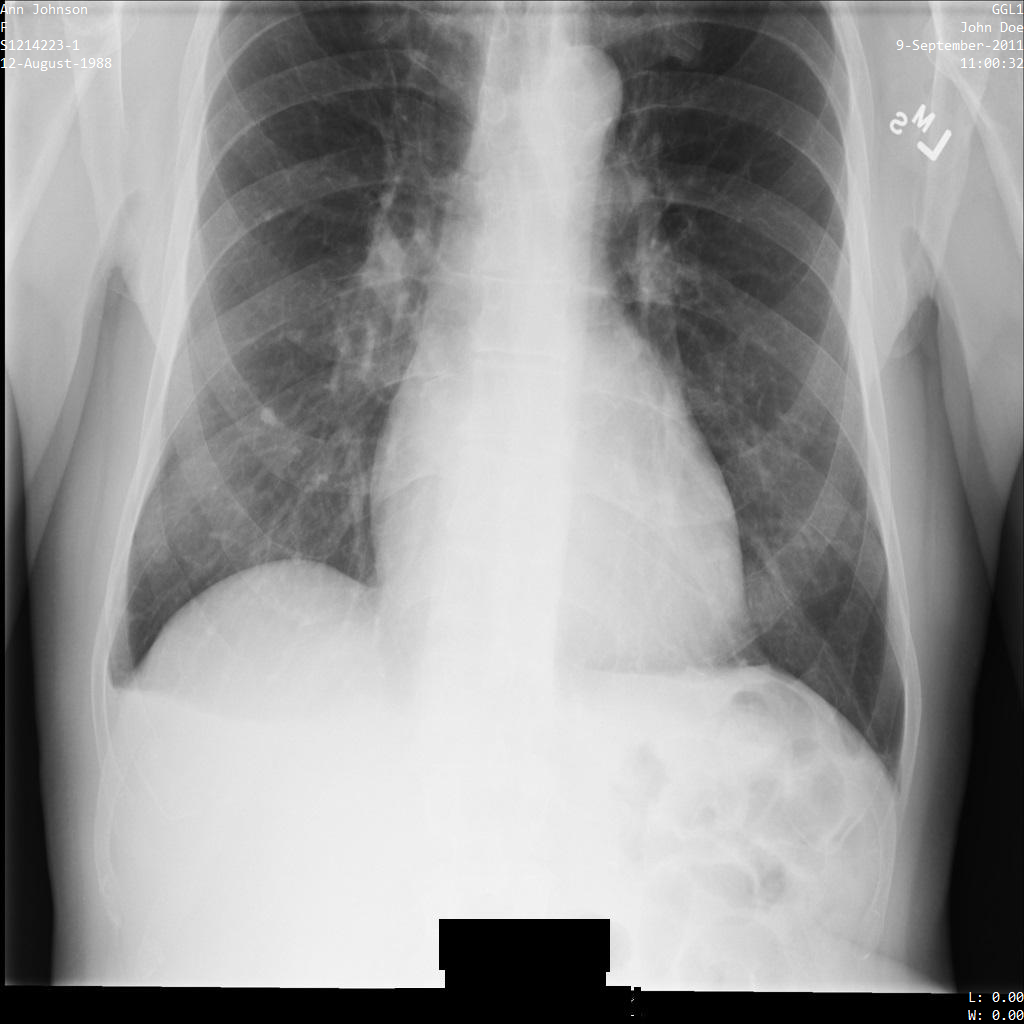
### REST
1. De-identify the dataset.
Before using any of the request data,
make the following replacements:
- PROJECT_ID: the ID of your Google Cloud project
- LOCATION: the dataset location
- SOURCE_DATASET_ID: the ID of the dataset containing the data to de-identify
- DESTINATION_DATASET_ID: the ID of the destination dataset where de-identified data is written
Request JSON body:
```
{
"destinationDataset": "projects/PROJECT_ID/locations/LOCATION/datasets/DESTINATION_DATASET_ID",
"config": {
"dicom": {},
"image": {
"textRedactionMode": "REDACT_ALL_TEXT"
}
}
}
```
To send your request, choose one of these options:
#### curl
> [!NOTE]
> **Note:** The following command assumes that you have logged in to the `gcloud` CLI with your user account by running [`gcloud init`](https://docs.cloud.google.com/sdk/gcloud/reference/init) or [`gcloud auth login`](https://docs.cloud.google.com/sdk/gcloud/reference/auth/login.md.txt) , or by using [Cloud Shell](https://docs.cloud.google.com/shell/docs.md.txt), which automatically logs you into the `gcloud` CLI . You can check the currently active account by running [`gcloud auth list`](https://docs.cloud.google.com/sdk/gcloud/reference/auth/list.md.txt).
Save the request body in a file named `request.json`.
Run the following command in the terminal to create or overwrite
this file in the current directory:
```
cat > request.json << 'EOF'
{
"destinationDataset": "projects/PROJECT_ID/locations/LOCATION/datasets/DESTINATION_DATASET_ID",
"config": {
"dicom": {},
"image": {
"textRedactionMode": "REDACT_ALL_TEXT"
}
}
}
EOF
```
Then execute the following command to send your REST request:
```
curl -X POST \
-H "Authorization: Bearer $(gcloud auth print-access-token)" \
-H "Content-Type: application/json; charset=utf-8" \
-d @request.json \
"https://healthcare.googleapis.com/v1/projects/PROJECT_ID/locations/LOCATION/datasets/SOURCE_DATASET_ID:deidentify"
```
#### PowerShell
> [!NOTE]
> **Note:** The following command assumes that you have logged in to the `gcloud` CLI with your user account by running [`gcloud init`](https://docs.cloud.google.com/sdk/gcloud/reference/init) or [`gcloud auth login`](https://docs.cloud.google.com/sdk/gcloud/reference/auth/login.md.txt) . You can check the currently active account by running [`gcloud auth list`](https://docs.cloud.google.com/sdk/gcloud/reference/auth/list.md.txt).
Save the request body in a file named `request.json`.
Run the following command in the terminal to create or overwrite
this file in the current directory:
```
@'
{
"destinationDataset": "projects/PROJECT_ID/locations/LOCATION/datasets/DESTINATION_DATASET_ID",
"config": {
"dicom": {},
"image": {
"textRedactionMode": "REDACT_ALL_TEXT"
}
}
}
'@ | Out-File -FilePath request.json -Encoding utf8
```
Then execute the following command to send your REST request:
```
$cred = gcloud auth print-access-token
$headers = @{ "Authorization" = "Bearer $cred" }
Invoke-WebRequest `
-Method POST `
-Headers $headers `
-ContentType: "application/json; charset=utf-8" `
-InFile request.json `
-Uri "https://healthcare.googleapis.com/v1/projects/PROJECT_ID/locations/LOCATION/datasets/SOURCE_DATASET_ID:deidentify" | Select-Object -Expand Content
```
The output is the following. The response contains an identifier for a [long-running operation](https://docs.cloud.google.com/healthcare-api/docs/reference/rest/v1/projects.locations.datasets.operations.md.txt). Long-running operations are returned when method calls might take a substantial amount of time to complete. Note the value of OPERATION_ID. You need this value in the next step.
#### Response
```
{
"name": "projects/PROJECT_ID/locations/LOCATION/datasets/SOURCE_DATASET_ID/operations/OPERATION_ID"
}
```
2. Use the [`projects.locations.datasets.operations.get`](https://docs.cloud.google.com/healthcare-api/docs/reference/rest/v1/projects.locations.datasets.operations/get.md.txt) method to get the status of the long-running operation.
Before using any of the request data,
make the following replacements:
- PROJECT_ID: the ID of your Google Cloud project
- DATASET_ID: the dataset ID
- LOCATION: the dataset location
- OPERATION_ID: the ID returned from the long-running operation
To send your request, choose one of these options:
#### curl
> [!NOTE]
> **Note:** The following command assumes that you have logged in to the `gcloud` CLI with your user account by running [`gcloud init`](https://docs.cloud.google.com/sdk/gcloud/reference/init) or [`gcloud auth login`](https://docs.cloud.google.com/sdk/gcloud/reference/auth/login.md.txt) , or by using [Cloud Shell](https://docs.cloud.google.com/shell/docs.md.txt), which automatically logs you into the `gcloud` CLI . You can check the currently active account by running [`gcloud auth list`](https://docs.cloud.google.com/sdk/gcloud/reference/auth/list.md.txt).
Execute the following command:
```
curl -X GET \
-H "Authorization: Bearer $(gcloud auth print-access-token)" \
"https://healthcare.googleapis.com/v1/projects/PROJECT_ID/locations/LOCATION/datasets/DATASET_ID/operations/OPERATION_ID"
```
#### PowerShell
> [!NOTE]
> **Note:** The following command assumes that you have logged in to the `gcloud` CLI with your user account by running [`gcloud init`](https://docs.cloud.google.com/sdk/gcloud/reference/init) or [`gcloud auth login`](https://docs.cloud.google.com/sdk/gcloud/reference/auth/login.md.txt) . You can check the currently active account by running [`gcloud auth list`](https://docs.cloud.google.com/sdk/gcloud/reference/auth/list.md.txt).
Execute the following command:
```
$cred = gcloud auth print-access-token
$headers = @{ "Authorization" = "Bearer $cred" }
Invoke-WebRequest `
-Method GET `
-Headers $headers `
-Uri "https://healthcare.googleapis.com/v1/projects/PROJECT_ID/locations/LOCATION/datasets/DATASET_ID/operations/OPERATION_ID" | Select-Object -Expand Content
```
#### APIs Explorer
Open the
[method reference page](https://docs.cloud.google.com/healthcare-api/docs/reference/rest/v1/projects.locations.datasets.operations/get.md.txt).
The APIs Explorer panel opens on the right side of the page.
You can interact with this tool to send requests.
Complete any required fields and click **Execute**.
The output is the following. When the response contains `"done": true`, the long-running operation has finished.
#### Response
```
{
"name": "projects/PROJECT_ID/locations/SOURCE_DATASET_LOCATION/datasets/SOURCE_DATASET_ID/operations/OPERATION_ID",
"metadata": {
"@type": "type.googleapis.com/google.cloud.healthcare.v1.OperationMetadata",
"apiMethodName": "google.cloud.healthcare.v1.deidentify.DeidentifyService.DeidentifyDicomStore",
"createTime": "YYYY-MM-DDTHH:MM:SS+ZZ:ZZ",
"endTime": "YYYY-MM-DDTHH:MM:SS+ZZ:ZZ",
"logsUrl": "https://console.cloud.google.com/CLOUD_LOGGING_URL"
"counter": {
"success": "SUCCESS_COUNT",
// If there were any failures, they display in the `failure` field.
"failure": "FAILURE_COUNT"
}
},
"done": true,
// The `response` field only displays if there were no errors.
"response": {
"@type": "type.googleapis.com/google.cloud.healthcare.v1.deidentify.DeidentifySummary",
},
// If there were any errors, an `error` field displays instead of a `response` field.
// See Troubleshooting long-running operations for a list of response codes.
"error": {
"code": ERROR_CODE,
"message": "DESCRIPTION",
"details": [
{
"@type": "...",
FIELD1: ...,
...
}
]
}
}
```
3. After the de-identification succeeds, you can retrieve the metadata for the de-identified instance to see how it changed. The de-identified instance has a new studies UID, series UID, and instances UID, so you first need to search the new dataset for the de-identified instance.
Before using any of the request data,
make the following replacements:
- PROJECT_ID: the ID of your Google Cloud project
- SOURCE_DATASET_LOCATION: the source dataset location
- DESTINATION_DATASET_ID: the ID of the destination dataset where de-identified data is written
- DESTINATION_DICOM_STORE_ID: the ID of the DICOM store in the destination dataset. This is the same as the ID of the DICOM store in the source dataset.
To send your request, choose one of these options:
#### curl
> [!NOTE]
> **Note:** The following command assumes that you have logged in to the `gcloud` CLI with your user account by running [`gcloud init`](https://docs.cloud.google.com/sdk/gcloud/reference/init) or [`gcloud auth login`](https://docs.cloud.google.com/sdk/gcloud/reference/auth/login.md.txt) , or by using [Cloud Shell](https://docs.cloud.google.com/shell/docs.md.txt), which automatically logs you into the `gcloud` CLI . You can check the currently active account by running [`gcloud auth list`](https://docs.cloud.google.com/sdk/gcloud/reference/auth/list.md.txt).
Execute the following command:
```
curl -X GET \
-H "Authorization: Bearer $(gcloud auth print-access-token)" \
"https://healthcare.googleapis.com/v1/projects/PROJECT_ID/locations/SOURCE_DATASET_LOCATION/datasets/DESTINATION_DATASET_ID/dicomStores/DESTINATION_DICOM_STORE_ID/dicomWeb/instances"
```
#### PowerShell
> [!NOTE]
> **Note:** The following command assumes that you have logged in to the `gcloud` CLI with your user account by running [`gcloud init`](https://docs.cloud.google.com/sdk/gcloud/reference/init) or [`gcloud auth login`](https://docs.cloud.google.com/sdk/gcloud/reference/auth/login.md.txt) . You can check the currently active account by running [`gcloud auth list`](https://docs.cloud.google.com/sdk/gcloud/reference/auth/list.md.txt).
Execute the following command:
```
$cred = gcloud auth print-access-token
$headers = @{ "Authorization" = "Bearer $cred" }
Invoke-WebRequest `
-Method GET `
-Headers $headers `
-Uri "https://healthcare.googleapis.com/v1/projects/PROJECT_ID/locations/SOURCE_DATASET_LOCATION/datasets/DESTINATION_DATASET_ID/dicomStores/DESTINATION_DICOM_STORE_ID/dicomWeb/instances" | Select-Object -Expand Content
```
#### APIs Explorer
Open the
[method reference page](https://docs.cloud.google.com/healthcare-api/docs/reference/rest/v1/projects.locations.datasets.dicomStores/searchForInstances.md.txt).
The APIs Explorer panel opens on the right side of the page.
You can interact with this tool to send requests.
Complete any required fields and click **Execute**.
You should receive a JSON response similar to the following:
#### Response
```
[
{
"00080005":{"vr":"CS"},
"00080016":{"vr":"UI"},
"00080018":{"vr":"UI","Value":["1.3.6.1.4.1.11129.5.1.97415866390999888717168863957686758029"]},
"00080020":{"vr":"DA"},
"00080030":{"vr":"TM"},
"00080050":{"vr":"SH"},
"00080090":{"vr":"PN"},
"00100010":{"vr":"PN"},
"00100020":{"vr":"LO","Value":["S1214223-1"]},
"00100030":{"vr":"DA"},
"00100040":{"vr":"CS"},
"0020000D":{"vr":"UI","Value":["1.3.6.1.4.1.11129.5.1.201854290391432893460946240745559593763"]},
"0020000E":{"vr":"UI","Value":["1.3.6.1.4.1.11129.5.1.303327499491957026103380014864616068710"]},
"00200010":{"vr":"SH"},
"00200013":{"vr":"IS"},
"00280010":{"vr":"US","Value":[1024]},
"00280011":{"vr":"US","Value":[1024]},
"00280100":{"vr":"US","Value":[8]}
}
]
```
The following table shows how the studies UID, series UID, and instances UID changed:
| | Original instance metadata | De-identified instance metadata |
|---|---|---|
| Studies UID (`0020000D`) | `2.25.70541616638819138568043293671559322355` | `1.3.6.1.4.1.11129.5.1.201854290391432893460946240745559593763` |
| Series UID (`0020000E`) | `1.2.276.0.7230010.3.1.3.8323329.78.1531234558.523694` | `1.3.6.1.4.1.11129.5.1.303327499491957026103380014864616068710` |
| Instances UID (`00080018`) | `1.2.276.0.7230010.3.1.4.8323329.78.1539083058.523695` | `1.3.6.1.4.1.11129.5.1.97415866390999888717168863957686758029` |
### Redacting only sensitive burnt-in text from an image
The following samples show how to redact sensitive burnt-in text from DICOM images
in a dataset. This is done by specifying `REDACT_SENSITIVE_TEXT` in the
`TextRedactionMode` field.
The infoTypes specified in the [default DICOM infoTypes](https://docs.cloud.google.com/healthcare-api/docs/how-tos/dicom-deidentify.md.txt#default_dicom_infotypes)
are redacted when `REDACT_SENSITIVE_TEXT` is specified. Two additional custom
infoTypes are also applied for the redaction of:
- Patient identifiers, such as Medical Record Numbers (MRNs)
- Accession numbers
The following image shows an unredacted x-ray of a patient:
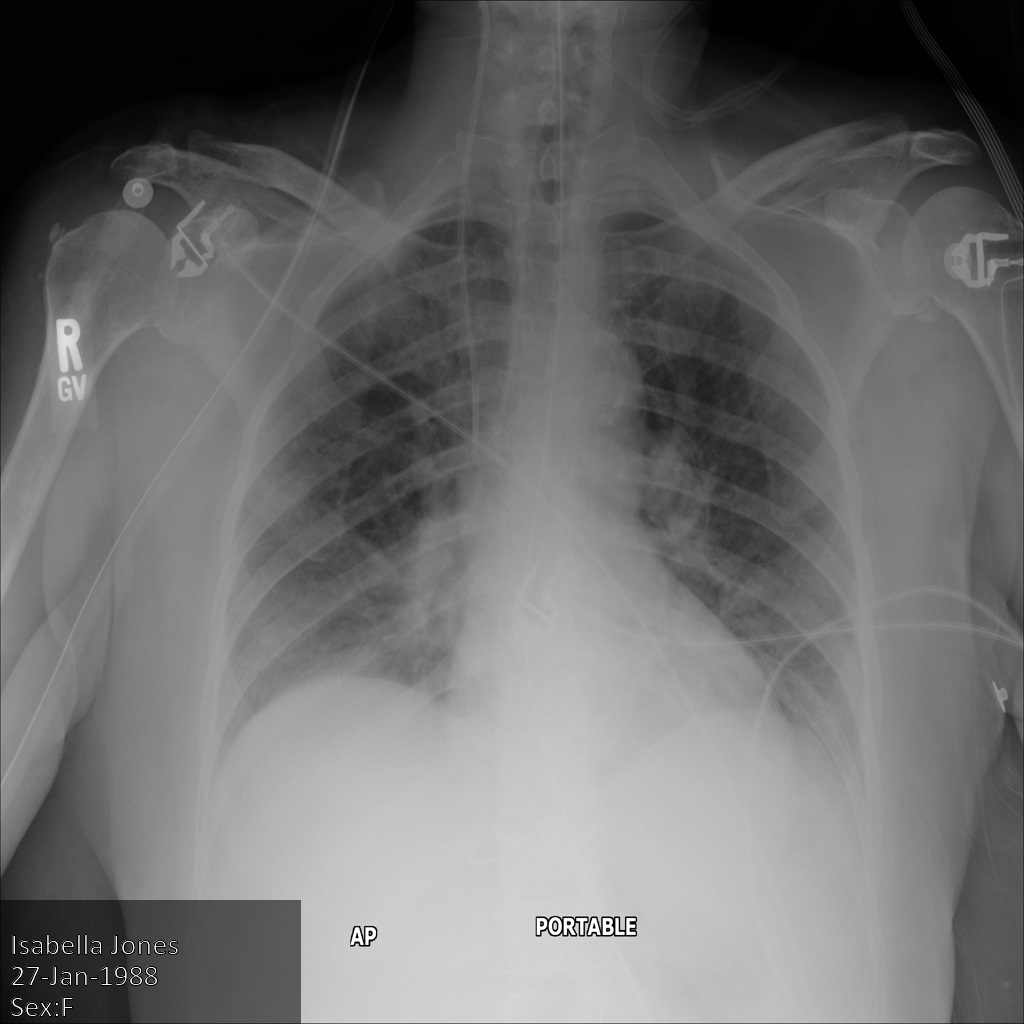
After submitting the image to the Cloud Healthcare API using
the `REDACT_SENSITIVE_TEXT` option, the
image appears as follows:
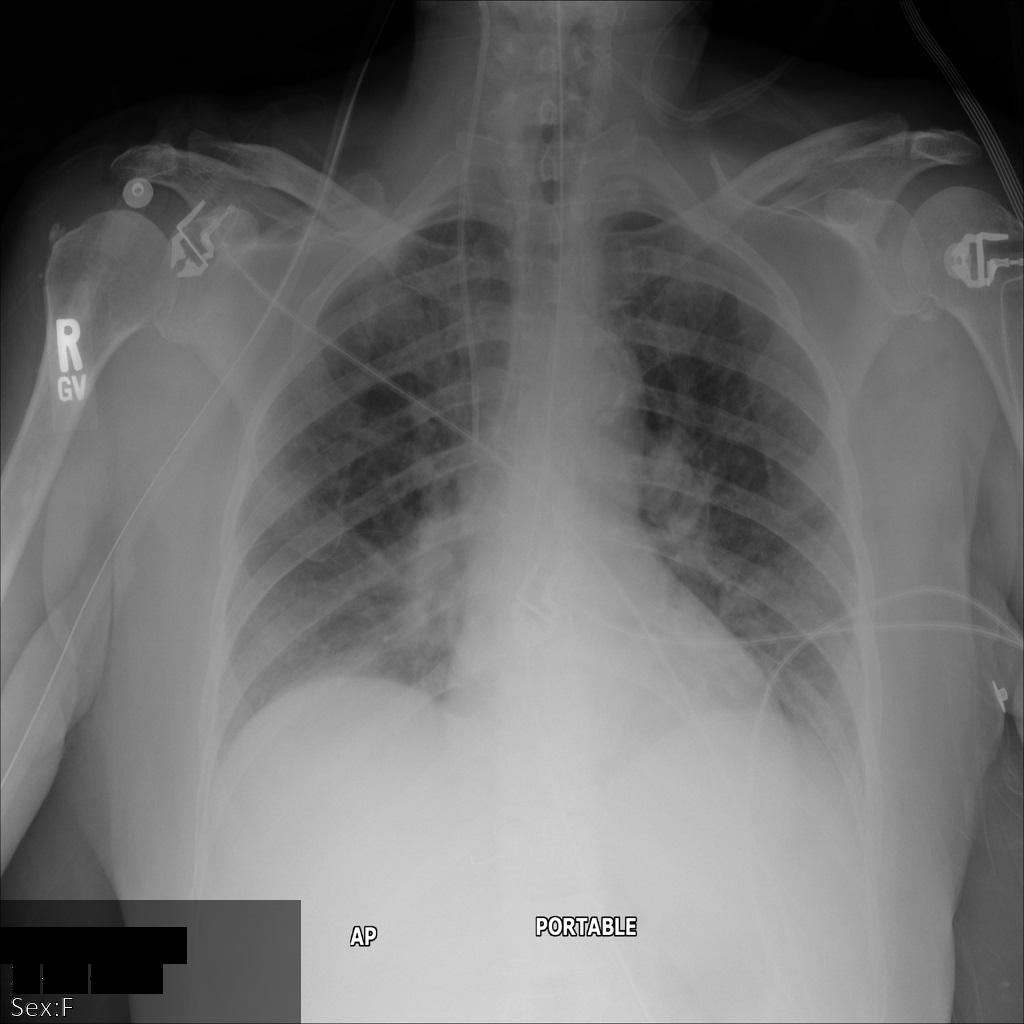
You can see that the following occurred:
- The `PERSON_NAME` in the bottom left of the image was redacted
- The `DATE` in the bottom left of the image was redacted
The patient's sex was not redacted because it is not considered to be
sensitive text according to the [default DICOM infoTypes](https://docs.cloud.google.com/healthcare-api/docs/how-tos/dicom-deidentify.md.txt#default_dicom_infotypes).
### REST
1. De-identify the dataset.
Before using any of the request data,
make the following replacements:
- PROJECT_ID: the ID of your Google Cloud project
- LOCATION: the dataset location
- SOURCE_DATASET_ID: the ID of the dataset containing the data to de-identify
- DESTINATION_DATASET_ID: the ID of the destination dataset where de-identified data is written
Request JSON body:
```
{
"destinationDataset": "projects/PROJECT_ID/locations/LOCATION/datasets/DESTINATION_DATASET_ID",
"config": {
"dicom": {},
"image": {
"textRedactionMode": "REDACT_SENSITIVE_TEXT"
}
}
}
```
To send your request, choose one of these options:
#### curl
> [!NOTE]
> **Note:** The following command assumes that you have logged in to the `gcloud` CLI with your user account by running [`gcloud init`](https://docs.cloud.google.com/sdk/gcloud/reference/init) or [`gcloud auth login`](https://docs.cloud.google.com/sdk/gcloud/reference/auth/login.md.txt) , or by using [Cloud Shell](https://docs.cloud.google.com/shell/docs.md.txt), which automatically logs you into the `gcloud` CLI . You can check the currently active account by running [`gcloud auth list`](https://docs.cloud.google.com/sdk/gcloud/reference/auth/list.md.txt).
Save the request body in a file named `request.json`.
Run the following command in the terminal to create or overwrite
this file in the current directory:
```
cat > request.json << 'EOF'
{
"destinationDataset": "projects/PROJECT_ID/locations/LOCATION/datasets/DESTINATION_DATASET_ID",
"config": {
"dicom": {},
"image": {
"textRedactionMode": "REDACT_SENSITIVE_TEXT"
}
}
}
EOF
```
Then execute the following command to send your REST request:
```
curl -X POST \
-H "Authorization: Bearer $(gcloud auth print-access-token)" \
-H "Content-Type: application/json; charset=utf-8" \
-d @request.json \
"https://healthcare.googleapis.com/v1/projects/PROJECT_ID/locations/LOCATION/datasets/SOURCE_DATASET_ID:deidentify"
```
#### PowerShell
> [!NOTE]
> **Note:** The following command assumes that you have logged in to the `gcloud` CLI with your user account by running [`gcloud init`](https://docs.cloud.google.com/sdk/gcloud/reference/init) or [`gcloud auth login`](https://docs.cloud.google.com/sdk/gcloud/reference/auth/login.md.txt) . You can check the currently active account by running [`gcloud auth list`](https://docs.cloud.google.com/sdk/gcloud/reference/auth/list.md.txt).
Save the request body in a file named `request.json`.
Run the following command in the terminal to create or overwrite
this file in the current directory:
```
@'
{
"destinationDataset": "projects/PROJECT_ID/locations/LOCATION/datasets/DESTINATION_DATASET_ID",
"config": {
"dicom": {},
"image": {
"textRedactionMode": "REDACT_SENSITIVE_TEXT"
}
}
}
'@ | Out-File -FilePath request.json -Encoding utf8
```
Then execute the following command to send your REST request:
```
$cred = gcloud auth print-access-token
$headers = @{ "Authorization" = "Bearer $cred" }
Invoke-WebRequest `
-Method POST `
-Headers $headers `
-ContentType: "application/json; charset=utf-8" `
-InFile request.json `
-Uri "https://healthcare.googleapis.com/v1/projects/PROJECT_ID/locations/LOCATION/datasets/SOURCE_DATASET_ID:deidentify" | Select-Object -Expand Content
```
The output is the following. The response contains an identifier for a [long-running operation](https://docs.cloud.google.com/healthcare-api/docs/reference/rest/v1/projects.locations.datasets.operations.md.txt). Long-running operations are returned when method calls might take a substantial amount of time to complete. Note the value of OPERATION_ID. You need this value in the next step.
#### Response
```
{
"name": "projects/PROJECT_ID/locations/LOCATION/datasets/SOURCE_DATASET_ID/operations/OPERATION_ID"
}
```
2. Use the [`projects.locations.datasets.operations.get`](https://docs.cloud.google.com/healthcare-api/docs/reference/rest/v1/projects.locations.datasets.operations/get.md.txt) method to get the status of the long-running operation.
Before using any of the request data,
make the following replacements:
- PROJECT_ID: the ID of your Google Cloud project
- DATASET_ID: the dataset ID
- LOCATION: the dataset location
- OPERATION_ID: the ID returned from the long-running operation
To send your request, choose one of these options:
#### curl
> [!NOTE]
> **Note:** The following command assumes that you have logged in to the `gcloud` CLI with your user account by running [`gcloud init`](https://docs.cloud.google.com/sdk/gcloud/reference/init) or [`gcloud auth login`](https://docs.cloud.google.com/sdk/gcloud/reference/auth/login.md.txt) , or by using [Cloud Shell](https://docs.cloud.google.com/shell/docs.md.txt), which automatically logs you into the `gcloud` CLI . You can check the currently active account by running [`gcloud auth list`](https://docs.cloud.google.com/sdk/gcloud/reference/auth/list.md.txt).
Execute the following command:
```
curl -X GET \
-H "Authorization: Bearer $(gcloud auth print-access-token)" \
"https://healthcare.googleapis.com/v1/projects/PROJECT_ID/locations/LOCATION/datasets/DATASET_ID/operations/OPERATION_ID"
```
#### PowerShell
> [!NOTE]
> **Note:** The following command assumes that you have logged in to the `gcloud` CLI with your user account by running [`gcloud init`](https://docs.cloud.google.com/sdk/gcloud/reference/init) or [`gcloud auth login`](https://docs.cloud.google.com/sdk/gcloud/reference/auth/login.md.txt) . You can check the currently active account by running [`gcloud auth list`](https://docs.cloud.google.com/sdk/gcloud/reference/auth/list.md.txt).
Execute the following command:
```
$cred = gcloud auth print-access-token
$headers = @{ "Authorization" = "Bearer $cred" }
Invoke-WebRequest `
-Method GET `
-Headers $headers `
-Uri "https://healthcare.googleapis.com/v1/projects/PROJECT_ID/locations/LOCATION/datasets/DATASET_ID/operations/OPERATION_ID" | Select-Object -Expand Content
```
#### APIs Explorer
Open the
[method reference page](https://docs.cloud.google.com/healthcare-api/docs/reference/rest/v1/projects.locations.datasets.operations/get.md.txt).
The APIs Explorer panel opens on the right side of the page.
You can interact with this tool to send requests.
Complete any required fields and click **Execute**.
The output is the following. When the response contains `"done": true`, the long-running operation has finished.
#### Response
```
{
"name": "projects/PROJECT_ID/locations/SOURCE_DATASET_LOCATION/datasets/SOURCE_DATASET_ID/operations/OPERATION_ID",
"metadata": {
"@type": "type.googleapis.com/google.cloud.healthcare.v1.OperationMetadata",
"apiMethodName": "google.cloud.healthcare.v1.deidentify.DeidentifyService.DeidentifyDicomStore",
"createTime": "YYYY-MM-DDTHH:MM:SS+ZZ:ZZ",
"endTime": "YYYY-MM-DDTHH:MM:SS+ZZ:ZZ",
"logsUrl": "https://console.cloud.google.com/CLOUD_LOGGING_URL"
"counter": {
"success": "SUCCESS_COUNT",
// If there were any failures, they display in the `failure` field.
"failure": "FAILURE_COUNT"
}
},
"done": true,
// The `response` field only displays if there were no errors.
"response": {
"@type": "type.googleapis.com/google.cloud.healthcare.v1.deidentify.DeidentifySummary",
},
// If there were any errors, an `error` field displays instead of a `response` field.
// See Troubleshooting long-running operations for a list of response codes.
"error": {
"code": ERROR_CODE,
"message": "DESCRIPTION",
"details": [
{
"@type": "...",
FIELD1: ...,
...
}
]
}
}
```
3. After the de-identification succeeds, you can retrieve the metadata for the de-identified instance to see how it changed. The de-identified instance has a new studies UID, series UID, and instances UID, so you first need to search the new dataset for the de-identified instance.
Before using any of the request data,
make the following replacements:
- PROJECT_ID: the ID of your Google Cloud project
- SOURCE_DATASET_LOCATION: the source dataset location
- DESTINATION_DATASET_ID: the ID of the destination dataset where de-identified data is written
- DESTINATION_DICOM_STORE_ID: the ID of the DICOM store in the destination dataset. This is the same as the ID of the DICOM store in the source dataset.
To send your request, choose one of these options:
#### curl
> [!NOTE]
> **Note:** The following command assumes that you have logged in to the `gcloud` CLI with your user account by running [`gcloud init`](https://docs.cloud.google.com/sdk/gcloud/reference/init) or [`gcloud auth login`](https://docs.cloud.google.com/sdk/gcloud/reference/auth/login.md.txt) , or by using [Cloud Shell](https://docs.cloud.google.com/shell/docs.md.txt), which automatically logs you into the `gcloud` CLI . You can check the currently active account by running [`gcloud auth list`](https://docs.cloud.google.com/sdk/gcloud/reference/auth/list.md.txt).
Execute the following command:
```
curl -X GET \
-H "Authorization: Bearer $(gcloud auth print-access-token)" \
"https://healthcare.googleapis.com/v1/projects/PROJECT_ID/locations/SOURCE_DATASET_LOCATION/datasets/DESTINATION_DATASET_ID/dicomStores/DESTINATION_DICOM_STORE_ID/dicomWeb/instances"
```
#### PowerShell
> [!NOTE]
> **Note:** The following command assumes that you have logged in to the `gcloud` CLI with your user account by running [`gcloud init`](https://docs.cloud.google.com/sdk/gcloud/reference/init) or [`gcloud auth login`](https://docs.cloud.google.com/sdk/gcloud/reference/auth/login.md.txt) . You can check the currently active account by running [`gcloud auth list`](https://docs.cloud.google.com/sdk/gcloud/reference/auth/list.md.txt).
Execute the following command:
```
$cred = gcloud auth print-access-token
$headers = @{ "Authorization" = "Bearer $cred" }
Invoke-WebRequest `
-Method GET `
-Headers $headers `
-Uri "https://healthcare.googleapis.com/v1/projects/PROJECT_ID/locations/SOURCE_DATASET_LOCATION/datasets/DESTINATION_DATASET_ID/dicomStores/DESTINATION_DICOM_STORE_ID/dicomWeb/instances" | Select-Object -Expand Content
```
#### APIs Explorer
Open the
[method reference page](https://docs.cloud.google.com/healthcare-api/docs/reference/rest/v1/projects.locations.datasets.dicomStores/searchForInstances.md.txt).
The APIs Explorer panel opens on the right side of the page.
You can interact with this tool to send requests.
Complete any required fields and click **Execute**.
You should receive a JSON response similar to the following:
#### Response
```
[
{
"00080005":{"vr":"CS"},
"00080016":{"vr":"UI"},
"00080018":{"vr":"UI","Value":["1.3.6.1.4.1.11129.5.1.97415866390999888717168863957686758029"]},
"00080020":{"vr":"DA"},
"00080030":{"vr":"TM"},
"00080050":{"vr":"SH"},
"00080090":{"vr":"PN"},
"00100010":{"vr":"PN"},
"00100020":{"vr":"LO","Value":["S1214223-1"]},
"00100030":{"vr":"DA"},
"00100040":{"vr":"CS"},
"0020000D":{"vr":"UI","Value":["1.3.6.1.4.1.11129.5.1.201854290391432893460946240745559593763"]},
"0020000E":{"vr":"UI","Value":["1.3.6.1.4.1.11129.5.1.303327499491957026103380014864616068710"]},
"00200010":{"vr":"SH"},
"00200013":{"vr":"IS"},
"00280010":{"vr":"US","Value":[1024]},
"00280011":{"vr":"US","Value":[1024]},
"00280100":{"vr":"US","Value":[8]}
}
]
```
The following table shows how the studies UID, series UID, and instances UID changed:
| | Original instance metadata | De-identified instance metadata |
|---|---|---|
| Studies UID (`0020000D`) | `2.25.70541616638819138568043293671559322355` | `1.3.6.1.4.1.11129.5.1.201854290391432893460946240745559593763` |
| Series UID (`0020000E`) | `1.2.276.0.7230010.3.1.3.8323329.78.1531234558.523694` | `1.3.6.1.4.1.11129.5.1.303327499491957026103380014864616068710` |
| Instances UID (`00080018`) | `1.2.276.0.7230010.3.1.4.8323329.78.1539083058.523695` | `1.3.6.1.4.1.11129.5.1.97415866390999888717168863957686758029` |
### Redacting burnt-in text using custom regular expressions
When `textRedactionMode` is set to `REDACT_SENSITIVE_TEXT`, you can also specify
custom regular expression patterns in the `customRegexes` field of the
[`ImageConfig`](https://docs.cloud.google.com/healthcare-api/docs/reference/rest/v1/projects.locations.datasets.fhirStores.md.txt#ImageConfig)
object to detect and redact matching burnt-in text in DICOM images. Each item in
`customRegexes` can include the following fields:
- `pattern`: The regular expression pattern to match against text detected in the image. The pattern must use [RE2 syntax](https://github.com/google/re2/wiki/Syntax). RE2 doesn't support some constructs, such as lookahead and lookbehind assertions.
- `groupIndexes`: Optional list of capturing group indexes to redact when the pattern matches. If omitted, the entire match is redacted. The following rules apply:
- You can specify a maximum of three group indexes for each custom regular expression.
- Index `0` redacts the entire match and can't be combined with other indexes.
- Indexes `1` and higher refer to the capturing groups in `pattern`, in order. Each index must not exceed the number of capturing groups in `pattern`.
If a pattern isn't valid, the request fails with an `INVALID_ARGUMENT` error.
> [!NOTE]
> **Note:** Even when only configuring `image` redaction, you must include the `dicom` field (for example, `"dicom": {}`) in `DeidentifyConfig` so that the API processes DICOM resources. When `"dicom": {}` is empty, DICOM metadata tags are kept as-is (`KEEP_ALL_PROFILE`).
The following samples show how to de-identify a dataset or a DICOM store using a custom regular expression:
### REST
1. De-identify the dataset or DICOM store using a custom regular expression.
To de-identify all DICOM stores in a dataset (`datasets.deidentify`):
Before using any of the request data,
make the following replacements:
- PROJECT_ID: the ID of your Google Cloud project
- LOCATION: the dataset location
- SOURCE_DATASET_ID: the ID of the dataset containing the data to de-identify
- DESTINATION_DATASET_ID: the ID of the destination dataset where de-identified data is written
Request JSON body:
```
{
"destinationDataset": "projects/PROJECT_ID/locations/LOCATION/datasets/DESTINATION_DATASET_ID",
"config": {
"dicom": {},
"image": {
"textRedactionMode": "REDACT_SENSITIVE_TEXT",
"customRegexes": [
{
"pattern": "MRN:\\s*([0-9]{4,10})",
"groupIndexes": [1]
}
]
}
}
}
```
To send your request, choose one of these options:
#### curl
> [!NOTE]
> **Note:** The following command assumes that you have logged in to the `gcloud` CLI with your user account by running [`gcloud init`](https://docs.cloud.google.com/sdk/gcloud/reference/init) or [`gcloud auth login`](https://docs.cloud.google.com/sdk/gcloud/reference/auth/login.md.txt) , or by using [Cloud Shell](https://docs.cloud.google.com/shell/docs.md.txt), which automatically logs you into the `gcloud` CLI . You can check the currently active account by running [`gcloud auth list`](https://docs.cloud.google.com/sdk/gcloud/reference/auth/list.md.txt).
Save the request body in a file named `request.json`.
Run the following command in the terminal to create or overwrite
this file in the current directory:
```
cat > request.json << 'EOF'
{
"destinationDataset": "projects/PROJECT_ID/locations/LOCATION/datasets/DESTINATION_DATASET_ID",
"config": {
"dicom": {},
"image": {
"textRedactionMode": "REDACT_SENSITIVE_TEXT",
"customRegexes": [
{
"pattern": "MRN:\\s*([0-9]{4,10})",
"groupIndexes": [1]
}
]
}
}
}
EOF
```
Then execute the following command to send your REST request:
```
curl -X POST \
-H "Authorization: Bearer $(gcloud auth print-access-token)" \
-H "Content-Type: application/json; charset=utf-8" \
-d @request.json \
"https://healthcare.googleapis.com/v1/projects/PROJECT_ID/locations/LOCATION/datasets/SOURCE_DATASET_ID:deidentify"
```
#### PowerShell
> [!NOTE]
> **Note:** The following command assumes that you have logged in to the `gcloud` CLI with your user account by running [`gcloud init`](https://docs.cloud.google.com/sdk/gcloud/reference/init) or [`gcloud auth login`](https://docs.cloud.google.com/sdk/gcloud/reference/auth/login.md.txt) . You can check the currently active account by running [`gcloud auth list`](https://docs.cloud.google.com/sdk/gcloud/reference/auth/list.md.txt).
Save the request body in a file named `request.json`.
Run the following command in the terminal to create or overwrite
this file in the current directory:
```
@'
{
"destinationDataset": "projects/PROJECT_ID/locations/LOCATION/datasets/DESTINATION_DATASET_ID",
"config": {
"dicom": {},
"image": {
"textRedactionMode": "REDACT_SENSITIVE_TEXT",
"customRegexes": [
{
"pattern": "MRN:\\s*([0-9]{4,10})",
"groupIndexes": [1]
}
]
}
}
}
'@ | Out-File -FilePath request.json -Encoding utf8
```
Then execute the following command to send your REST request:
```
$cred = gcloud auth print-access-token
$headers = @{ "Authorization" = "Bearer $cred" }
Invoke-WebRequest `
-Method POST `
-Headers $headers `
-ContentType: "application/json; charset=utf-8" `
-InFile request.json `
-Uri "https://healthcare.googleapis.com/v1/projects/PROJECT_ID/locations/LOCATION/datasets/SOURCE_DATASET_ID:deidentify" | Select-Object -Expand Content
```
The output is the following. The response contains an identifier for a [long-running operation](https://docs.cloud.google.com/healthcare-api/docs/reference/rest/v1/projects.locations.datasets.operations.md.txt). Long-running operations are returned when method calls might take a substantial amount of time to complete. Note the value of OPERATION_ID. You need this value in the next step.
#### Response
```
{
"name": "projects/PROJECT_ID/locations/LOCATION/datasets/SOURCE_DATASET_ID/operations/OPERATION_ID"
}
```
To de-identify a single DICOM store (`datasets.dicomStores.deidentify`):
Before using any of the request data,
make the following replacements:
- PROJECT_ID: the ID of your Google Cloud project
- LOCATION: the dataset location
- SOURCE_DATASET_ID: the ID of the dataset containing the data to de-identify
- DESTINATION_DATASET_ID: the ID of the destination dataset where de-identified data is written
- SOURCE_DICOM_STORE_ID: the ID of the DICOM store containing the data to de-identify
- DESTINATION_DICOM_STORE_ID: the ID of the DICOM store in the destination dataset
Request JSON body:
```
{
"destinationStore": "projects/PROJECT_ID/locations/LOCATION/datasets/DESTINATION_DATASET_ID/dicomStores/DESTINATION_DICOM_STORE_ID",
"config": {
"dicom": {},
"image": {
"textRedactionMode": "REDACT_SENSITIVE_TEXT",
"customRegexes": [
{
"pattern": "MRN:\\s*([0-9]{4,10})",
"groupIndexes": [1]
}
]
}
}
}
```
To send your request, choose one of these options:
#### curl
> [!NOTE]
> **Note:** The following command assumes that you have logged in to the `gcloud` CLI with your user account by running [`gcloud init`](https://docs.cloud.google.com/sdk/gcloud/reference/init) or [`gcloud auth login`](https://docs.cloud.google.com/sdk/gcloud/reference/auth/login.md.txt) , or by using [Cloud Shell](https://docs.cloud.google.com/shell/docs.md.txt), which automatically logs you into the `gcloud` CLI . You can check the currently active account by running [`gcloud auth list`](https://docs.cloud.google.com/sdk/gcloud/reference/auth/list.md.txt).
Save the request body in a file named `request.json`.
Run the following command in the terminal to create or overwrite
this file in the current directory:
```
cat > request.json << 'EOF'
{
"destinationStore": "projects/PROJECT_ID/locations/LOCATION/datasets/DESTINATION_DATASET_ID/dicomStores/DESTINATION_DICOM_STORE_ID",
"config": {
"dicom": {},
"image": {
"textRedactionMode": "REDACT_SENSITIVE_TEXT",
"customRegexes": [
{
"pattern": "MRN:\\s*([0-9]{4,10})",
"groupIndexes": [1]
}
]
}
}
}
EOF
```
Then execute the following command to send your REST request:
```
curl -X POST \
-H "Authorization: Bearer $(gcloud auth print-access-token)" \
-H "Content-Type: application/json; charset=utf-8" \
-d @request.json \
"https://healthcare.googleapis.com/v1/projects/PROJECT_ID/locations/LOCATION/datasets/SOURCE_DATASET_ID/dicomStores/SOURCE_DICOM_STORE_ID:deidentify"
```
#### PowerShell
> [!NOTE]
> **Note:** The following command assumes that you have logged in to the `gcloud` CLI with your user account by running [`gcloud init`](https://docs.cloud.google.com/sdk/gcloud/reference/init) or [`gcloud auth login`](https://docs.cloud.google.com/sdk/gcloud/reference/auth/login.md.txt) . You can check the currently active account by running [`gcloud auth list`](https://docs.cloud.google.com/sdk/gcloud/reference/auth/list.md.txt).
Save the request body in a file named `request.json`.
Run the following command in the terminal to create or overwrite
this file in the current directory:
```
@'
{
"destinationStore": "projects/PROJECT_ID/locations/LOCATION/datasets/DESTINATION_DATASET_ID/dicomStores/DESTINATION_DICOM_STORE_ID",
"config": {
"dicom": {},
"image": {
"textRedactionMode": "REDACT_SENSITIVE_TEXT",
"customRegexes": [
{
"pattern": "MRN:\\s*([0-9]{4,10})",
"groupIndexes": [1]
}
]
}
}
}
'@ | Out-File -FilePath request.json -Encoding utf8
```
Then execute the following command to send your REST request:
```
$cred = gcloud auth print-access-token
$headers = @{ "Authorization" = "Bearer $cred" }
Invoke-WebRequest `
-Method POST `
-Headers $headers `
-ContentType: "application/json; charset=utf-8" `
-InFile request.json `
-Uri "https://healthcare.googleapis.com/v1/projects/PROJECT_ID/locations/LOCATION/datasets/SOURCE_DATASET_ID/dicomStores/SOURCE_DICOM_STORE_ID:deidentify" | Select-Object -Expand Content
```
The output is the following. The response contains an identifier for a [long-running operation](https://docs.cloud.google.com/healthcare-api/docs/reference/rest/v1/projects.locations.datasets.operations.md.txt). Long-running operations are returned when method calls might take a substantial amount of time to complete. Note the value of OPERATION_ID. You need this value in the next step.
#### Response
```
{
"name": "projects/PROJECT_ID/locations/LOCATION/datasets/SOURCE_DATASET_ID/operations/OPERATION_ID"
}
```
2. Use the [`projects.locations.datasets.operations.get`](https://docs.cloud.google.com/healthcare-api/docs/reference/rest/v1/projects.locations.datasets.operations/get.md.txt) method to get the status of the long-running operation.
Before using any of the request data,
make the following replacements:
- PROJECT_ID: the ID of your Google Cloud project
- DATASET_ID: the dataset ID
- LOCATION: the dataset location
- OPERATION_ID: the ID returned from the long-running operation
To send your request, choose one of these options:
#### curl
> [!NOTE]
> **Note:** The following command assumes that you have logged in to the `gcloud` CLI with your user account by running [`gcloud init`](https://docs.cloud.google.com/sdk/gcloud/reference/init) or [`gcloud auth login`](https://docs.cloud.google.com/sdk/gcloud/reference/auth/login.md.txt) , or by using [Cloud Shell](https://docs.cloud.google.com/shell/docs.md.txt), which automatically logs you into the `gcloud` CLI . You can check the currently active account by running [`gcloud auth list`](https://docs.cloud.google.com/sdk/gcloud/reference/auth/list.md.txt).
Execute the following command:
```
curl -X GET \
-H "Authorization: Bearer $(gcloud auth print-access-token)" \
"https://healthcare.googleapis.com/v1/projects/PROJECT_ID/locations/LOCATION/datasets/DATASET_ID/operations/OPERATION_ID"
```
#### PowerShell
> [!NOTE]
> **Note:** The following command assumes that you have logged in to the `gcloud` CLI with your user account by running [`gcloud init`](https://docs.cloud.google.com/sdk/gcloud/reference/init) or [`gcloud auth login`](https://docs.cloud.google.com/sdk/gcloud/reference/auth/login.md.txt) . You can check the currently active account by running [`gcloud auth list`](https://docs.cloud.google.com/sdk/gcloud/reference/auth/list.md.txt).
Execute the following command:
```
$cred = gcloud auth print-access-token
$headers = @{ "Authorization" = "Bearer $cred" }
Invoke-WebRequest `
-Method GET `
-Headers $headers `
-Uri "https://healthcare.googleapis.com/v1/projects/PROJECT_ID/locations/LOCATION/datasets/DATASET_ID/operations/OPERATION_ID" | Select-Object -Expand Content
```
#### APIs Explorer
Open the
[method reference page](https://docs.cloud.google.com/healthcare-api/docs/reference/rest/v1/projects.locations.datasets.operations/get.md.txt).
The APIs Explorer panel opens on the right side of the page.
You can interact with this tool to send requests.
Complete any required fields and click **Execute**.
The output is the following. When the response contains `"done": true`, the long-running operation has finished.
#### Response
```
{
"name": "projects/PROJECT_ID/locations/SOURCE_DATASET_LOCATION/datasets/SOURCE_DATASET_ID/operations/OPERATION_ID",
"metadata": {
"@type": "type.googleapis.com/google.cloud.healthcare.v1.OperationMetadata",
"apiMethodName": "google.cloud.healthcare.v1.deidentify.DeidentifyService.DeidentifyDicomStore",
"createTime": "YYYY-MM-DDTHH:MM:SS+ZZ:ZZ",
"endTime": "YYYY-MM-DDTHH:MM:SS+ZZ:ZZ",
"logsUrl": "https://console.cloud.google.com/CLOUD_LOGGING_URL"
"counter": {
"success": "SUCCESS_COUNT",
// If there were any failures, they display in the `failure` field.
"failure": "FAILURE_COUNT"
}
},
"done": true,
// The `response` field only displays if there were no errors.
"response": {
"@type": "type.googleapis.com/google.cloud.healthcare.v1.deidentify.DeidentifySummary",
},
// If there were any errors, an `error` field displays instead of a `response` field.
// See Troubleshooting long-running operations for a list of response codes.
"error": {
"code": ERROR_CODE,
"message": "DESCRIPTION",
"details": [
{
"@type": "...",
FIELD1: ...,
...
}
]
}
}
```
3. After the de-identification succeeds, you can retrieve the metadata for the de-identified instance to see how it changed. The de-identified instance has a new studies UID, series UID, and instances UID, so you first need to search the new dataset for the de-identified instance.
Before using any of the request data,
make the following replacements:
- PROJECT_ID: the ID of your Google Cloud project
- SOURCE_DATASET_LOCATION: the source dataset location
- DESTINATION_DATASET_ID: the ID of the destination dataset where de-identified data is written
- DESTINATION_DICOM_STORE_ID: the ID of the DICOM store in the destination dataset. This is the same as the ID of the DICOM store in the source dataset.
To send your request, choose one of these options:
#### curl
> [!NOTE]
> **Note:** The following command assumes that you have logged in to the `gcloud` CLI with your user account by running [`gcloud init`](https://docs.cloud.google.com/sdk/gcloud/reference/init) or [`gcloud auth login`](https://docs.cloud.google.com/sdk/gcloud/reference/auth/login.md.txt) , or by using [Cloud Shell](https://docs.cloud.google.com/shell/docs.md.txt), which automatically logs you into the `gcloud` CLI . You can check the currently active account by running [`gcloud auth list`](https://docs.cloud.google.com/sdk/gcloud/reference/auth/list.md.txt).
Execute the following command:
```
curl -X GET \
-H "Authorization: Bearer $(gcloud auth print-access-token)" \
"https://healthcare.googleapis.com/v1/projects/PROJECT_ID/locations/SOURCE_DATASET_LOCATION/datasets/DESTINATION_DATASET_ID/dicomStores/DESTINATION_DICOM_STORE_ID/dicomWeb/instances"
```
#### PowerShell
> [!NOTE]
> **Note:** The following command assumes that you have logged in to the `gcloud` CLI with your user account by running [`gcloud init`](https://docs.cloud.google.com/sdk/gcloud/reference/init) or [`gcloud auth login`](https://docs.cloud.google.com/sdk/gcloud/reference/auth/login.md.txt) . You can check the currently active account by running [`gcloud auth list`](https://docs.cloud.google.com/sdk/gcloud/reference/auth/list.md.txt).
Execute the following command:
```
$cred = gcloud auth print-access-token
$headers = @{ "Authorization" = "Bearer $cred" }
Invoke-WebRequest `
-Method GET `
-Headers $headers `
-Uri "https://healthcare.googleapis.com/v1/projects/PROJECT_ID/locations/SOURCE_DATASET_LOCATION/datasets/DESTINATION_DATASET_ID/dicomStores/DESTINATION_DICOM_STORE_ID/dicomWeb/instances" | Select-Object -Expand Content
```
#### APIs Explorer
Open the
[method reference page](https://docs.cloud.google.com/healthcare-api/docs/reference/rest/v1/projects.locations.datasets.dicomStores/searchForInstances.md.txt).
The APIs Explorer panel opens on the right side of the page.
You can interact with this tool to send requests.
Complete any required fields and click **Execute**.
You should receive a JSON response similar to the following:
#### Response
```
[
{
"00080005":{"vr":"CS"},
"00080016":{"vr":"UI"},
"00080018":{"vr":"UI","Value":["1.3.6.1.4.1.11129.5.1.97415866390999888717168863957686758029"]},
"00080020":{"vr":"DA"},
"00080030":{"vr":"TM"},
"00080050":{"vr":"SH"},
"00080090":{"vr":"PN"},
"00100010":{"vr":"PN"},
"00100020":{"vr":"LO","Value":["S1214223-1"]},
"00100030":{"vr":"DA"},
"00100040":{"vr":"CS"},
"0020000D":{"vr":"UI","Value":["1.3.6.1.4.1.11129.5.1.201854290391432893460946240745559593763"]},
"0020000E":{"vr":"UI","Value":["1.3.6.1.4.1.11129.5.1.303327499491957026103380014864616068710"]},
"00200010":{"vr":"SH"},
"00200013":{"vr":"IS"},
"00280010":{"vr":"US","Value":[1024]},
"00280011":{"vr":"US","Value":[1024]},
"00280100":{"vr":"US","Value":[8]}
}
]
```
The following table shows how the studies UID, series UID, and instances UID changed:
| | Original instance metadata | De-identified instance metadata |
|---|---|---|
| Studies UID (`0020000D`) | `2.25.70541616638819138568043293671559322355` | `1.3.6.1.4.1.11129.5.1.201854290391432893460946240745559593763` |
| Series UID (`0020000E`) | `1.2.276.0.7230010.3.1.3.8323329.78.1531234558.523694` | `1.3.6.1.4.1.11129.5.1.303327499491957026103380014864616068710` |
| Instances UID (`00080018`) | `1.2.276.0.7230010.3.1.4.8323329.78.1539083058.523695` | `1.3.6.1.4.1.11129.5.1.97415866390999888717168863957686758029` |
## Combining tag de-identification and burnt-in text redaction
You can combine de-identification using tags with redaction of burnt-in text
from images to de-identify DICOM instances at a more granular level. For
example, by combining `REDACT_ALL_TEXT` in the
[`TextRedactionMode`](https://docs.cloud.google.com/healthcare-api/docs/reference/rest/v1/projects.locations.datasets.fhirStores.md.txt#textredactionmode) field with `DEIDENTIFY_TAG_CONTENTS` in the
[`TagFilterProfile`](https://docs.cloud.google.com/healthcare-api/docs/reference/rest/v1/projects.locations.datasets.fhirStores.md.txt#tagfilterprofile)
field, you can do the following:
- `REDACT_ALL_TEXT`: Redact all burnt-in text in the image.
- `DEIDENTIFY_TAG_CONTENTS`: Inspect tag contents and transform sensitive text. For more information on the behavior of `DEIDENTIFY_TAG_CONTENTS`, see [Default configuration](https://docs.cloud.google.com/healthcare-api/docs/how-tos/dicom-deidentify.md.txt#default_configuration).
After submitting the image to the Cloud Healthcare API using the
`REDACT_ALL_TEXT` and `DEIDENTIFY_TAG_CONTENTS` options, the image appears
as follows. Observe the following changes:
- The names in the top left and top right corner of the image have been transformed using a [`CryptoHashConfig`](https://docs.cloud.google.com/healthcare-api/docs/reference/rest/v1/projects.locations.datasets.fhirStores.md.txt#cryptohashconfig)
- The dates in the top left and top right corner of the image have been transformed using a [`DateShiftConfig`](https://docs.cloud.google.com/healthcare-api/docs/reference/rest/v1/projects.locations.datasets.fhirStores.md.txt#dateshiftconfig)
- The burnt-in text at the bottom of the image is redacted

### REST
1. De-identify the dataset.
Before using any of the request data,
make the following replacements:
- PROJECT_ID: the ID of your Google Cloud project
- LOCATION: the dataset location
- SOURCE_DATASET_ID: the ID of the dataset containing the data to de-identify
- DESTINATION_DATASET_ID: the ID of the destination dataset where de-identified data is written
Request JSON body:
```
{
"destinationDataset": "projects/PROJECT_ID/locations/LOCATION/datasets/DESTINATION_DATASET_ID",
"config": {
"dicom": {
"filterProfile": "DEIDENTIFY_TAG_CONTENTS"
},
"image": {
"textRedactionMode": "REDACT_ALL_TEXT"
}
}
}
```
To send your request, choose one of these options:
#### curl
> [!NOTE]
> **Note:** The following command assumes that you have logged in to the `gcloud` CLI with your user account by running [`gcloud init`](https://docs.cloud.google.com/sdk/gcloud/reference/init) or [`gcloud auth login`](https://docs.cloud.google.com/sdk/gcloud/reference/auth/login.md.txt) , or by using [Cloud Shell](https://docs.cloud.google.com/shell/docs.md.txt), which automatically logs you into the `gcloud` CLI . You can check the currently active account by running [`gcloud auth list`](https://docs.cloud.google.com/sdk/gcloud/reference/auth/list.md.txt).
Save the request body in a file named `request.json`.
Run the following command in the terminal to create or overwrite
this file in the current directory:
```
cat > request.json << 'EOF'
{
"destinationDataset": "projects/PROJECT_ID/locations/LOCATION/datasets/DESTINATION_DATASET_ID",
"config": {
"dicom": {
"filterProfile": "DEIDENTIFY_TAG_CONTENTS"
},
"image": {
"textRedactionMode": "REDACT_ALL_TEXT"
}
}
}
EOF
```
Then execute the following command to send your REST request:
```
curl -X POST \
-H "Authorization: Bearer $(gcloud auth print-access-token)" \
-H "Content-Type: application/json; charset=utf-8" \
-d @request.json \
"https://healthcare.googleapis.com/v1/projects/PROJECT_ID/locations/LOCATION/datasets/SOURCE_DATASET_ID:deidentify"
```
#### PowerShell
> [!NOTE]
> **Note:** The following command assumes that you have logged in to the `gcloud` CLI with your user account by running [`gcloud init`](https://docs.cloud.google.com/sdk/gcloud/reference/init) or [`gcloud auth login`](https://docs.cloud.google.com/sdk/gcloud/reference/auth/login.md.txt) . You can check the currently active account by running [`gcloud auth list`](https://docs.cloud.google.com/sdk/gcloud/reference/auth/list.md.txt).
Save the request body in a file named `request.json`.
Run the following command in the terminal to create or overwrite
this file in the current directory:
```
@'
{
"destinationDataset": "projects/PROJECT_ID/locations/LOCATION/datasets/DESTINATION_DATASET_ID",
"config": {
"dicom": {
"filterProfile": "DEIDENTIFY_TAG_CONTENTS"
},
"image": {
"textRedactionMode": "REDACT_ALL_TEXT"
}
}
}
'@ | Out-File -FilePath request.json -Encoding utf8
```
Then execute the following command to send your REST request:
```
$cred = gcloud auth print-access-token
$headers = @{ "Authorization" = "Bearer $cred" }
Invoke-WebRequest `
-Method POST `
-Headers $headers `
-ContentType: "application/json; charset=utf-8" `
-InFile request.json `
-Uri "https://healthcare.googleapis.com/v1/projects/PROJECT_ID/locations/LOCATION/datasets/SOURCE_DATASET_ID:deidentify" | Select-Object -Expand Content
```
The output is the following. The response contains an identifier for a [long-running operation](https://docs.cloud.google.com/healthcare-api/docs/reference/rest/v1/projects.locations.datasets.operations.md.txt). Long-running operations are returned when method calls might take a substantial amount of time to complete. Note the value of OPERATION_ID. You need this value in the next step.
#### Response
```
{
"name": "projects/PROJECT_ID/locations/LOCATION/datasets/SOURCE_DATASET_ID/operations/OPERATION_ID"
}
```
2. Use the [`projects.locations.datasets.operations.get`](https://docs.cloud.google.com/healthcare-api/docs/reference/rest/v1/projects.locations.datasets.operations/get.md.txt) method to get the status of the long-running operation.
Before using any of the request data,
make the following replacements:
- PROJECT_ID: the ID of your Google Cloud project
- DATASET_ID: the dataset ID
- LOCATION: the dataset location
- OPERATION_ID: the ID returned from the long-running operation
To send your request, choose one of these options:
#### curl
> [!NOTE]
> **Note:** The following command assumes that you have logged in to the `gcloud` CLI with your user account by running [`gcloud init`](https://docs.cloud.google.com/sdk/gcloud/reference/init) or [`gcloud auth login`](https://docs.cloud.google.com/sdk/gcloud/reference/auth/login.md.txt) , or by using [Cloud Shell](https://docs.cloud.google.com/shell/docs.md.txt), which automatically logs you into the `gcloud` CLI . You can check the currently active account by running [`gcloud auth list`](https://docs.cloud.google.com/sdk/gcloud/reference/auth/list.md.txt).
Execute the following command:
```
curl -X GET \
-H "Authorization: Bearer $(gcloud auth print-access-token)" \
"https://healthcare.googleapis.com/v1/projects/PROJECT_ID/locations/LOCATION/datasets/DATASET_ID/operations/OPERATION_ID"
```
#### PowerShell
> [!NOTE]
> **Note:** The following command assumes that you have logged in to the `gcloud` CLI with your user account by running [`gcloud init`](https://docs.cloud.google.com/sdk/gcloud/reference/init) or [`gcloud auth login`](https://docs.cloud.google.com/sdk/gcloud/reference/auth/login.md.txt) . You can check the currently active account by running [`gcloud auth list`](https://docs.cloud.google.com/sdk/gcloud/reference/auth/list.md.txt).
Execute the following command:
```
$cred = gcloud auth print-access-token
$headers = @{ "Authorization" = "Bearer $cred" }
Invoke-WebRequest `
-Method GET `
-Headers $headers `
-Uri "https://healthcare.googleapis.com/v1/projects/PROJECT_ID/locations/LOCATION/datasets/DATASET_ID/operations/OPERATION_ID" | Select-Object -Expand Content
```
#### APIs Explorer
Open the
[method reference page](https://docs.cloud.google.com/healthcare-api/docs/reference/rest/v1/projects.locations.datasets.operations/get.md.txt).
The APIs Explorer panel opens on the right side of the page.
You can interact with this tool to send requests.
Complete any required fields and click **Execute**.
The output is the following. When the response contains `"done": true`, the long-running operation has finished.
#### Response
```
{
"name": "projects/PROJECT_ID/locations/SOURCE_DATASET_LOCATION/datasets/SOURCE_DATASET_ID/operations/OPERATION_ID",
"metadata": {
"@type": "type.googleapis.com/google.cloud.healthcare.v1.OperationMetadata",
"apiMethodName": "google.cloud.healthcare.v1.deidentify.DeidentifyService.DeidentifyDicomStore",
"createTime": "YYYY-MM-DDTHH:MM:SS+ZZ:ZZ",
"endTime": "YYYY-MM-DDTHH:MM:SS+ZZ:ZZ",
"logsUrl": "https://console.cloud.google.com/CLOUD_LOGGING_URL"
"counter": {
"success": "SUCCESS_COUNT",
// If there were any failures, they display in the `failure` field.
"failure": "FAILURE_COUNT"
}
},
"done": true,
// The `response` field only displays if there were no errors.
"response": {
"@type": "type.googleapis.com/google.cloud.healthcare.v1.deidentify.DeidentifySummary",
},
// If there were any errors, an `error` field displays instead of a `response` field.
// See Troubleshooting long-running operations for a list of response codes.
"error": {
"code": ERROR_CODE,
"message": "DESCRIPTION",
"details": [
{
"@type": "...",
FIELD1: ...,
...
}
]
}
}
```
3. After the de-identification succeeds, you can retrieve the metadata for the de-identified instance to see how it changed. The de-identified instance has a new studies UID, series UID, and instances UID, so you first need to search the new dataset for the de-identified instance.
Before using any of the request data,
make the following replacements:
- PROJECT_ID: the ID of your Google Cloud project
- SOURCE_DATASET_LOCATION: the source dataset location
- DESTINATION_DATASET_ID: the ID of the destination dataset where de-identified data is written
- DESTINATION_DICOM_STORE_ID: the ID of the DICOM store in the destination dataset. This is the same as the ID of the DICOM store in the source dataset.
To send your request, choose one of these options:
#### curl
> [!NOTE]
> **Note:** The following command assumes that you have logged in to the `gcloud` CLI with your user account by running [`gcloud init`](https://docs.cloud.google.com/sdk/gcloud/reference/init) or [`gcloud auth login`](https://docs.cloud.google.com/sdk/gcloud/reference/auth/login.md.txt) , or by using [Cloud Shell](https://docs.cloud.google.com/shell/docs.md.txt), which automatically logs you into the `gcloud` CLI . You can check the currently active account by running [`gcloud auth list`](https://docs.cloud.google.com/sdk/gcloud/reference/auth/list.md.txt).
Execute the following command:
```
curl -X GET \
-H "Authorization: Bearer $(gcloud auth print-access-token)" \
"https://healthcare.googleapis.com/v1/projects/PROJECT_ID/locations/SOURCE_DATASET_LOCATION/datasets/DESTINATION_DATASET_ID/dicomStores/DESTINATION_DICOM_STORE_ID/dicomWeb/instances"
```
#### PowerShell
> [!NOTE]
> **Note:** The following command assumes that you have logged in to the `gcloud` CLI with your user account by running [`gcloud init`](https://docs.cloud.google.com/sdk/gcloud/reference/init) or [`gcloud auth login`](https://docs.cloud.google.com/sdk/gcloud/reference/auth/login.md.txt) . You can check the currently active account by running [`gcloud auth list`](https://docs.cloud.google.com/sdk/gcloud/reference/auth/list.md.txt).
Execute the following command:
```
$cred = gcloud auth print-access-token
$headers = @{ "Authorization" = "Bearer $cred" }
Invoke-WebRequest `
-Method GET `
-Headers $headers `
-Uri "https://healthcare.googleapis.com/v1/projects/PROJECT_ID/locations/SOURCE_DATASET_LOCATION/datasets/DESTINATION_DATASET_ID/dicomStores/DESTINATION_DICOM_STORE_ID/dicomWeb/instances" | Select-Object -Expand Content
```
#### APIs Explorer
Open the
[method reference page](https://docs.cloud.google.com/healthcare-api/docs/reference/rest/v1/projects.locations.datasets.dicomStores/searchForInstances.md.txt).
The APIs Explorer panel opens on the right side of the page.
You can interact with this tool to send requests.
Complete any required fields and click **Execute**.
You should receive a JSON response similar to the following:
#### Response
```
[
{
"00080005":{"vr":"CS"},
"00080016":{"vr":"UI"},
"00080018":{"vr":"UI","Value":["1.3.6.1.4.1.11129.5.1.97415866390999888717168863957686758029"]},
"00080020":{"vr":"DA"},
"00080030":{"vr":"TM"},
"00080050":{"vr":"SH"},
"00080090":{"vr":"PN"},
"00100010":{"vr":"PN"},
"00100020":{"vr":"LO","Value":["S1214223-1"]},
"00100030":{"vr":"DA"},
"00100040":{"vr":"CS"},
"0020000D":{"vr":"UI","Value":["1.3.6.1.4.1.11129.5.1.201854290391432893460946240745559593763"]},
"0020000E":{"vr":"UI","Value":["1.3.6.1.4.1.11129.5.1.303327499491957026103380014864616068710"]},
"00200010":{"vr":"SH"},
"00200013":{"vr":"IS"},
"00280010":{"vr":"US","Value":[1024]},
"00280011":{"vr":"US","Value":[1024]},
"00280100":{"vr":"US","Value":[8]}
}
]
```
4. Using the new values, retrieve the metadata for the instance.
Before using any of the request data,
make the following replacements:
- PROJECT_ID: the ID of your Google Cloud project
- LOCATION: the dataset location
- DESTINATION_DATASET_ID: the ID of the destination dataset where de-identified data is written
- DESTINATION_DICOM_STORE_ID: the ID of the DICOM store in the destination dataset. This is the same as the ID of the DICOM store in the source dataset.
To send your request, choose one of these options:
#### curl
> [!NOTE]
> **Note:** The following command assumes that you have logged in to the `gcloud` CLI with your user account by running [`gcloud init`](https://docs.cloud.google.com/sdk/gcloud/reference/init) or [`gcloud auth login`](https://docs.cloud.google.com/sdk/gcloud/reference/auth/login.md.txt) , or by using [Cloud Shell](https://docs.cloud.google.com/shell/docs.md.txt), which automatically logs you into the `gcloud` CLI . You can check the currently active account by running [`gcloud auth list`](https://docs.cloud.google.com/sdk/gcloud/reference/auth/list.md.txt).
Execute the following command:
```
curl -X GET \
-H "Authorization: Bearer $(gcloud auth print-access-token)" \
"https://healthcare.googleapis.com/v1/projects/PROJECT_ID/locations/LOCATION/datasets/DESTINATION_DATASET_ID/dicomStores/DESTINATION_DICOM_STORE_ID/dicomWeb/studies/1.3.6.1.4.1.11129.5.1.201854290391432893460946240745559593763/series/1.3.6.1.4.1.11129.5.1.303327499491957026103380014864616068710/instances/1.3.6.1.4.1.11129.5.1.97415866390999888717168863957686758029/metadata"
```
#### PowerShell
> [!NOTE]
> **Note:** The following command assumes that you have logged in to the `gcloud` CLI with your user account by running [`gcloud init`](https://docs.cloud.google.com/sdk/gcloud/reference/init) or [`gcloud auth login`](https://docs.cloud.google.com/sdk/gcloud/reference/auth/login.md.txt) . You can check the currently active account by running [`gcloud auth list`](https://docs.cloud.google.com/sdk/gcloud/reference/auth/list.md.txt).
Execute the following command:
```
$cred = gcloud auth print-access-token
$headers = @{ "Authorization" = "Bearer $cred" }
Invoke-WebRequest `
-Method GET `
-Headers $headers `
-Uri "https://healthcare.googleapis.com/v1/projects/PROJECT_ID/locations/LOCATION/datasets/DESTINATION_DATASET_ID/dicomStores/DESTINATION_DICOM_STORE_ID/dicomWeb/studies/1.3.6.1.4.1.11129.5.1.201854290391432893460946240745559593763/series/1.3.6.1.4.1.11129.5.1.303327499491957026103380014864616068710/instances/1.3.6.1.4.1.11129.5.1.97415866390999888717168863957686758029/metadata" | Select-Object -Expand Content
```
#### APIs Explorer
Open the
[method reference page](https://docs.cloud.google.com/healthcare-api/docs/reference/rest/v1/projects.locations.datasets.dicomStores.studies.series.instances/retrieveMetadata.md.txt).
The APIs Explorer panel opens on the right side of the page.
You can interact with this tool to send requests.
Complete any required fields and click **Execute**.
The output contains the new metadata. You can compare the new metadata with the [original metadata](https://docs.cloud.google.com/healthcare-api/docs/how-tos/dicom-deidentify.md.txt#de-identifying_dicom_tags) to see the effect of the transformation.
#### Response
```
[
{
"00020002":{"vr":"UI","Value":["1.2.840.10008.5.1.4.1.1.7"]},
"00020003":{"vr":"UI","Value":["1.3.6.1.4.1.11129.5.1.97415866390999888717168863957686758029"]},
"00020010":{"vr":"UI","Value":["1.2.840.10008.1.2.4.50"]},
"00020012":{"vr":"UI","Value":["1.2.40.0.13.1.3"]},
"00020013":{"vr":"SH","Value":["dcm4che-null"]},
"00080005":{"vr":"CS","Value":["ISO_IR 100"]},
"00080016":{"vr":"UI","Value":["1.2.840.10008.5.1.4.1.1.7"]},
"00080018":{"vr":"UI","Value":["1.3.6.1.4.1.11129.5.1.97415866390999888717168863957686758029"]},
"00080020":{"vr":"DA","Value":["20110728"]},
"00080030":{"vr":"TM","Value":["110032"]},
"00080050":{"vr":"SH"},
"00080064":{"vr":"CS","Value":["WSD"]},
"00080070":{"vr":"LO","Value":["Manufacturer"]},
"00080090":{"vr":"PN","Value":[{"Alphabetic":"vTbECsOCTSOejDB1nAoHuGAn2tGaqXY4OJP6uZLPWMc"}]},
"00081090":{"vr":"LO","Value":["ABC1"]},
"00100010":{"vr":"PN","Value":[{"Alphabetic":"4LuwWK6k3Z/K/Ity4whf6YHYrm9an103tWL1EnCGwIk"}]},
"00100020":{"vr":"LO","Value":["S1214223-1"]},
"00100030":{"vr":"DA","Value":["19880630"]},
"00100040":{"vr":"CS","Value":["F"]},
"0020000D":{"vr":"UI","Value":["1.3.6.1.4.1.11129.5.1.201854290391432893460946240745559593763"]},
"0020000E":{"vr":"UI","Value":["1.3.6.1.4.1.11129.5.1.303327499491957026103380014864616068710"]},
"00200010":{"vr":"SH"},
"00200011":{"vr":"IS"},
"00200013":{"vr":"IS"},
"00200020":{"vr":"CS"},
"00280002":{"vr":"US","Value":[3]},
"00280004":{"vr":"CS","Value":["YBR_FULL_422"]},
"00280006":{"vr":"US","Value":[0]},
"00280010":{"vr":"US","Value":[1024]},
"00280011":{"vr":"US","Value":[1024]},
"00280100":{"vr":"US","Value":[8]},
"00280101":{"vr":"US","Value":[8]},
"00280102":{"vr":"US","Value":[7]},
"00280103":{"vr":"US","Value":[0]},
"00282110":{"vr":"CS","Value":["01"]},
"00282114":{"vr":"CS","Value":["ISO_10918_1"]}
}
]
```
## Using infoTypes and primitive transformations with DICOM tags
The Cloud Healthcare API can use [*information types* (infoTypes)](https://docs.cloud.google.com/sensitive-data-protection/docs/concepts-infotypes.md.txt)
to define what data it scans for when performing de-identification on tags.
An infoType is a type of sensitive data, such as a patient
name, email address, telephone number, identification number, or credit card
number.
Primitive transformations are rules that you use for transforming an input
value. You can customize how DICOM tags are de-identified by applying a
primitive transformation to each tag's infoType. For example,
you could de-identify a patient's last name and replace it with a series of
asterisks by specifying the `LAST_NAME` infoType with the
[`CharacterMaskConfig`](https://docs.cloud.google.com/healthcare-api/docs/reference/rest/v1/projects.locations.datasets.fhirStores.md.txt#charactermaskconfig)
primitive transformation.
### Default DICOM infoTypes
The default DICOM infoTypes used when de-identifying metadata are:
- `AGE`
- `CREDIT_CARD_NUMBER`
- `DATE`
- `EMAIL_ADDRESS`
- `IP_ADDRESS`
- `LOCATION`
- `MAC_ADDRESS`
- `PASSPORT`
- `PERSON_NAME`
- `PHONE_NUMBER`
- `SWIFT_CODE`
- `US_DRIVERS_LICENSE_NUMBER`
- `US_SOCIAL_SECURITY_NUMBER`
- `US_VEHICLE_IDENTIFICATION_NUMBER`
- `US_INDIVIDUAL_TAXPAYER_IDENTIFICATION_NUMBER`
When you de-identify [sensitive text in images](https://docs.cloud.google.com/healthcare-api/docs/how-tos/dicom-deidentify.md.txt#redacting_burnt-in_text_from_images)
using [`REDACT_SENSITIVE_TEXT`](https://docs.cloud.google.com/healthcare-api/docs/reference/rest/v1/projects.locations.datasets.fhirStores.md.txt#textredactionmode),
the Cloud Healthcare API uses the above infoTypes, but two additional custom
infoTypes are also applied to sensitive text in the image for:
- Patient identifiers, such as Medical Record Numbers (MRNs)
- Accession Numbers
### Primitive transformation options
The Cloud Healthcare API primitive transformation options
include:
- [`RedactConfig`](https://docs.cloud.google.com/healthcare-api/docs/reference/rest/v1/projects.locations.datasets.fhirStores.md.txt#redactconfig): Redacts a value by removing it.
- [`CharacterMaskConfig`](https://docs.cloud.google.com/healthcare-api/docs/reference/rest/v1/projects.locations.datasets.fhirStores.md.txt#charactermaskconfig): Masks a string either fully or partially by replacing input characters with a specified fixed character.
- [`DateShiftConfig`](https://docs.cloud.google.com/healthcare-api/docs/reference/rest/v1/projects.locations.datasets.fhirStores.md.txt#dateshiftconfig): Shifts dates by a random number of days, with the option to be consistent for the same context.
- [`CryptoHashConfig`](https://docs.cloud.google.com/healthcare-api/docs/reference/rest/v1/projects.locations.datasets.fhirStores.md.txt#cryptohashconfig): Uses SHA-256 to replace input values with a base64-encoded representation of a hashed output string generated using a given data encryption key.
- [`ReplaceWithInfoTypeConfig`](https://docs.cloud.google.com/healthcare-api/docs/reference/rest/v1/projects.locations.datasets.fhirStores.md.txt#replacewithinfotypeconfig): Replaces an input value with the name of its infoType.
### Specifying configurations in `TextConfig`
InfoTypes and primitive transformations are specified within an [`InfoTypeTransformation`](https://docs.cloud.google.com/healthcare-api/docs/reference/rest/v1/projects.locations.datasets.fhirStores.md.txt#infotypetransformation),
which is an object inside of [`TextConfig`](https://docs.cloud.google.com/healthcare-api/docs/reference/rest/v1/projects.locations.datasets.fhirStores.md.txt#TextConfig).
InfoTypes are entered into the `infoTypes` array as comma-separated values.
Specifying an infoType is optional. If you do not specify at least
one infoType, the transformation applies to the [default DICOM infoTypes](https://docs.cloud.google.com/healthcare-api/docs/how-tos/dicom-deidentify.md.txt#default_dicom_infotypes)
found in the Cloud Healthcare API.
If you specify any infoTypes in `InfoTypeTransformation`, you must specify at
least one primitive transformation.
You can apply an `InfoTypeTransformation` only to the `DEIDENTIFY_TAG_CONTENTS`
profile.
An `InfoTypeTransformation` cannot be applied to the other profiles listed in
[`TagFilterProfile`](https://docs.cloud.google.com/healthcare-api/docs/reference/rest/v1/projects.locations.datasets.fhirStores.md.txt#tagfilterprofile).
The following sections show how to use the primitive transformations available
in `InfoTypeTransformation`
along with infoTypes to customize how DICOM tags are de-identified. The
samples use the sample image
provided in [Samples overview](https://docs.cloud.google.com/healthcare-api/docs/how-tos/dicom-deidentify.md.txt#samples_overview)
and the sample metadata provided in [De-identifying DICOM tags](https://docs.cloud.google.com/healthcare-api/docs/how-tos/dicom-deidentify.md.txt#de-identifying_dicom_tags).
### Default configuration
By default, when the `DEIDENTIFY_TAG_CONTENTS` profile is set without providing
any configuration in the `TextConfig` object, the Cloud Healthcare API
replaces sensitive data using the [default DICOM infoTypes](https://docs.cloud.google.com/healthcare-api/docs/how-tos/dicom-deidentify.md.txt#default_dicom_infotypes).
However, there is different behavior for the `DATE` and `PERSON_NAME`
infoTypes, as shown below:
- A [`DateShiftConfig`](https://docs.cloud.google.com/healthcare-api/docs/reference/rest/v1/projects.locations.datasets.fhirStores.md.txt#dateshiftconfig) is applied to text that is classified as a `DATE` infoType. The `DateShiftConfig` uses a [date shifting](https://docs.cloud.google.com/sensitive-data-protection/docs/concepts-date-shifting.md.txt) technique with a 100-day differential.
- A [`CryptoHashConfig`](https://docs.cloud.google.com/healthcare-api/docs/reference/rest/v1/projects.locations.datasets.fhirStores.md.txt#cryptohashconfig) is applied to text that is classified as a `PERSON_NAME` infoType. The `CryptoHashConfig` performs [tokenization](https://docs.cloud.google.com/sensitive-data-protection/docs/pseudonymization.md.txt) by generating a surrogate value using cryptographic hashing.
The following behavior also applies:
- Any patient ages that have a value greater than or equal to 90 are converted to 90.
- If a transformation cannot be applied due to DICOM format restrictions, a placeholder value is supplied that corresponds to the tag's [Value Representation (VR)](https://dicom.nema.org/dicom/2013/output/chtml/part05/sect_6.2.html).
- Any other values that correspond to one of the [default DICOM infoTypes](https://docs.cloud.google.com/healthcare-api/docs/how-tos/dicom-deidentify.md.txt#default_dicom_infotypes) in the Cloud Healthcare API are replaced by their infoType. For example, if the `PatientComments` tag contained the string "Ann Johnson went to Anytown Hospital," then "Anytown" would be replaced with the `LOCATION` infoType.
The following samples show the output of using the `DEIDENTIFY_TAG_CONTENTS`
default profile on a dataset containing DICOM stores and DICOM data. You can
compare this default output with the outputs when using the various
primitive transformations with infoType combinations. The samples use a single
DICOM instance, but you can de-identify multiple instances.
After submitting the image to the Cloud Healthcare API using the
`DEIDENTIFY_TAG_CONTENTS` profile, the image appears as follows.
Observe the following changes:
- The names in the top left and top right corner of the image have been transformed using a [`CryptoHashConfig`](https://docs.cloud.google.com/healthcare-api/docs/reference/rest/v1/projects.locations.datasets.fhirStores.md.txt#cryptohashconfig)
- The dates in the top left and top right corner of the image have been transformed using a [`DateShiftConfig`](https://docs.cloud.google.com/healthcare-api/docs/reference/rest/v1/projects.locations.datasets.fhirStores.md.txt#dateshiftconfig)
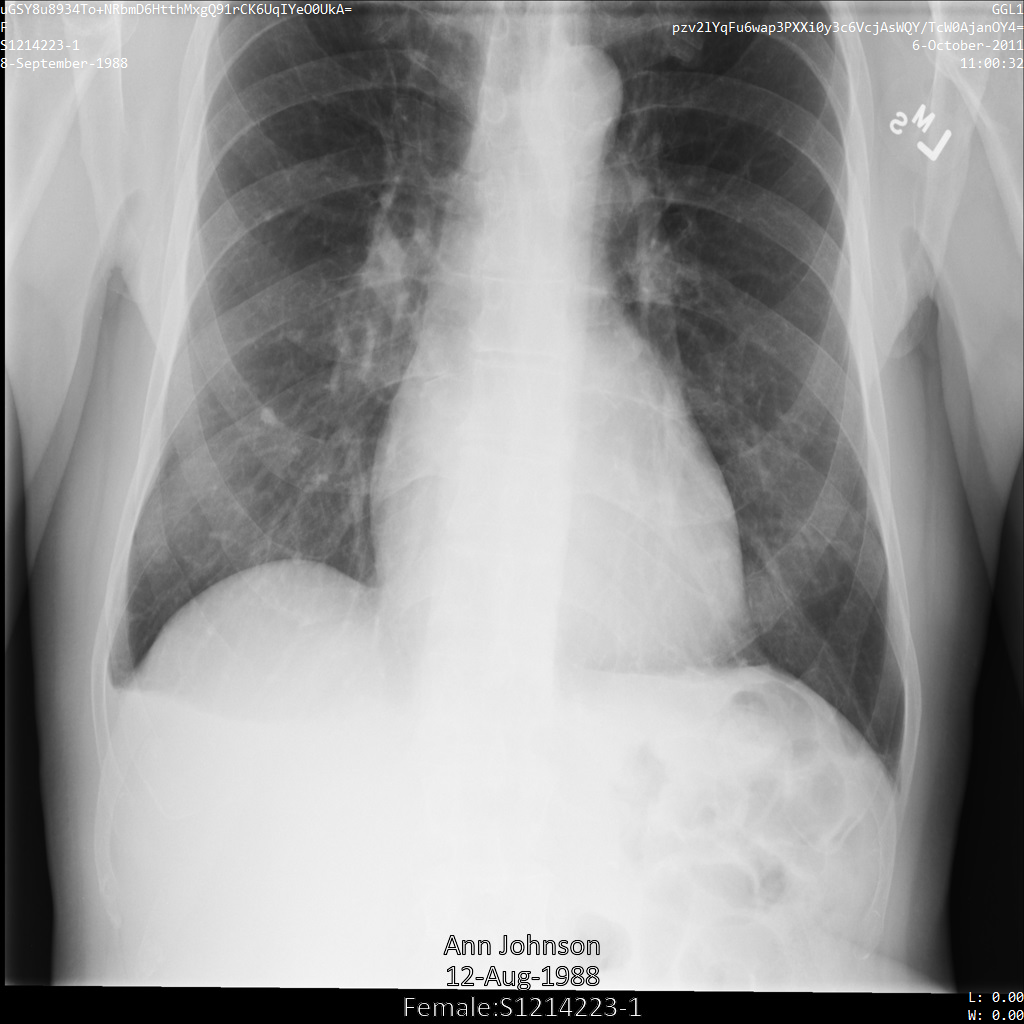
### REST
1. De-identify the dataset.
Before using any of the request data,
make the following replacements:
- PROJECT_ID: the ID of your Google Cloud project
- LOCATION: the dataset location
- SOURCE_DATASET_ID: the ID of the dataset containing the data to de-identify
- DESTINATION_DATASET_ID: the ID of the destination dataset where de-identified data is written
Request JSON body:
```
{
"destinationDataset": "projects/PROJECT_ID/locations/LOCATION/datasets/DESTINATION_DATASET_ID",
"config": {
"dicom": {
"filterProfile": "DEIDENTIFY_TAG_CONTENTS"
}
}
}
```
To send your request, choose one of these options:
#### curl
> [!NOTE]
> **Note:** The following command assumes that you have logged in to the `gcloud` CLI with your user account by running [`gcloud init`](https://docs.cloud.google.com/sdk/gcloud/reference/init) or [`gcloud auth login`](https://docs.cloud.google.com/sdk/gcloud/reference/auth/login.md.txt) , or by using [Cloud Shell](https://docs.cloud.google.com/shell/docs.md.txt), which automatically logs you into the `gcloud` CLI . You can check the currently active account by running [`gcloud auth list`](https://docs.cloud.google.com/sdk/gcloud/reference/auth/list.md.txt).
Save the request body in a file named `request.json`.
Run the following command in the terminal to create or overwrite
this file in the current directory:
```
cat > request.json << 'EOF'
{
"destinationDataset": "projects/PROJECT_ID/locations/LOCATION/datasets/DESTINATION_DATASET_ID",
"config": {
"dicom": {
"filterProfile": "DEIDENTIFY_TAG_CONTENTS"
}
}
}
EOF
```
Then execute the following command to send your REST request:
```
curl -X POST \
-H "Authorization: Bearer $(gcloud auth print-access-token)" \
-H "Content-Type: application/json; charset=utf-8" \
-d @request.json \
"https://healthcare.googleapis.com/v1/projects/PROJECT_ID/locations/LOCATION/datasets/SOURCE_DATASET_ID:deidentify"
```
#### PowerShell
> [!NOTE]
> **Note:** The following command assumes that you have logged in to the `gcloud` CLI with your user account by running [`gcloud init`](https://docs.cloud.google.com/sdk/gcloud/reference/init) or [`gcloud auth login`](https://docs.cloud.google.com/sdk/gcloud/reference/auth/login.md.txt) . You can check the currently active account by running [`gcloud auth list`](https://docs.cloud.google.com/sdk/gcloud/reference/auth/list.md.txt).
Save the request body in a file named `request.json`.
Run the following command in the terminal to create or overwrite
this file in the current directory:
```
@'
{
"destinationDataset": "projects/PROJECT_ID/locations/LOCATION/datasets/DESTINATION_DATASET_ID",
"config": {
"dicom": {
"filterProfile": "DEIDENTIFY_TAG_CONTENTS"
}
}
}
'@ | Out-File -FilePath request.json -Encoding utf8
```
Then execute the following command to send your REST request:
```
$cred = gcloud auth print-access-token
$headers = @{ "Authorization" = "Bearer $cred" }
Invoke-WebRequest `
-Method POST `
-Headers $headers `
-ContentType: "application/json; charset=utf-8" `
-InFile request.json `
-Uri "https://healthcare.googleapis.com/v1/projects/PROJECT_ID/locations/LOCATION/datasets/SOURCE_DATASET_ID:deidentify" | Select-Object -Expand Content
```
The output is the following. The response contains an identifier for a [long-running operation](https://docs.cloud.google.com/healthcare-api/docs/reference/rest/v1/projects.locations.datasets.operations.md.txt). Long-running operations are returned when method calls might take a substantial amount of time to complete. Note the value of OPERATION_ID. You need this value in the next step.
#### Response
```
{
"name": "projects/PROJECT_ID/locations/LOCATION/datasets/DATASET_ID/operations/OPERATION_ID"
}
```
2. Use the [`projects.locations.datasets.operations.get`](https://docs.cloud.google.com/healthcare-api/docs/reference/rest/v1/projects.locations.datasets.operations/get.md.txt) method to get the status of the long-running operation.
Before using any of the request data,
make the following replacements:
- PROJECT_ID: the ID of your Google Cloud project
- DATASET_ID: the dataset ID
- LOCATION: the dataset location
- OPERATION_ID: the ID returned from the long-running operation
To send your request, choose one of these options:
#### curl
> [!NOTE]
> **Note:** The following command assumes that you have logged in to the `gcloud` CLI with your user account by running [`gcloud init`](https://docs.cloud.google.com/sdk/gcloud/reference/init) or [`gcloud auth login`](https://docs.cloud.google.com/sdk/gcloud/reference/auth/login.md.txt) , or by using [Cloud Shell](https://docs.cloud.google.com/shell/docs.md.txt), which automatically logs you into the `gcloud` CLI . You can check the currently active account by running [`gcloud auth list`](https://docs.cloud.google.com/sdk/gcloud/reference/auth/list.md.txt).
Execute the following command:
```
curl -X GET \
-H "Authorization: Bearer $(gcloud auth print-access-token)" \
"https://healthcare.googleapis.com/v1/projects/PROJECT_ID/locations/LOCATION/datasets/DATASET_ID/operations/OPERATION_ID"
```
#### PowerShell
> [!NOTE]
> **Note:** The following command assumes that you have logged in to the `gcloud` CLI with your user account by running [`gcloud init`](https://docs.cloud.google.com/sdk/gcloud/reference/init) or [`gcloud auth login`](https://docs.cloud.google.com/sdk/gcloud/reference/auth/login.md.txt) . You can check the currently active account by running [`gcloud auth list`](https://docs.cloud.google.com/sdk/gcloud/reference/auth/list.md.txt).
Execute the following command:
```
$cred = gcloud auth print-access-token
$headers = @{ "Authorization" = "Bearer $cred" }
Invoke-WebRequest `
-Method GET `
-Headers $headers `
-Uri "https://healthcare.googleapis.com/v1/projects/PROJECT_ID/locations/LOCATION/datasets/DATASET_ID/operations/OPERATION_ID" | Select-Object -Expand Content
```
#### APIs Explorer
Open the
[method reference page](https://docs.cloud.google.com/healthcare-api/docs/reference/rest/v1/projects.locations.datasets.operations/get.md.txt).
The APIs Explorer panel opens on the right side of the page.
You can interact with this tool to send requests.
Complete any required fields and click **Execute**.
The output is the following. When the response contains `"done": true`, the long-running operation has finished.
#### Response
```
{
"name": "projects/PROJECT_ID/locations/SOURCE_DATASET_LOCATION/datasets/SOURCE_DATASET_ID/operations/OPERATION_ID",
"metadata": {
"@type": "type.googleapis.com/google.cloud.healthcare.v1.OperationMetadata",
"apiMethodName": "google.cloud.healthcare.v1.deidentify.DeidentifyService.DeidentifyDicomStore",
"createTime": "YYYY-MM-DDTHH:MM:SS+ZZ:ZZ",
"endTime": "YYYY-MM-DDTHH:MM:SS+ZZ:ZZ",
"logsUrl": "https://console.cloud.google.com/CLOUD_LOGGING_URL"
"counter": {
"success": "SUCCESS_COUNT",
// If there were any failures, they display in the `failure` field.
"failure": "FAILURE_COUNT"
}
},
"done": true,
// The `response` field only displays if there were no errors.
"response": {
"@type": "type.googleapis.com/google.cloud.healthcare.v1.deidentify.DeidentifySummary",
},
// If there were any errors, an `error` field displays instead of a `response` field.
// See Troubleshooting long-running operations for a list of response codes.
"error": {
"code": ERROR_CODE,
"message": "DESCRIPTION",
"details": [
{
"@type": "...",
FIELD1: ...,
...
}
]
}
}
```
3. After the de-identification succeeds, you can retrieve the metadata for the de-identified instance to see how it changed. The de-identified instance has a new studies UID, series UID, and instances UID, so you first need to search the new dataset for the de-identified instance.
Before using any of the request data,
make the following replacements:
- PROJECT_ID: the ID of your Google Cloud project
- SOURCE_DATASET_LOCATION: the source dataset location
- DESTINATION_DATASET_ID: the ID of the destination dataset where de-identified data is written
- DESTINATION_DICOM_STORE_ID: the ID of the DICOM store in the destination dataset. This is the same as the ID of the DICOM store in the source dataset.
To send your request, choose one of these options:
#### curl
> [!NOTE]
> **Note:** The following command assumes that you have logged in to the `gcloud` CLI with your user account by running [`gcloud init`](https://docs.cloud.google.com/sdk/gcloud/reference/init) or [`gcloud auth login`](https://docs.cloud.google.com/sdk/gcloud/reference/auth/login.md.txt) , or by using [Cloud Shell](https://docs.cloud.google.com/shell/docs.md.txt), which automatically logs you into the `gcloud` CLI . You can check the currently active account by running [`gcloud auth list`](https://docs.cloud.google.com/sdk/gcloud/reference/auth/list.md.txt).
Execute the following command:
```
curl -X GET \
-H "Authorization: Bearer $(gcloud auth print-access-token)" \
"https://healthcare.googleapis.com/v1/projects/PROJECT_ID/locations/SOURCE_DATASET_LOCATION/datasets/DESTINATION_DATASET_ID/dicomStores/DESTINATION_DICOM_STORE_ID/dicomWeb/instances"
```
#### PowerShell
> [!NOTE]
> **Note:** The following command assumes that you have logged in to the `gcloud` CLI with your user account by running [`gcloud init`](https://docs.cloud.google.com/sdk/gcloud/reference/init) or [`gcloud auth login`](https://docs.cloud.google.com/sdk/gcloud/reference/auth/login.md.txt) . You can check the currently active account by running [`gcloud auth list`](https://docs.cloud.google.com/sdk/gcloud/reference/auth/list.md.txt).
Execute the following command:
```
$cred = gcloud auth print-access-token
$headers = @{ "Authorization" = "Bearer $cred" }
Invoke-WebRequest `
-Method GET `
-Headers $headers `
-Uri "https://healthcare.googleapis.com/v1/projects/PROJECT_ID/locations/SOURCE_DATASET_LOCATION/datasets/DESTINATION_DATASET_ID/dicomStores/DESTINATION_DICOM_STORE_ID/dicomWeb/instances" | Select-Object -Expand Content
```
#### APIs Explorer
Open the
[method reference page](https://docs.cloud.google.com/healthcare-api/docs/reference/rest/v1/projects.locations.datasets.dicomStores/searchForInstances.md.txt).
The APIs Explorer panel opens on the right side of the page.
You can interact with this tool to send requests.
Complete any required fields and click **Execute**.
You should receive a JSON response similar to the following:
#### Response
```
[
{
"00080005":{"vr":"CS"},
"00080016":{"vr":"UI"},
"00080018":{"vr":"UI","Value":["1.3.6.1.4.1.11129.5.1.97415866390999888717168863957686758029"]},
"00080020":{"vr":"DA"},
"00080030":{"vr":"TM"},
"00080050":{"vr":"SH"},
"00080090":{"vr":"PN"},
"00100010":{"vr":"PN"},
"00100020":{"vr":"LO","Value":["S1214223-1"]},
"00100030":{"vr":"DA"},
"00100040":{"vr":"CS"},
"0020000D":{"vr":"UI","Value":["1.3.6.1.4.1.11129.5.1.201854290391432893460946240745559593763"]},
"0020000E":{"vr":"UI","Value":["1.3.6.1.4.1.11129.5.1.303327499491957026103380014864616068710"]},
"00200010":{"vr":"SH"},
"00200013":{"vr":"IS"},
"00280010":{"vr":"US","Value":[1024]},
"00280011":{"vr":"US","Value":[1024]},
"00280100":{"vr":"US","Value":[8]}
}
]
```
4. Using the new values, retrieve the metadata for the instance.
Before using any of the request data,
make the following replacements:
- PROJECT_ID: the ID of your Google Cloud project
- LOCATION: the dataset location
- DESTINATION_DATASET_ID: the ID of the destination dataset where de-identified data is written
- DESTINATION_DICOM_STORE_ID: the ID of the DICOM store in the destination dataset. This is the same as the ID of the DICOM store in the source dataset.
To send your request, choose one of these options:
#### curl
> [!NOTE]
> **Note:** The following command assumes that you have logged in to the `gcloud` CLI with your user account by running [`gcloud init`](https://docs.cloud.google.com/sdk/gcloud/reference/init) or [`gcloud auth login`](https://docs.cloud.google.com/sdk/gcloud/reference/auth/login.md.txt) , or by using [Cloud Shell](https://docs.cloud.google.com/shell/docs.md.txt), which automatically logs you into the `gcloud` CLI . You can check the currently active account by running [`gcloud auth list`](https://docs.cloud.google.com/sdk/gcloud/reference/auth/list.md.txt).
Execute the following command:
```
curl -X GET \
-H "Authorization: Bearer $(gcloud auth print-access-token)" \
"https://healthcare.googleapis.com/v1/projects/PROJECT_ID/locations/LOCATION/datasets/DESTINATION_DATASET_ID/dicomStores/DESTINATION_DICOM_STORE_ID/dicomWeb/studies/1.3.6.1.4.1.11129.5.1.201854290391432893460946240745559593763/series/1.3.6.1.4.1.11129.5.1.303327499491957026103380014864616068710/instances/1.3.6.1.4.1.11129.5.1.97415866390999888717168863957686758029/metadata"
```
#### PowerShell
> [!NOTE]
> **Note:** The following command assumes that you have logged in to the `gcloud` CLI with your user account by running [`gcloud init`](https://docs.cloud.google.com/sdk/gcloud/reference/init) or [`gcloud auth login`](https://docs.cloud.google.com/sdk/gcloud/reference/auth/login.md.txt) . You can check the currently active account by running [`gcloud auth list`](https://docs.cloud.google.com/sdk/gcloud/reference/auth/list.md.txt).
Execute the following command:
```
$cred = gcloud auth print-access-token
$headers = @{ "Authorization" = "Bearer $cred" }
Invoke-WebRequest `
-Method GET `
-Headers $headers `
-Uri "https://healthcare.googleapis.com/v1/projects/PROJECT_ID/locations/LOCATION/datasets/DESTINATION_DATASET_ID/dicomStores/DESTINATION_DICOM_STORE_ID/dicomWeb/studies/1.3.6.1.4.1.11129.5.1.201854290391432893460946240745559593763/series/1.3.6.1.4.1.11129.5.1.303327499491957026103380014864616068710/instances/1.3.6.1.4.1.11129.5.1.97415866390999888717168863957686758029/metadata" | Select-Object -Expand Content
```
#### APIs Explorer
Open the
[method reference page](https://docs.cloud.google.com/healthcare-api/docs/reference/rest/v1/projects.locations.datasets.dicomStores.studies.series.instances/retrieveMetadata.md.txt).
The APIs Explorer panel opens on the right side of the page.
You can interact with this tool to send requests.
Complete any required fields and click **Execute**.
The output contains the new metadata. You can compare the new metadata with the [original metadata](https://docs.cloud.google.com/healthcare-api/docs/how-tos/dicom-deidentify.md.txt#de-identifying_dicom_tags) to see the effect of the transformation.
#### Response
```
[
{
"00020002":{"vr":"UI","Value":["1.2.840.10008.5.1.4.1.1.7"]},
"00020003":{"vr":"UI","Value":["1.3.6.1.4.1.11129.5.1.97415866390999888717168863957686758029"]},
"00020010":{"vr":"UI","Value":["1.2.840.10008.1.2.4.50"]},
"00020012":{"vr":"UI","Value":["1.2.40.0.13.1.3"]},
"00020013":{"vr":"SH","Value":["dcm4che-null"]},
"00080005":{"vr":"CS","Value":["ISO_IR 100"]},
"00080016":{"vr":"UI","Value":["1.2.840.10008.5.1.4.1.1.7"]},
"00080018":{"vr":"UI","Value":["1.3.6.1.4.1.11129.5.1.97415866390999888717168863957686758029"]},
"00080020":{"vr":"DA","Value":["20111006"]},
"00080030":{"vr":"TM","Value":["110032"]},
"00080050":{"vr":"SH"},
"00080064":{"vr":"CS","Value":["WSD"]},
"00080070":{"vr":"LO","Value":["Manufacturer"]},
"00080090":{"vr":"PN","Value":[{"Alphabetic":"pzv2lYqFu6wap3PXXi0y3c6VcjAsWQY/TcW0AjanOY4"}]},
"00081090":{"vr":"LO","Value":["ABC1"]},
"00100010":{"vr":"PN","Value":[{"Alphabetic":"uGSY8u8934To+NRbmD6HtthMxgQ91rCK6UqIYeO0UkA"}]},
"00100020":{"vr":"LO","Value":["S1214223-1"]},
"00100030":{"vr":"DA","Value":["19880908"]},
"00100040":{"vr":"CS","Value":["F"]},
"0020000D":{"vr":"UI","Value":["1.3.6.1.4.1.11129.5.1.201854290391432893460946240745559593763"]},
"0020000E":{"vr":"UI","Value":["1.3.6.1.4.1.11129.5.1.303327499491957026103380014864616068710"]},
"00200010":{"vr":"SH"},
"00200011":{"vr":"IS"},
"00200013":{"vr":"IS"},
"00200020":{"vr":"CS"},
"00280002":{"vr":"US","Value":[3]},
"00280004":{"vr":"CS","Value":["YBR_FULL_422"]},
"00280006":{"vr":"US","Value":[0]},
"00280010":{"vr":"US","Value":[1024]},
"00280011":{"vr":"US","Value":[1024]},
"00280100":{"vr":"US","Value":[8]},
"00280101":{"vr":"US","Value":[8]},
"00280102":{"vr":"US","Value":[7]},
"00280103":{"vr":"US","Value":[0]},
"00282110":{"vr":"CS","Value":["01"]},
"00282114":{"vr":"CS","Value":["ISO_10918_1"]}
}
]
```
### `RedactConfig`
Specifying `redactConfig` redacts a given value by removing it completely.
The `redactConfig` message has no arguments; specifying it enables
transformation.
The following samples expand on the [default configuration](https://docs.cloud.google.com/healthcare-api/docs/how-tos/dicom-deidentify.md.txt#default_configuration),
but they now include setting the `PERSON_NAME` infoType with the
`redactConfig` transform. Sending this request redacts all names from the
DICOM instance.
After submitting the image to the Cloud Healthcare API using the
`redactConfig` transformation, the image appears as follows:
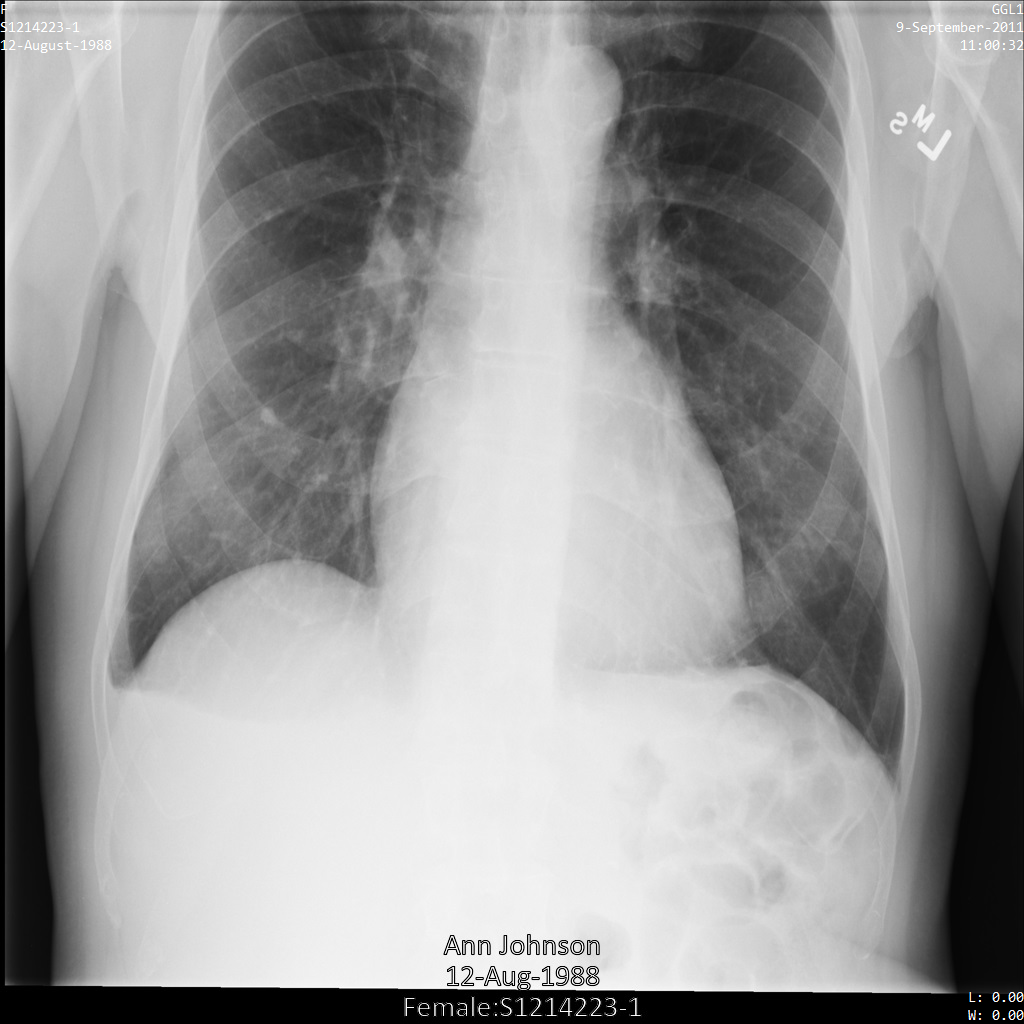
### REST
1. De-identify the dataset.
Before using any of the request data,
make the following replacements:
- PROJECT_ID: the ID of your Google Cloud project
- LOCATION: the dataset location
- SOURCE_DATASET_ID: the ID of the dataset containing the data to de-identify
- DESTINATION_DATASET_ID: the ID of the destination dataset where de-identified data is written
Request JSON body:
```
{
"destinationDataset": "projects/PROJECT_ID/locations/LOCATION/datasets/DESTINATION_DATASET_ID",
"config": {
"dicom": {
"filterProfile": "DEIDENTIFY_TAG_CONTENTS"
},
"text": {
"transformations": [
{
"infoTypes": [
"PERSON_NAME"
],
"redactConfig": {}
}
]
}
}
}
```
To send your request, choose one of these options:
#### curl
> [!NOTE]
> **Note:** The following command assumes that you have logged in to the `gcloud` CLI with your user account by running [`gcloud init`](https://docs.cloud.google.com/sdk/gcloud/reference/init) or [`gcloud auth login`](https://docs.cloud.google.com/sdk/gcloud/reference/auth/login.md.txt) , or by using [Cloud Shell](https://docs.cloud.google.com/shell/docs.md.txt), which automatically logs you into the `gcloud` CLI . You can check the currently active account by running [`gcloud auth list`](https://docs.cloud.google.com/sdk/gcloud/reference/auth/list.md.txt).
Save the request body in a file named `request.json`.
Run the following command in the terminal to create or overwrite
this file in the current directory:
```
cat > request.json << 'EOF'
{
"destinationDataset": "projects/PROJECT_ID/locations/LOCATION/datasets/DESTINATION_DATASET_ID",
"config": {
"dicom": {
"filterProfile": "DEIDENTIFY_TAG_CONTENTS"
},
"text": {
"transformations": [
{
"infoTypes": [
"PERSON_NAME"
],
"redactConfig": {}
}
]
}
}
}
EOF
```
Then execute the following command to send your REST request:
```
curl -X POST \
-H "Authorization: Bearer $(gcloud auth print-access-token)" \
-H "Content-Type: application/json; charset=utf-8" \
-d @request.json \
"https://healthcare.googleapis.com/v1/projects/PROJECT_ID/locations/LOCATION/datasets/SOURCE_DATASET_ID:deidentify"
```
#### PowerShell
> [!NOTE]
> **Note:** The following command assumes that you have logged in to the `gcloud` CLI with your user account by running [`gcloud init`](https://docs.cloud.google.com/sdk/gcloud/reference/init) or [`gcloud auth login`](https://docs.cloud.google.com/sdk/gcloud/reference/auth/login.md.txt) . You can check the currently active account by running [`gcloud auth list`](https://docs.cloud.google.com/sdk/gcloud/reference/auth/list.md.txt).
Save the request body in a file named `request.json`.
Run the following command in the terminal to create or overwrite
this file in the current directory:
```
@'
{
"destinationDataset": "projects/PROJECT_ID/locations/LOCATION/datasets/DESTINATION_DATASET_ID",
"config": {
"dicom": {
"filterProfile": "DEIDENTIFY_TAG_CONTENTS"
},
"text": {
"transformations": [
{
"infoTypes": [
"PERSON_NAME"
],
"redactConfig": {}
}
]
}
}
}
'@ | Out-File -FilePath request.json -Encoding utf8
```
Then execute the following command to send your REST request:
```
$cred = gcloud auth print-access-token
$headers = @{ "Authorization" = "Bearer $cred" }
Invoke-WebRequest `
-Method POST `
-Headers $headers `
-ContentType: "application/json; charset=utf-8" `
-InFile request.json `
-Uri "https://healthcare.googleapis.com/v1/projects/PROJECT_ID/locations/LOCATION/datasets/SOURCE_DATASET_ID:deidentify" | Select-Object -Expand Content
```
The output is the following. The response contains an identifier for a [long-running operation](https://docs.cloud.google.com/healthcare-api/docs/reference/rest/v1/projects.locations.datasets.operations.md.txt). Long-running operations are returned when method calls might take a substantial amount of time to complete. Note the value of OPERATION_ID. You need this value in the next step.
#### Response
```
{
"name": "projects/PROJECT_ID/locations/LOCATION/datasets/DATASET_ID/operations/OPERATION_ID"
}
```
2. Use the [`projects.locations.datasets.operations.get`](https://docs.cloud.google.com/healthcare-api/docs/reference/rest/v1/projects.locations.datasets.operations/get.md.txt) method to get the status of the long-running operation.
Before using any of the request data,
make the following replacements:
- PROJECT_ID: the ID of your Google Cloud project
- DATASET_ID: the dataset ID
- LOCATION: the dataset location
- OPERATION_ID: the ID returned from the long-running operation
To send your request, choose one of these options:
#### curl
> [!NOTE]
> **Note:** The following command assumes that you have logged in to the `gcloud` CLI with your user account by running [`gcloud init`](https://docs.cloud.google.com/sdk/gcloud/reference/init) or [`gcloud auth login`](https://docs.cloud.google.com/sdk/gcloud/reference/auth/login.md.txt) , or by using [Cloud Shell](https://docs.cloud.google.com/shell/docs.md.txt), which automatically logs you into the `gcloud` CLI . You can check the currently active account by running [`gcloud auth list`](https://docs.cloud.google.com/sdk/gcloud/reference/auth/list.md.txt).
Execute the following command:
```
curl -X GET \
-H "Authorization: Bearer $(gcloud auth print-access-token)" \
"https://healthcare.googleapis.com/v1/projects/PROJECT_ID/locations/LOCATION/datasets/DATASET_ID/operations/OPERATION_ID"
```
#### PowerShell
> [!NOTE]
> **Note:** The following command assumes that you have logged in to the `gcloud` CLI with your user account by running [`gcloud init`](https://docs.cloud.google.com/sdk/gcloud/reference/init) or [`gcloud auth login`](https://docs.cloud.google.com/sdk/gcloud/reference/auth/login.md.txt) . You can check the currently active account by running [`gcloud auth list`](https://docs.cloud.google.com/sdk/gcloud/reference/auth/list.md.txt).
Execute the following command:
```
$cred = gcloud auth print-access-token
$headers = @{ "Authorization" = "Bearer $cred" }
Invoke-WebRequest `
-Method GET `
-Headers $headers `
-Uri "https://healthcare.googleapis.com/v1/projects/PROJECT_ID/locations/LOCATION/datasets/DATASET_ID/operations/OPERATION_ID" | Select-Object -Expand Content
```
#### APIs Explorer
Open the
[method reference page](https://docs.cloud.google.com/healthcare-api/docs/reference/rest/v1/projects.locations.datasets.operations/get.md.txt).
The APIs Explorer panel opens on the right side of the page.
You can interact with this tool to send requests.
Complete any required fields and click **Execute**.
The output is the following. When the response contains `"done": true`, the long-running operation has finished.
#### Response
```
{
"name": "projects/PROJECT_ID/locations/SOURCE_DATASET_LOCATION/datasets/SOURCE_DATASET_ID/operations/OPERATION_ID",
"metadata": {
"@type": "type.googleapis.com/google.cloud.healthcare.v1.OperationMetadata",
"apiMethodName": "google.cloud.healthcare.v1.deidentify.DeidentifyService.DeidentifyDicomStore",
"createTime": "YYYY-MM-DDTHH:MM:SS+ZZ:ZZ",
"endTime": "YYYY-MM-DDTHH:MM:SS+ZZ:ZZ",
"logsUrl": "https://console.cloud.google.com/CLOUD_LOGGING_URL"
"counter": {
"success": "SUCCESS_COUNT",
// If there were any failures, they display in the `failure` field.
"failure": "FAILURE_COUNT"
}
},
"done": true,
// The `response` field only displays if there were no errors.
"response": {
"@type": "type.googleapis.com/google.cloud.healthcare.v1.deidentify.DeidentifySummary",
},
// If there were any errors, an `error` field displays instead of a `response` field.
// See Troubleshooting long-running operations for a list of response codes.
"error": {
"code": ERROR_CODE,
"message": "DESCRIPTION",
"details": [
{
"@type": "...",
FIELD1: ...,
...
}
]
}
}
```
3. After the de-identification succeeds, you can retrieve the metadata for the de-identified instance to see how it changed. The de-identified instance has a new studies UID, series UID, and instances UID, so you first need to search the new dataset for the de-identified instance.
Before using any of the request data,
make the following replacements:
- PROJECT_ID: the ID of your Google Cloud project
- SOURCE_DATASET_LOCATION: the source dataset location
- DESTINATION_DATASET_ID: the ID of the destination dataset where de-identified data is written
- DESTINATION_DICOM_STORE_ID: the ID of the DICOM store in the destination dataset. This is the same as the ID of the DICOM store in the source dataset.
To send your request, choose one of these options:
#### curl
> [!NOTE]
> **Note:** The following command assumes that you have logged in to the `gcloud` CLI with your user account by running [`gcloud init`](https://docs.cloud.google.com/sdk/gcloud/reference/init) or [`gcloud auth login`](https://docs.cloud.google.com/sdk/gcloud/reference/auth/login.md.txt) , or by using [Cloud Shell](https://docs.cloud.google.com/shell/docs.md.txt), which automatically logs you into the `gcloud` CLI . You can check the currently active account by running [`gcloud auth list`](https://docs.cloud.google.com/sdk/gcloud/reference/auth/list.md.txt).
Execute the following command:
```
curl -X GET \
-H "Authorization: Bearer $(gcloud auth print-access-token)" \
"https://healthcare.googleapis.com/v1/projects/PROJECT_ID/locations/SOURCE_DATASET_LOCATION/datasets/DESTINATION_DATASET_ID/dicomStores/DESTINATION_DICOM_STORE_ID/dicomWeb/instances"
```
#### PowerShell
> [!NOTE]
> **Note:** The following command assumes that you have logged in to the `gcloud` CLI with your user account by running [`gcloud init`](https://docs.cloud.google.com/sdk/gcloud/reference/init) or [`gcloud auth login`](https://docs.cloud.google.com/sdk/gcloud/reference/auth/login.md.txt) . You can check the currently active account by running [`gcloud auth list`](https://docs.cloud.google.com/sdk/gcloud/reference/auth/list.md.txt).
Execute the following command:
```
$cred = gcloud auth print-access-token
$headers = @{ "Authorization" = "Bearer $cred" }
Invoke-WebRequest `
-Method GET `
-Headers $headers `
-Uri "https://healthcare.googleapis.com/v1/projects/PROJECT_ID/locations/SOURCE_DATASET_LOCATION/datasets/DESTINATION_DATASET_ID/dicomStores/DESTINATION_DICOM_STORE_ID/dicomWeb/instances" | Select-Object -Expand Content
```
#### APIs Explorer
Open the
[method reference page](https://docs.cloud.google.com/healthcare-api/docs/reference/rest/v1/projects.locations.datasets.dicomStores/searchForInstances.md.txt).
The APIs Explorer panel opens on the right side of the page.
You can interact with this tool to send requests.
Complete any required fields and click **Execute**.
You should receive a JSON response similar to the following:
#### Response
```
[
{
"00080005":{"vr":"CS"},
"00080016":{"vr":"UI"},
"00080018":{"vr":"UI","Value":["1.3.6.1.4.1.11129.5.1.97415866390999888717168863957686758029"]},
"00080020":{"vr":"DA"},
"00080030":{"vr":"TM"},
"00080050":{"vr":"SH"},
"00080090":{"vr":"PN"},
"00100010":{"vr":"PN"},
"00100020":{"vr":"LO","Value":["S1214223-1"]},
"00100030":{"vr":"DA"},
"00100040":{"vr":"CS"},
"0020000D":{"vr":"UI","Value":["1.3.6.1.4.1.11129.5.1.201854290391432893460946240745559593763"]},
"0020000E":{"vr":"UI","Value":["1.3.6.1.4.1.11129.5.1.303327499491957026103380014864616068710"]},
"00200010":{"vr":"SH"},
"00200013":{"vr":"IS"},
"00280010":{"vr":"US","Value":[1024]},
"00280011":{"vr":"US","Value":[1024]},
"00280100":{"vr":"US","Value":[8]}
}
]
```
4. Using the new values, retrieve the metadata for the instance.
Before using any of the request data,
make the following replacements:
- PROJECT_ID: the ID of your Google Cloud project
- LOCATION: the dataset location
- DESTINATION_DATASET_ID: the ID of the destination dataset where de-identified data is written
- DESTINATION_DICOM_STORE_ID: the ID of the DICOM store in the destination dataset. This is the same as the ID of the DICOM store in the source dataset.
To send your request, choose one of these options:
#### curl
> [!NOTE]
> **Note:** The following command assumes that you have logged in to the `gcloud` CLI with your user account by running [`gcloud init`](https://docs.cloud.google.com/sdk/gcloud/reference/init) or [`gcloud auth login`](https://docs.cloud.google.com/sdk/gcloud/reference/auth/login.md.txt) , or by using [Cloud Shell](https://docs.cloud.google.com/shell/docs.md.txt), which automatically logs you into the `gcloud` CLI . You can check the currently active account by running [`gcloud auth list`](https://docs.cloud.google.com/sdk/gcloud/reference/auth/list.md.txt).
Execute the following command:
```
curl -X GET \
-H "Authorization: Bearer $(gcloud auth print-access-token)" \
"https://healthcare.googleapis.com/v1/projects/PROJECT_ID/locations/LOCATION/datasets/DESTINATION_DATASET_ID/dicomStores/DESTINATION_DICOM_STORE_ID/dicomWeb/studies/1.3.6.1.4.1.11129.5.1.201854290391432893460946240745559593763/series/1.3.6.1.4.1.11129.5.1.303327499491957026103380014864616068710/instances/1.3.6.1.4.1.11129.5.1.97415866390999888717168863957686758029/metadata"
```
#### PowerShell
> [!NOTE]
> **Note:** The following command assumes that you have logged in to the `gcloud` CLI with your user account by running [`gcloud init`](https://docs.cloud.google.com/sdk/gcloud/reference/init) or [`gcloud auth login`](https://docs.cloud.google.com/sdk/gcloud/reference/auth/login.md.txt) . You can check the currently active account by running [`gcloud auth list`](https://docs.cloud.google.com/sdk/gcloud/reference/auth/list.md.txt).
Execute the following command:
```
$cred = gcloud auth print-access-token
$headers = @{ "Authorization" = "Bearer $cred" }
Invoke-WebRequest `
-Method GET `
-Headers $headers `
-Uri "https://healthcare.googleapis.com/v1/projects/PROJECT_ID/locations/LOCATION/datasets/DESTINATION_DATASET_ID/dicomStores/DESTINATION_DICOM_STORE_ID/dicomWeb/studies/1.3.6.1.4.1.11129.5.1.201854290391432893460946240745559593763/series/1.3.6.1.4.1.11129.5.1.303327499491957026103380014864616068710/instances/1.3.6.1.4.1.11129.5.1.97415866390999888717168863957686758029/metadata" | Select-Object -Expand Content
```
#### APIs Explorer
Open the
[method reference page](https://docs.cloud.google.com/healthcare-api/docs/reference/rest/v1/projects.locations.datasets.dicomStores.studies.series.instances/retrieveMetadata.md.txt).
The APIs Explorer panel opens on the right side of the page.
You can interact with this tool to send requests.
Complete any required fields and click **Execute**.
The output contains the new metadata. You can compare the new metadata with the [original metadata](https://docs.cloud.google.com/healthcare-api/docs/how-tos/dicom-deidentify.md.txt#de-identifying_dicom_tags) to see the effect of the transformation.
#### Response
```
[
{
"00020002":{"vr":"UI","Value":["1.2.840.10008.5.1.4.1.1.7"]},
"00020003":{"vr":"UI","Value":["1.3.6.1.4.1.11129.5.1.97415866390999888717168863957686758029"]},
"00020010":{"vr":"UI","Value":["1.2.840.10008.1.2.4.50"]},
"00020012":{"vr":"UI","Value":["1.2.40.0.13.1.3"]},
"00020013":{"vr":"SH","Value":["dcm4che-null"]},
"00080005":{"vr":"CS","Value":["ISO_IR 100"]},
"00080016":{"vr":"UI","Value":["1.2.840.10008.5.1.4.1.1.7"]},
"00080018":{"vr":"UI","Value":["1.3.6.1.4.1.11129.5.1.97415866390999888717168863957686758029"]},
"00080020":{"vr":"DA","Value":["20110909"]},
"00080030":{"vr":"TM","Value":["110032"]},
"00080050":{"vr":"SH"},
"00080064":{"vr":"CS","Value":["WSD"]},
"00080070":{"vr":"LO","Value":["Manufacturer"]},
"00080090":{"vr":"PN"},
"00081090":{"vr":"LO","Value":["ABC1"]},
"00100010":{"vr":"PN"},
"00100020":{"vr":"LO","Value":["S1214223-1"]},
"00100030":{"vr":"DA","Value":["19880812"]},
"00100040":{"vr":"CS","Value":["F"]},
"0020000D":{"vr":"UI","Value":["1.3.6.1.4.1.11129.5.1.201854290391432893460946240745559593763"]},
"0020000E":{"vr":"UI","Value":["1.3.6.1.4.1.11129.5.1.303327499491957026103380014864616068710"]},
"00200010":{"vr":"SH"},
"00200011":{"vr":"IS"},
"00200013":{"vr":"IS"},
"00200020":{"vr":"CS"},
"00280002":{"vr":"US","Value":[3]},
"00280004":{"vr":"CS","Value":["YBR_FULL_422"]},
"00280006":{"vr":"US","Value":[0]},
"00280010":{"vr":"US","Value":[1024]},
"00280011":{"vr":"US","Value":[1024]},
"00280100":{"vr":"US","Value":[8]},
"00280101":{"vr":"US","Value":[8]},
"00280102":{"vr":"US","Value":[7]},
"00280103":{"vr":"US","Value":[0]},
"00282110":{"vr":"CS","Value":["01"]},
"00282114":{"vr":"CS","Value":["ISO_10918_1"]}
}
]
```
The output shows that the values in `ReferringPhysicianName`
(`00080090`) and `PatientName` (`00100010`) have been removed. This is in
contrast to the sample in the [default configuration](https://docs.cloud.google.com/healthcare-api/docs/how-tos/dicom-deidentify.md.txt#default_configuration),
where these values were transformed using cryptographic hashing.
### `CharacterMaskConfig`
Specifying `characterMaskConfig` replaces strings that
correspond to the given infoTypes with a specified fixed character. For
example, rather than redacting a patient's name or transforming it using
cryptographic hashing, you can replace the name with a series of asterisks (`*`).
You can specify the fixed character as a value to the `maskingCharacter` field.
The following samples expand on the [default configuration](https://docs.cloud.google.com/healthcare-api/docs/how-tos/dicom-deidentify.md.txt#default_configuration),
but they now include setting the `LAST_NAME` infoType with the
`characterMaskConfig` transform. No fixed character is provided, so the
masking defaults to using asterisks.
The samples use a single DICOM instance, but you can de-identify multiple
instances.
After submitting the image to the Cloud Healthcare API using the
`characterMaskConfig` transformation, the image appears as follows:
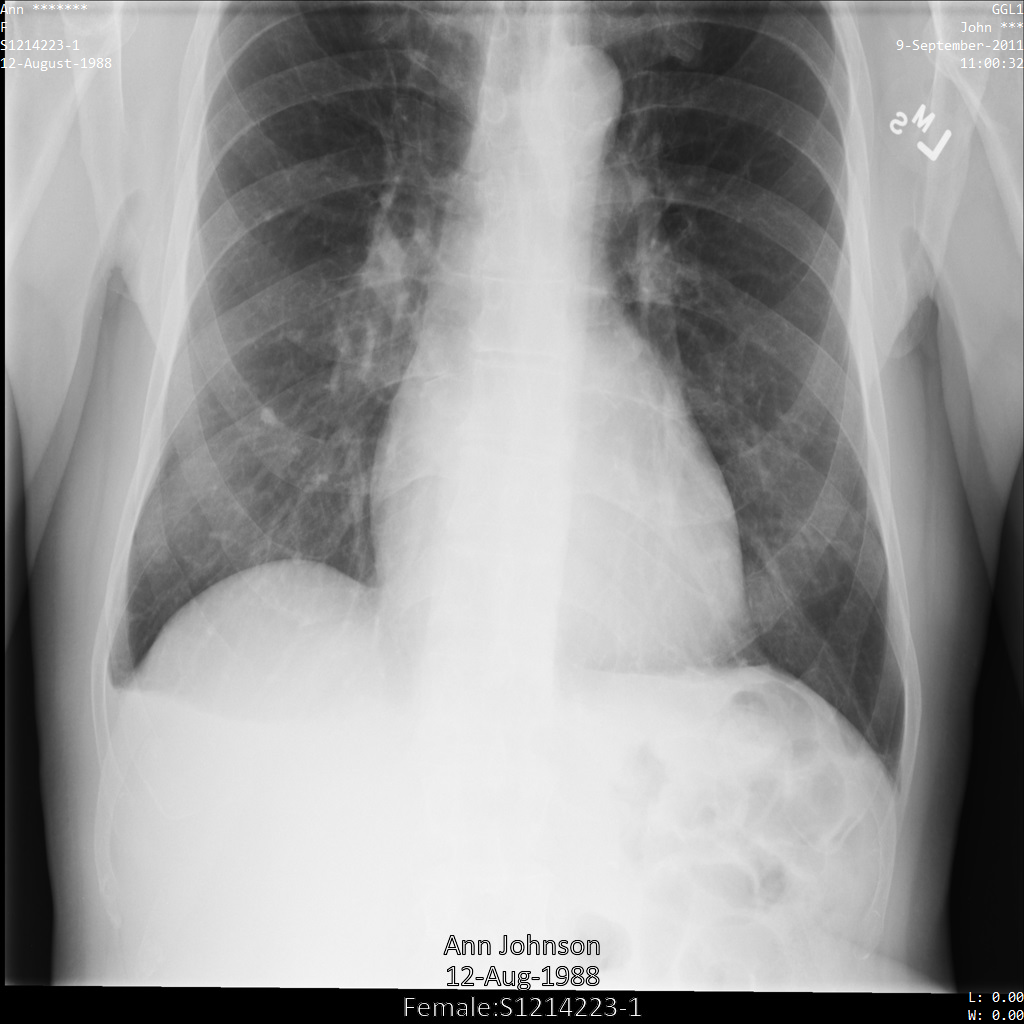
### REST
1. De-identify the dataset.
Before using any of the request data,
make the following replacements:
- PROJECT_ID: the ID of your Google Cloud project
- LOCATION: the dataset location
- SOURCE_DATASET_ID: the ID of the dataset containing the data to de-identify
- DESTINATION_DATASET_ID: the ID of the destination dataset where de-identified data is written
Request JSON body:
```
{
"destinationDataset": "projects/PROJECT_ID/locations/LOCATION/datasets/DESTINATION_DATASET_ID",
"config": {
"dicom": {
"filterProfile": "DEIDENTIFY_TAG_CONTENTS"
},
"text": {
"transformations": [
{
"infoTypes": [
"PERSON_NAME"
],
"characterMaskConfig": {
"maskingCharacter": ""
}
}
]
}
}
}
```
To send your request, choose one of these options:
#### curl
> [!NOTE]
> **Note:** The following command assumes that you have logged in to the `gcloud` CLI with your user account by running [`gcloud init`](https://docs.cloud.google.com/sdk/gcloud/reference/init) or [`gcloud auth login`](https://docs.cloud.google.com/sdk/gcloud/reference/auth/login.md.txt) , or by using [Cloud Shell](https://docs.cloud.google.com/shell/docs.md.txt), which automatically logs you into the `gcloud` CLI . You can check the currently active account by running [`gcloud auth list`](https://docs.cloud.google.com/sdk/gcloud/reference/auth/list.md.txt).
Save the request body in a file named `request.json`.
Run the following command in the terminal to create or overwrite
this file in the current directory:
```
cat > request.json << 'EOF'
{
"destinationDataset": "projects/PROJECT_ID/locations/LOCATION/datasets/DESTINATION_DATASET_ID",
"config": {
"dicom": {
"filterProfile": "DEIDENTIFY_TAG_CONTENTS"
},
"text": {
"transformations": [
{
"infoTypes": [
"PERSON_NAME"
],
"characterMaskConfig": {
"maskingCharacter": ""
}
}
]
}
}
}
EOF
```
Then execute the following command to send your REST request:
```
curl -X POST \
-H "Authorization: Bearer $(gcloud auth print-access-token)" \
-H "Content-Type: application/json; charset=utf-8" \
-d @request.json \
"https://healthcare.googleapis.com/v1/projects/PROJECT_ID/locations/LOCATION/datasets/SOURCE_DATASET_ID:deidentify"
```
#### PowerShell
> [!NOTE]
> **Note:** The following command assumes that you have logged in to the `gcloud` CLI with your user account by running [`gcloud init`](https://docs.cloud.google.com/sdk/gcloud/reference/init) or [`gcloud auth login`](https://docs.cloud.google.com/sdk/gcloud/reference/auth/login.md.txt) . You can check the currently active account by running [`gcloud auth list`](https://docs.cloud.google.com/sdk/gcloud/reference/auth/list.md.txt).
Save the request body in a file named `request.json`.
Run the following command in the terminal to create or overwrite
this file in the current directory:
```
@'
{
"destinationDataset": "projects/PROJECT_ID/locations/LOCATION/datasets/DESTINATION_DATASET_ID",
"config": {
"dicom": {
"filterProfile": "DEIDENTIFY_TAG_CONTENTS"
},
"text": {
"transformations": [
{
"infoTypes": [
"PERSON_NAME"
],
"characterMaskConfig": {
"maskingCharacter": ""
}
}
]
}
}
}
'@ | Out-File -FilePath request.json -Encoding utf8
```
Then execute the following command to send your REST request:
```
$cred = gcloud auth print-access-token
$headers = @{ "Authorization" = "Bearer $cred" }
Invoke-WebRequest `
-Method POST `
-Headers $headers `
-ContentType: "application/json; charset=utf-8" `
-InFile request.json `
-Uri "https://healthcare.googleapis.com/v1/projects/PROJECT_ID/locations/LOCATION/datasets/SOURCE_DATASET_ID:deidentify" | Select-Object -Expand Content
```
The output is the following. The response contains an identifier for a [long-running operation](https://docs.cloud.google.com/healthcare-api/docs/reference/rest/v1/projects.locations.datasets.operations.md.txt). Long-running operations are returned when method calls might take a substantial amount of time to complete. Note the value of OPERATION_ID. You need this value in the next step.
#### Response
```
{
"name": "projects/PROJECT_ID/locations/LOCATION/datasets/DATASET_ID/operations/OPERATION_ID"
}
```
2. Use the [`projects.locations.datasets.operations.get`](https://docs.cloud.google.com/healthcare-api/docs/reference/rest/v1/projects.locations.datasets.operations/get.md.txt) method to get the status of the long-running operation.
Before using any of the request data,
make the following replacements:
- PROJECT_ID: the ID of your Google Cloud project
- DATASET_ID: the dataset ID
- LOCATION: the dataset location
- OPERATION_ID: the ID returned from the long-running operation
To send your request, choose one of these options:
#### curl
> [!NOTE]
> **Note:** The following command assumes that you have logged in to the `gcloud` CLI with your user account by running [`gcloud init`](https://docs.cloud.google.com/sdk/gcloud/reference/init) or [`gcloud auth login`](https://docs.cloud.google.com/sdk/gcloud/reference/auth/login.md.txt) , or by using [Cloud Shell](https://docs.cloud.google.com/shell/docs.md.txt), which automatically logs you into the `gcloud` CLI . You can check the currently active account by running [`gcloud auth list`](https://docs.cloud.google.com/sdk/gcloud/reference/auth/list.md.txt).
Execute the following command:
```
curl -X GET \
-H "Authorization: Bearer $(gcloud auth print-access-token)" \
"https://healthcare.googleapis.com/v1/projects/PROJECT_ID/locations/LOCATION/datasets/DATASET_ID/operations/OPERATION_ID"
```
#### PowerShell
> [!NOTE]
> **Note:** The following command assumes that you have logged in to the `gcloud` CLI with your user account by running [`gcloud init`](https://docs.cloud.google.com/sdk/gcloud/reference/init) or [`gcloud auth login`](https://docs.cloud.google.com/sdk/gcloud/reference/auth/login.md.txt) . You can check the currently active account by running [`gcloud auth list`](https://docs.cloud.google.com/sdk/gcloud/reference/auth/list.md.txt).
Execute the following command:
```
$cred = gcloud auth print-access-token
$headers = @{ "Authorization" = "Bearer $cred" }
Invoke-WebRequest `
-Method GET `
-Headers $headers `
-Uri "https://healthcare.googleapis.com/v1/projects/PROJECT_ID/locations/LOCATION/datasets/DATASET_ID/operations/OPERATION_ID" | Select-Object -Expand Content
```
#### APIs Explorer
Open the
[method reference page](https://docs.cloud.google.com/healthcare-api/docs/reference/rest/v1/projects.locations.datasets.operations/get.md.txt).
The APIs Explorer panel opens on the right side of the page.
You can interact with this tool to send requests.
Complete any required fields and click **Execute**.
The output is the following. When the response contains `"done": true`, the long-running operation has finished.
#### Response
```
{
"name": "projects/PROJECT_ID/locations/SOURCE_DATASET_LOCATION/datasets/SOURCE_DATASET_ID/operations/OPERATION_ID",
"metadata": {
"@type": "type.googleapis.com/google.cloud.healthcare.v1.OperationMetadata",
"apiMethodName": "google.cloud.healthcare.v1.deidentify.DeidentifyService.DeidentifyDicomStore",
"createTime": "YYYY-MM-DDTHH:MM:SS+ZZ:ZZ",
"endTime": "YYYY-MM-DDTHH:MM:SS+ZZ:ZZ",
"logsUrl": "https://console.cloud.google.com/CLOUD_LOGGING_URL"
"counter": {
"success": "SUCCESS_COUNT",
// If there were any failures, they display in the `failure` field.
"failure": "FAILURE_COUNT"
}
},
"done": true,
// The `response` field only displays if there were no errors.
"response": {
"@type": "type.googleapis.com/google.cloud.healthcare.v1.deidentify.DeidentifySummary",
},
// If there were any errors, an `error` field displays instead of a `response` field.
// See Troubleshooting long-running operations for a list of response codes.
"error": {
"code": ERROR_CODE,
"message": "DESCRIPTION",
"details": [
{
"@type": "...",
FIELD1: ...,
...
}
]
}
}
```
3. After the de-identification succeeds, you can retrieve the metadata for the de-identified instance to see how it changed. The de-identified instance has a new studies UID, series UID, and instances UID, so you first need to search the new dataset for the de-identified instance.
Before using any of the request data,
make the following replacements:
- PROJECT_ID: the ID of your Google Cloud project
- SOURCE_DATASET_LOCATION: the source dataset location
- DESTINATION_DATASET_ID: the ID of the destination dataset where de-identified data is written
- DESTINATION_DICOM_STORE_ID: the ID of the DICOM store in the destination dataset. This is the same as the ID of the DICOM store in the source dataset.
To send your request, choose one of these options:
#### curl
> [!NOTE]
> **Note:** The following command assumes that you have logged in to the `gcloud` CLI with your user account by running [`gcloud init`](https://docs.cloud.google.com/sdk/gcloud/reference/init) or [`gcloud auth login`](https://docs.cloud.google.com/sdk/gcloud/reference/auth/login.md.txt) , or by using [Cloud Shell](https://docs.cloud.google.com/shell/docs.md.txt), which automatically logs you into the `gcloud` CLI . You can check the currently active account by running [`gcloud auth list`](https://docs.cloud.google.com/sdk/gcloud/reference/auth/list.md.txt).
Execute the following command:
```
curl -X GET \
-H "Authorization: Bearer $(gcloud auth print-access-token)" \
"https://healthcare.googleapis.com/v1/projects/PROJECT_ID/locations/SOURCE_DATASET_LOCATION/datasets/DESTINATION_DATASET_ID/dicomStores/DESTINATION_DICOM_STORE_ID/dicomWeb/instances"
```
#### PowerShell
> [!NOTE]
> **Note:** The following command assumes that you have logged in to the `gcloud` CLI with your user account by running [`gcloud init`](https://docs.cloud.google.com/sdk/gcloud/reference/init) or [`gcloud auth login`](https://docs.cloud.google.com/sdk/gcloud/reference/auth/login.md.txt) . You can check the currently active account by running [`gcloud auth list`](https://docs.cloud.google.com/sdk/gcloud/reference/auth/list.md.txt).
Execute the following command:
```
$cred = gcloud auth print-access-token
$headers = @{ "Authorization" = "Bearer $cred" }
Invoke-WebRequest `
-Method GET `
-Headers $headers `
-Uri "https://healthcare.googleapis.com/v1/projects/PROJECT_ID/locations/SOURCE_DATASET_LOCATION/datasets/DESTINATION_DATASET_ID/dicomStores/DESTINATION_DICOM_STORE_ID/dicomWeb/instances" | Select-Object -Expand Content
```
#### APIs Explorer
Open the
[method reference page](https://docs.cloud.google.com/healthcare-api/docs/reference/rest/v1/projects.locations.datasets.dicomStores/searchForInstances.md.txt).
The APIs Explorer panel opens on the right side of the page.
You can interact with this tool to send requests.
Complete any required fields and click **Execute**.
You should receive a JSON response similar to the following:
#### Response
```
[
{
"00080005":{"vr":"CS"},
"00080016":{"vr":"UI"},
"00080018":{"vr":"UI","Value":["1.3.6.1.4.1.11129.5.1.97415866390999888717168863957686758029"]},
"00080020":{"vr":"DA"},
"00080030":{"vr":"TM"},
"00080050":{"vr":"SH"},
"00080090":{"vr":"PN"},
"00100010":{"vr":"PN"},
"00100020":{"vr":"LO","Value":["S1214223-1"]},
"00100030":{"vr":"DA"},
"00100040":{"vr":"CS"},
"0020000D":{"vr":"UI","Value":["1.3.6.1.4.1.11129.5.1.201854290391432893460946240745559593763"]},
"0020000E":{"vr":"UI","Value":["1.3.6.1.4.1.11129.5.1.303327499491957026103380014864616068710"]},
"00200010":{"vr":"SH"},
"00200013":{"vr":"IS"},
"00280010":{"vr":"US","Value":[1024]},
"00280011":{"vr":"US","Value":[1024]},
"00280100":{"vr":"US","Value":[8]}
}
]
```
4. Using the new values, retrieve the metadata for the instance.
Before using any of the request data,
make the following replacements:
- PROJECT_ID: the ID of your Google Cloud project
- LOCATION: the dataset location
- DESTINATION_DATASET_ID: the ID of the destination dataset where de-identified data is written
- DESTINATION_DICOM_STORE_ID: the ID of the DICOM store in the destination dataset. This is the same as the ID of the DICOM store in the source dataset.
To send your request, choose one of these options:
#### curl
> [!NOTE]
> **Note:** The following command assumes that you have logged in to the `gcloud` CLI with your user account by running [`gcloud init`](https://docs.cloud.google.com/sdk/gcloud/reference/init) or [`gcloud auth login`](https://docs.cloud.google.com/sdk/gcloud/reference/auth/login.md.txt) , or by using [Cloud Shell](https://docs.cloud.google.com/shell/docs.md.txt), which automatically logs you into the `gcloud` CLI . You can check the currently active account by running [`gcloud auth list`](https://docs.cloud.google.com/sdk/gcloud/reference/auth/list.md.txt).
Execute the following command:
```
curl -X GET \
-H "Authorization: Bearer $(gcloud auth print-access-token)" \
"https://healthcare.googleapis.com/v1/projects/PROJECT_ID/locations/LOCATION/datasets/DESTINATION_DATASET_ID/dicomStores/DESTINATION_DICOM_STORE_ID/dicomWeb/studies/1.3.6.1.4.1.11129.5.1.201854290391432893460946240745559593763/series/1.3.6.1.4.1.11129.5.1.303327499491957026103380014864616068710/instances/1.3.6.1.4.1.11129.5.1.97415866390999888717168863957686758029/metadata"
```
#### PowerShell
> [!NOTE]
> **Note:** The following command assumes that you have logged in to the `gcloud` CLI with your user account by running [`gcloud init`](https://docs.cloud.google.com/sdk/gcloud/reference/init) or [`gcloud auth login`](https://docs.cloud.google.com/sdk/gcloud/reference/auth/login.md.txt) . You can check the currently active account by running [`gcloud auth list`](https://docs.cloud.google.com/sdk/gcloud/reference/auth/list.md.txt).
Execute the following command:
```
$cred = gcloud auth print-access-token
$headers = @{ "Authorization" = "Bearer $cred" }
Invoke-WebRequest `
-Method GET `
-Headers $headers `
-Uri "https://healthcare.googleapis.com/v1/projects/PROJECT_ID/locations/LOCATION/datasets/DESTINATION_DATASET_ID/dicomStores/DESTINATION_DICOM_STORE_ID/dicomWeb/studies/1.3.6.1.4.1.11129.5.1.201854290391432893460946240745559593763/series/1.3.6.1.4.1.11129.5.1.303327499491957026103380014864616068710/instances/1.3.6.1.4.1.11129.5.1.97415866390999888717168863957686758029/metadata" | Select-Object -Expand Content
```
#### APIs Explorer
Open the
[method reference page](https://docs.cloud.google.com/healthcare-api/docs/reference/rest/v1/projects.locations.datasets.dicomStores.studies.series.instances/retrieveMetadata.md.txt).
The APIs Explorer panel opens on the right side of the page.
You can interact with this tool to send requests.
Complete any required fields and click **Execute**.
The output contains the new metadata. You can compare the new metadata with the [original metadata](https://docs.cloud.google.com/healthcare-api/docs/how-tos/dicom-deidentify.md.txt#de-identifying_dicom_tags) to see the effect of the transformation.
#### Response
```
[
{
"00020002":{"vr":"UI","Value":["1.2.840.10008.5.1.4.1.1.7"]},
"00020003":{"vr":"UI","Value":["1.3.6.1.4.1.11129.5.1.97415866390999888717168863957686758029"]},
"00020010":{"vr":"UI","Value":["1.2.840.10008.1.2.4.50"]},
"00020012":{"vr":"UI","Value":["1.2.40.0.13.1.3"]},
"00020013":{"vr":"SH","Value":["dcm4che-null"]},
"00080005":{"vr":"CS","Value":["ISO_IR 100"]},
"00080016":{"vr":"UI","Value":["1.2.840.10008.5.1.4.1.1.7"]},
"00080018":{"vr":"UI","Value":["1.3.6.1.4.1.11129.5.1.97415866390999888717168863957686758029"]},
"00080020":{"vr":"DA","Value":["20110909"]},
"00080030":{"vr":"TM","Value":["110032"]},
"00080050":{"vr":"SH"},
"00080064":{"vr":"CS","Value":["WSD"]},
"00080070":{"vr":"LO","Value":["Manufacturer"]},
"00080090":{"vr":"PN","Value":[{"Alphabetic":"John ***"}]},
"00081090":{"vr":"LO","Value":["ABC1"]},
"00100010":{"vr":"PN","Value":[{"Alphabetic":"Ann *******"}]},
"00100020":{"vr":"LO","Value":["S1214223-1"]},
"00100030":{"vr":"DA","Value":["19880812"]},
"00100040":{"vr":"CS","Value":["F"]},
"0020000D":{"vr":"UI","Value":["1.3.6.1.4.1.11129.5.1.201854290391432893460946240745559593763"]},
"0020000E":{"vr":"UI","Value":["1.3.6.1.4.1.11129.5.1.303327499491957026103380014864616068710"]},
"00200010":{"vr":"SH"},
"00200011":{"vr":"IS"},
"00200013":{"vr":"IS"},
"00200020":{"vr":"CS"},
"00280002":{"vr":"US","Value":[3]},
"00280004":{"vr":"CS","Value":["YBR_FULL_422"]},
"00280006":{"vr":"US","Value":[0]},
"00280010":{"vr":"US","Value":[1024]},
"00280011":{"vr":"US","Value":[1024]},
"00280100":{"vr":"US","Value":[8]},
"00280101":{"vr":"US","Value":[8]},
"00280102":{"vr":"US","Value":[7]},
"00280103":{"vr":"US","Value":[0]},
"00282110":{"vr":"CS","Value":["01"]},
"00282114":{"vr":"CS","Value":["ISO_10918_1"]}
}
]
```
The output shows that the last names in `ReferringPhysicianName`
(`00080090`) and `PatientName` (`00100010`) have been replaced with
asterisks. This is in contrast to the sample in the [Default configuration](https://docs.cloud.google.com/healthcare-api/docs/how-tos/dicom-deidentify.md.txt#default_configuration),
where these values were transformed using cryptographic hashing.
### `DateShiftConfig`
The Cloud Healthcare API can transform dates by shifting them within a
preset range. To keep date transformations consistent across
de-identification runs, use `DateShiftConfig` with either of the following:
- (Deprecated): A raw AES 128/192/256-bit base 64-encoded key.
- (Recommended): A [Cloud Key Management Service](https://docs.cloud.google.com/kms/docs.md.txt) (Cloud KMS) wrapped key. See [De-identifying and re-identifying sensitive text](https://docs.cloud.google.com/sensitive-data-protection/docs/inspect-sensitive-text-de-identify.md.txt) for an example on how to use Cloud KMS wrapped keys.
You must grant a role with the [`cloudkms.cryptoKeyVersions.useToDecrypt`](https://docs.cloud.google.com/kms/docs/reference/permissions-and-roles.md.txt#predefined)
permission to the **Cloud Healthcare Service Agent** [service account](https://docs.cloud.google.com/iam/docs/service-accounts)
to decrypt the Cloud KMS wrapped key. We recommend using the
Cloud KMS CryptoKey Decrypter role (`roles/cloudkms.cryptoKeyDecrypter`).
When you use Cloud KMS for cryptographic operations, charges apply. See
[Cloud Key Management Service pricing](https://cloud.google.com/kms/pricing) for more information.
> [!NOTE]
> **Note:** Using `wrapped_key` in `DateShiftConfig` is only available in v1beta1 of the Cloud Healthcare API.
The Cloud Healthcare API uses this key to compute the
amount by which dates, such as a patient's birthdate, are shifted within a
100-day differential.
If you don't provide a key, the Cloud Healthcare API generates its own key
each time the de-identification operation runs on date values. This can
result in inconsistent date outputs between runs.
The following samples show how to set the `DATE` and `DATE_OF_BIRTH` infoTypes
with the `DateShiftConfig`
transform on a DICOM instance. After sending the de-identification
request to the Cloud Healthcare API, the date values in the instance
will shift within plus or minus 100 days of their original values.
The provided cryptokey, `U2FsdGVkX19bS2oZsdbK9X5zi2utBn22uY+I2Vo0zOU=`, is a raw
AES-encrypted 256-bit base64-encoded key generated using the following
command. When prompted, an empty password is provided to the command:
```bash
echo -n "test" | openssl enc -e -aes-256-ofb -a -salt
```
After submitting the image to the Cloud Healthcare API using the
`dateShiftConfig` transformation, the image appears as follows:
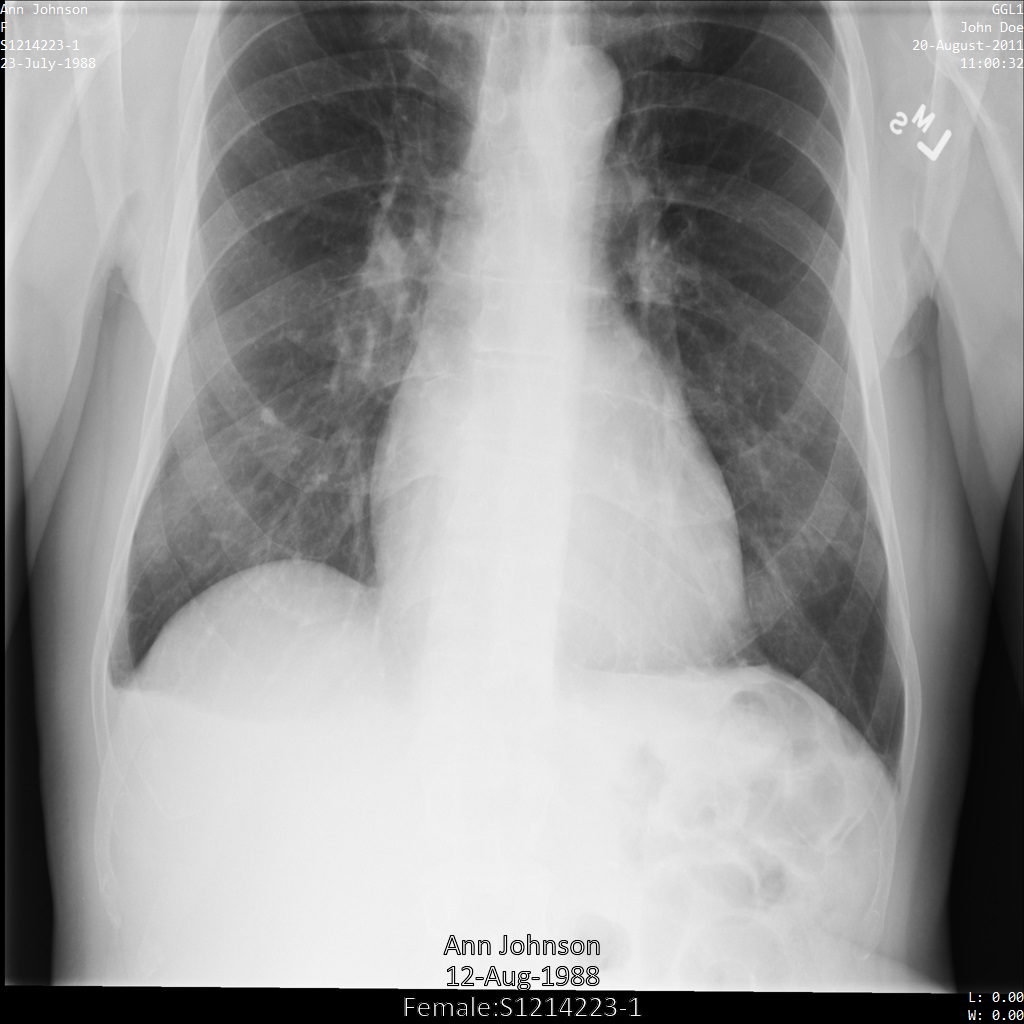
### REST
1. De-identify the dataset.
Before using any of the request data,
make the following replacements:
- PROJECT_ID: the ID of your Google Cloud project
- LOCATION: the dataset location
- SOURCE_DATASET_ID: the ID of the dataset containing the data to de-identify
- DESTINATION_DATASET_ID: the ID of the destination dataset where de-identified data is written
Request JSON body:
```
{
"destinationDataset": "projects/PROJECT_ID/locations/LOCATION/datasets/DESTINATION_DATASET_ID",
"config": {
"dicom": {
"filterProfile": "DEIDENTIFY_TAG_CONTENTS"
},
"text": {
"transformations": [
{
"infoTypes": [
"DATE",
"DATE_OF_BIRTH"
],
"dateShiftConfig": {
"cryptoKey": "U2FsdGVkX19bS2oZsdbK9X5zi2utBn22uY+I2Vo0zOU="
}
}
]
}
}
}
```
To send your request, choose one of these options:
#### curl
> [!NOTE]
> **Note:** The following command assumes that you have logged in to the `gcloud` CLI with your user account by running [`gcloud init`](https://docs.cloud.google.com/sdk/gcloud/reference/init) or [`gcloud auth login`](https://docs.cloud.google.com/sdk/gcloud/reference/auth/login.md.txt) , or by using [Cloud Shell](https://docs.cloud.google.com/shell/docs.md.txt), which automatically logs you into the `gcloud` CLI . You can check the currently active account by running [`gcloud auth list`](https://docs.cloud.google.com/sdk/gcloud/reference/auth/list.md.txt).
Save the request body in a file named `request.json`.
Run the following command in the terminal to create or overwrite
this file in the current directory:
```
cat > request.json << 'EOF'
{
"destinationDataset": "projects/PROJECT_ID/locations/LOCATION/datasets/DESTINATION_DATASET_ID",
"config": {
"dicom": {
"filterProfile": "DEIDENTIFY_TAG_CONTENTS"
},
"text": {
"transformations": [
{
"infoTypes": [
"DATE",
"DATE_OF_BIRTH"
],
"dateShiftConfig": {
"cryptoKey": "U2FsdGVkX19bS2oZsdbK9X5zi2utBn22uY+I2Vo0zOU="
}
}
]
}
}
}
EOF
```
Then execute the following command to send your REST request:
```
curl -X POST \
-H "Authorization: Bearer $(gcloud auth print-access-token)" \
-H "Content-Type: application/json; charset=utf-8" \
-d @request.json \
"https://healthcare.googleapis.com/v1/projects/PROJECT_ID/locations/LOCATION/datasets/SOURCE_DATASET_ID:deidentify"
```
#### PowerShell
> [!NOTE]
> **Note:** The following command assumes that you have logged in to the `gcloud` CLI with your user account by running [`gcloud init`](https://docs.cloud.google.com/sdk/gcloud/reference/init) or [`gcloud auth login`](https://docs.cloud.google.com/sdk/gcloud/reference/auth/login.md.txt) . You can check the currently active account by running [`gcloud auth list`](https://docs.cloud.google.com/sdk/gcloud/reference/auth/list.md.txt).
Save the request body in a file named `request.json`.
Run the following command in the terminal to create or overwrite
this file in the current directory:
```
@'
{
"destinationDataset": "projects/PROJECT_ID/locations/LOCATION/datasets/DESTINATION_DATASET_ID",
"config": {
"dicom": {
"filterProfile": "DEIDENTIFY_TAG_CONTENTS"
},
"text": {
"transformations": [
{
"infoTypes": [
"DATE",
"DATE_OF_BIRTH"
],
"dateShiftConfig": {
"cryptoKey": "U2FsdGVkX19bS2oZsdbK9X5zi2utBn22uY+I2Vo0zOU="
}
}
]
}
}
}
'@ | Out-File -FilePath request.json -Encoding utf8
```
Then execute the following command to send your REST request:
```
$cred = gcloud auth print-access-token
$headers = @{ "Authorization" = "Bearer $cred" }
Invoke-WebRequest `
-Method POST `
-Headers $headers `
-ContentType: "application/json; charset=utf-8" `
-InFile request.json `
-Uri "https://healthcare.googleapis.com/v1/projects/PROJECT_ID/locations/LOCATION/datasets/SOURCE_DATASET_ID:deidentify" | Select-Object -Expand Content
```
The output is the following. The response contains an identifier for a [long-running operation](https://docs.cloud.google.com/healthcare-api/docs/reference/rest/v1/projects.locations.datasets.operations.md.txt). Long-running operations are returned when method calls might take a substantial amount of time to complete. Note the value of OPERATION_ID. You need this value in the next step.
#### Response
```
{
"name": "projects/PROJECT_ID/locations/LOCATION/datasets/DATASET_ID/operations/OPERATION_ID"
}
```
2. Use the [`projects.locations.datasets.operations.get`](https://docs.cloud.google.com/healthcare-api/docs/reference/rest/v1/projects.locations.datasets.operations/get.md.txt) method to get the status of the long-running operation.
Before using any of the request data,
make the following replacements:
- PROJECT_ID: the ID of your Google Cloud project
- DATASET_ID: the dataset ID
- LOCATION: the dataset location
- OPERATION_ID: the ID returned from the long-running operation
To send your request, choose one of these options:
#### curl
> [!NOTE]
> **Note:** The following command assumes that you have logged in to the `gcloud` CLI with your user account by running [`gcloud init`](https://docs.cloud.google.com/sdk/gcloud/reference/init) or [`gcloud auth login`](https://docs.cloud.google.com/sdk/gcloud/reference/auth/login.md.txt) , or by using [Cloud Shell](https://docs.cloud.google.com/shell/docs.md.txt), which automatically logs you into the `gcloud` CLI . You can check the currently active account by running [`gcloud auth list`](https://docs.cloud.google.com/sdk/gcloud/reference/auth/list.md.txt).
Execute the following command:
```
curl -X GET \
-H "Authorization: Bearer $(gcloud auth print-access-token)" \
"https://healthcare.googleapis.com/v1/projects/PROJECT_ID/locations/LOCATION/datasets/DATASET_ID/operations/OPERATION_ID"
```
#### PowerShell
> [!NOTE]
> **Note:** The following command assumes that you have logged in to the `gcloud` CLI with your user account by running [`gcloud init`](https://docs.cloud.google.com/sdk/gcloud/reference/init) or [`gcloud auth login`](https://docs.cloud.google.com/sdk/gcloud/reference/auth/login.md.txt) . You can check the currently active account by running [`gcloud auth list`](https://docs.cloud.google.com/sdk/gcloud/reference/auth/list.md.txt).
Execute the following command:
```
$cred = gcloud auth print-access-token
$headers = @{ "Authorization" = "Bearer $cred" }
Invoke-WebRequest `
-Method GET `
-Headers $headers `
-Uri "https://healthcare.googleapis.com/v1/projects/PROJECT_ID/locations/LOCATION/datasets/DATASET_ID/operations/OPERATION_ID" | Select-Object -Expand Content
```
#### APIs Explorer
Open the
[method reference page](https://docs.cloud.google.com/healthcare-api/docs/reference/rest/v1/projects.locations.datasets.operations/get.md.txt).
The APIs Explorer panel opens on the right side of the page.
You can interact with this tool to send requests.
Complete any required fields and click **Execute**.
The output is the following. When the response contains `"done": true`, the long-running operation has finished.
#### Response
```
{
"name": "projects/PROJECT_ID/locations/SOURCE_DATASET_LOCATION/datasets/SOURCE_DATASET_ID/operations/OPERATION_ID",
"metadata": {
"@type": "type.googleapis.com/google.cloud.healthcare.v1.OperationMetadata",
"apiMethodName": "google.cloud.healthcare.v1.deidentify.DeidentifyService.DeidentifyDicomStore",
"createTime": "YYYY-MM-DDTHH:MM:SS+ZZ:ZZ",
"endTime": "YYYY-MM-DDTHH:MM:SS+ZZ:ZZ",
"logsUrl": "https://console.cloud.google.com/CLOUD_LOGGING_URL"
"counter": {
"success": "SUCCESS_COUNT",
// If there were any failures, they display in the `failure` field.
"failure": "FAILURE_COUNT"
}
},
"done": true,
// The `response` field only displays if there were no errors.
"response": {
"@type": "type.googleapis.com/google.cloud.healthcare.v1.deidentify.DeidentifySummary",
},
// If there were any errors, an `error` field displays instead of a `response` field.
// See Troubleshooting long-running operations for a list of response codes.
"error": {
"code": ERROR_CODE,
"message": "DESCRIPTION",
"details": [
{
"@type": "...",
FIELD1: ...,
...
}
]
}
}
```
3. After the de-identification succeeds, you can retrieve the metadata for the de-identified instance to see how it changed. The de-identified instance has a new studies UID, series UID, and instances UID, so you first need to search the new dataset for the de-identified instance.
Before using any of the request data,
make the following replacements:
- PROJECT_ID: the ID of your Google Cloud project
- SOURCE_DATASET_LOCATION: the source dataset location
- DESTINATION_DATASET_ID: the ID of the destination dataset where de-identified data is written
- DESTINATION_DICOM_STORE_ID: the ID of the DICOM store in the destination dataset. This is the same as the ID of the DICOM store in the source dataset.
To send your request, choose one of these options:
#### curl
> [!NOTE]
> **Note:** The following command assumes that you have logged in to the `gcloud` CLI with your user account by running [`gcloud init`](https://docs.cloud.google.com/sdk/gcloud/reference/init) or [`gcloud auth login`](https://docs.cloud.google.com/sdk/gcloud/reference/auth/login.md.txt) , or by using [Cloud Shell](https://docs.cloud.google.com/shell/docs.md.txt), which automatically logs you into the `gcloud` CLI . You can check the currently active account by running [`gcloud auth list`](https://docs.cloud.google.com/sdk/gcloud/reference/auth/list.md.txt).
Execute the following command:
```
curl -X GET \
-H "Authorization: Bearer $(gcloud auth print-access-token)" \
"https://healthcare.googleapis.com/v1/projects/PROJECT_ID/locations/SOURCE_DATASET_LOCATION/datasets/DESTINATION_DATASET_ID/dicomStores/DESTINATION_DICOM_STORE_ID/dicomWeb/instances"
```
#### PowerShell
> [!NOTE]
> **Note:** The following command assumes that you have logged in to the `gcloud` CLI with your user account by running [`gcloud init`](https://docs.cloud.google.com/sdk/gcloud/reference/init) or [`gcloud auth login`](https://docs.cloud.google.com/sdk/gcloud/reference/auth/login.md.txt) . You can check the currently active account by running [`gcloud auth list`](https://docs.cloud.google.com/sdk/gcloud/reference/auth/list.md.txt).
Execute the following command:
```
$cred = gcloud auth print-access-token
$headers = @{ "Authorization" = "Bearer $cred" }
Invoke-WebRequest `
-Method GET `
-Headers $headers `
-Uri "https://healthcare.googleapis.com/v1/projects/PROJECT_ID/locations/SOURCE_DATASET_LOCATION/datasets/DESTINATION_DATASET_ID/dicomStores/DESTINATION_DICOM_STORE_ID/dicomWeb/instances" | Select-Object -Expand Content
```
#### APIs Explorer
Open the
[method reference page](https://docs.cloud.google.com/healthcare-api/docs/reference/rest/v1/projects.locations.datasets.dicomStores/searchForInstances.md.txt).
The APIs Explorer panel opens on the right side of the page.
You can interact with this tool to send requests.
Complete any required fields and click **Execute**.
You should receive a JSON response similar to the following:
#### Response
```
[
{
"00080005":{"vr":"CS"},
"00080016":{"vr":"UI"},
"00080018":{"vr":"UI","Value":["1.3.6.1.4.1.11129.5.1.97415866390999888717168863957686758029"]},
"00080020":{"vr":"DA"},
"00080030":{"vr":"TM"},
"00080050":{"vr":"SH"},
"00080090":{"vr":"PN"},
"00100010":{"vr":"PN"},
"00100020":{"vr":"LO","Value":["S1214223-1"]},
"00100030":{"vr":"DA"},
"00100040":{"vr":"CS"},
"0020000D":{"vr":"UI","Value":["1.3.6.1.4.1.11129.5.1.201854290391432893460946240745559593763"]},
"0020000E":{"vr":"UI","Value":["1.3.6.1.4.1.11129.5.1.303327499491957026103380014864616068710"]},
"00200010":{"vr":"SH"},
"00200013":{"vr":"IS"},
"00280010":{"vr":"US","Value":[1024]},
"00280011":{"vr":"US","Value":[1024]},
"00280100":{"vr":"US","Value":[8]}
}
]
```
4. Using the new values, retrieve the metadata for the instance.
Before using any of the request data,
make the following replacements:
- PROJECT_ID: the ID of your Google Cloud project
- LOCATION: the dataset location
- DESTINATION_DATASET_ID: the ID of the destination dataset where de-identified data is written
- DESTINATION_DICOM_STORE_ID: the ID of the DICOM store in the destination dataset. This is the same as the ID of the DICOM store in the source dataset.
To send your request, choose one of these options:
#### curl
> [!NOTE]
> **Note:** The following command assumes that you have logged in to the `gcloud` CLI with your user account by running [`gcloud init`](https://docs.cloud.google.com/sdk/gcloud/reference/init) or [`gcloud auth login`](https://docs.cloud.google.com/sdk/gcloud/reference/auth/login.md.txt) , or by using [Cloud Shell](https://docs.cloud.google.com/shell/docs.md.txt), which automatically logs you into the `gcloud` CLI . You can check the currently active account by running [`gcloud auth list`](https://docs.cloud.google.com/sdk/gcloud/reference/auth/list.md.txt).
Execute the following command:
```
curl -X GET \
-H "Authorization: Bearer $(gcloud auth print-access-token)" \
"https://healthcare.googleapis.com/v1/projects/PROJECT_ID/locations/LOCATION/datasets/DESTINATION_DATASET_ID/dicomStores/DESTINATION_DICOM_STORE_ID/dicomWeb/studies/1.3.6.1.4.1.11129.5.1.201854290391432893460946240745559593763/series/1.3.6.1.4.1.11129.5.1.303327499491957026103380014864616068710/instances/1.3.6.1.4.1.11129.5.1.97415866390999888717168863957686758029/metadata"
```
#### PowerShell
> [!NOTE]
> **Note:** The following command assumes that you have logged in to the `gcloud` CLI with your user account by running [`gcloud init`](https://docs.cloud.google.com/sdk/gcloud/reference/init) or [`gcloud auth login`](https://docs.cloud.google.com/sdk/gcloud/reference/auth/login.md.txt) . You can check the currently active account by running [`gcloud auth list`](https://docs.cloud.google.com/sdk/gcloud/reference/auth/list.md.txt).
Execute the following command:
```
$cred = gcloud auth print-access-token
$headers = @{ "Authorization" = "Bearer $cred" }
Invoke-WebRequest `
-Method GET `
-Headers $headers `
-Uri "https://healthcare.googleapis.com/v1/projects/PROJECT_ID/locations/LOCATION/datasets/DESTINATION_DATASET_ID/dicomStores/DESTINATION_DICOM_STORE_ID/dicomWeb/studies/1.3.6.1.4.1.11129.5.1.201854290391432893460946240745559593763/series/1.3.6.1.4.1.11129.5.1.303327499491957026103380014864616068710/instances/1.3.6.1.4.1.11129.5.1.97415866390999888717168863957686758029/metadata" | Select-Object -Expand Content
```
#### APIs Explorer
Open the
[method reference page](https://docs.cloud.google.com/healthcare-api/docs/reference/rest/v1/projects.locations.datasets.dicomStores.studies.series.instances/retrieveMetadata.md.txt).
The APIs Explorer panel opens on the right side of the page.
You can interact with this tool to send requests.
Complete any required fields and click **Execute**.
The output contains the new metadata. You can compare the new metadata with the [original metadata](https://docs.cloud.google.com/healthcare-api/docs/how-tos/dicom-deidentify.md.txt#de-identifying_dicom_tags) to see the effect of the transformation.
#### Response
```
[
{
"00020002":{"vr":"UI","Value":["1.2.840.10008.5.1.4.1.1.7"]},
"00020003":{"vr":"UI","Value":["1.3.6.1.4.1.11129.5.1.97415866390999888717168863957686758029"]},
"00020010":{"vr":"UI","Value":["1.2.840.10008.1.2.4.50"]},
"00020012":{"vr":"UI","Value":["1.2.40.0.13.1.3"]},
"00020013":{"vr":"SH","Value":["dcm4che-null"]},
"00080005":{"vr":"CS","Value":["ISO_IR 100"]},
"00080016":{"vr":"UI","Value":["1.2.840.10008.5.1.4.1.1.7"]},
"00080018":{"vr":"UI","Value":["1.3.6.1.4.1.11129.5.1.97415866390999888717168863957686758029"]},
"00080020":{"vr":"DA","Value":["20110909"]},
"00080030":{"vr":"TM","Value":["110032"]},
"00080050":{"vr":"SH"},
"00080064":{"vr":"CS","Value":["WSD"]},
"00080070":{"vr":"LO","Value":["Manufacturer"]},
"00080090":{"vr":"PN","Value":[{"Alphabetic":"John ***"}]},
"00081090":{"vr":"LO","Value":["ABC1"]},
"00100010":{"vr":"PN","Value":[{"Alphabetic":"Ann *******"}]},
"00100020":{"vr":"LO","Value":["S1214223-1"]},
"00100030":{"vr":"DA","Value":["19880812"]},
"00100040":{"vr":"CS","Value":["F"]},
"0020000D":{"vr":"UI","Value":["1.3.6.1.4.1.11129.5.1.201854290391432893460946240745559593763"]},
"0020000E":{"vr":"UI","Value":["1.3.6.1.4.1.11129.5.1.303327499491957026103380014864616068710"]},
"00200010":{"vr":"SH"},
"00200011":{"vr":"IS"},
"00200013":{"vr":"IS"},
"00200020":{"vr":"CS"},
"00280002":{"vr":"US","Value":[3]},
"00280004":{"vr":"CS","Value":["YBR_FULL_422"]},
"00280006":{"vr":"US","Value":[0]},
"00280010":{"vr":"US","Value":[1024]},
"00280011":{"vr":"US","Value":[1024]},
"00280100":{"vr":"US","Value":[8]},
"00280101":{"vr":"US","Value":[8]},
"00280102":{"vr":"US","Value":[7]},
"00280103":{"vr":"US","Value":[0]},
"00282110":{"vr":"CS","Value":["01"]},
"00282114":{"vr":"CS","Value":["ISO_10918_1"]}
}
]
```
The output shows that the `StudyDate` (`00080020`) and `PatientBirthDate`
(`00100030`) have new values. These transformations occurred as a result of
combining the 100-day differential with the provided `cryptoKey` value. The
new date values are consistent for this instance between de-identification
runs as long as the same `cryptoKey` is provided.
### `CryptoHashConfig`
You can leave the `cryptoHashConfig` empty, or you can provide it with either:
- (Deprecated): A raw AES 128/192/256-bit base 64-encoded key.
- (Recommended): A [Cloud Key Management Service](https://docs.cloud.google.com/kms/docs.md.txt) (Cloud KMS) wrapped key. See [De-identifying and re-identifying sensitive text](https://docs.cloud.google.com/sensitive-data-protection/docs/inspect-sensitive-text-de-identify.md.txt) for an example on how to use Cloud KMS wrapped keys.
You must grant a role with the [`cloudkms.cryptoKeyVersions.useToDecrypt`](https://docs.cloud.google.com/kms/docs/reference/permissions-and-roles.md.txt#predefined)
permission to the **Cloud Healthcare Service Agent** [service account](https://docs.cloud.google.com/iam/docs/service-accounts)
to decrypt the Cloud KMS wrapped key. We recommend using the
Cloud KMS CryptoKey Decrypter role (`roles/cloudkms.cryptoKeyDecrypter`).
When you use Cloud KMS for cryptographic operations, charges apply. See
[Cloud Key Management Service pricing](https://cloud.google.com/kms/pricing) for more information.
> [!NOTE]
> **Note:** Using `wrapped_key` in `CryptoHashConfig` is only available in v1beta1 of the Cloud Healthcare API.
The Cloud Healthcare API can transform data by replacing values with
cryptographic hashes (also called surrogate values). To do so, specify a
`cryptoHashConfig` message.
If you do not provide a key, the Cloud Healthcare API generates a key. The
Cloud Healthcare API uses this key to generate surrogate values. If you
provide the same key for each run, the Cloud Healthcare API generates
consistent surrogate values. If you do not provide a key, the
Cloud Healthcare API generates a new key each time the operation runs. Using
a different key yields different surrogate values.
The following samples show how to apply a `cryptoHashConfig` transform to all
[default DICOM infoTypes](https://docs.cloud.google.com/healthcare-api/docs/how-tos/dicom-deidentify.md.txt#default_dicom_infotypes) supported in the
Cloud Healthcare API. After sending the
de-identification request, the values with a corresponding DICOM infoType in the
Cloud Healthcare API are replaced with surrogate values.
The sample also shows how to provide a cryptokey to generate consistent
surrogate values between de-identification runs.
The provided cryptokey, `U2FsdGVkX19bS2oZsdbK9X5zi2utBn22uY+I2Vo0zOU=`, is a raw
AES-encrypted 256-bit base64-encoded key generated using the following
command. When prompted, an empty password is provided to the command:
```bash
echo -n "test" | openssl enc -e -aes-256-ofb -a -salt
```
After submitting the image to the Cloud Healthcare API using the
`cryptoHashConfig` transformation, the image appears as follows:
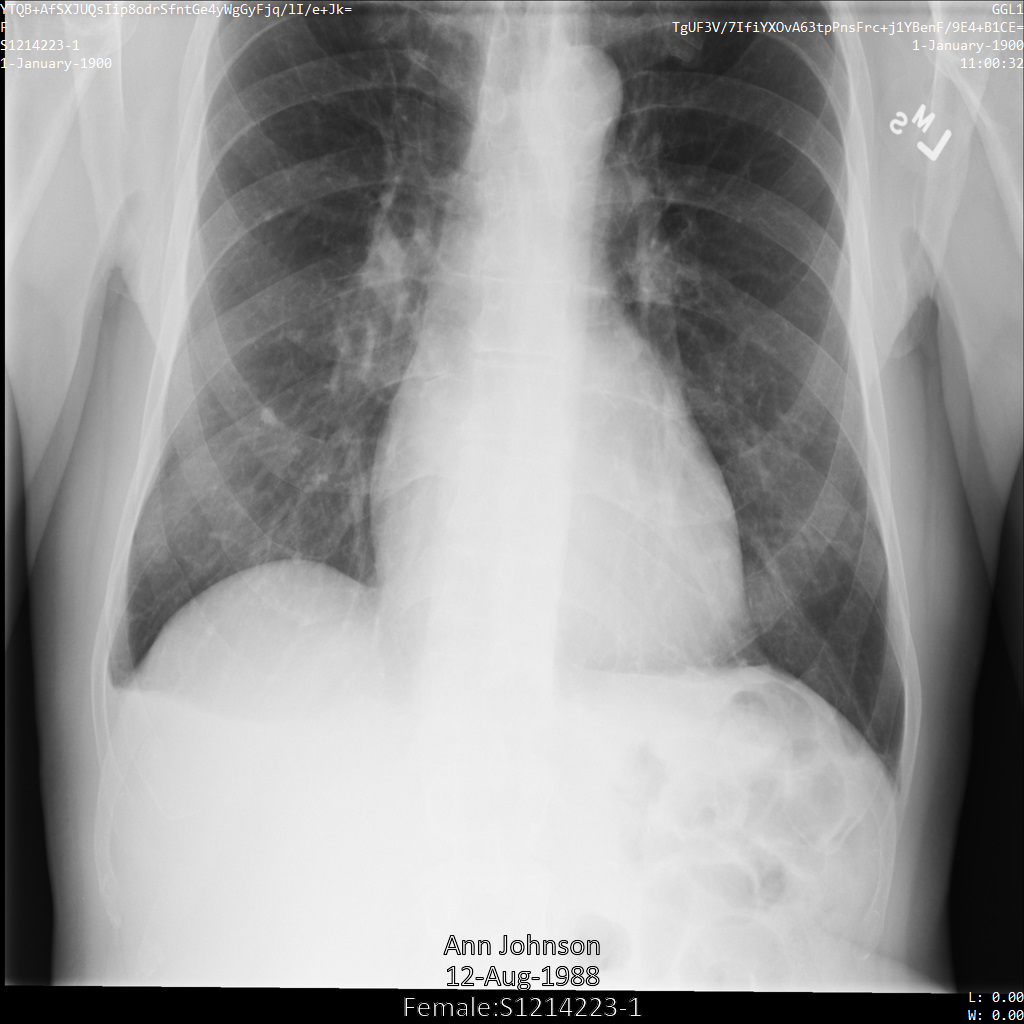
### REST
1. De-identify the dataset.
Before using any of the request data,
make the following replacements:
- PROJECT_ID: the ID of your Google Cloud project
- LOCATION: the dataset location
- SOURCE_DATASET_ID: the ID of the dataset containing the data to de-identify
- DESTINATION_DATASET_ID: the ID of the destination dataset where de-identified data is written
Request JSON body:
```
{
"destinationDataset": "projects/PROJECT_ID/locations/LOCATION/datasets/DESTINATION_DATASET_ID",
"config": {
"dicom": {
"filterProfile": "DEIDENTIFY_TAG_CONTENTS"
},
"text": {
"transformations": [
{
"infoTypes": [],
"cryptoHashConfig": {
"cryptoKey": "U2FsdGVkX19bS2oZsdbK9X5zi2utBn22uY+I2Vo0zOU="
}
}
]
}
}
}
```
To send your request, choose one of these options:
#### curl
> [!NOTE]
> **Note:** The following command assumes that you have logged in to the `gcloud` CLI with your user account by running [`gcloud init`](https://docs.cloud.google.com/sdk/gcloud/reference/init) or [`gcloud auth login`](https://docs.cloud.google.com/sdk/gcloud/reference/auth/login.md.txt) , or by using [Cloud Shell](https://docs.cloud.google.com/shell/docs.md.txt), which automatically logs you into the `gcloud` CLI . You can check the currently active account by running [`gcloud auth list`](https://docs.cloud.google.com/sdk/gcloud/reference/auth/list.md.txt).
Save the request body in a file named `request.json`.
Run the following command in the terminal to create or overwrite
this file in the current directory:
```
cat > request.json << 'EOF'
{
"destinationDataset": "projects/PROJECT_ID/locations/LOCATION/datasets/DESTINATION_DATASET_ID",
"config": {
"dicom": {
"filterProfile": "DEIDENTIFY_TAG_CONTENTS"
},
"text": {
"transformations": [
{
"infoTypes": [],
"cryptoHashConfig": {
"cryptoKey": "U2FsdGVkX19bS2oZsdbK9X5zi2utBn22uY+I2Vo0zOU="
}
}
]
}
}
}
EOF
```
Then execute the following command to send your REST request:
```
curl -X POST \
-H "Authorization: Bearer $(gcloud auth print-access-token)" \
-H "Content-Type: application/json; charset=utf-8" \
-d @request.json \
"https://healthcare.googleapis.com/v1/projects/PROJECT_ID/locations/LOCATION/datasets/SOURCE_DATASET_ID:deidentify"
```
#### PowerShell
> [!NOTE]
> **Note:** The following command assumes that you have logged in to the `gcloud` CLI with your user account by running [`gcloud init`](https://docs.cloud.google.com/sdk/gcloud/reference/init) or [`gcloud auth login`](https://docs.cloud.google.com/sdk/gcloud/reference/auth/login.md.txt) . You can check the currently active account by running [`gcloud auth list`](https://docs.cloud.google.com/sdk/gcloud/reference/auth/list.md.txt).
Save the request body in a file named `request.json`.
Run the following command in the terminal to create or overwrite
this file in the current directory:
```
@'
{
"destinationDataset": "projects/PROJECT_ID/locations/LOCATION/datasets/DESTINATION_DATASET_ID",
"config": {
"dicom": {
"filterProfile": "DEIDENTIFY_TAG_CONTENTS"
},
"text": {
"transformations": [
{
"infoTypes": [],
"cryptoHashConfig": {
"cryptoKey": "U2FsdGVkX19bS2oZsdbK9X5zi2utBn22uY+I2Vo0zOU="
}
}
]
}
}
}
'@ | Out-File -FilePath request.json -Encoding utf8
```
Then execute the following command to send your REST request:
```
$cred = gcloud auth print-access-token
$headers = @{ "Authorization" = "Bearer $cred" }
Invoke-WebRequest `
-Method POST `
-Headers $headers `
-ContentType: "application/json; charset=utf-8" `
-InFile request.json `
-Uri "https://healthcare.googleapis.com/v1/projects/PROJECT_ID/locations/LOCATION/datasets/SOURCE_DATASET_ID:deidentify" | Select-Object -Expand Content
```
The output is the following. The response contains an identifier for a [long-running operation](https://docs.cloud.google.com/healthcare-api/docs/reference/rest/v1/projects.locations.datasets.operations.md.txt). Long-running operations are returned when method calls might take a substantial amount of time to complete. Note the value of OPERATION_ID. You need this value in the next step.
#### Response
```
{
"name": "projects/PROJECT_ID/locations/LOCATION/datasets/DATASET_ID/operations/OPERATION_ID"
}
```
2. Use the [`projects.locations.datasets.operations.get`](https://docs.cloud.google.com/healthcare-api/docs/reference/rest/v1/projects.locations.datasets.operations/get.md.txt) method to get the status of the long-running operation.
Before using any of the request data,
make the following replacements:
- PROJECT_ID: the ID of your Google Cloud project
- DATASET_ID: the dataset ID
- LOCATION: the dataset location
- OPERATION_ID: the ID returned from the long-running operation
To send your request, choose one of these options:
#### curl
> [!NOTE]
> **Note:** The following command assumes that you have logged in to the `gcloud` CLI with your user account by running [`gcloud init`](https://docs.cloud.google.com/sdk/gcloud/reference/init) or [`gcloud auth login`](https://docs.cloud.google.com/sdk/gcloud/reference/auth/login.md.txt) , or by using [Cloud Shell](https://docs.cloud.google.com/shell/docs.md.txt), which automatically logs you into the `gcloud` CLI . You can check the currently active account by running [`gcloud auth list`](https://docs.cloud.google.com/sdk/gcloud/reference/auth/list.md.txt).
Execute the following command:
```
curl -X GET \
-H "Authorization: Bearer $(gcloud auth print-access-token)" \
"https://healthcare.googleapis.com/v1/projects/PROJECT_ID/locations/LOCATION/datasets/DATASET_ID/operations/OPERATION_ID"
```
#### PowerShell
> [!NOTE]
> **Note:** The following command assumes that you have logged in to the `gcloud` CLI with your user account by running [`gcloud init`](https://docs.cloud.google.com/sdk/gcloud/reference/init) or [`gcloud auth login`](https://docs.cloud.google.com/sdk/gcloud/reference/auth/login.md.txt) . You can check the currently active account by running [`gcloud auth list`](https://docs.cloud.google.com/sdk/gcloud/reference/auth/list.md.txt).
Execute the following command:
```
$cred = gcloud auth print-access-token
$headers = @{ "Authorization" = "Bearer $cred" }
Invoke-WebRequest `
-Method GET `
-Headers $headers `
-Uri "https://healthcare.googleapis.com/v1/projects/PROJECT_ID/locations/LOCATION/datasets/DATASET_ID/operations/OPERATION_ID" | Select-Object -Expand Content
```
#### APIs Explorer
Open the
[method reference page](https://docs.cloud.google.com/healthcare-api/docs/reference/rest/v1/projects.locations.datasets.operations/get.md.txt).
The APIs Explorer panel opens on the right side of the page.
You can interact with this tool to send requests.
Complete any required fields and click **Execute**.
The output is the following. When the response contains `"done": true`, the long-running operation has finished.
#### Response
```
{
"name": "projects/PROJECT_ID/locations/SOURCE_DATASET_LOCATION/datasets/SOURCE_DATASET_ID/operations/OPERATION_ID",
"metadata": {
"@type": "type.googleapis.com/google.cloud.healthcare.v1.OperationMetadata",
"apiMethodName": "google.cloud.healthcare.v1.deidentify.DeidentifyService.DeidentifyDicomStore",
"createTime": "YYYY-MM-DDTHH:MM:SS+ZZ:ZZ",
"endTime": "YYYY-MM-DDTHH:MM:SS+ZZ:ZZ",
"logsUrl": "https://console.cloud.google.com/CLOUD_LOGGING_URL"
"counter": {
"success": "SUCCESS_COUNT",
// If there were any failures, they display in the `failure` field.
"failure": "FAILURE_COUNT"
}
},
"done": true,
// The `response` field only displays if there were no errors.
"response": {
"@type": "type.googleapis.com/google.cloud.healthcare.v1.deidentify.DeidentifySummary",
},
// If there were any errors, an `error` field displays instead of a `response` field.
// See Troubleshooting long-running operations for a list of response codes.
"error": {
"code": ERROR_CODE,
"message": "DESCRIPTION",
"details": [
{
"@type": "...",
FIELD1: ...,
...
}
]
}
}
```
3. After the de-identification succeeds, you can retrieve the metadata for the de-identified instance to see how it changed. The de-identified instance has a new studies UID, series UID, and instances UID, so you first need to search the new dataset for the de-identified instance.
Before using any of the request data,
make the following replacements:
- PROJECT_ID: the ID of your Google Cloud project
- SOURCE_DATASET_LOCATION: the source dataset location
- DESTINATION_DATASET_ID: the ID of the destination dataset where de-identified data is written
- DESTINATION_DICOM_STORE_ID: the ID of the DICOM store in the destination dataset. This is the same as the ID of the DICOM store in the source dataset.
To send your request, choose one of these options:
#### curl
> [!NOTE]
> **Note:** The following command assumes that you have logged in to the `gcloud` CLI with your user account by running [`gcloud init`](https://docs.cloud.google.com/sdk/gcloud/reference/init) or [`gcloud auth login`](https://docs.cloud.google.com/sdk/gcloud/reference/auth/login.md.txt) , or by using [Cloud Shell](https://docs.cloud.google.com/shell/docs.md.txt), which automatically logs you into the `gcloud` CLI . You can check the currently active account by running [`gcloud auth list`](https://docs.cloud.google.com/sdk/gcloud/reference/auth/list.md.txt).
Execute the following command:
```
curl -X GET \
-H "Authorization: Bearer $(gcloud auth print-access-token)" \
"https://healthcare.googleapis.com/v1/projects/PROJECT_ID/locations/SOURCE_DATASET_LOCATION/datasets/DESTINATION_DATASET_ID/dicomStores/DESTINATION_DICOM_STORE_ID/dicomWeb/instances"
```
#### PowerShell
> [!NOTE]
> **Note:** The following command assumes that you have logged in to the `gcloud` CLI with your user account by running [`gcloud init`](https://docs.cloud.google.com/sdk/gcloud/reference/init) or [`gcloud auth login`](https://docs.cloud.google.com/sdk/gcloud/reference/auth/login.md.txt) . You can check the currently active account by running [`gcloud auth list`](https://docs.cloud.google.com/sdk/gcloud/reference/auth/list.md.txt).
Execute the following command:
```
$cred = gcloud auth print-access-token
$headers = @{ "Authorization" = "Bearer $cred" }
Invoke-WebRequest `
-Method GET `
-Headers $headers `
-Uri "https://healthcare.googleapis.com/v1/projects/PROJECT_ID/locations/SOURCE_DATASET_LOCATION/datasets/DESTINATION_DATASET_ID/dicomStores/DESTINATION_DICOM_STORE_ID/dicomWeb/instances" | Select-Object -Expand Content
```
#### APIs Explorer
Open the
[method reference page](https://docs.cloud.google.com/healthcare-api/docs/reference/rest/v1/projects.locations.datasets.dicomStores/searchForInstances.md.txt).
The APIs Explorer panel opens on the right side of the page.
You can interact with this tool to send requests.
Complete any required fields and click **Execute**.
You should receive a JSON response similar to the following:
#### Response
```
[
{
"00080005":{"vr":"CS"},
"00080016":{"vr":"UI"},
"00080018":{"vr":"UI","Value":["1.3.6.1.4.1.11129.5.1.97415866390999888717168863957686758029"]},
"00080020":{"vr":"DA"},
"00080030":{"vr":"TM"},
"00080050":{"vr":"SH"},
"00080090":{"vr":"PN"},
"00100010":{"vr":"PN"},
"00100020":{"vr":"LO","Value":["S1214223-1"]},
"00100030":{"vr":"DA"},
"00100040":{"vr":"CS"},
"0020000D":{"vr":"UI","Value":["1.3.6.1.4.1.11129.5.1.201854290391432893460946240745559593763"]},
"0020000E":{"vr":"UI","Value":["1.3.6.1.4.1.11129.5.1.303327499491957026103380014864616068710"]},
"00200010":{"vr":"SH"},
"00200013":{"vr":"IS"},
"00280010":{"vr":"US","Value":[1024]},
"00280011":{"vr":"US","Value":[1024]},
"00280100":{"vr":"US","Value":[8]}
}
]
```
4. Using the new values, retrieve the metadata for the instance.
Before using any of the request data,
make the following replacements:
- PROJECT_ID: the ID of your Google Cloud project
- LOCATION: the dataset location
- DESTINATION_DATASET_ID: the ID of the destination dataset where de-identified data is written
- DESTINATION_DICOM_STORE_ID: the ID of the DICOM store in the destination dataset. This is the same as the ID of the DICOM store in the source dataset.
To send your request, choose one of these options:
#### curl
> [!NOTE]
> **Note:** The following command assumes that you have logged in to the `gcloud` CLI with your user account by running [`gcloud init`](https://docs.cloud.google.com/sdk/gcloud/reference/init) or [`gcloud auth login`](https://docs.cloud.google.com/sdk/gcloud/reference/auth/login.md.txt) , or by using [Cloud Shell](https://docs.cloud.google.com/shell/docs.md.txt), which automatically logs you into the `gcloud` CLI . You can check the currently active account by running [`gcloud auth list`](https://docs.cloud.google.com/sdk/gcloud/reference/auth/list.md.txt).
Execute the following command:
```
curl -X GET \
-H "Authorization: Bearer $(gcloud auth print-access-token)" \
"https://healthcare.googleapis.com/v1/projects/PROJECT_ID/locations/LOCATION/datasets/DESTINATION_DATASET_ID/dicomStores/DESTINATION_DICOM_STORE_ID/dicomWeb/studies/1.3.6.1.4.1.11129.5.1.201854290391432893460946240745559593763/series/1.3.6.1.4.1.11129.5.1.303327499491957026103380014864616068710/instances/1.3.6.1.4.1.11129.5.1.97415866390999888717168863957686758029/metadata"
```
#### PowerShell
> [!NOTE]
> **Note:** The following command assumes that you have logged in to the `gcloud` CLI with your user account by running [`gcloud init`](https://docs.cloud.google.com/sdk/gcloud/reference/init) or [`gcloud auth login`](https://docs.cloud.google.com/sdk/gcloud/reference/auth/login.md.txt) . You can check the currently active account by running [`gcloud auth list`](https://docs.cloud.google.com/sdk/gcloud/reference/auth/list.md.txt).
Execute the following command:
```
$cred = gcloud auth print-access-token
$headers = @{ "Authorization" = "Bearer $cred" }
Invoke-WebRequest `
-Method GET `
-Headers $headers `
-Uri "https://healthcare.googleapis.com/v1/projects/PROJECT_ID/locations/LOCATION/datasets/DESTINATION_DATASET_ID/dicomStores/DESTINATION_DICOM_STORE_ID/dicomWeb/studies/1.3.6.1.4.1.11129.5.1.201854290391432893460946240745559593763/series/1.3.6.1.4.1.11129.5.1.303327499491957026103380014864616068710/instances/1.3.6.1.4.1.11129.5.1.97415866390999888717168863957686758029/metadata" | Select-Object -Expand Content
```
#### APIs Explorer
Open the
[method reference page](https://docs.cloud.google.com/healthcare-api/docs/reference/rest/v1/projects.locations.datasets.dicomStores.studies.series.instances/retrieveMetadata.md.txt).
The APIs Explorer panel opens on the right side of the page.
You can interact with this tool to send requests.
Complete any required fields and click **Execute**.
The output contains the new metadata. You can compare the new metadata with the [original metadata](https://docs.cloud.google.com/healthcare-api/docs/how-tos/dicom-deidentify.md.txt#de-identifying_dicom_tags) to see the effect of the transformation.
#### Response
```
[
{
"00020002":{"vr":"UI","Value":["1.2.840.10008.5.1.4.1.1.7"]},
"00020003":{"vr":"UI","Value":["1.3.6.1.4.1.11129.5.1.97415866390999888717168863957686758029"]},
"00020010":{"vr":"UI","Value":["1.2.840.10008.1.2.4.50"]},
"00020012":{"vr":"UI","Value":["1.2.40.0.13.1.3"]},
"00020013":{"vr":"SH","Value":["dcm4che-null"]},
"00080005":{"vr":"CS","Value":["ISO_IR 100"]},
"00080016":{"vr":"UI","Value":["1.2.840.10008.5.1.4.1.1.7"]},
"00080018":{"vr":"UI","Value":["1.3.6.1.4.1.11129.5.1.97415866390999888717168863957686758029"]},
"00080020":{"vr":"DA","Value":["19000101"]},
"00080030":{"vr":"TM","Value":["110032"]},
"00080050":{"vr":"SH"},
"00080064":{"vr":"CS","Value":["WSD"]},
"00080070":{"vr":"LO","Value":["Manufacturer"]},
"00080090":{"vr":"PN","Value":[{"Alphabetic":"TgUF3V/7IfiYXOvA63tpPnsFrc+j1YBenF/9E4+B1CE"}]},
"00081090":{"vr":"LO","Value":["ABC1"]},
"00100010":{"vr":"PN","Value":[{"Alphabetic":"YTQB+AfSXJUQsIip8odrSfntGe4yWgGyFjq/lI/e+Jk"}]},
"00100020":{"vr":"LO","Value":["S1214223-1"]},
"00100030":{"vr":"DA","Value":["19000101"]},
"00100040":{"vr":"CS","Value":["F"]},
"0020000D":{"vr":"UI","Value":["1.3.6.1.4.1.11129.5.1.201854290391432893460946240745559593763"]},
"0020000E":{"vr":"UI","Value":["1.3.6.1.4.1.11129.5.1.303327499491957026103380014864616068710"]},
"00200010":{"vr":"SH"},
"00200011":{"vr":"IS"},
"00200013":{"vr":"IS"},
"00200020":{"vr":"CS"},
"00280002":{"vr":"US","Value":[3]},
"00280004":{"vr":"CS","Value":["YBR_FULL_422"]},
"00280006":{"vr":"US","Value":[0]},
"00280010":{"vr":"US","Value":[1024]},
"00280011":{"vr":"US","Value":[1024]},
"00280100":{"vr":"US","Value":[8]},
"00280101":{"vr":"US","Value":[8]},
"00280102":{"vr":"US","Value":[7]},
"00280103":{"vr":"US","Value":[0]},
"00282110":{"vr":"CS","Value":["01"]},
"00282114":{"vr":"CS","Value":["ISO_10918_1"]}
}
]
```
The transformations in the output are consistent for this instance
between de-identification runs as long as the same `cryptoKey` is provided.
### `ReplaceWithInfoTypeConfig`
Specifying `replaceWithInfoTypeConfig` replaces input values with the name of
the value's infoType.
The following samples show how to apply a `replaceWithInfoTypeConfig` transform
to all [default DICOM infoTypes](https://docs.cloud.google.com/healthcare-api/docs/how-tos/dicom-deidentify.md.txt#default_dicom_infotypes) supported in the
Cloud Healthcare API.
The `replaceWithInfoTypeConfig` message has no arguments; specifying it
enables transformation.
After submitting the image to the Cloud Healthcare API using the
`replaceWithInfoTypeConfig` transformation, the image appears as follows:
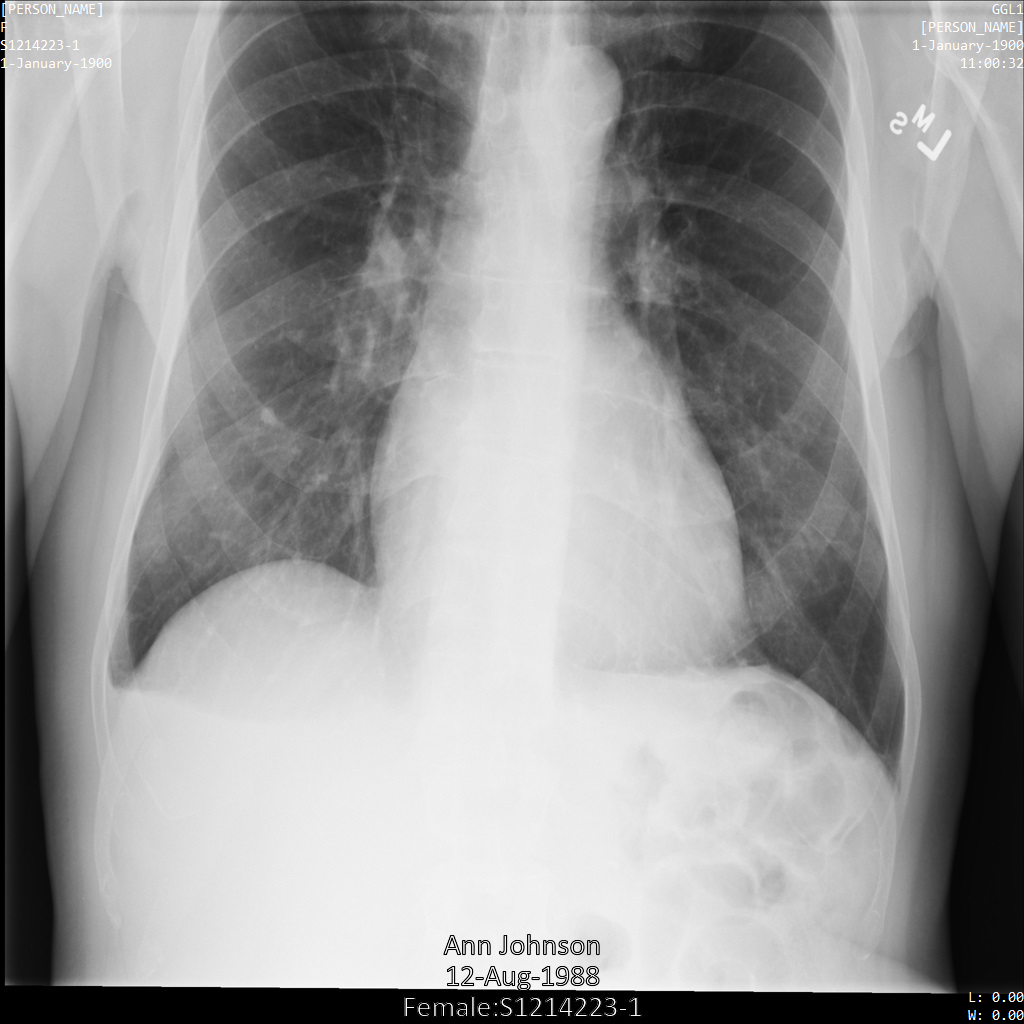
### REST
1. De-identify the dataset.
Before using any of the request data,
make the following replacements:
- PROJECT_ID: the ID of your Google Cloud project
- LOCATION: the dataset location
- SOURCE_DATASET_ID: the ID of the dataset containing the data to de-identify
- DESTINATION_DATASET_ID: the ID of the destination dataset where de-identified data is written
Request JSON body:
```
{
"destinationDataset": "projects/PROJECT_ID/locations/LOCATION/datasets/DESTINATION_DATASET_ID",
"config": {
"dicom": {
"filterProfile": "DEIDENTIFY_TAG_CONTENTS"
},
"text": {
"transformations": [
{
"infoTypes": [],
"replaceWithInfoTypeConfig": {}
}
]
}
}
}
```
To send your request, choose one of these options:
#### curl
> [!NOTE]
> **Note:** The following command assumes that you have logged in to the `gcloud` CLI with your user account by running [`gcloud init`](https://docs.cloud.google.com/sdk/gcloud/reference/init) or [`gcloud auth login`](https://docs.cloud.google.com/sdk/gcloud/reference/auth/login.md.txt) , or by using [Cloud Shell](https://docs.cloud.google.com/shell/docs.md.txt), which automatically logs you into the `gcloud` CLI . You can check the currently active account by running [`gcloud auth list`](https://docs.cloud.google.com/sdk/gcloud/reference/auth/list.md.txt).
Save the request body in a file named `request.json`.
Run the following command in the terminal to create or overwrite
this file in the current directory:
```
cat > request.json << 'EOF'
{
"destinationDataset": "projects/PROJECT_ID/locations/LOCATION/datasets/DESTINATION_DATASET_ID",
"config": {
"dicom": {
"filterProfile": "DEIDENTIFY_TAG_CONTENTS"
},
"text": {
"transformations": [
{
"infoTypes": [],
"replaceWithInfoTypeConfig": {}
}
]
}
}
}
EOF
```
Then execute the following command to send your REST request:
```
curl -X POST \
-H "Authorization: Bearer $(gcloud auth print-access-token)" \
-H "Content-Type: application/json; charset=utf-8" \
-d @request.json \
"https://healthcare.googleapis.com/v1/projects/PROJECT_ID/locations/LOCATION/datasets/SOURCE_DATASET_ID:deidentify"
```
#### PowerShell
> [!NOTE]
> **Note:** The following command assumes that you have logged in to the `gcloud` CLI with your user account by running [`gcloud init`](https://docs.cloud.google.com/sdk/gcloud/reference/init) or [`gcloud auth login`](https://docs.cloud.google.com/sdk/gcloud/reference/auth/login.md.txt) . You can check the currently active account by running [`gcloud auth list`](https://docs.cloud.google.com/sdk/gcloud/reference/auth/list.md.txt).
Save the request body in a file named `request.json`.
Run the following command in the terminal to create or overwrite
this file in the current directory:
```
@'
{
"destinationDataset": "projects/PROJECT_ID/locations/LOCATION/datasets/DESTINATION_DATASET_ID",
"config": {
"dicom": {
"filterProfile": "DEIDENTIFY_TAG_CONTENTS"
},
"text": {
"transformations": [
{
"infoTypes": [],
"replaceWithInfoTypeConfig": {}
}
]
}
}
}
'@ | Out-File -FilePath request.json -Encoding utf8
```
Then execute the following command to send your REST request:
```
$cred = gcloud auth print-access-token
$headers = @{ "Authorization" = "Bearer $cred" }
Invoke-WebRequest `
-Method POST `
-Headers $headers `
-ContentType: "application/json; charset=utf-8" `
-InFile request.json `
-Uri "https://healthcare.googleapis.com/v1/projects/PROJECT_ID/locations/LOCATION/datasets/SOURCE_DATASET_ID:deidentify" | Select-Object -Expand Content
```
The output is the following. The response contains an identifier for a [long-running operation](https://docs.cloud.google.com/healthcare-api/docs/reference/rest/v1/projects.locations.datasets.operations.md.txt). Long-running operations are returned when method calls might take a substantial amount of time to complete. Note the value of OPERATION_ID. You need this value in the next step.
#### Response
```
{
"name": "projects/PROJECT_ID/locations/LOCATION/datasets/DATASET_ID/operations/OPERATION_ID"
}
```
2. Use the [`projects.locations.datasets.operations.get`](https://docs.cloud.google.com/healthcare-api/docs/reference/rest/v1/projects.locations.datasets.operations/get.md.txt) method to get the status of the long-running operation.
Before using any of the request data,
make the following replacements:
- PROJECT_ID: the ID of your Google Cloud project
- DATASET_ID: the dataset ID
- LOCATION: the dataset location
- OPERATION_ID: the ID returned from the long-running operation
To send your request, choose one of these options:
#### curl
> [!NOTE]
> **Note:** The following command assumes that you have logged in to the `gcloud` CLI with your user account by running [`gcloud init`](https://docs.cloud.google.com/sdk/gcloud/reference/init) or [`gcloud auth login`](https://docs.cloud.google.com/sdk/gcloud/reference/auth/login.md.txt) , or by using [Cloud Shell](https://docs.cloud.google.com/shell/docs.md.txt), which automatically logs you into the `gcloud` CLI . You can check the currently active account by running [`gcloud auth list`](https://docs.cloud.google.com/sdk/gcloud/reference/auth/list.md.txt).
Execute the following command:
```
curl -X GET \
-H "Authorization: Bearer $(gcloud auth print-access-token)" \
"https://healthcare.googleapis.com/v1/projects/PROJECT_ID/locations/LOCATION/datasets/DATASET_ID/operations/OPERATION_ID"
```
#### PowerShell
> [!NOTE]
> **Note:** The following command assumes that you have logged in to the `gcloud` CLI with your user account by running [`gcloud init`](https://docs.cloud.google.com/sdk/gcloud/reference/init) or [`gcloud auth login`](https://docs.cloud.google.com/sdk/gcloud/reference/auth/login.md.txt) . You can check the currently active account by running [`gcloud auth list`](https://docs.cloud.google.com/sdk/gcloud/reference/auth/list.md.txt).
Execute the following command:
```
$cred = gcloud auth print-access-token
$headers = @{ "Authorization" = "Bearer $cred" }
Invoke-WebRequest `
-Method GET `
-Headers $headers `
-Uri "https://healthcare.googleapis.com/v1/projects/PROJECT_ID/locations/LOCATION/datasets/DATASET_ID/operations/OPERATION_ID" | Select-Object -Expand Content
```
#### APIs Explorer
Open the
[method reference page](https://docs.cloud.google.com/healthcare-api/docs/reference/rest/v1/projects.locations.datasets.operations/get.md.txt).
The APIs Explorer panel opens on the right side of the page.
You can interact with this tool to send requests.
Complete any required fields and click **Execute**.
The output is the following. When the response contains `"done": true`, the long-running operation has finished.
#### Response
```
{
"name": "projects/PROJECT_ID/locations/SOURCE_DATASET_LOCATION/datasets/SOURCE_DATASET_ID/operations/OPERATION_ID",
"metadata": {
"@type": "type.googleapis.com/google.cloud.healthcare.v1.OperationMetadata",
"apiMethodName": "google.cloud.healthcare.v1.deidentify.DeidentifyService.DeidentifyDicomStore",
"createTime": "YYYY-MM-DDTHH:MM:SS+ZZ:ZZ",
"endTime": "YYYY-MM-DDTHH:MM:SS+ZZ:ZZ",
"logsUrl": "https://console.cloud.google.com/CLOUD_LOGGING_URL"
"counter": {
"success": "SUCCESS_COUNT",
// If there were any failures, they display in the `failure` field.
"failure": "FAILURE_COUNT"
}
},
"done": true,
// The `response` field only displays if there were no errors.
"response": {
"@type": "type.googleapis.com/google.cloud.healthcare.v1.deidentify.DeidentifySummary",
},
// If there were any errors, an `error` field displays instead of a `response` field.
// See Troubleshooting long-running operations for a list of response codes.
"error": {
"code": ERROR_CODE,
"message": "DESCRIPTION",
"details": [
{
"@type": "...",
FIELD1: ...,
...
}
]
}
}
```
3. After the de-identification succeeds, you can retrieve the metadata for the de-identified instance to see how it changed. The de-identified instance has a new studies UID, series UID, and instances UID, so you first need to search the new dataset for the de-identified instance.
Before using any of the request data,
make the following replacements:
- PROJECT_ID: the ID of your Google Cloud project
- SOURCE_DATASET_LOCATION: the source dataset location
- DESTINATION_DATASET_ID: the ID of the destination dataset where de-identified data is written
- DESTINATION_DICOM_STORE_ID: the ID of the DICOM store in the destination dataset. This is the same as the ID of the DICOM store in the source dataset.
To send your request, choose one of these options:
#### curl
> [!NOTE]
> **Note:** The following command assumes that you have logged in to the `gcloud` CLI with your user account by running [`gcloud init`](https://docs.cloud.google.com/sdk/gcloud/reference/init) or [`gcloud auth login`](https://docs.cloud.google.com/sdk/gcloud/reference/auth/login.md.txt) , or by using [Cloud Shell](https://docs.cloud.google.com/shell/docs.md.txt), which automatically logs you into the `gcloud` CLI . You can check the currently active account by running [`gcloud auth list`](https://docs.cloud.google.com/sdk/gcloud/reference/auth/list.md.txt).
Execute the following command:
```
curl -X GET \
-H "Authorization: Bearer $(gcloud auth print-access-token)" \
"https://healthcare.googleapis.com/v1/projects/PROJECT_ID/locations/SOURCE_DATASET_LOCATION/datasets/DESTINATION_DATASET_ID/dicomStores/DESTINATION_DICOM_STORE_ID/dicomWeb/instances"
```
#### PowerShell
> [!NOTE]
> **Note:** The following command assumes that you have logged in to the `gcloud` CLI with your user account by running [`gcloud init`](https://docs.cloud.google.com/sdk/gcloud/reference/init) or [`gcloud auth login`](https://docs.cloud.google.com/sdk/gcloud/reference/auth/login.md.txt) . You can check the currently active account by running [`gcloud auth list`](https://docs.cloud.google.com/sdk/gcloud/reference/auth/list.md.txt).
Execute the following command:
```
$cred = gcloud auth print-access-token
$headers = @{ "Authorization" = "Bearer $cred" }
Invoke-WebRequest `
-Method GET `
-Headers $headers `
-Uri "https://healthcare.googleapis.com/v1/projects/PROJECT_ID/locations/SOURCE_DATASET_LOCATION/datasets/DESTINATION_DATASET_ID/dicomStores/DESTINATION_DICOM_STORE_ID/dicomWeb/instances" | Select-Object -Expand Content
```
#### APIs Explorer
Open the
[method reference page](https://docs.cloud.google.com/healthcare-api/docs/reference/rest/v1/projects.locations.datasets.dicomStores/searchForInstances.md.txt).
The APIs Explorer panel opens on the right side of the page.
You can interact with this tool to send requests.
Complete any required fields and click **Execute**.
You should receive a JSON response similar to the following:
#### Response
```
[
{
"00080005":{"vr":"CS"},
"00080016":{"vr":"UI"},
"00080018":{"vr":"UI","Value":["1.3.6.1.4.1.11129.5.1.97415866390999888717168863957686758029"]},
"00080020":{"vr":"DA"},
"00080030":{"vr":"TM"},
"00080050":{"vr":"SH"},
"00080090":{"vr":"PN"},
"00100010":{"vr":"PN"},
"00100020":{"vr":"LO","Value":["S1214223-1"]},
"00100030":{"vr":"DA"},
"00100040":{"vr":"CS"},
"0020000D":{"vr":"UI","Value":["1.3.6.1.4.1.11129.5.1.201854290391432893460946240745559593763"]},
"0020000E":{"vr":"UI","Value":["1.3.6.1.4.1.11129.5.1.303327499491957026103380014864616068710"]},
"00200010":{"vr":"SH"},
"00200013":{"vr":"IS"},
"00280010":{"vr":"US","Value":[1024]},
"00280011":{"vr":"US","Value":[1024]},
"00280100":{"vr":"US","Value":[8]}
}
]
```
4. Using the new values, retrieve the metadata for the instance.
Before using any of the request data,
make the following replacements:
- PROJECT_ID: the ID of your Google Cloud project
- LOCATION: the dataset location
- DESTINATION_DATASET_ID: the ID of the destination dataset where de-identified data is written
- DESTINATION_DICOM_STORE_ID: the ID of the DICOM store in the destination dataset. This is the same as the ID of the DICOM store in the source dataset.
To send your request, choose one of these options:
#### curl
> [!NOTE]
> **Note:** The following command assumes that you have logged in to the `gcloud` CLI with your user account by running [`gcloud init`](https://docs.cloud.google.com/sdk/gcloud/reference/init) or [`gcloud auth login`](https://docs.cloud.google.com/sdk/gcloud/reference/auth/login.md.txt) , or by using [Cloud Shell](https://docs.cloud.google.com/shell/docs.md.txt), which automatically logs you into the `gcloud` CLI . You can check the currently active account by running [`gcloud auth list`](https://docs.cloud.google.com/sdk/gcloud/reference/auth/list.md.txt).
Execute the following command:
```
curl -X GET \
-H "Authorization: Bearer $(gcloud auth print-access-token)" \
"https://healthcare.googleapis.com/v1/projects/PROJECT_ID/locations/LOCATION/datasets/DESTINATION_DATASET_ID/dicomStores/DESTINATION_DICOM_STORE_ID/dicomWeb/studies/1.3.6.1.4.1.11129.5.1.201854290391432893460946240745559593763/series/1.3.6.1.4.1.11129.5.1.303327499491957026103380014864616068710/instances/1.3.6.1.4.1.11129.5.1.97415866390999888717168863957686758029/metadata"
```
#### PowerShell
> [!NOTE]
> **Note:** The following command assumes that you have logged in to the `gcloud` CLI with your user account by running [`gcloud init`](https://docs.cloud.google.com/sdk/gcloud/reference/init) or [`gcloud auth login`](https://docs.cloud.google.com/sdk/gcloud/reference/auth/login.md.txt) . You can check the currently active account by running [`gcloud auth list`](https://docs.cloud.google.com/sdk/gcloud/reference/auth/list.md.txt).
Execute the following command:
```
$cred = gcloud auth print-access-token
$headers = @{ "Authorization" = "Bearer $cred" }
Invoke-WebRequest `
-Method GET `
-Headers $headers `
-Uri "https://healthcare.googleapis.com/v1/projects/PROJECT_ID/locations/LOCATION/datasets/DESTINATION_DATASET_ID/dicomStores/DESTINATION_DICOM_STORE_ID/dicomWeb/studies/1.3.6.1.4.1.11129.5.1.201854290391432893460946240745559593763/series/1.3.6.1.4.1.11129.5.1.303327499491957026103380014864616068710/instances/1.3.6.1.4.1.11129.5.1.97415866390999888717168863957686758029/metadata" | Select-Object -Expand Content
```
#### APIs Explorer
Open the
[method reference page](https://docs.cloud.google.com/healthcare-api/docs/reference/rest/v1/projects.locations.datasets.dicomStores.studies.series.instances/retrieveMetadata.md.txt).
The APIs Explorer panel opens on the right side of the page.
You can interact with this tool to send requests.
Complete any required fields and click **Execute**.
The output contains the new metadata. You can compare the new metadata with the [original metadata](https://docs.cloud.google.com/healthcare-api/docs/how-tos/dicom-deidentify.md.txt#de-identifying_dicom_tags) to see the effect of the transformation.
#### Response
```
[
{
"00020002":{"vr":"UI","Value":["1.2.840.10008.5.1.4.1.1.7"]},
"00020003":{"vr":"UI","Value":["1.3.6.1.4.1.11129.5.1.97415866390999888717168863957686758029"]},
"00020010":{"vr":"UI","Value":["1.2.840.10008.1.2.4.50"]},
"00020012":{"vr":"UI","Value":["1.2.40.0.13.1.3"]},
"00020013":{"vr":"SH","Value":["dcm4che-null"]},
"00080005":{"vr":"CS","Value":["ISO_IR 100"]},
"00080016":{"vr":"UI","Value":["1.2.840.10008.5.1.4.1.1.7"]},
"00080018":{"vr":"UI","Value":["1.3.6.1.4.1.11129.5.1.97415866390999888717168863957686758029"]},
"00080020":{"vr":"DA","Value":["19000101"]},
"00080030":{"vr":"TM","Value":["110032"]},
"00080050":{"vr":"SH"},
"00080064":{"vr":"CS","Value":["WSD"]},
"00080070":{"vr":"LO","Value":["Manufacturer"]},
"00080090":{"vr":"PN","Value":[{"Alphabetic":"[PERSON_NAME]"}]},
"00081090":{"vr":"LO","Value":["ABC1"]},
"00100010":{"vr":"PN","Value":[{"Alphabetic":"[PERSON_NAME]"}]},
"00100020":{"vr":"LO","Value":["S1214223-1"]},
"00100030":{"vr":"DA","Value":["19000101"]},
"00100040":{"vr":"CS","Value":["F"]},
"0020000D":{"vr":"UI","Value":["1.3.6.1.4.1.11129.5.1.201854290391432893460946240745559593763"]},
"0020000E":{"vr":"UI","Value":["1.3.6.1.4.1.11129.5.1.303327499491957026103380014864616068710"]},
"00200010":{"vr":"SH"},
"00200011":{"vr":"IS"},
"00200013":{"vr":"IS"},
"00200020":{"vr":"CS"},
"00280002":{"vr":"US","Value":[3]},
"00280004":{"vr":"CS","Value":["YBR_FULL_422"]},
"00280006":{"vr":"US","Value":[0]},
"00280010":{"vr":"US","Value":[1024]},
"00280011":{"vr":"US","Value":[1024]},
"00280100":{"vr":"US","Value":[8]},
"00280101":{"vr":"US","Value":[8]},
"00280102":{"vr":"US","Value":[7]},
"00280103":{"vr":"US","Value":[0]},
"00282110":{"vr":"CS","Value":["01"]},
"00282114":{"vr":"CS","Value":["ISO_10918_1"]}
}
]
```
## De-identifying data at the DICOM store level
The preceding samples show how to de-identify DICOM data at the dataset level.
This section describes how to de-identify data at the DICOM store level.
To change a dataset de-identification request to a DICOM store de-identification
request, make the following changes:
- Modify the `destinationDataset` in the request body to `destinationStore`
- Add `dicomStores/DESTINATION_DICOM_STORE_ID` at the end of the value in `destinationStore` when specifying the destination
- Add `dicomStores/SOURCE_DICOM_STORE_ID` when specifying the location of the source data
For example:
**Dataset level de-identification:**
```bash
"destinationDataset": "projects/PROJECT_ID/locations/LOCATION/datasets/DESTINATION_DATASET_ID"
...
"https://healthcare.googleapis.com/v1/projects/PROJECT_ID/locations/LOCATION/datasets/SOURCE_DATASET_ID:deidentify"
```
**DICOM store level de-identification:**
```bash
"destinationStore": "projects/PROJECT_ID/locations/LOCATION/datasets/DESTINATION_DATASET_ID/dicomStores/DESTINATION_DICOM_STORE_ID"
...
"https://healthcare.googleapis.com/v1/projects/PROJECT_ID/locations/LOCATION/datasets/SOURCE_DATASET_ID/dicomStores/SOURCE_DICOM_STORE_ID:deidentify"
```
The following samples expand on
[Combining tag de-identification and burnt-in text redaction](https://docs.cloud.google.com/healthcare-api/docs/how-tos/dicom-deidentify.md.txt#combining_tag_de-identification_and_burnt-in_text_redaction),
but the de-identification occurs on
a single DICOM store and the de-identified data is copied to a new DICOM store.
Before running the samples, the DICOM store referenced by DESTINATION_DICOM_STORE_ID must already exist.
### Console
To de-identify data in a DICOM store using the Google Cloud console, complete the following steps.
> [!IMPORTANT]
> **Important:** If you want to store your de-identified data in a new DICOM store, you must first create the new store and then select it as the destination DICOM store.
1. In the Google Cloud console, go to the Datasets page.
[Go to Datasets](https://console.cloud.google.com/healthcare/browser)
2. Click the dataset containing the data you want to de-identify.
3. In the list of DICOM stores, choose **De-identify** from the **Actions**
list for the DICOM store you are de-identifying.
The **De-identify DICOM store** page displays.
4. Select **Set destination data store** and choose the dataset and DICOM store
to which the de-identified data is saved.
5. Select **DICOM tag de-identification** to configure how data is
de-identified. Data can be de-identified as follows:
- [`KEEP_ALL_PROFILE`](https://docs.cloud.google.com/healthcare-api/docs/reference/rest/v1/projects.locations.datasets.fhirStores.md.txt#TagFilterProfile.ENUM_VALUES.KEEP_ALL_PROFILE): Keep all DICOM meta tags
- [`DEIDENTIFY_TAG_CONTENTS`](https://docs.cloud.google.com/healthcare-api/docs/reference/rest/v1/projects.locations.datasets.fhirStores.md.txt#TagFilterProfile.ENUM_VALUES.DEIDENTIFY_TAG_CONTENTS): De-identify data within meta tags
- [`ATTRIBUTE_CONFIDENTIALITY_BASIC_PROFILE`](https://docs.cloud.google.com/healthcare-api/docs/reference/rest/v1/projects.locations.datasets.fhirStores.md.txt#TagFilterProfile.ENUM_VALUES.ATTRIBUTE_CONFIDENTIALITY_BASIC_PROFILE): Remove meta tags according to the basic profile in the DICOM standard
- [`MINIMAL_KEEP_LIST_PROFILE`](https://docs.cloud.google.com/healthcare-api/docs/reference/rest/v1/projects.locations.datasets.fhirStores.md.txt#TagFilterProfile.ENUM_VALUES.MINIMAL_KEEP_LIST_PROFILE): Keep only the meta tags required for a valid DICOM object
- **[Skip ID Redaction](https://docs.cloud.google.com/healthcare-api/docs/reference/rest/v1/projects.locations.datasets.fhirStores.md.txt#DicomConfig.FIELDS.skip_id_redaction)**: Regenerate UID fields as determined by the DICOM standard
6. Select **DICOM burnt-in text redaction** to configure how
image redaction is performed during de-identification. You can configure
image redaction as follows:
- [`REDACT_NO_TEXT`](https://docs.cloud.google.com/healthcare-api/docs/reference/rest/v1/projects.locations.datasets.fhirStores.md.txt#TextRedactionMode.ENUM_VALUES.REDACT_NO_TEXT): Do not redact text in images
- [`REDACT_SENSITIVE_TEXT`](https://docs.cloud.google.com/healthcare-api/docs/reference/rest/v1/projects.locations.datasets.fhirStores.md.txt#TextRedactionMode.ENUM_VALUES.REDACT_SENSITIVE_TEXT): Redact only sensitive text in images. To also redact text matching custom regular expressions:
1. Select **Use custom config**.
2. Select **Use custom regex**.
3. In the **Custom Regex** field, enter the regular expression pattern to match.
4. Optional: In the **Group Index** field, enter up to three comma-separated capturing group indexes to redact, for example `1,2`. To redact the entire match, leave the field empty or enter `0`.
5. Optional: Click **Add custom regex** to configure additional custom regular expressions.
- [`REDACT_ALL_TEXT`](https://docs.cloud.google.com/healthcare-api/docs/reference/rest/v1/projects.locations.datasets.fhirStores.md.txt#TextRedactionMode.ENUM_VALUES.REDACT_ALL_TEXT): Redact all text in images
7. Click **De-identify** to de-identify the data in the DICOM store.
### REST
1. De-identify the dataset.
Before using any of the request data,
make the following replacements:
- PROJECT_ID: the ID of your Google Cloud project
- LOCATION: the dataset location
- SOURCE_DATASET_ID: the ID of the dataset containing the data to de-identify
- DESTINATION_DATASET_ID: the ID of the destination dataset where de-identified data is written
- SOURCE_DICOM_STORE_ID: the ID of the DICOM store containing the data to de-identify
- DESTINATION_DICOM_STORE_ID: the ID of the DICOM store in the destination dataset
Request JSON body:
```
{
"destinationStore": "projects/PROJECT_ID/locations/LOCATION/datasets/DESTINATION_DATASET_ID/dicomStores/DESTINATION_DICOM_STORE_ID",
"config": {
"dicom": {
"filterProfile": "DEIDENTIFY_TAG_CONTENTS"
},
"image": {
"textRedactionMode": "REDACT_ALL_TEXT"
}
}
}
```
To send your request, choose one of these options:
#### curl
> [!NOTE]
> **Note:** The following command assumes that you have logged in to the `gcloud` CLI with your user account by running [`gcloud init`](https://docs.cloud.google.com/sdk/gcloud/reference/init) or [`gcloud auth login`](https://docs.cloud.google.com/sdk/gcloud/reference/auth/login.md.txt) , or by using [Cloud Shell](https://docs.cloud.google.com/shell/docs.md.txt), which automatically logs you into the `gcloud` CLI . You can check the currently active account by running [`gcloud auth list`](https://docs.cloud.google.com/sdk/gcloud/reference/auth/list.md.txt).
Save the request body in a file named `request.json`.
Run the following command in the terminal to create or overwrite
this file in the current directory:
```
cat > request.json << 'EOF'
{
"destinationStore": "projects/PROJECT_ID/locations/LOCATION/datasets/DESTINATION_DATASET_ID/dicomStores/DESTINATION_DICOM_STORE_ID",
"config": {
"dicom": {
"filterProfile": "DEIDENTIFY_TAG_CONTENTS"
},
"image": {
"textRedactionMode": "REDACT_ALL_TEXT"
}
}
}
EOF
```
Then execute the following command to send your REST request:
```
curl -X POST \
-H "Authorization: Bearer $(gcloud auth print-access-token)" \
-H "Content-Type: application/json; charset=utf-8" \
-d @request.json \
"https://healthcare.googleapis.com/v1/projects/PROJECT_ID/locations/LOCATION/datasets/SOURCE_DATASET_ID/dicomStores/SOURCE_DICOM_STORE_ID:deidentify"
```
#### PowerShell
> [!NOTE]
> **Note:** The following command assumes that you have logged in to the `gcloud` CLI with your user account by running [`gcloud init`](https://docs.cloud.google.com/sdk/gcloud/reference/init) or [`gcloud auth login`](https://docs.cloud.google.com/sdk/gcloud/reference/auth/login.md.txt) . You can check the currently active account by running [`gcloud auth list`](https://docs.cloud.google.com/sdk/gcloud/reference/auth/list.md.txt).
Save the request body in a file named `request.json`.
Run the following command in the terminal to create or overwrite
this file in the current directory:
```
@'
{
"destinationStore": "projects/PROJECT_ID/locations/LOCATION/datasets/DESTINATION_DATASET_ID/dicomStores/DESTINATION_DICOM_STORE_ID",
"config": {
"dicom": {
"filterProfile": "DEIDENTIFY_TAG_CONTENTS"
},
"image": {
"textRedactionMode": "REDACT_ALL_TEXT"
}
}
}
'@ | Out-File -FilePath request.json -Encoding utf8
```
Then execute the following command to send your REST request:
```
$cred = gcloud auth print-access-token
$headers = @{ "Authorization" = "Bearer $cred" }
Invoke-WebRequest `
-Method POST `
-Headers $headers `
-ContentType: "application/json; charset=utf-8" `
-InFile request.json `
-Uri "https://healthcare.googleapis.com/v1/projects/PROJECT_ID/locations/LOCATION/datasets/SOURCE_DATASET_ID/dicomStores/SOURCE_DICOM_STORE_ID:deidentify" | Select-Object -Expand Content
```
The output is the following. The response contains an identifier for a [long-running operation](https://docs.cloud.google.com/healthcare-api/docs/reference/rest/v1/projects.locations.datasets.operations.md.txt). Long-running operations are returned when method calls might take a substantial amount of time to complete. Note the value of OPERATION_ID. You need this value in the next step.
#### Response
```
{
"name": "projects/PROJECT_ID/locations/LOCATION/datasets/DATASET_ID/operations/OPERATION_ID"
}
```
2. Use the [`projects.locations.datasets.operations.get`](https://docs.cloud.google.com/healthcare-api/docs/reference/rest/v1/projects.locations.datasets.operations/get.md.txt) method to get the status of the long-running operation.
Before using any of the request data,
make the following replacements:
- PROJECT_ID: the ID of your Google Cloud project
- DATASET_ID: the dataset ID
- LOCATION: the dataset location
- OPERATION_ID: the ID returned from the long-running operation
To send your request, choose one of these options:
#### curl
> [!NOTE]
> **Note:** The following command assumes that you have logged in to the `gcloud` CLI with your user account by running [`gcloud init`](https://docs.cloud.google.com/sdk/gcloud/reference/init) or [`gcloud auth login`](https://docs.cloud.google.com/sdk/gcloud/reference/auth/login.md.txt) , or by using [Cloud Shell](https://docs.cloud.google.com/shell/docs.md.txt), which automatically logs you into the `gcloud` CLI . You can check the currently active account by running [`gcloud auth list`](https://docs.cloud.google.com/sdk/gcloud/reference/auth/list.md.txt).
Execute the following command:
```
curl -X GET \
-H "Authorization: Bearer $(gcloud auth print-access-token)" \
"https://healthcare.googleapis.com/v1/projects/PROJECT_ID/locations/LOCATION/datasets/DATASET_ID/operations/OPERATION_ID"
```
#### PowerShell
> [!NOTE]
> **Note:** The following command assumes that you have logged in to the `gcloud` CLI with your user account by running [`gcloud init`](https://docs.cloud.google.com/sdk/gcloud/reference/init) or [`gcloud auth login`](https://docs.cloud.google.com/sdk/gcloud/reference/auth/login.md.txt) . You can check the currently active account by running [`gcloud auth list`](https://docs.cloud.google.com/sdk/gcloud/reference/auth/list.md.txt).
Execute the following command:
```
$cred = gcloud auth print-access-token
$headers = @{ "Authorization" = "Bearer $cred" }
Invoke-WebRequest `
-Method GET `
-Headers $headers `
-Uri "https://healthcare.googleapis.com/v1/projects/PROJECT_ID/locations/LOCATION/datasets/DATASET_ID/operations/OPERATION_ID" | Select-Object -Expand Content
```
#### APIs Explorer
Open the
[method reference page](https://docs.cloud.google.com/healthcare-api/docs/reference/rest/v1/projects.locations.datasets.operations/get.md.txt).
The APIs Explorer panel opens on the right side of the page.
You can interact with this tool to send requests.
Complete any required fields and click **Execute**.
The output is the following. When the response contains `"done": true`, the long-running operation has finished.
#### Response
```
{
"name": "projects/PROJECT_ID/locations/SOURCE_DATASET_LOCATION/datasets/SOURCE_DATASET_ID/operations/OPERATION_ID",
"metadata": {
"@type": "type.googleapis.com/google.cloud.healthcare.v1.OperationMetadata",
"apiMethodName": "google.cloud.healthcare.v1.deidentify.DeidentifyService.DeidentifyDicomStore",
"createTime": "YYYY-MM-DDTHH:MM:SS+ZZ:ZZ",
"endTime": "YYYY-MM-DDTHH:MM:SS+ZZ:ZZ",
"logsUrl": "https://console.cloud.google.com/CLOUD_LOGGING_URL"
"counter": {
"success": "SUCCESS_COUNT",
// If there were any failures, they display in the `failure` field.
"failure": "FAILURE_COUNT"
}
},
"done": true,
// The `response` field only displays if there were no errors.
"response": {
"@type": "type.googleapis.com/google.cloud.healthcare.v1.deidentify.DeidentifySummary",
},
// If there were any errors, an `error` field displays instead of a `response` field.
// See Troubleshooting long-running operations for a list of response codes.
"error": {
"code": ERROR_CODE,
"message": "DESCRIPTION",
"details": [
{
"@type": "...",
FIELD1: ...,
...
}
]
}
}
```
## De-identifying a subset of a DICOM store
You can de-identify a subset of the data in a DICOM store by specifying a filter.
The filter takes the form of a filter file that you specify as a value for the
`resourcePathsGcsUri` field in the [`DicomFilterConfig`](https://docs.cloud.google.com/healthcare-api/docs/reference/rest/v1/projects.locations.datasets.dicomStores/deidentify.md.txt#DicomFilterConfig)
object. The filter file must
exist in a Cloud Storage bucket; you cannot specify a filter file
that exists on your local machine or any other source. The location of the
file must be in the format
`gs://BUCKET/PATH/TO/FILE`.
### Creating a filter file
A filter file defines which DICOM files to de-identify.
You can filter files at the following levels:
- At the study level
- At the series level
- At the instance level
The filter file is made up of one line per study, series, or instance you want
to de-identify. Each line uses the format `/studies/STUDY_UID[/series/SERIES_UID[/instances/INSTANCE_UID]]`.
At the end of each line is a newline character: either `\n` or `\r\n`.
If a study, series, or instance is not specified in the filter file you passed
in when calling the de-identify operation, that study, series, or instance will not be
de-identified and will not be present in the destination DICOM store.
Only the `/studies/STUDY_UID` portion of the path is
required. This means that you can de-identify a study by specifying
`/studies/STUDY_UID`, or you can de-identify a
series by specifying `/studies/STUDY_UID/series/SERIES_UID`.
Consider the following filter file. The filter file causes one study,
two series, and three individual instances to be de-identified:
/studies/1.123.456.789
/studies/1.666.333.111/series/123.456\n
/studies/1.666.333.111/series/567.890\n
/studies/1.888.999.222/series/123.456/instances/111\n
/studies/1.888.999.222/series/123.456/instances/222\n
/studies/1.888.999.222/series/123.456/instances/333\n
### Creating a filter file using BigQuery
You typically create a filter file by first [exporting the metadata from a
DICOM store to BigQuery](https://docs.cloud.google.com/healthcare-api/docs/how-tos/dicom-export-bigquery).
This lets you use
BigQuery to view the study, series, and instance UIDs of
the DICOM data in your DICOM store. You can then do the following:
1. Query for the study, series, and instance UIDs you are interested in.
For example, after exporting the metadata to BigQuery, you
could run the following query to concatenate the study, series, and
instance UIDs to a format that's compatible with the filter file
requirements:
```sql
SELECT CONCAT
('/studies/', StudyInstanceUID, '/series/', SeriesInstanceUID, '/instances/', SOPInstanceUID)
FROM
[PROJECT_ID:BIGQUERY_DATASET.BIGQUERY_TABLE]
```
2. If the query returns a large result set, you can materialize a new table
by [saving the query results to a destination table in BigQuery](https://docs.cloud.google.com/bigquery/docs/writing-results.md.txt#large-results).
3. After saving the query results to the destination table, you can save the
contents of the destination table to a file and export it to
Cloud Storage. For steps on how to do so, see
[Exporting table data](https://docs.cloud.google.com/bigquery/docs/exporting-data.md.txt). The exported file is
your filter file. You will use the location of the filter file in
Cloud Storage when specifying the filter in the export operation.
### Creating a filter file manually
You can create a filter file with custom content and
[upload it to a Cloud Storage bucket](https://docs.cloud.google.com/storage/docs/uploading-objects.md.txt).
You will use the location of the filter file in Cloud Storage when
specifying the filter in the de-identify operation. The following sample shows how
to upload a filter file to a Cloud Storage bucket using the
[`gcloud storage cp`](https://docs.cloud.google.com/sdk/gcloud/reference/storage/cp) command:
```bash
gcloud storage cp PATH/TO/FILTER_FILE gs://BUCKET/DIRECTORY
```
For example:
```bash
gcloud storage cp /home/user/Desktop/filters.txt gs://my-bucket/my-directory
```
### Using a filter
After you have your filter file configured, you can pass it in as a value to
the `resourcePathsGcsUri` field in the `filterConfig` object.
The following sample expands on
[De-identifying data at the DICOM store level](https://docs.cloud.google.com/healthcare-api/docs/how-tos/dicom-deidentify.md.txt#de-identifying_data_at_the_dicom_store_level),
but a filter file in Cloud Storage is provided that determines which
DICOM resources are de-identified.
### REST
1. De-identify the dataset.
Before using any of the request data,
make the following replacements:
- PROJECT_ID: the ID of your Google Cloud project
- LOCATION: the dataset location
- SOURCE_DATASET_ID: the ID of the dataset containing the data to de-identify
- DESTINATION_DATASET_ID: the ID of the destination dataset where de-identified data is written
- SOURCE_DICOM_STORE_ID: the ID of the DICOM store containing the data to de-identify
- DESTINATION_DICOM_STORE_ID: the ID of the DICOM store in the destination dataset
- BUCKET/PATH/TO/FILE: the location of the filter file in a Cloud Storage bucket
Request JSON body:
```
{
"destinationStore": "projects/PROJECT_ID/locations/LOCATION/datasets/DESTINATION_DATASET_ID/dicomStores/DESTINATION_DICOM_STORE_ID",
"config": {
"dicom": {
"filterProfile": "DEIDENTIFY_TAG_CONTENTS"
},
"image": {
"textRedactionMode": "REDACT_ALL_TEXT"
}
},
"filterConfig": {
"resourcePathGcsUri": "gs://BUCKET/PATH/TO/FILE"
}
}
```
To send your request, choose one of these options:
#### curl
> [!NOTE]
> **Note:** The following command assumes that you have logged in to the `gcloud` CLI with your user account by running [`gcloud init`](https://docs.cloud.google.com/sdk/gcloud/reference/init) or [`gcloud auth login`](https://docs.cloud.google.com/sdk/gcloud/reference/auth/login.md.txt) , or by using [Cloud Shell](https://docs.cloud.google.com/shell/docs.md.txt), which automatically logs you into the `gcloud` CLI . You can check the currently active account by running [`gcloud auth list`](https://docs.cloud.google.com/sdk/gcloud/reference/auth/list.md.txt).
Save the request body in a file named `request.json`.
Run the following command in the terminal to create or overwrite
this file in the current directory:
```
cat > request.json << 'EOF'
{
"destinationStore": "projects/PROJECT_ID/locations/LOCATION/datasets/DESTINATION_DATASET_ID/dicomStores/DESTINATION_DICOM_STORE_ID",
"config": {
"dicom": {
"filterProfile": "DEIDENTIFY_TAG_CONTENTS"
},
"image": {
"textRedactionMode": "REDACT_ALL_TEXT"
}
},
"filterConfig": {
"resourcePathGcsUri": "gs://BUCKET/PATH/TO/FILE"
}
}
EOF
```
Then execute the following command to send your REST request:
```
curl -X POST \
-H "Authorization: Bearer $(gcloud auth print-access-token)" \
-H "Content-Type: application/json; charset=utf-8" \
-d @request.json \
"https://healthcare.googleapis.com/v1/projects/PROJECT_ID/locations/LOCATION/datasets/SOURCE_DATASET_ID/dicomStores/SOURCE_DICOM_STORE_ID:deidentify"
```
#### PowerShell
> [!NOTE]
> **Note:** The following command assumes that you have logged in to the `gcloud` CLI with your user account by running [`gcloud init`](https://docs.cloud.google.com/sdk/gcloud/reference/init) or [`gcloud auth login`](https://docs.cloud.google.com/sdk/gcloud/reference/auth/login.md.txt) . You can check the currently active account by running [`gcloud auth list`](https://docs.cloud.google.com/sdk/gcloud/reference/auth/list.md.txt).
Save the request body in a file named `request.json`.
Run the following command in the terminal to create or overwrite
this file in the current directory:
```
@'
{
"destinationStore": "projects/PROJECT_ID/locations/LOCATION/datasets/DESTINATION_DATASET_ID/dicomStores/DESTINATION_DICOM_STORE_ID",
"config": {
"dicom": {
"filterProfile": "DEIDENTIFY_TAG_CONTENTS"
},
"image": {
"textRedactionMode": "REDACT_ALL_TEXT"
}
},
"filterConfig": {
"resourcePathGcsUri": "gs://BUCKET/PATH/TO/FILE"
}
}
'@ | Out-File -FilePath request.json -Encoding utf8
```
Then execute the following command to send your REST request:
```
$cred = gcloud auth print-access-token
$headers = @{ "Authorization" = "Bearer $cred" }
Invoke-WebRequest `
-Method POST `
-Headers $headers `
-ContentType: "application/json; charset=utf-8" `
-InFile request.json `
-Uri "https://healthcare.googleapis.com/v1/projects/PROJECT_ID/locations/LOCATION/datasets/SOURCE_DATASET_ID/dicomStores/SOURCE_DICOM_STORE_ID:deidentify" | Select-Object -Expand Content
```
The output is the following. The response contains an identifier for a [long-running operation](https://docs.cloud.google.com/healthcare-api/docs/reference/rest/v1/projects.locations.datasets.operations.md.txt). Long-running operations are returned when method calls might take a substantial amount of time to complete. Note the value of OPERATION_ID. You need this value in the next step.
#### Response
```
{
"name": "projects/PROJECT_ID/locations/LOCATION/datasets/DATASET_ID/operations/OPERATION_ID"
}
```
2. Use the [`projects.locations.datasets.operations.get`](https://docs.cloud.google.com/healthcare-api/docs/reference/rest/v1/projects.locations.datasets.operations/get.md.txt) method to get the status of the long-running operation.
Before using any of the request data,
make the following replacements:
- PROJECT_ID: the ID of your Google Cloud project
- DATASET_ID: the dataset ID
- LOCATION: the dataset location
- OPERATION_ID: the ID returned from the long-running operation
To send your request, choose one of these options:
#### curl
> [!NOTE]
> **Note:** The following command assumes that you have logged in to the `gcloud` CLI with your user account by running [`gcloud init`](https://docs.cloud.google.com/sdk/gcloud/reference/init) or [`gcloud auth login`](https://docs.cloud.google.com/sdk/gcloud/reference/auth/login.md.txt) , or by using [Cloud Shell](https://docs.cloud.google.com/shell/docs.md.txt), which automatically logs you into the `gcloud` CLI . You can check the currently active account by running [`gcloud auth list`](https://docs.cloud.google.com/sdk/gcloud/reference/auth/list.md.txt).
Execute the following command:
```
curl -X GET \
-H "Authorization: Bearer $(gcloud auth print-access-token)" \
"https://healthcare.googleapis.com/v1/projects/PROJECT_ID/locations/LOCATION/datasets/DATASET_ID/operations/OPERATION_ID"
```
#### PowerShell
> [!NOTE]
> **Note:** The following command assumes that you have logged in to the `gcloud` CLI with your user account by running [`gcloud init`](https://docs.cloud.google.com/sdk/gcloud/reference/init) or [`gcloud auth login`](https://docs.cloud.google.com/sdk/gcloud/reference/auth/login.md.txt) . You can check the currently active account by running [`gcloud auth list`](https://docs.cloud.google.com/sdk/gcloud/reference/auth/list.md.txt).
Execute the following command:
```
$cred = gcloud auth print-access-token
$headers = @{ "Authorization" = "Bearer $cred" }
Invoke-WebRequest `
-Method GET `
-Headers $headers `
-Uri "https://healthcare.googleapis.com/v1/projects/PROJECT_ID/locations/LOCATION/datasets/DATASET_ID/operations/OPERATION_ID" | Select-Object -Expand Content
```
#### APIs Explorer
Open the
[method reference page](https://docs.cloud.google.com/healthcare-api/docs/reference/rest/v1/projects.locations.datasets.operations/get.md.txt).
The APIs Explorer panel opens on the right side of the page.
You can interact with this tool to send requests.
Complete any required fields and click **Execute**.
The output is the following. When the response contains `"done": true`, the long-running operation has finished.
#### Response
```
{
"name": "projects/PROJECT_ID/locations/SOURCE_DATASET_LOCATION/datasets/SOURCE_DATASET_ID/operations/OPERATION_ID",
"metadata": {
"@type": "type.googleapis.com/google.cloud.healthcare.v1.OperationMetadata",
"apiMethodName": "google.cloud.healthcare.v1.deidentify.DeidentifyService.DeidentifyDicomStore",
"createTime": "YYYY-MM-DDTHH:MM:SS+ZZ:ZZ",
"endTime": "YYYY-MM-DDTHH:MM:SS+ZZ:ZZ",
"logsUrl": "https://console.cloud.google.com/CLOUD_LOGGING_URL"
"counter": {
"success": "SUCCESS_COUNT",
// If there were any failures, they display in the `failure` field.
"failure": "FAILURE_COUNT"
}
},
"done": true,
// The `response` field only displays if there were no errors.
"response": {
"@type": "type.googleapis.com/google.cloud.healthcare.v1.deidentify.DeidentifySummary",
},
// If there were any errors, an `error` field displays instead of a `response` field.
// See Troubleshooting long-running operations for a list of response codes.
"error": {
"code": ERROR_CODE,
"message": "DESCRIPTION",
"details": [
{
"@type": "...",
FIELD1: ...,
...
}
]
}
}
```
## Troubleshooting DICOM de-identification operations
If errors occur during a DICOM de-identification operation, the errors are
logged to [Cloud Logging](https://docs.cloud.google.com/logging/docs.md.txt). For more information, see
[Viewing error logs in Cloud Logging](https://docs.cloud.google.com/healthcare-api/docs/how-tos/logging.md.txt).
If the entire operation returns an error, see [Troubleshooting long-running operations](https://docs.cloud.google.com/healthcare-api/docs/how-tos/long-running-operations.md.txt#troubleshooting).