> [!NOTE]
> **Disclaimer**: This operation processes data using a mixture of rules-based and heuristic methods. Results may differ between resources and datasets due to factors like input data quality/consistency, heuristic-based algorithms, and others. This feature is not guaranteed to satisfy any specific legal, regulatory, or compliance requirements, including requirements for the de-identification of data. It is the user's responsibility to ensure that they set the appropriate configuration parameters for the operation and evaluate the end result to determine whether it is acceptable for their use cases and any legal, regulatory, or compliance requirements they may have.
> [!NOTE]
> **Preview**
>
> This page describes Preview features that are subject to change and may have limited support. Changes to pre-GA products and features may not be compatible with other pre-GA versions. For more information, see [Pre-GA Offering Terms for Cloud Healthcare API](https://cloud.google.com/healthcare-api/docs/pre-ga-terms#pre-ga_offering_terms_for) and the [launch stage descriptions](https://cloud.google.com/products#product-launch-stages).
This page explains how to use the v1beta1 [`DicomTagConfig`](https://docs.cloud.google.com/healthcare-api/docs/reference/rest/v1beta1/projects.locations.datasets.fhirStores.md.txt#dicomtagconfig)
configuration in the Cloud Healthcare API to de-identify sensitive
data in DICOM instances at the following levels:
- At the dataset level using [`datasets.deidentify`](https://docs.cloud.google.com/healthcare-api/docs/reference/rest/v1beta1/projects.locations.datasets/deidentify.md.txt)
- At the DICOM store level using [`dicomStores.deidentify`](https://docs.cloud.google.com/healthcare-api/docs/reference/rest/v1beta1/projects.locations.datasets.dicomStores/deidentify.md.txt)
This page also explains how to apply filters when de-identifying data at the
DICOM store level.
You can configure DICOM de-identify operations using either the
legacy v1 [`DicomConfig`](https://docs.cloud.google.com/healthcare-api/docs/reference/rest/v1/projects.locations.datasets.fhirStores.md.txt#DicomConfig) object
or the v1beta1 [`DicomTagConfig`](https://docs.cloud.google.com/healthcare-api/docs/reference/rest/v1beta1/projects.locations.datasets.fhirStores.md.txt#dicomtagconfig)
object. We strongly recommend that you use `DicomTagConfig`.
If you already use `DicomConfig` for your de-identify operations, we encourage
you to migrate to using `DicomTagConfig`. For a summary of new features, see [New configuration options in `DicomTagConfig`](https://docs.cloud.google.com/healthcare-api/docs/how-tos/dicom-deidentify-dicomtagconfig.md.txt#new_configuration_options_in_dicomtagconfig).
For instructions on how to migrate, see [Migrate requests and responses to use `DicomTagConfig`](https://docs.cloud.google.com/healthcare-api/docs/how-tos/dicom-deidentify-dicomtagconfig.md.txt#dicomtagconfig).
## New configuration options in `DicomTagConfig`
### De-identify text with contextual de-identification
You can configure the [`DicomTagConfig.Options.CleanDescriptorsOption`](https://docs.cloud.google.com/healthcare-api/docs/reference/rest/v1beta1/projects.locations.datasets.fhirStores.md.txt#cleandescriptorsoption)
object to enable contextual de-identification of unstructured metadata text.
This option is based on the
[Clean Descriptors Option](https://dicom.nema.org/medical/dicom/2018e/output/chtml/part15/sect_E.3.5.html).
When you specify `DicomTagConfig.Options.CleanDescriptorsOption`, an extra
infoType is used during inspection which can affect billing costs.
Using the `DicomTagConfig.Options.CleanDescriptorsOption` option transforms
any unstructured metadata text that matches removed tags, and in doing so improves
the quality of the de-identification. For example, suppose that you're
de-identifying an X-ray, and the X-ray patient has a last name that's also
a noun, such as `Wall`. If any metadata in the instance, such as the text in
`StudyDescription`, contains the word `Wall`, the text will be transformed.
The `CleanDescriptorsOption` option redacts contextual phrases that match any tags
marked for removal in the [DICOM Base Profile](https://dicom.nema.org/medical/dicom/2018e/output/chtml/part15/chapter_E.html)
as long as the tags match one of the following action codes:
- `D`
- `Z`
- `X`
- `U`
Matching contextual phrases are replaced with the token `[CTX]`.
You can configure which tags are redacted by specifying the following:
- An enum in the [`ProfileType`](https://docs.cloud.google.com/healthcare-api/docs/reference/rest/v1beta1/projects.locations.datasets.fhirStores.md.txt#ProfileType) object. Specifying an enum isn't required.
- The [`CleanTextTag`](https://docs.cloud.google.com/healthcare-api/docs/reference/rest/v1beta1/projects.locations.datasets.fhirStores.md.txt#CleanTextTag) filter to specific tags.
However, the tags used in the DICOM Base Profile cannot be changed.
### Redact burned-in text with contextual de-identification
You can specify the [`TextRedactionMode.REDACT_SENSITIVE_TEXT_CLEAN_DESCRIPTORS`](https://docs.cloud.google.com/healthcare-api/docs/reference/rest/v1beta1/projects.locations.datasets.fhirStores.md.txt#TextRedactionMode.ENUM_VALUES.REDACT_SENSITIVE_TEXT_CLEAN_DESCRIPTORS)
enum to enable contextual de-identification of burned-in text in an image.
This option is based on the
[Clean Descriptors Option](https://dicom.nema.org/medical/dicom/2018e/output/chtml/part15/sect_E.3.5.html).
When you specify the `TextRedactionMode.REDACT_SENSITIVE_TEXT_CLEAN_DESCRIPTORS`
enum, an extra infoType is used during inspection which can affect
billing costs.
You can specify the `TextRedactionMode.REDACT_SENSITIVE_TEXT_CLEAN_DESCRIPTORS`
enum in the following ways:
- In an `Options.ImageConfig` object with [`DicomTagConfig.Options.ImageConfig.TextRedactionMode`](https://docs.cloud.google.com/healthcare-api/docs/reference/rest/v1beta1/projects.locations.datasets.fhirStores.md.txt#TextRedactionMode).
When you specify this option, the [`PixelData (7FE0,0010)`](https://dicom.nema.org/medical/Dicom/2017c/output/chtml/part03/sect_C.7.6.3.html) tag is automatically
added to the list of tags to be redacted.
- In an `Action.CleanImageTag` object with [`DicomTagConfig.Action.CleanImageTag.TextRedactionMode`](https://docs.cloud.google.com/healthcare-api/docs/reference/rest/v1beta1/projects.locations.datasets.fhirStores.md.txt#TextRedactionMode).
When you specify this option, you must add the `PixelData`
tag manually to the
[`Action.queries[]`](https://docs.cloud.google.com/healthcare-api/docs/reference/rest/v1beta1/projects.locations.datasets.fhirStores.md.txt#Action.FIELDS.queries)
array. The `PixelData` tag is the only supported tag when using `Action.CleanImageTag`.
The `TextRedactionMode.REDACT_SENSITIVE_TEXT_CLEAN_DESCRIPTORS` option redacts
burned-in text that matches any tags
marked for removal in the [DICOM Base Profile](https://dicom.nema.org/medical/dicom/2018e/output/chtml/part15/chapter_E.html)
as long as the tags match one of the following action codes:
- `D`
- `Z`
- `X`
- `U`
There is no additional configuration for contextual de-identification of
burned-in text other than enabling or disabling it using an enum in the [`ProfileType`](https://docs.cloud.google.com/healthcare-api/docs/reference/rest/v1beta1/projects.locations.datasets.fhirStores.md.txt#ProfileType)
object. Specifying an enum isn't required.
### Additional infoTypes in image de-identification
You can use [*information types* (infoTypes)](https://docs.cloud.google.com/sensitive-data-protection/docs/concepts-infotypes.md.txt)
specify which data to scan for when performing de-identification on tags.
An infoType is a type of sensitive data, such as a patient
name, email address, telephone number, identification number, or credit card
number.
You can configure the following fields in the [`DicomTagConfig.Options.ImageConfig`](https://docs.cloud.google.com/healthcare-api/docs/reference/rest/v1beta1/projects.locations.datasets.fhirStores.md.txt#ImageConfig)
object to determine which infoTypes to use during DICOM image de-identification:
- [`additionalInfoTypes`](https://docs.cloud.google.com/healthcare-api/docs/reference/rest/v1beta1/projects.locations.datasets.fhirStores.md.txt#ImageConfig.FIELDS.additional_info_types)
- [`excludeInfoTypes`](https://docs.cloud.google.com/healthcare-api/docs/reference/rest/v1beta1/projects.locations.datasets.fhirStores.md.txt#ImageConfig.FIELDS.exclude_info_types)
These fields only take effect if [`DicomTagConfig.Options.ImageConfig.TextRedactionMode`](https://docs.cloud.google.com/healthcare-api/docs/reference/rest/v1beta1/projects.locations.datasets.fhirStores.md.txt#TextRedactionMode) is set to one of the following values:
- [`REDACT_SENSITIVE_TEXT`](https://docs.cloud.google.com/healthcare-api/docs/reference/rest/v1beta1/projects.locations.datasets.fhirStores.md.txt#TextRedactionMode.ENUM_VALUES.REDACT_SENSITIVE_TEXT)
- [`REDACT_SENSITIVE_TEXT_CLEAN_DESCRIPTORS`](https://docs.cloud.google.com/healthcare-api/docs/reference/rest/v1beta1/projects.locations.datasets.fhirStores.md.txt#TextRedactionMode.ENUM_VALUES.REDACT_SENSITIVE_TEXT_CLEAN_DESCRIPTORS)
- [`TEXT_REDACTION_MODE_UNSPECIFIED`](https://docs.cloud.google.com/healthcare-api/docs/reference/rest/v1beta1/projects.locations.datasets.fhirStores.md.txt#TextRedactionMode.ENUM_VALUES.TEXT_REDACTION_MODE_UNSPECIFIED)
### Custom regular expressions in image de-identification
You can configure the `customRegexes` field in [`ImageConfig`](https://docs.cloud.google.com/healthcare-api/docs/reference/rest/v1beta1/DeidentifyConfig.md.txt#ImageConfig)
to detect and redact burned-in text matching custom regular expression patterns
(`CustomRegex`). Each `CustomRegex` object specifies a `pattern` and an optional
list of capturing `groupIndexes` to redact, with a maximum of three group
indexes. If `groupIndexes` is omitted, the entire match is redacted.
This field takes effect when `TextRedactionMode` is set to
[`REDACT_SENSITIVE_TEXT`](https://docs.cloud.google.com/healthcare-api/docs/reference/rest/v1beta1/DeidentifyConfig.md.txt#TextRedactionMode.ENUM_VALUES.REDACT_SENSITIVE_TEXT)
or [`REDACT_SENSITIVE_TEXT_CLEAN_DESCRIPTORS`](https://docs.cloud.google.com/healthcare-api/docs/reference/rest/v1beta1/DeidentifyConfig.md.txt#TextRedactionMode.ENUM_VALUES.REDACT_SENSITIVE_TEXT_CLEAN_DESCRIPTORS).
For `v1` (GA) instructions and samples, see
[Redacting burnt-in text using custom regular expressions](https://docs.cloud.google.com/healthcare-api/docs/how-tos/dicom-deidentify.md.txt#redacting-burnt-in-text-using-custom-regular-expressions).
## Migrate requests and responses to use `DicomTagConfig`
You can configure DICOM de-identification using [`DicomTagConfig`](https://docs.cloud.google.com/healthcare-api/docs/reference/rest/v1beta1/projects.locations.datasets.fhirStores.md.txt#dicomtagconfig), which is available in Cloud Healthcare API v1beta1 and is an alternative to using the
legacy [`DicomConfig`](https://docs.cloud.google.com/healthcare-api/docs/reference/rest/v1/projects.locations.datasets.fhirStores.md.txt#DicomConfig).
When sending a request, you cannot include both `DicomConfig` and `DicomTagConfig`.
The following sections describe configurations in `DicomConfig` and how to
migrate them to `DicomTagConfig`.
### `TagFilterProfile` to `ProfileType`
Replace the `DicomConfig` [`TagFilterProfile`](https://docs.cloud.google.com/healthcare-api/docs/reference/rest/v1/projects.locations.datasets.fhirStores.md.txt#tagfilterprofile)
object with the `DicomTagConfig` [`ProfileType`](https://docs.cloud.google.com/healthcare-api/docs/reference/rest/v1beta1/projects.locations.datasets.fhirStores.md.txt#ProfileType)
object. The same four profiles in `TagFilterProfileType` are available in
`ProfileType`.
The following example shows how to migrate a request from using `TagFilterProfile`
to using `ProfileType`:
| `DicomConfig` | `DicomTagConfig` |
|---|---|
| "config": { "dicom": { "filterProfile": enum(`TagFilterProfile`) } } | "config": { "dicomTagConfig": { "profileType": enum(`ProfileType`) } } |
### `keepList` and `removeList`
The `DicomConfig` [`keepList`](https://docs.cloud.google.com/healthcare-api/docs/reference/rest/v1/projects.locations.datasets.fhirStores.md.txt#DicomConfig.FIELDS.keep_list)
and [`removeList`](https://docs.cloud.google.com/healthcare-api/docs/reference/rest/v1/projects.locations.datasets.fhirStores.md.txt#DicomConfig.FIELDS.remove_list)
fields are no longer available in `DicomTagConfig`. If you used `keepList`
and `removeList` to specify tags to keep or remove instead of using a profile,
you must migrate to the new [`Action`](https://docs.cloud.google.com/healthcare-api/docs/reference/rest/v1beta1/projects.locations.datasets.fhirStores.md.txt#action)
object where you specify tag behavior. The `Action` object provides additional
options to transform tags.
The following example shows how to migrate a request from using
`keepList` to using `Action.keepTag`. The request specifies that the value of
the `PatientID` tag is kept during the de-identify operation.
| `DicomConfig` | `DicomTagConfig` |
|---|---|
| "config": { "dicom": { "keepList": { "tags": [ "PatientID" ] } } } | "config": { "dicomTagConfig": { "actions": [ { "queries": [ "PatientID" ], "keepTag": {} } ] } } |
### Combine keeplists, removelists, and profiles
In the `DicomConfig` object, you can determine whether to keep or remove data
based on keeplists, removelists, and profiles. These options are mutually exclusive.
When using the `DicomTagConfig` object, you can combine these options by specifying
which tags to keep and remove in an [`Action`](https://docs.cloud.google.com/healthcare-api/docs/reference/rest/v1beta1/projects.locations.datasets.fhirStores.md.txt#action)
object while also specifying a profile in [`ProfileType`](https://docs.cloud.google.com/healthcare-api/docs/reference/rest/v1beta1/projects.locations.datasets.fhirStores.md.txt#ProfileType).
Options configured in the `Action` object override those configured in the
`ProfileType` profile. The options in the `Action` object apply in the order
in which they are provided in the request.
### `skipIdRedaction` to `Objects.primaryIds`
Replace the [`skipIdRedaction`](https://docs.cloud.google.com/healthcare-api/docs/reference/rest/v1/projects.locations.datasets.fhirStores.md.txt#DicomConfig.FIELDS.skip_id_redaction)
field in the `DicomConfig` object with the [`primaryIds`](https://docs.cloud.google.com/healthcare-api/docs/reference/rest/v1beta1/projects.locations.datasets.fhirStores.md.txt#Options.FIELDS.primary_ids) field in the `DicomTagConfig` object. The `primaryIds` field, which
is in the [`Options`](https://docs.cloud.google.com/healthcare-api/docs/reference/rest/v1beta1/projects.locations.datasets.fhirStores.md.txt#options)
object, contains a [`PrimaryIdsOption`](https://docs.cloud.google.com/healthcare-api/docs/reference/rest/v1beta1/projects.locations.datasets.fhirStores.md.txt#PrimaryIdsOption)
object where you specify one of the following enums:
- `PRIMARY_IDS_OPTION_UNSPECIFIED`: Default behavior when no value is provided to `PrimaryIdsOption`. Defaults to the option specified in [`ProfileType`](https://docs.cloud.google.com/healthcare-api/docs/reference/rest/v1beta1/projects.locations.datasets.fhirStores.md.txt#profiletype).
- `KEEP`: Leave the primary IDs unchanged.
- `REGEN`: Regenerate the primary IDs.
The following example shows how to migrate a request from using
`skipIdRedaction` to using `Options.primaryIds`. The request specifies that
the values of the primary IDs are kept during the de-identify operation:
| `DicomConfig` | `DicomTagConfig` |
|---|---|
| "config": { "dicom": { "skipIdRedaction": true } } | "config": { "dicomTagConfig": { "options": { "primaryIds": "KEEP" } } } |
### `DeidentifyConfig.ImageConfig` to `DicomTagConfig.Options.ImageConfig`
Replace the [`DeidentifyConfig.ImageConfig`](https://docs.cloud.google.com/healthcare-api/docs/reference/rest/v1/projects.locations.datasets.fhirStores.md.txt#ImageConfig) object with the
[`DicomTagConfig.Options.ImageConfig`](https://docs.cloud.google.com/healthcare-api/docs/reference/rest/v1beta1/projects.locations.datasets.fhirStores.md.txt#ImageConfig) object.
The options in the `ImageConfig` object are the same in both versions.
The following example shows how to migrate a request from using an `ImageConfig`
in `DeidentifyConfig.image` to using an `ImageConfig` in `DeidentifyConfig.DicomTagConfig.Options.cleanImage`.
The request specifies that all text in an image is to be redacted during
the de-identify operation:
| `DeidentifyConfig.image` | `DeidentifyConfig.DicomTagConfig.Options.cleanImage` |
|---|---|
| "config": { "image": { "textRedactionMode": "REDACT_ALL_TEXT" } } | "config": { "dicomTagConfig": { "options": { "cleanImage": { "textRedactionMode": "REDACT_ALL_TEXT" } } } } |
## De-identification overview
### Dataset level de-identification
To de-identify DICOM data at the dataset level, call the
[`datasets.deidentify`](https://docs.cloud.google.com/healthcare-api/docs/reference/rest/v1beta1/projects.locations.datasets/deidentify.md.txt)
method. The `datasets.deidentify` method has the following components:
- *The source dataset* : A dataset containing DICOM stores with one or more instances that have sensitive data. When you call the `datasets.deidentify` method, all instances in all DICOM stores in the dataset are de-identified.
- *The destination dataset* : De-identification doesn't affect the original dataset or its data. Instead, de-identified copies of the original data are written to a new dataset, called the *destination dataset*.
- *What to de-identify* : Configuration parameters that specify how to process the DICOM data in the dataset. You can configure DICOM de-identification to de-identify DICOM instance metadata (using tag keywords) or burned-in text in DICOM images by specifying these parameters in a [`DeidentifyConfig`](https://docs.cloud.google.com/healthcare-api/docs/reference/rest/v1beta1/projects.locations.datasets.fhirStores.md.txt#DeidentifyConfig) object.
Most of the samples in this guide
show how to de-identify DICOM data at the dataset level.
### DICOM store level de-identification
De-identifying DICOM data at the DICOM store level lets you have more control
over which data is de-identified. For example, if you have a dataset with
multiple DICOM stores, you can de-identify each DICOM store according to what
type of data exists in the store.
To de-identify DICOM data in a DICOM store, call the
[`dicomStores.deidentify`](https://docs.cloud.google.com/healthcare-api/docs/reference/rest/v1beta1/projects.locations.datasets.dicomStores/deidentify.md.txt)
method. The `dicomStores.deidentify` method has the following components:
- *The source DICOM store* : A DICOM store containing one or more instances that have sensitive data. When you call the `dicomStores.deidentify` operation, all instances in the DICOM store are de-identified.
- *The destination DICOM store*: De-identification doesn't affect the original DICOM store or its data. Instead, de-identified copies of the original data are written to the destination DICOM store. The destination DICOM store must already exist.
- *What to de-identify* : Configuration parameters that specify how to process the DICOM store. You can configure DICOM de-identification to de-identify DICOM instance metadata (using tag keywords) or burned-in text in DICOM images by specifying these parameters in a [`DeidentifyConfig`](https://docs.cloud.google.com/healthcare-api/docs/reference/rest/v1beta1/DeidentifyConfig.md.txt) object.
For an example
of how to de-identify DICOM data at the DICOM store level, see
[De-identify data at the DICOM store level](https://docs.cloud.google.com/healthcare-api/docs/how-tos/dicom-deidentify-dicomtagconfig.md.txt#de-identify_data_at_the_dicom_store_level).
#### Filters
When de-identifying DICOM data at the DICOM store level, you can de-identify
a subset of the data in the DICOM store by configuring a filter
file and specifying the file in the `dicomStores.deidentify` request. For an
example, see
[De-identify a subset of a DICOM store](https://docs.cloud.google.com/healthcare-api/docs/how-tos/dicom-deidentify-dicomtagconfig.md.txt#de-identify_a_subset_of_a_dicom_store).
## Samples overview
The samples in this guide use a single DICOM instance named
[`dicom_deid_instance_sample.dcm`](https://docs.cloud.google.com/healthcare-api/docs/resources/dicom_deid_instance_sample.dcm),
but you can also de-identify multiple instances. To use the sample DICOM
instance in the examples in this page, download the file to your local machine
and follow the instructions in [Store DICOM data](https://docs.cloud.google.com/healthcare-api/docs/how-tos/dicomweb.md.txt#store-dicom)
to store it in a DICOM store.
The following sections show what the
image in the DICOM instance looks like and the metadata in the instance.
### Sample image
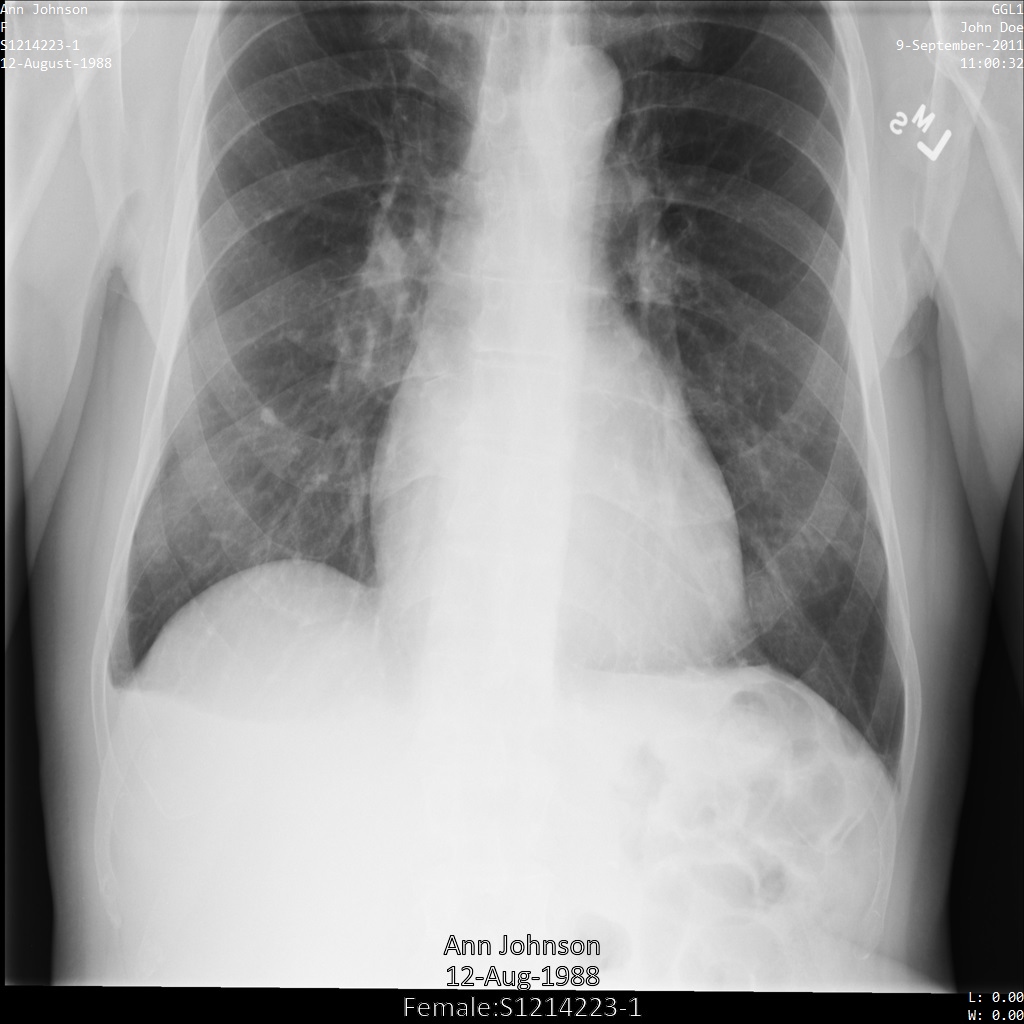
Some samples in this page contain an output of the de-identified image.
Each sample uses the following original image as its
input. You can compare the output image from each de-identification operation to this
original image to see the effects of the operation:
### Sample metadata
Most samples in this page contain an output of the changed metadata in the
DICOM instance. Each sample uses the following original metadata as its
input. You can compare the output metadata from each de-identification
operation to this original metadata to see the effects of de-identification:
```json
[
{
"00020002": {
"vr": "UI",
"Value": [
"1.2.840.10008.5.1.4.1.1.7"
]
},
"00020003": {
"vr": "UI",
"Value": [
"1.2.276.0.7230010.3.1.4.8323329.78.1539083058.523695"
]
},
"00020010": {
"vr": "UI",
"Value": [
"1.2.840.10008.1.2.4.50"
]
},
"00020012": {
"vr": "UI",
"Value": [
"1.2.276.0.7230010.3.0.3.6.1"
]
},
"00020013": {
"vr": "SH",
"Value": [
"OFFIS_DCMTK_361"
]
},
"00080005": {
"vr": "CS",
"Value": [
"ISO_IR 100"
]
},
"00080016": {
"vr": "UI",
"Value": [
"1.2.840.10008.5.1.4.1.1.7"
]
},
"00080018": {
"vr": "UI",
"Value": [
"1.2.276.0.7230010.3.1.4.8323329.78.1539083058.523695"
]
},
"00080020": {
"vr": "DA",
"Value": [
"20110909"
]
},
"00080030": {
"vr": "TM",
"Value": [
"110032"
]
},
"00080050": {
"vr": "SH"
},
"00080064": {
"vr": "CS",
"Value": [
"WSD"
]
},
"00080070": {
"vr": "LO",
"Value": [
"Manufacturer"
]
},
"00080090": {
"vr": "PN",
"Value": [
{
"Alphabetic": "John Doe"
}
]
},
"00081090": {
"vr": "LO",
"Value": [
"ABC1"
]
},
"00100010": {
"vr": "PN",
"Value": [
{
"Alphabetic": "Ann Johnson"
}
]
},
"00100020": {
"vr": "LO",
"Value": [
"S1214223-1"
]
},
"00100030": {
"vr": "DA",
"Value": [
"19880812"
]
},
"00100040": {
"vr": "CS",
"Value": [
"F"
]
},
"0020000D": {
"vr": "UI",
"Value": [
"2.25.70541616638819138568043293671559322355"
]
},
"0020000E": {
"vr": "UI",
"Value": [
"1.2.276.0.7230010.3.1.3.8323329.78.1531234558.523694"
]
},
"00200010": {
"vr": "SH"
},
"00200011": {
"vr": "IS"
},
"00200013": {
"vr": "IS"
},
"00200020": {
"vr": "CS"
},
"00280002": {
"vr": "US",
"Value": [
3
]
},
"00280004": {
"vr": "CS",
"Value": [
"YBR_FULL_422"
]
},
"00280006": {
"vr": "US",
"Value": [
0
]
},
"00280010": {
"vr": "US",
"Value": [
1024
]
},
"00280011": {
"vr": "US",
"Value": [
1024
]
},
"00280100": {
"vr": "US",
"Value": [
8
]
},
"00280101": {
"vr": "US",
"Value": [
8
]
},
"00280102": {
"vr": "US",
"Value": [
7
]
},
"00280103": {
"vr": "US",
"Value": [
0
]
},
"00282110": {
"vr": "CS",
"Value": [
"01"
]
},
"00282114": {
"vr": "CS",
"Value": [
"ISO_10918_1"
]
}
}
]
```
## Redact burned-in text from images
You can de-identify burned-in text in DICOM images using the
[`ImageConfig`](https://docs.cloud.google.com/healthcare-api/docs/reference/rest/v1beta1/projects.locations.datasets.fhirStores.md.txt#ImageConfig)
object inside an [`Action`](https://docs.cloud.google.com/healthcare-api/docs/reference/rest/v1beta1/projects.locations.datasets.fhirStores.md.txt#Action)
object. Inside `ImageConfig`, you can specify which infoTypes to include or
exclude, and how to redact text using the [`TextRedactionMode`](https://docs.cloud.google.com/healthcare-api/docs/reference/rest/v1beta1/projects.locations.datasets.fhirStores.md.txt#textredactionmode)
object.
### Redact all text
The following samples show how to de-identify a DICOM instance by setting
[`TextRedactionMode`](https://docs.cloud.google.com/healthcare-api/docs/reference/rest/v1beta1/projects.locations.datasets.fhirStores.md.txt#textredactionmode)
to [`REDACT_ALL_TEXT`](https://docs.cloud.google.com/healthcare-api/docs/reference/rest/v1beta1/projects.locations.datasets.fhirStores.md.txt#TextRedactionMode.ENUM_VALUES.REDACT_ALL_TEXT).
This configuration redacts all burned-in text in the image.
### REST
1. De-identify the dataset.
Before using any of the request data,
make the following replacements:
- PROJECT_ID: the ID of your Google Cloud project
- SOURCE_DATASET_LOCATION: the source dataset location
- SOURCE_DATASET_ID: the ID of the dataset containing the data to de-identify
- DESTINATION_DATASET_ID: the ID of the destination dataset where de-identified data is written
Request JSON body:
```
{
"destinationDataset": "projects/PROJECT_ID/locations/SOURCE_DATASET_LOCATION/datasets/DESTINATION_DATASET_ID",
"config": {
"dicomTagConfig": {
"options": {
"cleanImage": {
"textRedactionMode": "REDACT_ALL_TEXT"
}
}
}
}
}
```
To send your request, choose one of these options:
#### curl
> [!NOTE]
> **Note:** The following command assumes that you have logged in to the `gcloud` CLI with your user account by running [`gcloud init`](https://docs.cloud.google.com/sdk/gcloud/reference/init) or [`gcloud auth login`](https://docs.cloud.google.com/sdk/gcloud/reference/auth/login.md.txt) , or by using [Cloud Shell](https://docs.cloud.google.com/shell/docs.md.txt), which automatically logs you into the `gcloud` CLI . You can check the currently active account by running [`gcloud auth list`](https://docs.cloud.google.com/sdk/gcloud/reference/auth/list.md.txt).
Save the request body in a file named `request.json`.
Run the following command in the terminal to create or overwrite
this file in the current directory:
```
cat > request.json << 'EOF'
{
"destinationDataset": "projects/PROJECT_ID/locations/SOURCE_DATASET_LOCATION/datasets/DESTINATION_DATASET_ID",
"config": {
"dicomTagConfig": {
"options": {
"cleanImage": {
"textRedactionMode": "REDACT_ALL_TEXT"
}
}
}
}
}
EOF
```
Then execute the following command to send your REST request:
```
curl -X POST \
-H "Authorization: Bearer $(gcloud auth print-access-token)" \
-H "Content-Type: application/json; charset=utf-8" \
-d @request.json \
"https://healthcare.googleapis.com/v1beta1/projects/PROJECT_ID/locations/SOURCE_DATASET_LOCATION/datasets/SOURCE_DATASET_ID:deidentify"
```
#### PowerShell
> [!NOTE]
> **Note:** The following command assumes that you have logged in to the `gcloud` CLI with your user account by running [`gcloud init`](https://docs.cloud.google.com/sdk/gcloud/reference/init) or [`gcloud auth login`](https://docs.cloud.google.com/sdk/gcloud/reference/auth/login.md.txt) . You can check the currently active account by running [`gcloud auth list`](https://docs.cloud.google.com/sdk/gcloud/reference/auth/list.md.txt).
Save the request body in a file named `request.json`.
Run the following command in the terminal to create or overwrite
this file in the current directory:
```
@'
{
"destinationDataset": "projects/PROJECT_ID/locations/SOURCE_DATASET_LOCATION/datasets/DESTINATION_DATASET_ID",
"config": {
"dicomTagConfig": {
"options": {
"cleanImage": {
"textRedactionMode": "REDACT_ALL_TEXT"
}
}
}
}
}
'@ | Out-File -FilePath request.json -Encoding utf8
```
Then execute the following command to send your REST request:
```
$cred = gcloud auth print-access-token
$headers = @{ "Authorization" = "Bearer $cred" }
Invoke-WebRequest `
-Method POST `
-Headers $headers `
-ContentType: "application/json; charset=utf-8" `
-InFile request.json `
-Uri "https://healthcare.googleapis.com/v1beta1/projects/PROJECT_ID/locations/SOURCE_DATASET_LOCATION/datasets/SOURCE_DATASET_ID:deidentify" | Select-Object -Expand Content
```
The output is the following. The response contains an identifier for a [long-running operation](https://docs.cloud.google.com/healthcare-api/docs/reference/rest/v1/projects.locations.datasets.operations.md.txt) (LRO). Long-running operations are returned when method calls might take additional time to complete. Note the value of `OPERATION_ID`. You need this value in the next step.
#### Response
```
{
"name": "projects/PROJECT_ID/locations/SOURCE_DATASET_LOCATION/datasets/SOURCE_DATASET_ID/operations/OPERATION_ID"
}
```
2. Use the [`projects.locations.datasets.operations.get`](https://docs.cloud.google.com/healthcare-api/docs/reference/rest/v1/projects.locations.datasets.operations/get.md.txt) method to get the status of the long-running operation.
Before using any of the request data,
make the following replacements:
- PROJECT_ID: the ID of your Google Cloud project
- SOURCE_DATASET_LOCATION: the source dataset location
- SOURCE_DATASET_ID: the ID of the dataset containing the data to de-identify
- OPERATION_ID: the ID returned from the long-running operation
To send your request, choose one of these options:
#### curl
> [!NOTE]
> **Note:** The following command assumes that you have logged in to the `gcloud` CLI with your user account by running [`gcloud init`](https://docs.cloud.google.com/sdk/gcloud/reference/init) or [`gcloud auth login`](https://docs.cloud.google.com/sdk/gcloud/reference/auth/login.md.txt) , or by using [Cloud Shell](https://docs.cloud.google.com/shell/docs.md.txt), which automatically logs you into the `gcloud` CLI . You can check the currently active account by running [`gcloud auth list`](https://docs.cloud.google.com/sdk/gcloud/reference/auth/list.md.txt).
Execute the following command:
```
curl -X GET \
-H "Authorization: Bearer $(gcloud auth print-access-token)" \
"https://healthcare.googleapis.com/v1beta1/projects/PROJECT_ID/locations/SOURCE_DATASET_LOCATION/datasets/SOURCE_DATASET_ID/operations/OPERATION_ID"
```
#### PowerShell
> [!NOTE]
> **Note:** The following command assumes that you have logged in to the `gcloud` CLI with your user account by running [`gcloud init`](https://docs.cloud.google.com/sdk/gcloud/reference/init) or [`gcloud auth login`](https://docs.cloud.google.com/sdk/gcloud/reference/auth/login.md.txt) . You can check the currently active account by running [`gcloud auth list`](https://docs.cloud.google.com/sdk/gcloud/reference/auth/list.md.txt).
Execute the following command:
```
$cred = gcloud auth print-access-token
$headers = @{ "Authorization" = "Bearer $cred" }
Invoke-WebRequest `
-Method GET `
-Headers $headers `
-Uri "https://healthcare.googleapis.com/v1beta1/projects/PROJECT_ID/locations/SOURCE_DATASET_LOCATION/datasets/SOURCE_DATASET_ID/operations/OPERATION_ID" | Select-Object -Expand Content
```
#### APIs Explorer
Open the
[method reference page](https://docs.cloud.google.com/healthcare-api/docs/reference/rest/v1beta1/projects.locations.datasets.operations/get.md.txt).
The APIs Explorer panel opens on the right side of the page.
You can interact with this tool to send requests.
Complete any required fields and click **Execute**.
The output is the following. When the response contains `"done": true`, the long-running operation has finished.
#### Response
```
{
"name": "projects/PROJECT_ID/locations/SOURCE_DATASET_LOCATION/datasets/SOURCE_DATASET_ID/operations/OPERATION_ID",
"metadata": {
"@type": "type.googleapis.com/google.cloud.healthcare.v1beta1.OperationMetadata",
"apiMethodName": "google.cloud.healthcare.v1beta1.dataset.DatasetService.DeidentifyDataset",
"createTime": "YYYY-MM-DDTHH:MM:SS+ZZ:ZZ",
"endTime": "YYYY-MM-DDTHH:MM:SS+ZZ:ZZ",
"logsUrl": "https://console.cloud.google.com/CLOUD_LOGGING_URL"
"counter": {
"success": "SUCCESS_COUNT",
// If there were any failures, they display in the `failure` field.
"failure": "FAILURE_COUNT"
}
},
"done": true,
// The `response` field only displays if there were no errors.
"response": {
"@type": "type.googleapis.com/google.cloud.healthcare.v1beta1.deidentify.DeidentifySummary",
},
// If there were any errors, an `error` field displays instead of a `response` field.
// See Troubleshooting long-running operations for a list of response codes.
"error": {
"code": ERROR_CODE,
"message": "DESCRIPTION",
"details": [
{
"@type": "...",
FIELD1: ...,
...
}
]
}
}
```
3. After the de-identification succeeds, you can retrieve the metadata for the
de-identified instance to see how it changed. The de-identified instance
has a new studies UID, series UID, and instances UID, so you first need to
search the new dataset for the de-identified instance.
Before using any of the request data,
make the following replacements:
- PROJECT_ID: the ID of your Google Cloud project
- DESTINATION_DATASET_ID: the ID of the destination dataset where de-identified data is written
- SOURCE_DATASET_LOCATION: the source dataset location
- DESTINATION_DICOM_STORE_ID: the ID of the DICOM store in the destination dataset. This is the same as the ID of the DICOM store in the source dataset.
To send your request, choose one of these options:
#### curl
> [!NOTE]
> **Note:** The following command assumes that you have logged in to the `gcloud` CLI with your user account by running [`gcloud init`](https://docs.cloud.google.com/sdk/gcloud/reference/init) or [`gcloud auth login`](https://docs.cloud.google.com/sdk/gcloud/reference/auth/login.md.txt) , or by using [Cloud Shell](https://docs.cloud.google.com/shell/docs.md.txt), which automatically logs you into the `gcloud` CLI . You can check the currently active account by running [`gcloud auth list`](https://docs.cloud.google.com/sdk/gcloud/reference/auth/list.md.txt).
Execute the following command:
```
curl -X GET \
-H "Authorization: Bearer $(gcloud auth print-access-token)" \
"https://healthcare.googleapis.com/v1beta1/projects/PROJECT_ID/locations/SOURCE_DATASET_LOCATION/datasets/DESTINATION_DATASET_ID/dicomStores/DESTINATION_DICOM_STORE_ID/dicomWeb/instances"
```
#### PowerShell
> [!NOTE]
> **Note:** The following command assumes that you have logged in to the `gcloud` CLI with your user account by running [`gcloud init`](https://docs.cloud.google.com/sdk/gcloud/reference/init) or [`gcloud auth login`](https://docs.cloud.google.com/sdk/gcloud/reference/auth/login.md.txt) . You can check the currently active account by running [`gcloud auth list`](https://docs.cloud.google.com/sdk/gcloud/reference/auth/list.md.txt).
Execute the following command:
```
$cred = gcloud auth print-access-token
$headers = @{ "Authorization" = "Bearer $cred" }
Invoke-WebRequest `
-Method GET `
-Headers $headers `
-Uri "https://healthcare.googleapis.com/v1beta1/projects/PROJECT_ID/locations/SOURCE_DATASET_LOCATION/datasets/DESTINATION_DATASET_ID/dicomStores/DESTINATION_DICOM_STORE_ID/dicomWeb/instances" | Select-Object -Expand Content
```
You should receive a JSON response similar to the following:
#### Response
```
[
{
"00080005": {
"vr": "CS",
"Value": [
"ISO_IR 100"
]
},
"00080016": {
"vr": "UI",
"Value": [
"1.2.840.10008.5.1.4.1.1.7"
]
},
"00080018": {
"vr": "UI",
"Value": [
"1.3.6.1.4.1.11129.5.1.97415866390999888717168863957686758029"
]
},
"00080020": {
"vr": "DA"
},
"00080030": {
"vr": "TM"
},
"00080050": {
"vr": "SH"
},
"00080090": {
"vr": "PN"
},
"00100010": {
"vr": "PN"
},
"00100020": {
"vr": "LO"
},
"00100030": {
"vr": "DA"
},
"00100040": {
"vr": "CS"
},
"0020000D": {
"vr": "UI",
"Value": [
"1.3.6.1.4.1.11129.5.1.201854290391432893460946240745559593763"
]
},
"0020000E": {
"vr": "UI",
"Value": [
"1.3.6.1.4.1.11129.5.1.303327499491957026103380014864616068710"
]
},
"00200010": {
"vr": "SH"
},
"00200013": {
"vr": "IS"
},
"00280010": {
"vr": "US",
"Value": [
1024
]
},
"00280011": {
"vr": "US",
"Value": [
1024
]
},
"00280100": {
"vr": "US",
"Value": [
8
]
}
}
]
```
The following table shows how the studies UID, series UID, and instances UID changed:
| | Original instance metadata | De-identified instance metadata |
|---|---|---|
| Studies UID (`0020000D`) | `2.25.70541616638819138568043293671559322355` | `1.3.6.1.4.1.11129.5.1.201854290391432893460946240745559593763` |
| Series UID (`0020000E`) | `1.2.276.0.7230010.3.1.3.8323329.78.1531234558.523694` | `1.3.6.1.4.1.11129.5.1.303327499491957026103380014864616068710` |
| Instances UID (`00080018`) | `1.2.276.0.7230010.3.1.4.8323329.78.1539083058.523695` | `1.3.6.1.4.1.11129.5.1.97415866390999888717168863957686758029` |
4. Using the new values, retrieve the metadata for the instance.
Before using any of the request data,
make the following replacements:
- PROJECT_ID: the ID of your Google Cloud project
- DESTINATION_DATASET_ID: the ID of the destination dataset where de-identified data is written
- SOURCE_DATASET_LOCATION: the source dataset location
- DESTINATION_DICOM_STORE_ID: the ID of the DICOM store in the destination dataset. This is the same as the ID of the DICOM store in the source dataset.
To send your request, choose one of these options:
#### curl
> [!NOTE]
> **Note:** The following command assumes that you have logged in to the `gcloud` CLI with your user account by running [`gcloud init`](https://docs.cloud.google.com/sdk/gcloud/reference/init) or [`gcloud auth login`](https://docs.cloud.google.com/sdk/gcloud/reference/auth/login.md.txt) , or by using [Cloud Shell](https://docs.cloud.google.com/shell/docs.md.txt), which automatically logs you into the `gcloud` CLI . You can check the currently active account by running [`gcloud auth list`](https://docs.cloud.google.com/sdk/gcloud/reference/auth/list.md.txt).
Execute the following command:
```
curl -X GET \
-H "Authorization: Bearer $(gcloud auth print-access-token)" \
"https://healthcare.googleapis.com/v1beta1/projects/PROJECT_ID/locations/SOURCE_DATASET_LOCATION/datasets/DESTINATION_DATASET_ID/dicomStores/DESTINATION_DICOM_STORE_ID/dicomWeb/studies/1.3.6.1.4.1.11129.5.1.201854290391432893460946240745559593763/series/1.3.6.1.4.1.11129.5.1.303327499491957026103380014864616068710/instances/1.3.6.1.4.1.11129.5.1.97415866390999888717168863957686758029/metadata"
```
#### PowerShell
> [!NOTE]
> **Note:** The following command assumes that you have logged in to the `gcloud` CLI with your user account by running [`gcloud init`](https://docs.cloud.google.com/sdk/gcloud/reference/init) or [`gcloud auth login`](https://docs.cloud.google.com/sdk/gcloud/reference/auth/login.md.txt) . You can check the currently active account by running [`gcloud auth list`](https://docs.cloud.google.com/sdk/gcloud/reference/auth/list.md.txt).
Execute the following command:
```
$cred = gcloud auth print-access-token
$headers = @{ "Authorization" = "Bearer $cred" }
Invoke-WebRequest `
-Method GET `
-Headers $headers `
-Uri "https://healthcare.googleapis.com/v1beta1/projects/PROJECT_ID/locations/SOURCE_DATASET_LOCATION/datasets/DESTINATION_DATASET_ID/dicomStores/DESTINATION_DICOM_STORE_ID/dicomWeb/studies/1.3.6.1.4.1.11129.5.1.201854290391432893460946240745559593763/series/1.3.6.1.4.1.11129.5.1.303327499491957026103380014864616068710/instances/1.3.6.1.4.1.11129.5.1.97415866390999888717168863957686758029/metadata" | Select-Object -Expand Content
```
#### APIs Explorer
Open the
[method reference page](https://docs.cloud.google.com/healthcare-api/docs/reference/rest/v1beta1/projects.locations.datasets.dicomStores.studies.series.instances/retrieveMetadata.md.txt).
The APIs Explorer panel opens on the right side of the page.
You can interact with this tool to send requests.
Complete any required fields and click **Execute**.
The output contains the new metadata. You can compare the new metadata with the [original metadata](https://docs.cloud.google.com/healthcare-api/docs/how-tos/dicom-deidentify-dicomtagconfig.md.txt#sample_metadata) to see the effect of the transformation.
#### Response
```
[
{
"00020002": {
"vr": "UI",
"Value": [
"1.2.840.10008.5.1.4.1.1.7"
]
},
"00020003": {
"vr": "UI",
"Value": [
"1.3.6.1.4.1.11129.5.1.97415866390999888717168863957686758029"
]
},
"00020010": {
"vr": "UI",
"Value": [
"1.2.840.10008.1.2.4.50"
]
},
"00020012": {
"vr": "UI",
"Value": [
"1.2.40.0.13.1.3"
]
},
"00020013": {
"vr": "SH",
"Value": [
"dcm4che-null"
]
},
"00080005": {
"vr": "CS",
"Value": [
"ISO_IR 100"
]
},
"00080016": {
"vr": "UI",
"Value": [
"1.2.840.10008.5.1.4.1.1.7"
]
},
"00080018": {
"vr": "UI",
"Value": [
"1.3.6.1.4.1.11129.5.1.97415866390999888717168863957686758029"
]
},
"00080020": {
"vr": "DA"
},
"00080030": {
"vr": "TM"
},
"00080050": {
"vr": "SH"
},
"00080064": {
"vr": "CS",
"Value": [
"WSD"
]
},
"00080070": {
"vr": "LO",
"Value": [
"Manufacturer"
]
},
"00080090": {
"vr": "PN"
},
"00081090": {
"vr": "LO",
"Value": [
"ABC1"
]
},
"00100010": {
"vr": "PN"
},
"00100020": {
"vr": "LO"
},
"00100030": {
"vr": "DA"
},
"00100040": {
"vr": "CS"
},
"0020000D": {
"vr": "UI",
"Value": [
"1.3.6.1.4.1.11129.5.1.201854290391432893460946240745559593763"
]
},
"0020000E": {
"vr": "UI",
"Value": [
"1.3.6.1.4.1.11129.5.1.303327499491957026103380014864616068710"
]
},
"00200010": {
"vr": "SH"
},
"00200011": {
"vr": "IS"
},
"00200013": {
"vr": "IS"
},
"00200020": {
"vr": "CS"
},
"00280002": {
"vr": "US",
"Value": [
3
]
},
"00280004": {
"vr": "CS",
"Value": [
"YBR_FULL_422"
]
},
"00280006": {
"vr": "US",
"Value": [
0
]
},
"00280010": {
"vr": "US",
"Value": [
1024
]
},
"00280011": {
"vr": "US",
"Value": [
1024
]
},
"00280100": {
"vr": "US",
"Value": [
8
]
},
"00280101": {
"vr": "US",
"Value": [
8
]
},
"00280102": {
"vr": "US",
"Value": [
7
]
},
"00280103": {
"vr": "US",
"Value": [
0
]
},
"00282110": {
"vr": "CS",
"Value": [
"01"
]
},
"00282114": {
"vr": "CS",
"Value": [
"ISO_10918_1"
]
}
}
]
```
After de-identifying the image using `REDACT_ALL_TEXT`, the image
looks like this. Notice that all the burned-in text at the bottom of the
image has been redacted.
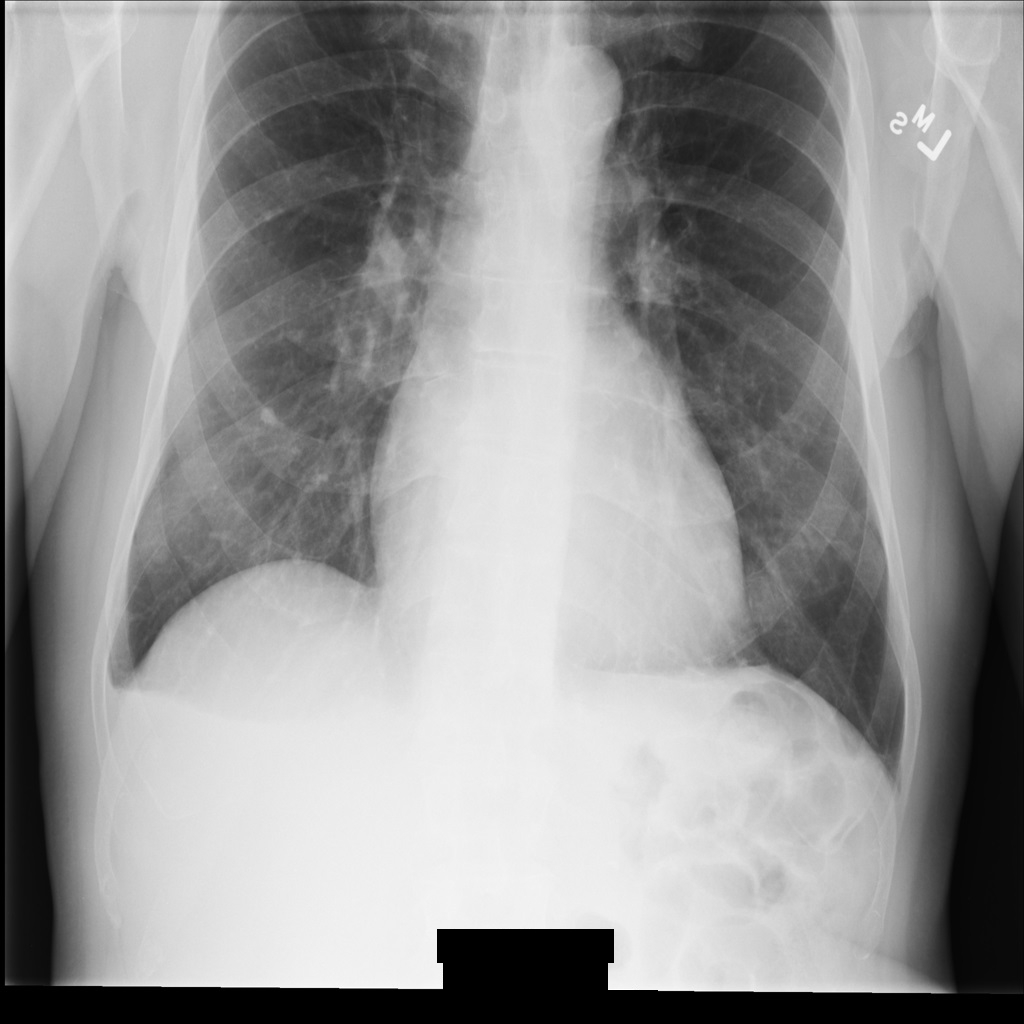 **Figure 1.** The DICOM instance after de-identification using `REDACT_ALL_TEXT`.
### Redact sensitive text with the Clean Descriptors Option
The following samples show how to de-identify a DICOM instance by setting
[`TextRedactionMode`](https://docs.cloud.google.com/healthcare-api/docs/reference/rest/v1beta1/projects.locations.datasets.fhirStores.md.txt#textredactionmode)
to [`REDACT_SENSITIVE_TEXT_CLEAN_DESCRIPTORS`](https://docs.cloud.google.com/healthcare-api/docs/reference/rest/v1beta1/projects.locations.datasets.fhirStores.md.txt#TextRedactionMode.ENUM_VALUES.REDACT_SENSITIVE_TEXT_CLEAN_DESCRIPTORS).
For more
information on the `CleanDescriptorsOption` option, see
[De-identify text with contextual de-identification](https://docs.cloud.google.com/healthcare-api/docs/how-tos/dicom-deidentify-dicomtagconfig.md.txt#de-identify_text_with_contextual_de-identification).
### REST
1. De-identify the dataset.
Before using any of the request data,
make the following replacements:
- PROJECT_ID: the ID of your Google Cloud project
- SOURCE_DATASET_LOCATION: the source dataset location
- SOURCE_DATASET_ID: the ID of the dataset containing the data to de-identify
- DESTINATION_DATASET_ID: the ID of the destination dataset where de-identified data is written
Request JSON body:
```
{
"destinationDataset": "projects/PROJECT_ID/locations/SOURCE_DATASET_LOCATION/datasets/DESTINATION_DATASET_ID",
"config": {
"dicomTagConfig": {
"options": {
"cleanImage": {
"textRedactionMode": "REDACT_SENSITIVE_TEXT_CLEAN_DESCRIPTORS"
}
}
}
}
}
```
To send your request, choose one of these options:
#### curl
> [!NOTE]
> **Note:** The following command assumes that you have logged in to the `gcloud` CLI with your user account by running [`gcloud init`](https://docs.cloud.google.com/sdk/gcloud/reference/init) or [`gcloud auth login`](https://docs.cloud.google.com/sdk/gcloud/reference/auth/login.md.txt) , or by using [Cloud Shell](https://docs.cloud.google.com/shell/docs.md.txt), which automatically logs you into the `gcloud` CLI . You can check the currently active account by running [`gcloud auth list`](https://docs.cloud.google.com/sdk/gcloud/reference/auth/list.md.txt).
Save the request body in a file named `request.json`.
Run the following command in the terminal to create or overwrite
this file in the current directory:
```
cat > request.json << 'EOF'
{
"destinationDataset": "projects/PROJECT_ID/locations/SOURCE_DATASET_LOCATION/datasets/DESTINATION_DATASET_ID",
"config": {
"dicomTagConfig": {
"options": {
"cleanImage": {
"textRedactionMode": "REDACT_SENSITIVE_TEXT_CLEAN_DESCRIPTORS"
}
}
}
}
}
EOF
```
Then execute the following command to send your REST request:
```
curl -X POST \
-H "Authorization: Bearer $(gcloud auth print-access-token)" \
-H "Content-Type: application/json; charset=utf-8" \
-d @request.json \
"https://healthcare.googleapis.com/v1beta1/projects/PROJECT_ID/locations/SOURCE_DATASET_LOCATION/datasets/SOURCE_DATASET_ID:deidentify"
```
#### PowerShell
> [!NOTE]
> **Note:** The following command assumes that you have logged in to the `gcloud` CLI with your user account by running [`gcloud init`](https://docs.cloud.google.com/sdk/gcloud/reference/init) or [`gcloud auth login`](https://docs.cloud.google.com/sdk/gcloud/reference/auth/login.md.txt) . You can check the currently active account by running [`gcloud auth list`](https://docs.cloud.google.com/sdk/gcloud/reference/auth/list.md.txt).
Save the request body in a file named `request.json`.
Run the following command in the terminal to create or overwrite
this file in the current directory:
```
@'
{
"destinationDataset": "projects/PROJECT_ID/locations/SOURCE_DATASET_LOCATION/datasets/DESTINATION_DATASET_ID",
"config": {
"dicomTagConfig": {
"options": {
"cleanImage": {
"textRedactionMode": "REDACT_SENSITIVE_TEXT_CLEAN_DESCRIPTORS"
}
}
}
}
}
'@ | Out-File -FilePath request.json -Encoding utf8
```
Then execute the following command to send your REST request:
```
$cred = gcloud auth print-access-token
$headers = @{ "Authorization" = "Bearer $cred" }
Invoke-WebRequest `
-Method POST `
-Headers $headers `
-ContentType: "application/json; charset=utf-8" `
-InFile request.json `
-Uri "https://healthcare.googleapis.com/v1beta1/projects/PROJECT_ID/locations/SOURCE_DATASET_LOCATION/datasets/SOURCE_DATASET_ID:deidentify" | Select-Object -Expand Content
```
The output is the following. The response contains an identifier for a [long-running operation](https://docs.cloud.google.com/healthcare-api/docs/reference/rest/v1/projects.locations.datasets.operations.md.txt) (LRO). Long-running operations are returned when method calls might take additional time to complete. Note the value of `OPERATION_ID`. You need this value in the next step.
#### Response
```
{
"name": "projects/PROJECT_ID/locations/SOURCE_DATASET_LOCATION/datasets/SOURCE_DATASET_ID/operations/OPERATION_ID"
}
```
2. Use the [`projects.locations.datasets.operations.get`](https://docs.cloud.google.com/healthcare-api/docs/reference/rest/v1/projects.locations.datasets.operations/get.md.txt) method to get the status of the long-running operation.
Before using any of the request data,
make the following replacements:
- PROJECT_ID: the ID of your Google Cloud project
- SOURCE_DATASET_LOCATION: the source dataset location
- SOURCE_DATASET_ID: the ID of the dataset containing the data to de-identify
- OPERATION_ID: the ID returned from the long-running operation
To send your request, choose one of these options:
#### curl
> [!NOTE]
> **Note:** The following command assumes that you have logged in to the `gcloud` CLI with your user account by running [`gcloud init`](https://docs.cloud.google.com/sdk/gcloud/reference/init) or [`gcloud auth login`](https://docs.cloud.google.com/sdk/gcloud/reference/auth/login.md.txt) , or by using [Cloud Shell](https://docs.cloud.google.com/shell/docs.md.txt), which automatically logs you into the `gcloud` CLI . You can check the currently active account by running [`gcloud auth list`](https://docs.cloud.google.com/sdk/gcloud/reference/auth/list.md.txt).
Execute the following command:
```
curl -X GET \
-H "Authorization: Bearer $(gcloud auth print-access-token)" \
"https://healthcare.googleapis.com/v1beta1/projects/PROJECT_ID/locations/SOURCE_DATASET_LOCATION/datasets/SOURCE_DATASET_ID/operations/OPERATION_ID"
```
#### PowerShell
> [!NOTE]
> **Note:** The following command assumes that you have logged in to the `gcloud` CLI with your user account by running [`gcloud init`](https://docs.cloud.google.com/sdk/gcloud/reference/init) or [`gcloud auth login`](https://docs.cloud.google.com/sdk/gcloud/reference/auth/login.md.txt) . You can check the currently active account by running [`gcloud auth list`](https://docs.cloud.google.com/sdk/gcloud/reference/auth/list.md.txt).
Execute the following command:
```
$cred = gcloud auth print-access-token
$headers = @{ "Authorization" = "Bearer $cred" }
Invoke-WebRequest `
-Method GET `
-Headers $headers `
-Uri "https://healthcare.googleapis.com/v1beta1/projects/PROJECT_ID/locations/SOURCE_DATASET_LOCATION/datasets/SOURCE_DATASET_ID/operations/OPERATION_ID" | Select-Object -Expand Content
```
#### APIs Explorer
Open the
[method reference page](https://docs.cloud.google.com/healthcare-api/docs/reference/rest/v1beta1/projects.locations.datasets.operations/get.md.txt).
The APIs Explorer panel opens on the right side of the page.
You can interact with this tool to send requests.
Complete any required fields and click **Execute**.
The output is the following. When the response contains `"done": true`, the long-running operation has finished.
#### Response
```
{
"name": "projects/PROJECT_ID/locations/SOURCE_DATASET_LOCATION/datasets/SOURCE_DATASET_ID/operations/OPERATION_ID",
"metadata": {
"@type": "type.googleapis.com/google.cloud.healthcare.v1beta1.OperationMetadata",
"apiMethodName": "google.cloud.healthcare.v1beta1.dataset.DatasetService.DeidentifyDataset",
"createTime": "YYYY-MM-DDTHH:MM:SS+ZZ:ZZ",
"endTime": "YYYY-MM-DDTHH:MM:SS+ZZ:ZZ",
"logsUrl": "https://console.cloud.google.com/CLOUD_LOGGING_URL"
"counter": {
"success": "SUCCESS_COUNT",
// If there were any failures, they display in the `failure` field.
"failure": "FAILURE_COUNT"
}
},
"done": true,
// The `response` field only displays if there were no errors.
"response": {
"@type": "type.googleapis.com/google.cloud.healthcare.v1beta1.deidentify.DeidentifySummary",
},
// If there were any errors, an `error` field displays instead of a `response` field.
// See Troubleshooting long-running operations for a list of response codes.
"error": {
"code": ERROR_CODE,
"message": "DESCRIPTION",
"details": [
{
"@type": "...",
FIELD1: ...,
...
}
]
}
}
```
3. After the de-identification succeeds, you can retrieve the metadata for the
de-identified instance to see how it changed. The de-identified instance
has a new studies UID, series UID, and instances UID, so you first need to
search the new dataset for the de-identified instance.
Before using any of the request data,
make the following replacements:
- PROJECT_ID: the ID of your Google Cloud project
- DESTINATION_DATASET_ID: the ID of the destination dataset where de-identified data is written
- SOURCE_DATASET_LOCATION: the source dataset location
- DESTINATION_DICOM_STORE_ID: the ID of the DICOM store in the destination dataset. This is the same as the ID of the DICOM store in the source dataset.
To send your request, choose one of these options:
#### curl
> [!NOTE]
> **Note:** The following command assumes that you have logged in to the `gcloud` CLI with your user account by running [`gcloud init`](https://docs.cloud.google.com/sdk/gcloud/reference/init) or [`gcloud auth login`](https://docs.cloud.google.com/sdk/gcloud/reference/auth/login.md.txt) , or by using [Cloud Shell](https://docs.cloud.google.com/shell/docs.md.txt), which automatically logs you into the `gcloud` CLI . You can check the currently active account by running [`gcloud auth list`](https://docs.cloud.google.com/sdk/gcloud/reference/auth/list.md.txt).
Execute the following command:
```
curl -X GET \
-H "Authorization: Bearer $(gcloud auth print-access-token)" \
"https://healthcare.googleapis.com/v1beta1/projects/PROJECT_ID/locations/SOURCE_DATASET_LOCATION/datasets/DESTINATION_DATASET_ID/dicomStores/DESTINATION_DICOM_STORE_ID/dicomWeb/instances"
```
#### PowerShell
> [!NOTE]
> **Note:** The following command assumes that you have logged in to the `gcloud` CLI with your user account by running [`gcloud init`](https://docs.cloud.google.com/sdk/gcloud/reference/init) or [`gcloud auth login`](https://docs.cloud.google.com/sdk/gcloud/reference/auth/login.md.txt) . You can check the currently active account by running [`gcloud auth list`](https://docs.cloud.google.com/sdk/gcloud/reference/auth/list.md.txt).
Execute the following command:
```
$cred = gcloud auth print-access-token
$headers = @{ "Authorization" = "Bearer $cred" }
Invoke-WebRequest `
-Method GET `
-Headers $headers `
-Uri "https://healthcare.googleapis.com/v1beta1/projects/PROJECT_ID/locations/SOURCE_DATASET_LOCATION/datasets/DESTINATION_DATASET_ID/dicomStores/DESTINATION_DICOM_STORE_ID/dicomWeb/instances" | Select-Object -Expand Content
```
You should receive a JSON response similar to the following:
#### Response
```
[
{
"00080005": {
"vr": "CS",
"Value": [
"ISO_IR 100"
]
},
"00080016": {
"vr": "UI",
"Value": [
"1.2.840.10008.5.1.4.1.1.7"
]
},
"00080018": {
"vr": "UI",
"Value": [
"1.3.6.1.4.1.11129.5.1.97415866390999888717168863957686758029"
]
},
"00080020": {
"vr": "DA"
},
"00080030": {
"vr": "TM"
},
"00080050": {
"vr": "SH"
},
"00080090": {
"vr": "PN"
},
"00100010": {
"vr": "PN"
},
"00100020": {
"vr": "LO"
},
"00100030": {
"vr": "DA"
},
"00100040": {
"vr": "CS"
},
"0020000D": {
"vr": "UI",
"Value": [
"1.3.6.1.4.1.11129.5.1.201854290391432893460946240745559593763"
]
},
"0020000E": {
"vr": "UI",
"Value": [
"1.3.6.1.4.1.11129.5.1.303327499491957026103380014864616068710"
]
},
"00200010": {
"vr": "SH"
},
"00200013": {
"vr": "IS"
},
"00280010": {
"vr": "US",
"Value": [
1024
]
},
"00280011": {
"vr": "US",
"Value": [
1024
]
},
"00280100": {
"vr": "US",
"Value": [
8
]
}
}
]
```
The following table shows how the studies UID, series UID, and instances UID changed:
| | Original instance metadata | De-identified instance metadata |
|---|---|---|
| Studies UID (`0020000D`) | `2.25.70541616638819138568043293671559322355` | `1.3.6.1.4.1.11129.5.1.201854290391432893460946240745559593763` |
| Series UID (`0020000E`) | `1.2.276.0.7230010.3.1.3.8323329.78.1531234558.523694` | `1.3.6.1.4.1.11129.5.1.303327499491957026103380014864616068710` |
| Instances UID (`00080018`) | `1.2.276.0.7230010.3.1.4.8323329.78.1539083058.523695` | `1.3.6.1.4.1.11129.5.1.97415866390999888717168863957686758029` |
4. Using the new values, retrieve the metadata for the instance.
Before using any of the request data,
make the following replacements:
- PROJECT_ID: the ID of your Google Cloud project
- DESTINATION_DATASET_ID: the ID of the destination dataset where de-identified data is written
- SOURCE_DATASET_LOCATION: the source dataset location
- DESTINATION_DICOM_STORE_ID: the ID of the DICOM store in the destination dataset. This is the same as the ID of the DICOM store in the source dataset.
To send your request, choose one of these options:
#### curl
> [!NOTE]
> **Note:** The following command assumes that you have logged in to the `gcloud` CLI with your user account by running [`gcloud init`](https://docs.cloud.google.com/sdk/gcloud/reference/init) or [`gcloud auth login`](https://docs.cloud.google.com/sdk/gcloud/reference/auth/login.md.txt) , or by using [Cloud Shell](https://docs.cloud.google.com/shell/docs.md.txt), which automatically logs you into the `gcloud` CLI . You can check the currently active account by running [`gcloud auth list`](https://docs.cloud.google.com/sdk/gcloud/reference/auth/list.md.txt).
Execute the following command:
```
curl -X GET \
-H "Authorization: Bearer $(gcloud auth print-access-token)" \
"https://healthcare.googleapis.com/v1beta1/projects/PROJECT_ID/locations/SOURCE_DATASET_LOCATION/datasets/DESTINATION_DATASET_ID/dicomStores/DESTINATION_DICOM_STORE_ID/dicomWeb/studies/1.3.6.1.4.1.11129.5.1.201854290391432893460946240745559593763/series/1.3.6.1.4.1.11129.5.1.303327499491957026103380014864616068710/instances/1.3.6.1.4.1.11129.5.1.97415866390999888717168863957686758029/metadata"
```
#### PowerShell
> [!NOTE]
> **Note:** The following command assumes that you have logged in to the `gcloud` CLI with your user account by running [`gcloud init`](https://docs.cloud.google.com/sdk/gcloud/reference/init) or [`gcloud auth login`](https://docs.cloud.google.com/sdk/gcloud/reference/auth/login.md.txt) . You can check the currently active account by running [`gcloud auth list`](https://docs.cloud.google.com/sdk/gcloud/reference/auth/list.md.txt).
Execute the following command:
```
$cred = gcloud auth print-access-token
$headers = @{ "Authorization" = "Bearer $cred" }
Invoke-WebRequest `
-Method GET `
-Headers $headers `
-Uri "https://healthcare.googleapis.com/v1beta1/projects/PROJECT_ID/locations/SOURCE_DATASET_LOCATION/datasets/DESTINATION_DATASET_ID/dicomStores/DESTINATION_DICOM_STORE_ID/dicomWeb/studies/1.3.6.1.4.1.11129.5.1.201854290391432893460946240745559593763/series/1.3.6.1.4.1.11129.5.1.303327499491957026103380014864616068710/instances/1.3.6.1.4.1.11129.5.1.97415866390999888717168863957686758029/metadata" | Select-Object -Expand Content
```
#### APIs Explorer
Open the
[method reference page](https://docs.cloud.google.com/healthcare-api/docs/reference/rest/v1beta1/projects.locations.datasets.dicomStores.studies.series.instances/retrieveMetadata.md.txt).
The APIs Explorer panel opens on the right side of the page.
You can interact with this tool to send requests.
Complete any required fields and click **Execute**.
The output contains the new metadata. You can compare the new metadata with the [original metadata](https://docs.cloud.google.com/healthcare-api/docs/how-tos/dicom-deidentify-dicomtagconfig.md.txt#sample_metadata) to see the effect of the transformation.
#### Response
```
[
{
"00020002": {
"vr": "UI",
"Value": [
"1.2.840.10008.5.1.4.1.1.7"
]
},
"00020003": {
"vr": "UI",
"Value": [
"1.3.6.1.4.1.11129.5.1.97415866390999888717168863957686758029"
]
},
"00020010": {
"vr": "UI",
"Value": [
"1.2.840.10008.1.2.4.50"
]
},
"00020012": {
"vr": "UI",
"Value": [
"1.2.40.0.13.1.3"
]
},
"00020013": {
"vr": "SH",
"Value": [
"dcm4che-null"
]
},
"00080005": {
"vr": "CS",
"Value": [
"ISO_IR 100"
]
},
"00080016": {
"vr": "UI",
"Value": [
"1.2.840.10008.5.1.4.1.1.7"
]
},
"00080018": {
"vr": "UI",
"Value": [
"1.3.6.1.4.1.11129.5.1.97415866390999888717168863957686758029"
]
},
"00080020": {
"vr": "DA"
},
"00080030": {
"vr": "TM"
},
"00080050": {
"vr": "SH"
},
"00080064": {
"vr": "CS",
"Value": [
"WSD"
]
},
"00080070": {
"vr": "LO",
"Value": [
"Manufacturer"
]
},
"00080090": {
"vr": "PN"
},
"00081090": {
"vr": "LO",
"Value": [
"ABC1"
]
},
"00100010": {
"vr": "PN"
},
"00100020": {
"vr": "LO"
},
"00100030": {
"vr": "DA"
},
"00100040": {
"vr": "CS"
},
"0020000D": {
"vr": "UI",
"Value": [
"1.3.6.1.4.1.11129.5.1.201854290391432893460946240745559593763"
]
},
"0020000E": {
"vr": "UI",
"Value": [
"1.3.6.1.4.1.11129.5.1.303327499491957026103380014864616068710"
]
},
"00200010": {
"vr": "SH"
},
"00200011": {
"vr": "IS"
},
"00200013": {
"vr": "IS"
},
"00200020": {
"vr": "CS"
},
"00280002": {
"vr": "US",
"Value": [
3
]
},
"00280004": {
"vr": "CS",
"Value": [
"YBR_FULL_422"
]
},
"00280006": {
"vr": "US",
"Value": [
0
]
},
"00280010": {
"vr": "US",
"Value": [
1024
]
},
"00280011": {
"vr": "US",
"Value": [
1024
]
},
"00280100": {
"vr": "US",
"Value": [
8
]
},
"00280101": {
"vr": "US",
"Value": [
8
]
},
"00280102": {
"vr": "US",
"Value": [
7
]
},
"00280103": {
"vr": "US",
"Value": [
0
]
},
"00282110": {
"vr": "CS",
"Value": [
"01"
]
},
"00282114": {
"vr": "CS",
"Value": [
"ISO_10918_1"
]
}
}
]
```
After de-identifying the image using `REDACT_SENSITIVE_TEXT_CLEAN_DESCRIPTORS`, the image
looks like this. Notice that not all the burned-in text at the bottom of the
image has been redacted. The text `Female` is still shown, because
`PatientSex (0010,0040)` isn't one of the [default DICOM infoTypes](https://docs.cloud.google.com/healthcare-api/docs/how-tos/dicom-deidentify.md.txt#default_dicom_infotypes).
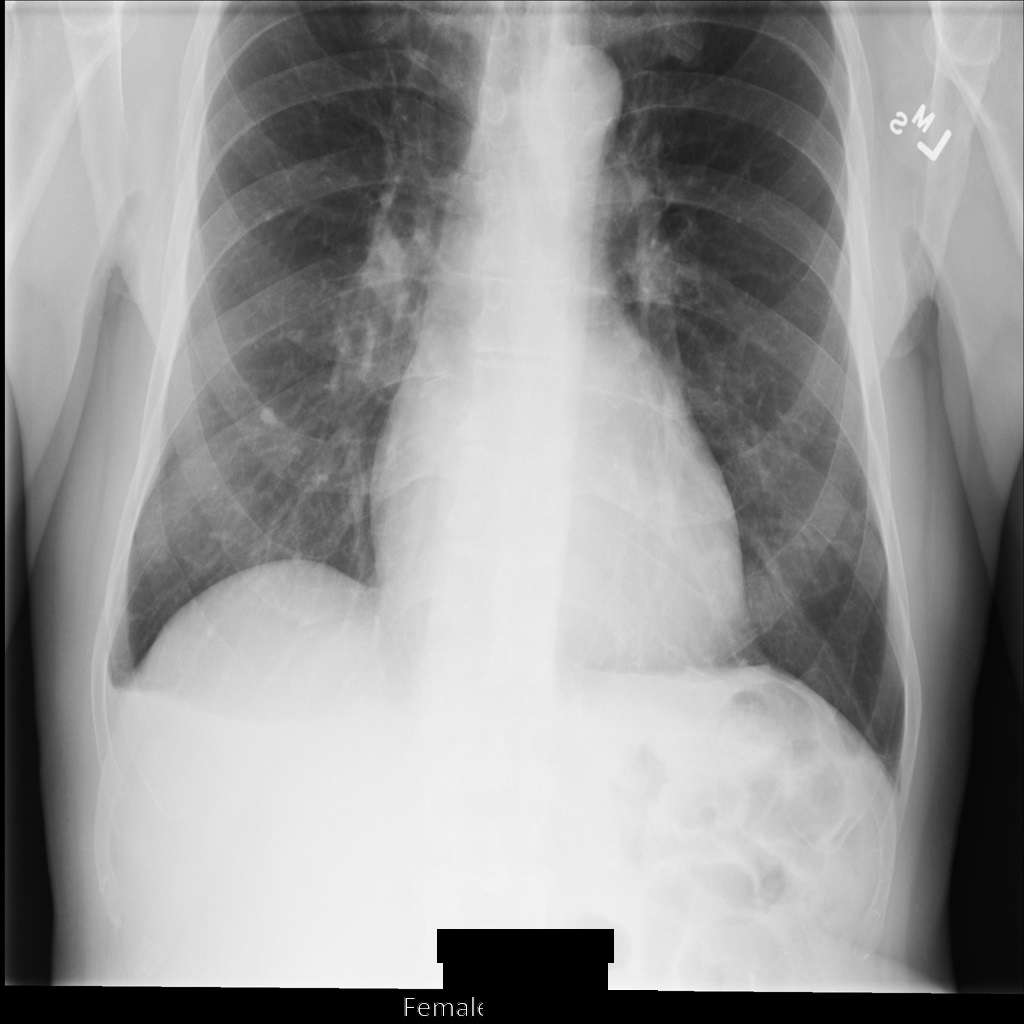 **Figure 2.** The DICOM instance after de-identification using `REDACT_SENSITIVE_TEXT_CLEAN_DESCRIPTORS`.
## De-identify DICOM tags
You can de-identify DICOM instances based on [tag keywords](https://dicom.nema.org/medical/Dicom/2017e/output/chtml/part06/chapter_6.html)
in the DICOM metadata.
The following tag filtering methods are available in the
`DicomTagConfig` [`Action`](https://docs.cloud.google.com/healthcare-api/docs/reference/rest/v1beta1/projects.locations.datasets.fhirStores.md.txt#Action)
object:
- [`KeepTag`](https://docs.cloud.google.com/healthcare-api/docs/reference/rest/v1beta1/projects.locations.datasets.fhirStores.md.txt#KeepTag)
- [`RemoveTag`](https://docs.cloud.google.com/healthcare-api/docs/reference/rest/v1beta1/projects.locations.datasets.fhirStores.md.txt#RemoveTag)
- [`DeleteTag`](https://docs.cloud.google.com/healthcare-api/docs/reference/rest/v1beta1/projects.locations.datasets.fhirStores.md.txt#DeleteTag)
- [`ResetTag`](https://docs.cloud.google.com/healthcare-api/docs/reference/rest/v1beta1/projects.locations.datasets.fhirStores.md.txt#ResetTag)
- [`CleanTextTag`](https://docs.cloud.google.com/healthcare-api/docs/reference/rest/v1beta1/projects.locations.datasets.fhirStores.md.txt#CleanTextTag)
- [`cleanImageTag`](https://docs.cloud.google.com/healthcare-api/docs/reference/rest/v1beta1/projects.locations.datasets.fhirStores.md.txt#Action.FIELDS.clean_image_tag)
- [`RegenUidTag`](https://docs.cloud.google.com/healthcare-api/docs/reference/rest/v1beta1/projects.locations.datasets.fhirStores.md.txt#RegenUidTag)
- [`RecurseTag`](https://docs.cloud.google.com/healthcare-api/docs/reference/rest/v1beta1/projects.locations.datasets.fhirStores.md.txt#RecurseTag)
You specify each `Action` option as a list of DICOM tag IDs, names, or
Value Representations (VRs), and then the option performs an action on
the tags in the list. You cannot specify more than one `Action` option
on a list of tags.
Each `Action` object provides a `queries[]` list where you specify a list
of tags. The following tag formats are supported:
- Tag IDs, such as `"00100010"`
- Tag names, such as `"PatientName"`
- Value Representations (VRs), such as `"PN"`
There is no limit to the number of tags that can be provided in the `queries[]` list.
However, each tag can only have a single `Action` option performed on it.
To specify different tags that have different `Action` options performed on them,
you must specify multiple `Action` objects.
### Keep tags
You can prevent the values of tags from being redacted by specifying the
tags in a `KeepTag` object in the [`DicomTagConfig`](https://docs.cloud.google.com/healthcare-api/docs/reference/rest/v1beta1/projects.locations.datasets.fhirStores.md.txt#DicomTagConfig)
object.
To produce a valid DICOM object while using a `KeepTag` object, specify the [`MINIMAL_KEEP_LIST_PROFILE`](https://docs.cloud.google.com/healthcare-api/docs/reference/rest/v1beta1/projects.locations.datasets.fhirStores.md.txt#ProfileType.ENUM_VALUES.MINIMAL_KEEP_LIST_PROFILE)
or [`DEIDENTIFY_TAG_CONTENTS`](https://docs.cloud.google.com/healthcare-api/docs/reference/rest/v1beta1/projects.locations.datasets.fhirStores.md.txt#ProfileType.ENUM_VALUES.DEIDENTIFY_TAG_CONTENTS)
values in the [`ProfileType`](https://docs.cloud.google.com/healthcare-api/docs/reference/rest/v1beta1/projects.locations.datasets.fhirStores.md.txt#profiletype)
object.
By specifying either of these profiles, the following tags are automatically
kept, ensuring that the de-identified DICOM instance is valid DICOM:
- `StudyInstanceUID`
- `SeriesInstanceUID`
- `SOPInstanceUID`
- `TransferSyntaxUID`
- `MediaStorageSOPInstanceUID`
- `MediaStorageSOPClassUID`
- `PixelData`
- `Rows`
- `Columns`
- `SamplesPerPixel`
- `BitsAllocated`
- `BitsStored`
- `Highbit`
- `PhotometricInterpretation`
- `PixelRepresentation`
- `NumberOfFrames`
- `PlanarConfiguration`
- `PixelAspectRatio`
- `SmallestImagePixelValue`
- `LargestImagePixelValue`
- `RedPaletteColorLookupTableDescriptor`
- `GreenPaletteColorLookupTableDescriptor`
- `BluePaletteColorLookupTableDescriptor`
- `RedPaletteColorLookupTableData`
- `GreenPaletteColorLookupTableData`
- `BluePaletteColorLookupTableData`
- `ICCProfile`
- `ColorSpace`
- `WindowCenter`
- `WindowWidth`
- `VOILUTFunction`
The values for some of the preceding tags are regenerated, meaning that the values are
replaced with a different value through a deterministic transformation.
For more information, see [Retain UIDs Option](https://dicom.nema.org/medical/dicom/current/output/chtml/part15/sect_E.3.9.html)
in the DICOM standard.
The values of `StudyInstanceUID`, `SeriesInstanceUID`, `SOPInstanceUID`,
and `MediaStorageSOPInstanceUID` are called "primary IDs." To determine
how primary IDs are transformed, specify a value in
[`PrimaryIdsOption`](https://docs.cloud.google.com/healthcare-api/docs/reference/rest/v1beta1/projects.locations.datasets.fhirStores.md.txt#PrimaryIdsOption).
The following samples show how to use the `KeepTag` object to keep the values of
specific tags unchanged during de-identification.
The `PatientName` tag is added in the `queries[]` list, so the `PatientName`
value isn't redacted during de-identification.
Because `PrimaryIdsOption` isn't specified in the sample,
the `primaryIds` field defaults to `PRIMARY_IDS_OPTION_UNSPECIFIED`, which defaults
to the value in `ProfileType`. Because `ProfileType` is also not specified,
the `profileType` field defaults to `PROFILE_TYPE_UNSPECIFIED`, which removes
tags based on the [Attribute Confidentiality Basic Profile (DICOM Standard Edition 2018e)](https://dicom.nema.org/medical/dicom/2018e/output/chtml/part15/chapter_E.html).
### REST
1. De-identify the dataset.
Before using any of the request data,
make the following replacements:
- PROJECT_ID: the ID of your Google Cloud project
- SOURCE_DATASET_LOCATION: the source dataset location
- SOURCE_DATASET_ID: the ID of the dataset containing the data to de-identify
- DESTINATION_DATASET_ID: the ID of the destination dataset where de-identified data is written
Request JSON body:
```
{
"destinationDataset": "projects/PROJECT_ID/locations/SOURCE_DATASET_LOCATION/datasets/DESTINATION_DATASET_ID",
"config": {
"dicomTagConfig": {
"actions": [
{
"queries": [
"PatientName"
],
"keepTag": {}
}
]
}
}
}
```
To send your request, choose one of these options:
#### curl
> [!NOTE]
> **Note:** The following command assumes that you have logged in to the `gcloud` CLI with your user account by running [`gcloud init`](https://docs.cloud.google.com/sdk/gcloud/reference/init) or [`gcloud auth login`](https://docs.cloud.google.com/sdk/gcloud/reference/auth/login.md.txt) , or by using [Cloud Shell](https://docs.cloud.google.com/shell/docs.md.txt), which automatically logs you into the `gcloud` CLI . You can check the currently active account by running [`gcloud auth list`](https://docs.cloud.google.com/sdk/gcloud/reference/auth/list.md.txt).
Save the request body in a file named `request.json`.
Run the following command in the terminal to create or overwrite
this file in the current directory:
```
cat > request.json << 'EOF'
{
"destinationDataset": "projects/PROJECT_ID/locations/SOURCE_DATASET_LOCATION/datasets/DESTINATION_DATASET_ID",
"config": {
"dicomTagConfig": {
"actions": [
{
"queries": [
"PatientName"
],
"keepTag": {}
}
]
}
}
}
EOF
```
Then execute the following command to send your REST request:
```
curl -X POST \
-H "Authorization: Bearer $(gcloud auth print-access-token)" \
-H "Content-Type: application/json; charset=utf-8" \
-d @request.json \
"https://healthcare.googleapis.com/v1beta1/projects/PROJECT_ID/locations/SOURCE_DATASET_LOCATION/datasets/SOURCE_DATASET_ID:deidentify"
```
#### PowerShell
> [!NOTE]
> **Note:** The following command assumes that you have logged in to the `gcloud` CLI with your user account by running [`gcloud init`](https://docs.cloud.google.com/sdk/gcloud/reference/init) or [`gcloud auth login`](https://docs.cloud.google.com/sdk/gcloud/reference/auth/login.md.txt) . You can check the currently active account by running [`gcloud auth list`](https://docs.cloud.google.com/sdk/gcloud/reference/auth/list.md.txt).
Save the request body in a file named `request.json`.
Run the following command in the terminal to create or overwrite
this file in the current directory:
```
@'
{
"destinationDataset": "projects/PROJECT_ID/locations/SOURCE_DATASET_LOCATION/datasets/DESTINATION_DATASET_ID",
"config": {
"dicomTagConfig": {
"actions": [
{
"queries": [
"PatientName"
],
"keepTag": {}
}
]
}
}
}
'@ | Out-File -FilePath request.json -Encoding utf8
```
Then execute the following command to send your REST request:
```
$cred = gcloud auth print-access-token
$headers = @{ "Authorization" = "Bearer $cred" }
Invoke-WebRequest `
-Method POST `
-Headers $headers `
-ContentType: "application/json; charset=utf-8" `
-InFile request.json `
-Uri "https://healthcare.googleapis.com/v1beta1/projects/PROJECT_ID/locations/SOURCE_DATASET_LOCATION/datasets/SOURCE_DATASET_ID:deidentify" | Select-Object -Expand Content
```
The output is the following. The response contains an identifier for a [long-running operation](https://docs.cloud.google.com/healthcare-api/docs/reference/rest/v1/projects.locations.datasets.operations.md.txt) (LRO). Long-running operations are returned when method calls might take additional time to complete. Note the value of `OPERATION_ID`. You need this value in the next step.
#### Response
```
{
"name": "projects/PROJECT_ID/locations/SOURCE_DATASET_LOCATION/datasets/SOURCE_DATASET_ID/operations/OPERATION_ID"
}
```
2. Use the [`projects.locations.datasets.operations.get`](https://docs.cloud.google.com/healthcare-api/docs/reference/rest/v1/projects.locations.datasets.operations/get.md.txt) method to get the status of the long-running operation.
Before using any of the request data,
make the following replacements:
- PROJECT_ID: the ID of your Google Cloud project
- SOURCE_DATASET_LOCATION: the source dataset location
- SOURCE_DATASET_ID: the ID of the dataset containing the data to de-identify
- OPERATION_ID: the ID returned from the long-running operation
To send your request, choose one of these options:
#### curl
> [!NOTE]
> **Note:** The following command assumes that you have logged in to the `gcloud` CLI with your user account by running [`gcloud init`](https://docs.cloud.google.com/sdk/gcloud/reference/init) or [`gcloud auth login`](https://docs.cloud.google.com/sdk/gcloud/reference/auth/login.md.txt) , or by using [Cloud Shell](https://docs.cloud.google.com/shell/docs.md.txt), which automatically logs you into the `gcloud` CLI . You can check the currently active account by running [`gcloud auth list`](https://docs.cloud.google.com/sdk/gcloud/reference/auth/list.md.txt).
Execute the following command:
```
curl -X GET \
-H "Authorization: Bearer $(gcloud auth print-access-token)" \
"https://healthcare.googleapis.com/v1beta1/projects/PROJECT_ID/locations/SOURCE_DATASET_LOCATION/datasets/SOURCE_DATASET_ID/operations/OPERATION_ID"
```
#### PowerShell
> [!NOTE]
> **Note:** The following command assumes that you have logged in to the `gcloud` CLI with your user account by running [`gcloud init`](https://docs.cloud.google.com/sdk/gcloud/reference/init) or [`gcloud auth login`](https://docs.cloud.google.com/sdk/gcloud/reference/auth/login.md.txt) . You can check the currently active account by running [`gcloud auth list`](https://docs.cloud.google.com/sdk/gcloud/reference/auth/list.md.txt).
Execute the following command:
```
$cred = gcloud auth print-access-token
$headers = @{ "Authorization" = "Bearer $cred" }
Invoke-WebRequest `
-Method GET `
-Headers $headers `
-Uri "https://healthcare.googleapis.com/v1beta1/projects/PROJECT_ID/locations/SOURCE_DATASET_LOCATION/datasets/SOURCE_DATASET_ID/operations/OPERATION_ID" | Select-Object -Expand Content
```
#### APIs Explorer
Open the
[method reference page](https://docs.cloud.google.com/healthcare-api/docs/reference/rest/v1beta1/projects.locations.datasets.operations/get.md.txt).
The APIs Explorer panel opens on the right side of the page.
You can interact with this tool to send requests.
Complete any required fields and click **Execute**.
The output is the following. When the response contains `"done": true`, the long-running operation has finished.
#### Response
```
{
"name": "projects/PROJECT_ID/locations/SOURCE_DATASET_LOCATION/datasets/SOURCE_DATASET_ID/operations/OPERATION_ID",
"metadata": {
"@type": "type.googleapis.com/google.cloud.healthcare.v1beta1.OperationMetadata",
"apiMethodName": "google.cloud.healthcare.v1beta1.dataset.DatasetService.DeidentifyDataset",
"createTime": "YYYY-MM-DDTHH:MM:SS+ZZ:ZZ",
"endTime": "YYYY-MM-DDTHH:MM:SS+ZZ:ZZ",
"logsUrl": "https://console.cloud.google.com/CLOUD_LOGGING_URL"
"counter": {
"success": "SUCCESS_COUNT",
// If there were any failures, they display in the `failure` field.
"failure": "FAILURE_COUNT"
}
},
"done": true,
// The `response` field only displays if there were no errors.
"response": {
"@type": "type.googleapis.com/google.cloud.healthcare.v1beta1.deidentify.DeidentifySummary",
},
// If there were any errors, an `error` field displays instead of a `response` field.
// See Troubleshooting long-running operations for a list of response codes.
"error": {
"code": ERROR_CODE,
"message": "DESCRIPTION",
"details": [
{
"@type": "...",
FIELD1: ...,
...
}
]
}
}
```
3. After the de-identification succeeds, you can retrieve the metadata for the
de-identified instance to see how it changed. The de-identified instance
has a new studies UID, series UID, and instances UID, so you first need to
search the new dataset for the de-identified instance.
Before using any of the request data,
make the following replacements:
- PROJECT_ID: the ID of your Google Cloud project
- DESTINATION_DATASET_ID: the ID of the destination dataset where de-identified data is written
- SOURCE_DATASET_LOCATION: the source dataset location
- DESTINATION_DICOM_STORE_ID: the ID of the DICOM store in the destination dataset. This is the same as the ID of the DICOM store in the source dataset.
To send your request, choose one of these options:
#### curl
> [!NOTE]
> **Note:** The following command assumes that you have logged in to the `gcloud` CLI with your user account by running [`gcloud init`](https://docs.cloud.google.com/sdk/gcloud/reference/init) or [`gcloud auth login`](https://docs.cloud.google.com/sdk/gcloud/reference/auth/login.md.txt) , or by using [Cloud Shell](https://docs.cloud.google.com/shell/docs.md.txt), which automatically logs you into the `gcloud` CLI . You can check the currently active account by running [`gcloud auth list`](https://docs.cloud.google.com/sdk/gcloud/reference/auth/list.md.txt).
Execute the following command:
```
curl -X GET \
-H "Authorization: Bearer $(gcloud auth print-access-token)" \
"https://healthcare.googleapis.com/v1beta1/projects/PROJECT_ID/locations/SOURCE_DATASET_LOCATION/datasets/DESTINATION_DATASET_ID/dicomStores/DESTINATION_DICOM_STORE_ID/dicomWeb/instances"
```
#### PowerShell
> [!NOTE]
> **Note:** The following command assumes that you have logged in to the `gcloud` CLI with your user account by running [`gcloud init`](https://docs.cloud.google.com/sdk/gcloud/reference/init) or [`gcloud auth login`](https://docs.cloud.google.com/sdk/gcloud/reference/auth/login.md.txt) . You can check the currently active account by running [`gcloud auth list`](https://docs.cloud.google.com/sdk/gcloud/reference/auth/list.md.txt).
Execute the following command:
```
$cred = gcloud auth print-access-token
$headers = @{ "Authorization" = "Bearer $cred" }
Invoke-WebRequest `
-Method GET `
-Headers $headers `
-Uri "https://healthcare.googleapis.com/v1beta1/projects/PROJECT_ID/locations/SOURCE_DATASET_LOCATION/datasets/DESTINATION_DATASET_ID/dicomStores/DESTINATION_DICOM_STORE_ID/dicomWeb/instances" | Select-Object -Expand Content
```
You should receive a JSON response similar to the following:
#### Response
```
[
{
"00080005": {
"vr": "CS",
"Value": [
"ISO_IR 100"
]
},
"00080016": {
"vr": "UI",
"Value": [
"1.2.840.10008.5.1.4.1.1.7"
]
},
"00080018": {
"vr": "UI",
"Value": [
"1.3.6.1.4.1.11129.5.1.97415866390999888717168863957686758029"
]
},
"00080020": {
"vr": "DA"
},
"00080030": {
"vr": "TM"
},
"00080050": {
"vr": "SH"
},
"00080090": {
"vr": "PN"
},
"00100010": {
"vr": "PN",
"Value": [
{
"Alphabetic": "Ann Johnson"
}
]
},
"00100020": {
"vr": "LO"
},
"00100030": {
"vr": "DA"
},
"00100040": {
"vr": "CS"
},
"0020000D": {
"vr": "UI",
"Value": [
"1.3.6.1.4.1.11129.5.1.201854290391432893460946240745559593763"
]
},
"0020000E": {
"vr": "UI",
"Value": [
"1.3.6.1.4.1.11129.5.1.303327499491957026103380014864616068710"
]
},
"00200010": {
"vr": "SH"
},
"00200013": {
"vr": "IS"
},
"00280010": {
"vr": "US",
"Value": [
1024
]
},
"00280011": {
"vr": "US",
"Value": [
1024
]
},
"00280100": {
"vr": "US",
"Value": [
8
]
}
}
]
```
The following table shows how the studies UID, series UID, and instances UID changed:
| | Original instance metadata | De-identified instance metadata |
|---|---|---|
| Studies UID (`0020000D`) | `2.25.70541616638819138568043293671559322355` | `1.3.6.1.4.1.11129.5.1.201854290391432893460946240745559593763` |
| Series UID (`0020000E`) | `1.2.276.0.7230010.3.1.3.8323329.78.1531234558.523694` | `1.3.6.1.4.1.11129.5.1.303327499491957026103380014864616068710` |
| Instances UID (`00080018`) | `1.2.276.0.7230010.3.1.4.8323329.78.1539083058.523695` | `1.3.6.1.4.1.11129.5.1.97415866390999888717168863957686758029` |
4. Using the new values, retrieve the metadata for the instance.
Before using any of the request data,
make the following replacements:
- PROJECT_ID: the ID of your Google Cloud project
- DESTINATION_DATASET_ID: the ID of the destination dataset where de-identified data is written
- SOURCE_DATASET_LOCATION: the source dataset location
- DESTINATION_DICOM_STORE_ID: the ID of the DICOM store in the destination dataset. This is the same as the ID of the DICOM store in the source dataset.
To send your request, choose one of these options:
#### curl
> [!NOTE]
> **Note:** The following command assumes that you have logged in to the `gcloud` CLI with your user account by running [`gcloud init`](https://docs.cloud.google.com/sdk/gcloud/reference/init) or [`gcloud auth login`](https://docs.cloud.google.com/sdk/gcloud/reference/auth/login.md.txt) , or by using [Cloud Shell](https://docs.cloud.google.com/shell/docs.md.txt), which automatically logs you into the `gcloud` CLI . You can check the currently active account by running [`gcloud auth list`](https://docs.cloud.google.com/sdk/gcloud/reference/auth/list.md.txt).
Execute the following command:
```
curl -X GET \
-H "Authorization: Bearer $(gcloud auth print-access-token)" \
"https://healthcare.googleapis.com/v1beta1/projects/PROJECT_ID/locations/SOURCE_DATASET_LOCATION/datasets/DESTINATION_DATASET_ID/dicomStores/DESTINATION_DICOM_STORE_ID/dicomWeb/studies/1.3.6.1.4.1.11129.5.1.201854290391432893460946240745559593763/series/1.3.6.1.4.1.11129.5.1.303327499491957026103380014864616068710/instances/1.3.6.1.4.1.11129.5.1.97415866390999888717168863957686758029/metadata"
```
#### PowerShell
> [!NOTE]
> **Note:** The following command assumes that you have logged in to the `gcloud` CLI with your user account by running [`gcloud init`](https://docs.cloud.google.com/sdk/gcloud/reference/init) or [`gcloud auth login`](https://docs.cloud.google.com/sdk/gcloud/reference/auth/login.md.txt) . You can check the currently active account by running [`gcloud auth list`](https://docs.cloud.google.com/sdk/gcloud/reference/auth/list.md.txt).
Execute the following command:
```
$cred = gcloud auth print-access-token
$headers = @{ "Authorization" = "Bearer $cred" }
Invoke-WebRequest `
-Method GET `
-Headers $headers `
-Uri "https://healthcare.googleapis.com/v1beta1/projects/PROJECT_ID/locations/SOURCE_DATASET_LOCATION/datasets/DESTINATION_DATASET_ID/dicomStores/DESTINATION_DICOM_STORE_ID/dicomWeb/studies/1.3.6.1.4.1.11129.5.1.201854290391432893460946240745559593763/series/1.3.6.1.4.1.11129.5.1.303327499491957026103380014864616068710/instances/1.3.6.1.4.1.11129.5.1.97415866390999888717168863957686758029/metadata" | Select-Object -Expand Content
```
#### APIs Explorer
Open the
[method reference page](https://docs.cloud.google.com/healthcare-api/docs/reference/rest/v1beta1/projects.locations.datasets.dicomStores.studies.series.instances/retrieveMetadata.md.txt).
The APIs Explorer panel opens on the right side of the page.
You can interact with this tool to send requests.
Complete any required fields and click **Execute**.
The output contains the new metadata. You can compare the new metadata with the [original metadata](https://docs.cloud.google.com/healthcare-api/docs/how-tos/dicom-deidentify-dicomtagconfig.md.txt#sample_metadata) to see the effect of the transformation.
#### Response
```
[
{
"00020002": {
"vr": "UI",
"Value": [
"1.2.840.10008.5.1.4.1.1.7"
]
},
"00020003": {
"vr": "UI",
"Value": [
"1.3.6.1.4.1.11129.5.1.97415866390999888717168863957686758029"
]
},
"00020010": {
"vr": "UI",
"Value": [
"1.2.840.10008.1.2.4.50"
]
},
"00020012": {
"vr": "UI",
"Value": [
"1.2.40.0.13.1.3"
]
},
"00020013": {
"vr": "SH",
"Value": [
"dcm4che-null"
]
},
"00080005": {
"vr": "CS",
"Value": [
"ISO_IR 100"
]
},
"00080016": {
"vr": "UI",
"Value": [
"1.2.840.10008.5.1.4.1.1.7"
]
},
"00080018": {
"vr": "UI",
"Value": [
"1.3.6.1.4.1.11129.5.1.97415866390999888717168863957686758029"
]
},
"00080020": {
"vr": "DA"
},
"00080030": {
"vr": "TM"
},
"00080050": {
"vr": "SH"
},
"00080064": {
"vr": "CS",
"Value": [
"WSD"
]
},
"00080070": {
"vr": "LO",
"Value": [
"Manufacturer"
]
},
"00080090": {
"vr": "PN"
},
"00081090": {
"vr": "LO",
"Value": [
"ABC1"
]
},
"00100010": {
"vr": "PN",
"Value": [
{
"Alphabetic": "Ann Johnson"
}
]
},
"00100020": {
"vr": "LO"
},
"00100030": {
"vr": "DA"
},
"00100040": {
"vr": "CS"
},
"0020000D": {
"vr": "UI",
"Value": [
"1.3.6.1.4.1.11129.5.1.201854290391432893460946240745559593763"
]
},
"0020000E": {
"vr": "UI",
"Value": [
"1.3.6.1.4.1.11129.5.1.303327499491957026103380014864616068710"
]
},
"00200010": {
"vr": "SH"
},
"00200011": {
"vr": "IS"
},
"00200013": {
"vr": "IS"
},
"00200020": {
"vr": "CS"
},
"00280002": {
"vr": "US",
"Value": [
3
]
},
"00280004": {
"vr": "CS",
"Value": [
"YBR_FULL_422"
]
},
"00280006": {
"vr": "US",
"Value": [
0
]
},
"00280010": {
"vr": "US",
"Value": [
1024
]
},
"00280011": {
"vr": "US",
"Value": [
1024
]
},
"00280100": {
"vr": "US",
"Value": [
8
]
},
"00280101": {
"vr": "US",
"Value": [
8
]
},
"00280102": {
"vr": "US",
"Value": [
7
]
},
"00280103": {
"vr": "US",
"Value": [
0
]
},
"00282110": {
"vr": "CS",
"Value": [
"01"
]
},
"00282114": {
"vr": "CS",
"Value": [
"ISO_10918_1"
]
}
}
]
```
### Remove tags
The following samples show how to use the `RemoveTag` object to remove
the values of specific tags during de-identification. A removed tag is
replaced with an empty value.
In the following samples, the `PatientName` tag is added in the
`queries[]` list, so its value is replaced with an empty
value during de-identification.
### REST
1. De-identify the dataset.
Before using any of the request data,
make the following replacements:
- PROJECT_ID: the ID of your Google Cloud project
- SOURCE_DATASET_LOCATION: the source dataset location
- SOURCE_DATASET_ID: the ID of the dataset containing the data to de-identify
- DESTINATION_DATASET_ID: the ID of the destination dataset where de-identified data is written
Request JSON body:
```
{
"destinationDataset": "projects/PROJECT_ID/locations/SOURCE_DATASET_LOCATION/datasets/DESTINATION_DATASET_ID",
"config": {
"dicomTagConfig": {
"actions": [
{
"queries": [
"PatientName"
],
"removeTag": {}
}
]
}
}
}
```
To send your request, choose one of these options:
#### curl
> [!NOTE]
> **Note:** The following command assumes that you have logged in to the `gcloud` CLI with your user account by running [`gcloud init`](https://docs.cloud.google.com/sdk/gcloud/reference/init) or [`gcloud auth login`](https://docs.cloud.google.com/sdk/gcloud/reference/auth/login.md.txt) , or by using [Cloud Shell](https://docs.cloud.google.com/shell/docs.md.txt), which automatically logs you into the `gcloud` CLI . You can check the currently active account by running [`gcloud auth list`](https://docs.cloud.google.com/sdk/gcloud/reference/auth/list.md.txt).
Save the request body in a file named `request.json`.
Run the following command in the terminal to create or overwrite
this file in the current directory:
```
cat > request.json << 'EOF'
{
"destinationDataset": "projects/PROJECT_ID/locations/SOURCE_DATASET_LOCATION/datasets/DESTINATION_DATASET_ID",
"config": {
"dicomTagConfig": {
"actions": [
{
"queries": [
"PatientName"
],
"removeTag": {}
}
]
}
}
}
EOF
```
Then execute the following command to send your REST request:
```
curl -X POST \
-H "Authorization: Bearer $(gcloud auth print-access-token)" \
-H "Content-Type: application/json; charset=utf-8" \
-d @request.json \
"https://healthcare.googleapis.com/v1beta1/projects/PROJECT_ID/locations/SOURCE_DATASET_LOCATION/datasets/SOURCE_DATASET_ID:deidentify"
```
#### PowerShell
> [!NOTE]
> **Note:** The following command assumes that you have logged in to the `gcloud` CLI with your user account by running [`gcloud init`](https://docs.cloud.google.com/sdk/gcloud/reference/init) or [`gcloud auth login`](https://docs.cloud.google.com/sdk/gcloud/reference/auth/login.md.txt) . You can check the currently active account by running [`gcloud auth list`](https://docs.cloud.google.com/sdk/gcloud/reference/auth/list.md.txt).
Save the request body in a file named `request.json`.
Run the following command in the terminal to create or overwrite
this file in the current directory:
```
@'
{
"destinationDataset": "projects/PROJECT_ID/locations/SOURCE_DATASET_LOCATION/datasets/DESTINATION_DATASET_ID",
"config": {
"dicomTagConfig": {
"actions": [
{
"queries": [
"PatientName"
],
"removeTag": {}
}
]
}
}
}
'@ | Out-File -FilePath request.json -Encoding utf8
```
Then execute the following command to send your REST request:
```
$cred = gcloud auth print-access-token
$headers = @{ "Authorization" = "Bearer $cred" }
Invoke-WebRequest `
-Method POST `
-Headers $headers `
-ContentType: "application/json; charset=utf-8" `
-InFile request.json `
-Uri "https://healthcare.googleapis.com/v1beta1/projects/PROJECT_ID/locations/SOURCE_DATASET_LOCATION/datasets/SOURCE_DATASET_ID:deidentify" | Select-Object -Expand Content
```
The output is the following. The response contains an identifier for a [long-running operation](https://docs.cloud.google.com/healthcare-api/docs/reference/rest/v1/projects.locations.datasets.operations.md.txt) (LRO). Long-running operations are returned when method calls might take additional time to complete. Note the value of `OPERATION_ID`. You need this value in the next step.
#### Response
```
{
"name": "projects/PROJECT_ID/locations/SOURCE_DATASET_LOCATION/datasets/SOURCE_DATASET_ID/operations/OPERATION_ID"
}
```
2. Use the [`projects.locations.datasets.operations.get`](https://docs.cloud.google.com/healthcare-api/docs/reference/rest/v1/projects.locations.datasets.operations/get.md.txt) method to get the status of the long-running operation.
Before using any of the request data,
make the following replacements:
- PROJECT_ID: the ID of your Google Cloud project
- SOURCE_DATASET_LOCATION: the source dataset location
- SOURCE_DATASET_ID: the ID of the dataset containing the data to de-identify
- OPERATION_ID: the ID returned from the long-running operation
To send your request, choose one of these options:
#### curl
> [!NOTE]
> **Note:** The following command assumes that you have logged in to the `gcloud` CLI with your user account by running [`gcloud init`](https://docs.cloud.google.com/sdk/gcloud/reference/init) or [`gcloud auth login`](https://docs.cloud.google.com/sdk/gcloud/reference/auth/login.md.txt) , or by using [Cloud Shell](https://docs.cloud.google.com/shell/docs.md.txt), which automatically logs you into the `gcloud` CLI . You can check the currently active account by running [`gcloud auth list`](https://docs.cloud.google.com/sdk/gcloud/reference/auth/list.md.txt).
Execute the following command:
```
curl -X GET \
-H "Authorization: Bearer $(gcloud auth print-access-token)" \
"https://healthcare.googleapis.com/v1beta1/projects/PROJECT_ID/locations/SOURCE_DATASET_LOCATION/datasets/SOURCE_DATASET_ID/operations/OPERATION_ID"
```
#### PowerShell
> [!NOTE]
> **Note:** The following command assumes that you have logged in to the `gcloud` CLI with your user account by running [`gcloud init`](https://docs.cloud.google.com/sdk/gcloud/reference/init) or [`gcloud auth login`](https://docs.cloud.google.com/sdk/gcloud/reference/auth/login.md.txt) . You can check the currently active account by running [`gcloud auth list`](https://docs.cloud.google.com/sdk/gcloud/reference/auth/list.md.txt).
Execute the following command:
```
$cred = gcloud auth print-access-token
$headers = @{ "Authorization" = "Bearer $cred" }
Invoke-WebRequest `
-Method GET `
-Headers $headers `
-Uri "https://healthcare.googleapis.com/v1beta1/projects/PROJECT_ID/locations/SOURCE_DATASET_LOCATION/datasets/SOURCE_DATASET_ID/operations/OPERATION_ID" | Select-Object -Expand Content
```
#### APIs Explorer
Open the
[method reference page](https://docs.cloud.google.com/healthcare-api/docs/reference/rest/v1beta1/projects.locations.datasets.operations/get.md.txt).
The APIs Explorer panel opens on the right side of the page.
You can interact with this tool to send requests.
Complete any required fields and click **Execute**.
The output is the following. When the response contains `"done": true`, the long-running operation has finished.
#### Response
```
{
"name": "projects/PROJECT_ID/locations/SOURCE_DATASET_LOCATION/datasets/SOURCE_DATASET_ID/operations/OPERATION_ID",
"metadata": {
"@type": "type.googleapis.com/google.cloud.healthcare.v1beta1.OperationMetadata",
"apiMethodName": "google.cloud.healthcare.v1beta1.dataset.DatasetService.DeidentifyDataset",
"createTime": "YYYY-MM-DDTHH:MM:SS+ZZ:ZZ",
"endTime": "YYYY-MM-DDTHH:MM:SS+ZZ:ZZ",
"logsUrl": "https://console.cloud.google.com/CLOUD_LOGGING_URL"
"counter": {
"success": "SUCCESS_COUNT",
// If there were any failures, they display in the `failure` field.
"failure": "FAILURE_COUNT"
}
},
"done": true,
// The `response` field only displays if there were no errors.
"response": {
"@type": "type.googleapis.com/google.cloud.healthcare.v1beta1.deidentify.DeidentifySummary",
},
// If there were any errors, an `error` field displays instead of a `response` field.
// See Troubleshooting long-running operations for a list of response codes.
"error": {
"code": ERROR_CODE,
"message": "DESCRIPTION",
"details": [
{
"@type": "...",
FIELD1: ...,
...
}
]
}
}
```
3. After the de-identification succeeds, you can retrieve the metadata for the
de-identified instance to see how it changed. The de-identified instance
has a new studies UID, series UID, and instances UID, so you first need to
search the new dataset for the de-identified instance.
Before using any of the request data,
make the following replacements:
- PROJECT_ID: the ID of your Google Cloud project
- DESTINATION_DATASET_ID: the ID of the destination dataset where de-identified data is written
- SOURCE_DATASET_LOCATION: the source dataset location
- DESTINATION_DICOM_STORE_ID: the ID of the DICOM store in the destination dataset. This is the same as the ID of the DICOM store in the source dataset.
To send your request, choose one of these options:
#### curl
> [!NOTE]
> **Note:** The following command assumes that you have logged in to the `gcloud` CLI with your user account by running [`gcloud init`](https://docs.cloud.google.com/sdk/gcloud/reference/init) or [`gcloud auth login`](https://docs.cloud.google.com/sdk/gcloud/reference/auth/login.md.txt) , or by using [Cloud Shell](https://docs.cloud.google.com/shell/docs.md.txt), which automatically logs you into the `gcloud` CLI . You can check the currently active account by running [`gcloud auth list`](https://docs.cloud.google.com/sdk/gcloud/reference/auth/list.md.txt).
Execute the following command:
```
curl -X GET \
-H "Authorization: Bearer $(gcloud auth print-access-token)" \
"https://healthcare.googleapis.com/v1beta1/projects/PROJECT_ID/locations/SOURCE_DATASET_LOCATION/datasets/DESTINATION_DATASET_ID/dicomStores/DESTINATION_DICOM_STORE_ID/dicomWeb/instances"
```
#### PowerShell
> [!NOTE]
> **Note:** The following command assumes that you have logged in to the `gcloud` CLI with your user account by running [`gcloud init`](https://docs.cloud.google.com/sdk/gcloud/reference/init) or [`gcloud auth login`](https://docs.cloud.google.com/sdk/gcloud/reference/auth/login.md.txt) . You can check the currently active account by running [`gcloud auth list`](https://docs.cloud.google.com/sdk/gcloud/reference/auth/list.md.txt).
Execute the following command:
```
$cred = gcloud auth print-access-token
$headers = @{ "Authorization" = "Bearer $cred" }
Invoke-WebRequest `
-Method GET `
-Headers $headers `
-Uri "https://healthcare.googleapis.com/v1beta1/projects/PROJECT_ID/locations/SOURCE_DATASET_LOCATION/datasets/DESTINATION_DATASET_ID/dicomStores/DESTINATION_DICOM_STORE_ID/dicomWeb/instances" | Select-Object -Expand Content
```
You should receive a JSON response similar to the following:
#### Response
```
[
{
"00080005": {
"vr": "CS"
},
"00080016": {
"vr": "UI",
"Value": [
"1.2.840.10008.5.1.4.1.1.7"
]
},
"00080018": {
"vr": "UI",
"Value": [
"1.3.6.1.4.1.11129.5.1.97415866390999888717168863957686758029"
]
},
"00080020": {
"vr": "DA"
},
"00080030": {
"vr": "TM"
},
"00080050": {
"vr": "SH"
},
"00080090": {
"vr": "PN"
},
"00100010": {
"vr": "PN"
},
"00100020": {
"vr": "LO"
},
"00100030": {
"vr": "DA"
},
"00100040": {
"vr": "CS"
},
"0020000D": {
"vr": "UI",
"Value": [
"1.3.6.1.4.1.11129.5.1.201854290391432893460946240745559593763"
]
},
"0020000E": {
"vr": "UI",
"Value": [
"1.3.6.1.4.1.11129.5.1.303327499491957026103380014864616068710"
]
},
"00200010": {
"vr": "SH"
},
"00200013": {
"vr": "IS"
},
"00280010": {
"vr": "US",
"Value": [
1024
]
},
"00280011": {
"vr": "US",
"Value": [
1024
]
},
"00280100": {
"vr": "US",
"Value": [
8
]
}
}
]
```
The following table shows how the studies UID, series UID, and instances UID changed:
| | Original instance metadata | De-identified instance metadata |
|---|---|---|
| Studies UID (`0020000D`) | `2.25.70541616638819138568043293671559322355` | `1.3.6.1.4.1.11129.5.1.201854290391432893460946240745559593763` |
| Series UID (`0020000E`) | `1.2.276.0.7230010.3.1.3.8323329.78.1531234558.523694` | `1.3.6.1.4.1.11129.5.1.303327499491957026103380014864616068710` |
| Instances UID (`00080018`) | `1.2.276.0.7230010.3.1.4.8323329.78.1539083058.523695` | `1.3.6.1.4.1.11129.5.1.97415866390999888717168863957686758029` |
4. Using the new values, retrieve the metadata for the instance.
Before using any of the request data,
make the following replacements:
- PROJECT_ID: the ID of your Google Cloud project
- DESTINATION_DATASET_ID: the ID of the destination dataset where de-identified data is written
- SOURCE_DATASET_LOCATION: the source dataset location
- DESTINATION_DICOM_STORE_ID: the ID of the DICOM store in the destination dataset. This is the same as the ID of the DICOM store in the source dataset.
To send your request, choose one of these options:
#### curl
> [!NOTE]
> **Note:** The following command assumes that you have logged in to the `gcloud` CLI with your user account by running [`gcloud init`](https://docs.cloud.google.com/sdk/gcloud/reference/init) or [`gcloud auth login`](https://docs.cloud.google.com/sdk/gcloud/reference/auth/login.md.txt) , or by using [Cloud Shell](https://docs.cloud.google.com/shell/docs.md.txt), which automatically logs you into the `gcloud` CLI . You can check the currently active account by running [`gcloud auth list`](https://docs.cloud.google.com/sdk/gcloud/reference/auth/list.md.txt).
Execute the following command:
```
curl -X GET \
-H "Authorization: Bearer $(gcloud auth print-access-token)" \
"https://healthcare.googleapis.com/v1beta1/projects/PROJECT_ID/locations/SOURCE_DATASET_LOCATION/datasets/DESTINATION_DATASET_ID/dicomStores/DESTINATION_DICOM_STORE_ID/dicomWeb/studies/1.3.6.1.4.1.11129.5.1.201854290391432893460946240745559593763/series/1.3.6.1.4.1.11129.5.1.303327499491957026103380014864616068710/instances/1.3.6.1.4.1.11129.5.1.97415866390999888717168863957686758029/metadata"
```
#### PowerShell
> [!NOTE]
> **Note:** The following command assumes that you have logged in to the `gcloud` CLI with your user account by running [`gcloud init`](https://docs.cloud.google.com/sdk/gcloud/reference/init) or [`gcloud auth login`](https://docs.cloud.google.com/sdk/gcloud/reference/auth/login.md.txt) . You can check the currently active account by running [`gcloud auth list`](https://docs.cloud.google.com/sdk/gcloud/reference/auth/list.md.txt).
Execute the following command:
```
$cred = gcloud auth print-access-token
$headers = @{ "Authorization" = "Bearer $cred" }
Invoke-WebRequest `
-Method GET `
-Headers $headers `
-Uri "https://healthcare.googleapis.com/v1beta1/projects/PROJECT_ID/locations/SOURCE_DATASET_LOCATION/datasets/DESTINATION_DATASET_ID/dicomStores/DESTINATION_DICOM_STORE_ID/dicomWeb/studies/1.3.6.1.4.1.11129.5.1.201854290391432893460946240745559593763/series/1.3.6.1.4.1.11129.5.1.303327499491957026103380014864616068710/instances/1.3.6.1.4.1.11129.5.1.97415866390999888717168863957686758029/metadata" | Select-Object -Expand Content
```
#### APIs Explorer
Open the
[method reference page](https://docs.cloud.google.com/healthcare-api/docs/reference/rest/v1beta1/projects.locations.datasets.dicomStores.studies.series.instances/retrieveMetadata.md.txt).
The APIs Explorer panel opens on the right side of the page.
You can interact with this tool to send requests.
Complete any required fields and click **Execute**.
The output contains the new metadata. You can compare the new metadata with the [original metadata](https://docs.cloud.google.com/healthcare-api/docs/how-tos/dicom-deidentify-dicomtagconfig.md.txt#sample_metadata) to see the effect of the transformation.
#### Response
```
[
{
"00020002": {
"vr": "UI",
"Value": [
"1.2.840.10008.5.1.4.1.1.7"
]
},
"00020003": {
"vr": "UI",
"Value": [
"1.3.6.1.4.1.11129.5.1.97415866390999888717168863957686758029"
]
},
"00020010": {
"vr": "UI",
"Value": [
"1.2.840.10008.1.2.4.50"
]
},
"00020012": {
"vr": "UI",
"Value": [
"1.2.40.0.13.1.3"
]
},
"00020013": {
"vr": "SH",
"Value": [
"dcm4che-null"
]
},
"00080005": {
"vr": "CS"
},
"00080016": {
"vr": "UI",
"Value": [
"1.2.840.10008.5.1.4.1.1.7"
]
},
"00080018": {
"vr": "UI",
"Value": [
"1.3.6.1.4.1.11129.5.1.97415866390999888717168863957686758029"
]
},
"00080020": {
"vr": "DA"
},
"00080030": {
"vr": "TM"
},
"00080050": {
"vr": "SH"
},
"00080064": {
"vr": "CS",
"Value": [
"WSD"
]
},
"00080070": {
"vr": "LO",
"Value": [
"Manufacturer"
]
},
"00080090": {
"vr": "PN"
},
"00081090": {
"vr": "LO",
"Value": [
"ABC1"
]
},
"00100010": {
"vr": "PN"
},
"00100020": {
"vr": "LO"
},
"00100030": {
"vr": "DA"
},
"00100040": {
"vr": "CS"
},
"0020000D": {
"vr": "UI",
"Value": [
"1.3.6.1.4.1.11129.5.1.201854290391432893460946240745559593763"
]
},
"0020000E": {
"vr": "UI",
"Value": [
"1.3.6.1.4.1.11129.5.1.303327499491957026103380014864616068710"
]
},
"00200010": {
"vr": "SH"
},
"00200011": {
"vr": "IS"
},
"00200013": {
"vr": "IS"
},
"00200020": {
"vr": "CS"
},
"00280002": {
"vr": "US",
"Value": [
3
]
},
"00280004": {
"vr": "CS",
"Value": [
"YBR_FULL_422"
]
},
"00280006": {
"vr": "US",
"Value": [
0
]
},
"00280010": {
"vr": "US",
"Value": [
1024
]
},
"00280011": {
"vr": "US",
"Value": [
1024
]
},
"00280100": {
"vr": "US",
"Value": [
8
]
},
"00280101": {
"vr": "US",
"Value": [
8
]
},
"00280102": {
"vr": "US",
"Value": [
7
]
},
"00280103": {
"vr": "US",
"Value": [
0
]
},
"00282110": {
"vr": "CS",
"Value": [
"01"
]
},
"00282114": {
"vr": "CS",
"Value": [
"ISO_10918_1"
]
}
}
]
```
### Delete tags
The following samples show how to use the `DeleteTag` object to delete
specific tags during de-identification.
### REST
1. De-identify the dataset.
Before using any of the request data,
make the following replacements:
- PROJECT_ID: the ID of your Google Cloud project
- SOURCE_DATASET_LOCATION: the source dataset location
- SOURCE_DATASET_ID: the ID of the dataset containing the data to de-identify
- DESTINATION_DATASET_ID: the ID of the destination dataset where de-identified data is written
Request JSON body:
```
{
"destinationDataset": "projects/PROJECT_ID/locations/SOURCE_DATASET_LOCATION/datasets/DESTINATION_DATASET_ID",
"config": {
"dicomTagConfig": {
"actions": [
{
"queries": [
"PatientName"
],
"deleteTag": {}
}
]
}
}
}
```
To send your request, choose one of these options:
#### curl
> [!NOTE]
> **Note:** The following command assumes that you have logged in to the `gcloud` CLI with your user account by running [`gcloud init`](https://docs.cloud.google.com/sdk/gcloud/reference/init) or [`gcloud auth login`](https://docs.cloud.google.com/sdk/gcloud/reference/auth/login.md.txt) , or by using [Cloud Shell](https://docs.cloud.google.com/shell/docs.md.txt), which automatically logs you into the `gcloud` CLI . You can check the currently active account by running [`gcloud auth list`](https://docs.cloud.google.com/sdk/gcloud/reference/auth/list.md.txt).
Save the request body in a file named `request.json`.
Run the following command in the terminal to create or overwrite
this file in the current directory:
```
cat > request.json << 'EOF'
{
"destinationDataset": "projects/PROJECT_ID/locations/SOURCE_DATASET_LOCATION/datasets/DESTINATION_DATASET_ID",
"config": {
"dicomTagConfig": {
"actions": [
{
"queries": [
"PatientName"
],
"deleteTag": {}
}
]
}
}
}
EOF
```
Then execute the following command to send your REST request:
```
curl -X POST \
-H "Authorization: Bearer $(gcloud auth print-access-token)" \
-H "Content-Type: application/json; charset=utf-8" \
-d @request.json \
"https://healthcare.googleapis.com/v1beta1/projects/PROJECT_ID/locations/SOURCE_DATASET_LOCATION/datasets/SOURCE_DATASET_ID:deidentify"
```
#### PowerShell
> [!NOTE]
> **Note:** The following command assumes that you have logged in to the `gcloud` CLI with your user account by running [`gcloud init`](https://docs.cloud.google.com/sdk/gcloud/reference/init) or [`gcloud auth login`](https://docs.cloud.google.com/sdk/gcloud/reference/auth/login.md.txt) . You can check the currently active account by running [`gcloud auth list`](https://docs.cloud.google.com/sdk/gcloud/reference/auth/list.md.txt).
Save the request body in a file named `request.json`.
Run the following command in the terminal to create or overwrite
this file in the current directory:
```
@'
{
"destinationDataset": "projects/PROJECT_ID/locations/SOURCE_DATASET_LOCATION/datasets/DESTINATION_DATASET_ID",
"config": {
"dicomTagConfig": {
"actions": [
{
"queries": [
"PatientName"
],
"deleteTag": {}
}
]
}
}
}
'@ | Out-File -FilePath request.json -Encoding utf8
```
Then execute the following command to send your REST request:
```
$cred = gcloud auth print-access-token
$headers = @{ "Authorization" = "Bearer $cred" }
Invoke-WebRequest `
-Method POST `
-Headers $headers `
-ContentType: "application/json; charset=utf-8" `
-InFile request.json `
-Uri "https://healthcare.googleapis.com/v1beta1/projects/PROJECT_ID/locations/SOURCE_DATASET_LOCATION/datasets/SOURCE_DATASET_ID:deidentify" | Select-Object -Expand Content
```
The output is the following. The response contains an identifier for a [long-running operation](https://docs.cloud.google.com/healthcare-api/docs/reference/rest/v1/projects.locations.datasets.operations.md.txt) (LRO). Long-running operations are returned when method calls might take additional time to complete. Note the value of `OPERATION_ID`. You need this value in the next step.
#### Response
```
{
"name": "projects/PROJECT_ID/locations/SOURCE_DATASET_LOCATION/datasets/SOURCE_DATASET_ID/operations/OPERATION_ID"
}
```
2. Use the [`projects.locations.datasets.operations.get`](https://docs.cloud.google.com/healthcare-api/docs/reference/rest/v1/projects.locations.datasets.operations/get.md.txt) method to get the status of the long-running operation.
Before using any of the request data,
make the following replacements:
- PROJECT_ID: the ID of your Google Cloud project
- SOURCE_DATASET_LOCATION: the source dataset location
- SOURCE_DATASET_ID: the ID of the dataset containing the data to de-identify
- OPERATION_ID: the ID returned from the long-running operation
To send your request, choose one of these options:
#### curl
> [!NOTE]
> **Note:** The following command assumes that you have logged in to the `gcloud` CLI with your user account by running [`gcloud init`](https://docs.cloud.google.com/sdk/gcloud/reference/init) or [`gcloud auth login`](https://docs.cloud.google.com/sdk/gcloud/reference/auth/login.md.txt) , or by using [Cloud Shell](https://docs.cloud.google.com/shell/docs.md.txt), which automatically logs you into the `gcloud` CLI . You can check the currently active account by running [`gcloud auth list`](https://docs.cloud.google.com/sdk/gcloud/reference/auth/list.md.txt).
Execute the following command:
```
curl -X GET \
-H "Authorization: Bearer $(gcloud auth print-access-token)" \
"https://healthcare.googleapis.com/v1beta1/projects/PROJECT_ID/locations/SOURCE_DATASET_LOCATION/datasets/SOURCE_DATASET_ID/operations/OPERATION_ID"
```
#### PowerShell
> [!NOTE]
> **Note:** The following command assumes that you have logged in to the `gcloud` CLI with your user account by running [`gcloud init`](https://docs.cloud.google.com/sdk/gcloud/reference/init) or [`gcloud auth login`](https://docs.cloud.google.com/sdk/gcloud/reference/auth/login.md.txt) . You can check the currently active account by running [`gcloud auth list`](https://docs.cloud.google.com/sdk/gcloud/reference/auth/list.md.txt).
Execute the following command:
```
$cred = gcloud auth print-access-token
$headers = @{ "Authorization" = "Bearer $cred" }
Invoke-WebRequest `
-Method GET `
-Headers $headers `
-Uri "https://healthcare.googleapis.com/v1beta1/projects/PROJECT_ID/locations/SOURCE_DATASET_LOCATION/datasets/SOURCE_DATASET_ID/operations/OPERATION_ID" | Select-Object -Expand Content
```
#### APIs Explorer
Open the
[method reference page](https://docs.cloud.google.com/healthcare-api/docs/reference/rest/v1beta1/projects.locations.datasets.operations/get.md.txt).
The APIs Explorer panel opens on the right side of the page.
You can interact with this tool to send requests.
Complete any required fields and click **Execute**.
The output is the following. When the response contains `"done": true`, the long-running operation has finished.
#### Response
```
{
"name": "projects/PROJECT_ID/locations/SOURCE_DATASET_LOCATION/datasets/SOURCE_DATASET_ID/operations/OPERATION_ID",
"metadata": {
"@type": "type.googleapis.com/google.cloud.healthcare.v1beta1.OperationMetadata",
"apiMethodName": "google.cloud.healthcare.v1beta1.dataset.DatasetService.DeidentifyDataset",
"createTime": "YYYY-MM-DDTHH:MM:SS+ZZ:ZZ",
"endTime": "YYYY-MM-DDTHH:MM:SS+ZZ:ZZ",
"logsUrl": "https://console.cloud.google.com/CLOUD_LOGGING_URL"
"counter": {
"success": "SUCCESS_COUNT",
// If there were any failures, they display in the `failure` field.
"failure": "FAILURE_COUNT"
}
},
"done": true,
// The `response` field only displays if there were no errors.
"response": {
"@type": "type.googleapis.com/google.cloud.healthcare.v1beta1.deidentify.DeidentifySummary",
},
// If there were any errors, an `error` field displays instead of a `response` field.
// See Troubleshooting long-running operations for a list of response codes.
"error": {
"code": ERROR_CODE,
"message": "DESCRIPTION",
"details": [
{
"@type": "...",
FIELD1: ...,
...
}
]
}
}
```
3. After the de-identification succeeds, you can retrieve the metadata for the
de-identified instance to see how it changed. The de-identified instance
has a new studies UID, series UID, and instances UID, so you first need to
search the new dataset for the de-identified instance.
Before using any of the request data,
make the following replacements:
- PROJECT_ID: the ID of your Google Cloud project
- DESTINATION_DATASET_ID: the ID of the destination dataset where de-identified data is written
- SOURCE_DATASET_LOCATION: the source dataset location
- DESTINATION_DICOM_STORE_ID: the ID of the DICOM store in the destination dataset. This is the same as the ID of the DICOM store in the source dataset.
To send your request, choose one of these options:
#### curl
> [!NOTE]
> **Note:** The following command assumes that you have logged in to the `gcloud` CLI with your user account by running [`gcloud init`](https://docs.cloud.google.com/sdk/gcloud/reference/init) or [`gcloud auth login`](https://docs.cloud.google.com/sdk/gcloud/reference/auth/login.md.txt) , or by using [Cloud Shell](https://docs.cloud.google.com/shell/docs.md.txt), which automatically logs you into the `gcloud` CLI . You can check the currently active account by running [`gcloud auth list`](https://docs.cloud.google.com/sdk/gcloud/reference/auth/list.md.txt).
Execute the following command:
```
curl -X GET \
-H "Authorization: Bearer $(gcloud auth print-access-token)" \
"https://healthcare.googleapis.com/v1beta1/projects/PROJECT_ID/locations/SOURCE_DATASET_LOCATION/datasets/DESTINATION_DATASET_ID/dicomStores/DESTINATION_DICOM_STORE_ID/dicomWeb/instances"
```
#### PowerShell
> [!NOTE]
> **Note:** The following command assumes that you have logged in to the `gcloud` CLI with your user account by running [`gcloud init`](https://docs.cloud.google.com/sdk/gcloud/reference/init) or [`gcloud auth login`](https://docs.cloud.google.com/sdk/gcloud/reference/auth/login.md.txt) . You can check the currently active account by running [`gcloud auth list`](https://docs.cloud.google.com/sdk/gcloud/reference/auth/list.md.txt).
Execute the following command:
```
$cred = gcloud auth print-access-token
$headers = @{ "Authorization" = "Bearer $cred" }
Invoke-WebRequest `
-Method GET `
-Headers $headers `
-Uri "https://healthcare.googleapis.com/v1beta1/projects/PROJECT_ID/locations/SOURCE_DATASET_LOCATION/datasets/DESTINATION_DATASET_ID/dicomStores/DESTINATION_DICOM_STORE_ID/dicomWeb/instances" | Select-Object -Expand Content
```
You should receive a JSON response similar to the following:
#### Response
```
[
{
"00080005": {
"vr": "CS",
"Value": [
"ISO_IR 100"
]
},
"00080016": {
"vr": "UI",
"Value": [
"1.2.840.10008.5.1.4.1.1.7"
]
},
"00080018": {
"vr": "UI",
"Value": [
"1.3.6.1.4.1.11129.5.1.97415866390999888717168863957686758029"
]
},
"00080020": {
"vr": "DA"
},
"00080030": {
"vr": "TM"
},
"00080050": {
"vr": "SH"
},
"00080090": {
"vr": "PN"
},
"00100020": {
"vr": "LO"
},
"00100030": {
"vr": "DA"
},
"00100040": {
"vr": "CS"
},
"0020000D": {
"vr": "UI",
"Value": [
"1.3.6.1.4.1.11129.5.1.201854290391432893460946240745559593763"
]
},
"0020000E": {
"vr": "UI",
"Value": [
"1.3.6.1.4.1.11129.5.1.303327499491957026103380014864616068710"
]
},
"00200010": {
"vr": "SH"
},
"00200013": {
"vr": "IS"
},
"00280010": {
"vr": "US",
"Value": [
1024
]
},
"00280011": {
"vr": "US",
"Value": [
1024
]
},
"00280100": {
"vr": "US",
"Value": [
8
]
}
}
]
```
The following table shows how the studies UID, series UID, and instances UID changed:
| | Original instance metadata | De-identified instance metadata |
|---|---|---|
| Studies UID (`0020000D`) | `2.25.70541616638819138568043293671559322355` | `1.3.6.1.4.1.11129.5.1.201854290391432893460946240745559593763` |
| Series UID (`0020000E`) | `1.2.276.0.7230010.3.1.3.8323329.78.1531234558.523694` | `1.3.6.1.4.1.11129.5.1.303327499491957026103380014864616068710` |
| Instances UID (`00080018`) | `1.2.276.0.7230010.3.1.4.8323329.78.1539083058.523695` | `1.3.6.1.4.1.11129.5.1.97415866390999888717168863957686758029` |
4. Using the new values, retrieve the metadata for the instance.
Before using any of the request data,
make the following replacements:
- PROJECT_ID: the ID of your Google Cloud project
- DESTINATION_DATASET_ID: the ID of the destination dataset where de-identified data is written
- SOURCE_DATASET_LOCATION: the source dataset location
- DESTINATION_DICOM_STORE_ID: the ID of the DICOM store in the destination dataset. This is the same as the ID of the DICOM store in the source dataset.
To send your request, choose one of these options:
#### curl
> [!NOTE]
> **Note:** The following command assumes that you have logged in to the `gcloud` CLI with your user account by running [`gcloud init`](https://docs.cloud.google.com/sdk/gcloud/reference/init) or [`gcloud auth login`](https://docs.cloud.google.com/sdk/gcloud/reference/auth/login.md.txt) , or by using [Cloud Shell](https://docs.cloud.google.com/shell/docs.md.txt), which automatically logs you into the `gcloud` CLI . You can check the currently active account by running [`gcloud auth list`](https://docs.cloud.google.com/sdk/gcloud/reference/auth/list.md.txt).
Execute the following command:
```
curl -X GET \
-H "Authorization: Bearer $(gcloud auth print-access-token)" \
"https://healthcare.googleapis.com/v1beta1/projects/PROJECT_ID/locations/SOURCE_DATASET_LOCATION/datasets/DESTINATION_DATASET_ID/dicomStores/DESTINATION_DICOM_STORE_ID/dicomWeb/studies/1.3.6.1.4.1.11129.5.1.201854290391432893460946240745559593763/series/1.3.6.1.4.1.11129.5.1.303327499491957026103380014864616068710/instances/1.3.6.1.4.1.11129.5.1.97415866390999888717168863957686758029/metadata"
```
#### PowerShell
> [!NOTE]
> **Note:** The following command assumes that you have logged in to the `gcloud` CLI with your user account by running [`gcloud init`](https://docs.cloud.google.com/sdk/gcloud/reference/init) or [`gcloud auth login`](https://docs.cloud.google.com/sdk/gcloud/reference/auth/login.md.txt) . You can check the currently active account by running [`gcloud auth list`](https://docs.cloud.google.com/sdk/gcloud/reference/auth/list.md.txt).
Execute the following command:
```
$cred = gcloud auth print-access-token
$headers = @{ "Authorization" = "Bearer $cred" }
Invoke-WebRequest `
-Method GET `
-Headers $headers `
-Uri "https://healthcare.googleapis.com/v1beta1/projects/PROJECT_ID/locations/SOURCE_DATASET_LOCATION/datasets/DESTINATION_DATASET_ID/dicomStores/DESTINATION_DICOM_STORE_ID/dicomWeb/studies/1.3.6.1.4.1.11129.5.1.201854290391432893460946240745559593763/series/1.3.6.1.4.1.11129.5.1.303327499491957026103380014864616068710/instances/1.3.6.1.4.1.11129.5.1.97415866390999888717168863957686758029/metadata" | Select-Object -Expand Content
```
#### APIs Explorer
Open the
[method reference page](https://docs.cloud.google.com/healthcare-api/docs/reference/rest/v1beta1/projects.locations.datasets.dicomStores.studies.series.instances/retrieveMetadata.md.txt).
The APIs Explorer panel opens on the right side of the page.
You can interact with this tool to send requests.
Complete any required fields and click **Execute**.
The output contains the new metadata. You can compare the new metadata with the [original metadata](https://docs.cloud.google.com/healthcare-api/docs/how-tos/dicom-deidentify-dicomtagconfig.md.txt#sample_metadata) to see the effect of the transformation.
#### Response
```
[
{
"00020002": {
"vr": "UI",
"Value": [
"1.2.840.10008.5.1.4.1.1.7"
]
},
"00020003": {
"vr": "UI",
"Value": [
"1.3.6.1.4.1.11129.5.1.97415866390999888717168863957686758029"
]
},
"00020010": {
"vr": "UI",
"Value": [
"1.2.840.10008.1.2.4.50"
]
},
"00020012": {
"vr": "UI",
"Value": [
"1.2.40.0.13.1.3"
]
},
"00020013": {
"vr": "SH",
"Value": [
"dcm4che-null"
]
},
"00080005": {
"vr": "CS",
"Value": [
"ISO_IR 100"
]
},
"00080016": {
"vr": "UI",
"Value": [
"1.2.840.10008.5.1.4.1.1.7"
]
},
"00080018": {
"vr": "UI",
"Value": [
"1.3.6.1.4.1.11129.5.1.97415866390999888717168863957686758029"
]
},
"00080020": {
"vr": "DA"
},
"00080030": {
"vr": "TM"
},
"00080050": {
"vr": "SH"
},
"00080064": {
"vr": "CS",
"Value": [
"WSD"
]
},
"00080070": {
"vr": "LO",
"Value": [
"Manufacturer"
]
},
"00080090": {
"vr": "PN"
},
"00081090": {
"vr": "LO",
"Value": [
"ABC1"
]
},
"00100020": {
"vr": "LO"
},
"00100030": {
"vr": "DA"
},
"00100040": {
"vr": "CS"
},
"0020000D": {
"vr": "UI",
"Value": [
"1.3.6.1.4.1.11129.5.1.201854290391432893460946240745559593763"
]
},
"0020000E": {
"vr": "UI",
"Value": [
"1.3.6.1.4.1.11129.5.1.303327499491957026103380014864616068710"
]
},
"00200010": {
"vr": "SH"
},
"00200011": {
"vr": "IS"
},
"00200013": {
"vr": "IS"
},
"00200020": {
"vr": "CS"
},
"00280002": {
"vr": "US",
"Value": [
3
]
},
"00280004": {
"vr": "CS",
"Value": [
"YBR_FULL_422"
]
},
"00280006": {
"vr": "US",
"Value": [
0
]
},
"00280010": {
"vr": "US",
"Value": [
1024
]
},
"00280011": {
"vr": "US",
"Value": [
1024
]
},
"00280100": {
"vr": "US",
"Value": [
8
]
},
"00280101": {
"vr": "US",
"Value": [
8
]
},
"00280102": {
"vr": "US",
"Value": [
7
]
},
"00280103": {
"vr": "US",
"Value": [
0
]
},
"00282110": {
"vr": "CS",
"Value": [
"01"
]
},
"00282114": {
"vr": "CS",
"Value": [
"ISO_10918_1"
]
}
}
]
```
### Reset tags to a placeholder value
The following samples show how to use the `ResetTag` object to set
the value of tags to the string `PLACEHOLDER` during de-identification.
### REST
1. De-identify the dataset.
Before using any of the request data,
make the following replacements:
- PROJECT_ID: the ID of your Google Cloud project
- SOURCE_DATASET_LOCATION: the source dataset location
- SOURCE_DATASET_ID: the ID of the dataset containing the data to de-identify
- DESTINATION_DATASET_ID: the ID of the destination dataset where de-identified data is written
Request JSON body:
```
{
"destinationDataset": "projects/PROJECT_ID/locations/SOURCE_DATASET_LOCATION/datasets/DESTINATION_DATASET_ID",
"config": {
"dicomTagConfig": {
"actions": [
{
"queries": [
"PatientName"
],
"resetTag": {}
}
]
}
}
}
```
To send your request, choose one of these options:
#### curl
> [!NOTE]
> **Note:** The following command assumes that you have logged in to the `gcloud` CLI with your user account by running [`gcloud init`](https://docs.cloud.google.com/sdk/gcloud/reference/init) or [`gcloud auth login`](https://docs.cloud.google.com/sdk/gcloud/reference/auth/login.md.txt) , or by using [Cloud Shell](https://docs.cloud.google.com/shell/docs.md.txt), which automatically logs you into the `gcloud` CLI . You can check the currently active account by running [`gcloud auth list`](https://docs.cloud.google.com/sdk/gcloud/reference/auth/list.md.txt).
Save the request body in a file named `request.json`.
Run the following command in the terminal to create or overwrite
this file in the current directory:
```
cat > request.json << 'EOF'
{
"destinationDataset": "projects/PROJECT_ID/locations/SOURCE_DATASET_LOCATION/datasets/DESTINATION_DATASET_ID",
"config": {
"dicomTagConfig": {
"actions": [
{
"queries": [
"PatientName"
],
"resetTag": {}
}
]
}
}
}
EOF
```
Then execute the following command to send your REST request:
```
curl -X POST \
-H "Authorization: Bearer $(gcloud auth print-access-token)" \
-H "Content-Type: application/json; charset=utf-8" \
-d @request.json \
"https://healthcare.googleapis.com/v1beta1/projects/PROJECT_ID/locations/SOURCE_DATASET_LOCATION/datasets/SOURCE_DATASET_ID:deidentify"
```
#### PowerShell
> [!NOTE]
> **Note:** The following command assumes that you have logged in to the `gcloud` CLI with your user account by running [`gcloud init`](https://docs.cloud.google.com/sdk/gcloud/reference/init) or [`gcloud auth login`](https://docs.cloud.google.com/sdk/gcloud/reference/auth/login.md.txt) . You can check the currently active account by running [`gcloud auth list`](https://docs.cloud.google.com/sdk/gcloud/reference/auth/list.md.txt).
Save the request body in a file named `request.json`.
Run the following command in the terminal to create or overwrite
this file in the current directory:
```
@'
{
"destinationDataset": "projects/PROJECT_ID/locations/SOURCE_DATASET_LOCATION/datasets/DESTINATION_DATASET_ID",
"config": {
"dicomTagConfig": {
"actions": [
{
"queries": [
"PatientName"
],
"resetTag": {}
}
]
}
}
}
'@ | Out-File -FilePath request.json -Encoding utf8
```
Then execute the following command to send your REST request:
```
$cred = gcloud auth print-access-token
$headers = @{ "Authorization" = "Bearer $cred" }
Invoke-WebRequest `
-Method POST `
-Headers $headers `
-ContentType: "application/json; charset=utf-8" `
-InFile request.json `
-Uri "https://healthcare.googleapis.com/v1beta1/projects/PROJECT_ID/locations/SOURCE_DATASET_LOCATION/datasets/SOURCE_DATASET_ID:deidentify" | Select-Object -Expand Content
```
The output is the following. The response contains an identifier for a [long-running operation](https://docs.cloud.google.com/healthcare-api/docs/reference/rest/v1/projects.locations.datasets.operations.md.txt) (LRO). Long-running operations are returned when method calls might take additional time to complete. Note the value of `OPERATION_ID`. You need this value in the next step.
#### Response
```
{
"name": "projects/PROJECT_ID/locations/SOURCE_DATASET_LOCATION/datasets/SOURCE_DATASET_ID/operations/OPERATION_ID"
}
```
2. Use the [`projects.locations.datasets.operations.get`](https://docs.cloud.google.com/healthcare-api/docs/reference/rest/v1/projects.locations.datasets.operations/get.md.txt) method to get the status of the long-running operation.
Before using any of the request data,
make the following replacements:
- PROJECT_ID: the ID of your Google Cloud project
- SOURCE_DATASET_LOCATION: the source dataset location
- SOURCE_DATASET_ID: the ID of the dataset containing the data to de-identify
- OPERATION_ID: the ID returned from the long-running operation
To send your request, choose one of these options:
#### curl
> [!NOTE]
> **Note:** The following command assumes that you have logged in to the `gcloud` CLI with your user account by running [`gcloud init`](https://docs.cloud.google.com/sdk/gcloud/reference/init) or [`gcloud auth login`](https://docs.cloud.google.com/sdk/gcloud/reference/auth/login.md.txt) , or by using [Cloud Shell](https://docs.cloud.google.com/shell/docs.md.txt), which automatically logs you into the `gcloud` CLI . You can check the currently active account by running [`gcloud auth list`](https://docs.cloud.google.com/sdk/gcloud/reference/auth/list.md.txt).
Execute the following command:
```
curl -X GET \
-H "Authorization: Bearer $(gcloud auth print-access-token)" \
"https://healthcare.googleapis.com/v1beta1/projects/PROJECT_ID/locations/SOURCE_DATASET_LOCATION/datasets/SOURCE_DATASET_ID/operations/OPERATION_ID"
```
#### PowerShell
> [!NOTE]
> **Note:** The following command assumes that you have logged in to the `gcloud` CLI with your user account by running [`gcloud init`](https://docs.cloud.google.com/sdk/gcloud/reference/init) or [`gcloud auth login`](https://docs.cloud.google.com/sdk/gcloud/reference/auth/login.md.txt) . You can check the currently active account by running [`gcloud auth list`](https://docs.cloud.google.com/sdk/gcloud/reference/auth/list.md.txt).
Execute the following command:
```
$cred = gcloud auth print-access-token
$headers = @{ "Authorization" = "Bearer $cred" }
Invoke-WebRequest `
-Method GET `
-Headers $headers `
-Uri "https://healthcare.googleapis.com/v1beta1/projects/PROJECT_ID/locations/SOURCE_DATASET_LOCATION/datasets/SOURCE_DATASET_ID/operations/OPERATION_ID" | Select-Object -Expand Content
```
#### APIs Explorer
Open the
[method reference page](https://docs.cloud.google.com/healthcare-api/docs/reference/rest/v1beta1/projects.locations.datasets.operations/get.md.txt).
The APIs Explorer panel opens on the right side of the page.
You can interact with this tool to send requests.
Complete any required fields and click **Execute**.
The output is the following. When the response contains `"done": true`, the long-running operation has finished.
#### Response
```
{
"name": "projects/PROJECT_ID/locations/SOURCE_DATASET_LOCATION/datasets/SOURCE_DATASET_ID/operations/OPERATION_ID",
"metadata": {
"@type": "type.googleapis.com/google.cloud.healthcare.v1beta1.OperationMetadata",
"apiMethodName": "google.cloud.healthcare.v1beta1.dataset.DatasetService.DeidentifyDataset",
"createTime": "YYYY-MM-DDTHH:MM:SS+ZZ:ZZ",
"endTime": "YYYY-MM-DDTHH:MM:SS+ZZ:ZZ",
"logsUrl": "https://console.cloud.google.com/CLOUD_LOGGING_URL"
"counter": {
"success": "SUCCESS_COUNT",
// If there were any failures, they display in the `failure` field.
"failure": "FAILURE_COUNT"
}
},
"done": true,
// The `response` field only displays if there were no errors.
"response": {
"@type": "type.googleapis.com/google.cloud.healthcare.v1beta1.deidentify.DeidentifySummary",
},
// If there were any errors, an `error` field displays instead of a `response` field.
// See Troubleshooting long-running operations for a list of response codes.
"error": {
"code": ERROR_CODE,
"message": "DESCRIPTION",
"details": [
{
"@type": "...",
FIELD1: ...,
...
}
]
}
}
```
3. After the de-identification succeeds, you can retrieve the metadata for the
de-identified instance to see how it changed. The de-identified instance
has a new studies UID, series UID, and instances UID, so you first need to
search the new dataset for the de-identified instance.
Before using any of the request data,
make the following replacements:
- PROJECT_ID: the ID of your Google Cloud project
- DESTINATION_DATASET_ID: the ID of the destination dataset where de-identified data is written
- SOURCE_DATASET_LOCATION: the source dataset location
- DESTINATION_DICOM_STORE_ID: the ID of the DICOM store in the destination dataset. This is the same as the ID of the DICOM store in the source dataset.
To send your request, choose one of these options:
#### curl
> [!NOTE]
> **Note:** The following command assumes that you have logged in to the `gcloud` CLI with your user account by running [`gcloud init`](https://docs.cloud.google.com/sdk/gcloud/reference/init) or [`gcloud auth login`](https://docs.cloud.google.com/sdk/gcloud/reference/auth/login.md.txt) , or by using [Cloud Shell](https://docs.cloud.google.com/shell/docs.md.txt), which automatically logs you into the `gcloud` CLI . You can check the currently active account by running [`gcloud auth list`](https://docs.cloud.google.com/sdk/gcloud/reference/auth/list.md.txt).
Execute the following command:
```
curl -X GET \
-H "Authorization: Bearer $(gcloud auth print-access-token)" \
"https://healthcare.googleapis.com/v1beta1/projects/PROJECT_ID/locations/SOURCE_DATASET_LOCATION/datasets/DESTINATION_DATASET_ID/dicomStores/DESTINATION_DICOM_STORE_ID/dicomWeb/instances"
```
#### PowerShell
> [!NOTE]
> **Note:** The following command assumes that you have logged in to the `gcloud` CLI with your user account by running [`gcloud init`](https://docs.cloud.google.com/sdk/gcloud/reference/init) or [`gcloud auth login`](https://docs.cloud.google.com/sdk/gcloud/reference/auth/login.md.txt) . You can check the currently active account by running [`gcloud auth list`](https://docs.cloud.google.com/sdk/gcloud/reference/auth/list.md.txt).
Execute the following command:
```
$cred = gcloud auth print-access-token
$headers = @{ "Authorization" = "Bearer $cred" }
Invoke-WebRequest `
-Method GET `
-Headers $headers `
-Uri "https://healthcare.googleapis.com/v1beta1/projects/PROJECT_ID/locations/SOURCE_DATASET_LOCATION/datasets/DESTINATION_DATASET_ID/dicomStores/DESTINATION_DICOM_STORE_ID/dicomWeb/instances" | Select-Object -Expand Content
```
You should receive a JSON response similar to the following:
#### Response
```
[
{
"00080005": {
"vr": "CS",
"Value": [
"ISO_IR 100"
]
},
"00080016": {
"vr": "UI",
"Value": [
"1.2.840.10008.5.1.4.1.1.7"
]
},
"00080018": {
"vr": "UI",
"Value": [
"1.3.6.1.4.1.11129.5.1.97415866390999888717168863957686758029"
]
},
"00080020": {
"vr": "DA"
},
"00080030": {
"vr": "TM"
},
"00080050": {
"vr": "SH"
},
"00080090": {
"vr": "PN"
},
"00100010": {
"vr": "PN",
"Value": [
{
"Alphabetic": "PLACEHOLDER"
}
]
},
"00100020": {
"vr": "LO"
},
"00100030": {
"vr": "DA"
},
"00100040": {
"vr": "CS"
},
"0020000D": {
"vr": "UI",
"Value": [
"1.3.6.1.4.1.11129.5.1.201854290391432893460946240745559593763"
]
},
"0020000E": {
"vr": "UI",
"Value": [
"1.3.6.1.4.1.11129.5.1.303327499491957026103380014864616068710"
]
},
"00200010": {
"vr": "SH"
},
"00200013": {
"vr": "IS"
},
"00280010": {
"vr": "US",
"Value": [
1024
]
},
"00280011": {
"vr": "US",
"Value": [
1024
]
},
"00280100": {
"vr": "US",
"Value": [
8
]
}
}
]
```
The following table shows how the studies UID, series UID, and instances UID changed:
| | Original instance metadata | De-identified instance metadata |
|---|---|---|
| Studies UID (`0020000D`) | `2.25.70541616638819138568043293671559322355` | `1.3.6.1.4.1.11129.5.1.201854290391432893460946240745559593763` |
| Series UID (`0020000E`) | `1.2.276.0.7230010.3.1.3.8323329.78.1531234558.523694` | `1.3.6.1.4.1.11129.5.1.303327499491957026103380014864616068710` |
| Instances UID (`00080018`) | `1.2.276.0.7230010.3.1.4.8323329.78.1539083058.523695` | `1.3.6.1.4.1.11129.5.1.97415866390999888717168863957686758029` |
4. Using the new values, retrieve the metadata for the instance.
Before using any of the request data,
make the following replacements:
- PROJECT_ID: the ID of your Google Cloud project
- DESTINATION_DATASET_ID: the ID of the destination dataset where de-identified data is written
- SOURCE_DATASET_LOCATION: the source dataset location
- DESTINATION_DICOM_STORE_ID: the ID of the DICOM store in the destination dataset. This is the same as the ID of the DICOM store in the source dataset.
To send your request, choose one of these options:
#### curl
> [!NOTE]
> **Note:** The following command assumes that you have logged in to the `gcloud` CLI with your user account by running [`gcloud init`](https://docs.cloud.google.com/sdk/gcloud/reference/init) or [`gcloud auth login`](https://docs.cloud.google.com/sdk/gcloud/reference/auth/login.md.txt) , or by using [Cloud Shell](https://docs.cloud.google.com/shell/docs.md.txt), which automatically logs you into the `gcloud` CLI . You can check the currently active account by running [`gcloud auth list`](https://docs.cloud.google.com/sdk/gcloud/reference/auth/list.md.txt).
Execute the following command:
```
curl -X GET \
-H "Authorization: Bearer $(gcloud auth print-access-token)" \
"https://healthcare.googleapis.com/v1beta1/projects/PROJECT_ID/locations/SOURCE_DATASET_LOCATION/datasets/DESTINATION_DATASET_ID/dicomStores/DESTINATION_DICOM_STORE_ID/dicomWeb/studies/1.3.6.1.4.1.11129.5.1.201854290391432893460946240745559593763/series/1.3.6.1.4.1.11129.5.1.303327499491957026103380014864616068710/instances/1.3.6.1.4.1.11129.5.1.97415866390999888717168863957686758029/metadata"
```
#### PowerShell
> [!NOTE]
> **Note:** The following command assumes that you have logged in to the `gcloud` CLI with your user account by running [`gcloud init`](https://docs.cloud.google.com/sdk/gcloud/reference/init) or [`gcloud auth login`](https://docs.cloud.google.com/sdk/gcloud/reference/auth/login.md.txt) . You can check the currently active account by running [`gcloud auth list`](https://docs.cloud.google.com/sdk/gcloud/reference/auth/list.md.txt).
Execute the following command:
```
$cred = gcloud auth print-access-token
$headers = @{ "Authorization" = "Bearer $cred" }
Invoke-WebRequest `
-Method GET `
-Headers $headers `
-Uri "https://healthcare.googleapis.com/v1beta1/projects/PROJECT_ID/locations/SOURCE_DATASET_LOCATION/datasets/DESTINATION_DATASET_ID/dicomStores/DESTINATION_DICOM_STORE_ID/dicomWeb/studies/1.3.6.1.4.1.11129.5.1.201854290391432893460946240745559593763/series/1.3.6.1.4.1.11129.5.1.303327499491957026103380014864616068710/instances/1.3.6.1.4.1.11129.5.1.97415866390999888717168863957686758029/metadata" | Select-Object -Expand Content
```
#### APIs Explorer
Open the
[method reference page](https://docs.cloud.google.com/healthcare-api/docs/reference/rest/v1beta1/projects.locations.datasets.dicomStores.studies.series.instances/retrieveMetadata.md.txt).
The APIs Explorer panel opens on the right side of the page.
You can interact with this tool to send requests.
Complete any required fields and click **Execute**.
The output contains the new metadata. You can compare the new metadata with the [original metadata](https://docs.cloud.google.com/healthcare-api/docs/how-tos/dicom-deidentify-dicomtagconfig.md.txt#sample_metadata) to see the effect of the transformation.
#### Response
```
[
{
"00020002": {
"vr": "UI",
"Value": [
"1.2.840.10008.5.1.4.1.1.7"
]
},
"00020003": {
"vr": "UI",
"Value": [
"1.3.6.1.4.1.11129.5.1.97415866390999888717168863957686758029"
]
},
"00020010": {
"vr": "UI",
"Value": [
"1.2.840.10008.1.2.4.50"
]
},
"00020012": {
"vr": "UI",
"Value": [
"1.2.40.0.13.1.3"
]
},
"00020013": {
"vr": "SH",
"Value": [
"dcm4che-null"
]
},
"00080005": {
"vr": "CS",
"Value": [
"ISO_IR 100"
]
},
"00080016": {
"vr": "UI",
"Value": [
"1.2.840.10008.5.1.4.1.1.7"
]
},
"00080018": {
"vr": "UI",
"Value": [
"1.3.6.1.4.1.11129.5.1.97415866390999888717168863957686758029"
]
},
"00080020": {
"vr": "DA"
},
"00080030": {
"vr": "TM"
},
"00080050": {
"vr": "SH"
},
"00080064": {
"vr": "CS",
"Value": [
"WSD"
]
},
"00080070": {
"vr": "LO",
"Value": [
"Manufacturer"
]
},
"00080090": {
"vr": "PN"
},
"00081090": {
"vr": "LO",
"Value": [
"ABC1"
]
},
"00100020": {
"vr": "LO"
},
"00100030": {
"vr": "DA"
},
"00100040": {
"vr": "CS"
},
"0020000D": {
"vr": "UI",
"Value": [
"1.3.6.1.4.1.11129.5.1.201854290391432893460946240745559593763"
]
},
"0020000E": {
"vr": "UI",
"Value": [
"1.3.6.1.4.1.11129.5.1.303327499491957026103380014864616068710"
]
},
"00200010": {
"vr": "SH"
},
"00200011": {
"vr": "IS"
},
"00200013": {
"vr": "IS"
},
"00200020": {
"vr": "CS"
},
"00280002": {
"vr": "US",
"Value": [
3
]
},
"00280004": {
"vr": "CS",
"Value": [
"YBR_FULL_422"
]
},
"00280006": {
"vr": "US",
"Value": [
0
]
},
"00280010": {
"vr": "US",
"Value": [
1024
]
},
"00280011": {
"vr": "US",
"Value": [
1024
]
},
"00280100": {
"vr": "US",
"Value": [
8
]
},
"00280101": {
"vr": "US",
"Value": [
8
]
},
"00280102": {
"vr": "US",
"Value": [
7
]
},
"00280103": {
"vr": "US",
"Value": [
0
]
},
"00282110": {
"vr": "CS",
"Value": [
"01"
]
},
"00282114": {
"vr": "CS",
"Value": [
"ISO_10918_1"
]
}
}
]
```
In particular, notice that the value of the `PatientName` tag
is set to `PLACEHOLDER`:
| `Original metadata` | Metadata after running `ResetTag` |
|---|---|
| "00100010": { "vr": "PN", "Value": [ { "Alphabetic": "Ann Johnson" } ] } | "00100010": { "vr": "PN", "Value": [ { "Alphabetic": "PLACEHOLDER" } ] } |
### Inspect and transform sensitive text in tags
The following samples show how to use the `CleanTextTag` object to inspect tags
and transform the values of the tags according to the configuration in
[`TextConfig`](https://docs.cloud.google.com/healthcare-api/docs/reference/rest/v1beta1/projects.locations.datasets.fhirStores.md.txt#TextConfig)
object.
In these samples, the following options are set in the `Actions` object:
- A `CleanTextTag` object.
- A`queries[]` list containing the `PatientName` DICOM tag.
The following options are set in the `TextConfig` object:
- An [`InfoTypeTransformation`](https://docs.cloud.google.com/healthcare-api/docs/reference/rest/v1beta1/projects.locations.datasets.fhirStores.md.txt#InfoTypeTransformation) object which transforms text that matches a particular infoType.
- A [`ReplaceWithInfoTypeConfig`](https://docs.cloud.google.com/healthcare-api/docs/reference/rest/v1beta1/projects.locations.datasets.fhirStores.md.txt#replacewithinfotypeconfig) object which replaces any matching text with the name of the infoType.
- An `infoTypes[]` list containing the `PERSON_NAME` infoType.
With these configurations set, the de-identification operation inspects the
`PatientName` tag, matches the tag to the `PERSON_NAME` infoType, and replaces
the tag's value with the `PERSON_NAME` infoType.
The `PatientName` tag has a Value Representation (VR) of `PN`, which is one of
the supported VRs in the [`CleanTextTag`](https://docs.cloud.google.com/healthcare-api/docs/reference/rest/v1beta1/projects.locations.datasets.fhirStores.md.txt#cleantexttag)
object.
### REST
1. De-identify the dataset.
Before using any of the request data,
make the following replacements:
- PROJECT_ID: the ID of your Google Cloud project
- SOURCE_DATASET_LOCATION: the source dataset location
- SOURCE_DATASET_ID: the ID of the dataset containing the data to de-identify
- DESTINATION_DATASET_ID: the ID of the destination dataset where de-identified data is written
Request JSON body:
```
{
"destinationDataset": "projects/PROJECT_ID/locations/SOURCE_DATASET_LOCATION/datasets/DESTINATION_DATASET_ID",
"config": {
"dicomTagConfig": {
"actions": [
{
"queries": [
"PatientName"
],
"cleanTextTag": {}
}
]
},
"text": {
"additionalTransformations": [
{
"infoTypes": [
"PERSON_NAME"
],
"replaceWithInfoTypeConfig": {}
}
]
}
}
}
```
To send your request, choose one of these options:
#### curl
> [!NOTE]
> **Note:** The following command assumes that you have logged in to the `gcloud` CLI with your user account by running [`gcloud init`](https://docs.cloud.google.com/sdk/gcloud/reference/init) or [`gcloud auth login`](https://docs.cloud.google.com/sdk/gcloud/reference/auth/login.md.txt) , or by using [Cloud Shell](https://docs.cloud.google.com/shell/docs.md.txt), which automatically logs you into the `gcloud` CLI . You can check the currently active account by running [`gcloud auth list`](https://docs.cloud.google.com/sdk/gcloud/reference/auth/list.md.txt).
Save the request body in a file named `request.json`.
Run the following command in the terminal to create or overwrite
this file in the current directory:
```
cat > request.json << 'EOF'
{
"destinationDataset": "projects/PROJECT_ID/locations/SOURCE_DATASET_LOCATION/datasets/DESTINATION_DATASET_ID",
"config": {
"dicomTagConfig": {
"actions": [
{
"queries": [
"PatientName"
],
"cleanTextTag": {}
}
]
},
"text": {
"additionalTransformations": [
{
"infoTypes": [
"PERSON_NAME"
],
"replaceWithInfoTypeConfig": {}
}
]
}
}
}
EOF
```
Then execute the following command to send your REST request:
```
curl -X POST \
-H "Authorization: Bearer $(gcloud auth print-access-token)" \
-H "Content-Type: application/json; charset=utf-8" \
-d @request.json \
"https://healthcare.googleapis.com/v1beta1/projects/PROJECT_ID/locations/SOURCE_DATASET_LOCATION/datasets/SOURCE_DATASET_ID:deidentify"
```
#### PowerShell
> [!NOTE]
> **Note:** The following command assumes that you have logged in to the `gcloud` CLI with your user account by running [`gcloud init`](https://docs.cloud.google.com/sdk/gcloud/reference/init) or [`gcloud auth login`](https://docs.cloud.google.com/sdk/gcloud/reference/auth/login.md.txt) . You can check the currently active account by running [`gcloud auth list`](https://docs.cloud.google.com/sdk/gcloud/reference/auth/list.md.txt).
Save the request body in a file named `request.json`.
Run the following command in the terminal to create or overwrite
this file in the current directory:
```
@'
{
"destinationDataset": "projects/PROJECT_ID/locations/SOURCE_DATASET_LOCATION/datasets/DESTINATION_DATASET_ID",
"config": {
"dicomTagConfig": {
"actions": [
{
"queries": [
"PatientName"
],
"cleanTextTag": {}
}
]
},
"text": {
"additionalTransformations": [
{
"infoTypes": [
"PERSON_NAME"
],
"replaceWithInfoTypeConfig": {}
}
]
}
}
}
'@ | Out-File -FilePath request.json -Encoding utf8
```
Then execute the following command to send your REST request:
```
$cred = gcloud auth print-access-token
$headers = @{ "Authorization" = "Bearer $cred" }
Invoke-WebRequest `
-Method POST `
-Headers $headers `
-ContentType: "application/json; charset=utf-8" `
-InFile request.json `
-Uri "https://healthcare.googleapis.com/v1beta1/projects/PROJECT_ID/locations/SOURCE_DATASET_LOCATION/datasets/SOURCE_DATASET_ID:deidentify" | Select-Object -Expand Content
```
The output is the following. The response contains an identifier for a [long-running operation](https://docs.cloud.google.com/healthcare-api/docs/reference/rest/v1/projects.locations.datasets.operations.md.txt) (LRO). Long-running operations are returned when method calls might take additional time to complete. Note the value of `OPERATION_ID`. You need this value in the next step.
#### Response
```
{
"name": "projects/PROJECT_ID/locations/SOURCE_DATASET_LOCATION/datasets/SOURCE_DATASET_ID/operations/OPERATION_ID"
}
```
2. Use the [`projects.locations.datasets.operations.get`](https://docs.cloud.google.com/healthcare-api/docs/reference/rest/v1/projects.locations.datasets.operations/get.md.txt) method to get the status of the long-running operation.
Before using any of the request data,
make the following replacements:
- PROJECT_ID: the ID of your Google Cloud project
- SOURCE_DATASET_LOCATION: the source dataset location
- SOURCE_DATASET_ID: the ID of the dataset containing the data to de-identify
- OPERATION_ID: the ID returned from the long-running operation
To send your request, choose one of these options:
#### curl
> [!NOTE]
> **Note:** The following command assumes that you have logged in to the `gcloud` CLI with your user account by running [`gcloud init`](https://docs.cloud.google.com/sdk/gcloud/reference/init) or [`gcloud auth login`](https://docs.cloud.google.com/sdk/gcloud/reference/auth/login.md.txt) , or by using [Cloud Shell](https://docs.cloud.google.com/shell/docs.md.txt), which automatically logs you into the `gcloud` CLI . You can check the currently active account by running [`gcloud auth list`](https://docs.cloud.google.com/sdk/gcloud/reference/auth/list.md.txt).
Execute the following command:
```
curl -X GET \
-H "Authorization: Bearer $(gcloud auth print-access-token)" \
"https://healthcare.googleapis.com/v1beta1/projects/PROJECT_ID/locations/SOURCE_DATASET_LOCATION/datasets/SOURCE_DATASET_ID/operations/OPERATION_ID"
```
#### PowerShell
> [!NOTE]
> **Note:** The following command assumes that you have logged in to the `gcloud` CLI with your user account by running [`gcloud init`](https://docs.cloud.google.com/sdk/gcloud/reference/init) or [`gcloud auth login`](https://docs.cloud.google.com/sdk/gcloud/reference/auth/login.md.txt) . You can check the currently active account by running [`gcloud auth list`](https://docs.cloud.google.com/sdk/gcloud/reference/auth/list.md.txt).
Execute the following command:
```
$cred = gcloud auth print-access-token
$headers = @{ "Authorization" = "Bearer $cred" }
Invoke-WebRequest `
-Method GET `
-Headers $headers `
-Uri "https://healthcare.googleapis.com/v1beta1/projects/PROJECT_ID/locations/SOURCE_DATASET_LOCATION/datasets/SOURCE_DATASET_ID/operations/OPERATION_ID" | Select-Object -Expand Content
```
#### APIs Explorer
Open the
[method reference page](https://docs.cloud.google.com/healthcare-api/docs/reference/rest/v1beta1/projects.locations.datasets.operations/get.md.txt).
The APIs Explorer panel opens on the right side of the page.
You can interact with this tool to send requests.
Complete any required fields and click **Execute**.
The output is the following. When the response contains `"done": true`, the long-running operation has finished.
#### Response
```
{
"name": "projects/PROJECT_ID/locations/SOURCE_DATASET_LOCATION/datasets/SOURCE_DATASET_ID/operations/OPERATION_ID",
"metadata": {
"@type": "type.googleapis.com/google.cloud.healthcare.v1beta1.OperationMetadata",
"apiMethodName": "google.cloud.healthcare.v1beta1.dataset.DatasetService.DeidentifyDataset",
"createTime": "YYYY-MM-DDTHH:MM:SS+ZZ:ZZ",
"endTime": "YYYY-MM-DDTHH:MM:SS+ZZ:ZZ",
"logsUrl": "https://console.cloud.google.com/CLOUD_LOGGING_URL"
"counter": {
"success": "SUCCESS_COUNT",
// If there were any failures, they display in the `failure` field.
"failure": "FAILURE_COUNT"
}
},
"done": true,
// The `response` field only displays if there were no errors.
"response": {
"@type": "type.googleapis.com/google.cloud.healthcare.v1beta1.deidentify.DeidentifySummary",
},
// If there were any errors, an `error` field displays instead of a `response` field.
// See Troubleshooting long-running operations for a list of response codes.
"error": {
"code": ERROR_CODE,
"message": "DESCRIPTION",
"details": [
{
"@type": "...",
FIELD1: ...,
...
}
]
}
}
```
3. After the de-identification succeeds, you can retrieve the metadata for the
de-identified instance to see how it changed. The de-identified instance
has a new studies UID, series UID, and instances UID, so you first need to
search the new dataset for the de-identified instance.
Before using any of the request data,
make the following replacements:
- PROJECT_ID: the ID of your Google Cloud project
- DESTINATION_DATASET_ID: the ID of the destination dataset where de-identified data is written
- SOURCE_DATASET_LOCATION: the source dataset location
- DESTINATION_DICOM_STORE_ID: the ID of the DICOM store in the destination dataset. This is the same as the ID of the DICOM store in the source dataset.
To send your request, choose one of these options:
#### curl
> [!NOTE]
> **Note:** The following command assumes that you have logged in to the `gcloud` CLI with your user account by running [`gcloud init`](https://docs.cloud.google.com/sdk/gcloud/reference/init) or [`gcloud auth login`](https://docs.cloud.google.com/sdk/gcloud/reference/auth/login.md.txt) , or by using [Cloud Shell](https://docs.cloud.google.com/shell/docs.md.txt), which automatically logs you into the `gcloud` CLI . You can check the currently active account by running [`gcloud auth list`](https://docs.cloud.google.com/sdk/gcloud/reference/auth/list.md.txt).
Execute the following command:
```
curl -X GET \
-H "Authorization: Bearer $(gcloud auth print-access-token)" \
"https://healthcare.googleapis.com/v1beta1/projects/PROJECT_ID/locations/SOURCE_DATASET_LOCATION/datasets/DESTINATION_DATASET_ID/dicomStores/DESTINATION_DICOM_STORE_ID/dicomWeb/instances"
```
#### PowerShell
> [!NOTE]
> **Note:** The following command assumes that you have logged in to the `gcloud` CLI with your user account by running [`gcloud init`](https://docs.cloud.google.com/sdk/gcloud/reference/init) or [`gcloud auth login`](https://docs.cloud.google.com/sdk/gcloud/reference/auth/login.md.txt) . You can check the currently active account by running [`gcloud auth list`](https://docs.cloud.google.com/sdk/gcloud/reference/auth/list.md.txt).
Execute the following command:
```
$cred = gcloud auth print-access-token
$headers = @{ "Authorization" = "Bearer $cred" }
Invoke-WebRequest `
-Method GET `
-Headers $headers `
-Uri "https://healthcare.googleapis.com/v1beta1/projects/PROJECT_ID/locations/SOURCE_DATASET_LOCATION/datasets/DESTINATION_DATASET_ID/dicomStores/DESTINATION_DICOM_STORE_ID/dicomWeb/instances" | Select-Object -Expand Content
```
You should receive a JSON response similar to the following:
#### Response
```
[
{
"00080005": {
"vr": "CS",
"Value": [
"ISO_IR 100"
]
},
"00080016": {
"vr": "UI",
"Value": [
"1.2.840.10008.5.1.4.1.1.7"
]
},
"00080018": {
"vr": "UI",
"Value": [
"1.3.6.1.4.1.11129.5.1.97415866390999888717168863957686758029"
]
},
"00080020": {
"vr": "DA"
},
"00080030": {
"vr": "TM"
},
"00080050": {
"vr": "SH"
},
"00080090": {
"vr": "PN"
},
"00100010": {
"vr": "PN",
"Value": [
{
"Alphabetic": "[PERSON_NAME]"
}
]
},
"00100020": {
"vr": "LO"
},
"00100030": {
"vr": "DA"
},
"00100040": {
"vr": "CS"
},
"0020000D": {
"vr": "UI",
"Value": [
"1.3.6.1.4.1.11129.5.1.201854290391432893460946240745559593763"
]
},
"0020000E": {
"vr": "UI",
"Value": [
"1.3.6.1.4.1.11129.5.1.303327499491957026103380014864616068710"
]
},
"00200010": {
"vr": "SH"
},
"00200013": {
"vr": "IS"
},
"00280010": {
"vr": "US",
"Value": [
1024
]
},
"00280011": {
"vr": "US",
"Value": [
1024
]
},
"00280100": {
"vr": "US",
"Value": [
8
]
}
}
]
```
The following table shows how the studies UID, series UID, and instances UID changed:
| | Original instance metadata | De-identified instance metadata |
|---|---|---|
| Studies UID (`0020000D`) | `2.25.70541616638819138568043293671559322355` | `1.3.6.1.4.1.11129.5.1.201854290391432893460946240745559593763` |
| Series UID (`0020000E`) | `1.2.276.0.7230010.3.1.3.8323329.78.1531234558.523694` | `1.3.6.1.4.1.11129.5.1.303327499491957026103380014864616068710` |
| Instances UID (`00080018`) | `1.2.276.0.7230010.3.1.4.8323329.78.1539083058.523695` | `1.3.6.1.4.1.11129.5.1.97415866390999888717168863957686758029` |
4. Using the new values, retrieve the metadata for the instance.
Before using any of the request data,
make the following replacements:
- PROJECT_ID: the ID of your Google Cloud project
- DESTINATION_DATASET_ID: the ID of the destination dataset where de-identified data is written
- SOURCE_DATASET_LOCATION: the source dataset location
- DESTINATION_DICOM_STORE_ID: the ID of the DICOM store in the destination dataset. This is the same as the ID of the DICOM store in the source dataset.
To send your request, choose one of these options:
#### curl
> [!NOTE]
> **Note:** The following command assumes that you have logged in to the `gcloud` CLI with your user account by running [`gcloud init`](https://docs.cloud.google.com/sdk/gcloud/reference/init) or [`gcloud auth login`](https://docs.cloud.google.com/sdk/gcloud/reference/auth/login.md.txt) , or by using [Cloud Shell](https://docs.cloud.google.com/shell/docs.md.txt), which automatically logs you into the `gcloud` CLI . You can check the currently active account by running [`gcloud auth list`](https://docs.cloud.google.com/sdk/gcloud/reference/auth/list.md.txt).
Execute the following command:
```
curl -X GET \
-H "Authorization: Bearer $(gcloud auth print-access-token)" \
"https://healthcare.googleapis.com/v1beta1/projects/PROJECT_ID/locations/SOURCE_DATASET_LOCATION/datasets/DESTINATION_DATASET_ID/dicomStores/DESTINATION_DICOM_STORE_ID/dicomWeb/studies/1.3.6.1.4.1.11129.5.1.201854290391432893460946240745559593763/series/1.3.6.1.4.1.11129.5.1.303327499491957026103380014864616068710/instances/1.3.6.1.4.1.11129.5.1.97415866390999888717168863957686758029/metadata"
```
#### PowerShell
> [!NOTE]
> **Note:** The following command assumes that you have logged in to the `gcloud` CLI with your user account by running [`gcloud init`](https://docs.cloud.google.com/sdk/gcloud/reference/init) or [`gcloud auth login`](https://docs.cloud.google.com/sdk/gcloud/reference/auth/login.md.txt) . You can check the currently active account by running [`gcloud auth list`](https://docs.cloud.google.com/sdk/gcloud/reference/auth/list.md.txt).
Execute the following command:
```
$cred = gcloud auth print-access-token
$headers = @{ "Authorization" = "Bearer $cred" }
Invoke-WebRequest `
-Method GET `
-Headers $headers `
-Uri "https://healthcare.googleapis.com/v1beta1/projects/PROJECT_ID/locations/SOURCE_DATASET_LOCATION/datasets/DESTINATION_DATASET_ID/dicomStores/DESTINATION_DICOM_STORE_ID/dicomWeb/studies/1.3.6.1.4.1.11129.5.1.201854290391432893460946240745559593763/series/1.3.6.1.4.1.11129.5.1.303327499491957026103380014864616068710/instances/1.3.6.1.4.1.11129.5.1.97415866390999888717168863957686758029/metadata" | Select-Object -Expand Content
```
#### APIs Explorer
Open the
[method reference page](https://docs.cloud.google.com/healthcare-api/docs/reference/rest/v1beta1/projects.locations.datasets.dicomStores.studies.series.instances/retrieveMetadata.md.txt).
The APIs Explorer panel opens on the right side of the page.
You can interact with this tool to send requests.
Complete any required fields and click **Execute**.
The output contains the new metadata. You can compare the new metadata with the [original metadata](https://docs.cloud.google.com/healthcare-api/docs/how-tos/dicom-deidentify-dicomtagconfig.md.txt#sample_metadata) to see the effect of the transformation.
#### Response
```
[
{
"00020002": {
"vr": "UI",
"Value": [
"1.2.840.10008.5.1.4.1.1.7"
]
},
"00020003": {
"vr": "UI",
"Value": [
"1.3.6.1.4.1.11129.5.1.97415866390999888717168863957686758029"
]
},
"00020010": {
"vr": "UI",
"Value": [
"1.2.840.10008.1.2.4.50"
]
},
"00020012": {
"vr": "UI",
"Value": [
"1.2.40.0.13.1.3"
]
},
"00020013": {
"vr": "SH",
"Value": [
"dcm4che-null"
]
},
"00080005": {
"vr": "CS",
"Value": [
"ISO_IR 100"
]
},
"00080016": {
"vr": "UI",
"Value": [
"1.2.840.10008.5.1.4.1.1.7"
]
},
"00080018": {
"vr": "UI",
"Value": [
"1.3.6.1.4.1.11129.5.1.97415866390999888717168863957686758029"
]
},
"00080020": {
"vr": "DA"
},
"00080030": {
"vr": "TM"
},
"00080050": {
"vr": "SH"
},
"00080064": {
"vr": "CS",
"Value": [
"WSD"
]
},
"00080070": {
"vr": "LO",
"Value": [
"Manufacturer"
]
},
"00080090": {
"vr": "PN"
},
"00081090": {
"vr": "LO",
"Value": [
"ABC1"
]
},
"00100010": {
"vr": "PN",
"Value": [
{
"Alphabetic": "[PERSON_NAME]"
}
]
},
"00100020": {
"vr": "LO"
},
"00100030": {
"vr": "DA"
},
"00100040": {
"vr": "CS"
},
"0020000D": {
"vr": "UI",
"Value": [
"1.3.6.1.4.1.11129.5.1.201854290391432893460946240745559593763"
]
},
"0020000E": {
"vr": "UI",
"Value": [
"1.3.6.1.4.1.11129.5.1.303327499491957026103380014864616068710"
]
},
"00200010": {
"vr": "SH"
},
"00200011": {
"vr": "IS"
},
"00200013": {
"vr": "IS"
},
"00200020": {
"vr": "CS"
},
"00280002": {
"vr": "US",
"Value": [
3
]
},
"00280004": {
"vr": "CS",
"Value": [
"YBR_FULL_422"
]
},
"00280006": {
"vr": "US",
"Value": [
0
]
},
"00280010": {
"vr": "US",
"Value": [
1024
]
},
"00280011": {
"vr": "US",
"Value": [
1024
]
},
"00280100": {
"vr": "US",
"Value": [
8
]
},
"00280101": {
"vr": "US",
"Value": [
8
]
},
"00280102": {
"vr": "US",
"Value": [
7
]
},
"00280103": {
"vr": "US",
"Value": [
0
]
},
"00282110": {
"vr": "CS",
"Value": [
"01"
]
},
"00282114": {
"vr": "CS",
"Value": [
"ISO_10918_1"
]
}
}
]
```
In particular, notice that the value of the `PatientName` tag
is set to `[PERSON_NAME]`:
| `Original metadata` | Metadata after running `CleanTextTag` |
|---|---|
| "00100010": { "vr": "PN", "Value": [ { "Alphabetic": "Ann Johnson" } ] } | "00100010": { "vr": "PN", "Value": [ { "Alphabetic": "\[PERSON_NAME\]" } ] } |
### Replace a UID with a generated UID
The following samples show how to use the `RegenUidTag` object to replace a
UID with a newly generated UID. The only VR that the `RegenUidTag` object
supports is `UI`.
By default, every tag in the [sample metadata](https://docs.cloud.google.com/healthcare-api/docs/how-tos/dicom-deidentify-dicomtagconfig.md.txt#sample_metadata) with a VR
of `UI` has its UID generated during de-identification. To show how to generate
a UID for a specific tag, the following options are set
in the sample:
- [`ProfileType`](https://docs.cloud.google.com/healthcare-api/docs/reference/rest/v1beta1/projects.locations.datasets.fhirStores.md.txt#ProfileType)
is set to the [`KEEP_ALL`](https://docs.cloud.google.com/healthcare-api/docs/reference/rest/v1beta1/projects.locations.datasets.fhirStores.md.txt#ProfileType_1.ENUM_VALUES.KEEP_ALL)
enum, which prevents any DICOM metadata from being de-identified.
- [`PrimaryIdsOption`](https://docs.cloud.google.com/healthcare-api/docs/reference/rest/v1beta1/projects.locations.datasets.fhirStores.md.txt#PrimaryIdsOption)
is set to the
[`KEEP`](https://docs.cloud.google.com/healthcare-api/docs/reference/rest/v1beta1/projects.locations.datasets.fhirStores.md.txt#PrimaryIdsOption.ENUM_VALUES.KEEP)
enum, which leaves the primary IDs
(`StudyInstanceUID`, `SeriesInstanceUID`, `SOPInstanceUID`, and `MediaStorageSOPInstanceUID`)
unchanged.
When these options are set, none of the primary ID UIDs in the sample data are replaced
with newly generated values. However, by adding `SOPInstanceUID` to the
[`Action.queries[]`](https://docs.cloud.google.com/healthcare-api/docs/reference/rest/v1beta1/projects.locations.datasets.fhirStores.md.txt#Action.FIELDS.queries)
array, you can generate a new UID specifically for the `SOPInstanceUID` tag.
### REST
1. De-identify the dataset.
Before using any of the request data,
make the following replacements:
- PROJECT_ID: the ID of your Google Cloud project
- SOURCE_DATASET_LOCATION: the source dataset location
- SOURCE_DATASET_ID: the ID of the dataset containing the data to de-identify
- DESTINATION_DATASET_ID: the ID of the destination dataset where de-identified data is written
Request JSON body:
```
{
"destinationDataset": "projects/PROJECT_ID/locations/SOURCE_DATASET_LOCATION/datasets/DESTINATION_DATASET_ID",
"config": {
"dicomTagConfig": {
"options": {
"primaryIds": "KEEP"
},
"actions": [
{
"queries": [
"00080018"
],
"regenUidTag": {}
}
],
"profileType": "KEEP_ALL_PROFILE"
}
}
}
```
To send your request, choose one of these options:
#### curl
> [!NOTE]
> **Note:** The following command assumes that you have logged in to the `gcloud` CLI with your user account by running [`gcloud init`](https://docs.cloud.google.com/sdk/gcloud/reference/init) or [`gcloud auth login`](https://docs.cloud.google.com/sdk/gcloud/reference/auth/login.md.txt) , or by using [Cloud Shell](https://docs.cloud.google.com/shell/docs.md.txt), which automatically logs you into the `gcloud` CLI . You can check the currently active account by running [`gcloud auth list`](https://docs.cloud.google.com/sdk/gcloud/reference/auth/list.md.txt).
Save the request body in a file named `request.json`.
Run the following command in the terminal to create or overwrite
this file in the current directory:
```
cat > request.json << 'EOF'
{
"destinationDataset": "projects/PROJECT_ID/locations/SOURCE_DATASET_LOCATION/datasets/DESTINATION_DATASET_ID",
"config": {
"dicomTagConfig": {
"options": {
"primaryIds": "KEEP"
},
"actions": [
{
"queries": [
"00080018"
],
"regenUidTag": {}
}
],
"profileType": "KEEP_ALL_PROFILE"
}
}
}
EOF
```
Then execute the following command to send your REST request:
```
curl -X POST \
-H "Authorization: Bearer $(gcloud auth print-access-token)" \
-H "Content-Type: application/json; charset=utf-8" \
-d @request.json \
"https://healthcare.googleapis.com/v1beta1/projects/PROJECT_ID/locations/SOURCE_DATASET_LOCATION/datasets/SOURCE_DATASET_ID:deidentify"
```
#### PowerShell
> [!NOTE]
> **Note:** The following command assumes that you have logged in to the `gcloud` CLI with your user account by running [`gcloud init`](https://docs.cloud.google.com/sdk/gcloud/reference/init) or [`gcloud auth login`](https://docs.cloud.google.com/sdk/gcloud/reference/auth/login.md.txt) . You can check the currently active account by running [`gcloud auth list`](https://docs.cloud.google.com/sdk/gcloud/reference/auth/list.md.txt).
Save the request body in a file named `request.json`.
Run the following command in the terminal to create or overwrite
this file in the current directory:
```
@'
{
"destinationDataset": "projects/PROJECT_ID/locations/SOURCE_DATASET_LOCATION/datasets/DESTINATION_DATASET_ID",
"config": {
"dicomTagConfig": {
"options": {
"primaryIds": "KEEP"
},
"actions": [
{
"queries": [
"00080018"
],
"regenUidTag": {}
}
],
"profileType": "KEEP_ALL_PROFILE"
}
}
}
'@ | Out-File -FilePath request.json -Encoding utf8
```
Then execute the following command to send your REST request:
```
$cred = gcloud auth print-access-token
$headers = @{ "Authorization" = "Bearer $cred" }
Invoke-WebRequest `
-Method POST `
-Headers $headers `
-ContentType: "application/json; charset=utf-8" `
-InFile request.json `
-Uri "https://healthcare.googleapis.com/v1beta1/projects/PROJECT_ID/locations/SOURCE_DATASET_LOCATION/datasets/SOURCE_DATASET_ID:deidentify" | Select-Object -Expand Content
```
The output is the following. The response contains an identifier for a [long-running operation](https://docs.cloud.google.com/healthcare-api/docs/reference/rest/v1/projects.locations.datasets.operations.md.txt) (LRO). Long-running operations are returned when method calls might take additional time to complete. Note the value of `OPERATION_ID`. You need this value in the next step.
#### Response
```
{
"name": "projects/PROJECT_ID/locations/SOURCE_DATASET_LOCATION/datasets/SOURCE_DATASET_ID/operations/OPERATION_ID"
}
```
2. Use the [`projects.locations.datasets.operations.get`](https://docs.cloud.google.com/healthcare-api/docs/reference/rest/v1/projects.locations.datasets.operations/get.md.txt) method to get the status of the long-running operation.
Before using any of the request data,
make the following replacements:
- PROJECT_ID: the ID of your Google Cloud project
- SOURCE_DATASET_LOCATION: the source dataset location
- SOURCE_DATASET_ID: the ID of the dataset containing the data to de-identify
- OPERATION_ID: the ID returned from the long-running operation
To send your request, choose one of these options:
#### curl
> [!NOTE]
> **Note:** The following command assumes that you have logged in to the `gcloud` CLI with your user account by running [`gcloud init`](https://docs.cloud.google.com/sdk/gcloud/reference/init) or [`gcloud auth login`](https://docs.cloud.google.com/sdk/gcloud/reference/auth/login.md.txt) , or by using [Cloud Shell](https://docs.cloud.google.com/shell/docs.md.txt), which automatically logs you into the `gcloud` CLI . You can check the currently active account by running [`gcloud auth list`](https://docs.cloud.google.com/sdk/gcloud/reference/auth/list.md.txt).
Execute the following command:
```
curl -X GET \
-H "Authorization: Bearer $(gcloud auth print-access-token)" \
"https://healthcare.googleapis.com/v1beta1/projects/PROJECT_ID/locations/SOURCE_DATASET_LOCATION/datasets/SOURCE_DATASET_ID/operations/OPERATION_ID"
```
#### PowerShell
> [!NOTE]
> **Note:** The following command assumes that you have logged in to the `gcloud` CLI with your user account by running [`gcloud init`](https://docs.cloud.google.com/sdk/gcloud/reference/init) or [`gcloud auth login`](https://docs.cloud.google.com/sdk/gcloud/reference/auth/login.md.txt) . You can check the currently active account by running [`gcloud auth list`](https://docs.cloud.google.com/sdk/gcloud/reference/auth/list.md.txt).
Execute the following command:
```
$cred = gcloud auth print-access-token
$headers = @{ "Authorization" = "Bearer $cred" }
Invoke-WebRequest `
-Method GET `
-Headers $headers `
-Uri "https://healthcare.googleapis.com/v1beta1/projects/PROJECT_ID/locations/SOURCE_DATASET_LOCATION/datasets/SOURCE_DATASET_ID/operations/OPERATION_ID" | Select-Object -Expand Content
```
#### APIs Explorer
Open the
[method reference page](https://docs.cloud.google.com/healthcare-api/docs/reference/rest/v1beta1/projects.locations.datasets.operations/get.md.txt).
The APIs Explorer panel opens on the right side of the page.
You can interact with this tool to send requests.
Complete any required fields and click **Execute**.
The output is the following. When the response contains `"done": true`, the long-running operation has finished.
#### Response
```
{
"name": "projects/PROJECT_ID/locations/SOURCE_DATASET_LOCATION/datasets/SOURCE_DATASET_ID/operations/OPERATION_ID",
"metadata": {
"@type": "type.googleapis.com/google.cloud.healthcare.v1beta1.OperationMetadata",
"apiMethodName": "google.cloud.healthcare.v1beta1.dataset.DatasetService.DeidentifyDataset",
"createTime": "YYYY-MM-DDTHH:MM:SS+ZZ:ZZ",
"endTime": "YYYY-MM-DDTHH:MM:SS+ZZ:ZZ",
"logsUrl": "https://console.cloud.google.com/CLOUD_LOGGING_URL"
"counter": {
"success": "SUCCESS_COUNT",
// If there were any failures, they display in the `failure` field.
"failure": "FAILURE_COUNT"
}
},
"done": true,
// The `response` field only displays if there were no errors.
"response": {
"@type": "type.googleapis.com/google.cloud.healthcare.v1beta1.deidentify.DeidentifySummary",
},
// If there were any errors, an `error` field displays instead of a `response` field.
// See Troubleshooting long-running operations for a list of response codes.
"error": {
"code": ERROR_CODE,
"message": "DESCRIPTION",
"details": [
{
"@type": "...",
FIELD1: ...,
...
}
]
}
}
```
3. After the de-identification succeeds, you can retrieve the metadata for the
de-identified instance to see how it changed. The de-identified instance
has a new instances UID because you specified the `SOPInstanceUID` tag
in the `Action.queries[]` array, so you first need to
search the new dataset for the de-identified instance.
Before using any of the request data,
make the following replacements:
- PROJECT_ID: the ID of your Google Cloud project
- DESTINATION_DATASET_ID: the ID of the destination dataset where de-identified data is written
- SOURCE_DATASET_LOCATION: the source dataset location
- DESTINATION_DICOM_STORE_ID: the ID of the DICOM store in the destination dataset. This is the same as the ID of the DICOM store in the source dataset.
To send your request, choose one of these options:
#### curl
> [!NOTE]
> **Note:** The following command assumes that you have logged in to the `gcloud` CLI with your user account by running [`gcloud init`](https://docs.cloud.google.com/sdk/gcloud/reference/init) or [`gcloud auth login`](https://docs.cloud.google.com/sdk/gcloud/reference/auth/login.md.txt) , or by using [Cloud Shell](https://docs.cloud.google.com/shell/docs.md.txt), which automatically logs you into the `gcloud` CLI . You can check the currently active account by running [`gcloud auth list`](https://docs.cloud.google.com/sdk/gcloud/reference/auth/list.md.txt).
Execute the following command:
```
curl -X GET \
-H "Authorization: Bearer $(gcloud auth print-access-token)" \
"https://healthcare.googleapis.com/v1beta1/projects/PROJECT_ID/locations/SOURCE_DATASET_LOCATION/datasets/DESTINATION_DATASET_ID/dicomStores/DESTINATION_DICOM_STORE_ID/dicomWeb/instances"
```
#### PowerShell
> [!NOTE]
> **Note:** The following command assumes that you have logged in to the `gcloud` CLI with your user account by running [`gcloud init`](https://docs.cloud.google.com/sdk/gcloud/reference/init) or [`gcloud auth login`](https://docs.cloud.google.com/sdk/gcloud/reference/auth/login.md.txt) . You can check the currently active account by running [`gcloud auth list`](https://docs.cloud.google.com/sdk/gcloud/reference/auth/list.md.txt).
Execute the following command:
```
$cred = gcloud auth print-access-token
$headers = @{ "Authorization" = "Bearer $cred" }
Invoke-WebRequest `
-Method GET `
-Headers $headers `
-Uri "https://healthcare.googleapis.com/v1beta1/projects/PROJECT_ID/locations/SOURCE_DATASET_LOCATION/datasets/DESTINATION_DATASET_ID/dicomStores/DESTINATION_DICOM_STORE_ID/dicomWeb/instances" | Select-Object -Expand Content
```
You should receive a JSON response similar to the following:
#### Response
```
[
{
"00080005": {
"vr": "CS",
"Value": [
"ISO_IR 100"
]
},
"00080016": {
"vr": "UI",
"Value": [
"1.2.840.10008.5.1.4.1.1.7"
]
},
"00080018": {
"vr": "UI",
"Value": [
"1.3.6.1.4.1.11129.5.1.97415866390999888717168863957686758029"
]
},
"00080020": {
"vr": "DA",
"Value": [
"20110909"
]
},
"00080030": {
"vr": "TM",
"Value": [
"110032"
]
},
"00080050": {
"vr": "SH"
},
"00080090": {
"vr": "PN",
"Value": [
{
"Alphabetic": "John Doe"
}
]
},
"00100010": {
"vr": "PN",
"Value": [
{
"Alphabetic": "Ann Johnson"
}
]
},
"00100020": {
"vr": "LO",
"Value": [
"S1214223-1"
]
},
"00100030": {
"vr": "DA",
"Value": [
"19880812"
]
},
"00100040": {
"vr": "CS",
"Value": [
"F"
]
},
"0020000D": {
"vr": "UI",
"Value": [
"2.25.70541616638819138568043293671559322355"
]
},
"0020000E": {
"vr": "UI",
"Value": [
"1.2.276.0.7230010.3.1.3.8323329.78.1531234558.523694"
]
},
"00200010": {
"vr": "SH"
},
"00200013": {
"vr": "IS"
},
"00280010": {
"vr": "US",
"Value": [
1024
]
},
"00280011": {
"vr": "US",
"Value": [
1024
]
},
"00280100": {
"vr": "US",
"Value": [
8
]
}
}
]
```
The following table shows how the instances UID changed:
| | Original instance metadata | De-identified instance metadata |
|---|---|---|
| Instances UID (`00080018`) | `1.2.276.0.7230010.3.1.4.8323329.78.1539083058.523695` | `1.3.6.1.4.1.11129.5.1.97415866390999888717168863957686758029` |
4. Using the new value, retrieve the metadata for the instance.
Before using any of the request data,
make the following replacements:
- PROJECT_ID: the ID of your Google Cloud project
- DESTINATION_DATASET_ID: the ID of the destination dataset where de-identified data is written
- SOURCE_DATASET_LOCATION: the source dataset location
- DESTINATION_DICOM_STORE_ID: the ID of the DICOM store in the destination dataset. This is the same as the ID of the DICOM store in the source dataset.
To send your request, choose one of these options:
#### curl
> [!NOTE]
> **Note:** The following command assumes that you have logged in to the `gcloud` CLI with your user account by running [`gcloud init`](https://docs.cloud.google.com/sdk/gcloud/reference/init) or [`gcloud auth login`](https://docs.cloud.google.com/sdk/gcloud/reference/auth/login.md.txt) , or by using [Cloud Shell](https://docs.cloud.google.com/shell/docs.md.txt), which automatically logs you into the `gcloud` CLI . You can check the currently active account by running [`gcloud auth list`](https://docs.cloud.google.com/sdk/gcloud/reference/auth/list.md.txt).
Execute the following command:
```
curl -X GET \
-H "Authorization: Bearer $(gcloud auth print-access-token)" \
"https://healthcare.googleapis.com/v1beta1/projects/PROJECT_ID/locations/SOURCE_DATASET_LOCATION/datasets/DESTINATION_DATASET_ID/dicomStores/DESTINATION_DICOM_STORE_ID/dicomWeb/studies/2.25.70541616638819138568043293671559322355/series/1.2.276.0.7230010.3.1.3.8323329.78.1531234558.523694/instances/1.3.6.1.4.1.11129.5.1.97415866390999888717168863957686758029/metadata"
```
#### PowerShell
> [!NOTE]
> **Note:** The following command assumes that you have logged in to the `gcloud` CLI with your user account by running [`gcloud init`](https://docs.cloud.google.com/sdk/gcloud/reference/init) or [`gcloud auth login`](https://docs.cloud.google.com/sdk/gcloud/reference/auth/login.md.txt) . You can check the currently active account by running [`gcloud auth list`](https://docs.cloud.google.com/sdk/gcloud/reference/auth/list.md.txt).
Execute the following command:
```
$cred = gcloud auth print-access-token
$headers = @{ "Authorization" = "Bearer $cred" }
Invoke-WebRequest `
-Method GET `
-Headers $headers `
-Uri "https://healthcare.googleapis.com/v1beta1/projects/PROJECT_ID/locations/SOURCE_DATASET_LOCATION/datasets/DESTINATION_DATASET_ID/dicomStores/DESTINATION_DICOM_STORE_ID/dicomWeb/studies/2.25.70541616638819138568043293671559322355/series/1.2.276.0.7230010.3.1.3.8323329.78.1531234558.523694/instances/1.3.6.1.4.1.11129.5.1.97415866390999888717168863957686758029/metadata" | Select-Object -Expand Content
```
#### APIs Explorer
Open the
[method reference page](https://docs.cloud.google.com/healthcare-api/docs/reference/rest/v1beta1/projects.locations.datasets.dicomStores.studies.series.instances/retrieveMetadata.md.txt).
The APIs Explorer panel opens on the right side of the page.
You can interact with this tool to send requests.
Complete any required fields and click **Execute**.
The output contains the new metadata. You can compare the new metadata with the [original metadata](https://docs.cloud.google.com/healthcare-api/docs/how-tos/dicom-deidentify-dicomtagconfig.md.txt#sample_metadata) to see the effect of the transformation.
#### Response
```
[
{
"00020002": {
"vr": "UI",
"Value": [
"1.2.840.10008.5.1.4.1.1.7"
]
},
"00020003": {
"vr": "UI",
"Value": [
"1.2.276.0.7230010.3.1.4.8323329.78.1539083058.523695"
]
},
"00020010": {
"vr": "UI",
"Value": [
"1.2.840.10008.1.2.4.50"
]
},
"00020012": {
"vr": "UI",
"Value": [
"1.2.40.0.13.1.3"
]
},
"00020013": {
"vr": "SH",
"Value": [
"dcm4che-null"
]
},
"00080005": {
"vr": "CS",
"Value": [
"ISO_IR 100"
]
},
"00080016": {
"vr": "UI",
"Value": [
"1.2.840.10008.5.1.4.1.1.7"
]
},
"00080018": {
"vr": "UI",
"Value": [
"1.3.6.1.4.1.11129.5.1.97415866390999888717168863957686758029"
]
},
"00080020": {
"vr": "DA",
"Value": [
"20110909"
]
},
"00080030": {
"vr": "TM",
"Value": [
"110032"
]
},
"00080050": {
"vr": "SH"
},
"00080064": {
"vr": "CS",
"Value": [
"WSD"
]
},
"00080070": {
"vr": "LO",
"Value": [
"Siemens"
]
},
"00080090": {
"vr": "PN",
"Value": [
{
"Alphabetic": "John Doe"
}
]
},
"00081090": {
"vr": "LO",
"Value": [
"GGL1"
]
},
"00100010": {
"vr": "PN",
"Value": [
{
"Alphabetic": "Ann Johnson"
}
]
},
"00100020": {
"vr": "LO",
"Value": [
"S1214223-1"
]
},
"00100030": {
"vr": "DA",
"Value": [
"19880812"
]
},
"00100040": {
"vr": "CS",
"Value": [
"F"
]
},
"0020000D": {
"vr": "UI",
"Value": [
"2.25.70541616638819138568043293671559322355"
]
},
"0020000E": {
"vr": "UI",
"Value": [
"1.2.276.0.7230010.3.1.3.8323329.78.1531234558.523694"
]
},
"00200010": {
"vr": "SH"
},
"00200011": {
"vr": "IS"
},
"00200013": {
"vr": "IS"
},
"00200020": {
"vr": "CS"
},
"00280002": {
"vr": "US",
"Value": [
3
]
},
"00280004": {
"vr": "CS",
"Value": [
"YBR_FULL_422"
]
},
"00280006": {
"vr": "US",
"Value": [
0
]
},
"00280010": {
"vr": "US",
"Value": [
1024
]
},
"00280011": {
"vr": "US",
"Value": [
1024
]
},
"00280100": {
"vr": "US",
"Value": [
8
]
},
"00280101": {
"vr": "US",
"Value": [
8
]
},
"00280102": {
"vr": "US",
"Value": [
7
]
},
"00280103": {
"vr": "US",
"Value": [
0
]
},
"00282110": {
"vr": "CS",
"Value": [
"01"
]
},
"00282114": {
"vr": "CS",
"Value": [
"ISO_10918_1"
]
}
}
]
```
Notice that, out of the primary IDs, only the `SOPInstanceUID` has a
newly generated UID.
### Recursively de-identify tags in a nested `Sequence`
The following samples show how to use the `RecurseTag` object to recursively
de-identify nested DICOM tags in a [`Sequence`](https://dicom.nema.org/medical/Dicom/2016c/output/chtml/part03/sect_5.2.html).
The `RecurseTag` object only supports the `SQ` VR, which is the VR for
a `Sequence`.
For information on the `SQ` VR, see [7.5 Nesting of Data Sets](https://dicom.nema.org/medical/dicom/current/output/chtml/part05/sect_7.5.html).
The [DICOM sample instance](https://docs.cloud.google.com/healthcare-api/docs/how-tos/dicom-deidentify-dicomtagconfig.md.txt#samples_overview)
provided for this page doesn't contain any DICOM tags that have an `SQ` VR.
You can create and store a DICOM instance with fake data that contains the `SQ` VR
by completing the following steps, which are based on the instructions in
[Create DICOM instances from JSON metadata and JPEG files](https://docs.cloud.google.com/healthcare-api/docs/how-tos/dicomweb.md.txt#create-dicom-instance-metadata).
**The DICOM instance that you create in the following steps uses fake data,
and is only intended to illustrate the behavior of`RecurseTag`.**
1. Save the following DICOM metadata to a JSON file named `instance.json`. The
metadata contains a `PhysiciansReadingStudyIdentificationSequence` (`00081062`) tag.
The tag has an `SQ` VR, and contains two nested
`PersonIdentificationCodeSequence` (`00401101`) tags. The nested tags also
have an `SQ` VR, and each contains the following nested tags:
- `CodeValue` (`00080100`)
- `CodingSchemeDesignator` (`00080102`)
```json
[{
"00020010": {
"vr": "UI",
"Value": [
"1.2.840.10008.1.2.4.50"
]
},
"00080005": {
"vr": "CS",
"Value": [
"ISO_IR 192"
]
},
"00080016": {
"vr": "UI",
"Value": [
"1111111"
]
},
"00080018": {
"vr": "UI",
"Value": [
"2222222"
]
},
"0020000D": {
"vr": "UI",
"Value": [
"3333333"
]
},
"0020000E": {
"vr": "UI",
"Value": [
"4444444"
]
},
"00280002": {
"vr": "US",
"Value": [
3
]
},
"00280004": {
"vr": "CS",
"Value": [
"YBR_FULL_422"
]
},
"00280006": {
"vr": "US",
"Value": [
0
]
},
"00280008": {
"vr": "IS",
"Value": [
1
]
},
"00280010": {
"vr": "US",
"Value": [
1024
]
},
"00280011": {
"vr": "US",
"Value": [
1024
]
},
"00280100": {
"vr": "US",
"Value": [
8
]
},
"00280101": {
"vr": "US",
"Value": [
8
]
},
"00280102": {
"vr": "US",
"Value": [
7
]
},
"00280103": {
"vr": "US",
"Value": [
0
]
},
"7FE00010": {
"vr": "OB",
"BulkDataURI": "jpeg-image"
},
"00081062": {
"vr": "SQ",
"Value": [
{
"00401101": {
"vr": "SQ",
"Value": [
{
"00080100": {
"vr": "SH",
"Value": [
"CodeValue1"
]
},
"00080102": {
"vr": "SH",
"Value": [
"CodingSchemeDesignator1"
]
}
}
]
}
},
{
"00401101": {
"vr": "SQ",
"Value": [
{
"00080100": {
"vr": "SH",
"Value": [
"CodeValue2"
]
},
"00080102": {
"vr": "SH",
"Value": [
"CodingSchemeDesignator2"
]
}
}
]
}
}
]
}
}]
```
2. Download the [`google.jpg`](https://docs.cloud.google.com/static/healthcare-api/docs/resources/google.jpg) file
to your local machine. The Cloud Healthcare API DICOMweb API accepts any JPEG
image paired with JSON metadata as long as the metadata is valid.
3. Run the following commands to create an opening (for the JSON metadata),
middle (for the JPEG) image, and closing boundaries in the image:
```bash
echo -ne "--DICOMwebBoundary\r\nContent-Type: application/dicom+json\r\n\r\n" > opening.file
echo -ne "\r\n--DICOMwebBoundary\r\nContent-Location: jpeg-image\r\nContent-Type: image/jpeg; transfer-syntax=1.2.840.10008.1.2.4.50\r\n\r\n" > middle.file
echo -ne "\r\n--DICOMwebBoundary--" > closing.file
```
4. Wrap the `google.jpg` image within the middle and closing boundaries. The output
file, which you send to the Cloud Healthcare API, is called `multipart-request.file`:
```bash
cat opening.file instance.json middle.file google.jpg closing.file > multipart-request.file
```
5. Store the `multipart-request.file` file:
### REST
Before using any of the request data,
make the following replacements:
- PROJECT_ID: the ID of your Google Cloud project
- SOURCE_DATASET_ID: the ID of the dataset containing the data to de-identify
- SOURCE_DATASET_LOCATION: the source dataset location
- SOURCE_DICOM_STORE_ID: the ID of the DICOM store inside the source dataset
To send your request, choose one of these options:
#### curl
> [!NOTE]
> **Note:** The following command assumes that you have logged in to the `gcloud` CLI with your user account by running [`gcloud init`](https://docs.cloud.google.com/sdk/gcloud/reference/init) or [`gcloud auth login`](https://docs.cloud.google.com/sdk/gcloud/reference/auth/login.md.txt) , or by using [Cloud Shell](https://docs.cloud.google.com/shell/docs.md.txt), which automatically logs you into the `gcloud` CLI . You can check the currently active account by running [`gcloud auth list`](https://docs.cloud.google.com/sdk/gcloud/reference/auth/list.md.txt).
Execute the following command:
```
curl -X POST \
-H "Authorization: Bearer $(gcloud auth print-access-token)" \
-H "Content-Type: multipart/related; type=\"application/dicom+json\"; boundary=DICOMwebBoundary" \
--data-binary @multipart-request.file \
"https://healthcare.googleapis.com/v1beta1/projects/PROJECT_ID/locations/SOURCE_DATASET_LOCATION/datasets/SOURCE_DATASET_ID/dicomStores/SOURCE_DICOM_STORE_ID/dicomWeb/studies"
```
#### PowerShell
> [!NOTE]
> **Note:** The following command assumes that you have logged in to the `gcloud` CLI with your user account by running [`gcloud init`](https://docs.cloud.google.com/sdk/gcloud/reference/init) or [`gcloud auth login`](https://docs.cloud.google.com/sdk/gcloud/reference/auth/login.md.txt) . You can check the currently active account by running [`gcloud auth list`](https://docs.cloud.google.com/sdk/gcloud/reference/auth/list.md.txt).
Execute the following command:
```
$cred = gcloud auth print-access-token
$headers = @{ "Authorization" = "Bearer $cred" }
Invoke-WebRequest `
-Method POST `
-Headers $headers `
-InFile multipart-request.file `
-Uri "https://healthcare.googleapis.com/v1beta1/projects/PROJECT_ID/locations/SOURCE_DATASET_LOCATION/datasets/SOURCE_DATASET_ID/dicomStores/SOURCE_DICOM_STORE_ID/dicomWeb/studies" | Select-Object -Expand Content
```
You should receive a JSON response similar to the following:
#### Response
```
https://healthcare.googleapis.com/v1beta1/projects/PROJECT_ID/locations/SOURCE_DATASET_LOCATION/datasets/SOURCE_DATASET_ID/dicomStores/SOURCE_DICOM_STORE_ID/dicomWeb/studies/3333333
1111111
2222222
https://healthcare.googleapis.com/v1beta1/projects/PROJECT_ID/locations/SOURCE_DATASET_LOCATION/datasets/SOURCE_DATASET_ID/dicomStores/SOURCE_DICOM_STORE_ID/dicomWeb/studies/3333333/series/4444444/instances/2222222
```
Complete the following steps to de-identify the DICOM instance you stored.
### REST
1. De-identify the dataset.
Before using any of the request data,
make the following replacements:
- PROJECT_ID: the ID of your Google Cloud project
- SOURCE_DATASET_LOCATION: the source dataset location
- SOURCE_DATASET_ID: the ID of the dataset containing the data to de-identify
- DESTINATION_DATASET_ID: the ID of the destination dataset where de-identified data is written
Request JSON body:
```
{
"destinationDataset": "projects/PROJECT_ID/locations/SOURCE_DATASET_LOCATION/datasets/DESTINATION_DATASET_ID",
"config": {
"dicomTagConfig": {
"actions": [
{
"queries": [
"PhysiciansReadingStudyIdentificationSequence"
],
"recurseTag": {}
}
]
}
}
}
```
To send your request, choose one of these options:
#### curl
> [!NOTE]
> **Note:** The following command assumes that you have logged in to the `gcloud` CLI with your user account by running [`gcloud init`](https://docs.cloud.google.com/sdk/gcloud/reference/init) or [`gcloud auth login`](https://docs.cloud.google.com/sdk/gcloud/reference/auth/login.md.txt) , or by using [Cloud Shell](https://docs.cloud.google.com/shell/docs.md.txt), which automatically logs you into the `gcloud` CLI . You can check the currently active account by running [`gcloud auth list`](https://docs.cloud.google.com/sdk/gcloud/reference/auth/list.md.txt).
Save the request body in a file named `request.json`.
Run the following command in the terminal to create or overwrite
this file in the current directory:
```
cat > request.json << 'EOF'
{
"destinationDataset": "projects/PROJECT_ID/locations/SOURCE_DATASET_LOCATION/datasets/DESTINATION_DATASET_ID",
"config": {
"dicomTagConfig": {
"actions": [
{
"queries": [
"PhysiciansReadingStudyIdentificationSequence"
],
"recurseTag": {}
}
]
}
}
}
EOF
```
Then execute the following command to send your REST request:
```
curl -X POST \
-H "Authorization: Bearer $(gcloud auth print-access-token)" \
-H "Content-Type: application/json; charset=utf-8" \
-d @request.json \
"https://healthcare.googleapis.com/v1beta1/projects/PROJECT_ID/locations/SOURCE_DATASET_LOCATION/datasets/SOURCE_DATASET_ID:deidentify"
```
#### PowerShell
> [!NOTE]
> **Note:** The following command assumes that you have logged in to the `gcloud` CLI with your user account by running [`gcloud init`](https://docs.cloud.google.com/sdk/gcloud/reference/init) or [`gcloud auth login`](https://docs.cloud.google.com/sdk/gcloud/reference/auth/login.md.txt) . You can check the currently active account by running [`gcloud auth list`](https://docs.cloud.google.com/sdk/gcloud/reference/auth/list.md.txt).
Save the request body in a file named `request.json`.
Run the following command in the terminal to create or overwrite
this file in the current directory:
```
@'
{
"destinationDataset": "projects/PROJECT_ID/locations/SOURCE_DATASET_LOCATION/datasets/DESTINATION_DATASET_ID",
"config": {
"dicomTagConfig": {
"actions": [
{
"queries": [
"PhysiciansReadingStudyIdentificationSequence"
],
"recurseTag": {}
}
]
}
}
}
'@ | Out-File -FilePath request.json -Encoding utf8
```
Then execute the following command to send your REST request:
```
$cred = gcloud auth print-access-token
$headers = @{ "Authorization" = "Bearer $cred" }
Invoke-WebRequest `
-Method POST `
-Headers $headers `
-ContentType: "application/json; charset=utf-8" `
-InFile request.json `
-Uri "https://healthcare.googleapis.com/v1beta1/projects/PROJECT_ID/locations/SOURCE_DATASET_LOCATION/datasets/SOURCE_DATASET_ID:deidentify" | Select-Object -Expand Content
```
The output is the following. The response contains an identifier for a [long-running operation](https://docs.cloud.google.com/healthcare-api/docs/reference/rest/v1/projects.locations.datasets.operations.md.txt) (LRO). Long-running operations are returned when method calls might take additional time to complete. Note the value of `OPERATION_ID`. You need this value in the next step.
#### Response
```
{
"name": "projects/PROJECT_ID/locations/SOURCE_DATASET_LOCATION/datasets/SOURCE_DATASET_ID/operations/OPERATION_ID"
}
```
2. Use the [`projects.locations.datasets.operations.get`](https://docs.cloud.google.com/healthcare-api/docs/reference/rest/v1/projects.locations.datasets.operations/get.md.txt) method to get the status of the long-running operation.
Before using any of the request data,
make the following replacements:
- PROJECT_ID: the ID of your Google Cloud project
- SOURCE_DATASET_LOCATION: the source dataset location
- SOURCE_DATASET_ID: the ID of the dataset containing the data to de-identify
- OPERATION_ID: the ID returned from the long-running operation
To send your request, choose one of these options:
#### curl
> [!NOTE]
> **Note:** The following command assumes that you have logged in to the `gcloud` CLI with your user account by running [`gcloud init`](https://docs.cloud.google.com/sdk/gcloud/reference/init) or [`gcloud auth login`](https://docs.cloud.google.com/sdk/gcloud/reference/auth/login.md.txt) , or by using [Cloud Shell](https://docs.cloud.google.com/shell/docs.md.txt), which automatically logs you into the `gcloud` CLI . You can check the currently active account by running [`gcloud auth list`](https://docs.cloud.google.com/sdk/gcloud/reference/auth/list.md.txt).
Execute the following command:
```
curl -X GET \
-H "Authorization: Bearer $(gcloud auth print-access-token)" \
"https://healthcare.googleapis.com/v1beta1/projects/PROJECT_ID/locations/SOURCE_DATASET_LOCATION/datasets/SOURCE_DATASET_ID/operations/OPERATION_ID"
```
#### PowerShell
> [!NOTE]
> **Note:** The following command assumes that you have logged in to the `gcloud` CLI with your user account by running [`gcloud init`](https://docs.cloud.google.com/sdk/gcloud/reference/init) or [`gcloud auth login`](https://docs.cloud.google.com/sdk/gcloud/reference/auth/login.md.txt) . You can check the currently active account by running [`gcloud auth list`](https://docs.cloud.google.com/sdk/gcloud/reference/auth/list.md.txt).
Execute the following command:
```
$cred = gcloud auth print-access-token
$headers = @{ "Authorization" = "Bearer $cred" }
Invoke-WebRequest `
-Method GET `
-Headers $headers `
-Uri "https://healthcare.googleapis.com/v1beta1/projects/PROJECT_ID/locations/SOURCE_DATASET_LOCATION/datasets/SOURCE_DATASET_ID/operations/OPERATION_ID" | Select-Object -Expand Content
```
#### APIs Explorer
Open the
[method reference page](https://docs.cloud.google.com/healthcare-api/docs/reference/rest/v1beta1/projects.locations.datasets.operations/get.md.txt).
The APIs Explorer panel opens on the right side of the page.
You can interact with this tool to send requests.
Complete any required fields and click **Execute**.
The output is the following. When the response contains `"done": true`, the long-running operation has finished.
#### Response
```
{
"name": "projects/PROJECT_ID/locations/SOURCE_DATASET_LOCATION/datasets/SOURCE_DATASET_ID/operations/OPERATION_ID",
"metadata": {
"@type": "type.googleapis.com/google.cloud.healthcare.v1beta1.OperationMetadata",
"apiMethodName": "google.cloud.healthcare.v1beta1.dataset.DatasetService.DeidentifyDataset",
"createTime": "YYYY-MM-DDTHH:MM:SS+ZZ:ZZ",
"endTime": "YYYY-MM-DDTHH:MM:SS+ZZ:ZZ",
"logsUrl": "https://console.cloud.google.com/CLOUD_LOGGING_URL"
"counter": {
"success": "SUCCESS_COUNT",
// If there were any failures, they display in the `failure` field.
"failure": "FAILURE_COUNT"
}
},
"done": true,
// The `response` field only displays if there were no errors.
"response": {
"@type": "type.googleapis.com/google.cloud.healthcare.v1beta1.deidentify.DeidentifySummary",
},
// If there were any errors, an `error` field displays instead of a `response` field.
// See Troubleshooting long-running operations for a list of response codes.
"error": {
"code": ERROR_CODE,
"message": "DESCRIPTION",
"details": [
{
"@type": "...",
FIELD1: ...,
...
}
]
}
}
```
3. After the de-identification succeeds, you can retrieve the metadata for the
de-identified instance to see how it changed. The de-identified instance
has a new studies UID, series UID, and instances UID, so you first need to
search the new dataset for the de-identified instance.
Before using any of the request data,
make the following replacements:
- PROJECT_ID: the ID of your Google Cloud project
- DESTINATION_DATASET_ID: the ID of the destination dataset where de-identified data is written
- SOURCE_DATASET_LOCATION: the source dataset location
- DESTINATION_DICOM_STORE_ID: the ID of the DICOM store in the destination dataset. This is the same as the ID of the DICOM store in the source dataset.
To send your request, choose one of these options:
#### curl
> [!NOTE]
> **Note:** The following command assumes that you have logged in to the `gcloud` CLI with your user account by running [`gcloud init`](https://docs.cloud.google.com/sdk/gcloud/reference/init) or [`gcloud auth login`](https://docs.cloud.google.com/sdk/gcloud/reference/auth/login.md.txt) , or by using [Cloud Shell](https://docs.cloud.google.com/shell/docs.md.txt), which automatically logs you into the `gcloud` CLI . You can check the currently active account by running [`gcloud auth list`](https://docs.cloud.google.com/sdk/gcloud/reference/auth/list.md.txt).
Execute the following command:
```
curl -X GET \
-H "Authorization: Bearer $(gcloud auth print-access-token)" \
"https://healthcare.googleapis.com/v1beta1/projects/PROJECT_ID/locations/SOURCE_DATASET_LOCATION/datasets/DESTINATION_DATASET_ID/dicomStores/DESTINATION_DICOM_STORE_ID/dicomWeb/instances"
```
#### PowerShell
> [!NOTE]
> **Note:** The following command assumes that you have logged in to the `gcloud` CLI with your user account by running [`gcloud init`](https://docs.cloud.google.com/sdk/gcloud/reference/init) or [`gcloud auth login`](https://docs.cloud.google.com/sdk/gcloud/reference/auth/login.md.txt) . You can check the currently active account by running [`gcloud auth list`](https://docs.cloud.google.com/sdk/gcloud/reference/auth/list.md.txt).
Execute the following command:
```
$cred = gcloud auth print-access-token
$headers = @{ "Authorization" = "Bearer $cred" }
Invoke-WebRequest `
-Method GET `
-Headers $headers `
-Uri "https://healthcare.googleapis.com/v1beta1/projects/PROJECT_ID/locations/SOURCE_DATASET_LOCATION/datasets/DESTINATION_DATASET_ID/dicomStores/DESTINATION_DICOM_STORE_ID/dicomWeb/instances" | Select-Object -Expand Content
```
You should receive a JSON response similar to the following:
#### Response
```
[
{
"00080005": {
"vr": "CS",
"Value": [
"ISO_IR 192"
]
},
"00080016": {
"vr": "UI",
"Value": [
"1111111"
]
},
"00080018": {
"vr": "UI",
"Value": [
"1.3.6.1.4.1.11129.5.1.286710307126045768765142714621897494633"
]
},
"0020000D": {
"vr": "UI",
"Value": [
"1.3.6.1.4.1.11129.5.1.222168347996079463826250565085126257314"
]
},
"0020000E": {
"vr": "UI",
"Value": [
"1.3.6.1.4.1.11129.5.1.25205702030237830896398173746777399347"
]
},
"00280008": {
"vr": "IS",
"Value": [
1
]
},
"00280010": {
"vr": "US",
"Value": [
1024
]
},
"00280011": {
"vr": "US",
"Value": [
1024
]
},
"00280100": {
"vr": "US",
"Value": [
8
]
}
}
]
```
The following table shows how the studies UID, series UID, and instances UID
changed:
| | Original instance metadata | De-identified instance metadata |
|---|---|---|
| Studies UID (`0020000D`) | `3333333` | `1.3.6.1.4.1.11129.5.1.222168347996079463826250565085126257314` |
| Series UID (`0020000E`) | `4444444` | `1.3.6.1.4.1.11129.5.1.25205702030237830896398173746777399347` |
| Instances UID (`00080018`) | `2222222` | `1.3.6.1.4.1.11129.5.1.286710307126045768765142714621897494633` |
4. Using the new values, retrieve the metadata for the instance.
Before using any of the request data,
make the following replacements:
- PROJECT_ID: the ID of your Google Cloud project
- DESTINATION_DATASET_ID: the ID of the destination dataset where de-identified data is written
- SOURCE_DATASET_LOCATION: the source dataset location
- DESTINATION_DICOM_STORE_ID: the ID of the DICOM store in the destination dataset. This is the same as the ID of the DICOM store in the source dataset.
To send your request, choose one of these options:
#### curl
> [!NOTE]
> **Note:** The following command assumes that you have logged in to the `gcloud` CLI with your user account by running [`gcloud init`](https://docs.cloud.google.com/sdk/gcloud/reference/init) or [`gcloud auth login`](https://docs.cloud.google.com/sdk/gcloud/reference/auth/login.md.txt) , or by using [Cloud Shell](https://docs.cloud.google.com/shell/docs.md.txt), which automatically logs you into the `gcloud` CLI . You can check the currently active account by running [`gcloud auth list`](https://docs.cloud.google.com/sdk/gcloud/reference/auth/list.md.txt).
Execute the following command:
```
curl -X GET \
-H "Authorization: Bearer $(gcloud auth print-access-token)" \
"https://healthcare.googleapis.com/v1beta1/projects/PROJECT_ID/locations/SOURCE_DATASET_LOCATION/datasets/DESTINATION_DATASET_ID/dicomStores/DESTINATION_DICOM_STORE_ID/dicomWeb/studies/1.3.6.1.4.1.11129.5.1.222168347996079463826250565085126257314/series/1.3.6.1.4.1.11129.5.1.25205702030237830896398173746777399347/instances/1.3.6.1.4.1.11129.5.1.286710307126045768765142714621897494633/metadata"
```
#### PowerShell
> [!NOTE]
> **Note:** The following command assumes that you have logged in to the `gcloud` CLI with your user account by running [`gcloud init`](https://docs.cloud.google.com/sdk/gcloud/reference/init) or [`gcloud auth login`](https://docs.cloud.google.com/sdk/gcloud/reference/auth/login.md.txt) . You can check the currently active account by running [`gcloud auth list`](https://docs.cloud.google.com/sdk/gcloud/reference/auth/list.md.txt).
Execute the following command:
```
$cred = gcloud auth print-access-token
$headers = @{ "Authorization" = "Bearer $cred" }
Invoke-WebRequest `
-Method GET `
-Headers $headers `
-Uri "https://healthcare.googleapis.com/v1beta1/projects/PROJECT_ID/locations/SOURCE_DATASET_LOCATION/datasets/DESTINATION_DATASET_ID/dicomStores/DESTINATION_DICOM_STORE_ID/dicomWeb/studies/1.3.6.1.4.1.11129.5.1.222168347996079463826250565085126257314/series/1.3.6.1.4.1.11129.5.1.25205702030237830896398173746777399347/instances/1.3.6.1.4.1.11129.5.1.286710307126045768765142714621897494633/metadata" | Select-Object -Expand Content
```
#### APIs Explorer
Open the
[method reference page](https://docs.cloud.google.com/healthcare-api/docs/reference/rest/v1beta1/projects.locations.datasets.dicomStores.studies.series.instances/retrieveMetadata.md.txt).
The APIs Explorer panel opens on the right side of the page.
You can interact with this tool to send requests.
Complete any required fields and click **Execute**.
The output contains the new metadata. You can compare the new metadata with the [original metadata](https://docs.cloud.google.com/healthcare-api/docs/how-tos/dicom-deidentify-dicomtagconfig.md.txt#recursively_de-identifying_tags_in_a_nested_sequence) in **Step 1** to see the effect of the transformation.
#### Response
```
[
{
"00020002": {
"vr": "UI",
"Value": [
"1111111"
]
},
"00020003": {
"vr": "UI",
"Value": [
"1.3.6.1.4.1.11129.5.1.286710307126045768765142714621897494633"
]
},
"00020010": {
"vr": "UI",
"Value": [
"1.2.840.10008.1.2.4.50"
]
},
"00020012": {
"vr": "UI",
"Value": [
"1.2.40.0.13.1.3"
]
},
"00020013": {
"vr": "SH",
"Value": [
"dcm4che-null"
]
},
"00080005": {
"vr": "CS",
"Value": [
"ISO_IR 192"
]
},
"00080016": {
"vr": "UI",
"Value": [
"1111111"
]
},
"00080018": {
"vr": "UI",
"Value": [
"1.3.6.1.4.1.11129.5.1.286710307126045768765142714621897494633"
]
},
"00081062": {
"vr": "SQ",
"Value": [
{
"00401101": {
"vr": "SQ",
"Value": [
{
"00080100": {
"vr": "SH",
"Value": [
"PLACEHOLDER"
]
},
"00080102": {
"vr": "SH",
"Value": [
"PLACEHOLDER"
]
}
}
]
}
},
{
"00401101": {
"vr": "SQ",
"Value": [
{
"00080100": {
"vr": "SH",
"Value": [
"PLACEHOLDER"
]
},
"00080102": {
"vr": "SH",
"Value": [
"PLACEHOLDER"
]
}
}
]
}
}
]
},
"0020000D": {
"vr": "UI",
"Value": [
"1.3.6.1.4.1.11129.5.1.222168347996079463826250565085126257314"
]
},
"0020000E": {
"vr": "UI",
"Value": [
"1.3.6.1.4.1.11129.5.1.25205702030237830896398173746777399347"
]
},
"00280002": {
"vr": "US",
"Value": [
3
]
},
"00280004": {
"vr": "CS",
"Value": [
"YBR_FULL_422"
]
},
"00280006": {
"vr": "US",
"Value": [
0
]
},
"00280008": {
"vr": "IS",
"Value": [
1
]
},
"00280010": {
"vr": "US",
"Value": [
1024
]
},
"00280011": {
"vr": "US",
"Value": [
1024
]
},
"00280100": {
"vr": "US",
"Value": [
8
]
},
"00280101": {
"vr": "US",
"Value": [
8
]
},
"00280102": {
"vr": "US",
"Value": [
7
]
},
"00280103": {
"vr": "US",
"Value": [
0
]
}
}
]
```
In particular, notice that the values of the nested `CodeValue` and `CodingSchemaDesignator`
tags are set to `PLACEHOLDER`:
| `Original metadata` | Metadata after running `RecurseTag` |
|---|---|
| { "00081062": { "vr": "SQ", "Value": [ { "00401101": { "vr": "SQ", "Value": [ { "00080100": { "vr": "SH", "Value": [ "CodeValue1" ] }, "00080102": { "vr": "SH", "Value": [ "CodingSchemeDesignator1" ] } } ] } }, { "00401101": { "vr": "SQ", "Value": [ { "00080100": { "vr": "SH", "Value": [ `"CodeValue2"` ] }, "00080102": { "vr": "SH", "Value": [ `"CodingSchemeDesignator2"` ] } } ] } } ] } } | { "00081062": { "vr": "SQ", "Value": [ { "00401101": { "vr": "SQ", "Value": [ { "00080100": { "vr": "SH", "Value": [ "PLACEHOLDER" ] }, "00080102": { "vr": "SH", "Value": [ "PLACEHOLDER" ] } } ] } }, { "00401101": { "vr": "SQ", "Value": [ { "00080100": { "vr": "SH", "Value": [ "PLACEHOLDER" ] }, "00080102": { "vr": "SH", "Value": [ "PLACEHOLDER" ] } } ] } } ] } } |
## De-identify data at the DICOM store level
The preceding samples show how to de-identify DICOM data at the dataset level.
This section describes how to de-identify data at the DICOM store level.
To change a dataset de-identification request to a DICOM store de-identification
request, make the following changes:
- Replace the [`destinationDataset`](https://docs.cloud.google.com/healthcare-api/docs/reference/rest/v1beta1/projects.locations.datasets/deidentify.md.txt#body.request_body.FIELDS.destination_dataset) in the request body with [`destinationStore`](https://docs.cloud.google.com/healthcare-api/docs/reference/rest/v1beta1/projects.locations.datasets.dicomStores/deidentify.md.txt#body.request_body.FIELDS.destination_store)
- Add `dicomStores/DESTINATION_DICOM_STORE_ID` at the end of the value in `destinationStore` when specifying the destination
- Add `dicomStores/SOURCE_DICOM_STORE_ID` when specifying the location of the source data
The following examples show a dataset level de-identification request and how to
modify the request for a DICOM store level de-identification:
**Dataset level de-identification:**
```bash
"destinationDataset": "projects/PROJECT_ID/locations/LOCATION/datasets/DESTINATION_DATASET_ID"
...
"https://healthcare.googleapis.com/v1beta1/projects/PROJECT_ID/locations/LOCATION/datasets/SOURCE_DATASET_ID:deidentify"
```
**DICOM store level de-identification:**
```bash
"destinationStore": "projects/PROJECT_ID/locations/LOCATION/datasets/DESTINATION_DATASET_ID/dicomStores/DESTINATION_DICOM_STORE_ID"
...
"https://healthcare.googleapis.com/v1beta1/projects/PROJECT_ID/locations/LOCATION/datasets/SOURCE_DATASET_ID/dicomStores/SOURCE_DICOM_STORE_ID:deidentify"
```
The following samples show how to de-identify a DICOM instance in a DICOM store
and write the de-identified data to a new DICOM store.
Before running the samples, the destination DICOM store ID
must already exist.
### REST
1. De-identify the dataset.
Before using any of the request data,
make the following replacements:
- PROJECT_ID: the ID of your Google Cloud project
- SOURCE_DATASET_LOCATION: the source dataset location
- SOURCE_DATASET_ID: the ID of the dataset containing the data to de-identify
- DESTINATION_DATASET_ID: the ID of the destination dataset where de-identified data is written. Must already exist before running the de-identify operation.
- DESTINATION_DICOM_STORE_ID: the DICOM store in the destination dataset. Must already exist before running the de-identify operation.
Request JSON body:
```
{
"destinationStore": "projects/PROJECT_ID/locations/SOURCE_DATASET_LOCATION/datasets/DESTINATION_DATASET_ID/dicomStores/DESTINATION_DICOM_STORE_ID",
"config": {
"dicomTagConfig": {
"actions": [
{
"queries": [
"PatientName"
],
"keepTag": {}
}
]
}
}
}
```
To send your request, choose one of these options:
#### curl
> [!NOTE]
> **Note:** The following command assumes that you have logged in to the `gcloud` CLI with your user account by running [`gcloud init`](https://docs.cloud.google.com/sdk/gcloud/reference/init) or [`gcloud auth login`](https://docs.cloud.google.com/sdk/gcloud/reference/auth/login.md.txt) , or by using [Cloud Shell](https://docs.cloud.google.com/shell/docs.md.txt), which automatically logs you into the `gcloud` CLI . You can check the currently active account by running [`gcloud auth list`](https://docs.cloud.google.com/sdk/gcloud/reference/auth/list.md.txt).
Save the request body in a file named `request.json`.
Run the following command in the terminal to create or overwrite
this file in the current directory:
```
cat > request.json << 'EOF'
{
"destinationStore": "projects/PROJECT_ID/locations/SOURCE_DATASET_LOCATION/datasets/DESTINATION_DATASET_ID/dicomStores/DESTINATION_DICOM_STORE_ID",
"config": {
"dicomTagConfig": {
"actions": [
{
"queries": [
"PatientName"
],
"keepTag": {}
}
]
}
}
}
EOF
```
Then execute the following command to send your REST request:
```
curl -X POST \
-H "Authorization: Bearer $(gcloud auth print-access-token)" \
-H "Content-Type: application/json; charset=utf-8" \
-d @request.json \
"https://healthcare.googleapis.com/v1beta1/projects/PROJECT_ID/locations/SOURCE_DATASET_LOCATION/datasets/SOURCE_DATASET_ID/dicomStores/DESTINATION_DICOM_STORE_ID:deidentify"
```
#### PowerShell
> [!NOTE]
> **Note:** The following command assumes that you have logged in to the `gcloud` CLI with your user account by running [`gcloud init`](https://docs.cloud.google.com/sdk/gcloud/reference/init) or [`gcloud auth login`](https://docs.cloud.google.com/sdk/gcloud/reference/auth/login.md.txt) . You can check the currently active account by running [`gcloud auth list`](https://docs.cloud.google.com/sdk/gcloud/reference/auth/list.md.txt).
Save the request body in a file named `request.json`.
Run the following command in the terminal to create or overwrite
this file in the current directory:
```
@'
{
"destinationStore": "projects/PROJECT_ID/locations/SOURCE_DATASET_LOCATION/datasets/DESTINATION_DATASET_ID/dicomStores/DESTINATION_DICOM_STORE_ID",
"config": {
"dicomTagConfig": {
"actions": [
{
"queries": [
"PatientName"
],
"keepTag": {}
}
]
}
}
}
'@ | Out-File -FilePath request.json -Encoding utf8
```
Then execute the following command to send your REST request:
```
$cred = gcloud auth print-access-token
$headers = @{ "Authorization" = "Bearer $cred" }
Invoke-WebRequest `
-Method POST `
-Headers $headers `
-ContentType: "application/json; charset=utf-8" `
-InFile request.json `
-Uri "https://healthcare.googleapis.com/v1beta1/projects/PROJECT_ID/locations/SOURCE_DATASET_LOCATION/datasets/SOURCE_DATASET_ID/dicomStores/DESTINATION_DICOM_STORE_ID:deidentify" | Select-Object -Expand Content
```
The output is the following. The response contains an identifier for a [long-running operation](https://docs.cloud.google.com/healthcare-api/docs/reference/rest/v1/projects.locations.datasets.operations.md.txt) (LRO). Long-running operations are returned when method calls might take additional time to complete. Note the value of `OPERATION_ID`. You need this value in the next step.
#### Response
```
{
"name": "projects/PROJECT_ID/locations/SOURCE_DATASET_LOCATION/datasets/SOURCE_DATASET_ID/operations/OPERATION_ID"
}
```
2. Use the [`projects.locations.datasets.operations.get`](https://docs.cloud.google.com/healthcare-api/docs/reference/rest/v1/projects.locations.datasets.operations/get.md.txt) method to get the status of the long-running operation.
Before using any of the request data,
make the following replacements:
- PROJECT_ID: the ID of your Google Cloud project
- SOURCE_DATASET_LOCATION: the source dataset location
- SOURCE_DATASET_ID: the ID of the dataset containing the data to de-identify
- OPERATION_ID: the ID returned from the long-running operation
To send your request, choose one of these options:
#### curl
> [!NOTE]
> **Note:** The following command assumes that you have logged in to the `gcloud` CLI with your user account by running [`gcloud init`](https://docs.cloud.google.com/sdk/gcloud/reference/init) or [`gcloud auth login`](https://docs.cloud.google.com/sdk/gcloud/reference/auth/login.md.txt) , or by using [Cloud Shell](https://docs.cloud.google.com/shell/docs.md.txt), which automatically logs you into the `gcloud` CLI . You can check the currently active account by running [`gcloud auth list`](https://docs.cloud.google.com/sdk/gcloud/reference/auth/list.md.txt).
Execute the following command:
```
curl -X GET \
-H "Authorization: Bearer $(gcloud auth print-access-token)" \
"https://healthcare.googleapis.com/v1beta1/projects/PROJECT_ID/locations/SOURCE_DATASET_LOCATION/datasets/SOURCE_DATASET_ID/operations/OPERATION_ID"
```
#### PowerShell
> [!NOTE]
> **Note:** The following command assumes that you have logged in to the `gcloud` CLI with your user account by running [`gcloud init`](https://docs.cloud.google.com/sdk/gcloud/reference/init) or [`gcloud auth login`](https://docs.cloud.google.com/sdk/gcloud/reference/auth/login.md.txt) . You can check the currently active account by running [`gcloud auth list`](https://docs.cloud.google.com/sdk/gcloud/reference/auth/list.md.txt).
Execute the following command:
```
$cred = gcloud auth print-access-token
$headers = @{ "Authorization" = "Bearer $cred" }
Invoke-WebRequest `
-Method GET `
-Headers $headers `
-Uri "https://healthcare.googleapis.com/v1beta1/projects/PROJECT_ID/locations/SOURCE_DATASET_LOCATION/datasets/SOURCE_DATASET_ID/operations/OPERATION_ID" | Select-Object -Expand Content
```
#### APIs Explorer
Open the
[method reference page](https://docs.cloud.google.com/healthcare-api/docs/reference/rest/v1beta1/projects.locations.datasets.operations/get.md.txt).
The APIs Explorer panel opens on the right side of the page.
You can interact with this tool to send requests.
Complete any required fields and click **Execute**.
The output is the following. When the response contains `"done": true`, the long-running operation has finished.
#### Response
```
{
"name": "projects/PROJECT_ID/locations/SOURCE_DATASET_LOCATION/datasets/SOURCE_DATASET_ID/operations/OPERATION_ID",
"metadata": {
"@type": "type.googleapis.com/google.cloud.healthcare.v1beta1.OperationMetadata",
"apiMethodName": "google.cloud.healthcare.v1beta1.dataset.DatasetService.DeidentifyDataset",
"createTime": "YYYY-MM-DDTHH:MM:SS+ZZ:ZZ",
"endTime": "YYYY-MM-DDTHH:MM:SS+ZZ:ZZ",
"logsUrl": "https://console.cloud.google.com/CLOUD_LOGGING_URL"
"counter": {
"success": "SUCCESS_COUNT",
// If there were any failures, they display in the `failure` field.
"failure": "FAILURE_COUNT"
}
},
"done": true,
// The `response` field only displays if there were no errors.
"response": {
"@type": "type.googleapis.com/google.cloud.healthcare.v1beta1.deidentify.DeidentifySummary",
},
// If there were any errors, an `error` field displays instead of a `response` field.
// See Troubleshooting long-running operations for a list of response codes.
"error": {
"code": ERROR_CODE,
"message": "DESCRIPTION",
"details": [
{
"@type": "...",
FIELD1: ...,
...
}
]
}
}
```
3. After the de-identification succeeds, you can retrieve the metadata for the
de-identified instance to see how it changed. The de-identified instance
has a new studies UID, series UID, and instances UID, so you first need to
search the new dataset for the de-identified instance.
Before using any of the request data,
make the following replacements:
- PROJECT_ID: the ID of your Google Cloud project
- DESTINATION_DATASET_ID: the ID of the destination dataset where de-identified data is written
- SOURCE_DATASET_LOCATION: the source dataset location
- DESTINATION_DICOM_STORE_ID: the ID of the DICOM store in the destination dataset. This is the same as the ID of the DICOM store in the source dataset.
To send your request, choose one of these options:
#### curl
> [!NOTE]
> **Note:** The following command assumes that you have logged in to the `gcloud` CLI with your user account by running [`gcloud init`](https://docs.cloud.google.com/sdk/gcloud/reference/init) or [`gcloud auth login`](https://docs.cloud.google.com/sdk/gcloud/reference/auth/login.md.txt) , or by using [Cloud Shell](https://docs.cloud.google.com/shell/docs.md.txt), which automatically logs you into the `gcloud` CLI . You can check the currently active account by running [`gcloud auth list`](https://docs.cloud.google.com/sdk/gcloud/reference/auth/list.md.txt).
Execute the following command:
```
curl -X GET \
-H "Authorization: Bearer $(gcloud auth print-access-token)" \
"https://healthcare.googleapis.com/v1beta1/projects/PROJECT_ID/locations/SOURCE_DATASET_LOCATION/datasets/DESTINATION_DATASET_ID/dicomStores/DESTINATION_DICOM_STORE_ID/dicomWeb/instances"
```
#### PowerShell
> [!NOTE]
> **Note:** The following command assumes that you have logged in to the `gcloud` CLI with your user account by running [`gcloud init`](https://docs.cloud.google.com/sdk/gcloud/reference/init) or [`gcloud auth login`](https://docs.cloud.google.com/sdk/gcloud/reference/auth/login.md.txt) . You can check the currently active account by running [`gcloud auth list`](https://docs.cloud.google.com/sdk/gcloud/reference/auth/list.md.txt).
Execute the following command:
```
$cred = gcloud auth print-access-token
$headers = @{ "Authorization" = "Bearer $cred" }
Invoke-WebRequest `
-Method GET `
-Headers $headers `
-Uri "https://healthcare.googleapis.com/v1beta1/projects/PROJECT_ID/locations/SOURCE_DATASET_LOCATION/datasets/DESTINATION_DATASET_ID/dicomStores/DESTINATION_DICOM_STORE_ID/dicomWeb/instances" | Select-Object -Expand Content
```
You should receive a JSON response similar to the following:
#### Response
```
[
{
"00080005": {
"vr": "CS",
"Value": [
"ISO_IR 100"
]
},
"00080016": {
"vr": "UI",
"Value": [
"1.2.840.10008.5.1.4.1.1.7"
]
},
"00080018": {
"vr": "UI",
"Value": [
"1.3.6.1.4.1.11129.5.1.97415866390999888717168863957686758029"
]
},
"00080020": {
"vr": "DA"
},
"00080030": {
"vr": "TM"
},
"00080050": {
"vr": "SH"
},
"00080090": {
"vr": "PN"
},
"00100010": {
"vr": "PN",
"Value": [
{
"Alphabetic": "[PERSON_NAME]"
}
]
},
"00100020": {
"vr": "LO"
},
"00100030": {
"vr": "DA"
},
"00100040": {
"vr": "CS"
},
"0020000D": {
"vr": "UI",
"Value": [
"1.3.6.1.4.1.11129.5.1.201854290391432893460946240745559593763"
]
},
"0020000E": {
"vr": "UI",
"Value": [
"1.3.6.1.4.1.11129.5.1.303327499491957026103380014864616068710"
]
},
"00200010": {
"vr": "SH"
},
"00200013": {
"vr": "IS"
},
"00280010": {
"vr": "US",
"Value": [
1024
]
},
"00280011": {
"vr": "US",
"Value": [
1024
]
},
"00280100": {
"vr": "US",
"Value": [
8
]
}
}
]
```
The following table shows how the studies UID, series UID, and instances UID changed:
| | Original instance metadata | De-identified instance metadata |
|---|---|---|
| Studies UID (`0020000D`) | `2.25.70541616638819138568043293671559322355` | `1.3.6.1.4.1.11129.5.1.201854290391432893460946240745559593763` |
| Series UID (`0020000E`) | `1.2.276.0.7230010.3.1.3.8323329.78.1531234558.523694` | `1.3.6.1.4.1.11129.5.1.303327499491957026103380014864616068710` |
| Instances UID (`00080018`) | `1.2.276.0.7230010.3.1.4.8323329.78.1539083058.523695` | `1.3.6.1.4.1.11129.5.1.97415866390999888717168863957686758029` |
4. Using the new values, retrieve the metadata for the instance.
Before using any of the request data,
make the following replacements:
- PROJECT_ID: the ID of your Google Cloud project
- DESTINATION_DATASET_ID: the ID of the destination dataset where de-identified data is written
- SOURCE_DATASET_LOCATION: the source dataset location
- DESTINATION_DICOM_STORE_ID: the ID of the DICOM store in the destination dataset. This is the same as the ID of the DICOM store in the source dataset.
To send your request, choose one of these options:
#### curl
> [!NOTE]
> **Note:** The following command assumes that you have logged in to the `gcloud` CLI with your user account by running [`gcloud init`](https://docs.cloud.google.com/sdk/gcloud/reference/init) or [`gcloud auth login`](https://docs.cloud.google.com/sdk/gcloud/reference/auth/login.md.txt) , or by using [Cloud Shell](https://docs.cloud.google.com/shell/docs.md.txt), which automatically logs you into the `gcloud` CLI . You can check the currently active account by running [`gcloud auth list`](https://docs.cloud.google.com/sdk/gcloud/reference/auth/list.md.txt).
Execute the following command:
```
curl -X GET \
-H "Authorization: Bearer $(gcloud auth print-access-token)" \
"https://healthcare.googleapis.com/v1beta1/projects/PROJECT_ID/locations/SOURCE_DATASET_LOCATION/datasets/DESTINATION_DATASET_ID/dicomStores/DESTINATION_DICOM_STORE_ID/dicomWeb/studies/1.3.6.1.4.1.11129.5.1.201854290391432893460946240745559593763/series/1.3.6.1.4.1.11129.5.1.303327499491957026103380014864616068710/instances/1.3.6.1.4.1.11129.5.1.97415866390999888717168863957686758029/metadata"
```
#### PowerShell
> [!NOTE]
> **Note:** The following command assumes that you have logged in to the `gcloud` CLI with your user account by running [`gcloud init`](https://docs.cloud.google.com/sdk/gcloud/reference/init) or [`gcloud auth login`](https://docs.cloud.google.com/sdk/gcloud/reference/auth/login.md.txt) . You can check the currently active account by running [`gcloud auth list`](https://docs.cloud.google.com/sdk/gcloud/reference/auth/list.md.txt).
Execute the following command:
```
$cred = gcloud auth print-access-token
$headers = @{ "Authorization" = "Bearer $cred" }
Invoke-WebRequest `
-Method GET `
-Headers $headers `
-Uri "https://healthcare.googleapis.com/v1beta1/projects/PROJECT_ID/locations/SOURCE_DATASET_LOCATION/datasets/DESTINATION_DATASET_ID/dicomStores/DESTINATION_DICOM_STORE_ID/dicomWeb/studies/1.3.6.1.4.1.11129.5.1.201854290391432893460946240745559593763/series/1.3.6.1.4.1.11129.5.1.303327499491957026103380014864616068710/instances/1.3.6.1.4.1.11129.5.1.97415866390999888717168863957686758029/metadata" | Select-Object -Expand Content
```
#### APIs Explorer
Open the
[method reference page](https://docs.cloud.google.com/healthcare-api/docs/reference/rest/v1beta1/projects.locations.datasets.dicomStores.studies.series.instances/retrieveMetadata.md.txt).
The APIs Explorer panel opens on the right side of the page.
You can interact with this tool to send requests.
Complete any required fields and click **Execute**.
The output contains the new metadata. You can compare the new metadata with the [original metadata](https://docs.cloud.google.com/healthcare-api/docs/how-tos/dicom-deidentify-dicomtagconfig.md.txt#sample_metadata) to see the effect of the transformation.
#### Response
```
[
{
"00020002": {
"vr": "UI",
"Value": [
"1.2.840.10008.5.1.4.1.1.7"
]
},
"00020003": {
"vr": "UI",
"Value": [
"1.3.6.1.4.1.11129.5.1.97415866390999888717168863957686758029"
]
},
"00020010": {
"vr": "UI",
"Value": [
"1.2.840.10008.1.2.4.50"
]
},
"00020012": {
"vr": "UI",
"Value": [
"1.2.40.0.13.1.3"
]
},
"00020013": {
"vr": "SH",
"Value": [
"dcm4che-null"
]
},
"00080005": {
"vr": "CS",
"Value": [
"ISO_IR 100"
]
},
"00080016": {
"vr": "UI",
"Value": [
"1.2.840.10008.5.1.4.1.1.7"
]
},
"00080018": {
"vr": "UI",
"Value": [
"1.3.6.1.4.1.11129.5.1.97415866390999888717168863957686758029"
]
},
"00080020": {
"vr": "DA"
},
"00080030": {
"vr": "TM"
},
"00080050": {
"vr": "SH"
},
"00080064": {
"vr": "CS",
"Value": [
"WSD"
]
},
"00080070": {
"vr": "LO",
"Value": [
"Manufacturer"
]
},
"00080090": {
"vr": "PN"
},
"00081090": {
"vr": "LO",
"Value": [
"ABC1"
]
},
"00100010": {
"vr": "PN",
"Value": [
{
"Alphabetic": "[PERSON_NAME]"
}
]
},
"00100020": {
"vr": "LO"
},
"00100030": {
"vr": "DA"
},
"00100040": {
"vr": "CS"
},
"0020000D": {
"vr": "UI",
"Value": [
"1.3.6.1.4.1.11129.5.1.201854290391432893460946240745559593763"
]
},
"0020000E": {
"vr": "UI",
"Value": [
"1.3.6.1.4.1.11129.5.1.303327499491957026103380014864616068710"
]
},
"00200010": {
"vr": "SH"
},
"00200011": {
"vr": "IS"
},
"00200013": {
"vr": "IS"
},
"00200020": {
"vr": "CS"
},
"00280002": {
"vr": "US",
"Value": [
3
]
},
"00280004": {
"vr": "CS",
"Value": [
"YBR_FULL_422"
]
},
"00280006": {
"vr": "US",
"Value": [
0
]
},
"00280010": {
"vr": "US",
"Value": [
1024
]
},
"00280011": {
"vr": "US",
"Value": [
1024
]
},
"00280100": {
"vr": "US",
"Value": [
8
]
},
"00280101": {
"vr": "US",
"Value": [
8
]
},
"00280102": {
"vr": "US",
"Value": [
7
]
},
"00280103": {
"vr": "US",
"Value": [
0
]
},
"00282110": {
"vr": "CS",
"Value": [
"01"
]
},
"00282114": {
"vr": "CS",
"Value": [
"ISO_10918_1"
]
}
}
]
```
## De-identify a subset of a DICOM store
You can de-identify a subset of the data in a DICOM store by specifying a filter.
The filter takes the form of a filter file that you specify as a value for the
`resourcePathsGcsUri` field in the [`DicomFilterConfig`](https://docs.cloud.google.com/healthcare-api/docs/reference/rest/v1beta1/DicomFilterConfig.md.txt)
object. The filter file must
exist in a Cloud Storage bucket; you cannot specify a filter file
that exists on your local machine or any other source. The location of the
file must be in the format
`gs://BUCKET/PATH/TO/FILE`.
### Create a filter file
A filter file defines which DICOM files to de-identify.
You can filter files at the following levels:
- At the study level
- At the series level
- At the instance level
The filter file is made up of one line per study, series, or instance you want
to de-identify. Each line uses the format `/studies/STUDY_UID[/series/SERIES_UID[/instances/INSTANCE_UID]]`.
At the end of each line is a newline character: either `\n` or `\r\n`.
If a study, series, or instance isn't specified in the filter file you passed
in when calling the de-identify operation, that study, series, or instance will not be
de-identified and will not be present in the destination DICOM store.
Only the `/studies/STUDY_UID` portion of the path is
required. This means that you can de-identify a study by specifying
`/studies/STUDY_UID`, or you can de-identify a
series by specifying `/studies/STUDY_UID/series/SERIES_UID`.
Consider the following filter file. The filter file causes one study,
two series, and three individual instances to be de-identified:
/studies/1.123.456.789
/studies/1.666.333.111/series/123.456\n
/studies/1.666.333.111/series/567.890\n
/studies/1.888.999.222/series/123.456/instances/111\n
/studies/1.888.999.222/series/123.456/instances/222\n
/studies/1.888.999.222/series/123.456/instances/333\n
### Create a filter file using BigQuery
You typically create a filter file by first [exporting the metadata from a
DICOM store to BigQuery](https://docs.cloud.google.com/healthcare-api/docs/how-tos/dicom-export-bigquery).
This lets you use
BigQuery to view the study, series, and instance UIDs of
the DICOM data in your DICOM store. You can then do the following:
1. Query for the study, series, and instance UIDs you're interested in.
For example, after exporting the metadata to BigQuery, you
could run the following query to concatenate the study, series, and
instance UIDs to a format that's compatible with the filter file
requirements:
```sql
SELECT CONCAT
('/studies/', StudyInstanceUID, '/series/', SeriesInstanceUID, '/instances/', SOPInstanceUID)
FROM
[PROJECT_ID:BIGQUERY_DATASET.BIGQUERY_TABLE]
```
2. If the query returns a large result set, you can materialize a new table
by [saving the query results to a destination table in BigQuery](https://docs.cloud.google.com/bigquery/docs/writing-results.md.txt#large-results).
3. After saving the query results to the destination table, you can save the
contents of the destination table to a file and export it to
Cloud Storage. For steps on how to do so, see
[Exporting table data](https://docs.cloud.google.com/bigquery/docs/exporting-data.md.txt). The exported file is
your filter file. You will use the location of the filter file in
Cloud Storage when specifying the filter in the export operation.
### Create a filter file manually
You can create a filter file with custom content and
[upload it to a Cloud Storage bucket](https://docs.cloud.google.com/storage/docs/uploading-objects.md.txt).
You will use the location of the filter file in Cloud Storage when
specifying the filter in the de-identify operation. The following sample shows how
to upload a filter file to a Cloud Storage bucket using the
[`gcloud storage cp`](https://docs.cloud.google.com/sdk/gcloud/reference/storage/cp) command:
```bash
gcloud storage cp PATH/TO/FILTER_FILE gs://BUCKET/DIRECTORY
```
For example:
```bash
gcloud storage cp /home/user/Desktop/filters.txt gs://my-bucket/my-directory
```
### Use a filter
After you have your filter file configured, you can pass it in as a value to
the `resourcePathsGcsUri` field in the `filterConfig` object.
The following sample expands on
[De-identifying data at the DICOM store level](https://docs.cloud.google.com/healthcare-api/docs/how-tos/dicom-deidentify-dicomtagconfig.md.txt#de-identify_data_at_the_dicom_store_level),
but a filter file in Cloud Storage is provided to determine which
DICOM resources are de-identified.
### REST
1. De-identify the dataset.
Before using any of the request data,
make the following replacements:
- PROJECT_ID: the ID of your Google Cloud project
- LOCATION: the dataset location
- SOURCE_DATASET_ID: the ID of the dataset containing the data to de-identify
- DESTINATION_DATASET_ID: the ID of the destination dataset where de-identified data is written
- SOURCE_DICOM_STORE_ID: the ID of the DICOM store containing the data to de-identify
- DESTINATION_DICOM_STORE_ID: the ID of the DICOM store in the destination dataset
- BUCKET/PATH/TO/FILE: the location of the filter file in a Cloud Storage bucket
Request JSON body:
```
{
"destinationStore": "projects/PROJECT_ID/locations/LOCATION/datasets/DESTINATION_DATASET_ID/dicomStores/DESTINATION_DICOM_STORE_ID",
"config": {
"dicom": {
"filterProfile": "DEIDENTIFY_TAG_CONTENTS"
},
"image": {
"textRedactionMode": "REDACT_ALL_TEXT"
}
},
"filterConfig": {
"resourcePathGcsUri": "gs://BUCKET/PATH/TO/FILE"
}
}
```
To send your request, choose one of these options:
#### curl
> [!NOTE]
> **Note:** The following command assumes that you have logged in to the `gcloud` CLI with your user account by running [`gcloud init`](https://docs.cloud.google.com/sdk/gcloud/reference/init) or [`gcloud auth login`](https://docs.cloud.google.com/sdk/gcloud/reference/auth/login.md.txt) , or by using [Cloud Shell](https://docs.cloud.google.com/shell/docs.md.txt), which automatically logs you into the `gcloud` CLI . You can check the currently active account by running [`gcloud auth list`](https://docs.cloud.google.com/sdk/gcloud/reference/auth/list.md.txt).
Save the request body in a file named `request.json`.
Run the following command in the terminal to create or overwrite
this file in the current directory:
```
cat > request.json << 'EOF'
{
"destinationStore": "projects/PROJECT_ID/locations/LOCATION/datasets/DESTINATION_DATASET_ID/dicomStores/DESTINATION_DICOM_STORE_ID",
"config": {
"dicom": {
"filterProfile": "DEIDENTIFY_TAG_CONTENTS"
},
"image": {
"textRedactionMode": "REDACT_ALL_TEXT"
}
},
"filterConfig": {
"resourcePathGcsUri": "gs://BUCKET/PATH/TO/FILE"
}
}
EOF
```
Then execute the following command to send your REST request:
```
curl -X POST \
-H "Authorization: Bearer $(gcloud auth print-access-token)" \
-H "Content-Type: application/json; charset=utf-8" \
-d @request.json \
"https://healthcare.googleapis.com/v1/projects/PROJECT_ID/locations/LOCATION/datasets/SOURCE_DATASET_ID/dicomStores/SOURCE_DICOM_STORE_ID:deidentify"
```
#### PowerShell
> [!NOTE]
> **Note:** The following command assumes that you have logged in to the `gcloud` CLI with your user account by running [`gcloud init`](https://docs.cloud.google.com/sdk/gcloud/reference/init) or [`gcloud auth login`](https://docs.cloud.google.com/sdk/gcloud/reference/auth/login.md.txt) . You can check the currently active account by running [`gcloud auth list`](https://docs.cloud.google.com/sdk/gcloud/reference/auth/list.md.txt).
Save the request body in a file named `request.json`.
Run the following command in the terminal to create or overwrite
this file in the current directory:
```
@'
{
"destinationStore": "projects/PROJECT_ID/locations/LOCATION/datasets/DESTINATION_DATASET_ID/dicomStores/DESTINATION_DICOM_STORE_ID",
"config": {
"dicom": {
"filterProfile": "DEIDENTIFY_TAG_CONTENTS"
},
"image": {
"textRedactionMode": "REDACT_ALL_TEXT"
}
},
"filterConfig": {
"resourcePathGcsUri": "gs://BUCKET/PATH/TO/FILE"
}
}
'@ | Out-File -FilePath request.json -Encoding utf8
```
Then execute the following command to send your REST request:
```
$cred = gcloud auth print-access-token
$headers = @{ "Authorization" = "Bearer $cred" }
Invoke-WebRequest `
-Method POST `
-Headers $headers `
-ContentType: "application/json; charset=utf-8" `
-InFile request.json `
-Uri "https://healthcare.googleapis.com/v1/projects/PROJECT_ID/locations/LOCATION/datasets/SOURCE_DATASET_ID/dicomStores/SOURCE_DICOM_STORE_ID:deidentify" | Select-Object -Expand Content
```
The output is the following. The response contains an identifier for a [long-running operation](https://docs.cloud.google.com/healthcare-api/docs/reference/rest/v1/projects.locations.datasets.operations.md.txt). Long-running operations are returned when method calls might take a substantial amount of time to complete. Note the value of OPERATION_ID. You need this value in the next step.
#### Response
```
{
"name": "projects/PROJECT_ID/locations/LOCATION/datasets/DATASET_ID/operations/OPERATION_ID"
}
```
2. Use the [`projects.locations.datasets.operations.get`](https://docs.cloud.google.com/healthcare-api/docs/reference/rest/v1/projects.locations.datasets.operations/get.md.txt) method to get the status of the long-running operation.
Before using any of the request data,
make the following replacements:
- PROJECT_ID: the ID of your Google Cloud project
- SOURCE_DATASET_LOCATION: the source dataset location
- SOURCE_DATASET_ID: the ID of the dataset containing the data to de-identify
- OPERATION_ID: the ID returned from the long-running operation
To send your request, choose one of these options:
#### curl
> [!NOTE]
> **Note:** The following command assumes that you have logged in to the `gcloud` CLI with your user account by running [`gcloud init`](https://docs.cloud.google.com/sdk/gcloud/reference/init) or [`gcloud auth login`](https://docs.cloud.google.com/sdk/gcloud/reference/auth/login.md.txt) , or by using [Cloud Shell](https://docs.cloud.google.com/shell/docs.md.txt), which automatically logs you into the `gcloud` CLI . You can check the currently active account by running [`gcloud auth list`](https://docs.cloud.google.com/sdk/gcloud/reference/auth/list.md.txt).
Execute the following command:
```
curl -X GET \
-H "Authorization: Bearer $(gcloud auth print-access-token)" \
"https://healthcare.googleapis.com/v1beta1/projects/PROJECT_ID/locations/SOURCE_DATASET_LOCATION/datasets/SOURCE_DATASET_ID/operations/OPERATION_ID"
```
#### PowerShell
> [!NOTE]
> **Note:** The following command assumes that you have logged in to the `gcloud` CLI with your user account by running [`gcloud init`](https://docs.cloud.google.com/sdk/gcloud/reference/init) or [`gcloud auth login`](https://docs.cloud.google.com/sdk/gcloud/reference/auth/login.md.txt) . You can check the currently active account by running [`gcloud auth list`](https://docs.cloud.google.com/sdk/gcloud/reference/auth/list.md.txt).
Execute the following command:
```
$cred = gcloud auth print-access-token
$headers = @{ "Authorization" = "Bearer $cred" }
Invoke-WebRequest `
-Method GET `
-Headers $headers `
-Uri "https://healthcare.googleapis.com/v1beta1/projects/PROJECT_ID/locations/SOURCE_DATASET_LOCATION/datasets/SOURCE_DATASET_ID/operations/OPERATION_ID" | Select-Object -Expand Content
```
#### APIs Explorer
Open the
[method reference page](https://docs.cloud.google.com/healthcare-api/docs/reference/rest/v1beta1/projects.locations.datasets.operations/get.md.txt).
The APIs Explorer panel opens on the right side of the page.
You can interact with this tool to send requests.
Complete any required fields and click **Execute**.
The output is the following. When the response contains `"done": true`, the long-running operation has finished.
#### Response
```
{
"name": "projects/PROJECT_ID/locations/SOURCE_DATASET_LOCATION/datasets/SOURCE_DATASET_ID/operations/OPERATION_ID",
"metadata": {
"@type": "type.googleapis.com/google.cloud.healthcare.v1beta1.OperationMetadata",
"apiMethodName": "google.cloud.healthcare.v1beta1.dataset.DatasetService.DeidentifyDataset",
"createTime": "YYYY-MM-DDTHH:MM:SS+ZZ:ZZ",
"endTime": "YYYY-MM-DDTHH:MM:SS+ZZ:ZZ",
"logsUrl": "https://console.cloud.google.com/CLOUD_LOGGING_URL"
"counter": {
"success": "SUCCESS_COUNT",
// If there were any failures, they display in the `failure` field.
"failure": "FAILURE_COUNT"
}
},
"done": true,
// The `response` field only displays if there were no errors.
"response": {
"@type": "type.googleapis.com/google.cloud.healthcare.v1beta1.deidentify.DeidentifySummary",
},
// If there were any errors, an `error` field displays instead of a `response` field.
// See Troubleshooting long-running operations for a list of response codes.
"error": {
"code": ERROR_CODE,
"message": "DESCRIPTION",
"details": [
{
"@type": "...",
FIELD1: ...,
...
}
]
}
}
```
3. After the de-identification succeeds, you can retrieve the metadata for the
de-identified instance to see how it changed. The de-identified instance
has a new studies UID, series UID, and instances UID, so you first need to
search the new dataset for the de-identified instance.
Before using any of the request data,
make the following replacements:
- PROJECT_ID: the ID of your Google Cloud project
- DESTINATION_DATASET_ID: the ID of the destination dataset where de-identified data is written
- SOURCE_DATASET_LOCATION: the source dataset location
- DESTINATION_DICOM_STORE_ID: the ID of the DICOM store in the destination dataset. This is the same as the ID of the DICOM store in the source dataset.
To send your request, choose one of these options:
#### curl
> [!NOTE]
> **Note:** The following command assumes that you have logged in to the `gcloud` CLI with your user account by running [`gcloud init`](https://docs.cloud.google.com/sdk/gcloud/reference/init) or [`gcloud auth login`](https://docs.cloud.google.com/sdk/gcloud/reference/auth/login.md.txt) , or by using [Cloud Shell](https://docs.cloud.google.com/shell/docs.md.txt), which automatically logs you into the `gcloud` CLI . You can check the currently active account by running [`gcloud auth list`](https://docs.cloud.google.com/sdk/gcloud/reference/auth/list.md.txt).
Execute the following command:
```
curl -X GET \
-H "Authorization: Bearer $(gcloud auth print-access-token)" \
"https://healthcare.googleapis.com/v1beta1/projects/PROJECT_ID/locations/SOURCE_DATASET_LOCATION/datasets/DESTINATION_DATASET_ID/dicomStores/DESTINATION_DICOM_STORE_ID/dicomWeb/instances"
```
#### PowerShell
> [!NOTE]
> **Note:** The following command assumes that you have logged in to the `gcloud` CLI with your user account by running [`gcloud init`](https://docs.cloud.google.com/sdk/gcloud/reference/init) or [`gcloud auth login`](https://docs.cloud.google.com/sdk/gcloud/reference/auth/login.md.txt) . You can check the currently active account by running [`gcloud auth list`](https://docs.cloud.google.com/sdk/gcloud/reference/auth/list.md.txt).
Execute the following command:
```
$cred = gcloud auth print-access-token
$headers = @{ "Authorization" = "Bearer $cred" }
Invoke-WebRequest `
-Method GET `
-Headers $headers `
-Uri "https://healthcare.googleapis.com/v1beta1/projects/PROJECT_ID/locations/SOURCE_DATASET_LOCATION/datasets/DESTINATION_DATASET_ID/dicomStores/DESTINATION_DICOM_STORE_ID/dicomWeb/instances" | Select-Object -Expand Content
```
You should receive a JSON response similar to the following:
#### Response
```
[
{
"00080005": {
"vr": "CS",
"Value": [
"ISO_IR 100"
]
},
"00080016": {
"vr": "UI",
"Value": [
"1.2.840.10008.5.1.4.1.1.7"
]
},
"00080018": {
"vr": "UI",
"Value": [
"1.3.6.1.4.1.11129.5.1.97415866390999888717168863957686758029"
]
},
"00080020": {
"vr": "DA"
},
"00080030": {
"vr": "TM"
},
"00080050": {
"vr": "SH"
},
"00080090": {
"vr": "PN"
},
"00100010": {
"vr": "PN",
"Value": [
{
"Alphabetic": "[PERSON_NAME]"
}
]
},
"00100020": {
"vr": "LO"
},
"00100030": {
"vr": "DA"
},
"00100040": {
"vr": "CS"
},
"0020000D": {
"vr": "UI",
"Value": [
"1.3.6.1.4.1.11129.5.1.201854290391432893460946240745559593763"
]
},
"0020000E": {
"vr": "UI",
"Value": [
"1.3.6.1.4.1.11129.5.1.303327499491957026103380014864616068710"
]
},
"00200010": {
"vr": "SH"
},
"00200013": {
"vr": "IS"
},
"00280010": {
"vr": "US",
"Value": [
1024
]
},
"00280011": {
"vr": "US",
"Value": [
1024
]
},
"00280100": {
"vr": "US",
"Value": [
8
]
}
}
]
```
The following table shows how the studies UID, series UID, and instances UID changed:
| | Original instance metadata | De-identified instance metadata |
|---|---|---|
| Studies UID (`0020000D`) | `2.25.70541616638819138568043293671559322355` | `1.3.6.1.4.1.11129.5.1.201854290391432893460946240745559593763` |
| Series UID (`0020000E`) | `1.2.276.0.7230010.3.1.3.8323329.78.1531234558.523694` | `1.3.6.1.4.1.11129.5.1.303327499491957026103380014864616068710` |
| Instances UID (`00080018`) | `1.2.276.0.7230010.3.1.4.8323329.78.1539083058.523695` | `1.3.6.1.4.1.11129.5.1.97415866390999888717168863957686758029` |
4. Using the new values, retrieve the metadata for the instance.
Before using any of the request data,
make the following replacements:
- PROJECT_ID: the ID of your Google Cloud project
- DESTINATION_DATASET_ID: the ID of the destination dataset where de-identified data is written
- SOURCE_DATASET_LOCATION: the source dataset location
- DESTINATION_DICOM_STORE_ID: the ID of the DICOM store in the destination dataset. This is the same as the ID of the DICOM store in the source dataset.
To send your request, choose one of these options:
#### curl
> [!NOTE]
> **Note:** The following command assumes that you have logged in to the `gcloud` CLI with your user account by running [`gcloud init`](https://docs.cloud.google.com/sdk/gcloud/reference/init) or [`gcloud auth login`](https://docs.cloud.google.com/sdk/gcloud/reference/auth/login.md.txt) , or by using [Cloud Shell](https://docs.cloud.google.com/shell/docs.md.txt), which automatically logs you into the `gcloud` CLI . You can check the currently active account by running [`gcloud auth list`](https://docs.cloud.google.com/sdk/gcloud/reference/auth/list.md.txt).
Execute the following command:
```
curl -X GET \
-H "Authorization: Bearer $(gcloud auth print-access-token)" \
"https://healthcare.googleapis.com/v1beta1/projects/PROJECT_ID/locations/SOURCE_DATASET_LOCATION/datasets/DESTINATION_DATASET_ID/dicomStores/DESTINATION_DICOM_STORE_ID/dicomWeb/studies/1.3.6.1.4.1.11129.5.1.201854290391432893460946240745559593763/series/1.3.6.1.4.1.11129.5.1.303327499491957026103380014864616068710/instances/1.3.6.1.4.1.11129.5.1.97415866390999888717168863957686758029/metadata"
```
#### PowerShell
> [!NOTE]
> **Note:** The following command assumes that you have logged in to the `gcloud` CLI with your user account by running [`gcloud init`](https://docs.cloud.google.com/sdk/gcloud/reference/init) or [`gcloud auth login`](https://docs.cloud.google.com/sdk/gcloud/reference/auth/login.md.txt) . You can check the currently active account by running [`gcloud auth list`](https://docs.cloud.google.com/sdk/gcloud/reference/auth/list.md.txt).
Execute the following command:
```
$cred = gcloud auth print-access-token
$headers = @{ "Authorization" = "Bearer $cred" }
Invoke-WebRequest `
-Method GET `
-Headers $headers `
-Uri "https://healthcare.googleapis.com/v1beta1/projects/PROJECT_ID/locations/SOURCE_DATASET_LOCATION/datasets/DESTINATION_DATASET_ID/dicomStores/DESTINATION_DICOM_STORE_ID/dicomWeb/studies/1.3.6.1.4.1.11129.5.1.201854290391432893460946240745559593763/series/1.3.6.1.4.1.11129.5.1.303327499491957026103380014864616068710/instances/1.3.6.1.4.1.11129.5.1.97415866390999888717168863957686758029/metadata" | Select-Object -Expand Content
```
#### APIs Explorer
Open the
[method reference page](https://docs.cloud.google.com/healthcare-api/docs/reference/rest/v1beta1/projects.locations.datasets.dicomStores.studies.series.instances/retrieveMetadata.md.txt).
The APIs Explorer panel opens on the right side of the page.
You can interact with this tool to send requests.
Complete any required fields and click **Execute**.
The output contains the new metadata. You can compare the new metadata with the [original metadata](https://docs.cloud.google.com/healthcare-api/docs/how-tos/dicom-deidentify-dicomtagconfig.md.txt#sample_metadata) to see the effect of the transformation.
#### Response
```
[
{
"00020002": {
"vr": "UI",
"Value": [
"1.2.840.10008.5.1.4.1.1.7"
]
},
"00020003": {
"vr": "UI",
"Value": [
"1.3.6.1.4.1.11129.5.1.97415866390999888717168863957686758029"
]
},
"00020010": {
"vr": "UI",
"Value": [
"1.2.840.10008.1.2.4.50"
]
},
"00020012": {
"vr": "UI",
"Value": [
"1.2.40.0.13.1.3"
]
},
"00020013": {
"vr": "SH",
"Value": [
"dcm4che-null"
]
},
"00080005": {
"vr": "CS",
"Value": [
"ISO_IR 100"
]
},
"00080016": {
"vr": "UI",
"Value": [
"1.2.840.10008.5.1.4.1.1.7"
]
},
"00080018": {
"vr": "UI",
"Value": [
"1.3.6.1.4.1.11129.5.1.97415866390999888717168863957686758029"
]
},
"00080020": {
"vr": "DA"
},
"00080030": {
"vr": "TM"
},
"00080050": {
"vr": "SH"
},
"00080064": {
"vr": "CS",
"Value": [
"WSD"
]
},
"00080070": {
"vr": "LO",
"Value": [
"Manufacturer"
]
},
"00080090": {
"vr": "PN"
},
"00081090": {
"vr": "LO",
"Value": [
"ABC1"
]
},
"00100010": {
"vr": "PN",
"Value": [
{
"Alphabetic": "[PERSON_NAME]"
}
]
},
"00100020": {
"vr": "LO"
},
"00100030": {
"vr": "DA"
},
"00100040": {
"vr": "CS"
},
"0020000D": {
"vr": "UI",
"Value": [
"1.3.6.1.4.1.11129.5.1.201854290391432893460946240745559593763"
]
},
"0020000E": {
"vr": "UI",
"Value": [
"1.3.6.1.4.1.11129.5.1.303327499491957026103380014864616068710"
]
},
"00200010": {
"vr": "SH"
},
"00200011": {
"vr": "IS"
},
"00200013": {
"vr": "IS"
},
"00200020": {
"vr": "CS"
},
"00280002": {
"vr": "US",
"Value": [
3
]
},
"00280004": {
"vr": "CS",
"Value": [
"YBR_FULL_422"
]
},
"00280006": {
"vr": "US",
"Value": [
0
]
},
"00280010": {
"vr": "US",
"Value": [
1024
]
},
"00280011": {
"vr": "US",
"Value": [
1024
]
},
"00280100": {
"vr": "US",
"Value": [
8
]
},
"00280101": {
"vr": "US",
"Value": [
8
]
},
"00280102": {
"vr": "US",
"Value": [
7
]
},
"00280103": {
"vr": "US",
"Value": [
0
]
},
"00282110": {
"vr": "CS",
"Value": [
"01"
]
},
"00282114": {
"vr": "CS",
"Value": [
"ISO_10918_1"
]
}
}
]
```
## Troubleshoot DICOM de-identification operations
If errors occur during a DICOM de-identification operation, the errors are
logged to [Cloud Logging](https://docs.cloud.google.com/logging/docs.md.txt). For more information, see
[Viewing error logs in Cloud Logging](https://docs.cloud.google.com/healthcare-api/docs/how-tos/logging.md.txt).
If the entire operation returns an error, see [Troubleshooting long-running operations](https://docs.cloud.google.com/healthcare-api/docs/how-tos/long-running-operations.md.txt#troubleshooting).