This tutorial shows how to handle sessions on [Cloud Run](https://docs.cloud.google.com/run/docs.md.txt).
Many apps need session handling for authentication and user preferences.
The [Gorilla Web Toolkit](https://www.gorillatoolkit.org/pkg/sessions)
`sessions` package comes with a file system based implementation to perform this
function. However, this implementation is unsuitable for an app that can be served
from multiple instances, because the session that is recorded in one instance
might differ from other instances. The
[`gorilla/sessions`](https://www.gorillatoolkit.org/pkg/sessions)
package also comes with a cookie-based implementation. But, this implementation
requires encrypting cookies and storing the entire session on the client, rather
than just a session ID, which may be too large for some apps.
## Objectives
- Write the app.
- Run the app locally.
- Deploy the app on Cloud Run.
## Costs
In this document, you use the following billable components of Google Cloud:
- [Cloud Run](https://docs.cloud.google.com/appengine/pricing)
- [Firestore](https://docs.cloud.google.com/firestore/pricing)
To generate a cost estimate based on your projected usage,
use the [pricing calculator](https://docs.cloud.google.com/products/calculator).
New Google Cloud users might be eligible for a [free trial](https://docs.cloud.google.com/free).
When you finish the tasks that are described in this document, you can avoid
continued billing by deleting the resources that you created. For more information, see
[Clean up](https://docs.cloud.google.com/go/getting-started/session-handling-with-firestore.md.txt#clean-up).
## Before you begin
1.
In the Google Cloud console, open the app in [Cloud Shell](https://docs.cloud.google.com/shell).
[Go to Cloud Shell](https://docs.cloud.google.com/console/cloudshell/open?git_branch=master&git_repo=https://github.com/GoogleCloudPlatform/golang-samples&working_dir=session-handling)
Cloud Shell provides command-line access to your cloud resources
directly from the browser. Open Cloud Shell in your browser and click
**Proceed** to download the sample code and change into the app
directory.
2. In Cloud Shell, configure the gcloud CLI to use your new Google Cloud project:
```
# Configure gcloud for your project
gcloud config set project YOUR_PROJECT_ID
```
## Setting up the project
1. In your terminal window, clone the sample app repository to your local machine:
```bash
git clone https://github.com/GoogleCloudPlatform/golang-samples.git
```
2. Change to the directory that contains the sample code:
```bash
cd golang-samples/getting-started/sessions
```
## Understanding the web app
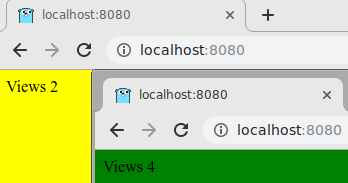
This app displays greetings in different languages for every user. Returning users are always greeted in the same language.
Before the app can store preferences for a user, you need a way to store information about the current user in a session. This sample app uses Firestore to store session data.
1. The app starts by importing dependencies, defining an `app` type to hold
a `sessions.Store` and an HTML template, and defining the list of greetings.
```go
import (
"context"
"html/template"
"log"
"math/rand"
"net/http"
"os"
"cloud.google.com/go/firestore"
)
// app stores a sessions.Store. Create a new app with newApp.
type app struct {
tmpl *template.Template
collectionID string
projectID string
}
// session stores the client's session information.
// This type is also used for executing the template.
type session struct {
Greetings string `json:"greeting"`
Views int `json:"views"`
}
// greetings are the random greetings that will be assigned to sessions.
var greetings = []string{
"Hello World",
"Hallo Welt",
"Ciao Mondo",
"Salut le Monde",
"Hola Mundo",
}
```
2. Next, the app defines a `main` function, which creates a new `app` instance,
registers the index handler, and starts the HTTP server. The `newApp`
function creates the `app` instance by setting `projectID` and `collectionID`
values and parses the HTML template.
```go
func main() {
port := os.Getenv("PORT")
if port == "" {
port = "8080"
}
projectID := os.Getenv("GOOGLE_CLOUD_PROJECT")
if projectID == "" {
log.Fatal("GOOGLE_CLOUD_PROJECT must be set")
}
// collectionID is a non-empty identifier for this app, it is used as the Firestore
// collection name that stores the sessions.
//
// Set it to something more descriptive for your app.
collectionID := "hello-views"
a, err := newApp(projectID, collectionID)
if err != nil {
log.Fatalf("newApp: %v", err)
}
http.HandleFunc("/", a.index)
log.Printf("Listening on port %s", port)
if err := http.ListenAndServe(":"+port, nil); err != nil {
log.Fatal(err)
}
}
// newApp creates a new app.
func newApp(projectID, collectionID string) (app, error) {
tmpl, err := template.New("Index").Parse(`{{.Views}} {{if eq .Views 1}}view{{else}}views{{end}} for "{{.Greetings}}"`)
if err != nil {
log.Fatalf("template.New: %v", err)
}
return app{
tmpl: tmpl,
collectionID: collectionID,
projectID: projectID,
}, nil
}
```
3. The index handler gets the user's session, creating one if needed. New
sessions are assigned a random language and a view count of 0.
Then, the view count is increased by one, the session is saved, and the HTML
template writes the response.
```go
// index uses sessions to assign users a random greeting and keep track of
// views.
func (a *app) index(w http.ResponseWriter, r *http.Request) {
// Allows requests only for the root path ("/") to prevent duplicate calls.
if r.RequestURI != "/" {
http.NotFound(w, r)
return
}
var session session
var doc *firestore.DocumentRef
isNewSession := false
ctx := context.Background()
client, err := firestore.NewClient(ctx, a.projectID)
if err != nil {
log.Fatalf("firestore.NewClient: %v", err)
}
defer client.Close()
// cookieName is a non-empty identifier for this app, it is used as the key name
// that contains the session's id value.
//
// Set it to something more descriptive for your app.
cookieName := "session_id"
// If err is different to nil, it means the cookie has not been set, so it will be created.
cookie, err := r.Cookie(cookieName)
if err != nil {
// isNewSession flag is set to true
isNewSession = true
}
// If isNewSession flag is true, the session will be created
if isNewSession {
// Get unique id for new document
doc = client.Collection(a.collectionID).NewDoc()
session.Greetings = greetings[rand.Intn(len(greetings))]
session.Views = 1
// Cookie is set
cookie = &http.Cookie{
Name: cookieName,
Value: doc.ID,
HttpOnly: true, // Prevents client-side scripts from accessing the cookie
SameSite: http.SameSiteLaxMode, // Protects the session cookie from Cross-Site Request Forgery (CSRF) attacks
}
http.SetCookie(w, cookie)
} else {
// The session exists
// Retrieve document from collection by ID
docSnapshot, err := client.Collection(a.collectionID).Doc(cookie.Value).Get(ctx)
if err != nil {
log.Printf("doc.Get error: %v", err)
http.Error(w, "Error getting session", http.StatusInternalServerError)
return
}
// Unmarshal documents's content to local type
err = docSnapshot.DataTo(&session)
if err != nil {
log.Printf("doc.DataTo error: %v", err)
http.Error(w, "Error parsing session", http.StatusInternalServerError)
return
}
doc = docSnapshot.Ref
// Add 1 to current views value
session.Views++
}
// The document is created/updated
_, err = doc.Set(ctx, session)
if err != nil {
log.Printf("doc.Set error: %v", err)
http.Error(w, "Error creating session", http.StatusInternalServerError)
return
}
if err := a.tmpl.Execute(w, session); err != nil {
log.Printf("Execute: %v", err)
}
}
```
The following diagram illustrates how Firestore handles sessions for the Cloud Run app.

> [!NOTE]
> **Note:** Firestore is a persistent, distributed, transactional database. Often, it's more appropriate to choose a different storage solution for sessions such as [Memcache](https://redislabs.com/lp/memcached-cloud/) or [Redis](https://redislabs.com), whose designs might result in faster operation in this use case.
## Deleting sessions
You can [delete session data](https://docs.cloud.google.com/firestore/docs/using-console#delete_data)
in the [Google Cloud console](https://console.cloud.google.com/firestore/)
or implement an automated deletion strategy. If you use storage solutions for
sessions such as Memcache or Redis, expired sessions are automatically deleted.
## Running locally
1. In your terminal window, build the `sessions` binary:
```go
go build
```
2. Start the HTTP server:
```go
./sessions
```
3. View the app in your web browser:
### Cloud Shell
In the Cloud Shell toolbar, click **Web preview**

and select **Preview on port 8080**.
### Local machine
In your browser, go to
`http://localhost:8080`
You see one of five greetings: "Hello World", "Hallo Welt", "Hola mundo", "Salut le Monde", or "Ciao Mondo." The language changes if you open the page in a different browser or in incognito mode.
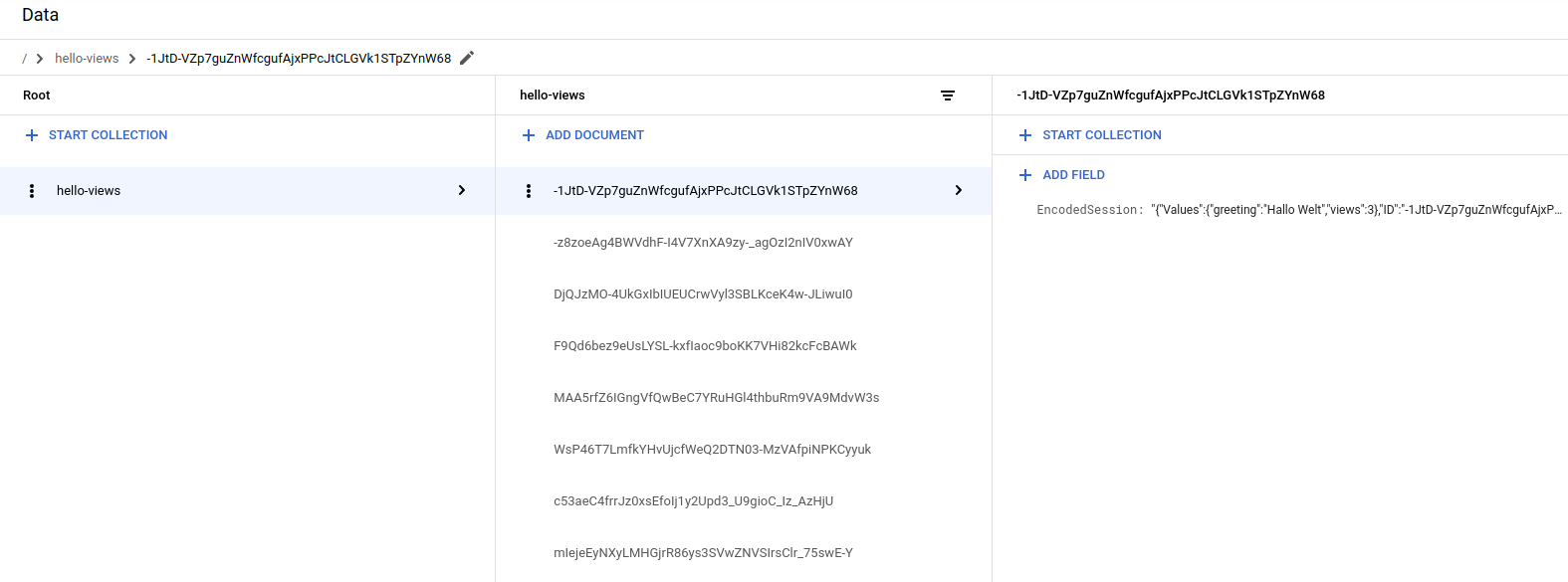
You can see and edit the session data in the [Google Cloud console](https://console.cloud.google.com/firestore/).
4. To stop the HTTP server, in your terminal window, press `Control+C`.
## Deploying and running on Cloud Run
You can use the [Cloud Run](https://docs.cloud.google.com/run)
to build and deploy an app that runs reliably under heavy load and with large
amounts of data.
1. Deploy the app on Cloud Run:
```
gcloud run deploy firestore-tutorial-go
--source . --allow-unauthenticated --port=8080
--set-env-vars=GOOGLE_CLOUD_PROJECT=YOUR_PROJECT_ID
```
2. Visit the URL returned by this command to see how session data persists between page loads.
The greeting is now delivered by a web server running on
an Cloud Run instance.
## Debugging the app
If you cannot connect to your Cloud Run app, check the following:
1. Check that the `gcloud` deploy commands successfully completed and didn't output any errors. If there were errors (for example, `message=Build failed`), fix them, and try [deploying the Cloud Run app](https://docs.cloud.google.com/go/getting-started/session-handling-with-firestore.md.txt#deploying_the_web_app) again.
2. In the Google Cloud console, go to the **Logs Explorer** page.
[Go to Logs Explorer page](https://console.cloud.google.com/logs/query)
1. In the **Recently selected resources** drop-down list, click
**Cloud Run Application** , and then click **All module_id** . You see a list of
requests from when you visited your app. If you don't see a list of
requests, confirm you selected **All module_id** from the drop-down list.
If you see error messages printed to the Google Cloud console, check that your app's code matches
[the code in the section about writing the web app](https://docs.cloud.google.com/go/getting-started/session-handling-with-firestore.md.txt#writing_the_web_app).
2. Make sure that the Firestore API is enabled.
## Clean up
### Delete the project
> [!CAUTION]
> **Caution** : Deleting a project has the following effects:
>
> - **Everything in the project is deleted.** If you used an existing project for the tasks in this document, when you delete it, you also delete any other work you've done in the project.
> - **Custom project IDs are lost.** When you created this project, you might have created a custom project ID that you want to use in the future. To preserve the URLs that use the project ID, such as an `appspot.com` URL, delete selected resources inside the project instead of deleting the whole project.
>
>
> If you plan to explore multiple architectures, tutorials, or quickstarts, reusing projects
> can help you avoid exceeding project quota limits.
1. In the Google Cloud console, go to the **Manage resources** page.
[Go to Manage resources](https://console.cloud.google.com/iam-admin/projects)
2. In the project list, select the project that you want to delete, and then click **Delete**.
3. In the dialog, type the project ID, and then click **Shut down** to delete the project.
### Delete the Cloud Run instance
1. In the Google Cloud console, go to the **Versions** page for App Engine.
[Go to Versions](https://console.cloud.google.com/appengine/versions)
2. Select the checkbox for the non-default app version that you want to delete.
> [!NOTE]
> **Note:** The only way you can delete the default version of your App Engine app is by deleting your project. However, you can [stop the default version in the
> Google Cloud console](https://console.cloud.google.com/appengine/versions). This action shuts down all instances associated with the version. You can restart these instances later if needed.
>
>
>
> In the App Engine standard environment, you can stop the default version only if your app has
> manual or basic scaling.
>
3. To delete the app version, click **Delete**.
## What's next
- Try [Cloud Run functions tutorials](https://docs.cloud.google.com/functions/docs/tutorials).
- [Learn more about Cloud Run](https://docs.cloud.google.com/appengine/docs.md.txt).
- [Try Cloud Run](https://docs.cloud.google.com/run/docs/quickstarts/deploy-container.md.txt), which lets you run stateless containers on a fully managed environment or in your own Google Kubernetes Engine cluster.