Agent Search offers two pricing models for custom search: a general
consumption-based model and a configurable pricing model.
This page describes the pricing models and how to enable a configurable pricing
model.
> [!NOTE]
> **Note:** Configurable pricing is only applicable to Agent Search apps and data stores. If you are creating a data store for use with a Gemini Enterprise app, make sure to select the **General pricing** model. For how to select the general pricing, see [Enable configurable pricing
> for a data store](https://docs.cloud.google.com/generative-ai-app-builder/docs/enable-configurable-pricing#ds-configurable).
## Pricing models
Agent Search for custom search supports two pricing models:
- **General**: A pay-as-you-go, consumption-based model (default).
- **Configurable**: A mixed-pricing model that lets you to unbundle capabilities
and create a subscription package that is more closely aligned with your
specific use cases. This pricing model lets you pay only for the features
that you need. It offers two subscriptions and optional add-ons. After you
enable this pricing model at project level, you can select configurable
pricing for your apps and data stores.
> [!CAUTION]
> **Before you enable configurable pricing, be aware of the following:**
>
> - Billing for your subscription package begins immediately upon enablement.
> - You must individually enroll each app and data store that you want covered by the subscription. Any unenrolled resources are charged at the default pay-as-you-go rate.
> - If you choose to create a Gemini Enterprise data store through the AI Applications console, you must select general pricing model to expect correct billing.
## Configurable pricing components
The configurable pricing model offers two subscriptions and different feature
add-ons.
### Subscription package
The subscription package has two subscriptions:
- Storage for your index, measured in GiB, for structured, unstructured, and website data.
- Search query for standard keyword search and filtering capabilities, measured in QPM (queries per minute).
#### Usage calculation
The storage size of the data stores for which configurable pricing applies is
added up and compared against the storage subscription threshold. If the usage
per hour is higher than the set threshold, the overage part is charged according
to the general pricing model.
Similarly, the search query units (QPM) of the apps for which configurable
pricing applies are added up and compared against the QPM subscription
threshold. If the usage per minute is higher than the set threshold, the overage
part is charged according to the general pricing model.
When the threshold is modified, the usage is compared to the new threshold for
overage.
### Feature add-ons
You can enable powerful features by using add-ons.
#### Storage add-on
For the semantic embedding add-on, billing occurs when
documents are imported to the data store.
| **Add-on** | **Description** |
|---|---|
| Semantic embedding | Enables the creation and maintenance of the vector embeddings for your documents, which is required before you can use the semantic query add-on in your search queries. |
#### Search request add-ons
Billing for these add-ons occurs when these features are applied to a
[`search`](https://docs.cloud.google.com/generative-ai-app-builder/docs/reference/rest/v1/projects.locations.collections.engines.servingConfigs/search.md.txt)
API call.
> [!IMPORTANT]
> **Important:** Search request add-ons are applied *by default* whenever they are applicable to a request. For example, the semantic query add-on is applied automatically when its prerequisites are met (the semantic embedding add-on is enabled on the data store or embeddings are available), even if you don't explicitly request it. When configurable pricing is enabled, each add-on that is applied to a request is billed through its corresponding SKU. **To avoid
> being billed for an add-on that you don't want, you must explicitly disable
> it.** See [About controlling which add-ons apply to a search request](https://docs.cloud.google.com/generative-ai-app-builder/docs/enable-configurable-pricing.md.txt#control-addons).
| **Add-on** | **Description** |
|---|---|
| Semantic query | Enables semantic search capabilities for handling longer, more complex queries using embeddings. The semantic embedding add-on at the data store level is a prerequisite. Applied by default when the prerequisite is met, unless disabled on the request. |
| KPI \& personalization | Enables user-event-based re-ranking and personalization to optimize for your business-specific KPIs. You are charged if the data quality has met the personalization tier and the training pipeline is ready. |
| AI overview | Enables generative features, such as generative summaries and follow-up questions. The semantic query add-on is a prerequisite. |
#### About controlling which add-ons apply to a search request
Because search request add-ons apply by default when they're applicable, you
incur charges for them under configurable pricing unless you disable them.
There are two ways that you can disable them:
- If you are using the widget to host your app, then you can disable add-ons at
the widget level, using the UI setting for the widget. For general information
about the widget, see [Add the search widget to a web
page](https://docs.cloud.google.com/generative-ai-app-builder/docs/add-widget) and for information about
how to configure widget settings, see [Configure results for the search
widget](https://docs.cloud.google.com/generative-ai-app-builder/docs/configure-widget-attributes).
- At the per-request level, by setting the `disableSemanticAddOn`,
`disableKpiPersonalizationAddOn`, and `disableGenerativeAnswerAddOn` when
you make a search request using the
[`engines.servingConfigs.search`](https://docs.cloud.google.com/generative-ai-app-builder/docs/reference/rest/v1/projects.locations.collections.engines.servingConfigs/search.md.txt)
method.
For instructions on how to disable add-ons, see [Manage configurable pricing for
search query add-ons](https://docs.cloud.google.com/generative-ai-app-builder/docs/enable-configurable-pricing#search-configurable).
### Pricing details
For more information about pricing, including an example, see
[Agent Search Configurable
Pricing](https://cloud.google.com/generative-ai-app-builder/pricing#vertex-ai-search-configurable-pricing).
## Enable configurable pricing for project
This section describes how to configure the pricing model at the project level.
To use configurable pricing for an individual app or a data store, you must
first enable it for the project.
Permissions required for this task
To perform this task, you must have been granted the following permissions
*or* the following [Identity and Access Management (IAM)](https://docs.cloud.google.com/iam/docs.md.txt) roles:
| You need this role: | Or, all of these permissions: |
|---|---|
| Discovery Engine Admin (`roles/discoveryengine.admin`) | `discoveryengine.projects.update` |
You can ask your administrator to grant you these Identity and Access Management roles. For instructions on
granting roles, see [Manage access](https://docs.cloud.google.com/iam/docs/granting-changing-revoking-access.md.txt) or
[Control access to Agent Search resources](https://docs.cloud.google.com/generative-ai-app-builder/docs/access-control.md.txt).
You can also get the required permissions through
[custom roles](https://docs.cloud.google.com/iam/docs/creating-custom-roles.md.txt) or other
[predefined roles](https://docs.cloud.google.com/iam/docs/understanding-roles).
### Console
To enable configurable pricing using the Google Cloud console, follow these steps:
1. In the Google Cloud console, go to the **Billing** page.
[AI Applications](https://console.cloud.google.com/gen-app-builder/billing/subscriptions)
2. On the **Billing** page, select **Configurable Pricing**.
3. Under **Project-wide Configurable Pricing** , input the **QPM Subscription
Threshold**, the minimum is 1000 QPM/month.
4. Under **Project-wide Configurable Pricing** , input the **Storage Subscription
Threshold**, the minimum is 50 GiB/month.
5. Click **Save project settings**.
## Enable configurable pricing for an app
This section describes how to configure the pricing model at an app level.
To use configurable pricing for an individual app, you must
first [enable it for the project](https://docs.cloud.google.com/generative-ai-app-builder/docs/enable-configurable-pricing.md.txt#enable-configurable). If you don't set up
configurable pricing for the app, it uses the general pricing model
instead of being covered by the subscription cost.
Permissions required for this task
To perform this task, you must have been granted the following permissions
*or* the following [Identity and Access Management (IAM)](https://docs.cloud.google.com/iam/docs.md.txt) roles:
| You need at least one of these roles: | Or, all of these permissions: |
|---|---|
| - Discovery Engine Admin (`roles/discoveryengine.admin`) - Discovery Engine Editor (`roles/discoveryengine.editor`) | - `discoveryengine.engines.create` - `discoveryengine.engines.update` - `discoveryengine.engines.delete` |
You can ask your administrator to grant you these Identity and Access Management roles. For instructions on
granting roles, see [Manage access](https://docs.cloud.google.com/iam/docs/granting-changing-revoking-access.md.txt) or
[Control access to Agent Search resources](https://docs.cloud.google.com/generative-ai-app-builder/docs/access-control.md.txt).
You can also get the required permissions through
[custom roles](https://docs.cloud.google.com/iam/docs/creating-custom-roles.md.txt) or other
[predefined roles](https://docs.cloud.google.com/iam/docs/understanding-roles).
### Console
To enable configurable pricing for an app using the Google Cloud console, follow these
steps:
1. In the Google Cloud console, go to the **Apps** page.
[AI Applications](https://console.cloud.google.com/gen-app-builder/engines)
2. On the **Apps** page, click the app you want to modify.
3. In the main menu, click **Billing** , and then select **Configurable Pricing**.
4. Click **Save**.
## Enable configurable pricing for a data store
This section describes how to configure the pricing model at a data store level.
To use configurable pricing for an individual data store, you must first
[enable it for the project](https://docs.cloud.google.com/generative-ai-app-builder/docs/enable-configurable-pricing.md.txt#enable-configurable). If you don't set up the
configurable pricing for the data store, it uses the general pricing model
instead of being covered by the subscription cost.
> [!IMPORTANT]
> **Important:** If the selected data store is to be used with a Gemini Enterprise app, don't enable configurable pricing for it.
Permissions required for this task
To perform this task, you must have been granted the following permissions
*or* the following [Identity and Access Management (IAM)](https://docs.cloud.google.com/iam/docs.md.txt) roles:
| You need at least one of these roles: | Or, all of these permissions: |
|---|---|
| - Discovery Engine Admin (`roles/discoveryengine.admin`) - Discovery Engine Editor (`roles/discoveryengine.editor`) | - `discoveryengine.dataStores.create` - `discoveryengine.dataStores.update` - `discoveryengine.dataStores.delete` |
You can ask your administrator to grant you these Identity and Access Management roles. For instructions on
granting roles, see [Manage access](https://docs.cloud.google.com/iam/docs/granting-changing-revoking-access.md.txt) or
[Control access to Agent Search resources](https://docs.cloud.google.com/generative-ai-app-builder/docs/access-control.md.txt).
You can also get the required permissions through
[custom roles](https://docs.cloud.google.com/iam/docs/creating-custom-roles.md.txt) or other
[predefined roles](https://docs.cloud.google.com/iam/docs/understanding-roles).
### Console
To enable configurable pricing for a data store using the Google Cloud console,
follow these steps:
1. In the Google Cloud console, go to the **Data stores** page.
[AI Applications](https://console.cloud.google.com/gen-app-builder/data-stores)
2. On the **Data Stores** page, click the data store you want to modify.
3. If the data store is connected to any apps, make sure that those apps have
configurable pricing enabled.
An app with general pricing can't connect to a data store with
configurable pricing.
4. Click **Billing** , and then select **Configurable Pricing**.
5. Optional: Select **Semantic (embedding) Add-on**. This is a prerequisite for
search serving for semantic query and AI Mode.
6. Click **Save**.
## Manage configurable pricing for search query add-ons
No special roles or permissions are needed for this task.
### Console, widget only
If you are using the widget to host your app and want to save money by limiting
the add-ons used by the widget, do the following:
1. In the Google Cloud console, go to the **AI Applications** page.
[AI Applications](https://console.cloud.google.com/gen-app-builder/engines)
2. On the **Apps** page, click the app that you want to modify.
3. Click **Configurations**.
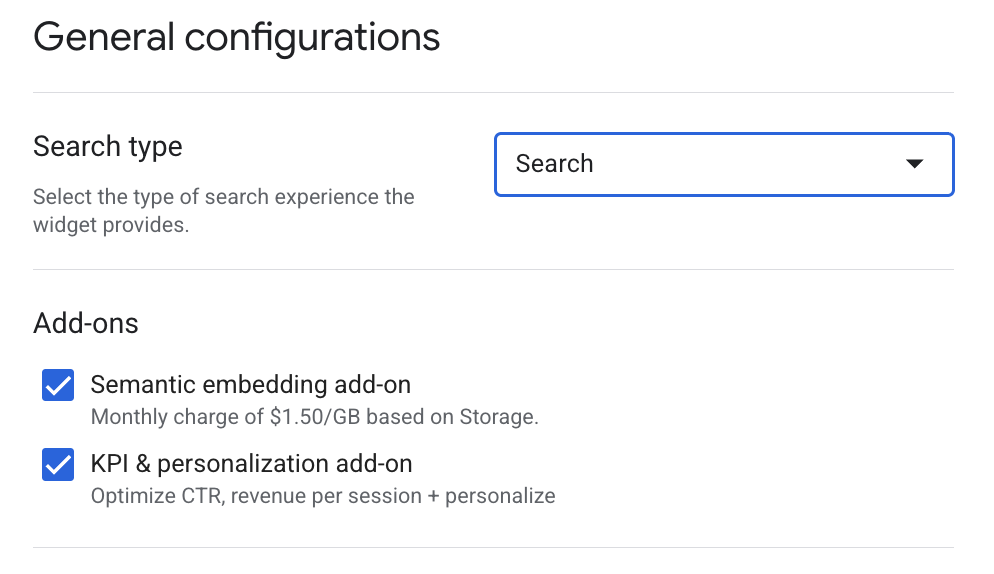
4. To avoid the AI overview add-on, set **Search type** to **Search**.
5. On the **UI** tab, select the add-ons that you want. For apps of search type
**Search** , the semantic query add-on can be disabled. The semantic query
add-on is always on for **Search with an answer** and
**Search with follow-ups** search types.
6. Click **Save and publish**.
### REST, per search request
When you disable an add-on on a search request, Agent Search doesn't
apply it to that request and you don't incur charges for it. If you omit the
configuration or leave a field unset, the corresponding add-on applies by
default when it's applicable.
To disable search request add-ons for a search request, do the following:
1. For each query, use a command with syntax like the following:
```
curl -X POST -H "Authorization: Bearer $(gcloud auth print-access-token)" \
-H "Content-Type: application/json" \
"https://discoveryengine.googleapis.com/v1/projects/PROJECT_ID/locations/global/collections/default_collection/engines/APP_ID/servingConfigs/default_search:search" \
-d '{
"query": "QUERY",
"searchAddonSpec": {
"disableSemanticAddOn": BOOL_DISABLE_SEMANTIC,
"disableKpiPersonalizationAddOn": BOOL_DISABLE_KPI,
"disableGenerativeAnswerAddOn": BOOL_DISABLE_GEN_ANSWER
}
}'
```
Replace the following:
- `PROJECT_ID`: the ID of your Google Cloud project.
- `APP_ID`: the ID of the Agent Search app that you want to query.
- `QUERY`: the query text to search.
To disable the add-ons, add them to the `searchAddonSpec` object:
- `BOOL_DISABLE_SEMANTIC`: To disable the Semantic
add-on, set `disableSemanticAddOn` to `true`.
- `BOOL_DISABLE_KPI`: To disable the KPI \&
personalization add-on, set `disableKpiPersonalizationAddOn` to `true`.
- `BOOL_DISABLE_GEN_ANSWER`: To disable the
generative answer (AI overview) add-on, set
`disableGenerativeAnswerAddOn` to `true`.
#### Example command and result
```
curl -X POST -H "Authorization: Bearer $(gcloud auth print-access-token)" \
-H "Content-Type: application/json" \
"https://discoveryengine.googleapis.com/v1beta/projects/my-project-123/locations/global/collections/default_collection/engines/my-app/servingConfigs/default_search:search" \
-d '{
"query": "BigQuery data platform",
"searchAddonSpec": {
"disableSemanticAddOn": true,
"disableKpiPersonalizationAddOn": true,
"disableGenerativeAnswerAddOn": true
}
}'
{
"results": [
{
"id": "9ec41e0a58436ad16f355cf5a9a21078",
"document": {
"name": "projects/123456/locations/global/collections/default_collection/dataStores/my-data-store/branches/0/documents/9ec41e0a58436ad16f355cf5a9a21078",
"id": "9ec41e0a58436ad16f355cf5a9a21078",
"derivedStructData": {
"link": "gs://my-bucket/bq-directory/DiagramAboutBigQuery.png",
"can_fetch_raw_content": "true",
"image": {
"thumbnail": "data:image/png;base64,iVBORw0KGgoAAAANSUhEUgAAAhQAAAKx...4x73uMevakHOVSQi/gUVbCto1KDKawAAAABJRU5ErkJggg=="
},
"title": "BigQueryIllustrated"
}
},
"rankSignals": {
"keywordSimilarityScore": 0.548946,
"topicalityRank": 1,
"documentAge": 495935.8,
"boostingFactor": 0,
"defaultRank": 1
}
},
{
"id": "c0119791c13a516312bbaad4cffae9f5",
"document": {
"name": "projects/123456/locations/global/collections/default_collection/dataStores/my-data-store/branches/0/documents/c0119791c13a516312bbaad4cffae9f5",
"id": "c0119791c13a516312bbaad4cffae9f5",
"derivedStructData": {
"can_fetch_raw_content": "true",
"link": "gs://my-bucket/bq-directory/AboutBigQuery.pdf",
"title": "AllAboutBigQuery",
"image": {
"thumbnail": "data:image/png;base64,iVBORw0KGgoAAAANSUhEUgAAASM ... /062/5c0fGHTW4xm0c5qpsvbIj2v+OW72uPiFpX1x/Xdz/f8BOQGtH50KK50AAAAASUVORK5CYII="
}
}
},
"rankSignals": {
"keywordSimilarityScore": 0.37348458,
"topicalityRank": 2,
"documentAge": 495935.8,
"boostingFactor": 0,
"defaultRank": 2
}
}
],
"totalSize": 2,
"attributionToken": "hwL0BgEKCwjYoqrTBh...x0X3NlYXJjaA",
"guidedSearchResult": {},
"summary": {},
"queryExpansionInfo": {},
"semanticState": "DISABLED"
}
```
For more information about submitting a search request, see
[Get search results](https://docs.cloud.google.com/generative-ai-app-builder/docs/preview-search-results.md.txt).
## Modify subscription thresholds
If you have enabled configurable pricing for the project,
you can adjust your subscription thresholds as needed.
Increased thresholds take effect right away, while decreased thresholds take
effect at the start of the next billing cycle.
To modify subscription thresholds, do the following:
1. Wait for a few weeks after enabling for the consumption data to accumulate.
If you think that your thresholds might be
set too high, make sure to check the consumption before the end of the next
monthly billing cycle.
2. In the Google Cloud console, go to the **Billing** page.
[AI Applications](https://console.cloud.google.com/gen-app-builder/billing/subscriptions)
3. On the **Billing** page, click **Consumption** and review the
consumption data.
4. Click **Subscriptions** and increase or decrease the values for the
project-wide thresholds as necessary.
5. Click **Save project settings**.
After you change a subscription threshold, you must wait up to two hours
before you make another change. A request to change the threshold within the
two hours might fail.
If you are lowering the thresholds, you won't see the lower values on the
**Subscriptions** page until the start of the next billing cycle.
## Change pricing model to general pricing
You can change individual apps and data stores to use general pricing instead
of configurable pricing. Alternatively, you can turn off configurable pricing
for an entire project.
Before you can change the pricing model for an app, you must make sure that the
data stores connected to it use general pricing. This is because an app using
general pricing can't connect to a data store using configurable pricing.
Before you can reset a project to the general pricing model, you need to make
sure that all apps and data stores in the project are using the general pricing
model.
### Enable general pricing for a data store
This section describes how to set the pricing model for a data store to general,
which is the default model.
Permissions required for this task
To perform this task, you must have been granted the following permissions
*or* the following [Identity and Access Management (IAM)](https://docs.cloud.google.com/iam/docs.md.txt) roles:
| You need at least one of these roles: | Or, all of these permissions: |
|---|---|
| - Discovery Engine Admin (`roles/discoveryengine.admin`) - Discovery Engine Editor (`roles/discoveryengine.editor`) | - `discoveryengine.dataStores.create` - `discoveryengine.dataStores.update` - `discoveryengine.dataStores.delete` |
You can ask your administrator to grant you these Identity and Access Management roles. For instructions on
granting roles, see [Manage access](https://docs.cloud.google.com/iam/docs/granting-changing-revoking-access.md.txt) or
[Control access to Agent Search resources](https://docs.cloud.google.com/generative-ai-app-builder/docs/access-control.md.txt).
You can also get the required permissions through
[custom roles](https://docs.cloud.google.com/iam/docs/creating-custom-roles.md.txt) or other
[predefined roles](https://docs.cloud.google.com/iam/docs/understanding-roles).
### Console
To enable general pricing for a data store using the Google Cloud console,
follow these steps:
1. In the Google Cloud console, go to the **Data stores** page.
[AI Applications](https://console.cloud.google.com/gen-app-builder/data-stores)
2. On the **Data Stores** page, click the data store you want to modify.
3. Click **Billing** , and then select **General Pricing**.
4. Click **Save**.
### Enable general pricing for an app
This section describes how to set the pricing model for an app to general, which
is the default model.
Permissions required for this task
To perform this task, you must have been granted the following permissions
*or* the following [Identity and Access Management (IAM)](https://docs.cloud.google.com/iam/docs.md.txt) roles:
| You need at least one of these roles: | Or, all of these permissions: |
|---|---|
| - Discovery Engine Admin (`roles/discoveryengine.admin`) - Discovery Engine Editor (`roles/discoveryengine.editor`) | - `discoveryengine.engines.create` - `discoveryengine.engines.update` - `discoveryengine.engines.delete` |
You can ask your administrator to grant you these Identity and Access Management roles. For instructions on
granting roles, see [Manage access](https://docs.cloud.google.com/iam/docs/granting-changing-revoking-access.md.txt) or
[Control access to Agent Search resources](https://docs.cloud.google.com/generative-ai-app-builder/docs/access-control.md.txt).
You can also get the required permissions through
[custom roles](https://docs.cloud.google.com/iam/docs/creating-custom-roles.md.txt) or other
[predefined roles](https://docs.cloud.google.com/iam/docs/understanding-roles).
### Console
To enable general pricing for an app using the Google Cloud console, follow these
steps:
1. In the Google Cloud console, go to the **Apps** page.
[AI Applications](https://console.cloud.google.com/gen-app-builder/engines)
2. If any of the data stores connected to the app use configurable pricing,
[enable general pricing for those data stores](https://docs.cloud.google.com/generative-ai-app-builder/docs/enable-configurable-pricing.md.txt#ds-general).
An app with general pricing can't connect to a data store with
configurable pricing.
3. On the **Apps** page, click the app you want to modify.
4. In the main menu, click **Billing** , and then select **General Pricing**.
5. Click **Save**.
### Disable configurable pricing for project
Before you can disable the configurable pricing for your project, you need to
make sure that all apps and data stores in the project use general pricing.
See [Enable general pricing for a data store](https://docs.cloud.google.com/generative-ai-app-builder/docs/enable-configurable-pricing.md.txt#ds-general) and [Enable general
pricing for an app](https://docs.cloud.google.com/generative-ai-app-builder/docs/enable-configurable-pricing#app-general).
Permissions required for this task
To perform this task, you must have been granted the following permissions
*or* the following [Identity and Access Management (IAM)](https://docs.cloud.google.com/iam/docs.md.txt) roles:
| You need at least one of these roles: | Or, all of these permissions: |
|---|---|
| Discovery Engine Admin (`roles/discoveryengine.admin`) | `discoveryengine.projects.update` |
You can ask your administrator to grant you these Identity and Access Management roles. For instructions on
granting roles, see [Manage access](https://docs.cloud.google.com/iam/docs/granting-changing-revoking-access.md.txt) or
[Control access to Agent Search resources](https://docs.cloud.google.com/generative-ai-app-builder/docs/access-control.md.txt).
You can also get the required permissions through
[custom roles](https://docs.cloud.google.com/iam/docs/creating-custom-roles.md.txt) or other
[predefined roles](https://docs.cloud.google.com/iam/docs/understanding-roles).
### Console
To disable configurable pricing for a project, follow these steps:
1. In the Google Cloud console, go to the **Billing** page.
[AI Applications](https://console.cloud.google.com/gen-app-builder/billing/subscriptions)
2. On the **Billing** page, select **General Pricing**.
3. Click **Save project settings**.