Analytics give you insight into the usage trends, search
quality, and end-user engagement of your app. The console provides an
interactive dashboard experience powered by Looker. This page
describes how to view analytics for your apps.
> [!NOTE]
> **Note:** Metrics are refreshed about every 6 hours, so it can take several hours before you can use the **Analytics** page after you create your app.
## Before you begin
Ensure your app is connected to a data store. App metrics are only available
from the time a data store is linked to an app.
If you don't have a data store, you need to
[connect a Google data source](https://docs.cloud.google.com/gemini/enterprise/docs/create-data-store)
or a [third-party data source](https://docs.cloud.google.com/gemini/enterprise/docs/connect-third-party-data-source) to
your app.
> [!WARNING]
> **Warning:** Some app metrics could be lost if a data store is unlinked from the app. If your data is encrypted using CMEK, these specific app metrics cannot be retrieved.
## User events for analytics
This section describes the user events Gemini Enterprise uses to generate
the search-related metrics, such as search count and click-through-rate. No
additional configurations are needed if you are using the user
interface to search and get answers through the Gemini Enterprise
assistant. However, if you use the Gemini Enterprise APIs in your own apps,
you must configure the search in your app to capture the
[user events](https://docs.cloud.google.com/gemini/enterprise/docs/user-events.md.txt) and then import user events to your app..
Gemini Enterprise apps require the following user events to get the
metrics:
- **Search events.** Required for click-through-rate.
- **View-item events.** Required for click-through-rate.
The following information is also used for some analytics:
- **Impressions** . You can provide impressions (item views or clicks) that are attributable to Google by including the associated item in `UserEvent.Documents` when ingesting user events. This information is needed for attribution and to compute per-search metrics.
- **Attribution tokens** . Attribution tokens are unique IDs generated by Google and returned with each search request. Make sure to include that attribution token as `UserEvent.attributionToken` with any user events resulting from a search. This is needed to identify if a search is served by the API. Only user events with a Google-generated attribution token are used to compute metrics.
- **Search logs** . Search logs are based on search requests. To allow Google to identify user sessions so that it can deliver per-session analytics and higher quality search results, Google strongly recommends that you set the optional field `SearchRequest.UserPseudoId`.
If there are no search logs or user events, default values are shown
for all metrics.
## View Gemini Enterprise analytics
> [!NOTE]
> **Note:** For apps in US and EU multi-regions, viewing search analytics is in Public preview. Search analytics are GA for global apps.
You can view search analytics for your app. You see the metrics related to
the search calls made to your app. If your app is connected to multiple data
stores, then making search calls to the app by specifying the `engine` resource
is recommended so that you can get results from across all its connected data
stores.
Use the following instructions to view analytics about your app.
1. In the Google Cloud console, go to the Gemini Enterprise page.
[Gemini Enterprise](https://console.cloud.google.com/gemini-enterprise/)
2. Click the name of the app that you want to view analytics for.
3. Click **Analytics**.
4. Click a tab to view that metric group:
- **Adoption**: Metrics on user adoption status.
- **Usage and Quality**: Metrics on user feedback and app usage.
- **Agent**: Metrics for agents in the Gemini Enterprise web app, including
Google-made agents, Gemini Notebook Enterprise, and agents your
organization created and registered with Gemini Enterprise.
- **Value**: Metrics on cost savings achieved by users querying data with
the app.
- **User Level**: Metrics include the user IDs (email address or unique
identifier) of users in the organization and their interactions with
Google-made agents and agents the organization created and registered
with Gemini Enterprise.
> [!NOTE]
> **Note:** You must be on an allowlist to see data on the **User Level** tab. To be added to the allowlist, contact your [account team](https://cloud.google.com/tam) or the [sales team](https://cloud.google.com/contact).
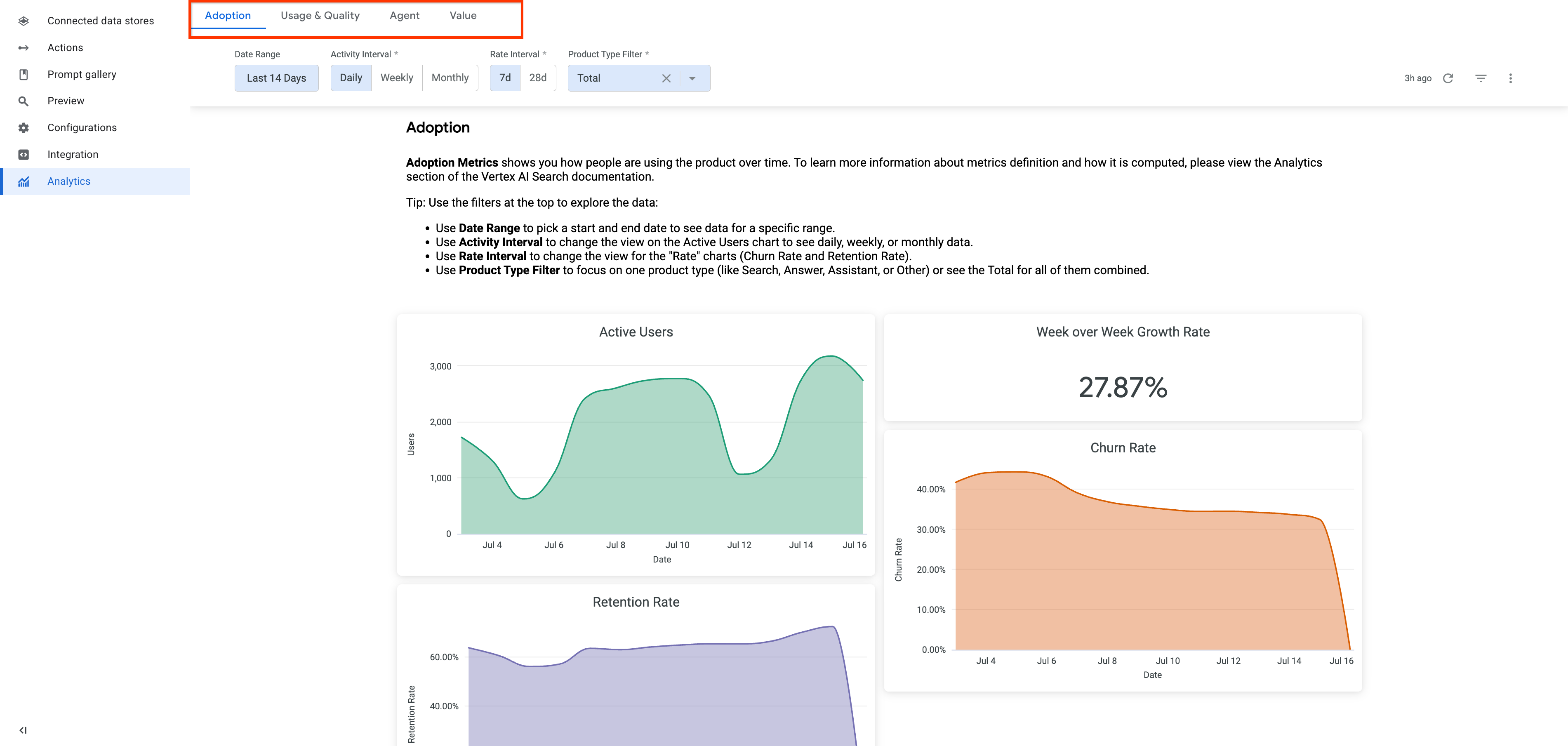 See the analytics data for adoption
5. To filter your metrics, specify the filters available for the metric tab and
then click the **Refresh** button to apply them.
## Metrics definitions
The following table describes how metrics are defined.
| Metric group | Metric name | Metric definition | Notes |
| Adoption | Total users | Number of unique active users of Gemini Enterprise during the selected date range. | A user is considered active if they sign in and trigger any API calls, such as when landing on the home page. Because the count is unique, a user who calls the assistant, answer, and search API methods is counted only once in the total. |
| Adoption |
| Adoption |
| Adoption |
| Adoption |
| Adoption |
| Adoption |
| Adoption |
| Adoption |
| Adoption |
| Adoption |
| Adoption |
| Adoption |
| Adoption |
| Adoption |
| Adoption |
|---|---|---|---|
| Users calling assistant | Number of users who called the `AssistantService` methods or used the Assistant to generate answers. | |
| Users calling answer | Number of users who called the `ConversationalSearchService` and `GenerativeSearchAnswerService` methods to generate answers. | |
| Users calling search | Number of users who called the `SearchService` methods to get search results. | |
| Users calling other API methods | Number of users who called API methods other than `streamAssist`, `streamAnswer`, and `engines.servingConfigs.search`. For example, users who call the authentication API methods. | |
| Daily active users | Count of active users per day | A user is considered active if they sign in and trigger any API calls, such as when landing on the home page. |
| Weekly active users | Count of active users per week. The week starts on Monday and ends on Sunday. | |
| Monthly active users | Count of active users per month | |
| 7d retention rate | Count of returned user in the current 7-day period / count of active user in the previous 7-day period | A user is considered as a returned user if the user is active during the current 7-day period and the previous 7-day period. |
| 7d growth rate | The percentage difference between the number of active users in the current seven-day period and the previous seven-day period | |
| 7d churn rate | Count of churned users in the current 7-day period / count of active user in the previous 7-day period | A user is considered churned if the user was active in the previous 7-day period, but is not active in the current 7-day period. |
| 28d retention rate | Count of returned user in the current 28-day period / count of active user in the previous 28-day period | |
| 28d growth rate | The percentage difference between the number of active users in the current 28-day period and the previous 28-day period | |
| 28d churn rate | Count of churned users in the current 28-day period / count of active users in the previous 28-day period | |
| Seats purchased | The number of licenses (seats) the organization has purchased | Includes all seats purchased since registering with Gemini Enterprise. |
| Seats claimed | The number of user licenses that have been assigned to and accepted by individuals within your organization | Includes all seats claimed since registering with Gemini Enterprise. |
| Answer count | Total number of times Gemini Enterprise has generated an answer to a user's query. | Answers generated by an agent are not included in this count. |
| Action count | Total interactions, such as uploading files, creating folders, or using connector actions in Gemini Enterprise. | Includes actions such as creating an email template. |
| Click-through rate (CTR) per search | Total number of search clicks / search count | Search clicks include clicks on search results and internal references. |
| Page view per category | Total number of view for each category page | |
| Feedback like and dislike count | Count of likes and dislikes sent by users | A record of the thumbs-up/thumbs-down feedback responses sent by the app's users. |
| Feedback dislike reasons breakdown | Percentage of the dislike reasons | When a user dislikes a generated answer, they can select multiple reasons to explain their dislike. The percentage shows how often each reason was selected. |
| Successful search rate | Successful search count / search count | |
| Successful answer rate | Successful answer count / answer count | |
| Monthly agent chat sessions | Total number of chat sessions initiated by the users interacting with a specific agent per month. | A chat session is defined as a user interacting with an agent within the same chat thread on a single day. If the user continues the conversation in the same chat thread on a subsequent day, it will be considered a new session. Preview and test sessions initiated from Workflow Builder are counted, because they flow through the same Assistant API path as end-user sessions and receive a session ID. |
| Monthly agents used | Total number of agents that had at least one active user per month. | Uses the same definition of active user as **Monthly active agent users**. |
| Monthly total chat sessions | Total number of chat sessions initiated by the users interacting with the agents per month. | A chat session is defined as a user interacting with an agent within the same chat thread on a single day. If the user continues the conversation in the same chat thread on a subsequent day, it will be considered a new session. Preview and test sessions initiated from Workflow Builder are counted, because they flow through the same Assistant API path as end-user sessions and receive a session ID. |
| Monthly agents created | Total number of Agents that were created in the last calendar month. | |
| Agent name | The agent's display name, shown in the **Agent Name** column of the **Leaderboard** next to the agent's ID in the **Agent ID** column. | If an agent was renamed, the leaderboard shows its most recent display name. If a display name isn't available for an agent, the **Agent Name** column shows the agent ID. |
| Gemini Notebook Enterprise daily active users | Count of Gemini Notebook Enterprise active users per day. | Gemini Notebook Enterprise metrics are calculated across the project and not per engine. > [!NOTE] > **Note**: The Gemini Notebook Enterprise metrics include notebook creation, notebook sharing, audio overview creation, and overall active user counts. Metrics for other generated artifacts --- like mind maps, video overviews, slide decks, infographics, and tailored reports --- are not yet displayed on this dashboard. |
| Gemini Notebook Enterprise daily notebooks created | Count of Gemini Notebook Enterprise notebooks created per day. | Gemini Notebook Enterprise metrics are calculated across the project and not per engine. |
| Gemini Notebook Enterprise daily notebooks created per user | Count of Gemini Notebook Enterprise notebooks created per user per day. | Gemini Notebook Enterprise metrics are calculated across the project and not per engine. |
| Gemini Notebook Enterprise daily notebooks shared | Count of Gemini Notebook Enterprise notebooks shared per day. | Gemini Notebook Enterprise metrics are calculated across the project and not per engine. |
| Gemini Notebook Enterprise daily audio overviews created | Count of Gemini Notebook Enterprise audio overviews created per day. | Gemini Notebook Enterprise metrics are calculated across the project and not per engine. |
| Gemini Notebook Enterprise monthly active users | Count of Gemini Notebook Enterprise active users per month. | Gemini Notebook Enterprise metrics are calculated across the project and not per engine. |
| Gemini Notebook Enterprise monthly notebooks created | Count of Gemini Notebook Enterprise notebooks created per month. | Gemini Notebook Enterprise metrics are calculated across the project and not per engine. |
| Gemini Notebook Enterprise monthly notebooks created per user | Average count of Gemini Notebook Enterprise notebooks created per user per month. | Gemini Notebook Enterprise metrics are calculated across the project and not per engine. |
| Gemini Notebook Enterprise monthly notebooks shared | Count of Gemini Notebook Enterprise notebooks shared per month. | Gemini Notebook Enterprise metrics are calculated across the project and not per engine. |
| Gemini Notebook Enterprise monthly audio overviews created | Count of Gemini Notebook Enterprise audio overviews created per month. | Gemini Notebook Enterprise metrics are calculated across the project and not per engine. |
| Successful search | Count of successful searches. | The number of successful searches are determined by the user behavior after a search. A search is considered successful if one of the following occurs: - If a search result is clicked before a new search is initiated. - If the response from a search includes a people search result, and isn't followed by another search within two minutes. This is because people-search results are displayed on the search result page and don't typically require a click. |
| Successful answer | Count of successful answers | An answer's success is determined by user behavior after it is generated. Success is measured by feedback provided or how soon a follow up question was asked. - If the user thumbs-up the answer, the query is considered successful. - If there is no feedback and the user does not ask another query within 30 seconds, the query is assumed to be successful. |
| Employee hours saved for selected dates | (Successful search count + Successful answer count) x Minutes saved per successful answer | |
| Value saved for selected dates | Hours saved within the dates selected ✕ Average employee hourly rate | To view this metric, in the **Value** tab, specify an hourly rate for the **Employee Hourly Rate** field. |
| Projected annual employee hours saved | (Successful search count + Successful answer count) x Minutes saved per successful search | The projected annual successful search count is derived from the successful search count within the chosen date range. Each query is estimated to save three minutes, an estimate based on Google's internal research. |
| Projected annual value saved | Projected annual employee hours saved ✕ Average employee hourly rate | To view this metric, in the **Value** tab, specify an hourly rate for the **Employee Hourly Rate** field. |
| > [!NOTE] > **Note** : You must be on the allowlist to see the **User Level** metrics. To be added to the allowlist, contact your [account team](https://cloud.google.com/tam) or the [sales team](https://cloud.google.com/contact). ||||
| User ID | The email address of each user within your organization. If the email address isn't available, the user's original unique identifier is displayed. | |
| Total messages | The total number of messages a user sent to the Gemini Enterprise web app. | Includes all messages that the user sent and isn't limited to conversations with Gemini Enterprise agents. |
| Messages to Google-made agents | The total number of messages a user has sent to Google-made agents within the selected date and time range. | |
| Messages to our agents | The total number of messages a user has sent to agents that were created by the organization and registered with Gemini Enterprise within the selected date and time range. | |
## Export metrics
Follow these steps to export the metrics to a BigQuery table in your
Google Cloud project:
1. Verify that you have the required permissions and roles.
- You need to have the [Discovery Engine Viewer](https://docs.cloud.google.com/gemini/enterprise/docs/access-control.md.txt#discoveryengine.viewer) role to be able to call the API.
- [Required permissions to create a BigQuery dataset](https://docs.cloud.google.com/bigquery/docs/datasets.md.txt#required_permissions)
- [Required permissions to create a table](https://docs.cloud.google.com/bigquery/docs/tables.md.txt#required_permissions).
2. Create a BigQuery dataset:
1. Open the BigQuery page in the Google Cloud console.
[Go to the BigQuery page](https://console.cloud.google.com/bigquery)
2. In the **Explorer** panel, select the same project that your
Gemini Enterprise app is in to create the dataset.
3. Click the
option
and click **Create dataset**.
4. On the **Create dataset** page:
- For **Dataset ID** , enter a [unique dataset name](https://docs.cloud.google.com/bigquery/docs/datasets.md.txt#dataset-naming).
You need the dataset name to export the metrics through the API.
- For **Location type**, the following table shows you how to map the
BigQuery locations to the Gemini Enterprise
app locations:
> [!NOTE]
> **Note:** After a dataset is created, the location can't be changed.
| Gemini Enterprise app multi-region location | BigQuery multi-region location |
|---|---|
| Global | US (multiple regions in United States) |
| US (multiple regions in United States) | US (multiple regions in United States) |
| EU (multiple regions in the Europe Union) | EU (multiple regions in the Europe Union) |
5. Click **Create dataset**.
3. Create an empty BigQuery table for the dataset you created.
1. In the **Explorer** panel, expand your project, and then select the dataset you created.
2. In the **Dataset info** section, click **Create table**.
3. In the **Create table** panel, specify a name for your table in the **Table** field. You need the table name to export the metrics through the API.
4. Click **Create table**.
4. Call the [`analytics:exportMetrics`](https://docs.cloud.google.com/gemini/enterprise/docs/reference/rest/v1alpha/projects.locations.collections.engines.analytics/exportMetrics.md.txt)
method to retrieve metrics data for the past 30 days, which includes the
current day.
> [!NOTE]
> **Note:** You can only call the `analytics:exportMetrics` method 5 times per day for a Google Cloud project, and 25 times per day for a [Google Cloud organization](https://support.google.com/googleapi/answer/7053550).
### REST
```bash
curl -X POST \
-H "Authorization: Bearer $(gcloud auth print-access-token)" \
-H "Content-Type: application/json" \
-H "X-Goog-User-Project: PROJECT_ID" \
-d '{
"analytics": "projects/PROJECT_ID/locations/LOCATION/collections/default_collection/engines/APP_ID",
"outputConfig":
{
"bigqueryDestination":
{
"datasetId": "BIGQUERY_DATASET_ID",
"tableId": "BIGQUERY_TABLE_ID"
}
}
}' \
"https://ENDPOINT_LOCATION-discoveryengine.googleapis.com/v1alpha/projects/PROJECT_ID/locations/LOCATION/collections/default_collection/engines/APP_ID/analytics:exportMetrics"
```
Replace the following:
- `ENDPOINT_LOCATION`: the multi-region for your API request. Specify one of the following values:
- `us` for the US multi-region
- `eu` for the EU multi-region
- `global` for the Global location
For more information, see [Specify a multi-region
for your data store](https://docs.cloud.google.com/gemini/enterprise/docs/locations#specify_a_multi-region_for_your_data_store).
- `LOCATION`: the multi-region of your data store: `global`, `us`, or `eu`
- `PROJECT_ID`: the ID of your Google Cloud project.
- `APP_ID`: the ID of the app that you want to export metrics from.
- `BIGQUERY_DATASET_ID`: the ID of the BigQuery dataset you created.
The dataset ID follows the `.` format. You only need to provide the ``.
- `BIGQUERY_TABLE_ID`: the ID of the BigQuery table you created.
In the **Data** pane, the table ID follows the `..` format. You only need to provide the ``.
> [!NOTE]
> **Note:** If you want to export metrics data again and retain the previously exported data, create a new BigQuery table and update the `BIGQUERY_TABLE_ID` before calling the `analytics:exportMetrics` method.
The response includes the operation name and ID. Note the operation ID to use in the next step.
For example:
{
"name": "projects/my-project-123/locations/global/collections/default_collection/engines/my-app/operations/OPERATION_ID",
"metadata": {
"@type": "type.googleapis.com/google.cloud.discoveryengine.v1alpha.ExportMetricsMetadata"
}
}
#### Example command and result
```
curl -X POST \
-H "Authorization: Bearer $(gcloud auth print-access-token)" \
-H "Content-Type: application/json" \
-H "X-Goog-User-Project: my-project-123" \
-d '{
"analytics": "projects/my-project-123/locations/global/collections/default_collection/engines/my-app",
"outputConfig":
{
"bigqueryDestination":
{
"datasetId": "123456789012345678901",
"tableId": "123456789012345678901"
}
}
}' \
"https://discoveryengine.googleapis.com/v1alpha/projects/my-project-123/locations/global/collections/default_collection/engines/my-app/analytics:exportMetrics"
{
"name": "projects/123456/locations/global/collections/default_collection/engines/my-app/operations/export-metrics-123456789012345678901",
"metadata": {
"@type": "type.googleapis.com/google.cloud.discoveryengine.v1alpha.ExportMetricsMetadata"
}
}
```
5. To see the status of the export metrics operation, call the
[`engines.operations.get`](https://docs.cloud.google.com/gemini/enterprise/docs/reference/rest/v1alpha/projects.locations.collections.engines.operations/get.md.txt)
method:
### REST
```bash
curl -X GET \
-H "Authorization: Bearer $(gcloud auth print-access-token)" \
"https://ENDPOINT_LOCATION-discoveryengine.googleapis.com/v1alpha/projects/PROJECT_ID/locations/LOCATION/collections/default_collection/engines/APP_ID/operations/OPERATION_ID"
```
Replace the following:
- `ENDPOINT_LOCATION`: the multi-region for your API request. Specify one of the following values:
- `us` for the US multi-region
- `eu` for the EU multi-region
- `global` for the Global location
For more information, see [Specify a multi-region
for your data store](https://docs.cloud.google.com/gemini/enterprise/docs/locations#specify_a_multi-region_for_your_data_store).
- `LOCATION`: the multi-region of your data store: `global`, `us`, or `eu`
- `APP_ID`: the ID of the app that you want to get the long running operations of.
- `OPERATION_ID`: the ID of the export metrics operation that was returned in the response when you ran the command to export the metrics.
#### Example command and result
Example command:
```
curl -X GET \
-H "Authorization: Bearer $(gcloud auth print-access-token)" \
"https://discoveryengine.googleapis.com/v1alpha/projects/my-project-123/locations/global
/collections/default_collection/engines/my-app/operations/export-metrics-123456789012345678901"
```
Example response when an operation completes successfully:
```
{
"name": "projects/123456/locations/global/collections/default_collection/engines/my-app/operations/export-metrics-123456789012345678901",
"metadata": {
"@type": "type.googleapis.com/google.cloud.discoveryengine.v1alpha.ExportMetricsMetadata",
"createTime": "2025-09-17T20:04:30.449781Z",
"updateTime": "2025-09-17T20:04:35.089617Z"
},
"done": true,
"response": {
"@type": "type.googleapis.com/google.cloud.discoveryengine.v1alpha.ExportMetricsResponse"
}
}
```
Example response when an operation encounters errors:
```
{
"name": "projects/123456/locations/global/collections/default_collection/engines/my-app/operations/export-metrics-123456789012345678901",
"metadata": {
"@type": "type.googleapis.com/google.cloud.discoveryengine.v1alpha.ExportMetricsMetadata",
"createTime": "2025-09-17T20:04:30.449781Z",
"updateTime": "2025-09-17T20:04:35.089617Z"
},
"done": true,
"error": {
"code": 3,
"message": "BigQuery job failed with error: Not found: Dataset my-project-123:123456789012345678901 was not found in location US at [1:24]"
}
}
```