This page describes how to create a data store and connect LumApps to
Gemini Enterprise.
> [!NOTE]
> **Public preview:** The federated search and actions features are in public preview. This feature is subject to the "Pre-GA Offerings Terms" in the [General Service Terms section of the Service Specific Terms](https://cloud.google.com/terms/service-terms). Pre-GA features are available "as is" and might have limited support. For more information, see the [launch stage descriptions](https://cloud.google.com/products#product-launch-stages).
## Before you begin
Before setting up your LumApps connection, ensure you have the
following in place:
-
Grant the Discovery Engine Editor role (`roles/discoveryengine.editor`). This role is required for the user to create the data store. To grant this role, do the following:
1. In the Google Cloud console, go to the **IAM** page.
[Go to IAM](https://console.cloud.google.com/iam-admin/iam)
2. Locate the user account and click edit **Edit**.
3. Grant the `Discovery Engine Editor` role to the user. For more information, see [IAM roles and permissions](https://cloud.google.com/gemini/enterprise/docs/access-control).
- Contact LumApps Support at `support@lumapps.com` and request the
activation of the MCP feature flag on your LumApps platform. If
the MCP feature flag is not activated, connection attempts fail with the
following error:
MCP Server is not activated for your organization. Please contact your administrator.
- Generate credentials for your OAuth client. For more information, see
[LumApps configuration](https://docs.cloud.google.com/gemini/enterprise/docs/connectors/lumapps/lumapps-configuration.md.txt).
## Create LumApps data store
To create a LumApps data store, perform the following steps:
1. In the Google Cloud console, go to the Gemini Enterprise page.
[Gemini Enterprise](https://console.cloud.google.com/gemini-enterprise/)
2. Select or [create](https://docs.cloud.google.com/resource-manager/docs/creating-managing-projects.md.txt) a
Google Cloud project.
3. In the navigation menu, click **Data stores**.
4. Click **Create data
store**.
5. In the **Source** section, search for **LumApps** , and click
**Select**.
6. In the **Data** section:
1. In the **Authentication settings** section, enter the following
authentication details:
- **LumApps Instance URL** : The base URL of your LumApps customer instance (for example, `https://customer.app.lumapps.com`).
- **Organization ID** : Your LumApps organization ID (for example, `5769928858664960`).
- **Client ID**: The OAuth client ID of your application.
- **Client secret**: The OAuth client secret of your application.
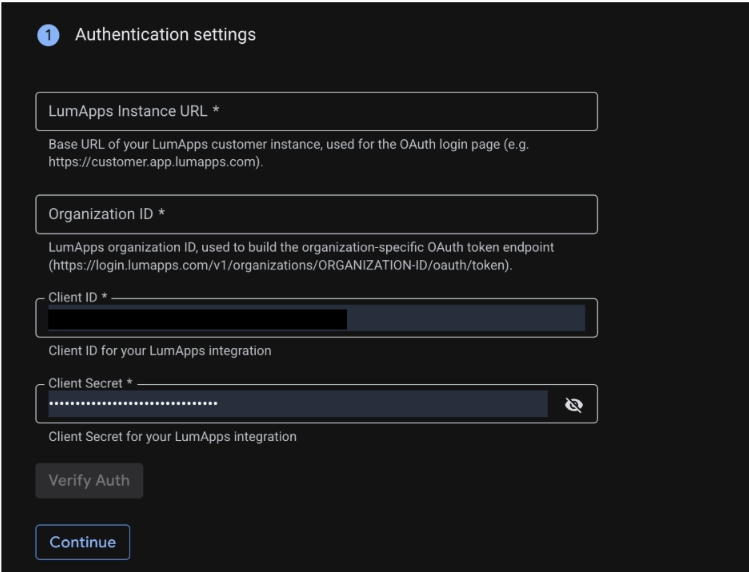
For more information about credentials, see [LumApps
configuration](https://docs.cloud.google.com/gemini/enterprise/docs/connectors/lumapps/lumapps-configuration).
2. Click **Continue**.
3. In the **Entities to search** section, select the entities that you want
Gemini Enterprise to search. For LumApps, this includes
**Content**.
7. Click **Continue**.
8.
In the **Configuration** section:
1. From the **Multi-region** list, select the location for your data connector.
2. In the **Your data connector name** field, enter a name for your connector.
3. If you selected `us` or `eu` as the location, configure the **Encryption settings** :
- Optional: If you haven't configured single-region keys, click **Go to settings page** to do so. For more information, see [Register a single-region key for third-party connectors](https://docs.cloud.google.com/gemini/enterprise/docs/cmek.md.txt#third-party-connectors-key-registration).
- Select **Google-managed encryption key** or **Cloud KMS key**.
- If you selected **Cloud KMS key** :
- In the **Key management type** list, select the appropriate type.
- In the **Cloud KMS key** list, select the key.
For more information, see [Customer-managed encryption keys](https://docs.cloud.google.com/gemini/enterprise/docs/cmek.md.txt).
9. Click **Continue**.
10.
In the **Billing** section, select **General pricing** or **Configurable pricing** . For more information, see [Verify the billing status of your projects](https://cloud.google.com/billing/docs/how-to/verify-billing-enabled) and [Licenses](https://docs.cloud.google.com/gemini/enterprise/docs/licenses.md.txt).
11. Click **Create** . Gemini Enterprise creates your data store and displays your
data stores on the **Data Stores** page.
On the **Data Stores** page, click your data store name to see the status. After
the data store state changes from **Creating** to **Active**, the
LumApps connector is ready to be used.
After creating the data store, connect the data store you just created to an
existing app or [create a new app](https://docs.cloud.google.com/gemini/enterprise/docs/create-app.md.txt) and
[connect](https://docs.cloud.google.com/gemini/enterprise/docs/connect-existing-data-store) it to the new app, and
[authorize](https://docs.cloud.google.com/gemini/enterprise/docs/connect-existing-data-store#user_authorization)
Gemini Enterprise to access LumApps before executing any queries.
To know more, see [What's next](https://docs.cloud.google.com/gemini/enterprise/docs/connectors/lumapps/set-up-data-store.md.txt#whats-next).
## Data handling and query execution
This section describes how Gemini Enterprise manages your query and the privacy implications of using the federated data store.
### Query execution
After you authorize LumApps and send a search query to Gemini Enterprise:
- Gemini Enterprise sends your search query directly to the LumApps API.
- Gemini Enterprise blends the results with those from other connected data sources and displays a comprehensive search result.
### Data handling
When using third-party federated search, the following data handling rules apply:
- Your query string is sent to the third-party search backend (LumApps API).
- These third parties may associate queries with your identity.
- If multiple federated search data sources are enabled, the query might be sent to all of them.
- After the data reaches the third-party system, it is governed by that system's terms of service and privacy policies.
> [!NOTE]
> **Note:** To improve accuracy, an LLM may rewrite your query before it is sent to LumApps. This rewritten query can incorporate information from your session's query history. As a result, parts of your query history might also be included in the query sent to the LumApps API.
## What's next
- To provide a user interface for querying your LumApps data, [create
an app](https://docs.cloud.google.com/gemini/enterprise/docs/create-app) and [connect it to the LumApps
data store](https://docs.cloud.google.com/gemini/enterprise/docs/connect-existing-data-store).
- To preview how your search results appear after your app is set up, see [Get
search results](https://docs.cloud.google.com/gemini/enterprise/docs/preview-search-results).
- To enable alerts for the data store, see [Configure alerts for third-party data
stores](https://docs.cloud.google.com/gemini/enterprise/docs/configure-periodic-data-alerts).