This page describes how to connect a data store to an app and authorize Gemini Enterprise for an existing data store.
## Connect a data store to an app
> [!NOTE]
> **Note:** If you don't have an existing app, create one by following the steps in [Create an app](https://docs.cloud.google.com/gemini/enterprise/docs/create-app.md.txt).
### Console
Follow these steps to connect an existing data store to your app:
1. In the Google Cloud console, go to the **[Gemini Enterprise
page](https://console.cloud.google.com/gemini-enterprise/start)**.
2. From the navigation menu, click **Apps**.
3. Select the Gemini Enterprise app where you want to connect your data store.
4. From the navigation menu of the app, click **Connected data sources**.
5. Click **Add existing data stores** and select your data store.
6. Click **Connect**.
## User authorization
To successfully connect and use data stores with your Gemini Enterprise app, ensure that you have authorized Gemini Enterprise to access data from your data store.
### Console
1. In the Google Cloud console, go to the **[Gemini Enterprise
page](https://console.cloud.google.com/gemini-enterprise/start)**.
2. From the navigation menu, click **Apps**.
3. Select the Gemini Enterprise app that you have connected your data store to.
4. Click the web app URL or copy it to open it in a new tab.
5. Select database **Manage your data** . 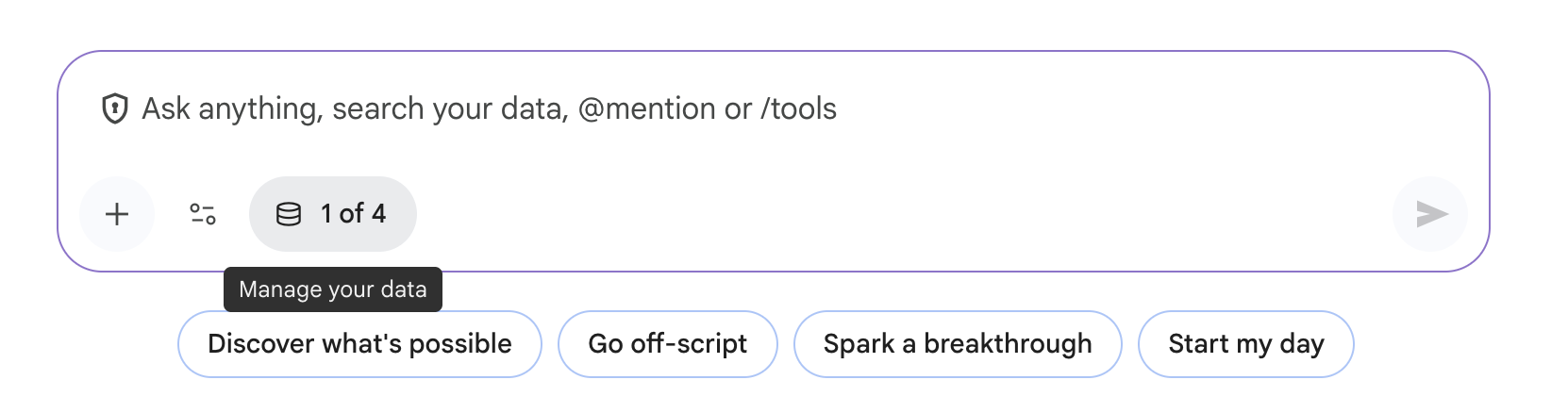 Manage data
6. Authorize your data store:
- For data stores with actions configured, click **Enable actions** and then sign in to authorize your data store.
- For search-only data stores, click **Authorize** and then sign in to authorize your data store.
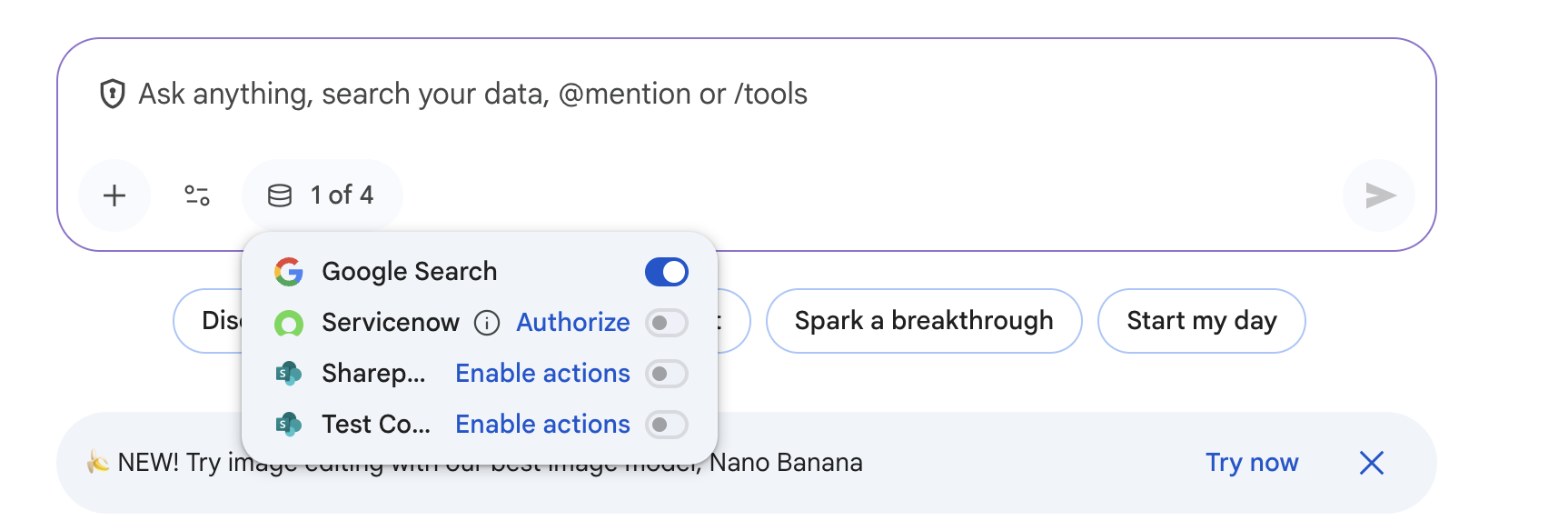 User authorization