> [!NOTE]
> **Private preview:** Creating and using a data store using data ingestion is in private preview. You need to be on the allowlist to use the data ingestion data store. To be added to the allowlist, contact your [account team](https://cloud.google.com/tam) or the [sales team](https://cloud.google.com/contact).
This page describes how to set up and configure a third-party configuration before creating the Box data store.
### Create a Box app
1. Sign in to the [Box Developer Console](https://app.box.com/developers/console) with your administrator account.
2. Click **Create platform app**.
3. Select **App type** as **Custom app**.
4. Enter the **App name**.
5. Set the following properties:
- **Purpose:** Integration.
- **Categories:** AI.
- **External system:** Google Cloud Gemini Enterprise.
6. Select **Authentication method** as **Server Auth - JWT**.
7. Click **Create App**.
### Configure the Box app
1. In the [Box Developer Console](https://app.box.com/developers/console), select the
[Platform app](https://docs.cloud.google.com/gemini/enterprise/docs/connectors/box/third-party-config.md.txt#create-box-app) from the **My Platform Apps** page.
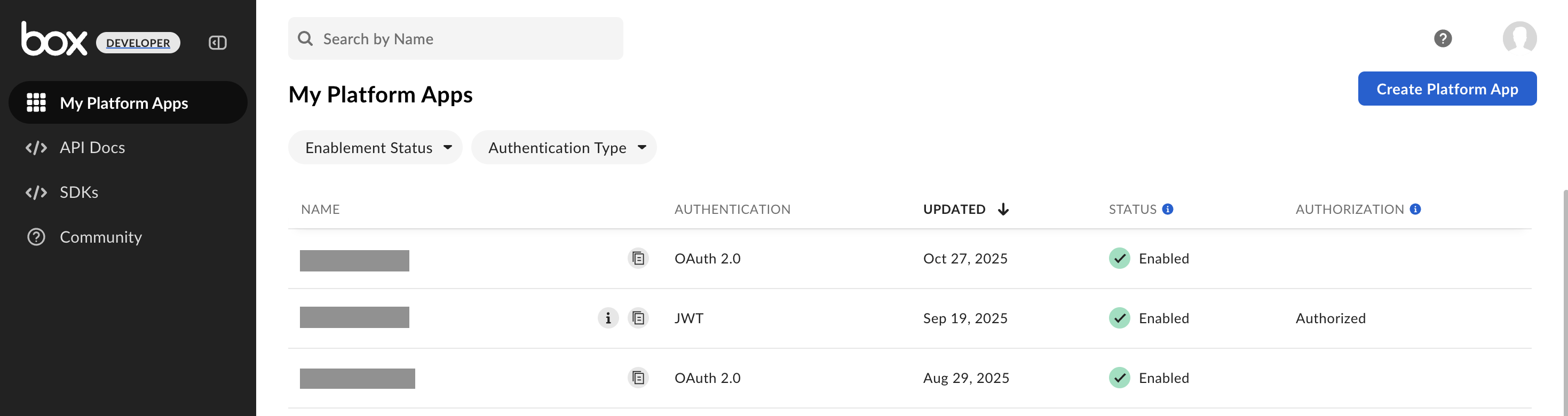 My Platform Apps page in the Box Developer Console.
2. In the **Configuration** tab, do the following:
1. In the **App access level** section, select **App + Enterprise access**.
> [!NOTE]
> **Note:** **App + Enterprise access** is required to fetch files, comments, and tasks from individual user accounts. Furthermore, this access level is necessary for incremental sync functionality. The [Enterprise event stream](https://developer.box.com/guides/events/enterprise-events/for-enterprise/) relies on this level to identify and retrieve new and modified files, comments, and tasks efficiently.
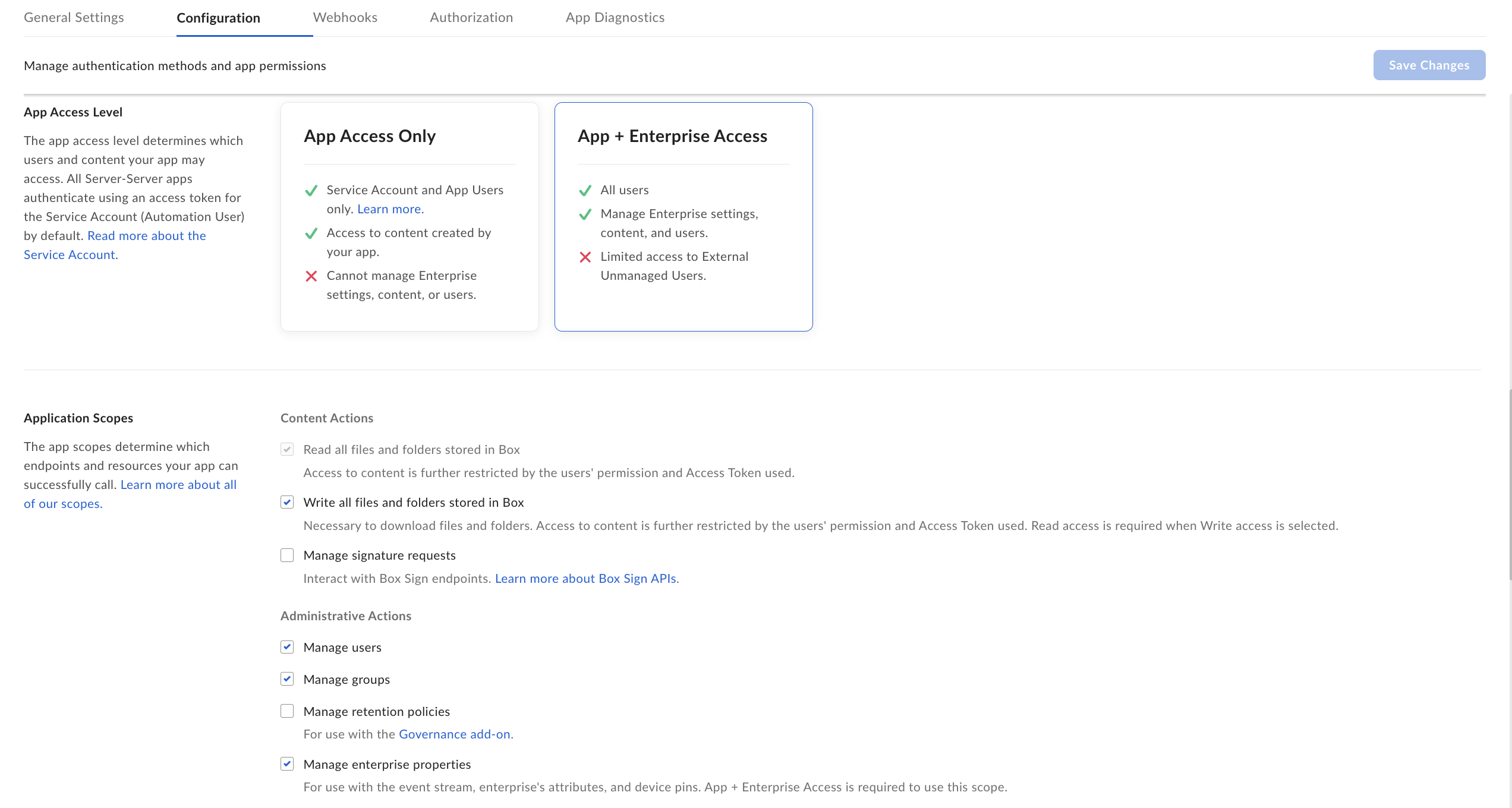 Configure the Box app.
2. In the **Application scopes** section, select the scopes based on the connection mode from the following table:
| **Connection mode** | **Scope** | **Purpose** |
|---|---|---|
| **Federated search** | `Read all files and folders stored in Box` | Required to fetch comments and tasks, and to preview files for search. |
| **Federated search and actions** | `Write all files and folders stored in Box` | Required to copy files, upload files and download files, fetch comments and tasks, and to preview files for search. |
| **Data ingestion** | `Read all files and folders stored in Box` | Required for data ingestion. |
| **Data ingestion** | `Manage users` | Required to fetch the list of users, enabling retrieval of files, comments, and tasks from individual user accounts for ingestion. The administrator service account does not inherently possess access to all user-owned files. The [as-user header](https://developer.box.com/guides/authentication/jwt/as-user/) enables the system to make API requests as the specific user to access their data. |
| **Data ingestion** | `Manage enterprise properties` | Necessary for incremental sync functionality, as it facilitates the use of the [Enterprise event stream](https://developer.box.com/guides/events/enterprise-events/for-enterprise/) to track changes for ingestion. |
| **Data ingestion** | `Manage groups` | Required to fetch the list of groups and their members. This is critical for access control during ingestion. |
> [!NOTE]
> **Note:** If you only intend to use the data store for search and not to perform any actions that modify content in Box, you can limit the scope to **Read all files and folders stored in Box** . The **Write all files and folders stored in Box** scope is required for actions that involve updating content in Box. For more information, see [actions](https://docs.cloud.google.com/gemini/enterprise/docs/connectors/box.md.txt#supported-actions)
3. In the **Add and manage public keys** section, click
**Generate a public/private keypair**.
- The **public key** is automatically uploaded to the console with an ID, used when creating a connection.
- You can download a configuration file with the private key and passphrase. Be sure to keep this file for later use.
- Optionally, to generate your own key, see the [Box keypair setup guide](https://developer.box.com/guides/authentication/jwt/jwt-setup/#generate-a-keypair-recommended).
4. Click **Save changes**.
### Authorize the Box app
To authorize the Box app from the Developer console, do the following:
1. In the [Box Developer Console](https://app.box.com/developers/console), select the Platform app, and then go to the **Authorization** tab.
2. Click **Review and submit**.
3. In the **Review app authorization submission** dialog, click **Submit**.
If the authorization request is submitted successfully, the following
confirmation message is shown:
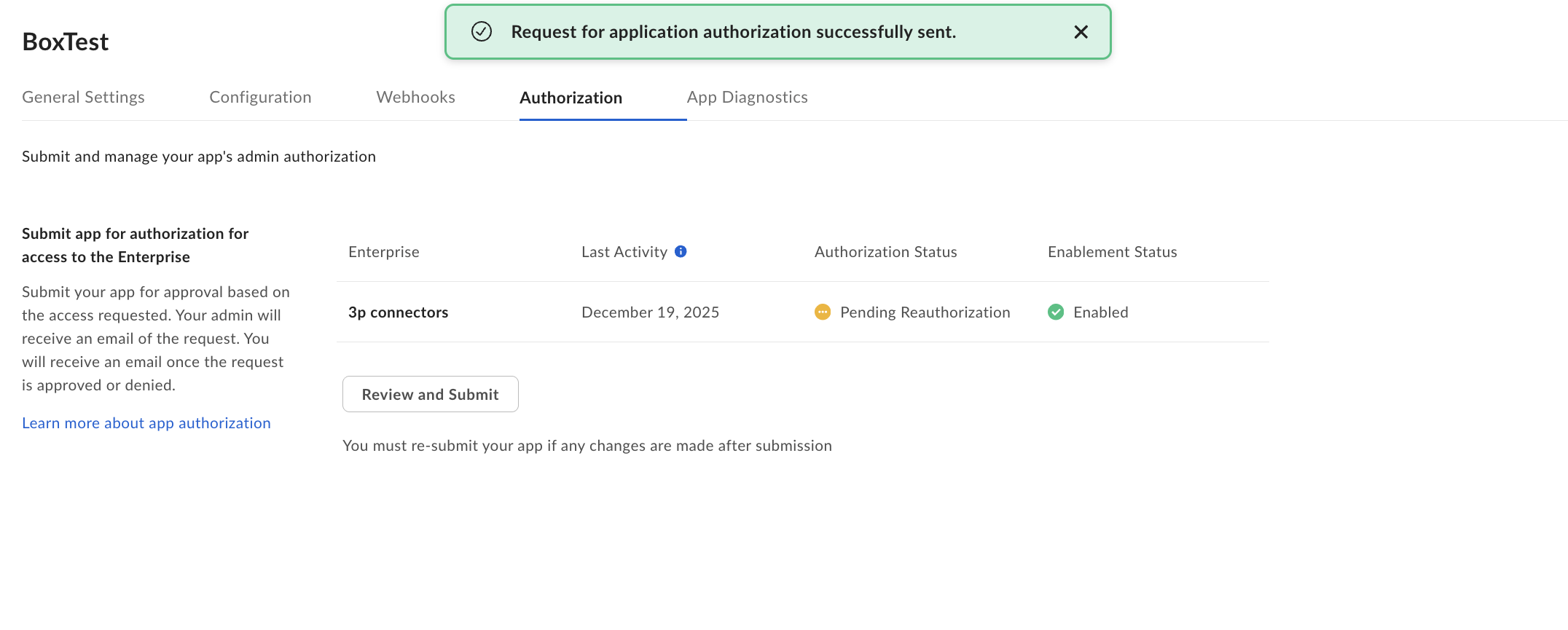 Authorization request is successfully sent.
To authorize the Box app from the Box admin platform apps manager, do the following:
1. Sign in to the **[Box admin platform apps manager](https://app.box.com/master/platform-apps)** with your administrator account.
2. Choose the **Platform app** that you have configured.
3. Click the three dots (**...**) in the corresponding row.
4. Select **Authorize app** from the drop-down list.
5. In the **Authorize app** dialog, click **Authorize** to complete the authorization process.
### Obtain Box authentication information
To obtain the Box authentication information, do the following:
1. In the [Box Developer Console](https://app.box.com/developers/console), select the [Platform app](https://docs.cloud.google.com/gemini/enterprise/docs/connectors/box/third-party-config.md.txt#create-box-app) from the **My Platform Apps** page.
- **Enterprise ID** : Obtain it from the **General settings** tab.
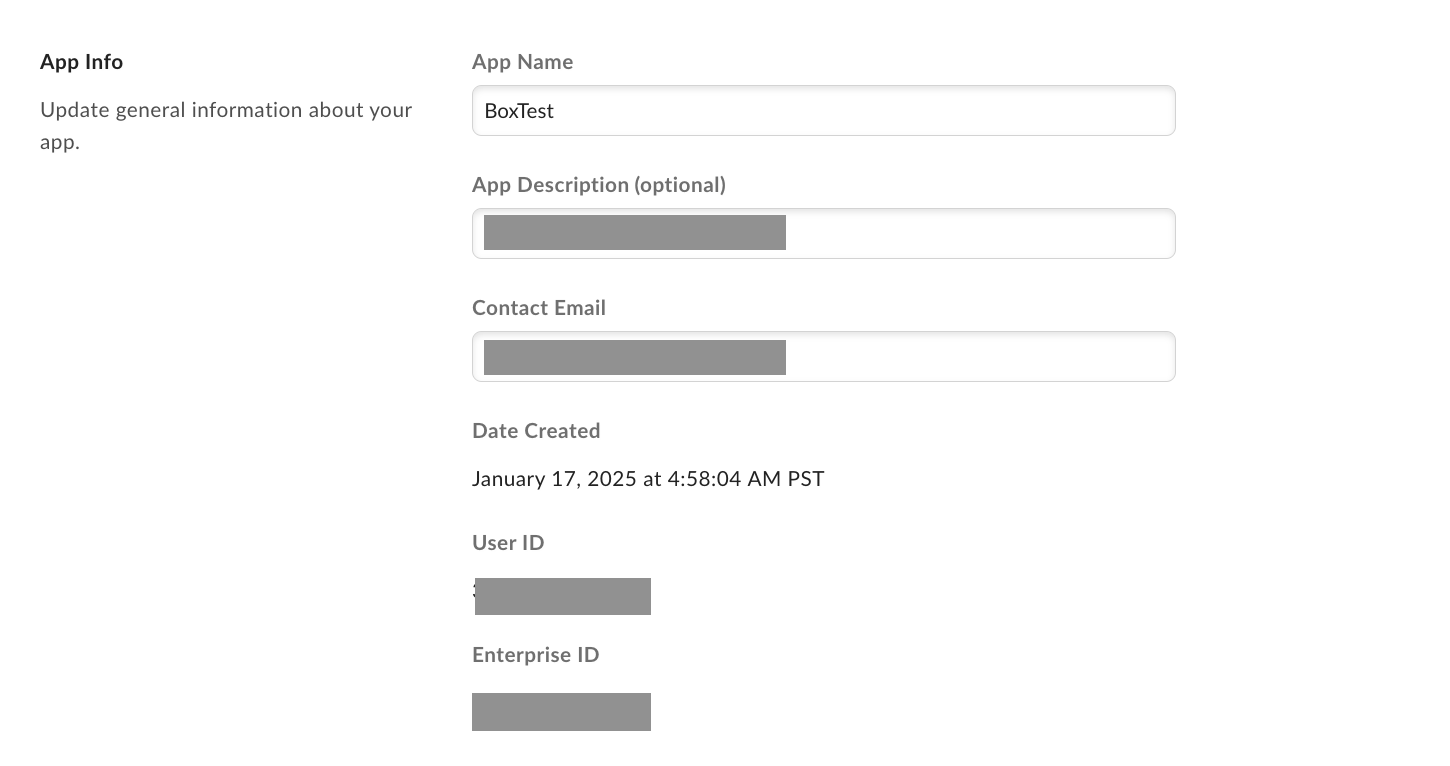 Obtain the Enterprise ID.
- **Client ID** and **Client secret** : Obtain it from the **Configuration**
tab under **OAuth 2.0 credentials**.
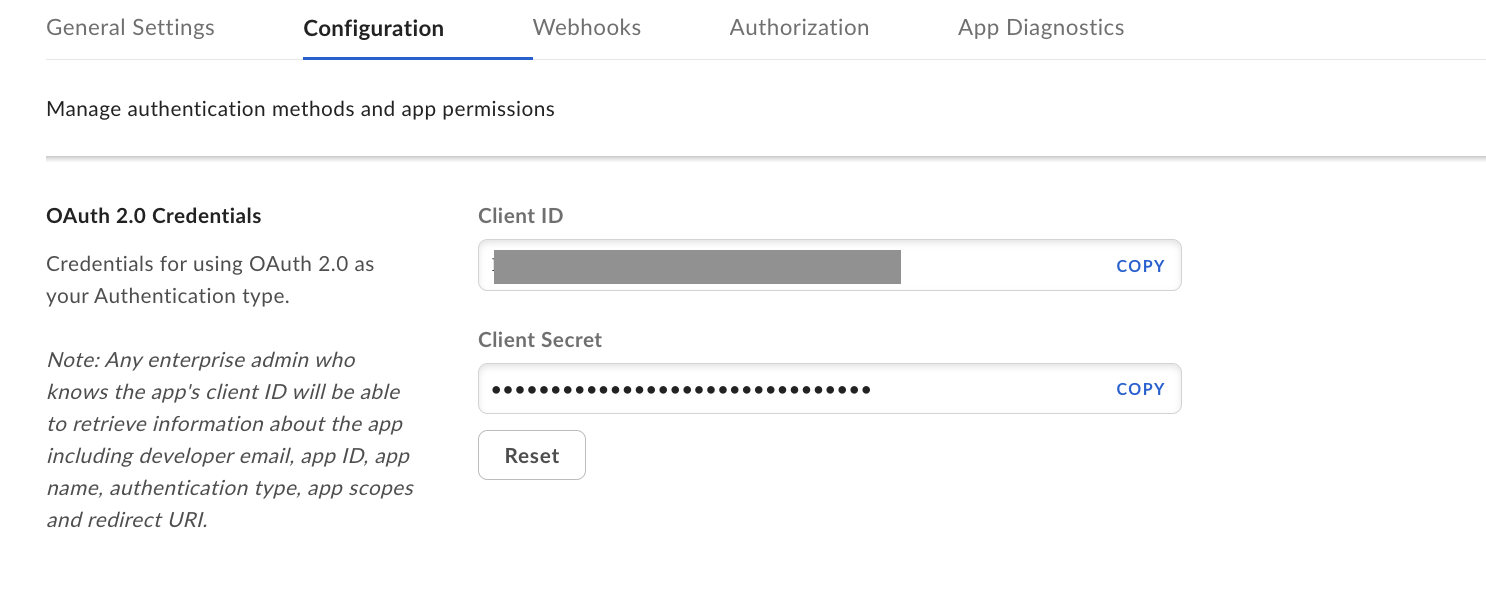 Obtain the client configuration.
- **Private key** , **Key ID** , and **Passphrase** : These parameters were
generated and downloaded to a local file from the
**Configuration** tab under **Add and manage public keys** while
configuring the app.
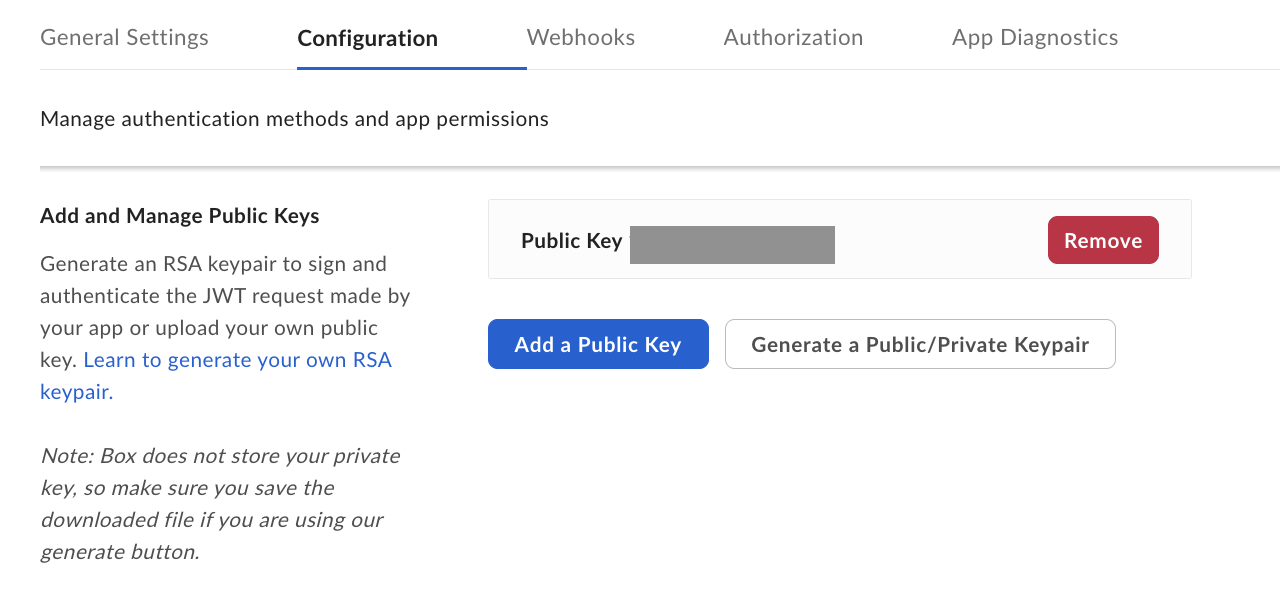 Add and manage public keys.