Gemini Enterprise provides tools to search your content, star items for quick retrieval, pin agents for quick access, and manage your chat history.
## Search your Gemini Enterprise content
You can use the main search bar to find your chats, generated images and videos, and other personal content within
your Gemini Enterprise workspace.
To search your content within Gemini Enterprise:
1. Click the icon in the upper left to reveal the search window. 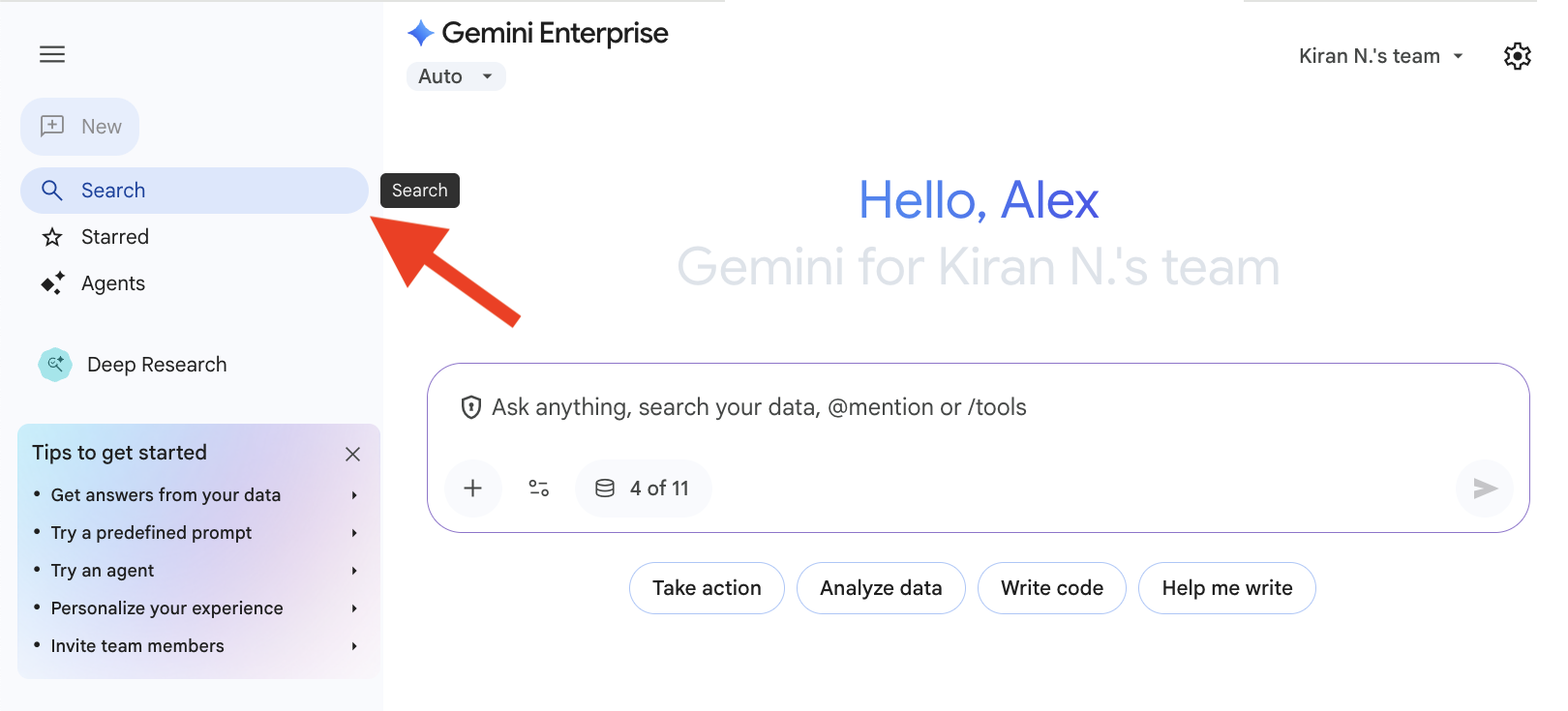
2. Enter your search terms.

You can search for the following:
- A chat title
- A phrase from a chat
- A filename
- A description of an image or video
- An agent
## Star items for quick retrieval
You can **star** important items, such as chats, files, or
images, to help you find them later.
To star an item:
1. Open a chat, file, or image in your Gemini Enterprise workspace.
2. Click the icon and click **Add to
starred** .

To see all of your starred content collected in one place:
1. Click the **Search** and then the icon.

## Pin agents for quick access
To keep frequently used agents readily available, you can pin them to the top of
the list in the sidebar.
To pin an agent:
1. Go to **Agents**.
2. Locate the agent you want to pin, and click the icon.

## Manage your chat history
You can view and manage the recent and pinned chats that you have
had with the assistant.
To manage a chat:
1. In the sidebar of your Gemini Enterprise workspace, under **Chats,** hover over the chat you want to manage.
2. Click the icon. 
3. Choose an option:
- **Share:** Share a previous chat with someone else in your organization. For more information, see [Share your conversations](https://docs.cloud.google.com/gemini/enterprise/docs/share-conversations.md.txt).
> [!NOTE]
> **Note:** A Gemini Enterprise administrator must turn on the **Enable session sharing** setting for the share feature to show on the Gemini Enterprise web app.
- **Add to starred:** Keep frequently used chats at the top of your list in the sidebar.
- **Rename:** Customize chat names to make them easier to identify.
- **Delete:** Remove chats from your pinned and recent lists after they're no longer needed. **Important:** Older chats are automatically deleted after the retention period set by your administrator. The retention period is based on the **creation date**. For example, if the retention period is 60 days, the chat you started 60 days ago is deleted, even if you interacted with it yesterday.