In your app, you can chat about search results and uploaded content with the
assistant. The assistant can provide summaries and answer questions through
natural language conversations, and you can export the assistant's answers in
common formats to share with others.
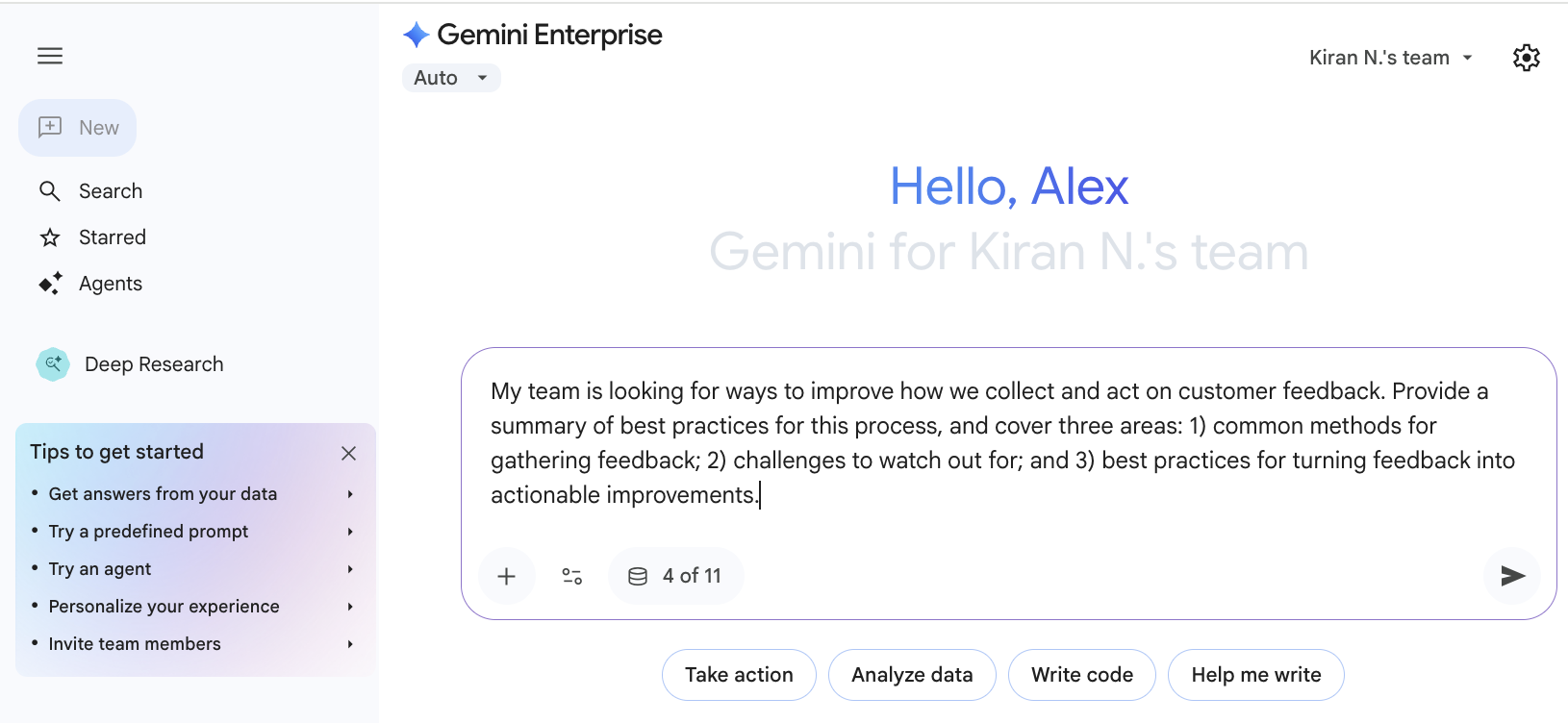 Chat with the assistant
When you ask a question, the assistant provides a summary based on the
information it can find. You can then ask follow-up questions to refine the
answer and get details based on the data that your app searches across. You can
also provide your own context by uploading files for the assistant to analyze,
or by mentioning specific people and documents in your prompt.
> [!IMPORTANT]
> **Important:** Older chats are automatically deleted after the retention period set by your administrator. The retention period is based on the **creation date**. For example, if the retention period is 60 days, the chat you started 60 days ago is deleted, even if you interacted with it yesterday.
## Ask questions and view sources
To engage in a conversation with the assistant and view supporting sources:
1. Type your question into the chat box. The assistant automatically provides a
summary based on your search results. If you prefer to speak your question,
see [Use your voice to chat](https://docs.cloud.google.com/gemini/enterprise/docs/assistant-chat.md.txt#voice-chat) below.
2. Ask follow-up questions to refine the answers.
3. Review the assistant's real-time reasoning and actions using **transparent
thinking**:
- **Plan explanation:** The assistant explains its plan and rationale before calling a tool or data source.
- **Tool activity:** An expandable section displays tool execution details between the thinking phase and the final answer.
- **Faster response:** This transparency delivers a faster time to first token (TTFT) and improves perceived latency without increasing total response time.
> [!NOTE]
> **Note:** If you use the assistant in a language other than English, the transparent thinking text might initially appear in English. Once the response finishes, expand the section to view the steps and tool details in your language.
4. To see the data sources the assistant used, click **Sources** at the end of
the response.
5. Hover over a listed source to highlight the portion of the result supported
by that source.
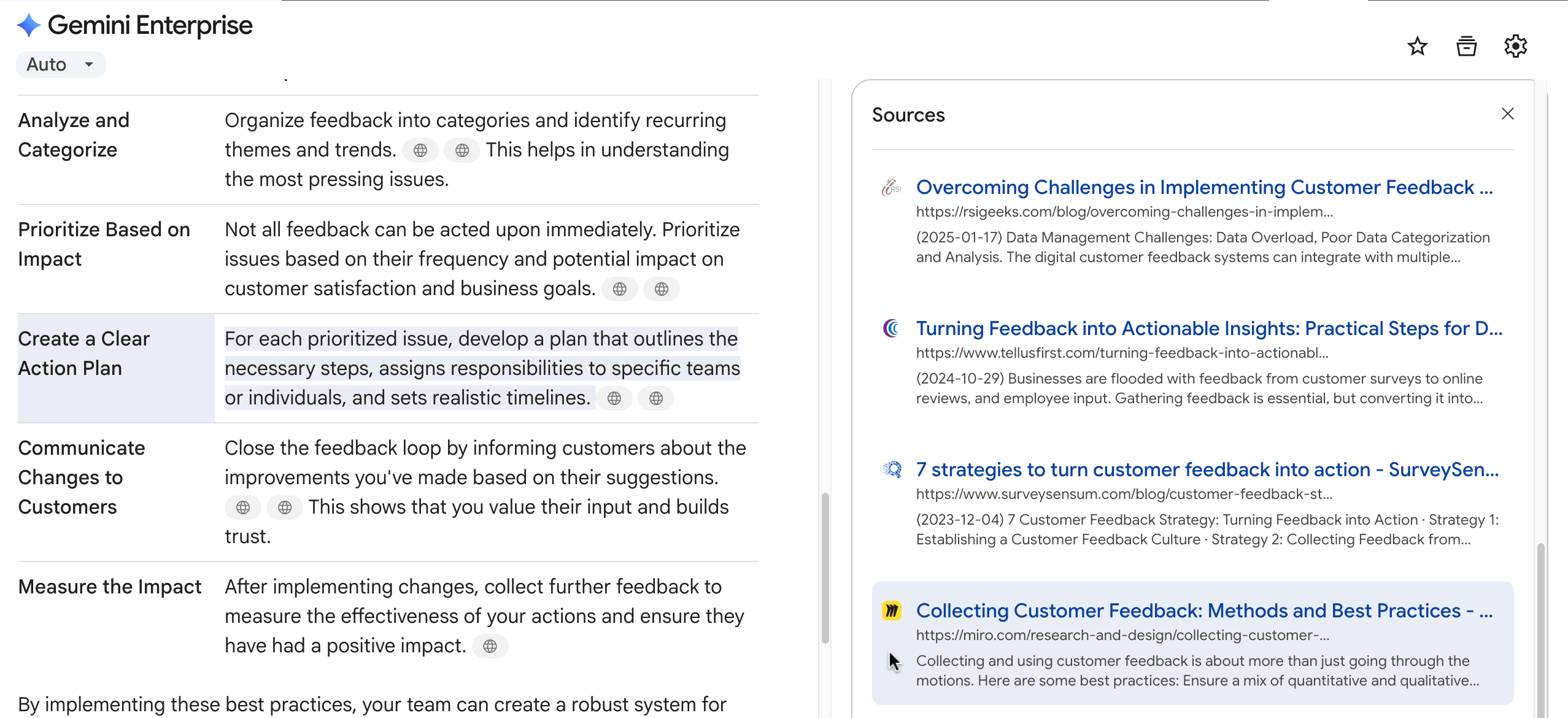 View supporting sources for the response
> [!NOTE]
> **Note:** The **Sources** button and side panel behave as follows during multi-turn chats:
>
> - The **Sources** button is dynamic and is only displayed under the most recent response containing grounding metadata.
> - When you submit a subsequent prompt or message, the **Sources** button is removed from all previous chat entries. Inline citation chips in older responses remain visible.
> - If the right-hand **Sources** side panel is left open when a subsequent query is submitted, the panel stays open but its contents are cleared (displaying as empty) while the assistant is in a **Thinking...** state.
To get ideas about what to ask, do the following:
1. Click one of the prompt suggestions below the chat box, such as
**Help me write**. A list of specific prompts appears.
2. Click one of these specific prompts, such as
**Help me write a blog post. Ask me about the topic and purpose**, to start a
new conversation using that prompt.
## Use your voice to chat
As an alternative to typing, you can use your voice to enter questions in the
chat box.
Hands-free dictation can be especially helpful when drafting longer queries or
prompts.
> [!NOTE]
> **Note:** Before you can use your voice to chat, your administrator must turn on the **speech-to-text** feature. For more information, see [Manage web app features](https://docs.cloud.google.com/gemini/enterprise/docs/manage-web-app-features.md.txt).
To use your voice to enter a query or prompt, do the following:
1. In the chat box, click the
mic
icon to start recording.
If your browser prompts you for permission, click **Allow** to enable recording.
2. Speak clearly into your device's microphone.
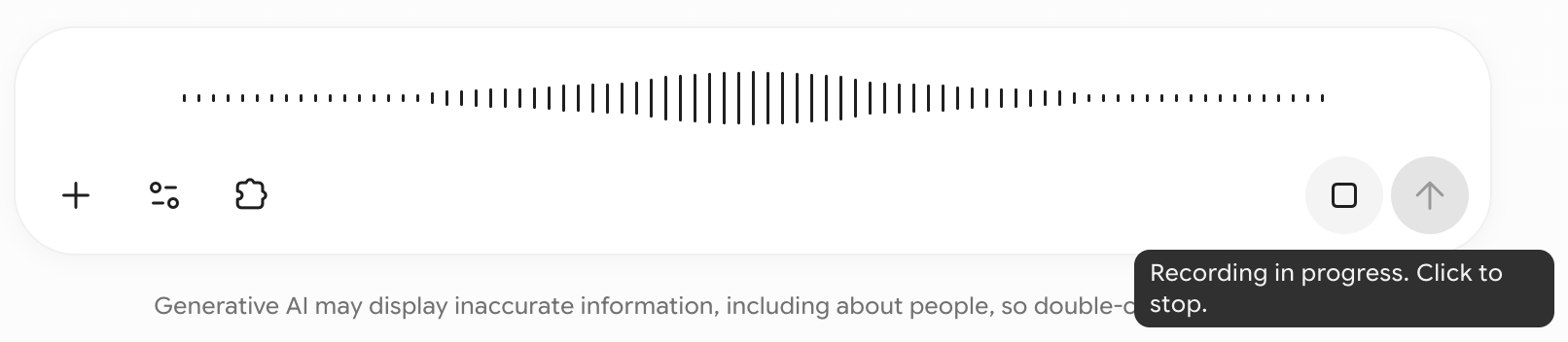
3. Click the
stop_circle
icon to stop recording.
The recording is transcribed but not stored.
4. Review the transcribed text in the chat box, and edit it if necessary.
5. Click send **Submit**.
If your voice isn't being recorded or transcribed, check the following:
| Issue | Root cause | Recommended action |
|---|---|---|
| **No transcription appears** | Microphone permission might be blocked in your browser. | Give the microphone permission to record. |
| **Inaccurate transcriptions** | Background noise or low input volume. | Speak directly into your microphone, or adjust your system's microphone input volume in your OS settings. |
## Chat with files in connectors
Gemini Enterprise can analyze content and generate answers from the following
connectors:
> [!NOTE]
> **Note:** A Gemini Enterprise admin must enable the required actions for the Gemini Enterprise assistant to access the content, allowing you to chat with the files.
| Connectors | Supported files | Required connector actions |
| Google Drive | - CSV - PDF - PPTX - XLSX | - Download document For more information, see the [Google Drive supported actions](https://docs.cloud.google.com/gemini/enterprise/docs/connectors/gdrive.md.txt#supported-actions). |
| Microsoft SharePoint | - CSV - PDF - PPTX - XLSX | - Download document For more information, see the [Microsoft SharePoint supported actions](https://docs.cloud.google.com/gemini/enterprise/docs/connectors/ms-sharepoint.md.txt#supported_actions). |
| Microsoft Outlook | - Email attachments | - Download attachment For more information, see the [Microsoft Outlook supported actions](https://docs.cloud.google.com/gemini/enterprise/docs/connectors/ms-outlook.md.txt#supported-actions). |
| Box | - CSV - PDF - PPTX - XLSX | - Download file For more information, see the [Box supported actions](https://docs.cloud.google.com/gemini/enterprise/docs/connectors/box.md.txt#supported-actions). |
|---|---|---|
To chat with files, do the following:
1. Ensure that you have authorized Gemini Enterprise to access the data in the
connector. For more information, see
[User authorization](https://docs.cloud.google.com/gemini/enterprise/docs/connect-existing-data-store#user_authorization).
2. In the chat box:
1. Click **Connectors** and make sure that the connector you want to chat
with is turned on.
2. Turn off the other connectors and Google Search when using this feature.
For example, to chat with files in the Microsoft SharePoint connector,
only enable the Microsoft SharePoint connector.
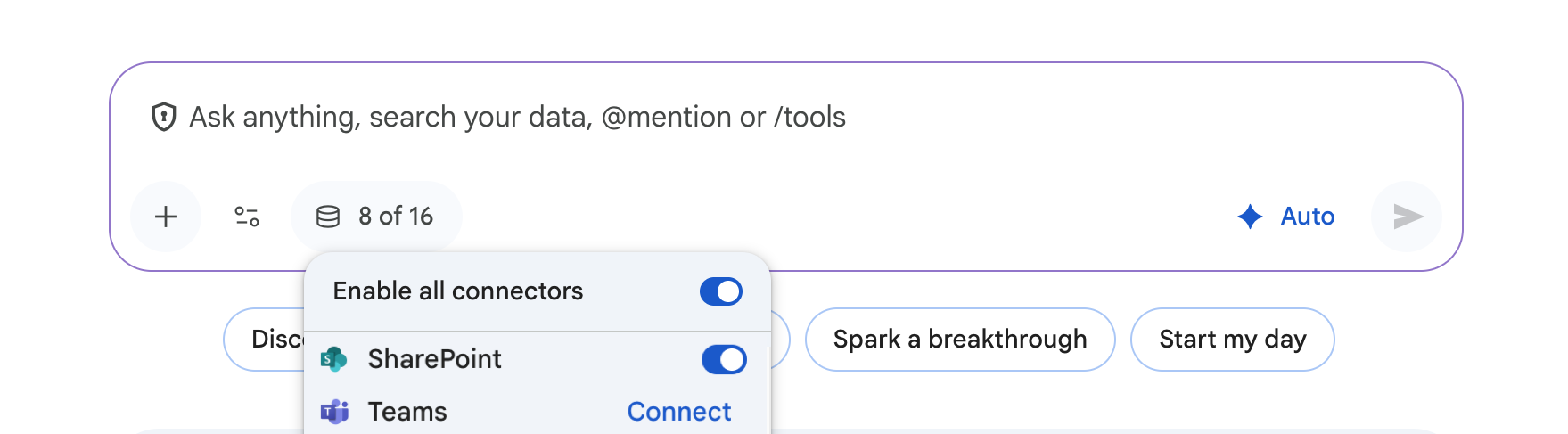 Turn on the Microsoft SharePoint connector
3. Enter a prompt or query in the chat box. If you know the filename, include
it in your prompt to help narrow the search.
For example: "Summarize the key points in the file
'Q3-Marketing-Budget.xlsx'."
### Best practices
When chatting with files in connectors, follow these best practices:
- Avoid ambiguous or overly broad questions to prevent the model from
overthinking. Be ready to ask follow-up questions to narrow the scope.
- If the model suggests an action, such as removing duplicate rows, ask
follow-up questions to confirm that the action is necessary for your task.
- The assistant displays executed code for XLSX and CSV files. Review this code
to understand your data was processed.
## Upload and chat about files
The assistant can analyze files that you upload, such as PDFs, images, and
videos. You can also add files from your connected Google Drive or Microsoft
OneDrive Business accounts.
> [!NOTE]
> **Note:** The first time someone in your organization adds a file from
> Microsoft OneDrive Business, your tenant might require administrator
> approval. If it does, users see a **Need admin approval** screen when they
> sign in to Microsoft Entra ID: "Please ask an admin to grant permission to
> this app before you can use it." To resolve this, a Microsoft Entra ID Global
> Administrator or Application Administrator for your tenant must complete the
> first authorization:
>
> 1. In the Gemini Enterprise web app, click the icon in the chat box, and then click **Add from OneDrive Business**.
> 2. Sign in with the administrator account. If the **Need admin
> approval** screen appears, click **Have an admin account? Sign in with
> that account**.
> 3. On the permissions screen, select **Consent on behalf of your
> organization** , and then click **Accept**.
>
> This step is required only once for your tenant. After the administrator
> completes the authorization, other users can add files from OneDrive without
> the approval screen. For more information, see the
> [Microsoft Entra ID documentation](https://learn.microsoft.com/en-us/entra/identity/enterprise-apps/grant-admin-consent).
To chat about uploaded content, do the following:
1. In the chat box, click the
icon.
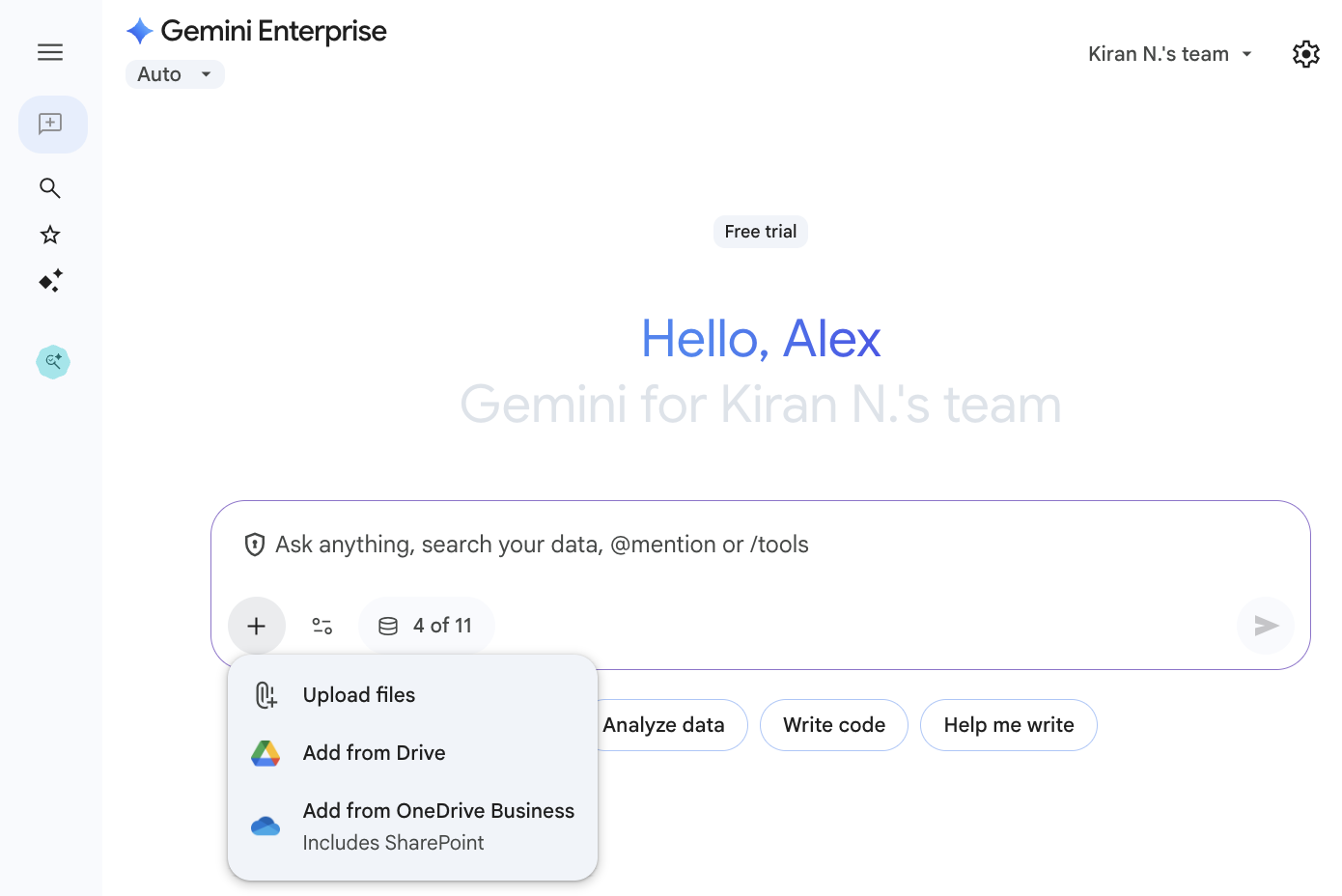 Upload files to the assistant
2. Upload one or more files to the assistant.
3. Enter a prompt or query in the chat box.
### File formats and size limitations
The following table lists the file formats and size limitations for files that
you can upload to the assistant:
| File type | Description |
|---|---|
| Images | - Maximum image size: 30 MB - Supported file extensions: `.png`, `.jpeg` |
| Documents | - Maximum document size: - PDF: 100 MB - XLSX: 50 MB^1^ The XLSX limit applies to the size of the file after it's decompressed. Gemini Enterprise automatically converts each worksheet in a multi-sheet XLSX workbook into a separate table so the assistant can analyze data across all sheets. An XLSX workbook can contain at most 15,000,000 cells in total across all worksheets. The cell count covers the range from the first to the last non-empty cell of each worksheet, so empty cells inside that range also count. Larger workbooks are rejected with a generic error (for example, `Precondition check failed`). To upload such a large workbook, split it into smaller files. - CSV: 7 MB^1^ - DOCX: 3 MB - PPTX: 100 MB - Text: 7 MB - Markdown: 2 MB - JSON: 1 MB - JavaScript: 1 MB - HTML: 3 MB^2^ - CSS: 1 MB - Java: 1 MB - Python: 2 MB - Supported file extensions: `.pdf`, `.xlsx`, `.csv`, `.docx`, `.pptx`, `.txt`, `.md`, `.json`, `.js`, `.html`, `.css`, `.java`, `.py` |
| Video | - Maximum document size: 200 MB - Supported file extensions: `.mp4` |
| Audio | - Maximum document size: 200 MB - Supported file extensions: `.mp3` |
^1^ The size limits for XLSX and CSV files aren't row limits, but
XLSX workbooks are subject to the 15,000,000-cell limit. For
large spreadsheets, the assistant analyzes the data by running code instead of
reading the entire file directly, so responses can take longer. For tips on
getting faster responses with large spreadsheets, see
[Best practices for faster responses](https://docs.cloud.google.com/gemini/enterprise/docs/assistant-chat.md.txt#faster-responses).
^2^ 3 MB is the limit for HTML files added to a
[project](https://docs.cloud.google.com/gemini/enterprise/docs/projects.md.txt). An HTML file uploaded in
a chat must also fit within the 800,000-token budget described in the following
note. Because HTML markup counts toward that budget, HTML files larger than
about 2.5 MB usually exceed it.
> [!NOTE]
> **Note:** In addition to per-file byte limits, the combined content of
> all files uploaded in a chat session (including any static knowledge files
> attached to a custom chat agent) and the conversation history can't exceed
> **800,000 tokens** . Even if a file is within the byte size limit, exceeding
> the 800,000-token budget returns a `FILE_SIZE_TOO_LARGE` or
> `Input too long` error. To avoid this limit, start a new chat
> session, split large PDFs (such as manuals over 100 pages) into smaller
> topical files, or ask your administrator to index large document collections
> in a connected data store.
## Add context with mentions
You can mention an agent, person, or uploaded file in your chat with the
assistant by typing `@` in the chat box. You can launch a workflow agent
by entering `@` and the workflow agent name in your chat prompt.
To add an agent, person, or file to the chat, including launching a workflow agent, do the following:
1. Type `@`. Gemini Enterprise opens a list of suggested agents, people, and
files that you can select from.
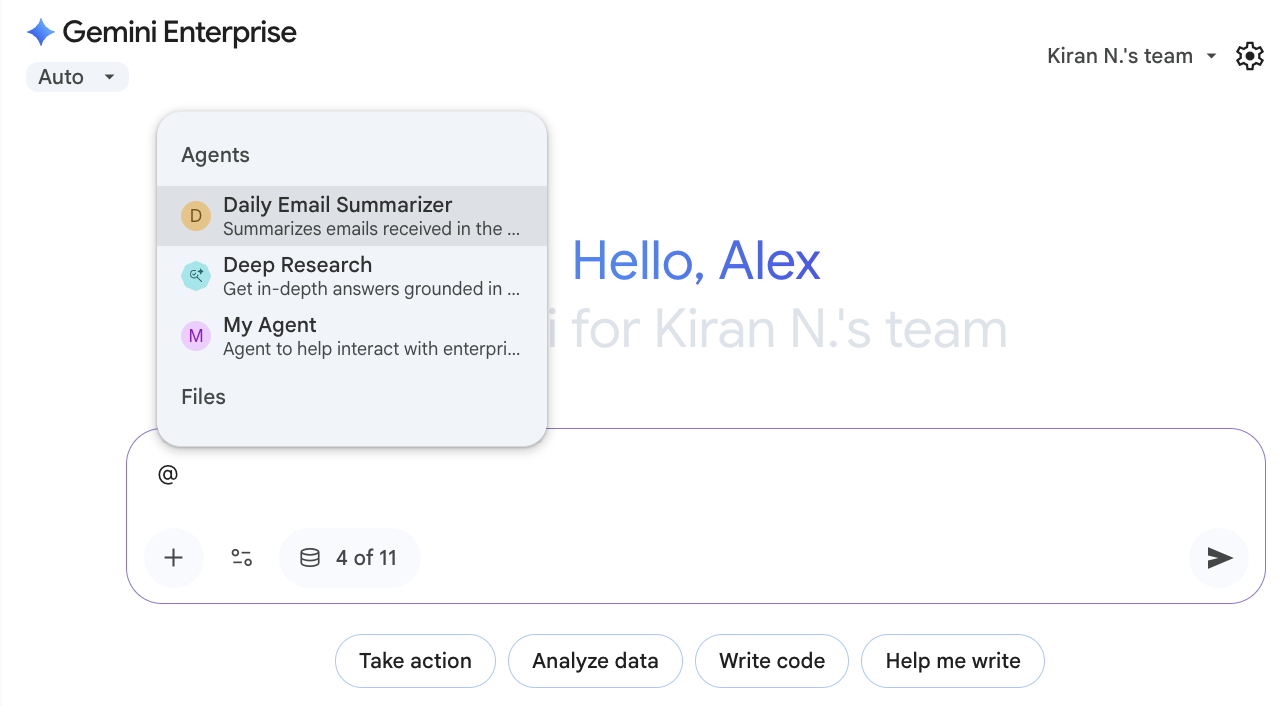 Mention agents, people, or files in the chat
2. Continue typing to filter the suggestions, or select one from the list.
## Best practices for faster responses
The time that the assistant takes to respond depends on how much information it
needs to search, retrieve, and process. To get faster responses, follow these
best practices:
- **Turn on only the connectors that you need.** In the chat box, click
**Connectors** and turn off the connectors, custom MCP servers, and Google
Search that aren't relevant to your question. Each additional source adds
searches and tool calls before the assistant can start answering.
- **Start a new chat when you change topics.** The assistant considers the
earlier messages and files in a conversation when it answers. Long
conversations with many turns or attached files take longer to process.
- **Attach only the files that you need.** Large or numerous uploaded files
increase processing time. To get faster responses with large spreadsheets
(XLSX and CSV files), do the following:
- Keep only the sheets, columns, and rows that you need for your question.
- Split large workbooks into smaller files, and ask focused questions about specific columns or values.
- For large tables or tables that you query often, store the data in BigQuery and [connect a BigQuery data store](https://docs.cloud.google.com/gemini/enterprise/docs/connectors/connect-bigquery.md.txt) instead of uploading the file.
- **Ask specific questions.** Include names, dates, filenames, or other details
that narrow the scope. Broad questions can cause the assistant to search more
sources and take more steps.
- **Choose the right model for your task.** If your administrator has enabled
the model selector in the web app, select the model that matches your prompt:
- **Auto** (default): Automatically selects the model best suited to the prompt's complexity.
- **Flash models**: Optimized for low latency and high-speed everyday queries and lookups.
- **Pro models**: Optimized for complex reasoning, coding, and multi-document synthesis, which require additional processing time before returning a response.
- **Use data stores for large or frequently used data.** Data that is ingested
into a Gemini Enterprise data store is typically faster to search than
data that the assistant retrieves live from a third-party system through a
federated connector. For more information, see
[Introduction to connectors and data stores](https://docs.cloud.google.com/gemini/enterprise/docs/connectors/introduction-to-connectors-and-data-stores.md.txt).
If responses are consistently slow or time out for all users on your corporate
network, ask your administrator to review
[Configure proxies, firewalls, and TLS inspection](https://docs.cloud.google.com/gemini/enterprise/docs/private-ui-access.md.txt#configure-proxies).
## Limitations
The following limitations apply when using the assistant with the listed data
sources:
| Data source | Limitation |
| Google Workspace | **Admin restrictions** If you use both Gemini Enterprise and Google Workspace, your Google Workspace administrator can restrict your access to Gemini Enterprise and its features. An administrator can use security settings to restrict the following: - **Your access to Gemini Enterprise in Google Workspace entirely.** In this case, you can't invoke Gemini Enterprise agents in Google Workspace. - **Access to some or all Google Workspace data by Gemini Enterprise.** In this case, you can use all Gemini Enterprise features, including agents, but they can't use any or only some of the Google Workspace data your account can access, including Google Drive files and Gmail messages. - **Sharing Gemini Enterprise conversations** (Gemini Enterprise - Business edition only). In this case, any one who has the link to your chat will see an error message when they try to open it. If you think you should have access, you can reach out to your Google Workspace administrator for help. If you're not sure who that is, see [Who is my administrator?](https://support.google.com/a/answer/6208960) **Content owner restrictions** Gemini has the same access to Google Workspace data as you do, so it can only access files in Drive that have been shared with you. Additionally, if a file's owner doesn't allow you to download, copy, and print the file, Gemini can't access it even if it's shared with you. [Learn more about sharing settings](https://support.google.com/drive/answer/2494893#prevent_download_print_copy) |
| All data sources | Images from data sources aren't rendered in the chat. |
| Microsoft Outlook | The following search queries are not supported: - Searching for most recent or oldest emails. For example, `first`, `earliest`, `latest`, and `most recent`. - Fetching email threads to generate answers. - Gathering information from multiple emails. - Using words based on their intent or semantics, rather than their literal meaning (Microsoft Outlook search does not support this). - Getting information from email attachments, unless they are explicitly mentioned in the email's subject or body. |
| Microsoft OneDrive | Queries that request to list the items in a directory are not supported. |
| Microsoft SharePoint | Queries that request to list the items in a directory are not supported. |
|---|---|
## Export to Google Docs and Google Sheets
You can export the assistant's responses to Google Docs and export tabular and
CSV data to Google Sheets.
To export results, do the following:
- To export a response to Google Docs, click the
icon at the bottom of the
response, then click **Export to Docs**.
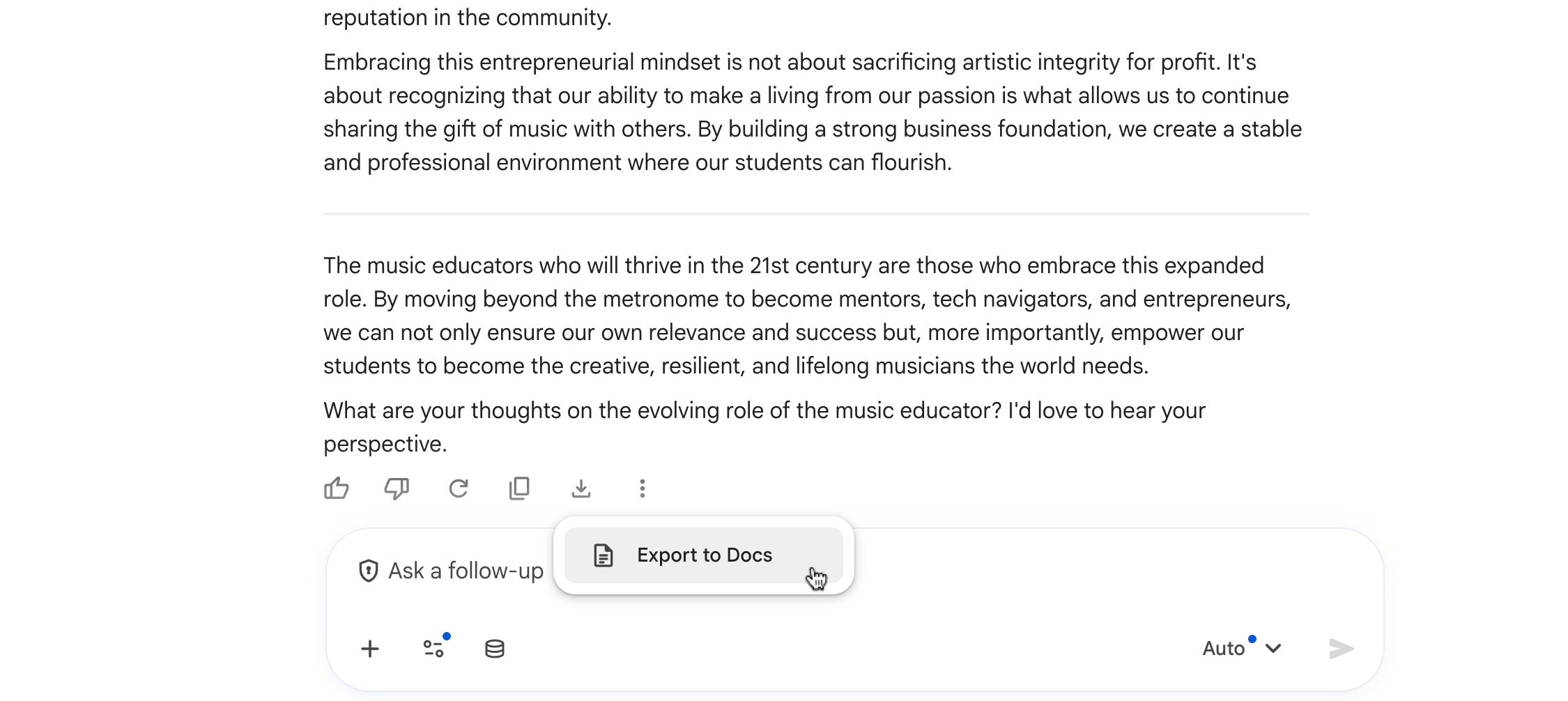
- To export a table to Google Sheets, click **Export to Sheets**.
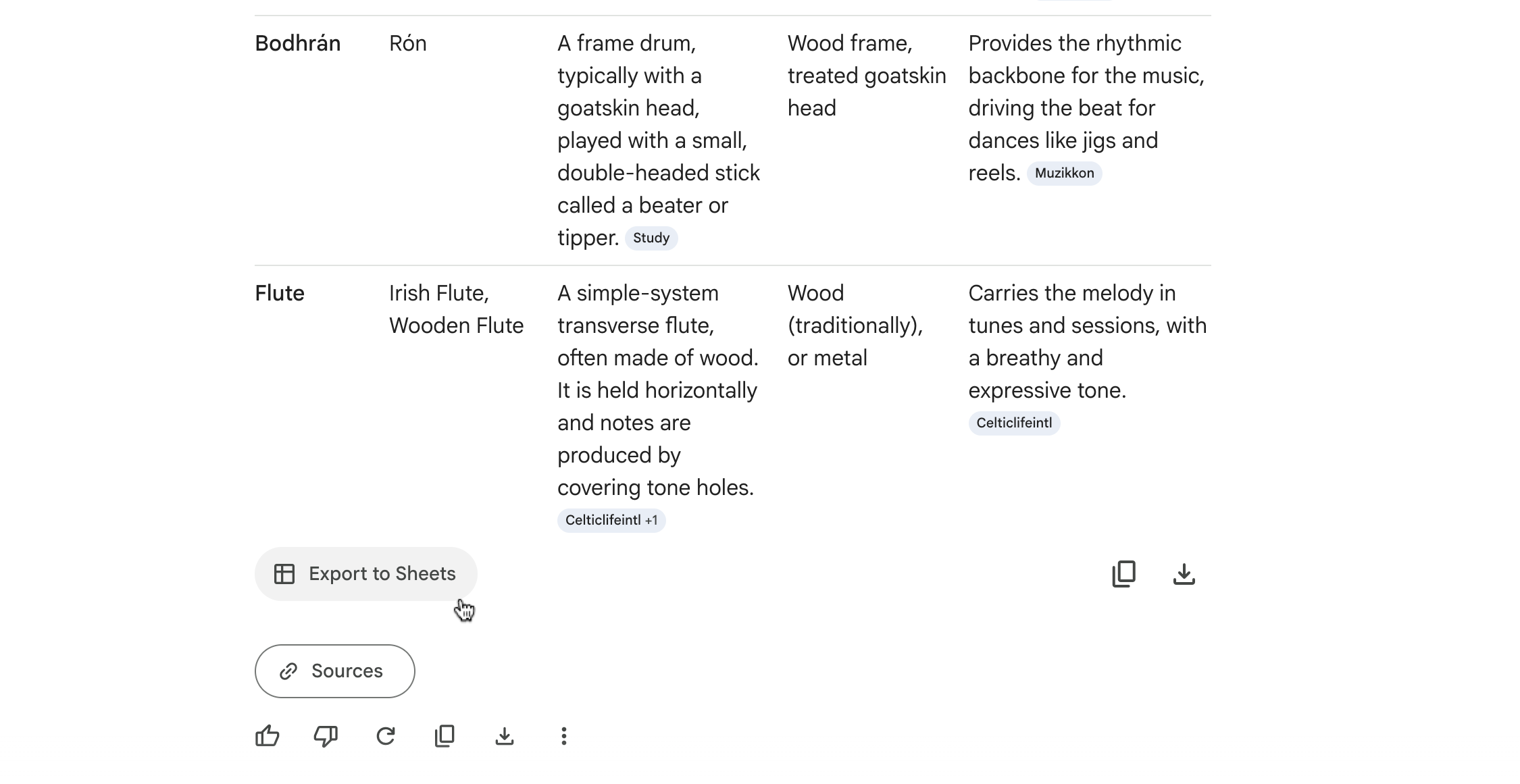
- To export CSV data to Google Sheets, click **Export to Sheets**.
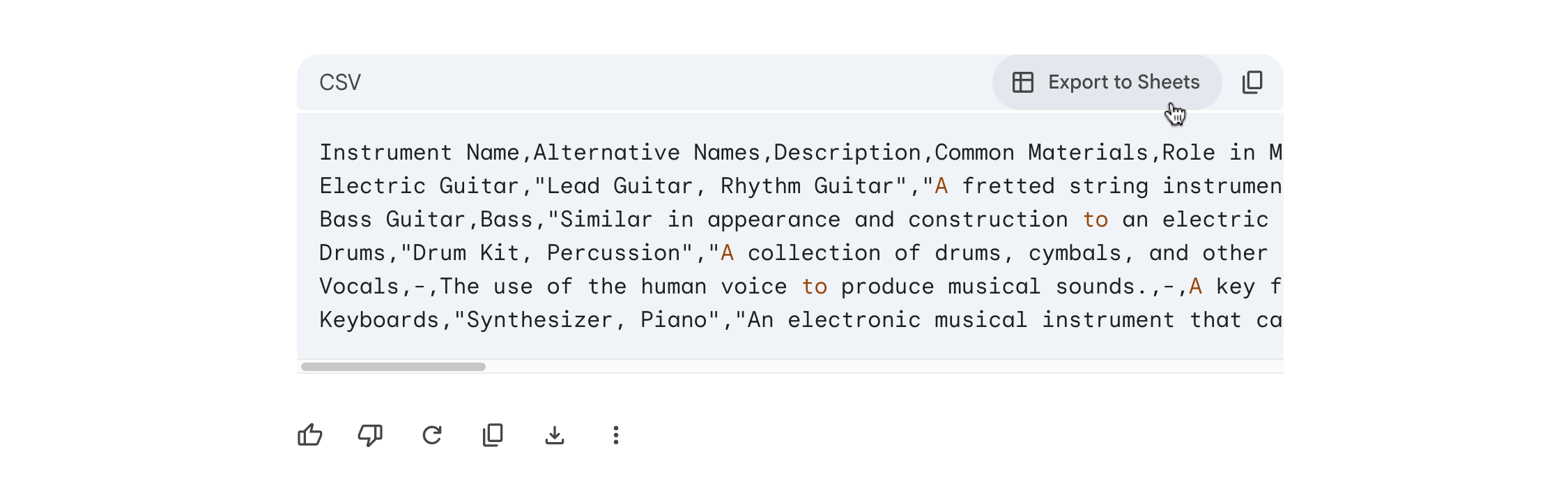
The exported file uses the same name as the chat session.
## Provide diagnostic information for support
If you encounter a problem with the assistant's responses, you can help Support
to resolve the problem by providing diagnostic information for troubleshooting.
To obtain this information:
1. Go to the end of the problematic conversation and click the
icon.
2. Click **Show diagnostic info** . The **Diagnostic info** dialog appears.
3. Click **Copy token**. The information is copied to your system clipboard.
Provide the copied information when you contact Support for help with the
conversation.
## Usage limits
Gemini Enterprise app displays the **Usage limit reached**
error message when you chat with the assistant or use
Gemini Enterprise features in either of the following scenarios:
- Your project reached its monthly spend cap.
- Your project exceeds its pooled quota limit for a specific feature and your Gemini Enterprise administrator hasn't enabled overages.
This error affects only the feature that reached its limit. You can
continue using other features that have remaining quota.