This page describes how to write system instructions for data agents that are
using Looker data sources, which are based on [Looker
Explores](https://docs.cloud.google.com/looker/docs/creating-and-editing-explores#explores_are_the_starting_point_for_exploration).
[Authored context](https://docs.cloud.google.com/gemini/data-agents/conversational-analytics-api/data-agent-system-instructions.md.txt) is guidance that data agent owners can provide to shape the behavior of a data agent and to refine the API's responses. Effective authored context provides your Conversational Analytics API data agents with useful context for answering questions about your data sources.
For Looker data sources, you can provide authored context through
a combination of [structured context](https://docs.cloud.google.com/gemini/data-agents/conversational-analytics-api/data-agent-authored-context-looker.md.txt#structured-context-looker) and [system
instructions](https://docs.cloud.google.com/gemini/data-agents/conversational-analytics-api/data-agent-authored-context-looker#define-context-system-instructions). Whenever possible, provide
context through structured context fields. You can then use the
`system_instruction` parameter for supplemental guidance that isn't covered by
the structured fields. System instructions are a kind of authored context that
data agent owners can provide an agent to inform the agent of its role, tone,
and overall behavior. Often system instructions can be more free-form that
structured context.
While both structured context fields and system instructions are optional,
providing robust context enables the agent to give more accurate and relevant
responses. During the creation of your data agent, any structured context
information that you've provided will be added to the system instructions
automatically.
> [!CAUTION]
> **Caution:** Avoid manually defining the same contextual fields in both the structured context and system instructions.
## Define structured context
You can provide golden questions and answers in structured context for your data
agent. Once you've defined your structured context, you can provide it to your
data agent using direct HTTP requests or with the Python SDK.
For Looker data sources, golden queries are captured in the
`looker_golden_queries` key, which defines pairs of natural language questions
and their corresponding Looker queries. By providing the agent
with a pair of natural language questions and their corresponding Explore
metadata, you can guide the agent to provide higher quality and more consistent
results. [Examples](https://docs.cloud.google.com/gemini/data-agents/conversational-analytics-api/data-agent-authored-context-looker.md.txt#example-golden-query-looker) of Looker
golden queries are included on this page.
To define each Looker golden query, provide values for both of
the following fields:
- `natural_language_questions`: The natural language question that a user might ask
- `looker_query`: The Looker golden query that corresponds to the natural language question
> [!TIP]
> **Tips for defining Looker golden queries:**
>
>
>
> Include different types of questions and queries that have a variety of filters and filter values.
>
>
>
> Although there is no limit to the number of golden queries that you can include to `looker_golden_queries`, we recommend including no more than 30-50 question-and-query pairs.
Here's an example of a `natural_language_questions` --- `looker_query` pair
from an Explore called "Airports":
natural_language_questions: ["What are the major airport codes and cities in CA?"]
looker_query": {
"model": "airports",
"explore": "airports",
"fields": ["airports.city", "airports.code"],
"filters": [
{
"field": "airports.major",
"value": "Y"
},
{
"field": "airports.state",
"value": "CA"
}
]
}
### Define a Looker golden query
Define a Looker golden query for a given Explore by providing
values for the `natural_language_questions` and `looker_query` fields. For the
`natural_language_questions` field, consider the questions a user might ask
about that Explore, and write those questions in natural language. You can
include more than one question in this field's value. You can obtain the value
for the `looker_query` field from the Explore's query metadata.
The [`LookerQuery`
object](https://docs.cloud.google.com/gemini/data-agents/reference/rest/v1/projects.locations.dataAgents#lookerquery)
supports the following fields:
- `model` (string): The LookML model used to generate the query. This is a required field.
- `explore` (string): The Explore that was used to generate the query. This is a required field.
- `fields[]` (string): The fields to retrieve from the Explore, including dimensions and measures. This is an optional field.
- `filters[]` (object ([`Filter`](https://docs.cloud.google.com/gemini/data-agents/reference/rest/v1/projects.locations.dataAgents.md.txt#Filter))): The filters to apply to the Explore. This is an optional field.
- `sorts[]` (string): The sorting to apply to the Explore. This is an optional field.
- `limit` (string): The data row limit to apply to the Explore. This is an optional field.
You can retrieve the Explore's query metadata in the following ways:
- [Retrieve the query metadata from the Explore page](https://docs.cloud.google.com/gemini/data-agents/conversational-analytics-api/data-agent-authored-context-looker.md.txt#golden-query-explore-ui)
- [Retrieve the Looker query object from the `GetQueryForSlug`
API endpoint](https://docs.cloud.google.com/gemini/data-agents/conversational-analytics-api/data-agent-authored-context-looker#golden-query-api)
#### Retrieve the query metadata from the Explore user interface
1. In the Explore, select the [**Explore actions**
menu](https://docs.cloud.google.com/looker/docs/viewing-and-interacting-with-explores#the_explore_page), and then select **Get LookML**.
2. Select the **Dashboard** tab.
3. Copy the query details from the LookML. For example, the following image shows the LookML for an Explore called Order Items:
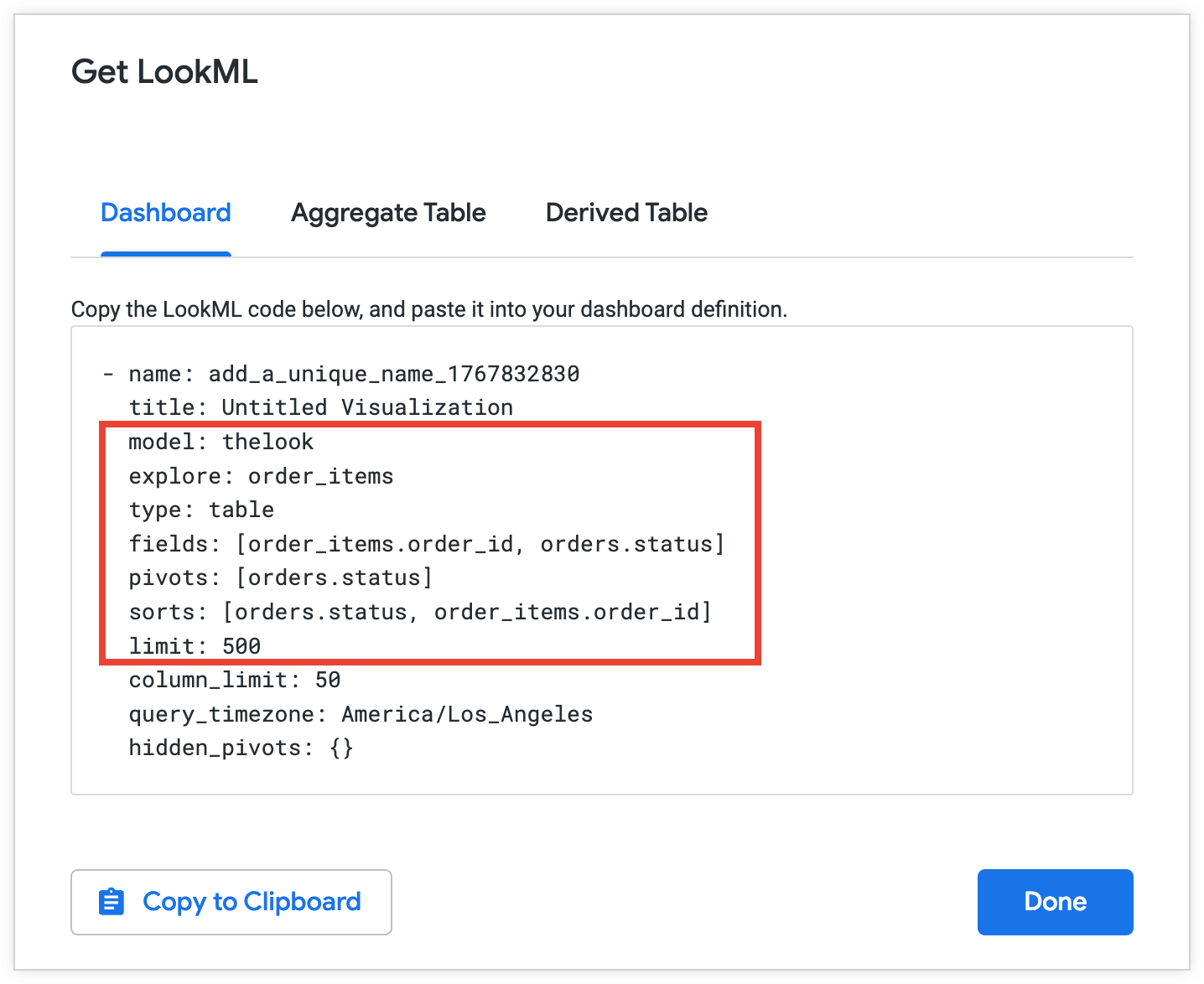
Copy the selected metadata for use in your Looker golden query:
model: thelook
explore: order_items
fields: [order_items.order_id, orders.status]
sorts: [orders.status, order_items.order_id]
limit: 500
#### Retrieve the Looker query object using the Looker API
To retrieve information about your Explore using the Looker API,
follow these steps:
1. In the Explore, select the [**Explore actions**
menu](https://docs.cloud.google.com/looker/docs/viewing-and-interacting-with-explores#the_explore_page), and then select **Share** . Looker displays URLs that you can copy to share the Explore. Share URLs generally look something like `https://looker.yourcompany/x/vwGSbfc`. The trailing `vwGSbfc` in the share URL is the share slug.
2. Copy the share slug.
3. Make a request to the Looker API: `GET /queries/slug/Explore_slug` passing the Explore URL slug as a string in `Explore_slug`. In your request, include the fields from your Explore query metadata that you want returned. See the [Get Query for
Slug](https://docs.cloud.google.com/looker/docs/reference/looker-api/latest/methods/Query/query_for_slug) API reference page for more information.
4. Copy the query metadata from the API response.
### Example Looker golden queries
The following examples show how to provide golden queries for the `airports`
Explore with direct HTTP requests and with the Python SDK.
### HTTP
In a direct HTTP request, provide a list of Looker golden
query objects for the `looker_golden_queries` key. Each object must contain
a `natural_Language_questions` key and a corresponding `looker_query` key.
```json
looker_golden_queries = [
{
"natural_language_questions": ["What is the highest observed positive longitude?"],
"looker_query": {
"model": "airports",
"explore": "airports",
"fields": ["airports.longitude"],
"filters": [
{
"field": "airports.longitude",
"value": ">0"
}
],
"sorts": ["airports.longitude desc"],
"limit": "1"
}
},
{
"natural_language_questions": ["What are the major airport codes and cities in CA?", "Can you list the cities and airport codes of airports in CA?"],
"looker_query": {
"model": "airports",
"explore": "airports",
"fields": ["airports.city", "airports.code"],
"filters": [
{
"field": "airports.major",
"value": "Y"
},
{
"field": "airports.state",
"value": "CA"
}
]
}
},
]
```
### Python SDK
When using the Python SDK, you can provide a list of `LookerGoldenQuery`
objects. For each object, provide values for the
`natural_language_questions` and `looker_query` parameters.
```python
looker_golden_queries = [geminidataanalytics.LookerGoldenQuery(
natural_language_questions=[
"What is the highest observed positive longitude?"
],
looker_query=geminidataanalytics.LookerQuery(
model="airports",
explore="airports",
fields=["airports.longitude"],
filters=[
geminidataanalytics.LookerQuery.Filter(
field="airports.longitude", value=">0"
)
],
sorts=["airports.longitude desc"],
limit="1",
),
),
geminidataanalytics.LookerGoldenQuery(
natural_language_questions=[
"What are the major airport codes and cities in CA?",
"Can you list the cities and airport codes of airports in CA?",
],
looker_query=geminidataanalytics.LookerQuery(
model="airports",
explore="airports",
fields=["airports.city", "airports.code"],
filters=[
geminidataanalytics.LookerQuery.Filter(
field="airports.major", value="Y"
),
geminidataanalytics.LookerQuery.Filter(
field="airports.state", value="CA"
),
],
),
),
]
```
## Define additional context in system instructions
System instructions consist of a series of key components and objects that provide the data agent with details about the data source and guidance about the agent's role when answering questions. You can provide system instructions to the data agent in the `system_instruction` parameter as a YAML-formatted string.
> [!IMPORTANT]
> **Important:** Although the `system_instruction` parameter is optional and the structure is up to your discretion, we recommend that you provide well-structured system instructions to enable the agent to give more accurate and relevant responses.
The following YAML template shows an example of how you might structure system
instructions for a Looker data source:
```yaml
- system_instruction: str # Describe the expected behavior of the agent
- glossaries: # Define business terms, jargon, and abbreviations that are relevant to your use case
- glossary:
- term: str
- description: str
- synonyms: list[str]
- additional_descriptions: # List any additional general instructions
- text: str
```
### Descriptions of key components of system instructions
The following sections contain examples of key components of system instructions
in Looker. These keys include the following:
- [`system_instruction`](https://docs.cloud.google.com/gemini/data-agents/conversational-analytics-api/data-agent-authored-context-looker.md.txt#system-instruction)
- [`glossaries`](https://docs.cloud.google.com/gemini/data-agents/conversational-analytics-api/data-agent-authored-context-looker.md.txt#explain-glossaries)
- [`additional_descriptions`](https://docs.cloud.google.com/gemini/data-agents/conversational-analytics-api/data-agent-authored-context-looker.md.txt#additional-descriptions)
#### `system_instruction`
Use the `system_instruction` key to define the agent's role and persona. This initial instruction sets the tone and style for the API's responses and helps the agent understand its core purpose.
For example, you can define an agent as a sales analyst for a fictitious ecommerce store as follows:
```yaml
- system_instruction: You are an expert sales analyst for a fictitious
ecommerce store. You will answer questions about sales, orders, and customer
data. Your responses should be concise and data-driven.
```
#### `glossaries`
The `glossaries` key lists definitions for business terms, jargon, and
abbreviations that are relevant to your data and use case but that don't already
appear in your data. As an example, you can define terms like common business
statuses and "Loyal Customer" according to your specific business context as
follows:
```yaml
- glossaries:
- glossary:
- term: Loyal Customer
- description: A customer who has made more than one purchase.
Maps to the dimension 'user_order_facts.repeat_customer' being
'Yes'. High value loyal customers are those with high
'user_order_facts.lifetime_revenue'.
- synonyms:
- repeat customer
- returning customer
```
#### `additional_descriptions`
The `additional_descriptions` key lists any additional general instructions or
context that is not covered elsewhere in the system instructions. As an example,
you can use the `additional_descriptions` key to provide information about your
agent as follows:
```yaml
- additional_descriptions:
- text: The user is typically a Sales Manager, Product Manager, or
Marketing Analyst. They need to understand performance trends, build
customer lists for campaigns, and analyze product sales.
```
### Example: System instructions in Looker
The following example shows sample system instructions for a fictitious sales
analyst agent:
```yaml
- system_instruction: "You are an expert sales, product, and operations
analyst for our e-commerce store. Your primary function is to answer
questions by querying the 'Order Items' Explore. Always be concise and
data-driven. When asked about 'revenue' or 'sales', use
'order_items.total_sale_price'. For 'profit' or 'margin', use
'order_items.total_gross_margin'. For 'customers' or 'users', use
'users.count'. The default date for analysis is 'order_items.created_date'
unless specified otherwise. For advanced statistical questions, such as
correlation or regression analysis, use the Python tool to fetch the
necessary data, perform the calculation, and generate a plot (like a scatter
plot or heatmap)."
- glossaries:
- term: Revenue
- description: The total monetary value from items sold. Maps to the
measure 'order_items.total_sale_price'.
- synonyms:
- sales
- total sales
- income
- turnover
- term: Profit
- description: Revenue minus the cost of goods sold. Maps to the measure
'order_items.total_gross_margin'.
- synonyms:
- margin
- gross margin
- contribution
- term: Buying Propensity
- description: Measures the likelihood of a customer to purchase again
soon. Primarily maps to the 'order_items.30_day_repeat_purchase_rate'
measure.
- synonyms:
- repeat purchase rate
- repurchase likelihood
- customer velocity
- term: Customer Lifetime Value
- description: The total revenue a customer has generated over their
entire history with us. Maps to 'user_order_facts.lifetime_revenue'.
- synonyms:
- CLV
- LTV
- lifetime spend
- lifetime value
- term: Loyal Customer
- description: "A customer who has made more than one purchase. Maps to
the dimension 'user_order_facts.repeat_customer' being 'Yes'. High value
loyal customers are those with high
'user_order_facts.lifetime_revenue'."
- synonyms:
- repeat customer
- returning customer
- term: Active Customer
- description: "A customer who is currently considered active based on
their recent purchase history. Mapped to
'user_order_facts.currently_active_customer' being 'Yes'."
- synonyms:
- current customer
- engaged shopper
- term: Audience
- description: A list of customers, typically identified by their email
address, for marketing or analysis purposes.
- synonyms:
- audience list
- customer list
- segment
- term: Return Rate
- description: The percentage of items that are returned by customers
after purchase. Mapped to 'order_items.return_rate'.
- synonyms:
- returns percentage
- RMA rate
- term: Processing Time
- description: The time it takes to prepare an order for shipment from the
moment it is created. Maps to 'order_items.average_days_to_process'.
- synonyms:
- fulfillment time
- handling time
- term: Inventory Turn
- description: "A concept related to how quickly stock is sold. This can
be analyzed using 'inventory_items.days_in_inventory' (lower days means
higher turn)."
- synonyms:
- stock turn
- inventory turnover
- sell-through
- term: New vs Returning Customer
- description: "A classification of whether a purchase was a customer's
first ('order_facts.is_first_purchase' is Yes) or if they are a repeat
buyer ('user_order_facts.repeat_customer' is Yes)."
- synonyms:
- customer type
- first-time buyer
- additional_descriptions:
- text: The user is typically a Sales Manager, Product Manager, or
Marketing Analyst. They need to understand performance trends, build
customer lists for campaigns, and analyze product sales.
- text: This agent can answer complex questions by joining data about
sales line items, products, users, inventory, and distribution centers.
```
## What's next
After you define the structured fields and system instructions that make up your
authored context, you can provide that context to the Conversational Analytics
API in one of the following calls:
- **Creating a persistent data agent** : Include authored context within the `published_context` object in the request body to configure agent behavior that persists across multiple conversations. For more information, see [Create a data agent](https://docs.cloud.google.com/gemini/data-agents/conversational-analytics-api/build-agent-http.md.txt#create_a_data_agent) (HTTP) or [Set up context for stateful or stateless chat](https://docs.cloud.google.com/gemini/data-agents/conversational-analytics-api/build-agent-sdk.md.txt#set_up_context_for_stateful_or_stateless_chat) (Python SDK).
- **Sending a stateless request** : Provide authored context within the `inline_context` object in a chat request to define the agent's behavior for that specific API call. For more information, see [Create a stateless multi-turn conversation](https://docs.cloud.google.com/gemini/data-agents/conversational-analytics-api/build-agent-http.md.txt#create-a-stateless-multi-turn-conversation) (HTTP) or [Use the API to ask questions](https://docs.cloud.google.com/gemini/data-agents/conversational-analytics-api/build-agent-sdk.md.txt#ask-questions) (Python SDK).
- **Send a query data request** : For database data sources, provide the context set ID of the authored context within the `agent_context_reference` object in the query data request. For more information, see [Define data agent context for database data sources](https://docs.cloud.google.com/gemini/data-agents/conversational-analytics-api/data-agent-authored-context-databases.md.txt#cloud-sql-cloud-sql-for-postgresql).
## Related resource
- [Guide agent behavior with authored context](https://docs.cloud.google.com/gemini/data-agents/conversational-analytics-api/data-agent-system-instructions.md.txt)