This page describes how to import your catalog information and keep it up to
date.
The import procedures on this page apply to both recommendations
and search. After you import data,
both services are able to use that data, so you don't need to import the same
data twice if you use both services.
You can import your product data from [BigQuery](https://docs.cloud.google.com/gemini-enterprise-cx/ai-commerce-search/upload-catalog.md.txt#bq) or [specify the data inline
in the request](https://docs.cloud.google.com/gemini-enterprise-cx/ai-commerce-search/upload-catalog#inline). Each of these procedures are one-time imports with
the exception of [linking Merchant Center](https://docs.cloud.google.com/gemini-enterprise-cx/ai-commerce-search/upload-catalog.md.txt#mc-ret). Schedule
regular catalog imports (ideally, daily) to verify that your catalog is current.
See [Keep your catalog up to date](https://docs.cloud.google.com/gemini-enterprise-cx/ai-commerce-search/upload-catalog.md.txt#current).
You can also import individual product items. For more information, see
[Upload a product](https://docs.cloud.google.com/gemini-enterprise-cx/ai-commerce-search/manage-catalog.md.txt#single).
> [!WARNING]
> **Deprecated:** The Merchant Center connector is deprecated and only available to current users. New users must use the Catalog API or BigQuery to import catalogs.
## Before you begin
Before you begin importing your catalog, you must:
1. Set up your project.
2. Create a service account.
3. Add the service account to your local environment.
Refer to [Setup prerequisites](https://docs.cloud.google.com/gemini-enterprise-cx/ai-commerce-search/setting-up.md.txt) for more information.
> [!IMPORTANT]
> **Important:** You must also have the Retail Admin IAM role to perform the import.
## Catalog import considerations
This section describes the methods that can be used for batch importing of your
catalog data, when you might use each method, and some of their
limitations.
| BigQuery | **Description** | Import data from a previously loaded BigQuery table that uses the AI Commerce Search schema. Can be performed using the Google Cloud console or curl. |
| BigQuery |
| BigQuery |
|---|---|---|
| **When to use** | If you have product catalogs with many attributes. BigQuery import uses the AI Commerce Search schema, which has more product attributes than other import options, including key/value custom attributes.
If you have large volumes of data. BigQuery import does not have a data limit.
If you already use BigQuery. |
| **Limitations** | Requires the extra step of creating a BigQuery table that maps to the AI Commerce Search schema. |
| **When to use** | If you need to load a large amount of data in a single step. |
| **Limitations** | Not ideal for catalogs with frequent inventory and pricing updates because changes are not reflected immediately. |
| **When to use** | If you have flat, non-relational catalog data or a high frequency of quantity or price updates. |
| **Limitations** | No more than 100 catalog items can be imported at a time. However, many load steps can be performed; there is no item limit. |
## Tutorials
This section explores different catalog import methods with a video and shell tutorials.
### Video tutorial
Watch this video to learn how to import a catalog using the AI Commerce Search API.
[Video](https://www.youtube.com/watch?v=x_okKn3OZzk)
### Import catalog from BigQuery tutorial
This tutorial shows you how to use a BigQuery table to import
large amounts of catalog data with no limits.
*** ** * ** ***
To follow step-by-step guidance for this task directly in the
Cloud Shell Editor, click **Guide me**:
[Guide me](https://shell.cloud.google.com/?walkthrough_tutorial_id=retail--retail_api_v2_import_products_big_query_table_select_language&show=ide&environment_deployment=ide)
*** ** * ** ***
### Import catalog from Cloud Storage tutorial
This tutorial shows you how to to import a large number of items to a catalog.
*** ** * ** ***
To follow step-by-step guidance for this task directly in the
Cloud Shell Editor, click **Guide me**:
[Guide me](https://shell.cloud.google.com/?walkthrough_tutorial_id=retail--retail_api_v2_import_products_gcs_select_language&show=ide&environment_deployment=ide)
*** ** * ** ***
### Import catalog data inline tutorial
This tutorial shows how to to import products into a catalog inline.
*** ** * ** ***
To follow step-by-step guidance for this task directly in the
Cloud Shell Editor, click **Guide me**:
[Guide me](https://shell.cloud.google.com/?walkthrough_tutorial_id=retail--retail_api_v2_import_products_inline_source_select_language&show=ide&environment_deployment=ide)
*** ** * ** ***
## Catalog import best practices
High-quality data is needed to generate high-quality results. If your data is
missing fields or has placeholder values instead of actual values, the quality
of your predictions and search results suffers.
When you import catalog data, make sure that you implement the following best
practices:
- Make sure to carefully distinguish primary from variant products. Before you upload any data,
see [Product levels](https://docs.cloud.google.com/gemini-enterprise-cx/ai-commerce-search/catalog.md.txt#product-levels).
- [Change product level configuration](https://docs.cloud.google.com/gemini-enterprise-cx/ai-commerce-search/manage-catalog.md.txt#change-product-levels) after expending any significant effort importing data. Primary --- not variant --- items are returned as search results or recommendations.
- Example: If the primary SKU group is *V-neck shirt,* then the
recommendation model returns a V-neck and, perhaps, crew- and
scoop-neck shirts. However, if variants aren't used
and each SKU is a primary, then every color or size combination of V-neck shirt
is returned as a distinct item on the recommendation panel: *Brown V-neck
shirt, size XL, Brown V-neck shirt, size L,* to *White V-neck
shirt, size M, White V-neck shirt, size S.*
- Collections can be recognized together as long variant IDs are included along with the primary product IDs in [`collectionMemberIds[]`](https://docs.cloud.google.com/gemini-enterprise-cx/ai-commerce-search/reference/rest/v2/projects.locations.catalogs.branches.products.md.txt#Product.FIELDS.collection_member_ids). This causes a product collection, from which a user can have purchased one or more products in the set, to be captured in the user event, crediting the whole set to the purchase. This facilitates serving the same user other products in a given collection in a future related query.
- Example: A user previously purchased a duvet cover, so matching products in a bedsheet collection, such as pillowcases, are returned.
- Observe the product item import limits.
- For bulk import from Cloud Storage, the size of each file must be
2 GB
or smaller. You can include up to
100
files at a time in a single bulk import request.
- For inline import, import no more than 5,000 product items at a time.
- Make sure that [required catalog information](https://docs.cloud.google.com/gemini-enterprise-cx/ai-commerce-search/catalog.md.txt#product) is
included and correct. Don't use placeholder values.
- Include as much optional catalog information as possible.
-
Make sure your events all use a single currency, especially if you plan to use
Google Cloud console to get revenue metrics. The AI Commerce Search API does not support using
multiple currencies per catalog.
- Keep your catalog up to date, ideally every day. Scheduling periodic catalog
imports prevents model quality from going down over time. You can schedule
automatic, recurring imports when you import your catalog using the
AI Commerce Search in Gemini Enterprise for Customer Experience console. Alternatively, you can use
[Google Cloud Scheduler](https://cloud.google.com/scheduler) to automate imports.
- Don't record user events for product items that have not been imported yet.
- After importing catalog information, review the [error reporting and logging
information](https://docs.cloud.google.com/gemini-enterprise-cx/ai-commerce-search/error-reporting) for your project. If you find more than a few
errors, review them, fixing any process issues that led to the errors.
The [AI Commerce Search](https://cloud.google.com/solutions/retail-product-discovery) data ingestion pipeline encompasses both product catalog and user event data. This data stream provides the foundation for robust model training and continuous evaluation through feedback mechanisms. Accurate and complete data ingestion is not just a prerequisite, it's an ongoing process essential for maintaining the adaptability of the underlying models. This, in turn, directly influences the quality and relevance of search results, offering significant returns on investment.
Consider these data ingestion best practices when architecting your commerce search solution.
### Bulk import, real-time streaming, or both?
AI Commerce Search offers two primary methods for catalog ingestion:
- Bulk import
- Real-time streaming
This dual approach accommodates the diverse architectural needs of various customer backends. There's no requirement to exclusively choose one method; a hybrid ingestion mode can be employed, using both bulk import and streaming updates based on specific requirements.
Bulk imports are ideal when dealing with large-scale additions, deletions or updates to thousands of products at once. In contrast, real-time streaming excels when continuous updates are needed for a relatively smaller volume of products. The choice between these methods hinges on the nature of your product catalog, the frequency of updates, and the overall architecture of your backend systems.
The [bulk import functionality](https://docs.cloud.google.com/gemini-enterprise-cx/ai-commerce-search/reference/rest/v2/rest/v2/projects.locations.catalogs.branches.products/import) supports three distinct data sources:
- [BigQuery](https://docs.cloud.google.com/gemini-enterprise-cx/ai-commerce-search/upload-catalog.md.txt#bq): BigQuery facilitates fast modification of catalog data, enables the specification of partition dates during import, and allows for efficient data transformation through SQL queries.
- [Google Cloud Storage](https://docs.cloud.google.com/gemini-enterprise-cx/ai-commerce-search/upload-catalog.md.txt#json): Cloud Storage necessitates adherence to specific formats, such as JSON, and file restrictions. Users are responsible for managing bucket structures, file chunking, and other aspects of the import process. Furthermore, directly editing the catalog within Cloud Storage can be cumbersome, and while potentially cost-effective, it lacks the flexibility of other methods.
- [Inline data](https://docs.cloud.google.com/gemini-enterprise-cx/ai-commerce-search/upload-catalog.md.txt#inline): For extensive catalogs, inline imports may not be the most scalable option due to size limitations. Reserve their use for minor updates or experimental testing.
For scenarios involving a high volume of product catalog updates (thousands of product changes, additions, or deletions) within a short timeframe and at regular intervals, a combined approach of bulk imports and real-time streaming can be highly effective. Stage the updates in BigQuery or Cloud Storage and perform incremental bulk imports at regular intervals, such as every hour or two. This method efficiently manages large-scale updates while minimizing disruptions.
For smaller, less frequent updates or those requiring immediate reflection in the catalog, use the real-time streaming API. In the hybrid approach, real-time streaming can fill the gaps between bulk imports, ensuring your catalog remains current. This strategy strikes a balance between making individual REST API calls (for patching products) and performing bulk changes, optimizing both efficiency and responsiveness in your AI Commerce Search catalog management.
### Branching strategies for catalog management
Maintain a unified catalog within a single branch rather than having disparate catalogs across multiple branches. This practice streamlines catalog updates and reduces the risk of inconsistencies during branch switching.
The following common branching strategies are effective for catalog management.
#### Single branch updates
Designate a live branch as the default and continuously update it as catalog changes occur. For bulk updates, use the import functionality during periods of low traffic to minimize disruptions. Utilize streaming APIs for smaller, incremental updates or batch them into larger chunks for regular imports.
#### Branch switching
There are a couple of choices to manage different branches:
- Use branches for staging and verification:
- Some commerce site engineers opt for a branch switching approach, where the catalog is updated within a non-live branch and then made the default (live) branch when ready for production. This enables preparation of the next day's catalog in advance. Updates can be made using bulk import or streaming to the non-live branch, ensuring a seamless transition during low traffic times.
- The choice between these strategies depends on your specific requirements, update frequency, and infrastructure setup. However, regardless of the chosen strategy, maintaining a unified catalog within a single branch is crucial for optimal performance and consistent search results in AI Commerce Search.
- Use branches for backups:
- A single live branch focuses on continuous ingestion and processing of product updates to keep the AI Commerce Search index up-to-date in near real-time.
- Another branch focuses on creating a daily snapshot of the transformed data in AI Commerce Search, acting as a robust fallback mechanism in case of data corruption or issues with branch 0.
- A third branch focuses on creating a weekly snapshot of the transformed date. This way the customer can have a day old backup and a week old backup in different branches.
#### Purge catalog branches
If you're importing new catalog data to an existing branch, it's important
that the catalog branch is empty for the integrity of data imported to
the branch. When the branch is empty, you can import new catalog data, and
link the branch to a merchant account.
If you are serving live predict or search traffic and plan to purge your default
branch, consider first specifying another branch as the default before purging.
Because the default branch will serve empty results after being purged, purging
a live default branch can cause an outage.
To purge data from a catalog branch, complete the following steps:
1.
Go to the **Data** \> page in the AI Commerce Search in Gemini Enterprise for Customer Experience console.
[Go to the Data page](https://console.cloud.google.com/ai/retail/catalogs/default_catalog/data/)
2. Select a catalog branch from the **Branch name** field.
3. From the three-dot menu beside the **Branch name** field, choose **Purge
branch**.
A message is displayed warning you that you are about to delete all data in
the branch as well as any attributes created for the branch.
> [!NOTE]
> **Note:** You can't undo a catalog branch data purge.
4. Enter the branch and click **Confirm** to purge the catalog data from the
branch.
A long-running operation is started to purge data from the catalog branch.
When the purge operation is complete, the status of the purge is displayed in
the **Product catalog** list in the **Activity status**
window.
> [!NOTE]
> **Note:** The list of the branch's catalog data is not automatically refreshed after the purge completes. You must refresh the page to see an updated list for the branch.
### Inventory updates in AI Commerce Search
This section describes how to optimize AI Commerce Search performance by performing regular inventory updates.
#### Real-time streaming
- For dynamic data such as inventory information (price, availability) and store-level details, including fulfillment status and store-specific pricing, real-time streaming is the sole option within AI Commerce Search.
- This distinction arises due to the high-frequency nature of inventory fluctuations compared to the relatively static product catalog data. Product availability can change multiple times daily, while descriptions or attributes remain relatively constant.
- The frequency of store-level updates further amplifies with the number of retail locations.
#### Asynchronous updates
- To accommodate this rapid pace of change, AI Commerce Search employs asynchronous inventory updates using APIs that return a job ID.
- The update process is not considered complete until the job status is polled and confirmed, potentially introducing a minor delay ranging from seconds to minutes.
#### Out of order updates
- A notable feature of this system is the ability to update inventory information before the corresponding product is ingested into the catalog. This addresses the common scenario where inventory and product data pipelines operate independently within retailers, sometimes leading to inventory information becoming available before the product catalog is updated. When updating the inventory use the `allowMissing` option to handle out of order updates of inventory versus product.
- By allowing inventory updates to precede catalog ingestion, AI Commerce Search accommodates these pipeline discrepancies, ensuring accurate inventory data is available even for newly introduced products.
- However, inventory information for a product is retained for 24 hours and will be purged if a matching product is not ingested within that window. This mechanism ensures data consistency and prevents outdated inventory information from persisting in the system.
### Product catalog prechecks for robust A/B testing in AI Commerce Search
This section covers how to run prechecks on the product catalog data.
#### Ensure consistent catalog updates parity
- In preparation for an [A/B test](https://docs.cloud.google.com/gemini-enterprise-cx/ai-commerce-search/a-b-monitor.md.txt) within AI Commerce Search, maintaining strict parity between the legacy (control) catalog and the AI Commerce Search (test) catalog is crucial. Any imbalances between the two can negatively impact the [A/B test](https://docs.cloud.google.com/gemini-enterprise-cx/ai-commerce-search/a-b-monitor.md.txt), leading to skewed observations and potentially invalid results. For example, inconsistencies in product availability, pricing, or even minor attribute discrepancies can introduce unintended biases into the test data.
- To mitigate this risk, it's imperative to design a parallel update process for both the control and test catalogs, avoiding sequential updates whenever feasible. The goal is to maximize the time during which both catalogs are in sync. Serial updates, on the other hand, can introduce delays in one lane or the other. These delays can result in temporary catalog mismatches, where a product may be in stock in one catalog but not the other. Or, a newly added product appears in one catalog sooner than the other. Such disparities can significantly influence user behavior, clicks, and purchases, ultimately leading to an unfair comparison and inaccurate A/B test outcomes.
- By prioritizing parallel updates and striving for consistent catalog parity, retailers can ensure a level playing field for A/B testing within AI Commerce Search. This approach enables unbiased and fair analysis of the test results, leading to more reliable insights and informed decision-making.
#### Achieve catalog data parity
- The depth and accuracy of an ecommerce search model's product comprehension hinges on the richness and quality of its underlying product catalog information. The more comprehensive the product data within the catalog, the better equipped the model is to understand and classify products effectively.
- So in preparation for A/B testing, it's imperative to ensure that the product data uploaded to both the legacy (control) catalog and the AI Commerce Search (test) catalog are identical. Any discrepancies in product information between these two environments can significantly bias the A/B test results.
- For example, if the legacy search engine benefits from a richer or more extensive catalog compared to AI Commerce Search, this creates an unfair advantage. Missing information in the AI Commerce Search catalog could be critical for product understanding and classification, potentially leading to inaccurate search results and misleading performance comparisons. Detecting such disparities can be challenging with external tools and often requires meticulous manual inspection of both catalogs.
- By diligently ensuring that both catalogs contain the same product data with the same level of detail, retailers can create a level playing field for A/B testing in AI Commerce Search. This approach fosters a fair and unbiased comparison of the two search engines, facilitating accurate evaluation of their respective performance and capabilities.
### Disaster recovery planning
A well-prepared disaster recovery plan ensures that your commerce search capabilities remain operational and responsive, minimizing the impact on customer experience and revenue generation. This plan should enable swift restoration of the catalog to address the potential failure of catalog and user event ingestion pipelines, regardless of the underlying cause.
Using BigQuery for data staging offers a distinct advantage in disaster recovery. If the current catalog or user event data within AI Commerce Search is not significantly different from the most recent snapshot stored in BigQuery, calling the import API can initiate a rapid restoration. This approach minimizes downtime and ensures the search functionality remains operational.
Conversely, if BigQuery is not integrated into your data pipeline, alternative mechanisms must be in place to expeditiously reload the catalog from a known good state. These mechanisms might involve backup systems, data replication, or other failover strategies.
By incorporating these disaster recovery considerations into your AI Commerce Search architecture, you can bolster the system's robustness and maintain business continuity even in the face of unexpected disruptions.
#### Plan for high availability
When you upload your product catalog to AI Commerce Search, it's important to consider how different Google Cloud services handle regionality to design a resilient data ingestion pipeline.
To build a disaster recovery-capable ingestion pipeline using Dataflow, deploy your jobs in multiple regions using one of the following designs:
- **Active/active:** Dataflow instances in multiple regions actively process data concurrently.
- **Active/passive:** A Dataflow instance in one region is active, while instances in other regions remain on standby.
Here's how to implement these designs with Pub/Sub and Dataflow:
- **Global services:** Some services, such as [Pub/Sub](https://docs.cloud.google.com/pubsub/docs/overview.md.txt), operate globally. Google Cloud manages their availability according to their specific Service Level Agreements (SLAs).
- **Regional services:** Other services, like [Dataflow](https://docs.cloud.google.com/gemini-enterprise-cx/ai-commerce-search/dataflow), which you might use to transform and ingest data into AI Commerce Search, are regional. You are responsible for configuring these components for high availability and disaster recovery.
For example, when leveraging BigQuery for persisting data, it can be configured to be multi-regional so that data redundancy and availability is automatically handled by Google Cloud. Similarly when using Cloud Storage, it can be configured to be multi-regional.
#### Active/active design
Active/active design uses Pub/Sub message attributes and subscription filters to ensure each message is processed exactly once by an active Dataflow job in a specific region.
1. **Add message attributes**: When publishing messages to the Pub/Sub topic, such as product updates, include an attribute indicating the target region. For example:
- `region`: `us-central1`
- `region`: `us-east1`
2. **Configure subscription filters** : For each regional Dataflow pipeline, configure its Pub/Sub subscription to pull only messages matching its region using [message filters](https://docs.cloud.google.com/pubsub/docs/subscription-message-filter.md.txt). For example, the subscription for the `us-central1` Dataflow job would have a filter like `attributes.region = "us-central1"`.
3. **Failover**: If a region becomes unavailable, update your upstream publishing system to tag all new messages with an attribute for a healthy region. This reroutes message processing to the Dataflow instance in the failover region.
Multiple components used in the architecture can be configured to be multi regional by default. For example, when leveraging BigQuery for persisting data, it can be configured to be multi-regional so that data redundancy and availability is automatically handled by Cloud Storage, Similarly when using Cloud Storage, it can be configured to be multi-regional.
#### Active/passive design
This design involves having only one regional Dataflow pipeline actively pulling messages from Pub/Sub at any time.
1. **Attach one subscription** : Ensure only the Pub/Sub subscription for the *active* region's Dataflow job is attached and pulling messages. Subscriptions for Dataflow jobs in passive regions should be created but remain detached.
2. **Failover**: If the active region experiences a failure, manually or programmatically:
- Detach the Pub/Sub subscription associated with the failed region's Dataflow job.
- Attach the Pub/Sub subscription associated with a Dataflow job in one of the passive (standby) regions.
This transfers the message processing load to the newly activated region.
#### Resilience and forensics
Using BigQuery in the design for the data ingestion can result in handling resiliency and creating capability for forensics and debugging. Products and inventory ingested directly with the `patch` and `addLocalInventory` API implies that when the data is sent to AI Commerce Search, there isn't any trail left of the product and inventory update. Your user might want to know why a product is not showing up as they expect it to. Having a staging area built with BigQuery with a complete history of data facilitates this kind of investigation and debugging.
#### Reference architecture
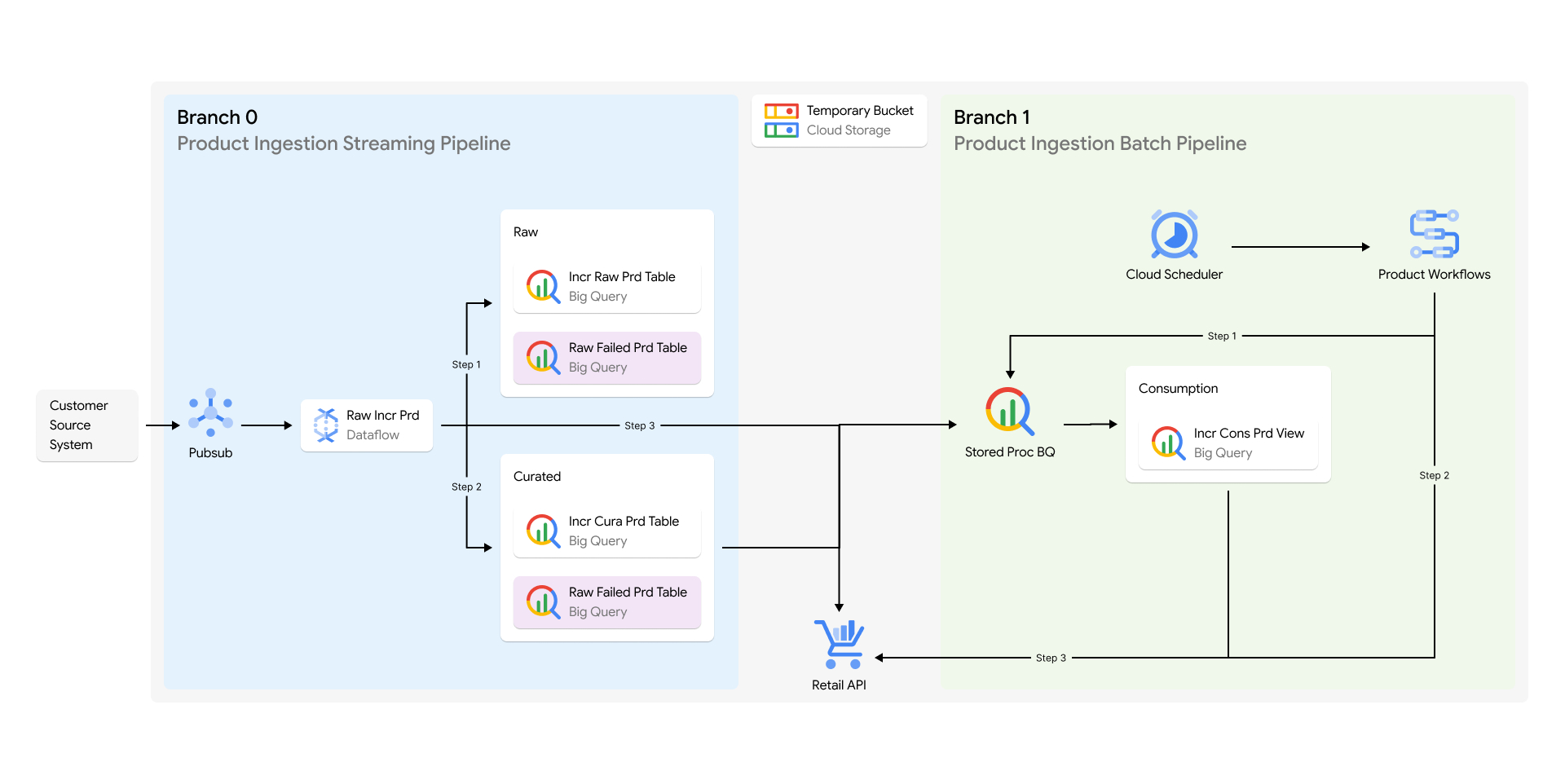
In this architecture, the data ingestion would typically have raw, curated and consumption stages all built on BigQuery. The system would move data in between the stages using Dataflow and orchestrate to automate all of this using cloud workflows:
- The system would take raw data as it is and time tag it to maintain history. This data is unchanged so customers would consider it as a true source.
- Then the system would transform the data into a curated stage and time tag it again. This way customers would know when it transformed and if anything failed.
- Finally the system would create views in the consumption stage on the curated data using the time the system tagged the data with earlier. This way customer would know exactly which transformed data is supposed to be finally ingested into AI Commerce Search.
Branch 0 and branch 1 and branch 2 serve as live and day old backup and a week old back branches. Data ingested directly into branch 0 gets aggregated and indexed into branch 1 daily and branch 2 weekly. This way any corruption of data can be rolled back thereby enhancing the business continuity and system resilience.
Furthermore, analysis and debugging can be achieved as the entire history and lineage of the data is maintained in global BigQuery datasets.
### Plan for corner cases with catalog ingestion
As soon as the core mechanisms for catalog ingestion in AI Commerce Search are established, a proactive approach involves assessing their resilience against various corner cases. While some of these scenarios might not be immediately relevant to your specific business requirements, factoring them into your backend design can provide invaluable future-proofing.
This preparatory step entails reviewing your data pipeline's ability to handle unexpected or edge-case scenarios, ensuring its robustness and adaptability to evolving demands. By anticipating potential challenges and addressing them proactively, you can mitigate future disruptions and maintain the seamless flow of product data into your AI Commerce Search system.
To achieve this, the Dataflow logic should be built such that it:
- **Validates each item of the raw data to match a proper schema.** The contract of the raw data should be determined upfront and every data element should be always matched against the contract. In case of validation failure, the raw data element should be time tagged and persisted in the BigQuery failed raw tables with actual errors that are meant for forensics.
Examples of such failure could be:
- A certain attribute that is not part of the contract all of a sudden, appears in the raw data element.
- A certain mandatory attribute is not present in the raw data element.
- **Validates each item of the raw data for transformation into AI Commerce Search format.** There are some mandatory fields required by the AI Commerce Search for product ingestion. Every element of the raw data should now be checked again if it can be successfully transformed into AI Commerce Search schema format. In case of transformation failure, the raw data element should be time tagged and persisted in the BigQuery failed curated tables with actual error messages that can assist with forensics.
Examples of such failure could be:
- A certain attribute like price cannot be formatted into a number because raw data element has it is as alphanumeric.
- The product name is completely missing.
This example shows a sample BigQuery table schema to persist all failures for debugging:
View sample BigQuery table schema
```json
[
{
"mode": "REQUIRED",
"name": "ingestedTimestamp",
"type": "TIMESTAMP"
},
{
"mode": "REQUIRED",
"name": "payloadString",
"type": "STRING"
},
{
"mode": "REQUIRED",
"name": "payloadBytes",
"type": "BYTES"
},
{
"fields": [
{
"mode": "NULLABLE",
"name": "key",
"type": "STRING"
},
{
"mode": "NULLABLE",
"name": "value",
"type": "STRING"
}
],
"mode": "REPEATED",
"name": "attributes",
"type": "RECORD"
},
{
"mode": "NULLABLE",
"name": "errorMessage",
"type": "STRING"
},
{
"mode": "NULLABLE",
"name": "stacktrace",
"type": "STRING"
}
]
```
### Stress testing and scalability
Prepare for high-volume events and growth with stress testing and scalability.
#### High-traffic events
High-traffic events like holidays pose a significant challenge to data ingestion pipelines. The surge in inventory updates, including stock levels and prices, and potential changes to product attributes demand robust infrastructure. It's important to assess whether your ingestion system can handle this increased load. Simulated load testing, replicating peak traffic patterns, identifies bottlenecks and ensure smooth operation during these critical periods.
#### Flash sales
Flash sales introduce a unique challenge due to their short duration and rapid inventory fluctuations. Ensuring real-time inventory synchronization is paramount to prevent discrepancies between search results and actual availability. Failure to do so can lead to negative customer experiences, such as popular products appearing as in-stock when they're actually sold out, or the other way around. Additionally, price changes during flash sales can significantly impact product ranking, highlighting the need for accurate and timely price updates in the search index.
#### Catalog expansion
Business growth or product line expansions can result in a dramatic increase, such as 5x or 10x, in the number of products within your catalog. Your ingestion architecture must be scalable to accommodate this growth seamlessly. This can necessitate revisiting the entire ETL (extract, transform, load) pipeline, particularly if new data sources or product information formats are introduced.
By proactively addressing these potential scenarios, you can ensure that your AI Commerce Search ingestion pipeline remains robust, scalable, and responsive, even in the face of sudden traffic spikes, flash sales, or significant catalog growth. This proactive approach safeguards the accuracy and reliability of your search results, contributing to a positive user experience and driving business success.
The data ingestion pipeline performance should be evaluated and a baseline should be formed for the following metrics:
1. How long does it take to publish and ingest the entire catalog and inventory data? This may be required on an ad hoc basis during BFCM when prices can changes significantly for the entire catalog.
2. How long will a single product update will take to get reflected?
3. What is the highest rate of product and inventory updates that the system can churn?
#### Bottlenecks
- Evaluate and find out whether the pipelines are able to scale up and down correctly.
- Determine whether the max ceiling for the numbers of instances is too high or too low.
- Determine whether the system is getting rate limited by AI Commerce Search by checking for HTTP Code 429.
- Confirm whether certain API quotes need to be increased to reduce the rate limits.
## Product data structure for catalog ingestion
This section describes how to prepare your product data for catalog ingestion.
### Primary products
Primary products serve as containers for grouping variant products and as entries in the search grid. Have only common attributes shared across variants specified for primary products. These include:
- Primary product ID
- Product ID (identical to primary product ID)
- Title
- Description
Refer to [About product attributes](https://docs.cloud.google.com/gemini-enterprise-cx/ai-commerce-search/attribute-config.md.txt#primary-variant_behavior_in_search_versus_recommendations) for more information.
### Variant products
Variant products inherit common attributes from the primary product, but can also specify unique values.
Required attributes include:
- All attributes specified for primary products (title, description). Price, title, and description can be different from the primary product.
- Specific variant attributes (color, size, and other relevant product variations).
Refer to [About product attributes](https://docs.cloud.google.com/gemini-enterprise-cx/ai-commerce-search/attribute-config.md.txt#primary-variant_behavior_in_search_versus_recommendations) for more information.
### Attribute retrieval
The retrieval process considers all searchable attributes for both primary and variant products.
### Relevance scoring
Relevance scoring is based solely on the title and description fields. To safeguard proper differentiation, slightly modify variant from primary product titles (for example, **Product Name + Color**).
### Variant matching in search results
Variant matching (for example, *blue dress*) filters results based on predefined variant attributes like color and size. The search results return up to five matching variants for each primary product.
## Sync Merchant Center to AI Commerce Search
> [!WARNING]
> **Deprecated:** The Merchant Center connector is deprecated and only available to current users. New users must use the Catalog API or BigQuery to import catalogs.
[Merchant Center](https://www.google.com/retail/solutions/merchant-center/) is a tool you can use to make your
store and product data available for Shopping ads and other Google services.
For continuous synchronization between Merchant Center and
AI Commerce Search, you can link your Merchant Center account
to AI Commerce Search.
When you set up a Merchant Center sync for AI Commerce Search, you must have the **Admin** IAM role assigned in Merchant Center. Although a Standard access role will permit you to read the Merchant Center feeds, when you try to sync Merchant Center to AI Commerce Search, you get an error message. So before you can successfully sync your Merchant Center to AI Commerce Search, upgrade your role.
### Link your Merchant Center account
While AI Commerce Search is linked to the Merchant Center
account, changes to your product data in the Merchant Center
account are automatically updated within minutes in AI Commerce Search.
If you want to prevent Merchant Center changes from being synced
to AI Commerce Search, you can unlink your
Merchant Center account.
[Unlinking your Merchant Center account](https://docs.cloud.google.com/gemini-enterprise-cx/ai-commerce-search/upload-catalog.md.txt#unlink) doesn't delete
products in AI Commerce Search. To delete imported products, see
[Delete product information](https://docs.cloud.google.com/gemini-enterprise-cx/ai-commerce-search/manage-catalog.md.txt#delete).
To sync your Merchant Center account, complete the following
steps.
#### Sync your Merchant Center account
### Cloud console
1. Go to the **Data** \> page in the AI Commerce Search in Gemini Enterprise for Customer Experience console.
[Go to the Data page](https://console.cloud.google.com/ai/retail/catalogs/default_catalog/data/)
2. Click **Import** to open the **Import Data** panel.
3. Choose **Product catalog**.
4. Select **Merchant Center Sync** as your data source.
5. Select your Merchant Center account. Check [User Access](https://support.google.com/merchants/answer/1637190) if you don't see your account.
6. Optional: Select **Merchant Center feeds filter** to import only offers from selected feeds.
If not specified, offers from all feeds are imported (including future feeds).
7. Optional: To import only offers targeted to certain countries or languages, expand **Show Advanced Options** and select Merchant Center countries of sale and languages to filter for.
8. Select the branch you will upload your catalog to.
9. Click **Import**.
### curl
1. Check that the [service account in your local environment](https://docs.cloud.google.com/gemini-enterprise-cx/ai-commerce-search/setting-up.md.txt#local-environment)
has access to both the Merchant Center account and
AI Commerce Search. To check which accounts have access to your
Merchant Center account, see
[User access for Merchant Center](https://support.google.com/merchants/answer/1637190).
2. Use the [`MerchantCenterAccountLink.create`](https://docs.cloud.google.com/gemini-enterprise-cx/ai-commerce-search/reference/rest/v2alpha/projects.locations.catalogs.merchantCenterAccountLinks/create.md.txt) method to establish the link.
```bash
curl -X POST \
-H "Authorization: Bearer $(gcloud auth application-default print-access-token)" \
-H "Content-Type: application/json; charset=utf-8" \
--data '{
"merchantCenterAccountId": MERCHANT_CENTER_ID,
"branchId": "BRANCH_ID",
"feedFilters": [
{"dataSourceId": DATA_SOURCE_ID_1}
{"dataSourceId": DATA_SOURCE_ID_2}
],
"languageCode": "LANGUAGE_CODE",
"feedLabel": "FEED_LABEL",
}' \
"https://retail.googleapis.com/v2alpha/projects/PROJECT_ID/locations/global/catalogs/default_catalog/merchantCenterAccountLinks"
```
- MERCHANT_CENTER_ID: The ID of the Merchant Center account.
- BRANCH_ID: The ID of the branch to establish the link with. Accepts values '0', '1', or '2'.
- LANGUAGE_CODE: (OPTIONAL) The two-letter language code of the products you want to import. As seen in Merchant Center under `Language` column of the product. If not set, all languages are imported.
- FEED_LABEL: (OPTIONAL) The [feed label](https://support.google.com/google-ads/answer/12453549) of the products you want to import. You can see the feed label in Merchant Center in the product's **Feed Label** column product. If not set, all feed labels are imported.
- FEED_FILTERS: (OPTIONAL) List of [primary feeds](https://support.google.com/merchants/answer/7439882) from which products will be imported. Not selecting feeds means that all Merchant Center account feeds are shared. The IDs can be found in [Content API datafeeds resource](https://developers.google.com/shopping-content/reference/rest/v2.1/datafeeds/list) or by visiting Merchant Center, selecting a feed and getting the feed ID from the afmDataSourceId parameter in the site URL. For example, `mc/products/sources/detail?a=MERCHANT_CENTER_ID&afmDataSourceId=DATA_SOURCE_ID`.
To view your linked Merchant Center, go to the
AI Commerce Search in Gemini Enterprise for Customer Experience console **Data** page and click the **Merchant Center**
button on the top right of the page. This opens the **Linked Merchant Center
Accounts** panel. You can also add additional Merchant Center
accounts from this panel.
See [View aggregated information about your catalog](https://docs.cloud.google.com/gemini-enterprise-cx/ai-commerce-search/manage-catalog.md.txt#view-catalog) for
instructions on how to view the products that have been imported.
#### List your Merchant Center account links
### Cloud console
1.
Go to the **Data** \> page in the AI Commerce Search in Gemini Enterprise for Customer Experience console.
[Go to the Data page](https://console.cloud.google.com/ai/retail/catalogs/default_catalog/data/)
2. Click the **Merchant Center** button on the top right of the page to open
a list of your linked Merchant Center accounts.
### curl
Use the [`MerchantCenterAccountLink.list`](https://docs.cloud.google.com/gemini-enterprise-cx/ai-commerce-search/reference/rest/v2alpha/projects.locations.catalogs.merchantCenterAccountLinks/list.md.txt) method
to list the links resource.
```bash
curl -X GET \
-H "Authorization: Bearer $(gcloud auth application-default print-access-token)" \
-H "Content-Type: application/json; charset=utf-8" \
"https://retail.googleapis.com/v2alpha/projects/PROJECT_NUMBER/locations/global/catalogs/default_catalog/merchantCenterAccountLinks"
```
### Unlink your Merchant Center account
Unlinking your Merchant Center account stops that account from
syncing catalog data to AI Commerce Search. This procedure does not
delete any products in AI Commerce Search that have already been
uploaded.
### Cloud console
1.
Go to the **Data** \> page in the AI Commerce Search in Gemini Enterprise for Customer Experience console.
[Go to the Data page](https://console.cloud.google.com/ai/retail/catalogs/default_catalog/data/)
2. Click the **Merchant Center** button on the top right of the page to open
a list of your linked Merchant Center accounts.
3. Click **Unlink** next to the Merchant Center account you're
unlinking, and confirm your choice in the dialog that appears.
### curl
Use the [`MerchantCenterAccountLink.delete`](https://docs.cloud.google.com/gemini-enterprise-cx/ai-commerce-search/reference/rest/v2alpha/projects.locations.catalogs.merchantCenterAccountLinks/delete.md.txt)
method to remove the `MerchantCenterAccountLink` resource.
```bash
curl -X DELETE \
-H "Authorization: Bearer $(gcloud auth application-default print-access-token)" \
-H "Content-Type: application/json; charset=utf-8" \
"https://retail.googleapis.com/v2alpha/projects/PROJECT_NUMBER/locations/global/catalogs/default_catalog/merchantCenterAccountLinks/BRANCH_ID_MERCHANT_CENTER_ID"
```
### Limitations on linking to Merchant Center
- A Merchant Center account can be linked to any number of
catalog branches, but a single catalog branch can only be linked to one
Merchant Center account.
- A Merchant Center account cannot be a
[multi-client account (MCA)](https://support.google.com/merchants/answer/188487). However, you can link individual
sub-accounts.
- The first import after linking your Merchant Center account can
take hours to finish. The amount of time depends on the number of offers in the
Merchant Center account.
- Any product modifications using API methods are
disabled for branches linked to a Merchant Center account.
Any changes to the product catalog data in those branches have to be made using
Merchant Center. Those changes are then automatically synced
to AI Commerce Search.
- The collection product type isn't supported for branches that use
Merchant Center linking.
- Your Merchant Center account can only be linked to empty catalog
branches for data accuracy. To delete products from a catalog
branch, see [Delete product information](https://docs.cloud.google.com/gemini-enterprise-cx/ai-commerce-search/manage-catalog.md.txt#delete).
## Import catalog data from BigQuery
To import catalog data in the correct format from BigQuery, use
the [AI Commerce Search schema](https://docs.cloud.google.com/gemini-enterprise-cx/ai-commerce-search/catalog.md.txt#schema) to
[create a BigQuery table](https://docs.cloud.google.com/bigquery/docs/tables.md.txt#creating_an_empty_table_with_a_schema_definition) with the correct format and
[load the empty table](https://docs.cloud.google.com/bigquery/docs/loading-data.md.txt) with your catalog data. Then, upload your data
to AI Commerce Search.
For more help with BigQuery tables, see
[Introduction to tables](https://docs.cloud.google.com/bigquery/docs/tables-intro.md.txt).
For help with BigQuery queries, see
[Overview of querying BigQuery data](https://docs.cloud.google.com/bigquery/docs/query-overview.md.txt).
*** ** * ** ***
To follow step-by-step guidance for this task directly in the
Cloud Shell Editor, click **Guide me**:
[Guide me](https://shell.cloud.google.com/?walkthrough_tutorial_id=retail--retail_api_v2_import_user_events_big_query_table_select_language&show=ide&environment_deployment=ide)
*** ** * ** ***
To import your catalog:
1. If your BigQuery dataset is in another project, configure the
required permissions so that AI Commerce Search can access the
BigQuery dataset. [Learn more](https://docs.cloud.google.com/gemini-enterprise-cx/ai-commerce-search/upload-catalog.md.txt#access).
2. Import your catalog data to AI Commerce Search.
### Cloud console
1. Go to the **Data** \> page in the AI Commerce Search in Gemini Enterprise for Customer Experience console.
[Go to the Data page](https://console.cloud.google.com/ai/retail/catalogs/default_catalog/data/)
2. Click **Import** to open the **Import Data** panel.
3. Choose **Product catalog**.
4. Select **BigQuery** as your data source.
5. Select the branch you will upload your catalog to.
6. Choose **Retail Product Catalogs Schema** . This is the [Product schema for AI Commerce Search](https://docs.cloud.google.com/gemini-enterprise-cx/ai-commerce-search/catalog.md.txt#schema).
7. Enter the BigQuery table where your data is located.
8. Optional: Under **Show advanced options** , enter the location of a Cloud Storage bucket in your project as a temporary location for your data.
If not specified, a default location is used. If specified, the BigQuery and Cloud Storage bucket have to be in the same region.
9. If you do not have search enabled and you are using the Merchant Center schema, select the product level.
You must select the product level if this is the first time you are importing your catalog or you are re-importing the catalog after purging it. [Learn more](https://docs.cloud.google.com/gemini-enterprise-cx/ai-commerce-search/catalog.md.txt#product-levels) about product levels. [Changing
product levels](https://docs.cloud.google.com/gemini-enterprise-cx/ai-commerce-search/manage-catalog#change-product-levels) after you have imported any data requires a significant effort.
**Important:** You can't turn on search for projects with a product catalog that has been ingested as variants.
10. Click **Import**.
### curl
1. If this is the first time you are uploading your catalog, or you are
re-importing the catalog after purging it, set your
[product levels](https://docs.cloud.google.com/gemini-enterprise-cx/ai-commerce-search/catalog.md.txt#product-levels) by using the
[`Catalog.patch`](https://docs.cloud.google.com/gemini-enterprise-cx/ai-commerce-search/reference/rest/v2/projects.locations.catalogs/patch) method. This operation requires the
Retail Admin role.
- [`ingestionProductType`](https://docs.cloud.google.com/gemini-enterprise-cx/ai-commerce-search/reference/rest/v2/projects.locations.catalogs.md.txt#ProductLevelConfig.FIELDS.ingestion_product_type): Supports the values `primary` (default) and `variant`.
- [`merchantCenterProductIdField`](https://docs.cloud.google.com/gemini-enterprise-cx/ai-commerce-search/reference/rest/v2/projects.locations.catalogs.md.txt#ProductLevelConfig.FIELDS.merchant_center_product_id_field): Supports the values `offerId` and `itemGroupId`. If you don't use Merchant Center, you don't need to set this field.
```bash
curl -X PATCH \
-H "Authorization: Bearer $(gcloud auth application-default print-access-token)" \
-H "Content-Type: application/json; charset=utf-8" \
--data '{
"productLevelConfig": {
"ingestionProductType": "PRODUCT_TYPE",
"merchantCenterProductIdField": "PRODUCT_ID_FIELD"
}
}' \
"https://retail.googleapis.com/v2/projects/PROJECT_ID/locations/global/catalogs/default_catalog"
```
2. Create a data file for the input parameters for the import.
Use the [BigQuerySource](https://docs.cloud.google.com/gemini-enterprise-cx/ai-commerce-search/reference/rest/v2/BigQuerySource.md.txt) object to point to your
BigQuery dataset.
- DATASET_ID: The ID of the BigQuery dataset.
- TABLE_ID: The ID of the BigQuery table holding your data.
- PROJECT_ID: The project ID that the BigQuery source is in. If not specified, the project ID is inherited from the parent request.
- STAGING_DIRECTORY: Optional. A Cloud Storage directory that is used as an interim location for your data before it is imported into BigQuery. Leave this field empty to automatically create a temporary directory (recommended).
- ERROR_DIRECTORY: Optional. A Cloud Storage directory for error information about the import. Leave this field empty to automatically create a temporary directory (recommended).
- `dataSchema`: For the `dataSchema` property, use value `product` (default). You'll use the [AI Commerce Search schema](https://docs.cloud.google.com/gemini-enterprise-cx/ai-commerce-search/catalog.md.txt#schema).
We recommend you don't specify staging or error directories, that way, a
Cloud Storage bucket with new staging and error directories can be
automatically created. These directories are created in the same
region as the BigQuery dataset, and are unique to each import
(which prevents multiple import jobs from staging data to the same directory,
and potentially re-importing the same data). After three days, the bucket and
directories are automatically deleted to reduce storage costs.
An automatically created bucket name includes the project ID, bucket region, and
data schema name, separated by underscores (for example,
`4321_us_catalog_retail`). The automatically created directories are
called `staging` or `errors`, appended by a number (for example, `staging2345`
or `errors5678`).
If you specify directories, the Cloud Storage bucket must be in the
same region as the BigQuery dataset, or the import will fail.
Provide the staging and error directories in the format
`gs:////`; they should be different.
```json
{
"inputConfig":{
"bigQuerySource": {
"projectId":"PROJECT_ID",
"datasetId":"DATASET_ID",
"tableId":"TABLE_ID",
"dataSchema":"product"}
}
}
```
3. Import your catalog information by
making a `POST` request to the [`Products:import`](https://docs.cloud.google.com/gemini-enterprise-cx/ai-commerce-search/reference/rest/v2/projects.locations.catalogs.branches.products/import.md.txt)
REST method, providing the name of the data file (here, shown as
`input.json`).
```console
curl -X POST \
-H "Authorization: Bearer $(gcloud auth application-default print-access-token)" \
-H "Content-Type: application/json; charset=utf-8" -d @./input.json \
"https://retail.googleapis.com/v2/projects/PROJECT_NUMBER/locations/global/catalogs/default_catalog/branches/0/products:import"
```
You can check the status programmatically using the API.
You should receive a response object that looks something like this:
```console
{
"name": "projects/PROJECT_ID/locations/global/catalogs/default_catalog/operations/import-products-123456",
"done": false
}
```
The name field is the ID of the [operation object](https://docs.cloud.google.com/gemini-enterprise-cx/ai-commerce-search/reference/rest/v2/projects.locations.catalogs.operations). To
request the status of this object, replace the name field with the
value returned by the `import` method, until the `done` field
returns as `true`:
```bash
curl -H "Authorization: Bearer $(gcloud auth application-default print-access-token)" \
"https://retail.googleapis.com/v2/projects/PROJECT_ID/locations/global/catalogs/default_catalog/operations/import-products-123456"
```
When the operation completes, the returned object has a `done` value of
`true`, and includes a Status object similar to the following example:
```json
{ "name": "projects/PROJECT_ID/locations/global/catalogs/default_catalog/operations/import-products-123456",
"metadata": {
"@type": "type.googleapis.com/google.cloud.retail.v2.ImportMetadata",
"createTime": "2020-01-01T03:33:33.000001Z",
"updateTime": "2020-01-01T03:34:33.000001Z",
"successCount": "2",
"failureCount": "1"
},
"done": true,
"response": {
"@type": "type.googleapis.com/google.cloud.retail.v2.ImportProductsResponse",
},
"errorsConfig": {
"gcsPrefix": "gs://error-bucket/error-directory"
}
}
```
You can inspect the files in the error directory in
Cloud Storage to see if errors occurred during the import.
### Set up access to your BigQuery dataset
To set up access when your BigQuery dataset is in a different
project than your AI Commerce Search service, complete the following steps.
1. Open the IAM page in the Google Cloud console.
[Open
the IAM page](https://console.cloud.google.com/iam-admin/iam)
2. Select your AI Commerce Search project.
3. Find the service account with the name **Retail Service Agent**.
If you haven't previously initiated an import operation, this service
account might not be listed. If you don't see this service account, return to
the import task and initiate the import. When it fails due to permission
errors, return here and complete this task.
4. Copy the identifier for the service account, which looks like an email
address (for example, `service-525@gcp-sa-retail.iam.gserviceaccount.com`).
5. Switch to your BigQuery project (on the same **IAM \& Admin**
page) and click **Grant Access**.
6. For **New principals** , enter the identifier for the AI Commerce Search
service account and select the **BigQuery \> BigQuery User** role.
7. Click **Add another role** and select **BigQuery \> BigQuery Data Editor**.
If you don't want to provide the Data Editor role to the entire
project, you can add this role directly to the dataset.
[Learn more](https://docs.cloud.google.com/bigquery/docs/dataset-access-controls).
8. Click **Save**.
### Product schema
When importing a catalog from BigQuery, use the following
AI Commerce Search product schema to create a BigQuery table
with the correct format and load it with your catalog data. Then,
[import the catalog](https://docs.cloud.google.com/gemini-enterprise-cx/ai-commerce-search/upload-catalog.md.txt#bq).
#### View AI Commerce Search product schema
```json
[
{
"name": "name",
"type": "STRING",
"mode": "NULLABLE"
},
{
"name": "id",
"type": "STRING",
"mode": "REQUIRED"
},
{
"name": "type",
"type": "STRING",
"mode": "NULLABLE"
},
{
"name": "primaryProductId",
"type": "STRING",
"mode": "NULLABLE"
},
{
"name": "collectionMemberIds",
"type": "STRING",
"mode": "REPEATED"
},
{
"name": "gtin",
"type": "STRING",
"mode": "NULLABLE"
},
{
"name": "categories",
"type": "STRING",
"mode": "REPEATED"
},
{
"name": "title",
"type": "STRING",
"mode": "REQUIRED"
},
{
"name": "brands",
"type": "STRING",
"mode": "REPEATED"
},
{
"name": "description",
"type": "STRING",
"mode": "NULLABLE"
},
{
"name": "languageCode",
"type": "STRING",
"mode": "NULLABLE"
},
{
"name": "attributes",
"type": "RECORD",
"mode": "REPEATED",
"fields": [
{
"name": "key",
"type": "STRING",
"mode": "NULLABLE"
},
{
"name": "value",
"type": "RECORD",
"mode": "NULLABLE",
"fields": [
{
"name": "text",
"type": "STRING",
"mode": "REPEATED"
},
{
"name": "numbers",
"type": "FLOAT",
"mode": "REPEATED"
}
]
}
]
},
{
"name": "tags",
"type": "STRING",
"mode": "REPEATED"
},
{
"name": "priceInfo",
"type": "RECORD",
"mode": "NULLABLE",
"fields": [
{
"name": "currencyCode",
"type": "STRING",
"mode": "NULLABLE"
},
{
"name": "price",
"type": "FLOAT",
"mode": "NULLABLE"
},
{
"name": "originalPrice",
"type": "FLOAT",
"mode": "NULLABLE"
},
{
"name": "cost",
"type": "FLOAT",
"mode": "NULLABLE"
},
{
"name": "priceEffectiveTime",
"type": "STRING",
"mode": "NULLABLE"
},
{
"name": "priceExpireTime",
"type": "STRING",
"mode": "NULLABLE"
}
]
},
{
"name": "rating",
"type": "RECORD",
"mode": "NULLABLE",
"fields": [
{
"name": "ratingCount",
"type": "INTEGER",
"mode": "NULLABLE"
},
{
"name": "averageRating",
"type": "FLOAT",
"mode": "NULLABLE"
},
{
"name": "ratingHistogram",
"type": "INTEGER",
"mode": "REPEATED"
}
]
},
{
"name": "expireTime",
"type": "STRING",
"mode": "NULLABLE"
},
{
"name": "ttl",
"type": "RECORD",
"mode": "NULLABLE",
"fields": [
{
"name": "seconds",
"type": "INTEGER",
"mode": "NULLABLE"
},
{
"name": "nanos",
"type": "INTEGER",
"mode": "NULLABLE"
}
]
},
{
"name": "availableTime",
"type": "STRING",
"mode": "NULLABLE"
},
{
"name": "availability",
"type": "STRING",
"mode": "NULLABLE"
},
{
"name": "availableQuantity",
"type": "INTEGER",
"mode": "NULLABLE"
},
{
"name": "fulfillmentInfo",
"type": "RECORD",
"mode": "REPEATED",
"fields": [
{
"name": "type",
"type": "STRING",
"mode": "NULLABLE"
},
{
"name": "placeIds",
"type": "STRING",
"mode": "REPEATED"
}
]
},
{
"name": "uri",
"type": "STRING",
"mode": "NULLABLE"
},
{
"name": "images",
"type": "RECORD",
"mode": "REPEATED",
"fields": [
{
"name": "uri",
"type": "STRING",
"mode": "REQUIRED"
},
{
"name": "height",
"type": "INTEGER",
"mode": "NULLABLE"
},
{
"name": "width",
"type": "INTEGER",
"mode": "NULLABLE"
}
]
},
{
"name": "audience",
"type": "RECORD",
"mode": "NULLABLE",
"fields": [
{
"name": "genders",
"type": "STRING",
"mode": "REPEATED"
},
{
"name": "ageGroups",
"type": "STRING",
"mode": "REPEATED"
}
]
},
{
"name": "colorInfo",
"type": "RECORD",
"mode": "NULLABLE",
"fields": [
{
"name": "colorFamilies",
"type": "STRING",
"mode": "REPEATED"
},
{
"name": "colors",
"type": "STRING",
"mode": "REPEATED"
}
]
},
{
"name": "sizes",
"type": "STRING",
"mode": "REPEATED"
},
{
"name": "materials",
"type": "STRING",
"mode": "REPEATED"
},
{
"name": "patterns",
"type": "STRING",
"mode": "REPEATED"
},
{
"name": "conditions",
"type": "STRING",
"mode": "REPEATED"
},
{
"name": "publishTime",
"type": "STRING",
"mode": "NULLABLE"
},
{
"name": "promotions",
"type": "RECORD",
"mode": "REPEATED",
"fields": [
{
"name": "promotionId",
"type": "STRING",
"mode": "NULLABLE"
}
]
}
]
```
## Import catalog data from Cloud Storage
To import catalog data in JSON format, you create one or more JSON files that
contain the catalog data you want to import, and upload it to
Cloud Storage. From there, you can import it to AI Commerce Search.
For an example of the JSON product item format, see
[Product item JSON data format](https://docs.cloud.google.com/gemini-enterprise-cx/ai-commerce-search/upload-catalog.md.txt#json-format).
For help with uploading files to Cloud Storage, see
[Upload objects](https://docs.cloud.google.com/storage/docs/uploading-objects.md.txt).
1. Make sure the AI Commerce Search service account has
[permission to read and write to the bucket](https://docs.cloud.google.com/storage/docs/access-control/using-iam-permissions.md.txt).
The AI Commerce Search service account is listed on the
[IAM page](https://console.cloud.google.com/iam-admin/iam)
in the Google Cloud console with the name **Retail Service Agent** . Use
the service account's identifier, which looks like an email address (for
example, `service-525@gcp-sa-retail.iam.gserviceaccount.com`), when
adding the account to your bucket permissions.
2. Import your catalog data.
### Cloud console
1. Go to the **Data** \> page in the AI Commerce Search in Gemini Enterprise for Customer Experience console.
[Go to the Data page](https://console.cloud.google.com/ai/retail/catalogs/default_catalog/data/)
2. Click **Import** to open the **Import Data** panel.
3. Choose **Product catalog** as your data source.
4. Select the branch you will upload your catalog to.
5. Choose **Retail Product Catalogs Schema** as the schema.
6. Enter the Cloud Storage location of your data.
7. If you do not have search enabled, select the product levels.
You must select the product levels if this is the first time you are importing your catalog or you are re-importing the catalog after purging it. [Learn more](https://docs.cloud.google.com/gemini-enterprise-cx/ai-commerce-search/catalog.md.txt#product-levels) about product levels. [Changing
product levels](https://docs.cloud.google.com/gemini-enterprise-cx/ai-commerce-search/manage-catalog#change-product-levels) after you have imported any data requires a significant effort.
**Important:** You can't turn on search for projects with a product catalog that has been ingested as variants.
8. Click **Import**.
### curl
1. If this is the first time you are uploading your catalog, or you are
re-importing the catalog after purging it, set your
product levels by using the [`Catalog.patch`](https://docs.cloud.google.com/gemini-enterprise-cx/ai-commerce-search/reference/rest/v2/projects.locations.catalogs/patch) method.
[Learn more](https://docs.cloud.google.com/gemini-enterprise-cx/ai-commerce-search/catalog.md.txt#product-levels) about product levels.
- [`ingestionProductType`](https://docs.cloud.google.com/gemini-enterprise-cx/ai-commerce-search/reference/rest/v2/projects.locations.catalogs.md.txt#ProductLevelConfig.FIELDS.ingestion_product_type): Supports the values `primary` (default) and `variant`.
- [`merchantCenterProductIdField`](https://docs.cloud.google.com/gemini-enterprise-cx/ai-commerce-search/reference/rest/v2/projects.locations.catalogs.md.txt#ProductLevelConfig.FIELDS.merchant_center_product_id_field): Supports the values `offerId` and `itemGroupId`. If you don't use Merchant Center, you don't need to set this field.
```bash
curl -X PATCH \
-H "Authorization: Bearer $(gcloud auth application-default print-access-token)" \
-H "Content-Type: application/json; charset=utf-8" \
--data '{
"productLevelConfig": {
"ingestionProductType": "PRODUCT_TYPE",
"merchantCenterProductIdField": "PRODUCT_ID_FIELD"
}
}' \
"https://retail.googleapis.com/v2/projects/PROJECT_ID/locations/global/catalogs/default_catalog"
```
2. Create a data file for the input parameters for the import. Use the
[`GcsSource`](https://docs.cloud.google.com/gemini-enterprise-cx/ai-commerce-search/reference/rest/v2/GcsSource) object to point to your
Cloud Storage bucket.
You can provide multiple files, or just one; this example uses two
files.
- INPUT_FILE: A file or files in Cloud Storage containing your catalog data.
- ERROR_DIRECTORY: A Cloud Storage directory for error information about the import.
The input file fields must be in the format
`gs:////`.
The error directory must be in the format
`gs:////`.
If the error directory does not exist, it gets created.
The bucket must already exist.
```json
{
"inputConfig":{
"gcsSource": {
"inputUris": ["INPUT_FILE_1", "INPUT_FILE_2"]
}
},
"errorsConfig":{"gcsPrefix":"ERROR_DIRECTORY"}
}
```
3. Import your catalog information by making
a `POST` request to the [`Products:import`](https://docs.cloud.google.com/gemini-enterprise-cx/ai-commerce-search/reference/rest/v2/projects.locations.catalogs.branches.products/import.md.txt) REST
method, providing the name of the data file (here, shown as
`input.json`).
```console
curl -X POST \
-H "Authorization: Bearer $(gcloud auth application-default print-access-token)" \
-H "Content-Type: application/json; charset=utf-8" -d @./input.json \
"https://retail.googleapis.com/v2/projects/PROJECT_NUMBER/locations/global/catalogs/default_catalog/branches/0/products:import"
```
The easiest way to check the status of your import operation is to
use the Google Cloud console. For more information, see
[See status for a specific integration operation](https://docs.cloud.google.com/gemini-enterprise-cx/ai-commerce-search/error-reporting.md.txt#activity-panel).
You can also check the status programmatically using the API.
You should receive a response object that looks something like this:
```console
{
"name": "projects/PROJECT_ID/locations/global/catalogs/default_catalog/operations/import-products-123456",
"done": false
}
```
The name field is the ID of the [operation object](https://docs.cloud.google.com/gemini-enterprise-cx/ai-commerce-search/reference/rest/v2/projects.locations.catalogs.operations). You
request the status of this object, replacing the name field with the
value returned by the import method, until the `done` field returns
as `true`:
```console
curl -H "Authorization: Bearer $(gcloud auth application-default print-access-token)" \
"https://retail.googleapis.com/v2/projects/PROJECT_ID/locations/global/catalogs/default_catalog/operations/[OPERATION_NAME]"
```
When the operation completes, the returned object has a `done` value
of `true`, and includes a Status object similar to the following
example:
```json
{ "name": "projects/PROJECT_ID/locations/global/catalogs/default_catalog/operations/import-products-123456",
"metadata": {
"@type": "type.googleapis.com/google.cloud.retail.v2.ImportMetadata",
"createTime": "2020-01-01T03:33:33.000001Z",
"updateTime": "2020-01-01T03:34:33.000001Z",
"successCount": "2",
"failureCount": "1"
},
"done": true,
"response": {
"@type": "type.googleapis.com/google.cloud.retail.v2.ImportProductsResponse"
},
"errorsConfig": {
"gcsPrefix": "gs://error-bucket/error-directory"
}
}
```
You can inspect the files in the error directory in
Cloud Storage to see what kind of errors occurred during
the import.
## Import catalog data inline
### curl
You import your catalog information inline by
making a `POST` request to the [`Products:import`](https://docs.cloud.google.com/gemini-enterprise-cx/ai-commerce-search/reference/rest/v2/projects.locations.catalogs.branches.products/import.md.txt) REST method,
using the [`productInlineSource`](https://docs.cloud.google.com/gemini-enterprise-cx/ai-commerce-search/reference/rest/v2/projects.locations.catalogs.branches.products/import.md.txt#ProductInlineSource) object to specify your catalog
data.
Provide an entire product on a single line. Each product should be on its own
line.
For an example of the JSON product item format, see
[Product item JSON data format](https://docs.cloud.google.com/gemini-enterprise-cx/ai-commerce-search/upload-catalog.md.txt#json-format).
1. Create the JSON file for your product and call it `./data.json`:
```json
{
"inputConfig": {
"productInlineSource": {
"products": [
{ PRODUCT_1 }
{ PRODUCT_2 }
]
}
}
}
```
2. Call the POST method:
```bash
curl -X POST \
-H "Authorization: Bearer $(gcloud auth application-default print-access-token)" \
-H "Content-Type: application/json; charset=utf-8" \
--data @./data.json \
"https://retail.googleapis.com/v2/projects/PROJECT_NUMBER/locations/global/catalogs/default_catalog/branches/0/products:import"
```
### Java
```java
public static String importProductsFromInlineSource(
List productsToImport)
throws IOException, InterruptedException, ExecutionException {
ProductServiceClient productClient = getProductServiceClient();
ProductInlineSource inlineSource = ProductInlineSource.newBuilder()
.addAllProducts(productsToImport)
.build();
ProductInputConfig inputConfig = ProductInputConfig.newBuilder()
.setProductInlineSource(inlineSource)
.build();
ImportProductsRequest importRequest = ImportProductsRequest.newBuilder()
.setParent(IMPORT_PARENT)
.setRequestId(REQUEST_ID)
.setReconciliationMode(ReconciliationMode.INCREMENTAL)
.setInputConfig(inputConfig)
.build();
String operationName = productClient
.importProductsAsync(importRequest).getName();
productClient.shutdownNow();
productClient.awaitTermination(2, TimeUnit.SECONDS);
return operationName;
}
```
## Product item JSON data format
The `Product` entries in your JSON file should look like the following examples.
Provide an entire product on a single line. Each product should be on its own
line.
> [!IMPORTANT]
> **Important:** The line breaks in this example are for readability. Except for line breaks between products, don't include line breaks in your JSON data.
Minimum required fields:
```json
{
"id": "1234",
"categories": "Apparel & Accessories > Shoes",
"title": "ABC sneakers"
}
{
"id": "5839",
"categories": "casual attire > t-shirts",
"title": "Crew t-shirt"
}
```
View complete object
```json
{
"name": "projects/PROJECT_NUMBER/locations/global/catalogs/default_catalog/branches/0/products/1234",
"id": "1234",
"categories": "Apparel & Accessories > Shoes",
"title": "ABC sneakers",
"description": "Sneakers for the rest of us",
"attributes": { "vendor": {"text": ["vendor123", "vendor456"]} },
"language_code": "en",
"tags": [ "black-friday" ],
"priceInfo": {
"currencyCode": "USD", "price":100, "originalPrice":200, "cost": 50
},
"availableTime": "2020-01-01T03:33:33.000001Z",
"availableQuantity": "1",
"uri":"http://example.com",
"images": [
{"uri": "http://example.com/img1", "height": 320, "width": 320 }
]
}
{
"name": "projects/PROJECT_NUMBER/locations/global/catalogs/default_catalog/branches/0/products/4567",
"id": "4567",
"categories": "casual attire > t-shirts",
"title": "Crew t-shirt",
"description": "A casual shirt for a casual day",
"attributes": { "vendor": {"text": ["vendor789", "vendor321"]} },
"language_code": "en",
"tags": [ "black-friday" ],
"priceInfo": {
"currencyCode": "USD", "price":50, "originalPrice":60, "cost": 40
},
"availableTime": "2020-02-01T04:44:44.000001Z",
"availableQuantity": "2",
"uri":"http://example.com",
"images": [
{"uri": "http://example.com/img2", "height": 320, "width": 320 }
]
}
```
## Historical catalog data
AI Commerce Search supports importing and managing historical
catalog data. Historical catalog data can be helpful when you use historical
user events for model training. Past product information can be used to enrich
historical user event data and improve model accuracy.
Historical products are stored as expired products. They are not returned in
search responses, but are visible to the `Update`, `List`, and `Delete` API
calls.
### Import historical catalog data
When a product's [`expireTime`](https://docs.cloud.google.com/gemini-enterprise-cx/ai-commerce-search/reference/rest/v2/projects.locations.catalogs.branches.products.md.txt#Product.FIELDS.expire_time) field is set to a past
timestamp, this product is considered as a historical product. Set the product
[availability](https://docs.cloud.google.com/gemini-enterprise-cx/ai-commerce-search/reference/rest/v2/projects.locations.catalogs.branches.products.md.txt#Product.FIELDS.availability) to
[OUT_OF_STOCK](https://docs.cloud.google.com/gemini-enterprise-cx/ai-commerce-search/reference/rest/v2/projects.locations.catalogs.branches.products.md.txt#Product.Availability.ENUM_VALUES.OUT_OF_STOCK) to avoid impacting
recommendations.
We recommend using the following methods for importing historical catalog data:
- [Calling the `Product.Create` method](https://docs.cloud.google.com/gemini-enterprise-cx/ai-commerce-search/upload-catalog.md.txt#create-expired).
- [Inline importing expired products](https://docs.cloud.google.com/gemini-enterprise-cx/ai-commerce-search/upload-catalog.md.txt#inline-import-expired).
- [Importing expired products from BigQuery](https://docs.cloud.google.com/gemini-enterprise-cx/ai-commerce-search/upload-catalog.md.txt#import-expired).
#### Call the `Product.Create` method
Use the [`Product.Create`](https://docs.cloud.google.com/gemini-enterprise-cx/ai-commerce-search/reference/rest/v2/projects.locations.catalogs.branches.products/create.md.txt) method to create a `Product` entry
with the [`expireTime`](https://docs.cloud.google.com/gemini-enterprise-cx/ai-commerce-search/reference/rest/v2/projects.locations.catalogs.branches.products.md.txt#Product.FIELDS.expire_time) field set to a past timestamp.
#### Inline import expired products
The steps are identical to [inline import](https://docs.cloud.google.com/gemini-enterprise-cx/ai-commerce-search/upload-catalog.md.txt#inline), except that the products
should have the [`expireTime`](https://docs.cloud.google.com/gemini-enterprise-cx/ai-commerce-search/reference/rest/v2/projects.locations.catalogs.branches.products.md.txt#Product.FIELDS.expire_time) fields set to a past
timestamp.
Provide an entire product on a single line. Each product should be on its own
line.
> [!IMPORTANT]
> **Important:** The line breaks in this example are for readability. Except for line breaks between products, don't include line breaks in your JSON data.
An example of the `./data.json` used in the inline import request:
View this example used in the inline import request
```json
{
"inputConfig": {
"productInlineSource": {
"products": [
{
"id": "historical_product_001",
"categories": "Apparel & Accessories > Shoes",
"title": "ABC sneakers",
"expire_time": {
"second": "2021-10-02T15:01:23Z" // a past timestamp
}
},
{
"id": "historical product 002",
"categories": "casual attire > t-shirts",
"title": "Crew t-shirt",
"expire_time": {
"second": "2021-10-02T15:01:24Z" // a past timestamp
}
}
]
}
}
}
```
#### Import expired products from BigQuery or Cloud Storage
Use the same procedures documented for
[importing catalog data from BigQuery](https://docs.cloud.google.com/gemini-enterprise-cx/ai-commerce-search/upload-catalog.md.txt#bq) or
[importing catalog data from Cloud Storage](https://docs.cloud.google.com/gemini-enterprise-cx/ai-commerce-search/upload-catalog.md.txt#json). However, make sure to set
the [`expireTime`](https://docs.cloud.google.com/gemini-enterprise-cx/ai-commerce-search/reference/rest/v2/projects.locations.catalogs.branches.products.md.txt#Product.FIELDS.expire_time) field to a past timestamp.
## Keep your catalog up to date
For best results, your catalog must contain current information.
We recommend that you import your
catalog on a daily basis to make sure that your catalog is current. You can use
[Google Cloud Scheduler](https://cloud.google.com/scheduler) to schedule imports, or choose an
automatic scheduling option when you import data using the
Google Cloud console.
You can update only new or changed product items, or you can import the entire
catalog. If you import products that are already in your catalog, they are
not added again. Any item that has changed is updated.
> [!NOTE]
> **Note:** If an item is no longer current, set its status to `OUT_OF_STOCK` rather than deleting it, so that previous user events that reference it are not invalidated.
To update a single item, see [Update product information](https://docs.cloud.google.com/gemini-enterprise-cx/ai-commerce-search/manage-catalog.md.txt#update).
### Batch update
You can use the import method to batch update your catalog. You do this
the same way you do the initial import; follow the steps in
[Import catalog data](https://docs.cloud.google.com/gemini-enterprise-cx/ai-commerce-search/upload-catalog.md.txt#import).
### Monitor import health
To monitor catalog ingestion and health:
1. View aggregated information about your catalog and preview uploaded
products on the **Catalog** tab of the AI Commerce Search in Gemini Enterprise for Customer Experience
**Data** page.
[Go to the Data page](https://console.cloud.google.com/ai/retail/catalogs/default_catalog/data/)
2. Assess if you need to update catalog data to improve the quality of
search results and unlock search performance tiers on the
**Data quality** page.
For more about how to check search data quality and view search performance
tiers, see [Unlock search performance tiers](https://docs.cloud.google.com/gemini-enterprise-cx/ai-commerce-search/data-quality.md.txt). For a summary of
available catalog metrics on this page, see
[Catalog quality metrics](https://docs.cloud.google.com/gemini-enterprise-cx/ai-commerce-search/catalog.md.txt#quality-metrics).
[Go to the Data quality page](https://console.cloud.google.com/ai/retail/catalogs/default_catalog/data_quality/)
3. To create alerts that let you know if something goes wrong with your data
uploads, follow the procedures in [Set up Cloud Monitoring alerts](https://docs.cloud.google.com/gemini-enterprise-cx/ai-commerce-search/monitor.md.txt).
Keeping your catalog up to date is important for getting high-quality
results. Use alerts to monitor the import error rates and take action if
needed.
## What's next
- Start [recording user events](https://docs.cloud.google.com/gemini-enterprise-cx/ai-commerce-search/record-events.md.txt).
- [View aggregated information](https://docs.cloud.google.com/gemini-enterprise-cx/ai-commerce-search/manage-catalog.md.txt#view-catalog) about your catalog.
- [Set up data upload alerts](https://docs.cloud.google.com/gemini-enterprise-cx/ai-commerce-search/monitor.md.txt).