In this tutorial, we will use the [Movielens](https://grouplens.org/datasets/movielens/) dataset to demonstrate how to upload your product catalog and user events into AI Commerce Search and train a personalized product recommendation model. The Movielens dataset contains a catalog of movies (products) and user movie ratings (user events).
We will treat each positive movie rating (rating \>= 4) as a product page view
event. We will train a recommendation model of type Others You May Like that
will make movie recommendations based on any user or a seed movie in our
dataset.
Estimated time:
- Initial steps to start training the model: \~1.5 hours.
- Waiting for the model to train: \~2 days.
- Evaluating the model predictions and cleaning up: \~30 minutes.
## Objectives
- Learn how to import products and user events data from BigQuery into AI Commerce Search.
- Train and evaluate recommendation models.
## Costs
This tutorial uses billable components of Google Cloud, including:
- Cloud Storage
- BigQuery
- AI Commerce Search
For more information about Cloud Storage costs, see the
[Cloud Storage pricing](https://cloud.google.com/storage/pricing) page.
For more information about BigQuery costs, see the
[BigQuery pricing](https://cloud.google.com/bigquery/pricing) page.
For more information about AI Commerce Search costs, see the
[AI Commerce Search pricing](https://docs.cloud.google.com/gemini-enterprise-cx/ai-commerce-search/pricing)
page.
## Before you begin
## Prepare the dataset
Open
[Google Cloud console](https://console.cloud.google.com/),
select your Google Cloud project. Take note of the project ID in the **Project info** card on the dashboard page. You will need the project ID for the following steps. Next, click the **Activate Cloud Shell** button
at the top of the Console.

A Cloud Shell session opens inside a new frame at the bottom of the Google Cloud console
and displays a command-line prompt.
### Import the dataset
1. Using the Cloud Shell, download and unpack the source dataset:
```bash
wget https://files.grouplens.org/datasets/movielens/ml-latest.zip
unzip ml-latest.zip
```
2. Create a Cloud Storage bucket and upload the data into it:
```bash
gcloud storage buckets create gs://PROJECT_ID-movielens-data
gcloud storage cp ml-latest/movies.csv ml-latest/ratings.csv \
gs://PROJECT_ID-movielens-data
```
3. Create a BigQuery dataset:
```bash
bq mk movielens
```
4. Load `movies.csv` into a new movies BigQuery table:
```bash
bq load --skip_leading_rows=1 movielens.movies \
gs://PROJECT_ID-movielens-data/movies.csv \
movieId:integer,title,genres
```
5. Load `ratings.csv` into a new ratings BigQuery table:
```bash
bq load --skip_leading_rows=1 movielens.ratings \
gs://PROJECT_ID-movielens-data/ratings.csv \
userId:integer,movieId:integer,rating:float,time:timestamp
```
### Create BigQuery views
1. Create a view that converts the movies table into the
[retail product catalog schema](https://docs.cloud.google.com/gemini-enterprise-cx/ai-commerce-search/catalog.md.txt#expandable-1):
```bash
bq mk --project_id=PROJECT_ID \
--use_legacy_sql=false \
--view '
SELECT
CAST(movieId AS string) AS id,
SUBSTR(title, 0, 128) AS title,
SPLIT(genres, "|") AS categories
FROM `PROJECT_ID.movielens.movies`' \
movielens.products
```
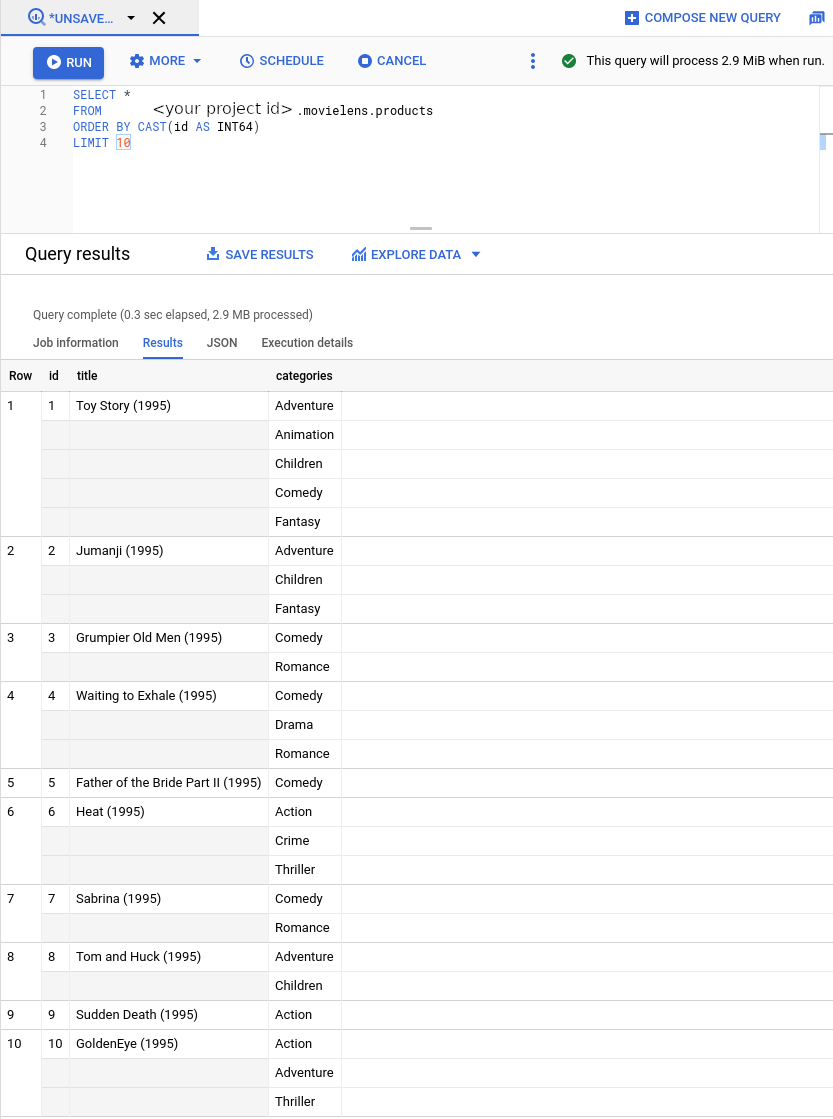
Now the new view has the schema that AI Commerce Search expects.
Then, from the left sidebar, choose `BIG DATA -> BigQuery`. Then, from the
explorer bar on the left, expand your project name and select `movielens ->
products` to open the query page for this view.
2. Now convert movie ratings into
[user events](https://docs.cloud.google.com/gemini-enterprise-cx/ai-commerce-search/user-events.md.txt).
We will:
- Ignore negative movie ratings (\<4)
- Treat every positive rating as a product page view event (`detail-page-view`)
- Rescale the Movielens timeline into the last 90 days. We do this for two reasons:
- AI Commerce Search requires that user events are no older than 2015. Movielens ratings go back to 1995.
- AI Commerce Search uses the last 90 days of user events when serving prediction requests for a user. Every user will appear to have recent events when we make predictions for any user later on.
Create a BigQuery view. The following command uses a SQL query
that meets conversion requirements previously listed.
```bash
bq mk --project_id=PROJECT_ID \
--use_legacy_sql=false \
--view '
WITH t AS (
SELECT
MIN(UNIX_SECONDS(time)) AS old_start,
MAX(UNIX_SECONDS(time)) AS old_end,
UNIX_SECONDS(TIMESTAMP_SUB(
CURRENT_TIMESTAMP(), INTERVAL 90 DAY)) AS new_start,
UNIX_SECONDS(CURRENT_TIMESTAMP()) AS new_end
FROM `PROJECT_ID.movielens.ratings`)
SELECT
CAST(userId AS STRING) AS visitorId,
"detail-page-view" AS eventType,
FORMAT_TIMESTAMP(
"%Y-%m-%dT%X%Ez",
TIMESTAMP_SECONDS(CAST(
(t.new_start + (UNIX_SECONDS(time) - t.old_start) *
(t.new_end - t.new_start) / (t.old_end - t.old_start))
AS int64))) AS eventTime,
[STRUCT(STRUCT(movieId AS id) AS product)] AS productDetails,
FROM `PROJECT_ID.movielens.ratings`, t
WHERE rating >= 4' \
movielens.user_events
```
## Import product catalog and user events
We are now ready to import the product catalog and the user event data into
AI Commerce Search.
1. Enable the **AI Commerce Search** API for your Google Cloud project.
[ENABLE THE API](https://console.cloud.google.com/ai/retail)
2. Click **Get started**.
3.
Go to the **Data** \> page in the AI Commerce Search in Gemini Enterprise for Customer Experience console.
[Go to the Data page](https://console.cloud.google.com/ai/retail/catalogs/default_catalog/data/)
4. Click **Import**.
### Import product catalog
1. Fill in the form to import products from the BigQuery view you
created previously:
- Select import type: **Product Catalog**.
- Select the default branch name.
- Select source of data: **BigQuery**.
- Select schema of data: **Retail Product Schema**.
- Enter the name of the products BigQuery view you created
previously (`PROJECT_ID.movielens.products`).
> [!NOTE]
> **Note:** The BigQuery view name is obtained from the view ID by replacing the colon (`:`) with a period (`.`). You can find the view ID on the **BIG DATA** -\> **BigQuery** page by selecting your view from the left menu and going to the **DETAILS** tab.
2. Click **Import**.
> [!NOTE]
> **Note:** It may take a few minutes for AI Commerce Search API to fully activate and you may get an error in this step if the activation has not finished. If that happens, try again a few minutes later.
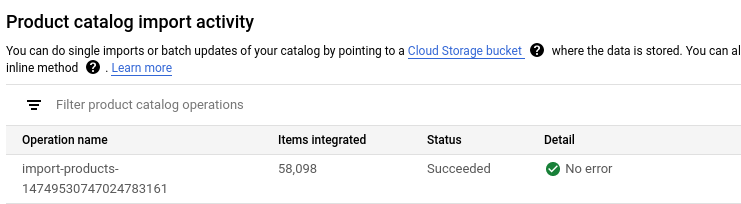
3. Wait until all products have been imported, which should take 5--10 minutes.
You can check the import activity for the import operation status. When the
import is complete, the import operation status changes to **Succeeded**.
### Import user events
1. Import the user_events BigQuery view:
- Select import type: **User Events**.
- Select source of data: **BigQuery**.
- Select schema of data: **Retail User Events Schema**.
- Enter the name of the `user_events` BigQuery view you created previously.
2. Click **Import**.
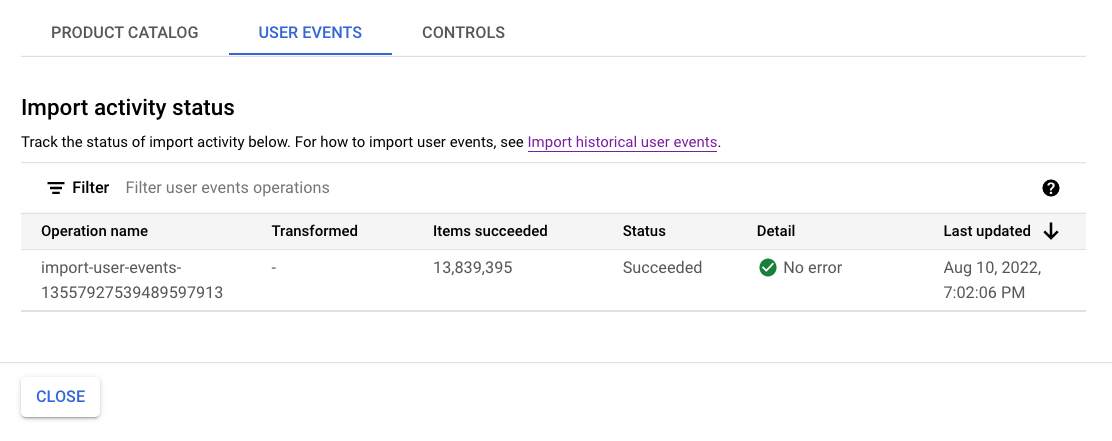
3. Wait until at least a million events have been imported before proceeding to
the next step, in order to meet the data requirements for training a new
model.
You can check the import activity for the operation status. The process takes
about an hour to complete.
## Train and evaluate recommendation models
Follow these instructions on training and evaluating recommendation models.
### Create a recommendation model
1.
Go to the **Models** page in the AI Commerce Search in Gemini Enterprise for Customer Experience console.
[Go to the Models page](https://console.cloud.google.com/ai/retail/catalogs/default_catalog/models/)
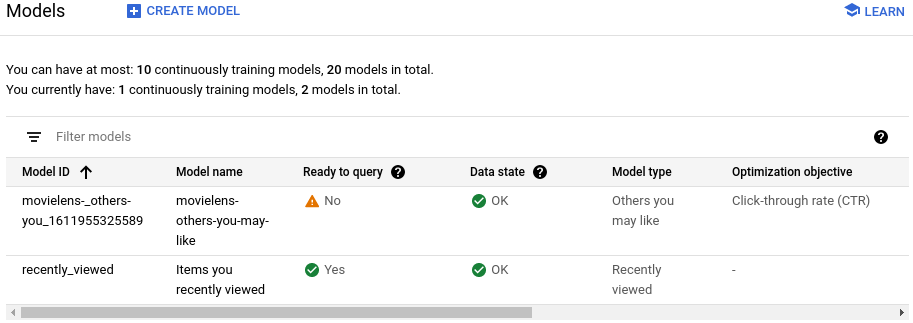
2. Click **Create model**:
- Give the model a name.
- Select **Others you may like** as the model type.
- Choose **Click-through rate (CTR)** as the business objective.
3. Click **Create**.
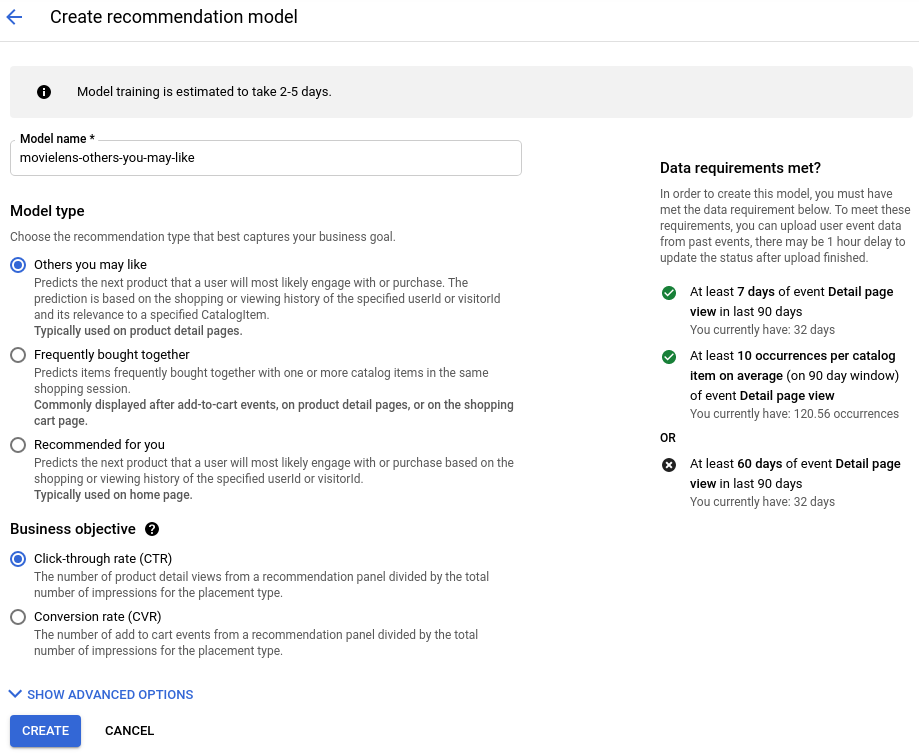
Your new model starts training.
### Create a serving config
1.
Go to the **Serving Configs** page in the AI Commerce Search in Gemini Enterprise for Customer Experience console.
[Go to the Serving configs page](https://console.cloud.google.com/ai/retail/catalogs/default_catalog/configs/)
2. Click **Create serving config**:
- Select **Recommendation**.
- Give the serving config a name.
- Select the model you created.
3. Click **Create**.
### Wait for the model to be "Ready to query"
It takes about two days for the model to train and become ready to query.
To view the status, click the created serving config on the
[Serving configs page](https://console.cloud.google.com/ai/retail/catalogs/default_catalog/configs/).
The **Model ready to query** field indicates **Yes** when the process is complete.
### Preview recommendations
Once the model is ready to query:
1. Go to the **Serving Configs** page in the AI Commerce Search in Gemini Enterprise for Customer Experience console.
[Go to the Serving configs page](https://console.cloud.google.com/ai/retail/catalogs/default_catalog/configs/)
2. Click the serving config name to go to its detail page.
3. Click the \**Evaluate* tab.
4. Enter a seed movie ID, such as `4993` for "The Lord of the Rings: The
Fellowship of the Ring (2001)".
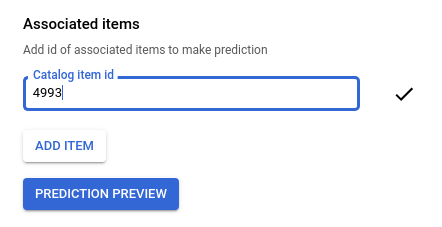
5. Click **Prediction preview** to see the list of recommended items on the right of the page.
## Clean up
To avoid incurring charges to your Google Cloud account for the resources used in this
tutorial, either delete the project that contains the resources, or keep the project and
delete the individual resources.
### Delete the project
> [!CAUTION]
> **Caution** : Deleting a project has the following effects:
>
> - **Everything in the project is deleted.** If you used an existing project for the tasks in this document, when you delete it, you also delete any other work you've done in the project.
> - **Custom project IDs are lost.** When you created this project, you might have created a custom project ID that you want to use in the future. To preserve the URLs that use the project ID, such as an `appspot.com` URL, delete selected resources inside the project instead of deleting the whole project.
>
>
> If you plan to explore multiple architectures, tutorials, or quickstarts, reusing projects
> can help you avoid exceeding project quota limits.
1. In the Google Cloud console, go to the **Manage resources** page.
[Go to Manage resources](https://console.cloud.google.com/iam-admin/projects)
2. In the project list, select the project that you want to delete, and then click **Delete**.
3. In the dialog, type the project ID, and then click **Shut down** to delete the project.
### Delete individual resources
1. Go to the **Serving configs** page and delete the serving config you
created.
2. Go to the **Models** page and delete the model.
3. Delete the BigQuery dataset in Cloud Shell:
```bash
bq rm --recursive --dataset movielens
```
4. Delete the Cloud Storage bucket and its contents:
```bash
gcloud storage rm gs://PROJECT_ID-movielens-data --recursive
```
## What's next
- [Implementing AI Commerce Search](https://docs.cloud.google.com/gemini-enterprise-cx/ai-commerce-search/overview.md.txt)