Agent Runtime lets you manage agents that have been deployed to the platform. You can list, get, update, and delete deployed agents using the console, SDK, or REST API.
This document explains how to manage deployed agents on Agent Platform.
If you want to deploy a new agent, see
[Deploy an agent](https://docs.cloud.google.com/gemini-enterprise-agent-platform/scale/runtime/deploy-an-agent.md.txt).
## List deployed agents
List all deployed agents for a given project and location:
### Console
1. In the Google Cloud console, go to the Agent Platform **Deployments** page.
[Go to Deployments](https://console.cloud.google.com/agent-platform/runtimes)
Deployed agents that are part of the selected project appear in the list
(standalone Memory Bank instances without a deployed runtime
appear on the **Memory Bank** page). You can use the **Filter** field to
filter the list by your specified column.
### Agent Platform SDK
```python
import agentplatform
client = agentplatform.Client( # For service interactions via client.runtimes
project="PROJECT_ID",
location="LOCATION",
)
for agent in client.runtimes.list():
print(agent)
```
To filter the list of by `display_name`:
```python
for agent in client.runtimes.list(
config={
"filter": 'display_name="DISPLAY_NAME"',
},
):
print(agent)
```
### REST
Call the [`reasoningEngines.list`](https://docs.cloud.google.com/gemini-enterprise-agent-platform/reference/rest/v1/projects.locations.reasoningEngines/list.md.txt) method.
Before using any of the request data,
make the following replacements:
- `PROJECT_ID`: your GCP project ID
- `LOCATION`: a supported region
HTTP method and URL:
```
GET https://LOCATION-aiplatform.googleapis.com/v1/projects/PROJECT_ID/locations/LOCATION/reasoningEngines
```
To send your request, expand one of these options:
#### curl (Linux, macOS, or Cloud Shell)
> [!NOTE]
> **Note:** The following command assumes that you have logged in to the `gcloud` CLI with your user account by running [`gcloud init`](https://docs.cloud.google.com/sdk/gcloud/reference/init) or [`gcloud auth login`](https://docs.cloud.google.com/sdk/gcloud/reference/auth/login.md.txt) , or by using [Cloud Shell](https://docs.cloud.google.com/shell/docs.md.txt), which automatically logs you into the `gcloud` CLI . You can check the currently active account by running [`gcloud auth list`](https://docs.cloud.google.com/sdk/gcloud/reference/auth/list.md.txt).
Execute the following command:
```
curl -X GET \
-H "Authorization: Bearer $(gcloud auth print-access-token)" \
"https://LOCATION-aiplatform.googleapis.com/v1/projects/PROJECT_ID/locations/LOCATION/reasoningEngines"
```
#### PowerShell (Windows)
> [!NOTE]
> **Note:** The following command assumes that you have logged in to the `gcloud` CLI with your user account by running [`gcloud init`](https://docs.cloud.google.com/sdk/gcloud/reference/init) or [`gcloud auth login`](https://docs.cloud.google.com/sdk/gcloud/reference/auth/login.md.txt) . You can check the currently active account by running [`gcloud auth list`](https://docs.cloud.google.com/sdk/gcloud/reference/auth/list.md.txt).
Execute the following command:
```
$cred = gcloud auth print-access-token
$headers = @{ "Authorization" = "Bearer $cred" }
Invoke-WebRequest `
-Method GET `
-Headers $headers `
-Uri "https://LOCATION-aiplatform.googleapis.com/v1/projects/PROJECT_ID/locations/LOCATION/reasoningEngines" | Select-Object -Expand Content
```
You should receive a successful status code (2xx) and an empty response.
## Get a deployed agent
Each deployed agent has a unique `RESOURCE_ID` identifier.
To learn more, see [Deploy an agent](https://docs.cloud.google.com/gemini-enterprise-agent-platform/scale/runtime/deploy-an-agent.md.txt).
### Console
1. In the Google Cloud console, go to the Agent Platform **Deployments** page.
[Go to Deployments](https://console.cloud.google.com/agent-platform/runtimes)
Deployed agents that are part of the selected project appear in the list. You can use the **Filter** field to filter the list by your specified column.
2. Click the name of the specified agent. The **Metrics** page for the agent opens.
3. Optional: To view deployment details for the agent, click **Deployment details** . The **Deployment details** pane opens. To close the pane, click **Done**.
4. Optional: To view the `query` and `streamQuery` URLs for the agent, click **API URLs** . The **API URLs** pane opens. To close the pane, click **Done**.
### Agent Platform SDK
The following code lets you get a specific deployed agent:
```python
import agentplatform
client = agentplatform.Client( # For service interactions via client.runtimes
project="PROJECT_ID",
location="LOCATION",
)
remote_agent = client.runtimes.get(
name="projects/PROJECT_ID_OR_NUMBER/locations/LOCATION/reasoningEngines/RESOURCE_ID"
)
```
### REST
Call the [`reasoningEngines.get`](https://docs.cloud.google.com/gemini-enterprise-agent-platform/reference/rest/v1/projects.locations.reasoningEngines/get.md.txt) method.
Before using any of the request data,
make the following replacements:
- `PROJECT_ID`: your GCP project ID
- `LOCATION`: a supported region
- `RESOURCE_ID`: the resource ID of the deployed agent
HTTP method and URL:
```
GET https://LOCATION-aiplatform.googleapis.com/v1/projects/PROJECT_ID/locations/LOCATION/reasoningEngines/RESOURCE_ID
```
To send your request, expand one of these options:
#### curl (Linux, macOS, or Cloud Shell)
> [!NOTE]
> **Note:** The following command assumes that you have logged in to the `gcloud` CLI with your user account by running [`gcloud init`](https://docs.cloud.google.com/sdk/gcloud/reference/init) or [`gcloud auth login`](https://docs.cloud.google.com/sdk/gcloud/reference/auth/login.md.txt) , or by using [Cloud Shell](https://docs.cloud.google.com/shell/docs.md.txt), which automatically logs you into the `gcloud` CLI . You can check the currently active account by running [`gcloud auth list`](https://docs.cloud.google.com/sdk/gcloud/reference/auth/list.md.txt).
Execute the following command:
```
curl -X GET \
-H "Authorization: Bearer $(gcloud auth print-access-token)" \
"https://LOCATION-aiplatform.googleapis.com/v1/projects/PROJECT_ID/locations/LOCATION/reasoningEngines/RESOURCE_ID"
```
#### PowerShell (Windows)
> [!NOTE]
> **Note:** The following command assumes that you have logged in to the `gcloud` CLI with your user account by running [`gcloud init`](https://docs.cloud.google.com/sdk/gcloud/reference/init) or [`gcloud auth login`](https://docs.cloud.google.com/sdk/gcloud/reference/auth/login.md.txt) . You can check the currently active account by running [`gcloud auth list`](https://docs.cloud.google.com/sdk/gcloud/reference/auth/list.md.txt).
Execute the following command:
```
$cred = gcloud auth print-access-token
$headers = @{ "Authorization" = "Bearer $cred" }
Invoke-WebRequest `
-Method GET `
-Headers $headers `
-Uri "https://LOCATION-aiplatform.googleapis.com/v1/projects/PROJECT_ID/locations/LOCATION/reasoningEngines/RESOURCE_ID" | Select-Object -Expand Content
```
You should receive a successful status code (2xx) and an empty response.
## Update a deployed agent
You can update one or more fields of the deployed agent at the same time,
but you have to specify at least one of the fields to be updated.
You can update the non-versioned or versioned fields of a deployed agent. If you update versioned fields, you will create a new revision. For more information about versioned fields and managing revisions, see [Manage revisions and traffic](https://docs.cloud.google.com/gemini-enterprise-agent-platform/scale/runtime/manage-revisions-and-traffic.md.txt).
The amount of time it takes to update the deployed agent depends on the update being
performed, but it generally takes between a few seconds to a few minutes.
### Console
1. In the Google Cloud console, go to the Agent Platform **Deployments** page.
[Go to Deployments](https://console.cloud.google.com/agent-platform/runtimes)
2. For your specified agent, click **more actions** menu ().
3. Click **Edit** . The **Edit** pane for the agent opens.
4. Edit the **Display name** or **Description** for the agent.
5. Click **Save**.
### Agent Platform SDK
To update a deployed agent (corresponding to `RESOURCE_NAME`)
to an updated agent (corresponding to `UPDATED_AGENT`):
```python
import agentplatform
client = agentplatform.Client( # For service interactions via client.runtimes
project="PROJECT_ID",
location="LOCATION",
)
client.runtimes.update(
name=RESOURCE_NAME, # Required.
agent=UPDATED_AGENT, # Optional.
config={ # Optional.
"requirements": REQUIREMENTS, # Optional.
"display_name": "DISPLAY_NAME", # Optional.
"description": "DESCRIPTION", # Optional.
"extra_packages": EXTRA_PACKAGES, # Optional.
},
)
```
The arguments are the same as when you are [deploying an agent](https://docs.cloud.google.com/gemini-enterprise-agent-platform/scale/runtime/deploy-an-agent.md.txt).
### REST
Call the [`reasoningEngines.patch`](https://docs.cloud.google.com/gemini-enterprise-agent-platform/reference/rest/v1/projects.locations.reasoningEngines/patch.md.txt) method and provide an `update_mask` to specify which fields to update.
Before using any of the request data,
make the following replacements:
- `PROJECT_ID`: your GCP project ID
- `LOCATION`: a supported region
- `RESOURCE_ID`: the resource ID of the deployed agent
- `update_mask`: a list of comma-separated fields to update
HTTP method and URL:
```
PATCH https://LOCATION-aiplatform.googleapis.com/v1/projects/PROJECT_ID/locations/LOCATION/reasoningEngines/RESOURCE_ID?update_mask="display_name,description"
```
Request JSON body:
```
{
"displayName": "DISPLAY_NAME",
"description": "DESCRIPTION"
}
```
To send your request, expand one of these options:
#### curl (Linux, macOS, or Cloud Shell)
> [!NOTE]
> **Note:** The following command assumes that you have logged in to the `gcloud` CLI with your user account by running [`gcloud init`](https://docs.cloud.google.com/sdk/gcloud/reference/init) or [`gcloud auth login`](https://docs.cloud.google.com/sdk/gcloud/reference/auth/login.md.txt) , or by using [Cloud Shell](https://docs.cloud.google.com/shell/docs.md.txt), which automatically logs you into the `gcloud` CLI . You can check the currently active account by running [`gcloud auth list`](https://docs.cloud.google.com/sdk/gcloud/reference/auth/list.md.txt).
Save the request body in a file named `request.json`,
and execute the following command:
```
curl -X PATCH \
-H "Authorization: Bearer $(gcloud auth print-access-token)" \
-H "Content-Type: application/json; charset=utf-8" \
-d @request.json \
"https://LOCATION-aiplatform.googleapis.com/v1/projects/PROJECT_ID/locations/LOCATION/reasoningEngines/RESOURCE_ID?update_mask="display_name,description""
```
#### PowerShell (Windows)
> [!NOTE]
> **Note:** The following command assumes that you have logged in to the `gcloud` CLI with your user account by running [`gcloud init`](https://docs.cloud.google.com/sdk/gcloud/reference/init) or [`gcloud auth login`](https://docs.cloud.google.com/sdk/gcloud/reference/auth/login.md.txt) . You can check the currently active account by running [`gcloud auth list`](https://docs.cloud.google.com/sdk/gcloud/reference/auth/list.md.txt).
Save the request body in a file named `request.json`,
and execute the following command:
```
$cred = gcloud auth print-access-token
$headers = @{ "Authorization" = "Bearer $cred" }
Invoke-WebRequest `
-Method PATCH `
-Headers $headers `
-ContentType: "application/json; charset=utf-8" `
-InFile request.json `
-Uri "https://LOCATION-aiplatform.googleapis.com/v1/projects/PROJECT_ID/locations/LOCATION/reasoningEngines/RESOURCE_ID?update_mask="display_name,description"" | Select-Object -Expand Content
```
You should receive a successful status code (2xx) and an empty response.
## Configure telemetry for your deployed agent
If you [enabled traces](https://docs.cloud.google.com/gemini-enterprise-agent-platform/scale/runtime/tracing.md.txt#write-traces)
during agent development, you can use the Google Cloud console to configure
telemetry for your deployed agent.
Configure telemetry for deployed agents with telemetry enabled:
1. In the Google Cloud console, go to the Agent Platform **Deployments** page.
[Go to Deployments](https://console.cloud.google.com/agent-platform/runtimes)
Agent Platform instances that are part of the selected project
appear in the list. You can use the **Filter** field to filter the list by
your specified column.
2. Find the row for your Agent Platform instance. Under the **Telemetry
configuration** column, click **Configure** . The **Service configuration**
panel opens.
3. You can make the following configurations:
- **Observability**: You can configure the following:
- **Enable instrumentation of OpenTelemetry traces and logs**: To populate the agent
observability dashboard and traces pages, click the toggle to the on
position.
- **Enable logging of prompt inputs and response outputs**: To collect and
store the full content of user prompts and responses, click the toggle to
the on position.
If telemetry collection is disabled for your agent, you need to redeploy
your agent and update your Vertex AI SDK version to `>= 1.126.1` in
order to view configuration options for **Observability**.
- **Containers**: Configure container settings for your deployed agent:
- **Scaling** : Enter a **Minimum number of instances** and **Maximum number
of instances**.
- **Resources** : Select limits for **Memory** and **CPU** for each container.
- **Container concurrency** : Enter a **Minimum number of instances** to set
the concurrency for each container and agent server. The recommended value
is (2 \* CPU + 1), and the default value is 9.
- **Access and Permissions** : Click **Manage Permissions in IAM** to manage
agent permissions on the associated service account.
- **Deployment details** : View deployment details for the agent, including
**Resource name** and **Display name**.
- **Memory bank** : View and edit
[Memory Bank](https://docs.cloud.google.com/gemini-enterprise-agent-platform/scale/memory-bank/setup.md.txt#configure-console)
**Generation** , **Retrieval** , and **Retention** settings for the agent.
Editing requires the `aiplatform.reasoningEngines.update` permission;
without this permission, these settings are read-only.
4. Click **Update** or **Close**.
## View metrics for your deployed agent
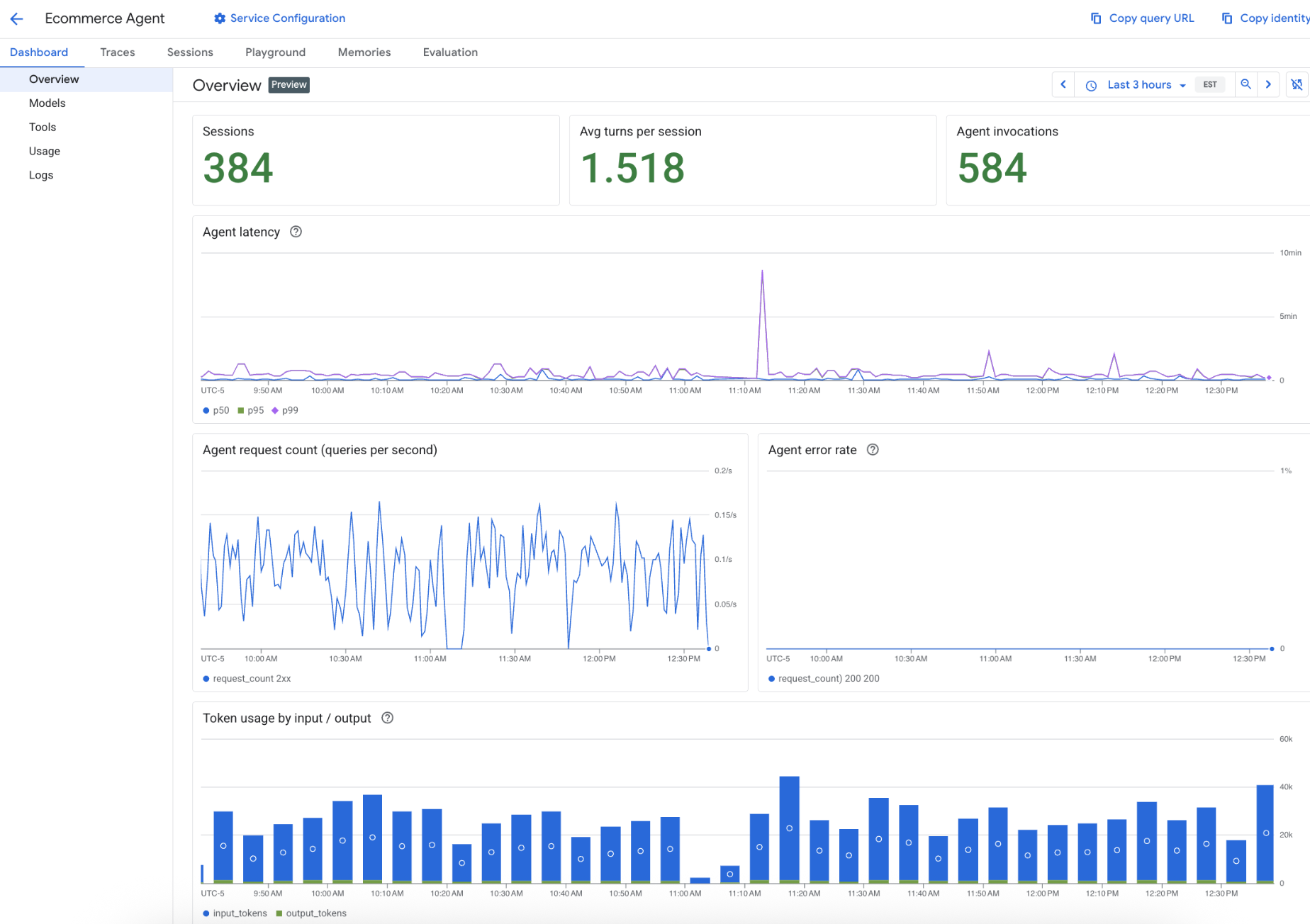
For deployed agents, you can use the console to view metrics for your agent:
1. In the Google Cloud console, go to the Agent Platform **Deployments** page.
[Go to Deployments](https://console.cloud.google.com/agent-platform/runtimes)
Deployed agents that are part of the selected project appear in the list. You can use the **Filter** field to filter the list by your specified column.
2. Click the name of your agent. The **Dashboard** displays for your selected agent.
3. Select one of the following **Dashboard** tabs:
- **Overview**: View a summary dashboard of metrics for your agent, including
agent latency, agent request count, and agent error rate.
- **Models**: View a dashboard of metrics for your agent's model, including
number of model calls, model error rate, and model token usage.
- **Tools**: View a dashboard of metrics for your agent's tools, including
number of tool calls, tool error rate, and tool latency.
- **Usage**: View a dashboard of metrics for your agent's usage, including
token usage by input and output, container CPU allocation, and container
memory allocation.
- **Logs** : View your agent's logs, if you [enabled
Cloud Logging](https://docs.cloud.google.com/gemini-enterprise-agent-platform/scale/runtime/logging) for your
agent.
## Emergency stop and access revocation
When a deployed agent behaves unexpectedly, exhibits anomalous tool use, or is
involved in a security incident, you can halt its activity by terminating or
rerouting the runtime instance, or by revoking its downstream access through
policy controls in Agent Gateway and Identity and Access Management (IAM)
(IAM).
Because runtime operations and policy updates have different enforcement models
and propagation windows, choose the control that matches your incident response
time requirements.
### Emergency stop mechanisms and propagation times
The following table compares the available mechanisms for halting an agent or
revoking its access, their impact on active traffic, and their expected
propagation times:
| Mechanism | Effect on active traffic and sessions | Typical propagation time |
|---|---|---|
| **Delete the deployed agent** ([`runtimes.delete` or `reasoningEngines.delete`](https://docs.cloud.google.com/gemini-enterprise-agent-platform/scale/runtime/manage-deployed-agents.md.txt#delete)) | Terminates all runtime container instances, stops active invocations and streaming sessions (`streamQuery`), and permanently invalidates the agent's SPIFFE identity (`principal://...`). | Immediate as soon as the deletion operation completes (typically seconds to a few minutes). |
| **Reroute revision traffic or archive revisions** ([`trafficSplitManual` or `agent_gateway_config`](https://docs.cloud.google.com/gemini-enterprise-agent-platform/scale/runtime/manage-revisions-and-traffic.md.txt#configure-traffic)) | Shifts 100% of traffic sent to the root agent endpoint to a known-good active revision, or archives existing revisions when updating `spec.deployment_spec.agent_gateway_config`. Direct requests to a specific active revision resource path continue until that revision is archived or deleted. | Seconds to a few minutes for the update operation to complete. |
| **Apply a deny rule in Unified Access Policies (UAPs) (UAPs) at Agent Gateway** ([`iamEnforcementMode: "ENFORCE"`](https://docs.cloud.google.com/gemini-enterprise-agent-platform/govern/policies/configure-iam-policies-uap.md.txt)) | Blocks outbound tool calls, Model Context Protocol (MCP) requests, and agent-to-agent calls routed through Agent Gateway while keeping the runtime container alive for inspection. Evaluated on new authorization checks; doesn't forcibly terminate open streaming connections unless re-authorized. | Eventually consistent: typically takes effect within 2 minutes, but can take 7 minutes or longer to propagate globally. Group or `principalSet` membership updates can take several minutes to hours to synchronize. |
| **Apply an IAM deny policy, revoke IAM roles, or bind a Principal Access Boundary (Principal Access Boundary) policy** | Blocks the agent identity or attached service account from calling Google Cloud APIs and resources. Evaluated on each API request; doesn't terminate the runtime container itself. | Eventually consistent: typically takes effect within 2 minutes, and up to 7 minutes or longer (see [Access change propagation](https://docs.cloud.google.com/iam/docs/access-change-propagation.md.txt)). |
### Perform an emergency stop
To immediately halt a compromised or misbehaving agent and prevent further
downstream actions, complete the following steps:
1. **Halt active runtime execution or isolate traffic** :
- **Full termination (kill switch)** : To immediately stop all running containers and invalidate the agent's SPIFFE identity, [delete the deployed agent](https://docs.cloud.google.com/gemini-enterprise-agent-platform/scale/runtime/manage-deployed-agents.md.txt#delete) using the Google Cloud console, `client.runtimes.delete(name="RESOURCE_NAME", force=True)` in the Agent Platform SDK, or the [`reasoningEngines.delete`](https://docs.cloud.google.com/gemini-enterprise-agent-platform/reference/rest/v1/projects.locations.reasoningEngines/delete.md.txt) REST method.
- **Traffic rollback without deleting the agent** : To preserve the agent resource and its identity while stopping traffic to a faulty revision, update the agent with `trafficSplitManual` to route 100% of root traffic to a known-good revision, or update `spec.deployment_spec.agent_gateway_config` to archive pre-existing revisions. If callers invoke a revision resource path directly, delete or archive that specific revision. For instructions, see [Manage revisions and traffic](https://docs.cloud.google.com/gemini-enterprise-agent-platform/scale/runtime/manage-revisions-and-traffic.md.txt#configure-traffic).
2. **Revoke downstream tool and resource access** :
- To block outbound tool and MCP server calls through Agent Gateway, add a `DENY` rule for the agent's `principal://` or `principalSet://` identifier to the UAP bound to the gateway and verify that `iamEnforcementMode` is set to `"ENFORCE"`. For instructions, see [Configure IAM policies to govern agent access](https://docs.cloud.google.com/gemini-enterprise-agent-platform/govern/policies/configure-iam-policies-uap.md.txt).
- To block direct Google Cloud API calls, revoke the IAM roles granted to the agent identity or its custom service account, or attach an [IAM deny policy](https://docs.cloud.google.com/iam/docs/deny-overview.md.txt) or [Principal Access Boundary policy](https://docs.cloud.google.com/gemini-enterprise-agent-platform/scale/runtime/agent-identity.md.txt#restrict-access-pab).
3. **Account for propagation windows and verify containment** :
- When an agent is actively executing unintended tool calls, don't rely solely on an IAM or UAP policy update. Policy changes take 2 to 7 minutes (or longer for `principalSet` updates) to propagate globally. Always pair policy revocation with runtime deletion or revision traffic rerouting to achieve an immediate halt.
- Confirm that agent activity has stopped by querying Cloud Logging for `is_agentic=true` and `networkservices.googleapis.com/gateway_requests` denials. For details on log ingestion and security finding latency, see [Auditing agent actions](https://docs.cloud.google.com/gemini-enterprise-agent-platform/optimize/observability/overview.md.txt#auditing-agent-actions) and [Monitor traffic through Agent Gateway](https://docs.cloud.google.com/gemini-enterprise-agent-platform/govern/gateways/monitor-agent-gateway.md.txt#propagation-and-log-latency).
## Delete a deployed agent
Delete a deployed agent from the Agent Runtime managed runtime. Deleting the
agent runtime invalidates its agent identity. Any IAM
Unified Access Policy (UAP) that grants permissions to that principal
retains the defunct principal in its rules. Furthermore, the policy binding
remains active. To remove a defunct principal, update the
UAP to remove the principal from its rules. If the
policy no longer contains any active principals, delete the policy binding.
### Console
1. In the Google Cloud console, go to the Agent Platform **Deployments** page.
[Go to Deployments](https://console.cloud.google.com/agent-platform/runtimes)
2. For your specified agent, click **more actions** menu ().
3. Click **Delete**.
4. Click **Delete agent**.
### Agent Platform SDK
If you already have [an existing instance of the deployed agent](https://docs.cloud.google.com/gemini-enterprise-agent-platform/scale/runtime/manage-deployed-agents.md.txt#get)
(as `remote_agent`), you can run the following command:
```python
remote_agent.delete(
force=True, # Optional, if the agent has resources (e.g. sessions, memory)
)
```
Alternatively, you can call `runtimes.delete()` to delete the deployed
agent corresponding to `RESOURCE_NAME` in the following way:
```python
import agentplatform
client = agentplatform.Client( # For service interactions via client.runtimes
project="PROJECT_ID",
location="LOCATION",
)
client.runtimes.delete(
name=RESOURCE_NAME,
force=True, # Optional, if the agent has resources (e.g. sessions, memory)
)
```
### REST
Call the [`reasoningEngines.delete`](https://docs.cloud.google.com/gemini-enterprise-agent-platform/reference/rest/v1/projects.locations.reasoningEngines/delete.md.txt) method.
Before using any of the request data,
make the following replacements:
- `PROJECT_ID`: your GCP project ID
- `LOCATION`: a supported region
- `RESOURCE_ID`: the resource ID of the deployed agent
HTTP method and URL:
```
DELETE https://LOCATION-aiplatform.googleapis.com/v1/projects/PROJECT_ID/locations/LOCATION/reasoningEngines/RESOURCE_ID
```
To send your request, expand one of these options:
#### curl (Linux, macOS, or Cloud Shell)
> [!NOTE]
> **Note:** The following command assumes that you have logged in to the `gcloud` CLI with your user account by running [`gcloud init`](https://docs.cloud.google.com/sdk/gcloud/reference/init) or [`gcloud auth login`](https://docs.cloud.google.com/sdk/gcloud/reference/auth/login.md.txt) , or by using [Cloud Shell](https://docs.cloud.google.com/shell/docs.md.txt), which automatically logs you into the `gcloud` CLI . You can check the currently active account by running [`gcloud auth list`](https://docs.cloud.google.com/sdk/gcloud/reference/auth/list.md.txt).
Execute the following command:
```
curl -X DELETE \
-H "Authorization: Bearer $(gcloud auth print-access-token)" \
"https://LOCATION-aiplatform.googleapis.com/v1/projects/PROJECT_ID/locations/LOCATION/reasoningEngines/RESOURCE_ID"
```
#### PowerShell (Windows)
> [!NOTE]
> **Note:** The following command assumes that you have logged in to the `gcloud` CLI with your user account by running [`gcloud init`](https://docs.cloud.google.com/sdk/gcloud/reference/init) or [`gcloud auth login`](https://docs.cloud.google.com/sdk/gcloud/reference/auth/login.md.txt) . You can check the currently active account by running [`gcloud auth list`](https://docs.cloud.google.com/sdk/gcloud/reference/auth/list.md.txt).
Execute the following command:
```
$cred = gcloud auth print-access-token
$headers = @{ "Authorization" = "Bearer $cred" }
Invoke-WebRequest `
-Method DELETE `
-Headers $headers `
-Uri "https://LOCATION-aiplatform.googleapis.com/v1/projects/PROJECT_ID/locations/LOCATION/reasoningEngines/RESOURCE_ID" | Select-Object -Expand Content
```
You should receive a successful status code (2xx) and an empty response.
## What's next
Guide
### [Use an agent](https://docs.cloud.google.com/gemini-enterprise-agent-platform/scale/runtime/use-an-agent.md.txt)
Use an agent with Agent Platform Runtime.